

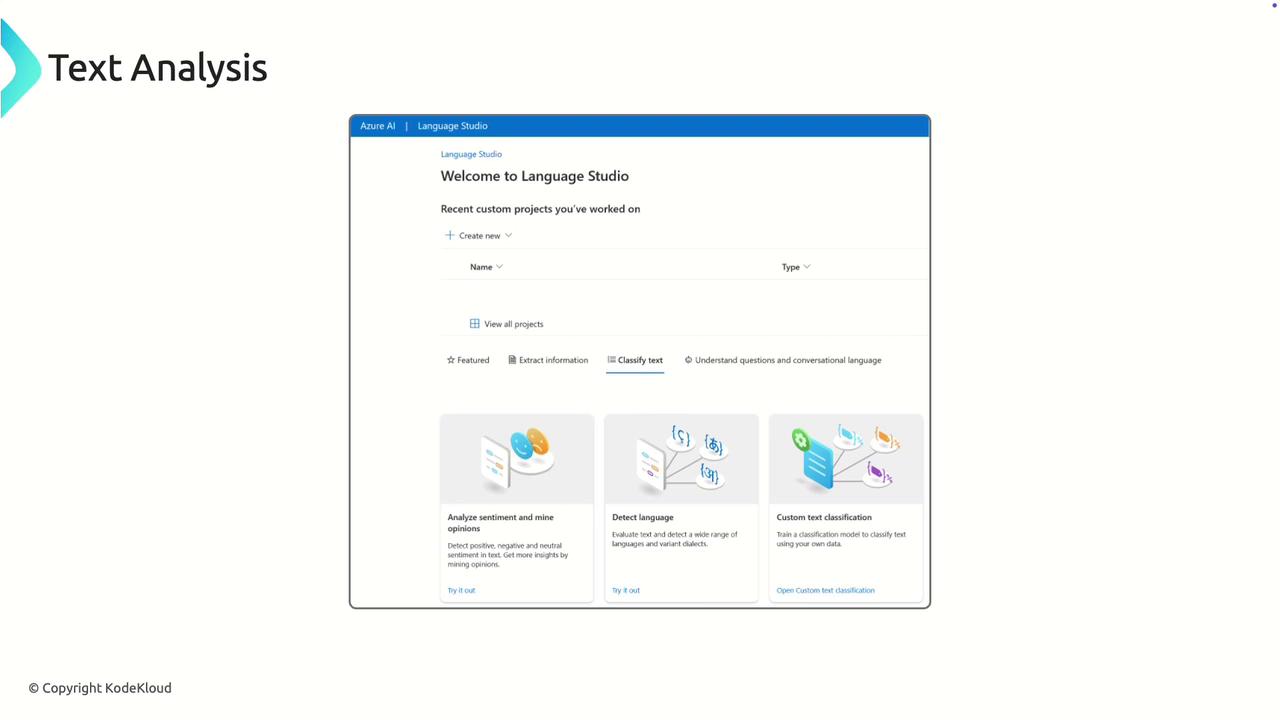
Key Features of Azure Text Analytics
-
Language Detection
Automatically determine the language of the input text. This feature is essential when working with multilingual datasets as it helps select the appropriate processing model for further analysis. -
Sentiment Analysis
Compute sentiment scores to assess the emotional tone of text. This feature is extremely useful for quickly understanding customer feedback across various platforms, by categorizing it as positive, negative, or neutral. -
Key Phrase Extraction
Extract key phrases that summarize the main topics or themes within the text. This helps in identifying customer interests and highlights frequently mentioned features or products. -
Entity Recognition
Automatically detect and classify entities such as locations, dates, products, and more. This process enables better data organization by tagging specified names and terms.
“This is a sentence, and the predominant language is English. The sentiment here is positive because it says, ‘I enjoy it.’ The key phrase detected is ‘a great meal,’ and the entity recognized is Italy.”
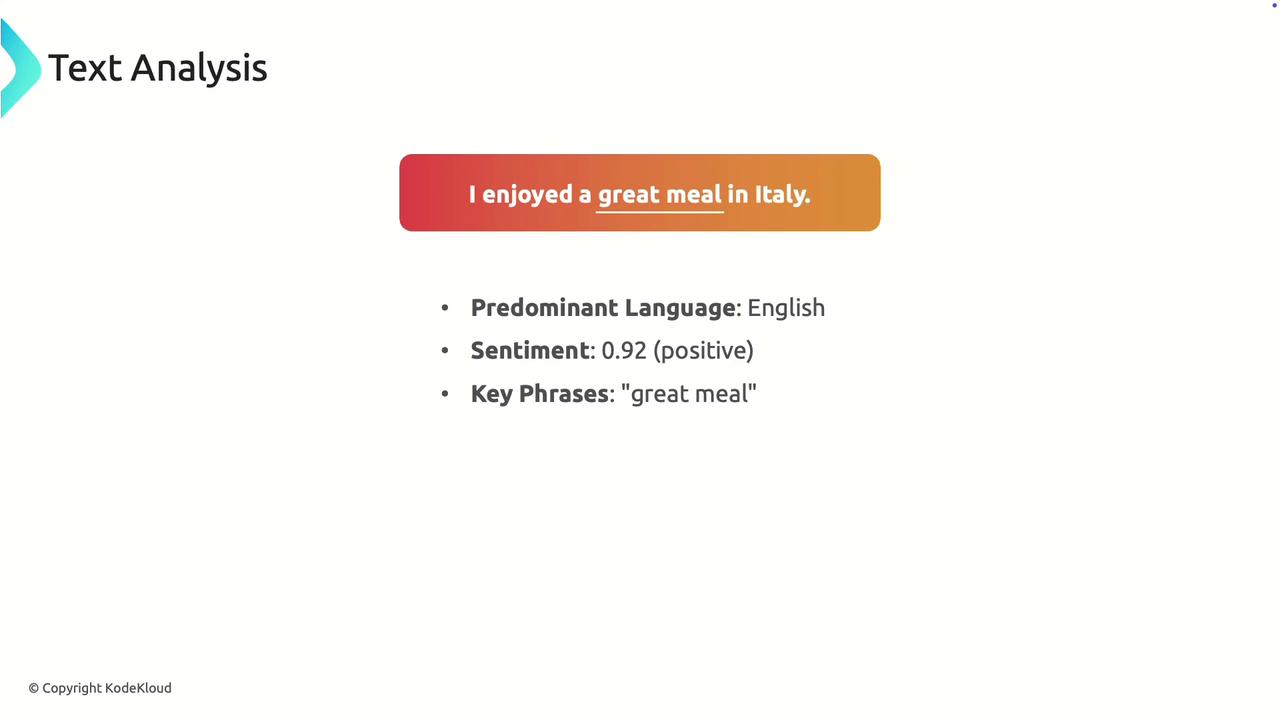
Azure’s Text Analytics service provides a comprehensive suite of features that make it ideal for processing large volumes of text data, including customer reviews and social media mentions.

Accessing Text Analysis via Azure Language Studio
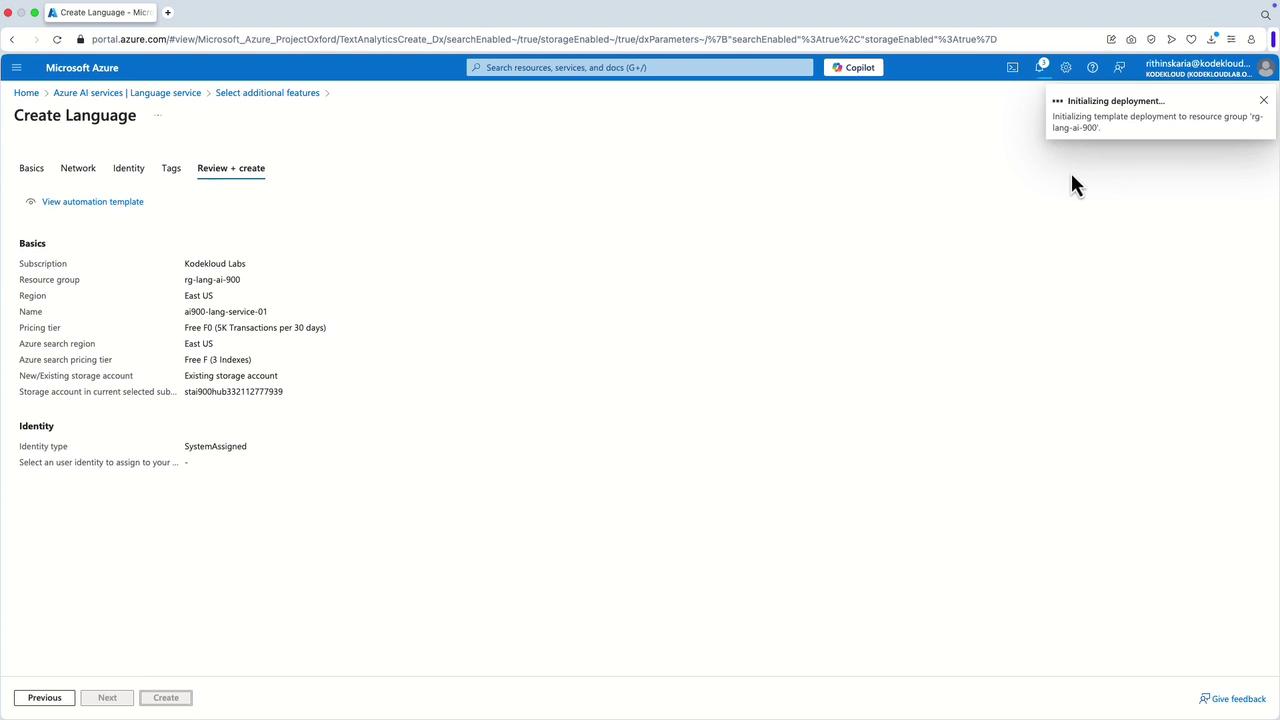
To begin using Azure Text Analytics, follow these steps:- Navigate to Azure AI Services and create a new language resource.
- Select additional features such as custom question answering, sentiment analysis, key phrase extraction, conversational language, entity recognition, summarization, and analytics if needed.
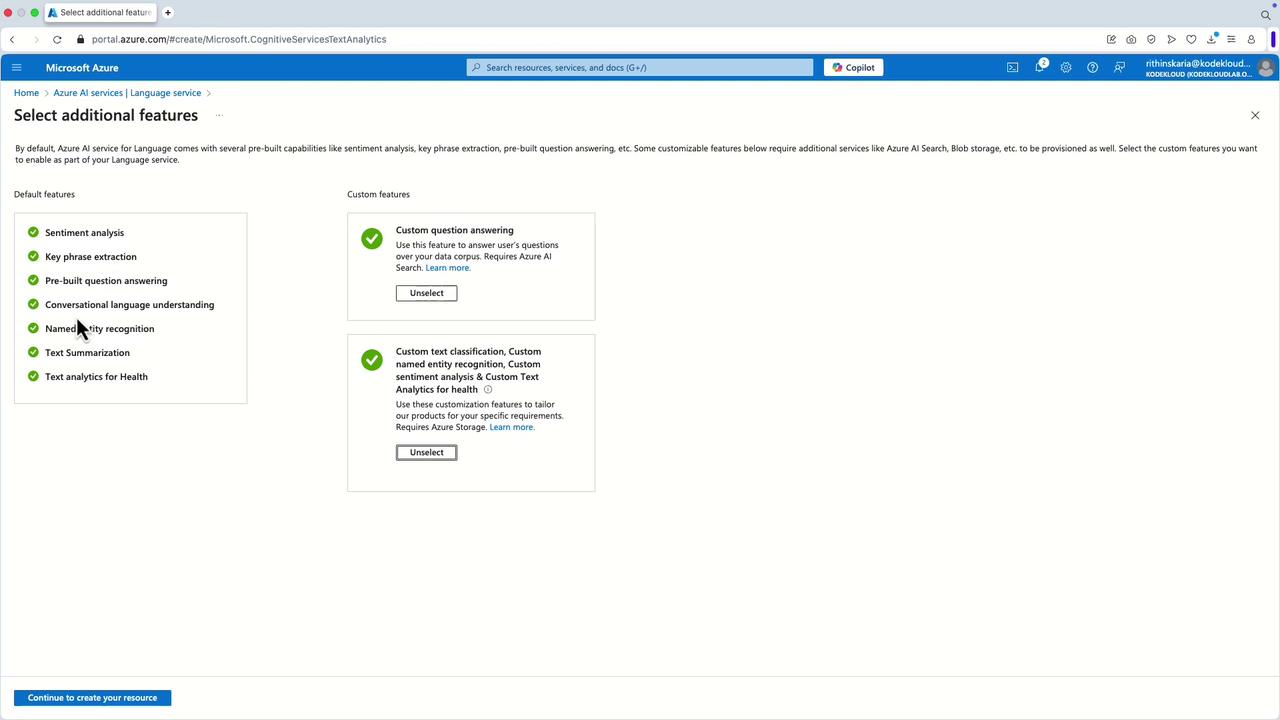
- Assign a unique name to your resource to facilitate endpoint creation during deployment.
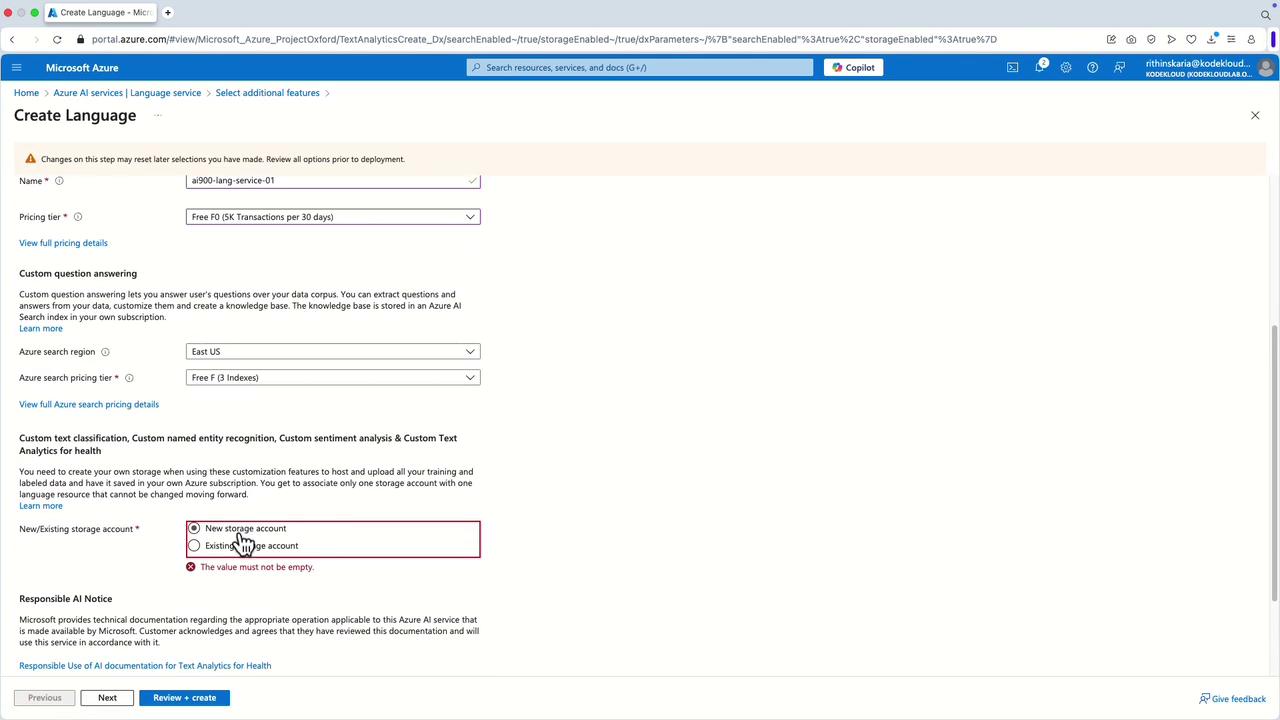
- Choose the appropriate pricing tier (for example, the Free Tier) and create a new resource group if required.
- Specify a storage account or select an existing one, then click “Create” to deploy the language resource.
Running Text Analysis in Language Studio
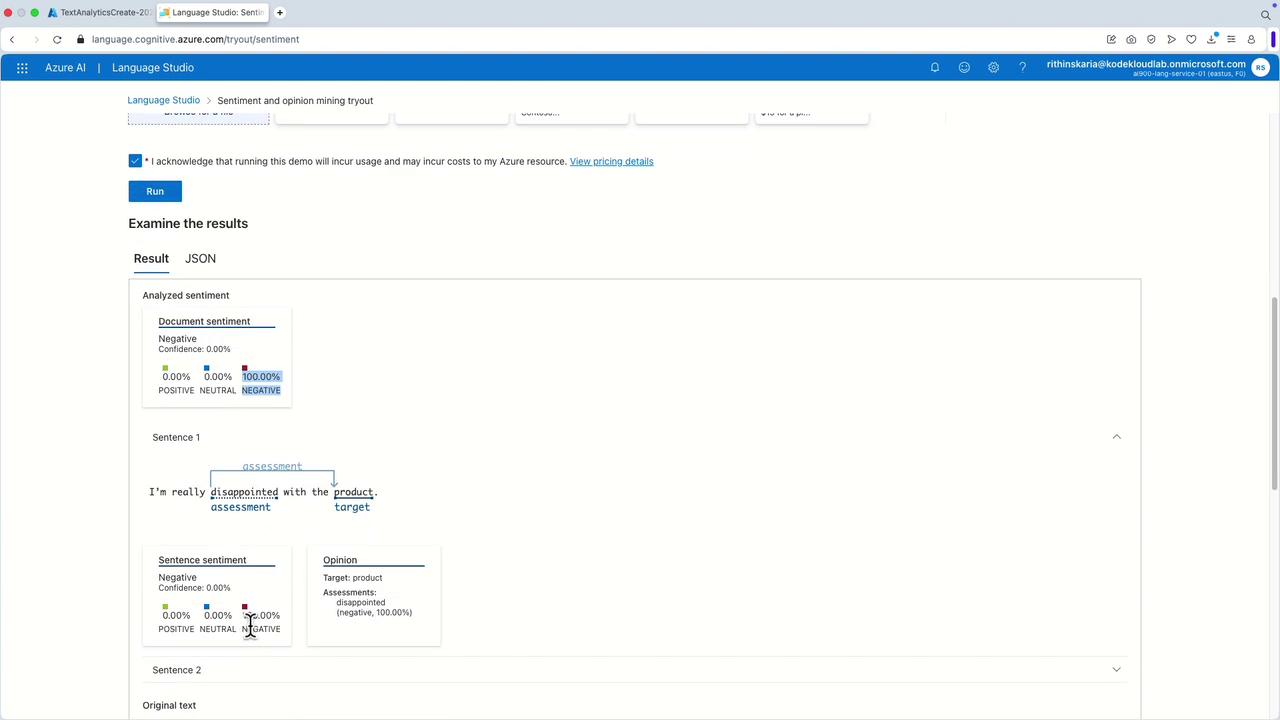
Within Language Studio, select the “Classify Text” option to begin your text analysis tasks. Here’s how to evaluate different sentiments:- Input a sentence with negative sentiment such as “I’m really disappointed with the product.”
The service returns a 100% negative sentiment, since the term “disappointment” strongly emphasizes negative feedback.
-
Next, try a sentence with positive feedback like “It was a wonderful experience.”
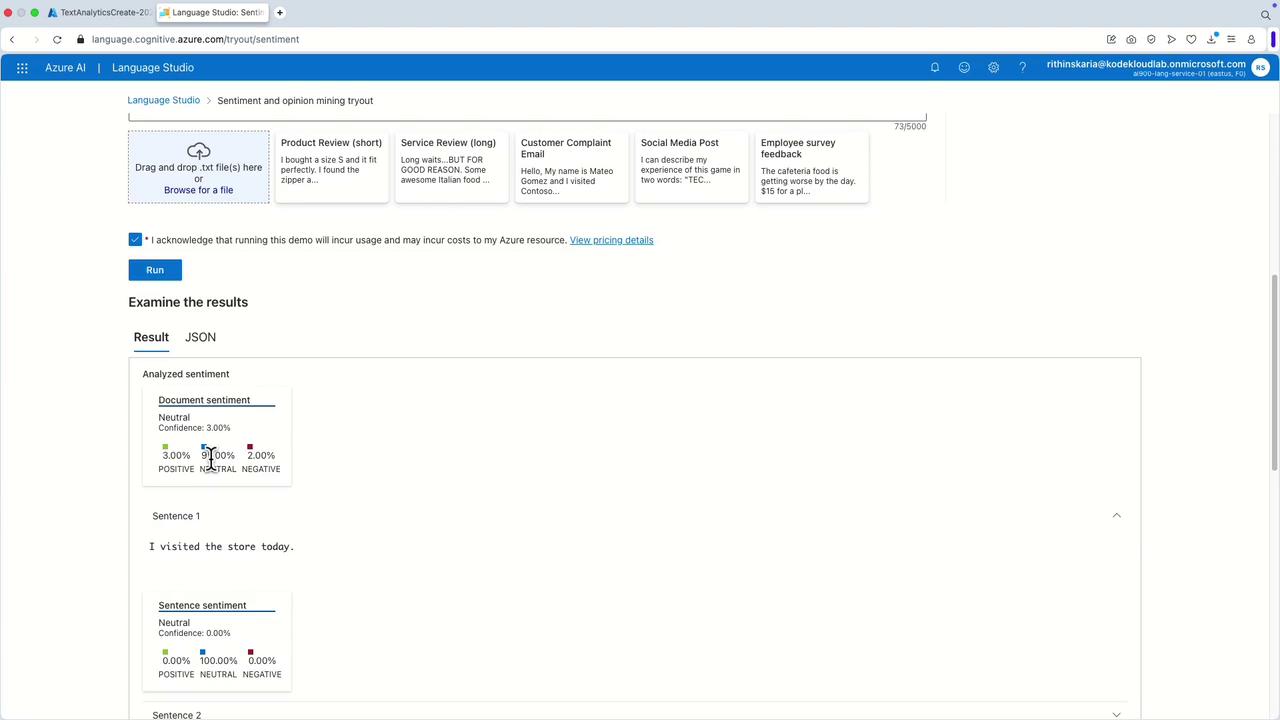
The analysis will show a 100% positive sentiment. - For a neutral expression such as “I visited the store today,” the analysis might return a result with mixed sentiment scores (e.g., 95% neutral, 3% positive, 2% negative), reflecting an overall neutral tone.
Additional Capabilities and Custom Models
Azure Text Analytics also supports training custom models for text classification and sentiment analysis specific to your data. For example, you can extract key phrases from customer reviews to efficiently tag and categorize feedback. Consider a review mentioning “a bad experience,” “the restaurant,” “the food,” and “the staff”—Azure will extract these key phrases for better organization.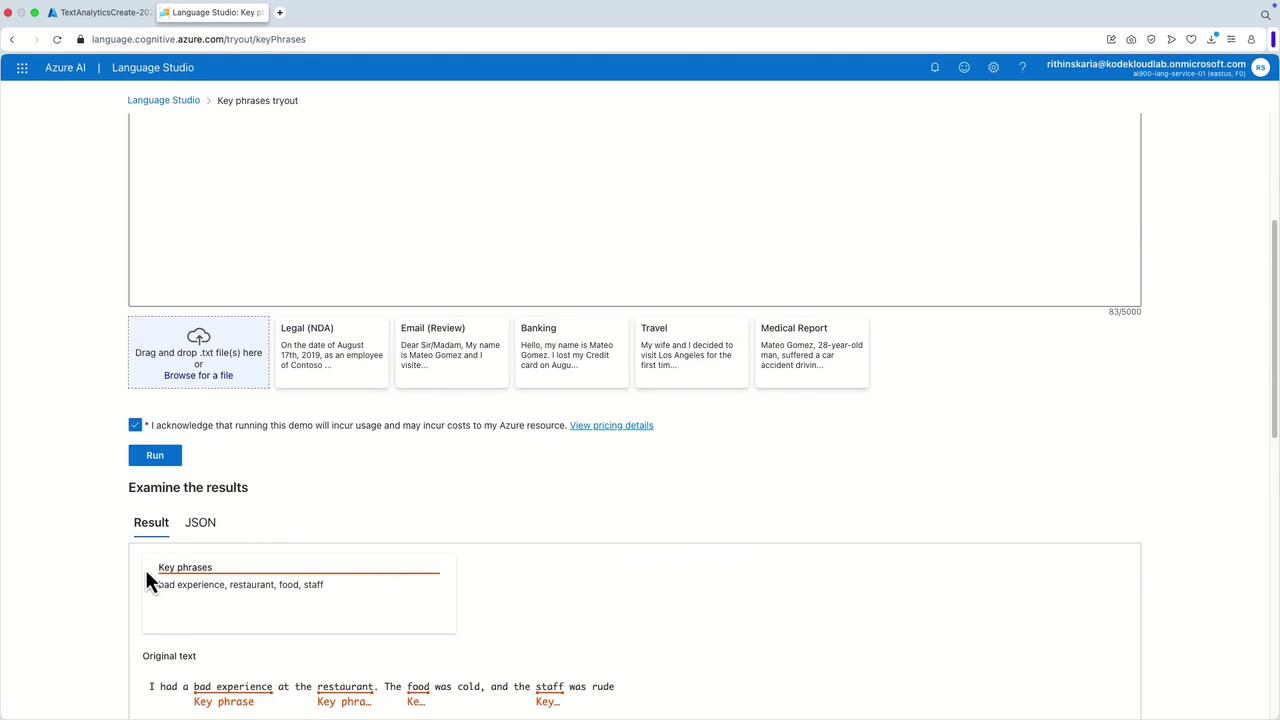
Custom models empower you to tailor text analysis to your unique business requirements, such as identifying product-specific sentiment or categorizing niche topics.