

- Preparing your application bundle
- Uploading to Amazon S3
- Configuring IAM roles
- Launching a Windows EC2 instance
- Creating a CodeDeploy application and deployment group
- Performing an in-place deployment
Be sure to clean up AWS resources when you’re finished to avoid unexpected charges.
1. Prepare Application Files
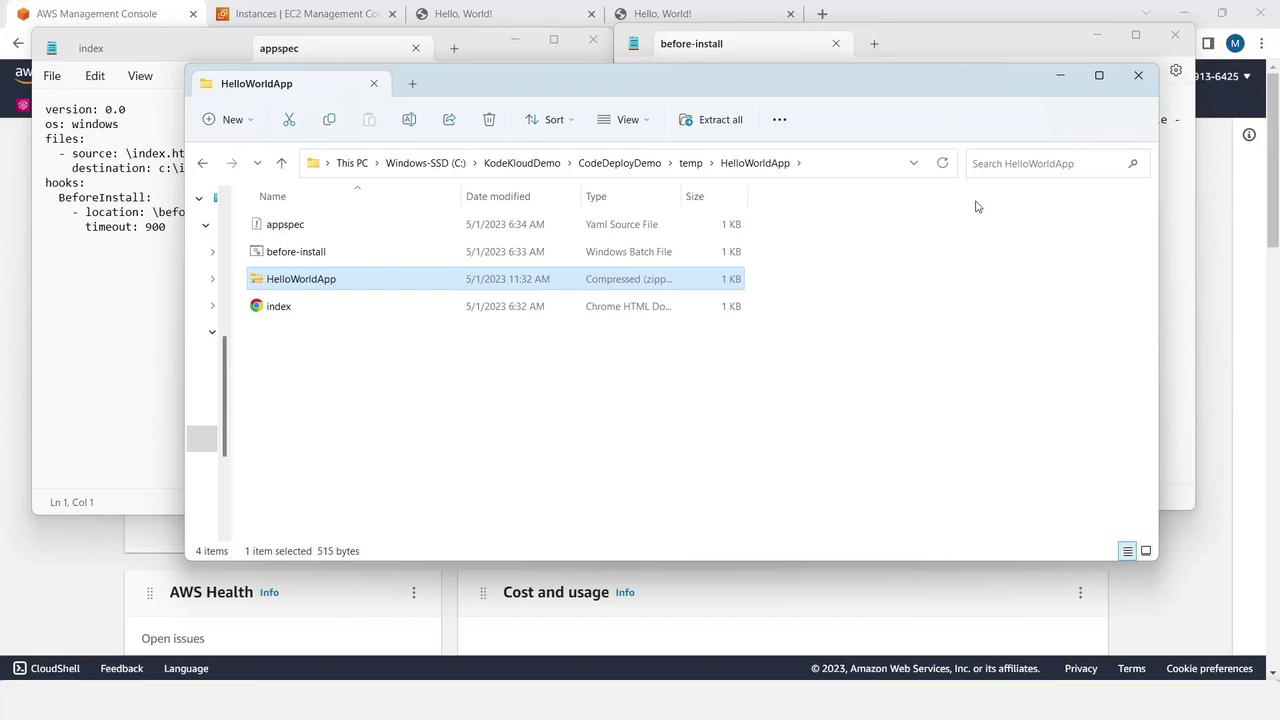
Create a folder namedHelloWorldApp (or any name you choose) and add these three files:
index.html
appspec.yml
before-install.bat
HelloWorldApp.zip.
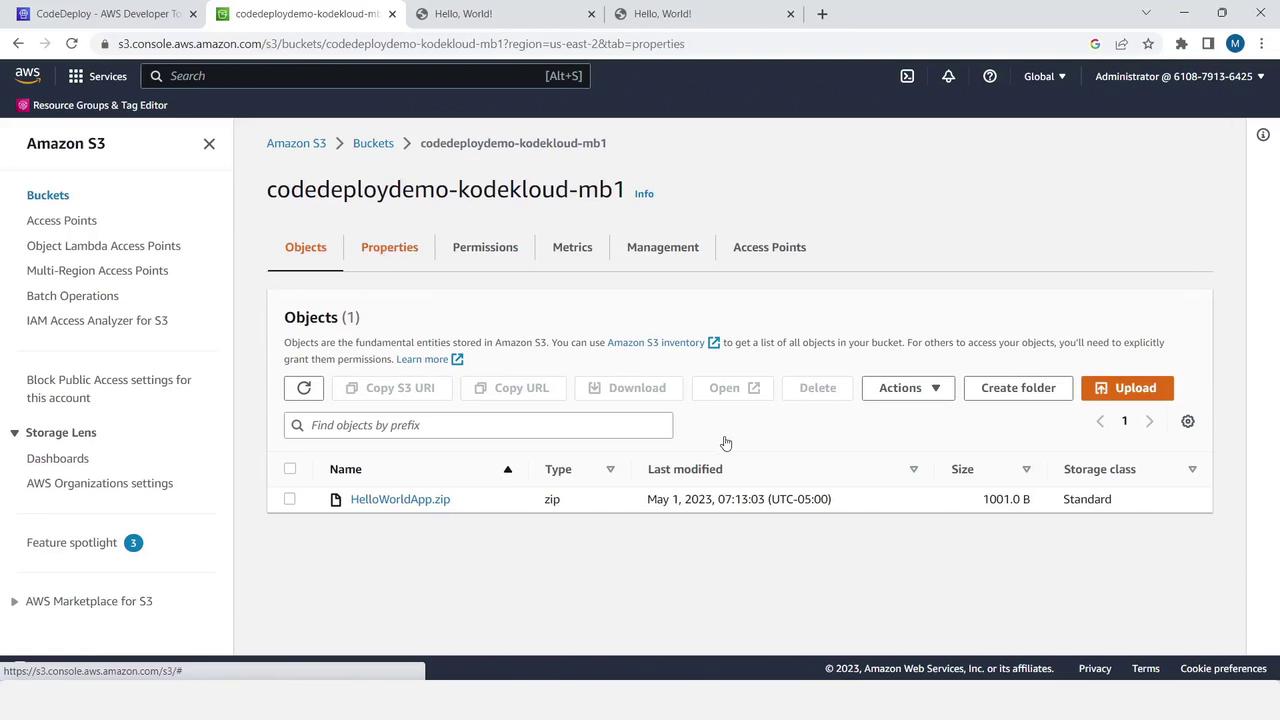
2. Upload the ZIP File to S3
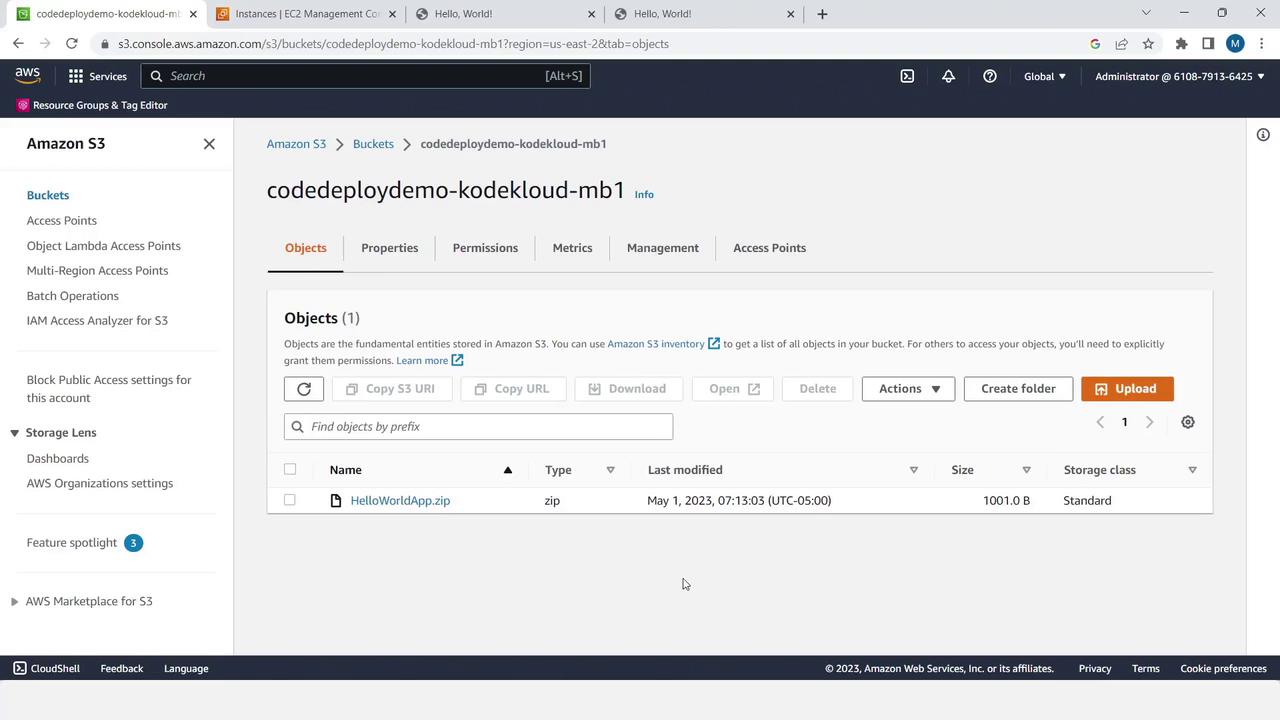
- Open the Amazon S3 console.
- Create a new bucket or select an existing one.
- Upload HelloWorldApp.zip.
3. Create IAM Roles
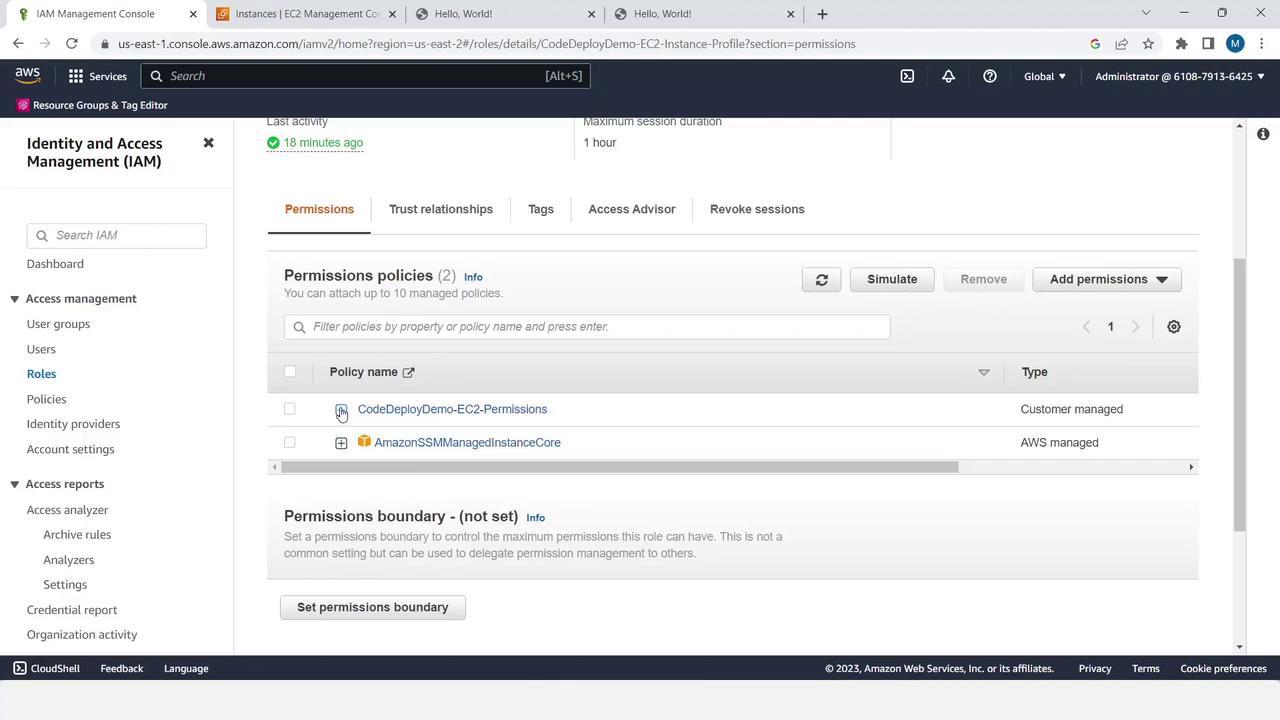
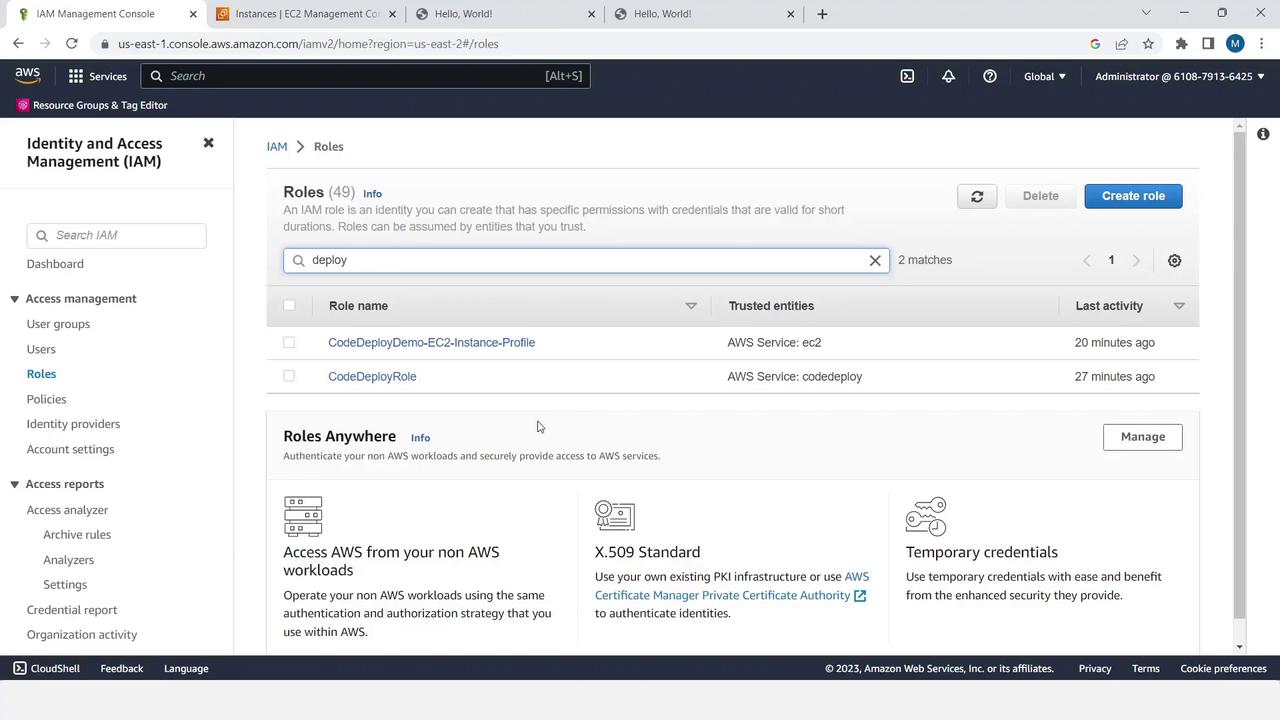
You need two roles: one for the EC2 instance and one for CodeDeploy.- EC2 Instance Role
- Create a new role for EC2 with the AmazonSSMManagedInstanceCore managed policy.
- Add an inline policy to allow S3 read operations:
- CodeDeploy Service Role
- Create a role for CodeDeploy and attach AWSCodeDeployRole.
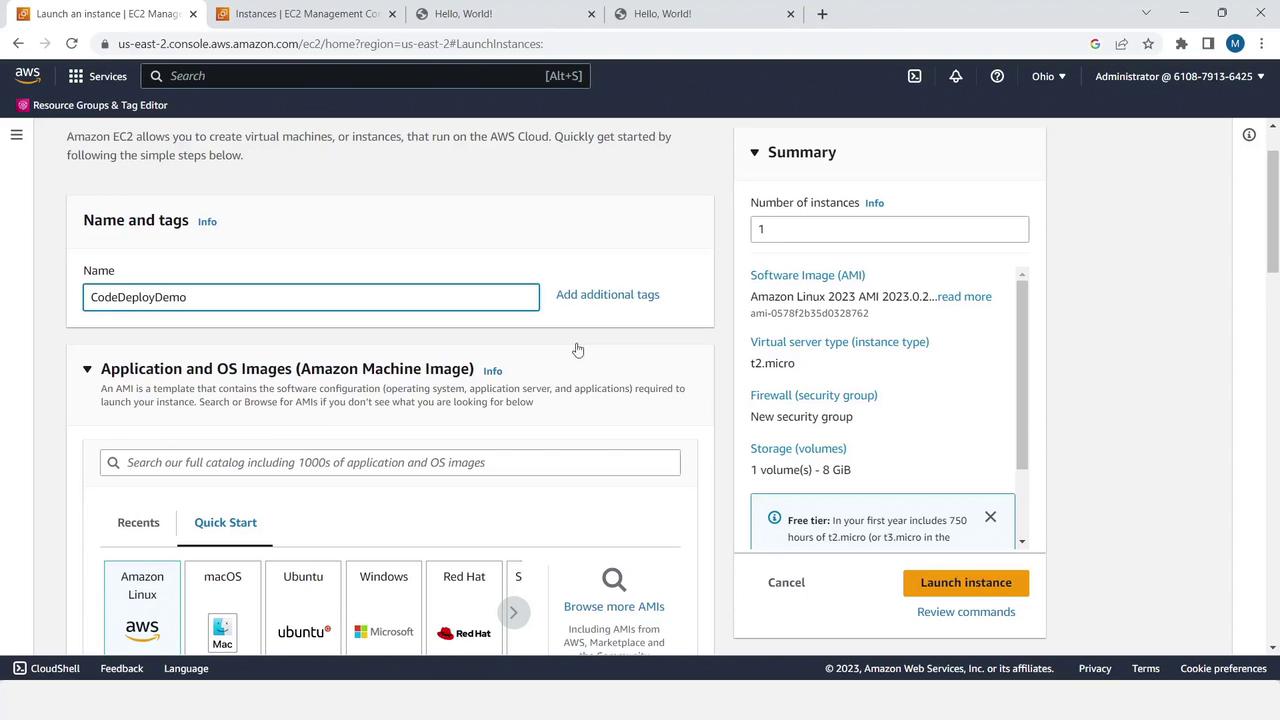
4. Launch a Windows EC2 Instance
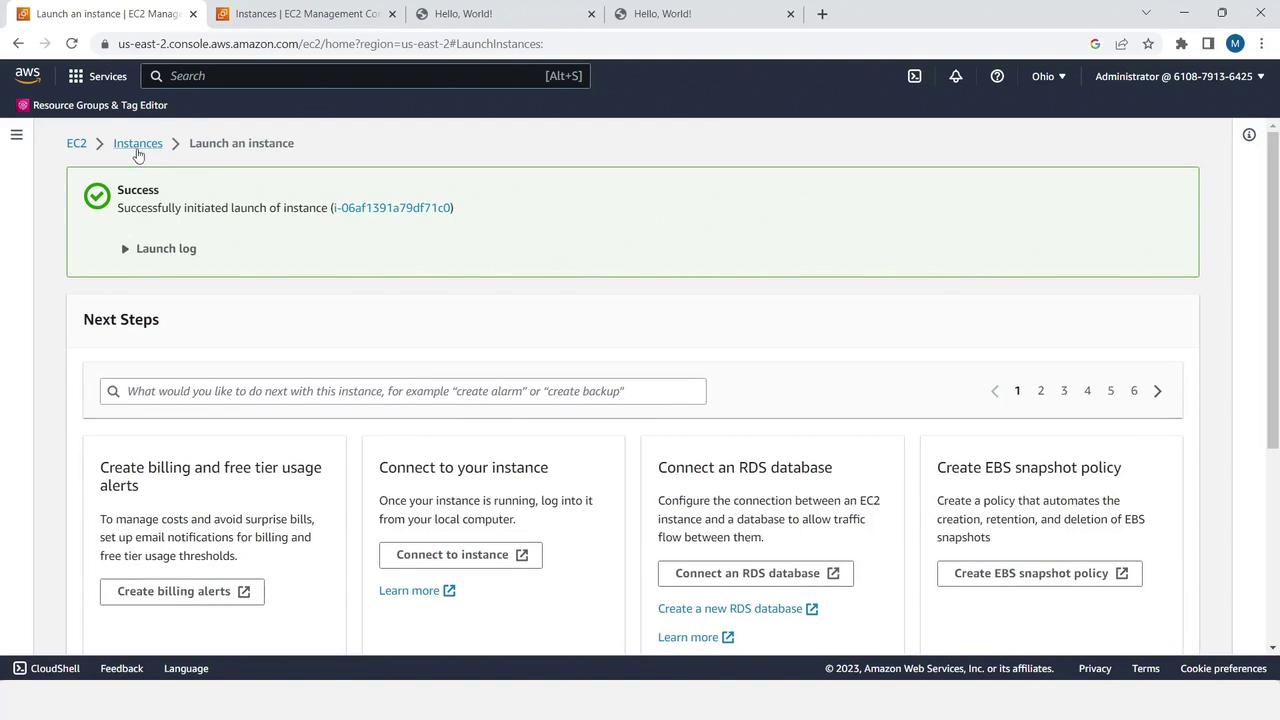
- Go to the EC2 console and click Launch Instance.
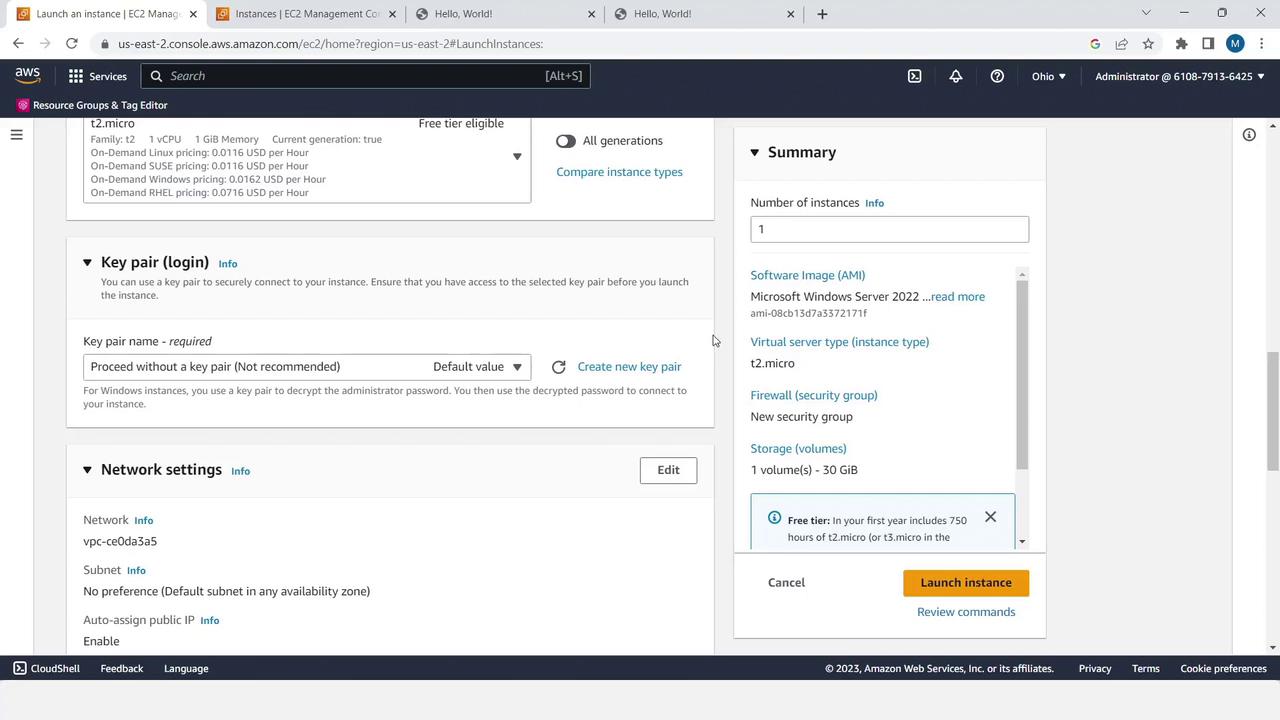
- Configure:
- Name: CodeDeployDemo
- AMI: Windows Server (latest)
- Instance type: t2.micro (free tier)
- In Network settings, allow HTTP (80) and HTTPS (443).
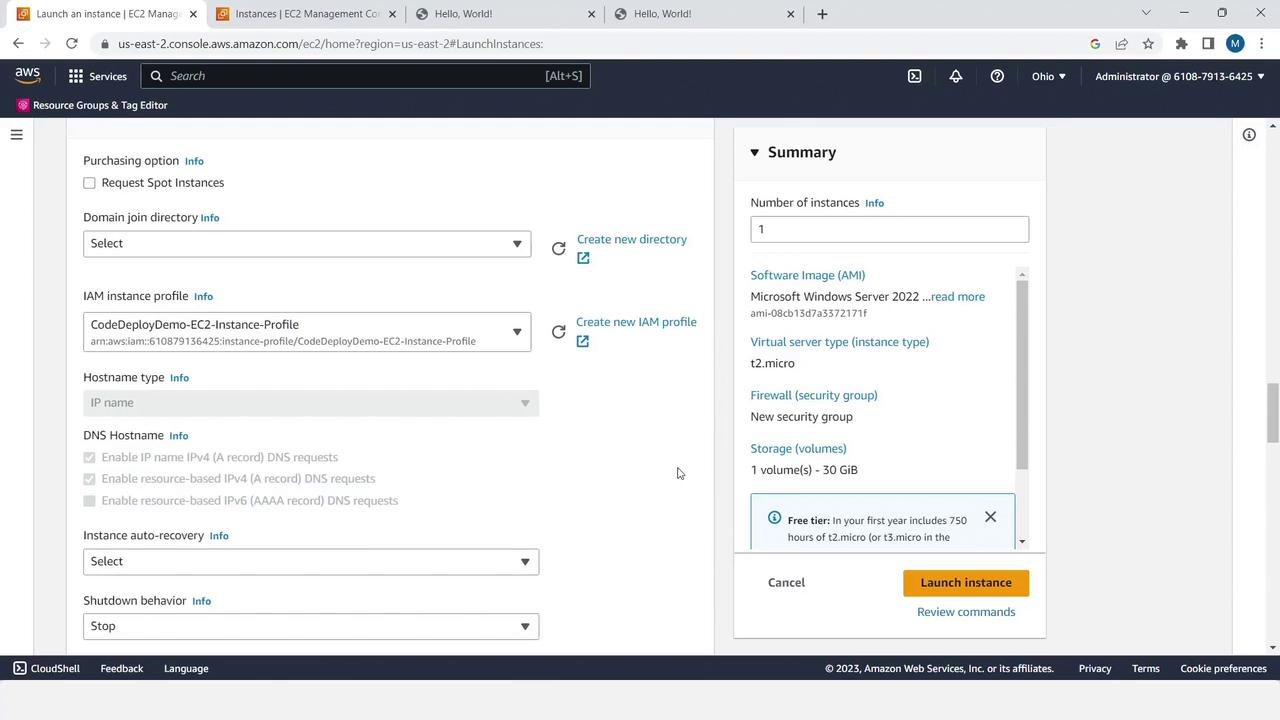
- Under Advanced details, select the IAM instance profile
CodeDeployDemo-EC2-Instance-Profile. - Launch (key pair optional if no RDP needed).
Windows AMIs exclude the CodeDeploy agent by default. Install it after launch via AWS Systems Manager or by running the MSI installer from AWS.
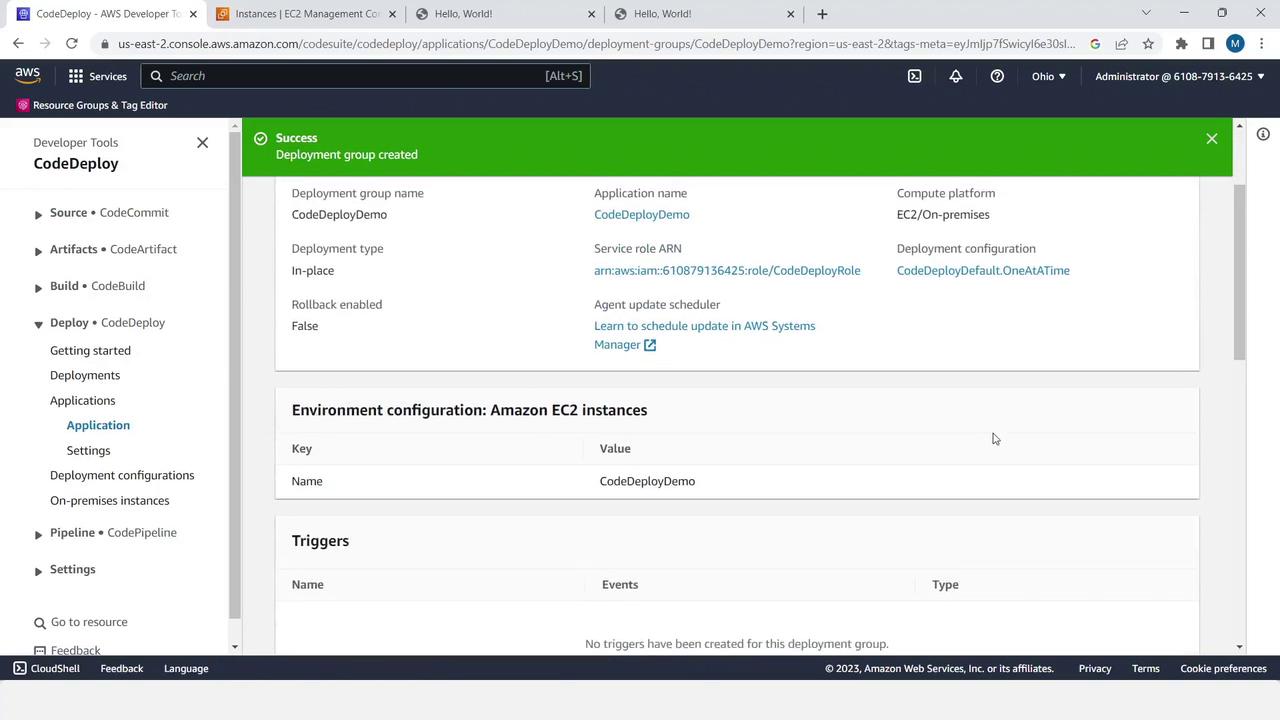
5. Create the CodeDeploy Application & Deployment Group
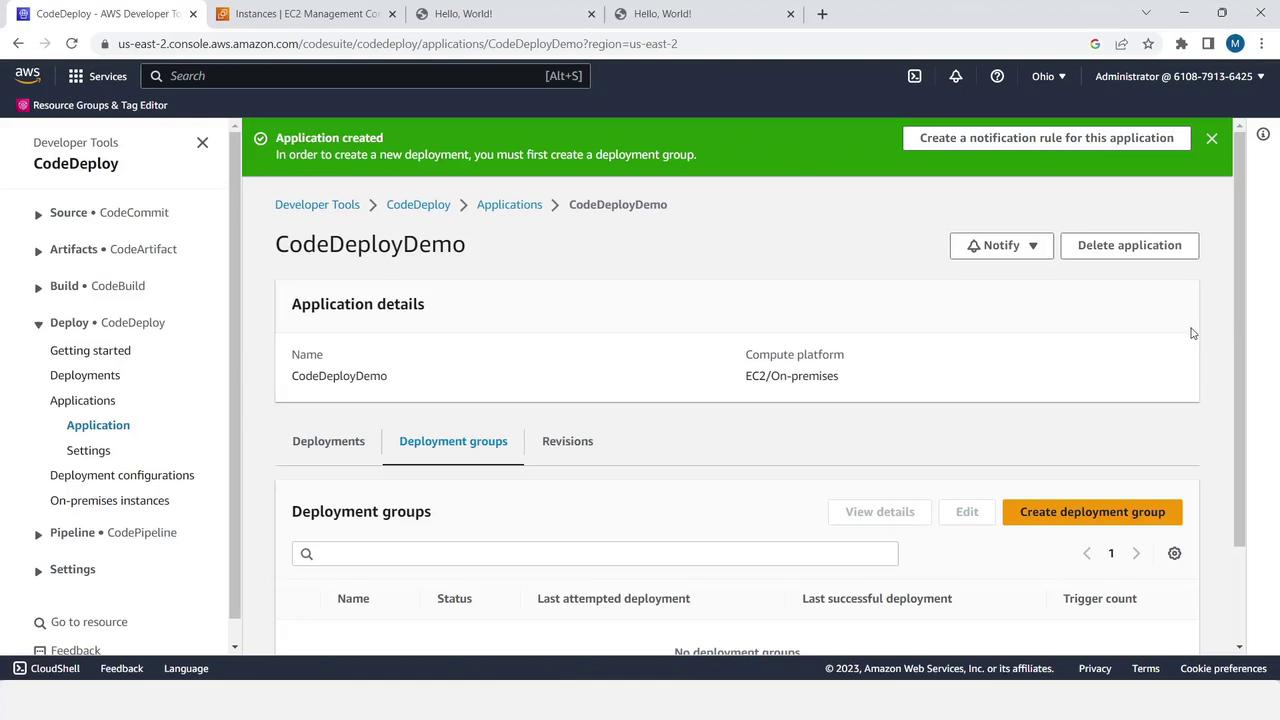
- Open the AWS CodeDeploy console and click Create application.
- Name: CodeDeployDemo
- Compute platform: EC2/On-premises
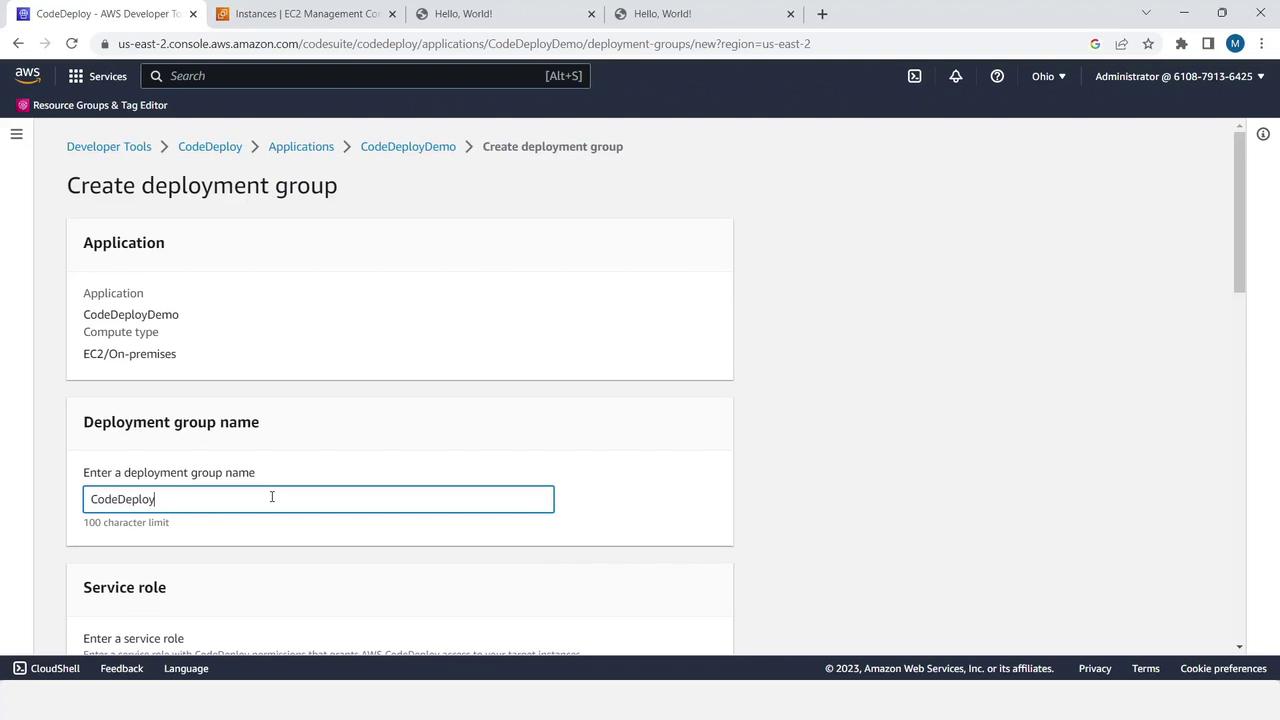
- Select the application, then choose Create deployment group.
- Name: CodeDeployDemo
- Service role: CodeDeployDemo-Service-Role
- Deployment type: In-place
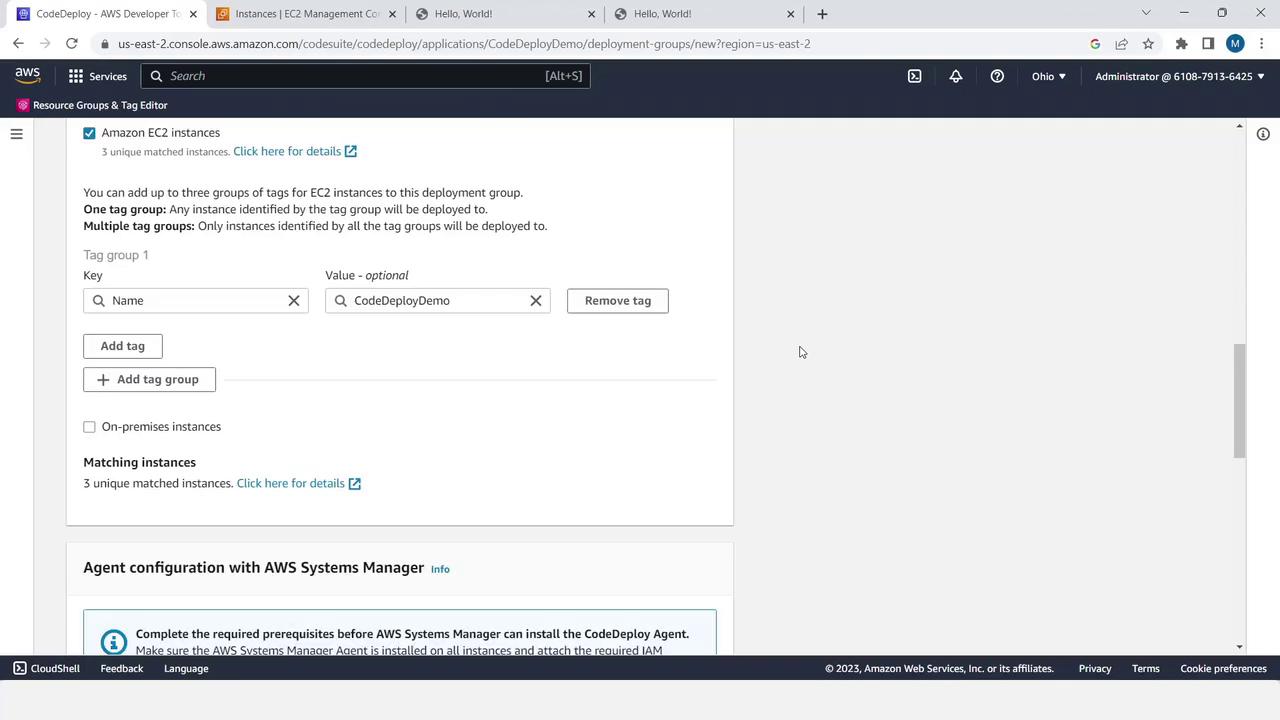
- Environment configuration:
- Tag Key:
Name - Tag Value:
CodeDeployDemo
- Tag Key:
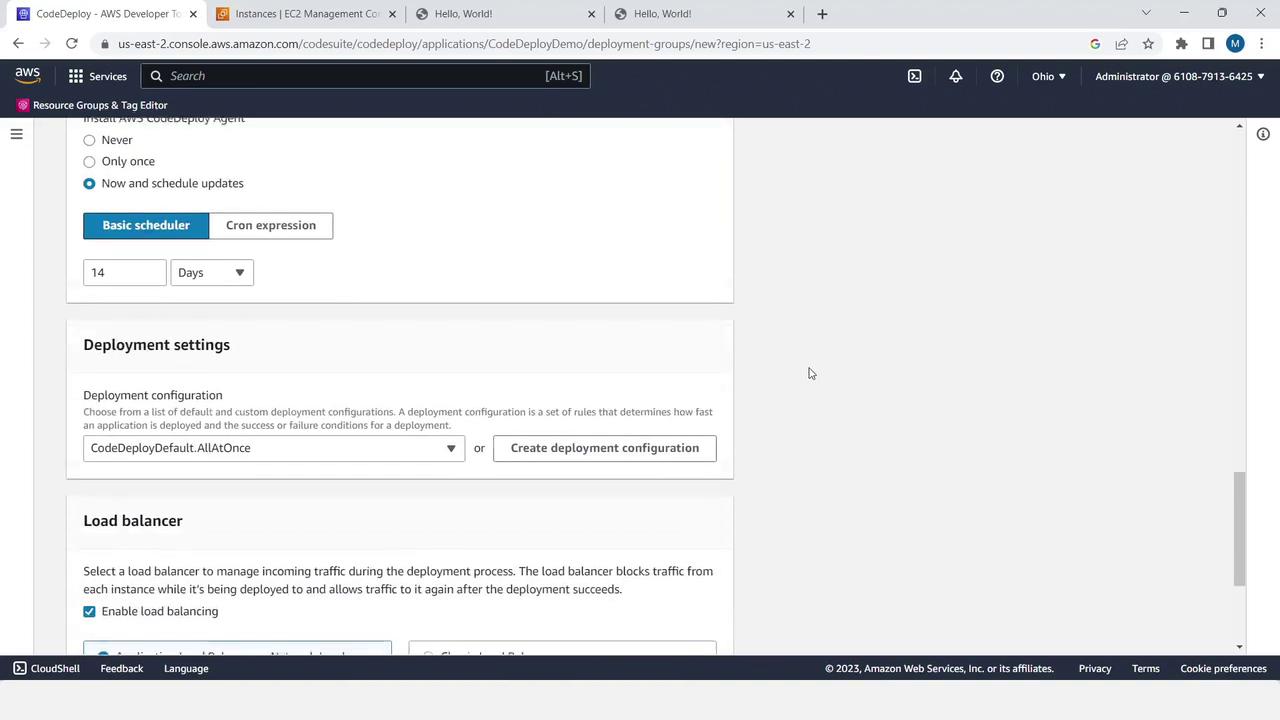
- Deployment settings: Now, One at a time, no load balancer
- Click Create deployment group.
6. Deploy the Application
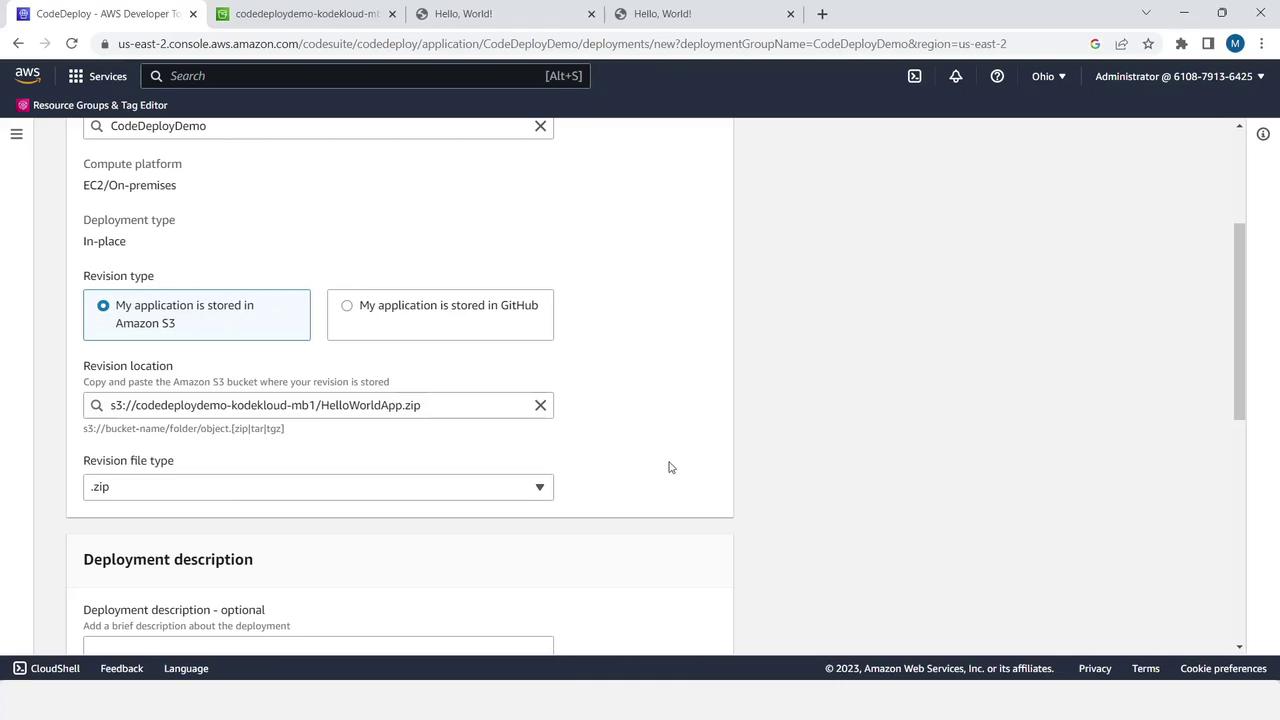
- In the deployment group, select Create deployment.
- Revision type: My application is stored in Amazon S3
- Bucket: your S3 bucket
- Key:
HelloWorldApp.zip
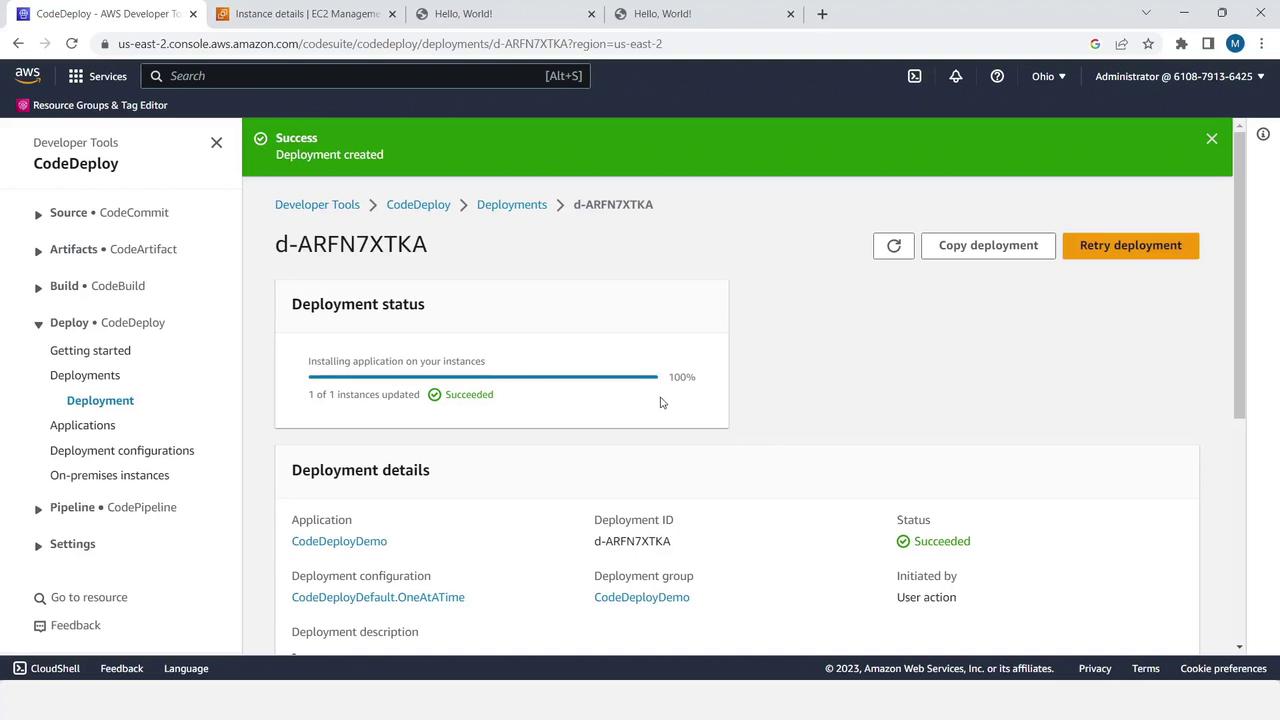
- Keep defaults and click Create deployment.
Summary & Next Steps
You’ve just:- Created
index.html,appspec.yml, and a setup script. - Bundled and uploaded your app to S3.
- Configured IAM roles.
- Launched a Windows EC2 instance with the CodeDeploy agent.
- Set up an application and deployment group in CodeDeploy.
- Deployed your app in-place from S3.
Links and References
- AWS CodeDeploy Documentation
- Amazon S3 Documentation
- AWS IAM Documentation
- AWS EC2 Documentation
- AWS Systems Manager