

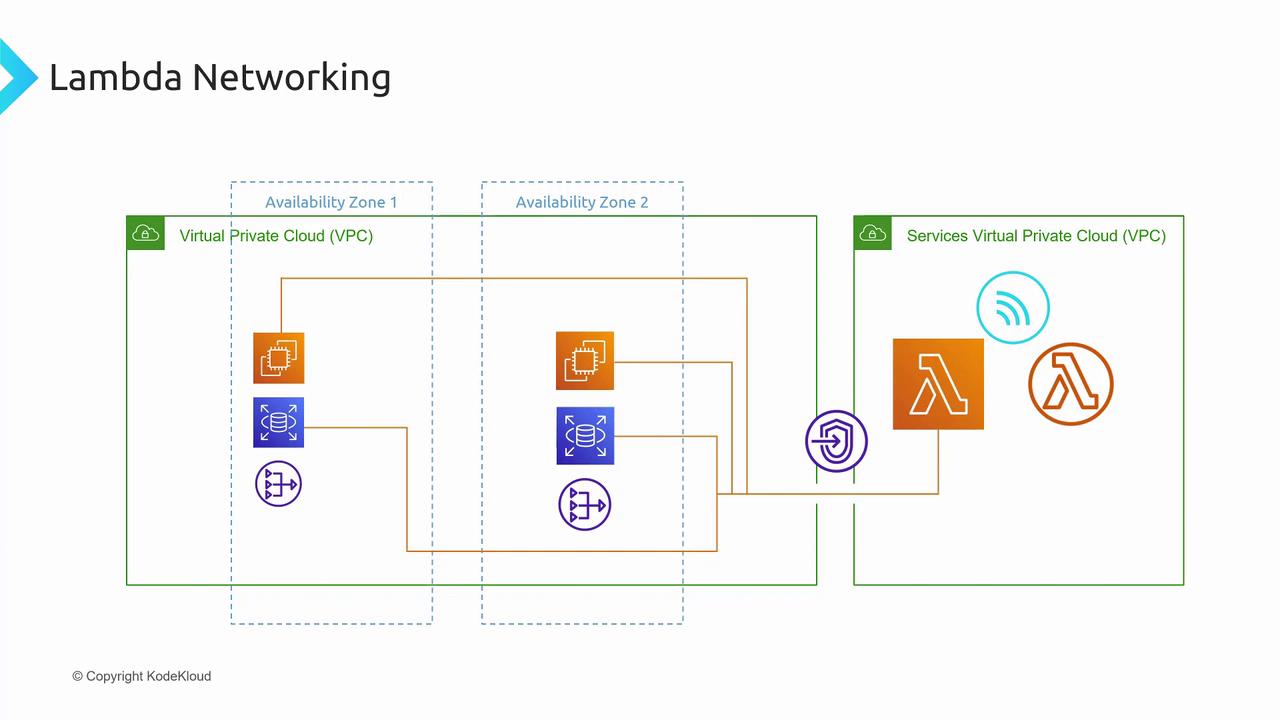
Step 1: Create the Lambda Interface Endpoint
- Sign in to the AWS Management Console.
- Search for VPC and open the VPC dashboard.
- In the left menu, choose Endpoints → Create Endpoint.
- Verify the selected Region matches your Lambda function’s region.
Configure Endpoint Basics
Use the table below to set up your interface endpoint:Select at least two subnets in different Availability Zones to ensure that ENIs remain reachable even if one AZ experiences issues.
Select VPC, Subnets & Security Groups
- VPC: Pick your private VPC (for example,
KodeKloud Demo VPC). - Subnets: Choose multiple subnets across AZs for redundancy.
- Security Groups: Attach security groups to control inbound/outbound traffic for the endpoint’s Elastic Network Interfaces (ENIs).
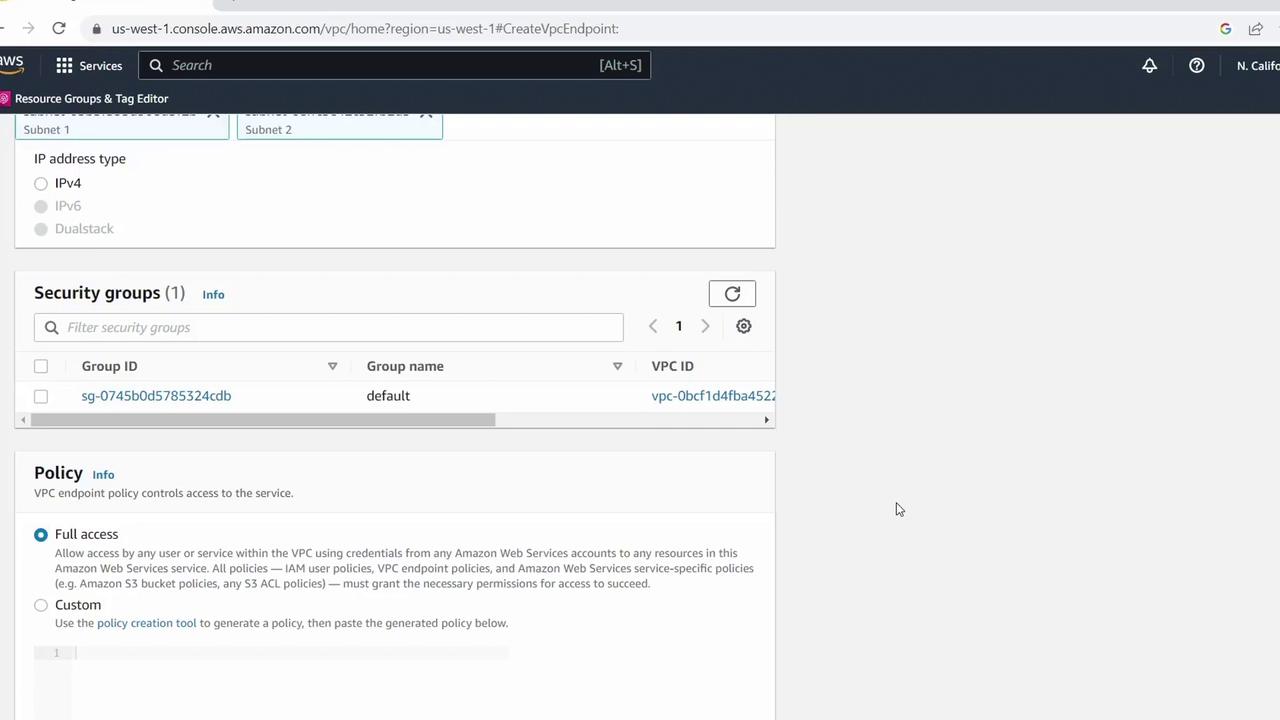
Set Endpoint Policy
For testing or demos, you can allow all actions. In production, scope down permissions:Avoid using wildcard (
*) permissions in production. Restrict the Resource field to specific Lambda functions or ARNs.Step 2: Verify Endpoint Availability
Once provisioning completes, the endpoint’s status changes to Available. Your private VPC is now linked to the AWS Lambda service VPC via the interface endpoint.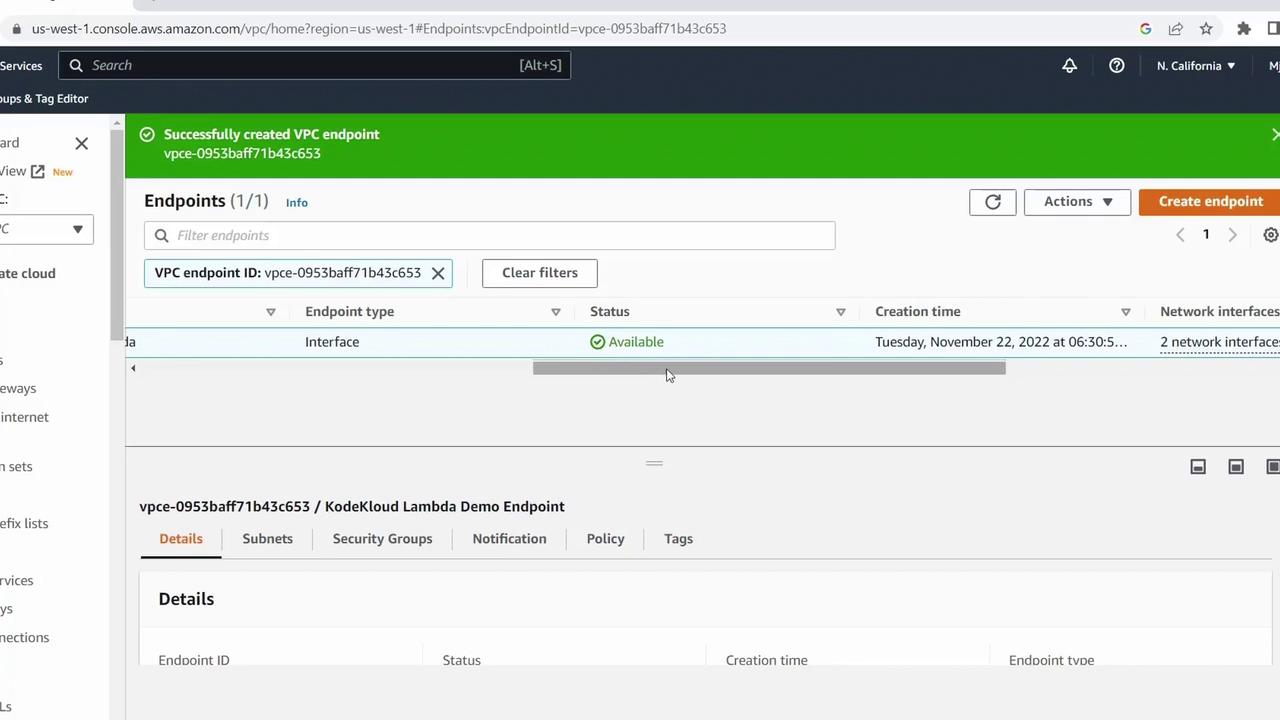
Next Steps
- Test Lambda function connectivity to resources in your private VPC.
- Review AWS VPC Endpoints Documentation for advanced policies.
- Explore Option 1 or dive deeper into Lambda networking optimizations in upcoming lessons.