

Environment Setup
Before we dive in, ensure you have the following:- AWS CLI installed and configured
- Python 3.x installed on your local machine
- An IDE or text editor (e.g., Visual Studio Code)
- AWS account with permissions to create IAM roles and Lambda functions
Run
aws configure to set up your credentials, default region (e.g., us-east-1), and output format (json).
1. Write the Lambda Function
Create a file namedbasic_hello_world.py and add:
name key in the incoming event and returns "Successful" when it matches "KodeKloud".
2. Package Your Code
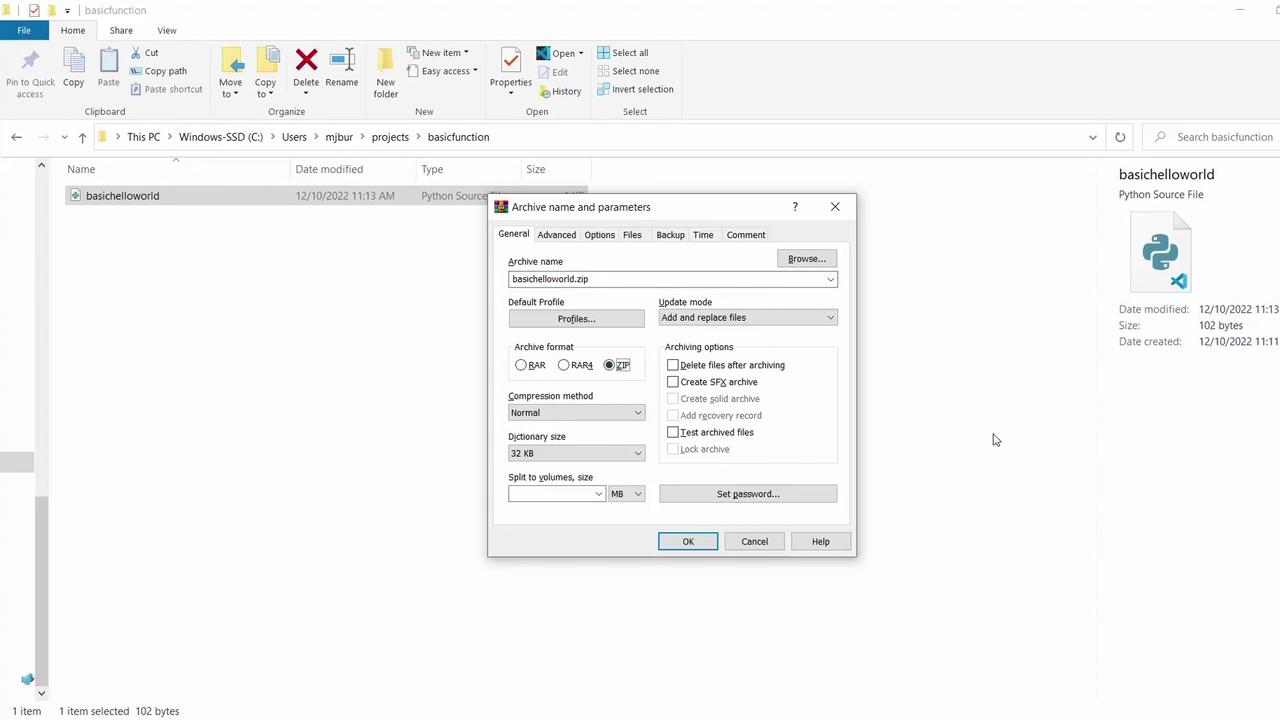
AWS Lambda requires your function code in a ZIP archive. On Windows:- Right-click
basic_hello_world.py - Select Send to → Compressed (zipped) folder
- Name it
basic_hello_world.zip
3. Create an IAM Execution Role
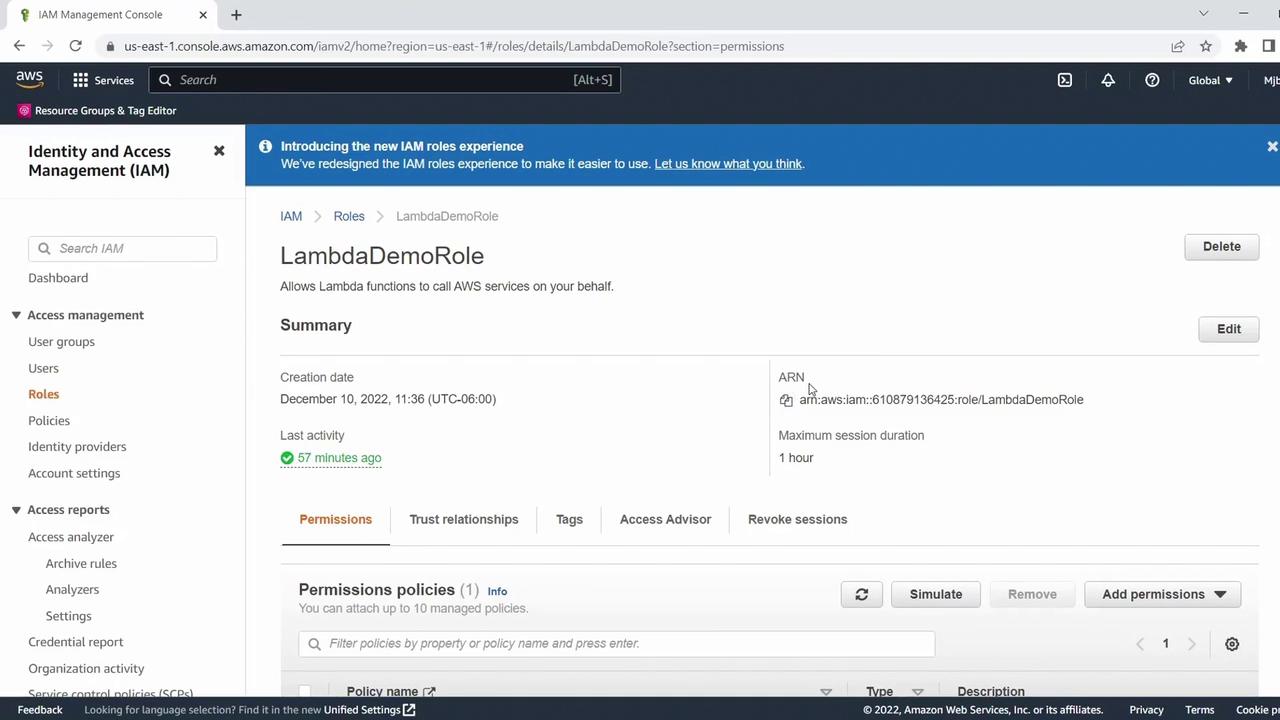
Your function needs permission to write logs to CloudWatch. In the IAM console:- Create or select a role (e.g., LambdaDemoRole)
- Attach the AWSLambdaBasicExecutionRole policy
- Copy the Role ARN for use in the CLI
Keep your IAM credentials secure. Grant only the permissions your function requires.
4. Deploy the Function with AWS CLI
Use thecreate-function command to deploy:
5. Verify Deployment
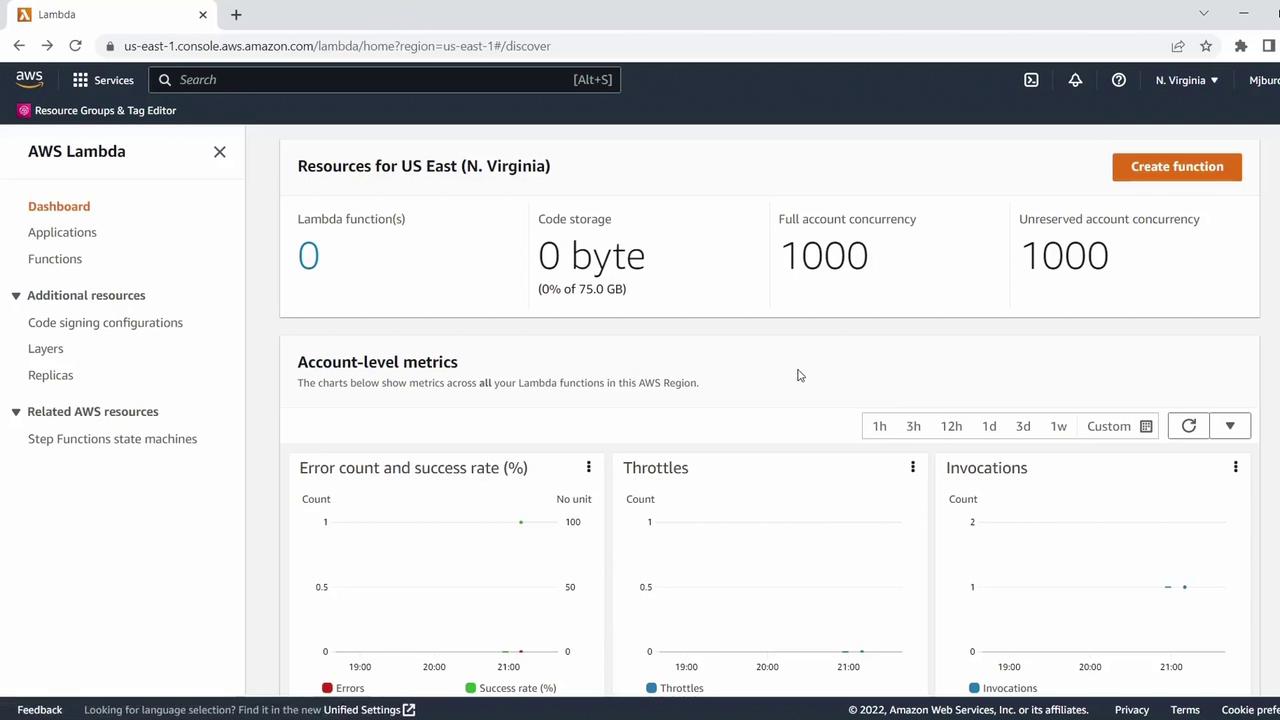
Refresh the AWS Lambda console in the us-east-1 region. Your function should appear in the list: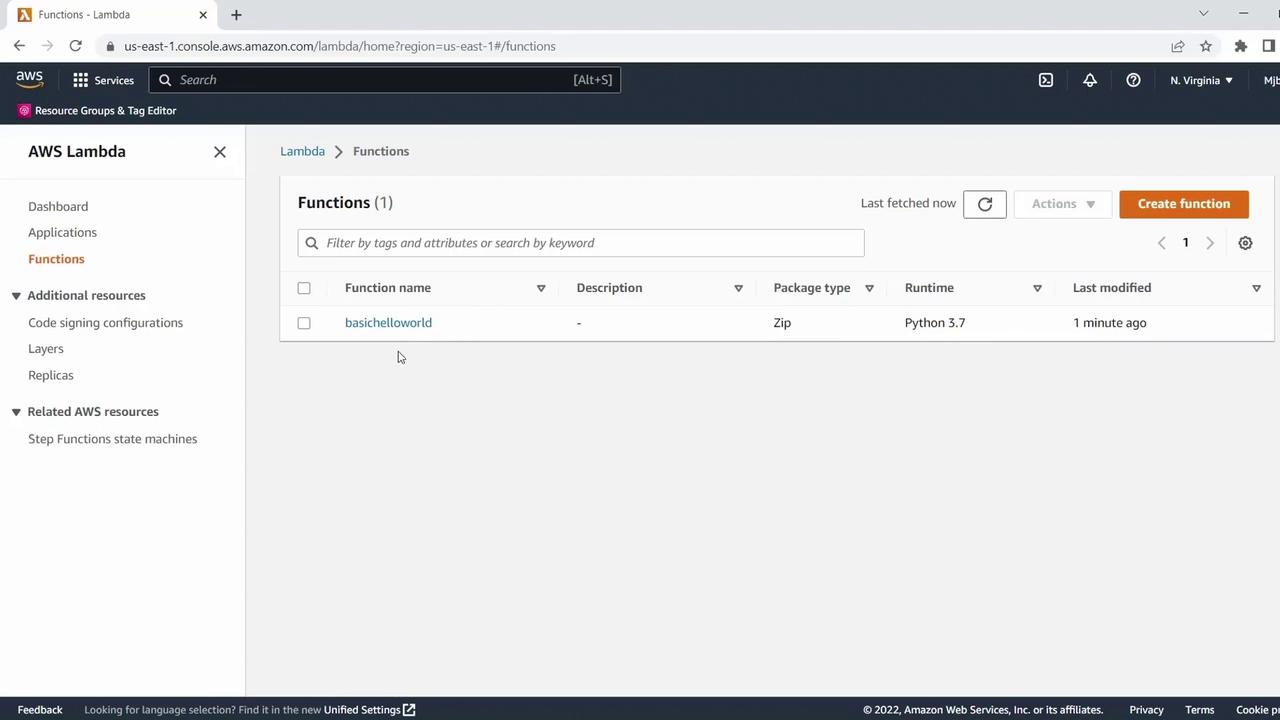
6. Test Your Lambda Function
- Click Test in the function’s detail page.
- Create a new event named Demo Test Event.
-
Replace the sample JSON with:
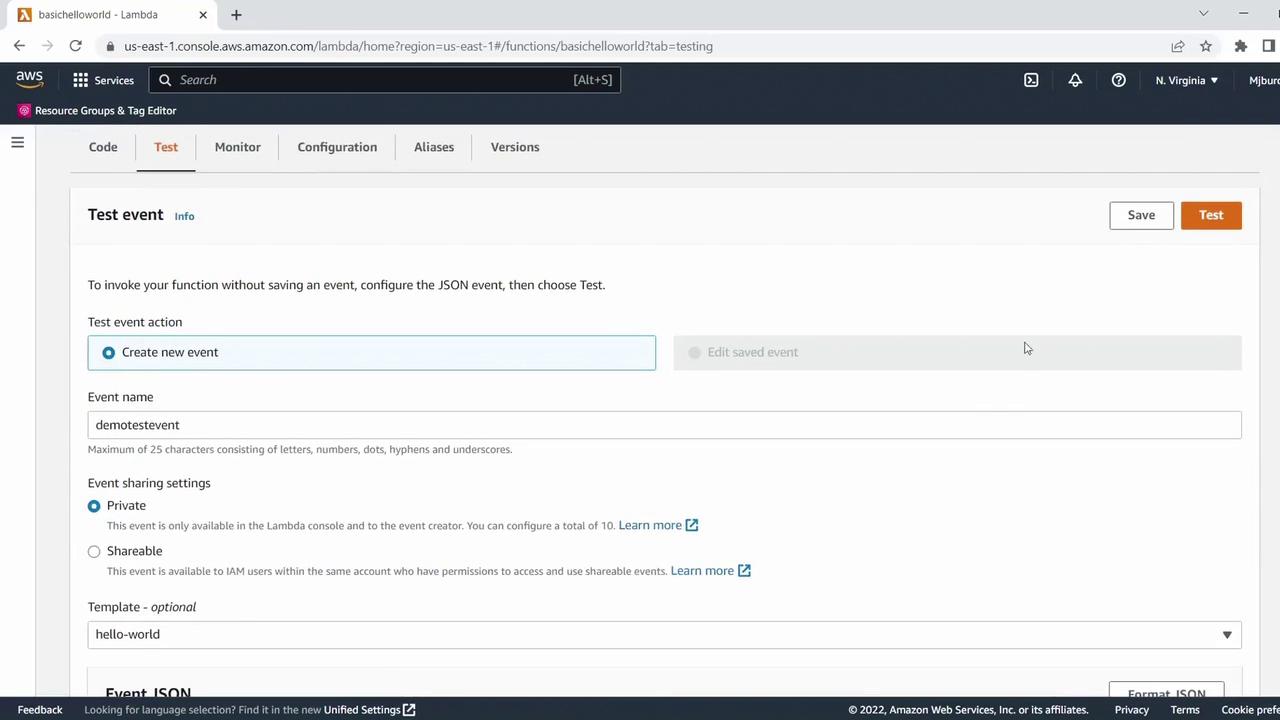
-
Save and run. The execution result should return:
Summary of AWS CLI Commands
Congratulations! You now have a working Python Lambda function entirely managed through the AWS CLI.