

• An AWS account with permissions to create Lambda functions, EventBridge rules, and SNS topics
• Basic knowledge of Python and AWS services
• Basic knowledge of Python and AWS services
Table of Contents
- Open the Lambda Console
- Select the Canary Blueprint
- Configure the Function
- Review the Sample Code
- Set Schedule & Environment Variables
- View Your New Function
- Add SNS Destinations for Success & Failure
- Test the Canary Function
- Monitor Metrics and Logs
1. Open the Lambda Console
- Sign in to the AWS Management Console.
- In the Services menu, search for Lambda and click Lambda.
- Choose Create function.
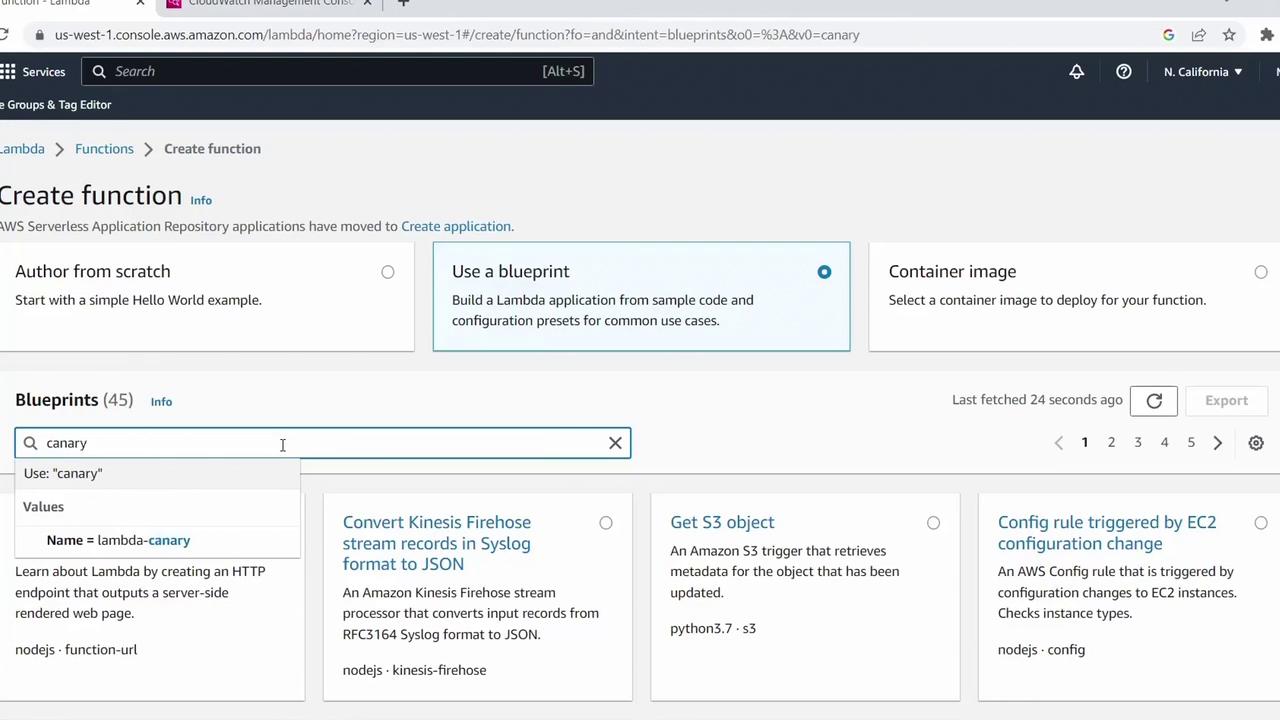
2. Select the Canary Blueprint
AWS provides several blueprints with boilerplate code for common tasks. In the Use a blueprint tab:- Search for canary.
- Select Canary Function (runtime: Python 3.7).
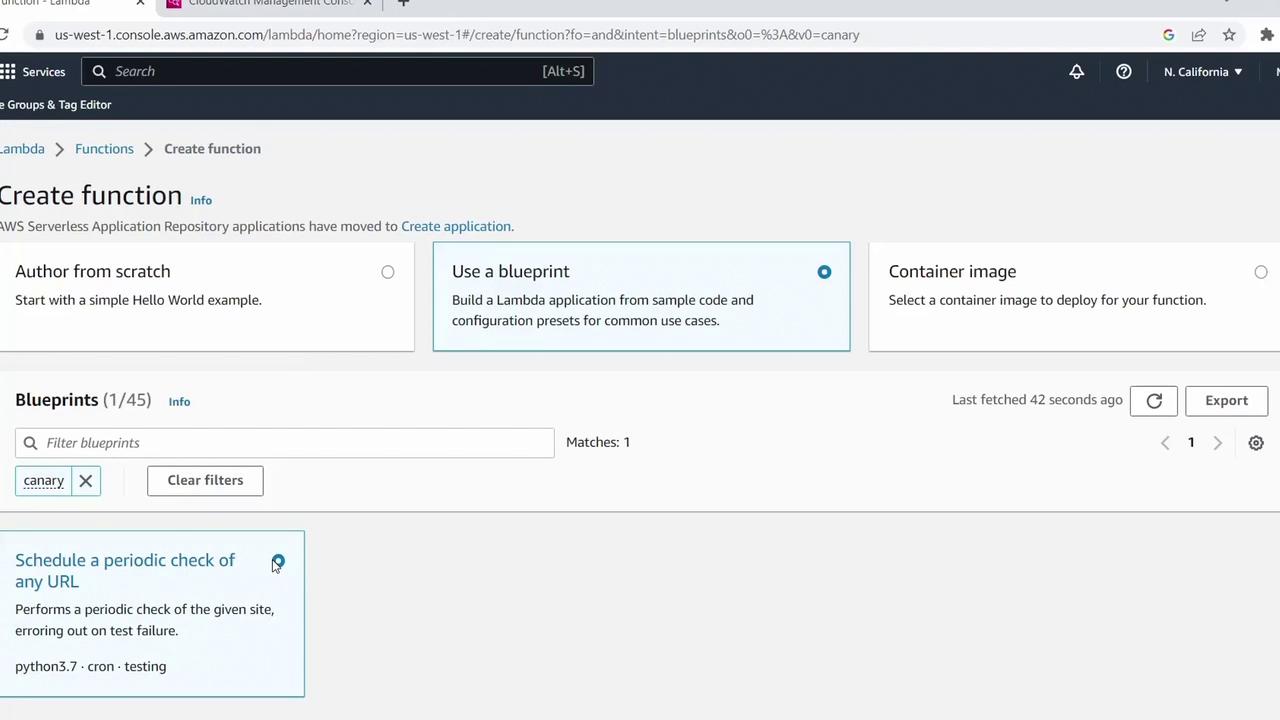
3. Configure the Function
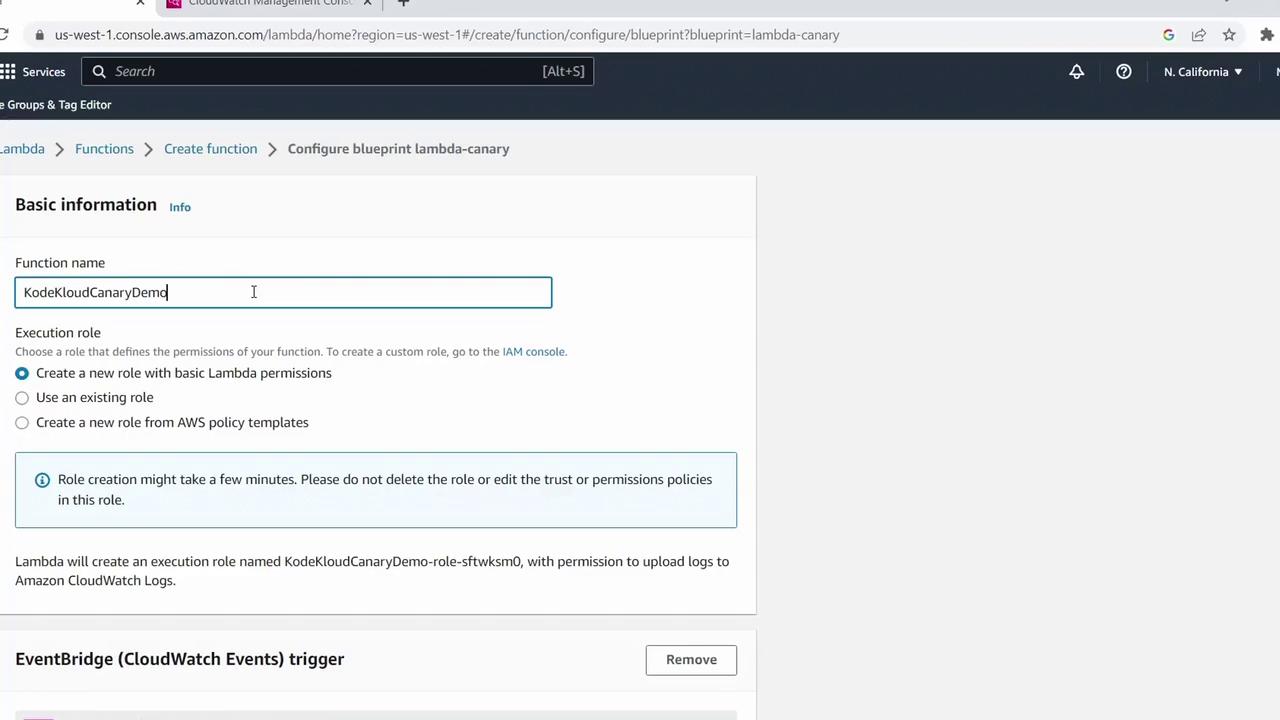
- Click Configure.
- Enter a Function name, e.g.,
KodeKloudCanaryDemo. - Under Permissions, select Create a new role with basic Lambda permissions.
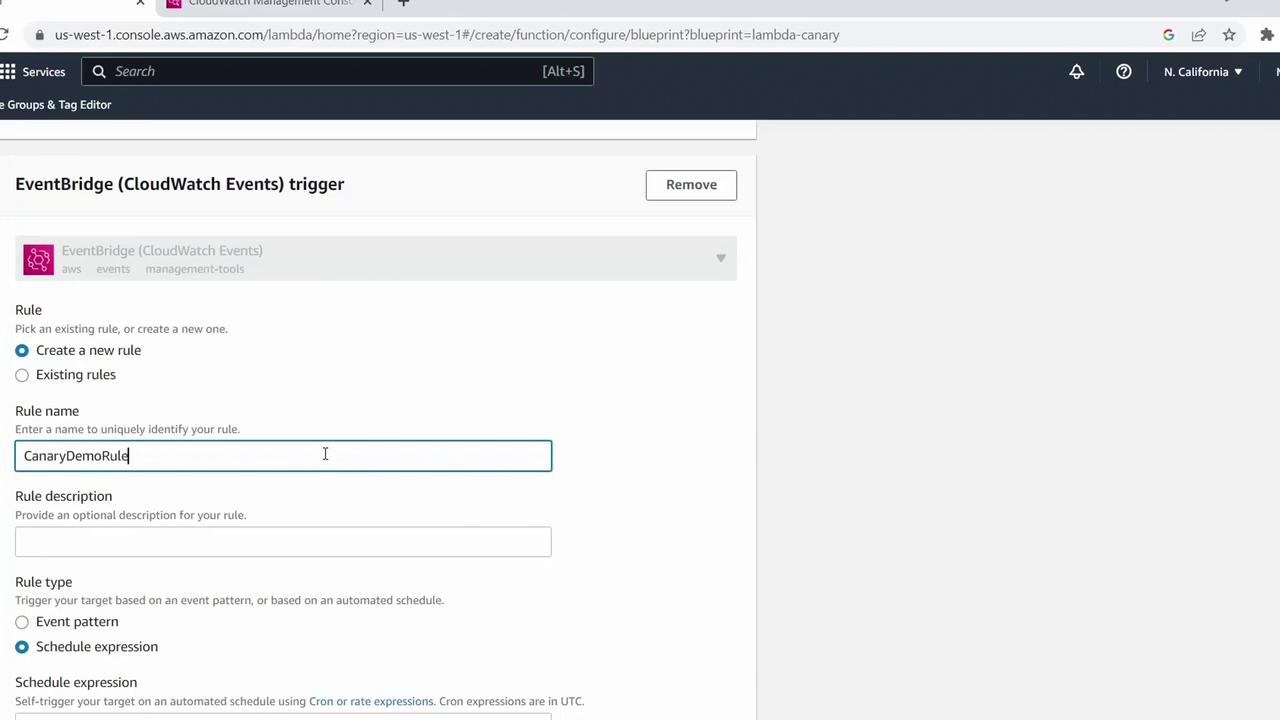
- Rule name:
CanaryDemoRule
4. Review the Sample Code
Scroll to Function code to inspect the handler:5. Set Schedule & Environment Variables
-
In the trigger pane, set the Schedule expression to:
-
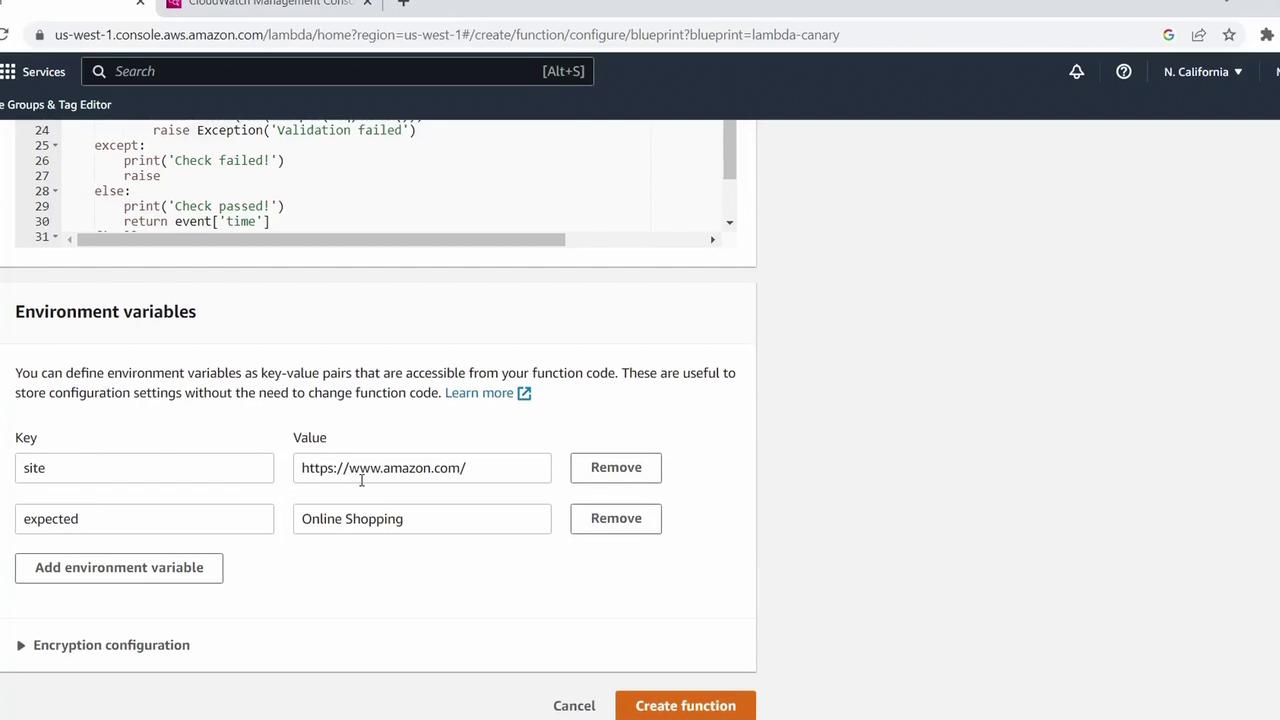
Under Variables and secrets, add:
6. View Your New Function
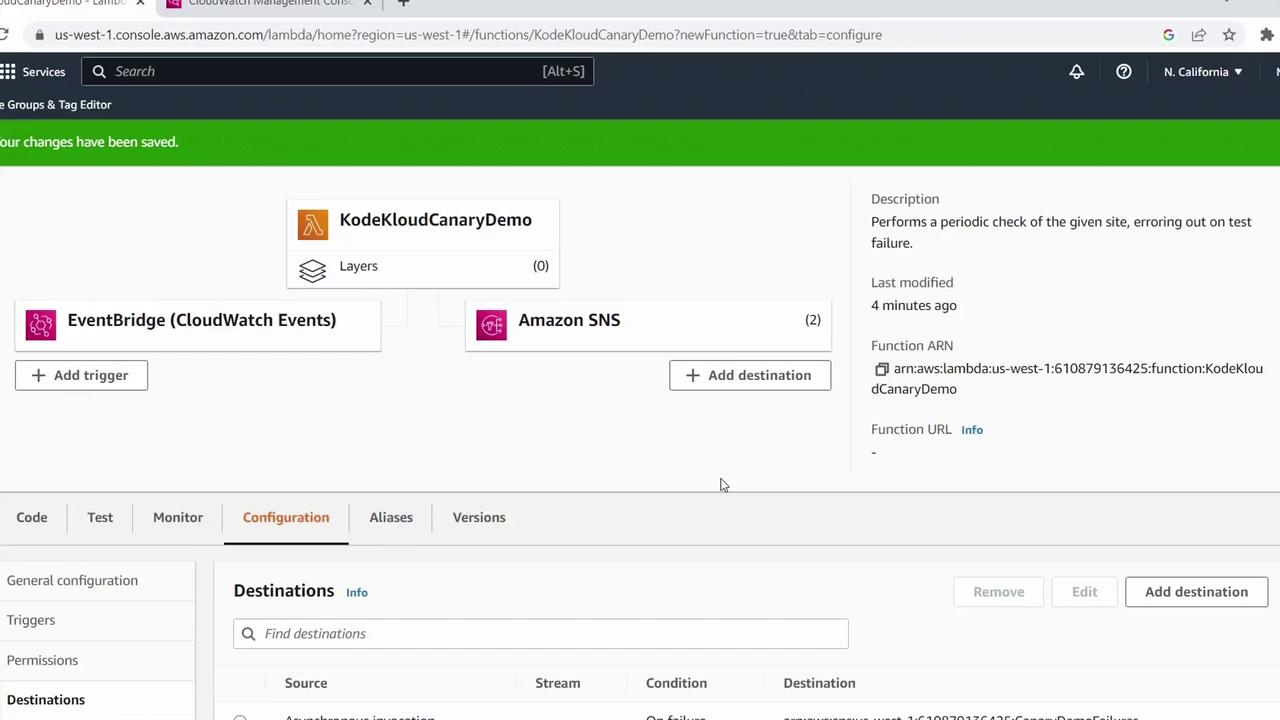
After creation, the Lambda console displays your function’s details and trigger.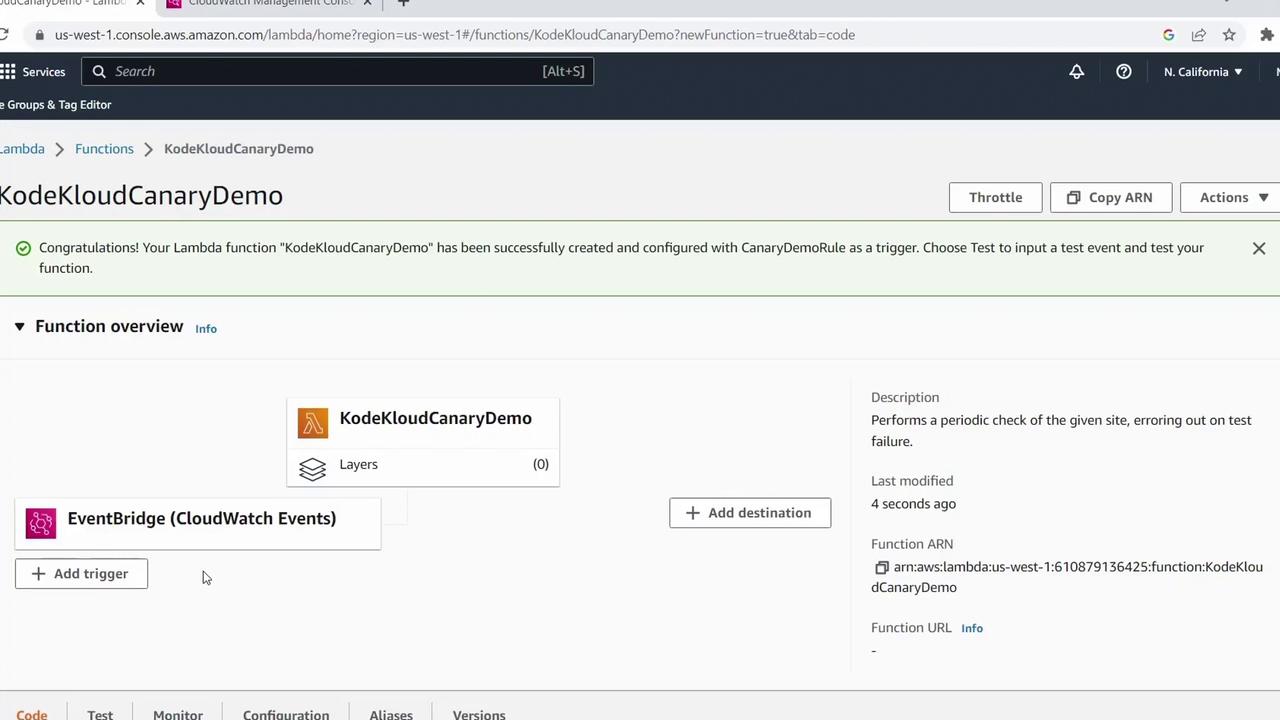
7. Add SNS Destinations for Success & Failure
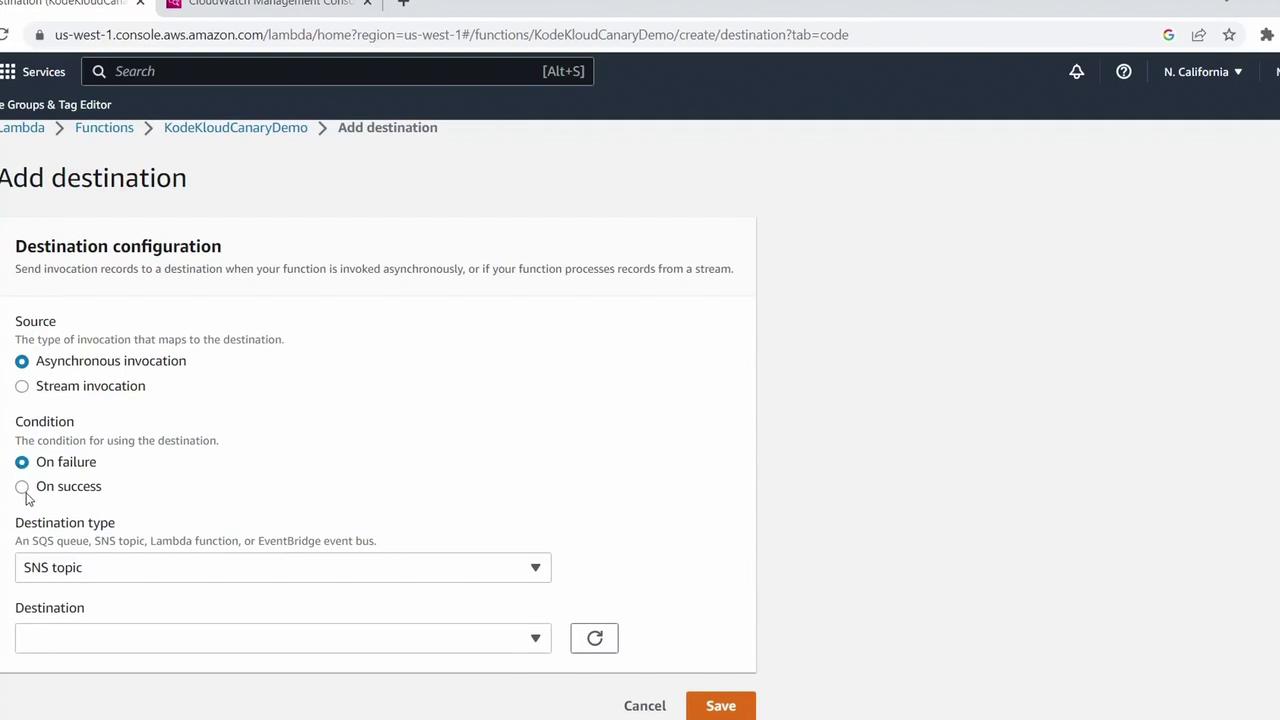
By default, asynchronous invocations don’t return errors to the trigger. To capture outcomes:- Click Add destination.
- Under Source type, select Asynchronous invocation.
- Set Condition to On failure.
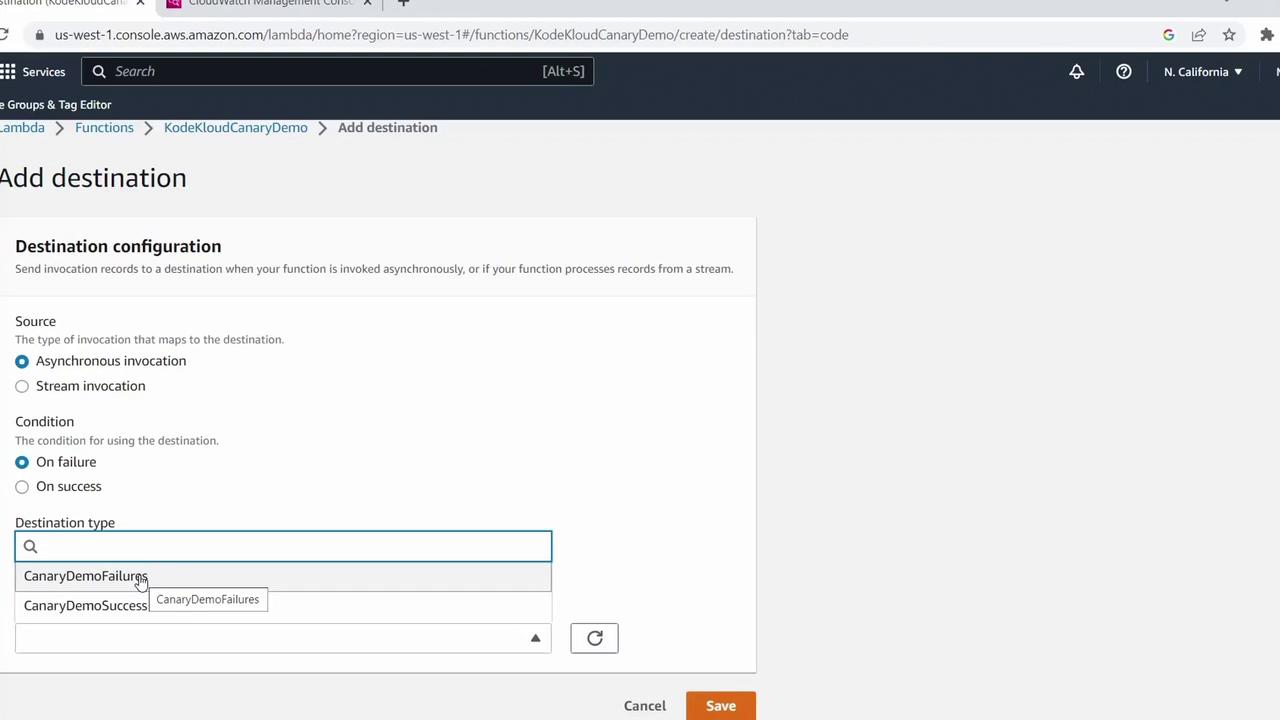
- For Destination type, choose SNS topic and pick (or create) your topic, e.g.,
Canary Demo Failures. - Save and allow AWS to create the necessary IAM role.
Canary Demo Success).
8. Test the Canary Function
- In the Lambda console, click Test.
- The first invocation should fail (expected=string not on site).
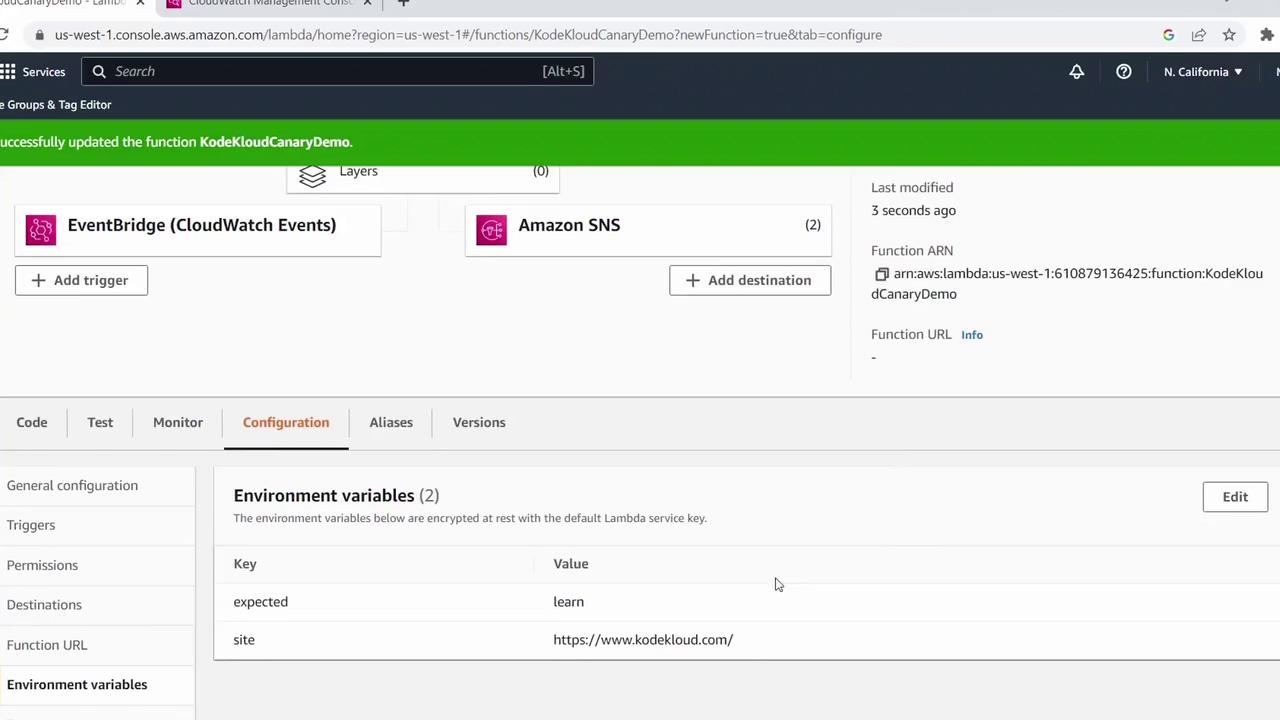
- To simulate success, go to Configuration > Variables and secrets and update
expectedto a word you know exists (e.g.,learned). - Save and click Test again.
9. Monitor Metrics and Logs
To review invocation metrics:- Click the Monitor tab in the Lambda console.
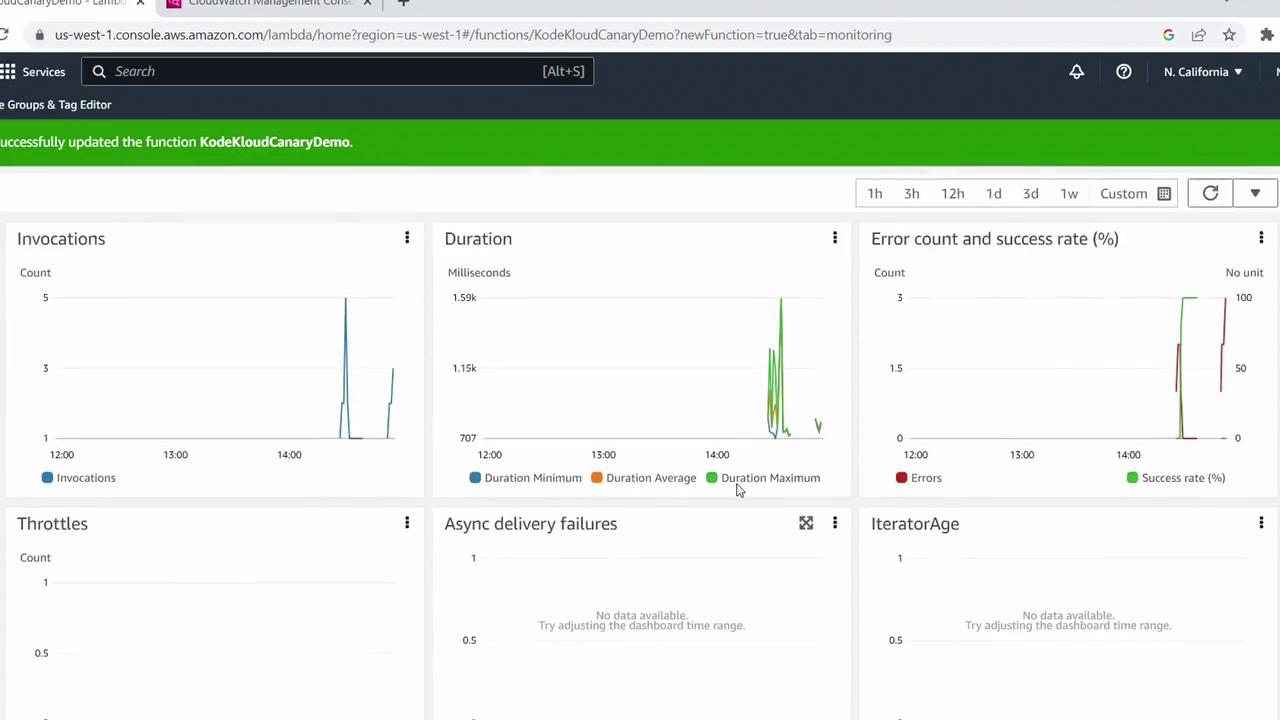
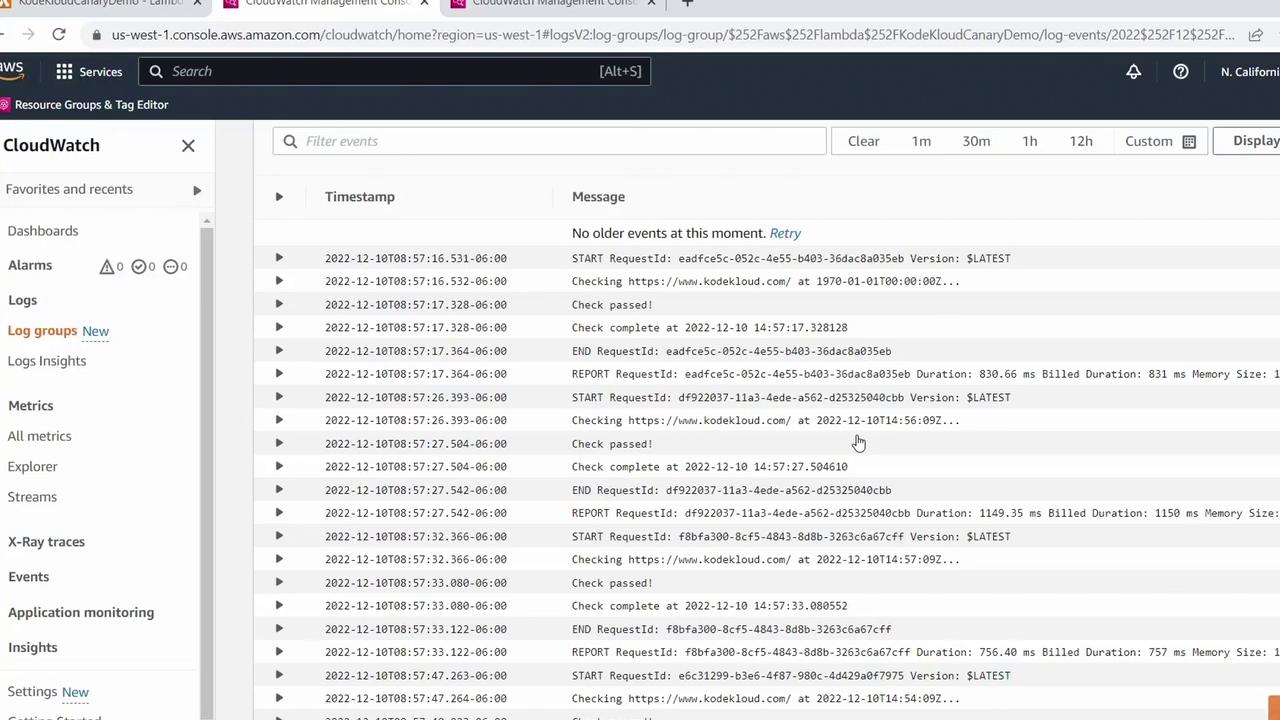
- For detailed logs, select View logs in CloudWatch.
Inspect each log stream to see both failures and successful runs.
Congratulations! You’ve successfully created a Canary Function using an AWS Lambda blueprint, scheduled it with EventBridge, configured SNS destinations, and monitored its behavior. For more AWS Lambda tips and tutorials, explore the AWS Lambda Documentation.