

.claude/skills file that Claude can discover and invoke automatically.
Why skills?
- Keeps instructions small and cheap to send.
- Makes capabilities reusable across agents and projects.
- Separates code (the skill files) from conversational state.
SKILL.md file with two parts:
- YAML front matter (between
---lines) with required fields:name: a unique hyphenated identifier (e.g.,ec2-list)description: short, precise text that tells Claude when to use this skill
- The Markdown body: title, instructions for Claude, step-by-step actions, expected output format, and safety rules.
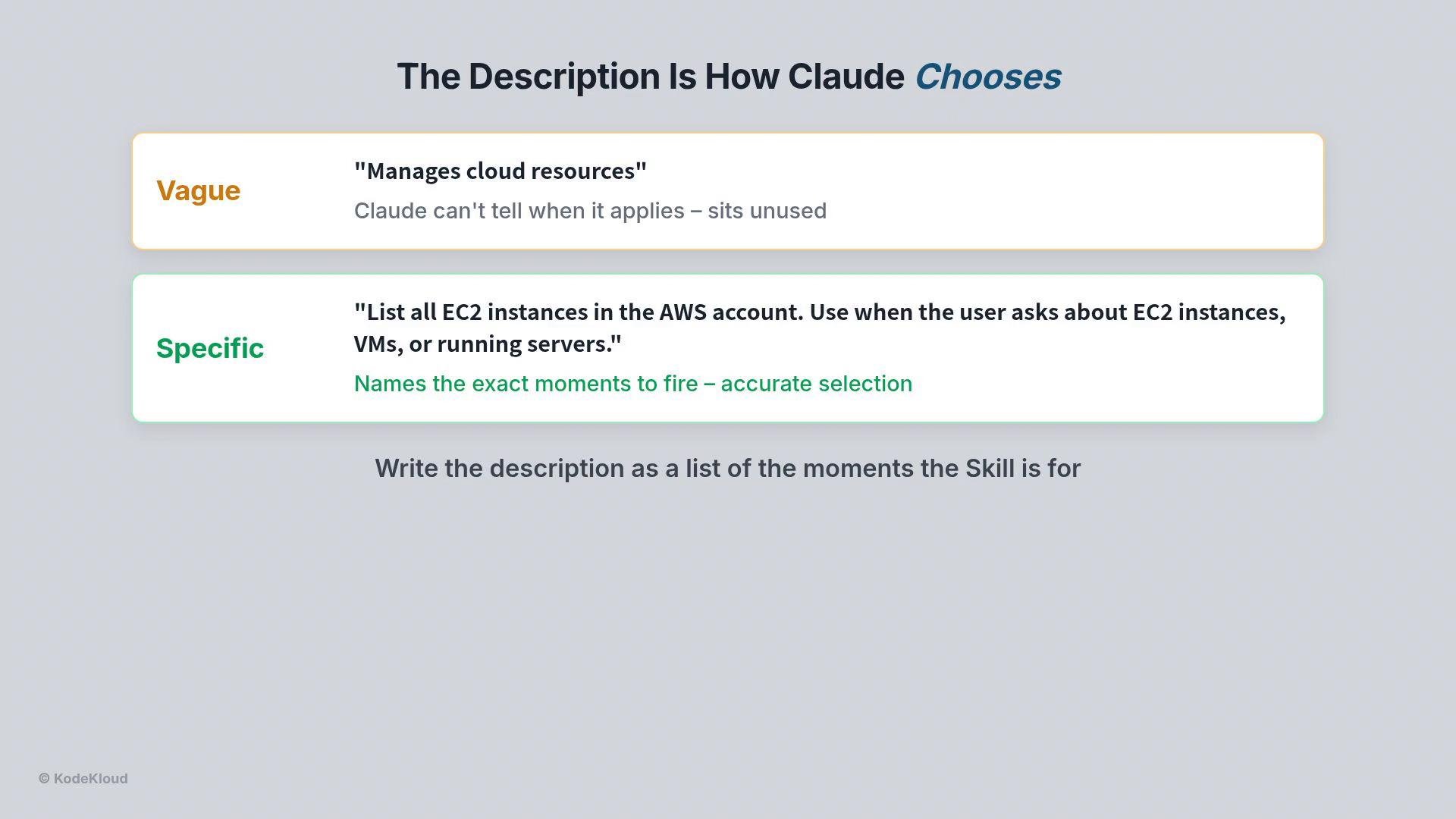
Write
description fields as a list of concrete situations. The clearer the wording, the more reliably Claude will select the correct skill..claude/skills and how discovery works
- The SDK searches a fixed path: a
.claude/skillsfolder inside your project directory. - Each subfolder containing a
SKILL.mdbecomes an available skill (for example:.claude/skills/ec2-list/SKILL.md). - Discovery is enabled only when three configuration fields are set correctly:
CWD: the project directory that contains.claude/skills(for example/root/code).settingSources: must include the project-based source to allow project settings.allowedTools: must include the stringSkill.
If any of the three are missing or misconfigured, discovery fails silently: the SDK may find the files but will never invoke them, or it may ignore the folder entirely. Ensure
allowedTools includes Skill and CWD points to the folder containing .claude/skills.
Automatic selection and invocation
You never call a skill explicitly in code (no run skill calls). Instead, when Claude receives a request it:
- Scans the
descriptionfields of available skills. - Matches the user’s language to the best-fitting skill.
- Invokes that skill by running the instructions in the corresponding
SKILL.md.
ec2-list. Behind the scenes it will behave as if it ran:
.claude/skills ec2-list
ec2 describe-instances), parse the JSON, and present a clear table to the user.
Design principle: separate read-only from state-changing operations
Keep inspection and management separate. Example pattern:
ec2-list— a read-only skill to inspect and report instance inventory.ec2-manager— a multi-operation management skill that can start, stop, or terminate instances, but enforces strict safety checks.
ec2-manager:
- Confirm the instance ID before changing anything.
- Check the current state to ensure the action makes sense.
- Warn and require explicit confirmation before termination (irreversible).
- Report results clearly after the operation.
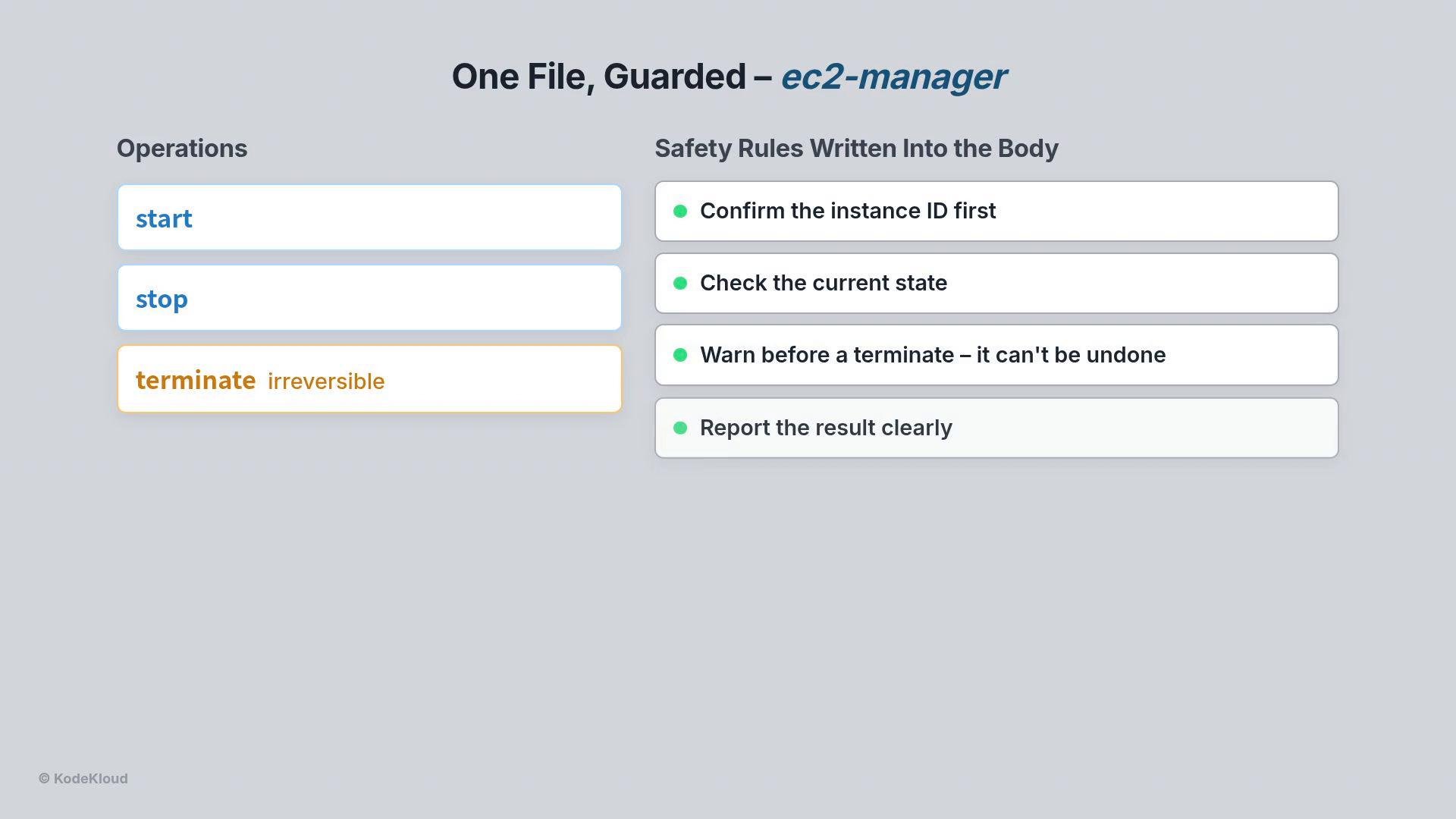
Danger: Termination is irreversible. Put explicit confirmation steps and warnings into any skill that performs destructive actions.
- Skills themselves are stateless: each invocation is self-contained and the skill file does not retain memory between calls.
- Conversation state (client-side memory) carries context across turns. For example, Claude can ask, “Would you like me to stop the running instances?” and when you reply “Yes, stop them all,” the stateful client supplies that confirmation while the stateless skill performs the operation.
- Claude selected
ec2-list, presented results and a follow-up question. - After confirmation, Claude selected
ec2-managerand executed the safe, guarded workflow to stop the instances.
- Keep descriptions specific and situation-oriented to improve selection accuracy.
- Separate read-only inspection skills from management skills to enforce least privilege.
- Build explicit confirmation and state checks into any skill that modifies infrastructure.
- Test skill selection by issuing varied phrasing of the same request to ensure the right skill fires.
.claude/skills organizes agent capabilities into discoverable, reusable files. Write clear description lists, keep state-changing logic guarded in separate skill files, and verify SDK configuration (CWD, settingSources, allowedTools) so discovery works. Together, stateless skills and stateful conversational context create a safe, flexible DevOps assistant for EC2 and other cloud resources.