

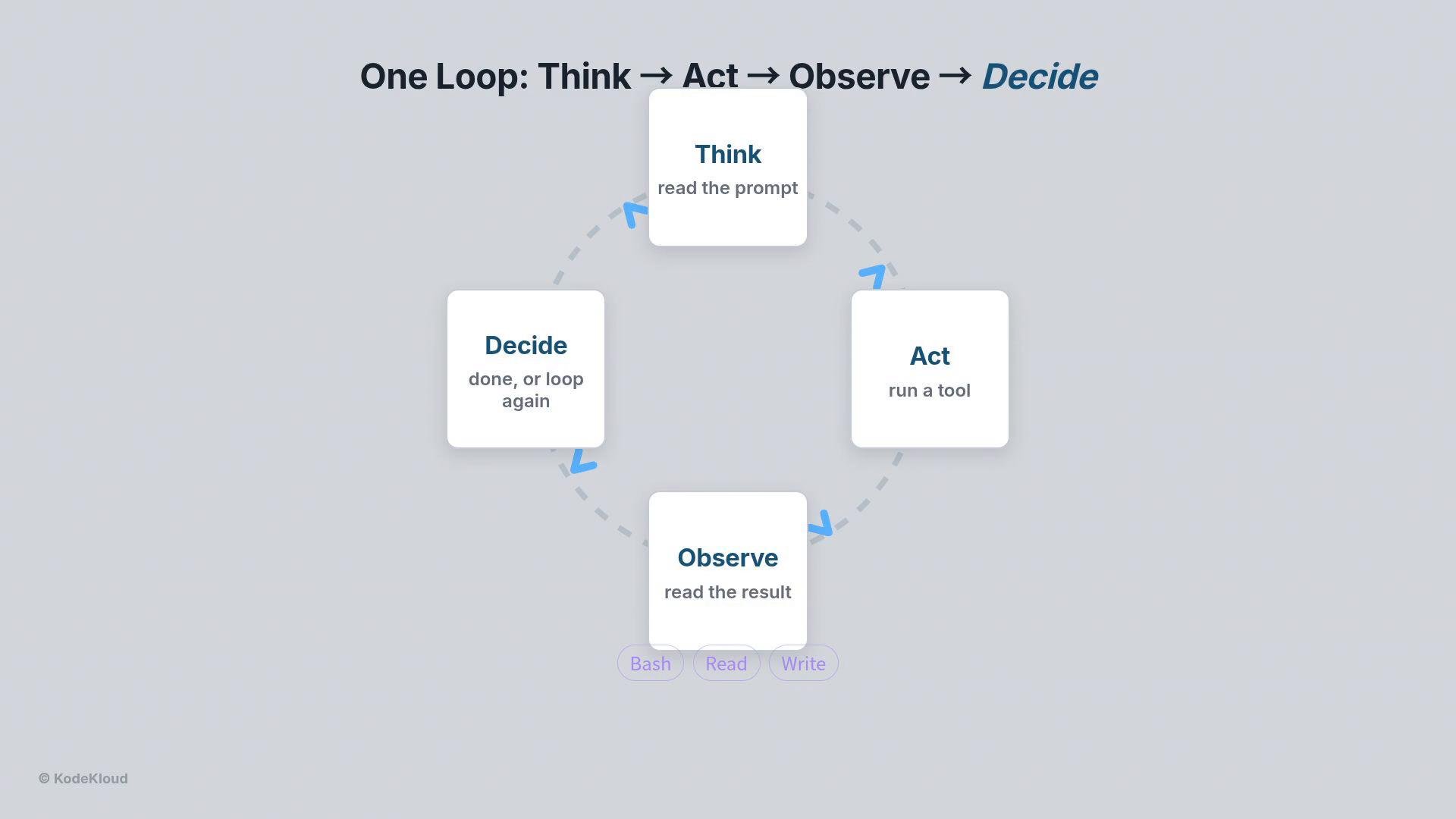
- Think: the agent parses your instruction and plans the next step.
- Act: the agent chooses a tool (e.g., Bash, Read, Write) and the SDK runs it.
- Observe: the agent inspects the tool’s output.
- Decide: determine if the job is complete or if the loop repeats.
- Less boilerplate: the SDK manages message history and tool execution.
- Built-in tooling: automatic tool invocation and secure whitelisting.
- Streaming: inspect decision steps as they happen.
- Cost & performance tracking: summary stats are returned at the end of every run.
query: runs a single agent turn and streams structured messages.ClaudeAgentOptions: configuration object for the agent.AssistantMessage: container for the assistant’s content and reasoning.TextBlock: text content within assistant messages.
asyncio for asynchronous execution and os for environment variables.
Configure the agent by constructing a ClaudeAgentOptions object. The most important fields:
Setting
permission_mode="acceptEdits" allows the agent to execute whitelisted tools without prompting each time. Use this in trusted automation contexts only.query streams structured messages rather than returning one string, you’ll receive different message types during a run. Inspect these types to follow the agent loop and debug:

aws sts get-caller-identity and summarize the account details. You simply provide a plain-English instruction and the agent handles planning, tool invocation, observation, and summarization.
Loop walkthrough:
- Think — Claude decides it needs the Bash tool.
- Act — Claude emits a ToolUseBlock instructing the SDK to run
aws sts get-caller-identity. - Observe — the SDK runs the command and provides the JSON output to Claude.
- Decide — Claude parses the JSON (account ID, user ID, ARN) and writes a clean summary.
Do not hardcode credentials. Keep your API keys and AWS credentials in environment variables or a secure secrets manager. Only enable
permission_mode="acceptEdits" in trusted environments where the listed allowed_tools are safe to run.- Add more tools (e.g., Git, HTTP, file read/write) to
allowed_toolsto expand capabilities. - Use richer prompts or system instructions to guide multi-step plans.
- Inspect
SystemMessagelogs and theResultMessagesummary to optimize cost and performance.
- Claude Agent SDK: https://www.anthropic.com/
- AWS CLI
sts get-caller-identity: https://docs.aws.amazon.com/cli/latest/reference/sts/get-caller-identity.html - Kubernetes Basics: https://kubernetes.io/docs/concepts/overview/what-is-kubernetes/