Guide to connecting Claude to MCP servers and desktop extensions, adding custom connectors, running MarkItDown to convert files to Markdown, and deployment and debugging tips
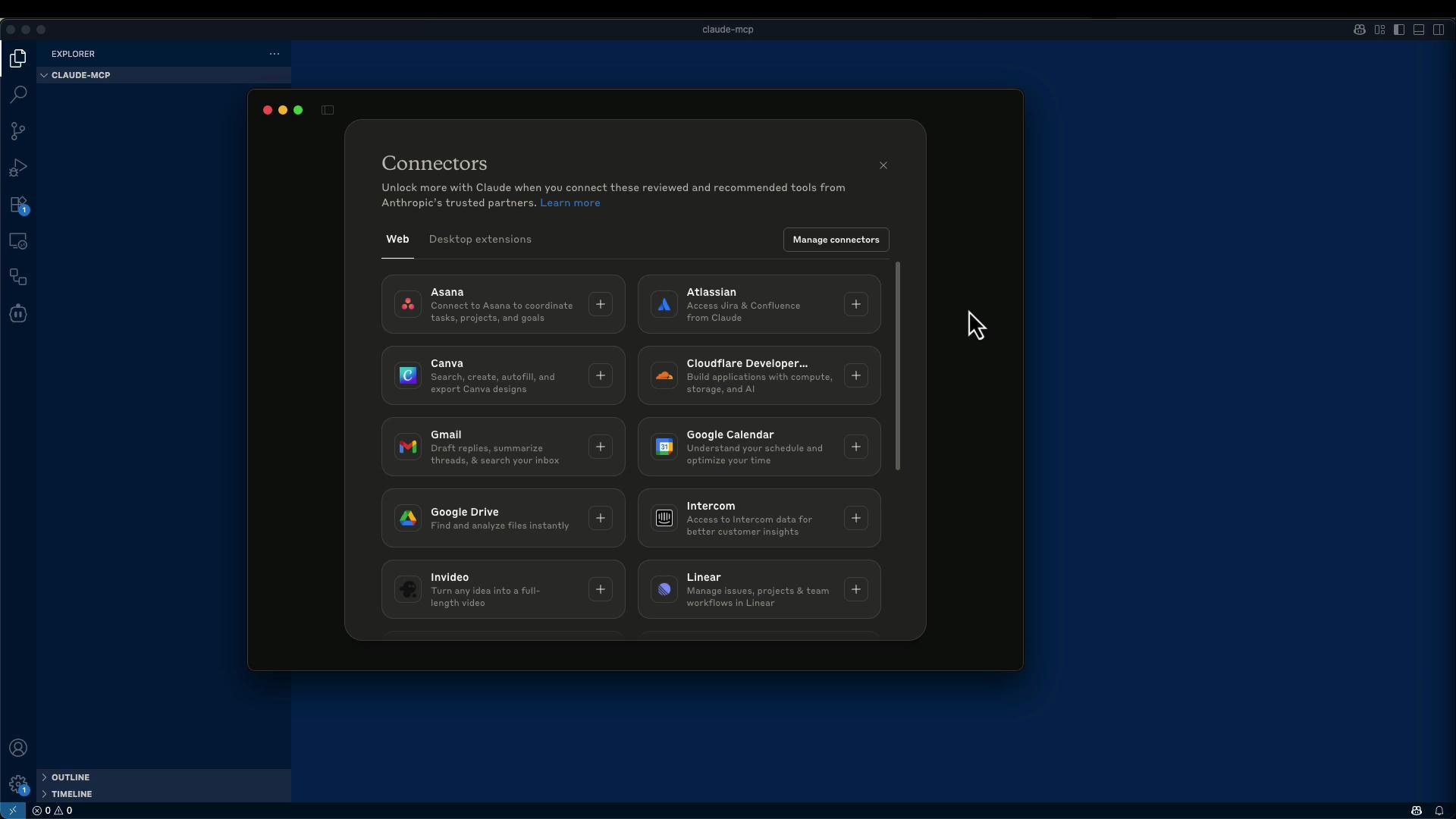
We already built MCP servers and a local server integrated with Claude successfully. This guide shows additional ways to connect Claude to MCP (Model Context Protocol) servers so you can automate day-to-day workflows — for example, converting documents to Markdown with a local connector.Claude advertises that it “works with your favorite tools.” From the Claude UI you can add connectors (Gmail, Google Drive, Linear, Square, Stripe, Zapier, and more) and grant the assistant access to reference or act on context from those apps.
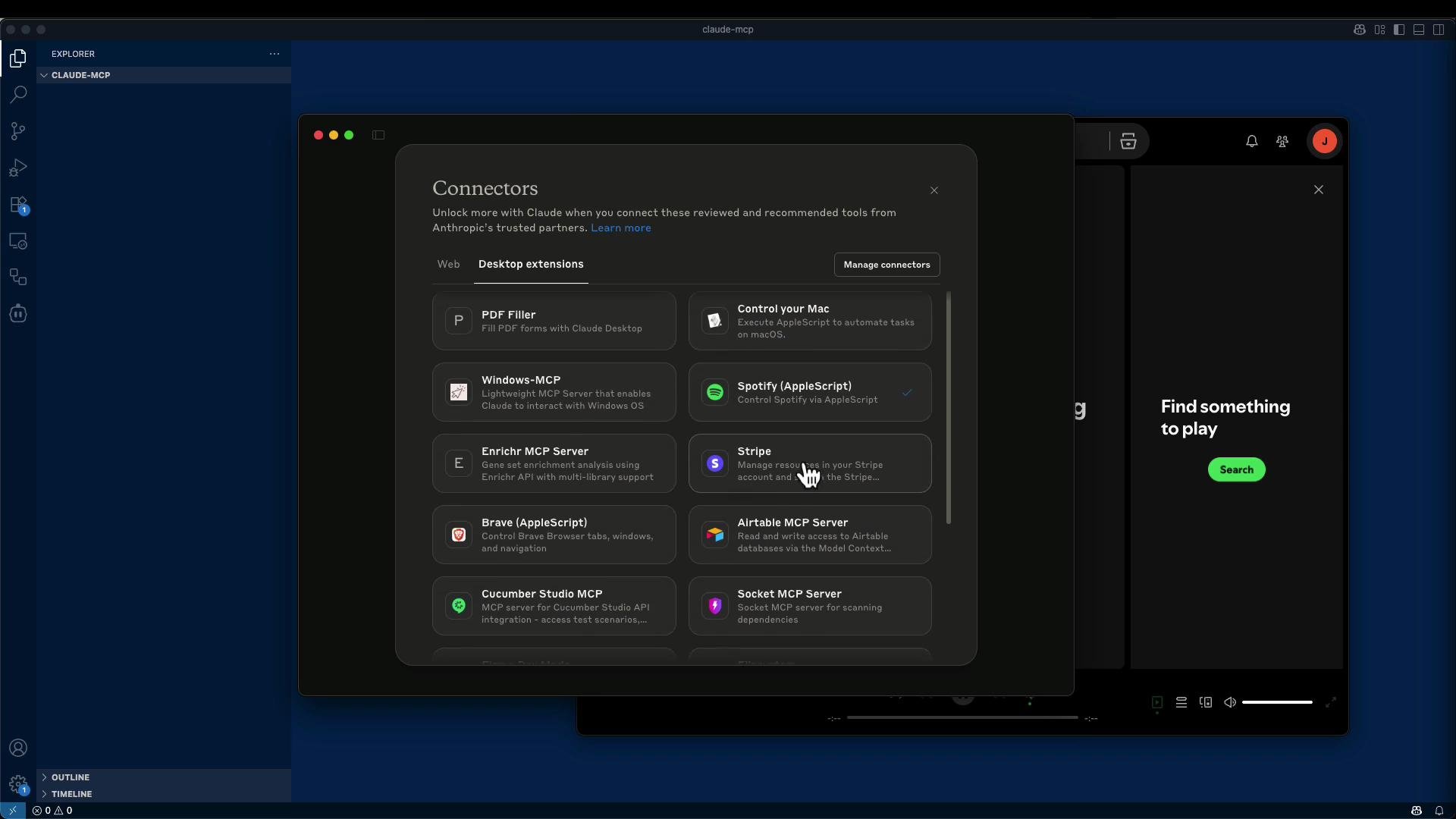
Claude also supports Desktop Extensions (local processes) that behave similarly to web connectors. The key distinction is:
Web connectors → hosted HTTP MCP servers (accessible via URL).
Desktop extensions → local processes running on your machine.
If a connector you need isn’t listed, you can add a custom connector and point Claude to any MCP-compatible HTTP endpoint (local, on your network, or public).Example: MarkItDown — a lightweight MCP server that converts documents to Markdown. You can install and run it locally (recommended inside a Python virtual environment) or run it in Docker.Quick local install and run (recommended inside a venv)
# create and activate a venvpython3 -m venv venvsource venv/bin/activate# install the markitdown MCP packagepip install markitdown-mcp# run an HTTP MCP server on localhost:3001markitdown-mcp --http --host 127.0.0.1 --port 3001
Typical startup logs (representative):
INFO: Waiting for application startup.StreamableHTTP session manager startedApplication started with StreamableHTTP session manager!INFO: Application startup complete.INFO: Uvicorn running on http://127.0.0.1:3001 (Press CTRL+C to quit)
Docker-based usage and CLI configurationIf you prefer Docker, the MarkItDown README includes Docker instructions. Example Claude desktop MCP server configuration (JSON) that runs the MCP server in Docker:
# builddocker build -t markitdown-mcp:latest .# run interactivelydocker run -it --rm markitdown-mcp:latest# run with a mounted workdirdocker run -it --rm -v /home/user/data:/workdir markitdown-mcp:latest
Add a custom connector in Claude
Start your MCP server (example: http://127.0.0.1:3001).
In Claude go to Tools → Add connectors → Add custom connector.
Enter the MCP HTTP endpoint. Typical endpoints:
Streamable HTTP: http://127.0.0.1:3001/mcp
SSE: http://127.0.0.1:3001/sse
Confirm you trust the connector when prompted.
Once connected, upload a file in Claude and ask it to “Convert to Markdown.” Claude will call your MCP server, which returns the converted Markdown content.
When adding a custom connector pointing to a local server, verify the MCP service is reachable at the URL you provide (correct host, port, and path). If you run behind a firewall or use a different network interface, update the host accordingly.
Inspector and developer tools
Model Context Protocol (MCP) Inspector (npm): run npx @modelcontextprotocol/inspector and open http://localhost:5173/ to inspect MCP traffic.
Useful for debugging request/response flows, session management, and events.
Server-Sent Events endpoints used for streaming updates
http://127.0.0.1:3001/sse
Deployment and operational suggestions
Goal
Recommendation
Keep services up long-term
Run MCP servers as background services (systemd, launchd)
Isolate dependencies
Run MCP servers in Docker containers
Team/internal access
Host MCP servers on an internal network, or expose public endpoints only after securing them
Do not expose MCP endpoints publicly unless you understand and have implemented proper authentication, TLS, and access controls. Exposing local connectors without protection can leak sensitive data.
Troubleshooting checklist
Is the MCP server running? Check logs for successful startup.
Is the URL/path correct? Confirm whether the server expects /mcp (Streamable HTTP) or /sse.
Is the host reachable from the machine running Claude? Replace 127.0.0.1 with the machine’s IP if necessary for networked setups.
Use the MCP Inspector to view session traffic and errors.
ConclusionClaude integrates with many web and desktop connectors by default. When a connector isn’t available, you can implement a custom MCP server—locally, on your network, or in Docker—and register it as a custom connector in Claude to perform tasks such as converting documents to Markdown. Community registries list many community MCP servers you can adapt or reuse.Links and references