

In this demo, if the total Out-of-Stock events exceed 400 within a 60-minute window, the record count will automatically display in red.
Setting Up Conditional Appearance
Follow these steps to configure the conditional appearance for your dashboard:- Open your Dashboard and click on Edit Filters.
- Select Count of Records and navigate to the Color by Value section.
- Choose the Text option and click on Edit Colors.
- Remove the existing color options.
- Add a new rule: if the value is greater than 400, change the text color to red.
- Close the settings panel and save your changes.
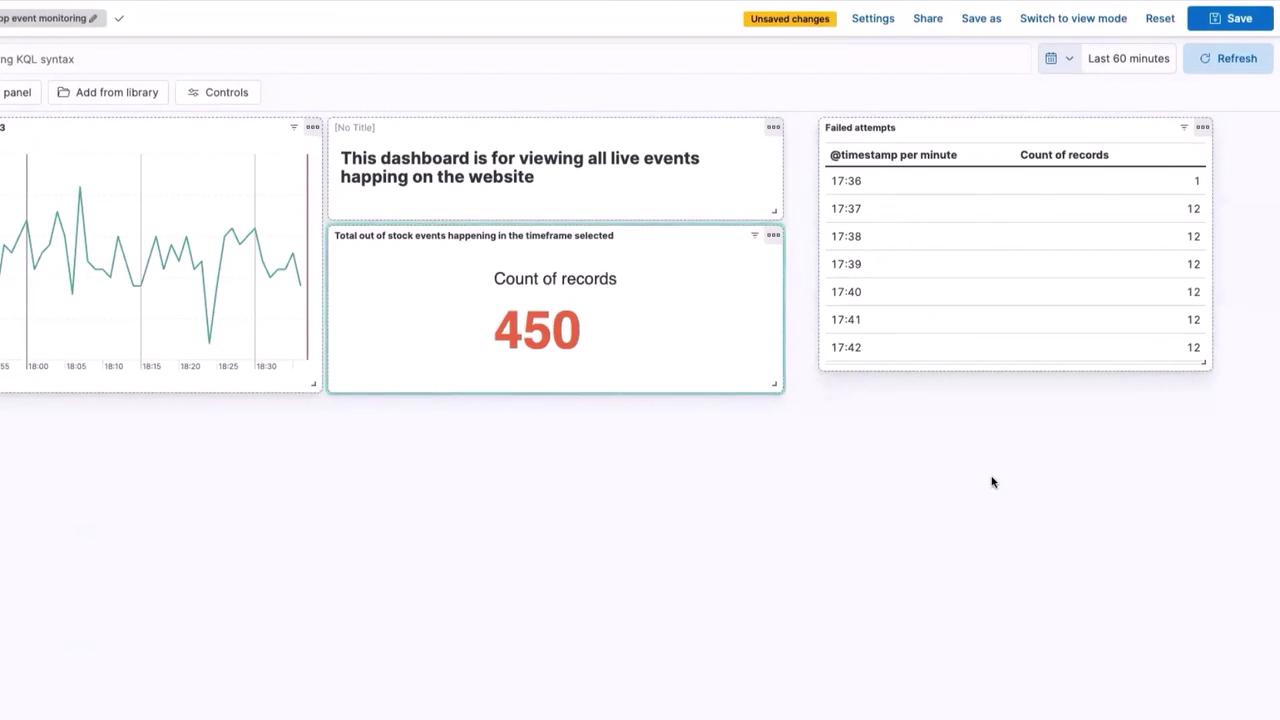
Testing the Conditional Appearance
To further illustrate the conditional formatting feature, try adjusting the time frame on your dashboard. For example, if you change the time frame to include only the last 30 minutes and click Update, the record count (224 in this case) remains in the default black color because the count does not surpass the 400 threshold: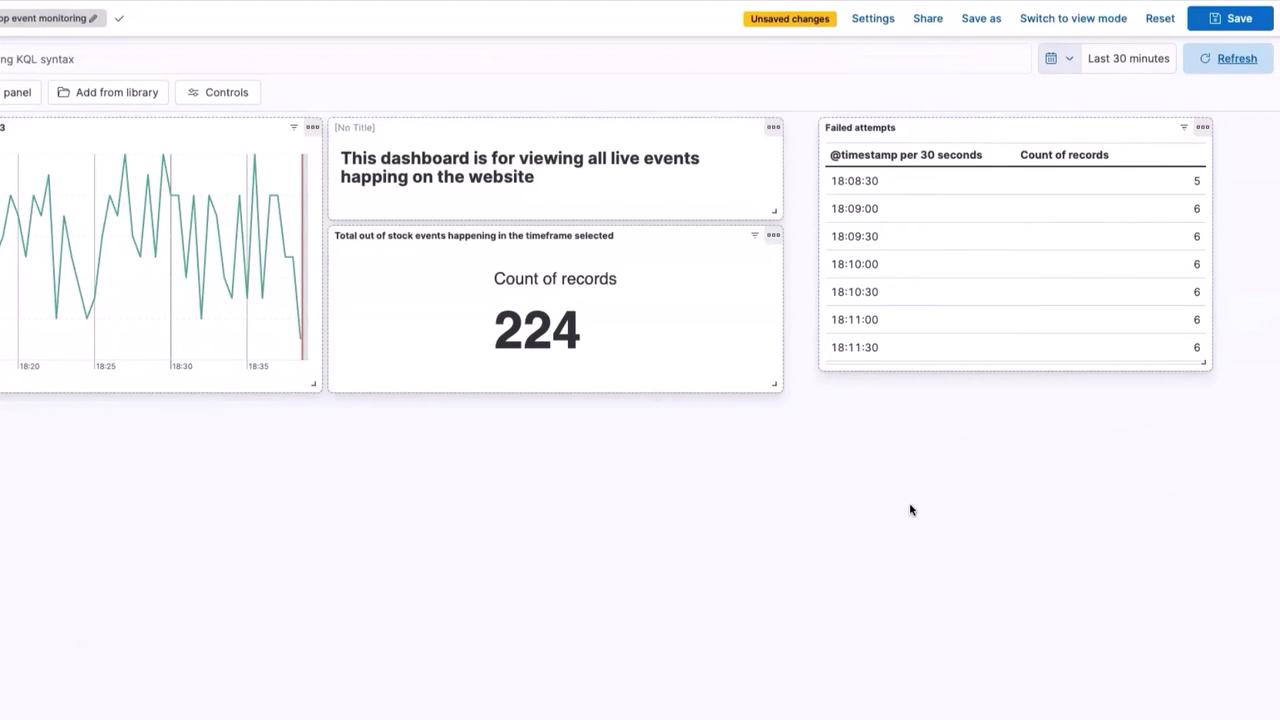
Be sure to verify that the event thresholds match the operational requirements of your monitoring setup to ensure that alerts are both meaningful and actionable.
Benefits of Conditional Appearance
Implementing conditional formatting on your live dashboards offers several advantages:
By leveraging these benefits, you can monitor your application more effectively and ensure that significant changes are immediately noticeable.
That concludes our tutorial on configuring conditional appearance on Kibana Dashboards. Thank you for reading, and stay tuned for more insights on optimizing your data visualization experience!