This article focuses on using Azure AI Studio for accessing and managing generative AI models and exploring various prompting techniques and parameters.
Azure offers a variety of tools to access AI-related resources, and this article focuses on one of the most user-friendly options: Azure AI Studio. While Azure also provides solutions like Azure Machine Learning and a dedicated OpenAI service, Azure AI Studio is primarily designed for developers building general applications—not necessarily for data scientists who require highly customized or complex models.
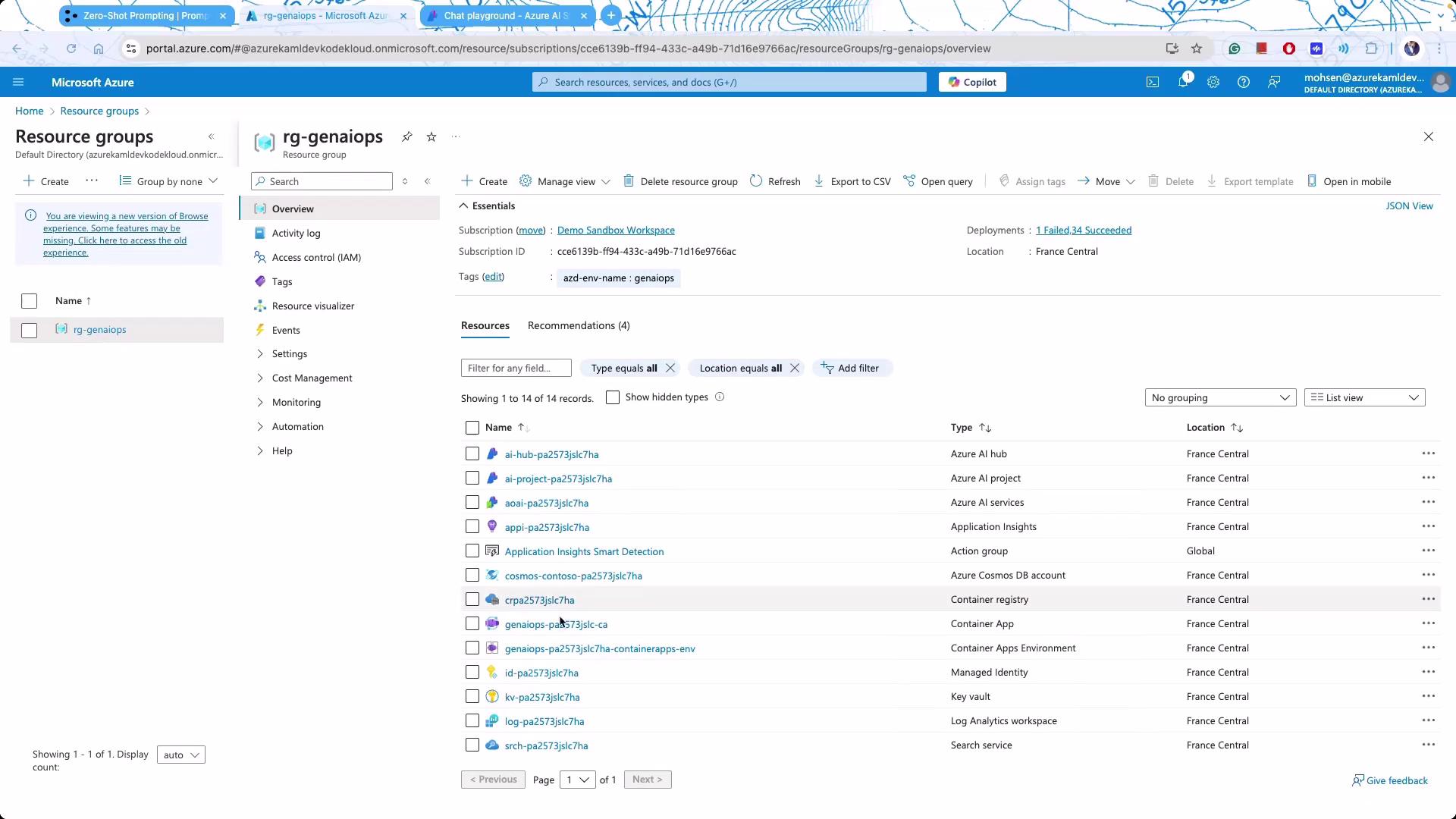
After logging in to Microsoft Azure, you’ll notice multiple resource groups dedicated to different projects. For instance, consider this resource group where various components are deployed:
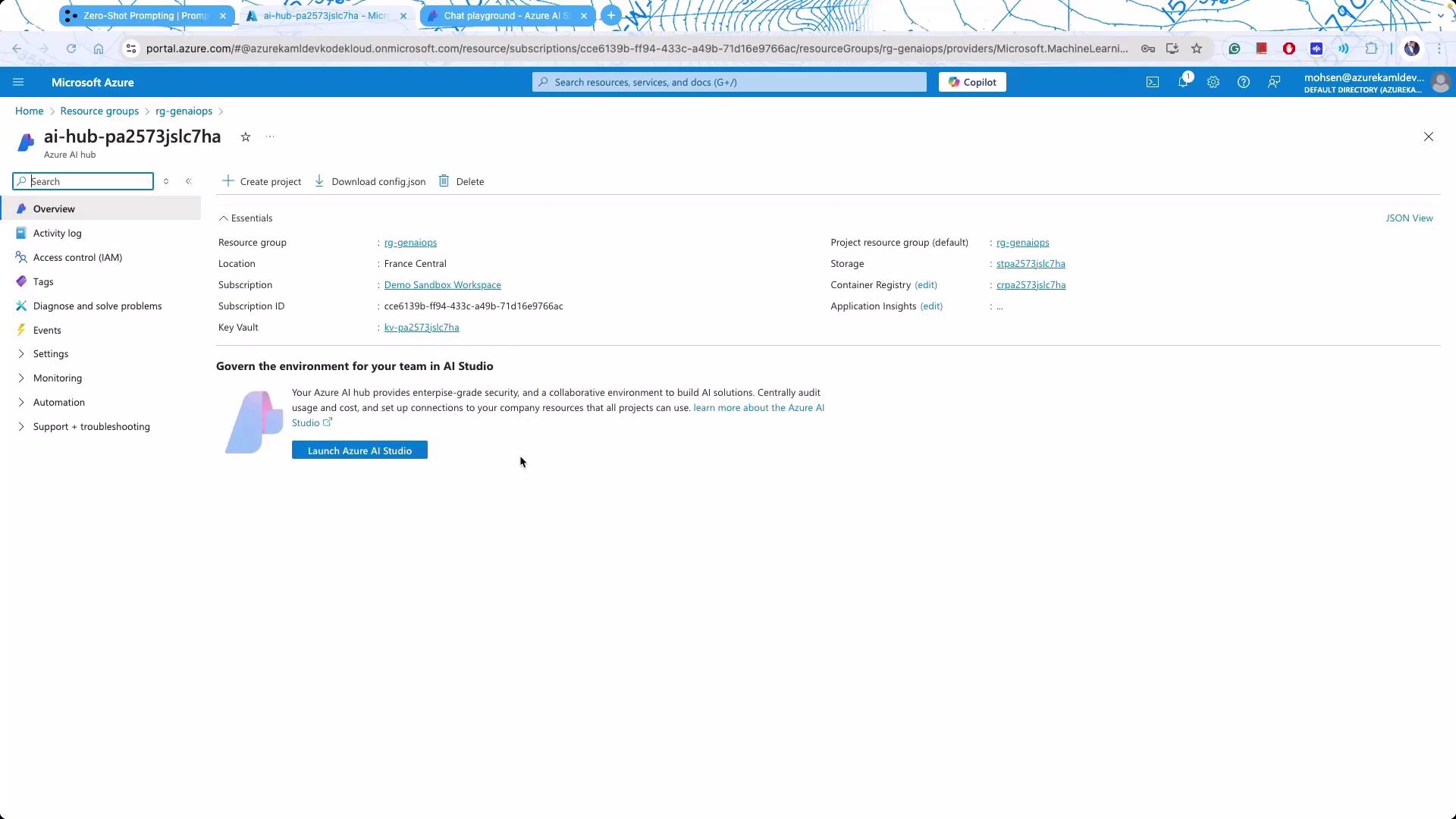
Focus on Azure AI Studio as you explore the portal. You may see several related services like Azure AI Services. Simply click on Azure AI Studio to discover its many capabilities.
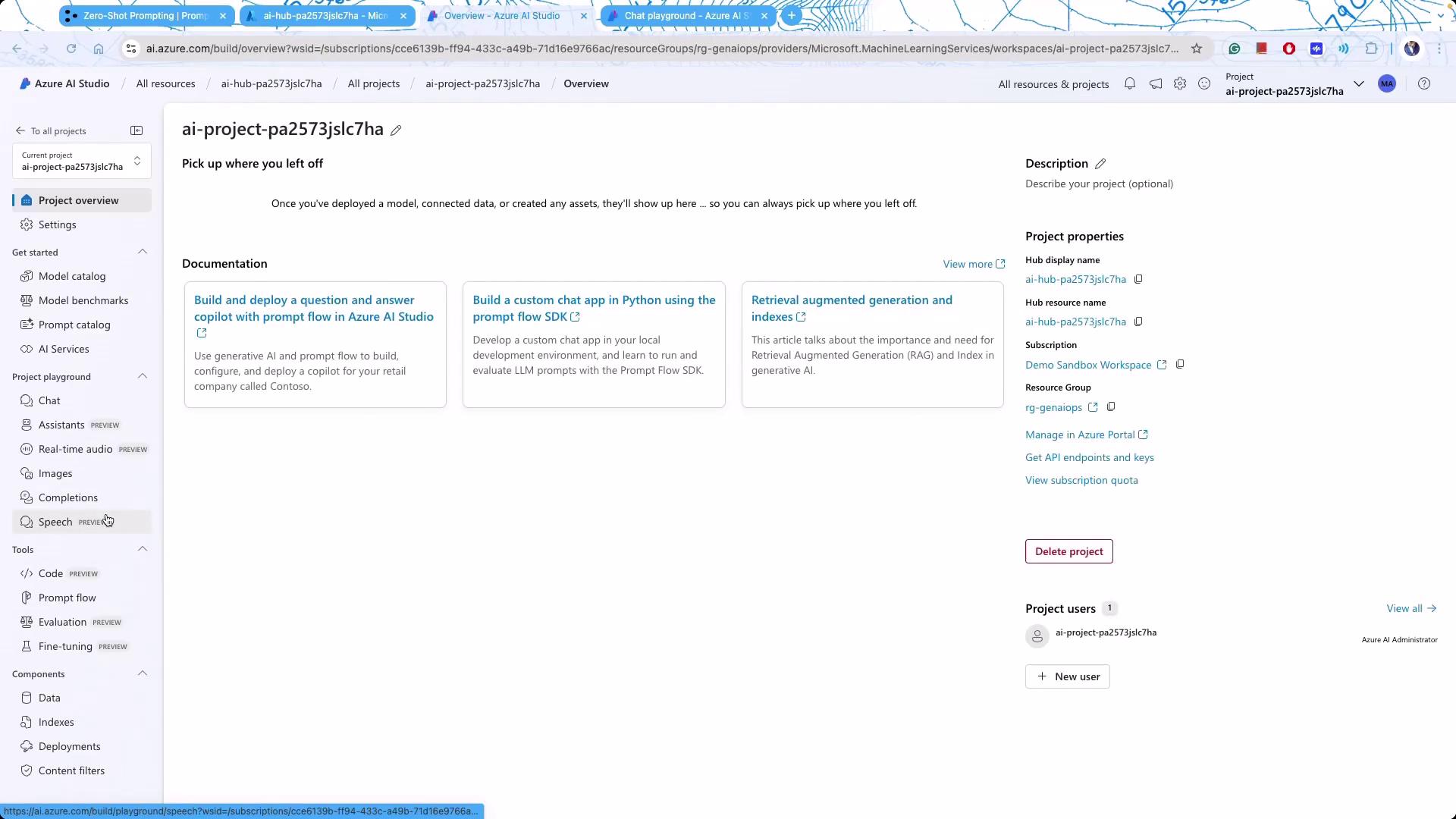
Azure AI Studio organizes your deployments and models into projects. When you access a project, you’ll see an overview screen similar to this:
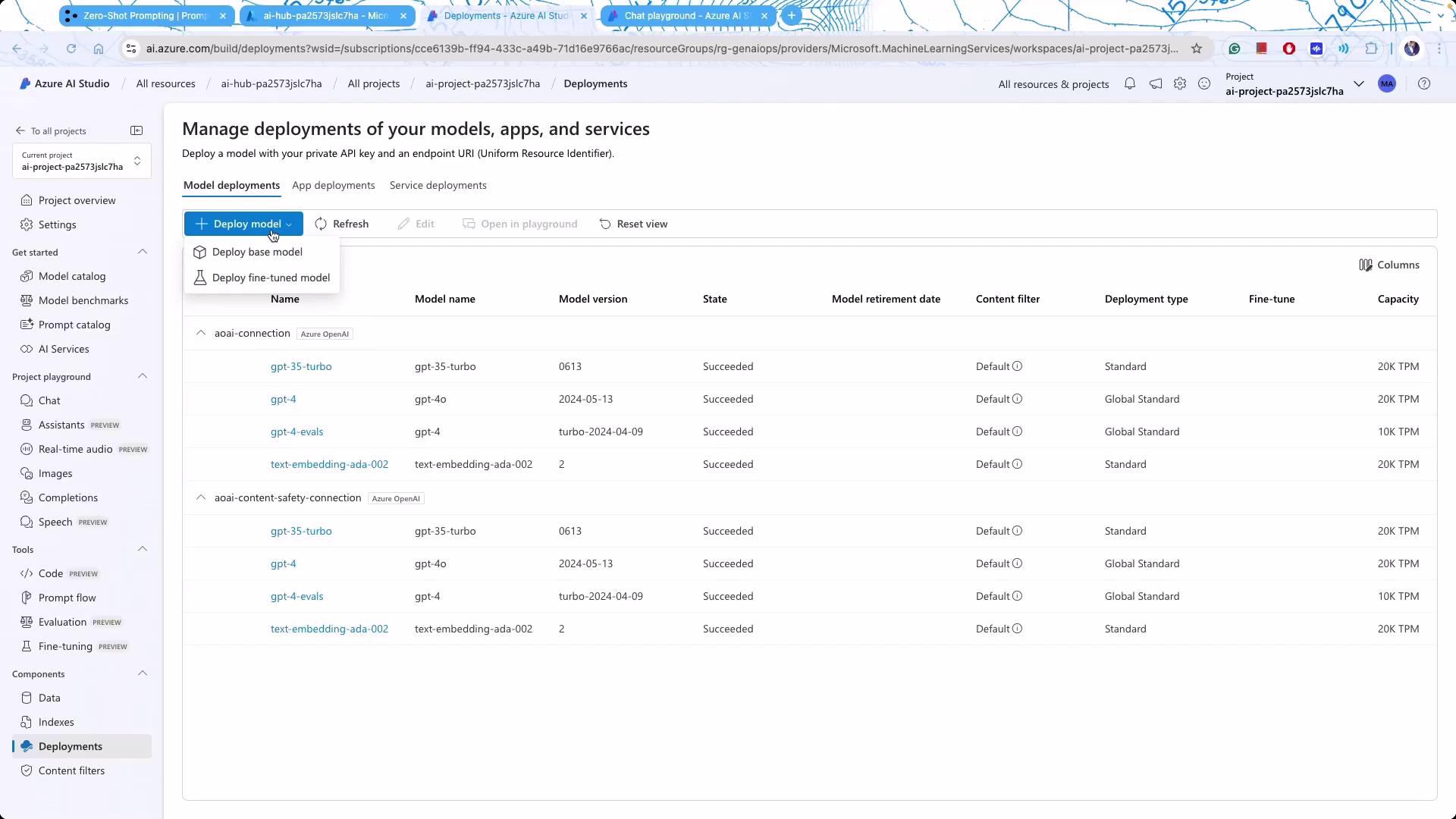
In the project dashboard, you will find several deployed large language models (LLMs), including both base and fine-tuned versions. For example:
Click on any model to review examples provided by OpenAI and Microsoft. Model name postfixes, such as “instruct,” indicate fine-tuning methodologies where the model is adjusted using high-level instructions rather than extensive datasets. Similarly, chat models are optimized for conversational tasks.
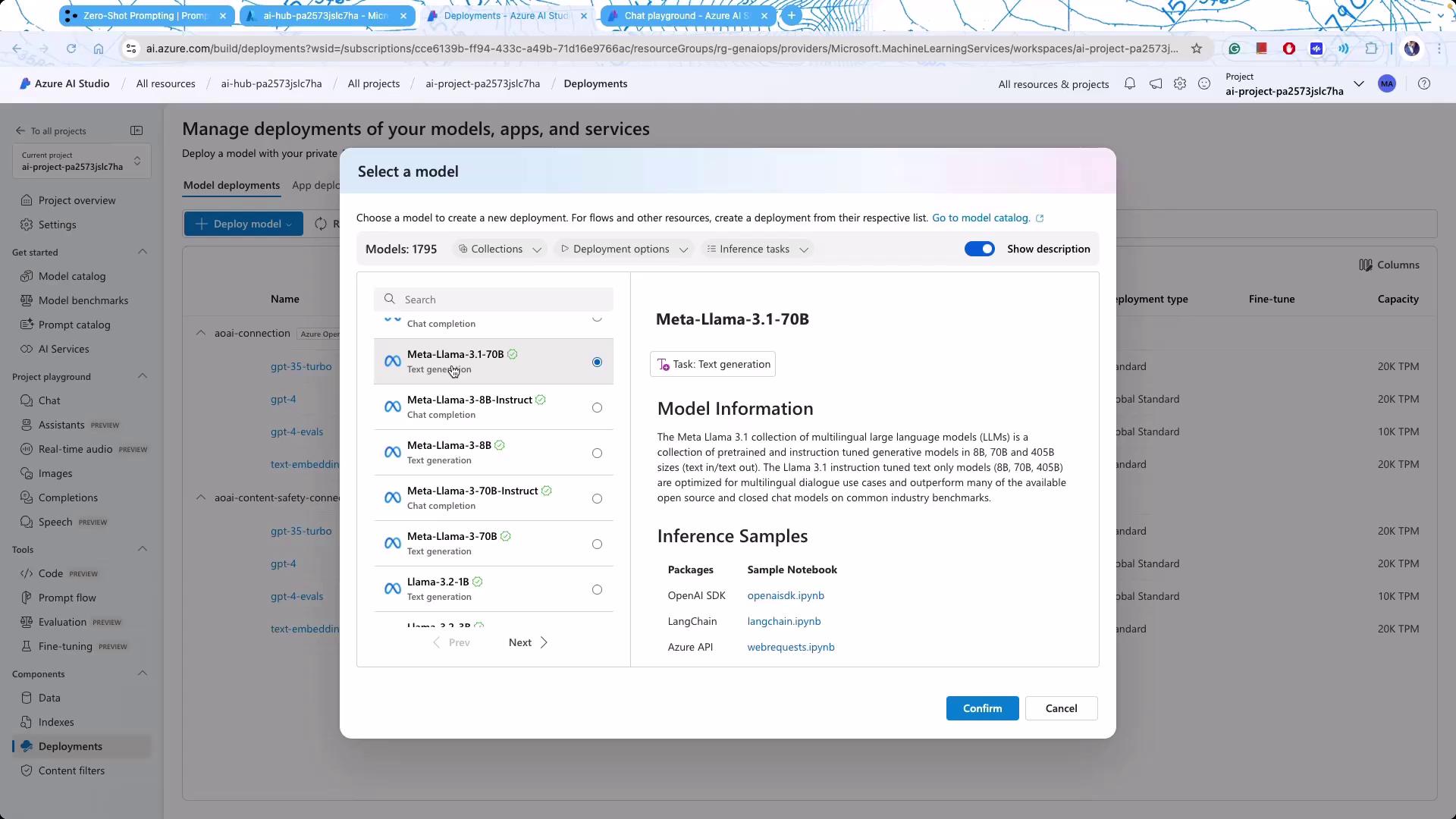
Selecting a model in Azure AI Studio reveals detailed information about its usage, training history, and metadata. For example, when reviewing Meta models, you might see an interface like the one below:
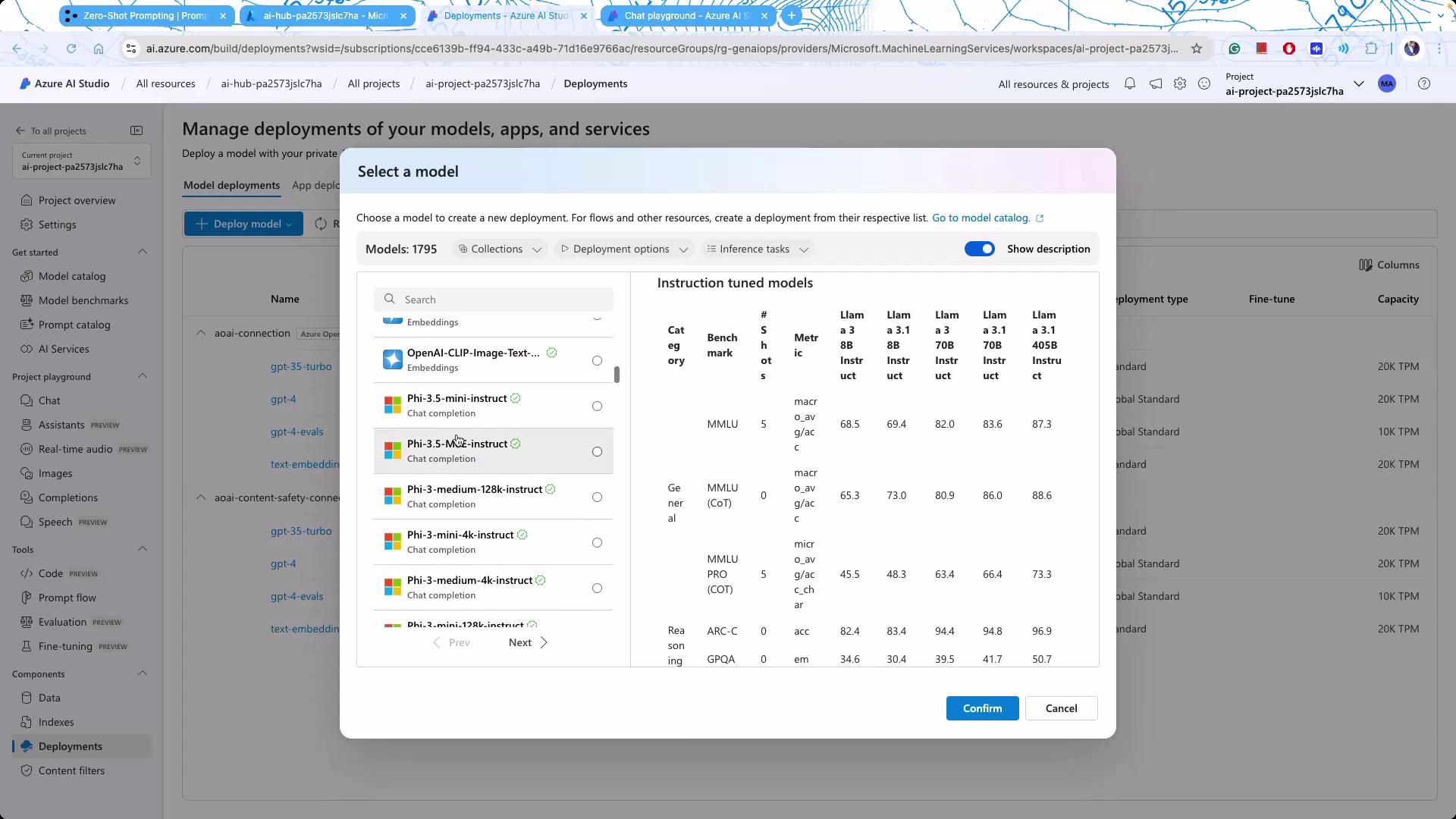
Another view provides a comprehensive list of models alongside performance metrics:
Additionally, there is a dedicated dashboard for managing model deployments:
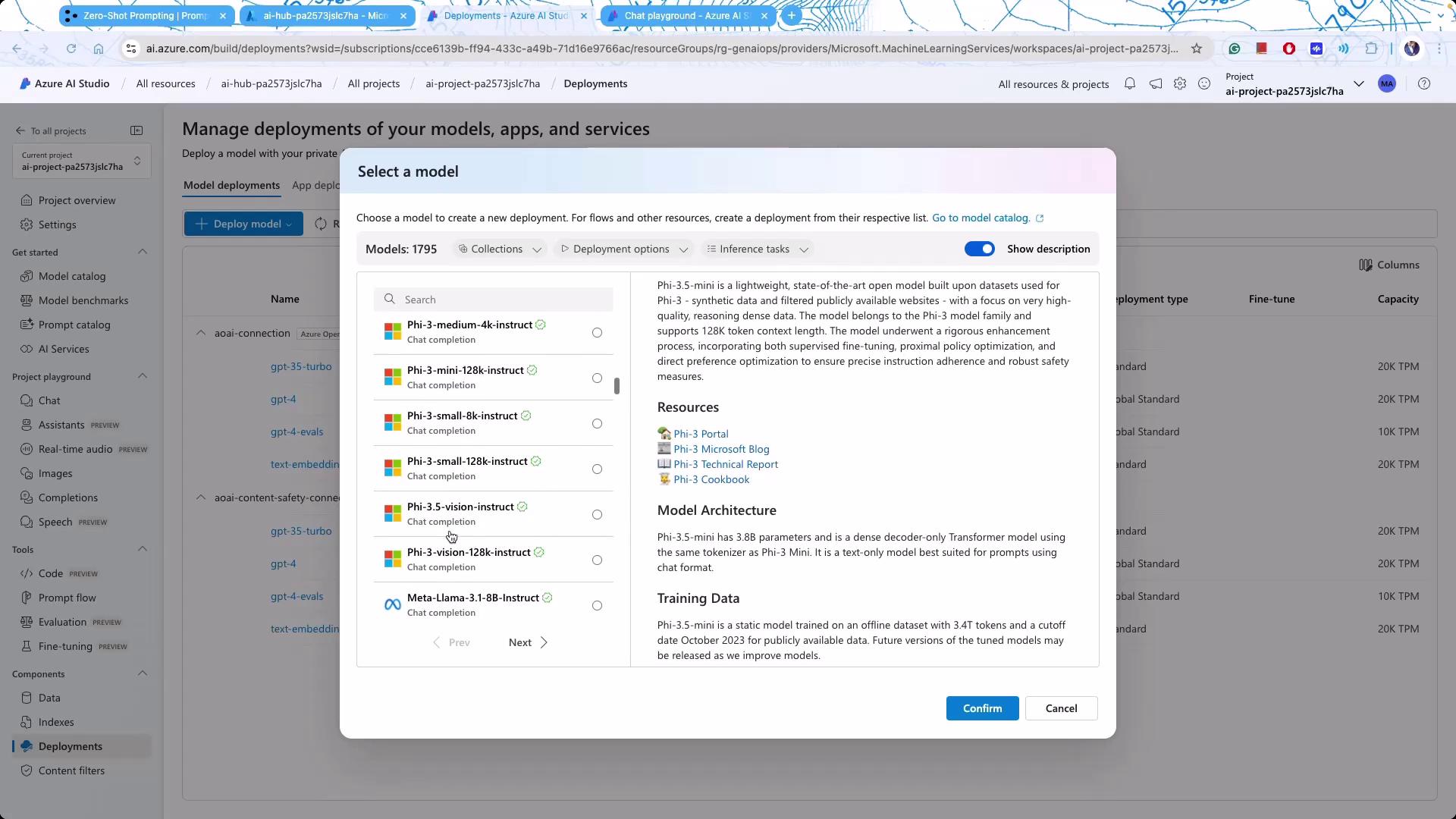
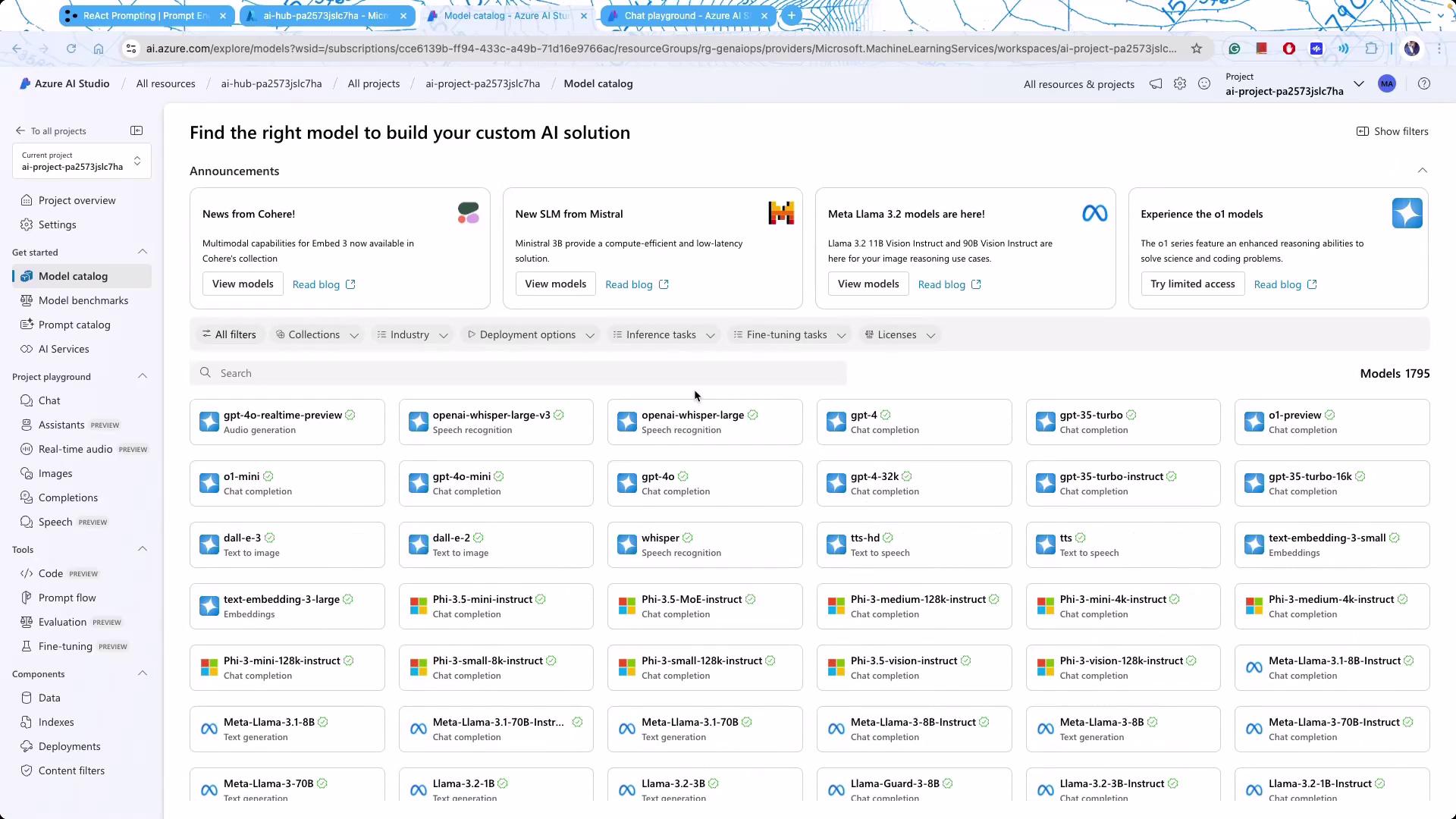
Azure AI Studio supports a wide range of models, from GPT-4 and GPT-3.5 to models available on Hugging Face. This diverse catalog allows you to select the model that best fits your application requirements.
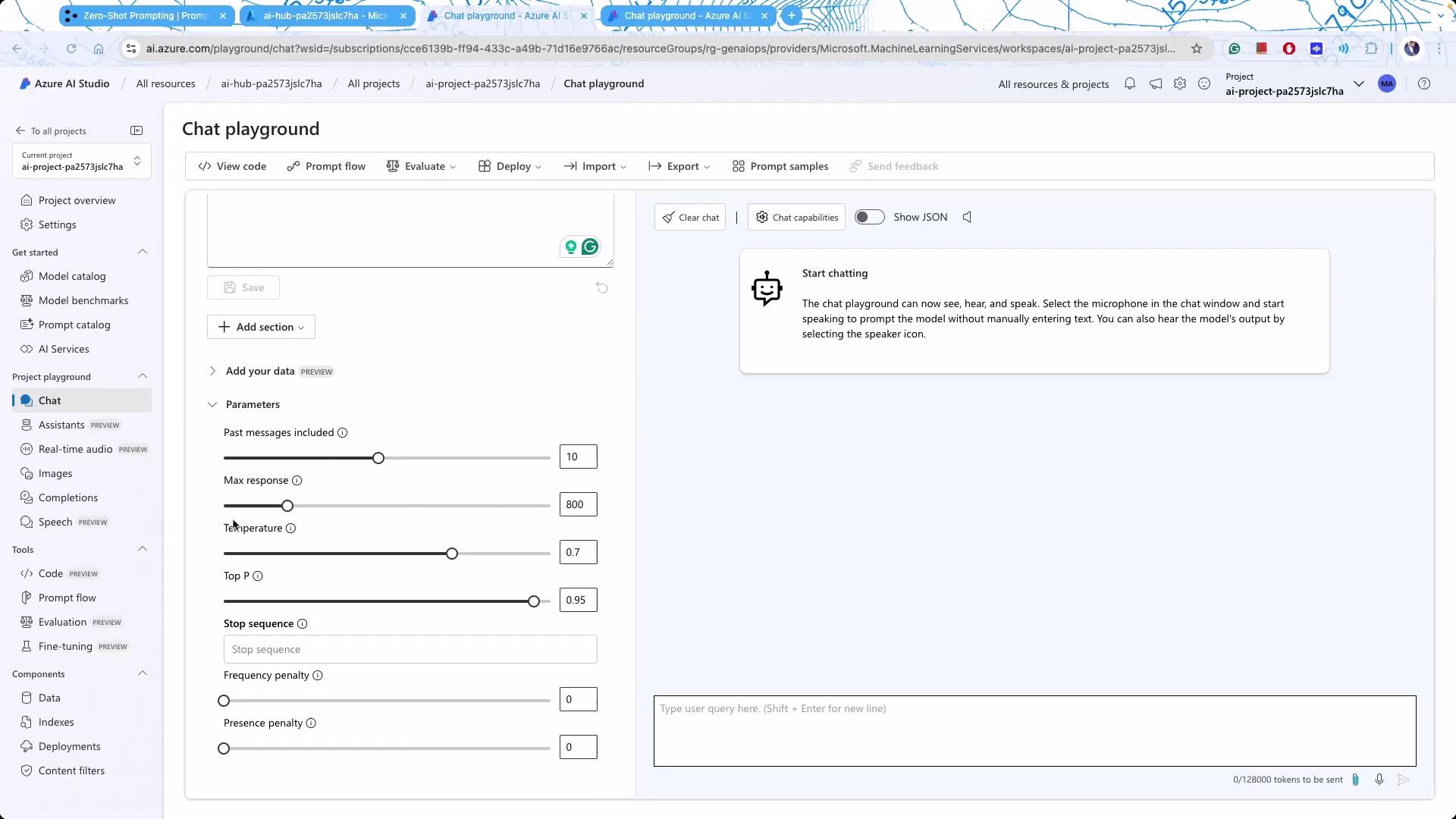
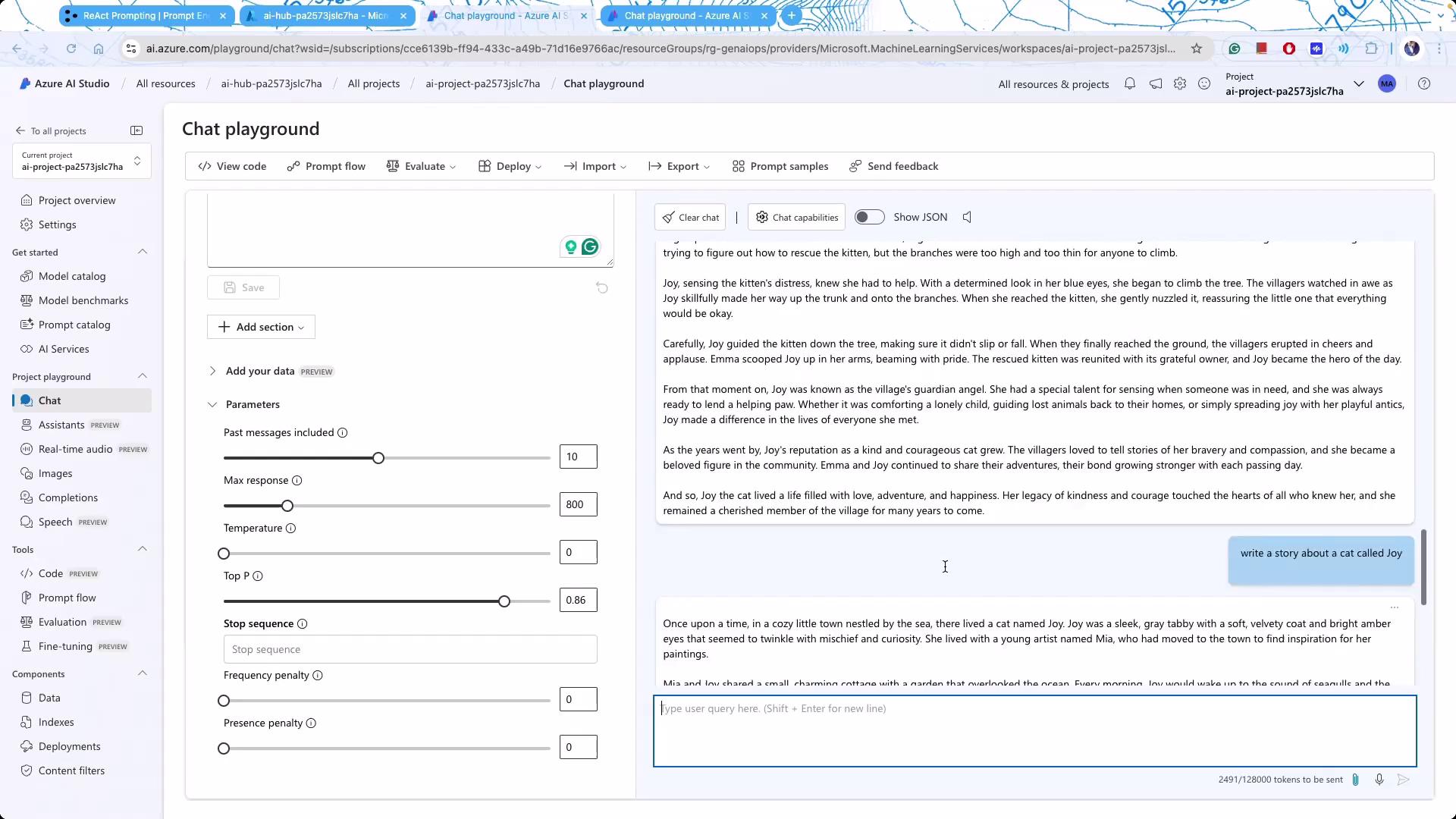
Azure AI Studio features an interactive Chat Playground, a testing ground for various prompting techniques. Within this environment, you can instruct models to perform tasks such as acting as a virtual shopping assistant, a legal co-pilot, or other specialized roles.In the Chat Playground, you can adjust parameters that affect the model’s output characteristics, including:
Maximum Response: Once critical for cost management, this setting dictates the maximum length of responses.
Frequency and Presence Penalties: These help manage word repetition.
Temperature: Controls the randomness of responses. A higher temperature (e.g., 1) encourages creativity, while a near-zero value results in deterministic outputs.
Top P: Limits the pool of likely output tokens to narrow down possibilities.
Adjust settings like temperature and top P to fine-tune the creativity and determinism of your model’s responses.
Advanced settings like logic biases are often available through the API layer, although they may not be exposed directly in the user interface.
Azure AI Studio showcases various prompting techniques to get the most out of generative models:
Zero-Shot Prompting: Provide a piece of text and ask the model to analyze it (such as determining sentiment). This method works well with larger models.
Few-Shot Prompting: Supply several examples as context so that the model can generate new text following the established pattern. This is particularly beneficial for tasks requiring consistency.
Chain-of-Thought Prompting: Encourages the model to generate structured reasoning steps.
Meta-Prompting: Optimizes token usage by providing a broad context to the model.
React Prompting: Enhances model reliability and output by incorporating recent research findings.
An important feature in prompting is the ability to create stop sequences. For example, defining a specific stop sequence (like a period) ensures the model halts its output when the sequence is detected. This is especially useful for preventing extraneous content when generating programming code.By fine-tuning parameters such as temperature and top P, you can control the balance between consistency and creativity. For instance, setting the temperature to zero makes responses exceedingly consistent, though it may limit creative output.An example of these settings in action is demonstrated when the Chat Playground generates a story about a cat named Joy:
While reducing variability can make outputs consistent, over-constraining the model might strip away its creative potential.
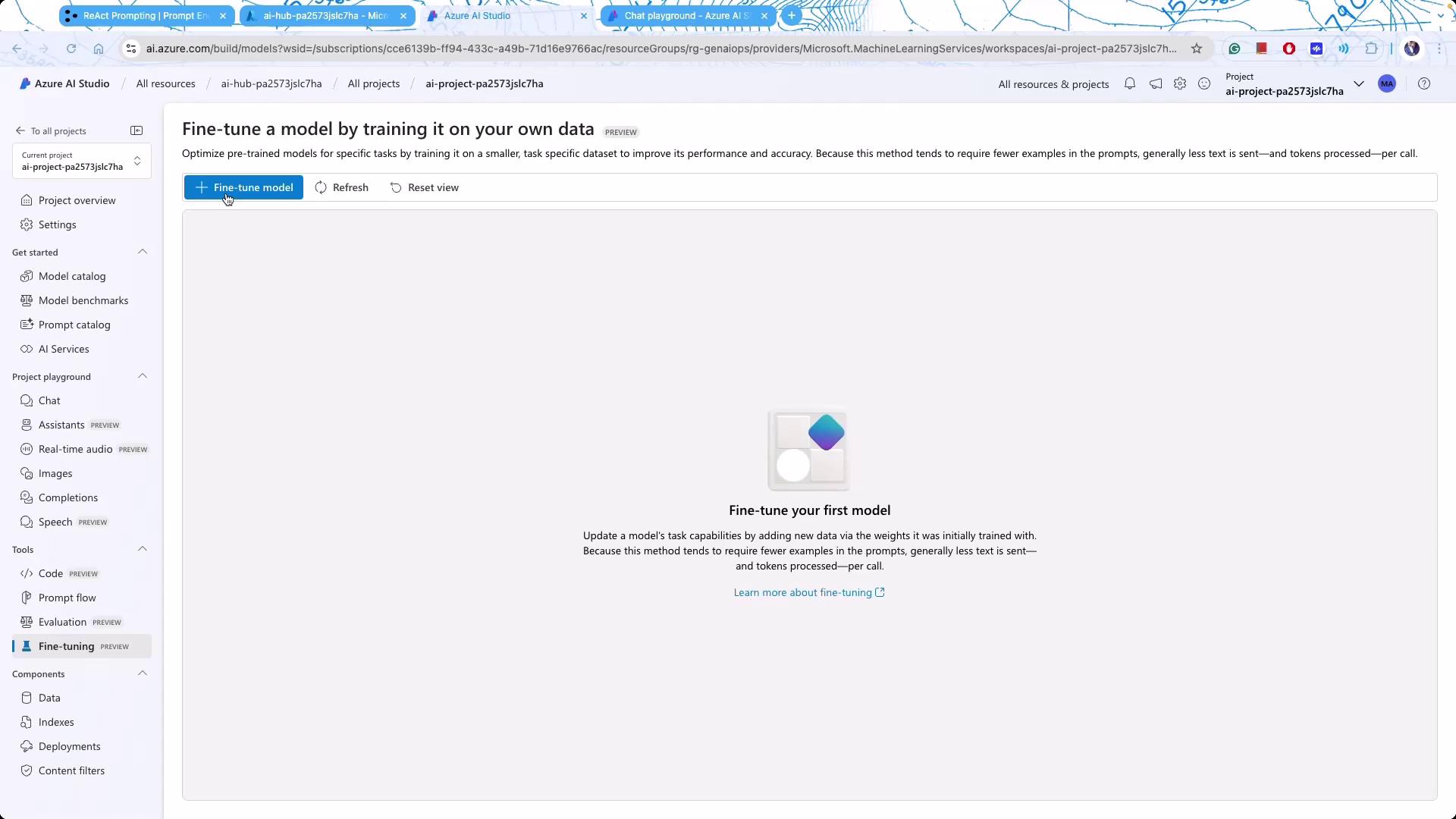
Fine-tuning your AI model has never been easier with Azure’s streamlined tools. Although basic fine-tuning is now straightforward, selecting the right data for the process remains critical.Access the fine-tuning section within Azure AI Studio to begin customizing your models:
Furthermore, the Azure AI Studio features a Model Catalog (sometimes referred to as the Model Garden) where you can explore an extensive library of models—including those from OpenAI and other providers:
Azure AI Studio provides a comprehensive platform for exploring, deploying, and fine-tuning generative AI models. Whether you are experimenting with prompting techniques, tweaking model parameters, or fine-tuning your deployments, this toolset supports a wide range of functionalities that meet today’s hyperscaler standards.Enjoy exploring Azure AI Studio and experiment with different settings to discover what best meets your application needs. For further information, visit the Azure AI Studio Documentation.Happy experimenting with Azure AI Studio!