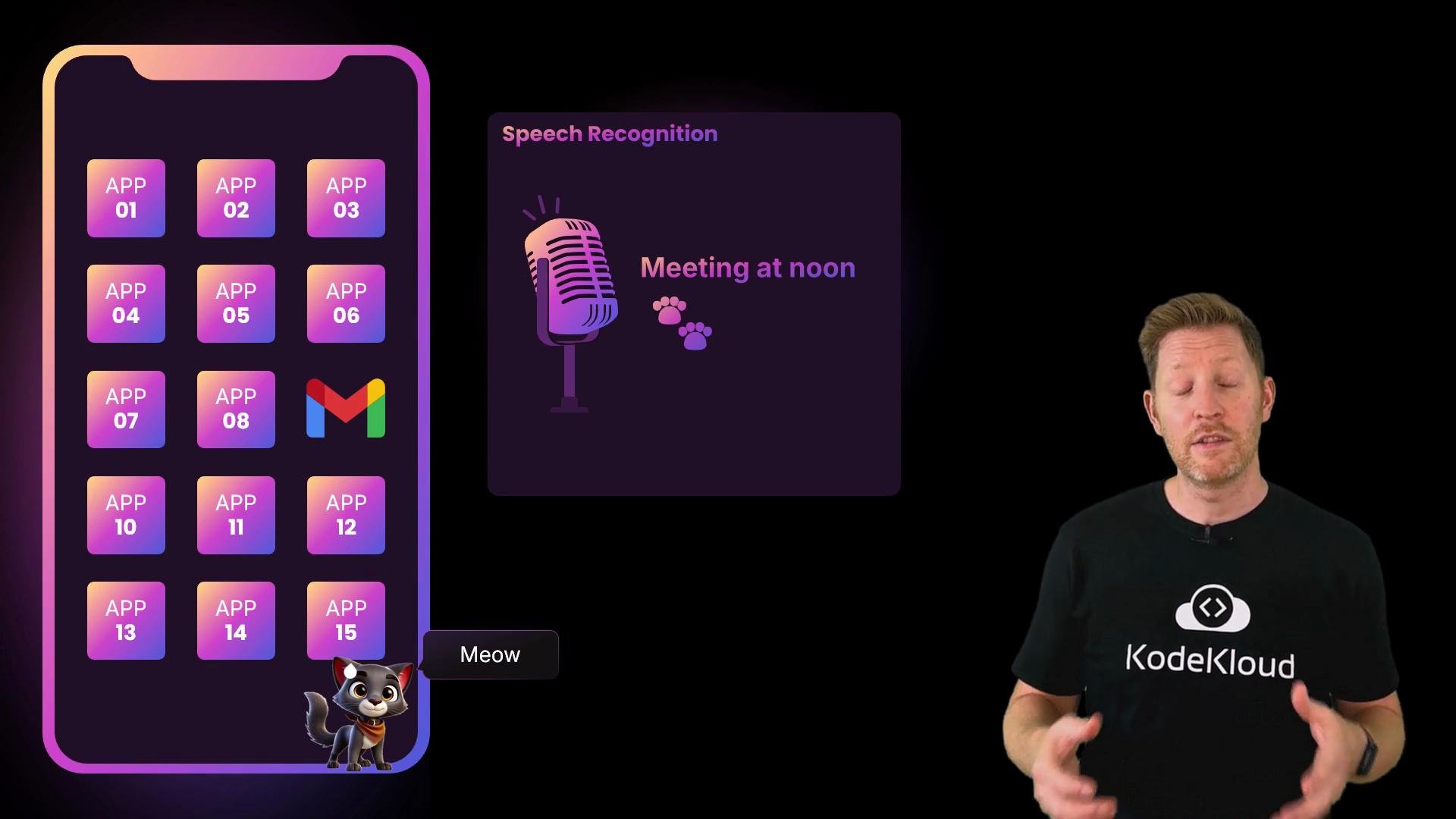
Cody is trying to open her email, but her paws aren’t made for precise tapping. She switches to voice dictation, which goes well until the OS turns “meow” into “meeting at noon.” This highlights a simple truth: people interact with devices in many ways — tapping, typing, dictating, using controllers or styluses, or relying on accessibility features. The operating system (OS) is what takes that input, whatever its form, and routes it to the right place. It also decides how apps respond and how the device reacts visually, by sound, or via vibration.
A presenter stands on the right while a colorful smartphone mockup and a "Speech Recognition" panel reading "Meeting at noon" are shown on the left, with a small cartoon cat saying "Meow" at the bottom.
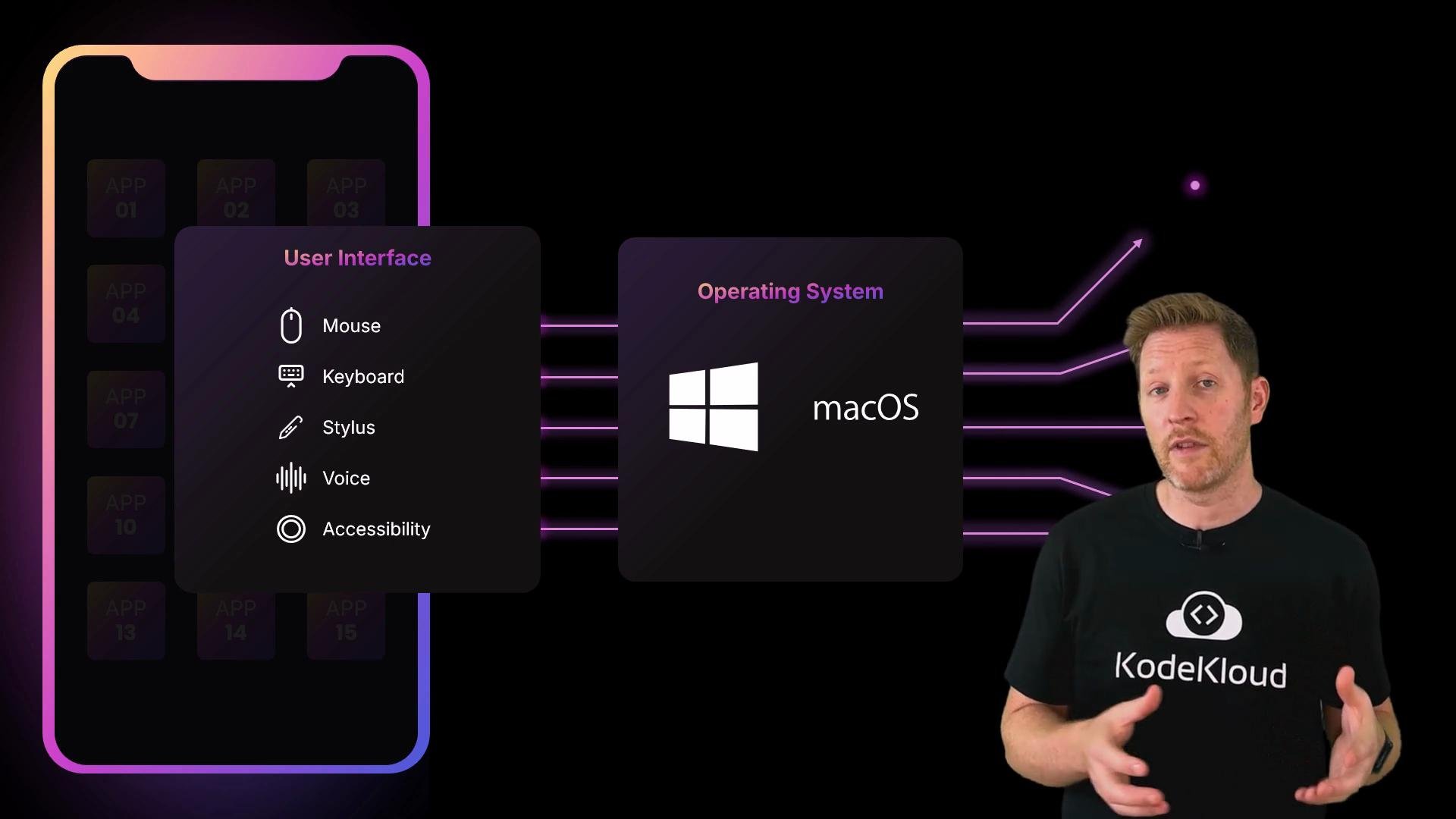
The OS provides the glue between user input and application behavior. It accepts gestures, keystrokes, pointer events, voice, or accessibility signals and translates them into actions apps can handle. It also enforces permissions, manages resources, and keeps the system stable and responsive.
A presenter in a KodeKloud shirt gestures beside a neon diagram of a smartphone UI panel listing input methods (mouse, keyboard, stylus, voice, accessibility). The panel connects to an "Operating System" block labeled macOS with a Windows logo against a black background.
In this lesson we’ll cover how users and applications communicate with the OS, and how the user interface makes that communication possible. What you’ll learn:
  • How the two main interaction models work: Graphical User Interface (GUI) and Command Line Interface (CLI).
  • How apps are installed, launched, monitored, and removed.
  • How applications communicate with the OS via APIs and system calls.
  • How the OS handles input/output and provides accessibility features.
These concepts are foundational for scripting, automation, system administration, cloud deployments, and security—so understanding interfaces and lifecycles will pay off across many tasks.
Understanding both GUI and CLI workflows helps you pick the right tool for the job: GUI for discoverability and ease, CLI for automation and precision.

GUI vs. CLI: two ways to tell the OS what to do

Most people use a Graphical User Interface (GUI): icons, windows, menus, and touch gestures. GUIs are visual and designed to be intuitive. If you’ve opened a browser, dragged a file, or scrolled settings, you’re using a GUI. The Command Line Interface (CLI) is a text-based interaction model. You type exact instructions into a terminal. The CLI is extremely powerful for repetitive tasks and automation. Example of an interactive CLI tool that lists settings and offers actions:
CURRENT SETTINGS
- Server listening at: http://localhost:3200
- Delay: 0
- Current collection: user2 (custom variants: get-user:2)
- Collections: 2
- Routes: 1
- Route variants: 2
- Log level: debug
- Watch enabled: true

ACTIONS

? Select action:
  Select collection
  Use route variant
> Restore route variants
  Change delay
  Restart server
  Change log level
  Switch watch
(Move up and down to reveal more choices)
Example: create multiple files quickly with the CLI
# Create 5 note files with initial content
for i in {1..5}; do
  echo "TODO: Add content for note_$i" > "note_$i.txt"
done
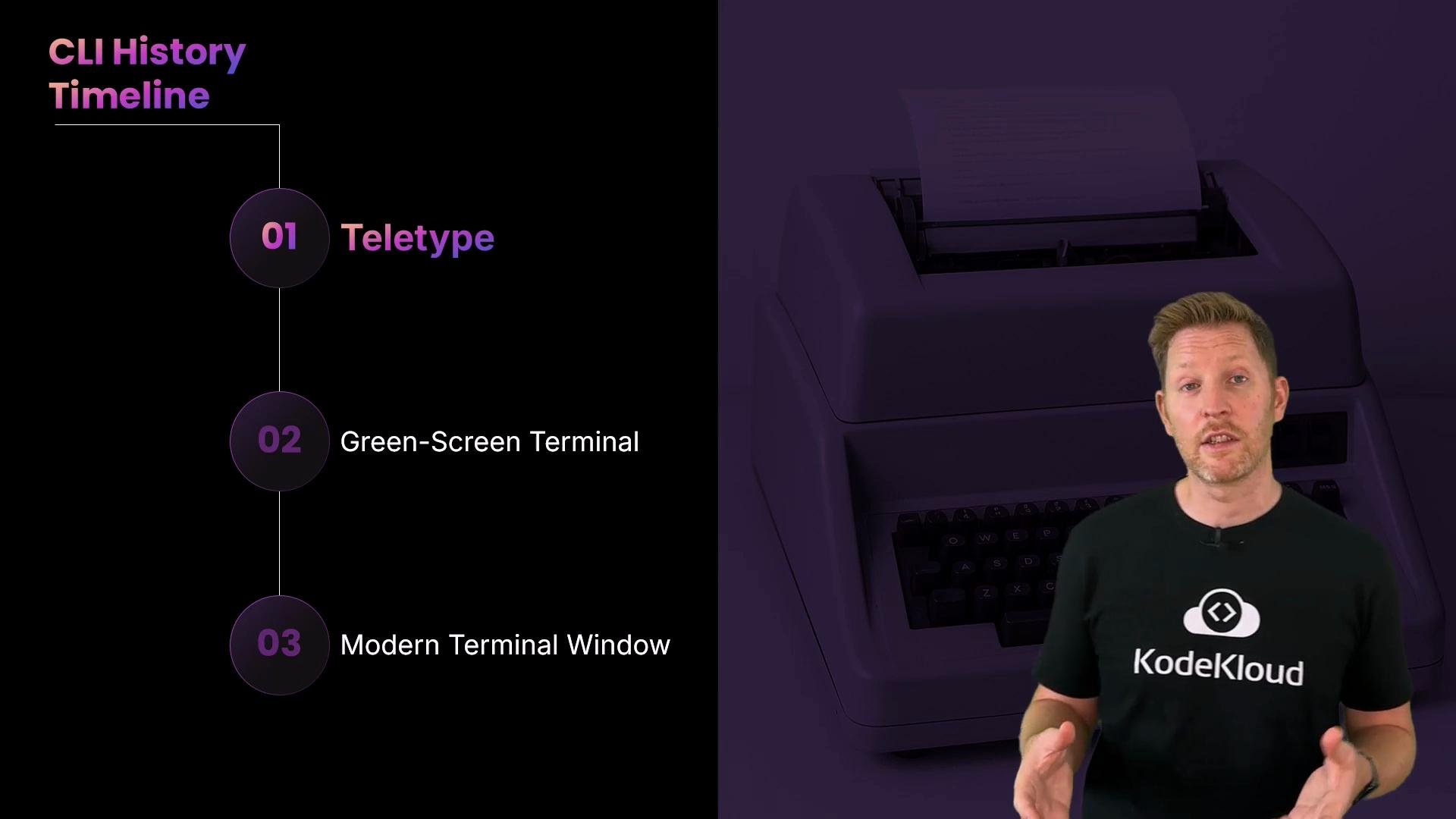
Inside the terminal sits a shell: the program that reads your commands and asks the OS to run them. Common shells include: The CLI has deep roots. It evolved from teletypes (TTYs) and legacy terminals; that history explains the terminology you still see today.
user@hostname: $
Many people use both: GUI for day-to-day discoverability and CLI for scripted, repeatable work. Table: quick comparison
Interface TypeBest forExample
GUIDiscoverability, casual users, touch-based workflowsOpen a browser, drag files
CLIAutomation, precision, bulk operationsfor i in {1..5}; do echo "..." > note_$i.txt; done
ShellCommand interpretation and scriptingbash, zsh, PowerShell
A presentation slide titled "CLI History Timeline" listing "01 Teletype," "02 Green-Screen Terminal," and "03 Modern Terminal Window" on the left. On the right is a presenter (wearing a KodeKloud t-shirt) standing in front of a large purple-toned image of a typewriter.
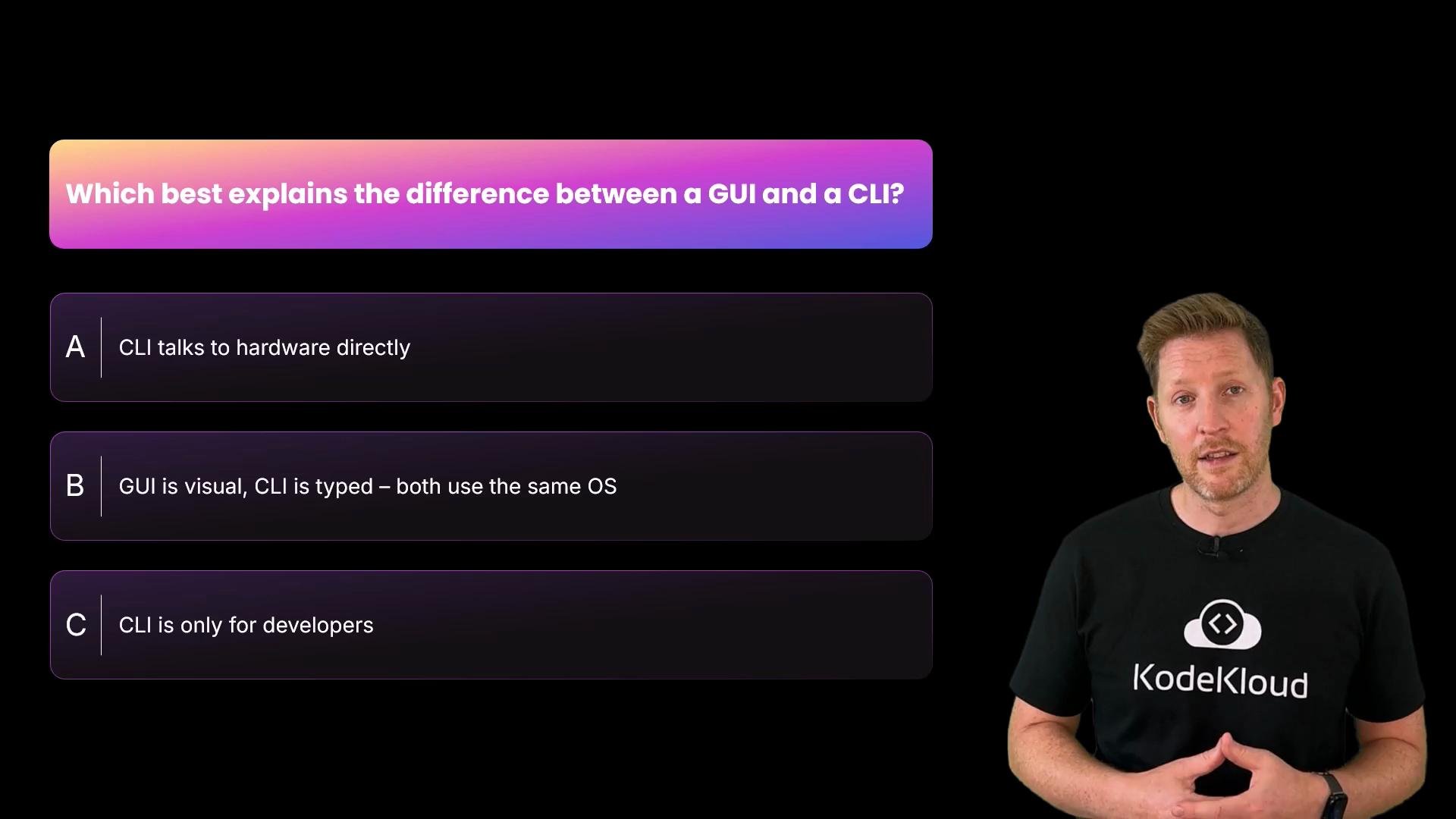
Quick checkpoint: which best explains the difference between a GUI and a CLI? A: CLI talks to hardware directly. B: GUI is visual, CLI is typed, but both use the same OS. C: CLI is only for developers.
A dark-themed quiz slide asking "Which best explains the difference between a GUI and a CLI?" with multiple-choice answers. A presenter wearing a KodeKloud shirt stands on the right.
Correct answer: B — GUI and CLI are different ways to interact with the same operating system.

Application lifecycle: install, launch, run, quit, and uninstall

The OS controls an app’s lifecycle from installation to removal, managing resources and permissions along the way. Installing apps
  • Mobile (Android/iOS): typically via an app store.
  • Desktop (Windows/macOS/Linux): download an installer, use a system store, or use a package manager such as Homebrew on macOS or Linux.
Example: install htop with Homebrew
# Example: install htop with Homebrew on macOS or Linux
brew install htop
When you install, the OS places files, sets permissions, registers the app, and tracks metadata so it can update or remove the app later. Launching apps
  • Tap an icon, select from a menu, or run the app from a terminal.
  • Open a file and the OS uses file associations to pick the right app.
Example: start htop from the terminal
# Start htop (a terminal system monitor)
htop
Running apps
  • The OS manages memory, CPU scheduling, and resource limits.
  • Foreground apps usually get higher scheduling priority; background apps may be paused, limited, or throttled.
  • Background services often continue running (downloads, syncs, music).
Example snapshot of a terminal-based system monitor (trimmed for clarity):
alan — ubuntu@ubuntu: ~ — htop — 80x17

CPU%                                     Mem[||||||||||||||||||||] 6.07G/8.00G
0  [||||||||||||||||||||||||||||||||||]   Load average: 2.49 3.87 4.57
Tasks: 564, Threads: 2510; Running: 2  Uptime: 6 days, 04:34:37

  PID  USER   PRI  NI  VIRT    RES    S  CPU%  %MEM   TIME+  Command
 683  alan    17   0  407G  29.7M  R   2.1   0.4   16:05.71  /System/Library/...
67829 alan    17   0  392G  44.4M  R   0.5   0.5    0:00.06  /usr/sbin/...
 640  alan    17   0  392G  57.6M  S   0.2   0.7    1:58.40  /System/Application/...
F1Help  F2Setup  F3Search  F4Filter  F5Tree  F6SortBy  F7Nice  F8Nice  F9Kill
Quitting vs. switching
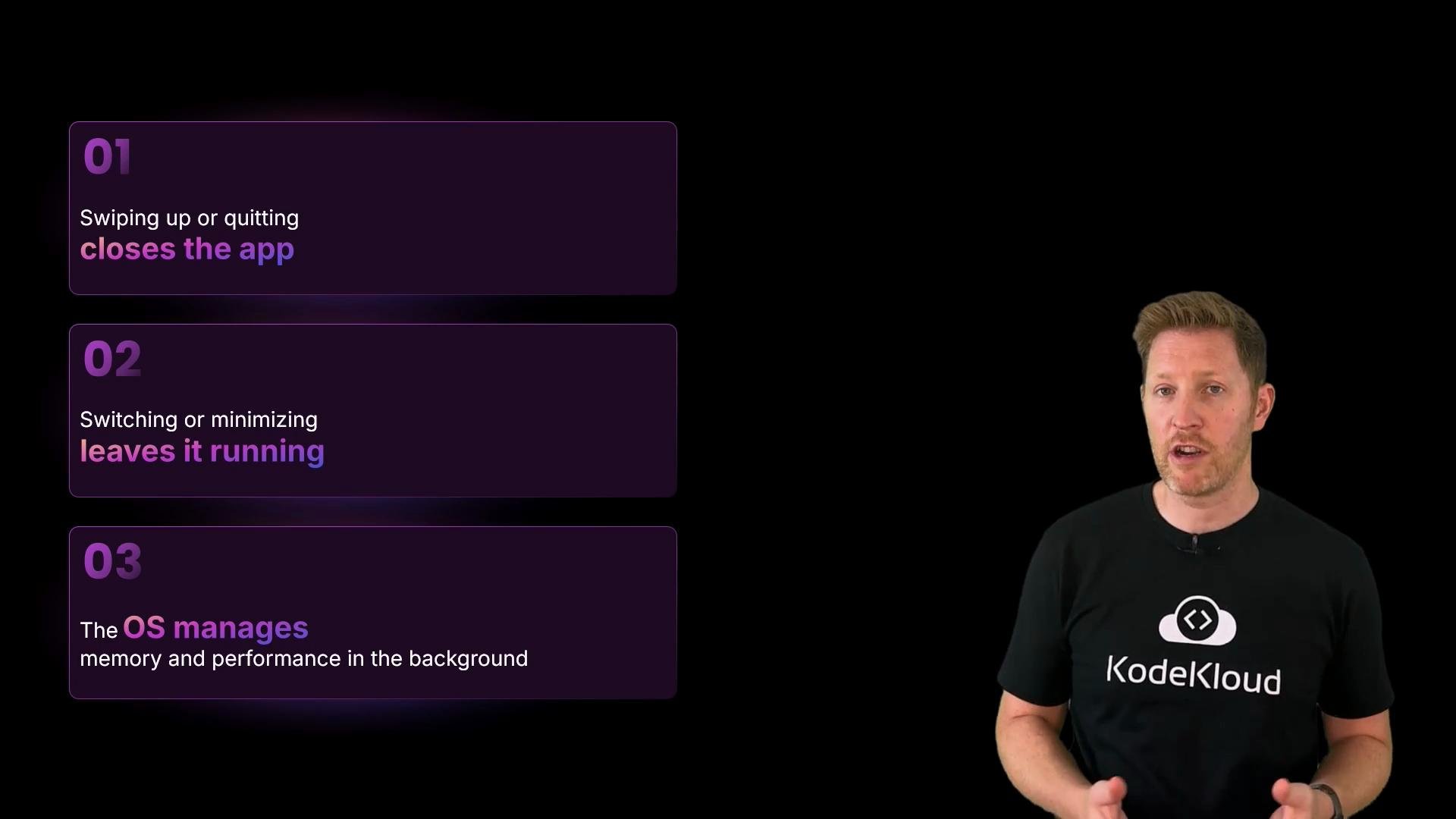
  • Completely quitting or swiping an app away typically frees memory and resources.
  • Minimizing or switching away often just hides the UI; the OS decides whether to keep the process running or to pause/terminate it to reclaim resources.
  • Mobile platforms often pause apps and resume them later; the OS handles lifecycle transitions and resource cleanup.
Uninstalling
  • Mobile: press and hold an icon and select remove.
  • Desktop: use an uninstaller, drag to Trash/Recycle Bin, or remove via a package manager.
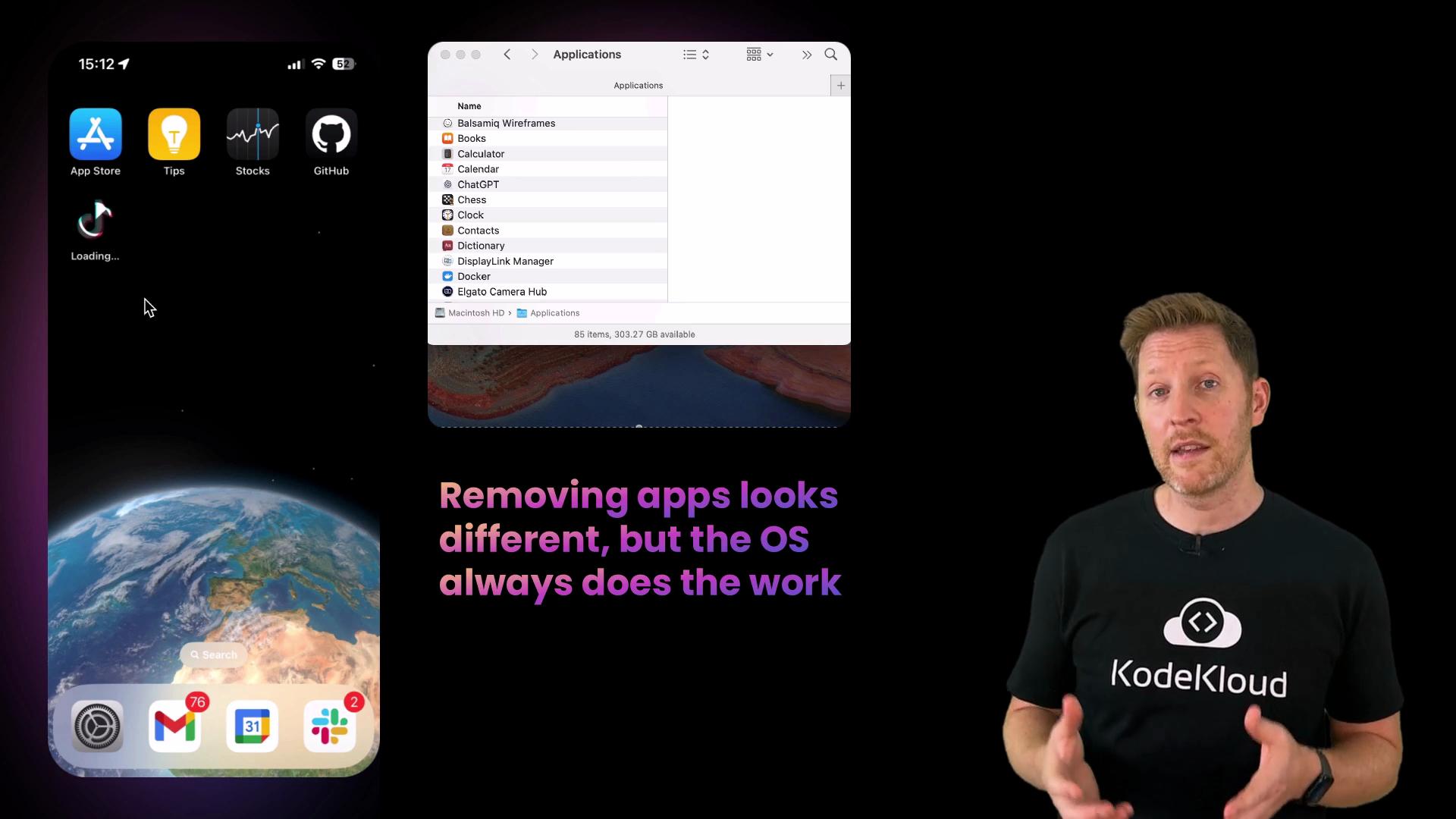
A presenter wearing a KodeKloud shirt stands to the right of the frame next to screenshots of a smartphone home screen and a Mac Applications window. Overlaid purple text reads, "Removing apps looks different, but the OS always does the work."
Swiping an app from the app switcher or choosing “Quit” will terminate it; simply minimizing or closing a window often only hides it. The OS continuously balances responsiveness and resource use by deciding what stays active, what is paused, and what is terminated.
A presenter stands on the right wearing a black KodeKloud t-shirt. On the left are three purple info panels (01–03) explaining app behavior — swiping up/quitting closes the app, switching/minimizing leaves it running, and the OS manages background memory.
Recap
  • GUI = visual, intuitive, and discoverable.
  • CLI = typed, precise, and scriptable (great for automation).
  • The OS is the intermediary: receiving input, running apps, managing resources, and enforcing security and accessibility.
  • App lifecycle includes install → launch → run → quit → uninstall, and the OS orchestrates each step.
Further reading and references:
Tip: Don’t assume swiping an app away always stops background activity. Many systems pause apps rather than fully quit them. Check your OS documentation for app lifecycle specifics and battery/resource implications.

Watch Video