1. Creating a Terraform Cloud Account
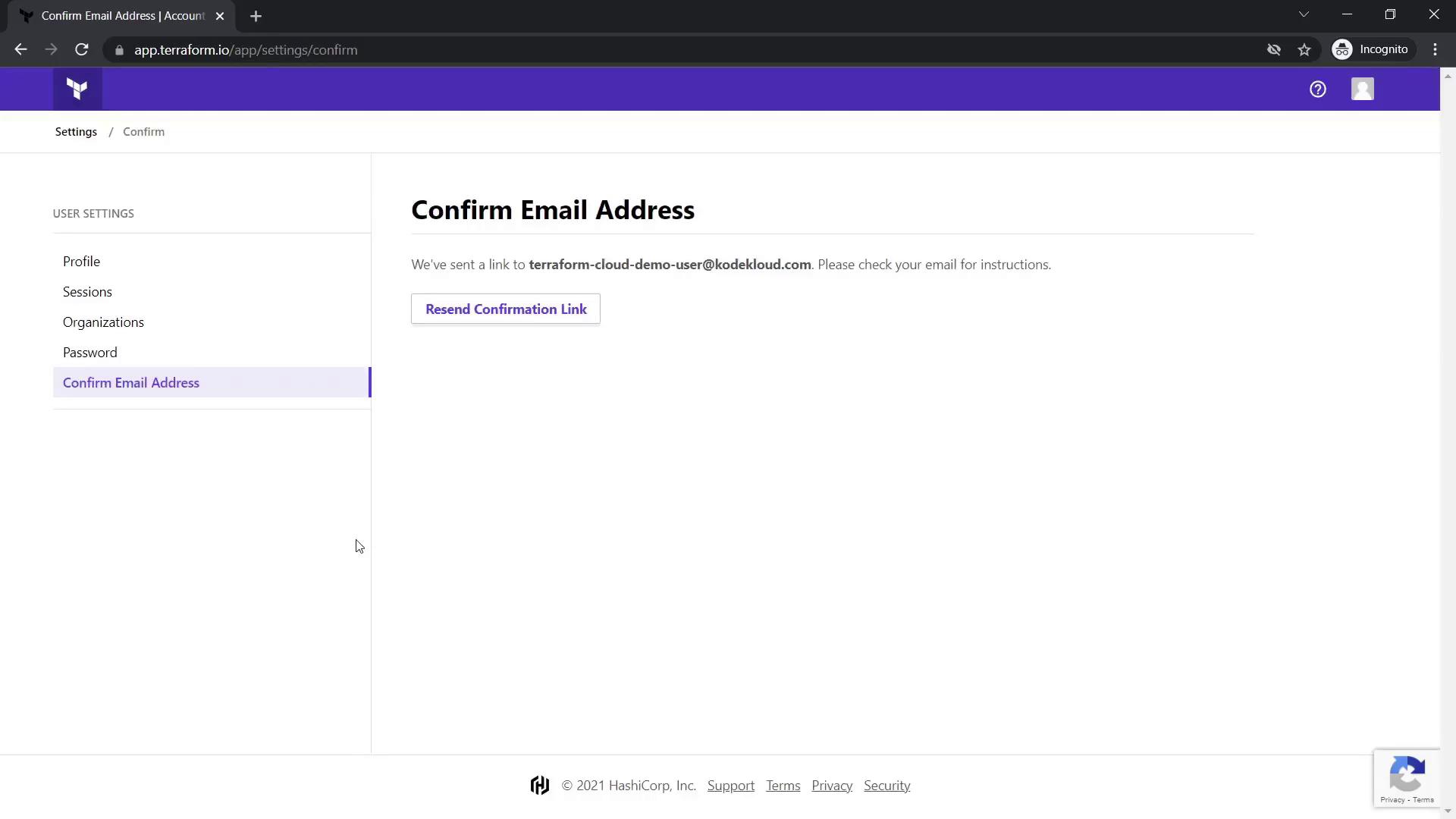
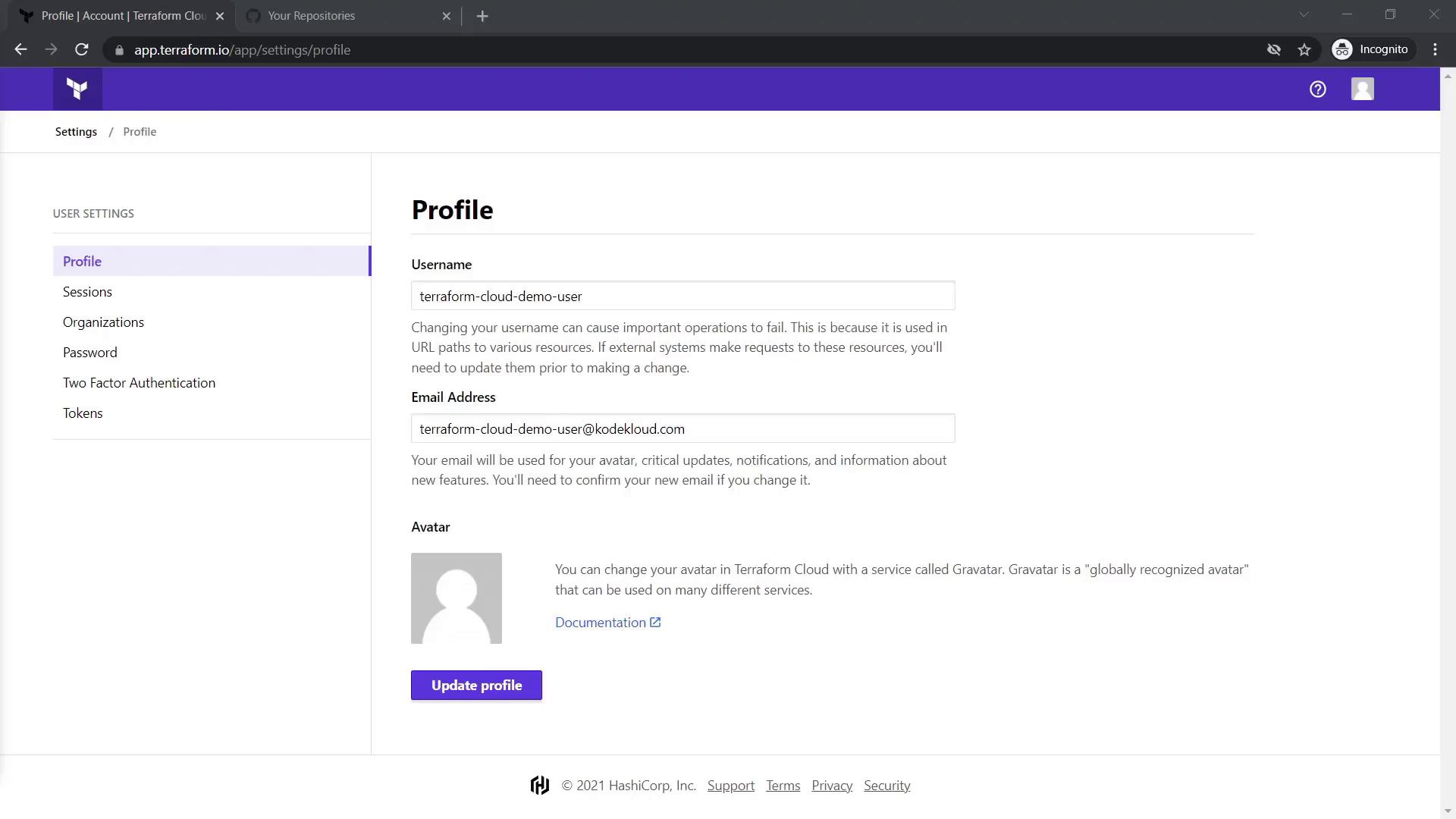
Begin by visiting Terraform Cloud and creating your free account. You can choose to sign in or register a new account by clicking “Free Account.” Provide your username, email, and password, and be sure to accept the Terms of Use and Privacy Policy.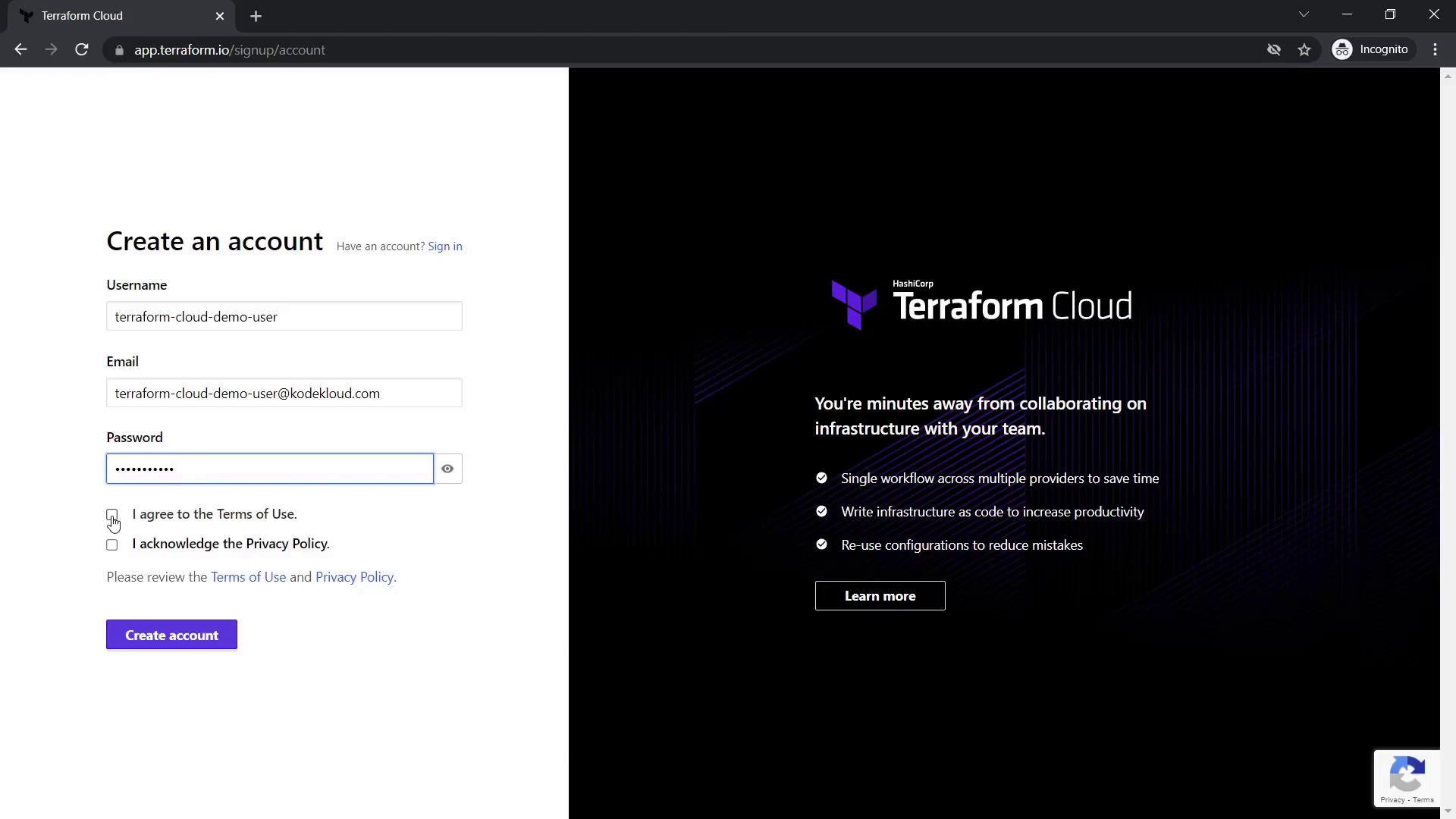
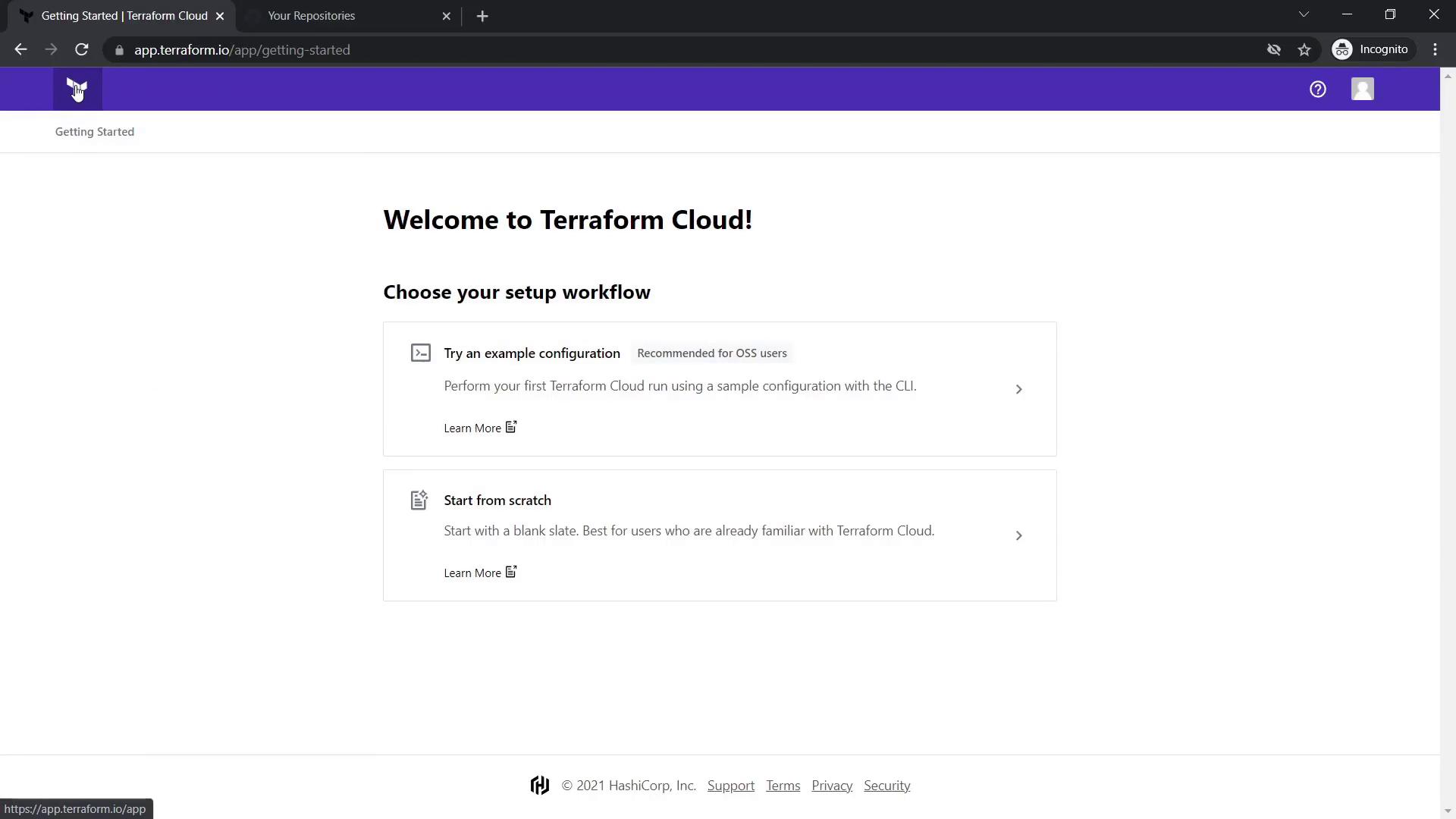
2. Setting Up a New Organization and Workspace
2.1 Create an Organization
Select “Start from scratch” to create your first organization. Provide a globally unique organization name. In this demo, we use: KodeKloud-terraform-cloud-demo-01 The same email you registered with is used for the organization.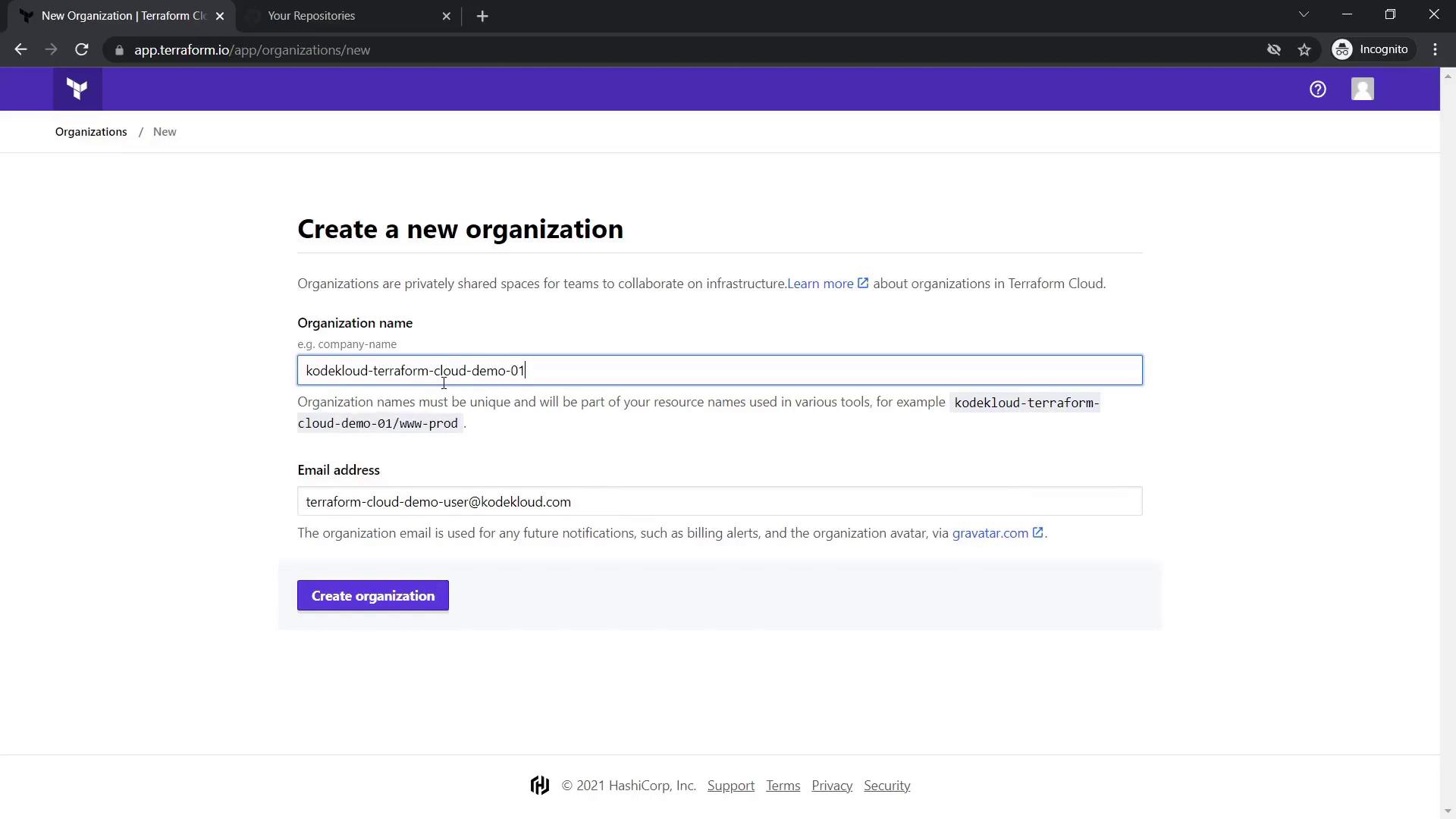
2.2 Create a Workspace
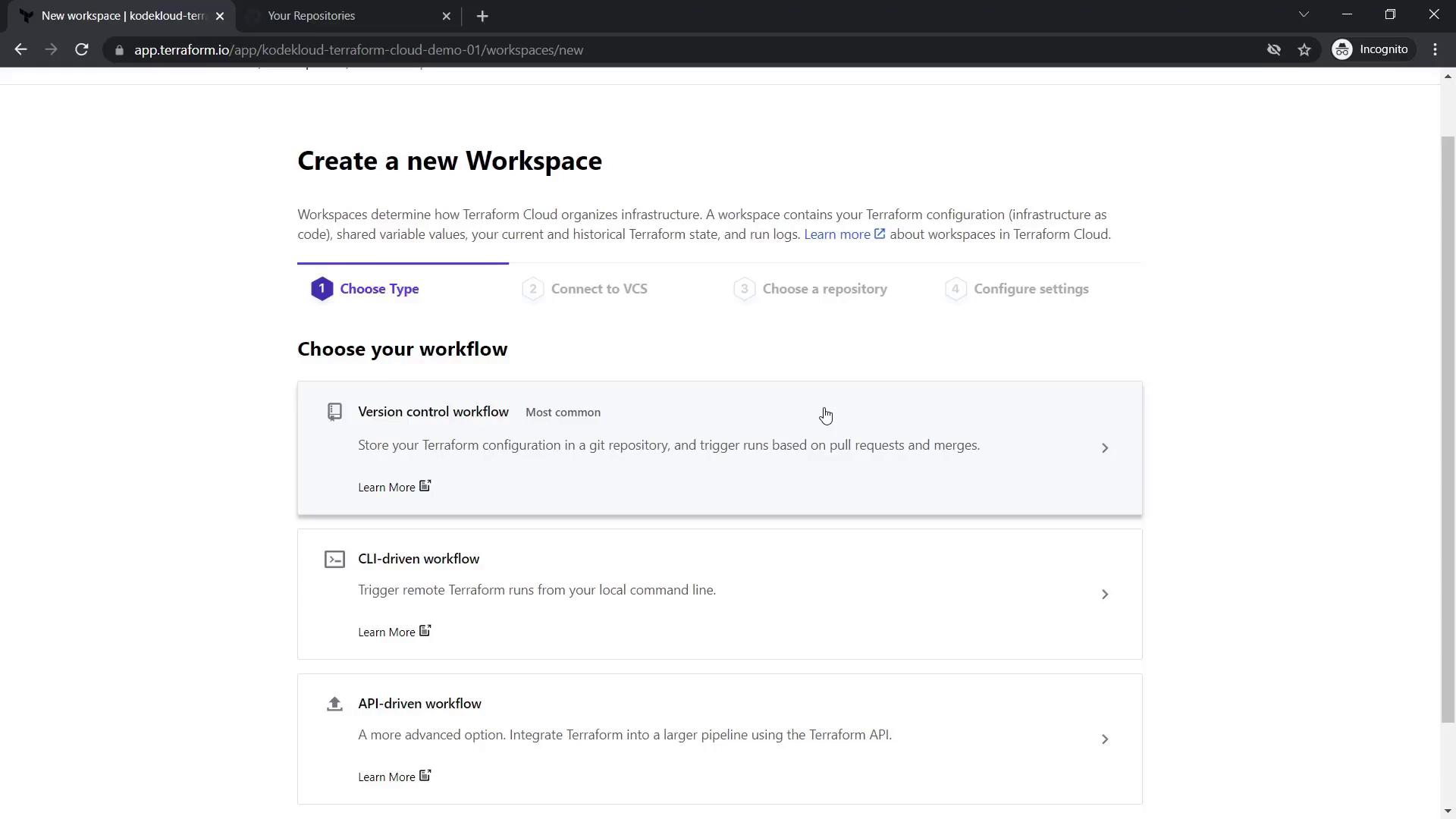
After your organization is set up, create a workspace. A workspace in Terraform Cloud serves as your configuration directory (root module) where you manage configuration files, states, and variables. Choose from these workflow options:- Version Control Workflow – Integrate directly with repositories from GitHub, GitLab, or Bitbucket.
- CLI-driven Workflow – Execute Terraform runs locally while operations are coordinated remotely.
- API-driven Workflow – Run Terraform operations using API integrations.
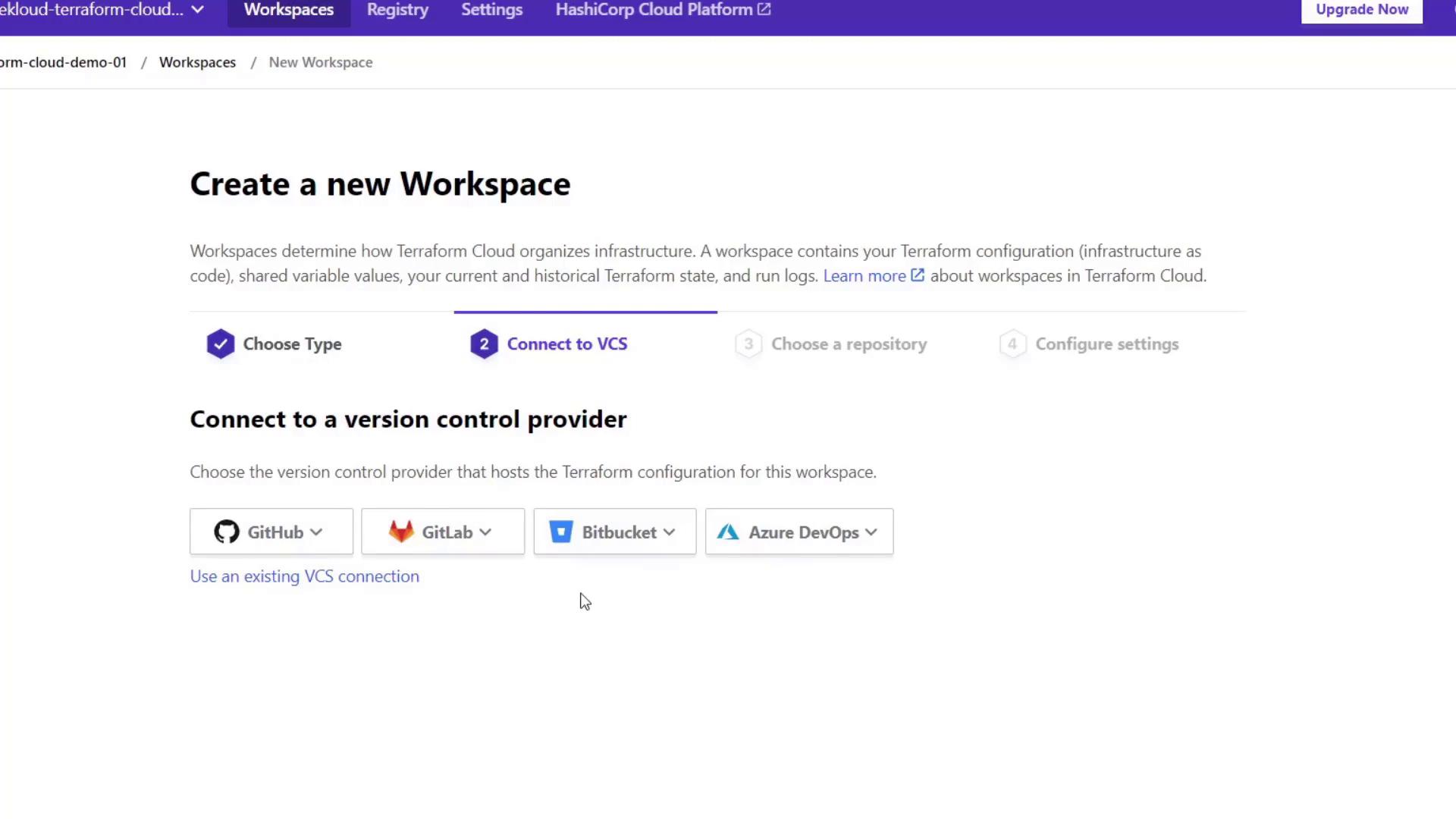
main.tf, provider.tf, and Sentinel policy files).
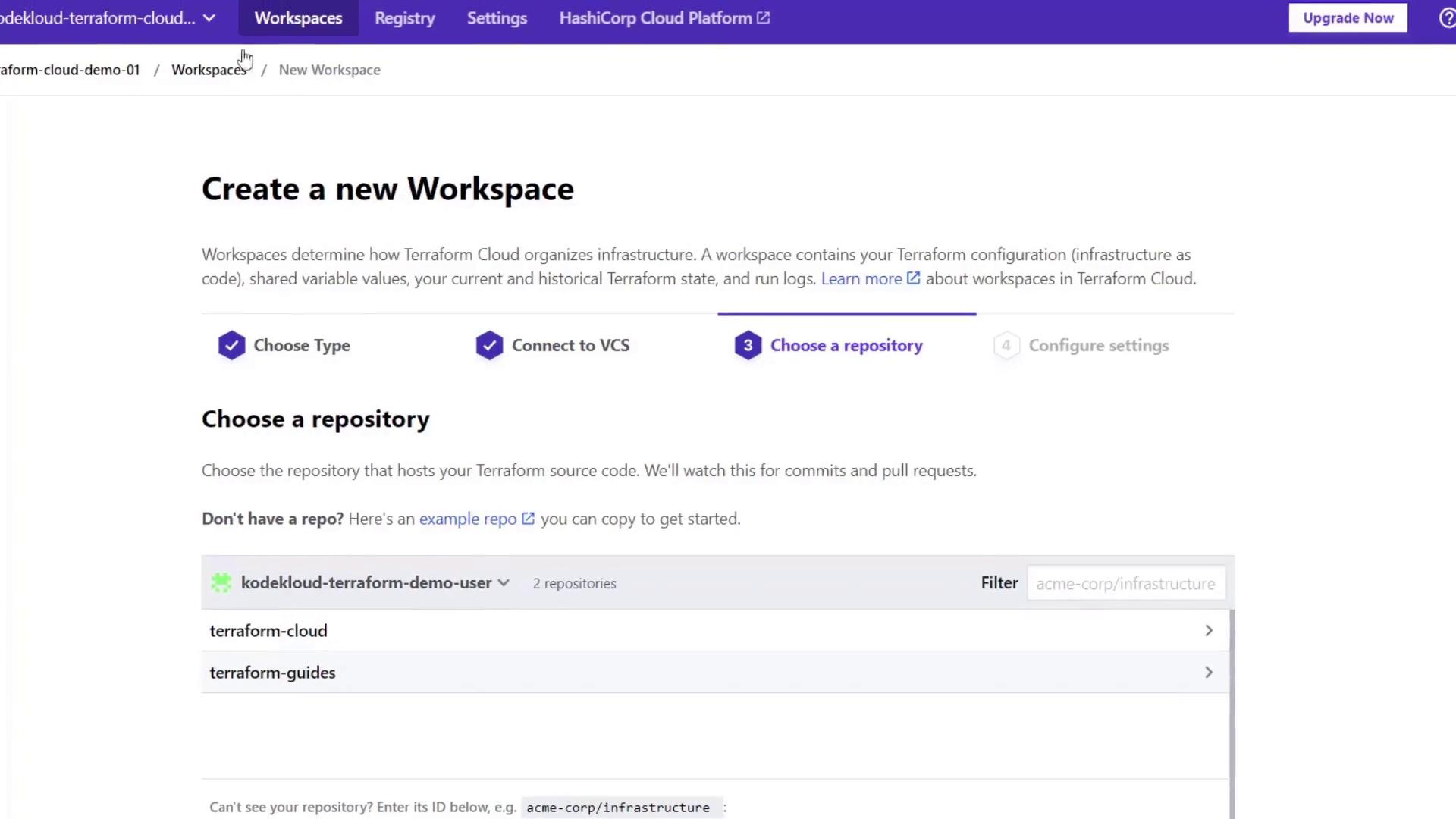
main.tf file, which provisions an AWS EC2 instance using predefined variables:
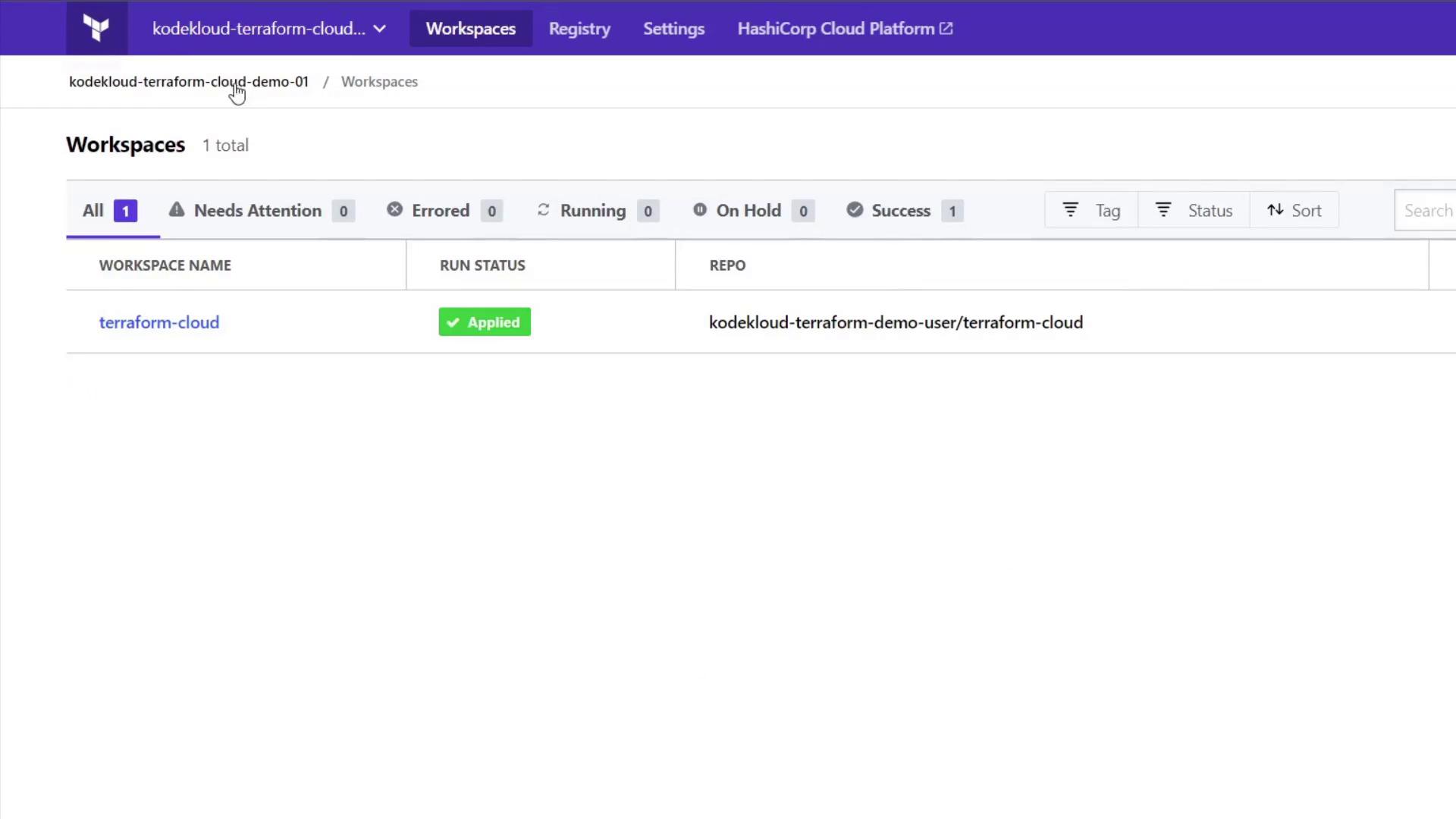
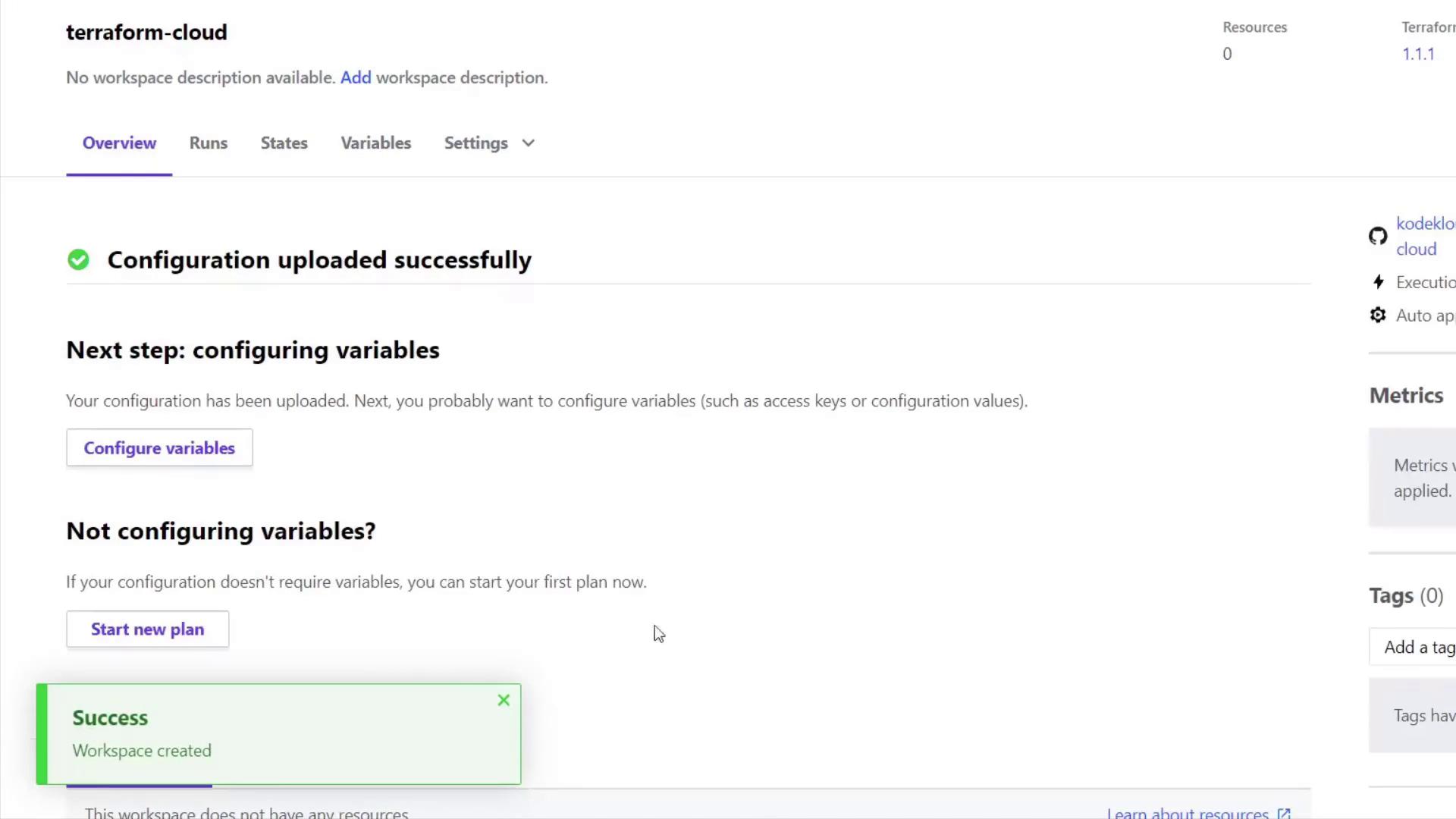
provider.tf file configures the AWS provider with the same variables. After selecting the repository, name the workspace (for example, “Terraform Cloud”) and click Create Workspace.
3. Configuring Variables and Running Execution Plans
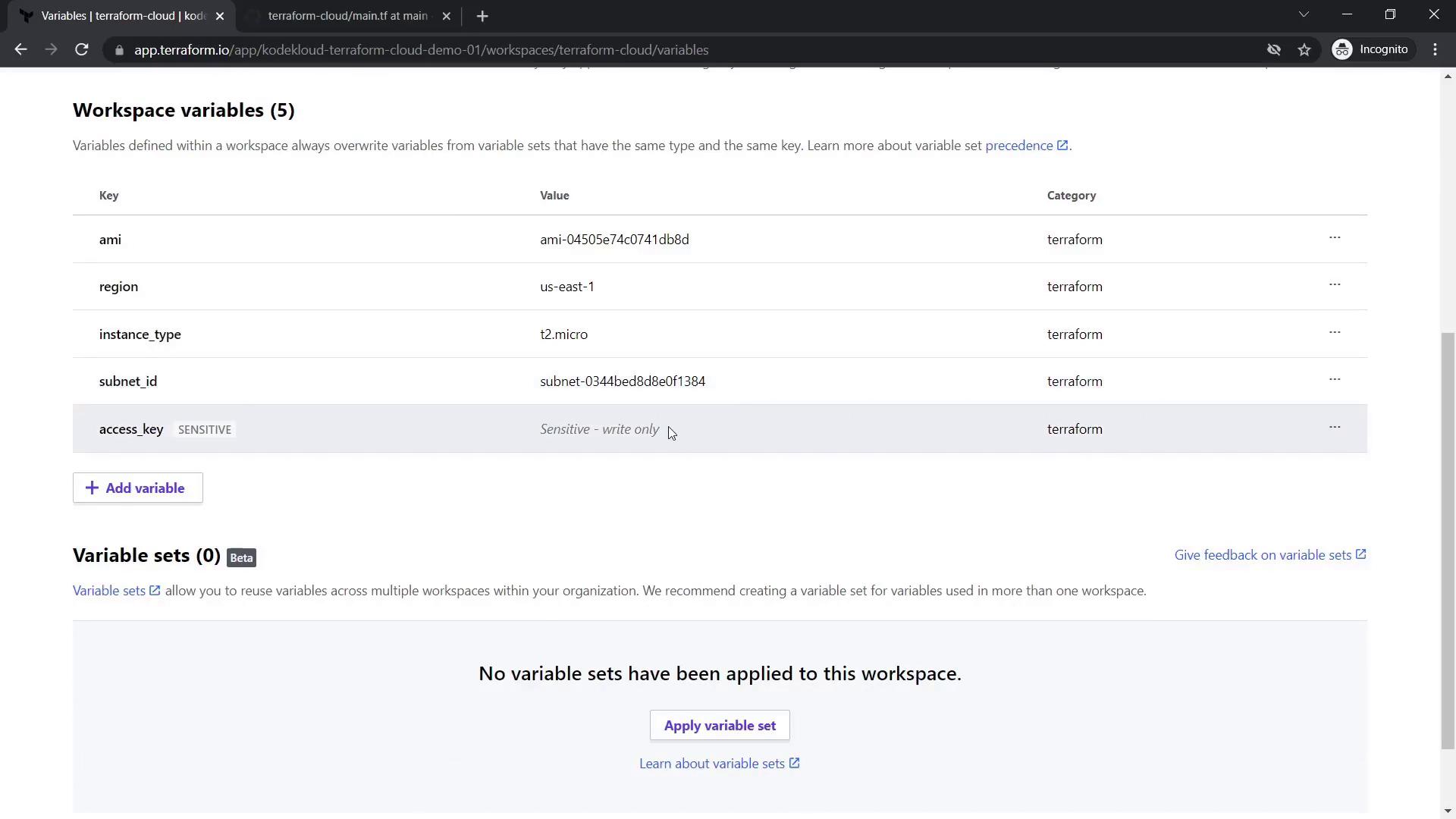
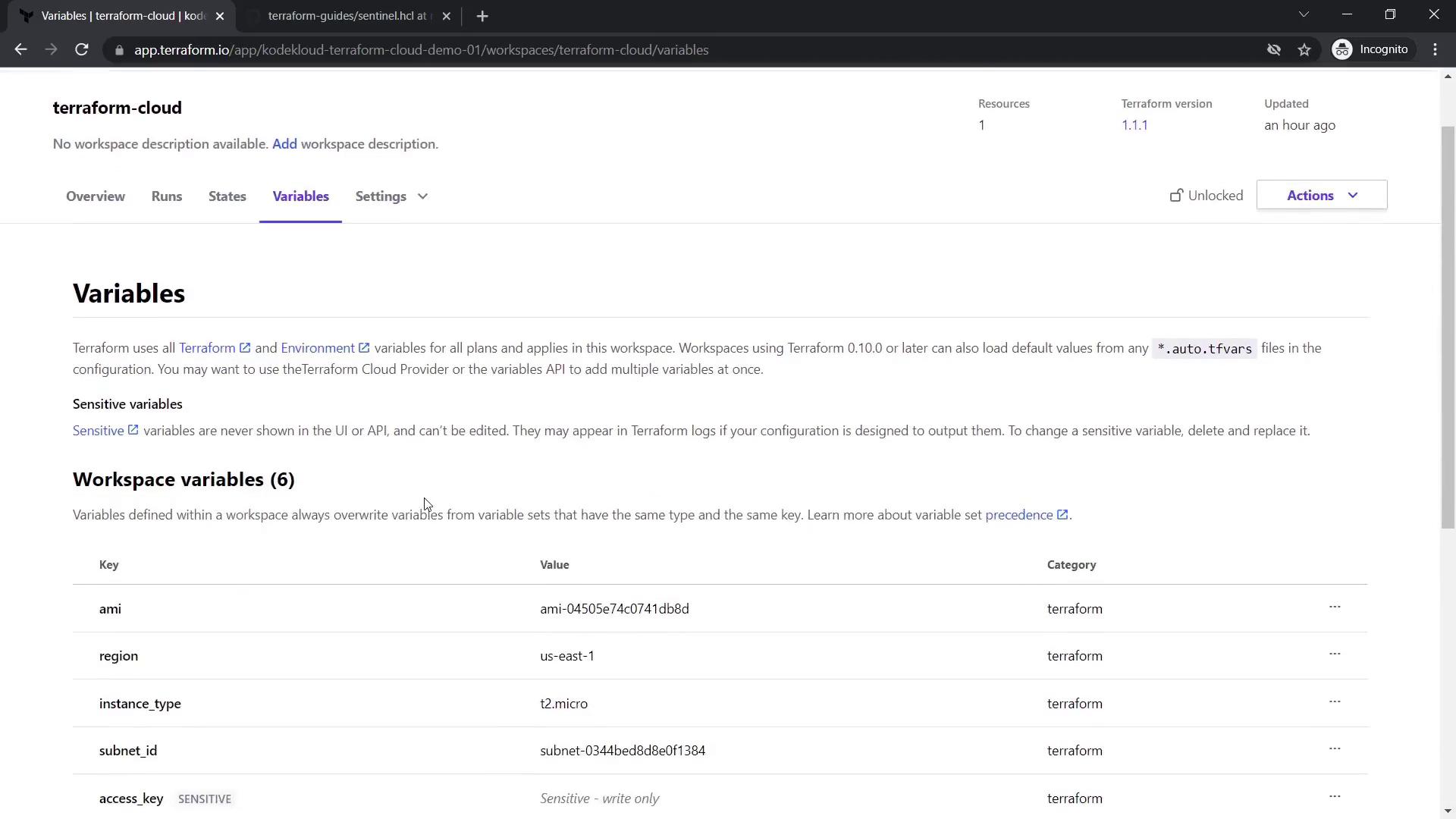
Within the workspace, navigate through the following tabs: Overview, Runs, State, and Variables. The Overview displays workspace status, VCS integration details, and the current Terraform version (default is 1.1.1, although you can change it). Since the configuration files only declare variables, set their values in the Variables tab. For example, add the following:- ami:
ami-04505e74c0741db8d - region:
us-east-1 - instance_type:
t2.micro - subnet_id:
subnet-0344bed8d8e0f1384
3.1 Execute an Execution Plan
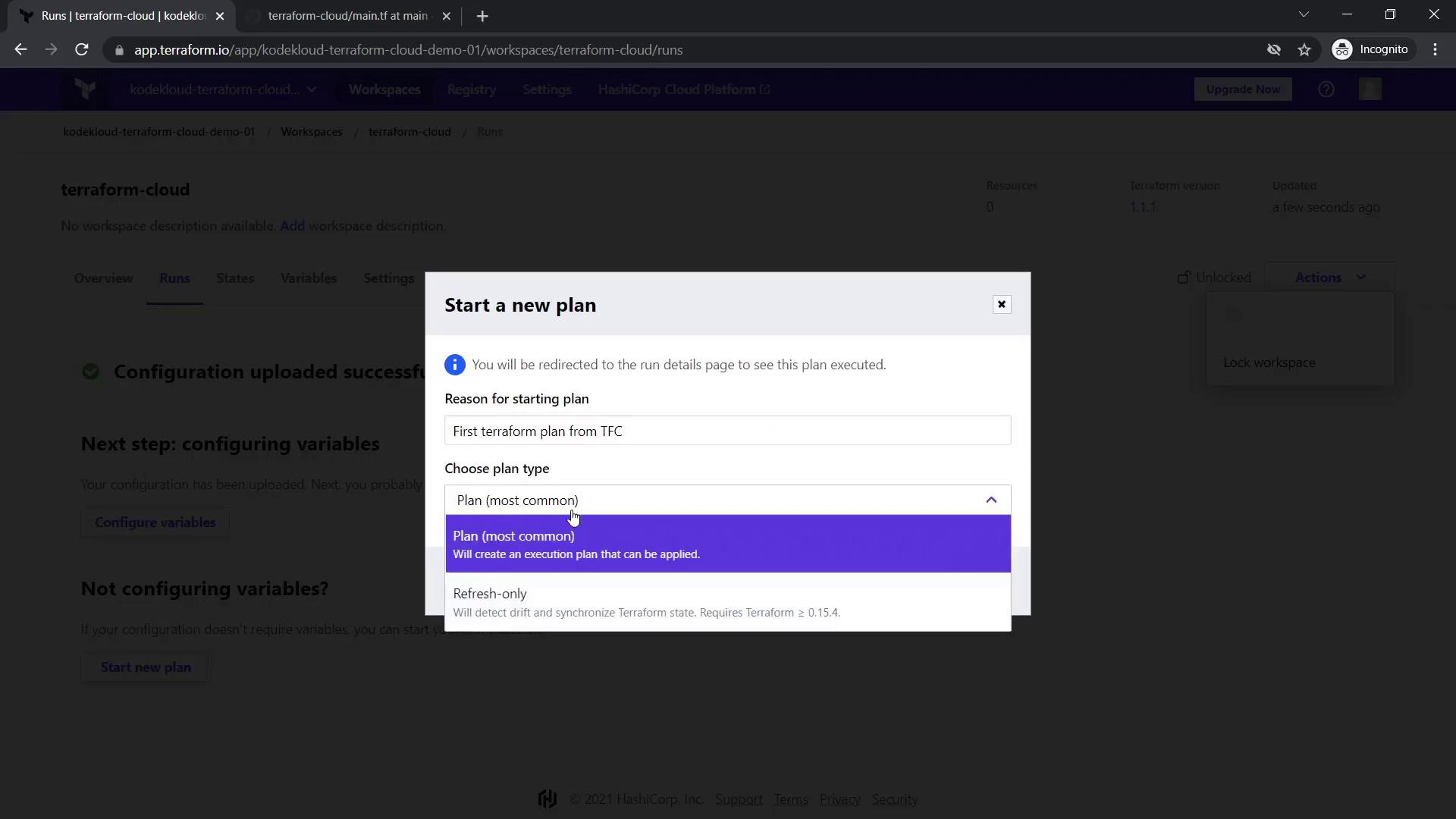
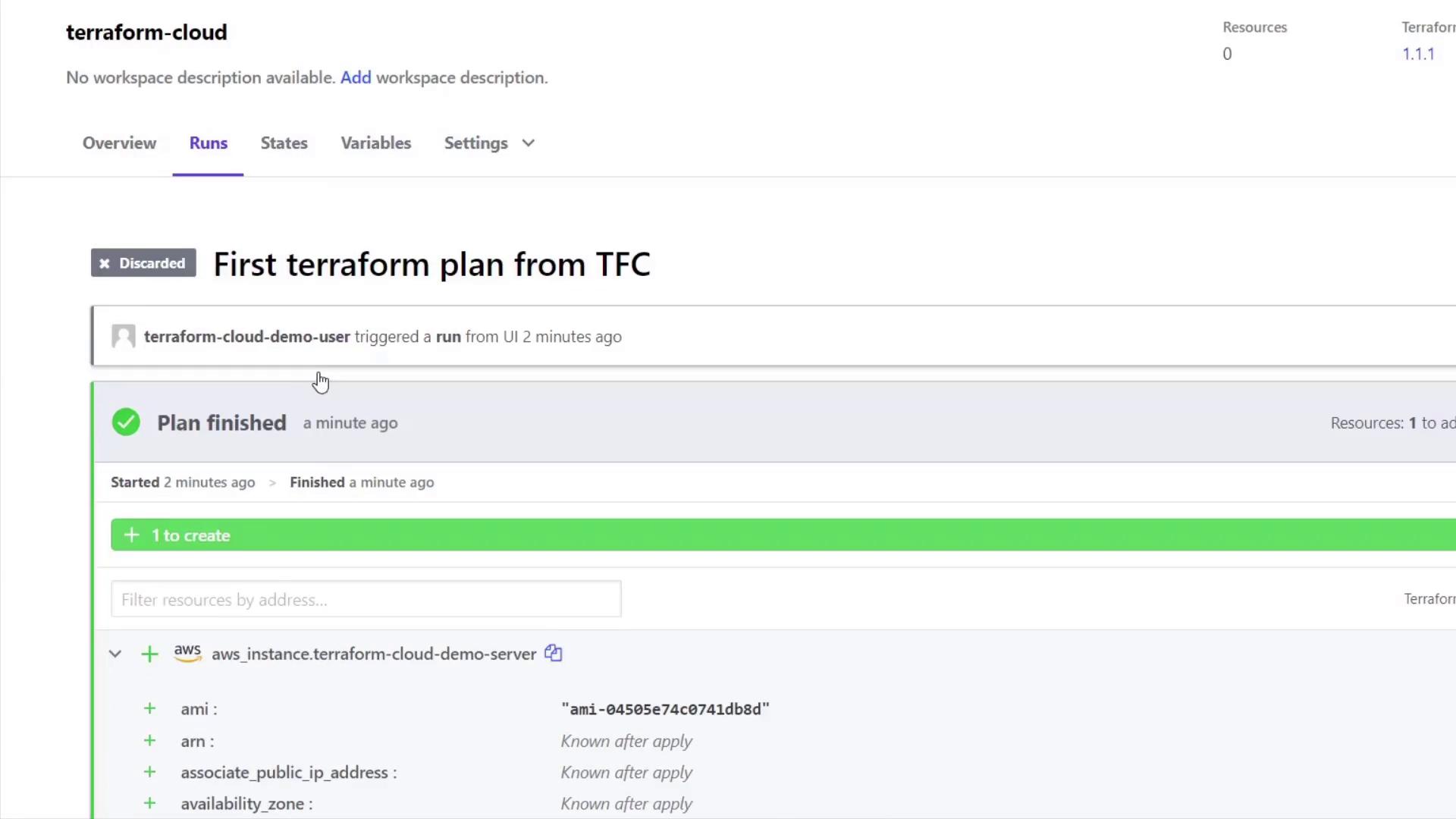
After configuring the variables, start your first execution plan:- Click the Actions button.
- Select Start New Plan.
- Choose Plan (most common).
terraform plan on your local machine.
3.2 Destroying Resources
If you wish to destroy the resource, navigate to Workspace Settings > Destruction & Deletion to queue a destroy plan. This plan is equivalent to runningterraform destroy on the command line. For example, the execution plan might include details such as:
3.3 Handling GitHub Repository Changes
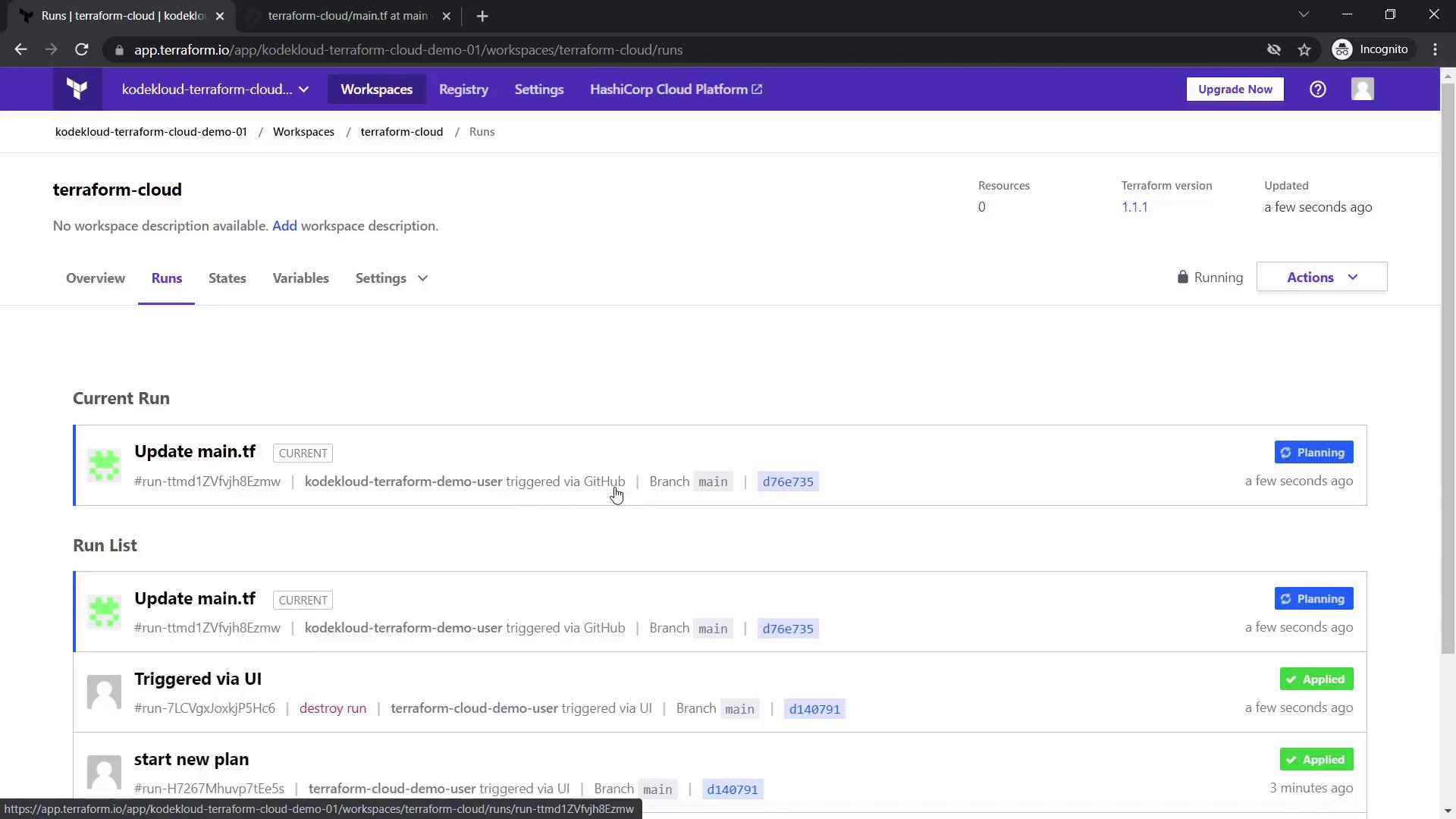
Terraform Cloud automatically triggers a new execution plan upon changes pushed to your GitHub repository. For instance, if you modify the resource name inmain.tf:
terraform.tfstate stored remotely.
A sample state snippet might look like:
4. Workspace Settings and Account Upgrades
Within your workspace settings, you can modify:- Execution Mode: Choose between remote and local execution.
- Apply Method: Select manual or auto-apply.
- Terraform Version: Change the version (default is 1.1.1).

5. Cost Estimation and Policy Enforcement with Sentinel
5.1 Cost Estimation
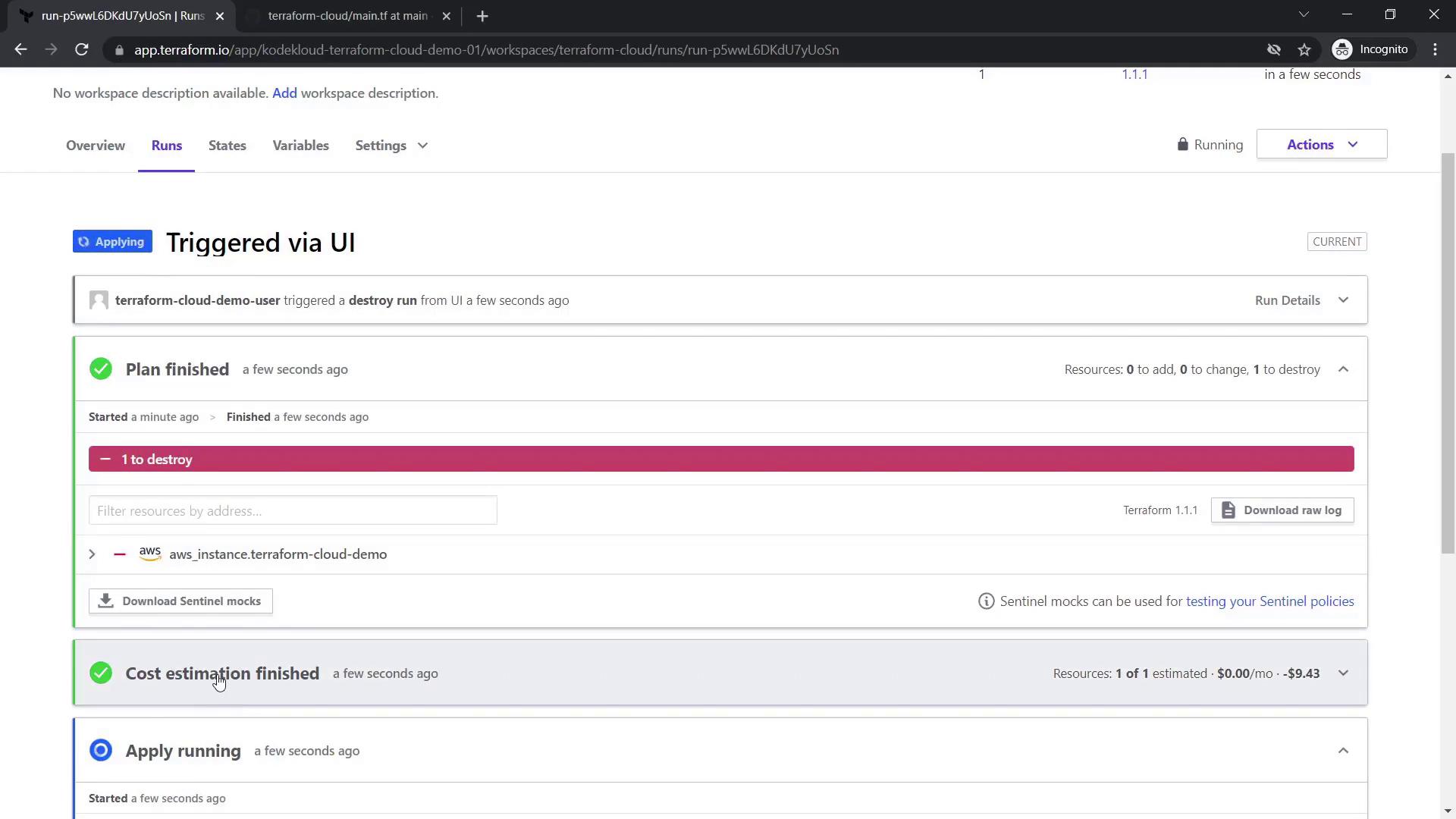
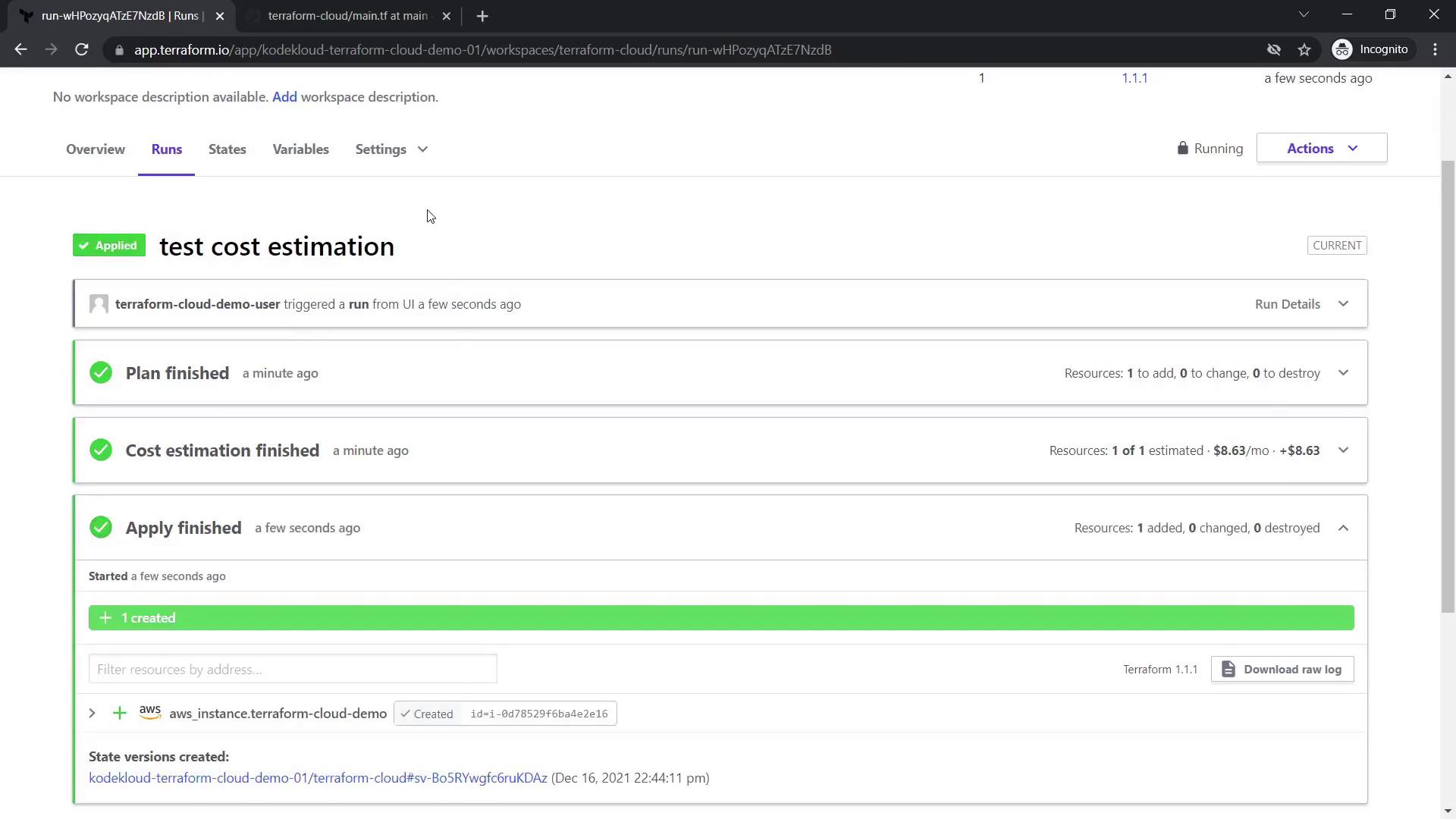
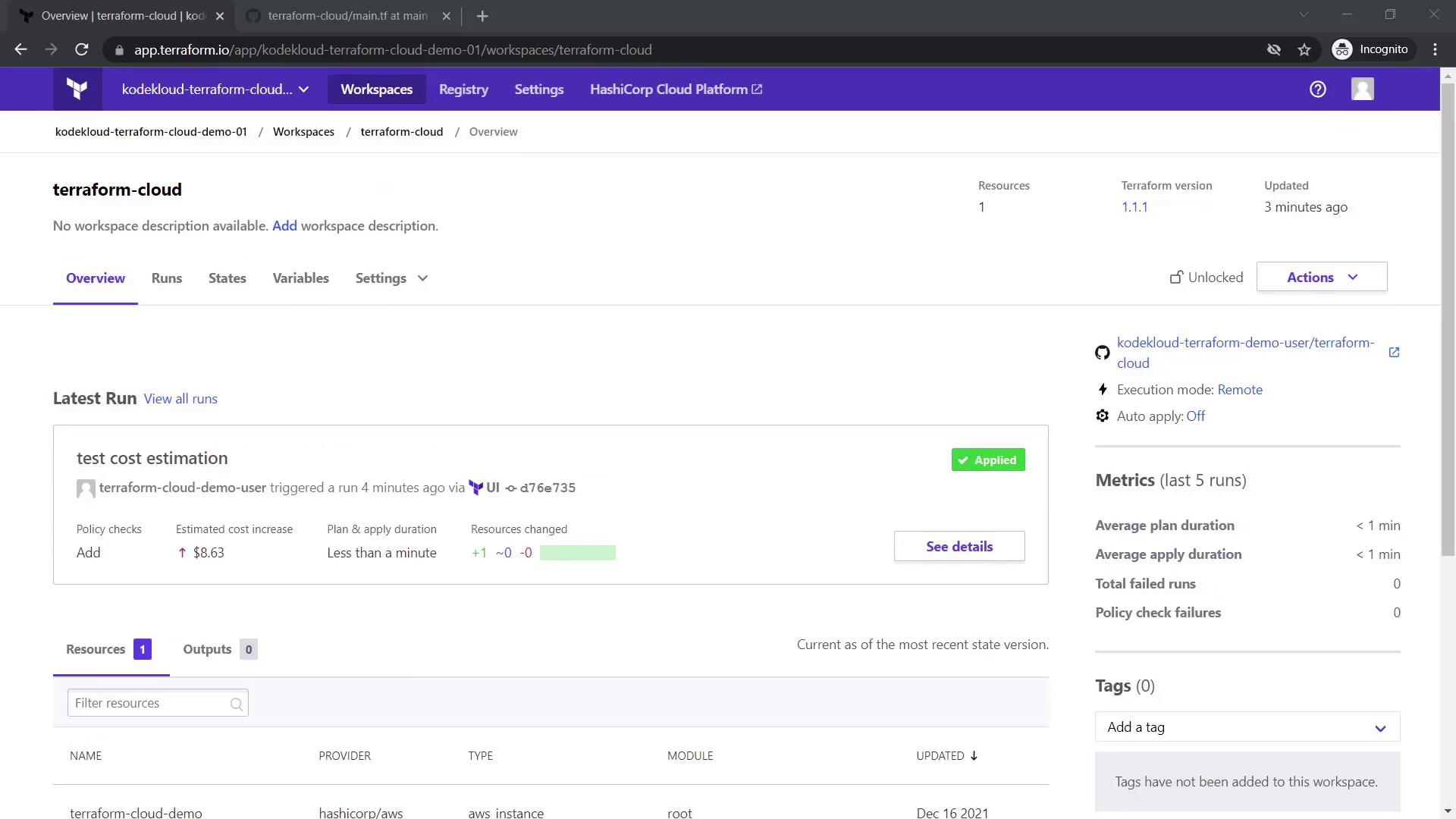
Terraform Cloud offers a cost estimation feature to help you monitor resource expenditure. To explore this:- Queue a destroy plan for the existing EC2 instance and confirm the action.
- During the destroy run, check the cost estimation tab, which might indicate savings (e.g., saving $9.43 by destroying the resource).
5.2 Enforcing Compliance with Sentinel Policies
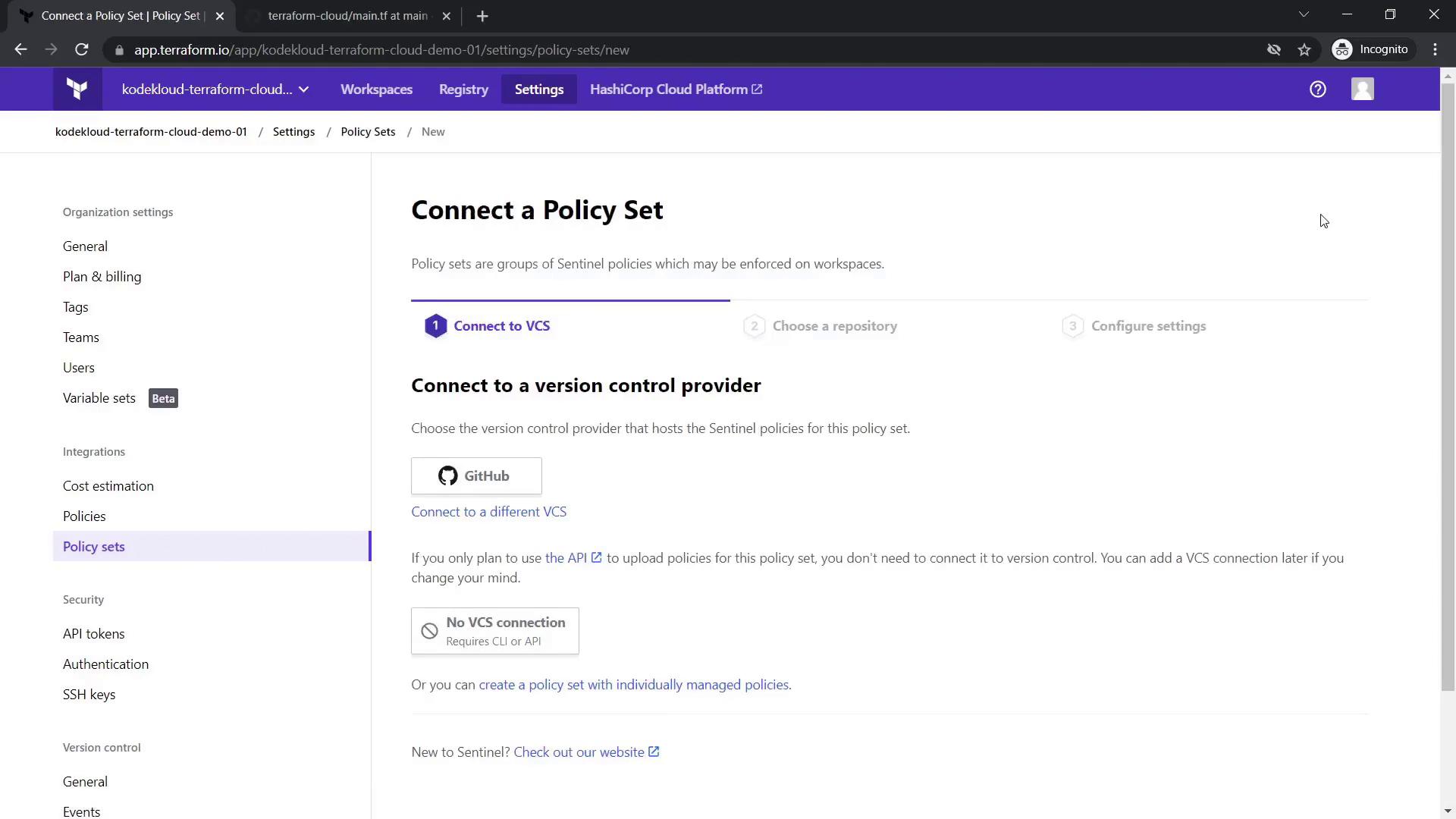
Terraform Sentinel allows you to enforce compliance constraints as code. In this demo, we restrict the allowed EC2 instance type. Follow these steps:- Go to Settings in your workspace and select Policies and Policy Sets.
- Click Connect a New Policy Set.
- Choose GitHub as your VCS provider and select the repository containing your Sentinel policy files (this example repository includes Terraform Sentinel policy examples for AWS).
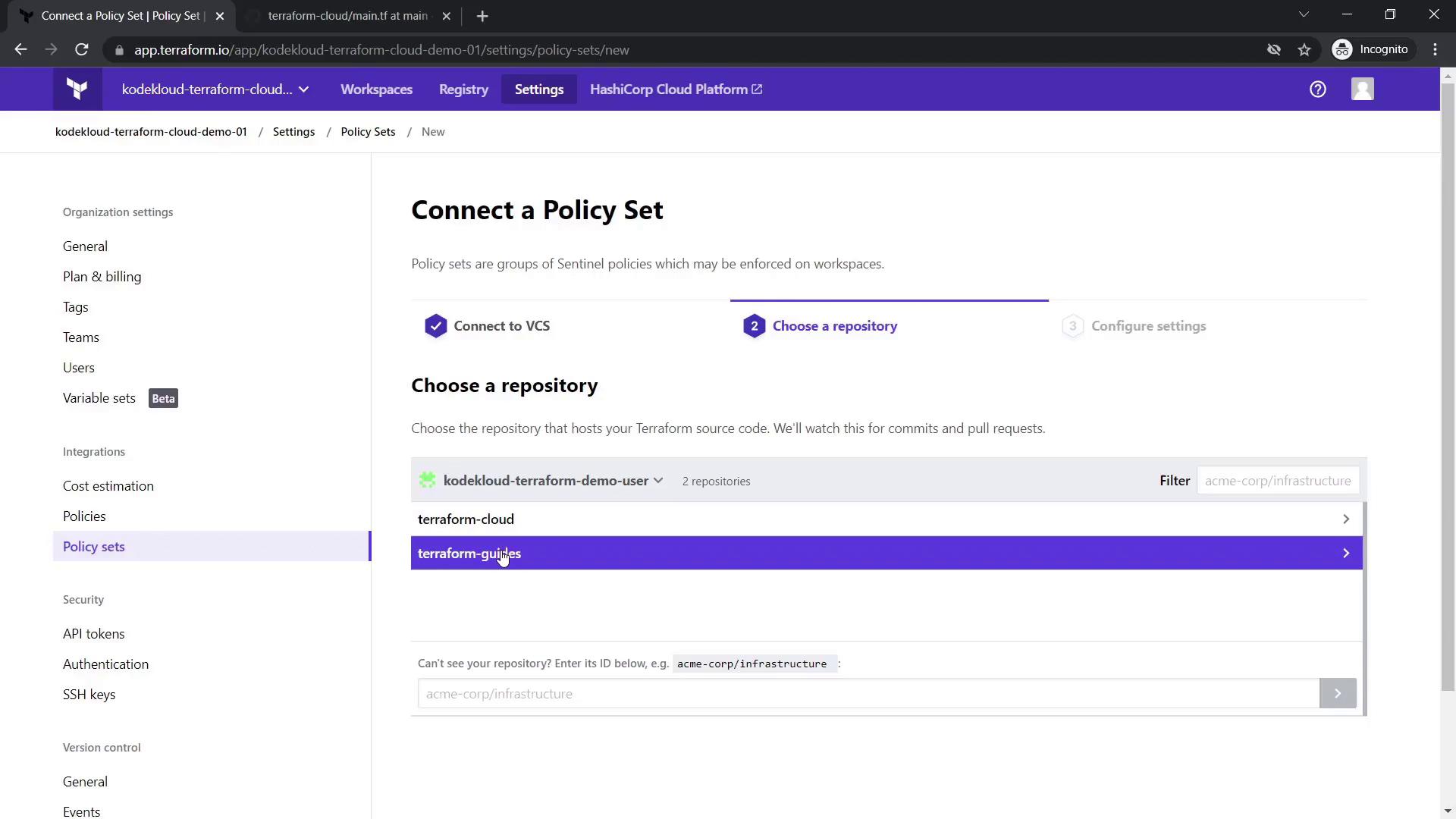
restrict-ec2-instance-type.sentinel) with the following content:
t2.micro. The enforcement level is set to soft-mandatory, which informs you of policy violations while still allowing you to override them if necessary.
A typical Sentinel policy module configuration might look like:
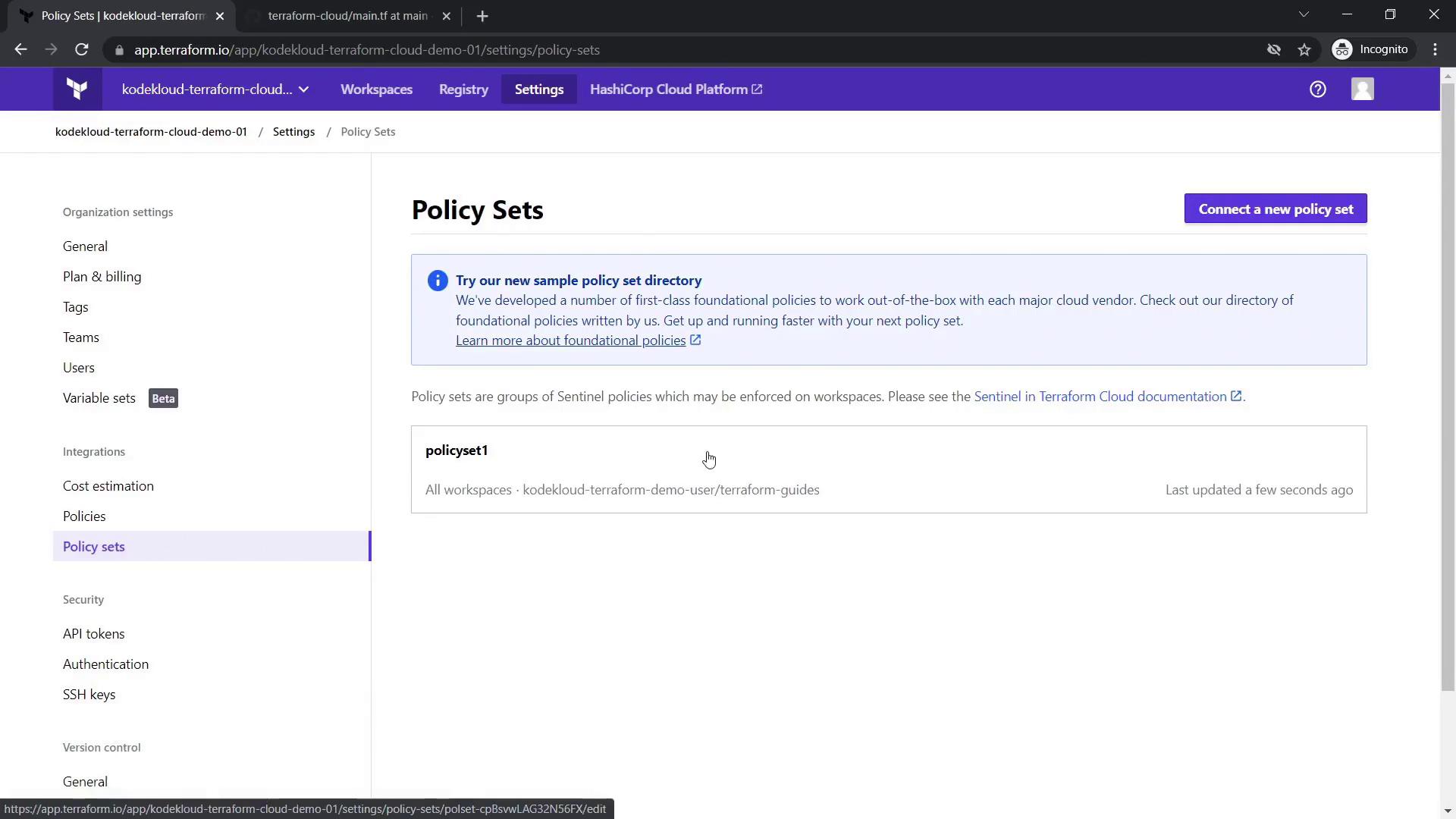
instance_type from t2.micro to another value, such as m5.large, then run a new execution plan.
m5.large is not allowed according to the Sentinel policy, the check will soft-fail and produce an error message similar to:
As the organization owner, you have the ability to override the policy error and proceed with the updated configuration.
6. Organization Settings and Final Thoughts
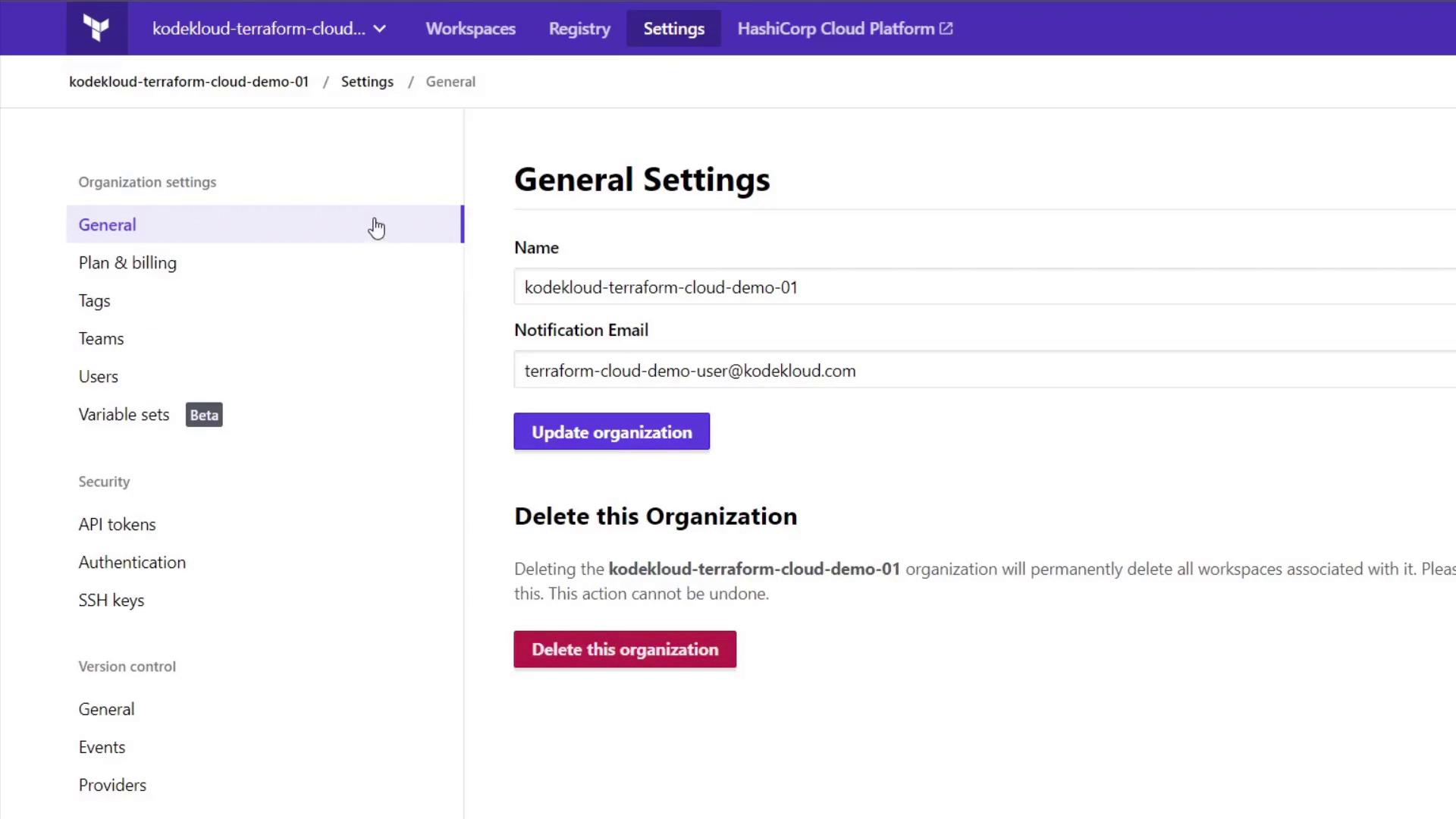
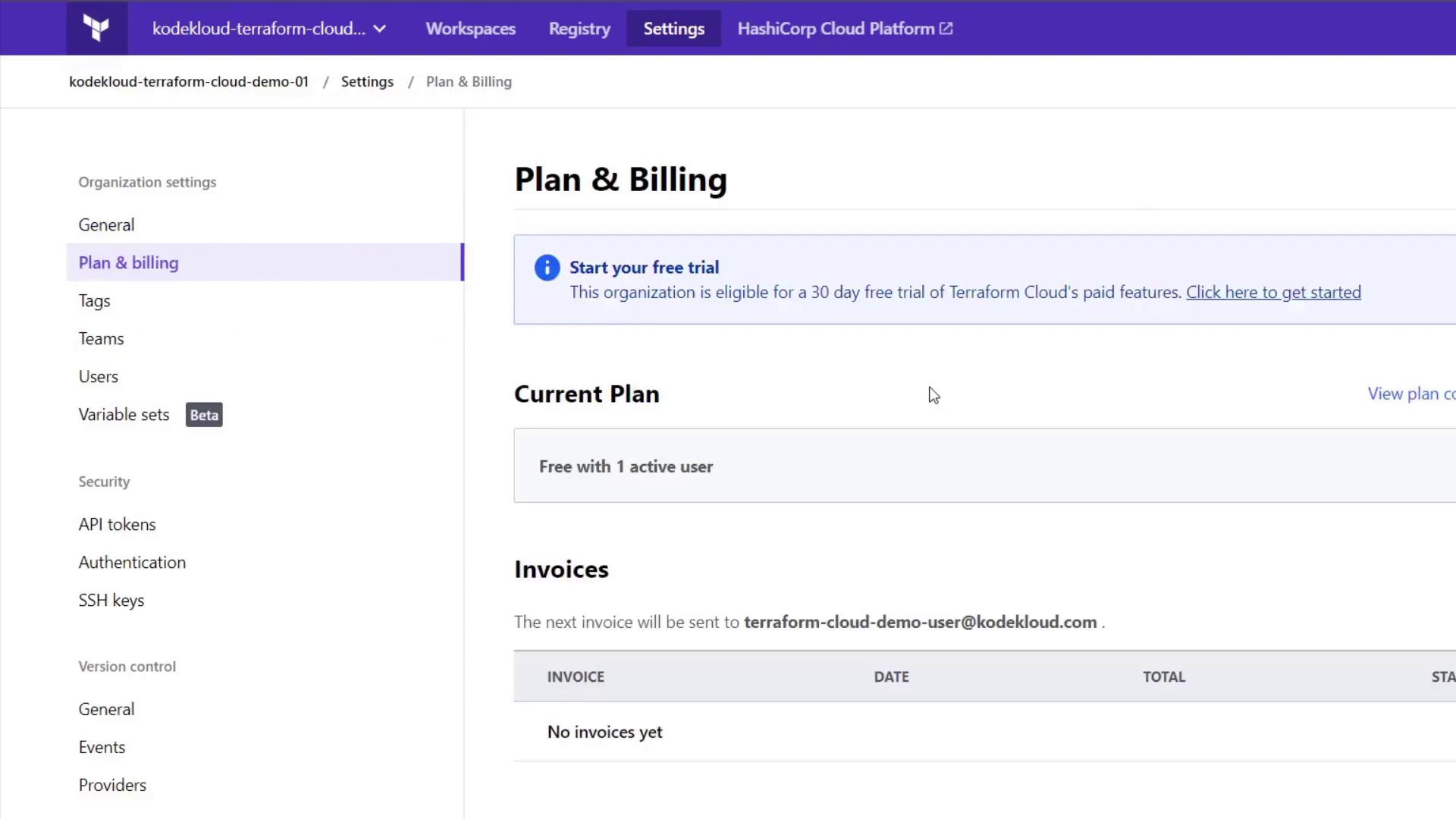
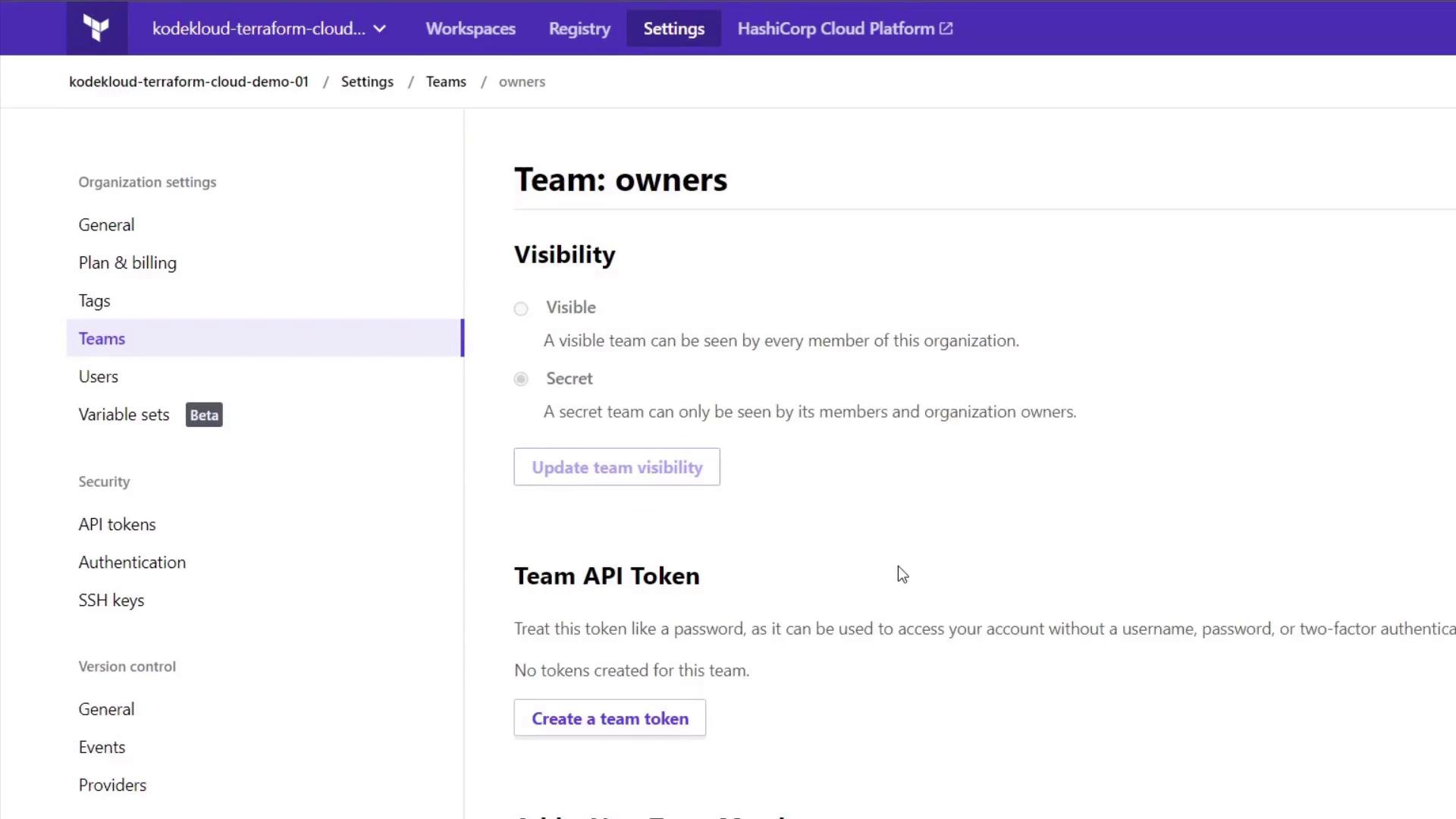
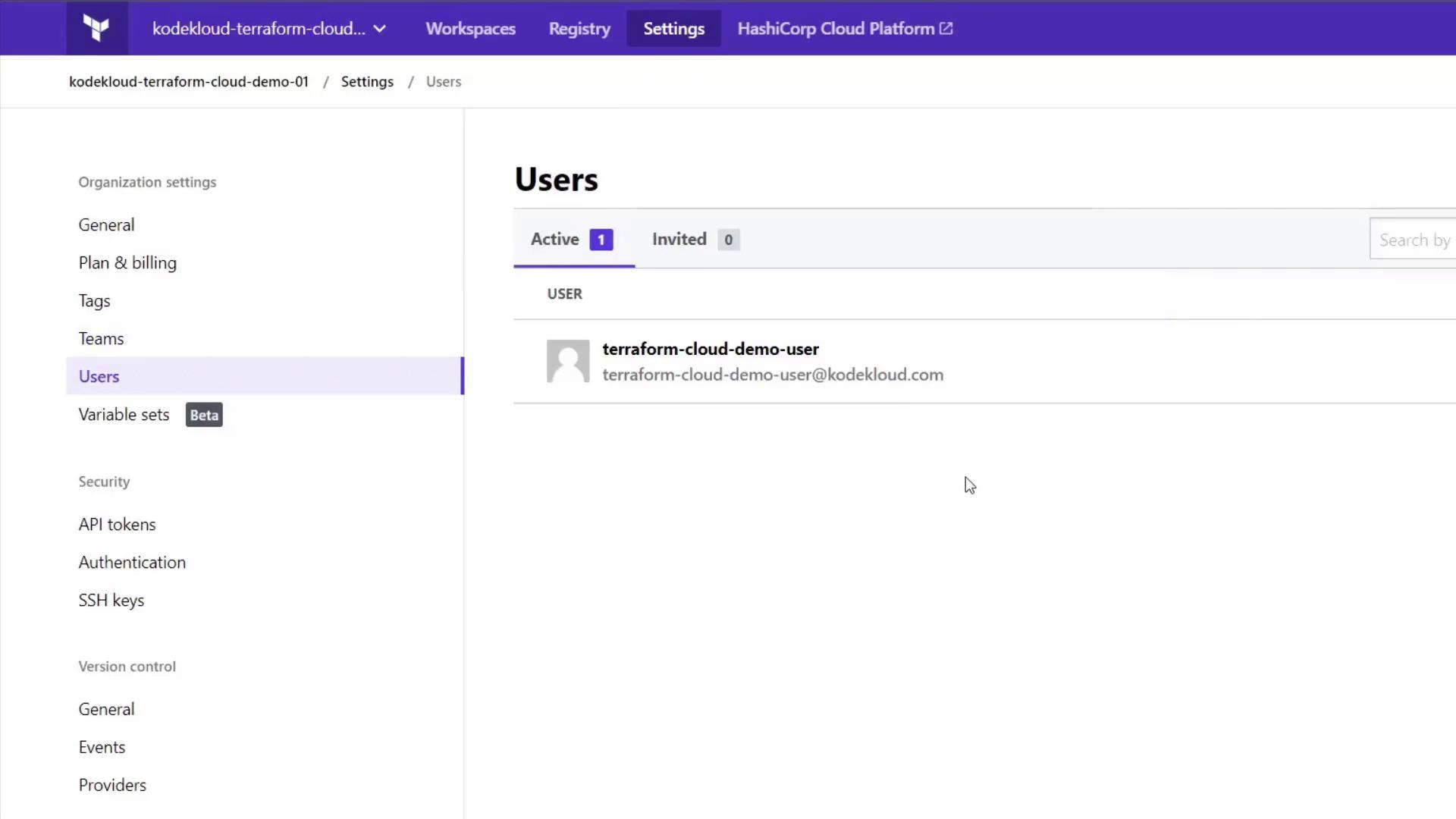
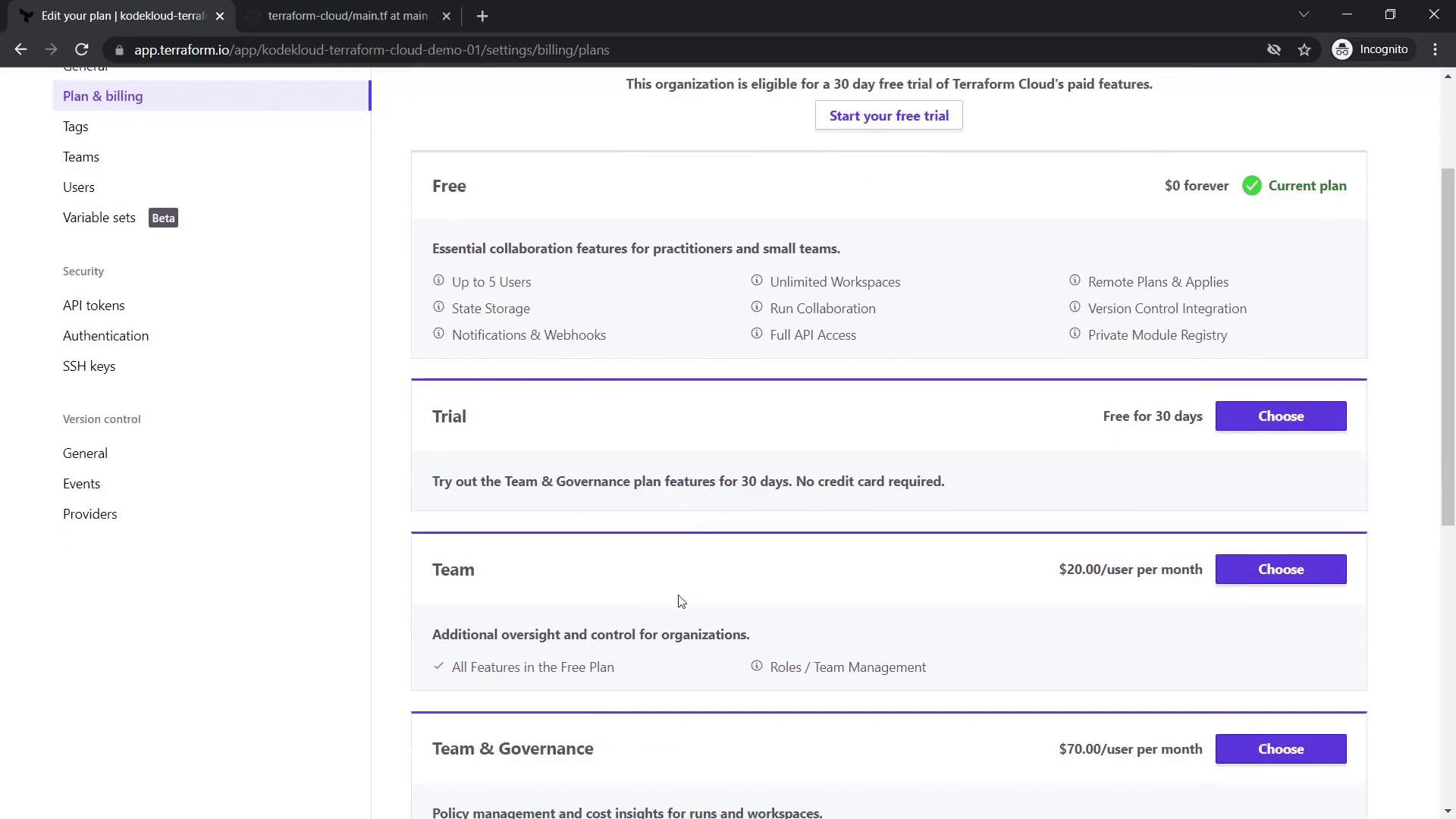
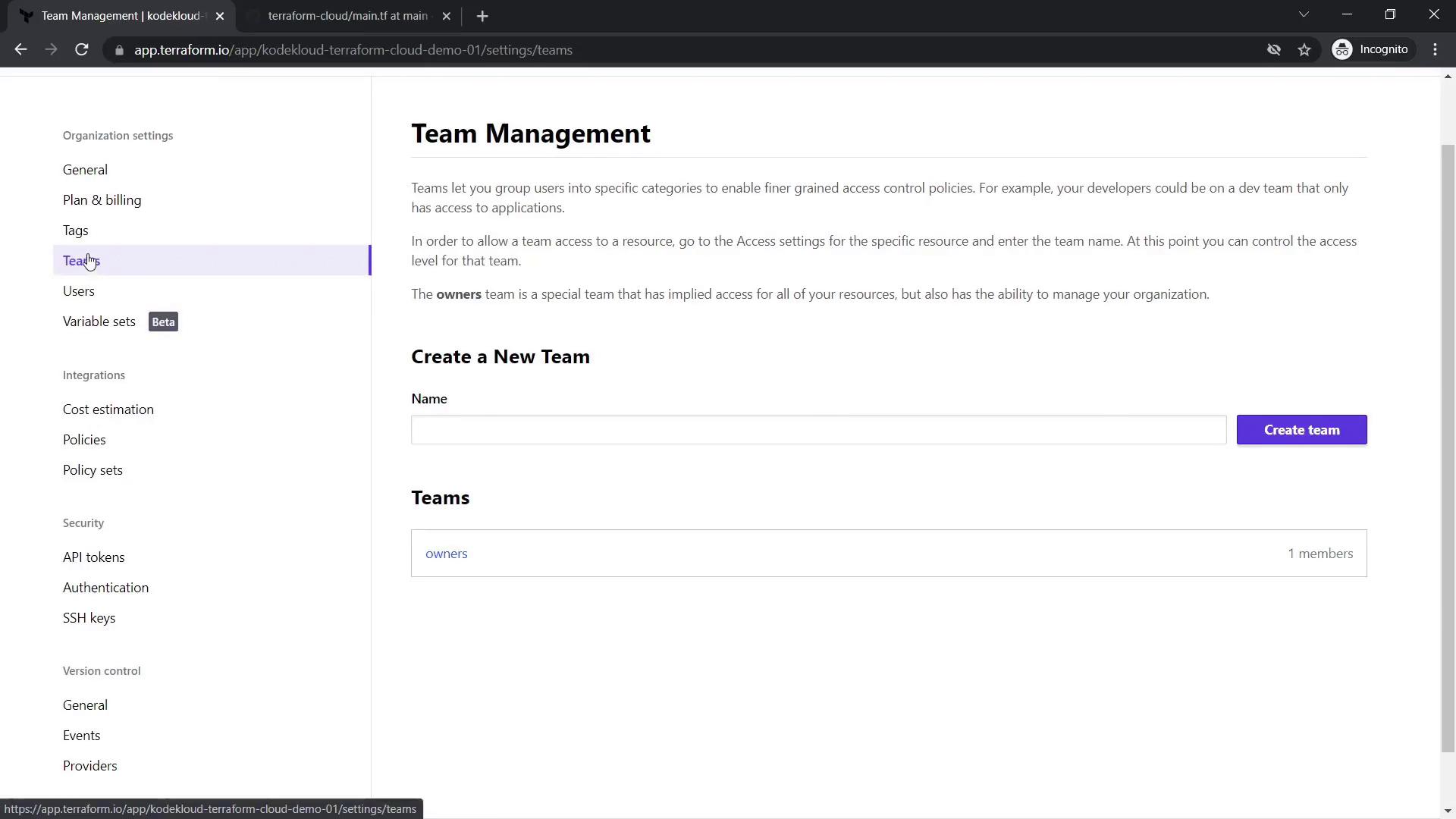
Review and update your organization settings by navigating to your organization page (e.g.,KodeKloud-Terraform-Cloud-Demo01). Here, you can adjust details, manage teams, and view billing information.