

- Dashboards auto-update — the charts are live and moving.
- A useful dashboard is not wallpaper: in this demo two systems are running behind the scenes:
- Grafana itself (served on port 3000 in this setup, typically reachable via a port-forward).
- A steady load generator that keeps traffic flowing through the router.
Grafana panels execute PromQL queries against Prometheus. The dashboard only visualizes the metrics Prometheus stores — it does not change what is measured.
Key dashboard panels and how to read them
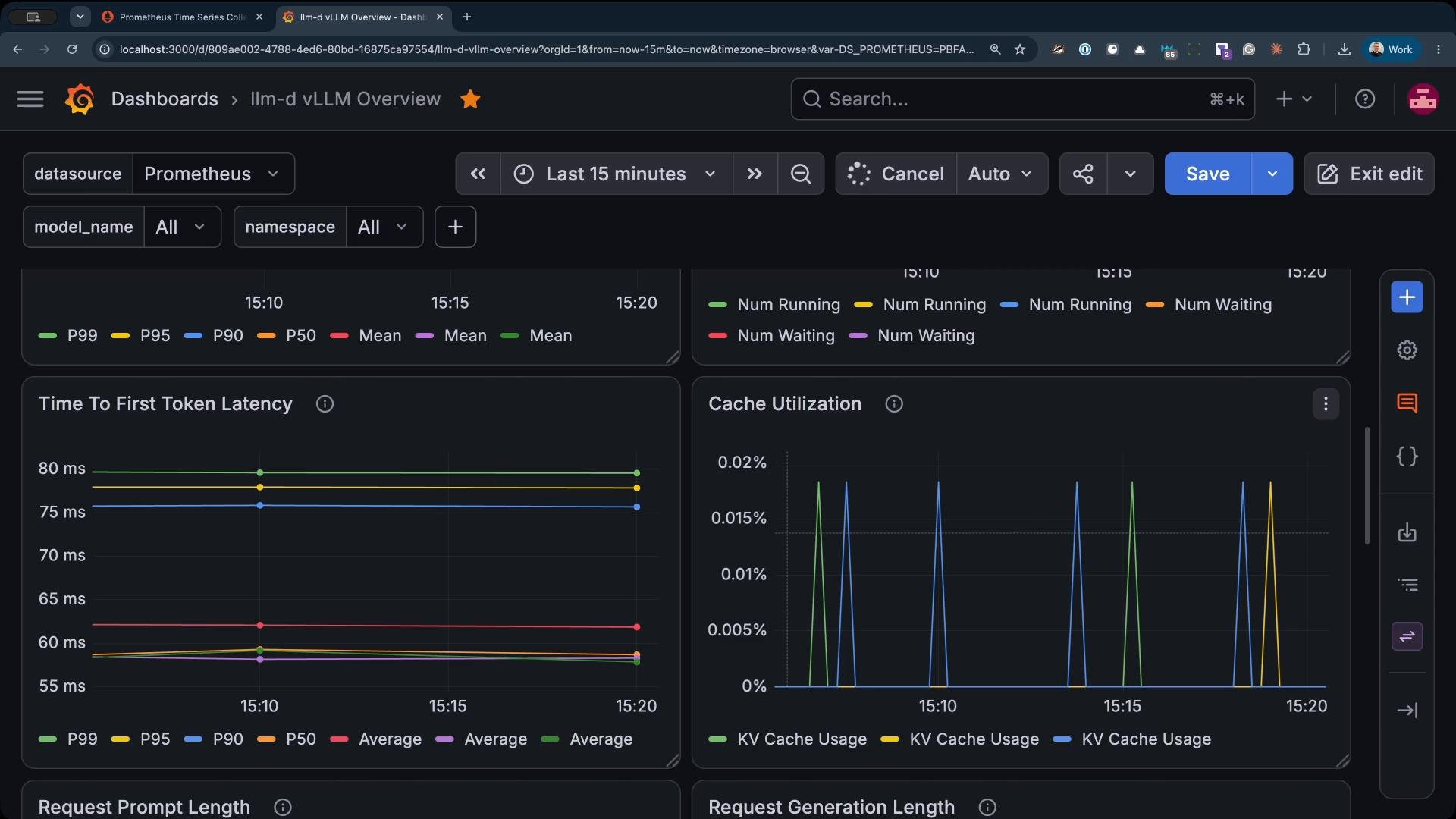
Time-to-first-token latency- This panel plots percentile curves over time. The P50 (median) is usually stable and gives you the typical user experience.
- The P99 reveals tail behavior — the slowest 1% of requests — and often spikes above the P50. Investigate P99 when you see user-visible latency outliers.
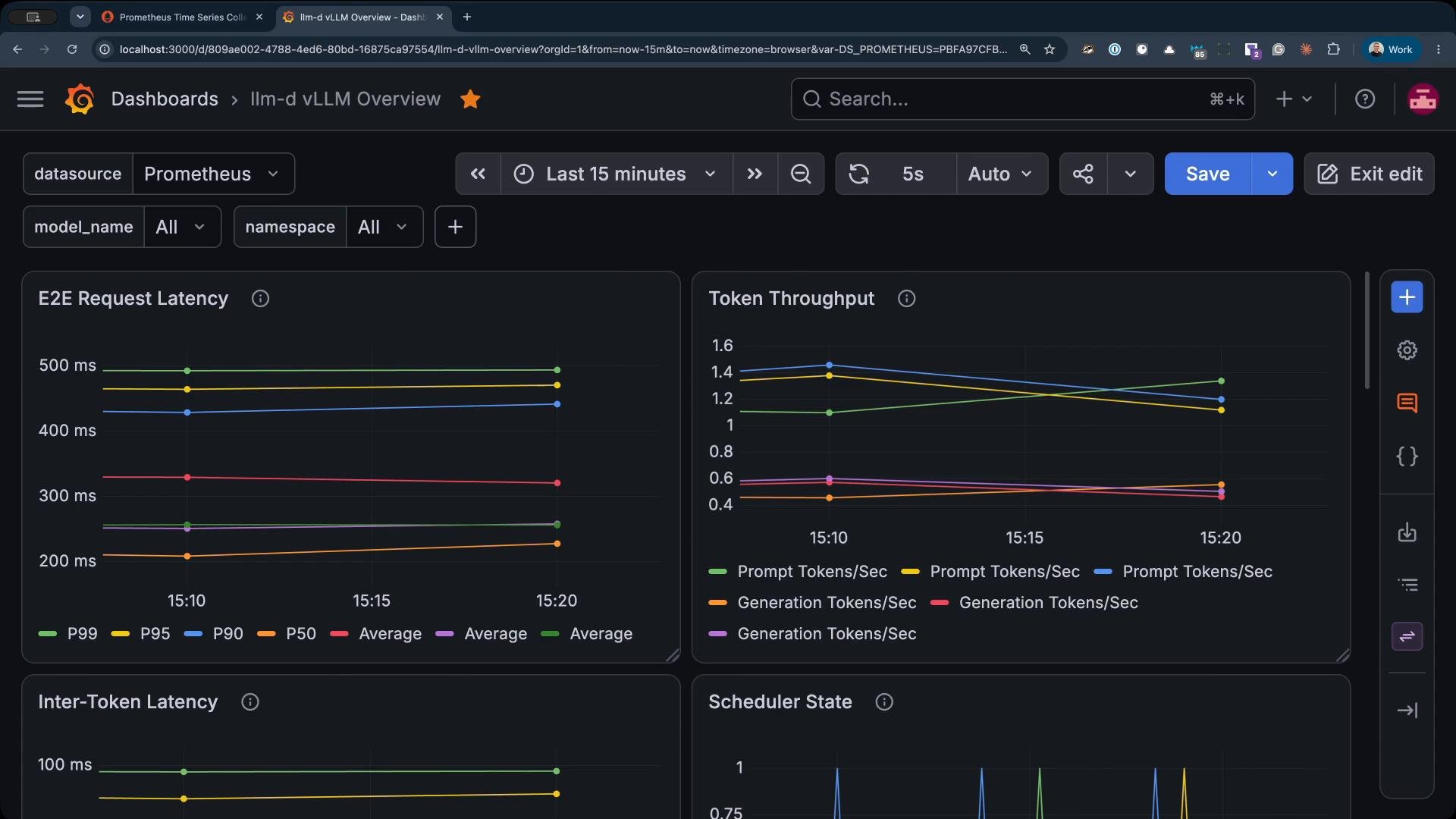
- Shows two series types: prompt tokens read (incoming) and generated tokens written (outgoing).
- Multiple pods produce multiple series; in this demo there are three pods and you’ll see three lines per metric. Use these lines to verify reading and streaming behavior across replicas.
- Panels show requests in running vs. waiting states. These curves reveal concurrency and queuing behavior.
- If arrivals bunch up the waiting line rises; when processing catches up the queue drains. This pattern is a direct signal of load vs. capacity.
- Scratchpad/cache usage is usually plotted one series per pod. Divergence between pod lines can indicate uneven load or stateful hotspots.
- Watch for sustained growth in cache usage on a single pod — it may point to state accumulation or memory leaks.
When you step back and scan the entire dashboard, one important observation stands out: every panel in this CPU-based setup is ultimately driven by CPU-bound metrics and the absolute values are relatively small and slow. The absolute numbers change if you move to GPUs, but the shapes, correlations, and the order in which you scan the panels remain the same. Good dashboard-reading habits translate directly to larger fleets.
From observation to verification: generate controlled load
This dashboard shows how the fleet behaves under whatever traffic happens to exist. To compare configurations or prove system performance you must generate controlled traffic:- Use a reproducible load generator that can fix arrival patterns (constant rate, bursts, or specific concurrency).
- Measure the same panels consistently across experiments (same time window, same filters).
- Keep a baseline run and compare percentiles (P50, P95, P99), throughput, and queue lengths.
For trustworthy comparisons, create controlled load and compare identical dashboard panels across runs. Visual inspection plus percentile metrics (P50/P95/P99) provides the best quick signal for performance regressions.
References and further reading
- Grafana documentation: https://grafana.com/docs/
- Prometheus documentation and PromQL guide: https://prometheus.io/docs/prometheus/latest/querying/basics/
- Observability best practices: correlating latency, throughput, and queue metrics for root-cause analysis