This lesson walks through creating an Auto Scaling Group (ASG) that runs a simple web server behind an Application Load Balancer (ALB). You will create a launch template, attach it to an ASG, configure an ALB and target group, and verify automatic instance replacement and dynamic scaling using a CPU-based target-tracking policy. Key concepts covered: Launch Template, Auto Scaling Group, Application Load Balancer (ALB), Target Group, health checks, and target-tracking scaling.

1) Create a launch template

Open the EC2 console and go to Auto Scaling Groups to start the ASG wizard. An ASG requires either a launch configuration or a launch template — launch templates are recommended because they support versions and additional options. Create a launch template with the following example settings used in this demo:
  • Template name: myweb-template
  • Description: prod web server
  • AMI: choose the AMI for your web server (demo used a custom Linux AMI running Nginx)
  • Instance type: t2.micro (free-tier eligible)
  • Key pair: an existing key (e.g., main)
  • Networking: leave subnet blank (so template can be reused across ASGs); attach a security group that allows HTTP (port 80) — (demo uses web-sg)
  • Storage / tags / advanced settings: defaults used for the demo
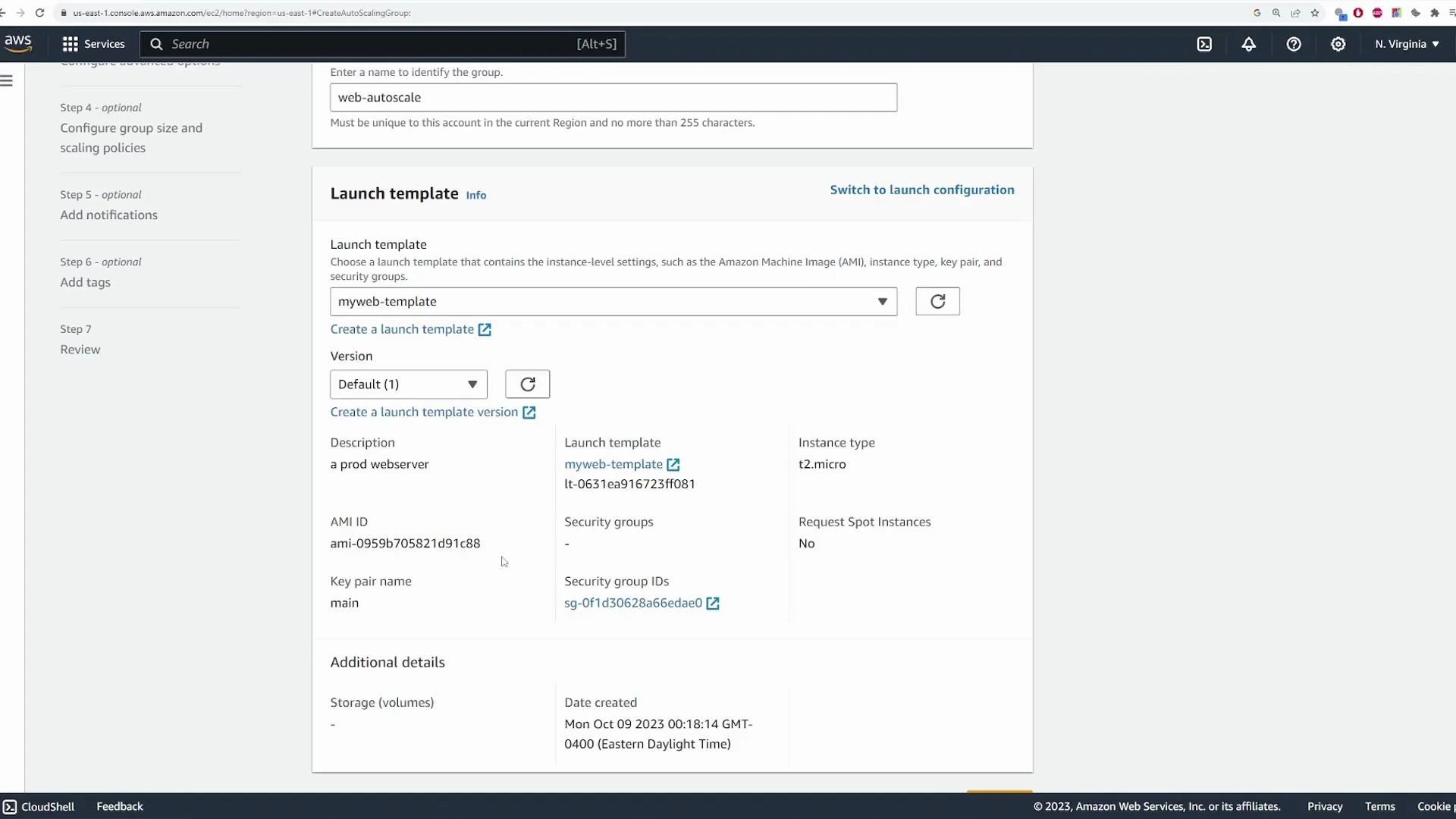
You can manage launch template versions later if you need to change the AMI or instance settings.
A screenshot of the AWS EC2 Auto Scaling Group creation page showing the "Launch template" section with "myweb-template" selected and details like instance type t2.micro, AMI ID, and key pair name. The left sidebar lists the setup steps and the console is in the us-east-1 region.
Select the newly created launch template when you return to the Auto Scaling Group creation wizard.

2) Choose VPC / subnets and instance overrides

Configure the VPC and subnets where ASG instances will run. Common patterns:
  • Place ALB in public subnets (internet-facing) and EC2 instances in private subnets (ALB will route traffic to them).
  • You can override launch template values per ASG (for example, change instance type or additional network configuration).
This separation improves security by keeping instances private while exposing only the ALB.

3) Configure the Load Balancer and Target Group

For a web workload choose an Application Load Balancer (ALB). During ASG creation pick “Create a new load balancer” or attach an existing one. Important ALB / Target Group settings:
  • Load balancer type: Application Load Balancer
  • Scheme: Internet-facing (if you want public access)
  • Subnets: public subnets for ALB so it receives internet traffic
  • Listener: HTTP on port 80
  • Target Group: create (e.g., web-autoscale-1-tg) — Target type: Instance, Protocol: HTTP:80
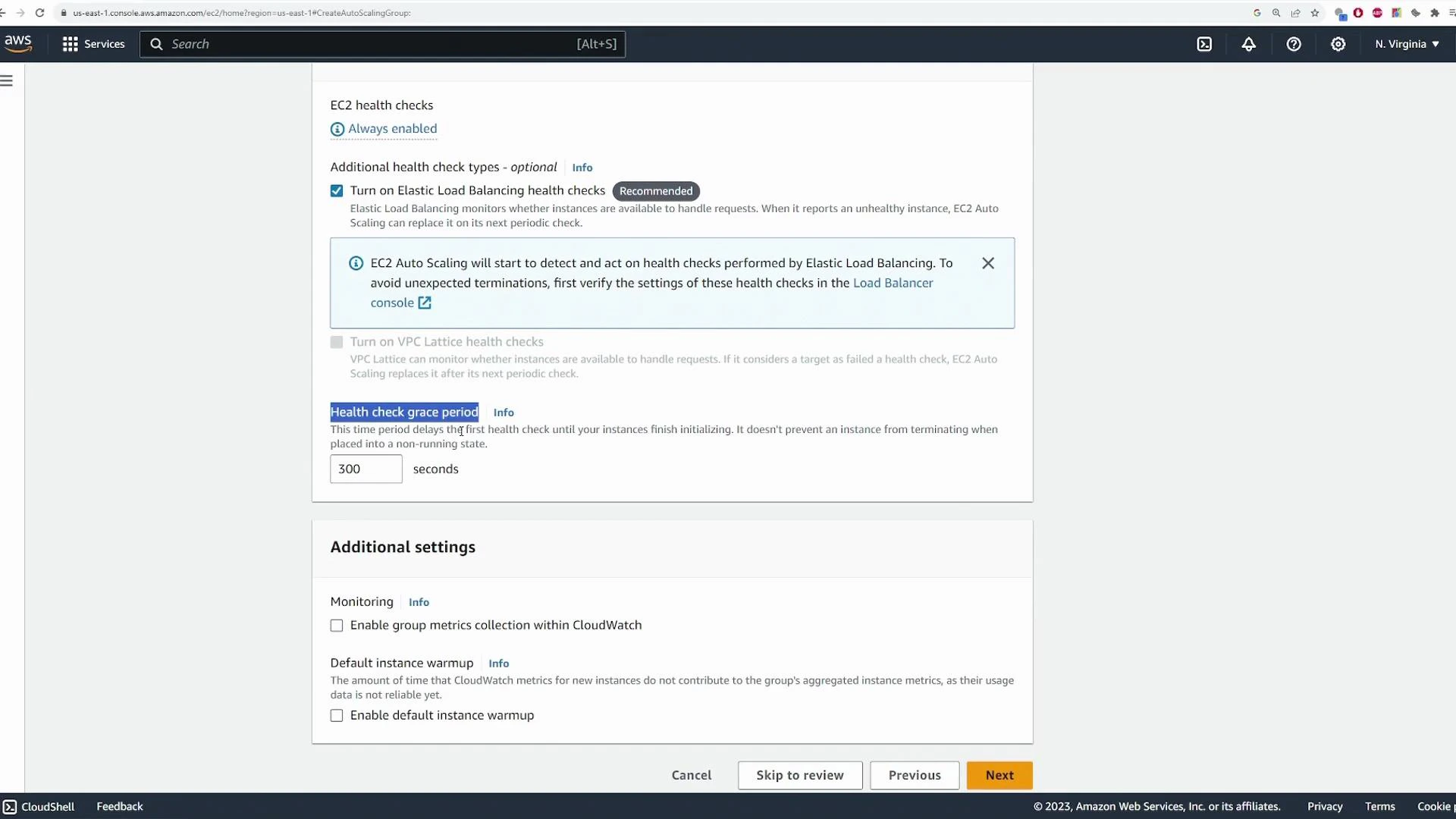
  • Health checks: enable ELB health checks; set a health check grace period (demo used default 300 seconds)
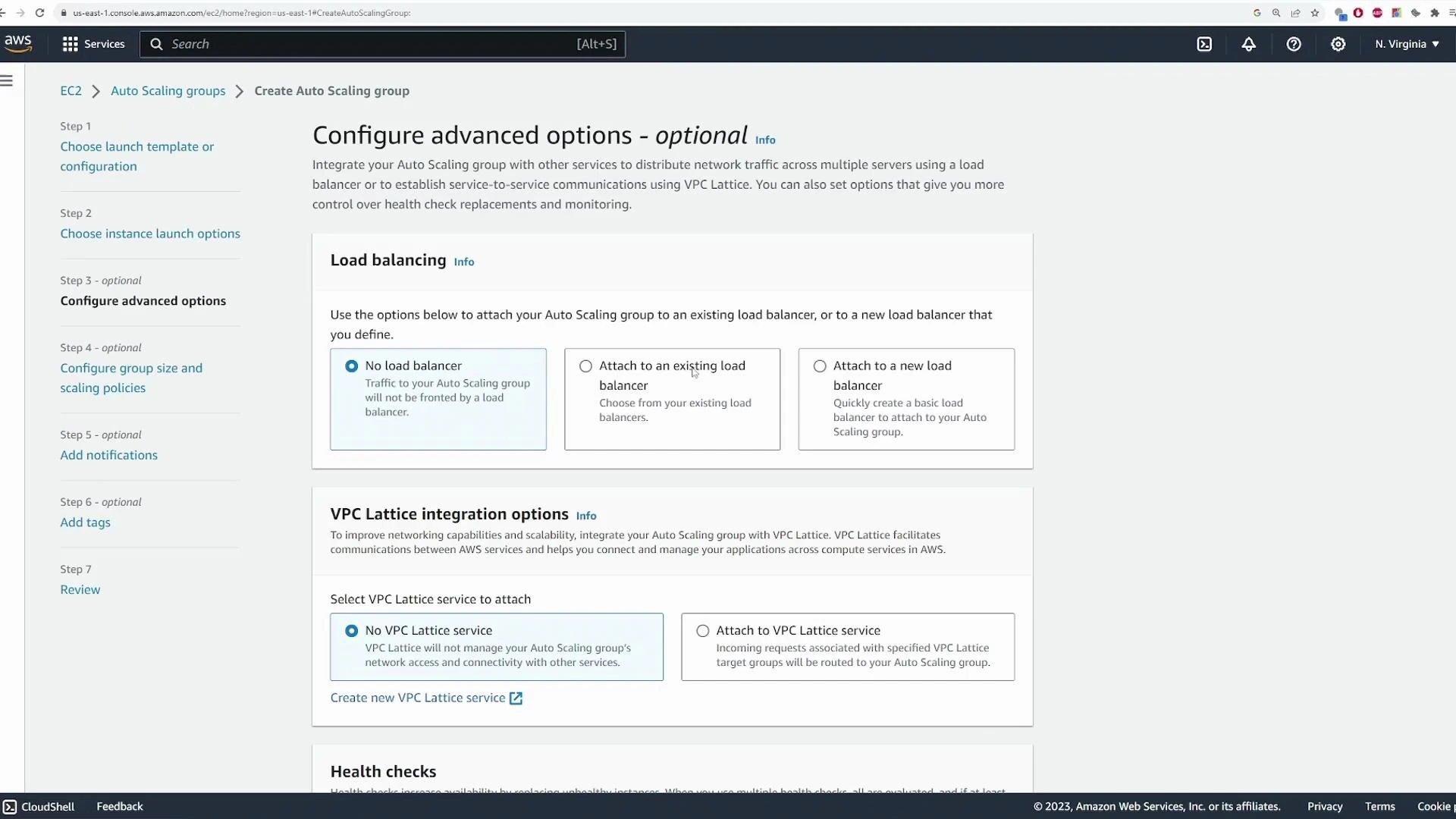
A screenshot of the AWS EC2 console on the "Create Auto Scaling group" page showing the "Configure advanced options" section, including Load balancing and VPC Lattice integration options. The left pane shows the step-by-step wizard and the main area displays radio-button choices for no load balancer, attaching to an existing or new load balancer, and VPC Lattice settings.
A screenshot of the AWS EC2 Auto Scaling "Create Auto Scaling Group" settings page showing health check options — Elastic Load Balancing health checks are enabled and the health check grace period is set to 300 seconds. The lower pane shows additional settings (monitoring and default instance warmup) with navigation buttons (Cancel, Skip to review, Previous, Next).
Note that instances launched from the template may require the full health-check grace period before being marked healthy.

4) Configure group size and scaling policy

Set capacity values:
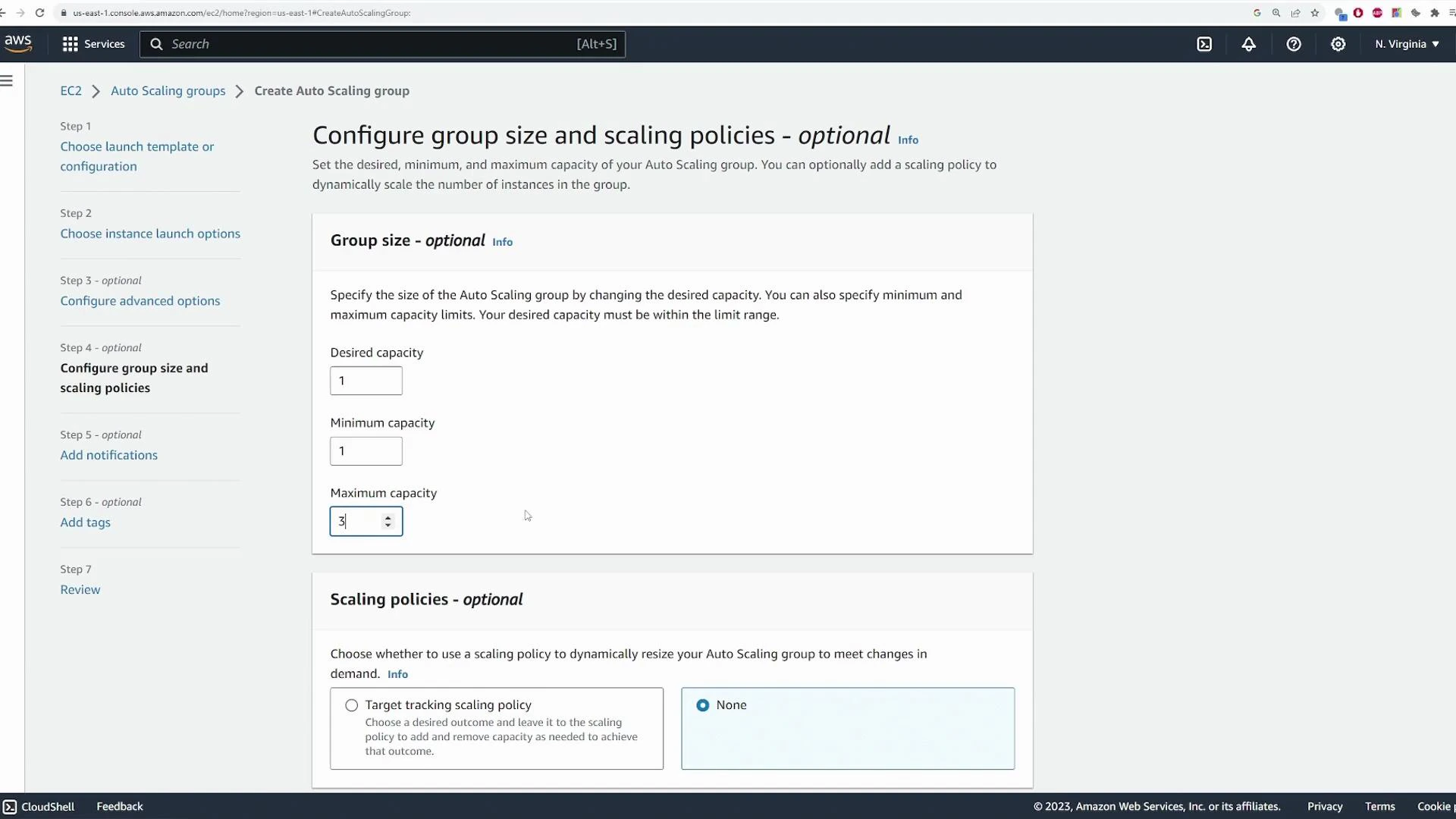
  • Desired capacity: initial number of instances (e.g., 1)
  • Minimum capacity: minimum instances (e.g., 1)
  • Maximum capacity: max instances allowed (e.g., 3)
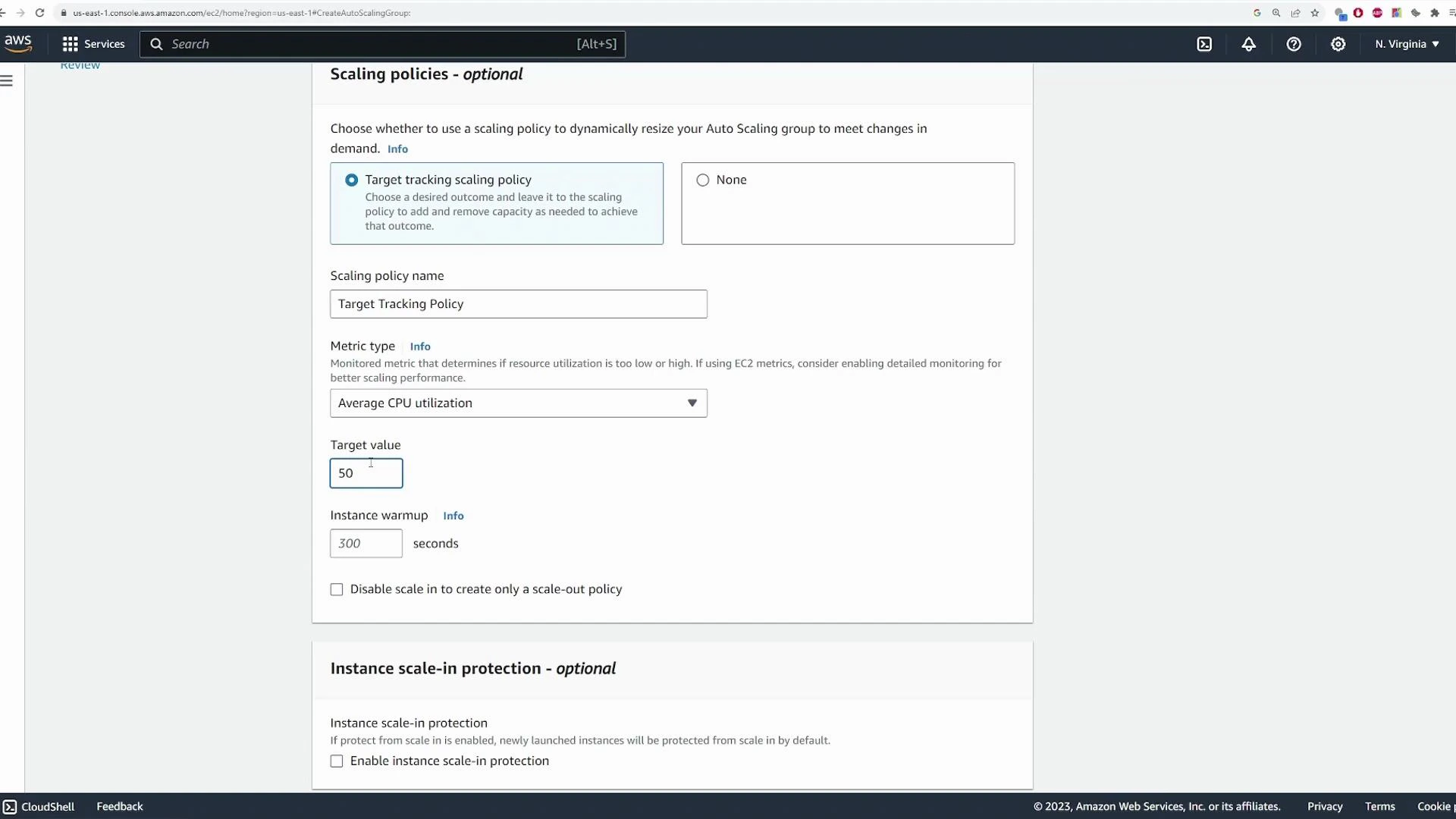
For autoscaling, use a target tracking scaling policy to maintain a target average metric across all instances (CPU utilization in this demo). Example target used in the demo: 40% average CPU (you may choose 70% or another value for production). ASG capacity fields quick reference:
FieldPurposeExample
Desired capacityNumber of instances the ASG attempts to maintain1
Minimum capacityLowest allowed instance count1
Maximum capacityUpper bound for scaling3
A screenshot of the AWS EC2 console on the "Create Auto Scaling group" page, showing the "Configure group size and scaling policies" step with fields for desired, minimum, and maximum capacity (set to 1, 1, and 3). The lower section shows optional scaling policy choices.
Screenshot of the AWS EC2 Auto Scaling "Scaling policies - optional" settings page. It shows a Target tracking scaling policy configured for Average CPU utilization with a target value of 50 and an instance warmup of 300 seconds.
When the configuration looks correct, review and create the Auto Scaling Group. Creating the ASG will:
  • Create the ASG resource
  • Launch the desired number of EC2 instances
  • Create/configure the ALB and target group (if requested)
  • Register instances with the target group

5) Inspect the deployed resources

After creation, inspect the ASG and related resources to confirm settings:
  • Verify Desired / Min / Max capacity and launch template version
  • Check networking configuration and attached ALB / target group
  • Verify the Target Group shows registered instances and their health
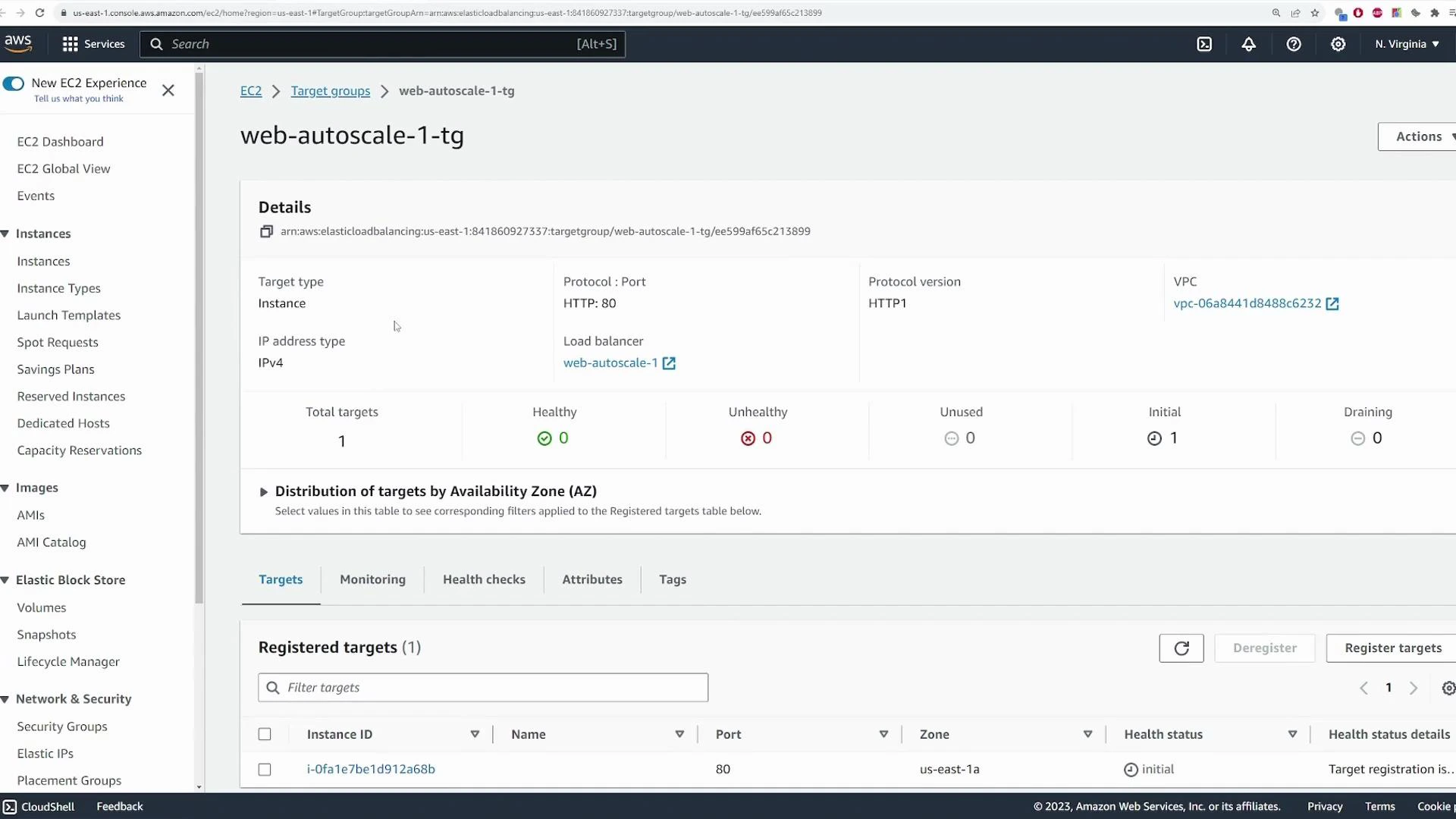
Screenshot of the AWS EC2 console on the Target Groups page for "web-autoscale-1-tg," showing details like target type (Instance), protocol HTTP:80, and VPC. The Registered targets section lists one instance (i-0fa1e7be1d912a68b) with health status "initial."
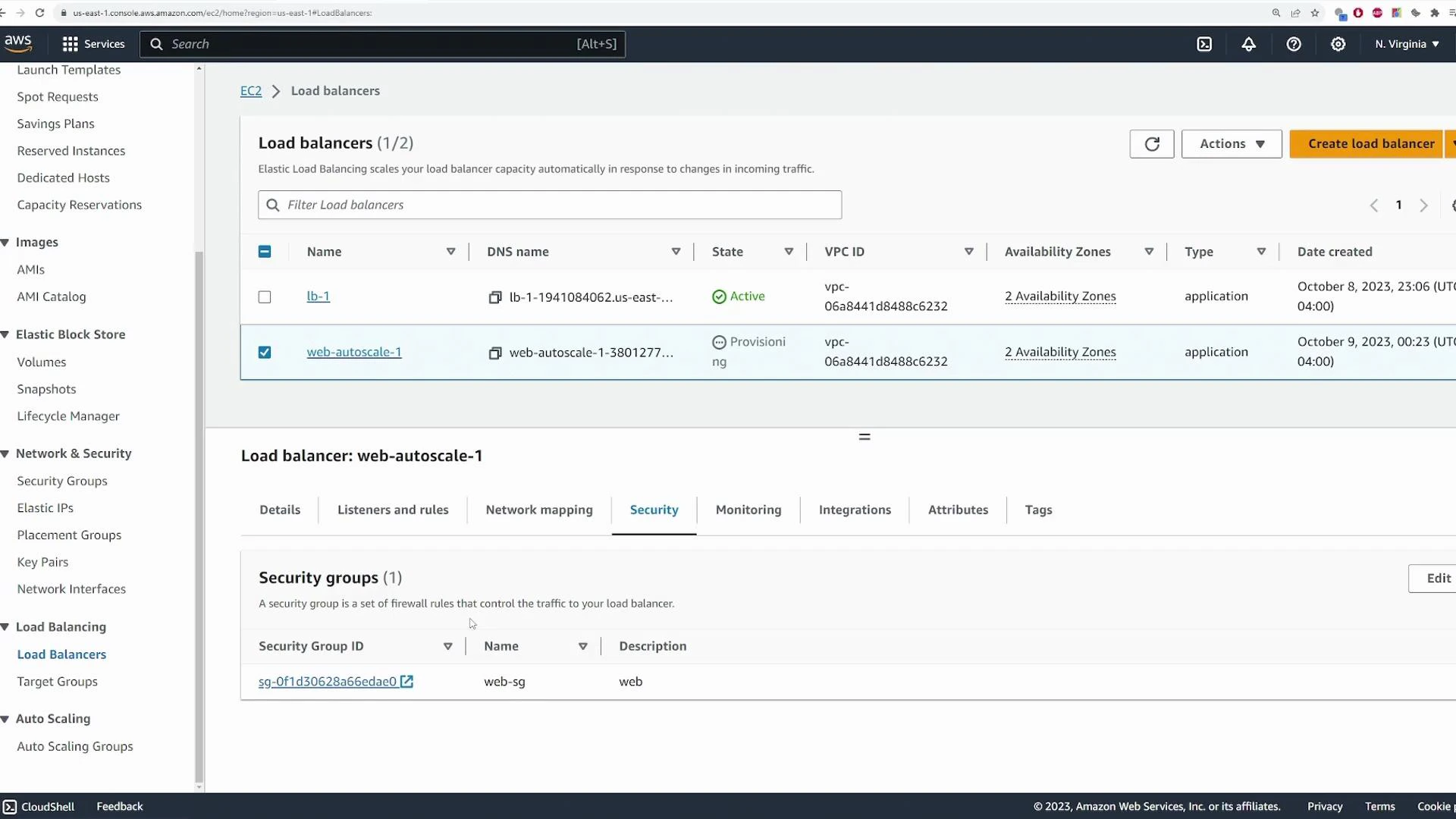
Check the ALB’s security group to ensure inbound port 80 is allowed (from 0.0.0.0/0 for public access, or restrict to a CIDR you require). Instances should be in private subnets while ALB subnets are public.
A screenshot of the AWS EC2 console showing the Load Balancers page with two load balancers listed and the details panel for "web-autoscale-1." The details view is on the Security tab, showing one security group (web-sg) attached to the load balancer.

6) Test the ALB endpoint

Obtain the ALB DNS name from the Load Balancer details and open it in your browser. You should see the web server content served through the ALB. In the demo the site returned: Welcome to KodeKloud This confirms the ALB is forwarding traffic to instances in the ASG.

7) Test Auto Scaling replacement behavior (terminate an instance)

To verify the ASG maintains the desired count, terminate one of the ASG’s EC2 instances. The Auto Scaling service detects the termination (via EC2 or health checks), and it launches a replacement to return to the desired capacity. Monitor the ASG Activity tab to see events like “Instance terminated” and “Launching a new instance.”
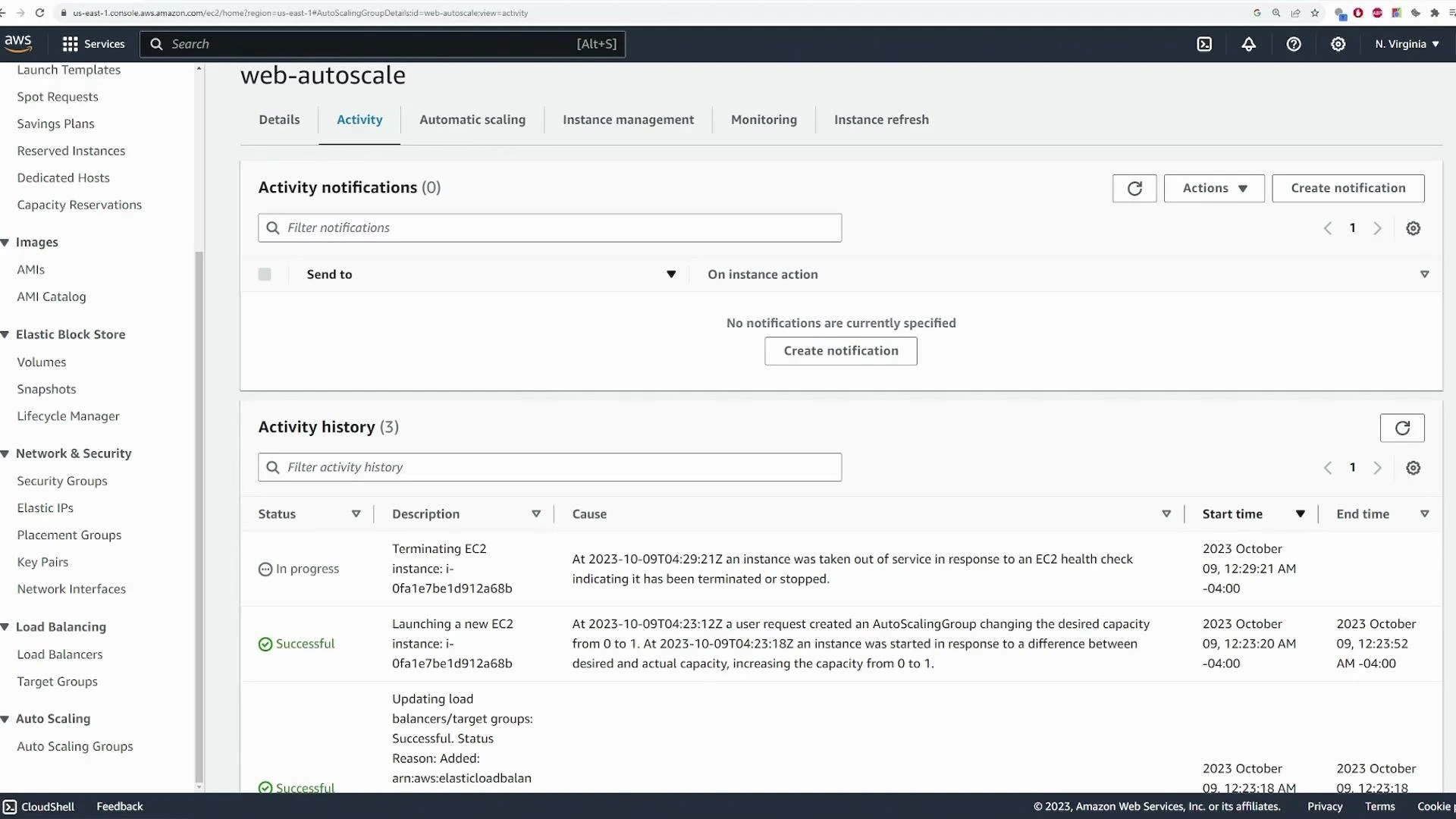
A screenshot of the AWS EC2 console showing the Auto Scaling group "web-autoscale" on the Activity tab. It shows no activity notifications and an activity history listing recent events like terminating and launching EC2 instances.
You will also see the replacement instance appear in the EC2 Instances list once initialization completes.

8) Test target-tracking scaling by generating CPU load

A target-tracking scaling policy uses the average metric across all instances. To trigger scale-out, increase CPU load so the average goes above the configured target (40% in this demo). SSH into an instance and use a stress tool to simulate CPU load. Example SSH + stress session:
# SSH into the instance (example)
ssh -i main.pem ec2-user@10.0.129.234

# Check current CPU usage (you can use top)
top

# Install stress if not present (on Amazon Linux)
sudo yum install -y stress    # or use your distribution's package manager

# Run a single worker to saturate one CPU
stress -c 1
Sample top output before stressing:
top - 04:33:30 up 3 min,  2 users,  load average: 0.01, 0.04, 0.01
%Cpu(s):  0.0 us,  6.2 sy, 93.8 id
MiB Mem :   949.4 total,    572.5 free,    159.3 used,    217.6 buff/cache
After starting stress -c 1 you should see CPU usage increase toward 100% on one core:
top - 04:34:00 up 4 min,  2 users,  load average: 0.29, 0.10, 0.03
%Cpu(s):100.0 us, 0.0 sy, 0.0 id
  PID USER      PR  NI    VIRT    RES  SHR S  %CPU %MEM     TIME+ COMMAND
 2556 ec2-user  20   0    3512   112    0 R  99.7  0.0   0:19.71 stress
The ASG target-tracking policy detects the higher average CPU and will scale out by launching additional instances, up to your configured maximum.
Target tracking maintains the average metric (CPU in this case) across all instances in the group. Setting a lower target causes scale-out sooner; set targets conservatively for production.

9) Observe scaling events and capacity limits

When the average CPU breaches the target, the ASG Activity tab shows alarms and capacity adjustments (for example: Desired capacity increases from 1 to 3). The ASG will never exceed the configured maximum capacity (3 in this demo), even if CPU remains high. Confirm new instances in the EC2 Instances list and watch the Target Group for additional registered targets.
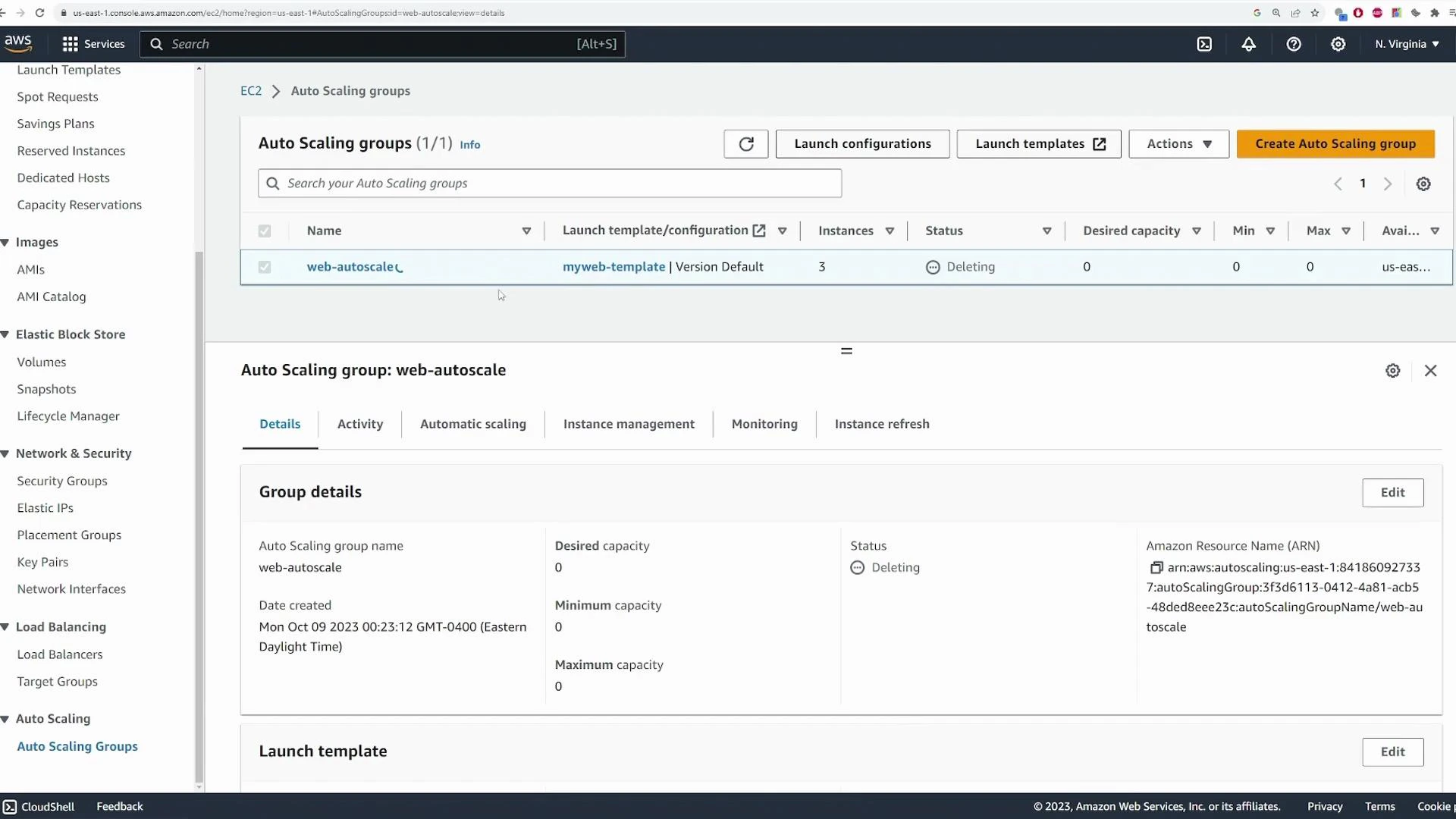
A screenshot of the AWS EC2 Auto Scaling Groups console showing an Auto Scaling group named "web-autoscale." The group uses the "myweb-template", shows 3 instances but a Desired/Min/Max capacity of 0 and is marked "Deleting."

10) Cleanup

When you finish the demo, delete the Auto Scaling Group. If you created an ALB and target group specifically for this demo, delete those too to avoid ongoing charges. Also remove any EC2 instances, security groups, and unused key pairs you no longer need.
Remember to clean up ALBs, target groups, EC2 instances, and ASGs after testing to avoid unexpected costs.
This completes the basic walkthrough for:
  • Creating an Auto Scaling Group from a launch template
  • Attaching an Application Load Balancer and a target group
  • Verifying instance replacement behavior
  • Using a CPU-based target tracking scaling policy

Watch Video

Practice Lab