In this guide you’ll learn how to build a simple, serverless video-processing pipeline on AWS using S3 event notifications, Amazon SNS for fan-out, Amazon SQS for durable buffering, and Lambda for processing (transcoding and thumbnail generation). The architecture is scalable, cost-effective, and works well for workloads that need to fan out a single upload to multiple consumers. High-level flow:
  • A user uploads a raw video to an S3 bucket (MP4, MOV, etc.).
  • S3 publishes an ObjectCreated event to an SNS topic (video-uploaded).
  • SNS fans out the notification to two SQS queues:
    • video-processing — consumed by a Lambda that transcodes the video (e.g., to HLS) and writes outputs to processed-videos.
    • thumbnail-processing — consumed by a Lambda that generates thumbnails and writes outputs to thumbnails.
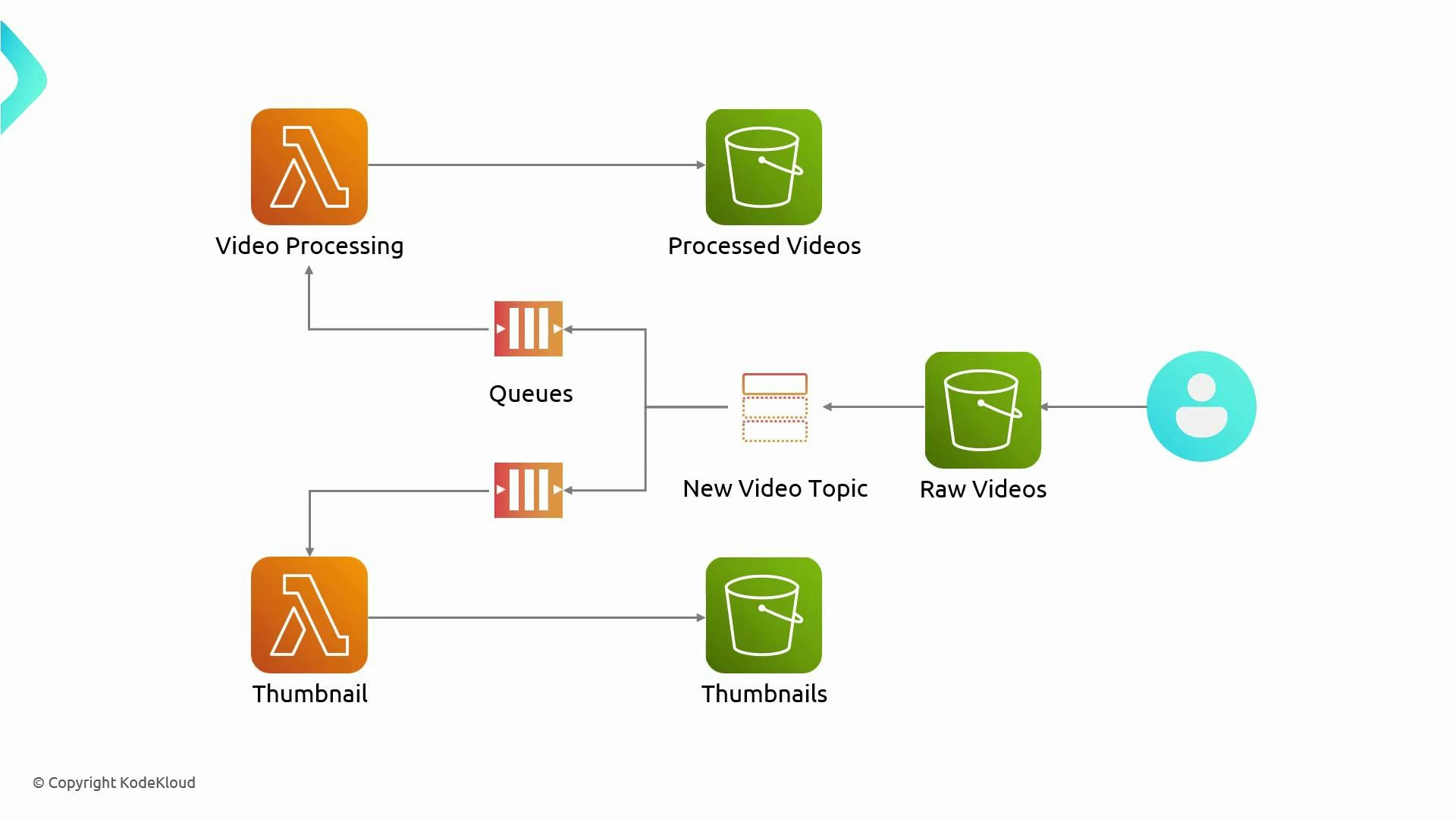
A simple AWS video-processing diagram showing a user uploading raw videos to a storage bucket, which sends new-video messages to queues that trigger Lambda functions. Those functions create processed videos and thumbnails saved to separate storage buckets.
Quick reference table — resources and purpose:
Resource typePurposeExample name(s)
S3 bucketStore raw uploadsraw-videos-kodekloud
SNS topicFan-out notificationvideo-uploaded
SQS queueDurable queue for each consumervideo-processing, thumbnail-processing
Lambda functionProcess messages from SQSvideo-processing, thumbnail-processing
We’ll walk through the exact steps: buckets, SNS topic, SQS queues, subscribing queues to SNS, Lambda functions, event parsing, S3 notification wiring, testing, and cleanup. Buckets
  • Create three S3 buckets (you can use default settings for this demo):
    • raw-videos-kodekloud (incoming uploads)
    • processed-videos-kodekloud (transcoded outputs, e.g., HLS files)
    • thumbnails-kodekloud (generated thumbnails)
  • In production, consider encryption, lifecycle rules, and access policies.
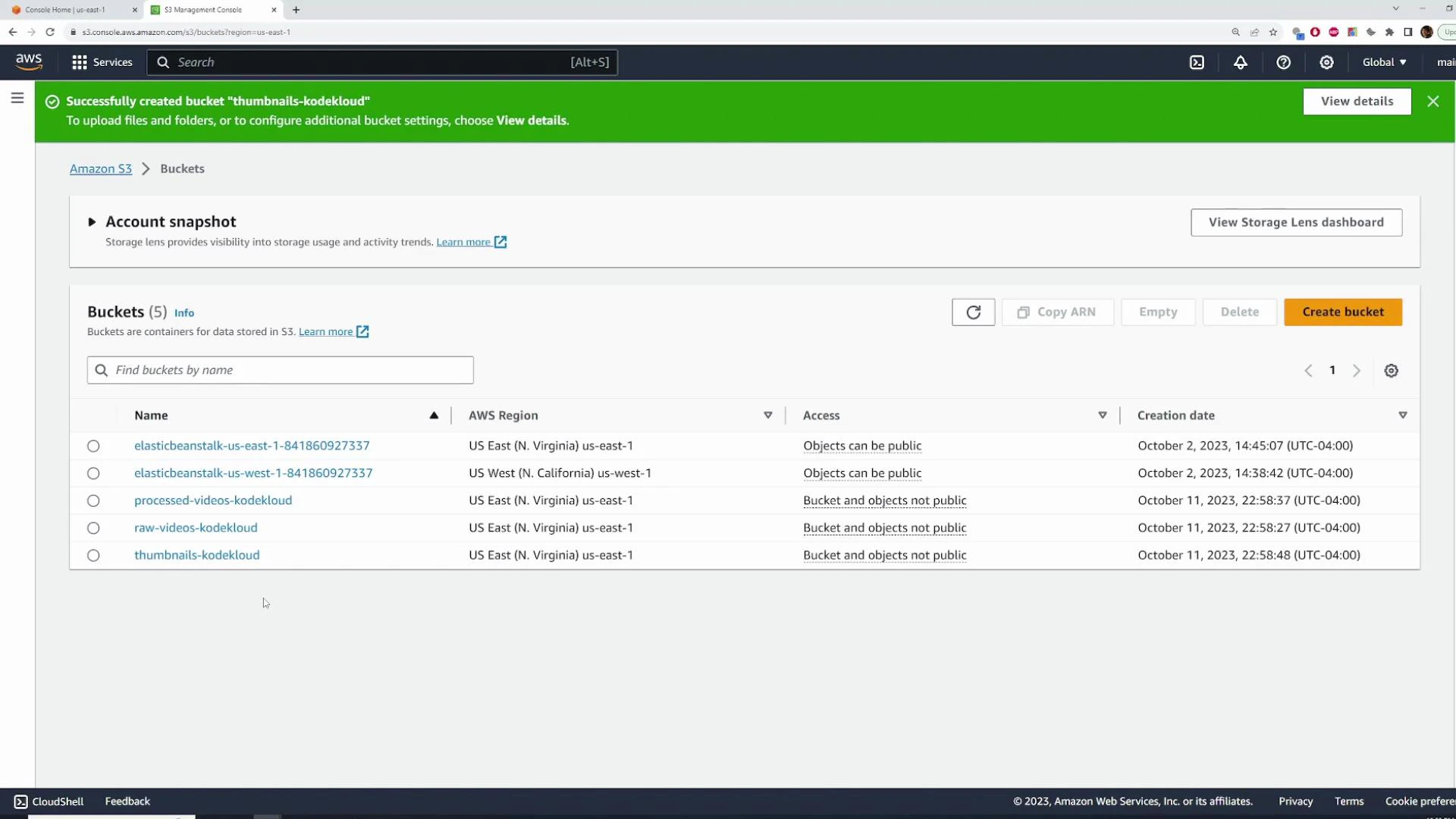
A screenshot of the AWS S3 Management Console showing a list of five S3 buckets with their names, regions, access settings, and creation dates. A green banner at the top indicates a bucket ("thumbnails-kodekloud") was successfully created.
Create the SNS topic
  • In the SNS console, create a topic named video-uploaded.
  • Choose Standard (FIFO ordering is not required here).
  • Keep encryption and access policy defaults for now. You will later add an explicit statement allowing S3 to publish to the topic when you configure S3 event notifications.
Default access policy snippet (trimmed to show structure). Keep the default policy and merge additional statements when needed:
{
  "Version": "2012-10-17",
  "Id": "__default_policy_ID",
  "Statement": [
    {
      "Sid": "__default_statement_ID",
      "Effect": "Allow",
      "Principal": {
        "AWS": "*"
      },
      "Action": [
        "SNS:Publish",
        "SNS:RemovePermission",
        "SNS:SetTopicAttributes",
        "SNS:DeleteTopic"
      ],
      "Resource": "arn:aws:sns:REGION:ACCOUNT_ID:topic-name"
    }
  ]
}
Create the SQS queues
  • Create two standard SQS queues:
    • video-processing
    • thumbnail-processing
  • Standard queues provide at-least-once delivery and are usually sufficient for this pipeline.
  • Use default visibility timeout, message retention, and delivery delay unless your application requires adjustments.
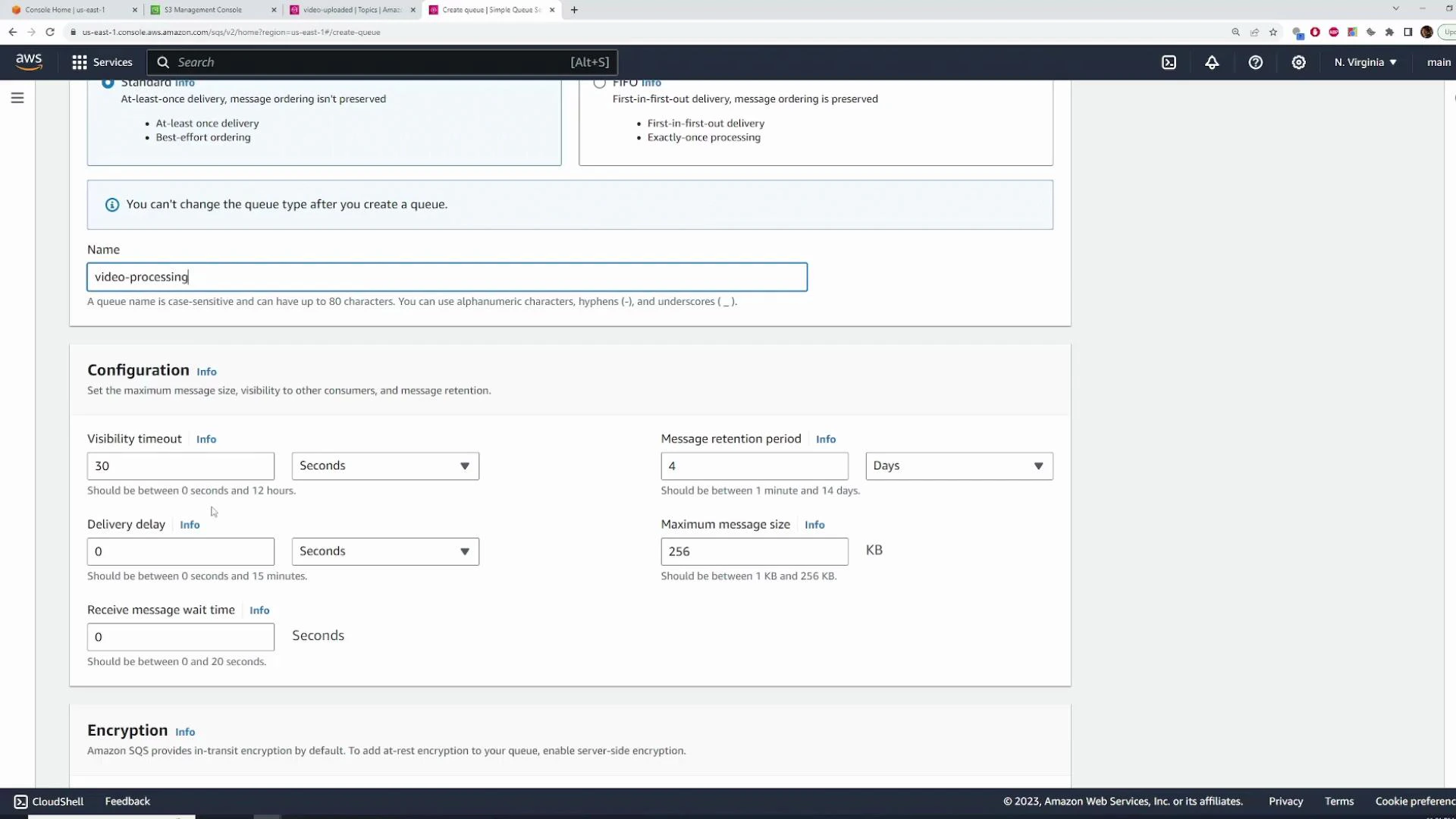
A screenshot of the AWS Management Console showing the Amazon SQS "Create queue" page with the queue name set to "video-processing" and configurable fields like visibility timeout, delivery delay, message retention period, and maximum message size. The browser tabs and AWS footer/CloudShell bar are also visible.
Subscribe the SQS queues to the SNS topic
  • In the SNS topic, create subscriptions of type Amazon SQS for:
    • arn:aws:sqs:REGION:ACCOUNT_ID:video-processing
    • arn:aws:sqs:REGION:ACCOUNT_ID:thumbnail-processing
  • After subscribing, every publish to video-uploaded will be delivered to both queues.
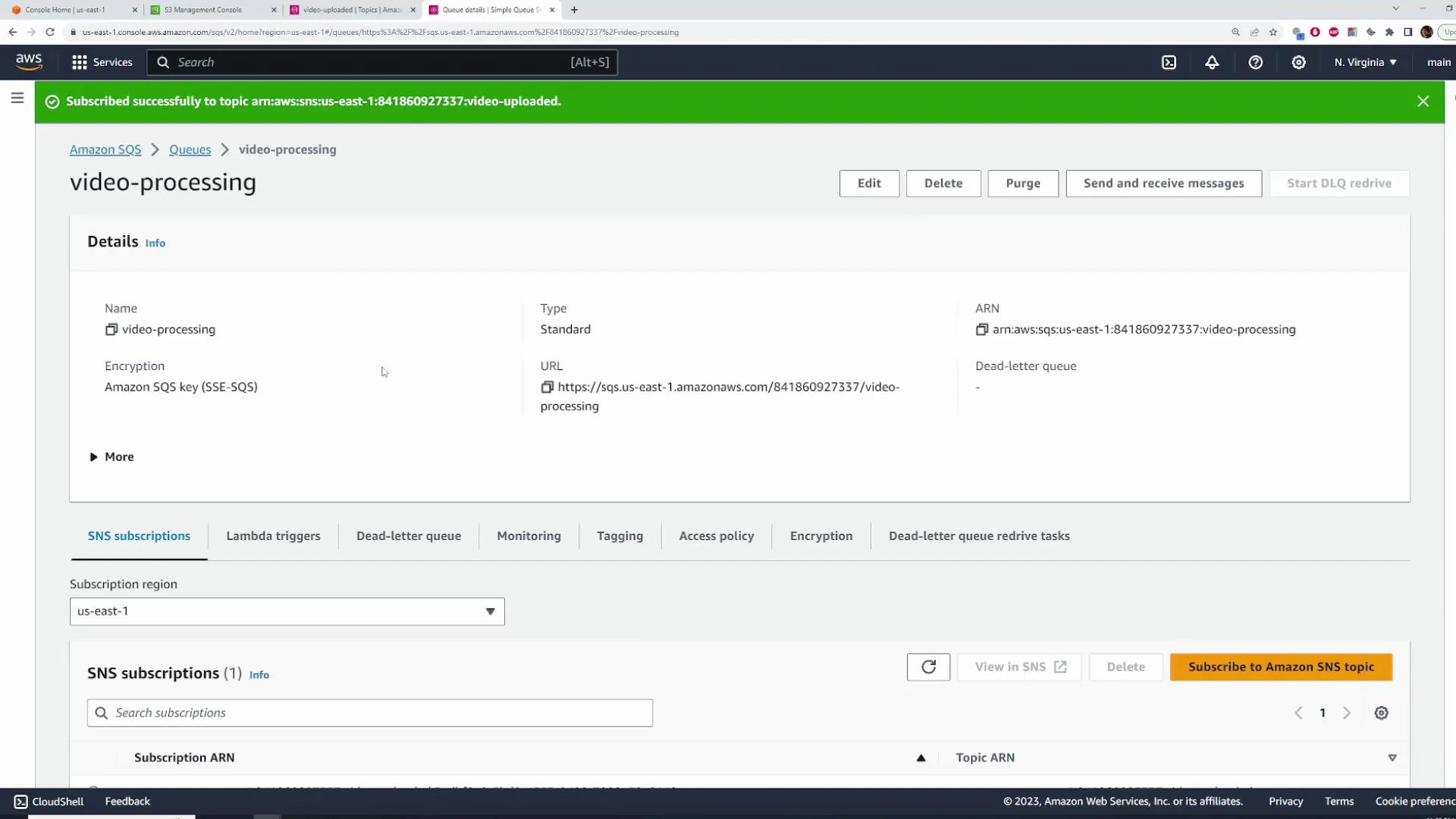
A screenshot of the AWS Management Console showing the Amazon SQS queue named "video-processing." The page displays queue details (ARN, URL, encryption), SNS subscriptions, and action buttons like Edit, Delete, Purge, and Send and receive messages.
Subscribe example (SNS topic ARN):
arn:aws:sns:us-east-1:841860927337:video-uploaded
Testing SNS → SQS end-to-end (manual publish)
  • Use the SNS console’s Publish message feature to verify subscriptions.
  • Publish a message body containing the S3 bucket name and object key (JSON is recommended).
Example message body:
{
  "bucket": "raw-videos-kodekloud",
  "key": "b415c94e-de85-4f6a-949c-2eb2e93bf830"
}
  • After publishing, both SQS queues should show the message(s) available for consumers.
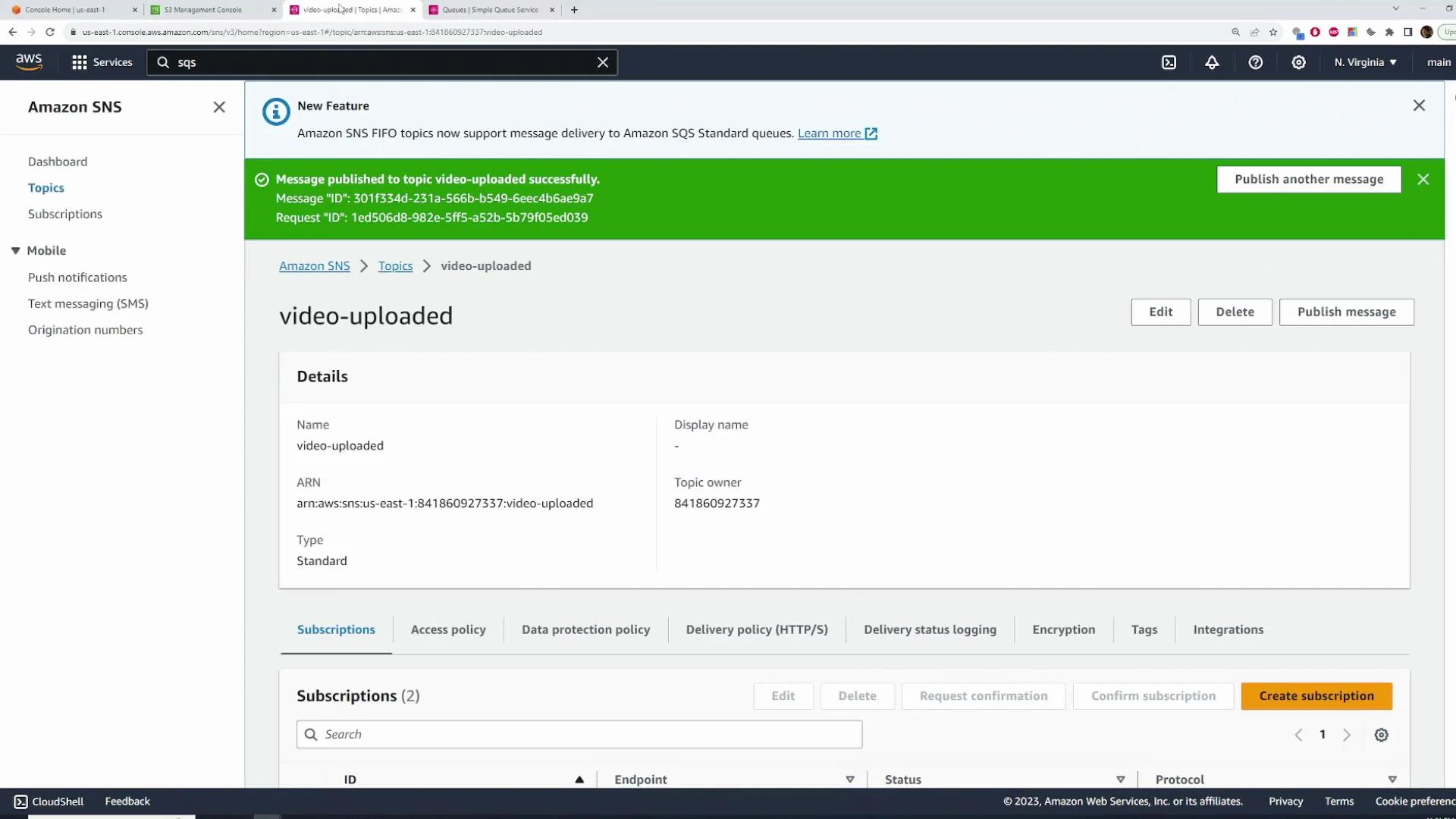
A screenshot of the AWS Management Console showing the Amazon SNS topic page for "video-uploaded." A green banner reports a message was published successfully, and the page displays the topic ARN, details, and subscription controls.
Publish another test message (example):
{
  "bucket": "raw-videos-kodekloud",
  "key": "b415c94e-de85-4f6a-949c-2eb2e93bf83sdfasdf0"
}
  • Refresh the SQS console — you should see multiple messages in both queues.
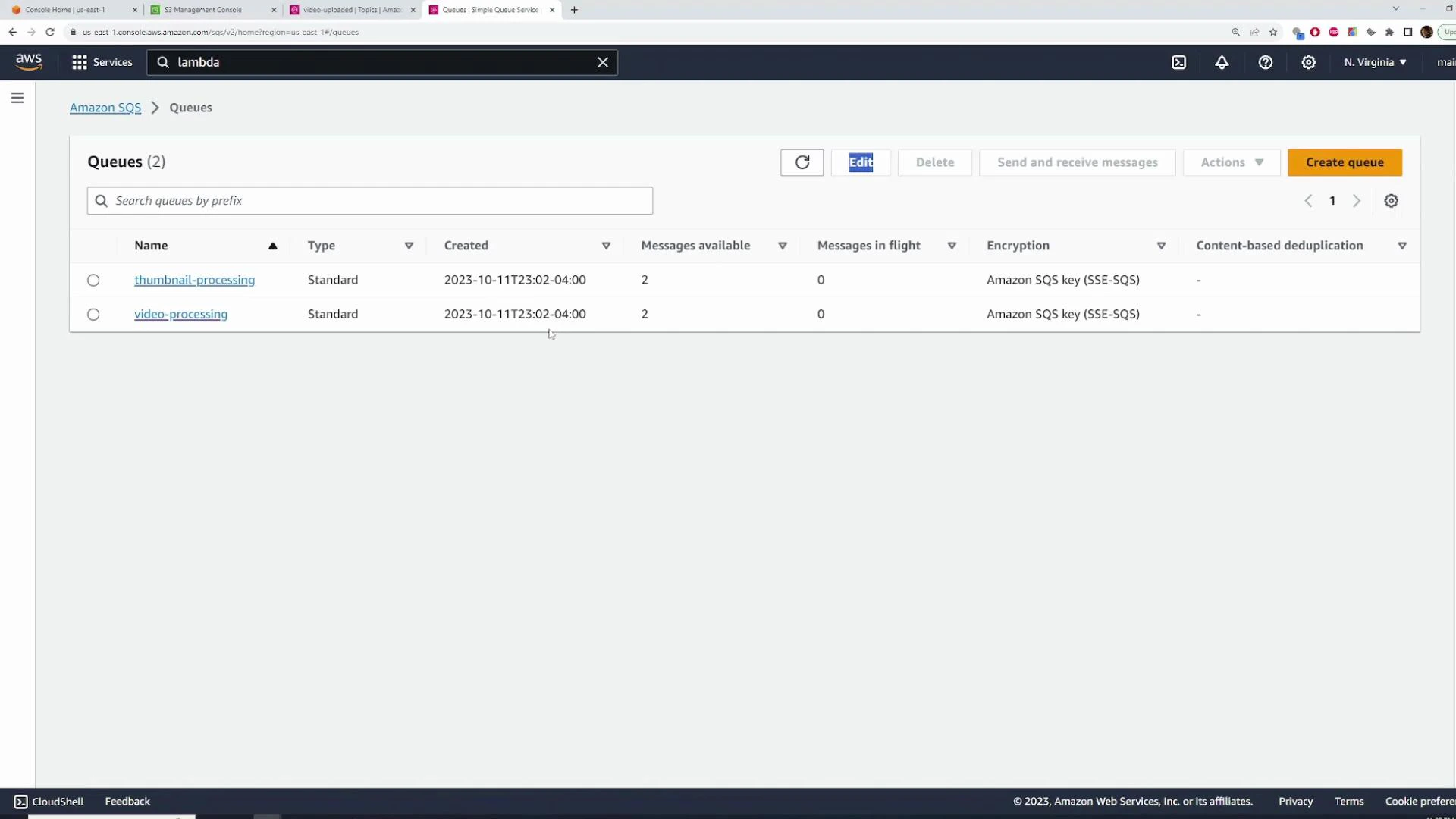
A screenshot of the Amazon SQS console showing two queues named "thumbnail-processing" and "video-processing." Each queue is of type Standard, created on 2023-10-11, with 2 messages available and 0 messages in flight.
Create Lambda functions
  • Create two Node.js 18.x Lambda functions:
    • video-processing
    • thumbnail-processing
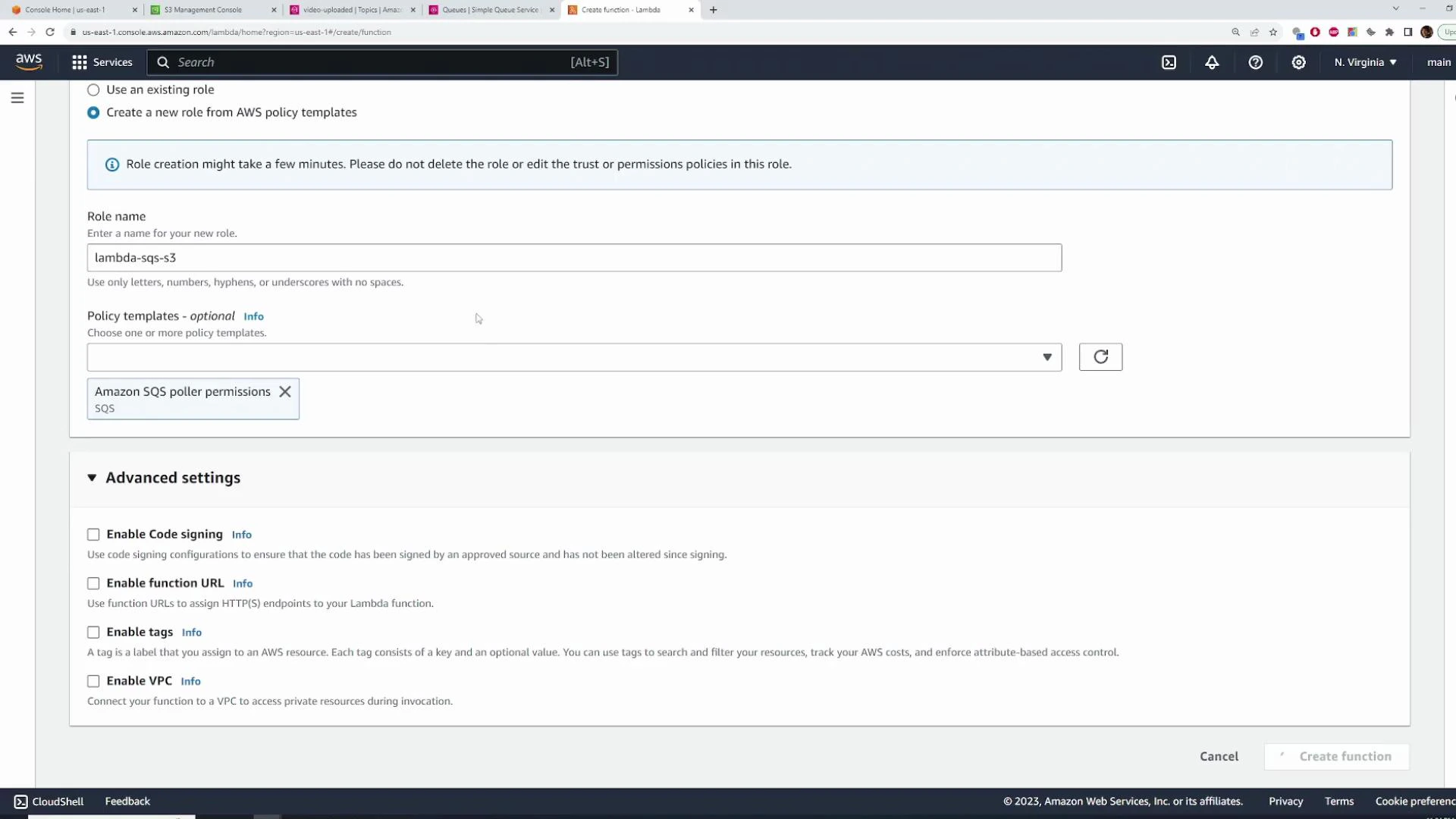
  • Create an IAM role (example: lambda-sqs-s3) and attach:
    • AWS managed policy that allows Lambda to poll SQS (AWSLambdaSQSQueueExecutionRole or similar).
    • S3 permissions (least privilege: GetObject/PutObject on the relevant buckets). For demos you might use AmazonS3FullAccess, but restrict in production.
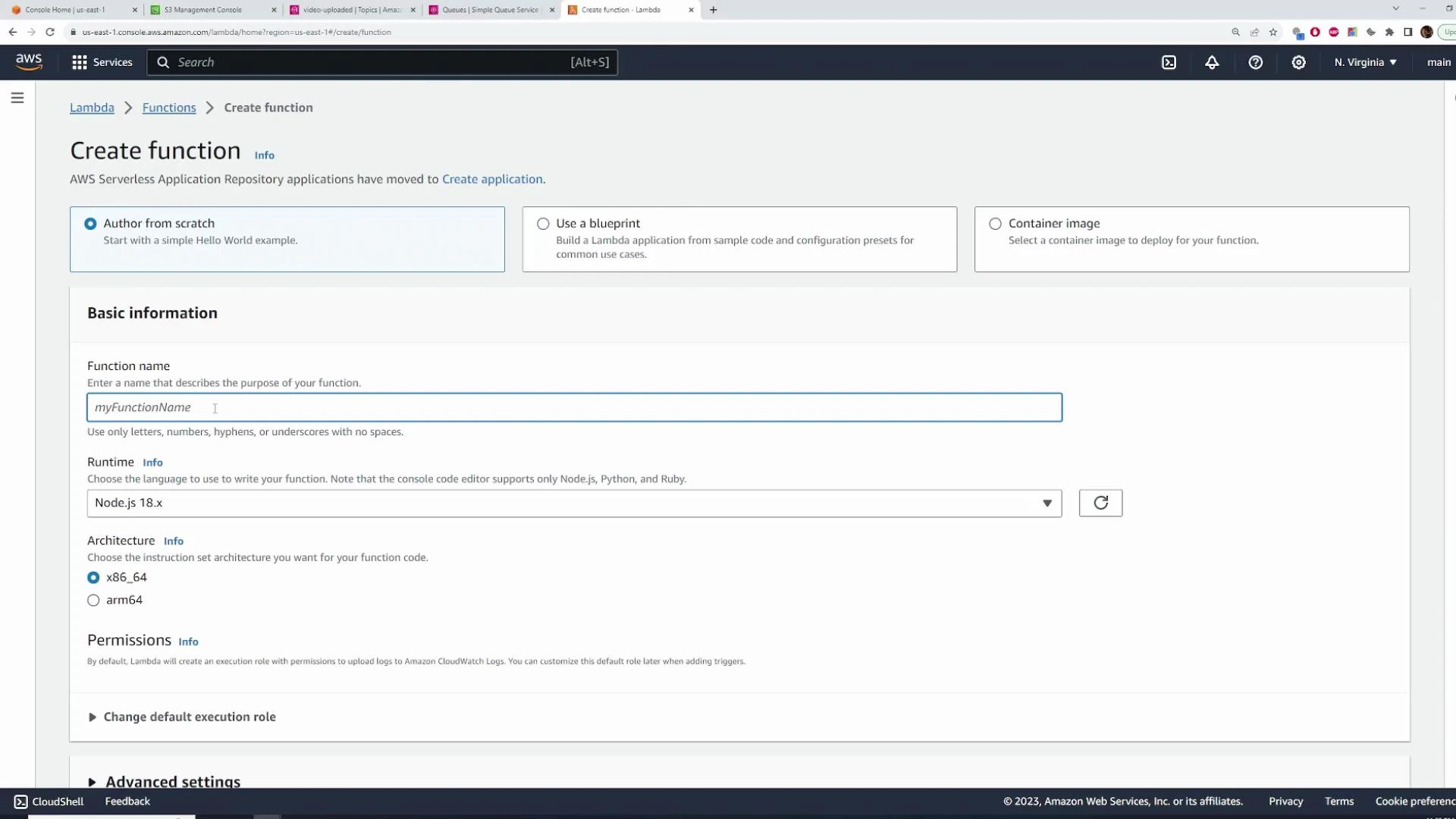
A screenshot of the AWS Lambda "Create function" console showing the "Author from scratch" option and fields for Function name (filled with "myFunctionName"), Runtime set to Node.js 18.x, and Architecture x86_64. The page also shows options for using a blueprint or container image and sections for permissions and advanced settings.
Attach S3 & SQS permissions to the Lambda role (example role creation UI shown):
A screenshot of the AWS Lambda "Create function" page showing a new IAM role named "lambda-sqs-s3" with the "Amazon SQS poller permissions" policy selected. The lower section displays Advanced settings options (Enable Code signing, Enable function URL, Enable tags, Enable VPC).
Important: permissions and message structure
S3 must be allowed to publish to your SNS topic when you configure S3 event notifications. Add an SNS topic policy statement that allows the s3.amazonaws.com principal to Publish from your bucket’s ARN (we provide an example policy later). Without this, S3 event notifications to SNS will fail.
Inspecting the SQS-triggered Lambda event
  • When Lambda polls SQS, the invoked event contains event.Records — an array of SQS records.
  • Because SNS delivered to SQS, each SQS record’s body is a stringified SNS notification. To get your original payload you typically parse twice:
    1. JSON.parse(event.Records[i].body) → SNS notification object
    2. JSON.parse(parsed.Message) → your original message object
Example Lambda that prints the raw event (useful for debugging):
export const handler = async (event) => {
  console.log(JSON.stringify(event, null, 2));
  return {
    statusCode: 200,
    body: JSON.stringify('OK'),
  };
};
Extracting the actual message in Node.js (batch-friendly pattern):
export const handler = async (event) => {
  // Handle multiple records if batchSize > 1
  for (const record of event.Records) {
    // SQS record body is an SNS notification (string)
    const snsNotification = JSON.parse(record.body);
    // The SNS notification has a Message field (string), which is the JSON we originally published
    const message = JSON.parse(snsNotification.Message);
    console.log('Parsed message:', message);
    // message.bucket and message.key are now accessible
  }

  return { statusCode: 200, body: 'Processed' };
};
Lambda event source mapping: batch size and maximum batching window
  • Configure the SQS trigger on your Lambda with:
    • Batch size — max messages delivered per invocation (tune for cost/throughput).
    • Maximum batching window — how long Lambda waits to fill a batch before invoking.
  • Larger batch sizes improve cost efficiency but require your handler to iterate records and handle partial failures correctly.
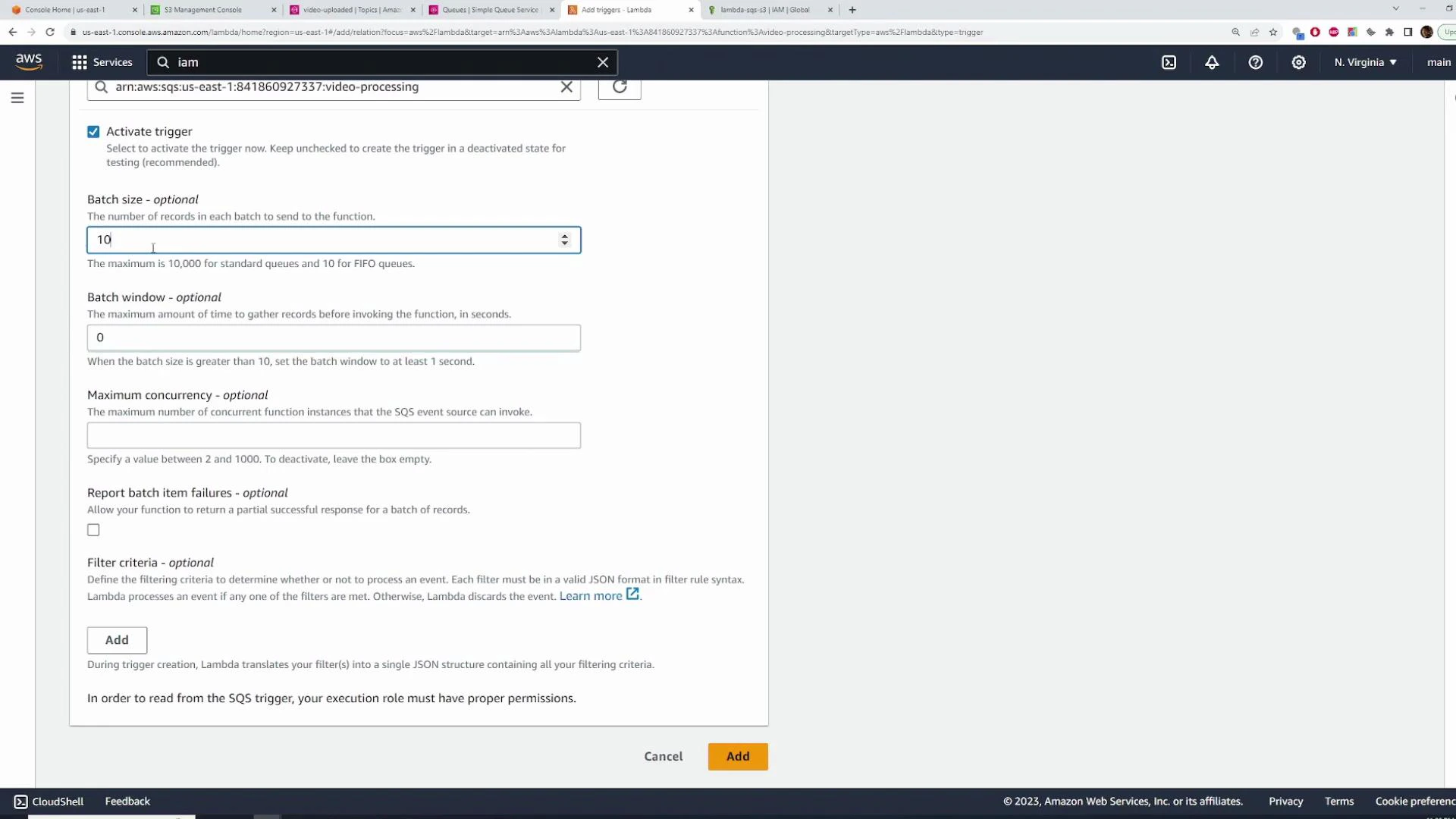
A screenshot of the AWS Lambda console showing the "Add trigger" panel for an SQS event source. Visible options include "Activate trigger", Batch size (set to 10), Batch window, Maximum concurrency, filter criteria, and Cancel/Add buttons.
Viewing CloudWatch logs
  • After Lambda runs, view CloudWatch Logs (Monitor → View logs). The logged event shows event.Records[0].body as a stringified SNS notification with a Message property that contains your original JSON string.
Sample (abbreviated) structure from logs:
{
  "Records": [
    {
      "messageId": "...",
      "body": "{\n  \"Type\": \"Notification\", ... , \"Message\": \"{\\n  \\\"bucket\\\": \\\"raw-videos-kodekloud\\\", \\n  \\\"key\\\": \\\"b415c94e-...\\\"}\\n\" ... }",
      "eventSource": "aws:sqs",
      "eventSourceARN": "arn:aws:sqs:us-east-1:ACCOUNT_ID:video-processing",
      "awsRegion": "us-east-1"
    }
  ]
}
Video-processing Lambda (skeleton)
  • The heavy lifting (ffmpeg, HLS packaging) is out-of-scope for this article, but the following skeleton shows correct message parsing and S3 GetObject usage with AWS SDK v3:
// video-processing Lambda (Node.js 18.x)
import fs from "fs";
import { S3Client, GetObjectCommand, PutObjectCommand } from "@aws-sdk/client-s3";

export const handler = async (event) => {
  const s3 = new S3Client({});

  // Process each SQS record (batching-friendly)
  for (const record of event.Records) {
    const snsNotification = JSON.parse(record.body);
    const message = JSON.parse(snsNotification.Message);
    console.log("Message:", message);

    const getCmd = new GetObjectCommand({
      Bucket: message.bucket,
      Key: message.key,
    });

    try {
      const resp = await s3.send(getCmd);
      // resp.Body is a stream. You would pipe or buffer it and then run ffmpeg to transcode.
      // The implementation of ffmpeg processing and uploading output files is omitted here.
      console.log(`Successfully retrieved ${message.key} from ${message.bucket}`);
    } catch (err) {
      console.error("Error retrieving object from S3:", err);
      throw err; // Let Lambda/SQS retry or dead-letter depending on configuration
    }
  }

  return { statusCode: 200, body: "Processed" };
};
  • Typical production steps in the video Lambda:
    • Stream the object to /tmp or buffer it,
    • Run ffmpeg to transcode to HLS (.m3u8 + .ts segments),
    • Upload outputs to processed-videos-kodekloud with PutObjectCommand,
    • Remove temporary files to free /tmp.
Final packaging note
ffmpeg is not included in Lambda by default. To run ffmpeg you can either use a Lambda Layer containing a static ffmpeg binary or deploy a container-based Lambda with ffmpeg baked into the image. Choose the approach that best fits build and deployment workflows.
Thumbnail Lambda
  • Create thumbnail-processing Lambda, reuse the same IAM role (SQS poller + S3 permissions).
  • Use batch size = 1 for simpler thumbnail extraction (one message one invocation is easier to manage).
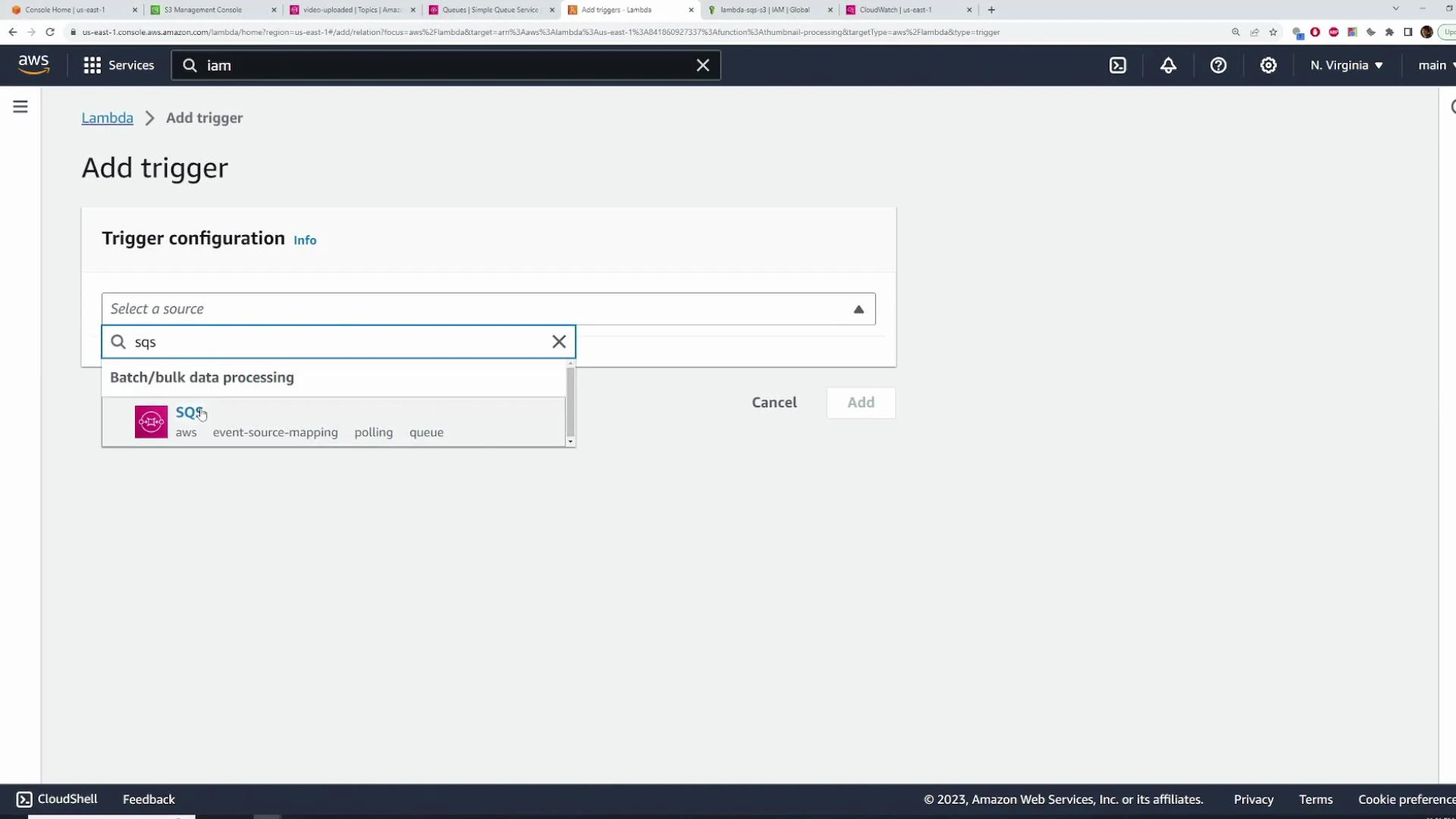
A screenshot of the AWS Lambda "Add trigger" page showing the Trigger configuration panel, with "sqs" typed into the source search and the SQS trigger option displayed. The page includes Cancel and Add buttons and the AWS console header.
Thumbnail handler skeleton (Node.js):
// thumbnail-processing Lambda (Node.js 18.x)
import { S3Client, GetObjectCommand, PutObjectCommand } from "@aws-sdk/client-s3";

export const handler = async (event) => {
  const s3 = new S3Client({});

  for (const record of event.Records) {
    const snsNotification = JSON.parse(record.body);
    const message = JSON.parse(snsNotification.Message);
    console.log("Thumbnail message:", message);

    const getCmd = new GetObjectCommand({
      Bucket: message.bucket,
      Key: message.key,
    });

    try {
      const resp = await s3.send(getCmd);
      // Extract a frame and upload to thumbnails bucket (ffmpeg or image processing).
      // Upload thumbnail(s) with PutObjectCommand to thumbnails-kodekloud.
    } catch (err) {
      console.error("Error in thumbnail Lambda:", err);
      throw err;
    }
  }

  return { statusCode: 200, body: "Thumbnails generated" };
};
Configure S3 to publish events to SNS
  • You can configure S3 to send ObjectCreated:* events to the SNS topic so that uploads automatically trigger the pipeline.
  • In the raw-videos-kodekloud bucket:
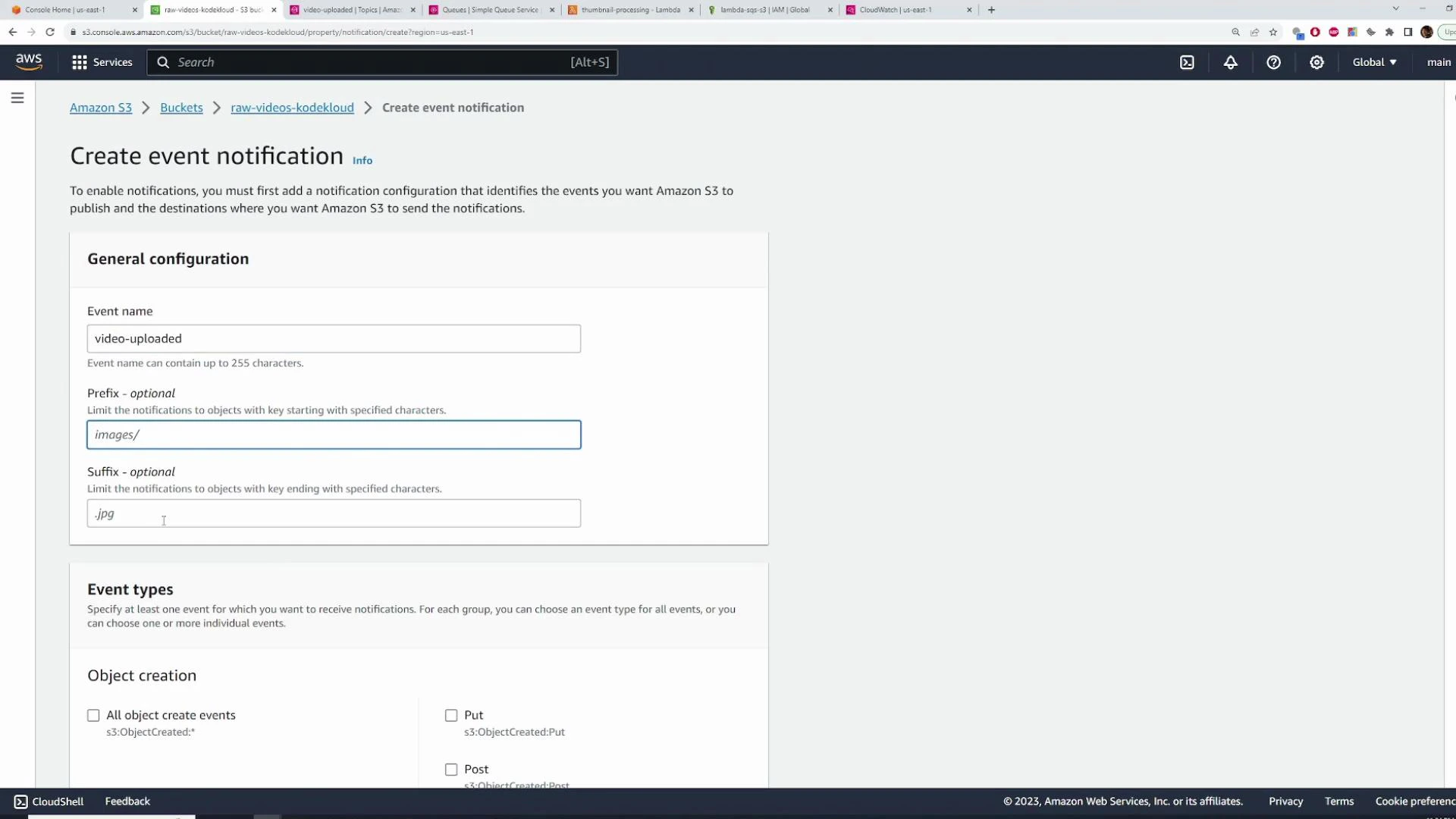
    • Properties → Event notifications → Create event notification
    • Event types: ObjectCreated (All object create events)
    • Destination: SNS topic → video-uploaded
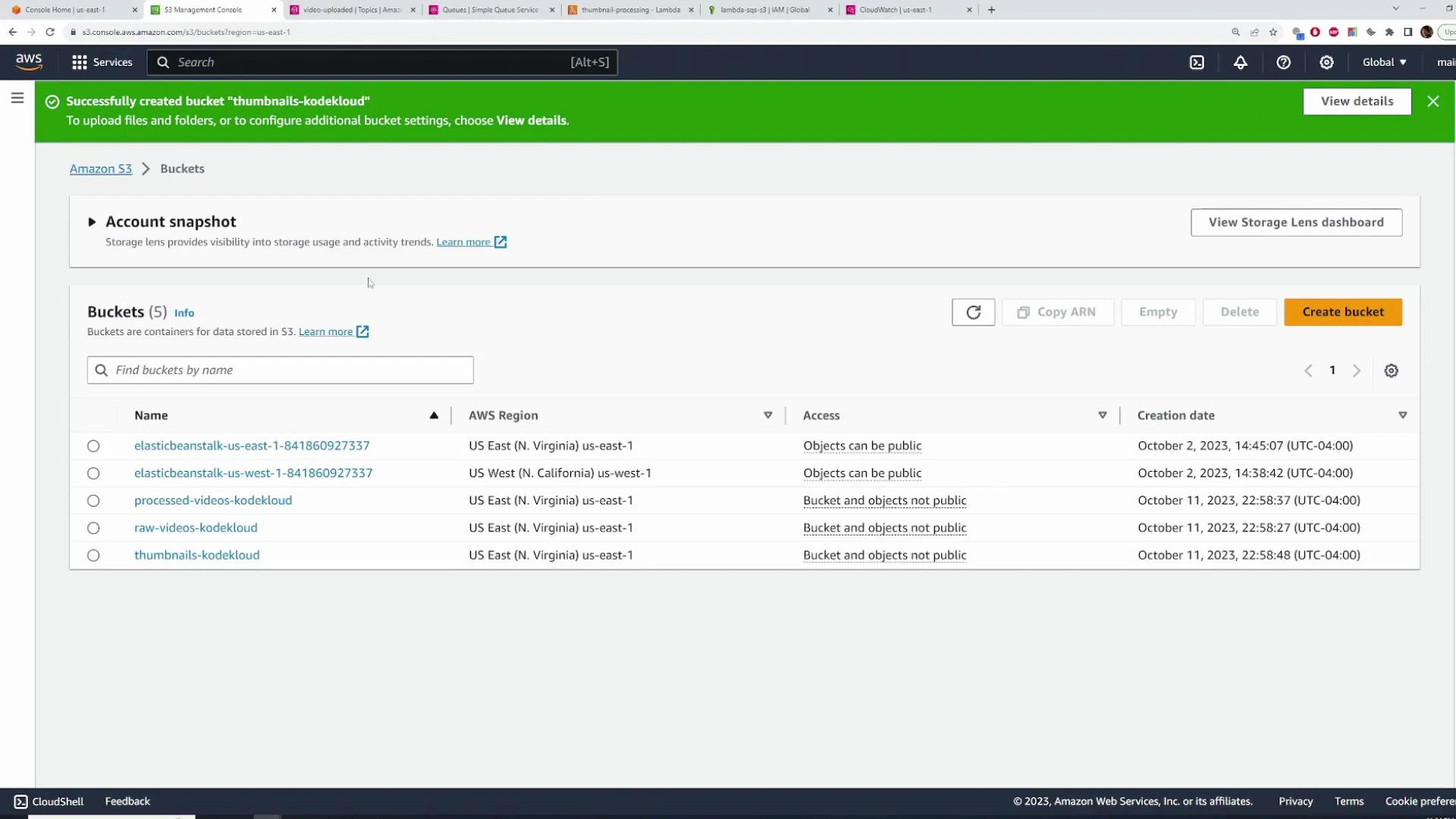
A screenshot of the Amazon S3 Management Console showing a list of five S3 buckets (including names like processed-videos-kodekloud and thumbnails-kodekloud) with columns for region, access, and creation date. A green banner at the top confirms the bucket "thumbnails-kodekloud" was successfully created.
A screenshot of the AWS S3 console showing the "Create event notification" page with General configuration fields filled (Event name "video-uploaded", Prefix "images/", Suffix ".jpg") and the Event types section below. The page is in a web browser with multiple tabs visible along the top.
S3 → SNS permission: example topic policy statement
  • Add this statement to the SNS topic’s access policy (Topics → select topic → Edit → Access policy). Replace the ARNs and account IDs with your values:
{
  "Sid": "AllowS3Publish",
  "Effect": "Allow",
  "Principal": {
    "Service": "s3.amazonaws.com"
  },
  "Action": [
    "SNS:Publish"
  ],
  "Resource": "arn:aws:sns:us-east-1:841860927337:video-uploaded",
  "Condition": {
    "ArnLike": {
      "aws:SourceArn": "arn:aws:s3:::raw-videos-kodekloud"
    },
    "StringEquals": {
      "aws:SourceAccount": "841860927337"
    }
  }
}
  • Merge this statement into the existing policy’s Statement array and save.
  • Then configure the S3 event notification to use the topic.
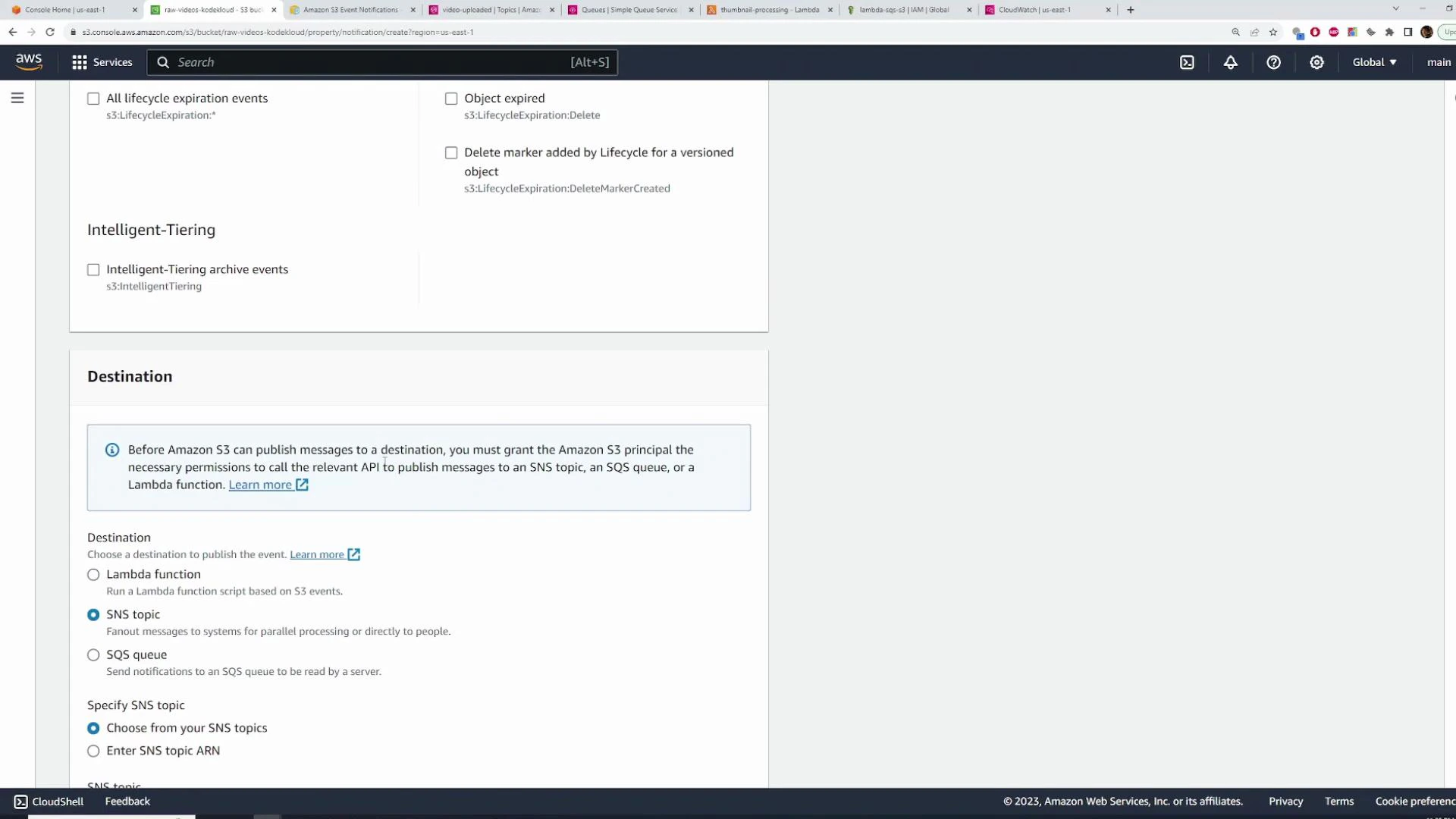
A screenshot of the AWS S3 console showing the "Destination" section for configuring event notifications, with options to choose a Lambda function, SNS topic, or SQS queue and a notice about granting S3 permissions. The top of the page also shows lifecycle/intelligent-tiering event options.
Testing the full flow by uploading a video
  • Upload a sample video to raw-videos-kodekloud (console, SDK, or CLI).
  • The expected sequence:
    1. S3 emits ObjectCreated → SNS topic.
    2. SNS fans out to both SQS queues.
    3. Lambda functions (configured with SQS triggers) are invoked to process the file.
    4. Processed outputs are written to processed-videos-kodekloud and thumbnails-kodekloud.
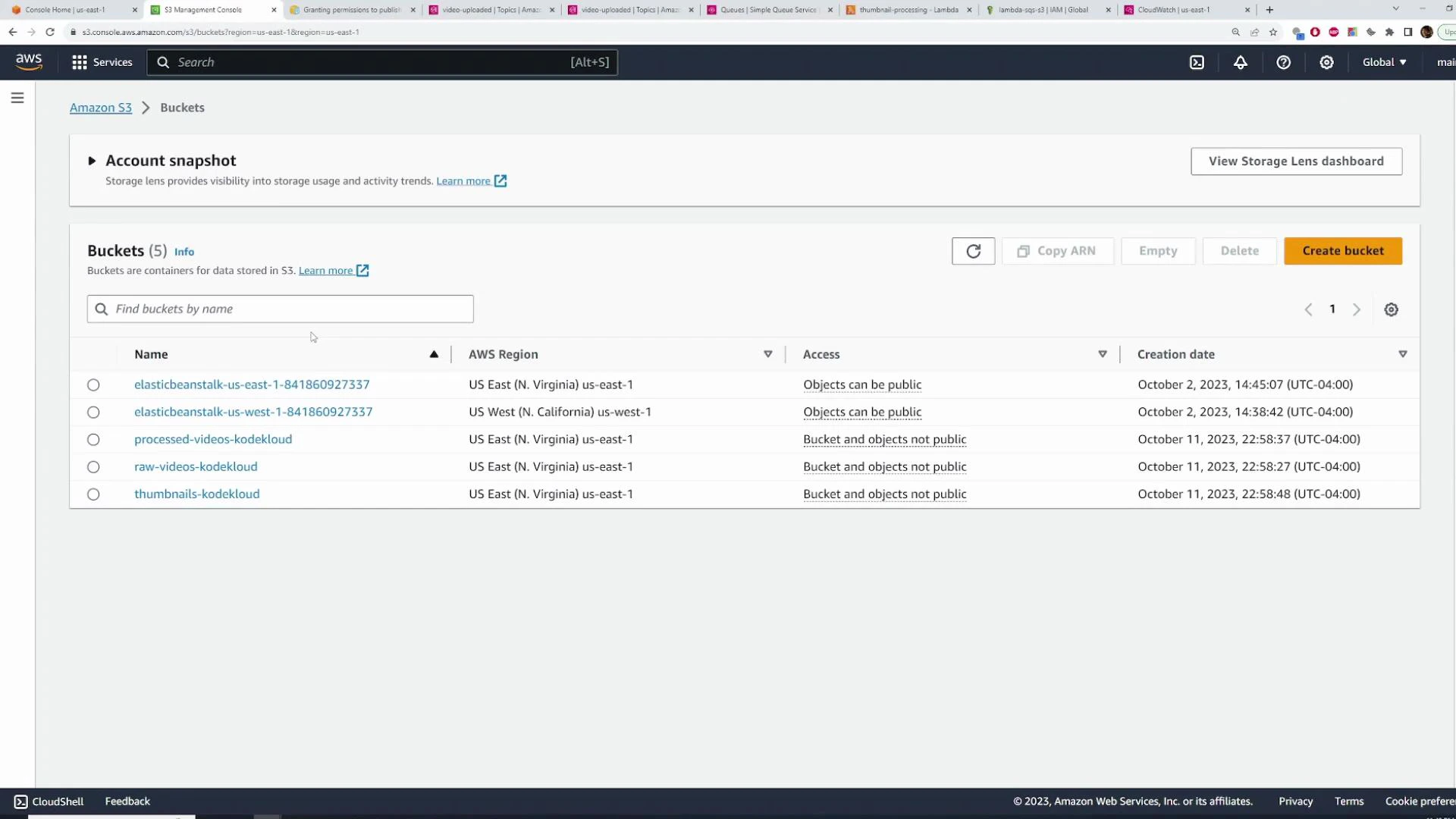
A screenshot of the Amazon S3 console showing a list of five S3 buckets. The table displays each bucket's name, AWS region, access settings, and creation date.
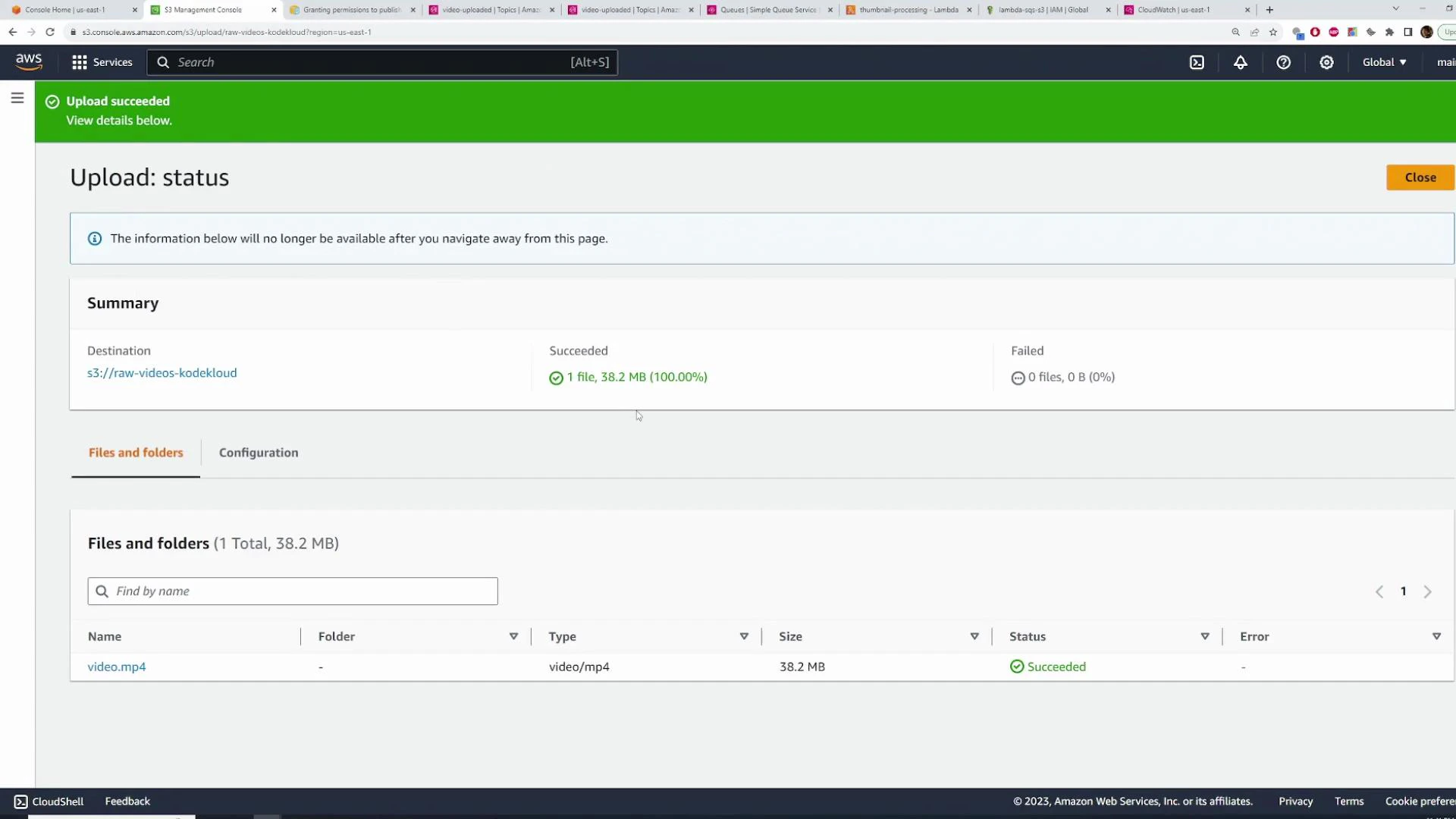
Upload succeeded example:
A screenshot of the AWS S3 console showing an "Upload succeeded" status with a summary that 1 file (video.mp4, 38.2 MB) was uploaded to the bucket s3://raw-videos-kodekloud. The file list below shows the upload succeeded with no errors.
Verify processed output
  • Check the processed-videos-kodekloud bucket for HLS outputs (.m3u8 playlist and .ts segments).
  • Check thumbnails-kodekloud for generated thumbnails.
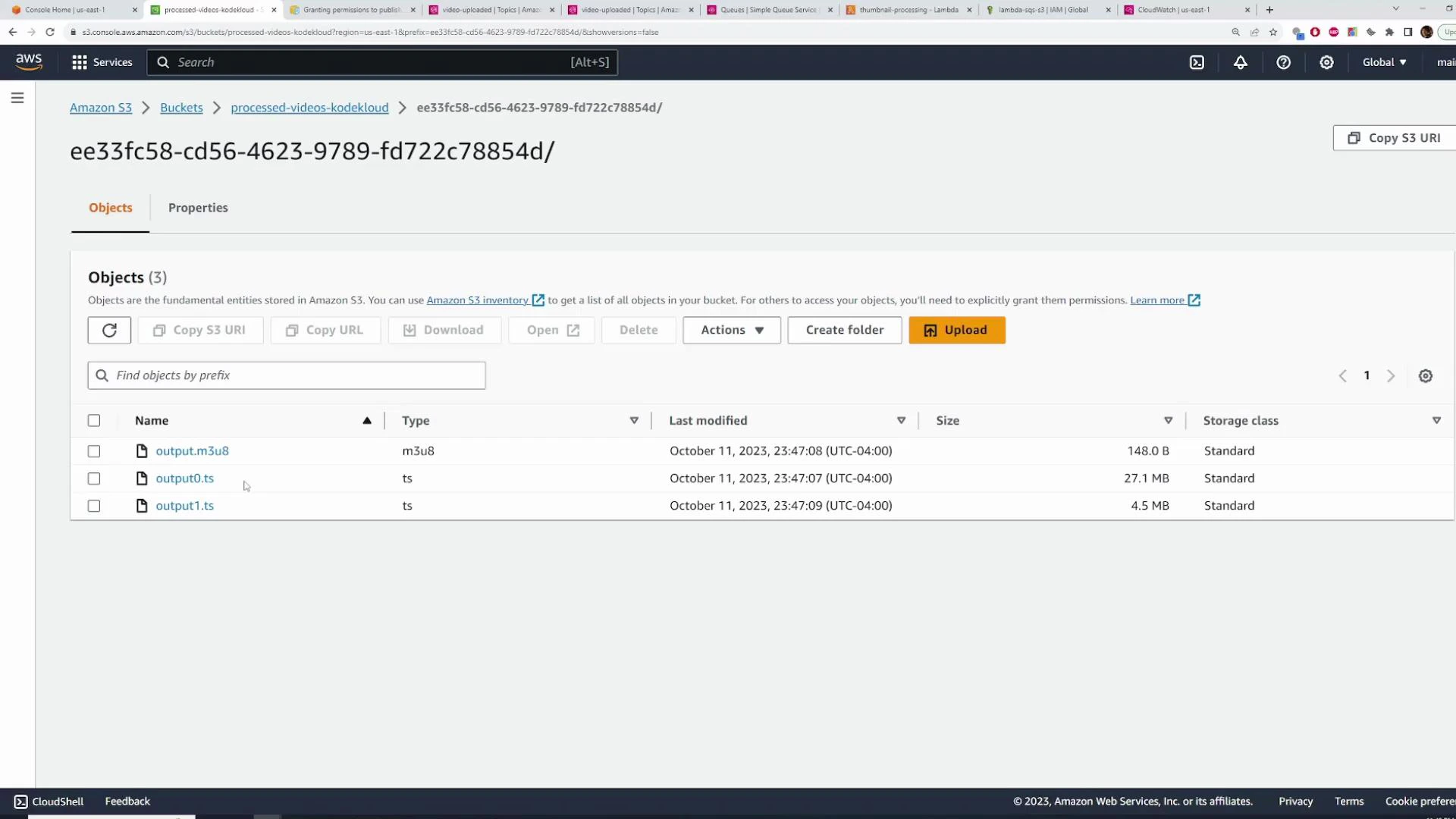
A screenshot of the Amazon S3 web console showing a bucket folder with three objects: output.m3u8 and two .ts video segment files, along with their sizes and last-modified timestamps.
A screenshot of the Amazon S3 web console showing a folder with three images (thumbnails) created from a processed video, displayed with their sizes and last-modified timestamps.
  • The screenshots above illustrate expected outputs after successful Lambda execution.
Cleanup
  • To avoid charges after testing, delete resources you created:
    • Delete SQS queues.
    • Delete SNS topic.
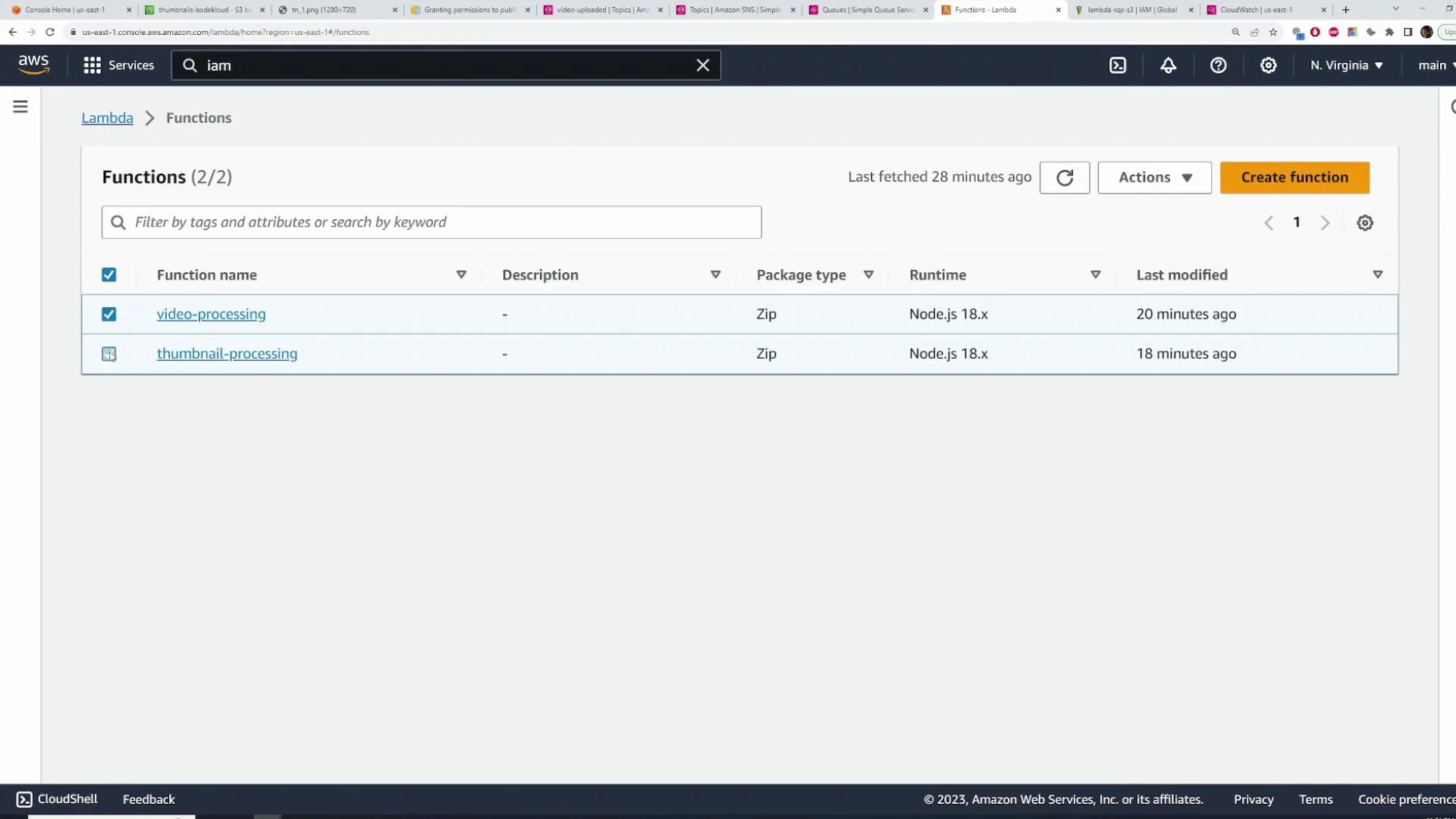
    • Delete Lambda functions.
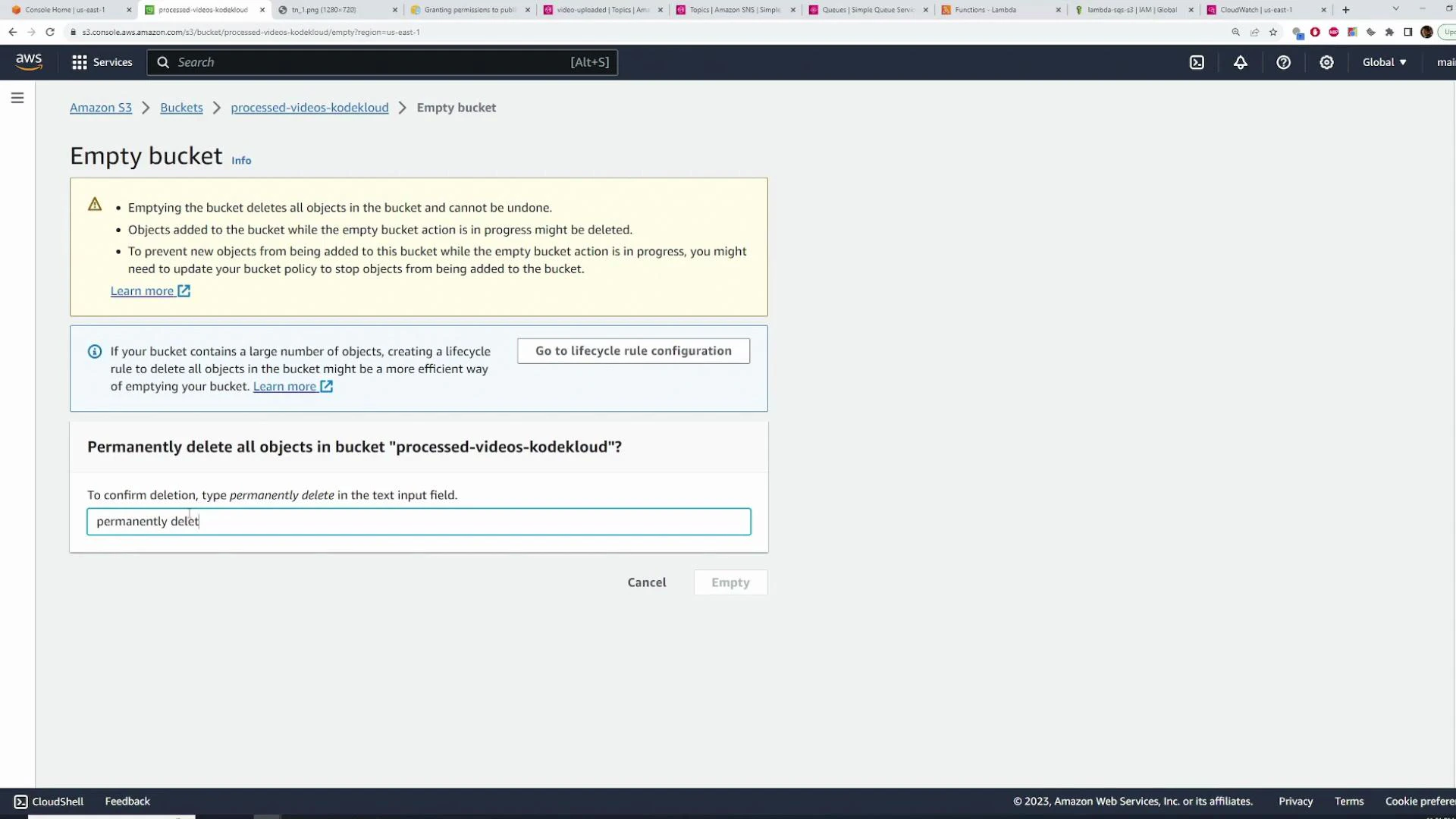
    • Empty and delete S3 buckets (note: emptying may be required before deletion).
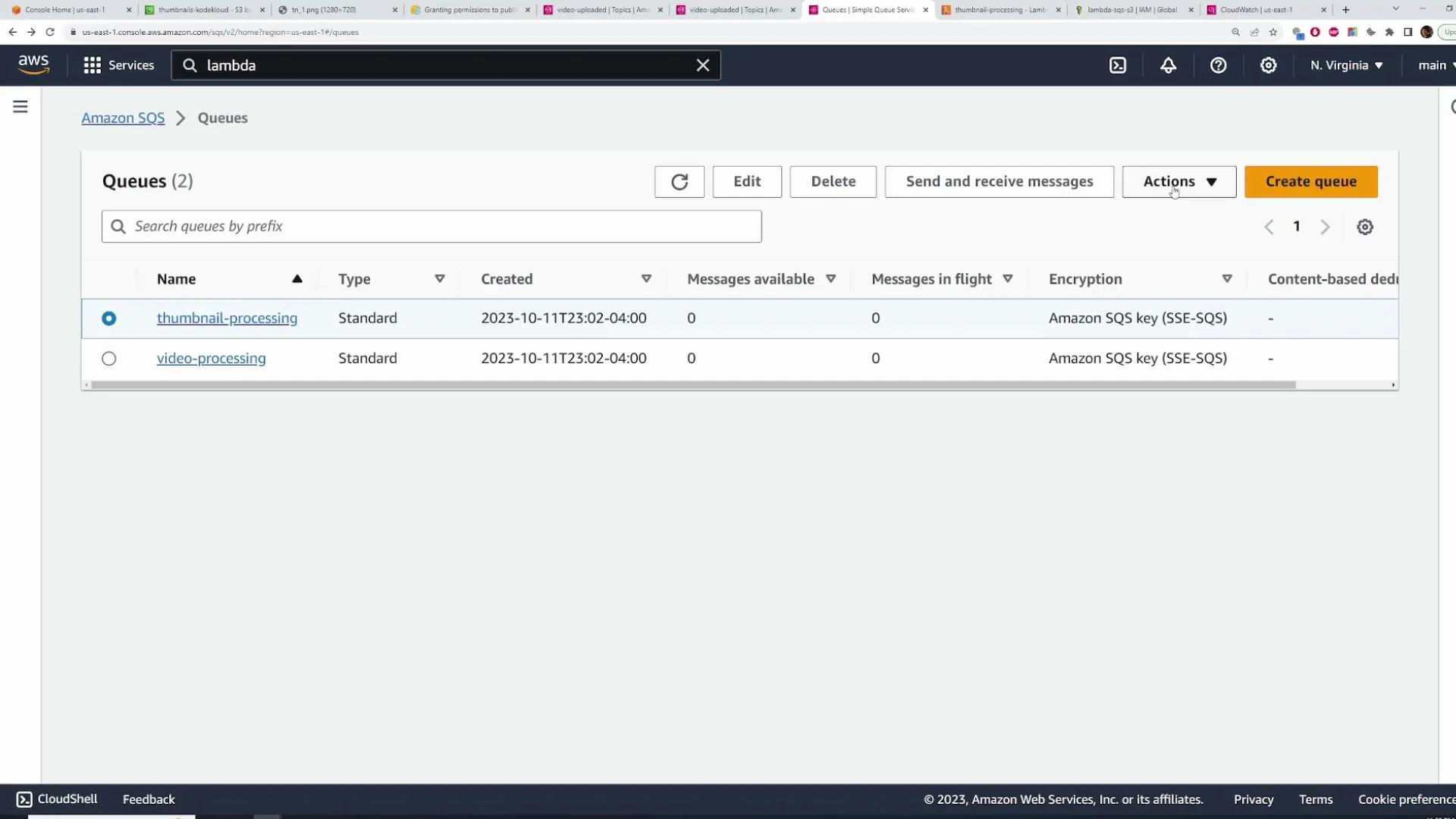
A screenshot of the AWS Management Console showing the Amazon SQS "Queues" page with two queues listed: "thumbnail-processing" and "video-processing" (both Standard). Both queues show zero messages and use Amazon SQS key (SSE-SQS) encryption.
A screenshot of the AWS Lambda Functions page showing two functions, "video-processing" and "thumbnail-processing", both packaged as Zip and running Node.js 18.x. The table also shows last-modified times (20 minutes and 18 minutes ago) and UI controls like Create function and Actions.
Emptying and deleting a bucket (confirm dialog):
Screenshot of the AWS S3 console showing the "Empty bucket" confirmation for bucket "processed-videos-kodekloud", with a textbox where the user must type "permanently delete" to confirm. The page includes warnings that emptying the bucket deletes all objects and cannot be undone.
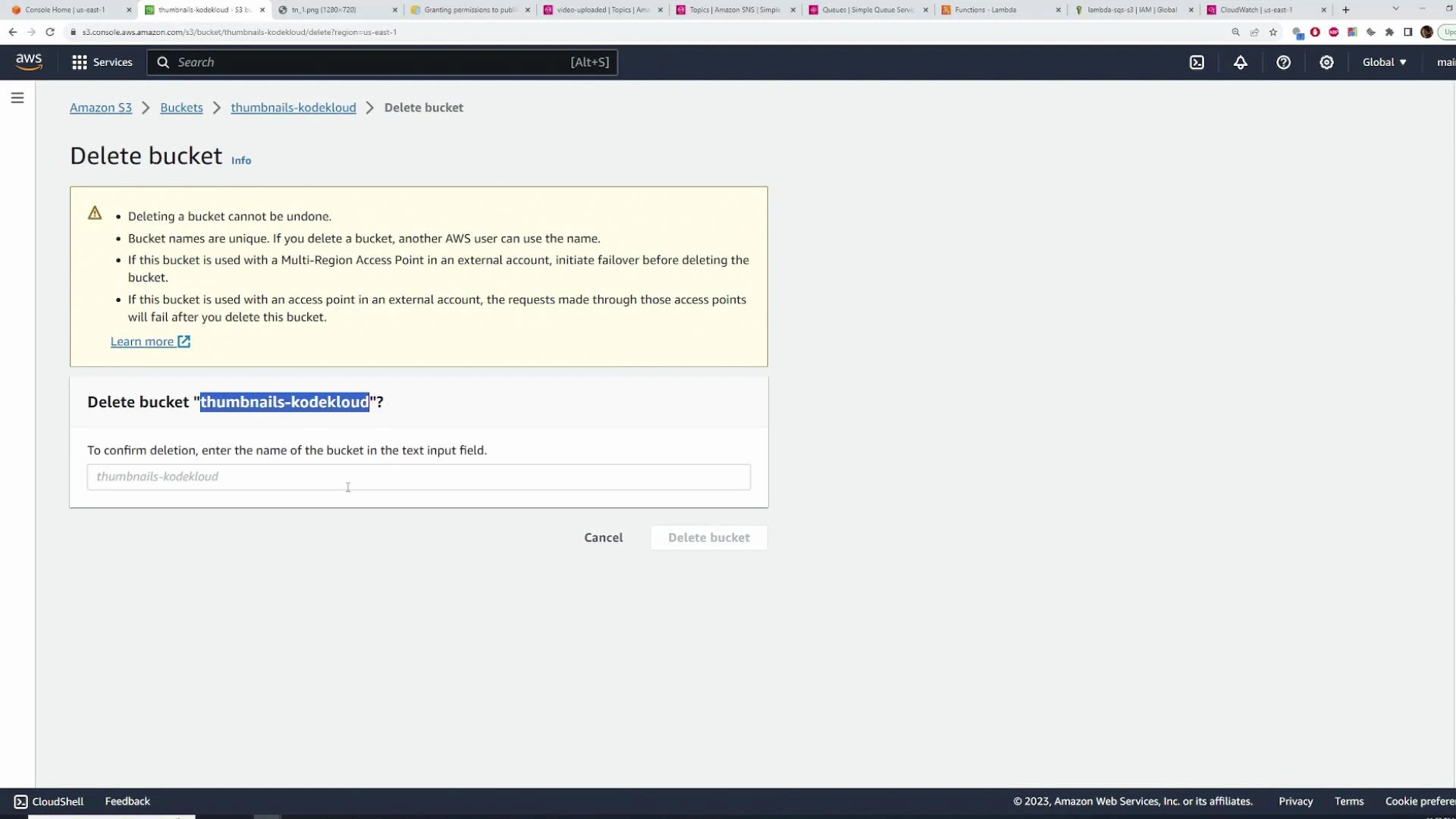
Delete bucket confirmation:
A screenshot of the AWS S3 console showing a "Delete bucket" confirmation for the bucket named "thumbnails-kodekloud." It displays warnings that deletion cannot be undone and a text field to enter the bucket name to confirm deletion.
Summary
  • This guide demonstrated how to wire S3 → SNS → SQS → Lambda to implement a fan-out processing pipeline for uploaded videos. Key takeaways:
    • Use SNS to fan-out a single S3 event to multiple consumers via SQS.
    • S3 event notifications can publish directly to SNS; ensure SNS topic policies allow S3 to Publish.
    • When SNS publishes to SQS, Lambda receives SQS records whose body contains an SNS notification string — JSON.parse twice to retrieve the original payload.
    • Tune SQS batch size and batching window on Lambda triggers for cost and throughput trade-offs.
    • For ffmpeg in Lambda, use a Layer or container-based Lambda.
Further reading and references
When SNS publishes to SQS, the Lambda handler sees an SQS record whose body contains an SNS notification as a string. You must JSON.parse the SQS record body to get the SNS notification, then JSON.parse the notification.Message to get your original payload.
That completes this lesson on integrating SNS and SQS for a serverless video-processing pipeline.

Watch Video

Practice Lab