This lesson demonstrates how to use Amazon CloudWatch to monitor, troubleshoot, and visualize your AWS resources and applications. CloudWatch is a suite of related features—logs, metrics, alarms, traces, events (EventBridge), and dashboards—rather than a single monolithic service. Below we step through the common CloudWatch workflows you’ll use most often and include practical examples you can replicate in the console.
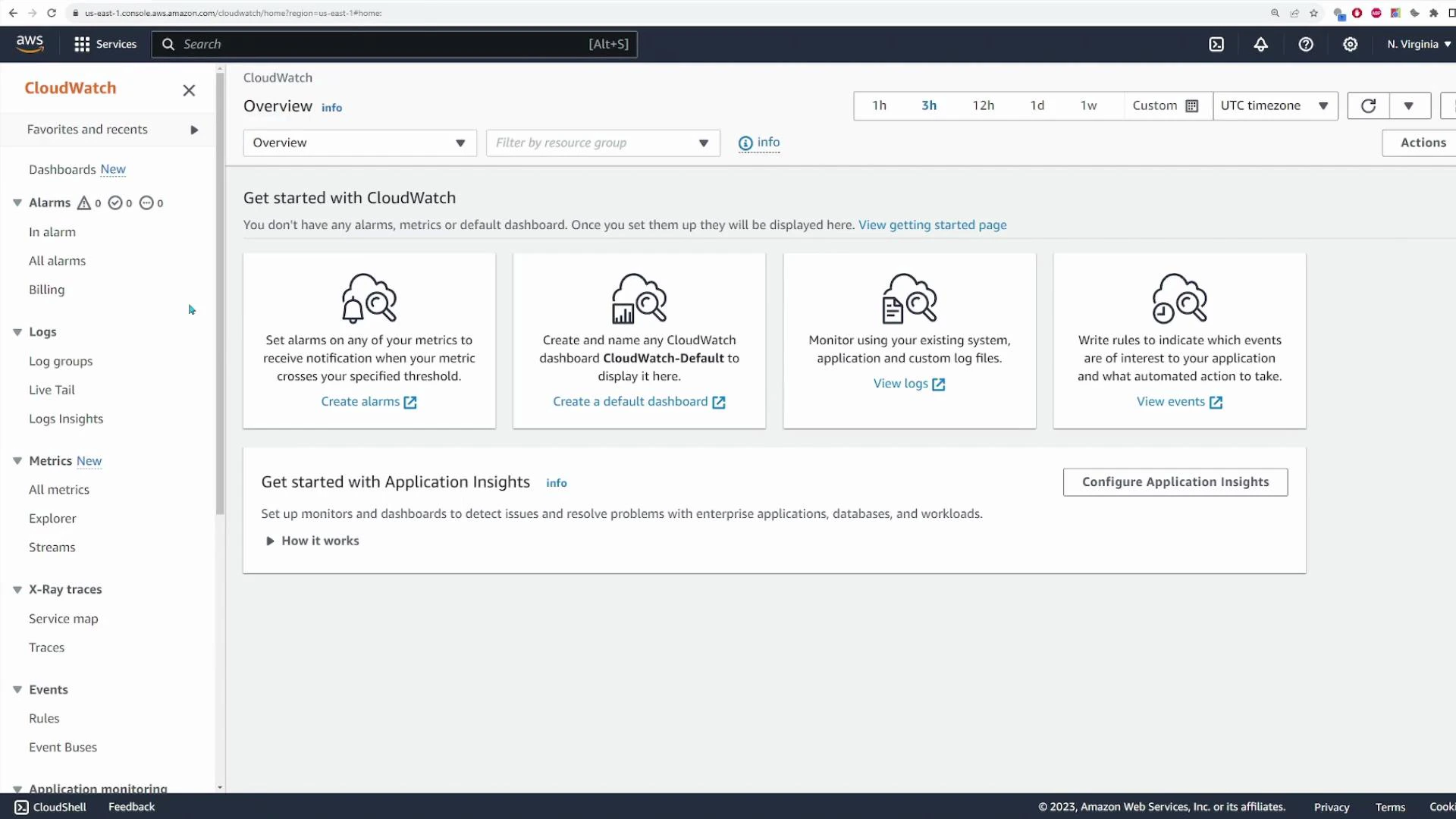
A screenshot of the AWS CloudWatch web console showing the Overview page. It displays panels for creating alarms, dashboards and logs, with a left-hand navigation menu listing Alarms, Logs, Metrics, X‑Ray traces, and Events.

Logs (CloudWatch Logs)

CloudWatch Logs centralizes log data from AWS services and your applications. Use it to search, analyze, and retain logs in a single place.
  • Log groups organize related logs (service, application, or resource).
  • Log streams store the sequence of events for a given resource or execution (for example, a Lambda invocation).
Example: Lambda functions often create log groups under /aws/lambda/<function-name> and each invocation appears in a log stream.
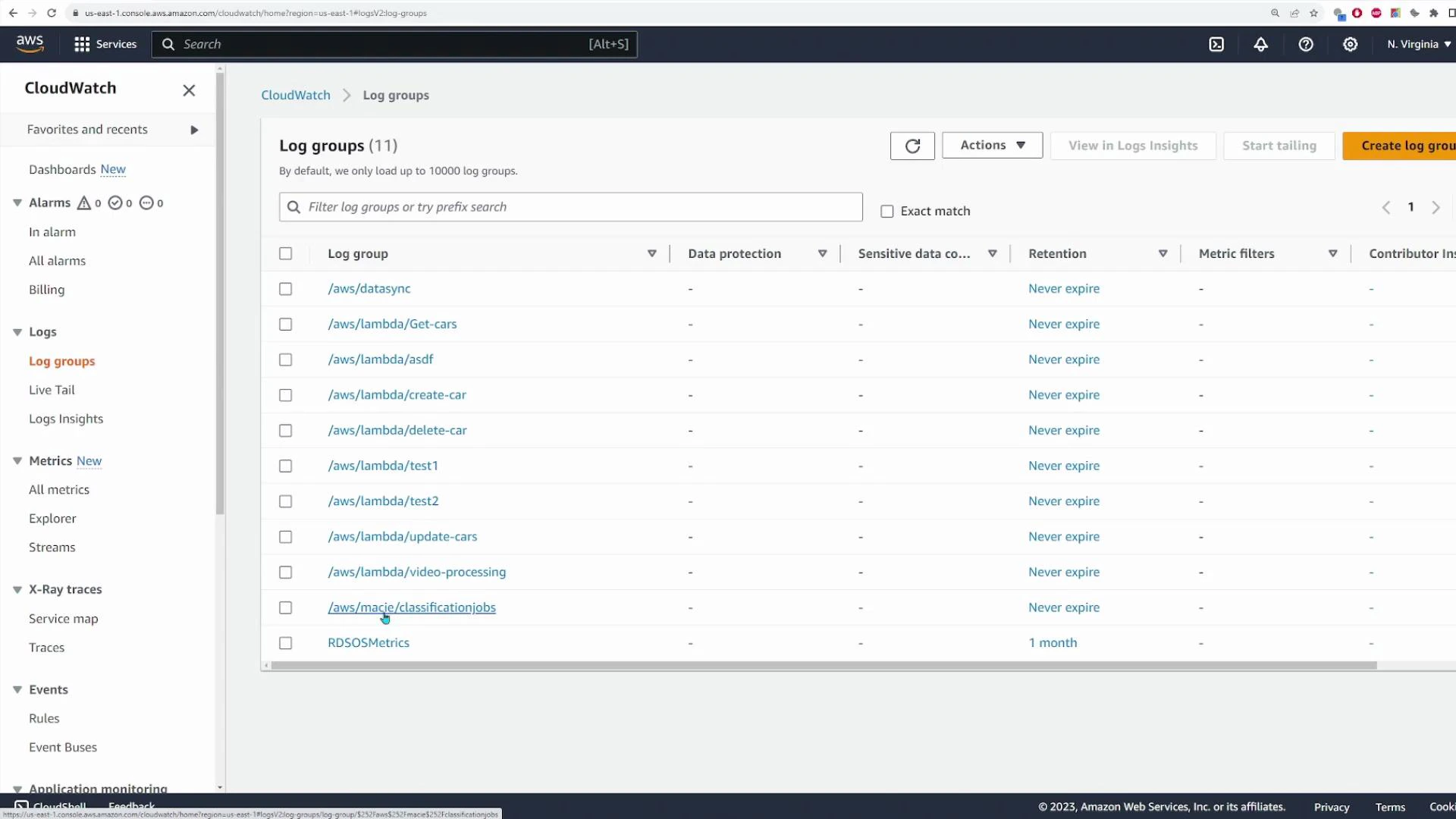
A screenshot of the AWS CloudWatch console open to the "Log groups" page, listing multiple log groups (mostly /aws/lambda/* entries such as Get-cars, create-car, delete-car). The table shows columns like Retention (many set to "Never expire") and a left navigation pane with CloudWatch options.
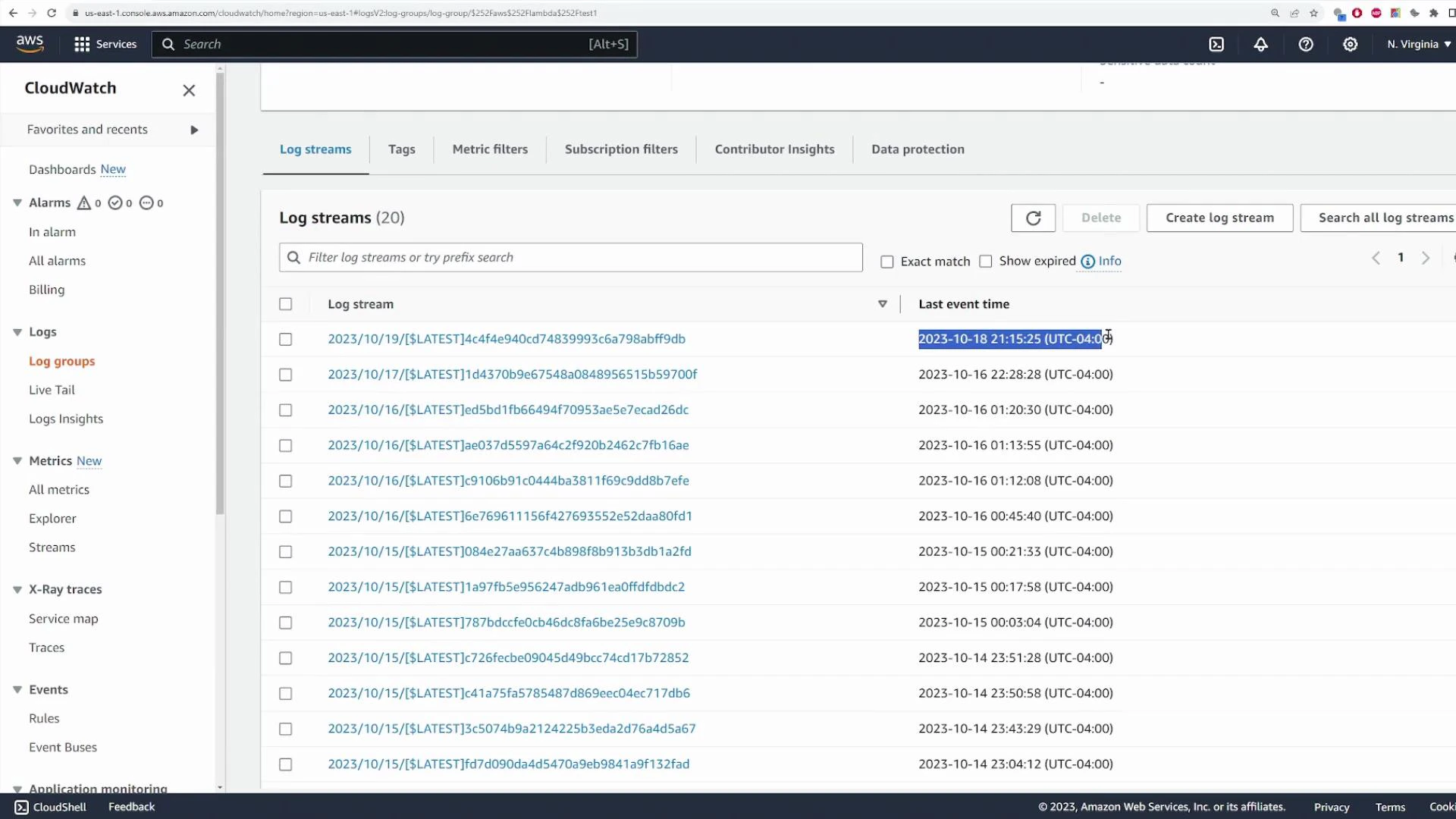
Within a log group, open a log stream to inspect timestamped events for that period or invocation.
A screenshot of the AWS CloudWatch web console showing the "Log streams" view with a list of log stream names and their last event timestamps. The left sidebar displays navigation items like Log groups, Metrics, and X‑Ray traces.
Example Lambda logs (truncated):
2023-10-18T21:15:24.406-04:00    INIT_START Runtime Version: nodejs:18.v13 Runtime RuntimeARN: arn:aws:lambda:us-east-1:123456789012:runtime:0229ff5ced939264450549058d8f267110e92677c27063e6dcd78
2023-10-18T21:15:24.573-04:00    START RequestId: ece4ff36-0ad6-49a8-bb0e-4da06f561e77 Version: $LATEST
2023-10-18T21:15:24.574-04:00    2023-10-19T01:15:24.574Z ece4ff36-0ad6-49a8-bb0e-4da06f561e77 INFO {
  Records: [
    {
      eventID: 'c4ca4238a0b923820dcc509a6f75849b',
      eventName: 'INSERT',
      eventVersion: '1.1',
      eventSource: 'aws:dynamodb',
      awsRegion: 'us-east-1',
      dynamodb: [Object],
      eventSourceARN: 'arn:aws:dynamodb:us-east-1:123456789012:table/ExampleTableWithStream/stream/2015-06-27T00:48:05.899'
    },
    {
      eventID: 'c81e728d9d4c2f636f067f89cc14862c',
      eventName: 'MODIFY',
      eventVersion: '1.1',
      eventSource: 'aws:dynamodb',
      awsRegion: 'us-east-1',
      dynamodb: [Object],
      eventSourceARN: 'arn:aws:dynamodb:us-east-1:123456789012:table/ExampleTableWithStream/stream/2015-06-27T00:48:05.899'
    }
  ]
}
2023-10-18T21:15:24.700-04:00    END RequestId: ece4ff36-0ad6-49a8-bb0e-4da06f561e77
2023-10-18T21:15:24.701-04:00    REPORT RequestId: ece4ff36-0ad6-49a8-bb0e-4da06f561e77 Duration: 126.12 ms Billed Duration: 127 ms Memory Size: 128 MB Max Memory Used: 69 MB
Macie job event logs are typical JSON objects describing lifecycle events:
{
  "adminAccountId": "841860927337",
  "jobId": "89bbfa2335dce8a8b3c1a1d38d78c12c",
  "eventType": "JOB_CREATED",
  "occurredAt": "2023-10-17T01:06:24.566653Z",
  "description": "The job was created.",
  "jobName": "macie-test-job"
}
Other lifecycle examples:
{
  "eventType": "ONE_TIME_JOB_STARTED",
  "occurredAt": "2023-10-17T01:06:29.618922Z",
  "description": "The job started running.",
  "jobName": "macie-test-job",
  "runDate": "2023-10-17T01:06:24.365688Z"
}
{
  "eventType": "JOB_COMPLETED",
  "occurredAt": "2023-10-17T01:16:47.152607Z",
  "description": "The job finished running.",
  "jobName": "macie-test-job",
  "runDate": "2023-10-17T01:06:24.365688Z"
}
Note: Log formats vary by service; treat each service’s logs as its canonical source for events and context.
Tip: Organize log groups by application, environment (prod/stage), and function to simplify searches and retention policies. Use descriptive names like /aws/lambda/myapp-prod-createUser.

Live tailing logs

CloudWatch supports live tailing: stream new log events in real time for one or multiple log groups—useful for debugging or observing deployments.
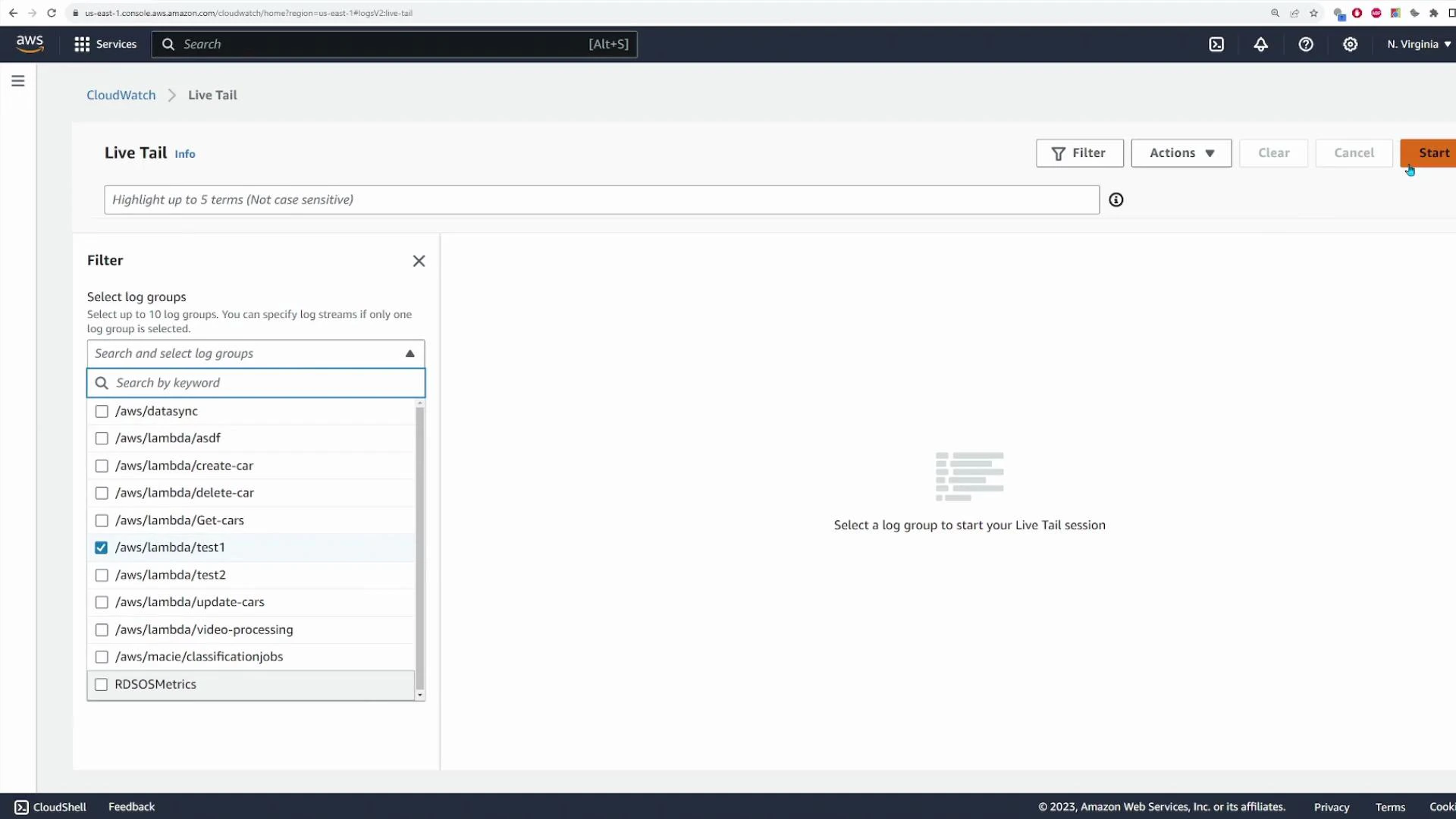
A screenshot of the AWS CloudWatch "Live Tail" console showing the Filter pane with a list of log groups (for example /aws/lambda/test1 is checked). The main area prompts to select a log group to start a live tail session and shows controls like Filter, Actions, and Start.
Example tail output:
Timestamp (Local)                Message
2023-10-18T21:20:54.310-04:00    START RequestId: 78d5a620-3f88-4ed2-aec1-150ee81539ae Version: $LATEST
2023-10-18T21:20:54.405-04:00    2023-10-19T01:20:54.405Z 78d5a620-3f88-4ed2-aec1-150ee81539ae INFO { Records: [ { eventID: 'c4ca4238a0b923820dcc509a6f75849b', eventName: 'INSERT', ... } ] }
2023-10-18T21:20:54.426-04:00    END RequestId: 78d5a620-3f88-4ed2-aec1-150ee81539ae
2023-10-18T21:20:54.426-04:00    REPORT RequestId: 78d5a620-3f88-4ed2-aec1-150ee81539ae Duration: 116.26 ms Billed Duration: 117 ms Memory Size: 128 MB Max Memory Used: 69 MB
You can combine live tailing with filters (substring, JSON field, or log level) to reduce noise and focus on the events you need.
Warning: Live tailing and storing large volumes of logs can increase CloudWatch costs. Apply retention policies and filters to limit retained data and reduce expense.

Log Insights (CloudWatch Logs Insights)

CloudWatch Logs Insights is a powerful, SQL-like query engine to search, parse, and visualize log data. It’s ideal for aggregations, pattern searches, and extracting structured fields from JSON logs. Basic query examples:
  • Recent 20 messages (descending timestamp):
fields @timestamp, @message, @logStream, @log
| sort @timestamp desc
| limit 20
  • Oldest 5 messages (ascending):
fields @timestamp, @message, @logStream, @log
| sort @timestamp asc
| limit 5
Run queries against chosen log groups to produce interactive histograms and to inspect matching log events.

Metrics

CloudWatch Metrics stores and visualizes time-series data for AWS services and custom metrics. Browse “All metrics” to see namespaces such as AWS/EC2, AWS/Lambda, AWS/S3, and custom namespaces.
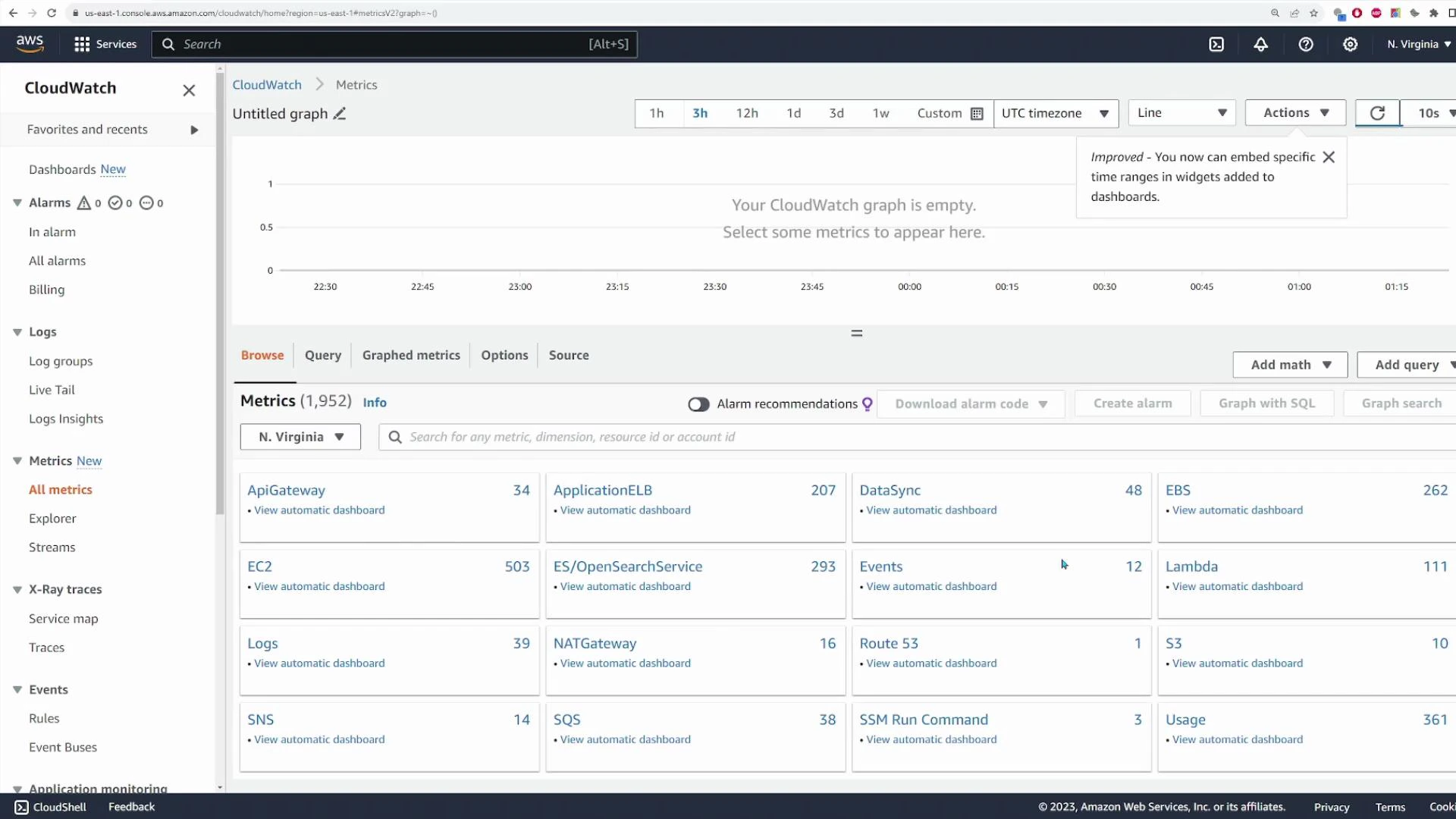
Screenshot of the AWS CloudWatch Metrics console showing an empty graph area at the top and a browsable list of metric categories (EC2, EBS, Lambda, S3, API Gateway, etc.) below. The left sidebar shows navigation for Alarms, Logs, Metrics and other CloudWatch features.
Common EC2 metrics:
Metric nameUse case
CPUUtilizationDetect high CPU usage and performance bottlenecks
NetworkIn / NetworkOutMonitor traffic patterns and potential bandwidth issues
DiskReadOps / DiskWriteOpsTrack IO pressure on storage
StatusCheckFailedAlert on instance-level health problems
When viewing a metric, configure the time range, statistic (Average, Sum, Min, Max), and graph type to match your monitoring needs.

Alarms

CloudWatch Alarms monitor metrics and trigger actions when a defined threshold is breached. Actions include publishing to SNS topics, invoking Auto Scaling policies, or triggering Lambda functions. To create an alarm:
  1. Choose a metric (for example, AWS/EC2 → CPUUtilization).
  2. Select statistic and period (e.g., Average over 5 minutes).
  3. Set threshold conditions (e.g., Greater than 60%).
  4. Configure actions and notification targets (SNS, Auto Scaling, etc.).
  5. Review and create the alarm.
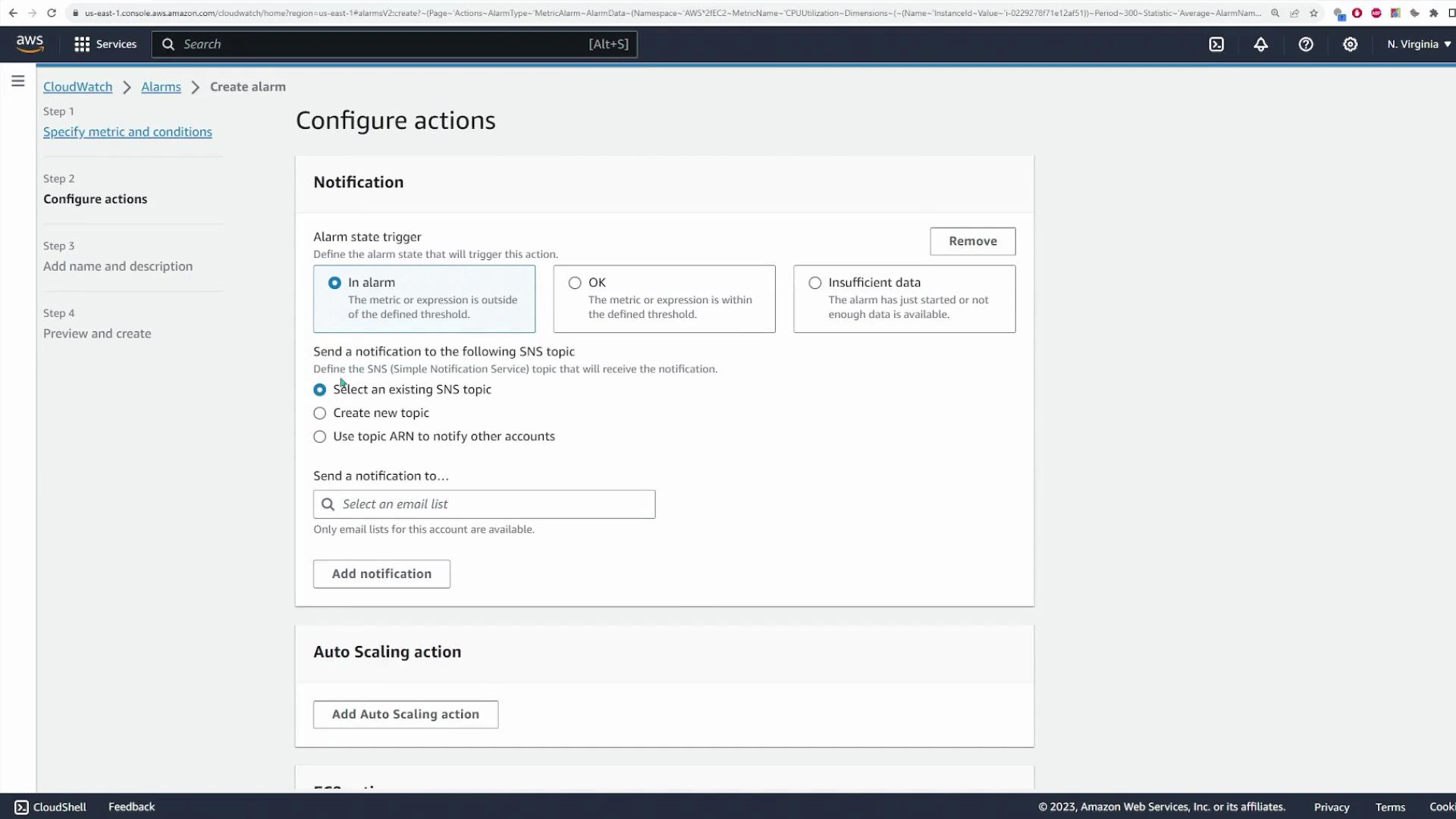
A screenshot of the AWS CloudWatch "Create alarm" — Configure actions page showing notification settings and an Auto Scaling action section. It displays radio buttons for alarm state triggers ("In alarm", "OK", "Insufficient data") and options to select or create an SNS topic and add a notification.
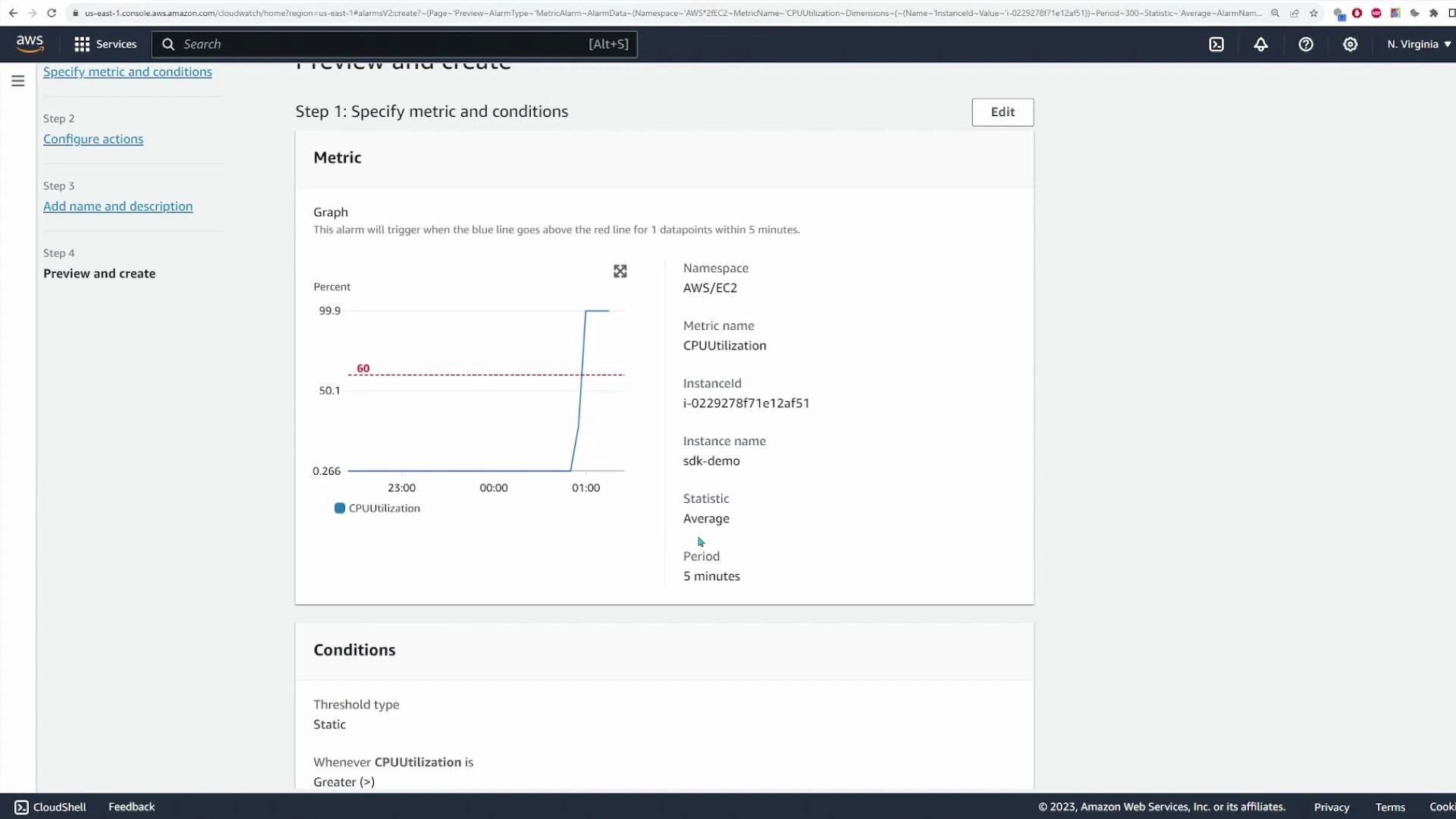
Example: Monitor EC2 CPUUtilization and notify via SNS when the average CPU exceeds 60% for a 5-minute period.
A screenshot of the AWS CloudWatch "Preview and create" alarm page showing a CPUUtilization graph with a blue line spiking above a red threshold. The right panel lists metric details (Namespace: AWS/EC2, Metric name: CPUUtilization, instance ID and other settings) and the left shows the step navigation.

Traces and Insights (X-Ray integration)

CloudWatch integrates with AWS X-Ray for distributed tracing. Instrument your application with X-Ray SDKs to capture trace segments from serverless functions, containers, and EC2 services. View traces in the Traces/Service Map pages to diagnose latencies and pinpoint bottlenecks. CloudWatch also includes specialized insights:
  • Container Insights — ECS/EKS monitoring and diagnostics
  • Lambda Insights — deeper Lambda performance telemetry
  • Application Insights — application-level health and troubleshooting
Refer to the X-Ray docs for instrumentation guidance: https://aws.amazon.com/xray/

Events / EventBridge

CloudWatch Events evolved into Amazon EventBridge. EventBridge routes events using rules to targets such as Lambda, SNS, and SQS. Use it to react to state changes, schedule tasks, or architect event-driven systems.
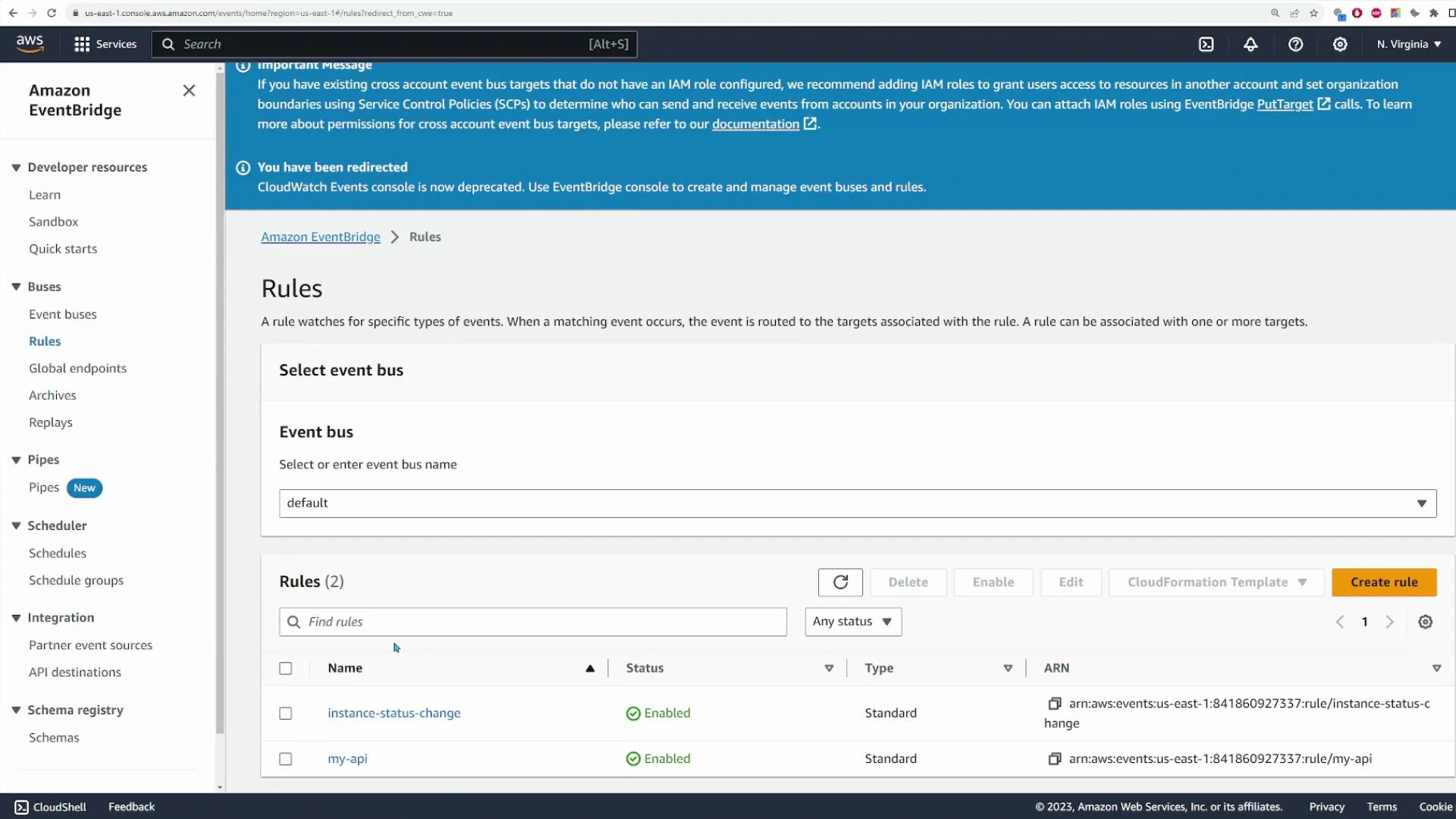
A screenshot of the Amazon EventBridge console on the Rules page with the event bus set to "default." The rules table shows two enabled rules, "instance-status-change" and "my-api," with their ARNs listed.
Use cases:
  • Trigger a Lambda when an EC2 instance changes state.
  • Schedule maintenance tasks with a cron-style rule.
  • Route SaaS partner events to internal targets.
For details and examples, see the EventBridge user guide: https://docs.aws.amazon.com/eventbridge/latest/userguide/

Dashboards

CloudWatch Dashboards let you compose widgets—metric graphs, single-value numbers, logs tables, and text—into a consolidated monitoring view. To create a dashboard:
  1. Give it a name (e.g., demo-dashboard).
  2. Add widgets: Line, Number, Gauge, Bar, Logs table, etc.
  3. Select metrics or logs for each widget and arrange them on the canvas.
  4. Save and share or embed the dashboard as needed.
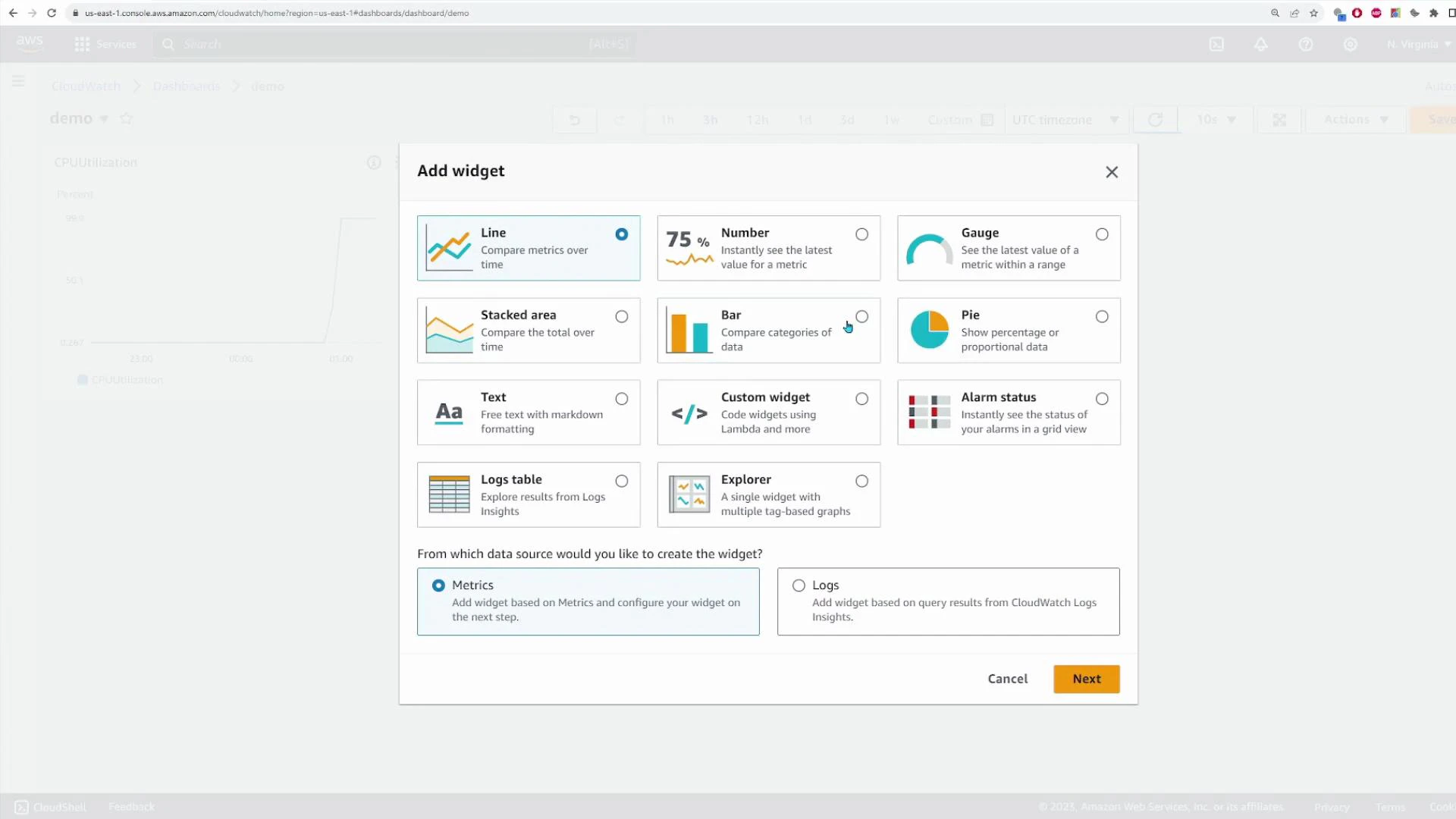
A screenshot of the AWS CloudWatch "Add widget" dialog showing multiple widget type options (Line, Number, Gauge, Stacked area, Bar, Pie, Text, Custom widget, Alarm status, Logs table, Explorer) and a choice to create the widget from Metrics or Logs. The dialog includes Cancel and Next buttons.
Example dashboard composition:
  • Line widget: EC2 CPUUtilization
  • Number widget: NetworkPacketsOut
  • Logs widget: Lambda invocation errors
Name the dashboard (for example, EC2-and-Lambda-overview) and resize widgets to prioritize key metrics.

CloudWatch Features at a Glance

FeaturePurposeWhen to use
LogsCentralized log storage and searchAggregate app/service logs and troubleshoot
Log InsightsQuery and visualize logsAnalyze patterns, extract fields, and do aggregations
Live tailReal-time log streamingImmediate troubleshooting during deployments
MetricsTime-series telemetryBaseline performance and capacity planning
AlarmsThreshold-based notifications/actionsAuto-remediation or operator alerts
EventBridgeEvent routing & schedulingEvent-driven architectures and automation
DashboardsCustom monitoring viewsExecutive or ops single-pane-of-glass

Best practices

  • Apply retention policies on log groups to control costs.
  • Use structured JSON logging to simplify Logs Insights queries.
  • Tag dashboards and metrics for easier filtering and access control.
  • Route alarms to SNS topics for centralized notifications.
  • Instrument services with X-Ray for distributed tracing across microservices.

Summary

  • CloudWatch centralizes logs, metrics, alarms, traces, events, and dashboards across your AWS account.
  • Use Log groups and log streams to organize logs; leverage Live Tail and Logs Insights for real-time and query-based analysis.
  • Metrics are the primary time-series signals; Alarms automate monitoring responses.
  • EventBridge (CloudWatch Events) handles event routing to build event-driven systems.
  • Dashboards provide consolidated visualizations to monitor applications and infrastructure.
Explore the CloudWatch console sections—Logs, Metrics, Alarms, Traces, Events, and Dashboards—to gain hands-on experience with each feature.

Watch Video

Practice Lab