In this guide you’ll create your first Amazon S3 bucket through the AWS Management Console, inspect the key bucket pages (Objects, Properties, Permissions, Metrics, Management), and upload a file. The steps below are ordered to follow the console flow and include CLI examples for automation. Start by opening the AWS Console and searching for the S3 service. If you have no buckets yet, the console invites you to create one. If you already have buckets, you’ll see a list and a Create bucket button.
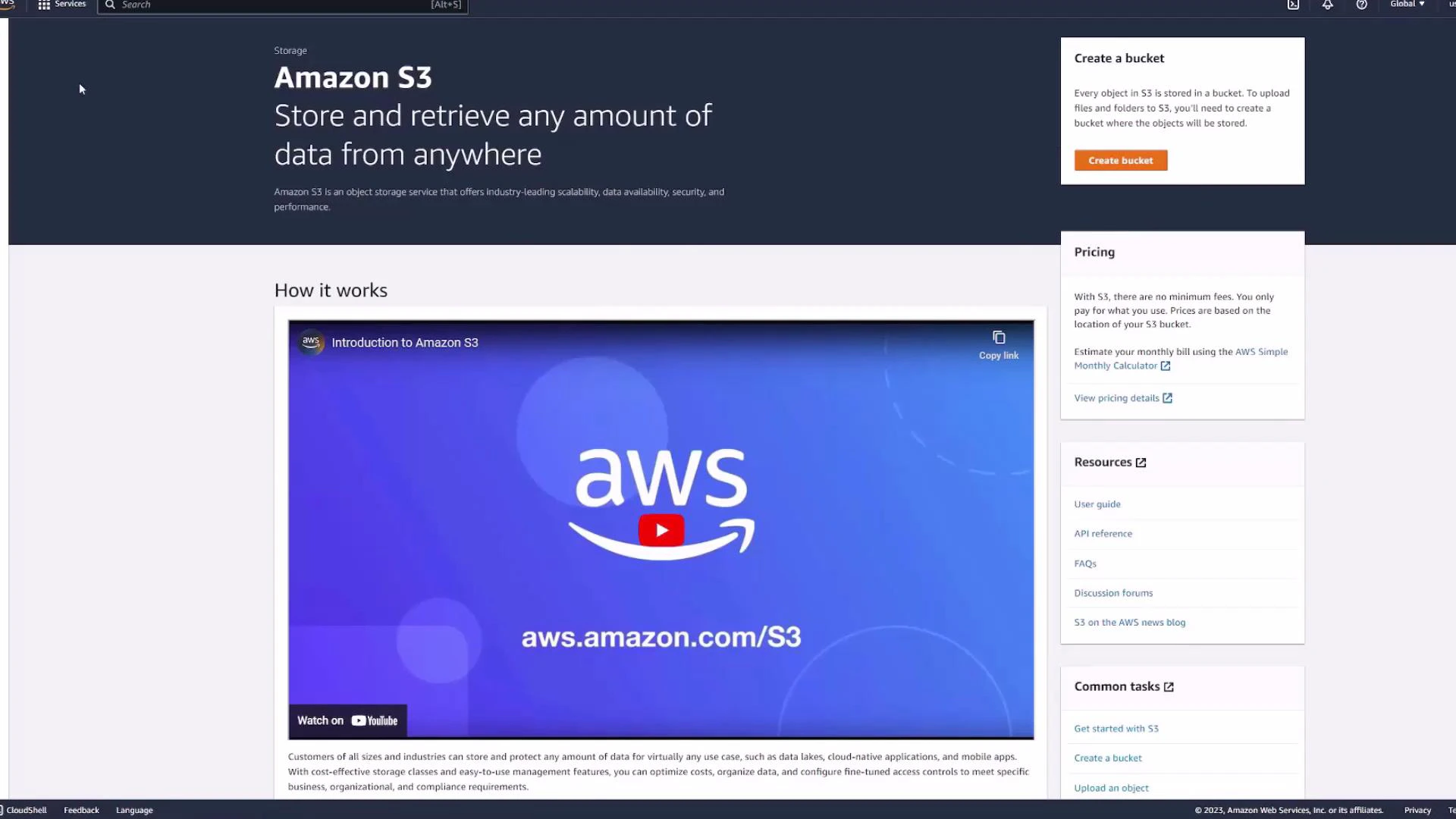
A screenshot of the Amazon S3 webpage showing the headline "Store and retrieve any amount of data from anywhere," a large AWS video thumbnail, and a right-hand sidebar with panels for creating a bucket, pricing, resources, and common tasks.
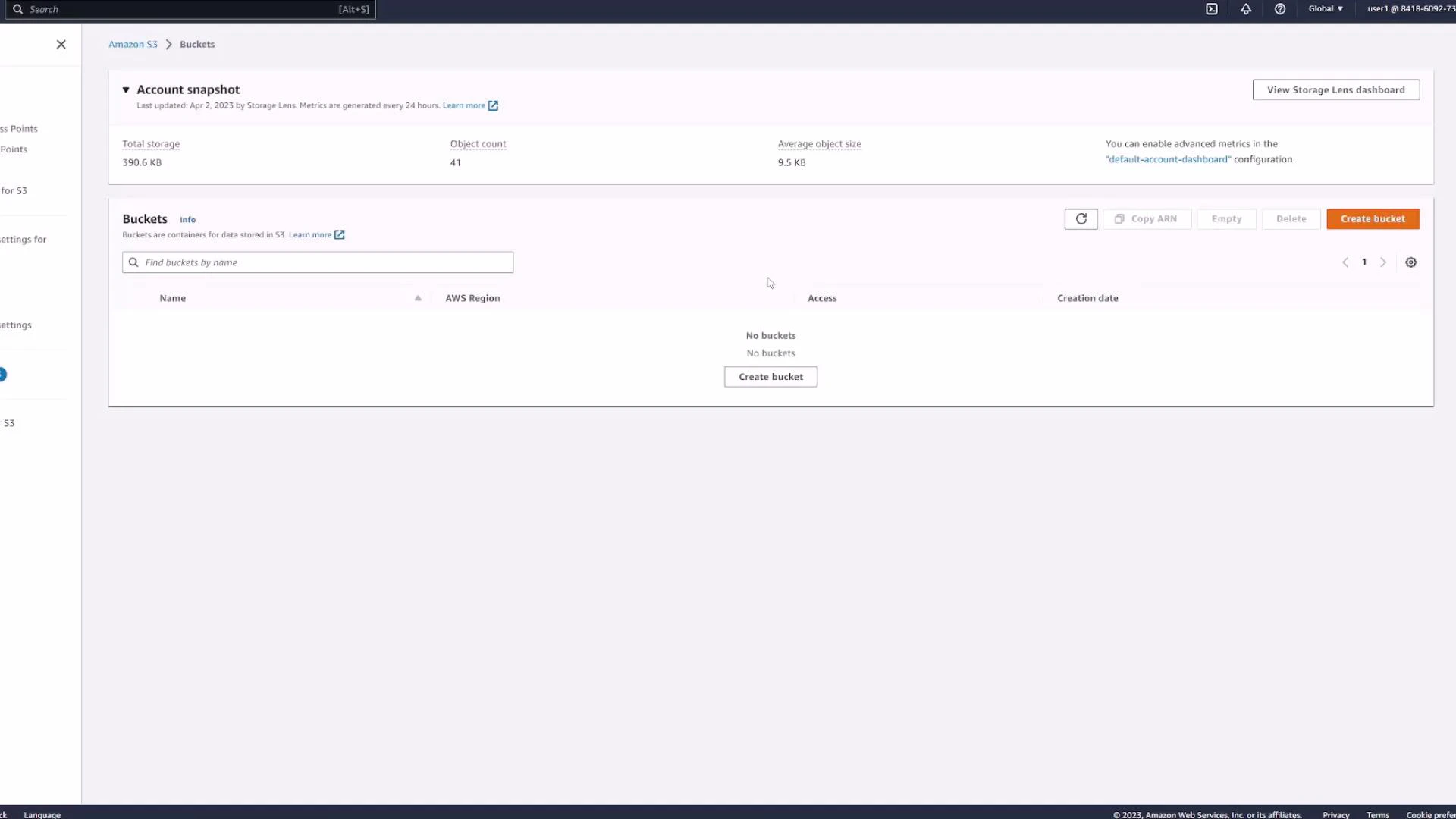
If your account has no buckets the console emphasizes creating a bucket with a prominent “Create bucket” action:
A screenshot of the AWS S3 Buckets console showing an account snapshot with storage metrics at the top. The Buckets list is empty and a "Create bucket" button is shown.
Key concept: S3 bucket names are globally unique across all AWS accounts and regions. You do not select a region on the global bucket list — you choose the bucket region at creation time.
S3 bucket names must be globally unique. The console displays all buckets from every region; pick the bucket’s region when you create it.

Create a bucket

Click Create bucket to begin. Provide a globally unique name — common names like “demo” are already used. In this walkthrough we use the example name kk-demo-123.
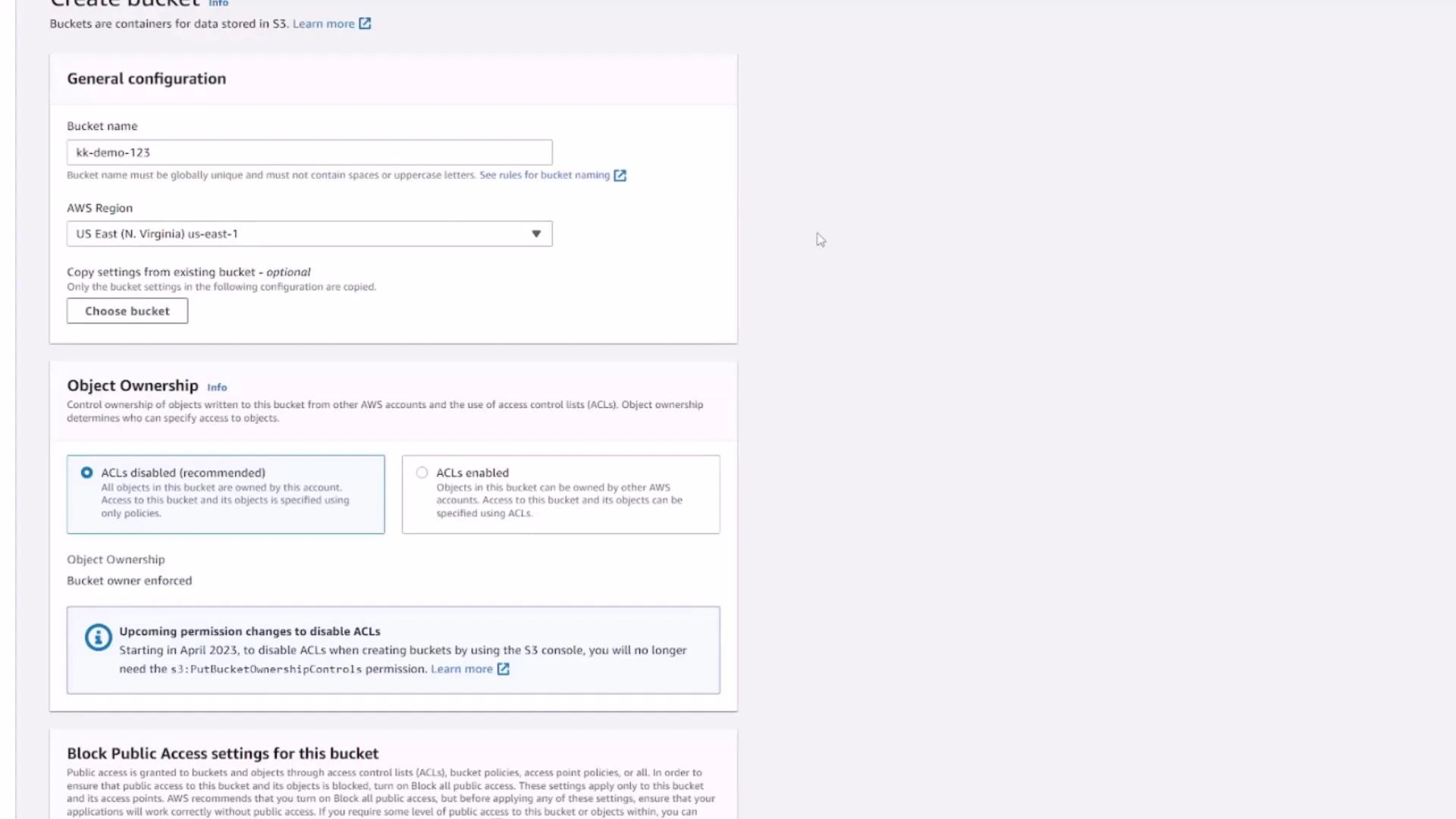
A screenshot of the AWS S3 "Create bucket" console showing the General configuration (bucket name "kk-demo-123" and region US East N. Virginia) and Object Ownership settings, with ACLs disabled recommended. The lower part also shows the Block Public Access settings section.
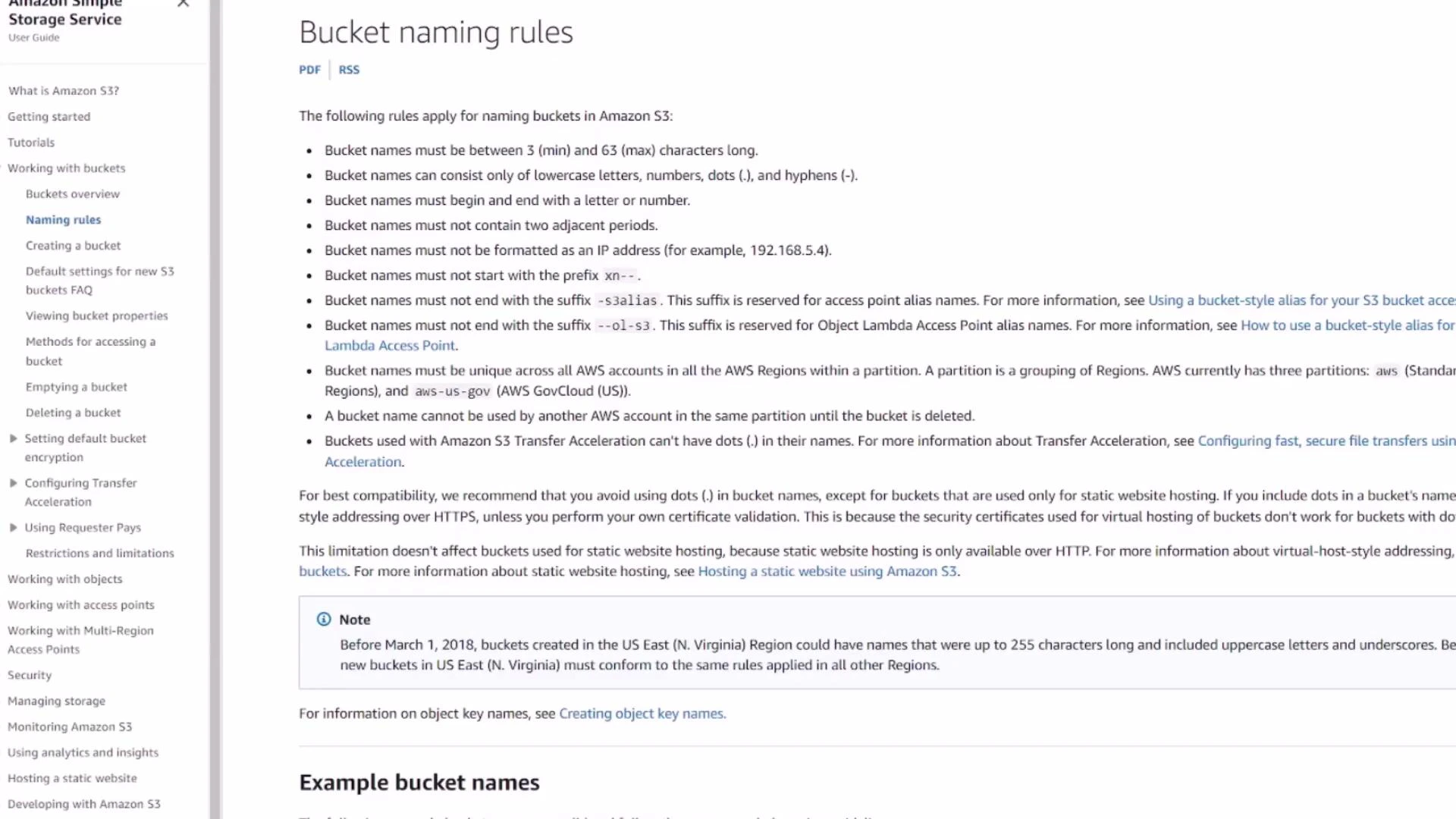
If you want the full rules for valid bucket names, review the AWS documentation on bucket naming:
A screenshot of the Amazon S3 documentation page titled "Bucket naming rules," showing a list of bullet-point rules for naming S3 buckets. The left side shows the user guide navigation menu.
When creating a bucket you must also choose the target region and can configure options such as:
  • Object ownership (controls whether objects are owned by the bucket owner or the object uploader),
  • Block Public Access settings,
  • Versioning,
  • Default encryption,
  • Tags, and more.
Block Public Access is enabled by default to protect you from accidentally exposing data.
Do not disable Block Public Access unless you intentionally want objects to be publicly accessible. Public buckets can expose data to anyone on the internet.

After creation — bucket overview

After the bucket is created it appears in the list with its region and creation date. Click the bucket name to open its dedicated console page. On the Objects tab you will find all files (objects) stored in the bucket. A freshly created bucket contains no objects.
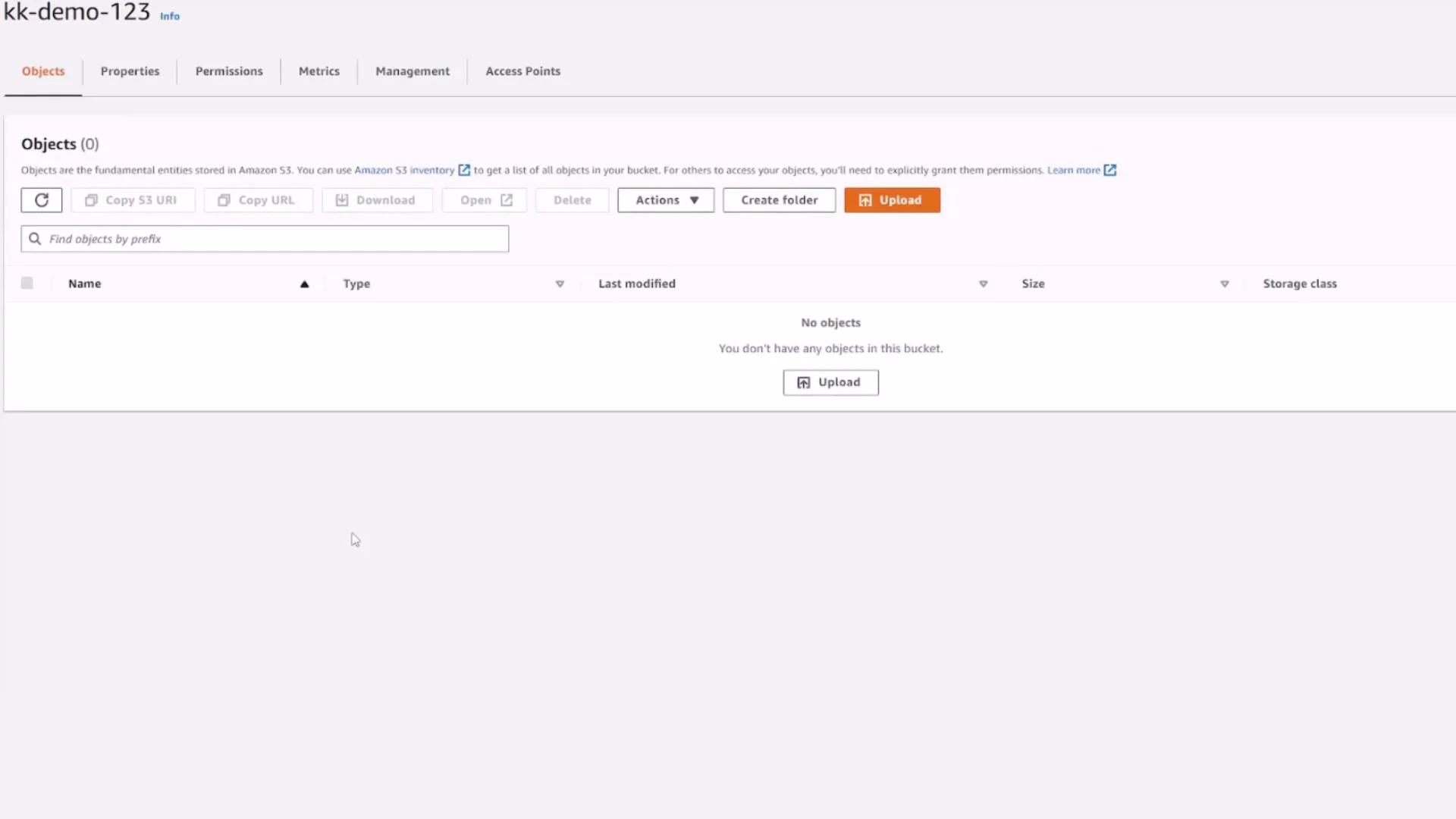
A screenshot of the Amazon S3 console for bucket "kk-demo-123" showing the Objects tab with no objects listed and an "Upload" button.
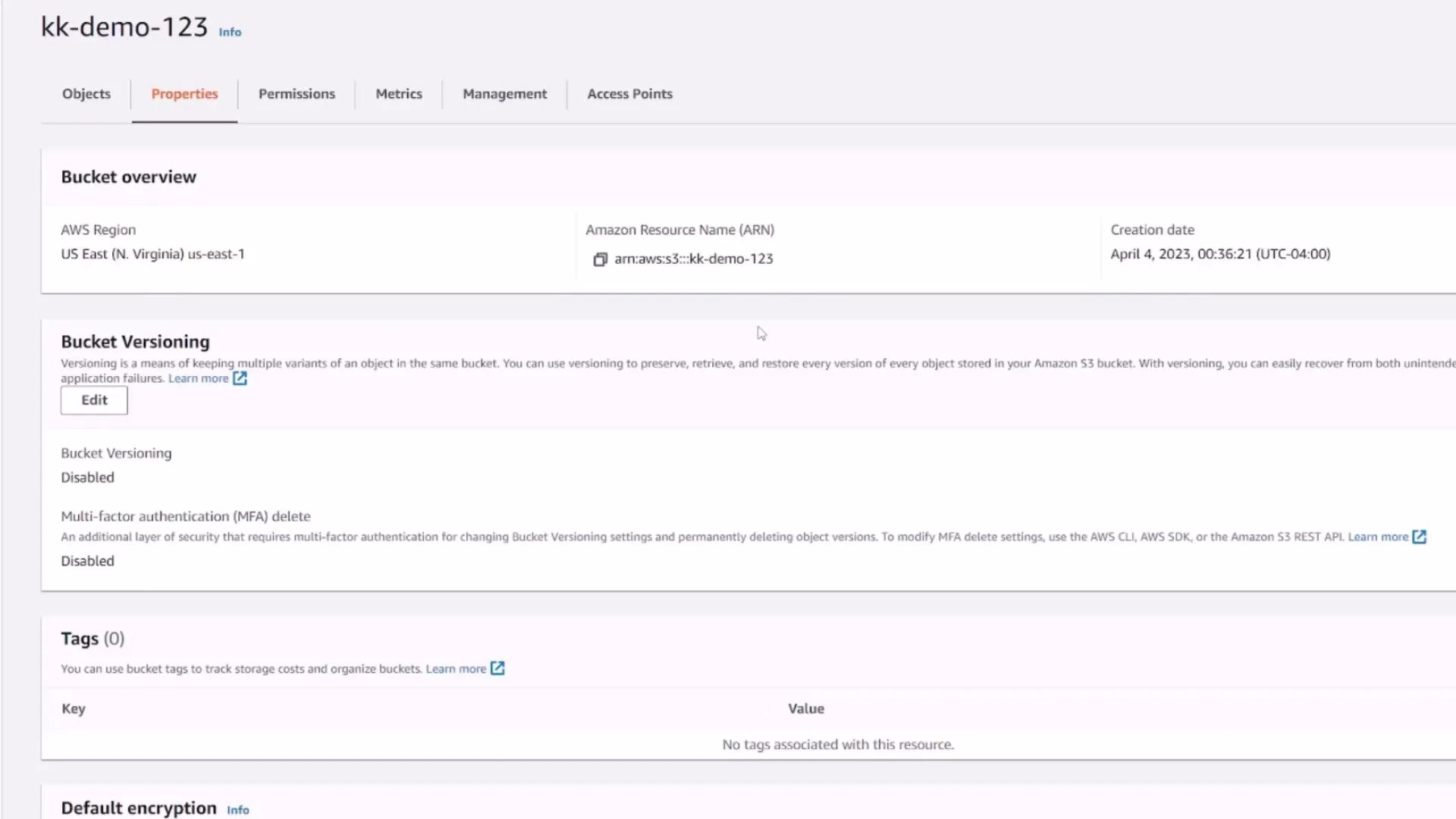
Open the Properties tab to view bucket metadata such as the bucket ARN, region, creation date, versioning status, tags, and default encryption settings.
A screenshot of an AWS S3 bucket Properties page for "kk-demo-123" in the US East (N. Virginia) region. It shows the bucket ARN and creation date, with versioning disabled and no tags configured.
The bucket ARN (Amazon Resource Name) uniquely identifies your bucket across AWS. As you enable features such as versioning, server access logging, transfer acceleration, or static website hosting, those statuses are shown in Properties. Use the Permissions tab to control access. By default the bucket is owned and accessible only by the bucket owner. From Permissions you can attach:
  • Bucket policies (recommended for fine-grained access control),
  • Access Control Lists (ACLs — not recommended for new accounts),
  • Block Public Access settings,
  • CORS rules for browser-based access.
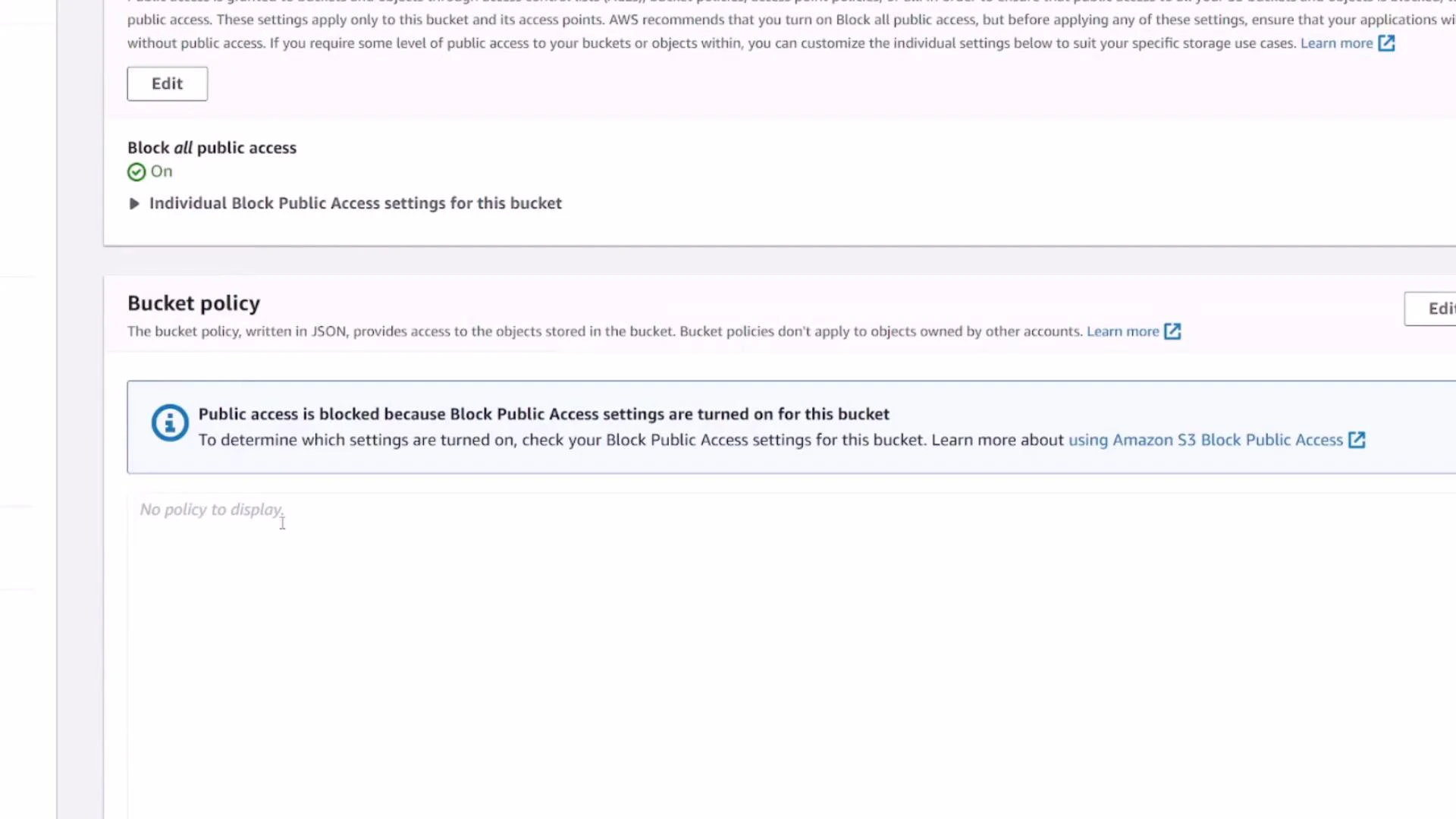
A screenshot of an AWS S3 bucket settings page showing the "Block all public access" option turned on. The Bucket policy section states public access is blocked and shows "No policy to display."
Metrics (CloudWatch) and the Management tab surface additional features:
  • Metrics: storage used, object counts, request metrics.
  • Management: lifecycle rules (transition/expiration), replication between regions or accounts, inventory, and access points.

Upload an object

To upload a file return to the Objects tab and click Upload. You can Add files, Add folder, or drag-and-drop. The console shows file size and detected type prior to upload.
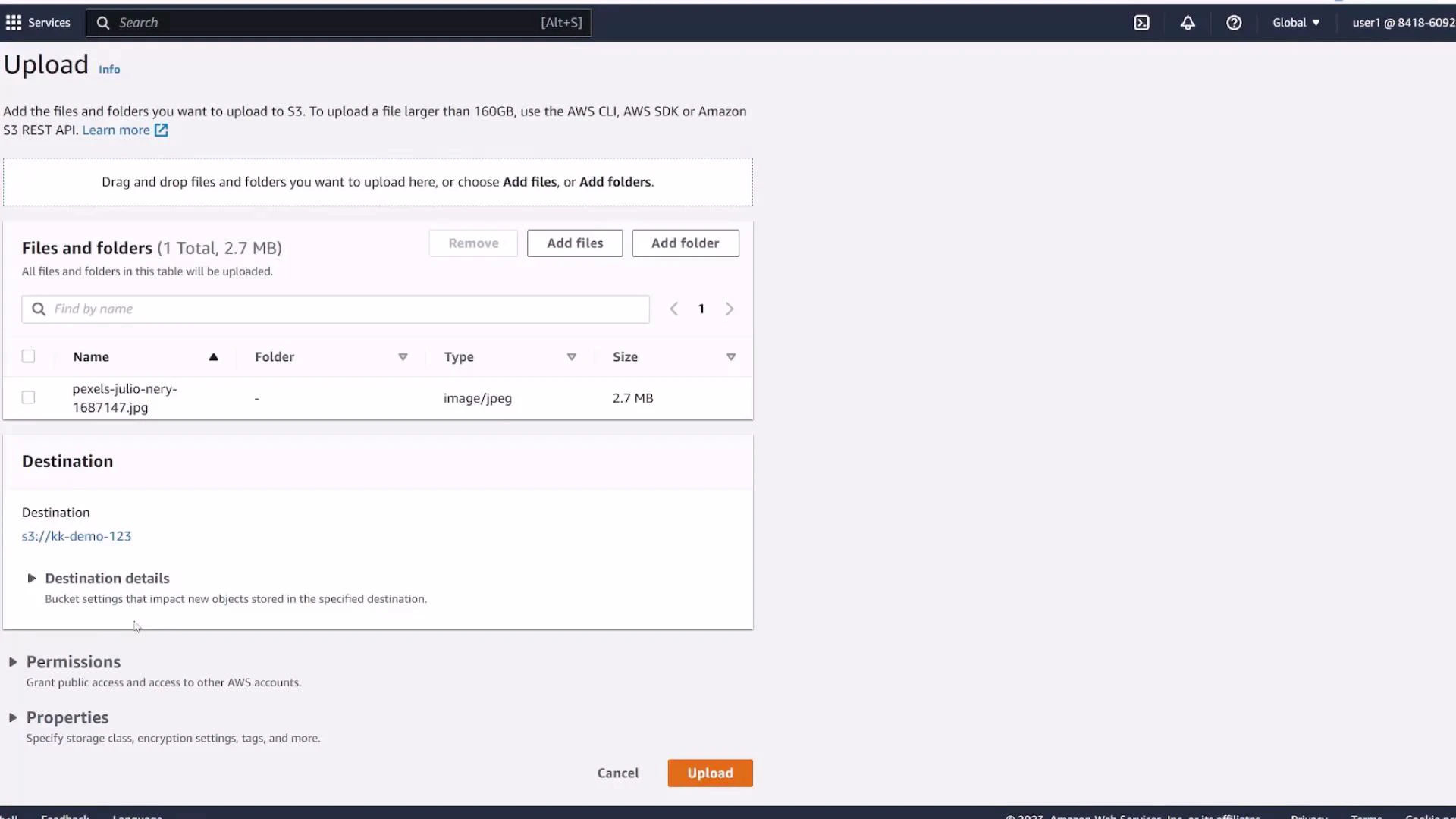
A screenshot of the AWS S3 "Upload" page showing one JPEG file (pexels-julio-nery-1687147.jpg, 2.7 MB) queued for upload. The destination bucket is s3://kk-demo-123 and there are Cancel and Upload buttons at the bottom.
During upload you can confirm or change:
  • Permissions (uploads inherit bucket defaults unless you override them),
  • Versioning behavior for the object (if bucket versioning is enabled),
  • Storage class selection.
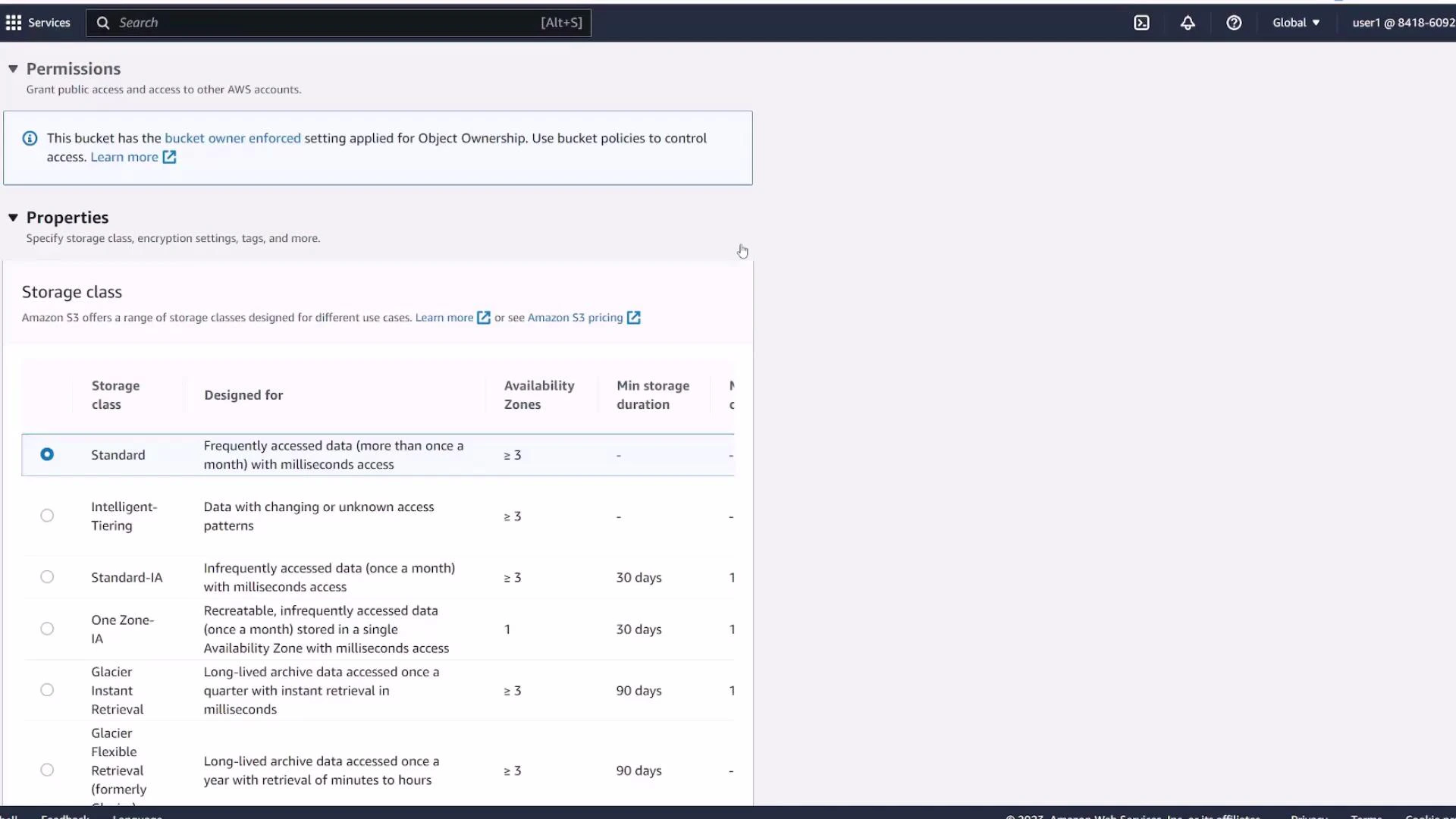
S3 provides multiple storage classes to balance cost, durability, and availability. Common storage classes include Standard, Intelligent‑Tiering, Standard‑IA, One Zone‑IA, and Glacier. Use the table below to compare typical use cases.
Storage ClassTypical Use CaseNotes
StandardFrequently accessed dataHigh durability and availability
Intelligent‑TieringUnknown or changing access patternsAutomatic tiering to save costs
Standard‑IAInfrequently accessed, requires rapid accessLower storage costs, retrieval fee applies
One Zone‑IAInfrequently accessed, non-criticalStored in a single AZ — cheaper but less resilient
Glacier / Glacier Deep ArchiveLong-term archivingLow cost, retrieval times vary
A screenshot of the AWS S3 console showing a bucket's Permissions banner and Properties section. The visible panel lists Storage class options (Standard, Intelligent‑Tiering, Standard‑IA, One Zone‑IA, Glacier, etc.) for the bucket.
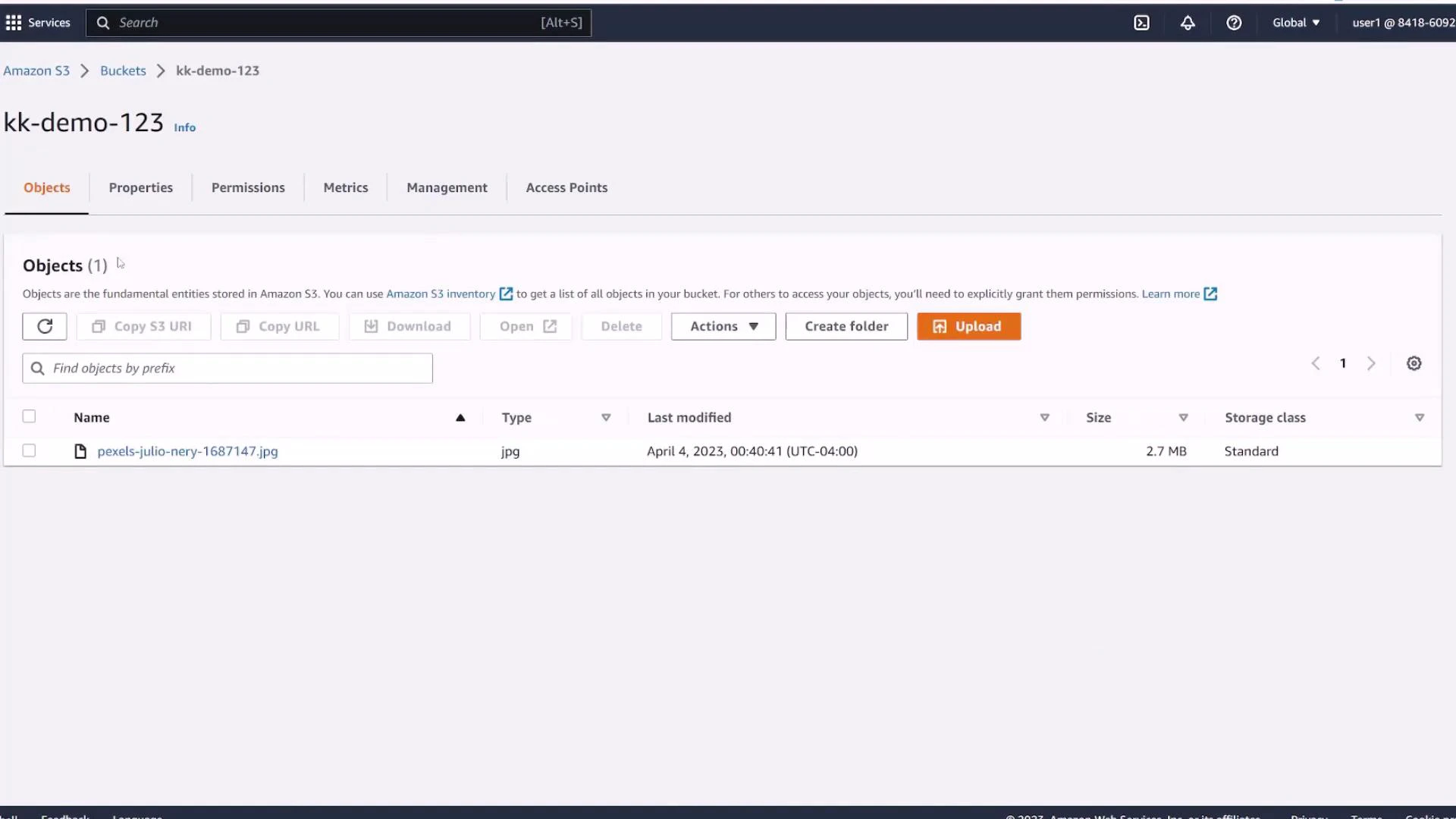
After the upload completes you will see a green check in the console and the object will appear in the Objects list.
Screenshot of an Amazon S3 bucket page for "kk-demo-123". It shows one object named "pexels-julio-nery-1687147.jpg" (2.7 MB) with options to upload, create folders, and manage the bucket.

Quick CLI examples (optional)

You can also create buckets and upload files with the AWS CLI. Replace <region> and <bucket-name> with your values. Create a bucket (example for regions other than us-east-1):
aws s3api create-bucket \
  --bucket kk-demo-123 \
  --region us-west-2 \
  --create-bucket-configuration LocationConstraint=us-west-2
Note: For us-east-1 (N. Virginia) you should omit LocationConstraint:
aws s3api create-bucket \
  --bucket kk-demo-123 \
  --region us-east-1
Upload a file using the high-level S3 command:
aws s3 cp ./pexels-julio-nery-1687147.jpg s3://kk-demo-123/
For scripted or programmatic interactions consider the AWS SDKs (Python boto3, JavaScript AWS SDK, etc.) and CI/CD integration.

Next steps and references

This completes the basic flow: creating a bucket and uploading an object. From here you can explore:
  • Enabling versioning and restoring previous versions,
  • Creating lifecycle rules to transition or expire objects,
  • Configuring default encryption (SSE-S3 or SSE-KMS),
  • Adding bucket policies for cross-account access,
  • Using the AWS CLI and SDKs for automation.
Useful references:
For production buckets, enable default encryption, enable versioning (if applicable), and use lifecycle policies to manage storage costs.

Watch Video

Practice Lab