

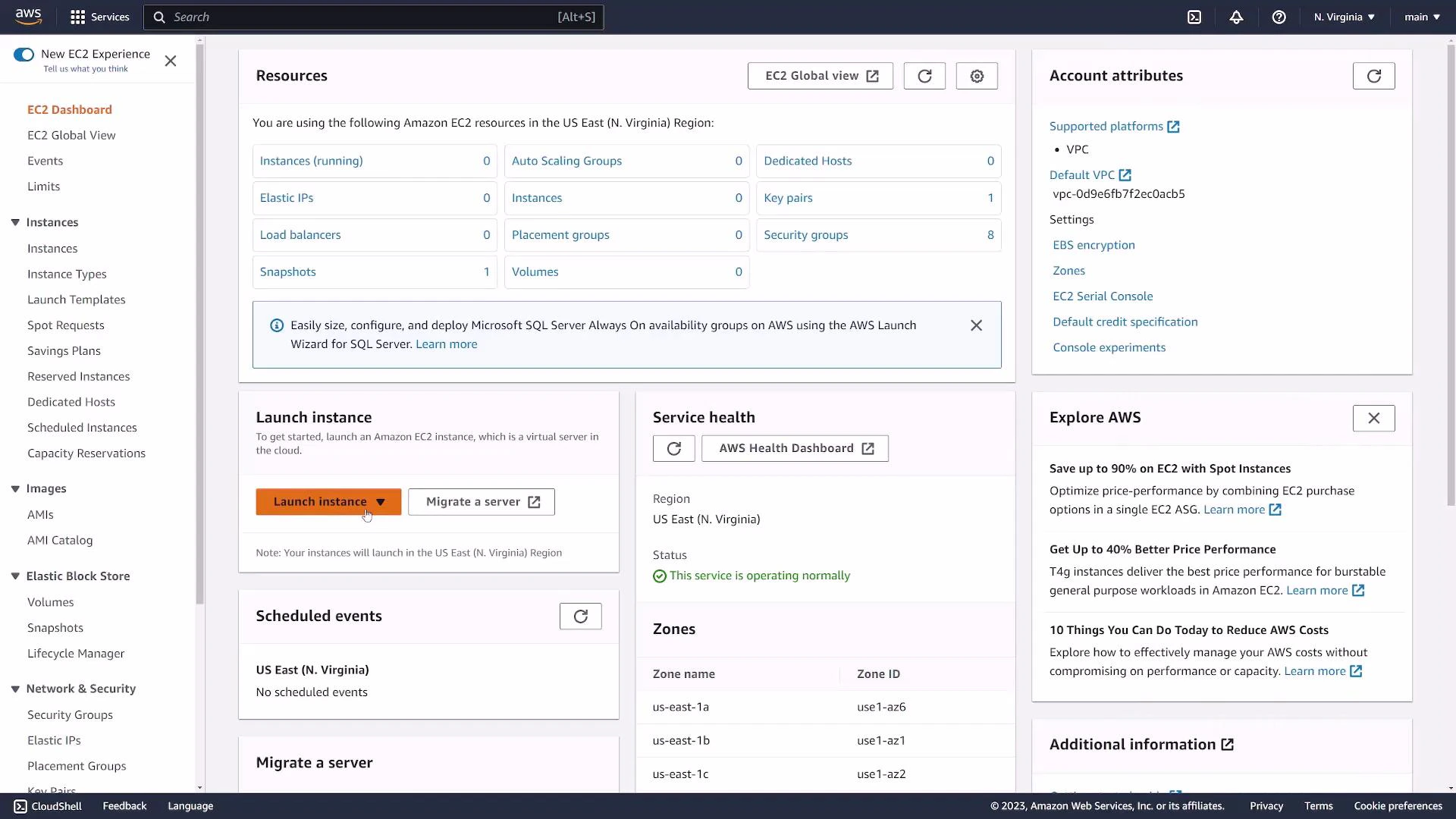
- In the AWS Console search bar type “EC2” and open the EC2 service.
- Verify you’re in the intended AWS Region (this guide uses us-east-1). The UI and steps are the same across regions.
- Click Launch instance (or go to Instances → Launch instances) to open the EC2 launch wizard.
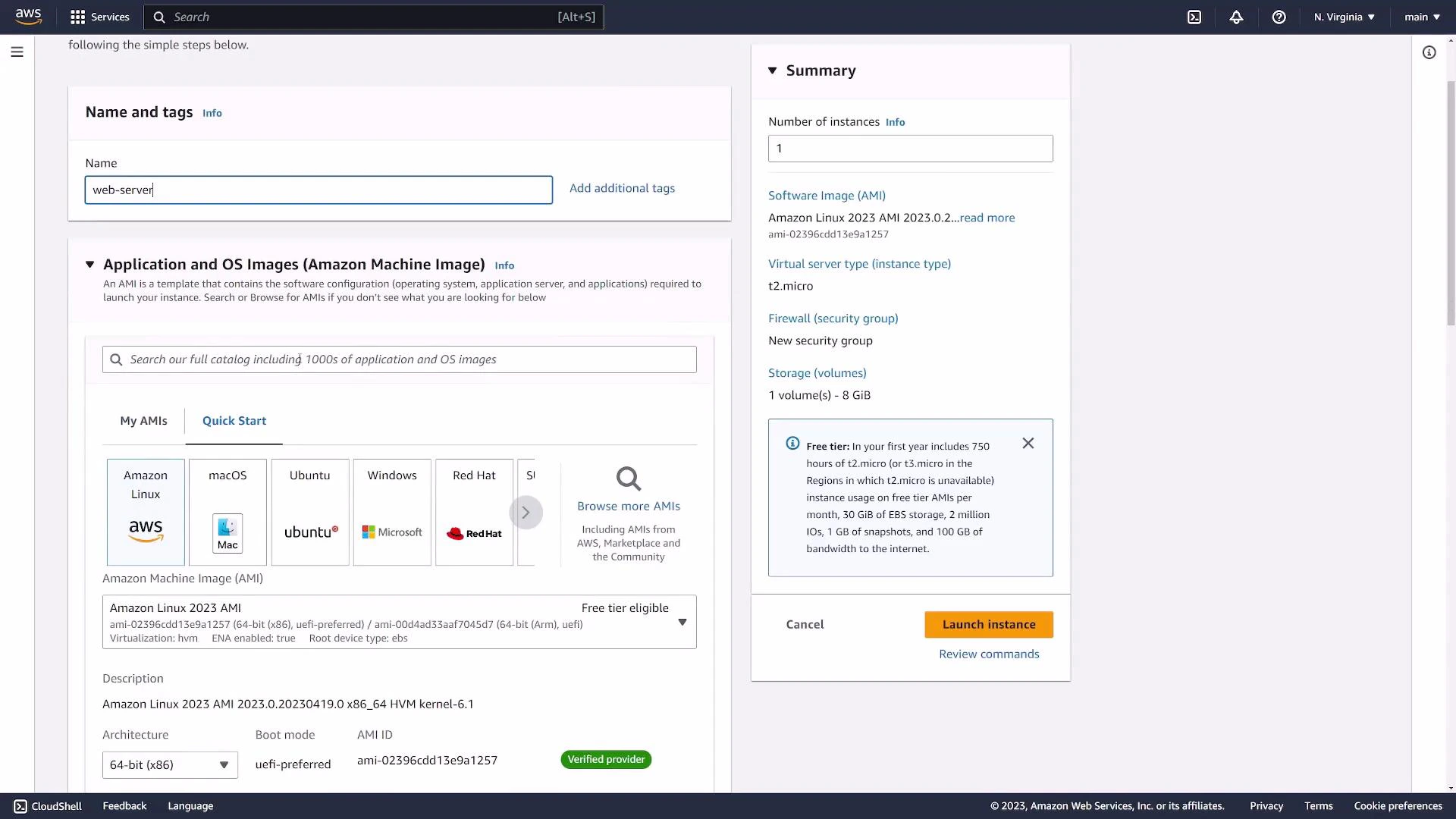
- Name and AMI
- Assign a descriptive Name tag (example: web-server).
- Choose an AMI (Amazon Machine Image). Common options include Amazon Linux, Ubuntu, and Windows. Marketplace images (Nginx, etc.) are also available.
- For this demo we select Ubuntu 22.04 (64-bit x86). AMI IDs differ by region, so you may see alternate IDs.
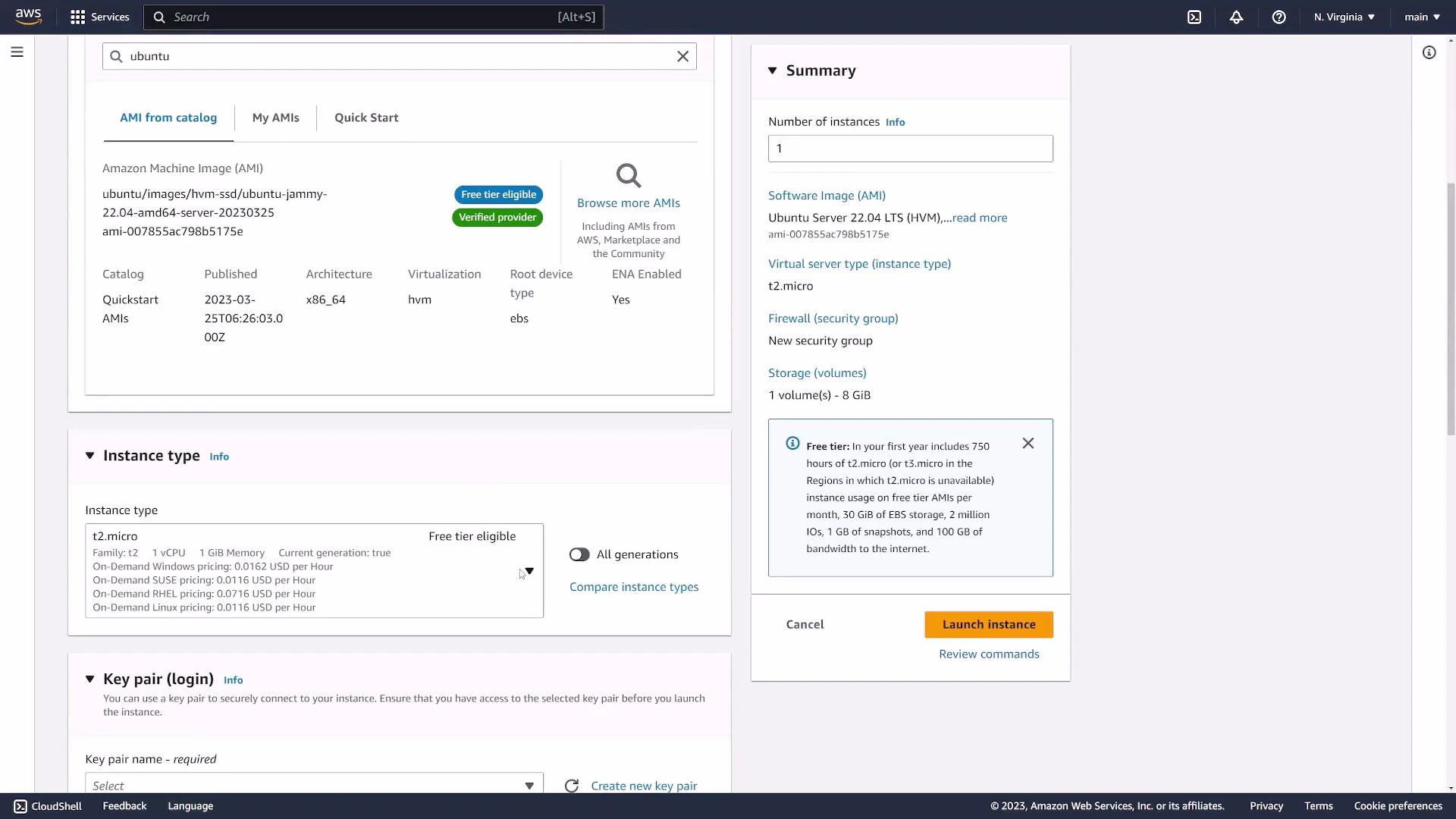
- Instance type
- Select the instance type that matches your CPU, memory, and performance needs.
- For simple demos and free-tier accounts, t2.micro is frequently used (1 vCPU, 1 GiB RAM). Choose larger types for production workloads.
- Key pair (for SSH)
- A key pair enables secure SSH access to Linux instances without passwords.
- Either select an existing key pair or create a new one. If creating, give it a name (e.g., ec2-demo) and download the PEM private key file (.pem).
- Save the PEM securely — AWS does not retain a copy.
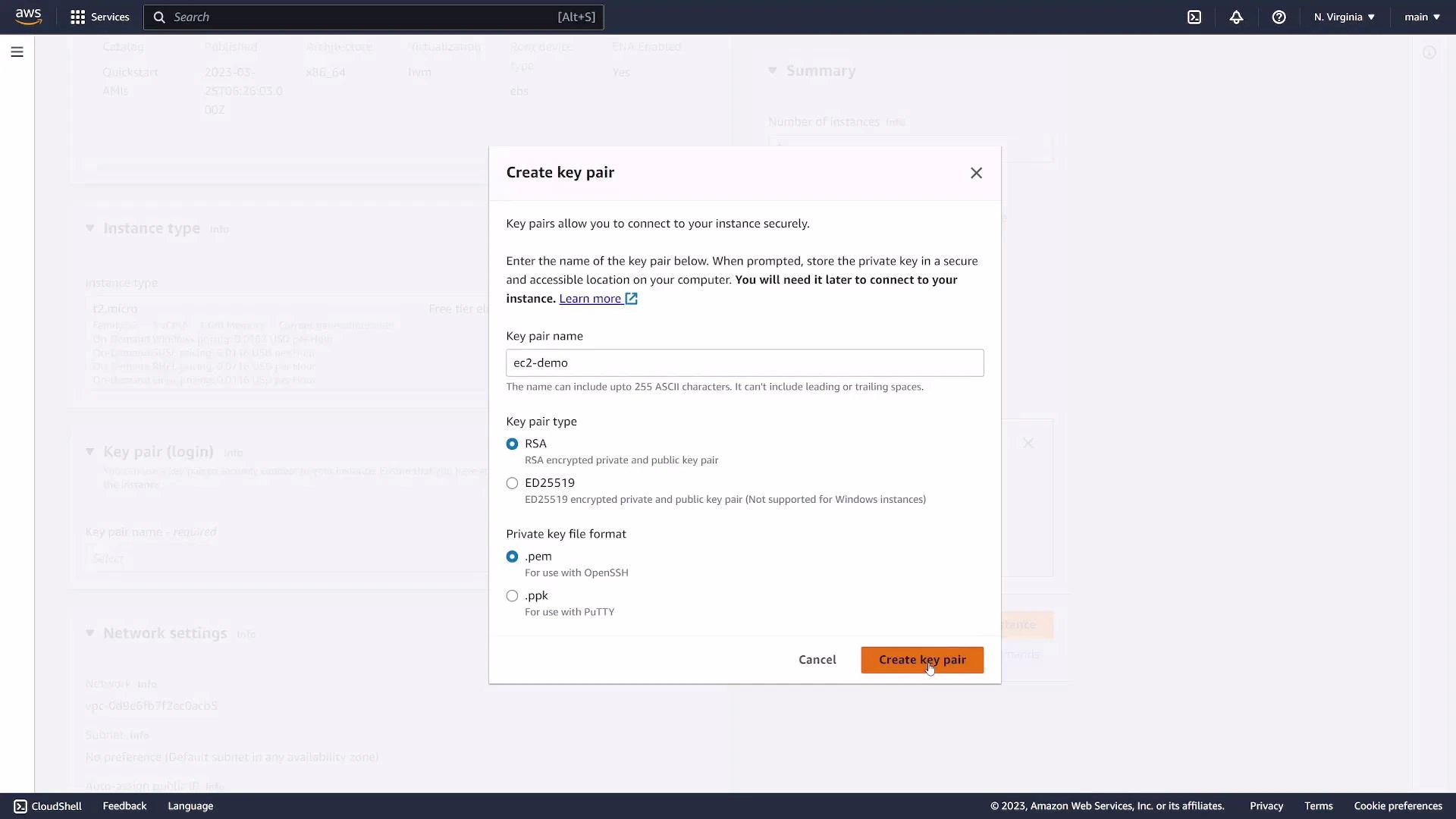
After downloading the PEM file, secure its file permissions before use (on Linux/macOS: chmod 400 ec2-demo.pem). Store it safely and back it up — you cannot re-download the same PEM from AWS later.
- Network settings and security groups
- Pick a VPC and subnet (fresh accounts typically have a default VPC and subnets).
- Configure a security group: this is a virtual firewall controlling inbound/outbound traffic.
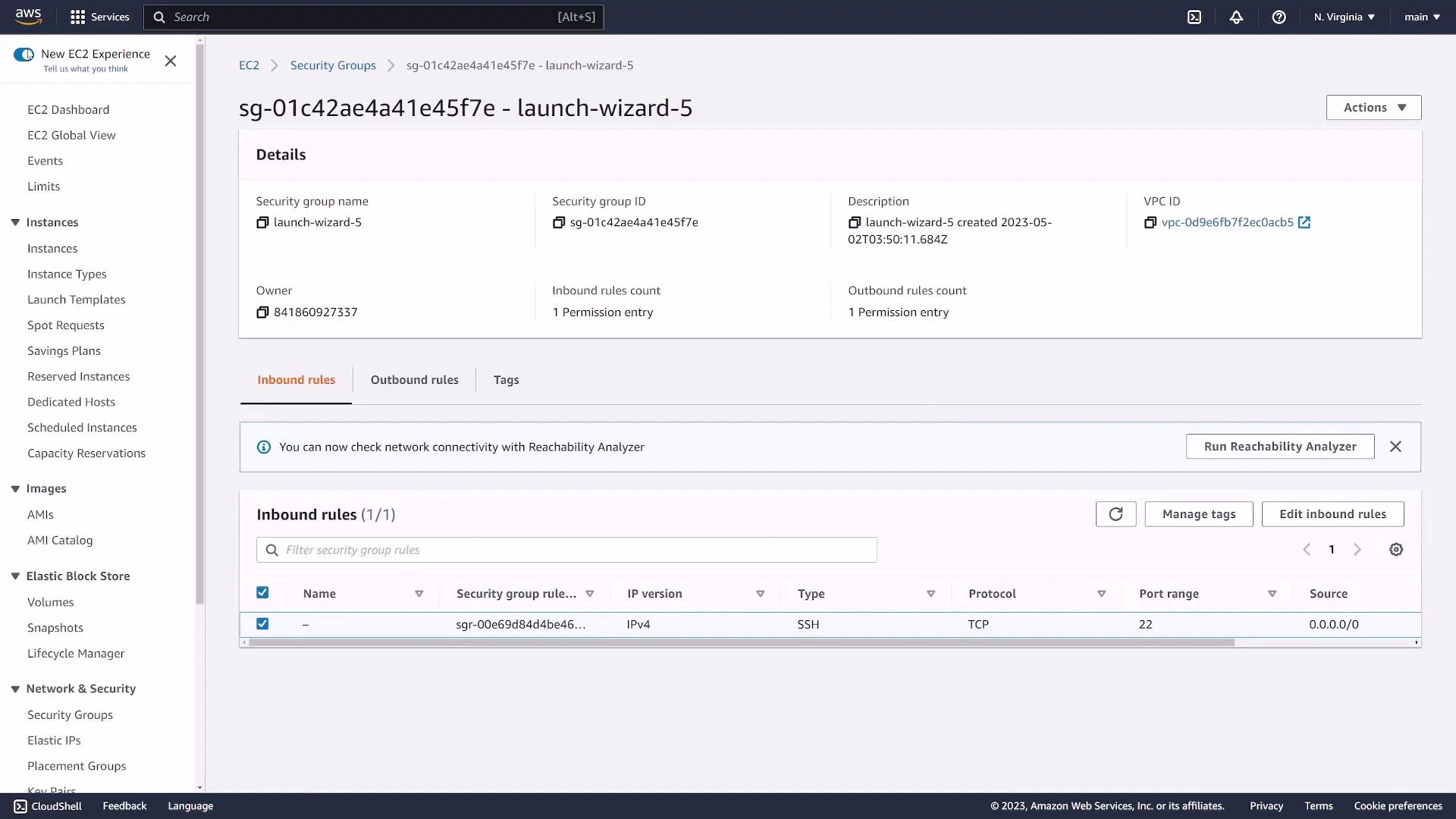
- For SSH access, add an inbound rule for TCP port 22 and limit the source to your client IP or range.
- The wizard may default to 0.0.0.0/0 (anywhere). Restrict this in production to reduce exposure.
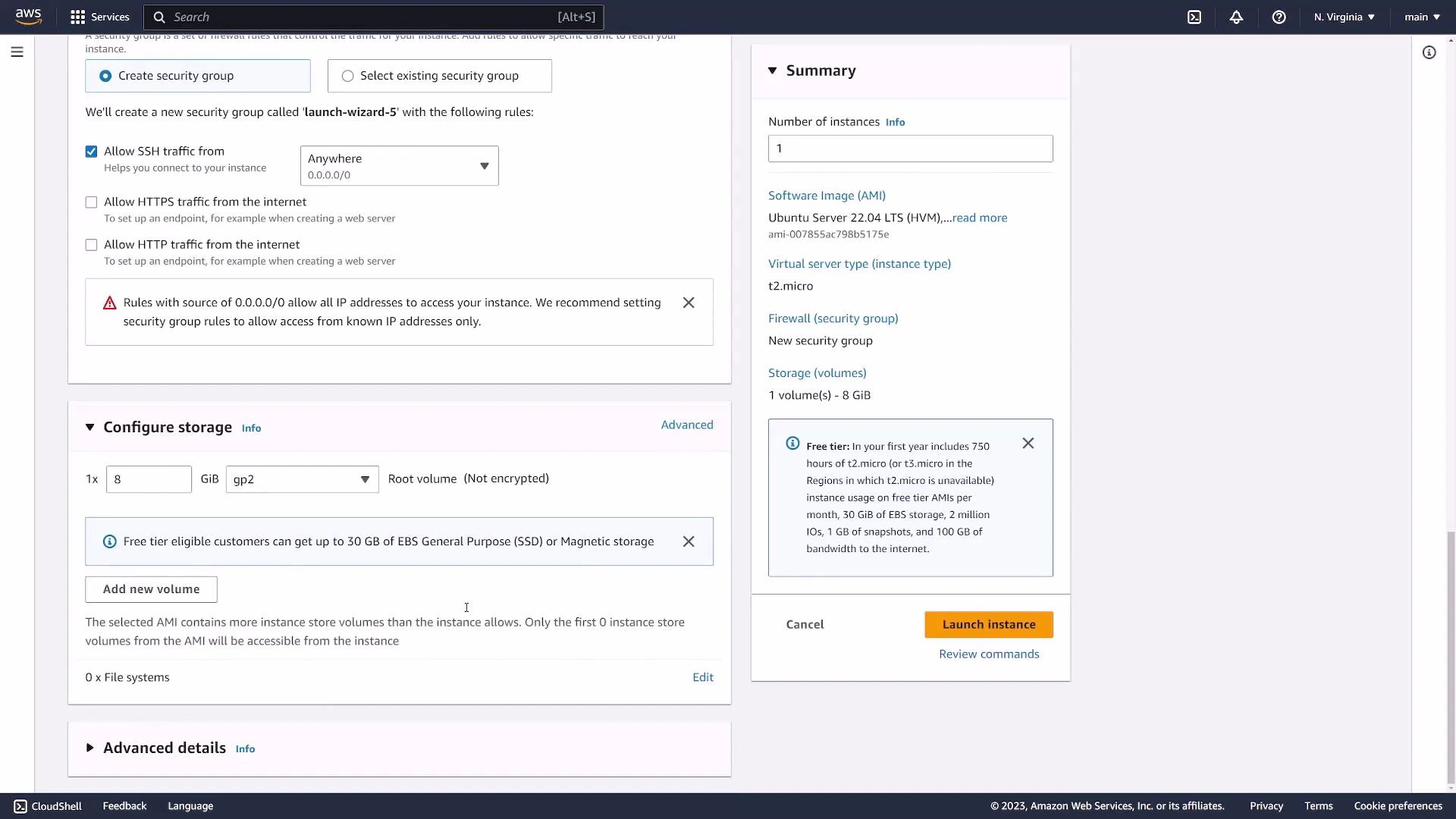
Do not leave SSH (port 22) open to 0.0.0.0/0 in production. Limit inbound SSH access to the specific IP addresses or ranges that require connectivity.
- Storage and advanced settings
- Configure the root EBS volume size (8 GiB is common for a basic Ubuntu instance).
- Additional advanced options exist (user data, IAM role, monitoring, etc.) but are not required for a basic demo.
- Click Launch and wait for the instance to be created. It first appears in the Instances list with state “pending” and transitions to “running” after boot.
- The Instances view shows the instance ID, public/private IPv4 addresses, instance type, AMI, VPC and subnet IDs, and more metadata.
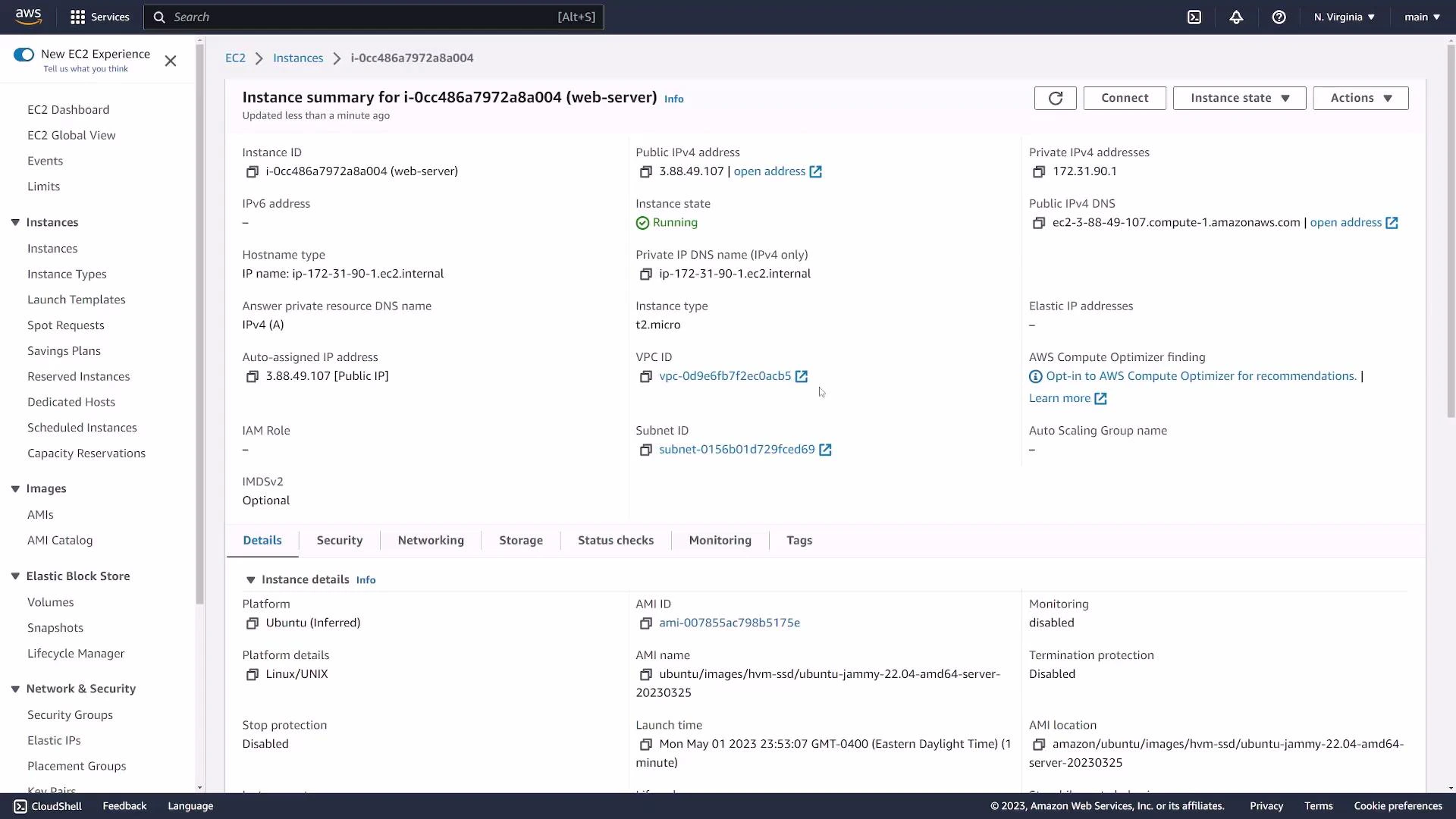
- Click the instance ID to view detailed information: public IPv4 address (if assigned), public DNS, private IP, associated key pair name, and tags.
- Under Security, inspect the security group(s) attached and their inbound/outbound rules. Security groups are stateful: if inbound is allowed, return traffic is permitted automatically.
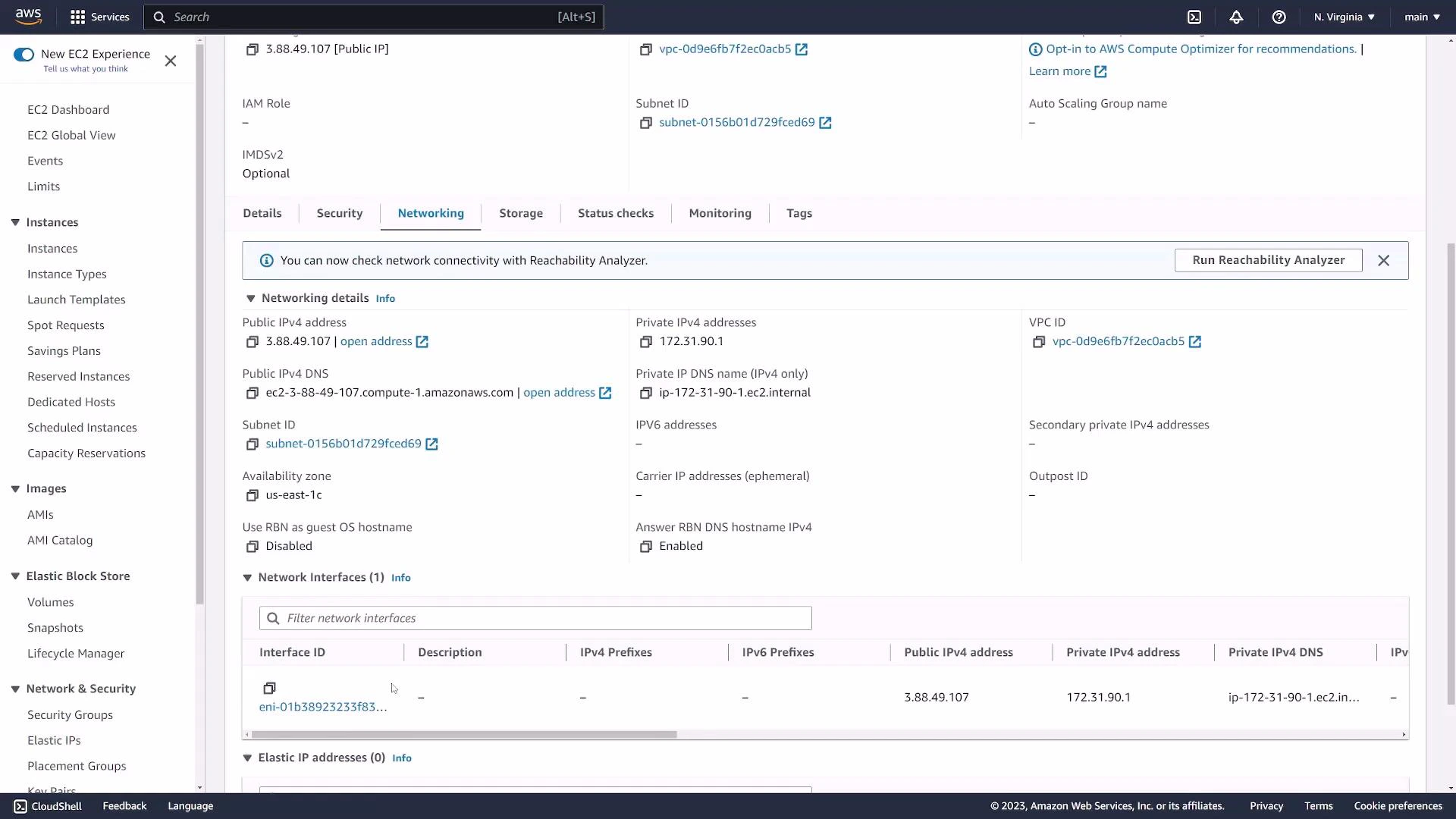
- The Networking tab displays IP addresses, network interface(s), and any attached Elastic IPs. EC2 instances can have multiple ENIs when needed.
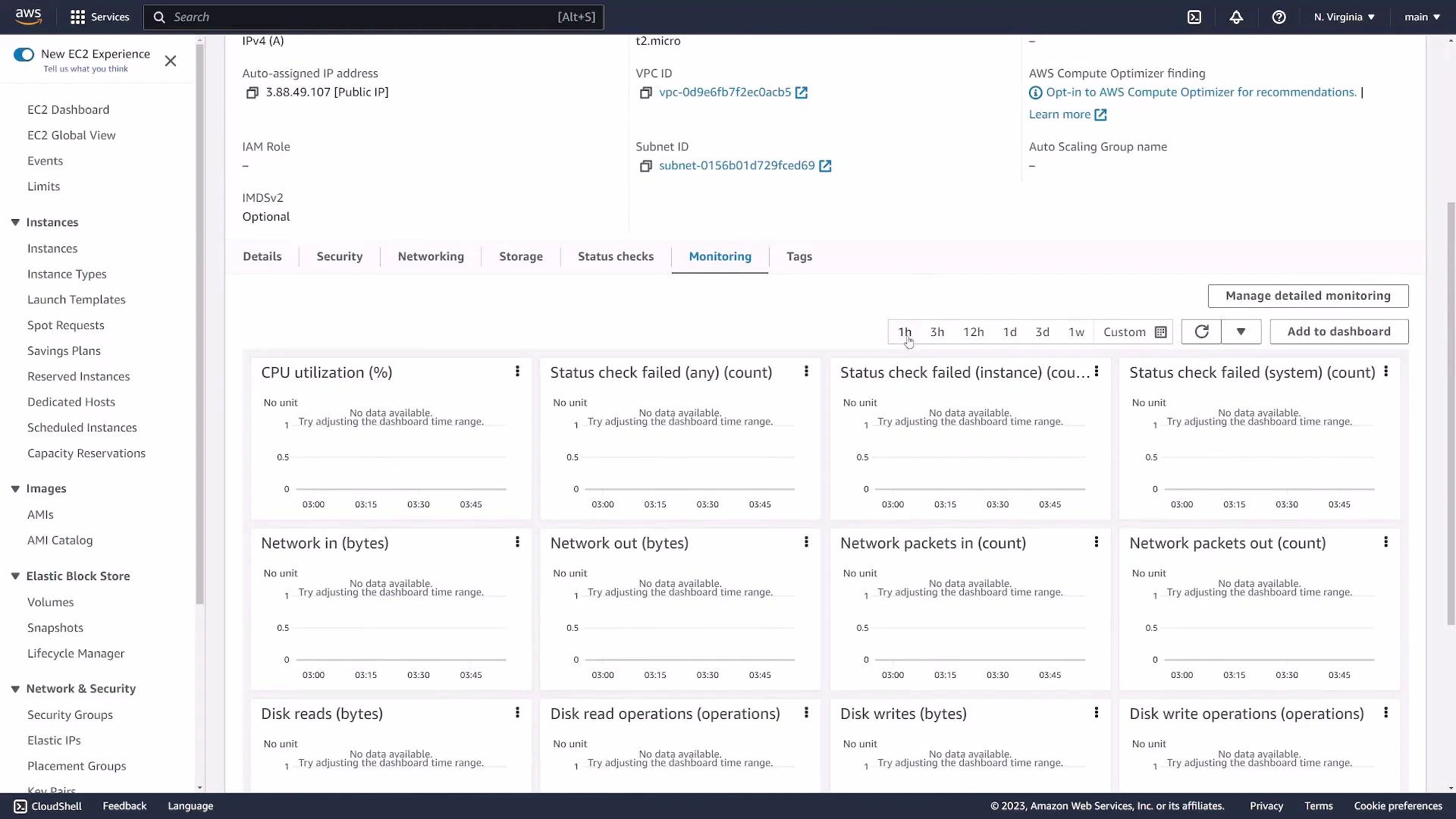
- The Monitoring tab provides CPU, network, disk, and status check metrics. Immediately after launch, graphs may be empty until metrics are collected.
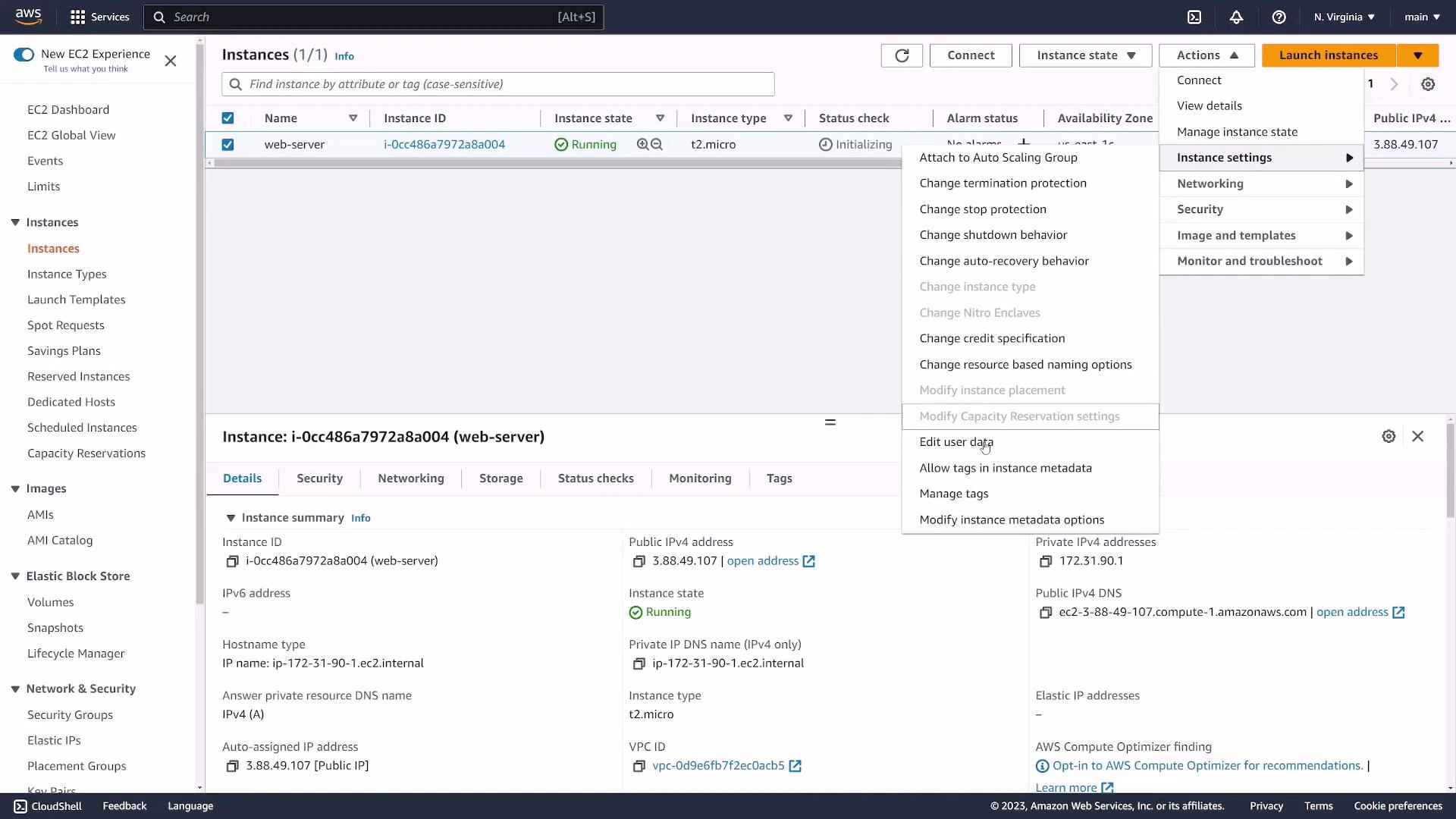
- From the Instances list select the instance and open the Actions menu to:
- Edit user data, networking, and security group attachments
- Change the instance state: Stop, Reboot, Start, or Terminate
- You need the instance’s public IPv4 address (or public DNS) and the PEM key you downloaded.
- Usernames vary by AMI:
- ubuntu → “ubuntu”
- Amazon Linux → “ec2-user”
- Check the AMI documentation if unsure: https://docs.aws.amazon.com/AWSEC2/latest/UserGuide/AccessingInstancesLinux.html
- On first connect you may be prompted to accept the host key (type “yes”).
- After successful authentication you will see the remote shell prompt, e.g.:
- Convert PEM to PPK for PuTTY using PuTTYgen (https://www.putty.org/) or
- Use Windows Subsystem for Linux (https://learn.microsoft.com/windows/wsl/) or native OpenSSH (https://www.openssh.com/) to run the same ssh commands as above.
- Stop: powers off the instance and preserves the EBS root volume. You can later Start it again.
- Terminate: deletes the instance and (by default) its associated root volume; data not backed up will be lost.
- AWS EC2 documentation: https://docs.aws.amazon.com/ec2/
- Accessing instances (SSH): https://docs.aws.amazon.com/AWSEC2/latest/UserGuide/AccessingInstancesLinux.html
- PuTTY and PuTTYgen: https://www.putty.org/
- Windows Subsystem for Linux: https://learn.microsoft.com/windows/wsl/