

Overview
Amazon RDS provides managed relational databases (PostgreSQL, MySQL, MariaDB, Oracle, SQL Server, and Aurora). Using RDS lets you focus on your application while AWS manages backups, software patching, automatic failure detection, and recovery.Create a database (AWS Console)
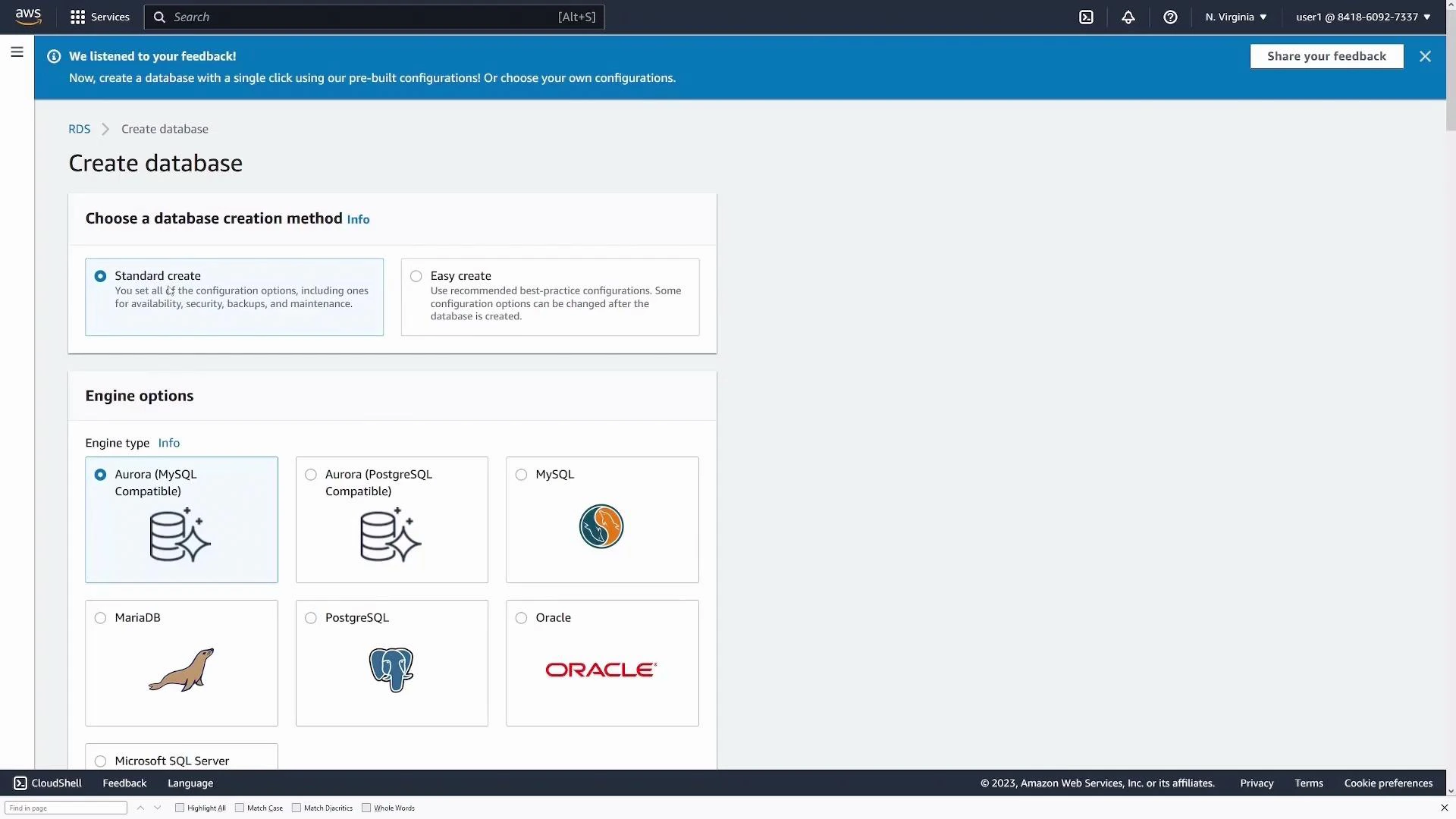
- Open the AWS Management Console, search for “RDS”, and choose Create database.
- Choose a creation method:
- Standard create — configure all options manually (recommended for learning and production).
- Easy create — uses defaults for a quick start.
Select engine and version
Under Engine type, pick the database engine you want (this guide uses PostgreSQL). The console shows recommended versions by default — choose one that matches your compatibility and features requirements.Choose a template
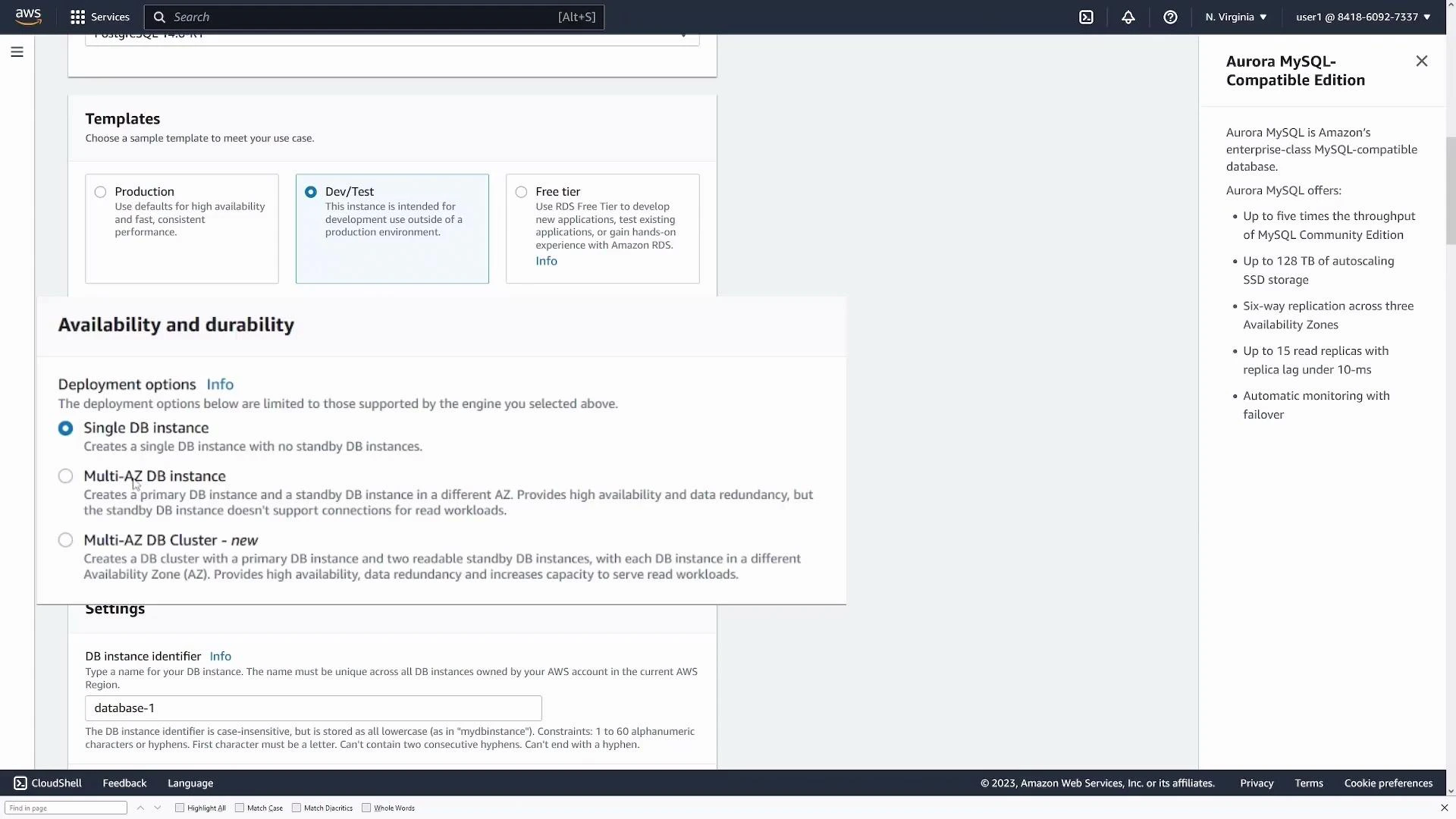
Templates preconfigure sensible defaults for cost, availability, and resilience. Common template choices:
For this demo choose Dev/Test.
Instance identifier, credentials, and sizing
- Set the DB instance identifier (example: my-first-db).
- Provide a master username (Postgres default: postgres) and secure password, or let AWS generate one.
- Choose the instance class (EC2 instance type that hosts the DB engine) suitable for your workload.
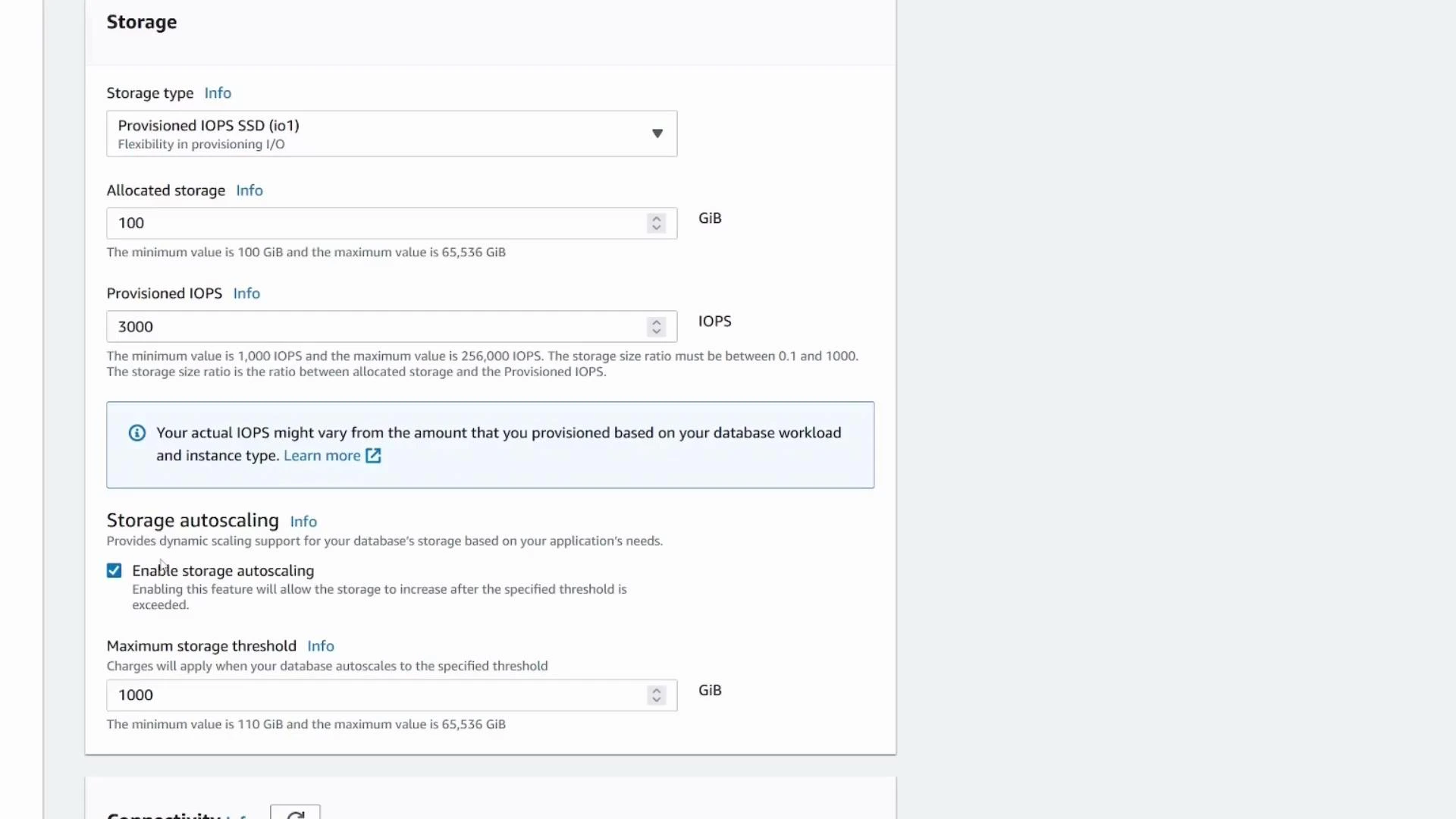
- Configure storage type and size; enable storage autoscaling if you expect growth. Note free-tier and minimum storage limits vary by account and engine.
Connectivity & security
- Choose or create a VPC and subnet group.
- Public access: for demos you may enable Public access to connect directly from your laptop. For production, select No and access via application servers or bastion hosts.
- Select or create security groups to allow only required IPs and ports (Postgres default port: 5432).
- Choose availability zone (or leave as no preference).
Do not enable Public access for production databases. Exposing a database endpoint publicly increases attack surface — prefer private subnets and restrict access via security groups and application layers.
Authentication, monitoring, and additional config
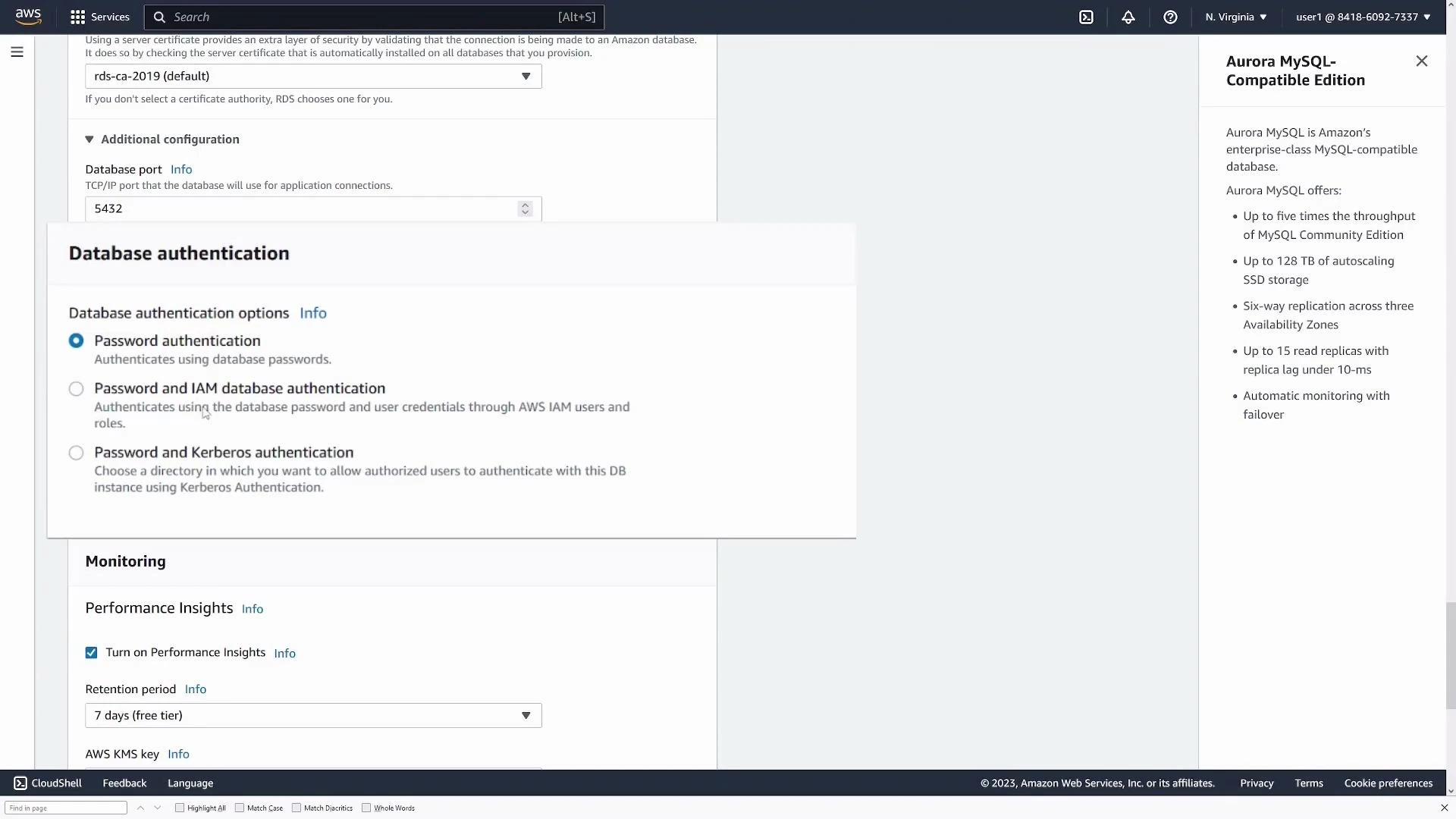
- Authentication: select password authentication or integrate with IAM (or other supported mechanisms).
- Monitoring/Performance Insights: enable as needed to track CPU, I/O, queries, and other metrics.
- Additional configuration: confirm the port, initial database name, parameter groups, and option groups.
Backups, encryption, and final review
Configure automated backups and retention window, enable encryption if required, and review snapshot and backup options. When satisfied, click Create database. Initialization can take several minutes; the instance status transitions to Available when ready.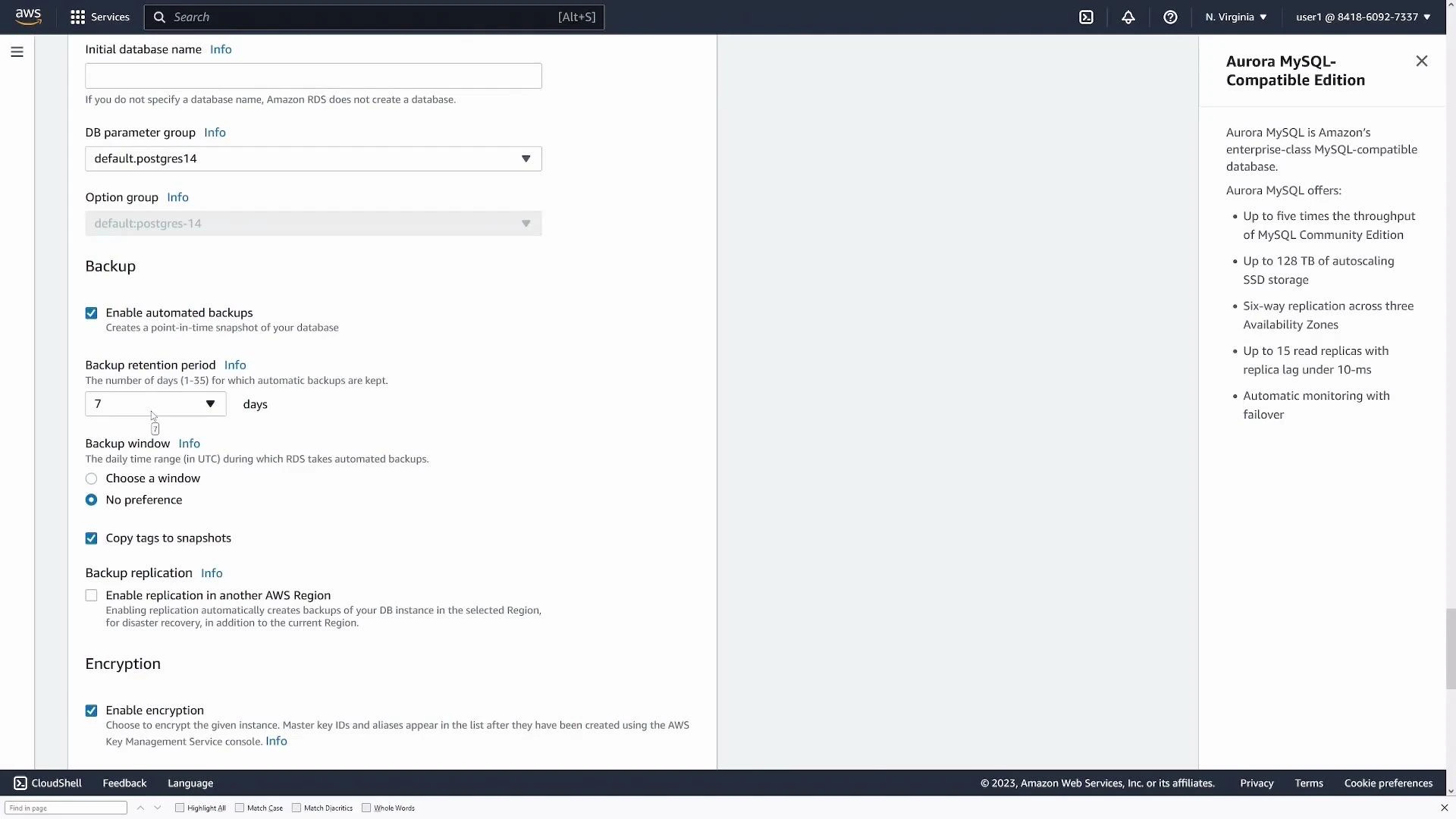
Connect to the database
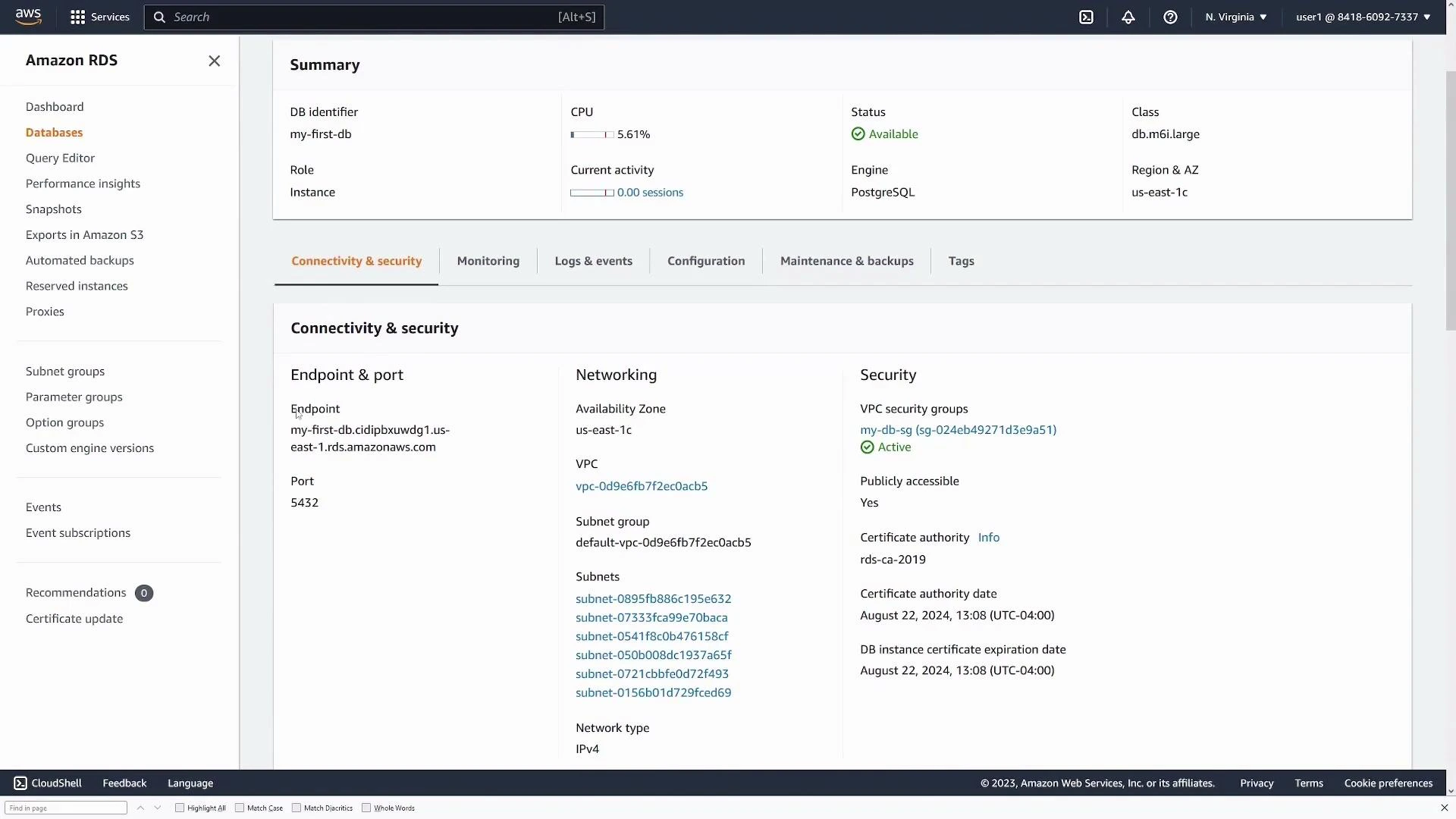
Once Available, open the DB details and find the Connectivity & security section. Important values:- Endpoint (hostname)
- Port (default 5432 for PostgreSQL)
Using pgAdmin (or other clients)
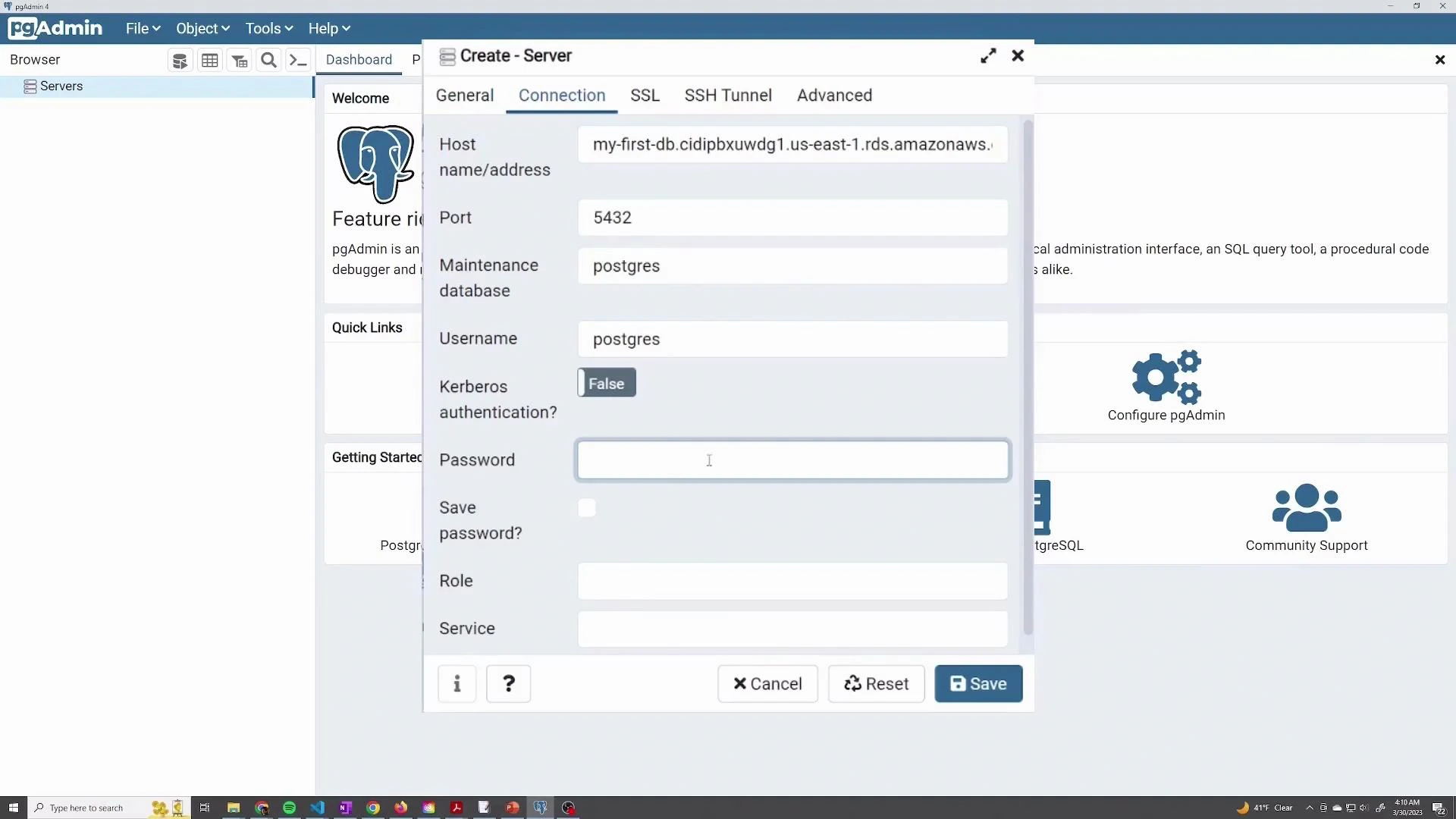
To connect with pgAdmin:- Create a new server connection.
- Provide the endpoint as Host name/address, port 5432, maintenance DB (postgres), username, and password.
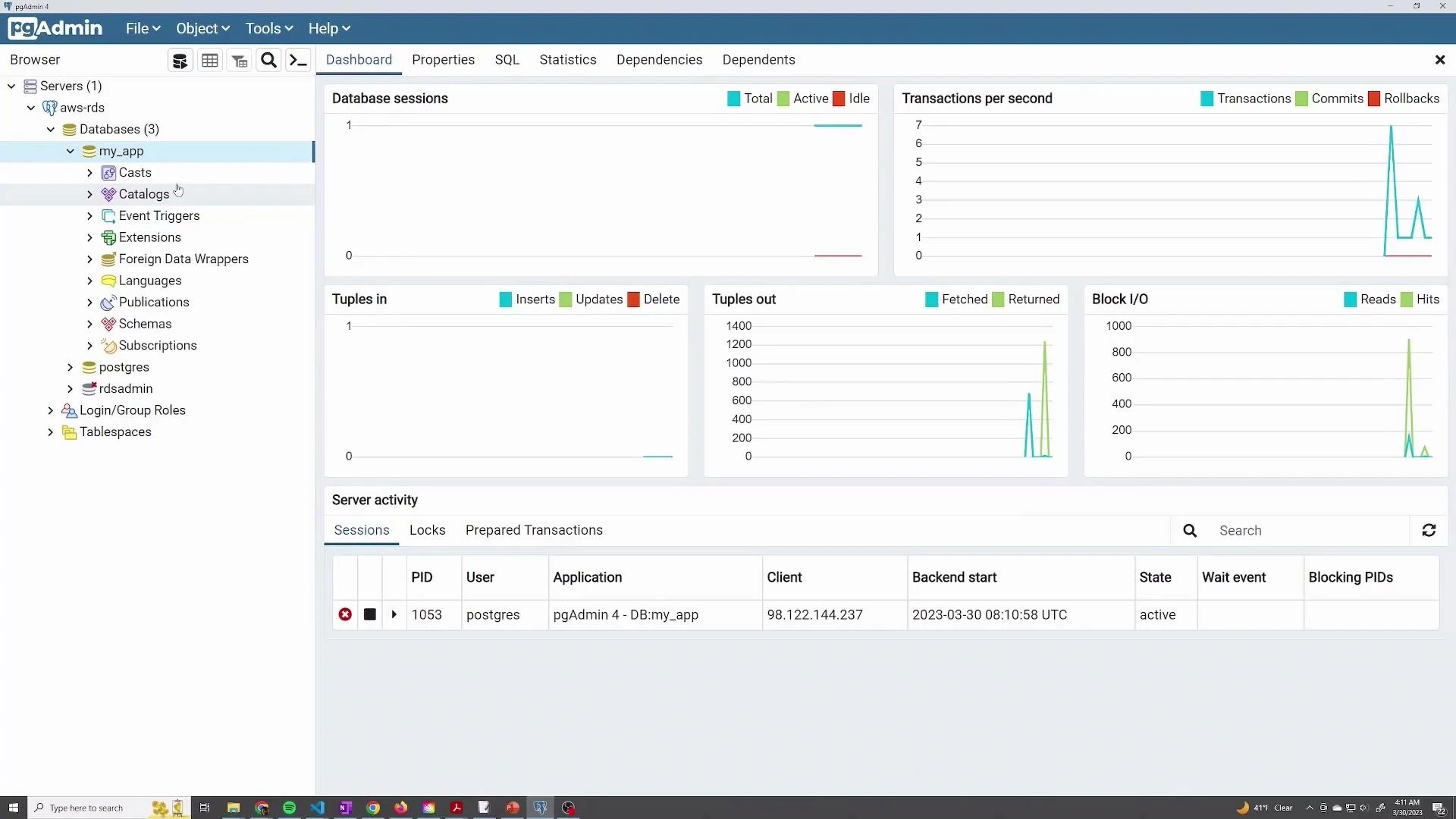
- Save and browse databases, create users, or run queries.
Management: modify, snapshot, delete
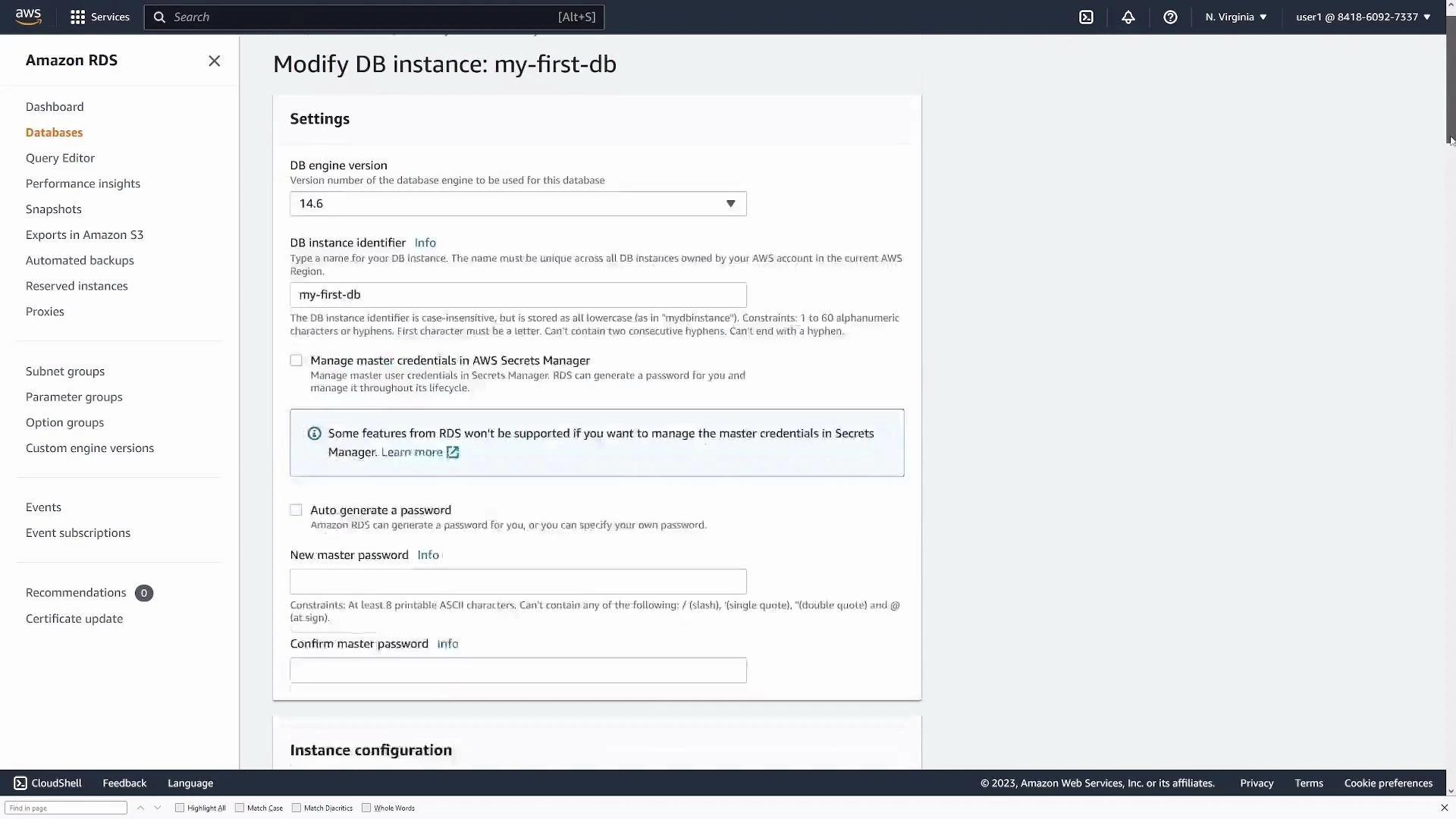
- To change instance class, storage, or other settings, choose Modify on the DB instance page. Many changes can be applied immediately or during the next maintenance window.
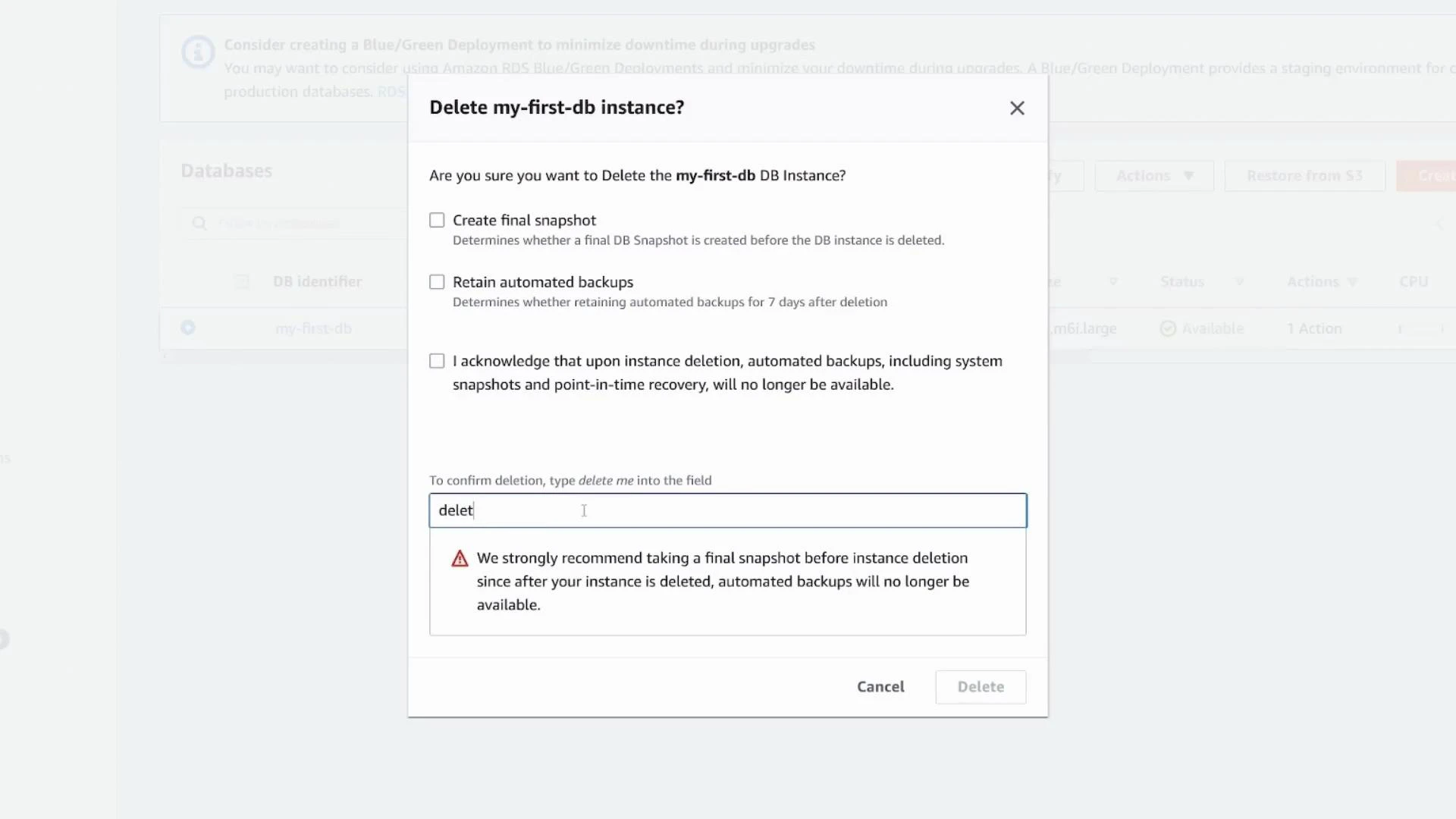
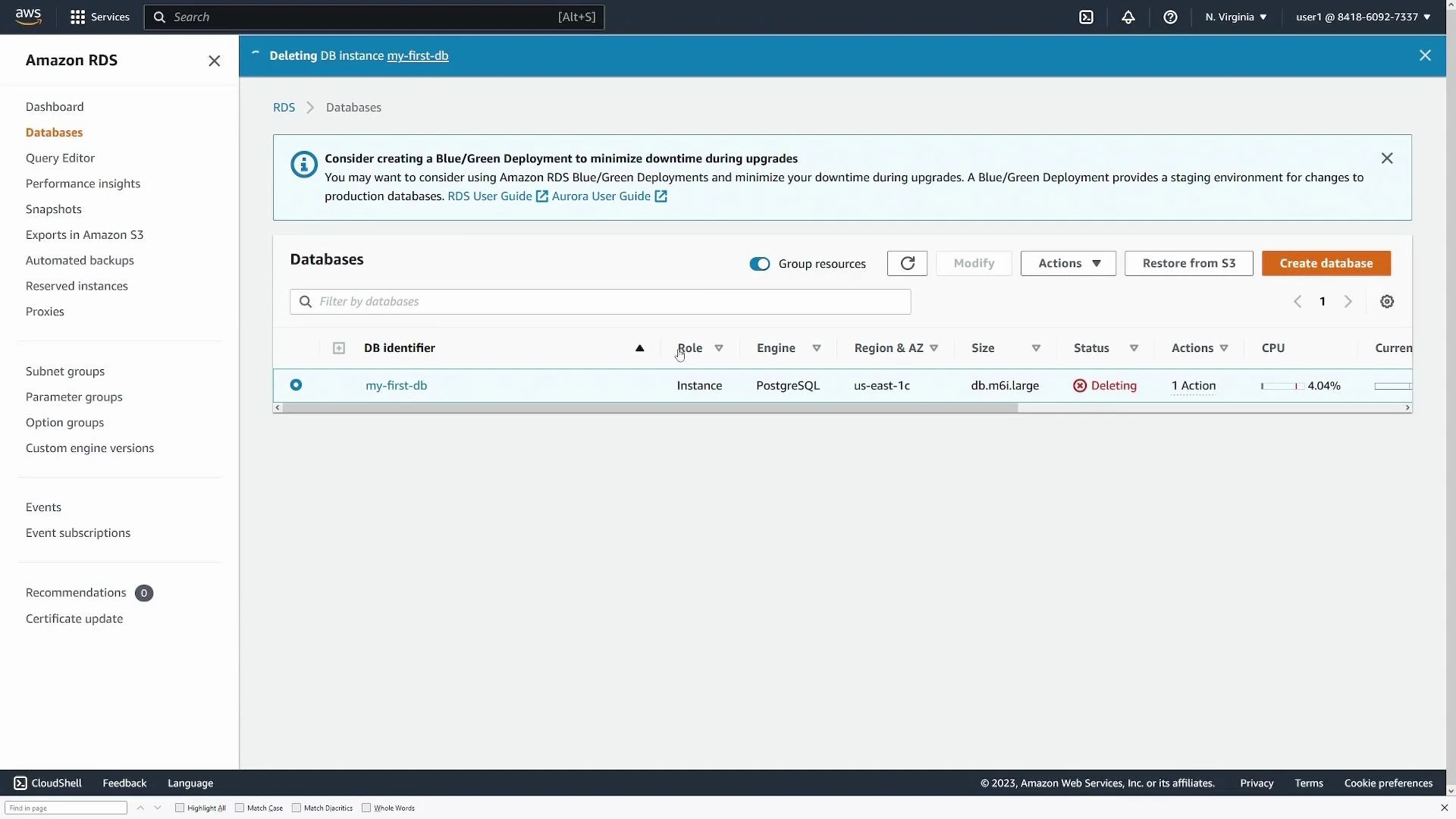
- To remove a demo instance, use Delete. The console prompts to create a final snapshot and retain automated backups. For production systems, always create a final snapshot unless you explicitly want to discard data.
Wrap-up and best practices
Your RDS PostgreSQL instance should now be operational and ready to serve application connections.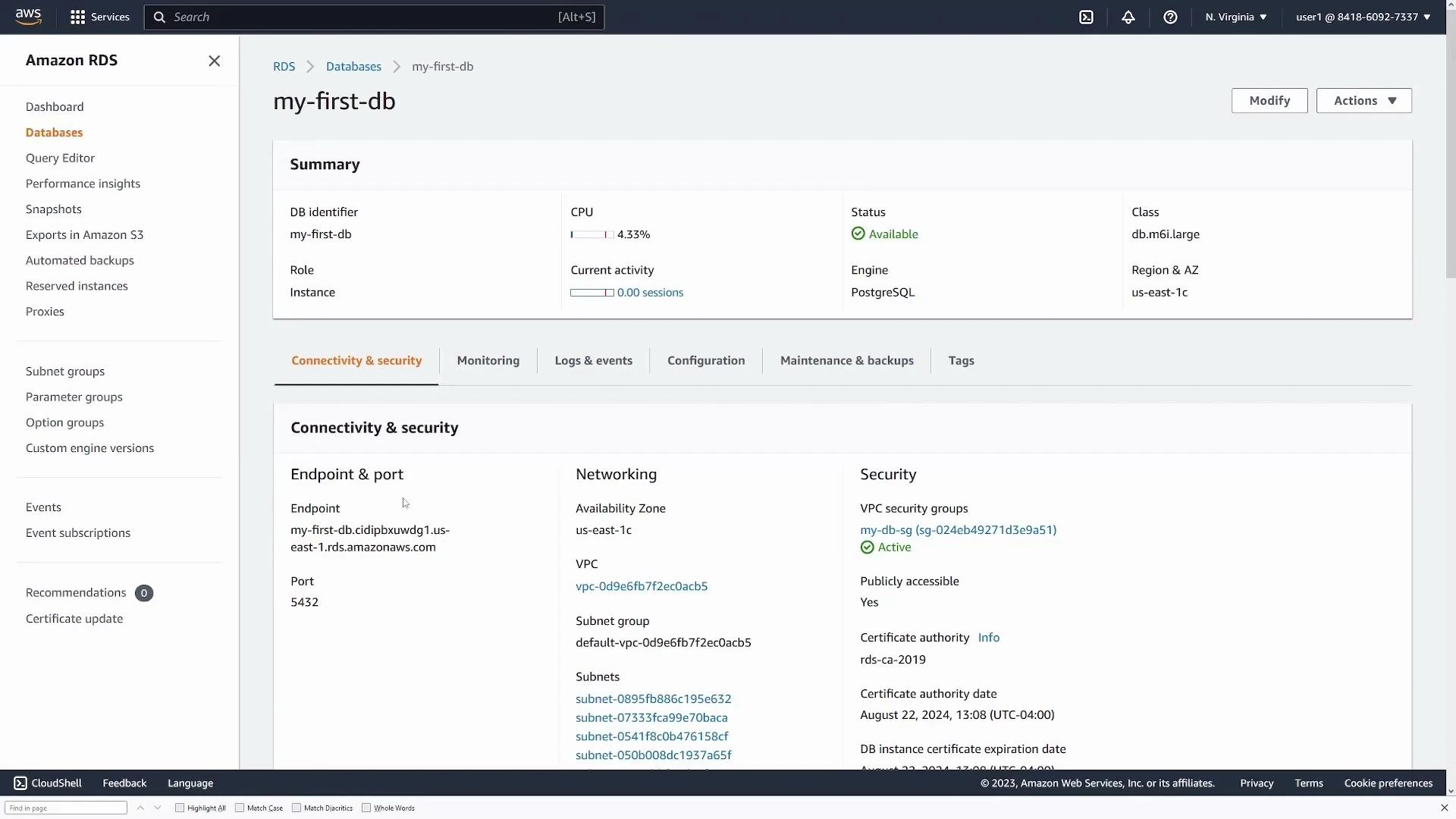
Best practices summary: prefer private DB endpoints (no public access) for production; avoid using the master account in applications; store credentials in AWS Secrets Manager or IAM-based authentication; enable automated backups and Performance Insights; and choose Multi‑AZ for high availability.