

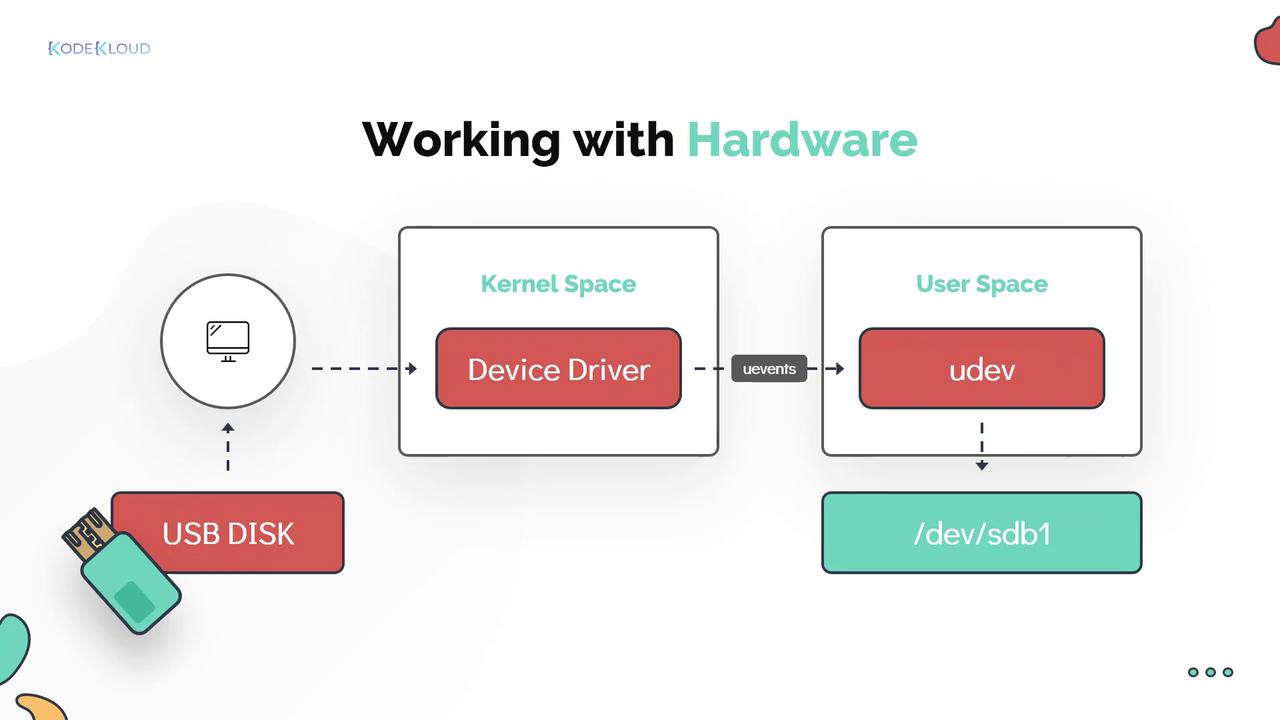
Linux utilizes a series of powerful command-line tools to provide visibility into kernel messages, device events, and hardware configurations. These tools are essential for troubleshooting and system administration.
Viewing Kernel and Device Events
Thedmesg tool displays messages from the kernel’s ring buffer, including extensive boot-time logs that reveal how hardware was detected and configured. You can pipe the output to utilities like less or filter it with grep to search for specific keywords.
The udevadm utility is used to query and monitor device events related to uDev. For example, the following command queries the uDev database and returns the device path associated with a hard disk:
Use
udevadm monitor to track details of newly attached or removed devices—for instance, when unplugging a USB mouse.Listing PCI Devices
Thelspci command lists all PCI devices configured in your system, such as Ethernet cards, RAID controllers, video cards, and wireless adapters. PCI stands for Peripheral Component Interconnect, representing devices directly attached to the motherboard.
Below is an example output from the lspci command:
Viewing Block Devices
Thelsblk command provides detailed information about block devices present on your system. It displays the physical disk (e.g., sda) along with its partitions (e.g., sda1 to sda5). The term “disk” refers to the entire physical disk, while each “partition” is a section of that disk. Devices are also linked with major and minor numbers—where the major number signifies the device driver type (for example, the number 8 indicates a block disk device) and the minor number distinguishes between individual devices handled by the same driver.
Example output from the lsblk command:
Displaying CPU Information
Thelscpu command offers detailed insights into the CPU architecture, such as the number of cores, threads per core, cache sizes, and more.
For instance, the output below illustrates a 64-bit processor with one physical CPU socket, four cores per socket, and two threads per core—resulting in a total of 8 virtual CPUs:
- The CPU architecture is 64-bit.
- There is 1 socket with 4 cores each and 2 threads per core, totaling 8 virtual CPUs.
Displaying Memory Information
To retrieve memory configuration details, use thelsmem command. When combined with the --summary flag, it delivers a brief overview of the system’s memory:
lsmem without any flags.
Alternatively, the free command shows memory usage statistics, including total, used, and free memory. The -m flag displays the information in megabytes:
-k for kilobytes and -g for gigabytes as needed.
Extracting Detailed Hardware Information
Thelshw command extracts comprehensive details about the system’s hardware configuration. This includes memory setup, firmware version, motherboard information, CPU, cache settings, and bus speeds. Note that running lshw without root privileges may generate warnings about incomplete or inaccurate output.
For example, if Bob runs lshw without root, he might see a warning. Dave explains that certain commands require root privileges for complete output. To run lshw with elevated privileges, use sudo:
sudo. After proper authentication, the command output is displayed without warnings. The sudo mechanism logs all superuser command activity for auditing purposes. Below is another example of the sudo lshw output: