Use this file to discover all available pages before exploring further.
In this article, we explore the Domain Name System (DNS)—a critical component in modern networking infrastructure. We will begin with a hands-on lab example, discuss basic networking concepts (including switching, routing, and gateways), and then apply troubleshooting techniques to determine why a software repository URL might be inaccessible.
Imagine two computers on the same network, Computer A and Computer B, with IP addresses 192.168.1.10 and 192.168.1.11 respectively. To test connectivity, you can run a ping command using the IP address:
[~]$ ping 192.168.1.11Reply from 192.168.1.11: bytes=32 time=4ms TTL=117Reply from 192.168.1.11: bytes=32 time=4ms TTL=117
Suppose system B provides database services. Instead of remembering its IP address, you decide to assign it an alias (e.g., db). Initially, if you ping “db”, Computer A will not recognize the name. To resolve this, append an entry in system A’s /etc/hosts file mapping the IP address to the alias:
[~]$ cat >> /etc/hosts192.168.1.11 db
After adding the entry, the ping command uses the mapping from the hosts file:
[~]$ ping dbPING db (192.168.1.11) 56(84) bytes of data.64 bytes from db (192.168.1.11): icmp_seq=1 ttl=64 time=0.052 ms64 bytes from db (192.168.1.11): icmp_seq=2 ttl=64 time=0.079 ms
Remember, the local /etc/hosts file is the definitive source of hostname-to-IP mappings for that system. The system does not verify whether system B’s actual hostname matches the alias you defined. In fact, you can misdirect traffic by associating an unrelated name with the same IP address:
When you ping either alias, the traffic is directed to the same IP address:
[~]$ ping dbPING db (192.168.1.11) 56(84) bytes of data.64 bytes from db (192.168.1.11): icmp_seq=1 ttl=64 time=0.052 ms64 bytes from db (192.168.1.11): icmp_seq=2 ttl=64 time=0.079 ms[~]$ ping www.google.comPING www.google.com (192.168.1.11) 56(84) bytes of data.64 bytes from www.google.com (192.168.1.11): icmp_seq=1 ttl=64 time=0.052 ms64 bytes from www.google.com (192.168.1.11): icmp_seq=2 ttl=64 time=0.079 ms
Every command—whether ping, ssh, or curl—first checks the local /etc/hosts file for IP address mappings. This process of translating a hostname to an IP address is known as name resolution.
However, as the environment expands, updating every system becomes impractical—especially when IP addresses change frequently. Here, centralized DNS offers an efficient alternative. With a DNS server in place, all hosts are configured to query a single point for hostname resolution rather than relying solely on local files.For instance, you might have a centralized list of hosts:
To have all systems use the centralized DNS server (assumed to be at 192.168.1.100), update each system’s /etc/resolv.conf file:
[~]$ cat /etc/resolv.confnameserver 192.168.1.100
Once set, if a hostname cannot be resolved locally, the system forwards the request to the DNS server. This centralization dramatically simplifies managing IP address changes since updates need to be made only on the DNS server.
Local /etc/hosts entries remain effective for names that do not need to be shared network-wide. They take precedence over DNS records as configured in /etc/nsswitch.conf:
[~]$ cat /etc/nsswitch.conf...hosts: files dns...
For example, to set up a test server that is locally resolved only:
[~]$ cat >> /etc/hosts192.168.1.115 test
And test its resolution:
[~]$ ping testPING test (192.168.1.115) 56(84) bytes of data.64 bytes from test (192.168.1.115): icmp_seq=1 ttl=64 time=0.052 ms64 bytes from test (192.168.1.115): icmp_seq=2 ttl=64 time=0.079 ms
If a hostname is not defined locally or on the DNS server, resolution will fail:
[~]$ ping www.facebook.comping: www.facebook.com: Temporary failure in name resolution
To resolve external domains, you can set your internal DNS server to forward queries to a public nameserver such as Google’s 8.8.8.8, or adjust your system configuration accordingly.
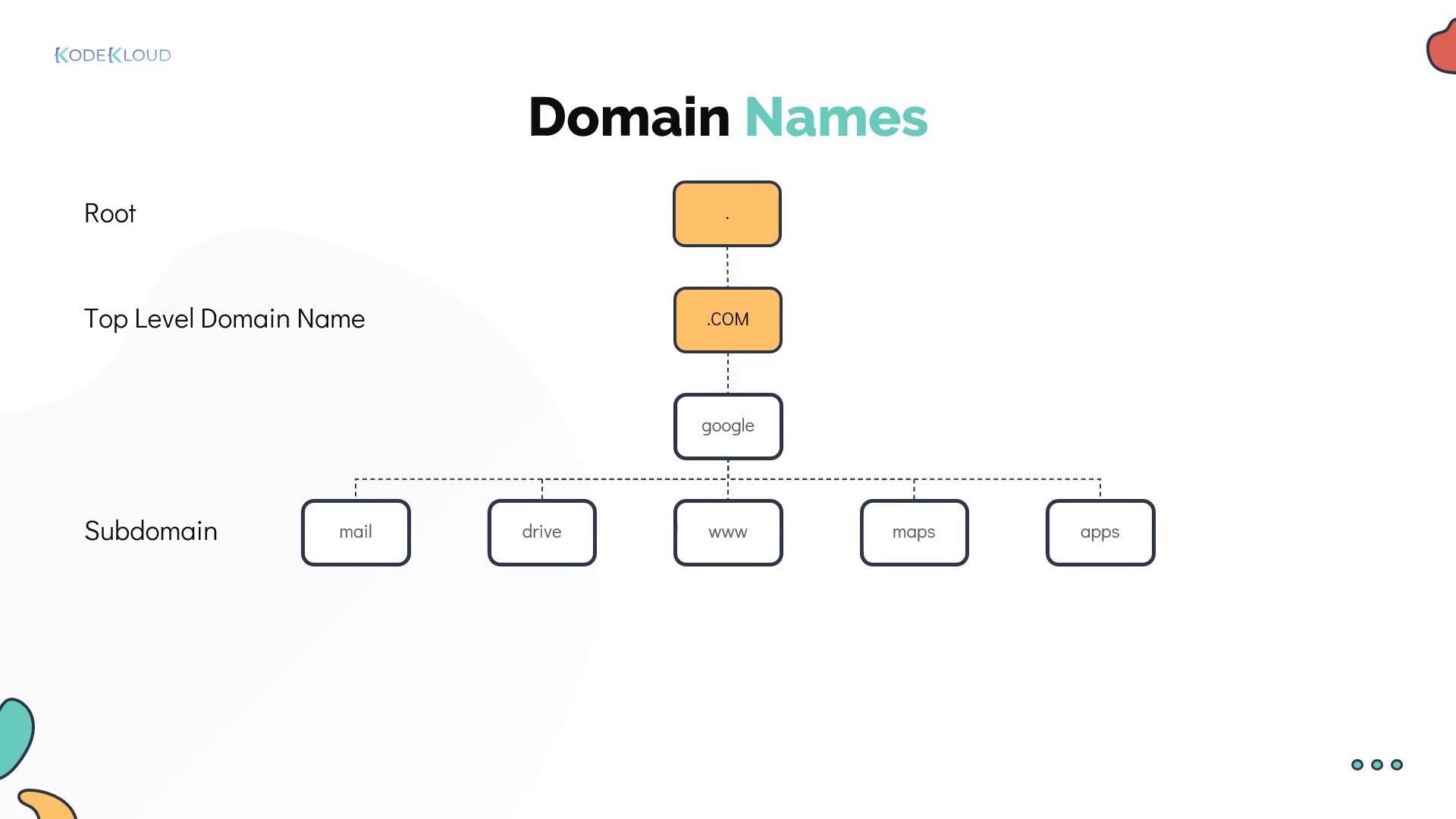
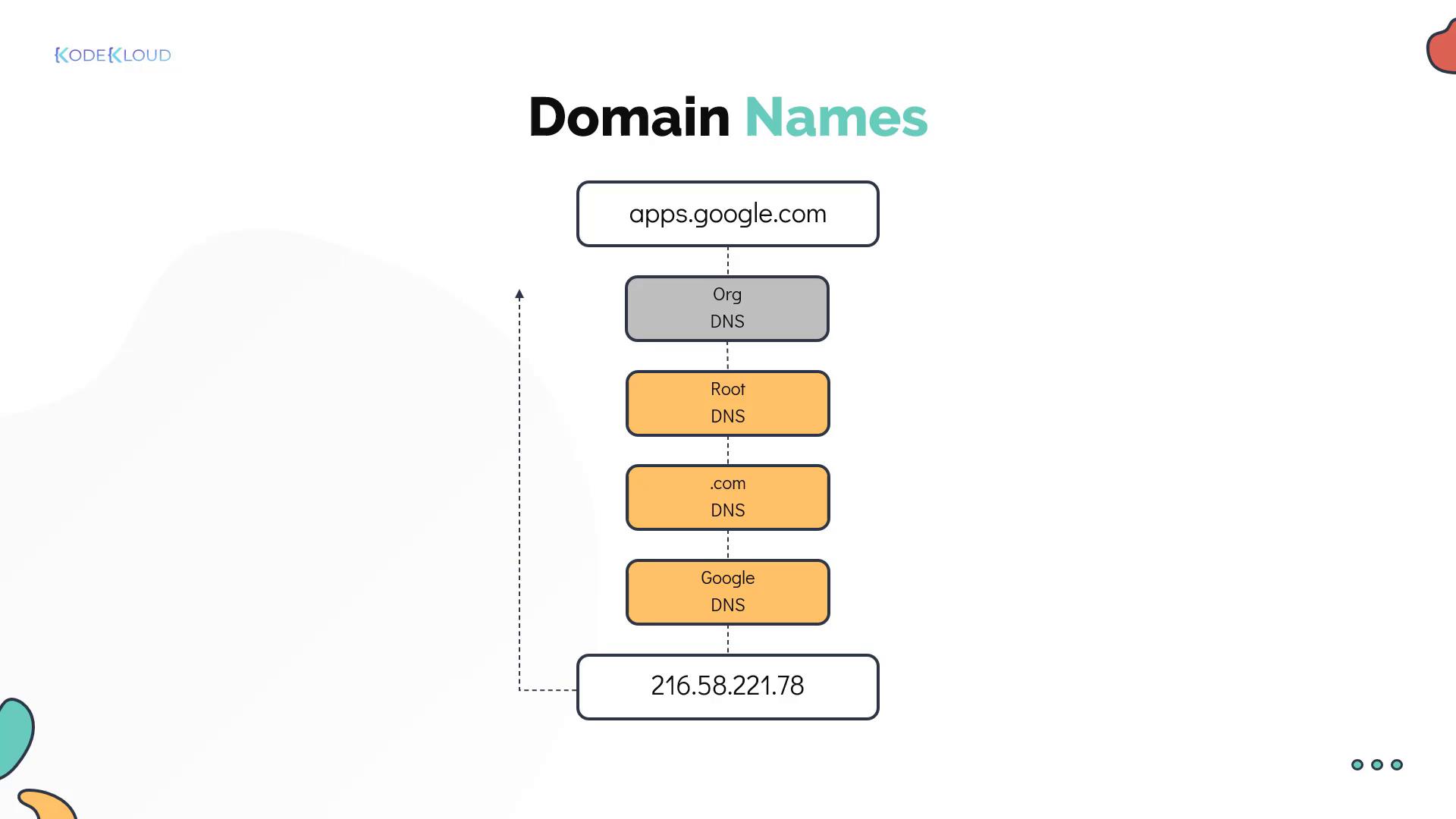
When pinging external sites like www.facebook.com, you’ll notice the inclusion of top-level domains (TLDs), such as .com. Public DNS relies on fully qualified domain names (FQDNs) structured hierarchically.For example, consider Google. Its domain hierarchy is organized as follows:
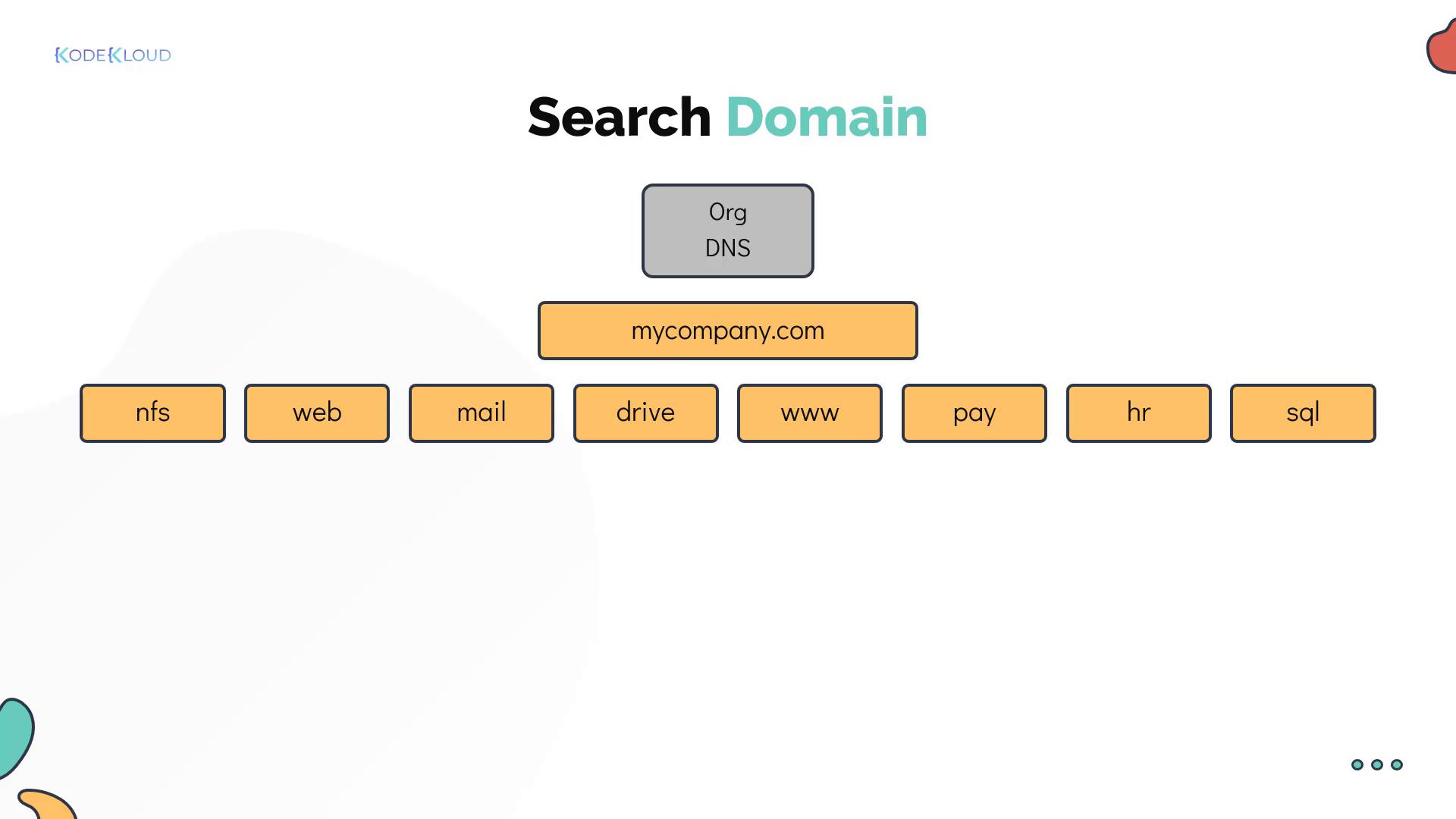
Organizations often implement an internal hierarchical structure similar to public DNS. For instance, a company might use the domain mycompany.com with various subdomains for different services:
These records are centrally managed on your internal DNS server.
You can simplify local hostname resolution by configuring search domains in your /etc/resolv.conf file. This allows short names (e.g., “web”) to automatically be expanded to their fully qualified domain names (e.g., “web.mycompany.com”). For example:
DNS servers store various types of records. The most common include:
A records: Map hostnames to IPv4 addresses.
AAAA records: Map hostnames to IPv6 addresses.
CNAME records: Create an alias that maps one hostname to another. This is useful when a service is accessible by multiple names.
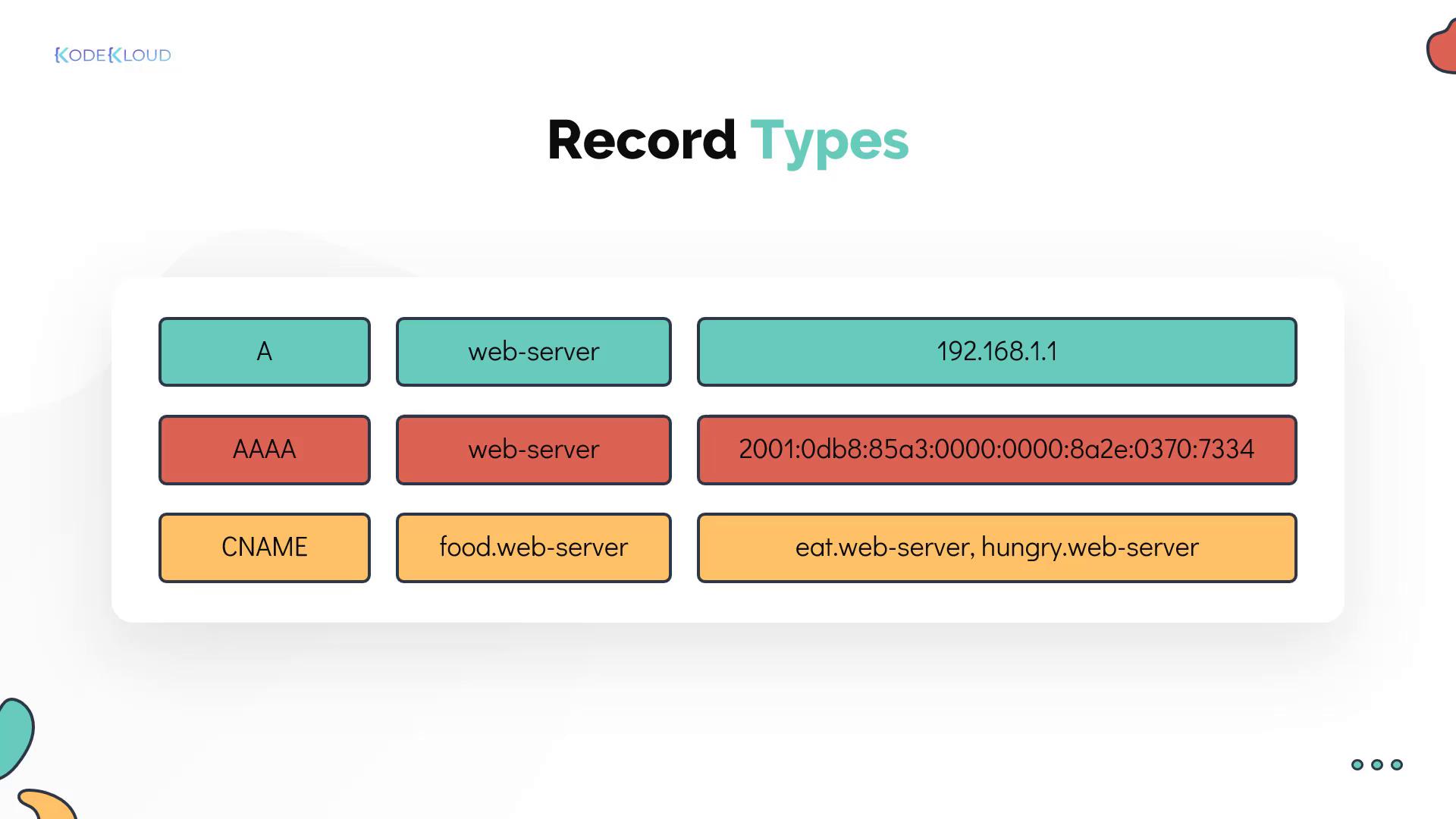
For example, a food delivery service might be accessible via aliases such as “eat” or “hungry” by using a CNAME record.
To troubleshoot DNS resolution without interference from local /etc/hosts entries, you can use diagnostic tools such as nslookup and dig. For example, the nslookup command directly queries your DNS server:
Similarly, dig provides detailed output of the DNS records:
[~]$ dig www.google.com;; <<>> DiG 9.10.3-P4-Ubuntu <<>> www.google.com;; global options: +cmd;; Got answer:;; ->>HEADER<<- opcode: QUERY, status: NOERROR, id: 28065;; flags: qr rd ra; QUERY: 1, ANSWER: 6, AUTHORITY: 0, ADDITIONAL: 1;; OPT PSEUDOSECTION:; EDNS: version: 0, flags:; udp: 512;; QUESTION SECTION:;www.google.com. IN A;; ANSWER SECTION:www.google.com. 245 IN A 64.233.177.103www.google.com. 245 IN A 64.233.177.105www.google.com. 245 IN A 64.233.177.147www.google.com. 245 IN A 64.233.177.106www.google.com. 245 IN A 64.233.177.104www.google.com. 245 IN A 64.233.177.99;; Query time: 5 msec;; SERVER: 8.8.8.8#53(8.8.8.8);; WHEN: Sun Mar 24 04:34:33 UTC 2019;; MSG SIZE rcvd: 139
In the upcoming practice exercises, you will work through hands-on labs focused on viewing, configuring, and troubleshooting DNS in a lab environment.