

ls, touch, mkdir, cp, mv, and rm.
Listing Files and Directories with ls
The ls (list) command displays directory contents. By default, hidden files (those beginning with .) are not shown.
Common ls Usage
Basic Listing
Including Hidden Files
Detailed, Human-Readable Output
Understanding the Linux File System Tree
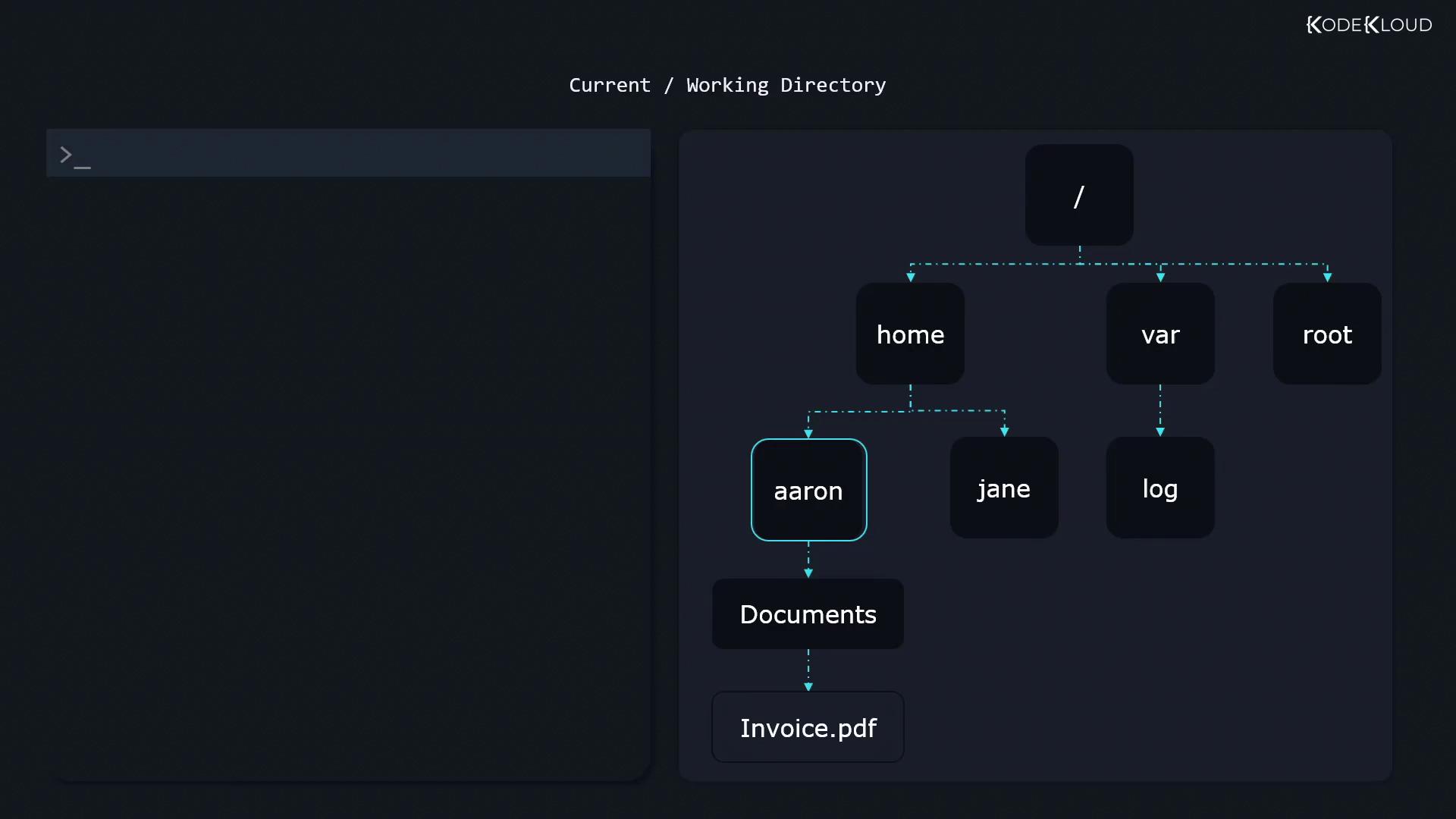
Linux files and directories form an inverted tree with/ as the root. Every path you use is either absolute (from /) or relative (from your current directory).
//home/home/aaron/home/aaron/Documents/home/aaron/Downloads
/var/etc
Absolute paths start with
Relative paths begin from your current directory (check with
/ and always refer to the same location.Relative paths begin from your current directory (check with
pwd).Absolute Path
Relative Path
Creating Files and Directories
- Create an empty file:
- Create a directory:
Copying Files and Directories with cp
Use cp to duplicate files and directories.
Copying a Single File
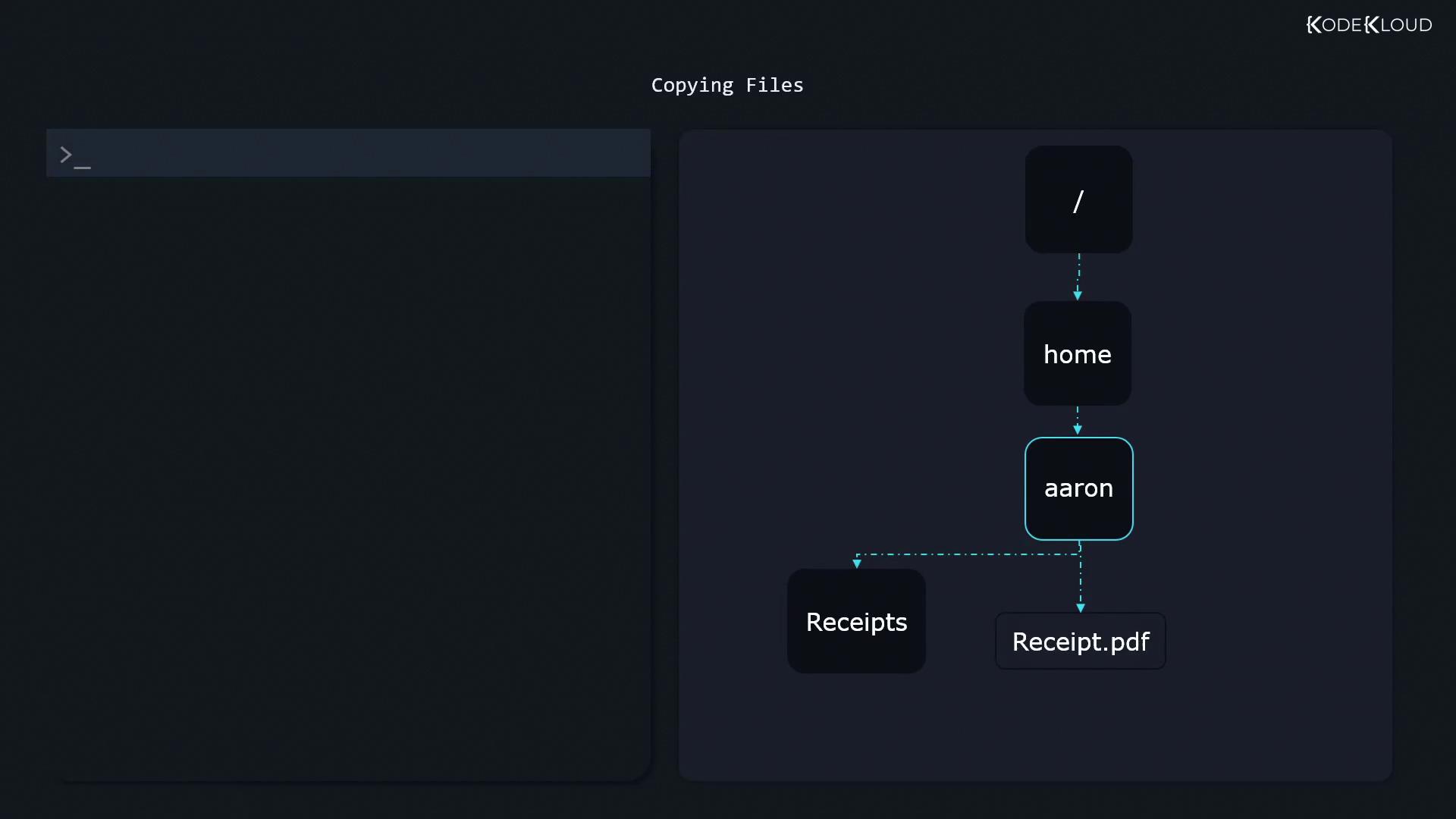
Copying Directories Recursively
Receipts folder and its contents into BackupOfReceipts. Ensure the destination name does not already exist to avoid nesting.
Moving and Renaming with mv
The mv command handles both moving and renaming:
- Move a file:
- Rename a file:
- Rename or move a directory:
mv automatically moves contents.
Deleting Files and Directories with rm
Use caution when removing files and directories:
- Remove a file:
- Remove a non-empty directory:
The
rm -r command permanently deletes directories and their contents. Always double-check the path before pressing Enter!