

Terminal Pagers
Pagers allow you to open large text files inside your shell session and move around without opening a full editor.less: Feature-Rich File Viewer
Theless pager is highly configurable and supports backward navigation, incremental search, and more.
Open a file:
- Up/Down arrows or
j/k Spaceto scroll forward one pagebto scroll back one page
less:
- Press
/ - Enter your search term (e.g.,
debug) - Hit
Enter - Use
nfor next match andNfor previous match
-I:
less:
more: Simple Pager for Quick Viewing
Themore pager is straightforward and ideal for quick lookups.
Open a file:
Spacefor the next pageEnterfor the next line
more:
Comparing less vs more
Vim (VI Improved) Editor
Vim is a powerful modal editor that’s ubiquitous on Linux systems. Understanding its modes is key to efficient editing.Launching Vim
Start without a file (you’ll assign a name before saving):Vim Modes
- Normal (default): Navigate & issue commands
- Insert: Enter text
- Command-line: Save, quit, or run Ex commands
Vim’s modal design separates navigation from text entry. Mastering mode transitions is the first step.
Entering Insert Mode
Pressi to insert text. You’ll see -- INSERT -- at the bottom.
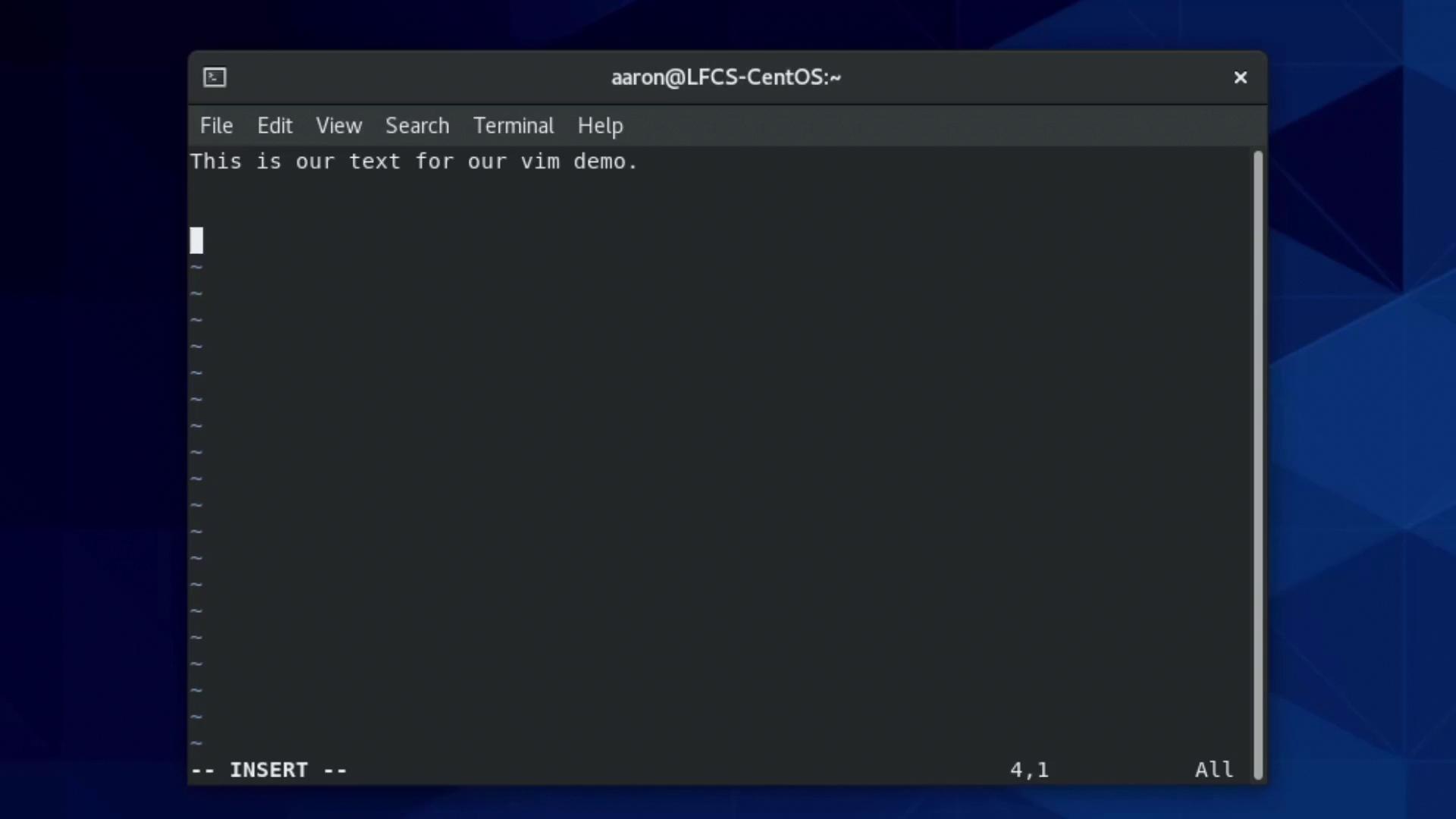
Esc to return to Normal mode.
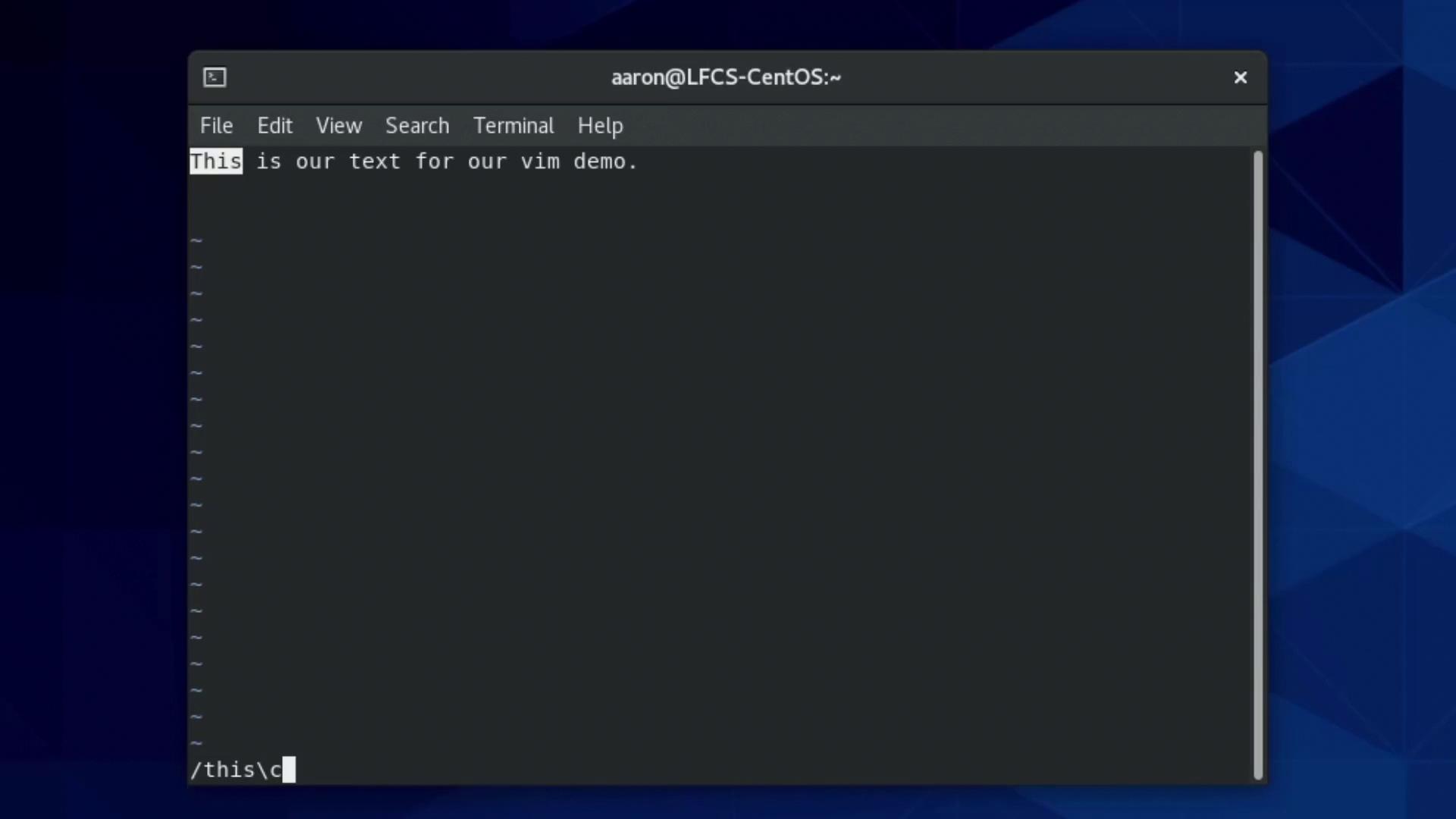
Searching in Normal Mode
- Press
/ - Type your search (e.g.,
is) - Hit
Enter
\c:
Jump to a Specific Line
In Normal mode, type: plus the line number:
Yanking, Cutting & Pasting
Saving & Exiting
Switch to Command-line mode by typing: in Normal mode, then use:
:w— write (save):q— quit:wq— write and quit:q!— quit without saving
Using
:q! will discard all unsaved changes. Be sure you intend to lose your edits before forcing a quit.