

| Login Method | Environment | Key Steps |
|---|---|---|
| Local Graphical | CentOS VM (GNOME) | Select user → Enter password → Sign In |
| Remote Graphical (RDP) | Windows/Linux host | Open RDP client → Connect to VM IP → Authenticate |
| Remote Text-Mode (SSH) | Terminal access | ssh user@host → Enter password → Manage remote host |
1. Local Graphical Login on CentOS
- Power on your CentOS VM with GNOME installed.
- At the login screen:
- Click your Username.
- Type your Password.
- Press Sign In.
- GNOME will load by default.
- To end your session, click your user menu in the top-right corner and select Log Out.
2. Remote Graphical Login via RDP
On your host machine, launch the Remote Desktop client (e.g., Remote Desktop Connection on Windows orremmina on Linux).
- Enter your VM’s IP address and click Connect:

Ensure the CentOS VM’s firewall allows TCP port 3389 for RDP. If needed, run:
- When prompted, enter your Username (
student) and Password:
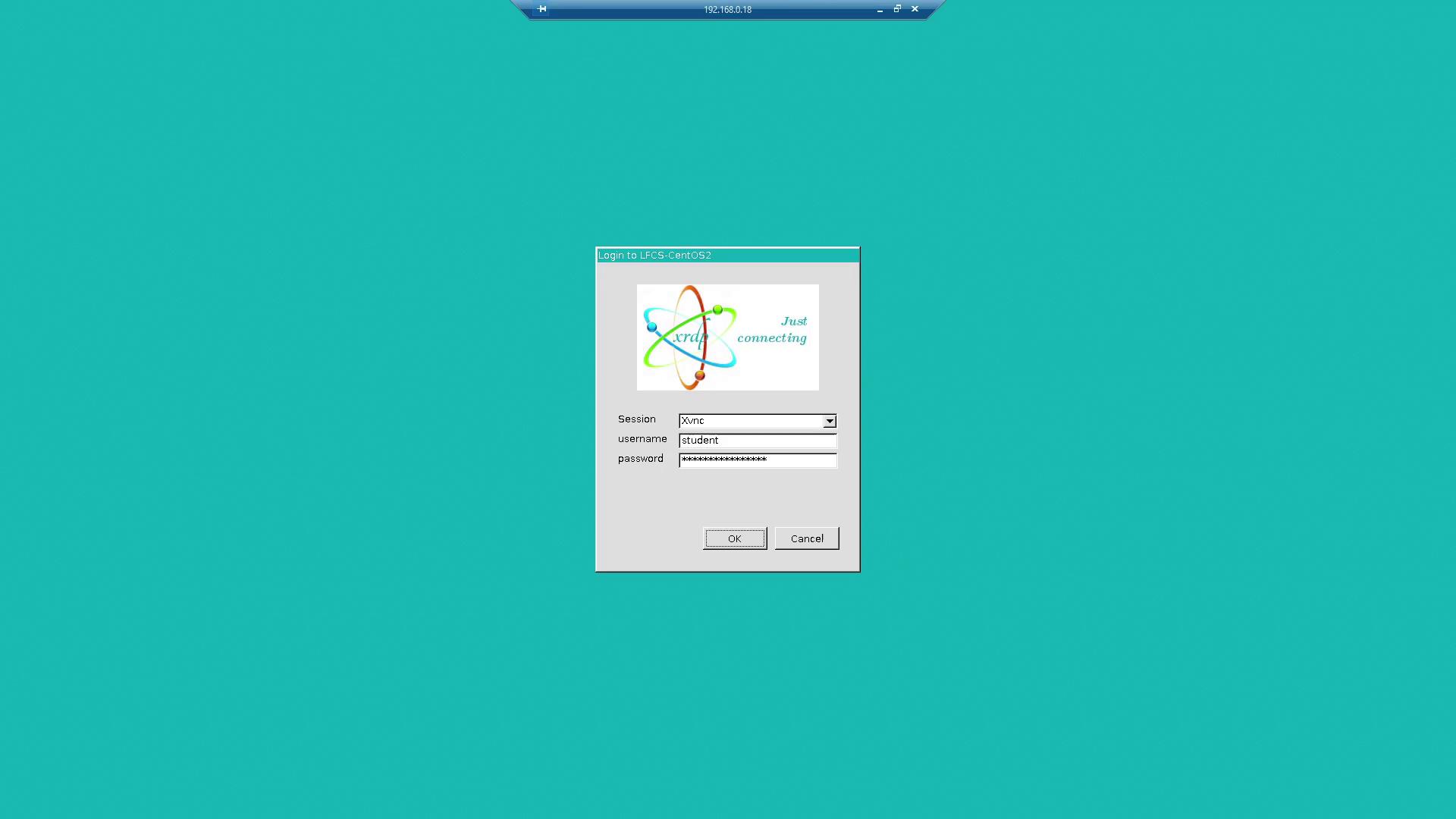
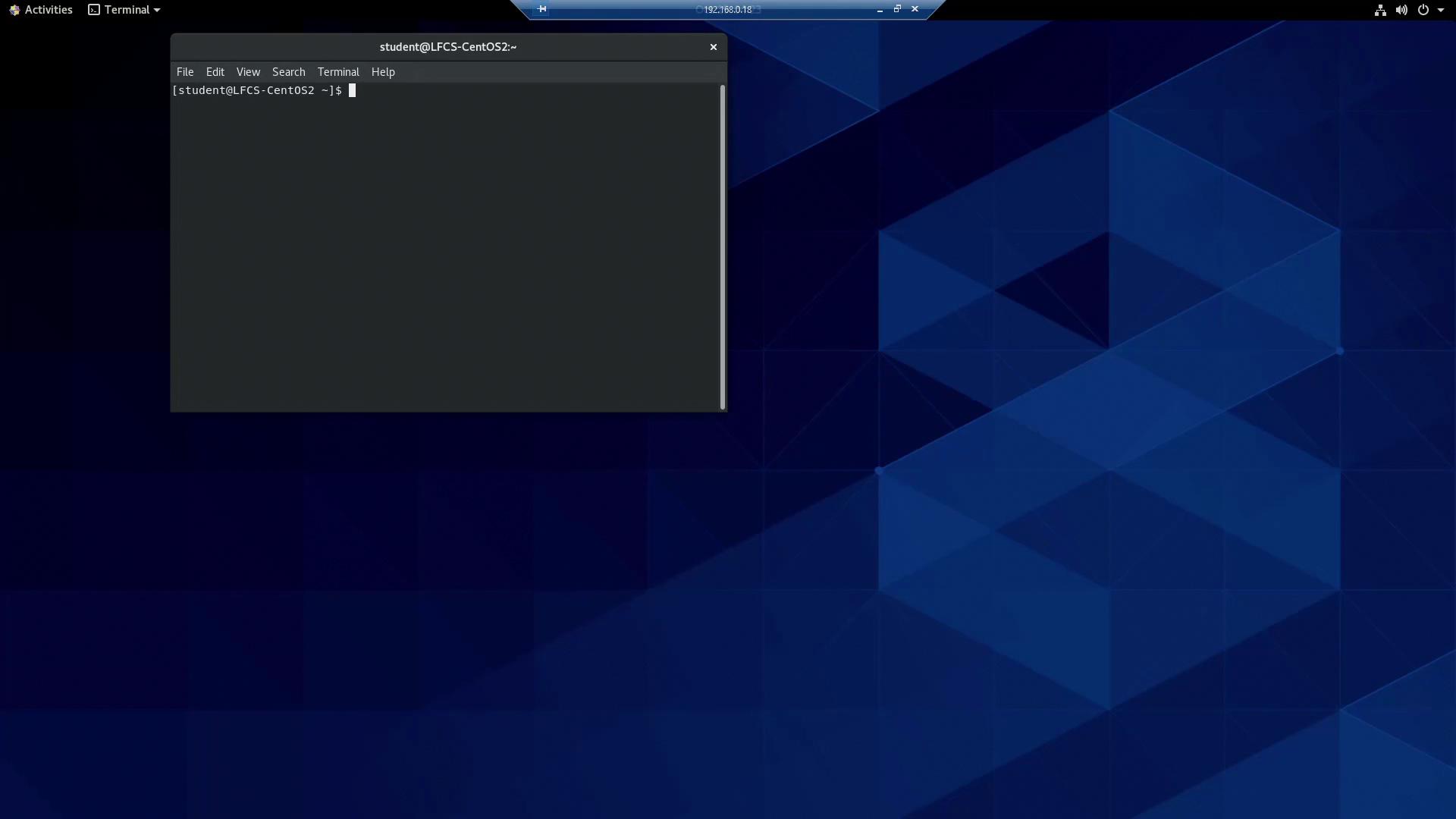
- After logging in, open Activities and launch GNOME Terminal:
3. Remote Text-Mode Login with SSH
From the GNOME Terminal in your remote session (student@LFCS-CentOS2), connect to the target VM (192.168.0.17) as user aaron:
Your password won’t be displayed as you type for security reasons.
aaron@LFCS-CentOS). When you’re done:
student@LFCS-CentOS2. To end the graphical RDP session, simply log out or close the RDP window.
That’s all for this lesson. See you in the next one!