

Section 1: Demos in Jupyter Notebooks
In the first section, you will work directly within a Jupyter Notebook, running individual cells interactively while we explain the code. One useful utility function provided is a helper for visualizing tensors. This function is available in our GitHub repository, allowing you to download and experiment on your own system. Below is an enhanced version of the tensor visualization function:Make sure to download the helper function from our GitHub repository to test it on your own machine.
Section 2: Using VS Code for Development
When developing in Visual Studio Code, it is essential to install the Python extension for an enhanced coding experience. This extension simplifies setting up your development environment and makes executing Python files straightforward with its integrated play button. Below is an example snippet that demonstrates how you might start working in VS Code: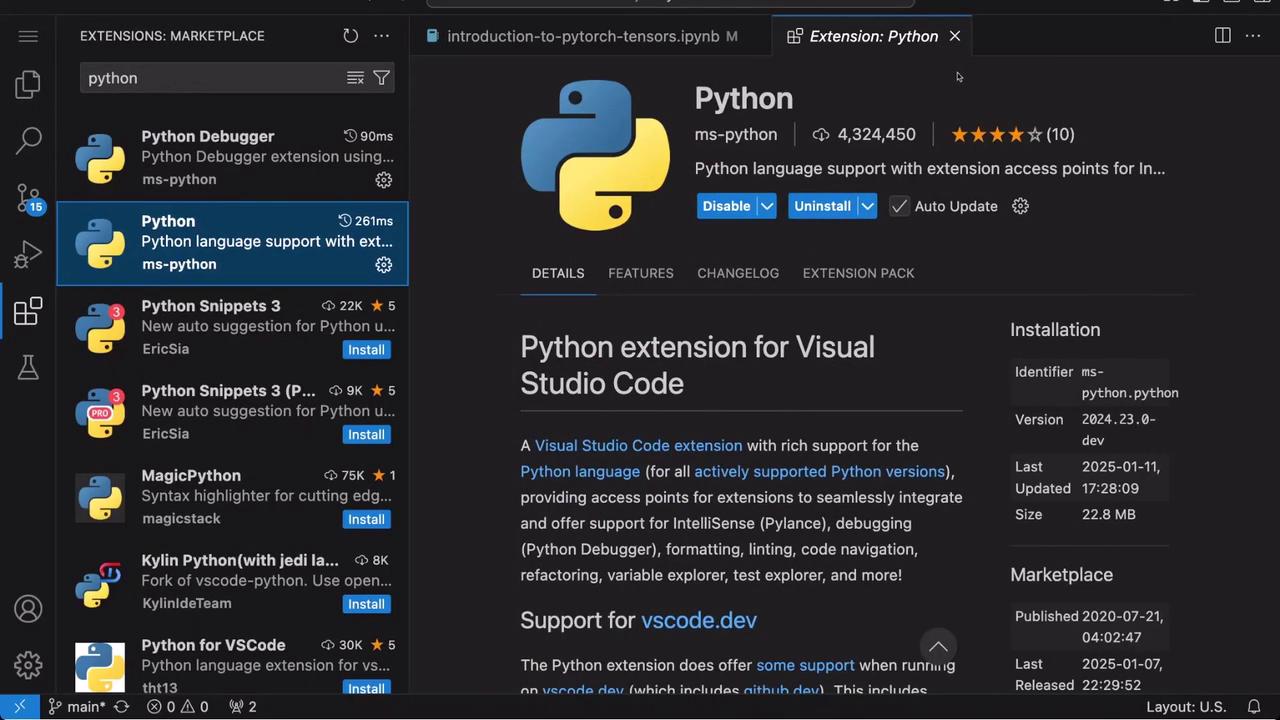
Section 3: Configuring Your Environment with Jupyter
To fully leverage Jupyter notebooks within VS Code, install the Jupyter extension from the marketplace. This extension allows you to run notebooks directly in VS Code and easily switch between different kernels to match your environment settings. In this section, you will also learn how to define dependencies and code a simple model class. Consider the following example:Section 4: Interactive Labs and Running Commands
The final section of the course introduces interactive labs. Here, you’ll alternate between using your IDE and executing commands in the terminal. For instance, you might run a Python script using the terminal as shown below:Running your scripts both in the IDE and the terminal helps solidify your understanding of PyTorch operations across different environments.