This article teaches PyTorch image transformations for data preprocessing and augmentation to enhance model performance and efficiency.
Welcome to this technical lesson on PyTorch image transformations. In this guide, you’ll learn how to utilize PyTorch transformations for data preprocessing and augmentation to boost model performance and efficiency. PyTorch’s TorchVision library offers a comprehensive set of transformation classes that convert raw image data into formats that are optimized for model training and can augment your dataset by adding variability.Below, we demonstrate various transformation techniques—including resizing, random horizontal flips, tensor conversion, normalization, random cropping, photometric distortions, random resizing, and building transformation pipelines with Compose—each explained with its corresponding code snippet.
We begin by defining a helper function to visualize the original image alongside its transformed version. This function is essential for comparing the effects of different transformations in real time.
Copy
Ask AI
import matplotlib.pyplot as pltdef display_images(original_image, new_image=None, new_image_name=None): """ Helper function to display images. If a new image is provided, shows them side by side. """ if new_image is not None: fig, axes = plt.subplots(1, 2, figsize=(10, 5)) axes[0].imshow(original_image) axes[0].axis('on') # Display axis for context axes[0].set_title('Original Image') axes[1].imshow(new_image) axes[1].axis('on') axes[1].set_title(new_image_name) else: plt.figure(figsize=(10, 5)) plt.imshow(original_image) plt.axis('on') plt.show()
You can now use this function to visually compare the before and after images for every transformation applied.
Resizing ensures consistent image dimensions across your dataset. In the example below, we resize the image to 50×25 pixels using the PyTorch v2 API.
Copy
Ask AI
# Using v2 Resize transform to set image dimensions to 50x25 pixelsresize_transform = v2.Resize((50, 25))resized_image = resize_transform(original_image)# Display the resized imagedisplay_images(original_image=original_image, new_image=resized_image, new_image_name="Resized Image")
For those who prefer the v1 API, the same operation can be implemented as follows:
Copy
Ask AI
# Using v1 transforms.Resize for the identical operationresize_transform = transforms.Resize((50, 25))resized_image = resize_transform(original_image)display_images(original_image=original_image, new_image=resized_image, new_image_name="Resized Image")
Random horizontal flips augment your dataset by mirroring images randomly. In this demonstration, we set the flip probability to 100% (p=1) for clarity.
Copy
Ask AI
# Random horizontal flip with 100% probabilityrh_transform = v2.RandomHorizontalFlip(p=1)rhf_image = rh_transform(original_image)display_images(original_image=original_image, new_image=rhf_image, new_image_name="Random Horizontal Flip")
For real-world applications, consider using a probability less than 1 (e.g., p=0.5) to introduce randomness in augmentation.
Before feeding images into a PyTorch model, they must be converted into tensors. This transformation scales pixel intensity values appropriately for model consumption.
Copy
Ask AI
from torchvision.transforms import ToTensor# Convert image to tensortensor_transform = ToTensor()tensor_image = tensor_transform(original_image)print(f"Original Image: {original_image}")print(f"Tensor Image: \n{tensor_image}")
Normalization adjusts pixel intensity values to a standardized range, which is crucial for faster model convergence. Here, we normalize the tensor with a mean and standard deviation of (0.5, 0.5, 0.5).
Copy
Ask AI
# Normalize the tensor imagenormalize_transform = v2.Normalize((0.5, 0.5, 0.5), (0.5, 0.5, 0.5))normalized_image = normalize_transform(tensor_image)# Display normalized tensor along with the original tensor for comparisonprint(normalized_image)print(tensor_image)
Normalization typically shifts the pixel values to a range between -1 and 1, promoting efficient model training.
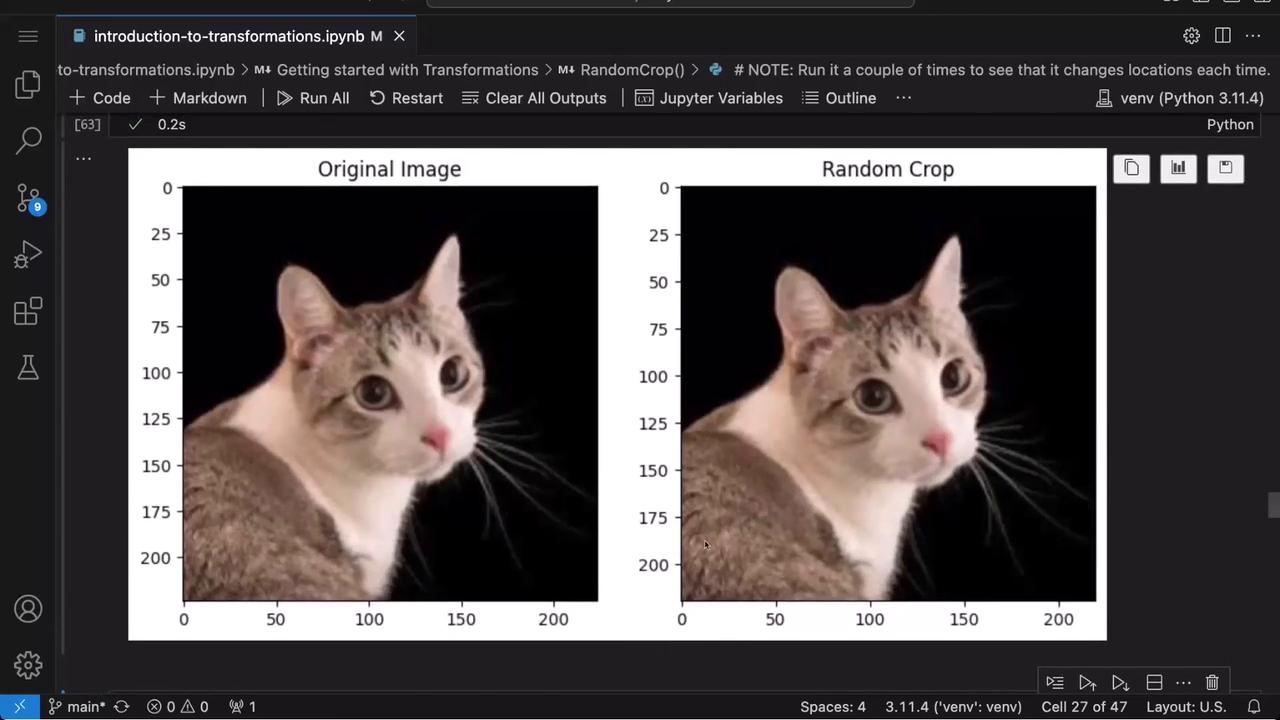
Random cropping extracts a fixed-size region from an image, which is useful for data augmentation. In this example, we extract a 100×100 pixel patch.
Copy
Ask AI
# Randomly crop a 100x100 pixel region from the imagerc_transform = v2.RandomCrop(size=(100, 100))rc_image = rc_transform(original_image)display_images(original_image=original_image, new_image=rc_image, new_image_name="Random Crop")
Running the transformation multiple times yields crops from different parts of the image.
Photometric distortion augments images by adjusting brightness, contrast, saturation, and hue. This increases the variation in lighting conditions, helping to improve model generalization.
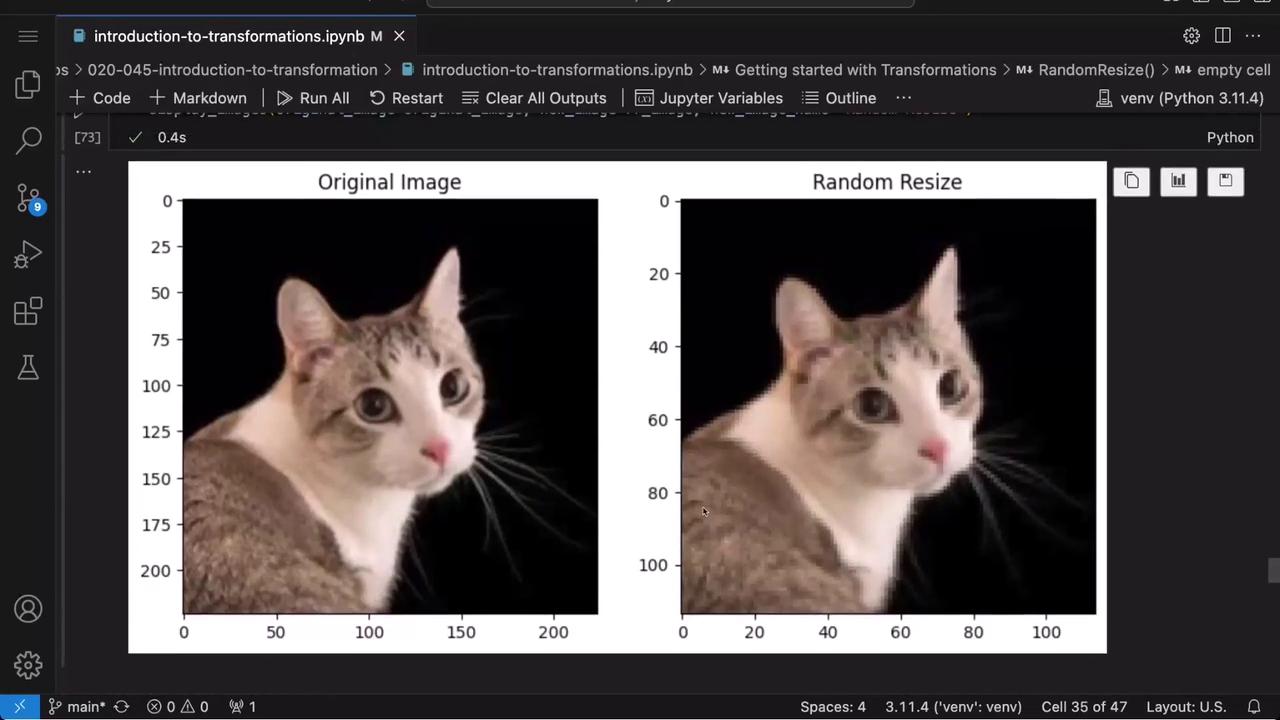
Random resizing applies variable scaling to images, introducing additional diversity into the dataset. Here, the image is randomly resized to a pixel size between 100 and 200.
Copy
Ask AI
# Randomly resize the image between 100 and 200 pixelsrr_transform = v2.RandomResize(min_size=100, max_size=200)rr_image = rr_transform(original_image)display_images(original_image=original_image, new_image=rr_image, new_image_name="Random Resize")
The Compose class enables you to chain multiple transformations together into a single, streamlined pipeline. This approach ensures that every image undergoes the same sequence of augmentations.
Copy
Ask AI
# Build a transformation pipeline combining several augmentationstransforms_pipeline = v2.Compose([ v2.RandomCrop(size=(100, 100)), v2.RandomPhotometricDistort( brightness=(0.875, 1.125), contrast=(0.5, 1.5), saturation=(0.5, 1.5), hue=(-0.05, 0.05), p=1, ), v2.RandomResize(min_size=75, max_size=150), v2.RandomHorizontalFlip(p=1)])# Apply the pipeline to the original imagepipeline_image = transforms_pipeline(original_image)
After applying the pipeline, you can view the transformed image as shown below:
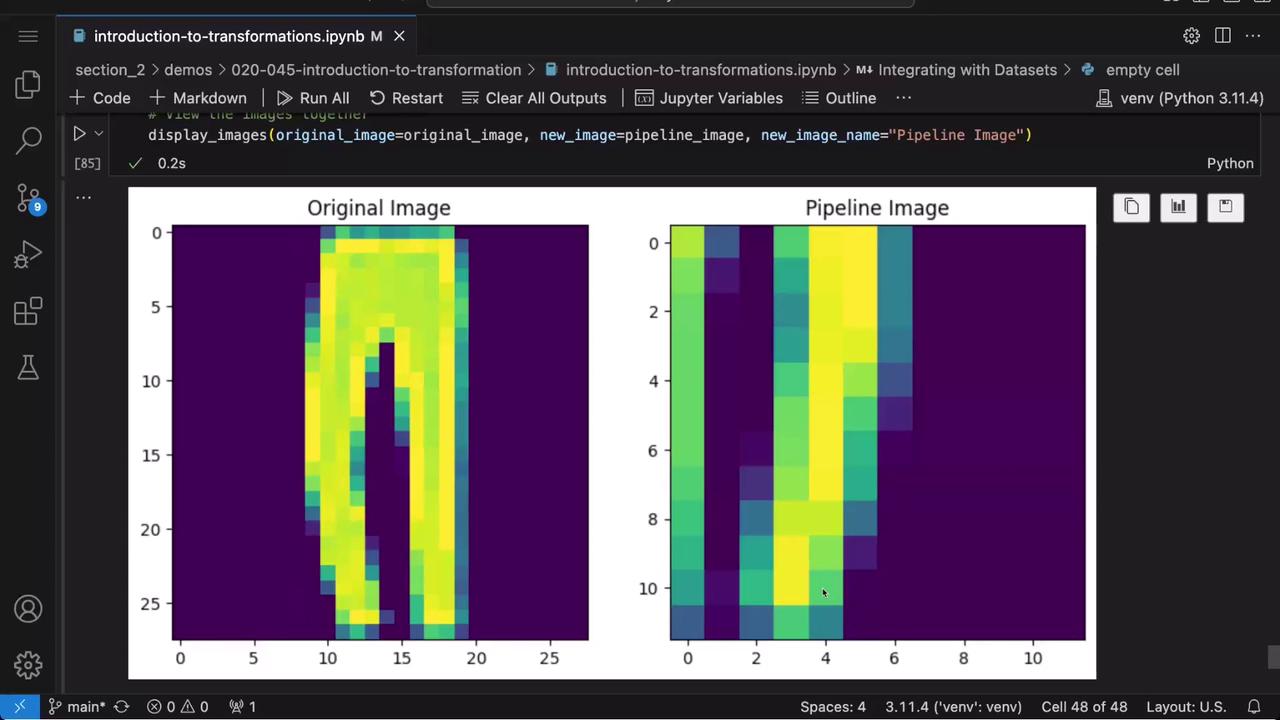
Next, we integrate a transformation pipeline with a real dataset: the Fashion MNIST dataset from TorchVision.
Copy
Ask AI
import torchvision.datasets# Create a FashionMNIST dataset without any transformationoriginal_image_dataset = torchvision.datasets.FashionMNIST(root='./fashion', train=False, download=True)# Retrieve and display an image from the datasetoriginal_image, label = original_image_dataset[2]display_images(original_image=original_image)
Now, we define a transformation pipeline tailored to the smaller dimensions of Fashion MNIST images:
You can integrate these transformations into the dataset by passing the pipeline as the transform argument:
Copy
Ask AI
# Create a new dataset where each image is augmented by the pipelinetransformed_image_dataset = torchvision.datasets.FashionMNIST( root='./fashion', train=False, download=True, transform=transforms_pipeline)# Retrieve a transformed image and display it alongside the originaltransformed_image, label = transformed_image_dataset[2]display_images(original_image=original_image, new_image=transformed_image, new_image_name="Transformed Fashion MNIST Image")
In this lesson, we explored a variety of image transformation techniques using PyTorch’s TorchVision library. We covered resizing, flipping, cropping, photometric adjustments, normalization, and composing pipelines—all critical steps for effective image preprocessing and data augmentation. These techniques not only standardize your dataset but also improve model robustness and performance. Experiment with these transformations to optimize the augmentation strategies for your projects.