This comprehensive guide covers loading preexisting datasets and building custom datasets using PyTorch Datasets and Dataloaders.
Welcome to this comprehensive guide on PyTorch Datasets and Dataloaders. In this lesson, you will learn how to load preexisting datasets from TorchAudio and TorchVision, as well as build and visualize custom datasets. These techniques allow you to efficiently stream data to your model during training while ensuring your data is organized and accessible.
Preloaded datasets are excellent for research and experimentation. In this section, we use TorchAudio’s built-in DR_VCTK (Device Recorded VCTK) dataset. The snippet below downloads the test subset of the dataset into a folder named “audio”. Note that the dataset is sizable (approximately 1.6 GB) and may take a minute or two to download.
Copy
Ask AI
# Let's begin with preloaded audio filesimport torchaudio.datasets# Create a dataset using DR_VCTK (Device Recorded VCTK)audio_dataset = torchaudio.datasets.DR_VCTK(root='./audio', subset='test', download=True)
Once the download is complete, you can inspect the ./audio folder to explore the dataset.
Next, we explore preloaded image datasets using TorchVision. In this example, we use the FashionMNIST classification dataset. A transformation is applied to convert images to tensors for further processing.
Copy
Ask AI
import torchvision.datasetsfrom torchvision.transforms import ToTensor# Create a dataset from the FashionMNIST classification datasetimage_dataset = torchvision.datasets.FashionMNIST( root='./fashion', train=False, download=True, transform=ToTensor())
After downloading, the dataset is stored in the “fashion” directory. You can inspect the class labels and index mapping as shown below:
Copy
Ask AI
# Display dataset classes and their index mappingprint(image_dataset.classes)print(image_dataset.class_to_idx)# Create a reversed mapping for readabilityclass_to_index_map = image_dataset.class_to_idxindex_to_class_map = {v: k for k, v in class_to_index_map.items()}print(index_to_class_map)
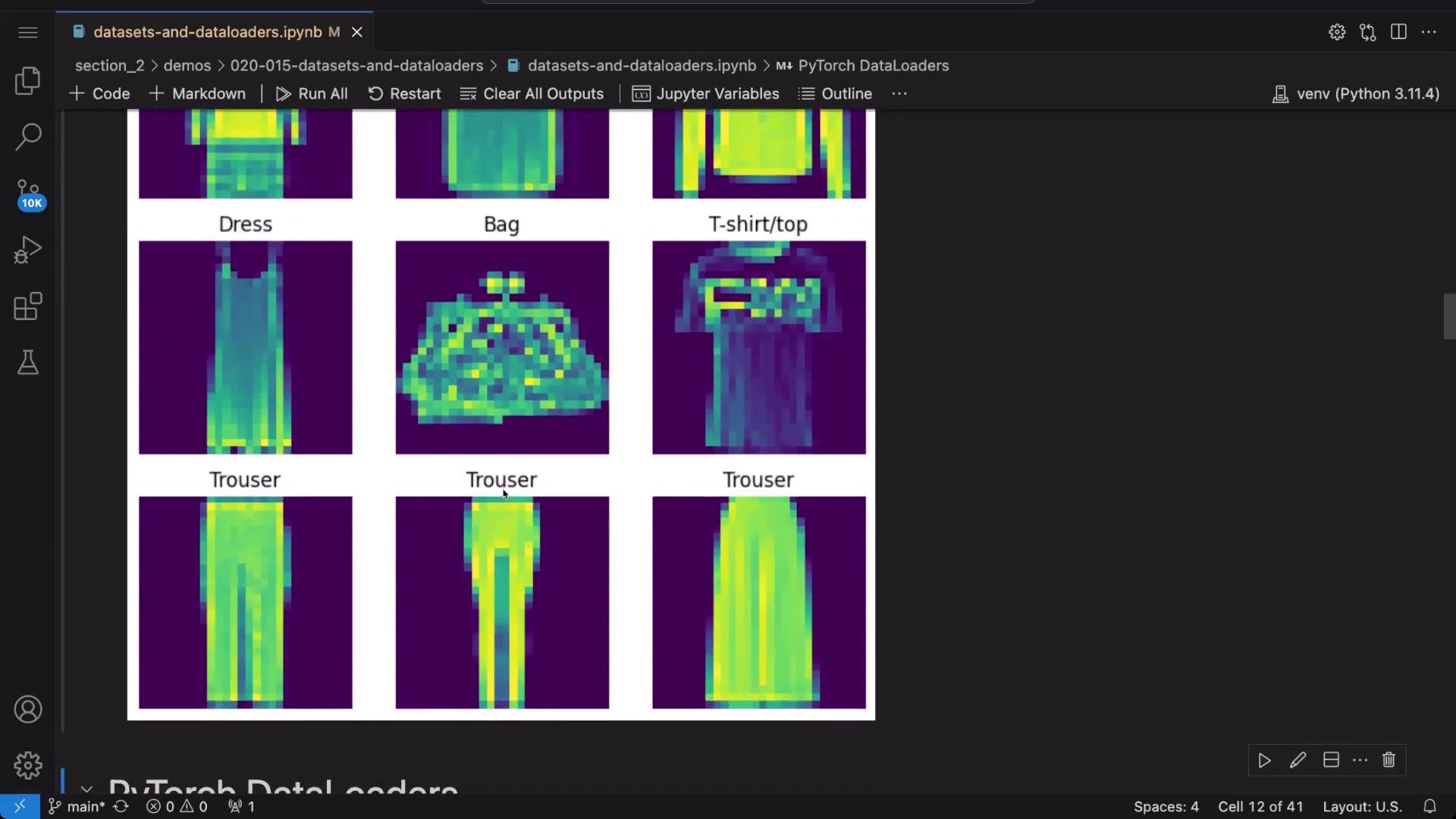
Visualizing a subset of the dataset helps to better understand the data. The following code randomly displays a grid of 9 images along with their labels:
Copy
Ask AI
import torchimport matplotlib.pyplot as plt# Set up a plot for 9 random imagesfigure = plt.figure(figsize=(8, 8))cols, rows = 3, 3for i in range(1, cols * rows + 1): sample_idx = torch.randint(len(image_dataset), size=(1,)).item() img, label = image_dataset[sample_idx] figure.add_subplot(rows, cols, i) plt.title(index_to_class_map[label]) plt.axis("off") plt.imshow(img.squeeze())plt.show()
Alternatively, you can visualize the dataset with a different grid layout:
A DataLoader handles the batching and shuffling of your dataset during training. Below is an example that demonstrates how to create a DataLoader for the FashionMNIST dataset with a batch size of 64, ensuring that the data is shuffled during training.
Copy
Ask AI
from torch.utils.data import DataLoaderimage_dataloader = DataLoader( dataset=image_dataset, batch_size=64, shuffle=True, num_workers=1)
To evaluate a single batch, iterate over the DataLoader once:
Copy
Ask AI
# Retrieve one batch of images and labelsfeatures, labels = next(iter(image_dataloader))print(f"Features shape: {features.size()}")print(f"Labels shape: {labels.size()}")
For example, the output might be:
Copy
Ask AI
Features shape: torch.Size([64, 1, 28, 28])Labels shape: torch.Size([64])
This confirms that each batch contains 64 grayscale images of size 28x28 along with their corresponding labels.To further visualize a random image from the batch and display its human-readable label:
Copy
Ask AI
import random# Select a random index from the batchrand_idx = random.randint(0, labels.size(0) - 1)# Extract the image and labelimg = features[rand_idx].squeeze()label = labels[rand_idx]# Plot the image using a gray colormap for better clarityplt.imshow(img, cmap='gray')plt.show()# Print the label and its corresponding class nameprint(f"Label: {label} -> {index_to_class_map[label.item()]}")
Executing this code snippet repeatedly will display various images and their correct labels from the dataset.
If you have your own image collection and corresponding labels, you can define a custom dataset using PyTorch’s Dataset class. In this example, we assume that image file paths and labels are stored in a CSV file named labels.csv.
Ensure your CSV file is formatted correctly, as shown in the example below.
Similar to preloaded datasets, you can create a DataLoader for your custom dataset. Even if the dataset contains fewer images than the specified batch size (64 in this example), the DataLoader will return all available samples.
Copy
Ask AI
custom_dataloader = DataLoader(dataset=custom_dataset, batch_size=64, shuffle=True)# Retrieve a batch from the custom DataLoaderfeatures, labels, urls = next(iter(custom_dataloader))print(f"Features shape: {features.size()}")print(f"Labels shape: {labels.size()}")
For example, the output might be:
Copy
Ask AI
Features shape: torch.Size([10, 3, 224, 224])Labels shape: torch.Size([10])
To visualize a random image from this batch with its corresponding label:
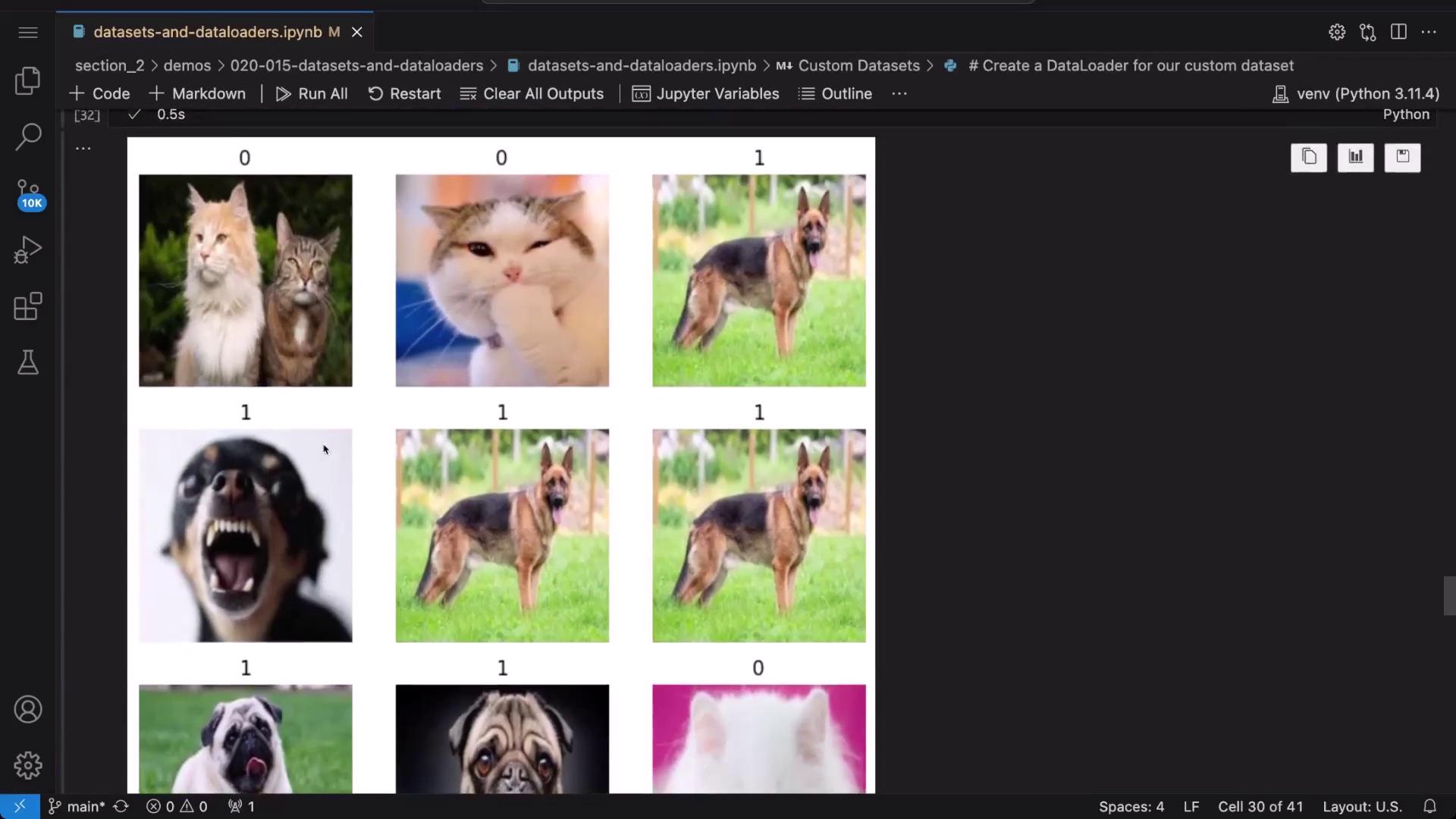
An efficient alternative for organizing images is to use TorchVision’s ImageFolder. When your images are arranged such that each class has its own subdirectory, ImageFolder automatically assigns labels based on these subdirectory names.
Copy
Ask AI
import torchvisionfrom torchvision import transforms# Create a dataset using ImageFolderimage_folder_dataset = torchvision.datasets.ImageFolder( root="images", # Directory containing class subdirectories transform=transforms.Compose([transforms.ToTensor()]))print(image_folder_dataset)print(image_folder_dataset.classes)print(image_folder_dataset.class_to_idx)
To visualize a batch of images from the ImageFolder dataset:
Copy
Ask AI
# Retrieve one batch of images and labelsimages, labels = next(iter(image_folder_dataloader))fig, axes = plt.subplots(1, len(images), figsize=(8, 8))for i, (img, label) in enumerate(zip(images, labels)): img = img.permute(1, 2, 0) # Convert from (C, H, W) to (H, W, C) axes[i].imshow(img) axes[i].set_title(image_folder_dataset.classes[label]) axes[i].axis("off")plt.show()
This approach leverages the directory structure to automatically generate class labels, simplifying dataset creation when working with well-organized image folders.
In this guide, we demonstrated techniques for working with preloaded datasets and DataLoaders in PyTorch, as well as methods for creating and visualizing custom datasets. These approaches help streamline data loading and preprocessing for model training, whether you’re using built-in libraries or your own data collections. Happy coding and exploring with PyTorch!