

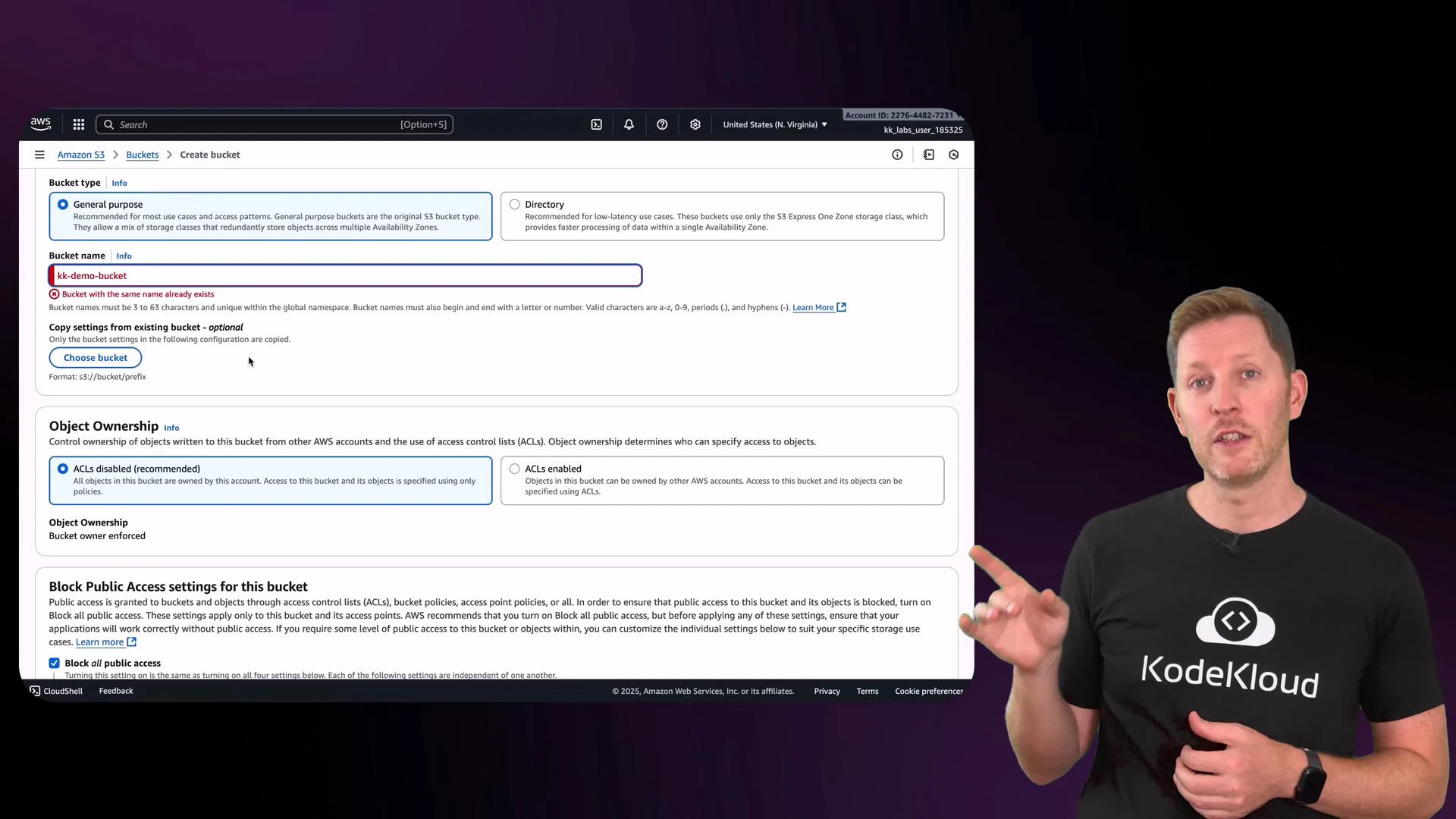
Creating a bucket — key settings to review
When creating a bucket, pay attention to these controls and their recommended use:- Object ownership: Set to “bucket owner enforced” to disable ACLs and ensure objects uploaded by other accounts are owned by your bucket account. This centralizes access control to IAM and bucket policies.
- Block Public Access: Enabled by default. Keeps objects from being publicly accessible unless you explicitly allow it. Recommended for secure-by-default posture.
- Versioning: When enabled, S3 preserves all versions of every object in a bucket. Great for backups and recovering from accidental deletes, but increases storage usage and cost.
- Tags: Key/value pairs for organizing resources. Useful for billing, automation, and filtering.
Uploading objects and storage classes
After creating the bucket you can upload objects. Each object has metadata such as content type, last-modified timestamp, size, and a storage class that determines cost and retrieval behavior. You can select a storage class during upload or use lifecycle rules to migrate objects automatically. Before uploading, verify the Permissions tab to confirm ownership and public access settings match your security requirements. In the Properties tab you can view or set storage class options during upload. The S3 console includes a pricing table and descriptions for each storage class so you can compare performance, retrieval latency, and cost by region.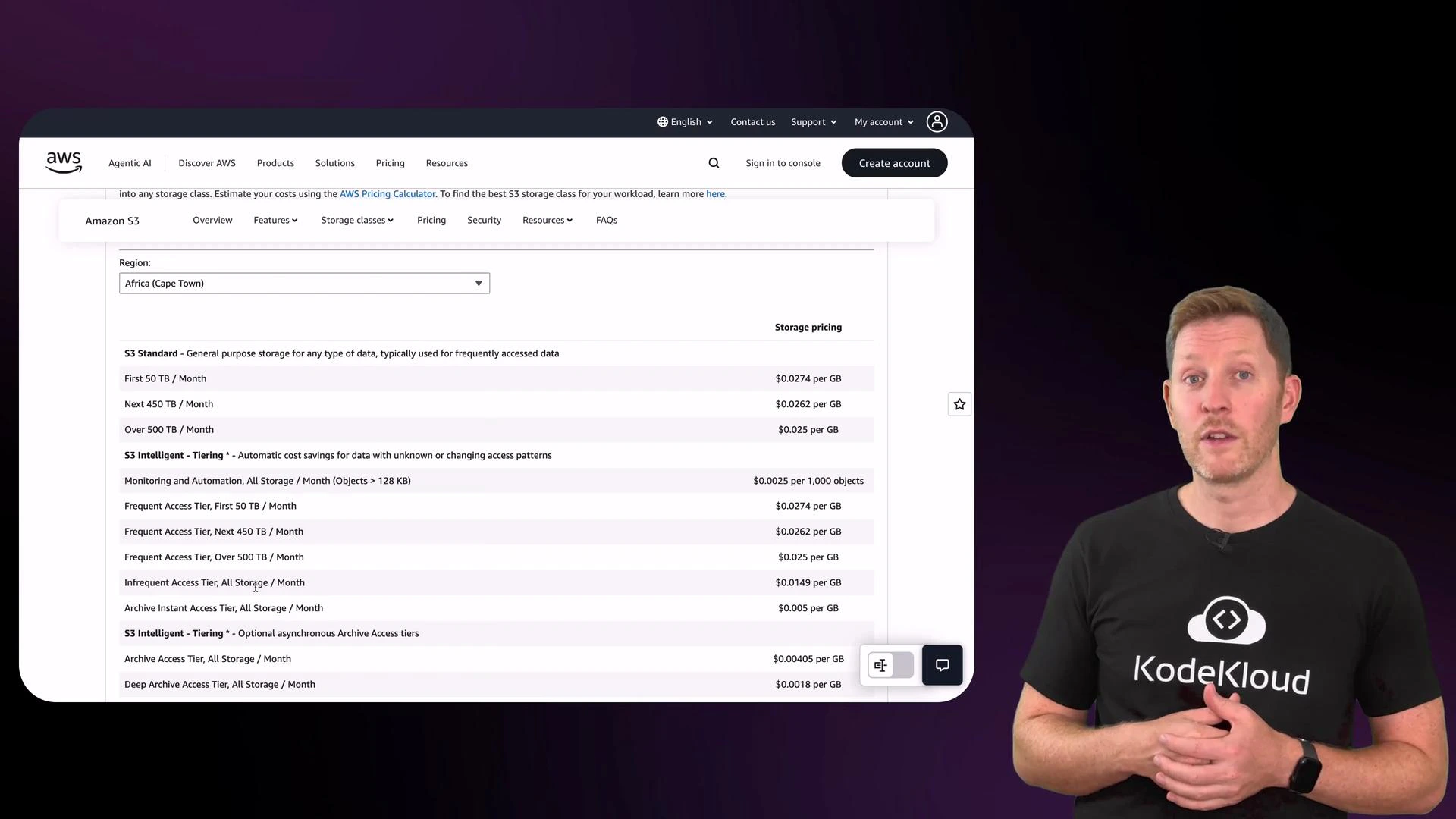
Storage class summary
Lifecycle rules — automate cost optimization
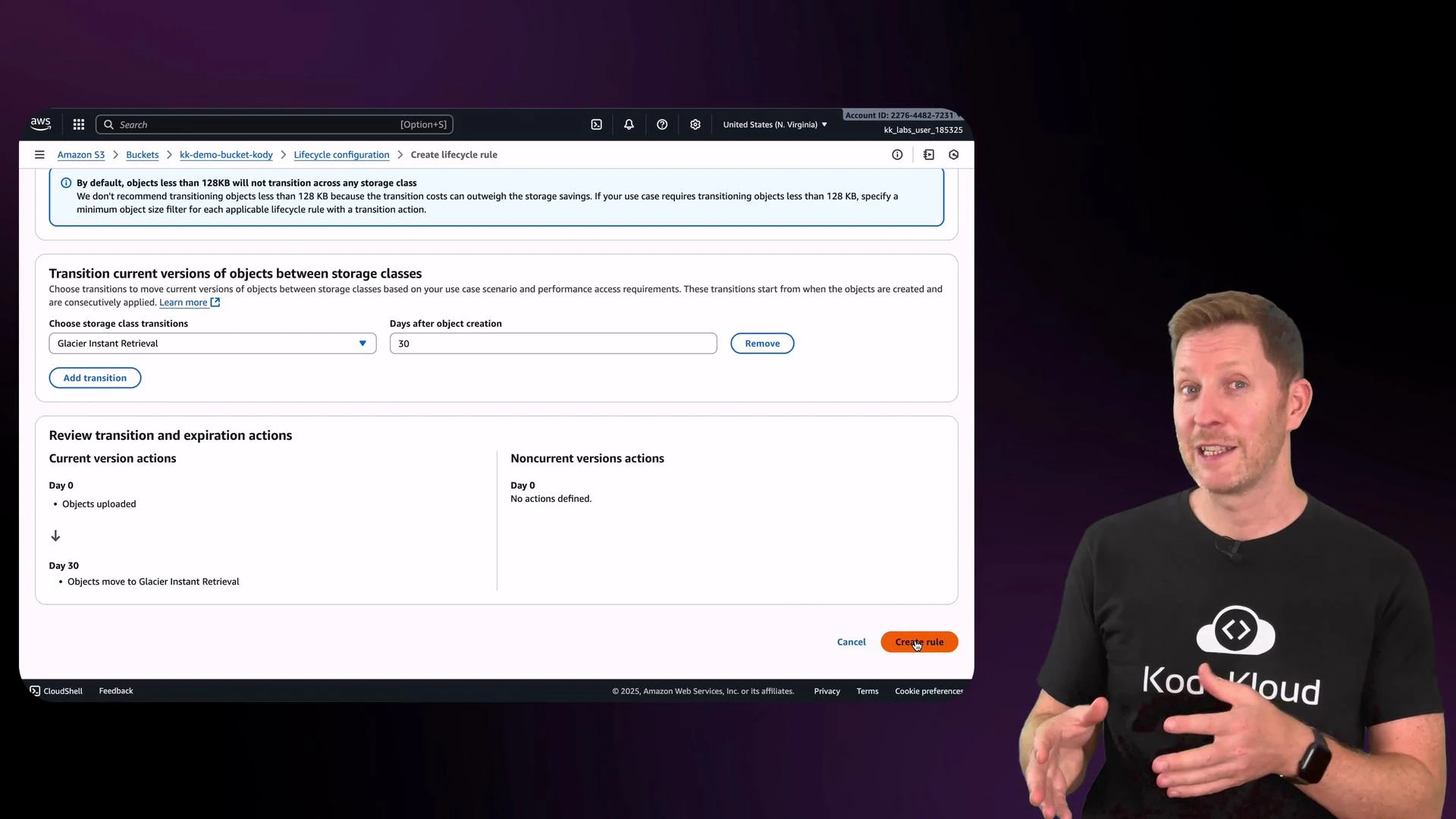
Lifecycle rules let you automate transitions between storage classes or expire objects after a certain time. From the Management tab, click Create lifecycle rule and give it a name. You can then specify filters (prefix, tags, size) and actions (transition current versions, transition noncurrent versions, expire objects). Example: transition current object versions to a cheaper storage class after 30 days. If you don’t use versioning, select options that apply only to current versions. Important lifecycle considerations:- Transitioning objects may incur transition costs.
- Some storage classes have minimum storage duration charges (for example, Glacier Instant Retrieval typically has a 90-day minimum).
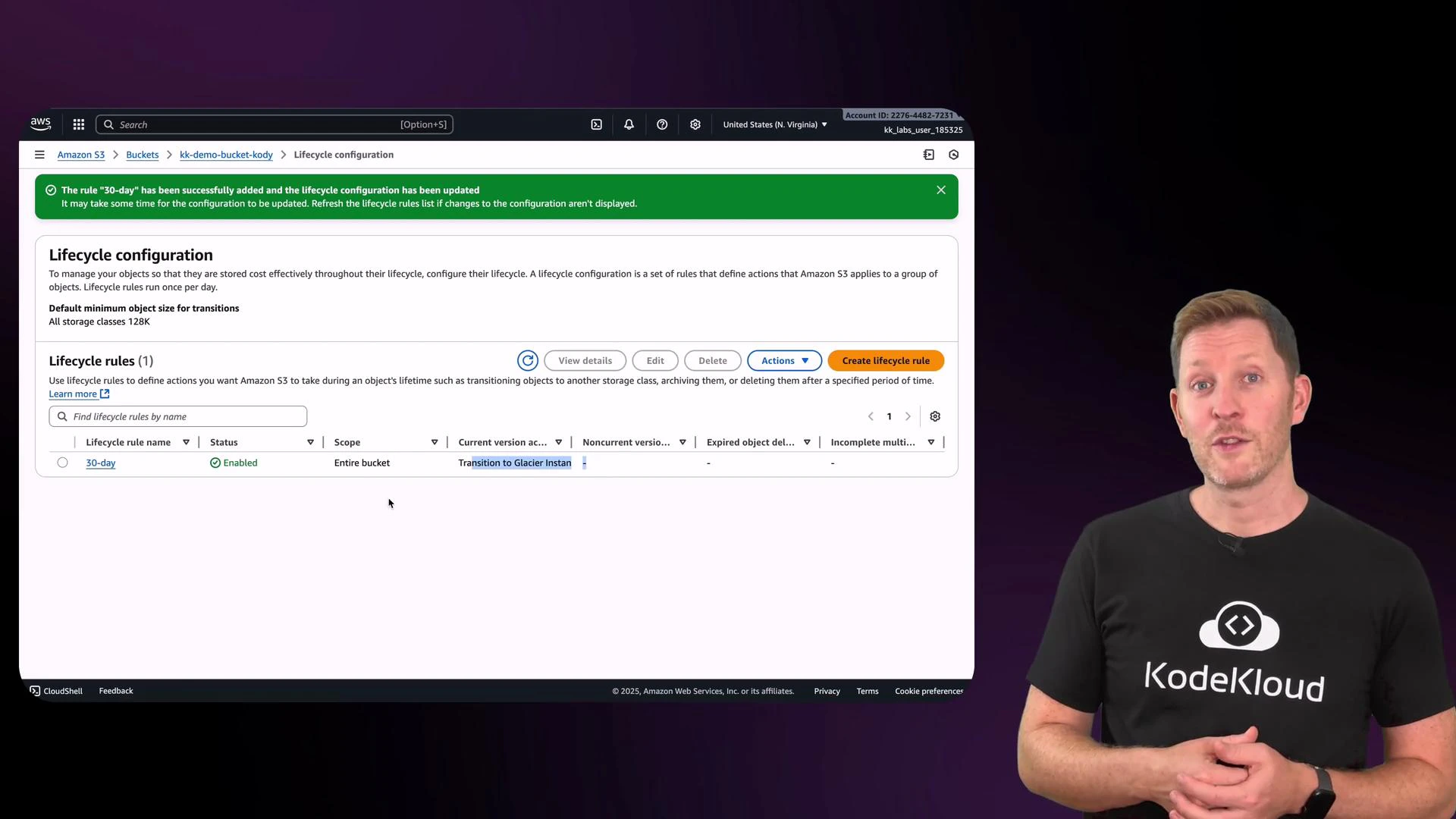
- After a rule is active, the console will show the storage class change for objects once conditions are met.
Deleting objects and buckets
To delete a file manually, use the object actions menu in the console. Remember: to delete a bucket you must first remove all objects and all object versions if versioning is enabled. AWS will not allow deletion of a non-empty bucket.Use lifecycle rules to automate retention and cost management. They can transition objects to cheaper tiers or expire objects when they’re no longer needed.
Pop quiz — best practice
You upload a file to an S3 bucket. Which step ensures resources are created, used, and cleaned up correctly? A. Upload the file, make it public, and forget about the bucket. It will auto-delete.B. Use S3 lifecycle rules to archive or delete objects automatically when no longer needed.
C. Store all your files in the root bucket with the same name, and never delete anything.
D. Delete the bucket before removing the objects to save time. Pause now. Welcome back — the correct answer is B. Why:
- B is correct: lifecycle rules automate archival or deletion and help control costs.
- A is dangerous: objects and buckets do not auto-delete; leaving public objects or orphaned data creates cost and security risks.
- C is poor practice: poor naming and never deleting data lead to costly and unmanageable storage.
- D won’t work: AWS requires a bucket to be empty before it can be deleted.
Recap and next steps
- Core cloud services across providers include Compute, Storage, Databases, and Networking. Names differ (EC2, Blob Storage, Cloud SQL) but functions are comparable.
- In this lesson you created an S3 bucket, uploaded objects, reviewed security and ownership settings, inspected storage classes and pricing, and configured lifecycle rules to automate cost control and retention.
- Use versioning, appropriate access controls (IAM and bucket policies), and lifecycle rules together for secure, scalable, and cost-effective storage.
- AWS S3 documentation
- AWS S3 pricing and storage class details (linked from the S3 console)
- AWS Cloud Practitioner (CLF-C02) course