

Choose machine configuration
When creating an instance you select a region/zone, machine type, boot disk (OS and disk size), networking, and optional items like GPUs or additional disks. Google groups machine types by use case (general purpose, memory-optimized, compute-optimized, GPU-enabled). You can also fine-tune CPU and memory with custom machine types. For this demo we choose a general-purpose machine type, e2-medium (2 vCPUs, 4 GB RAM). The console shows an estimated monthly cost (roughly $25/month for e2-medium in many regions), and lets you pick boot disk size and OS.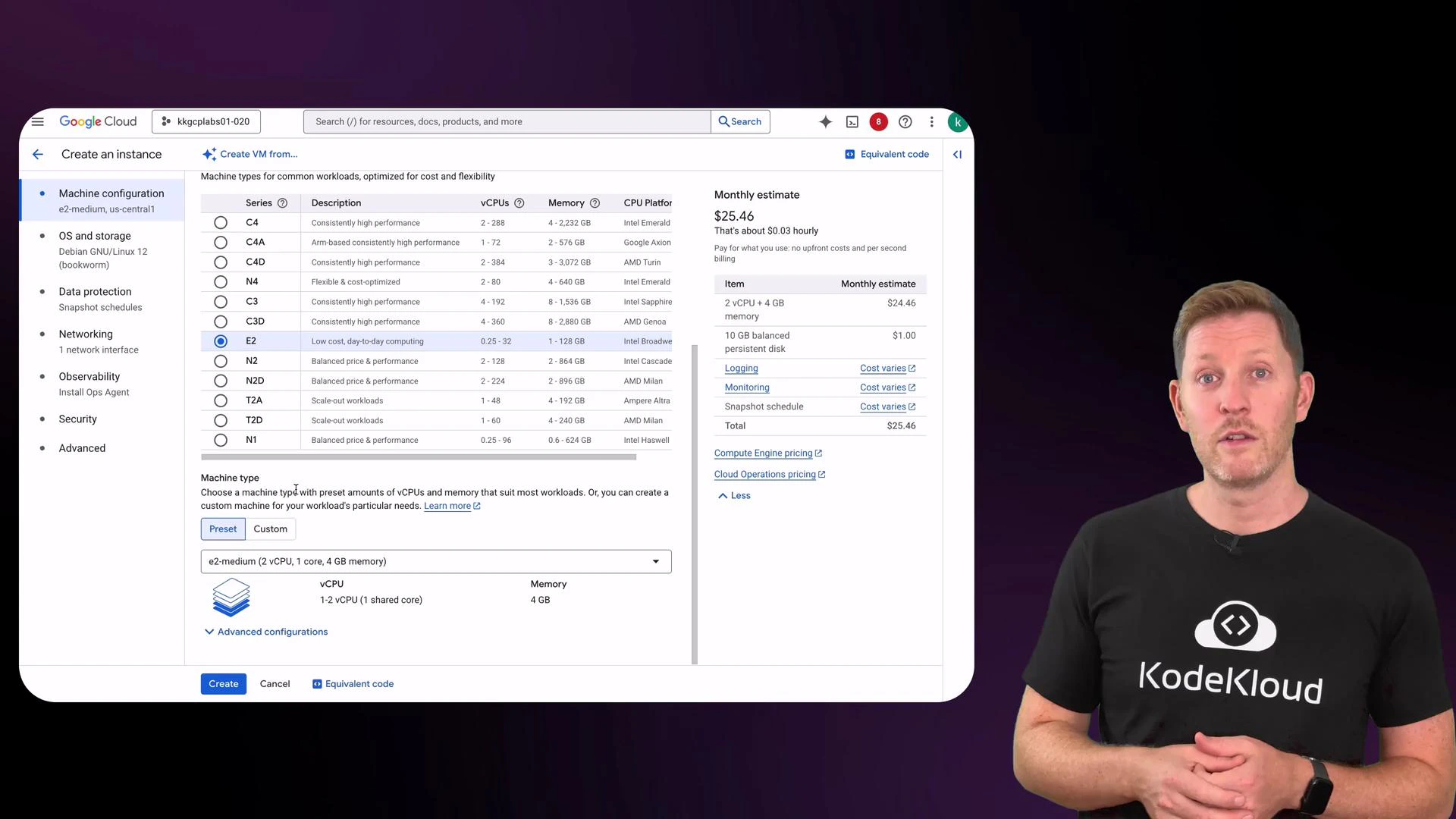
For this demo we selected:
- Machine type:
e2-medium(2 vCPU, 4 GB RAM) - Boot disk: 10 GB (default persistent boot disk)
- OS: Debian/Ubuntu (select via the boot disk chooser)
Connect to the VM using SSH
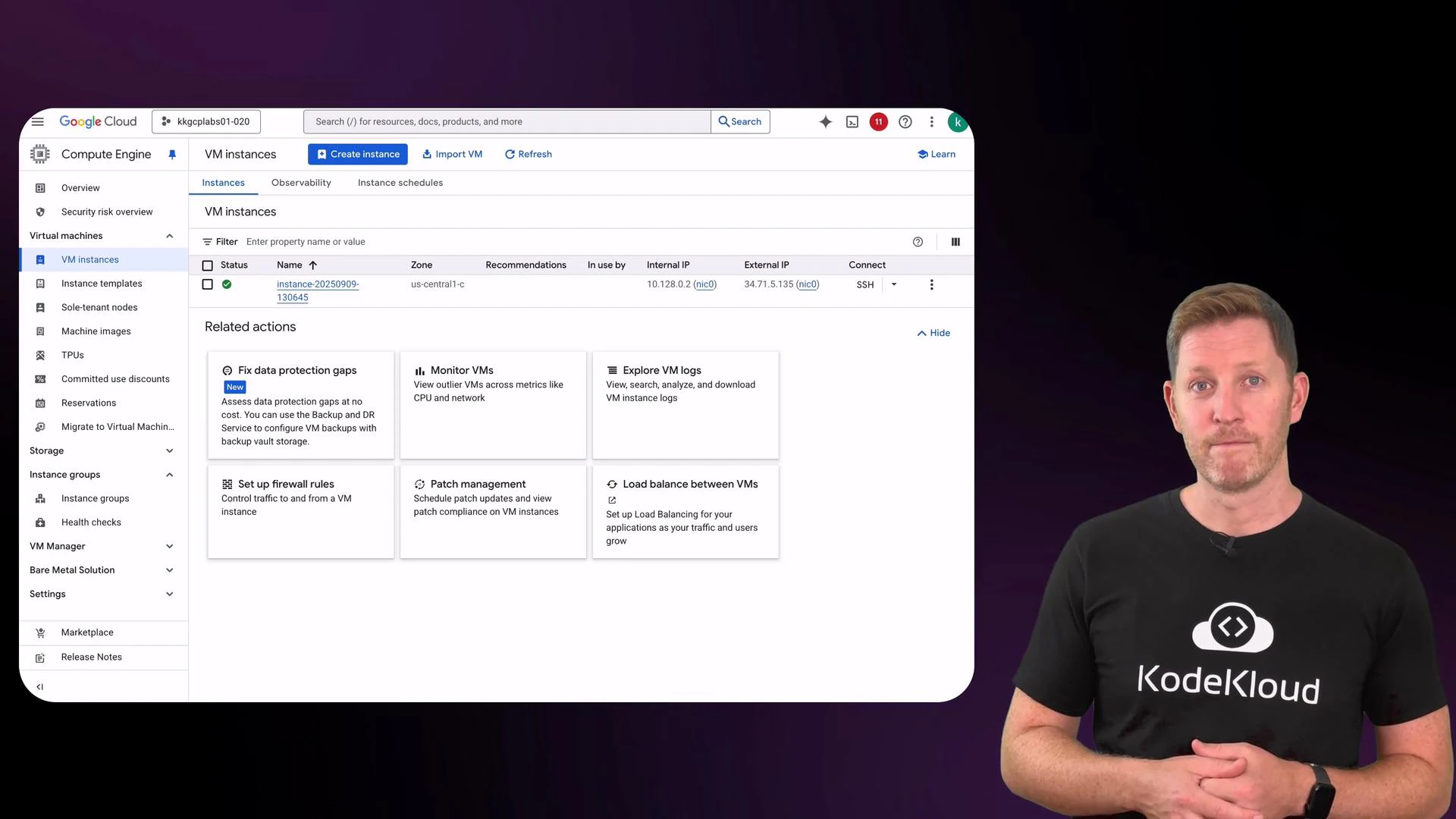
To connect, select the SSH menu for the instance and choose “Open in browser window.” The Cloud Console creates a secure SSH session to the VM using the instance’s external IP and an ephemeral key pair (or your configured OS Login credentials).Opening SSH in the browser uses ephemeral SSH keys (or OS Login, if enabled) and avoids manual key management for ad-hoc access. For automated or production access, consider using OS Login, IAM roles, or managed SSH keys.
df -h to confirm disk size and free -m to confirm memory. The example session below shows these checks, installing a small terminal game (ninvaders) with sudo, running it briefly, then exiting the SSH session.
df -h and free -m outputs confirm the boot disk and memory match the instance configuration. This quick verification is a good habit: cloud resources map back to physical infrastructure managed by the provider.
When you finish an interactive session, type exit to close the SSH session. Closing the terminal does not stop the VM; it keeps running (and incurring compute charges) until you stop or delete it.
Stopping an instance halts compute (vCPU) and runtime charges, but persistent disks and reserved (static) external IP addresses may continue to incur storage or reservation costs. Deleting an instance will typically remove the VM; check the instance’s disk deletion policy to confirm whether its boot disk is retained or deleted.
Stop, delete, or retain disks
Back in the GCP Console you can stop the instance from the instance’s three-dot menu. The status will change from Running to Stopped and the green indicator disappears. Visit Compute Engine → Disks to see boot disks: a stopped instance’s boot disk remains allocated (and billable) until you delete it. If you delete the instance, the instance entry is removed from the VM instances list. If the boot disk was configured to delete with the instance it will be removed; otherwise the disk remains in the Disks list and continues to incur storage charges until you delete it.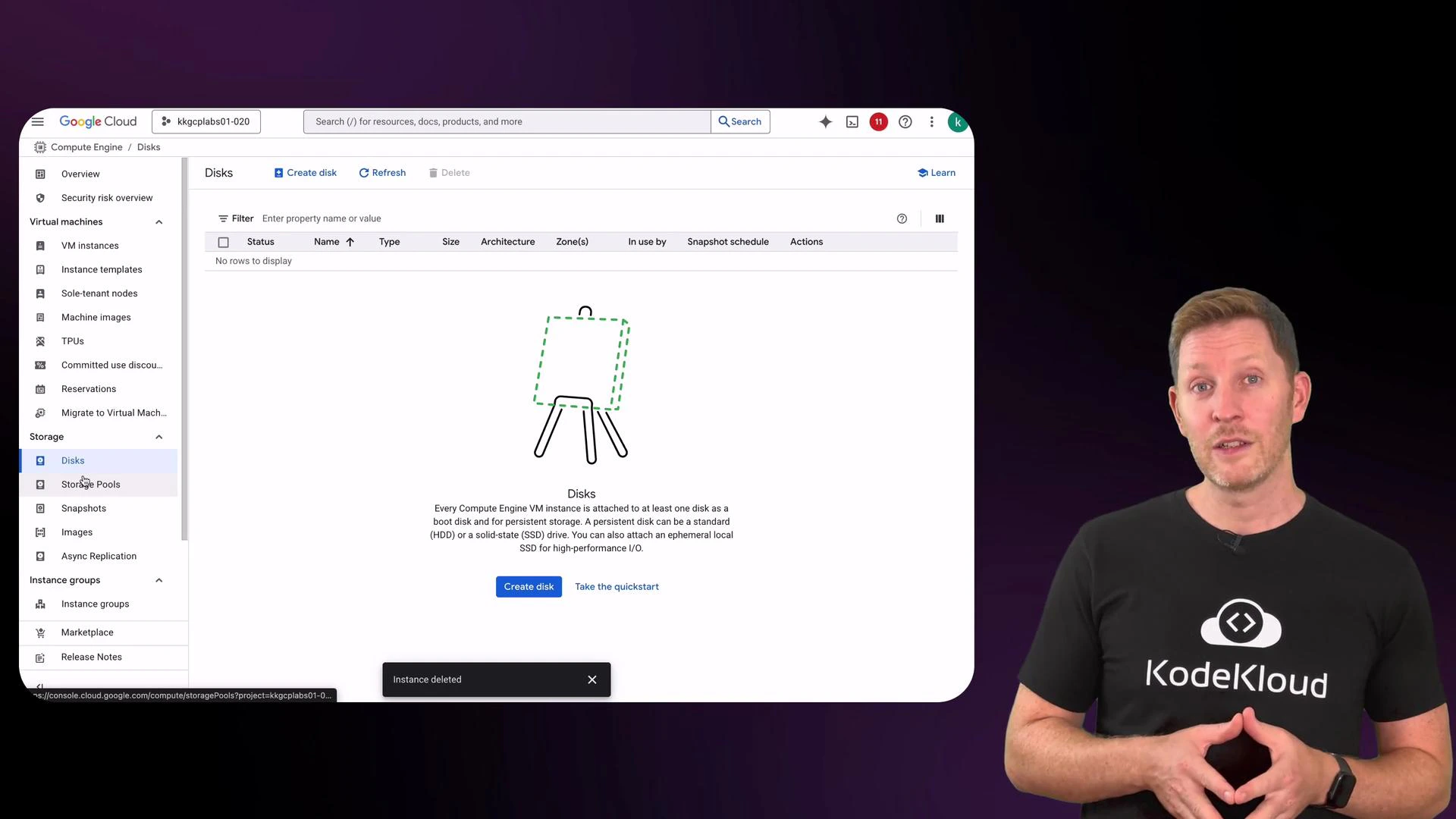
Summary
In minutes you can go from an empty GCP project to a running VM with root access and persistent storage. Compute Engine enables rapid provisioning, on-demand scaling, and flexible machine types — without purchasing or maintaining physical hardware. Links and references- Compute Engine documentation: https://cloud.google.com/compute/docs
- Creating instances: https://cloud.google.com/compute/docs/instances/create-start-instance
- SSH to VMs: https://cloud.google.com/compute/docs/instances/connecting-to-instance
- Pricing overview: https://cloud.google.com/pricing