

External hardware: inputs, outputs, and peripherals
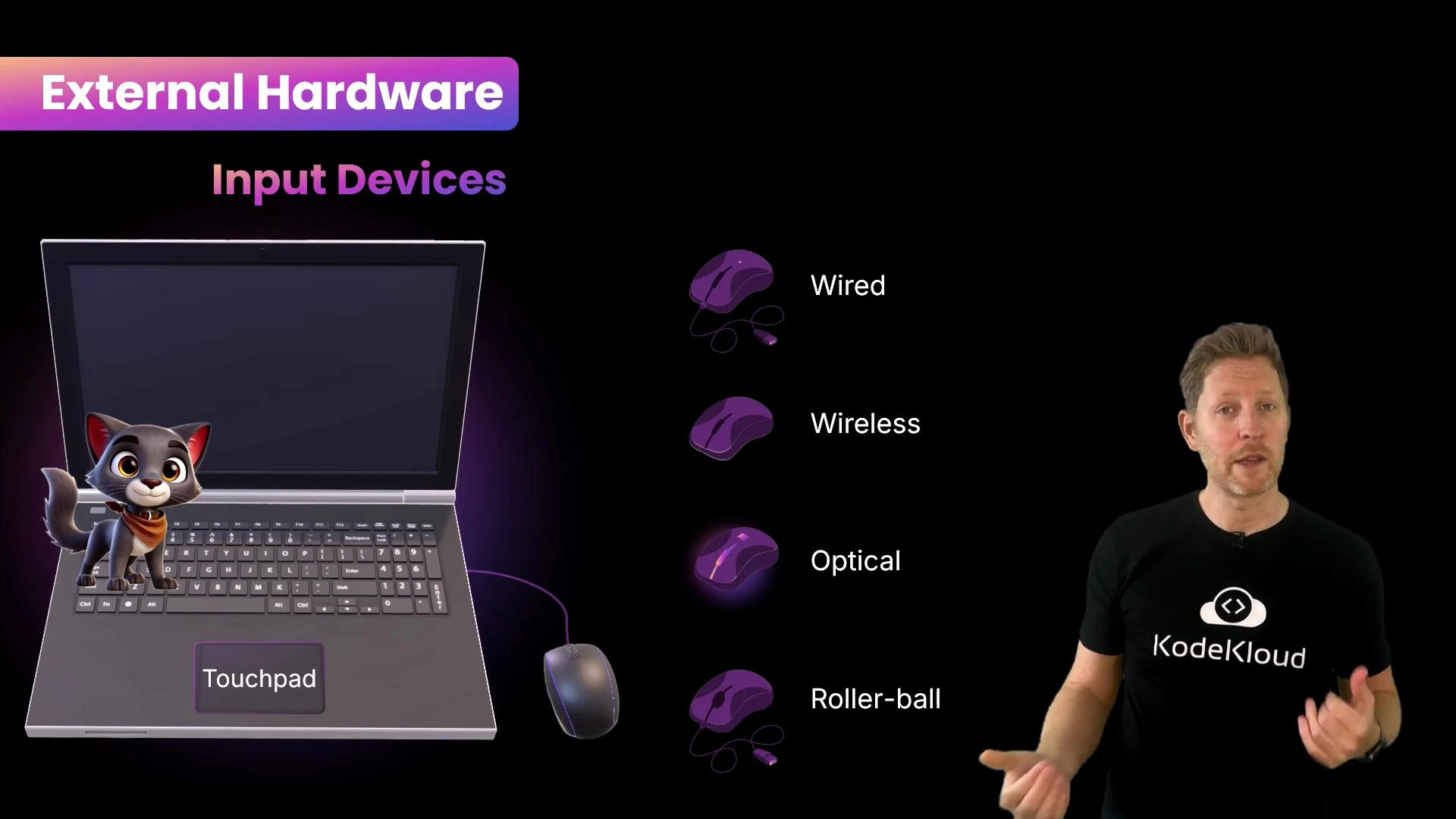
Inputs are how the outside world communicates with the computer; outputs are how the computer responds. Input devices- Keyboard and mouse are the computer’s “hands”: they let users send commands and text. Modern keyboards use a key matrix and a microcontroller to detect key presses. That microcontroller sends a scan code over an interface (commonly USB using the HID profile) to the operating system, which maps it to a character such as
k(modified by keys like Shift or Caps Lock). - Touchpads perform the same role as a mouse on many laptops. Mice exist as wired, wireless, optical, and older roller-ball designs.
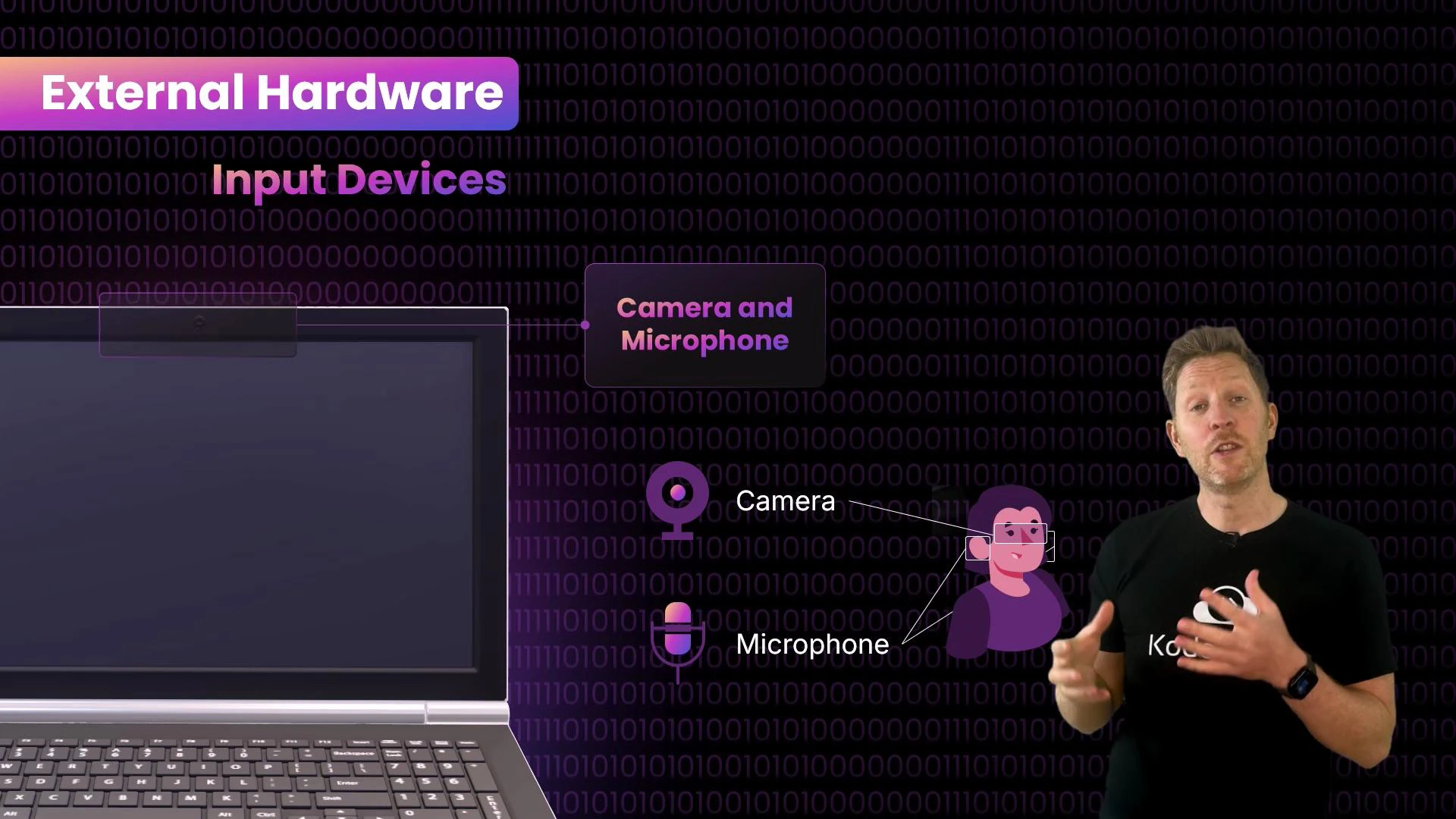
- Camera and microphone are the computer’s “eyes and ears”: they capture sight and sound and convert analog signals into digital data the computer can process. (Fun fact: the first webcam was set up in 1991 at the University of Cambridge to monitor the Trojan Room coffee pot so researchers wouldn’t walk to an empty pot — read more at the Trojan Room coffee pot.)
- The power supply is the system’s “heart”: it converts mains power into voltages required by components. Laptops add a battery for portable operation.
- Cooling prevents overheating: fans, vents, heat sinks, heat pipes, and liquid cooling move heat away from hot components. Thermal paste improves the contact between CPU die and heat spreader.
Avoid abruptly removing laptop power or the battery while the system is running. Sudden power loss can cause data corruption and hardware issues.
- Monitors and speakers are the “face and mouth”: they present visual and audio output. Speakers convert electrical signals into sound using vibrating diaphragms; larger diaphragms produce lower frequencies.
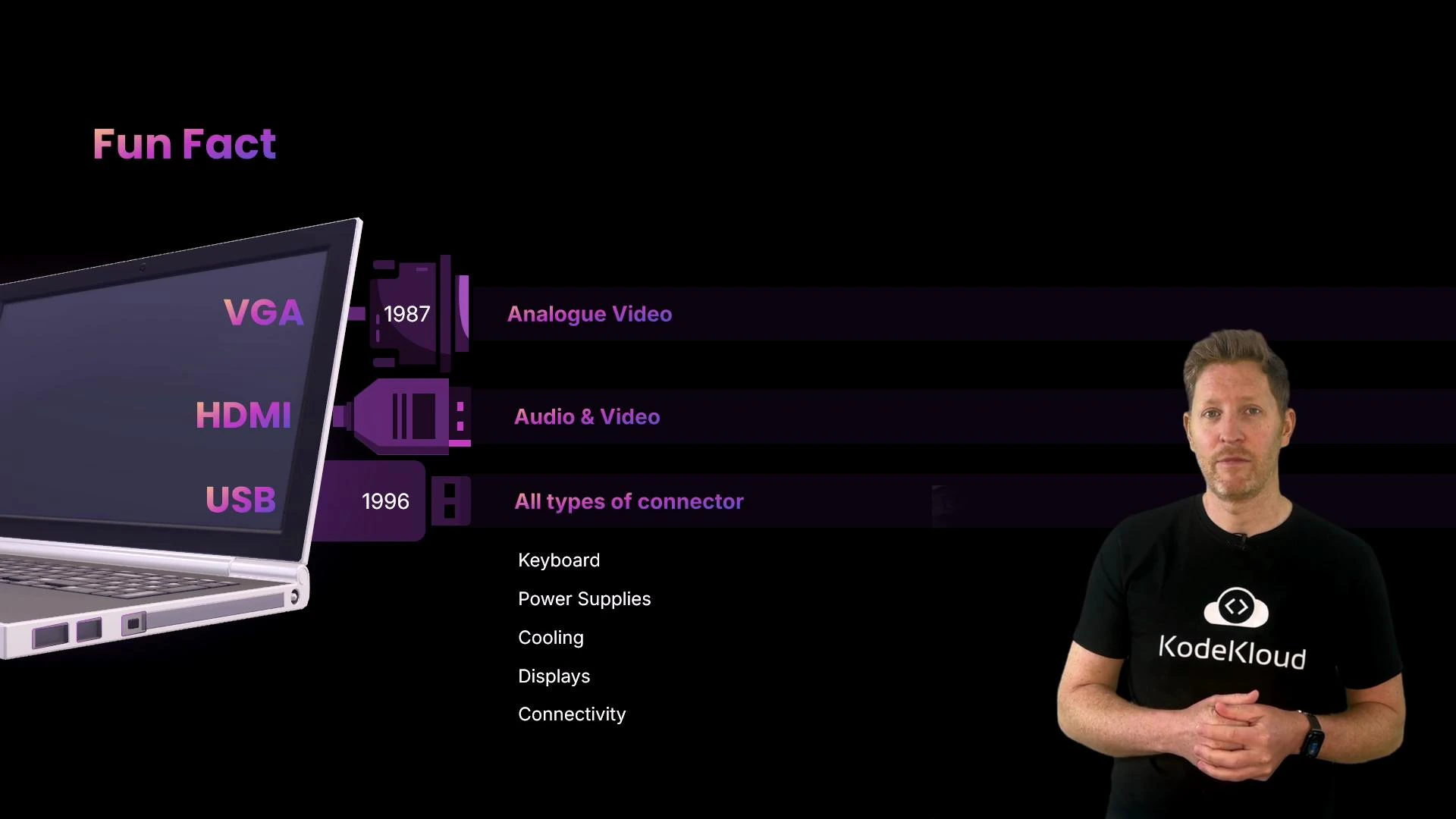
- Physical connectors let us attach peripherals: USB, HDMI, Ethernet, VGA (legacy), and others. USB standardized peripheral connections in the late 1990s — see USB for details. HDMI carries both audio and video and has largely replaced analog VGA for modern displays — more at HDMI.
These are the visible building blocks. Next, open the case: we’ll follow the keystroke into the internal hardware.
From keypress to character: tracing the signal
The journey begins at the keyboard (the computer’s hands). When you pressk:
- The keyboard matrix closes a circuit and the keyboard microcontroller detects the keypress.
- The microcontroller sends a scan code to the host (typically over USB/HID).
- The operating system maps the scan code to the character
k(orKif Shift/Caps Lock is active).
A scan code is a hardware-level identifier for a key. The OS translates scan codes into characters depending on the active keyboard layout and modifier keys.
1 and 0.
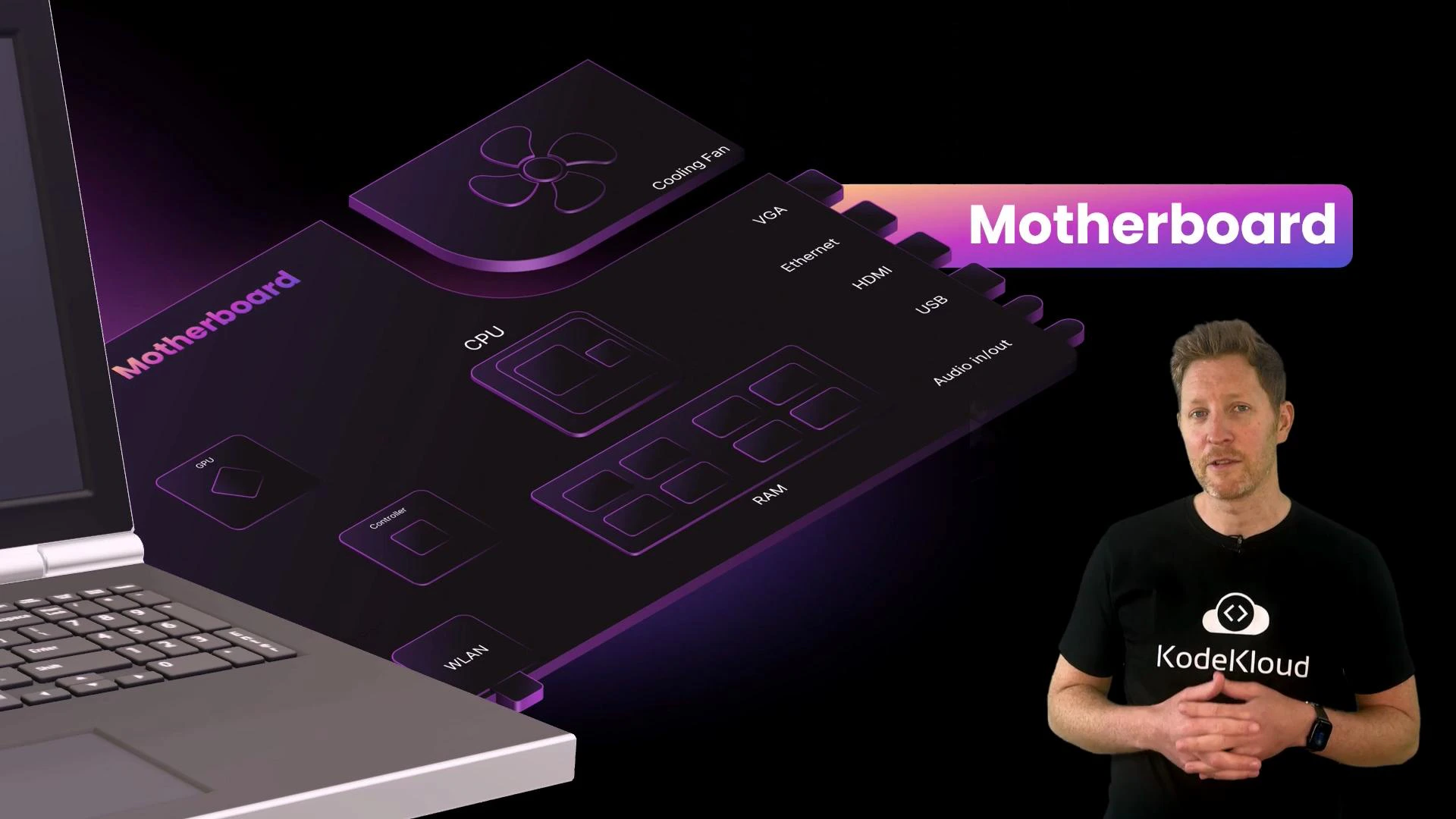
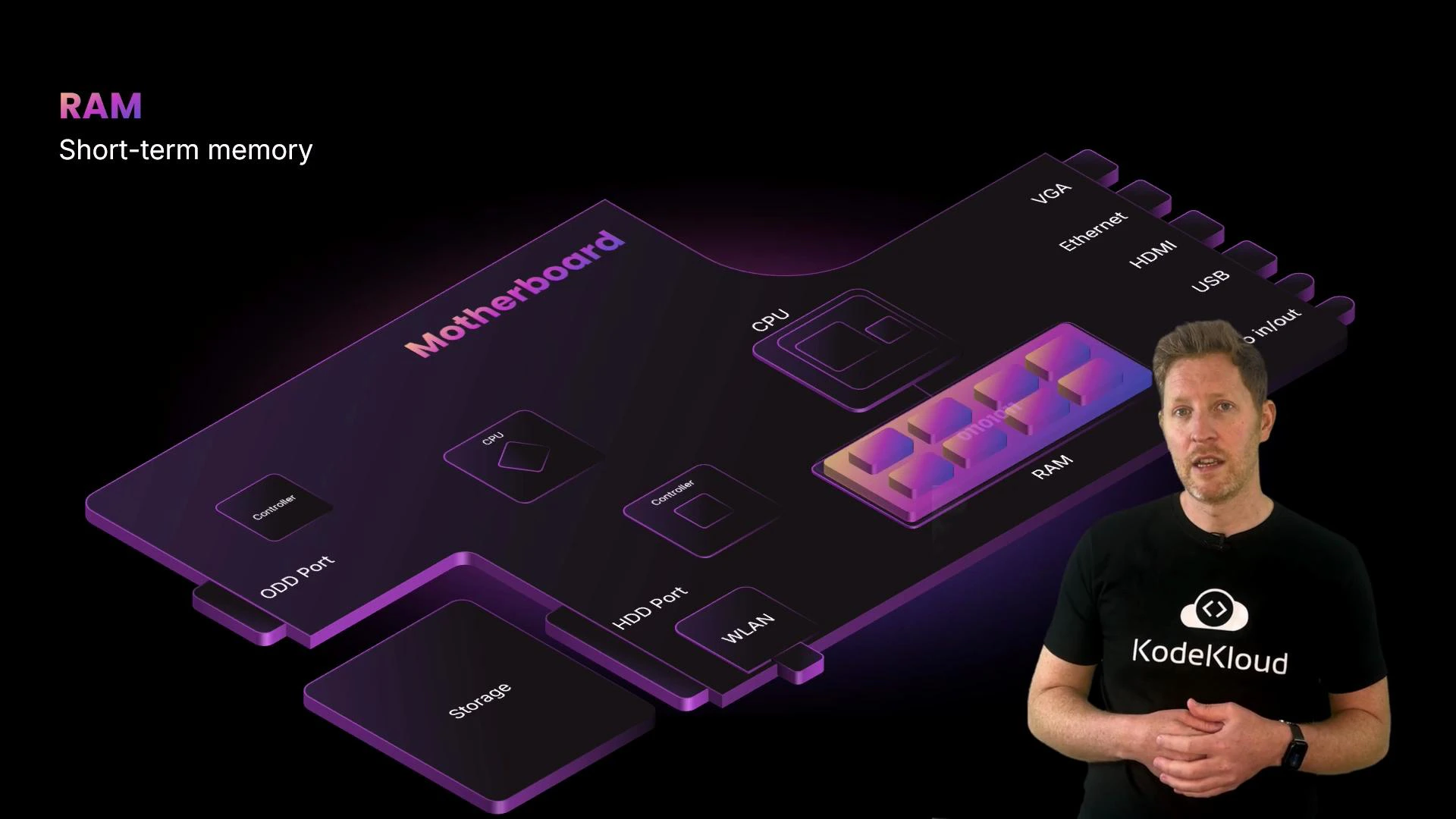
All internal communication travels across the motherboard — the computer’s “nervous system.” The motherboard is a printed circuit board (PCB) that connects CPU, RAM, storage, GPU, and I/O devices so data can move between them. It’s also called a mainboard, baseboard, or mobo.
Core internal components
Processors and cooling- The CPU is the computer’s “brain.” It interprets instructions and coordinates tasks. Modern CPUs contain multiple cores and functional units that execute instructions, perform arithmetic/logic, and manage control flow.
- CPUs are mounted under cooling modules (heat spreaders, fans, heat pipes). Thermal paste improves heat transfer between the CPU package and the cooler.
- RAM (Random Access Memory) is short-term memory: the CPU keeps active data and instructions in RAM during processing. RAM is volatile — its contents are lost when power is removed.
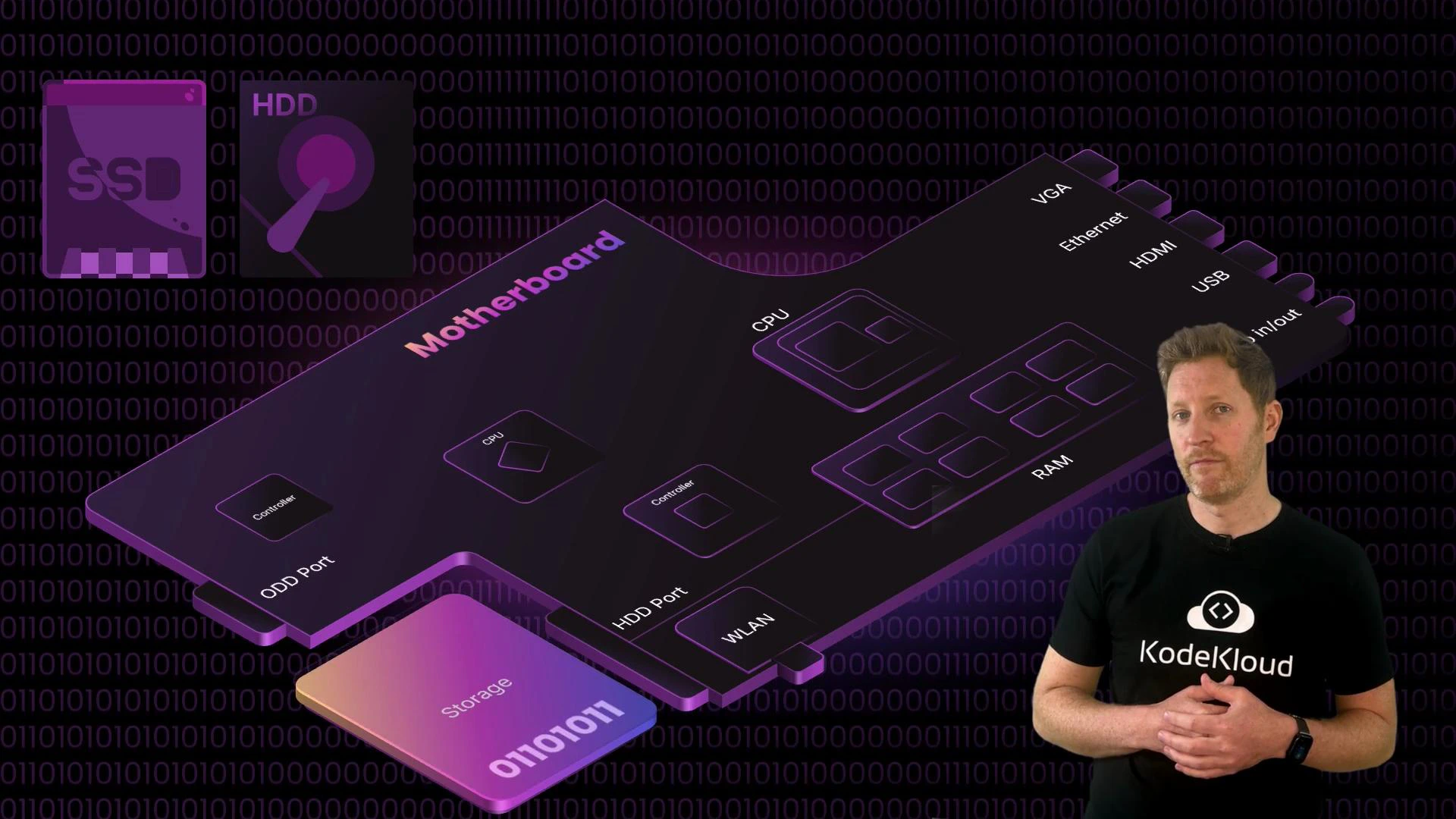
- Long-term storage includes HDDs (mechanical, higher capacity per dollar) and SSDs (solid-state, much faster). HDDs are suitable for bulk storage and backups; SSDs dramatically improve boot and load times.
- The GPU (graphics processing unit) is the system’s “visual cortex”: it takes prepared frame data and renders pixels for the display. The GPU output is sent to the monitor, which converts the signal into visible pixels.
That’s the end of our keystroke journey. You should now have a clear mental model of how a single keypress moves from an external input device through the motherboard and internal components to become a visible character on the screen. This foundation will help you explore deeper topics like CPU architecture, memory hierarchies, storage technologies, and peripheral interfaces.