Introduces computer architecture fundamentals, explaining CPU, GPU, memory, storage, motherboard, and peripherals and how they cooperate to produce computing results
If you remember personal computers from a few decades ago, you probably recall how magical they felt. Those early machines were impressive for their time, but they were extremely limited compared with modern computers. Today’s laptops and desktops perform tasks that once required entire rooms of equipment.What changed? Advances across core components — the CPU, GPU, memory, storage, motherboard, and peripherals — transformed those early systems into the powerful devices we use every day. In this lesson, we’ll examine each of these building blocks and how they cooperate to convert simple inputs into complex results.
Hello, and welcome to the Computer Architecture course. I’m Alan — I’ll guide you through the components and concepts that make modern computing possible.What we’ll cover in this lesson
Peripherals: how users interact with a computer (input and output)
CPU: the general-purpose processor that executes instructions
GPU: the parallel processor optimized for graphics and data-parallel workloads
Memory & Storage: fast temporary workspace (RAM) vs persistent storage (SSD/HDD)
Motherboard: the backbone that connects everything and provides power, buses, and interfaces
We’ll begin with the devices you use to interact with a computer.Peripherals — input and output devices
Peripherals are the external devices you use every day: keyboard, mouse, monitor, camera, microphones, and more. They bring data into the system (input) and display or transmit results back to you (output). Without peripherals, a computer would be difficult to operate — how would you type, click, or see output?
Central Processing Unit (CPU) — the system’s general-purpose processor
The CPU executes instructions, schedules tasks, and performs general computation. While older CPUs handled many calculations at once, modern CPUs improve throughput and responsiveness through multiple cores, higher clock speeds, and better power efficiency. These improvements enable multitasking, fast context switching, and support for increasingly complex software.
Graphics Processing Unit (GPU) — parallel, specialized computation
GPUs are built for massively parallel workloads. They excel at many similar, independent calculations — rendering frames, accelerating video encoding, and training or running many machine learning models. For highly parallel tasks, modern GPUs often outperform multiple older machines combined.
Memory and Storage — workspace versus long-term data
RAM (random access memory) is the fast, temporary workspace where running applications and active data reside. Storage (SSDs or HDDs) holds persistent data such as the operating system, applications, documents, photos, and videos. Because SSDs provide much lower latency and higher throughput than traditional HDDs, they significantly improve boot times, application launch times, and overall system responsiveness.
Motherboard — the system backbone
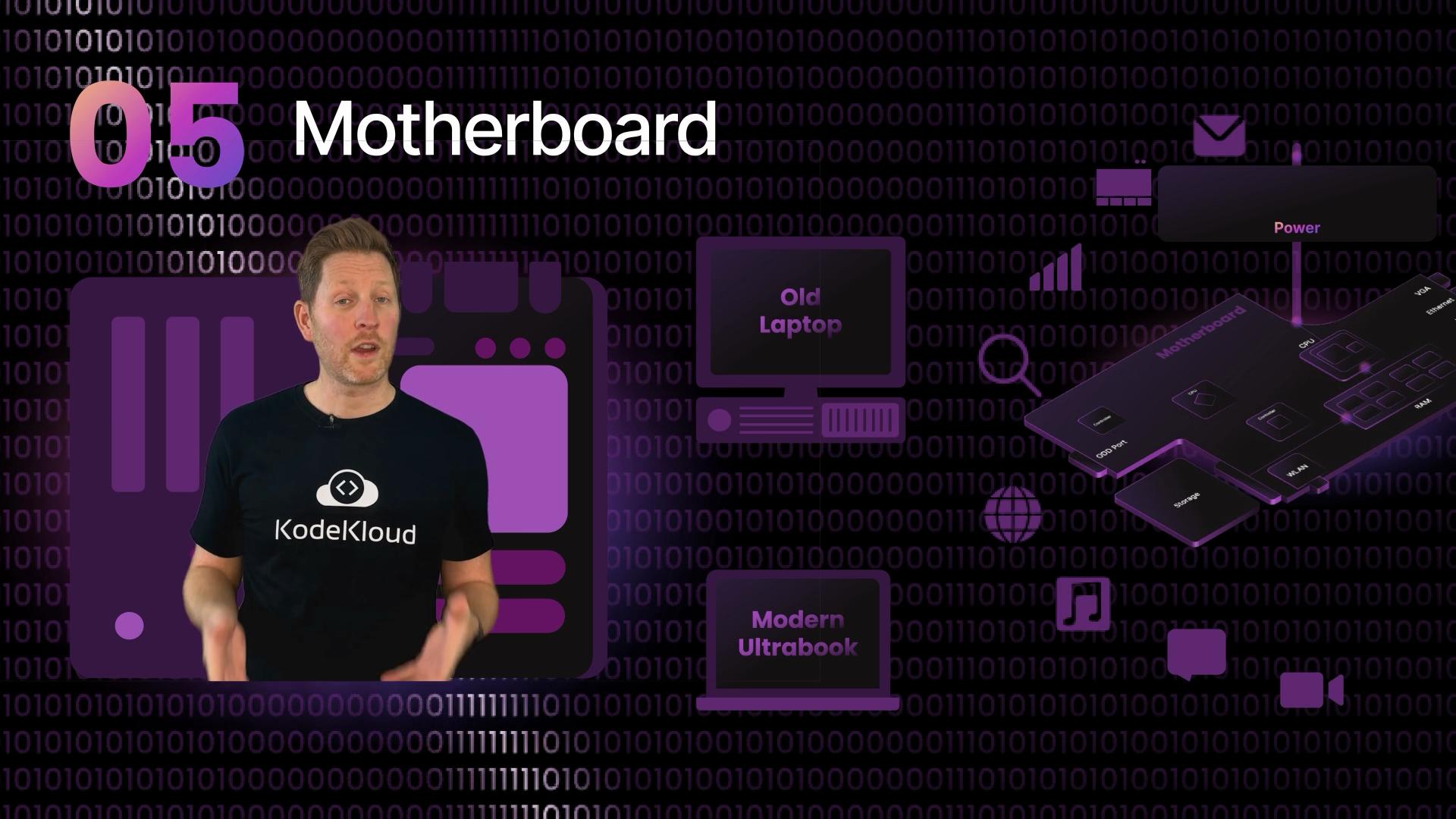
The motherboard ties everything together. It routes power and data between the CPU, GPU, memory, storage, and peripherals. It also contains controllers, buses, slots, and interfaces that determine expandability and performance characteristics. From vintage laptops to modern ultrabooks, the motherboard’s design defines the platform’s capabilities and limitations.
Quick reference table
Component
Primary role
Why it matters
CPU
Execute instructions, run OS and applications
Determines single-thread performance, multitasking, and instruction throughput
Accelerates workloads with many similar operations
RAM
Fast temporary workspace for active data
Affects application responsiveness and multitasking capacity
Storage (SSD/HDD)
Persistent data storage
Affects boot times, load times, and data throughput
Motherboard
Interconnects components; provides power and interfaces
Defines expandability, bus speeds, and compatibility
Peripherals
Input and output devices
Enable user interaction and data capture/display
Community and learning tips
Join a learning community to accelerate your progress. Ask questions, share projects, and discuss trade-offs — connecting with other learners (and instructors) is one of the fastest ways to deepen your understanding of computer architecture.
Safety and handling reminder
If you plan to open or handle internal components, take ESD (electrostatic discharge) precautions and power down the device. Improper handling can damage delicate hardware.
Whether you’re studying a museum piece or a modern ultrabook, the same core components are at work. Understanding how they interact clarifies the design trade-offs that lead to different form factors, performance profiles, and price points.Ready to dig deeper? Let’s get started and explore how each component works internally and how they communicate to produce the computing experience you rely on every day.Further reading and references