

Memory vs. Storage — what’s the difference?
- Memory (primary memory) generally means the fast, temporary storage that the CPU uses directly: registers, CPU caches, and RAM. These are typically volatile — they lose their contents when power is removed.
- Storage (secondary storage) means long-term, persistent storage for files, operating systems, backups, and saved data. Storage is optimized for capacity and permanence rather than raw speed.
Core storage families and the cloud model
We’ll focus on three physical storage families plus cloud storage:- Magnetic: hard disk drives (HDDs), floppy disks, magnetic tape.
- Optical: CDs, DVDs, Blu-rays.
- Flash / Solid-state: SSDs, USB flash drives, memory cards.
- Cloud: remote storage hosted by third-party datacenters (built on magnetic/solid-state media and exposed over the network).
Data sizes and the binary pyramid
Computers store information in bits and bytes:- A bit is the smallest unit:
0or1. - Eight bits = one byte (enough for a single character in many encodings).
SI prefixes (
kilo, mega, giga) formally mean powers of 10 (1000), while binary prefixes (kibi, mebi, gibi) mean powers of 2 (1024). In practice many systems label 1024 bytes as KB, so you will see these terms used interchangeably.
Terminology note: For precise capacity reporting (e.g., when comparing drives vs. OS-reported sizes), prefer binary prefixes (
KiB, MiB, GiB) to avoid confusion. Drive manufacturers often advertise decimal sizes (1 GB = 1,000,000,000 bytes) while some OS tools report binary sizes but may still use the GB label.Storage trade-offs: speed, cost, durability
Storage technologies trade off access speed, cost per GB, durability, and form factor. The table below summarizes these trade-offs and typical uses.Magnetic storage (details and visual)
Magnetic media uses spinning platters (HDDs) or tape with a movable read/write head. It offers excellent capacity at low cost per gigabyte but has mechanical failure risks and higher latency compared to solid-state storage.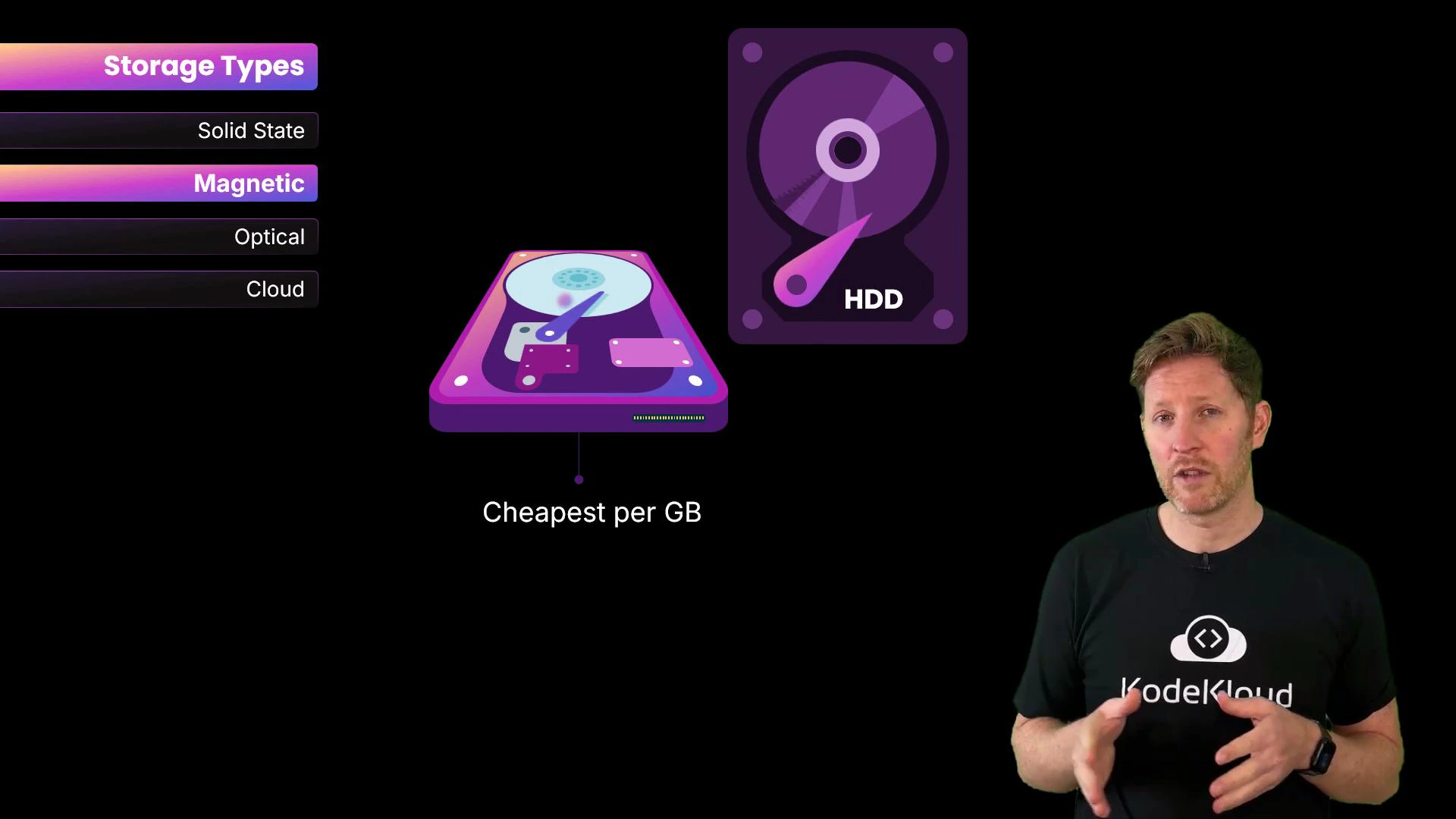
Solid-state (flash) storage (details)
Flash memory stores data electrically with no moving parts, giving much faster access times and better shock resistance than HDDs. Flash endurance is finite (write/erase cycles), so modern devices use wear leveling and over-provisioning to extend lifespan.Flash endurance warning: Flash cells have a limited number of write/erase cycles. For write-heavy workloads (e.g., database logs), choose enterprise-grade SSDs or configure storage to minimize unnecessary writes.
Cloud storage (details and visual)
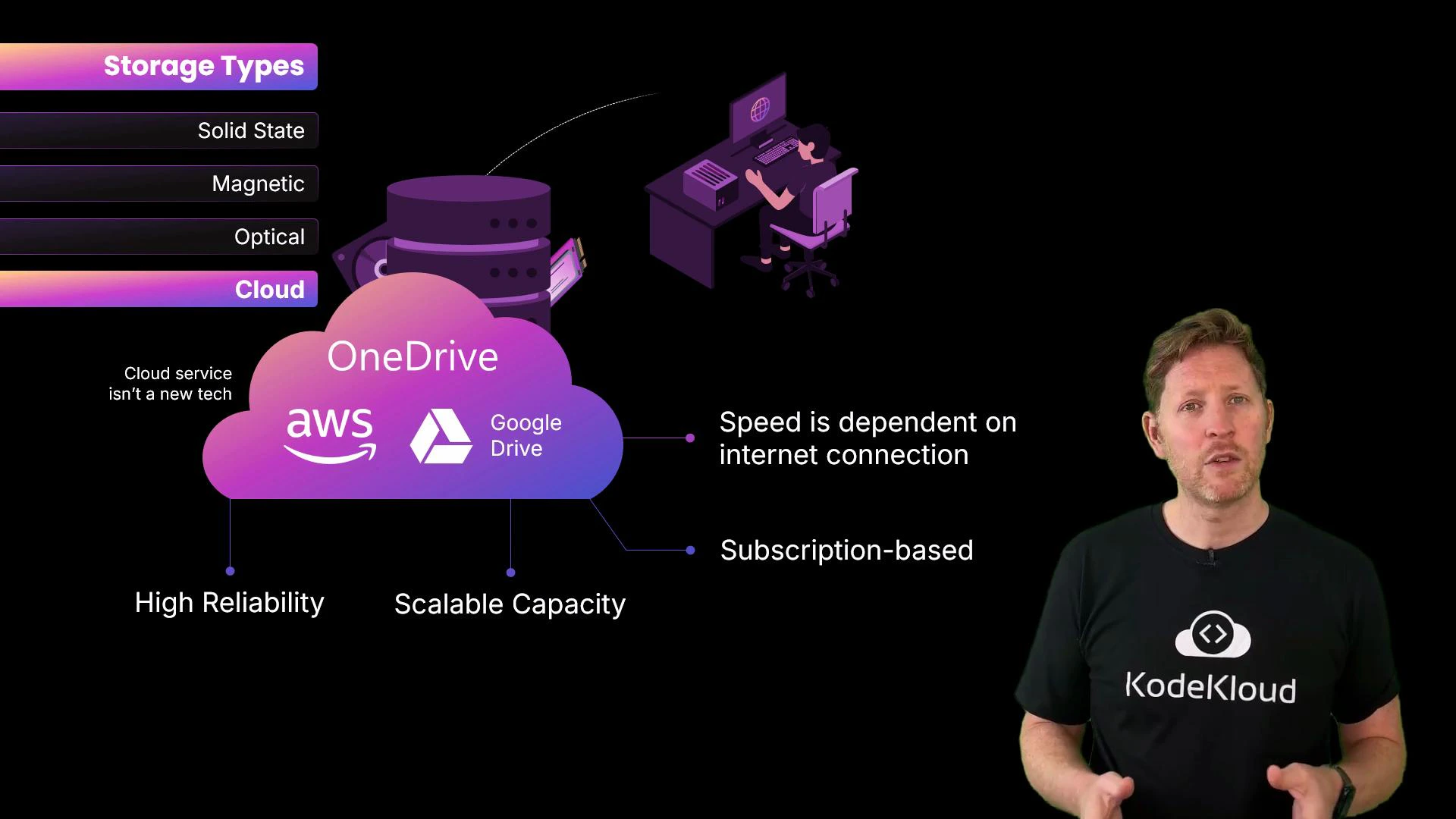
Cloud storage providers expose scalable storage over the network. Behind the scenes, cloud providers use magnetic or solid-state media and add replication, versioning, and geographic redundancy for durability.- Examples: Google Drive, OneDrive, AWS S3
- Pros: scalable, subscription-based, no upfront hardware.
- Cons: performance depends on internet bandwidth and latency; not ideal for extremely low-latency local I/O.
Where storage sits in the memory hierarchy
From the CPU outward:- Registers and CPU caches — fastest, smallest, for immediate computations.
- RAM — fast, volatile, holds the active working set.
- SSDs (solid-state storage) — non-volatile, fast relative to spinning disks, used for OS and apps.
- HDDs (magnetic storage) — non-volatile, large capacity, lower cost per GB.
- Optical media — non-volatile, inexpensive per unit, slow for random access.
Choosing storage — a quick checklist
- Performance-sensitive workloads: prefer NVMe/SSD.
- Large-capacity, low-cost storage: choose HDDs or cloud object storage.
- Long-term offline retention: optical media or magnetic tape (with proper storage).
- Portable small-scale transfers: USB flash drives or SD cards.
- Scalable, managed storage with global access: cloud storage (S3, Drive, OneDrive).
Summary
- Memory (RAM, cache) and storage (SSD, HDD, optical, cloud) serve complementary roles: memory for fast temporary data, storage for long-term persistence.
- Evaluate storage by performance, capacity, durability, and cost per GB.
- Cloud storage adds flexibility and redundancy but depends on network performance.
- Use binary prefixes (
KiB,MiB,GiB) when you need precise capacity reporting.
- Kubernetes Documentation (for storage classes in containerized environments)
- AWS S3, Google Drive, OneDrive