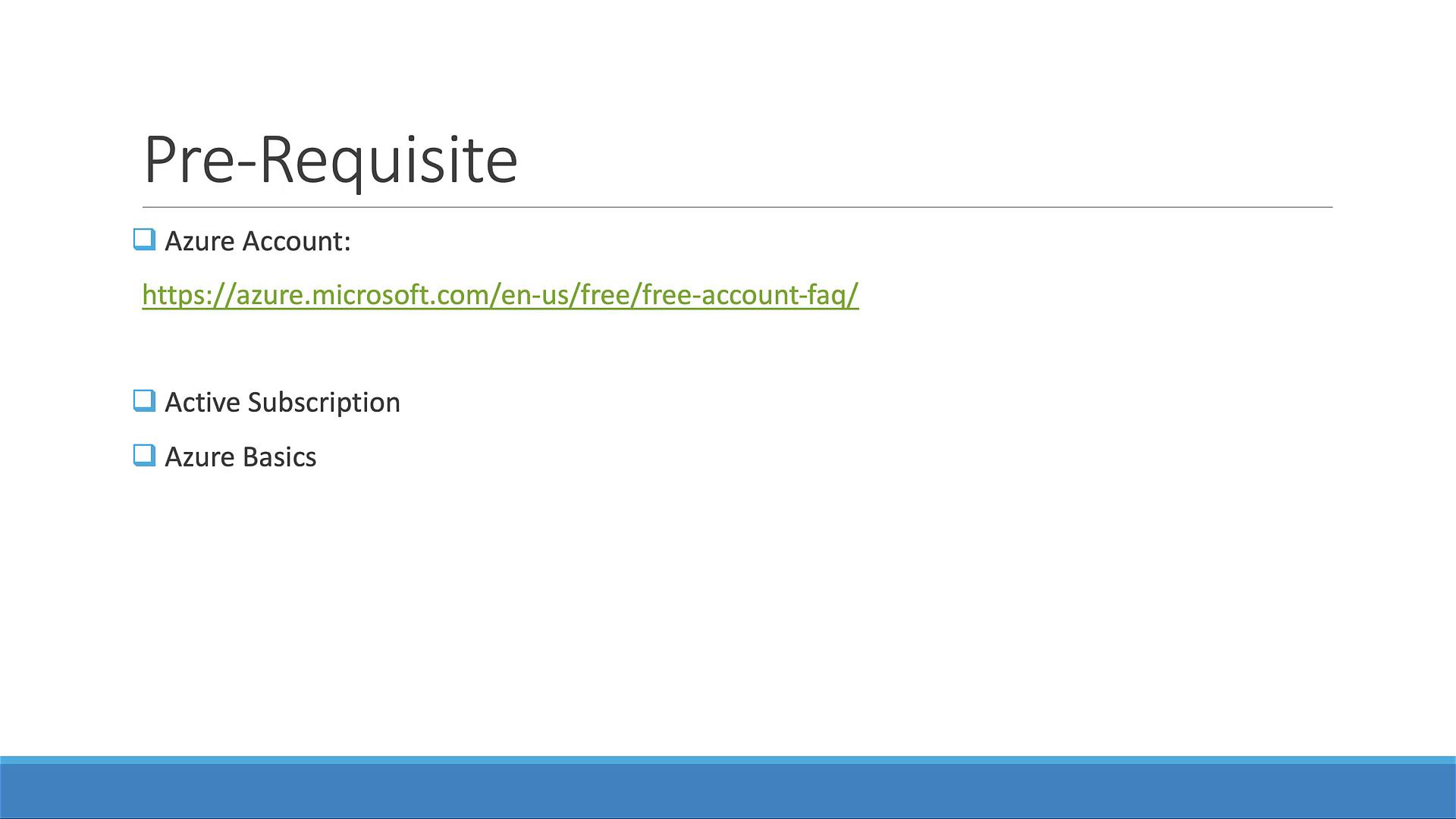
Before you begin, ensure you have an active Azure account. If you’re new to Azure, take advantage of the 12-month free access and familiarize yourself with basic Azure configurations.
Accessing the Azure Dashboard
Once logged into your Azure account, you will be greeted with a dashboard displaying various services. In this demonstration, we are using the free “KodeKloud free account.” To find the Azure Kubernetes Service (AKS), either search for “AKS” or select it directly from the available services list.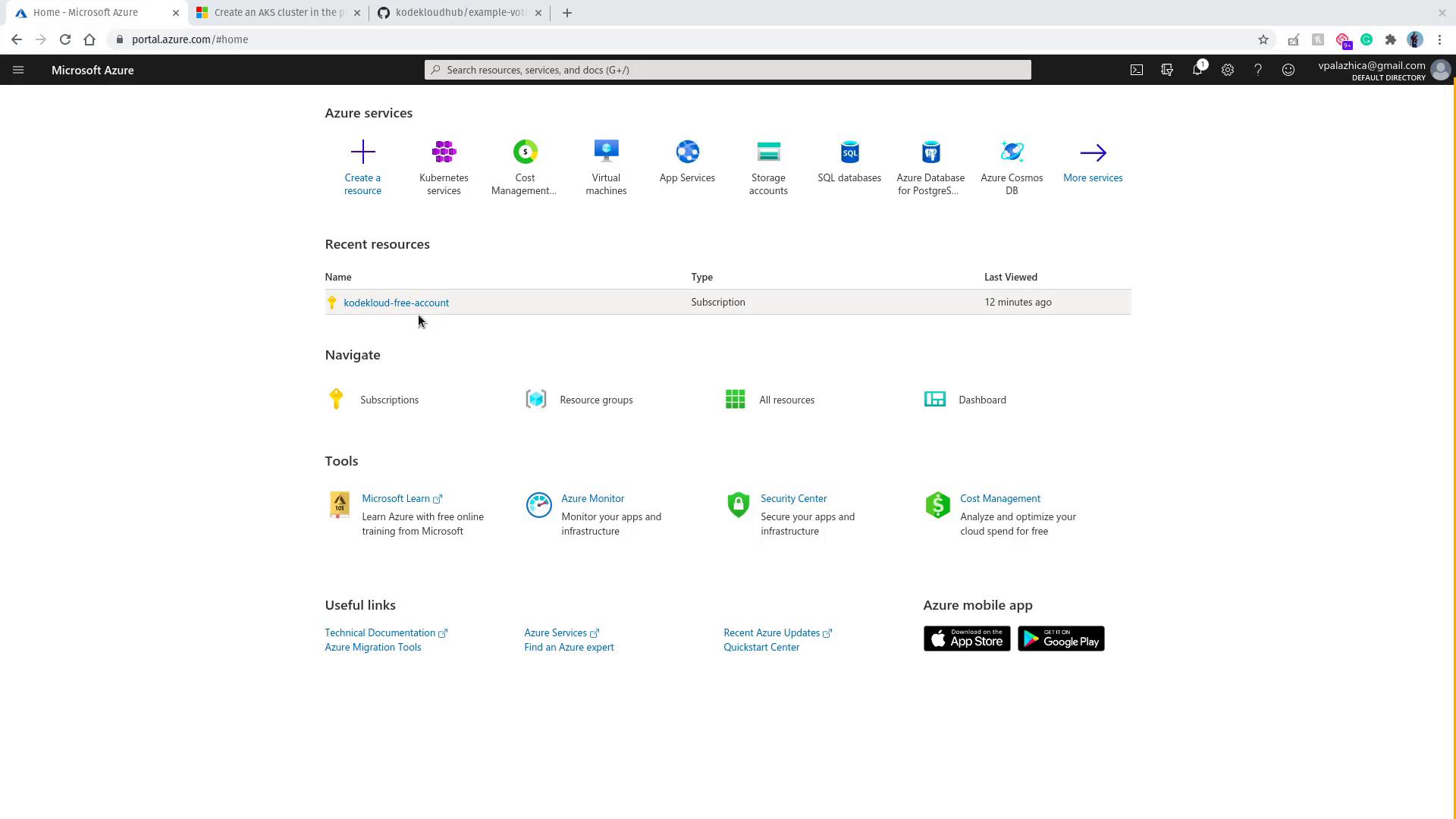
Creating Your Kubernetes Cluster
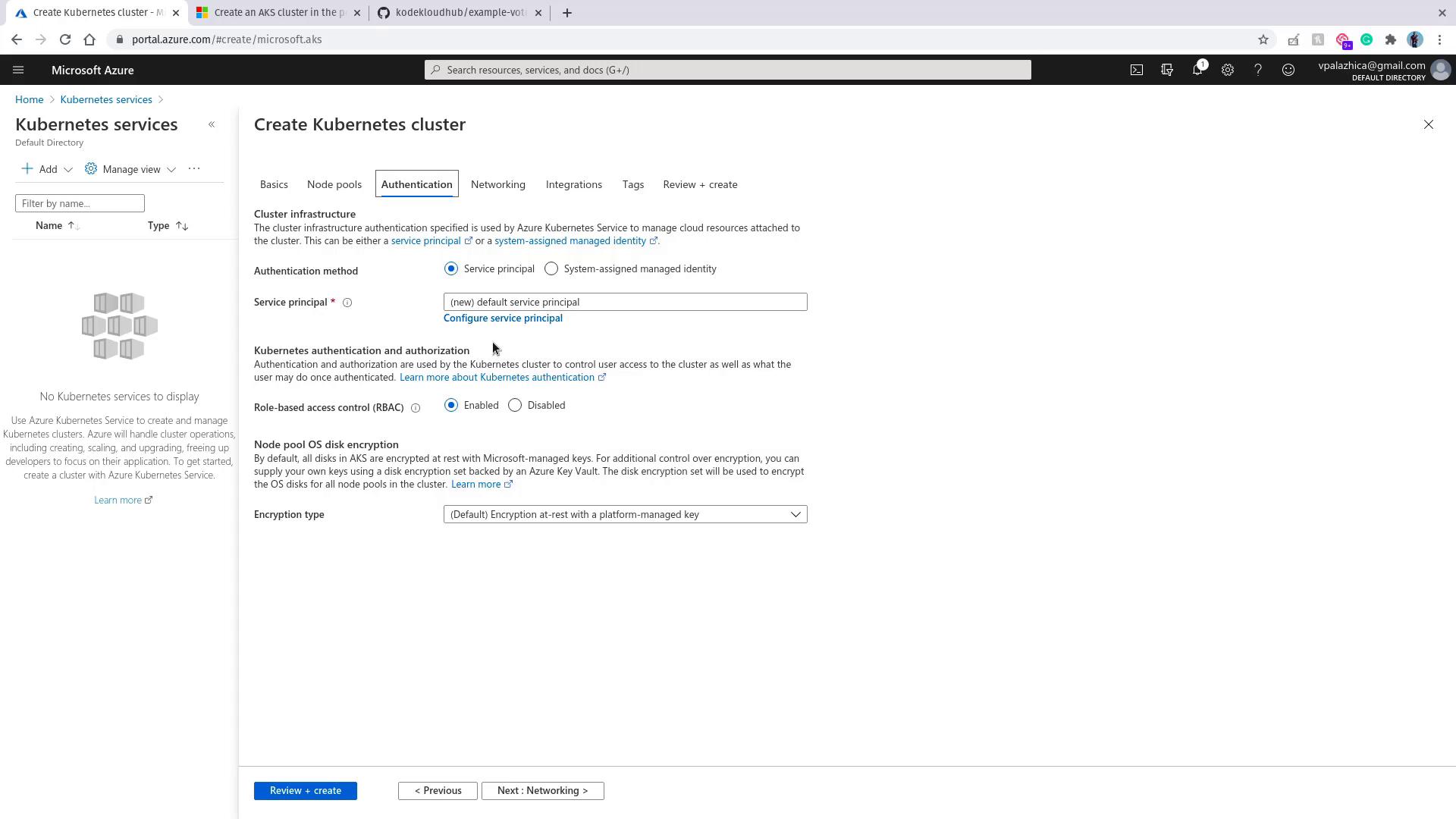
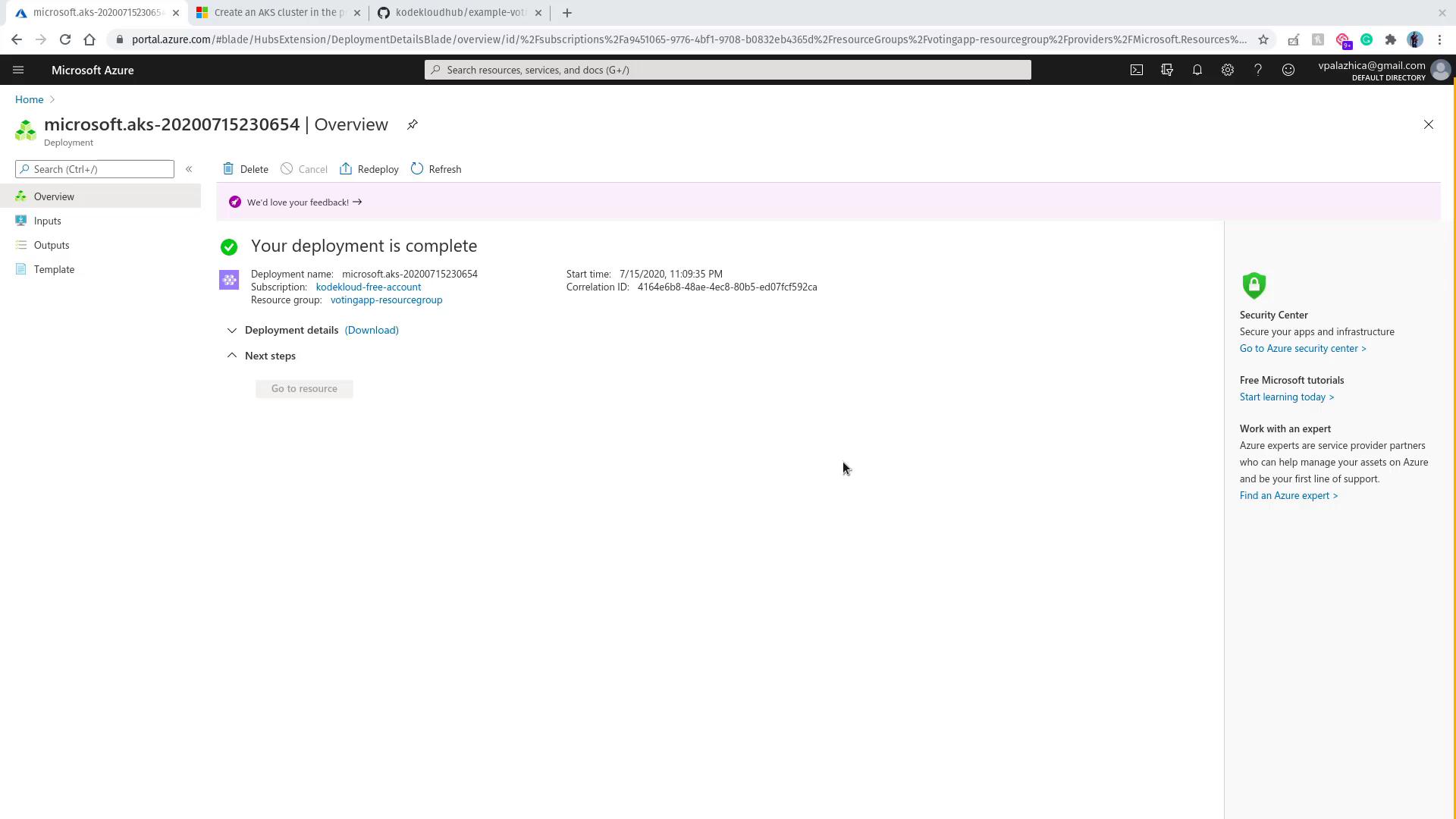
Since no cluster exists yet, you’ll need to add a new cluster. This will take you to the “Create Kubernetes cluster” screen. Make sure that the appropriate subscription is selected, especially if you are using a free-tier subscription.- Resource Group: Create a new resource group. For demonstration purposes, name it “voting app resource group”.
- Cluster Name: Choose an identifiable name such as “example voting app”.
- Kubernetes Version: Leave the default version (e.g., 1.16).
- Node Configuration: Considering this is a free-tier demonstration, select one node for the node size and leave the remaining options at their default values.
Connecting to Your Cluster with Azure Cloud Shell
To locate your newly created resources, enter “voting app” in the Azure search bar. You should see both the Kubernetes service and your cluster. Next, access your cluster using the Azure Cloud Shell, which appears at the bottom portion of the screen. If prompted, follow the steps to create storage for Cloud Shell. While the Cloud Shell initializes, review these essential commands to connect to your AKS cluster: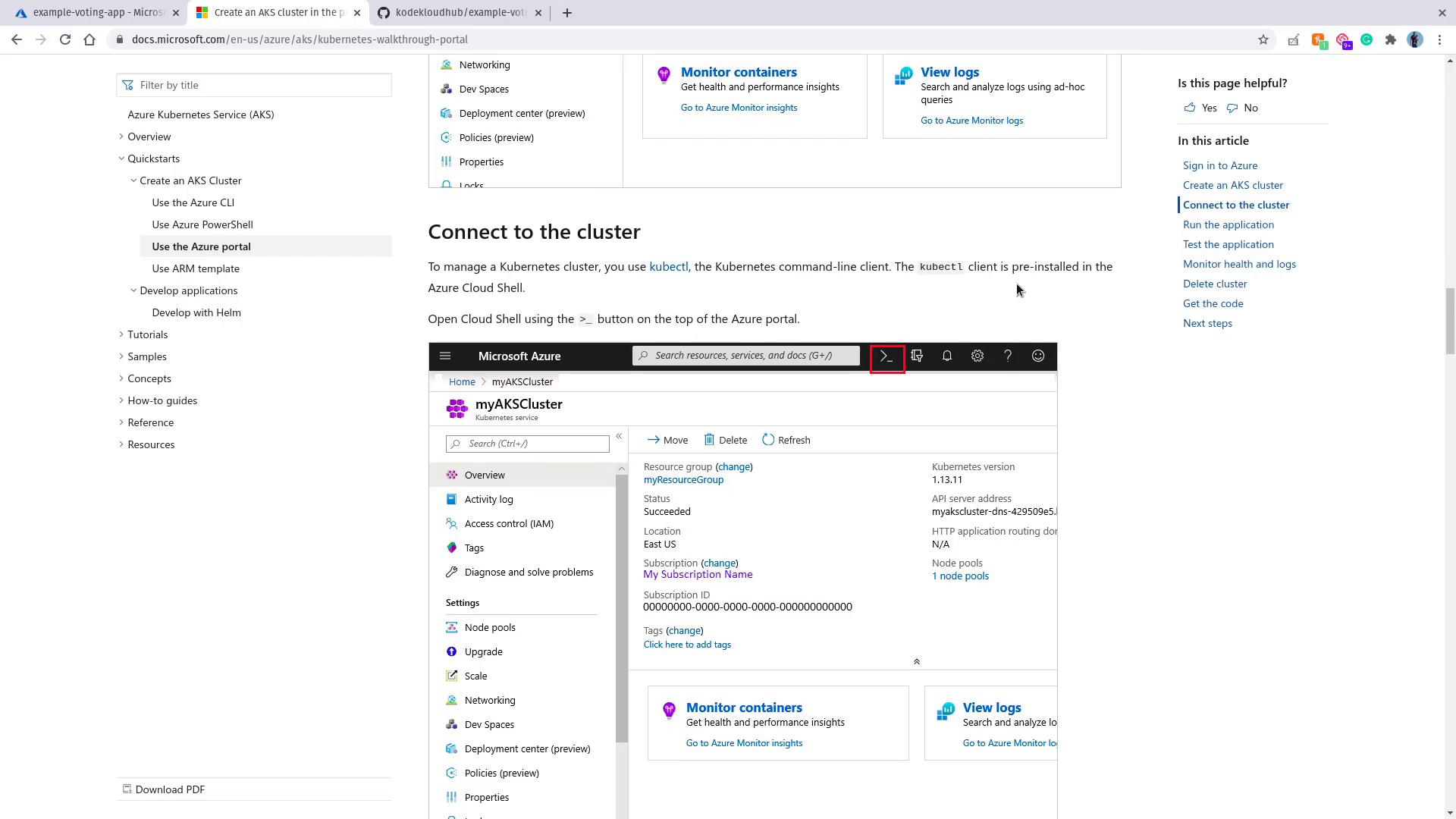
Configuring kubectl in Cloud Shell
In the Cloud Shell window, execute the following command to configure kubectl. Replace “myResourceGroup” and “myAKSCluster” with your actual resource group and cluster names:Deploying the Voting Application
With your single-node cluster up and running, it’s time to deploy the voting application. Follow these steps:-
Clone the Repository: Clone the GitHub repository containing the application’s YAML files.
-
Deploy the Application Components: Execute the commands below in the order listed to deploy all necessary services and deployments:
-
Verify Deployments: Check the status of your deployments and services using:
A typical output might be:
In some cases, the result app service may initially show a pending state while the load balancer is being provisioned. Give it a few minutes to complete this process.
Testing Your Deployment
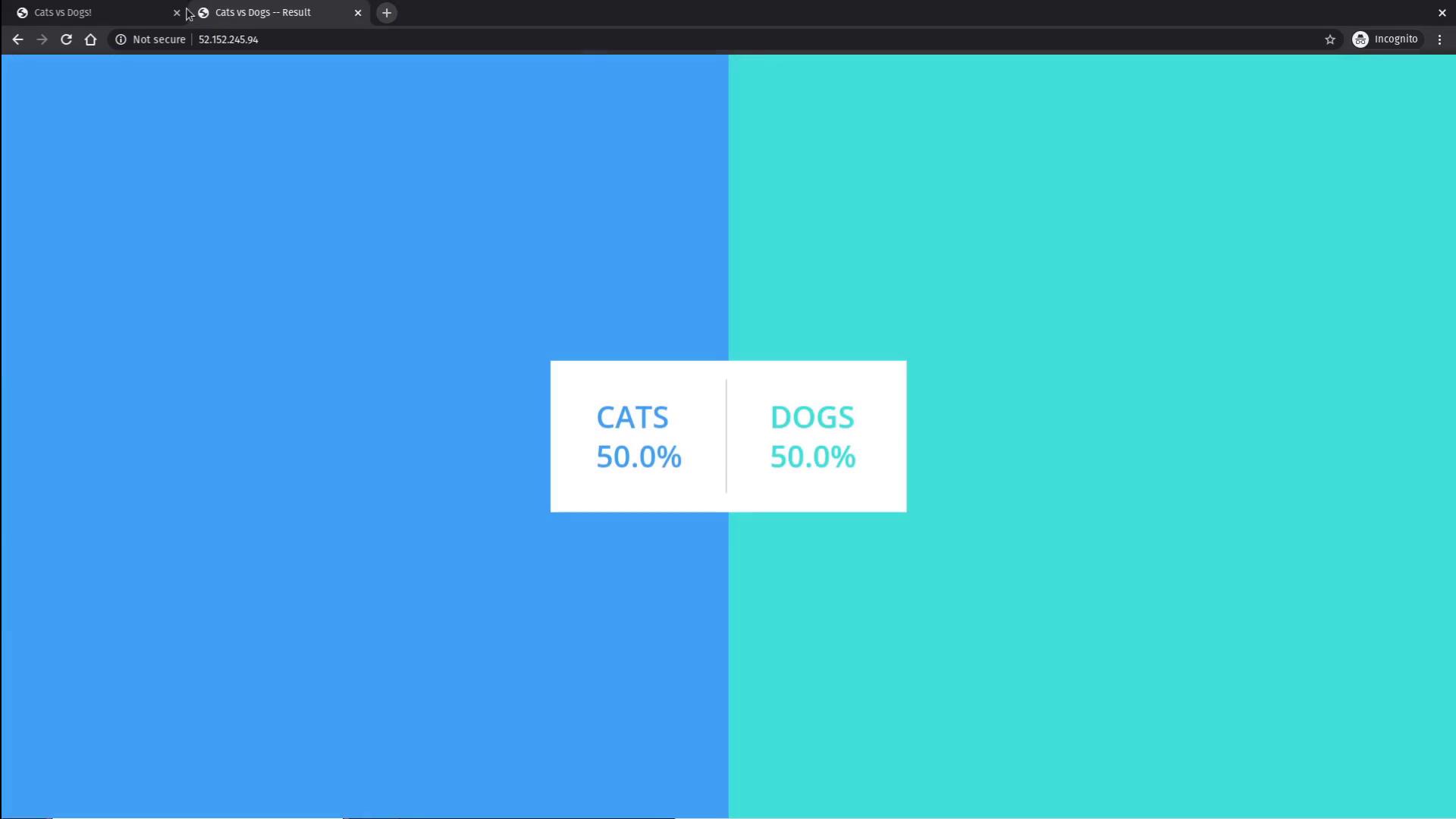
Once all deployments are confirmed (each showing one out of one pod ready) and the load balancers for both the voting and result services have been provisioned, you can test the applications:- Open your browser in a new tab to access the voting application using the external IP provided for the “voting-service”.
- Similarly, open another tab to access the results application using the external IP of the “result-service”.