

- Local graphical login (desktop sign-in).
- Remote graphical login using Remote Desktop (RDP/xrdp).
- Remote text-mode login using SSH.
1) Local graphical login (GNOME)
On a local machine with GNOME installed you sign in the same way you would on any desktop system: select your user, type the password, and click Sign In. GNOME loads your desktop session after authentication.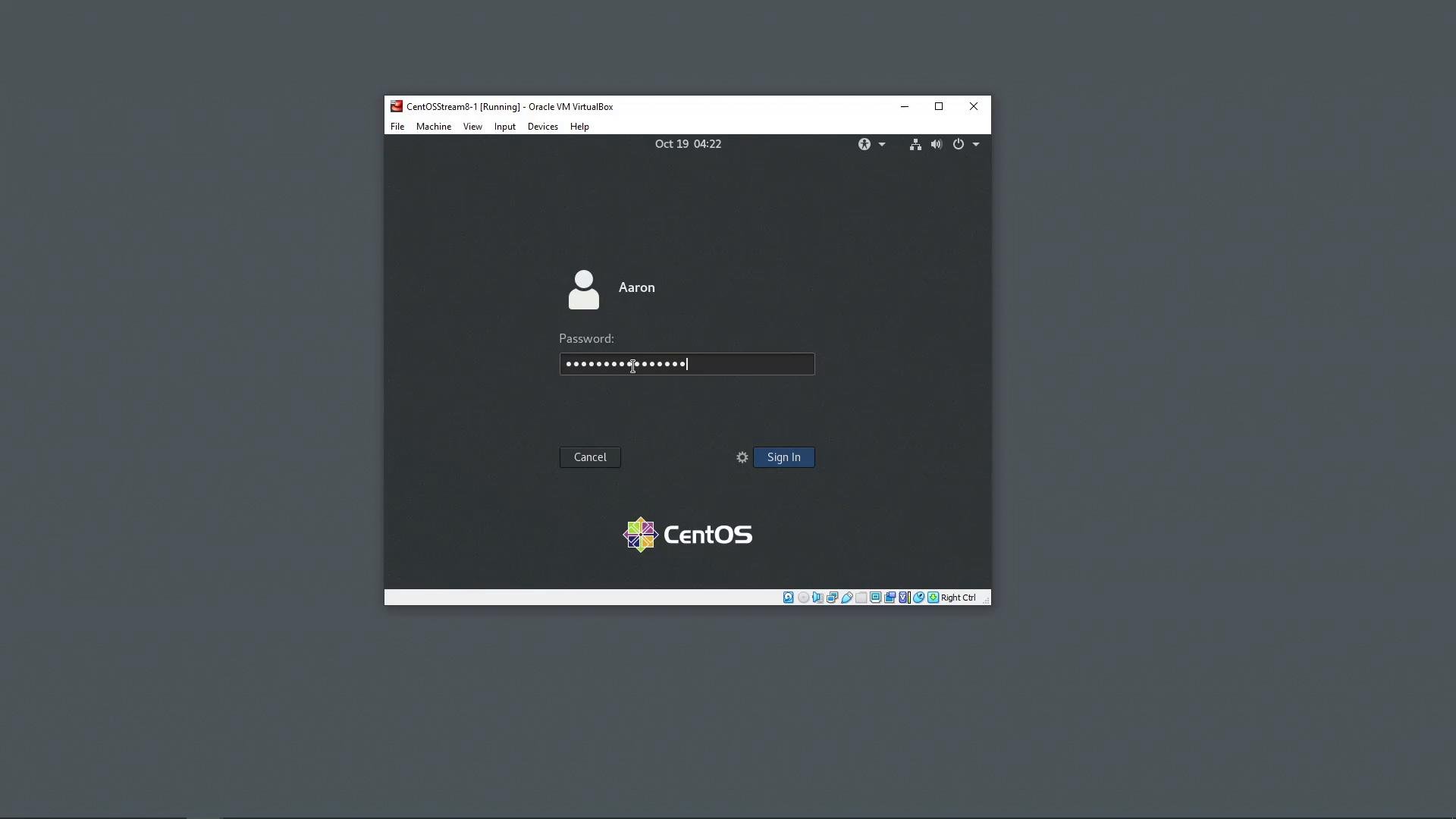
2) Remote graphical login (RDP via xrdp)
If the remote host runs xrdp you can open a graphical session from any RDP client (Windows Remote Desktop Connection, Remmina, Microsoft Remote Desktop for macOS, etc.). Enter the remote IP address in the client and click Connect.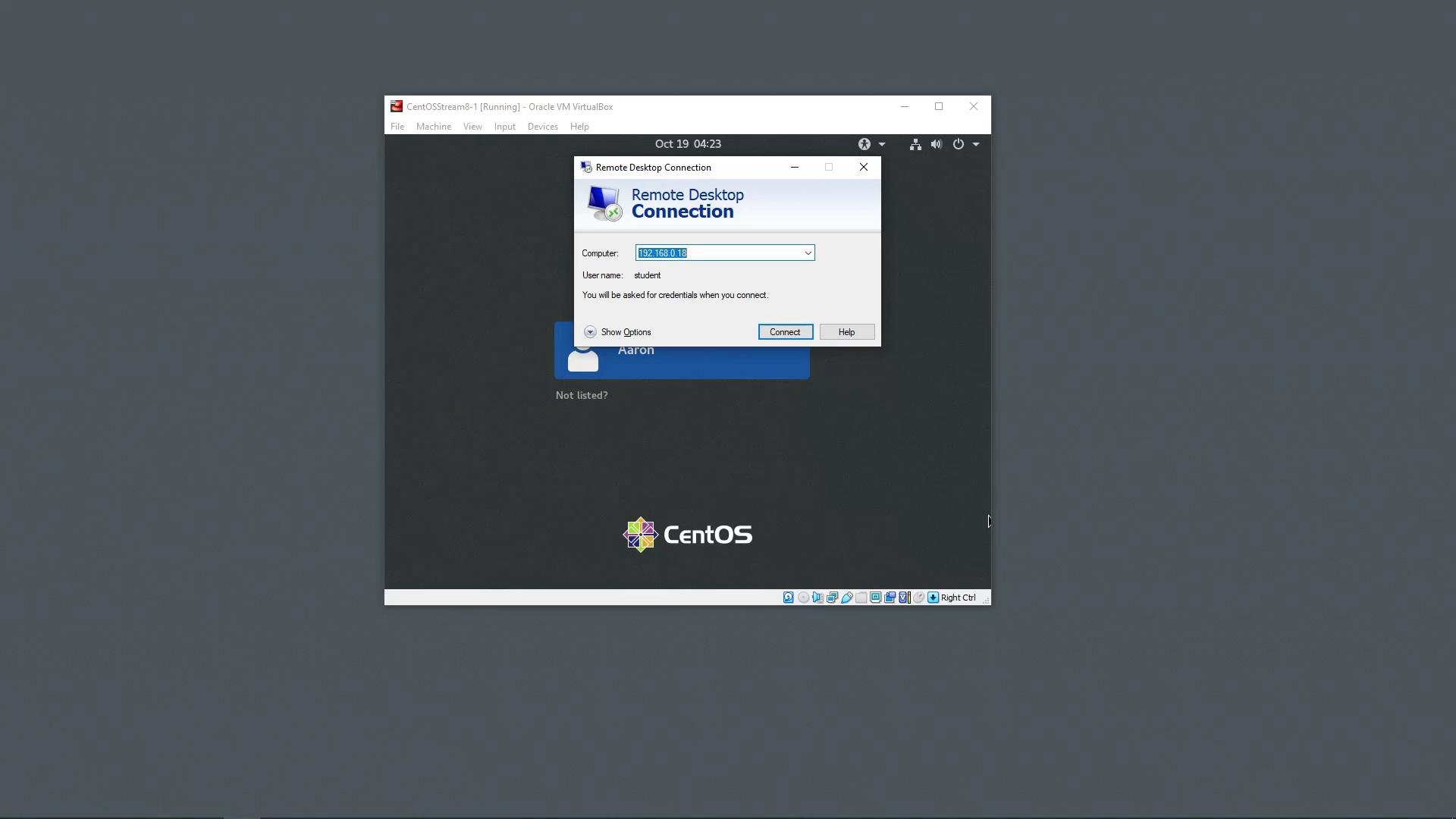
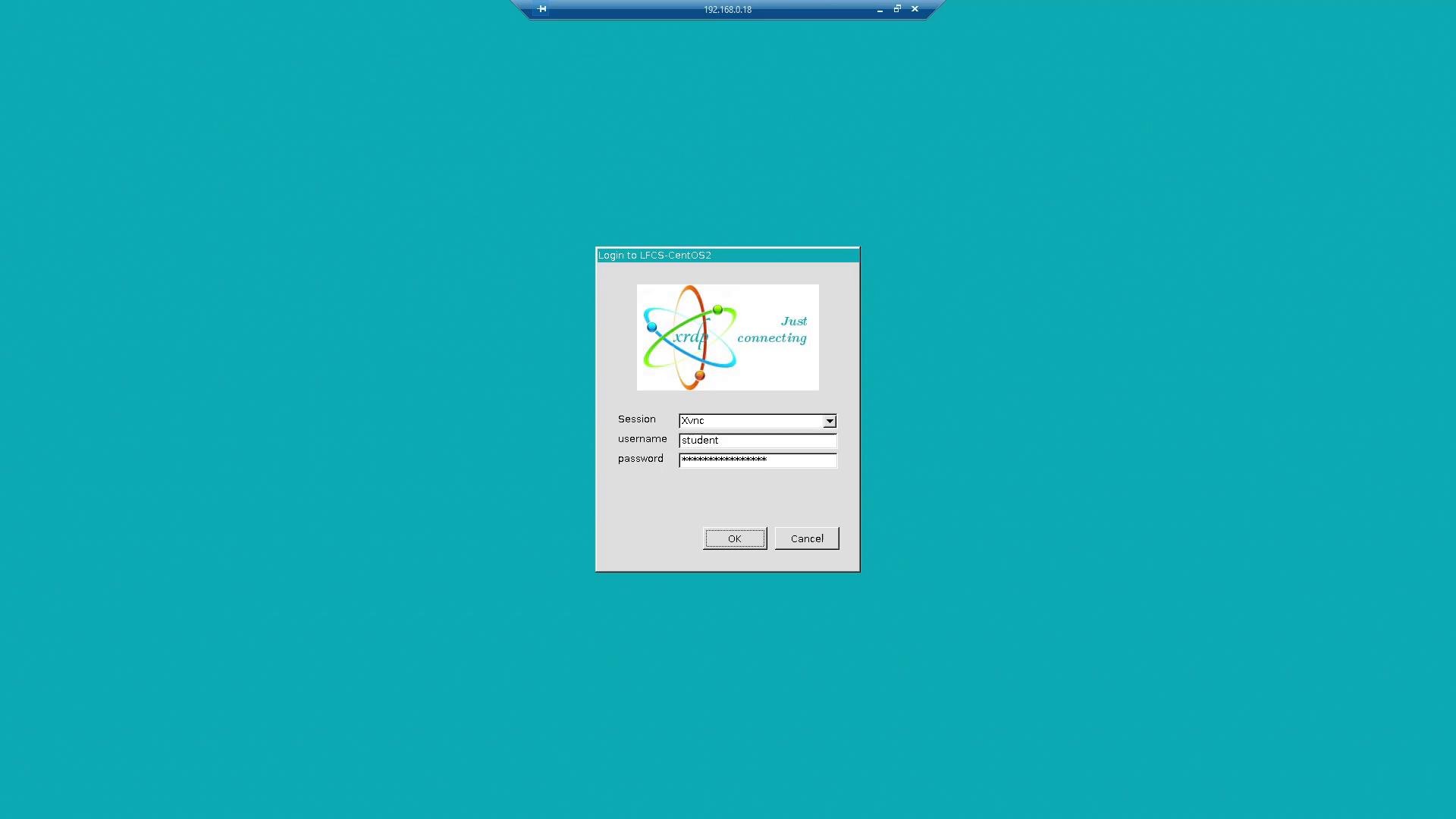
student is pre-populated; type the password and click OK to start the remote graphical session.
When exposing RDP/xrdp to untrusted networks, secure the connection (VPN, firewall rules) and prefer key-based or multi-factor authentication where possible. RDP ports open to the public internet are a common attack vector.
3) Remote text-mode login (SSH from the remote graphical session)
From the GNOME terminal on the remote host you can SSH into another machine on the network. For example, fromstudent@lfcs-centos2 connect to the local machine used earlier (IP 192.168.0.17) using the aaron account:
When SSH prompts for a password, keystrokes are not echoed — no characters, dots, or asterisks appear. This is normal: type the password and press Enter.
Quick comparison: login methods
Links and references
- Remote Desktop Services (RDP): https://learn.microsoft.com/en-us/windows-server/remote/remote-desktop-services/welcome-to-rds
- xrdp project: https://www.xrdp.org/
- GNOME Terminal: https://help.gnome.org/users/gnome-terminal/stable/
- OpenSSH: https://www.openssh.com/
- Cockpit project: https://cockpit-project.org/
- CentOS: https://www.centos.org/