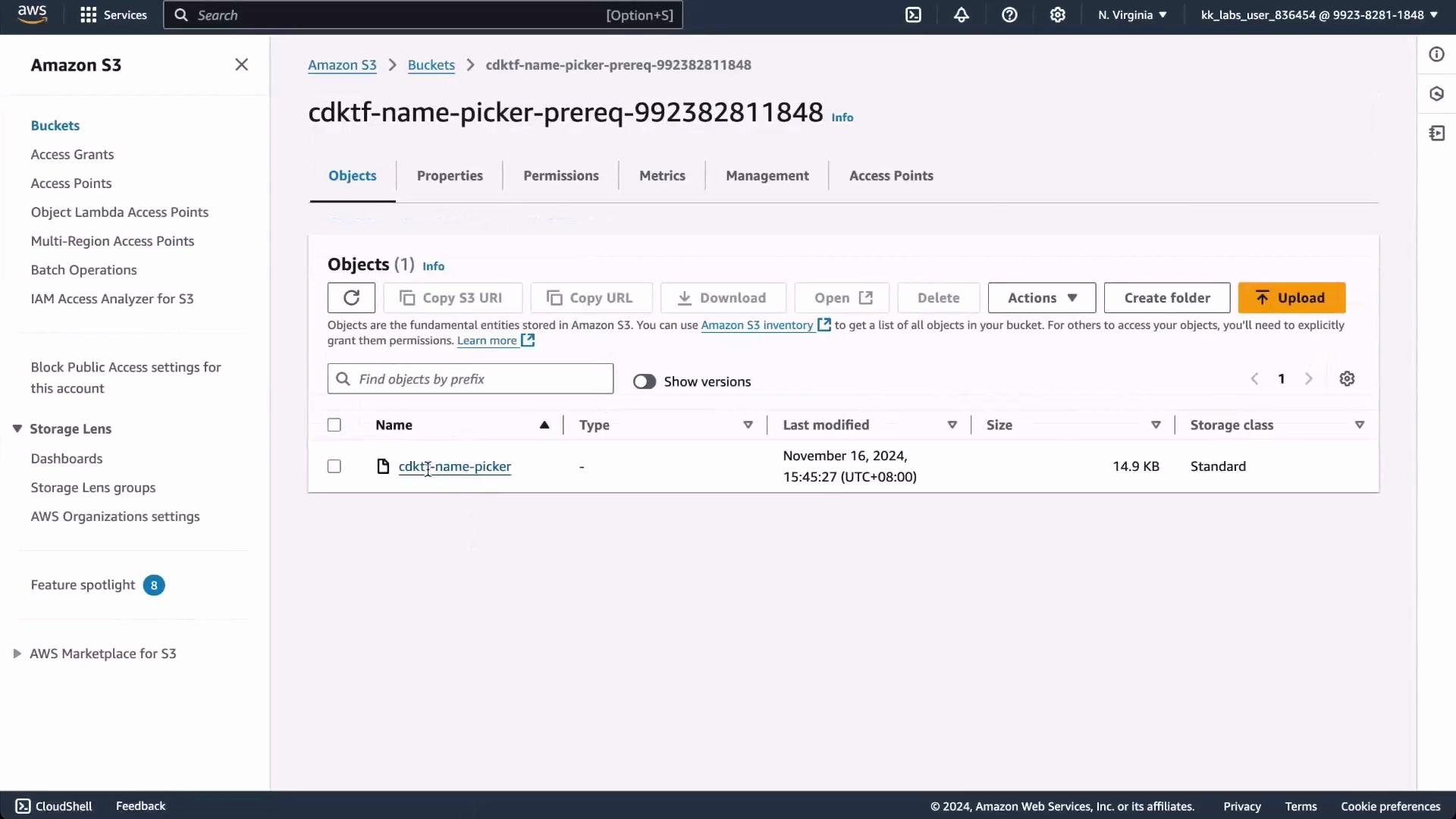
In this lesson we cover backend strategies in CDKTF — why Terraform state matters, how to use a remote backend on AWS, and a practical workflow to avoid synth/deploy circular dependencies when using CDK for Terraform. Recap: Terraform state is a JSON file that records the resources Terraform manages, their current attributes, and relationships. Terraform (and CDKTF) uses state to plan changes accurately by comparing the real infrastructure with the desired configuration in code. When working locally you might see a normal deploy flow like this:
# example terminal interaction after deploy
Apply complete! Resources: 11 added, 0 changed, 0 destroyed.

Outputs:
namePickerApiUrl = "https://exgnru9me6.execute-api.us-east-1.amazonaws.com/dev"

# Curl the endpoint
curl https://exgnru9me6.execute-api.us-east-1.amazonaws.com/dev
"Arthur"
All of that deployment information is saved in a local Terraform state file (e.g., terraform.tfstate). When you run cdktf deploy, CDKTF/Terraform compares the synthesized configuration to that stored state to determine what to create, change, or destroy. Local state is fine for single-developer experiments, but it presents problems for collaboration: team members don’t share a single source of truth and concurrent changes can cause conflicts and drift.
A presentation slide titled "Managing State With Remote Backends – Problem" showing a stylized folder icon with a warning badge. The caption reads "Local state files limit collaboration and are not production ready."

Why use a remote backend?

A remote backend provides a shared state file and avoids inconsistent local copies. On AWS a common production-ready choice is:
  • S3 to store the Terraform state file (shared storage)
  • DynamoDB to provide a locking mechanism to prevent concurrent apply/plan operations
A presentation slide titled "Managing State With Remote Backends – Solution" showing a folder icon and the Amazon S3 bucket icon. The caption reads: "Use a remote backend (like S3) to store state."
Other hosted options include Terraform Cloud/Enterprise. For this lesson we’ll demonstrate the S3 + DynamoDB pattern for the NamePicker app. Example CDKTF backend configuration:
import { S3Backend } from 'cdktf';

new S3Backend(this, {
  bucket: 'cdktf-name-picker-backend',
  dynamodbTable: 'cdktf-name-picker-locks',
  region: 'us-east-1',
  key: 'state-file',
});
This config tells Terraform to store the state at s3://cdktf-name-picker-backend/state-file and use the DynamoDB table for locking.
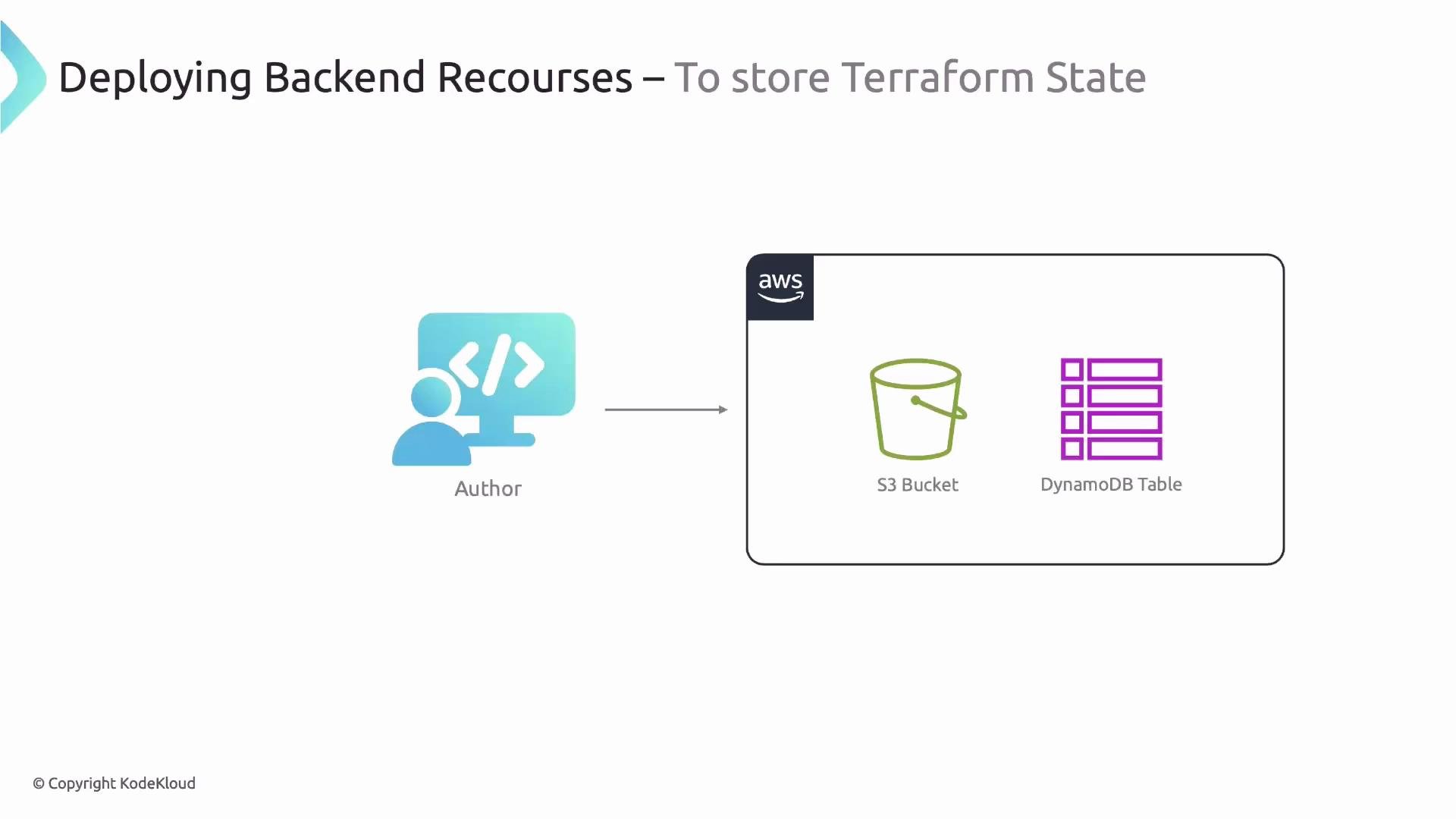
A slide titled "Deploying Backend Resources – To store Terraform State" showing an author/developer icon with an arrow to an AWS-backed box containing an S3 bucket and a DynamoDB table. It illustrates storing Terraform state in S3 with DynamoDB used for state locking.

Creating the backend resources (S3 + DynamoDB)

You must create the S3 bucket and DynamoDB table before the backend can be used. Common approaches:
OptionWhen to usePros / Cons
Manual (AWS Console)Quick one-off setupQuick, but not reproducible or auditable
CDKTF (your project)Keep everything in codeReproducible, but can create a circular dependency if not bootstrapped first
Import a Terraform Registry moduleReuse community modulesFast and consistent; integrates with CDKTF via cdktf get
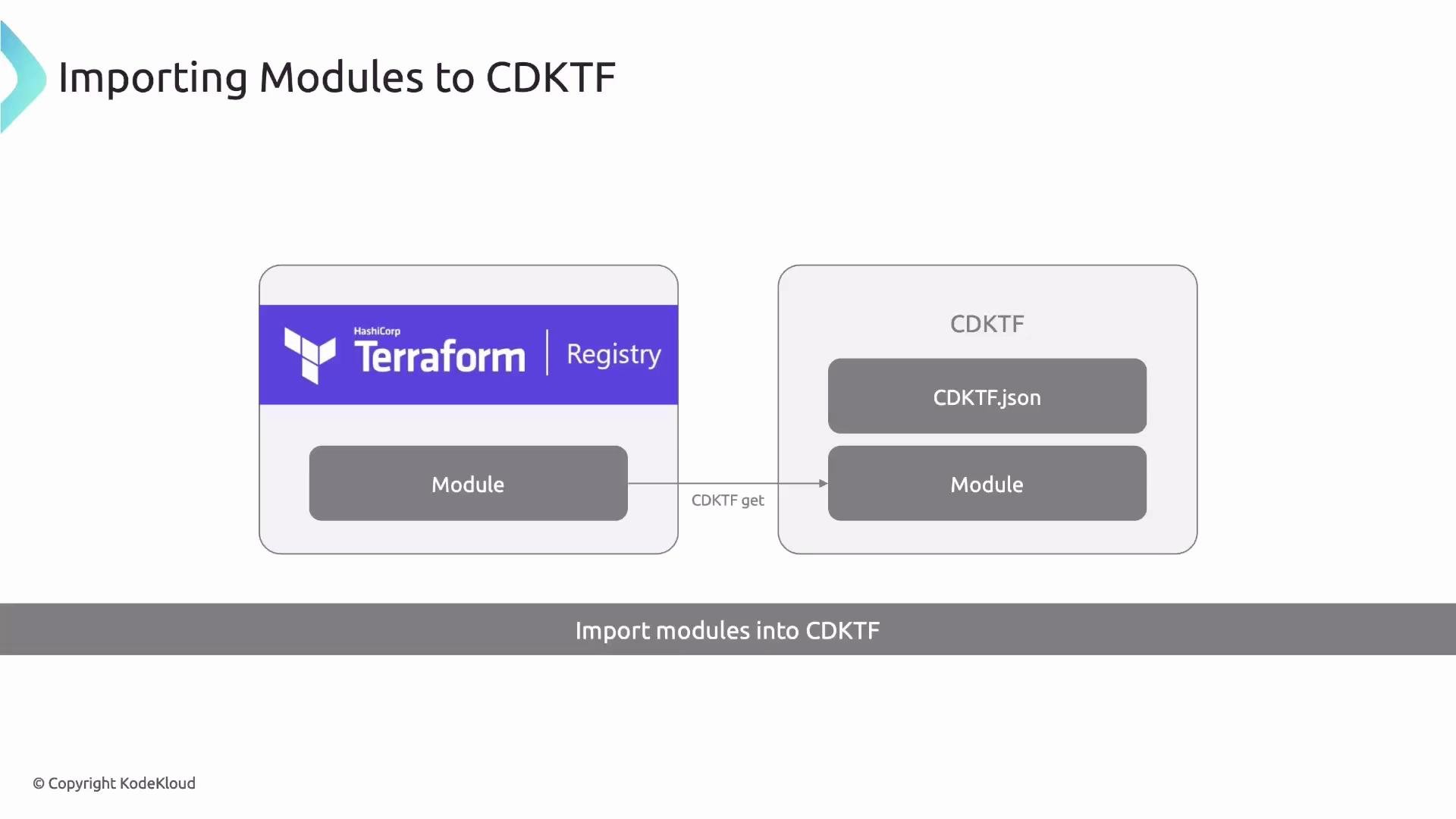
Links and references: Reusing a Terraform Registry module is convenient because CDKTF can generate TypeScript wrappers for registry modules using cdktf get.
A slide diagram titled "Importing Modules to CDKTF" showing a module being fetched from the HashiCorp Terraform Registry (left) into a CDKTF project (right) via an arrow labeled "CDKTF get", with the CDKTF box containing CDKTF.json and the imported module.
Example of a generated module construct (after cdktf get):
// generated by `cdktf get` for my-devops-way/s3-dynamodb-remote-backend/aws
import { TerraformModule, TerraformModuleUserConfig } from 'cdktf';
import { Construct } from 'constructs';

export interface S3DynamodbRemoteBackendConfig extends TerraformModuleUserConfig {
  readonly bucket?: string;
  readonly bucketPrefix?: string;
  readonly dynamodbTable: string;
  readonly kmsMasterKeyId?: string;
}

export class S3DynamodbRemoteBackend extends TerraformModule {
  // constructor and properties generated here...
}
Run yarn cdktf get or cdktf get to fetch modules and generate .gen wrappers. Then import them like any other CDKTF construct:
import { S3DynamodbRemoteBackend } from './.gen/modules/my-devops-way/s3-dynamodb-remote-backend/aws';
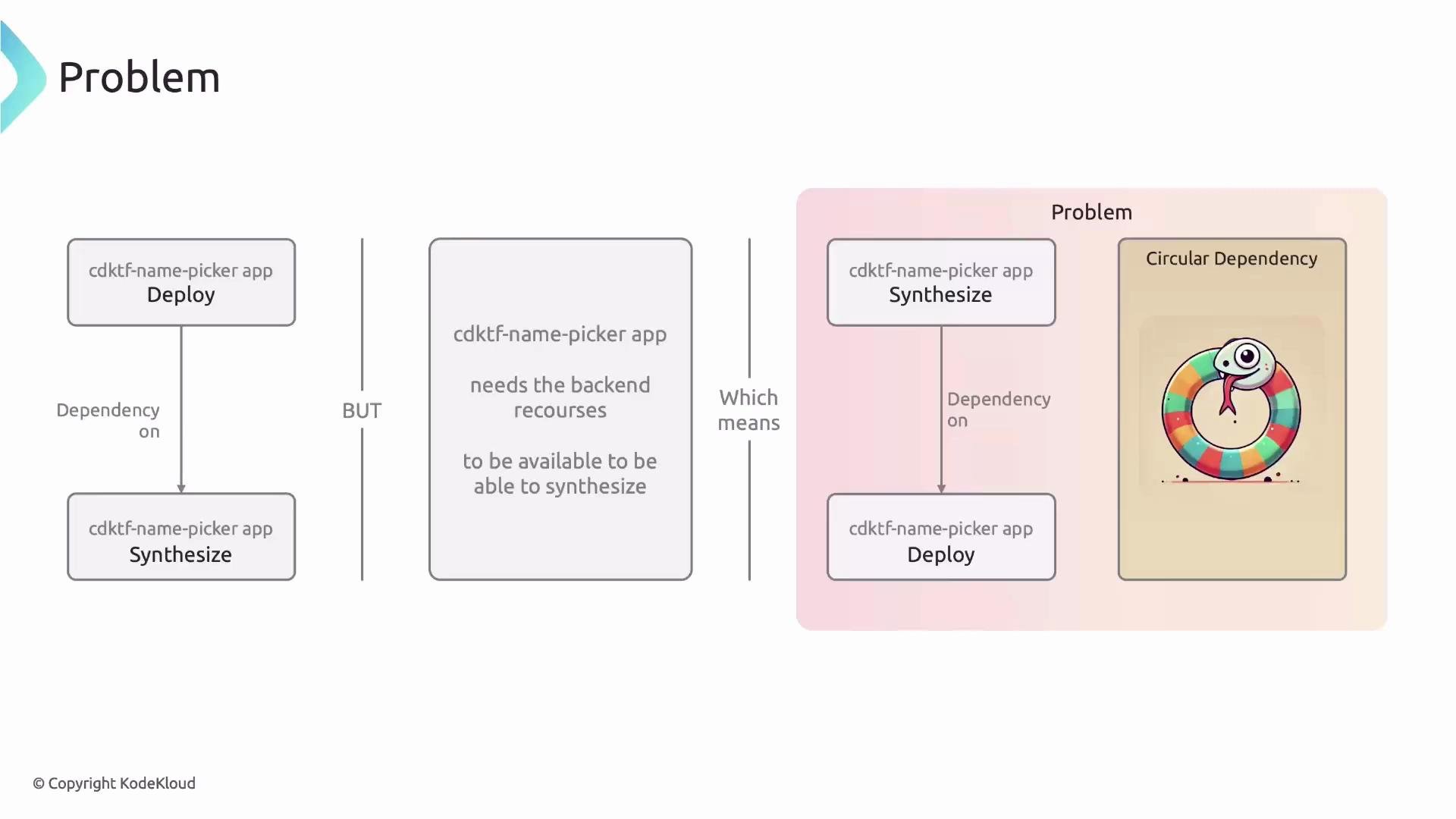
Problem scenario:
  • CDKTF synthesizes your main app into Terraform. CDKTF needs a backend configuration to be resolvable at synth-time.
  • That backend (S3 + DynamoDB) may be created by Terraform itself as part of the same project.
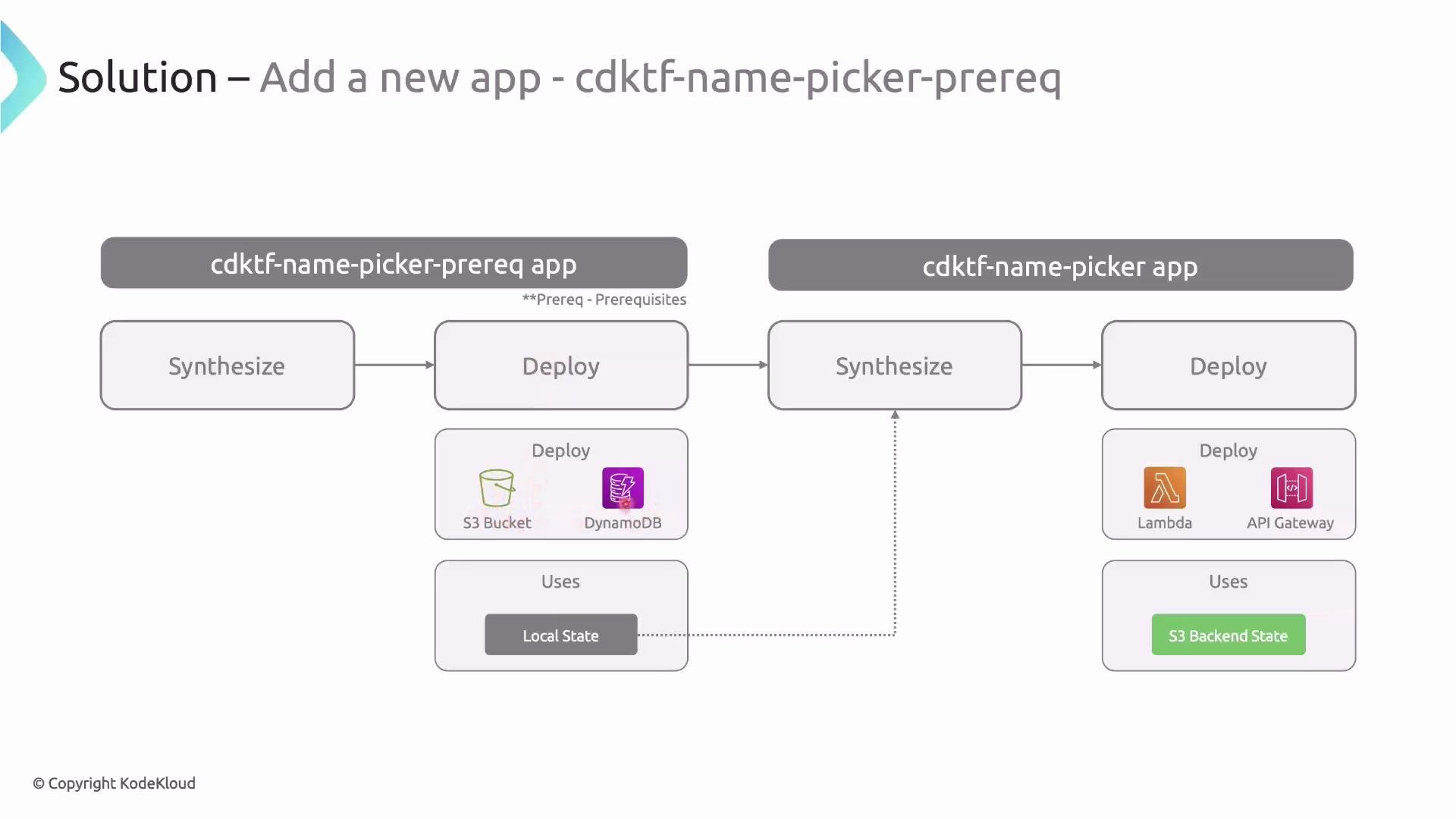
This creates a circular dependency: synth of the main app expects a backend that hasn’t been deployed yet. Solution: split the work into two apps:
  • Prereq app (boots the backend) — uses local state and creates S3 + DynamoDB.
  • Main app — uses the S3 backend created by the prereq app.
Diagram of the split workflow:
A slide diagram titled "Solution – Add a new app - cdktf-name-picker-prereq" showing a two-app CDKTF workflow: the prereq app synthesizes and deploys S3 and DynamoDB (using local state) and the main app then synthesizes and deploys Lambda and API Gateway (using S3 backend state).

Implementation overview (step-by-step)

  1. Organize code: move the existing NamePicker stack to stacks/NamePickerStack.ts. Remove any S3Backend declarations from it — the backend will be injected later by a base stack.
  2. Create a Prereq stack that provisions the S3 bucket and DynamoDB table and emits outputs.
Example prereq stack:
// stacks/PrereqStack.ts
import { TerraformStack, TerraformOutput } from 'cdktf';
import { Construct } from 'constructs';
import * as aws from '@cdktf/provider-aws';
import { S3DynamodbRemoteBackend } from '../.gen/modules/my-devops-way/s3-dynamodb-remote-backend/aws';

export interface PreReqStackProps { backendName: string; }

export class PreReqStack extends TerraformStack {
  constructor(scope: Construct, id: string, { backendName }: PreReqStackProps) {
    super(scope, id);

    new aws.AwsProvider(this, 'aws', { region: 'us-east-1' });

    const currentAccount = new aws.DataAwsCallerIdentity(this, 'current-account', {});

    const backend = new S3DynamodbRemoteBackend(this, 's3-dynamodb-remote-backend', {
      bucket: `${backendName}-${currentAccount.accountId}`,
      dynamodbTable: backendName,
    });

    new TerraformOutput(this, 'bucket', { value: backend.bucket });
    new TerraformOutput(this, 'dynamodbTable', { value: backend.dynamodbTable });
  }
}
Use the AWS account ID or another unique suffix for S3 bucket names to avoid global collisions — S3 bucket names must be globally unique.
  1. Add a small config module for project-level constants:
// config.ts
export const PROJECT_NAME = 'cdktf-name-picker';
export const BACKEND_NAME = `${PROJECT_NAME}-prereq`;
  1. Add package.json scripts to manage prereq lifecycle separately:
// package.json (scripts excerpt)
{
  "scripts": {
    "get": "cdktf get",
    "synth": "cdktf synth",
    "deploy": "cdktf deploy",
    "deploy:prereq": "cdktf deploy --app='yarn ts-node prereq.ts'"
  }
}
  1. Deploy the prereq app to create the backend resources:
# deploy prereq stack (creates S3 bucket + DynamoDB table)
yarn deploy:prereq
The prereq deploy prints outputs (bucket name and table name) when complete.
  1. Create a reusable base stack that sets up the S3 backend for downstream stacks by reading outputs from the prereq state file:
// stacks/AwsBaseStack.ts
import { Construct } from 'constructs';
import { S3Backend, TerraformStack } from 'cdktf';
import * as aws from '@cdktf/provider-aws';
import * as path from 'path';
import * as fs from 'fs';
import { BACKEND_NAME } from '../config';

export class AwsBaseStack extends TerraformStack {
  constructor(scope: Construct, id: string) {
    super(scope, id);

    new aws.AwsProvider(this, 'aws', { region: 'us-east-1' });

    const prereqStateFile = path.join(process.env.INIT_CWD!, `./terraform.${BACKEND_NAME}.tfstate`);

    let prereqState: any = null;
    try {
      prereqState = JSON.parse(fs.readFileSync(prereqStateFile, 'utf-8'));
    } catch (error: any) {
      if (error.code === 'ENOENT') {
        throw new Error(`Could not find prerequisite state file: ${prereqStateFile}`);
      }
      throw error;
    }

    new S3Backend(this, {
      bucket: prereqState.outputs.bucket.value,
      dynamodbTable: prereqState.outputs.dynamodbTable.value,
      region: 'us-east-1',
      key: id,
    });
  }
}
This base stack reads terraform.<BACKEND_NAME>.tfstate (the prereq’s local state file created when you applied the prereq app) and configures an S3 backend for any stack that extends it. The key uses the stack ID so each stack gets its own state key in the bucket.
  1. Update NamePicker stack to extend the base stack:
// stacks/NamePickerStack.ts (excerpt)
import { AwsBaseStack } from './AwsBaseStack';

export class NamePickerStack extends AwsBaseStack {
  constructor(scope: Construct, id: string) {
    super(scope, id);

    // application resources (Lambda, API Gateway, outputs, etc.)
  }
}
Remove any local S3Backend declarations from the NamePicker stack so the backend is provided by AwsBaseStack.
  1. Synthesize the main app:
yarn synth
CDKTF will generate Terraform configurations under cdktf.out/stacks/<stack-name> that now reference the S3 backend configuration.
  1. Migrate the existing local state into the S3 backend. In the generated stack folder run:
cd cdktf.out/stacks/cdktf-name-picker
terraform init -migrate-state
Terraform will detect the backend change and ask whether to copy the local state to the new S3 backend. Answer yes to migrate state. Example (condensed) interaction:
Terraform detected that the backend type changed from "local" to "s3".
Do you want to copy existing state to the new backend?
Enter "yes" to copy and "no" to start with an empty state.

Enter a value: yes
Terraform has been successfully initialized!
When migrating state, run terraform init -migrate-state inside the generated stack directory (e.g., cdktf.out/stacks/<stack-name>). Always back up local state files before migrating.
  1. Deploy the main app from the project root as usual:
yarn deploy
# expected output for a successful migration with no changes
Apply complete! Resources: 0 added, 0 changed, 0 destroyed.
Outputs:
namePickerApiUrl = "https://<rest-api-id>.execute-api.us-east-1.amazonaws.com/dev"
After a successful migration, the state file is stored in S3 (e.g., s3://<prereq-bucket>/<stack-key>) and you can remove the local terraform.tfstate for that stack if you no longer need it locally. Keep the prereq state file if you want to use it for subsequent bootstrapping or redeploys.

Best practices and notes

  • For new projects, prefer creating the remote backend first (prereq app) to avoid manual migration.
  • Consider separating prereq and main app into different packages or workspaces inside a monorepo to avoid CDKTF overwriting cdktf.out during synths.
  • Use unique names for globally scoped resources (like S3 buckets) — incorporate account ID, region, or a generated UUID.
  • For larger teams and pipelines, consider automating the prereq bootstrap in CI/CD so the backend is reproducibly created before running downstream synths.
  • CDKTF’s generated .gen constructs let you reuse community Terraform modules from the Registry — run cdktf get to fetch and generate TypeScript wrappers.

Summary

  • Terraform/CDKTF state is required to track resource metadata and plan accurate changes.
  • Local state is acceptable for single-developer use but not for team collaboration.
  • Use an S3 backend with DynamoDB locking for shared state on AWS.
  • Avoid synth/deploy circular dependencies by splitting into a prereq app (bootstrap backend) and a main app (uses backend).
  • Importing registry modules into CDKTF is straightforward with cdktf get.
  • To move local state into S3, run terraform init -migrate-state in the generated stack directory.
Further reading and references That completes this lesson on backend strategies in CDKTF. More functionality will be added to the project.

Watch Video