

Repository layout (highlight)
- Root
main.tf— provider,random_id, oneaws_s3_bucketresource, and a module call. modules/s3_bucket_with_env_tag/— a simple module that creates a bucket and applies anenvtag.- Terraform state and plan artifacts are created when you run
terraform initandterraform apply.
Root configuration (abbreviated)
Rootmain.tf:
provider "aws"sets the AWS region.random_id.bucket_idprovides a short hex suffix so bucket names are globally unique.object_lock_enabled = trueenables S3 Object Lock at bucket creation (see important notes below).- The
moduleblock reusesmodules/s3_bucket_with_env_tagand passesenvandnameinputs.
Module: modules/s3_bucket_with_env_tag
modules/s3_bucket_with_env_tag/main.tf:- Creates a bucket with the provided
name. - Enables object lock on creation.
- Applies an
envtag set to the suppliedenvvalue (validated to be eitherdevorprod).
Important: Amazon S3 requires versioning to be enabled on a bucket to use Object Lock. In Terraform you should add a
versioning block inside the bucket resource when enabling object lock:Notes and caveats
- Object Lock must be enabled at bucket creation and cannot be disabled later. Plan accordingly for retention and compliance.
- Using a
random_idor other unique suffix avoids global name collisions for S3 buckets. - The
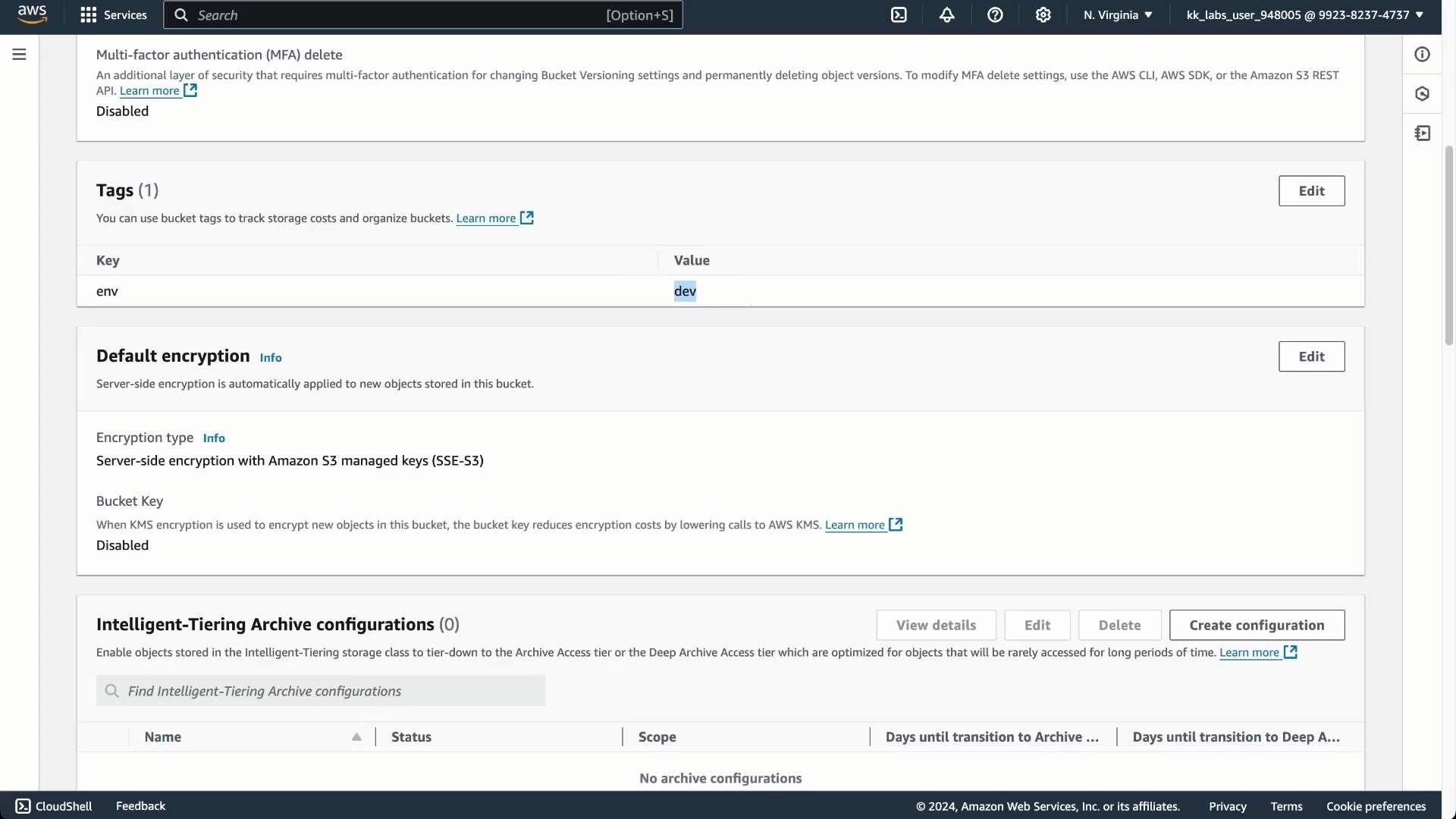
envtag applied by the module helps with cost allocation and filtering in the AWS console.
Buckets created with object lock enabled are configured at creation time and cannot have object lock disabled later. Ensure you understand retention and compliance requirements before enabling this feature.
What resources will be created?
Deploying the Terraform configuration
- Change into the Terraform directory and initialize:
- Apply the configuration:
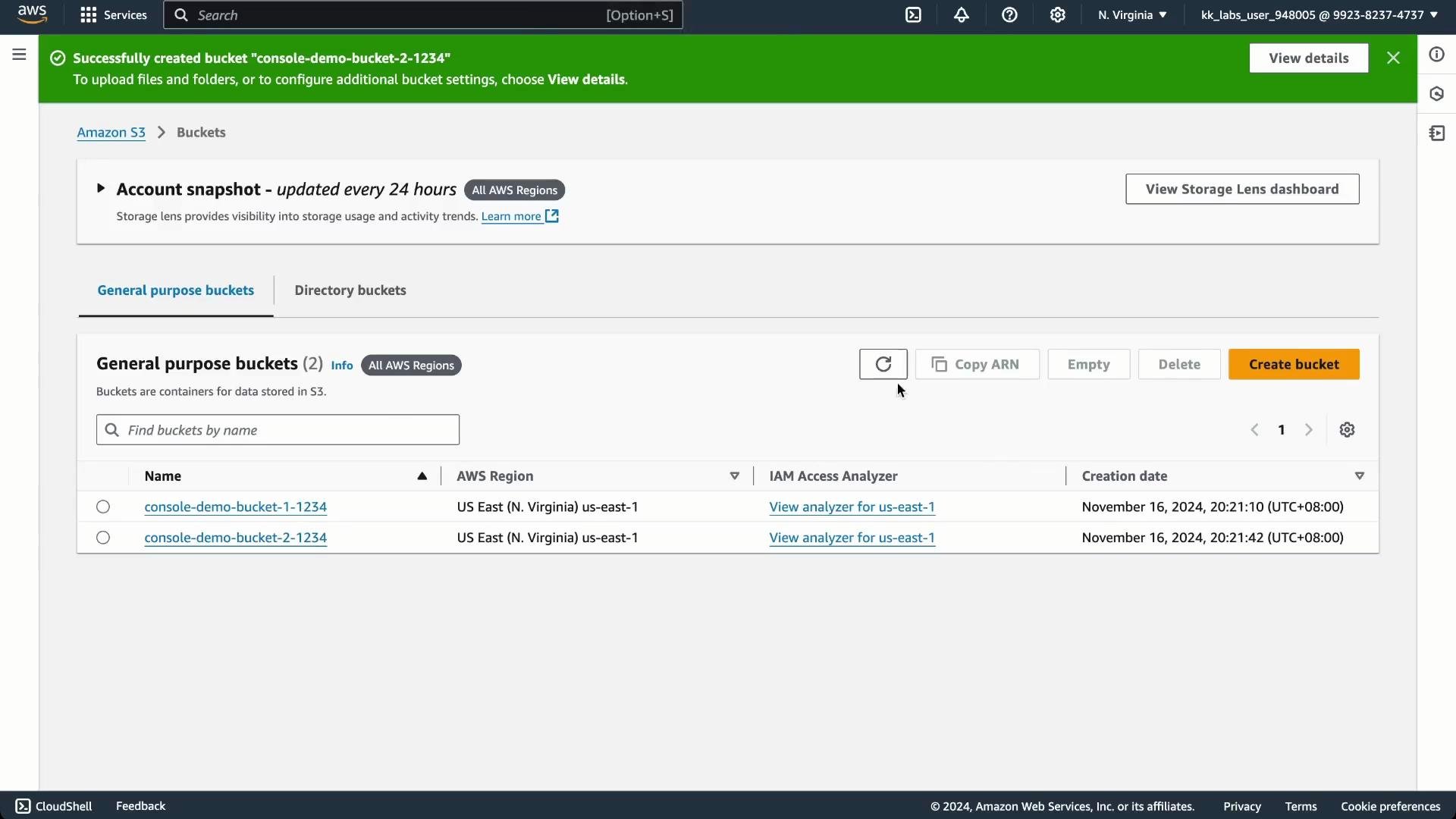
yes to proceed. After the apply finishes, refresh the S3 console to confirm that the buckets exist and include the random ID suffix.
env tag set to dev (as passed into the module) and the default encryption and MFA delete settings.
Summary
This example demonstrates infrastructure-as-code with Terraform:- Declarative HCL creates reproducible AWS S3 resources.
- Modules encapsulate reusable patterns (here, a bucket with an
envtag). - Use
random_idor other uniqueness strategies for globally unique S3 names. - Remember to enable
versioningwhenever you enableobject_lock_enabled.