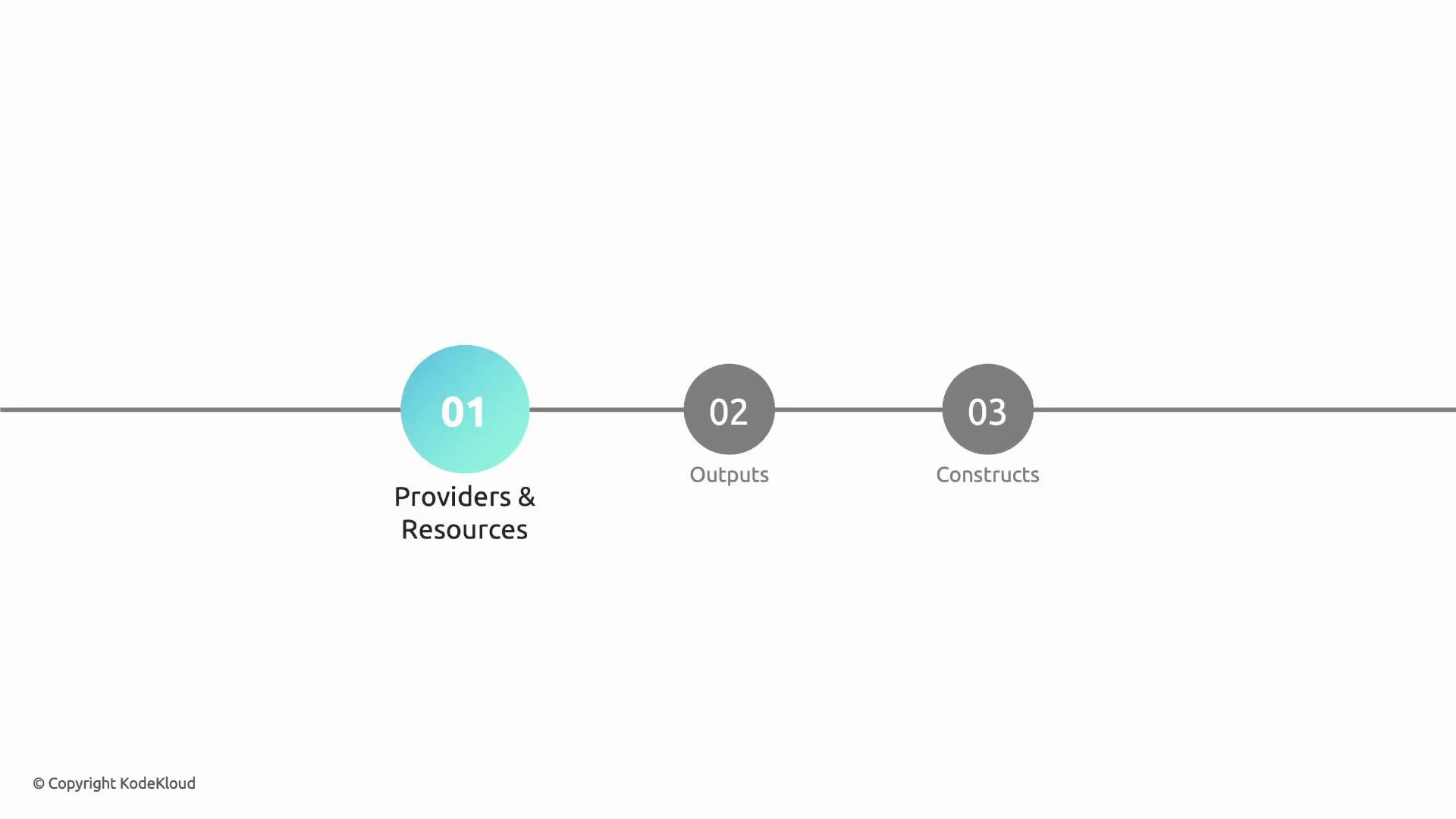
In this guide, we explore several essential CDKTF concepts: Providers and Resources, Outputs, and Constructs. We begin with Providers and Resources.
The image shows a linear diagram with three labeled steps: "01 Providers & Resources," "02 Outputs," and "03 Constructs."
Arthur embarks on his CDKTF journey to automate the creation of common project files such as README.md, package.json, and .gitignore. To achieve this, he utilizes the file resource offered by CDKTF. Arthur opens his lab environment and starts his next CDKTF exercise.
The image is a slide titled "Text Files With CDKTF – Solution," featuring an icon of a person at a computer with code symbols and the text "Use the File resource in CDKTF."
He then opens a new terminal to inspect the initial project structure, which already includes some sample code:
For those following along in “hard mode,” Arthur deletes the initial code and starts fresh with a simplified version:
He then removes the folder created during cdktf init and runs yarn install to fetch the project dependencies. The simplified project code now appears as follows:
After yarn install completes, Arthur refreshes VS Code to recognize the new dependencies. He then performs a quick “Hello World” test by deploying a simple Terraform output:
After initializing the new project, Arthur confirms that both the stack (named “cdktf-project-builder”) and its parent app are configured correctly. The deployment output confirms that the TypeScript code compiles successfully into Terraform configuration:
Arthur then inspects the cdkout folder to review the stack and the generated Terraform configuration files. An example of the synthesized Terraform state file is shown below:
With the basic deployment verified, Arthur proceeds to leverage a local file resource. To work with local files, he needs to add the appropriate provider. Unlike a native Terraform project (where you would simply run terraform init after adding the provider), in CDKTF you must declare the dependency explicitly. First, Arthur installs the CDKTF core library:
Next, he installs the local provider:
This provider enables CDKTF to manage local file resources. Once the dependency is in place, Arthur updates his code to create a README file:
When Arthur runs yarn cdktf deploy, the output confirms the creation of the file resource:
The synthesis process converts the TypeScript code into Terraform configuration. If an error arises (such as from TypeScript’s “no unused locals” rule), Arthur can either remove the unused variable or adjust the TypeScript configuration accordingly. After running cdktf synth followed by cdktf deploy, CDKTF generates a Terraform plan indicating that one resource will be added (the local file). The output looks similar to:
After approving the plan, Terraform creates the file, confirming the successful deployment:
  • A construct represents any resource or infrastructure component in your construct tree.
  • A provider manages the connection and configuration for resources (e.g., provider.LocalProvider).
  • A resource (such as file.File) defines a local file, similar to HashiCorp Configuration Language (HCL) in native Terraform projects.
The CDKTF code is ultimately synthesized into Terraform configurations. For instance, the Terraform configuration for the local file resource includes parameters like the filename and content. An example snippet might resemble:
Running yarn cdktf synth creates the necessary Terraform configuration, and yarn cdktf deploy applies the configuration after displaying a detailed plan. If Arthur decides to modify the README file content, Terraform will replace the file resource imperatively. For example, updating the README content:
Upon deployment, Terraform indicates that the resource must be replaced:
Local files are managed imperatively by Terraform. Any modification to the file content will trigger a resource replacement. For cloud resources, such as an AWS S3 bucket, updates might not require replacement, and lifecycle rules can be applied using the lifecycle configuration.
For example, ignoring changes to the file content can be configured as follows:
After deploying the above, subsequent redeployments show:
Changing the resource’s logical ID (e.g., renaming it from readme-file to readme-file-2) results in the destruction of the old resource and creation of a new one. To add a package.json file along with the README, Arthur extends his code:
After running yarn cdktf deploy, Terraform confirms that the new file resource has been added:
Verifying the created package.json confirms its content:

Terraform State and Resource Updates

Consider the following points regarding Terraform state and resource updates:
  1. Where is the Terraform state stored?
    By default, Terraform stores state locally. You can find a tf.state file within the cdktf.out folder of your stack, which contains details such as the filename and file permissions.
  2. What happens when the README file content is modified?
    Any change to the README file content forces a replacement of the resource, unless you configure lifecycle: { ignoreChanges: ['content'] }.
  3. What occurs if the logical ID for the README file is changed?
    Changing the logical ID removes the existing resource from the construct tree and creates a new one, prompting the destruction of the old file and the creation of a new file.
  4. How do you add a package.json file alongside the README file?
    As demonstrated above, you can introduce an additional file resource specifying both the filename and content for package.json.
To deploy your changes, execute:
CDKTF first synthesizes your TypeScript code into Terraform configuration and then applies the generated plan, mirroring the native Terraform workflow.
The image shows a Visual Studio Code interface with a file explorer on the left, a README.md file open in the editor, and a terminal at the bottom displaying Terraform commands and output.
This concludes the section on Providers and Resources. Next, we will delve into Outputs and explore how they integrate with the construct tree in CDKTF.

Watch Video