

Opening the Chat and Selecting Models
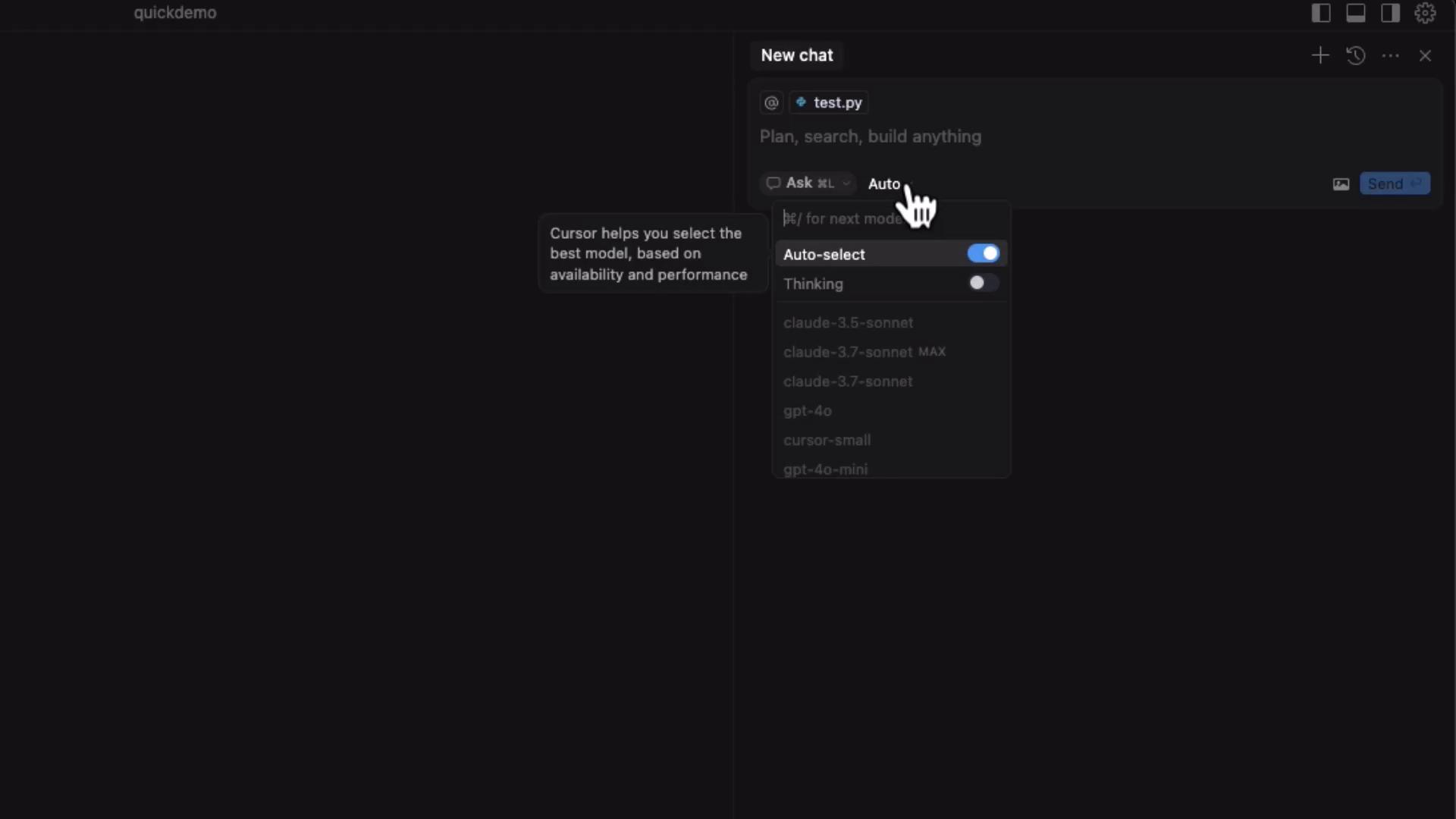
Press Command-L (Mac) or Control-L (Windows/Linux) to open the Composer chat pane. You’ll find three tabs:- Agent mode
- Cursor Ask mode
- Edit mode
Adding Files as Context
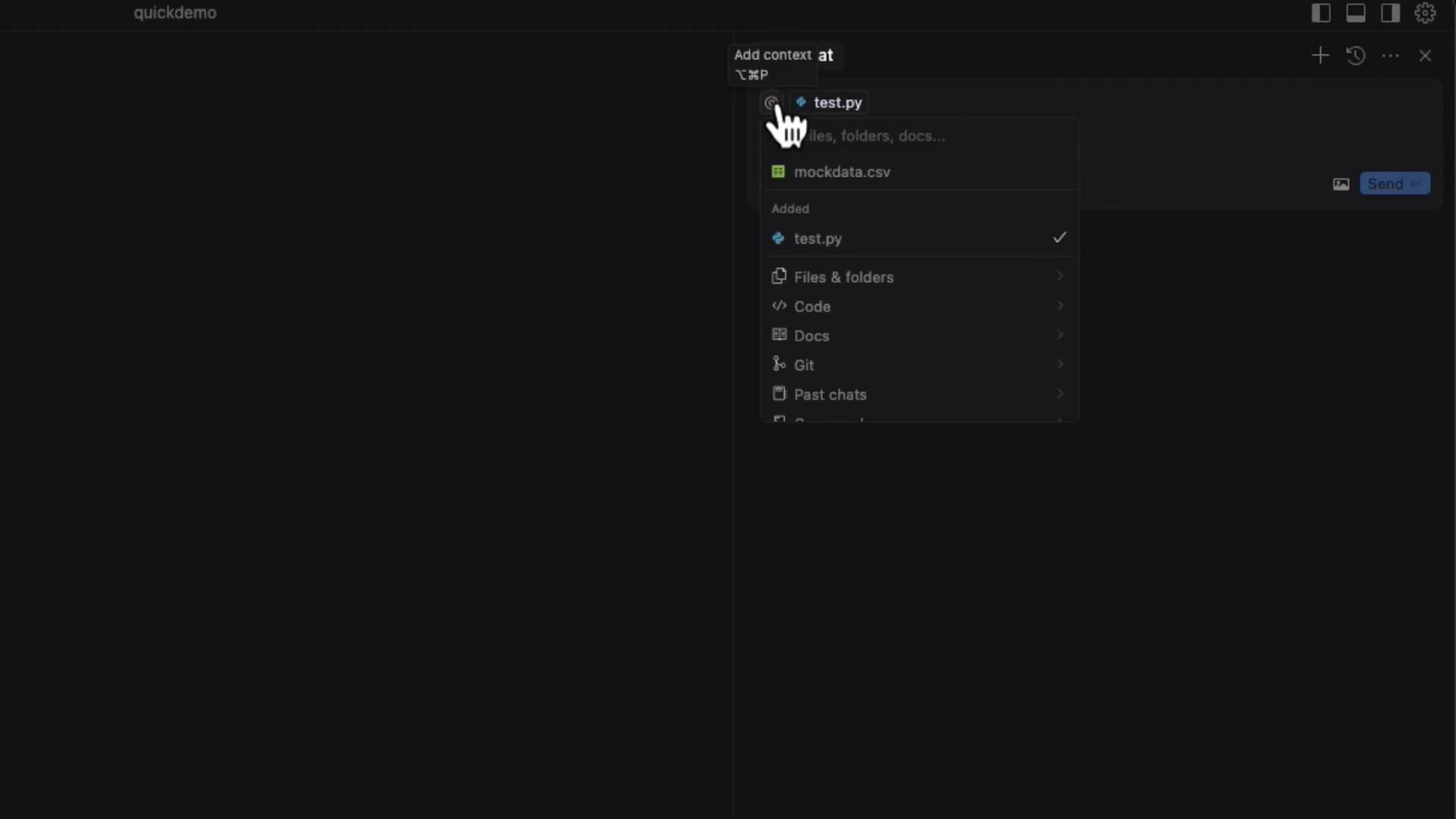
Composer can reference files or entire folders when generating or editing code. To upload files:- In the Files & Folders panel, right-click and select Add context.
- Choose your file (e.g.,
test.pyorgrades.csv).
Example: Generating a grades.py Script
Suppose you have a CSV file named grades.csv:
-
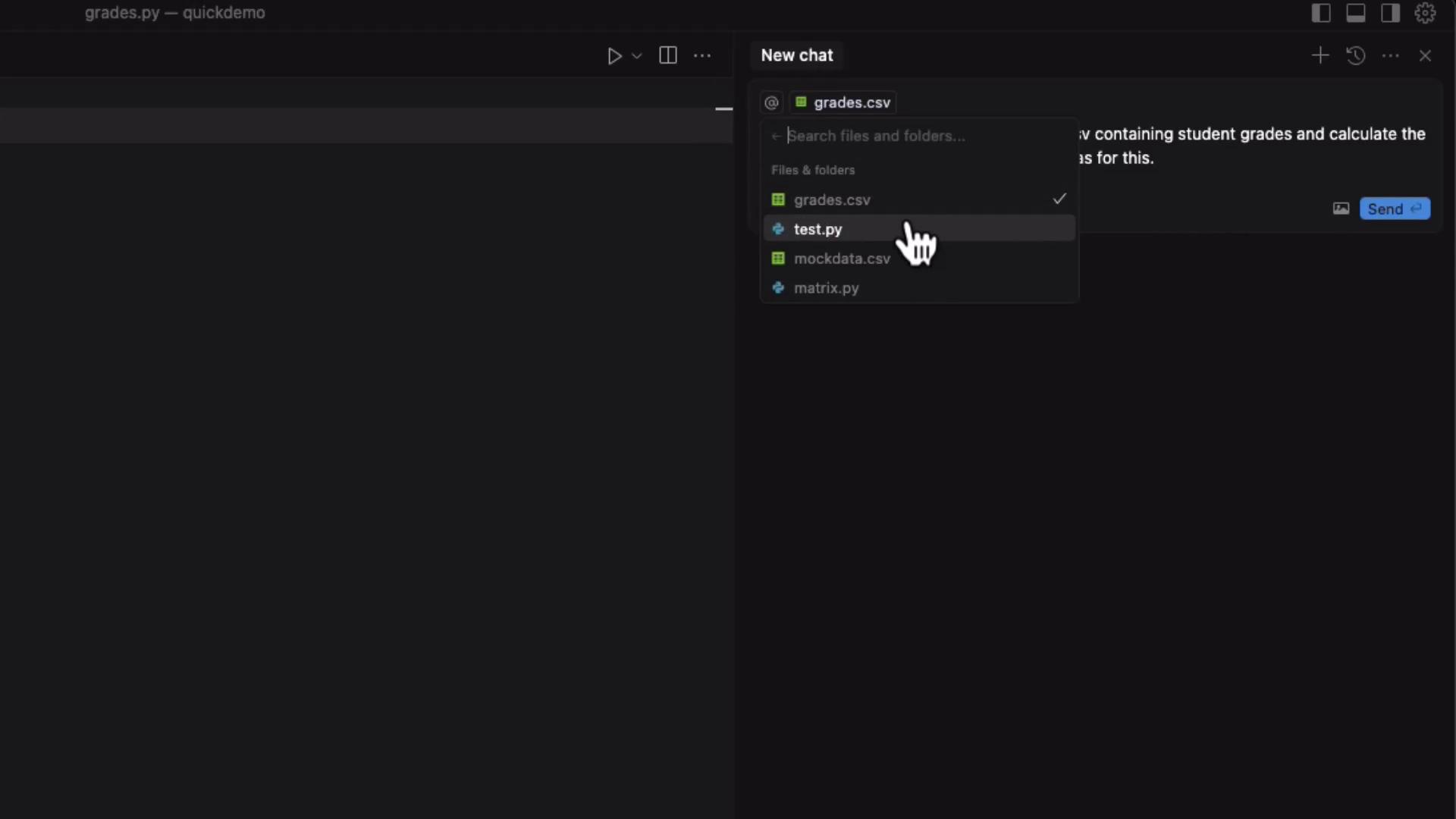
In Files & Folders, search for
grades.csvand add it as context. -
Switch to Cursor Ask mode and enter:
Write a Python function to parse
grades.csvcontaining student grades and calculate the average score for each student, using Pandas. Apply it togrades.py.
grades.py is empty and suggest code. Click Apply to grades.py:
grades.py:
Before running the script, install Pandas:
Zero-Shot Prompts
You’re not limited to files in context. In a new chat, ask for any snippet:Create a function to fetch current weather data from the OpenWeatherMap API for a given city.Composer returns:
Inline Edits with Edit Mode
In Edit mode, select existing code, press Control-K, and provide instructions. For example, highlightcalculate_student_averages and say:
Optimize this function for performance.Or:
Add a timing decorator to measure execution time.Composer refactors inline, generating:
python grades.py again to see timing information alongside the results.
Summary
Composer’s three modes enable you to:
Composer brings AI-driven development directly into your editor, allowing you to generate, refactor, and optimize code with minimal context switching.