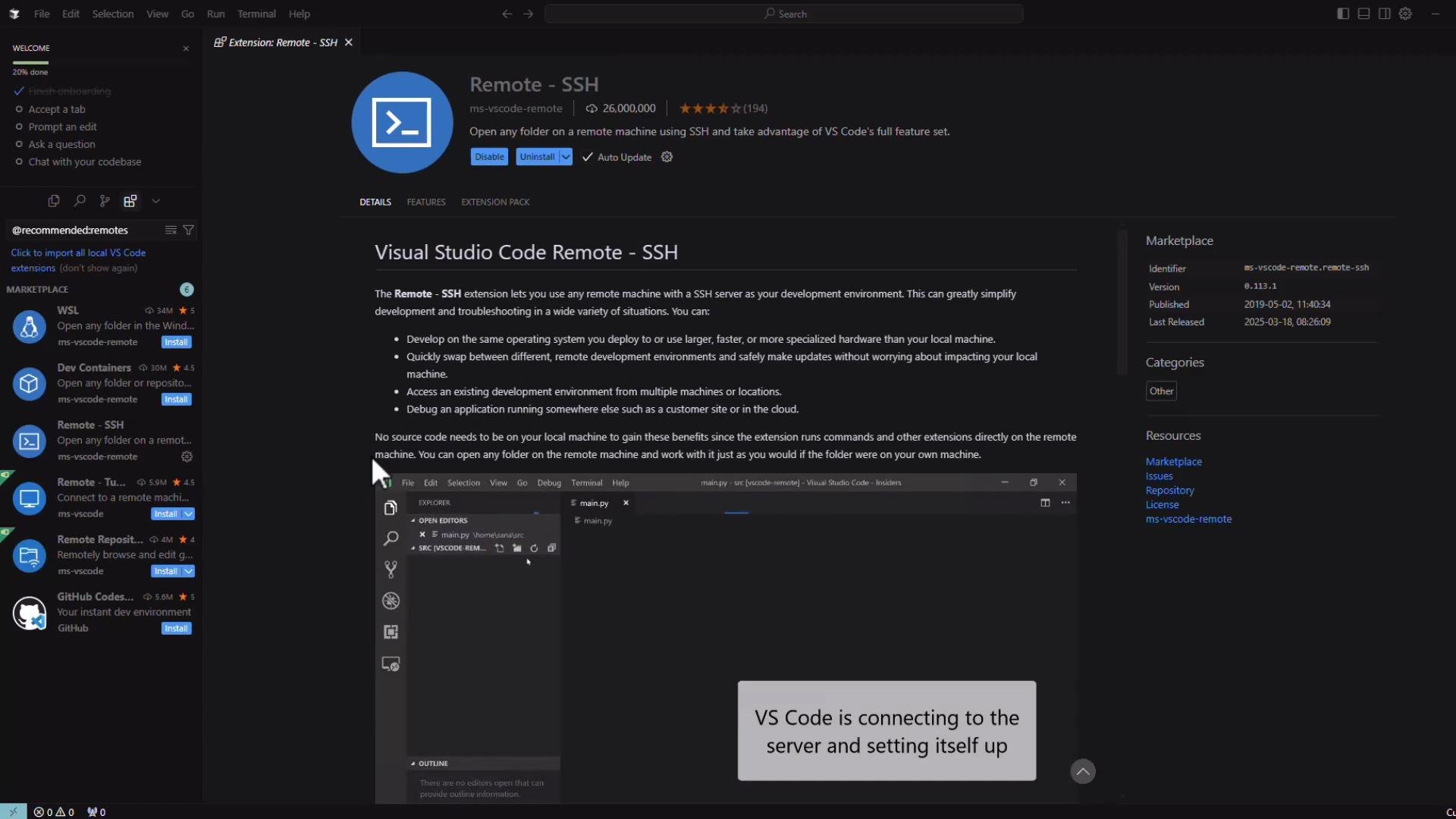
This guide shows how to use Cursor (a fork of Visual Studio Code) to develop on a remote machine over SSH. This workflow is ideal when your development machine (laptop, macOS, or Windows) is different from the remote host (for example, a Linux server with a GPU). Using the Remote - SSH flow, Cursor runs the editor UI locally while executing terminals, debuggers, and processes on the remote host. Cursor supports Windows, macOS, and Linux. The Remote - SSH extension used here is the same extension available for Visual Studio Code, so the workflow will feel familiar if you’ve used VS Code remotely. Ensure the Remote - SSH extension is available in your Cursor extensions list.
A screenshot of Visual Studio Code showing the Extensions view open to the "Remote - SSH" extension page, with details, install/disable buttons, and a preview of using VS Code to connect to a remote server. The left sidebar lists other remote-related extensions and the right pane shows marketplace metadata.
Aside from Remote - SSH, Cursor also supports Dev Containers and other remote extensions. Choose the remote method that best fits your workflow — e.g., Dev Containers for reproducible dev environments, Remote - SSH for direct access to a specific host.
Example workload to run remotely
  • Below is a simple Python example (SVM cross-validation) that demonstrates a CPU/GPU-bound task you might run on a remote machine.
# python
import time
from sklearn import svm
from sklearn.datasets import fetch_openml
from sklearn.model_selection import cross_val_score

musk = fetch_openml('musk', version=1)

start_time = time.time()
X, y = musk.data, musk.target
clf = svm.SVC(gamma='auto')

print("Starting cross validation!")

scores = cross_val_score(clf, X, y, cv=2, n_jobs=-1)

print("Mean score", scores.mean())
print("--- %s seconds ---" % (time.time() - start_time))
print("VS Code Remote Rocks")
Add a new SSH host
  1. In Cursor, select “Connect via SSH”.
  2. Choose “Add New SSH Host” and enter the host using the form user@host (recommended) or the IP address.
If you only provide an IP address, Cursor/VS Code will append your local username to the entry which can cause accidental logins as the wrong user — so prefer user@host. When prompted, choose where to save the SSH configuration entry (your local SSH config file).
Always prefer specifying user@host in your SSH entries (for example jeremy@10.0.0.94). If you only specify an IP, your local username may be appended automatically and you may log in as a different user than intended.
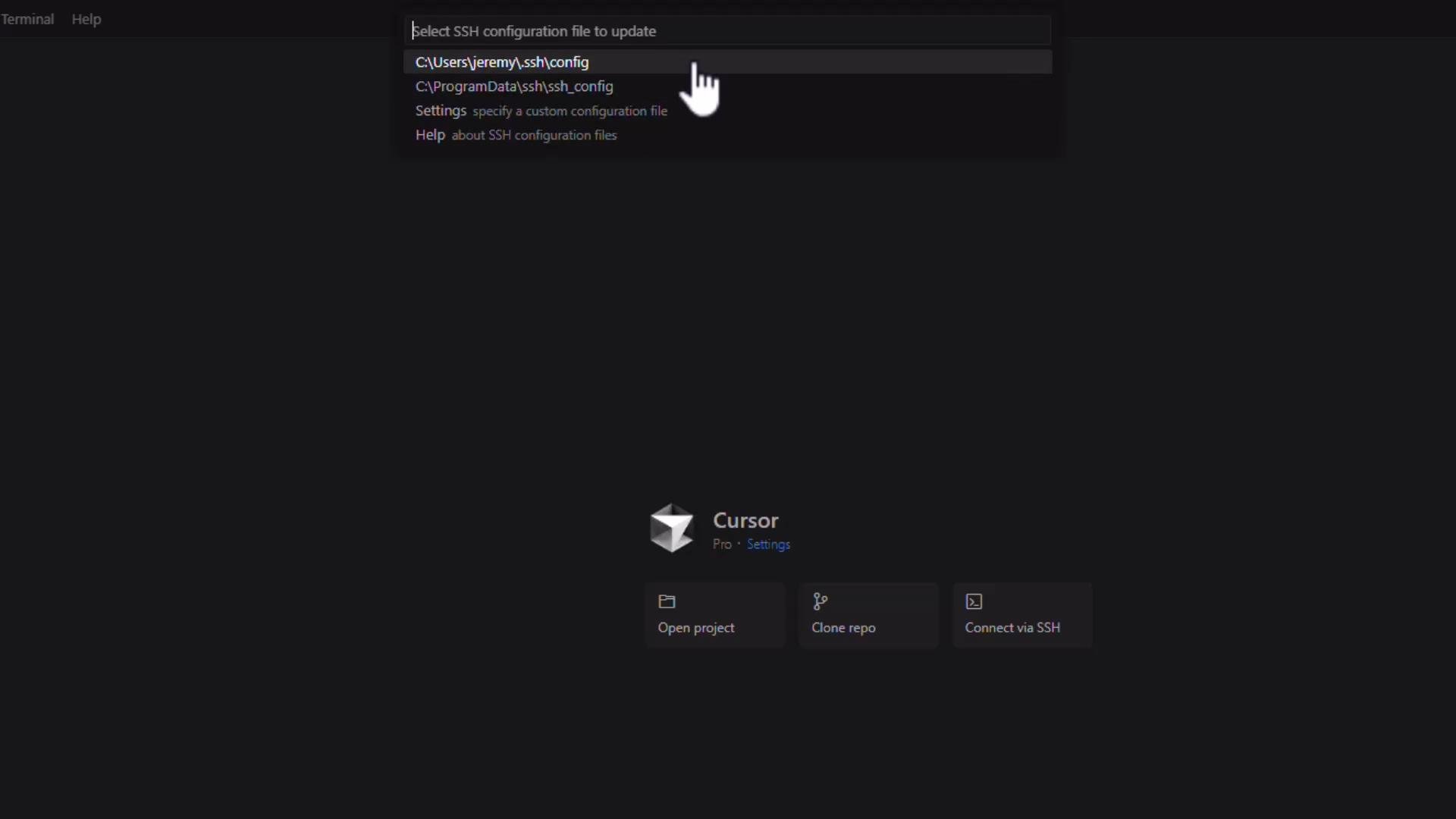
A dark-themed app window showing a prompt to select an SSH configuration file (highlighting a local .ssh/config path). The main area displays a "Cursor" welcome screen with buttons for Open project, Clone repo, and Connect via SSH.
Connecting and selecting the remote platform
  • After adding the host, click Connect. Cursor opens a new window and prompts you to select the remote platform (Linux, Windows, or macOS) for that host.
  • You will typically confirm the host fingerprint and then authenticate with a password or SSH key.
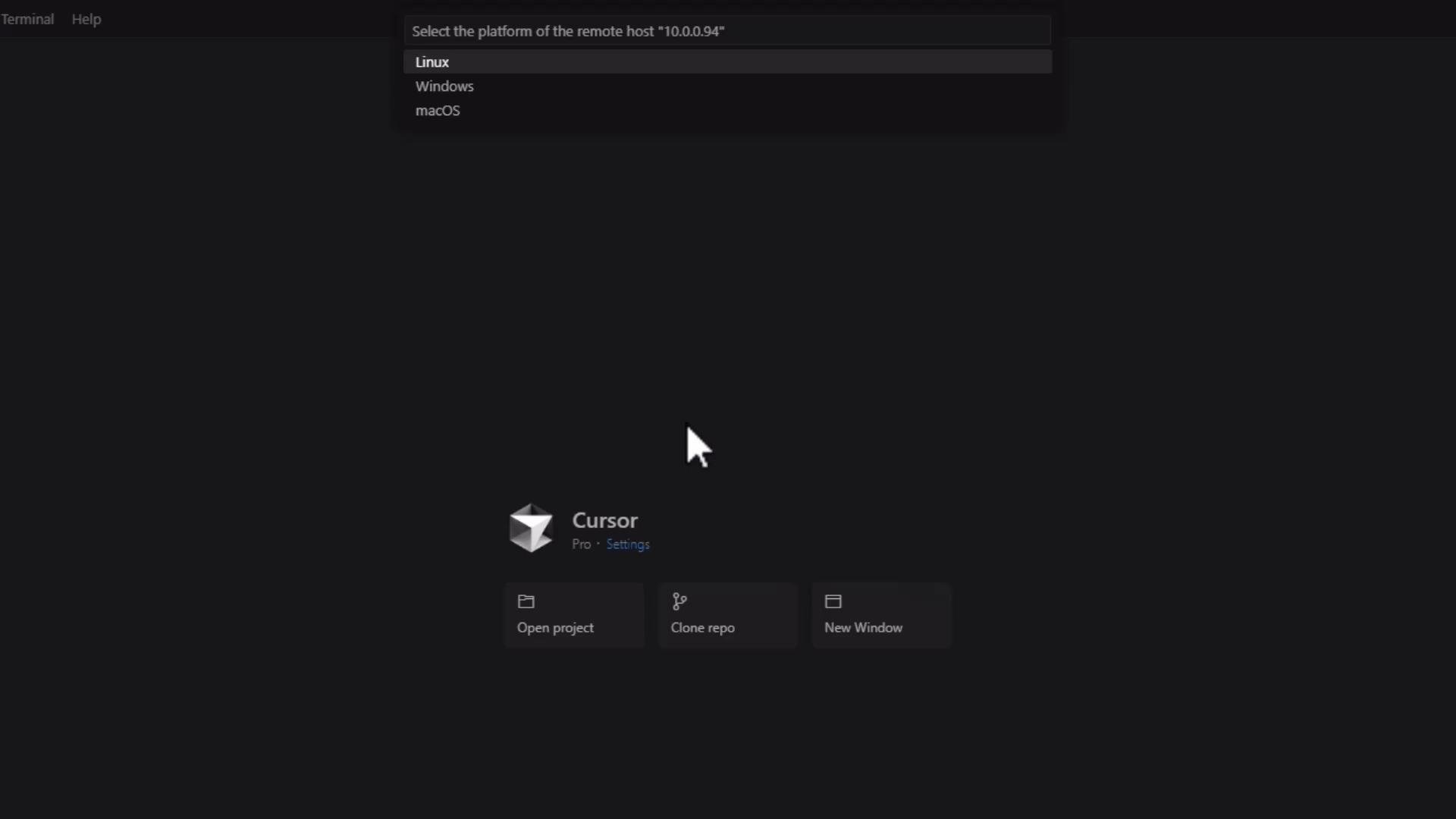
A dark-themed application start screen for "Cursor" showing a large mouse cursor icon above three buttons labeled "Open project", "Clone repo", and "New Window." At the top is a dropdown prompting selection of the remote host platform (Linux, Windows, macOS) for host "10.0.0.94."
Typical prompts you will see from the client (example)
# If the host is new, confirm the fingerprint
The authenticity of host '10.0.0.94 (10.0.0.94)' can't be established.
ECDSA key fingerprint is SHA256:xxxxxxxxxxxxxxxxxxxxxxxxxxxxxxxxxxxx.
Are you sure you want to continue connecting (yes/no/[fingerprint])? yes

# Then you'll be prompted for the remote user's password
Enter password for jeremy@10.0.0.94:
Setting up the remote server
  • If this is the first time connecting, Cursor/VS Code will install the VS Code server on the remote host. You’ll see a status such as “Downloading VS Code Server…” while installation completes.
  • After installation, the server runs on the remote machine and accepts connections from the Cursor client.
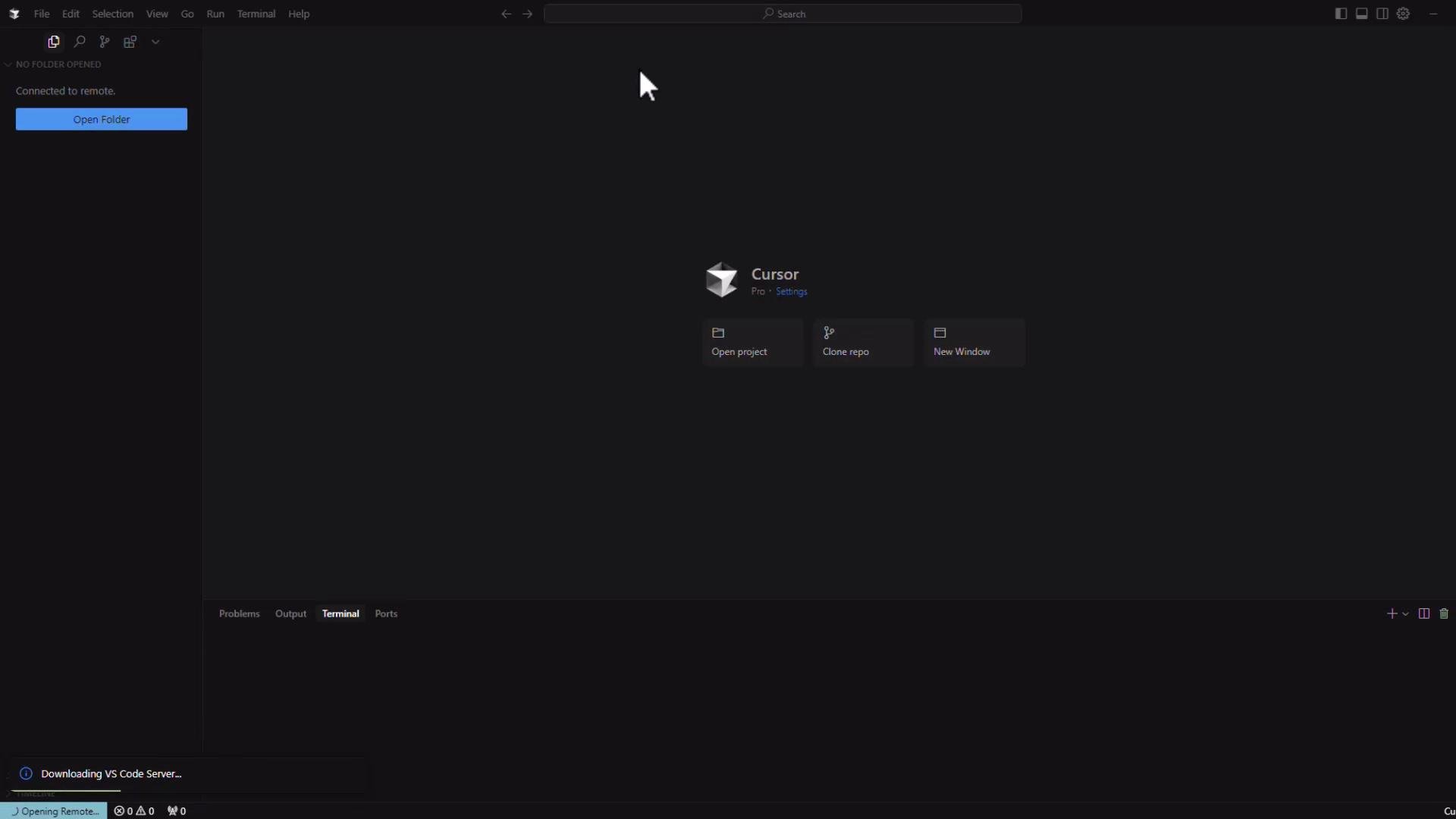
A dark-themed Visual Studio Code window showing a startup screen labeled "Cursor" with buttons to open a project, clone a repo, or open a new window. The left sidebar has an "Open Folder" button and the bottom status area shows "Downloading VS Code Server...".
Open a remote folder or clone a repository
  • Once the server is running, open a folder that exists on the remote host or clone a repository into the remote workspace.
  • The Cursor file explorer now reflects files on the remote filesystem.
Example: listing a projects folder on the remote host
# Remote bash prompt
[jeremy@crashbox ~]$ ls -la /home/jeremy/Projects
drwxr-xr-x 3 jeremy jeremy 4096 Mar 26 20:37 .cursor
-rw-r--r-- 1 jeremy jeremy 8196 Mar 26 20:37 .DS_Store
drwxr-xr-x 7 jeremy jeremy 4096 Mar 26 20:37 .git
drwxr-xr-x 6 jeremy jeremy 4096 Mar 26 20:37 KodeKloudTaskMan
-rw-r--r-- 1 jeremy jeremy 302107 Mar 26 20:37 profile_output.prof
-rw-r--r-- 1 jeremy jeremy 1066 Mar 26 20:37 .pylintrc
-rw-r--r-- 1 jeremy jeremy 381 Mar 26 20:37 requirements.txt
-rw-r--r-- 1 jeremy jeremy 106 Mar 26 20:37 rules.txt
drwxr-xr-x 2 jeremy jeremy 4096 Mar 26 20:37 test
drwxr-xr-x 2 jeremy jeremy 4096 Mar 26 20:37 tests
[jeremy@crashbox KodeKloudTaskMan]$
Open files and run terminals on the remote host
  • Any terminal you open from a Cursor window connected to the host runs on the remote machine.
  • Editing files, running scripts, installing packages, or debugging will execute remotely, using the remote host’s CPU/GPU and filesystem.
Example: remote terminal and process listing
[jeremy@crashbox KodeKloudTaskMan]$ ps aux | head -n 10
USER       PID %CPU %MEM    VSZ   RSS TTY      STAT START   TIME COMMAND
jeremy   192755  1.6  0.0 11791608 58128 ?       S1   20:40   0:00 /home/jeremy/.cursor-server/cli/servers/Stable-82ef0f61c01d079d1b7e5ab04d88499d5
root     192822  0.0  0.0      0     0 ?        I    20:41   0:00 [kworker/17:0-dio/nvme0n1p2]
jeremy   192855  4.0  0.0   4992  3360 ?        S    20:41   0:01 /home/jeremy/.cursor-server/extensions/ms-python.python-2024.12.3-linux-x64/pyth
...
[jeremy@crashbox KodeKloudTaskMan]$
Example snippet from a remote project (Flask application)
  • You can open and edit apps like a Flask project directly on the remote host. Below is a small excerpt.
# python
"""
Task Manager Flask Application.

This module implements a simple task management web application using Flask.
It provides features for user authentication, task creation, updating, and deletion.
Tasks can be assigned to different users and filtered by status.
"""

import csv
import sqlite3
import os
from flask import Flask, render_template, request, redirect, url_for, flash, session, g
from datetime import datetime
import hashlib
import logging

# Initialize Flask app
app = Flask(__name__)
app.config['SECRET_KEY'] = 'dev'  # Change this to a random secret key in production
app.config['DATABASE'] = os.path.join(app.instance_path, 'task_manager.sqlite')

def read_csv(file_path):
    """
    Read data from a CSV file and print each row.

    Args:
        file_path (str): Path to the CSV file to be read

    Returns:
        None: This function prints each row to the console but doesn't return any value
    """
    with open(file_path, newline='') as csvfile:
        reader = csv.reader(csvfile)
        for row in reader:
            print(row)
Connecting to other hosts and operating systems
  • You can add multiple SSH host entries to your SSH config and switch between machines (Linux, macOS, Windows).
  • The process is the same: add user@host to your SSH config, connect from Cursor, choose the correct platform, and authenticate.
Example macOS connection prompt
# macOS zsh prompt when connected remotely
jeremy@MACSTUDIO ~ % ls -la ~/Projects/Pygame_Traffic_Light_Simulator
# ... project files listed ...
Quick reference: remote development workflow
StepWhat happensNotes
Add SSH hostCreate an SSH config entry (user@host recommended)Store multiple entries for different hosts
ConnectCursor opens a remote window and prompts for platformConfirm fingerprint, authenticate with key or password
Server installVS Code server is installed on the remote host (one-time)Shows “Downloading VS Code Server…”
WorkTerminals, debugging, package installs run remotelyFile explorer shows the remote filesystem
Recommended links and references Summary
  • Cursor uses the Remote - SSH model to run development workflows on a remote host while displaying the editor UI locally.
  • Editing, terminals, debugging, and package management operate on the remote machine.
  • Always specify user@host in your SSH entries to avoid unintended username substitutions.
  • Use SSH keys for repeatable, passwordless authentication.
If you plan to use multiple remote hosts frequently, save each host entry in your SSH config with descriptive comments and enable SSH key authentication to avoid repeated password prompts.

Watch Video