This article provides a comprehensive guide for troubleshooting DNS issues, covering common problems and systematic diagnostic steps.
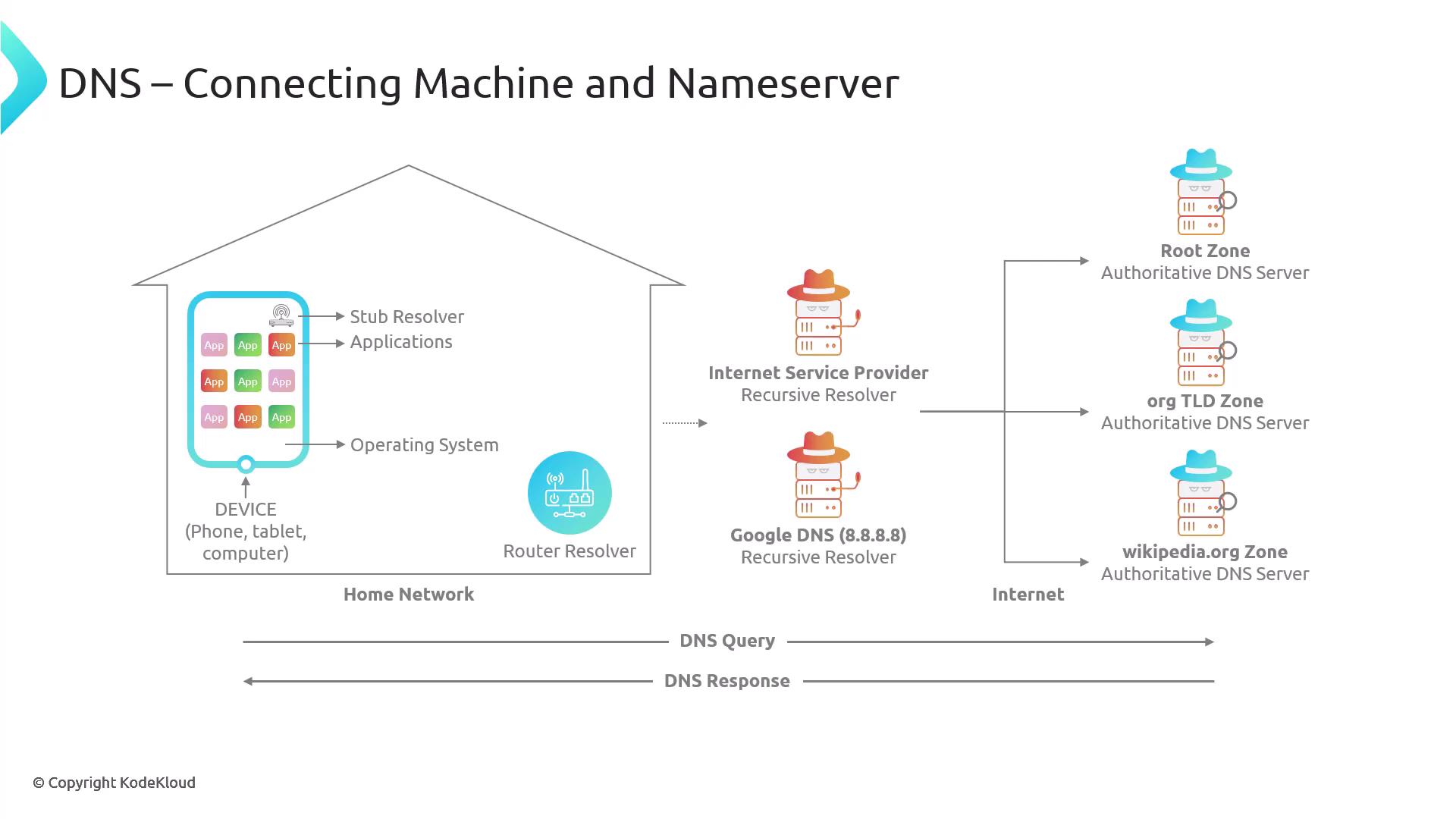
Troubleshooting DNS can be challenging because it involves multiple systems interacting—from your local machine to the authoritative nameserver—and handling the response on its way back. Understanding the complete flow is essential for diagnosing and resolving issues.
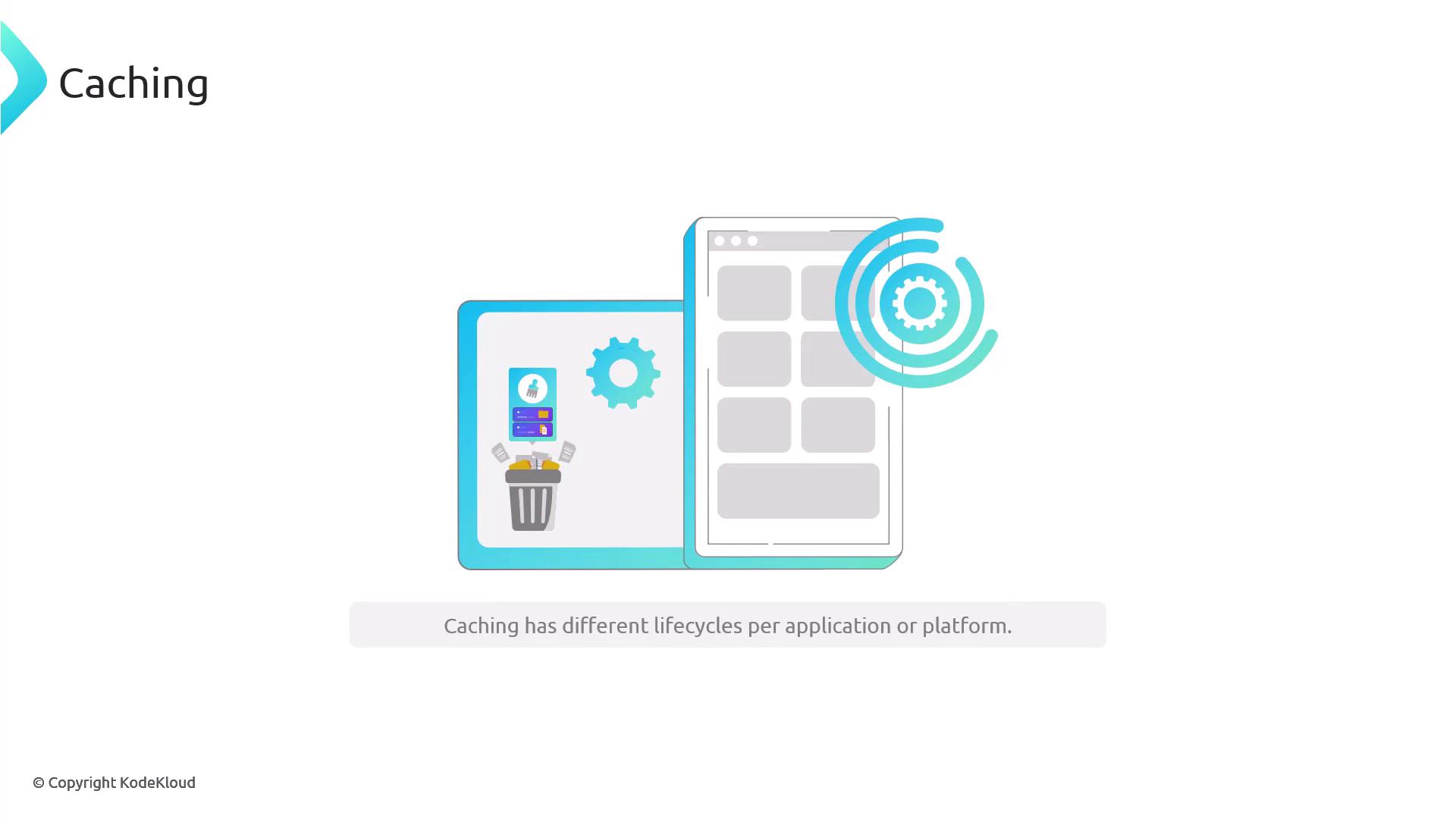
Different applications and platforms may implement distinct caching lifecycles. For example, you might execute a DNS command that correctly resolves a domain name:
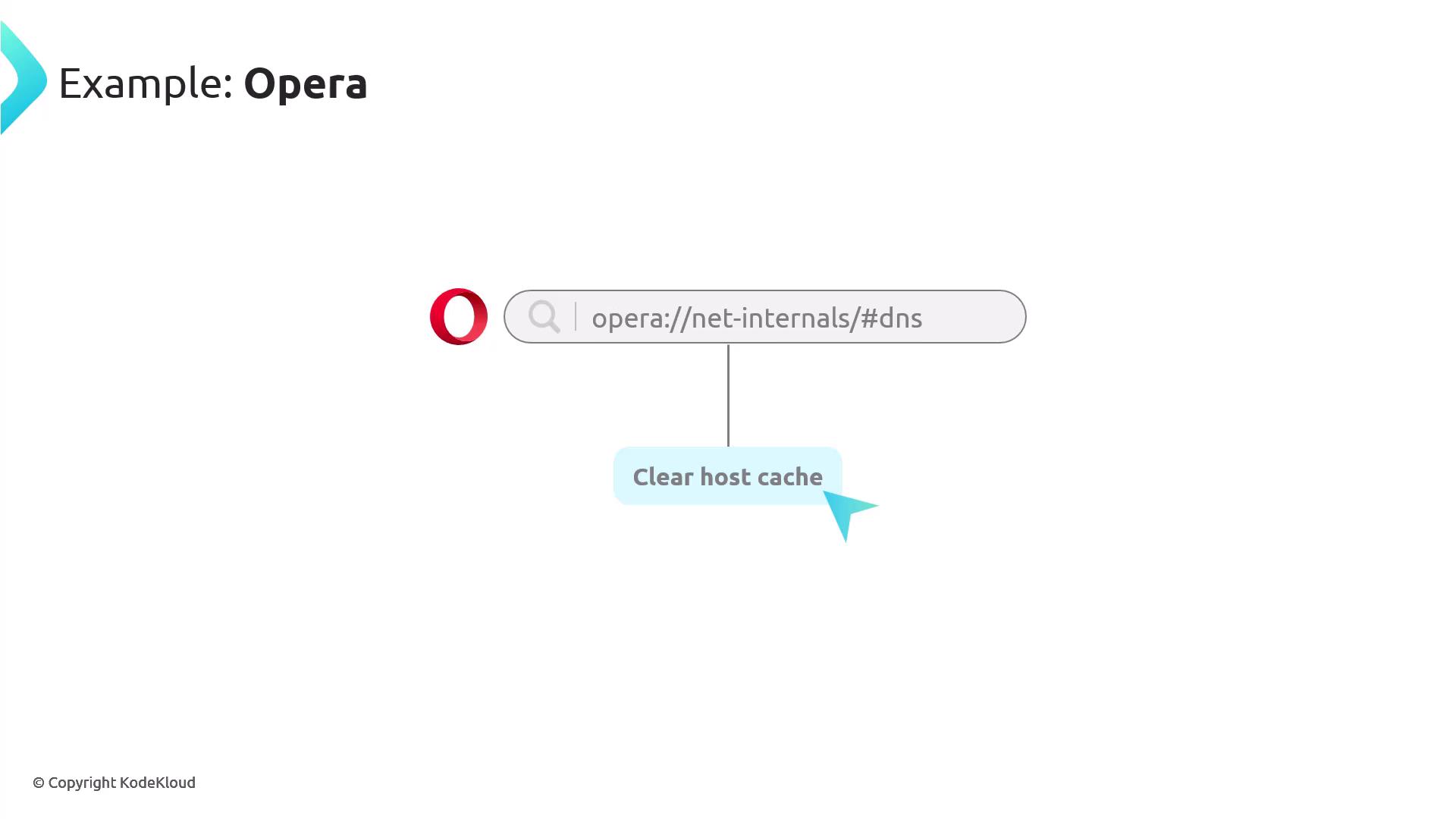
Yet, if your browser does not show the expected result, it could be because the operating system caches DNS records for a specified period while the browser uses a separate caching duration.Below is an example using the dig command to query DNS records:
$ dig example.com; <<>> DiG 9.18.28-0ubuntu0.24.04.1-Ubuntu <<>> example.com;; global options: +cmd;; Got answer:;; ->>HEADER<<- opcode: QUERY, status: NOERROR, id: 39669;; flags: qr rd ra; QUERY: 1, ANSWER: 6, AUTHORITY: 0, ADDITIONAL: 1;; OPT PSEUDOSECTION:; EDNS: version: 0, flags:; udp: 512;; QUESTION SECTION:;example.com. IN A;; ANSWER SECTION:example.com. 103 IN A 96.7.128.175example.com. 103 IN A 96.7.128.198example.com. 103 IN A 23.192.228.80example.com. 103 IN A 23.192.228.84example.com. 103 IN A 23.215.0.136example.com. 103 IN A 23.215.0.138;; Query time: 30 msec;; SERVER: 10.255.255.254#53(10.255.255.254) (UDP);; WHEN: Wed Jan 15 20:10:51 CST 2025;; MSG SIZE rcvd: 136
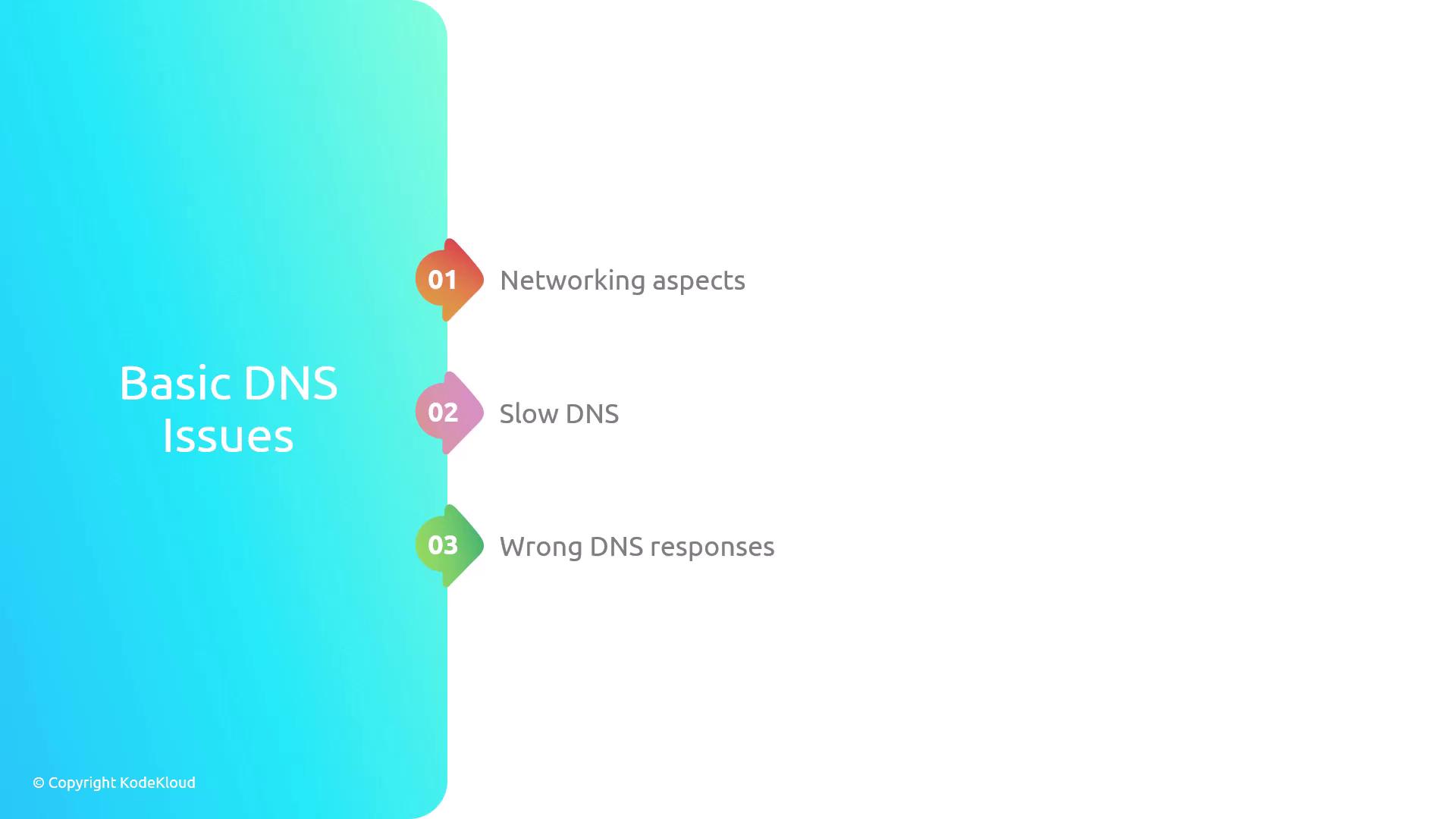
The difference in caching durations between the operating system and the browser can lead to inconsistencies. Below is a quick overview of common DNS issues and initial troubleshooting guidelines:
Communication Issues: Systems may be unable to communicate due to network problems.
Slow DNS: Overloaded resolvers or nameservers can result in slow response times.
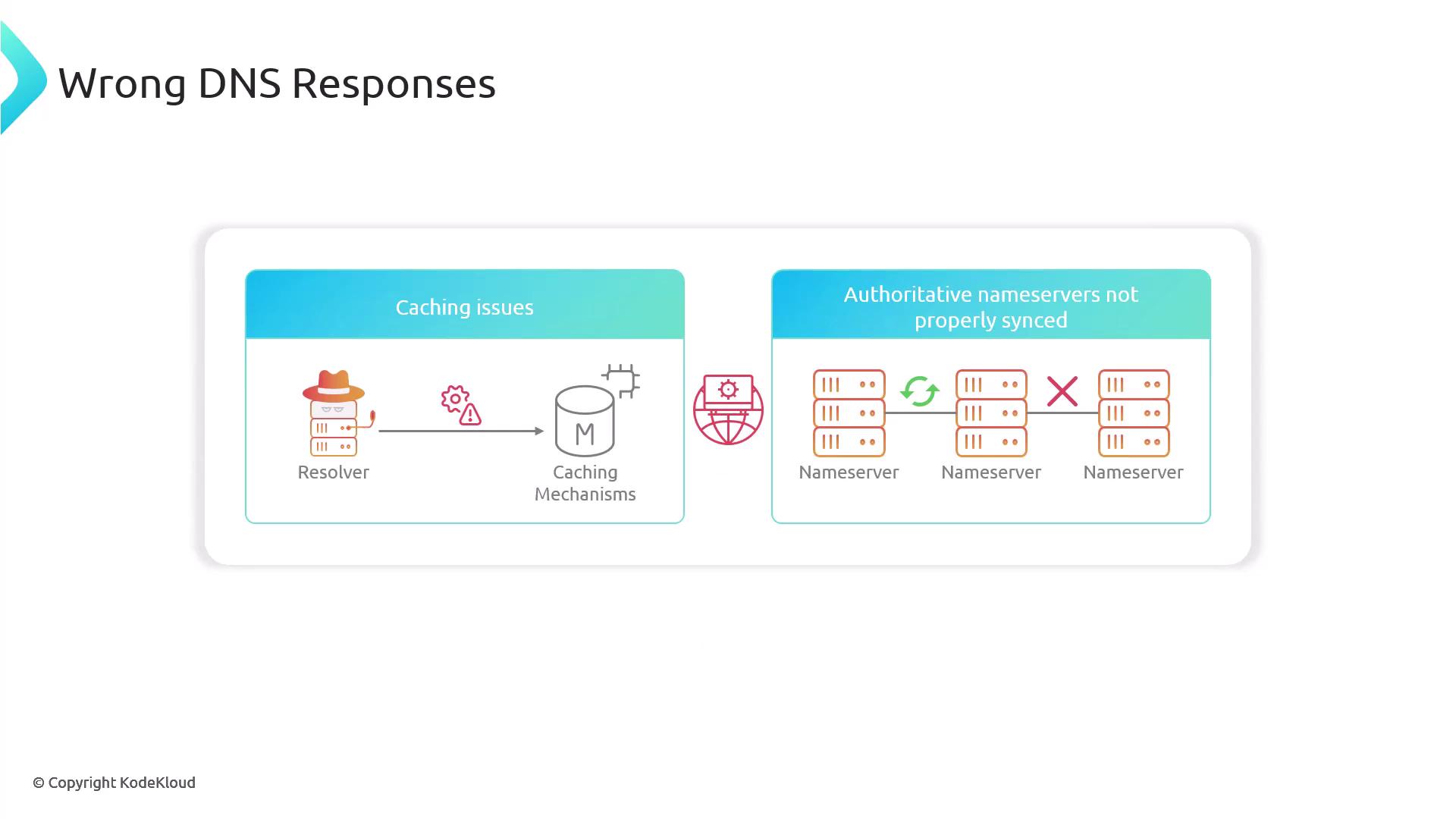
Incorrect DNS Responses: Outdated cache records or unsynchronized authoritative nameservers can return wrong responses.
Let’s break down each category and review the appropriate troubleshooting steps.
When encountering networking-related DNS problems, begin by checking basic connectivity. Verify that your network interface is configured correctly and determine whether the problem stems from DNS specific issues or overall internet connectivity.First, test connectivity by pinging a reliable public DNS server:
$ ping 8.8.8.8Pinging 8.8.8.8 [8.8.8.8] with 32 bytes of data:Reply from 8.8.8.8: bytes=32 time=42ms TTL=116Reply from 8.8.8.8: bytes=32 time=43ms TTL=116Reply from 8.8.8.8: bytes=32 time=40ms TTL=116Reply from 8.8.8.8: bytes=32 time=41ms TTL=116Ping statistics for 8.8.8.8: Packets: Sent = 4, Received = 4, Lost = 0 (0% loss),Approximate round trip times in milli-seconds: Minimum = 40ms, Maximum = 43ms, Average = 41ms
Next, inspect if firewall rules or restrictions are blocking port 53 (UDP or TCP). Use Telnet to verify connectivity:
$ telnet dns-server 53Trying 24.77.125.34...Connected to 24.77.125.34.Escape character is '^]'.^]
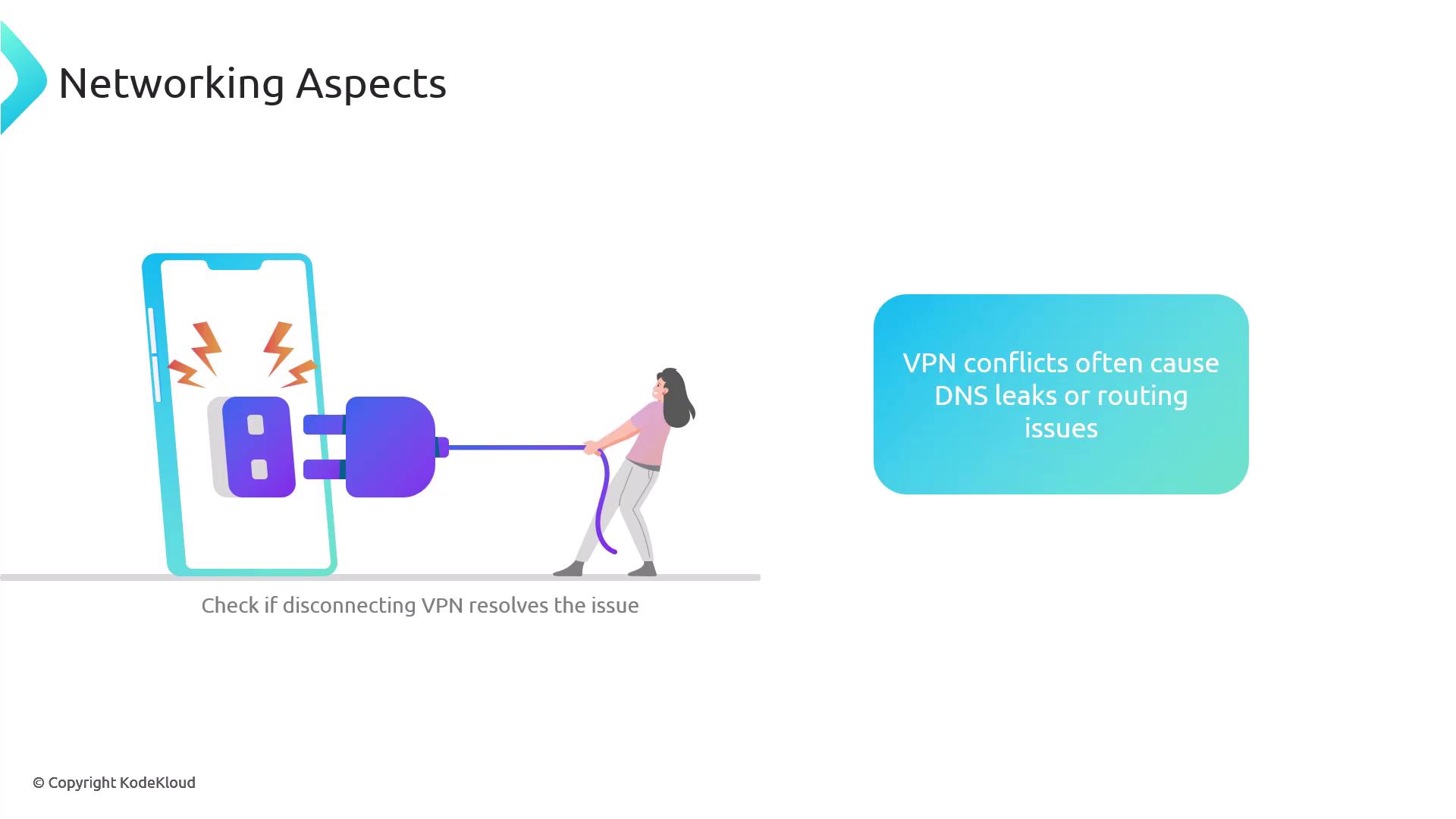
VPN configurations can lead to DNS issues by introducing conflicts in network routing. Disconnect from the VPN to test if it affects DNS behavior.
Slow DNS responses generally indicate that a server in the resolution chain is overloaded or responding slowly. This may be noticeable when new websites take longer than usual to load. To diagnose slow DNS responses, use the dig command with the +trace option. This command steps through the entire DNS resolution process, exposing the time taken at each phase:
$ dig +trace example.com
You can also combine the time command with dig to benchmark the resolver’s speed directly. The following example queries Google’s DNS server:
$ time dig @8.8.8.8 example.com; <<>> DiG 9.10.6 <<>> @8.8.8.8 example.com; (1 server found);; global options: +cmd;; Got answer:;; ->>HEADER<<- opcode: QUERY, status: NOERROR, id: 17093;; flags: qr rd ra ad; QUERY: 1, ANSWER: 6, AUTHORITY: 0, ADDITIONAL: 1;; OPT PSEUDSECTION:; EDNS: version: 0, flags: udp: 512;; QUESTION SECTION:;example.com. IN A;; ANSWER SECTION:example.com. 231 IN A 23.192.228.84example.com. 231 IN A 23.215.0.136example.com. 231 IN A 96.7.128.175example.com. 231 IN A 96.7.128.198example.com. 231 IN A 23.192.228.80example.com. 231 IN A 23.215.0.138;; Query time: 35 msec;; SERVER: 8.8.8.8#53(8.8.8.8);; WHEN: Fri Jan 31 15:27:45 CST 2025;; MSG SIZE rcvd: 136dig @8.8.8.8 example.com 0.00s user 0.01s system 22% cpu 0.052 total
Numerous online tools are available that can benchmark the performance of various DNS resolvers.
Incorrect or inconsistent DNS responses often stem from caching complications or unsynchronized authoritative nameservers. This is a common and challenging DNS issue to diagnose.
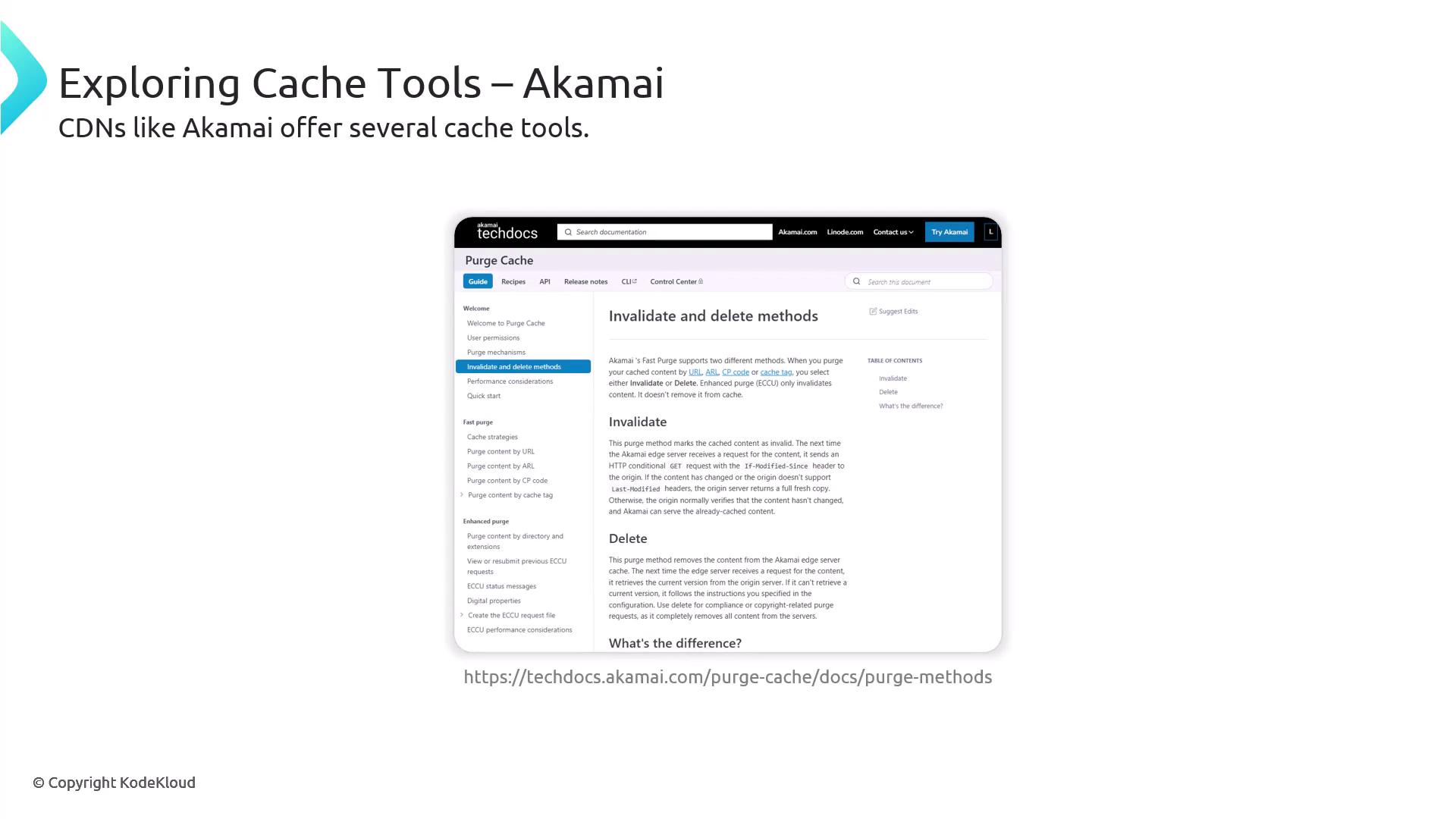
Ruijan Paul, an engineer highly regarded for his DNS learning resources, suggests an outward-in approach when diagnosing caching issues. Start from external components, such as public resolvers, and work inward. Even if you clear your local operating system’s cache, stale records may persist if upstream caches continue to provide outdated data.Many public resolvers offer web tools for clearing the DNS cache. For example, major content delivery network providers like Akamai provide mechanisms to invalidate or remove cached entries.
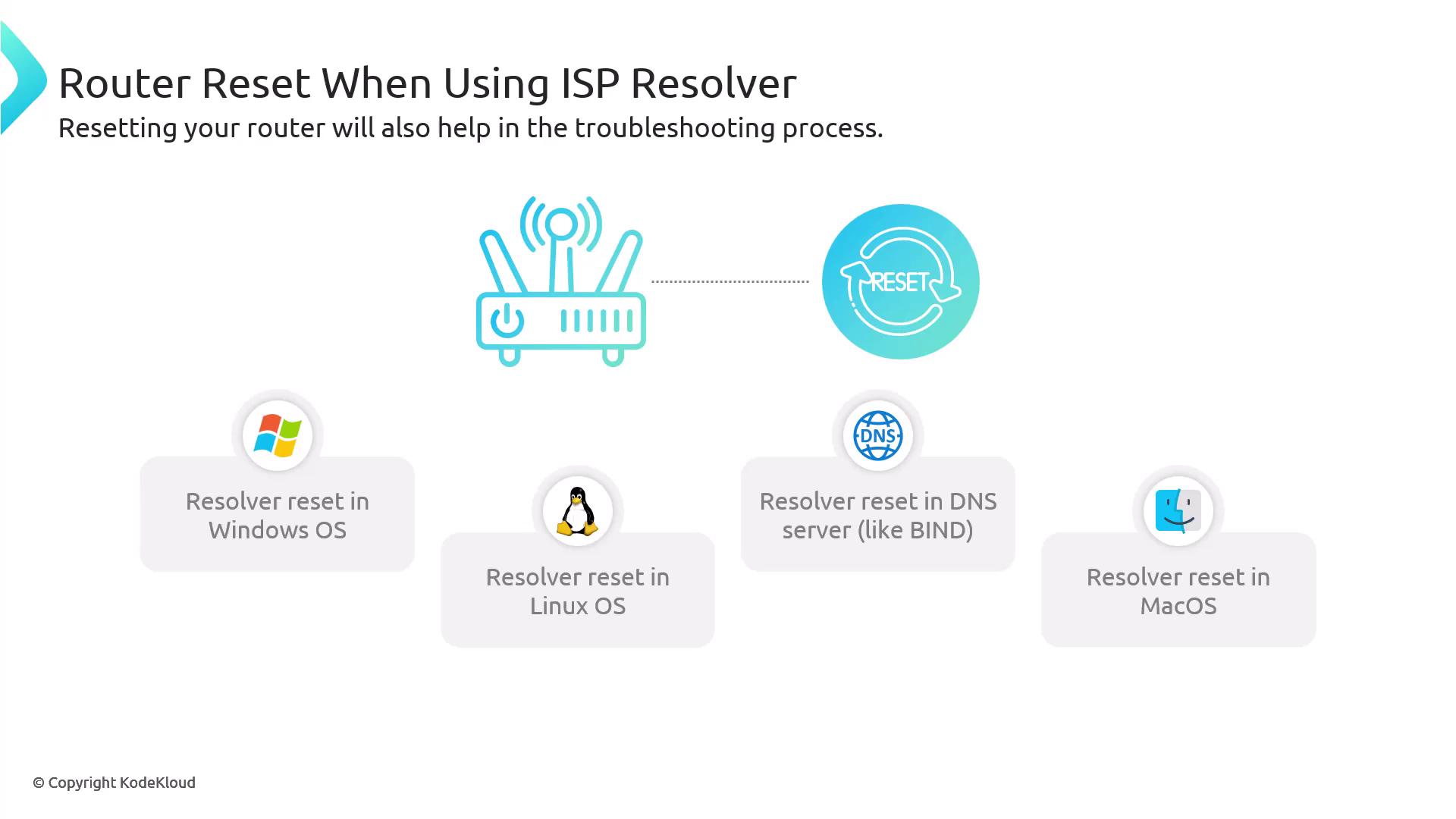
If your system uses an ISP’s resolver, clearing caches on public resolvers like Cloudflare or Google may not produce any changes. In these cases, rebooting or resetting your router might help clear some cached records.
For Windows users, you can clear and view the DNS cache as well as release and renew your IP configuration using the following commands:
# Clear DNS cache$ ipconfig /flushdns# Display DNS cache$ ipconfig /displaydns# Release and renew IP (includes DNS refresh)$ ipconfig /release$ ipconfig /renew
Modern Linux distributions typically use systemd-resolved for DNS caching. If you are operating your own DNS server using BIND, the following commands help manage the service:
$ sudo systemctl start named$ sudo systemctl stop named$ sudo systemctl restart named$ sudo systemctl status named
For managing BIND9 without restarting the service, use the rndc tool:
Commands to clear the DNS cache on macOS vary depending on the version:
# For modern macOS (Ventura and higher):$ sudo dscacheutil -flushcache; sudo killall -HUP mDNSResponder# For older macOS versions (Monterey, Big Sur, or Catalina):$ sudo killall -HUP mDNSResponder; sudo dscacheutil -flushcache# For very old macOS versions (pre-Catalina):$ sudo discoveryutil mdnsflushcache
If you suspect that DNS responses are incorrect or inconsistent due to caching issues or unsynchronized authoritative nameservers, query the nameservers directly to compare their responses. Use the following commands with dig or nslookup:
# Query specific nameservers using dig$ dig @ns1.example.com domain.com$ dig @ns2.example.com domain.com# Alternatively, using nslookup$ nslookup domain.com ns1.example.com$ nslookup domain.com ns2.example.com
If the responses differ, it might indicate a zone transfer or synchronization issue. To further diagnose such discrepancies, check the SOA serial numbers from the authoritative nameservers:
$ dig @ns1.example.com domain.com SOA...;; ANSWER SECTION:domain.com. 3600 IN SOA ns1.example.com. hostmaster.example.com. 2023010101 3600 1800 1209600 86400...$ dig @ns2.example.com domain.com SOA...;; ANSWER SECTION:domain.com. 3600 IN SOA ns2.example.com. hostmaster.example.com. 2023010102 3600 1800 1209600 86400...
A mismatch in SOA serial numbers confirms a synchronization issue between the nameservers.By following these structured troubleshooting steps—from network connectivity assessments to operating system and application-level checks—you can systematically identify and resolve many common DNS issues. This approach not only helps in isolating the problem but also ensures that corrective actions are efficiently implemented.
Watch Video
Was this page helpful?
{"docsConfig":{"theme":"aspen","$schema":"https://mintlify.com/docs.json","name":"KodeKloud","colors":{"primary":"#18BDFB","light":"#18BDFB","dark":"#18BDFB"},"logo":{"light":"https://mintcdn.com/kodekloud-c4ac6d9a/_u8CNiGuy79Fq3Fu/logo/light.svg?fit=max\u0026auto=format\u0026n=_u8CNiGuy79Fq3Fu\u0026q=85\u0026s=f4a6b13349fd0f51a4378a4cc7fdb973","dark":"https://mintcdn.com/kodekloud-c4ac6d9a/_u8CNiGuy79Fq3Fu/logo/dark.svg?fit=max\u0026auto=format\u0026n=_u8CNiGuy79Fq3Fu\u0026q=85\u0026s=14458e15af4945d2a9554c2d1d9af71d","href":"https://kodekloud.com"},"favicon":"https://mintcdn.com/kodekloud-c4ac6d9a/6E1PzgYI6FyjcSFI/favicon.png?fit=max\u0026auto=format\u0026n=6E1PzgYI6FyjcSFI\u0026q=85\u0026s=1479786e1e12c0552d60a0c5af70b6b3","appearance":{"default":"dark"},"background":{"decoration":"gradient","color":{"dark":"#0e172b"}},"footer":{"socials":{"x":"https://x.com/KodeKloudHQ","facebook":"https://www.facebook.com/KodeKloudHQ","instagram":"https://www.instagram.com/kodekloud","linkedin":"https://www.linkedin.com/company/kodekloud","threads":"https://www.threads.com/@kodekloud","discord":"https://discord.com/invite/eeScjrGmt3?utm_source=discord\u0026utm_medium=community\u0026utm_campaign=community-page","reddit":"https://www.reddit.com/r/kodekloud"}},"fonts":{"heading":{"family":"Lexend","source":"https://mintlify-assets.b-cdn.net/fonts/lexend.woff2","format":"woff2"}},"contextual":{"options":["copy","view","chatgpt","claude","perplexity","mcp","cursor","vscode"],"display":"header"},"styling":{"latex":true},"navigation":{"global":{"anchors":[{"anchor":"Contact Us","icon":"headset","href":"https://kodekloud.com/contact-us"},{"anchor":"Community","icon":"slack","href":"https://kodekloud.com/community"},{"anchor":"Blog","icon":"newspaper","href":"https://kodekloud.com/blog"}]},"pages":[]}},"deployment":{"deploymentMetadataValue":{"subdomain":"kodekloud-c4ac6d9a","hasAudioNarration":false,"actualSubdomain":"kodekloud-c4ac6d9a","customDomains":["notes.kodekloud.com"],"gitSource":{"type":"github","owner":"kk-internal","repo":"docs","deployBranch":"main","contentDirectory":"","isPrivate":true,"mountPath":"","label":""},"chroma":{"liveDeploymentHistoryId":"6ae8559b21b4422fadc71082","collectionId":"23f888f6-3aba-4f28-b028-1861c724973e","schemaVersion":"v3","latestBuiltDeploymentHistoryId":"6ae8559b21b4422fadc71082"},"feedback":{"thumbs":true},"entitlements":{"AI_CHAT":{"status":"ENABLED"},"CONTEXTUAL_FEEDBACK":{"status":"DISABLED"},"CODE_SNIPPET_FEEDBACK":{"status":"DISABLED"},"WEB_MCP":{"status":"ENABLED"},"NARRATION":{"status":"ENABLED"}},"buildId":"6ae8559b21b4422fadc71082","clientVersion":"0.0.4044","searchFilterCounts":[{"language":"default","tag":"Courses","count":10333},{"language":"default","tag":"Introduction","count":395},{"language":"default","tag":"AWS Certified Developer - Associate","count":283},{"language":"default","tag":"AWS Solutions Architect Associate Certification","count":277},{"language":"default","tag":"Certified Kubernetes Administrator (CKA)","count":201},{"language":"default","tag":"AWS Certified CloudOps Engineer – Associate","count":170},{"language":"default","tag":"AZ-400: Designing and Implementing Microsoft DevOps Solutions","count":162},{"language":"default","tag":"Certified Jenkins Engineer","count":155},{"language":"default","tag":"Docker Certified Associate Exam Course","count":150},{"language":"default","tag":"Microsoft Azure Security Technologies (AZ-500)","count":147}]},"assistantConfig":{"enableAskAiButton":true,"enableStarterQuestions":false,"enableAskAiSearchBar":true,"deflection":{"enabled":false,"email":"support@kodekloud.com","showHelpButton":true}},"basePath":"","hasChatPermissions":false,"hasWebMcpPermissions":true,"toggles":[{"name":"kill-isr","enabled":true,"variant":{"name":"disabled","enabled":false,"feature_enabled":true},"impressionData":false},{"name":"agent-mintlify-slack","enabled":true,"variant":{"name":"disabled","enabled":false,"feature_enabled":true},"impressionData":false},{"name":"agent-integrations-settings","enabled":true,"variant":{"name":"disabled","enabled":false,"feature_enabled":true},"impressionData":false},{"name":"automations-pr-grouping","enabled":true,"variant":{"name":"disabled","enabled":false,"feature_enabled":true},"impressionData":false},{"name":"custom-prefix","enabled":true,"variant":{"name":"disabled","enabled":false,"feature_enabled":true},"impressionData":false},{"name":"analytics-v7","enabled":true,"variant":{"name":"disabled","enabled":false,"feature_enabled":true},"impressionData":false},{"name":"user-flows-analytics","enabled":true,"variant":{"name":"disabled","enabled":false,"feature_enabled":true},"impressionData":false},{"name":"no-publish-flow","enabled":true,"variant":{"name":"disabled","enabled":false,"feature_enabled":true},"impressionData":false},{"name":"workos-onboarding","enabled":true,"variant":{"name":"disabled","enabled":false,"feature_enabled":true},"impressionData":false},{"name":"llms-txt-v2","enabled":true,"variant":{"name":"disabled","enabled":false,"feature_enabled":true},"impressionData":false},{"name":"snapshot-serving-live","enabled":true,"variant":{"name":"disabled","enabled":false,"feature_enabled":true},"impressionData":false},{"name":"stripTemperatureMiddleware","enabled":true,"variant":{"name":"disabled","enabled":false,"feature_enabled":true},"impressionData":false},{"name":"support-platform-pylon-zendesk","enabled":true,"variant":{"name":"disabled","enabled":false,"feature_enabled":true},"impressionData":false},{"name":"snapshot-serving","enabled":true,"variant":{"name":"disabled","enabled":false,"feature_enabled":true},"impressionData":false},{"name":"instant-rollback","enabled":true,"variant":{"name":"disabled","enabled":false,"feature_enabled":true},"impressionData":false},{"name":"granular-notifications-server","enabled":true,"variant":{"name":"disabled","enabled":false,"feature_enabled":true},"impressionData":false},{"name":"granular-notifications","enabled":true,"variant":{"name":"disabled","enabled":false,"feature_enabled":true},"impressionData":false},{"name":"automations-fable","enabled":true,"variant":{"name":"disabled","enabled":false,"feature_enabled":true},"impressionData":false},{"name":"fixed-ai-action-pricing","enabled":true,"variant":{"name":"disabled","enabled":false,"feature_enabled":true},"impressionData":false},{"name":"automation-resolve-merge-conflict","enabled":true,"variant":{"name":"disabled","enabled":false,"feature_enabled":true},"impressionData":false},{"name":"scoped-publishing","enabled":true,"variant":{"name":"disabled","enabled":false,"feature_enabled":true},"impressionData":false},{"name":"mintql","enabled":true,"variant":{"name":"disabled","enabled":false,"feature_enabled":true},"impressionData":false},{"name":"page-level-analytics","enabled":true,"variant":{"name":"disabled","enabled":false,"feature_enabled":true},"impressionData":false},{"name":"editor-version-history-v2","enabled":true,"variant":{"name":"disabled","enabled":false,"feature_enabled":true},"impressionData":false},{"name":"billing-page-v2","enabled":true,"variant":{"name":"disabled","enabled":false,"feature_enabled":true},"impressionData":false},{"name":"full-page-search","enabled":true,"variant":{"name":"disabled","enabled":false,"feature_enabled":true},"impressionData":false},{"name":"workspace-projects","enabled":true,"variant":{"name":"disabled","enabled":false,"feature_enabled":true},"impressionData":false},{"name":"assistant-v5","enabled":true,"variant":{"name":"disabled","enabled":false,"feature_enabled":true},"impressionData":false},{"name":"byok-sep-25","enabled":true,"variant":{"name":"disabled","enabled":false,"feature_enabled":true},"impressionData":false},{"name":"fork-pr-previews","enabled":true,"variant":{"name":"disabled","enabled":false,"feature_enabled":true},"impressionData":false},{"name":"revalidation-jwt","enabled":true,"variant":{"name":"disabled","enabled":false,"feature_enabled":true},"impressionData":false},{"name":"vite-origin","enabled":true,"variant":{"name":"disabled","enabled":false,"feature_enabled":true},"impressionData":false},{"name":"billing-updated-9-15","enabled":true,"variant":{"name":"disabled","enabled":false,"feature_enabled":true},"impressionData":false},{"name":"workos-sso-scim","enabled":true,"variant":{"name":"disabled","enabled":false,"feature_enabled":true},"impressionData":false},{"name":"hobby-abuse-scan","enabled":true,"variant":{"name":"disabled","enabled":false,"feature_enabled":true},"impressionData":false},{"name":"dashboard-inbox","enabled":true,"variant":{"name":"disabled","enabled":false,"feature_enabled":true},"impressionData":false},{"name":"workos-signup","enabled":true,"variant":{"name":"disabled","enabled":false,"feature_enabled":true},"impressionData":false},{"name":"turbopuffer-dual-write","enabled":true,"variant":{"name":"disabled","enabled":false,"feature_enabled":true},"impressionData":false},{"name":"workos-enabled","enabled":true,"variant":{"name":"disabled","enabled":false,"feature_enabled":true},"impressionData":false},{"name":"approve-review-flow","enabled":true,"variant":{"name":"disabled","enabled":false,"feature_enabled":true},"impressionData":false},{"name":"sso-setup-deadline-banner","enabled":true,"variant":{"name":"disabled","enabled":false,"feature_enabled":true},"impressionData":false}],"googleFontsInlined":false},"customCss":[{"filePath":"custom.css","content":"img.nav-logo{height:3rem!important}body:has(#course-overview) #header .prose,body:has(#course-overview) #page-title{display:none}"}],"page":{"pagePath":"docs/Demystifying-DNS/Miscellaneous/Troubleshooting-DNS/page","slug":"/docs/Demystifying-DNS/Miscellaneous/Troubleshooting-DNS/page","pageMetadata":{"title":"Troubleshooting DNS","description":"This article provides a comprehensive guide for troubleshooting DNS issues, covering common problems and systematic diagnostic steps.","href":"/docs/Demystifying-DNS/Miscellaneous/Troubleshooting-DNS/page"},"description":{"compiledSource":"\"use strict\";\nconst {jsx: _jsx} = arguments[0];\nconst {useMDXComponents: _provideComponents} = arguments[0];\nfunction _createMdxContent(props) {\n const _components = {\n p: \"p\",\n ..._provideComponents(),\n ...props.components\n };\n return _jsx(_components.p, {\n children: \"This article provides a comprehensive guide for troubleshooting DNS issues, covering common problems and systematic diagnostic steps.\"\n });\n}\nfunction MDXContent(props = {}) {\n const {wrapper: MDXLayout} = {\n ..._provideComponents(),\n ...props.components\n };\n return MDXLayout ? _jsx(MDXLayout, {\n ...props,\n children: _jsx(_createMdxContent, {\n ...props\n })\n }) : _createMdxContent(props);\n}\nreturn {\n default: MDXContent\n};\n","frontmatter":{},"scope":{}},"pageType":"default","mdx":{"mdxSource":{"compiledSource":"\"use strict\";const{Fragment:_Fragment,jsx:_jsx,jsxs:_jsxs}=arguments[0];const{useMDXComponents:_provideComponents}=arguments[0];function _createMdxContent(props){const _components={code:`code`,img:`img`,li:`li`,ol:`ol`,p:`p`,pre:`pre`,span:`span`,..._provideComponents(),...props.components},{Callout,Card,CardGroup,CodeBlock,Frame,Heading}=_components;if(!Callout)_missingMdxReference(`Callout`,true);if(!Card)_missingMdxReference(`Card`,true);if(!CardGroup)_missingMdxReference(`CardGroup`,true);if(!CodeBlock)_missingMdxReference(`CodeBlock`,true);if(!Frame)_missingMdxReference(`Frame`,true);if(!Heading)_missingMdxReference(`Heading`,true);return _jsxs(_Fragment,{children:[_jsx(_components.p,{children:`Troubleshooting DNS can be challenging because it involves multiple systems interacting—from your local machine to the authoritative nameserver—and handling the response on its way back. Understanding the complete flow is essential for diagnosing and resolving issues.`}),`\n`,_jsx(Frame,{children:_jsx(_components.p,{children:_jsx(_components.img,{src:`https://kodekloud.com/kk-media/image/upload/v1752873241/notes-assets/images/Demystifying-DNS-Troubleshooting-DNS/dns-connection-process-diagram.jpg`,alt:`The image illustrates the process of connecting a device to a nameserver using DNS, showing the flow from a home network through various resolvers to authoritative DNS servers on the internet.`})})}),`\n`,_jsx(_components.p,{children:`Different applications and platforms may implement distinct caching lifecycles. For example, you might execute a DNS command that correctly resolves a domain name:`}),`\n`,_jsx(Frame,{children:_jsx(_components.p,{children:_jsx(_components.img,{src:`https://kodekloud.com/kk-media/image/upload/v1752873242/notes-assets/images/Demystifying-DNS-Troubleshooting-DNS/caching-concept-lifecycles-icons.jpg`,alt:`The image illustrates the concept of caching with icons of a trash bin, gears, and a web interface, highlighting that caching has different lifecycles per application or platform.`})})}),`\n`,_jsx(_components.p,{children:`Yet, if your browser does not show the expected result, it could be because the operating system caches DNS records for a specified period while the browser uses a separate caching duration.`}),`\n`,_jsx(_components.p,{children:`Below is an example using the dig command to query DNS records:`}),`\n`,_jsx(CodeBlock,{filename:``,numberOfLines:`24`,language:`python`,children:_jsx(_components.pre,{className:`shiki shiki-themes github-light-default dark-plus`,style:{backgroundColor:`#ffffff`,\"--shiki-dark-bg\":`#0B0C0E`,color:`#1f2328`,\"--shiki-dark\":`#D4D4D4`},language:`python`,children:_jsxs(_components.code,{language:`python`,numberOfLines:`24`,children:[_jsxs(_components.span,{className:`line`,children:[_jsx(_components.span,{style:{color:`#82071E`,\"--shiki-light-font-style\":`italic`,\"--shiki-dark\":`#F44747`,\"--shiki-dark-font-style\":`inherit`},children:`$`}),_jsx(_components.span,{style:{color:`#1F2328`,\"--shiki-dark\":`#D4D4D4`},children:` dig example.com`})]}),`\n`,_jsxs(_components.span,{className:`line`,children:[_jsx(_components.span,{style:{color:`#1F2328`,\"--shiki-dark\":`#D4D4D4`},children:`; `}),_jsx(_components.span,{style:{color:`#CF222E`,\"--shiki-dark\":`#D4D4D4`},children:`\u003c\u003c>>`}),_jsx(_components.span,{style:{color:`#1F2328`,\"--shiki-dark\":`#D4D4D4`},children:` DiG `}),_jsx(_components.span,{style:{color:`#0550AE`,\"--shiki-dark\":`#B5CEA8`},children:`9.18`}),_jsx(_components.span,{style:{color:`#1F2328`,\"--shiki-dark\":`#D4D4D4`},children:`.28`}),_jsx(_components.span,{style:{color:`#CF222E`,\"--shiki-dark\":`#D4D4D4`},children:`-`}),_jsx(_components.span,{style:{color:`#82071E`,\"--shiki-light-font-style\":`italic`,\"--shiki-dark\":`#F44747`,\"--shiki-dark-font-style\":`inherit`},children:`0ubuntu0`}),_jsx(_components.span,{style:{color:`#1F2328`,\"--shiki-dark\":`#D4D4D4`},children:`.24.04.1`}),_jsx(_components.span,{style:{color:`#CF222E`,\"--shiki-dark\":`#D4D4D4`},children:`-`}),_jsx(_components.span,{style:{color:`#1F2328`,\"--shiki-dark\":`#D4D4D4`},children:`Ubuntu `}),_jsx(_components.span,{style:{color:`#CF222E`,\"--shiki-dark\":`#D4D4D4`},children:`\u003c\u003c>>`}),_jsx(_components.span,{style:{color:`#1F2328`,\"--shiki-dark\":`#D4D4D4`},children:` example.com`})]}),`\n`,_jsxs(_components.span,{className:`line`,children:[_jsx(_components.span,{style:{color:`#1F2328`,\"--shiki-dark\":`#D4D4D4`},children:`;; `}),_jsx(_components.span,{style:{color:`#CF222E`,\"--shiki-dark\":`#569CD6`},children:`global`}),_jsx(_components.span,{style:{color:`#1F2328`,\"--shiki-dark\":`#D4D4D4`},children:` options: `}),_jsx(_components.span,{style:{color:`#CF222E`,\"--shiki-dark\":`#D4D4D4`},children:`+`}),_jsx(_components.span,{style:{color:`#1F2328`,\"--shiki-dark\":`#D4D4D4`},children:`cmd`})]}),`\n`,_jsx(_components.span,{className:`line`,children:_jsx(_components.span,{style:{color:`#1F2328`,\"--shiki-dark\":`#D4D4D4`},children:`;; Got answer:`})}),`\n`,_jsxs(_components.span,{className:`line`,children:[_jsx(_components.span,{style:{color:`#1F2328`,\"--shiki-dark\":`#D4D4D4`},children:`;; `}),_jsx(_components.span,{style:{color:`#82071E`,\"--shiki-light-font-style\":`italic`,\"--shiki-dark\":`#F44747`,\"--shiki-dark-font-style\":`inherit`},children:`->`}),_jsx(_components.span,{style:{color:`#CF222E`,\"--shiki-dark\":`#D4D4D4`},children:`>`}),_jsx(_components.span,{style:{color:`#0550AE`,\"--shiki-dark\":`#D4D4D4`},children:`HEADER`}),_jsx(_components.span,{style:{color:`#CF222E`,\"--shiki-dark\":`#D4D4D4`},children:`\u003c\u003c-`}),_jsx(_components.span,{style:{color:`#1F2328`,\"--shiki-dark\":`#D4D4D4`},children:` opcode: `}),_jsx(_components.span,{style:{color:`#0550AE`,\"--shiki-dark\":`#D4D4D4`},children:`QUERY`}),_jsx(_components.span,{style:{color:`#1F2328`,\"--shiki-dark\":`#D4D4D4`},children:`, status: `}),_jsx(_components.span,{style:{color:`#0550AE`,\"--shiki-dark\":`#D4D4D4`},children:`NOERROR`}),_jsx(_components.span,{style:{color:`#1F2328`,\"--shiki-dark\":`#D4D4D4`},children:`, `}),_jsx(_components.span,{style:{color:`#0550AE`,\"--shiki-dark\":`#DCDCAA`},children:`id`}),_jsx(_components.span,{style:{color:`#1F2328`,\"--shiki-dark\":`#D4D4D4`},children:`: `}),_jsx(_components.span,{style:{color:`#0550AE`,\"--shiki-dark\":`#B5CEA8`},children:`39669`})]}),`\n`,_jsxs(_components.span,{className:`line`,children:[_jsx(_components.span,{style:{color:`#1F2328`,\"--shiki-dark\":`#D4D4D4`},children:`;; flags: qr rd ra; `}),_jsx(_components.span,{style:{color:`#0550AE`,\"--shiki-dark\":`#D4D4D4`},children:`QUERY`}),_jsx(_components.span,{style:{color:`#1F2328`,\"--shiki-dark\":`#D4D4D4`},children:`: `}),_jsx(_components.span,{style:{color:`#0550AE`,\"--shiki-dark\":`#B5CEA8`},children:`1`}),_jsx(_components.span,{style:{color:`#1F2328`,\"--shiki-dark\":`#D4D4D4`},children:`, `}),_jsx(_components.span,{style:{color:`#0550AE`,\"--shiki-dark\":`#D4D4D4`},children:`ANSWER`}),_jsx(_components.span,{style:{color:`#1F2328`,\"--shiki-dark\":`#D4D4D4`},children:`: `}),_jsx(_components.span,{style:{color:`#0550AE`,\"--shiki-dark\":`#B5CEA8`},children:`6`}),_jsx(_components.span,{style:{color:`#1F2328`,\"--shiki-dark\":`#D4D4D4`},children:`, `}),_jsx(_components.span,{style:{color:`#0550AE`,\"--shiki-dark\":`#D4D4D4`},children:`AUTHORITY`}),_jsx(_components.span,{style:{color:`#1F2328`,\"--shiki-dark\":`#D4D4D4`},children:`: `}),_jsx(_components.span,{style:{color:`#0550AE`,\"--shiki-dark\":`#B5CEA8`},children:`0`}),_jsx(_components.span,{style:{color:`#1F2328`,\"--shiki-dark\":`#D4D4D4`},children:`, `}),_jsx(_components.span,{style:{color:`#0550AE`,\"--shiki-dark\":`#D4D4D4`},children:`ADDITIONAL`}),_jsx(_components.span,{style:{color:`#1F2328`,\"--shiki-dark\":`#D4D4D4`},children:`: `}),_jsx(_components.span,{style:{color:`#0550AE`,\"--shiki-dark\":`#B5CEA8`},children:`1`})]}),`\n`,_jsx(_components.span,{className:`line`}),`\n`,_jsxs(_components.span,{className:`line`,children:[_jsx(_components.span,{style:{color:`#1F2328`,\"--shiki-dark\":`#D4D4D4`},children:`;; `}),_jsx(_components.span,{style:{color:`#0550AE`,\"--shiki-dark\":`#D4D4D4`},children:`OPT`}),_jsx(_components.span,{style:{color:`#0550AE`,\"--shiki-dark\":`#D4D4D4`},children:` PSEUDOSECTION`}),_jsx(_components.span,{style:{color:`#1F2328`,\"--shiki-dark\":`#D4D4D4`},children:`:`})]}),`\n`,_jsxs(_components.span,{className:`line`,children:[_jsx(_components.span,{style:{color:`#1F2328`,\"--shiki-dark\":`#D4D4D4`},children:`; `}),_jsx(_components.span,{style:{color:`#0550AE`,\"--shiki-dark\":`#D4D4D4`},children:`EDNS`}),_jsx(_components.span,{style:{color:`#1F2328`,\"--shiki-dark\":`#D4D4D4`},children:`: version: `}),_jsx(_components.span,{style:{color:`#0550AE`,\"--shiki-dark\":`#B5CEA8`},children:`0`}),_jsx(_components.span,{style:{color:`#1F2328`,\"--shiki-dark\":`#D4D4D4`},children:`, flags:; udp: `}),_jsx(_components.span,{style:{color:`#0550AE`,\"--shiki-dark\":`#B5CEA8`},children:`512`})]}),`\n`,_jsxs(_components.span,{className:`line`,children:[_jsx(_components.span,{style:{color:`#1F2328`,\"--shiki-dark\":`#D4D4D4`},children:`;; `}),_jsx(_components.span,{style:{color:`#0550AE`,\"--shiki-dark\":`#D4D4D4`},children:`QUESTION`}),_jsx(_components.span,{style:{color:`#0550AE`,\"--shiki-dark\":`#D4D4D4`},children:` SECTION`}),_jsx(_components.span,{style:{color:`#1F2328`,\"--shiki-dark\":`#D4D4D4`},children:`:`})]}),`\n`,_jsxs(_components.span,{className:`line`,children:[_jsx(_components.span,{style:{color:`#1F2328`,\"--shiki-dark\":`#D4D4D4`},children:`;example.com. `}),_jsx(_components.span,{style:{color:`#0550AE`,\"--shiki-dark\":`#D4D4D4`},children:`IN`}),_jsx(_components.span,{style:{color:`#1F2328`,\"--shiki-dark\":`#D4D4D4`},children:` A`})]}),`\n`,_jsx(_components.span,{className:`line`}),`\n`,_jsxs(_components.span,{className:`line`,children:[_jsx(_components.span,{style:{color:`#1F2328`,\"--shiki-dark\":`#D4D4D4`},children:`;; `}),_jsx(_components.span,{style:{color:`#0550AE`,\"--shiki-dark\":`#D4D4D4`},children:`ANSWER`}),_jsx(_components.span,{style:{color:`#0550AE`,\"--shiki-dark\":`#D4D4D4`},children:` SECTION`}),_jsx(_components.span,{style:{color:`#1F2328`,\"--shiki-dark\":`#D4D4D4`},children:`:`})]}),`\n`,_jsxs(_components.span,{className:`line`,children:[_jsx(_components.span,{style:{color:`#1F2328`,\"--shiki-dark\":`#D4D4D4`},children:`example.com. 103 `}),_jsx(_components.span,{style:{color:`#0550AE`,\"--shiki-dark\":`#D4D4D4`},children:`IN`}),_jsx(_components.span,{style:{color:`#1F2328`,\"--shiki-dark\":`#D4D4D4`},children:` A `}),_jsx(_components.span,{style:{color:`#0550AE`,\"--shiki-dark\":`#B5CEA8`},children:`96.7`}),_jsx(_components.span,{style:{color:`#1F2328`,\"--shiki-dark\":`#D4D4D4`},children:`.128.175`})]}),`\n`,_jsxs(_components.span,{className:`line`,children:[_jsx(_components.span,{style:{color:`#1F2328`,\"--shiki-dark\":`#D4D4D4`},children:`example.com. 103 `}),_jsx(_components.span,{style:{color:`#0550AE`,\"--shiki-dark\":`#D4D4D4`},children:`IN`}),_jsx(_components.span,{style:{color:`#1F2328`,\"--shiki-dark\":`#D4D4D4`},children:` A `}),_jsx(_components.span,{style:{color:`#0550AE`,\"--shiki-dark\":`#B5CEA8`},children:`96.7`}),_jsx(_components.span,{style:{color:`#1F2328`,\"--shiki-dark\":`#D4D4D4`},children:`.128.198`})]}),`\n`,_jsxs(_components.span,{className:`line`,children:[_jsx(_components.span,{style:{color:`#1F2328`,\"--shiki-dark\":`#D4D4D4`},children:`example.com. 103 `}),_jsx(_components.span,{style:{color:`#0550AE`,\"--shiki-dark\":`#D4D4D4`},children:`IN`}),_jsx(_components.span,{style:{color:`#1F2328`,\"--shiki-dark\":`#D4D4D4`},children:` A `}),_jsx(_components.span,{style:{color:`#0550AE`,\"--shiki-dark\":`#B5CEA8`},children:`23.192`}),_jsx(_components.span,{style:{color:`#1F2328`,\"--shiki-dark\":`#D4D4D4`},children:`.228.80`})]}),`\n`,_jsxs(_components.span,{className:`line`,children:[_jsx(_components.span,{style:{color:`#1F2328`,\"--shiki-dark\":`#D4D4D4`},children:`example.com. 103 `}),_jsx(_components.span,{style:{color:`#0550AE`,\"--shiki-dark\":`#D4D4D4`},children:`IN`}),_jsx(_components.span,{style:{color:`#1F2328`,\"--shiki-dark\":`#D4D4D4`},children:` A `}),_jsx(_components.span,{style:{color:`#0550AE`,\"--shiki-dark\":`#B5CEA8`},children:`23.192`}),_jsx(_components.span,{style:{color:`#1F2328`,\"--shiki-dark\":`#D4D4D4`},children:`.228.84`})]}),`\n`,_jsxs(_components.span,{className:`line`,children:[_jsx(_components.span,{style:{color:`#1F2328`,\"--shiki-dark\":`#D4D4D4`},children:`example.com. 103 `}),_jsx(_components.span,{style:{color:`#0550AE`,\"--shiki-dark\":`#D4D4D4`},children:`IN`}),_jsx(_components.span,{style:{color:`#1F2328`,\"--shiki-dark\":`#D4D4D4`},children:` A `}),_jsx(_components.span,{style:{color:`#0550AE`,\"--shiki-dark\":`#B5CEA8`},children:`23.215`}),_jsx(_components.span,{style:{color:`#1F2328`,\"--shiki-dark\":`#D4D4D4`},children:`.0.136`})]}),`\n`,_jsxs(_components.span,{className:`line`,children:[_jsx(_components.span,{style:{color:`#1F2328`,\"--shiki-dark\":`#D4D4D4`},children:`example.com. 103 `}),_jsx(_components.span,{style:{color:`#0550AE`,\"--shiki-dark\":`#D4D4D4`},children:`IN`}),_jsx(_components.span,{style:{color:`#1F2328`,\"--shiki-dark\":`#D4D4D4`},children:` A `}),_jsx(_components.span,{style:{color:`#0550AE`,\"--shiki-dark\":`#B5CEA8`},children:`23.215`}),_jsx(_components.span,{style:{color:`#1F2328`,\"--shiki-dark\":`#D4D4D4`},children:`.0.138`})]}),`\n`,_jsx(_components.span,{className:`line`}),`\n`,_jsxs(_components.span,{className:`line`,children:[_jsx(_components.span,{style:{color:`#1F2328`,\"--shiki-dark\":`#D4D4D4`},children:`;; Query time: `}),_jsx(_components.span,{style:{color:`#0550AE`,\"--shiki-dark\":`#B5CEA8`},children:`30`}),_jsx(_components.span,{style:{color:`#1F2328`,\"--shiki-dark\":`#D4D4D4`},children:` msec`})]}),`\n`,_jsxs(_components.span,{className:`line`,children:[_jsx(_components.span,{style:{color:`#1F2328`,\"--shiki-dark\":`#D4D4D4`},children:`;; `}),_jsx(_components.span,{style:{color:`#0550AE`,\"--shiki-dark\":`#D4D4D4`},children:`SERVER`}),_jsx(_components.span,{style:{color:`#1F2328`,\"--shiki-dark\":`#D4D4D4`},children:`: `}),_jsx(_components.span,{style:{color:`#0550AE`,\"--shiki-dark\":`#B5CEA8`},children:`10.255`}),_jsx(_components.span,{style:{color:`#1F2328`,\"--shiki-dark\":`#D4D4D4`},children:`.255.254`}),_jsx(_components.span,{style:{color:`#6E7781`,\"--shiki-dark\":`#6A9955`},children:`#53(10.255.255.254) (UDP)`})]}),`\n`,_jsxs(_components.span,{className:`line`,children:[_jsx(_components.span,{style:{color:`#1F2328`,\"--shiki-dark\":`#D4D4D4`},children:`;; `}),_jsx(_components.span,{style:{color:`#0550AE`,\"--shiki-dark\":`#D4D4D4`},children:`WHEN`}),_jsx(_components.span,{style:{color:`#1F2328`,\"--shiki-dark\":`#D4D4D4`},children:`: Wed Jan `}),_jsx(_components.span,{style:{color:`#0550AE`,\"--shiki-dark\":`#B5CEA8`},children:`15`}),_jsx(_components.span,{style:{color:`#0550AE`,\"--shiki-dark\":`#B5CEA8`},children:` 20`}),_jsx(_components.span,{style:{color:`#1F2328`,\"--shiki-dark\":`#D4D4D4`},children:`:`}),_jsx(_components.span,{style:{color:`#0550AE`,\"--shiki-dark\":`#B5CEA8`},children:`10`}),_jsx(_components.span,{style:{color:`#1F2328`,\"--shiki-dark\":`#D4D4D4`},children:`:`}),_jsx(_components.span,{style:{color:`#0550AE`,\"--shiki-dark\":`#B5CEA8`},children:`51`}),_jsx(_components.span,{style:{color:`#0550AE`,\"--shiki-dark\":`#D4D4D4`},children:` CST`}),_jsx(_components.span,{style:{color:`#0550AE`,\"--shiki-dark\":`#B5CEA8`},children:` 2025`})]}),`\n`,_jsxs(_components.span,{className:`line`,children:[_jsx(_components.span,{style:{color:`#1F2328`,\"--shiki-dark\":`#D4D4D4`},children:`;; `}),_jsx(_components.span,{style:{color:`#0550AE`,\"--shiki-dark\":`#D4D4D4`},children:`MSG`}),_jsx(_components.span,{style:{color:`#0550AE`,\"--shiki-dark\":`#D4D4D4`},children:` SIZE`}),_jsx(_components.span,{style:{color:`#1F2328`,\"--shiki-dark\":`#D4D4D4`},children:` rcvd: `}),_jsx(_components.span,{style:{color:`#0550AE`,\"--shiki-dark\":`#B5CEA8`},children:`136`})]}),`\n`]})})}),`\n`,_jsx(_components.p,{children:`The difference in caching durations between the operating system and the browser can lead to inconsistencies. Below is a quick overview of common DNS issues and initial troubleshooting guidelines:`}),`\n`,_jsxs(_components.ol,{children:[`\n`,_jsx(_components.li,{children:`Communication Issues: Systems may be unable to communicate due to network problems.`}),`\n`,_jsx(_components.li,{children:`Slow DNS: Overloaded resolvers or nameservers can result in slow response times.`}),`\n`,_jsx(_components.li,{children:`Incorrect DNS Responses: Outdated cache records or unsynchronized authoritative nameservers can return wrong responses.`}),`\n`]}),`\n`,_jsx(Frame,{children:_jsx(_components.p,{children:_jsx(_components.img,{src:`https://kodekloud.com/kk-media/image/upload/v1752873243/notes-assets/images/Demystifying-DNS-Troubleshooting-DNS/dns-issues-networking-slow-responses.jpg`,alt:`The image lists three basic DNS issues: networking aspects, slow DNS, and wrong DNS responses.`})})}),`\n`,_jsx(_components.p,{children:`Let’s break down each category and review the appropriate troubleshooting steps.`}),`\n`,_jsx(Heading,{level:`2`,id:`networking-related-dns-issues`,children:`Networking-Related DNS Issues`}),`\n`,_jsx(_components.p,{children:`When encountering networking-related DNS problems, begin by checking basic connectivity. Verify that your network interface is configured correctly and determine whether the problem stems from DNS specific issues or overall internet connectivity.`}),`\n`,_jsx(_components.p,{children:`First, test connectivity by pinging a reliable public DNS server:`}),`\n`,_jsx(CodeBlock,{filename:``,numberOfLines:`11`,language:`shellscript`,children:_jsx(_components.pre,{className:`shiki shiki-themes github-light-default dark-plus`,style:{backgroundColor:`#ffffff`,\"--shiki-dark-bg\":`#0B0C0E`,color:`#1f2328`,\"--shiki-dark\":`#D4D4D4`},language:`shellscript`,children:_jsxs(_components.code,{language:`shellscript`,numberOfLines:`11`,children:[_jsxs(_components.span,{className:`line`,children:[_jsx(_components.span,{style:{color:`#953800`,\"--shiki-dark\":`#DCDCAA`},children:`$`}),_jsx(_components.span,{style:{color:`#0A3069`,\"--shiki-dark\":`#CE9178`},children:` ping`}),_jsx(_components.span,{style:{color:`#0550AE`,\"--shiki-dark\":`#B5CEA8`},children:` 8.8.8.8`})]}),`\n`,_jsxs(_components.span,{className:`line`,children:[_jsx(_components.span,{style:{color:`#953800`,\"--shiki-dark\":`#DCDCAA`},children:`Pinging`}),_jsx(_components.span,{style:{color:`#0550AE`,\"--shiki-dark\":`#B5CEA8`},children:` 8.8.8.8`}),_jsx(_components.span,{style:{color:`#1F2328`,\"--shiki-dark\":`#D4D4D4`},children:` [8.8.8.8] with 32 bytes of data:`})]}),`\n`,_jsxs(_components.span,{className:`line`,children:[_jsx(_components.span,{style:{color:`#953800`,\"--shiki-dark\":`#DCDCAA`},children:`Reply`}),_jsx(_components.span,{style:{color:`#0A3069`,\"--shiki-dark\":`#CE9178`},children:` from`}),_jsx(_components.span,{style:{color:`#0A3069`,\"--shiki-dark\":`#CE9178`},children:` 8.8.8.8:`}),_jsx(_components.span,{style:{color:`#0A3069`,\"--shiki-dark\":`#CE9178`},children:` bytes=`}),_jsx(_components.span,{style:{color:`#0550AE`,\"--shiki-dark\":`#B5CEA8`},children:`32`}),_jsx(_components.span,{style:{color:`#0A3069`,\"--shiki-dark\":`#CE9178`},children:` time=42ms`}),_jsx(_components.span,{style:{color:`#0A3069`,\"--shiki-dark\":`#CE9178`},children:` TTL=`}),_jsx(_components.span,{style:{color:`#0550AE`,\"--shiki-dark\":`#B5CEA8`},children:`116`})]}),`\n`,_jsxs(_components.span,{className:`line`,children:[_jsx(_components.span,{style:{color:`#953800`,\"--shiki-dark\":`#DCDCAA`},children:`Reply`}),_jsx(_components.span,{style:{color:`#0A3069`,\"--shiki-dark\":`#CE9178`},children:` from`}),_jsx(_components.span,{style:{color:`#0A3069`,\"--shiki-dark\":`#CE9178`},children:` 8.8.8.8:`}),_jsx(_components.span,{style:{color:`#0A3069`,\"--shiki-dark\":`#CE9178`},children:` bytes=`}),_jsx(_components.span,{style:{color:`#0550AE`,\"--shiki-dark\":`#B5CEA8`},children:`32`}),_jsx(_components.span,{style:{color:`#0A3069`,\"--shiki-dark\":`#CE9178`},children:` time=43ms`}),_jsx(_components.span,{style:{color:`#0A3069`,\"--shiki-dark\":`#CE9178`},children:` TTL=`}),_jsx(_components.span,{style:{color:`#0550AE`,\"--shiki-dark\":`#B5CEA8`},children:`116`})]}),`\n`,_jsxs(_components.span,{className:`line`,children:[_jsx(_components.span,{style:{color:`#953800`,\"--shiki-dark\":`#DCDCAA`},children:`Reply`}),_jsx(_components.span,{style:{color:`#0A3069`,\"--shiki-dark\":`#CE9178`},children:` from`}),_jsx(_components.span,{style:{color:`#0A3069`,\"--shiki-dark\":`#CE9178`},children:` 8.8.8.8:`}),_jsx(_components.span,{style:{color:`#0A3069`,\"--shiki-dark\":`#CE9178`},children:` bytes=`}),_jsx(_components.span,{style:{color:`#0550AE`,\"--shiki-dark\":`#B5CEA8`},children:`32`}),_jsx(_components.span,{style:{color:`#0A3069`,\"--shiki-dark\":`#CE9178`},children:` time=40ms`}),_jsx(_components.span,{style:{color:`#0A3069`,\"--shiki-dark\":`#CE9178`},children:` TTL=`}),_jsx(_components.span,{style:{color:`#0550AE`,\"--shiki-dark\":`#B5CEA8`},children:`116`})]}),`\n`,_jsxs(_components.span,{className:`line`,children:[_jsx(_components.span,{style:{color:`#953800`,\"--shiki-dark\":`#DCDCAA`},children:`Reply`}),_jsx(_components.span,{style:{color:`#0A3069`,\"--shiki-dark\":`#CE9178`},children:` from`}),_jsx(_components.span,{style:{color:`#0A3069`,\"--shiki-dark\":`#CE9178`},children:` 8.8.8.8:`}),_jsx(_components.span,{style:{color:`#0A3069`,\"--shiki-dark\":`#CE9178`},children:` bytes=`}),_jsx(_components.span,{style:{color:`#0550AE`,\"--shiki-dark\":`#B5CEA8`},children:`32`}),_jsx(_components.span,{style:{color:`#0A3069`,\"--shiki-dark\":`#CE9178`},children:` time=41ms`}),_jsx(_components.span,{style:{color:`#0A3069`,\"--shiki-dark\":`#CE9178`},children:` TTL=`}),_jsx(_components.span,{style:{color:`#0550AE`,\"--shiki-dark\":`#B5CEA8`},children:`116`})]}),`\n`,_jsx(_components.span,{className:`line`}),`\n`,_jsxs(_components.span,{className:`line`,children:[_jsx(_components.span,{style:{color:`#953800`,\"--shiki-dark\":`#DCDCAA`},children:`Ping`}),_jsx(_components.span,{style:{color:`#0A3069`,\"--shiki-dark\":`#CE9178`},children:` statistics`}),_jsx(_components.span,{style:{color:`#0A3069`,\"--shiki-dark\":`#CE9178`},children:` for`}),_jsx(_components.span,{style:{color:`#0A3069`,\"--shiki-dark\":`#CE9178`},children:` 8.8.8.8:`})]}),`\n`,_jsxs(_components.span,{className:`line`,children:[_jsx(_components.span,{style:{color:`#953800`,\"--shiki-dark\":`#DCDCAA`},children:` Packets:`}),_jsx(_components.span,{style:{color:`#0A3069`,\"--shiki-dark\":`#CE9178`},children:` Sent`}),_jsx(_components.span,{style:{color:`#0A3069`,\"--shiki-dark\":`#CE9178`},children:` =`}),_jsx(_components.span,{style:{color:`#0A3069`,\"--shiki-dark\":`#CE9178`},children:` 4,`}),_jsx(_components.span,{style:{color:`#0A3069`,\"--shiki-dark\":`#CE9178`},children:` Received`}),_jsx(_components.span,{style:{color:`#0A3069`,\"--shiki-dark\":`#CE9178`},children:` =`}),_jsx(_components.span,{style:{color:`#0A3069`,\"--shiki-dark\":`#CE9178`},children:` 4,`}),_jsx(_components.span,{style:{color:`#0A3069`,\"--shiki-dark\":`#CE9178`},children:` Lost`}),_jsx(_components.span,{style:{color:`#0A3069`,\"--shiki-dark\":`#CE9178`},children:` =`}),_jsx(_components.span,{style:{color:`#0550AE`,\"--shiki-dark\":`#B5CEA8`},children:` 0`}),_jsx(_components.span,{style:{color:`#1F2328`,\"--shiki-dark\":`#D4D4D4`},children:` (0% `}),_jsx(_components.span,{style:{color:`#0A3069`,\"--shiki-dark\":`#CE9178`},children:`loss`}),_jsx(_components.span,{style:{color:`#1F2328`,\"--shiki-dark\":`#D4D4D4`},children:`),`})]}),`\n`,_jsxs(_components.span,{className:`line`,children:[_jsx(_components.span,{style:{color:`#953800`,\"--shiki-dark\":`#DCDCAA`},children:`Approximate`}),_jsx(_components.span,{style:{color:`#0A3069`,\"--shiki-dark\":`#CE9178`},children:` round`}),_jsx(_components.span,{style:{color:`#0A3069`,\"--shiki-dark\":`#CE9178`},children:` trip`}),_jsx(_components.span,{style:{color:`#0A3069`,\"--shiki-dark\":`#CE9178`},children:` times`}),_jsx(_components.span,{style:{color:`#0A3069`,\"--shiki-dark\":`#CE9178`},children:` in`}),_jsx(_components.span,{style:{color:`#0A3069`,\"--shiki-dark\":`#CE9178`},children:` milli-seconds:`})]}),`\n`,_jsxs(_components.span,{className:`line`,children:[_jsx(_components.span,{style:{color:`#953800`,\"--shiki-dark\":`#DCDCAA`},children:` Minimum`}),_jsx(_components.span,{style:{color:`#0A3069`,\"--shiki-dark\":`#CE9178`},children:` =`}),_jsx(_components.span,{style:{color:`#0A3069`,\"--shiki-dark\":`#CE9178`},children:` 40ms,`}),_jsx(_components.span,{style:{color:`#0A3069`,\"--shiki-dark\":`#CE9178`},children:` Maximum`}),_jsx(_components.span,{style:{color:`#0A3069`,\"--shiki-dark\":`#CE9178`},children:` =`}),_jsx(_components.span,{style:{color:`#0A3069`,\"--shiki-dark\":`#CE9178`},children:` 43ms,`}),_jsx(_components.span,{style:{color:`#0A3069`,\"--shiki-dark\":`#CE9178`},children:` Average`}),_jsx(_components.span,{style:{color:`#0A3069`,\"--shiki-dark\":`#CE9178`},children:` =`}),_jsx(_components.span,{style:{color:`#0A3069`,\"--shiki-dark\":`#CE9178`},children:` 41ms`})]}),`\n`]})})}),`\n`,_jsx(_components.p,{children:`Next, inspect if firewall rules or restrictions are blocking port 53 (UDP or TCP). Use Telnet to verify connectivity:`}),`\n`,_jsx(CodeBlock,{filename:``,numberOfLines:`5`,language:`shellscript`,children:_jsx(_components.pre,{className:`shiki shiki-themes github-light-default dark-plus`,style:{backgroundColor:`#ffffff`,\"--shiki-dark-bg\":`#0B0C0E`,color:`#1f2328`,\"--shiki-dark\":`#D4D4D4`},language:`shellscript`,children:_jsxs(_components.code,{language:`shellscript`,numberOfLines:`5`,children:[_jsxs(_components.span,{className:`line`,children:[_jsx(_components.span,{style:{color:`#953800`,\"--shiki-dark\":`#DCDCAA`},children:`$`}),_jsx(_components.span,{style:{color:`#0A3069`,\"--shiki-dark\":`#CE9178`},children:` telnet`}),_jsx(_components.span,{style:{color:`#0A3069`,\"--shiki-dark\":`#CE9178`},children:` dns-server`}),_jsx(_components.span,{style:{color:`#0550AE`,\"--shiki-dark\":`#B5CEA8`},children:` 53`})]}),`\n`,_jsxs(_components.span,{className:`line`,children:[_jsx(_components.span,{style:{color:`#953800`,\"--shiki-dark\":`#DCDCAA`},children:`Trying`}),_jsx(_components.span,{style:{color:`#0A3069`,\"--shiki-dark\":`#CE9178`},children:` 24.77.125.34...`})]}),`\n`,_jsxs(_components.span,{className:`line`,children:[_jsx(_components.span,{style:{color:`#953800`,\"--shiki-dark\":`#DCDCAA`},children:`Connected`}),_jsx(_components.span,{style:{color:`#0A3069`,\"--shiki-dark\":`#CE9178`},children:` to`}),_jsx(_components.span,{style:{color:`#0A3069`,\"--shiki-dark\":`#CE9178`},children:` 24.77.125.34.`})]}),`\n`,_jsxs(_components.span,{className:`line`,children:[_jsx(_components.span,{style:{color:`#953800`,\"--shiki-dark\":`#DCDCAA`},children:`Escape`}),_jsx(_components.span,{style:{color:`#0A3069`,\"--shiki-dark\":`#CE9178`},children:` character`}),_jsx(_components.span,{style:{color:`#0A3069`,\"--shiki-dark\":`#CE9178`},children:` is`}),_jsx(_components.span,{style:{color:`#0A3069`,\"--shiki-dark\":`#CE9178`},children:` '^]'.`})]}),`\n`,_jsx(_components.span,{className:`line`,children:_jsx(_components.span,{style:{color:`#953800`,\"--shiki-dark\":`#DCDCAA`},children:`^]`})}),`\n`]})})}),`\n`,_jsx(Callout,{icon:`lightbulb`,color:`#1CB2FE`,children:_jsx(_components.p,{children:`VPN configurations can lead to DNS issues by introducing conflicts in network routing. Disconnect from the VPN to test if it affects DNS behavior.`})}),`\n`,_jsx(Frame,{children:_jsx(_components.p,{children:_jsx(_components.img,{src:`https://kodekloud.com/kk-media/image/upload/v1752873245/notes-assets/images/Demystifying-DNS-Troubleshooting-DNS/vpn-conflicts-dns-leaks-diagram.jpg`,alt:`The image illustrates a person unplugging a cable from a device, with text suggesting that VPN conflicts can cause DNS leaks or routing issues and advising to check if disconnecting the VPN resolves the issue.`})})}),`\n`,_jsx(Heading,{level:`2`,id:`slow-dns-resolution`,children:`Slow DNS Resolution`}),`\n`,_jsx(_components.p,{children:`Slow DNS responses generally indicate that a server in the resolution chain is overloaded or responding slowly. This may be noticeable when new websites take longer than usual to load. To diagnose slow DNS responses, use the dig command with the +trace option. This command steps through the entire DNS resolution process, exposing the time taken at each phase:`}),`\n`,_jsx(CodeBlock,{filename:``,numberOfLines:`1`,language:`shellscript`,children:_jsx(_components.pre,{className:`shiki shiki-themes github-light-default dark-plus`,style:{backgroundColor:`#ffffff`,\"--shiki-dark-bg\":`#0B0C0E`,color:`#1f2328`,\"--shiki-dark\":`#D4D4D4`},language:`shellscript`,children:_jsxs(_components.code,{language:`shellscript`,numberOfLines:`1`,children:[_jsxs(_components.span,{className:`line`,children:[_jsx(_components.span,{style:{color:`#953800`,\"--shiki-dark\":`#DCDCAA`},children:`$`}),_jsx(_components.span,{style:{color:`#0A3069`,\"--shiki-dark\":`#CE9178`},children:` dig`}),_jsx(_components.span,{style:{color:`#0A3069`,\"--shiki-dark\":`#CE9178`},children:` +trace`}),_jsx(_components.span,{style:{color:`#0A3069`,\"--shiki-dark\":`#CE9178`},children:` example.com`})]}),`\n`]})})}),`\n`,_jsx(_components.p,{children:`You can also combine the time command with dig to benchmark the resolver’s speed directly. The following example queries Google’s DNS server:`}),`\n`,_jsx(CodeBlock,{filename:``,numberOfLines:`27`,language:`shellscript`,children:_jsx(_components.pre,{className:`shiki shiki-themes github-light-default dark-plus`,style:{backgroundColor:`#ffffff`,\"--shiki-dark-bg\":`#0B0C0E`,color:`#1f2328`,\"--shiki-dark\":`#D4D4D4`},language:`shellscript`,children:_jsxs(_components.code,{language:`shellscript`,numberOfLines:`27`,children:[_jsxs(_components.span,{className:`line`,children:[_jsx(_components.span,{style:{color:`#953800`,\"--shiki-dark\":`#DCDCAA`},children:`$`}),_jsx(_components.span,{style:{color:`#0A3069`,\"--shiki-dark\":`#CE9178`},children:` time`}),_jsx(_components.span,{style:{color:`#0A3069`,\"--shiki-dark\":`#CE9178`},children:` dig`}),_jsx(_components.span,{style:{color:`#0A3069`,\"--shiki-dark\":`#CE9178`},children:` @8.8.8.8`}),_jsx(_components.span,{style:{color:`#0A3069`,\"--shiki-dark\":`#CE9178`},children:` example.com`})]}),`\n`,_jsxs(_components.span,{className:`line`,children:[_jsx(_components.span,{style:{color:`#1F2328`,\"--shiki-dark\":`#D4D4D4`},children:`; `}),_jsx(_components.span,{style:{color:`#CF222E`,\"--shiki-dark\":`#D4D4D4`},children:`\u003c\u003c`}),_jsx(_components.span,{style:{color:`#1F2328`,\"--shiki-dark\":`#D4D4D4`},children:`>>`}),_jsx(_components.span,{style:{color:`#953800`,\"--shiki-dark\":`#DCDCAA`},children:` DiG`}),_jsx(_components.span,{style:{color:`#0550AE`,\"--shiki-dark\":`#B5CEA8`},children:` 9.10.6`}),_jsx(_components.span,{style:{color:`#CF222E`,\"--shiki-dark\":`#D4D4D4`},children:` \u003c\u003c`}),_jsx(_components.span,{style:{color:`#1F2328`,\"--shiki-dark\":`#D4D4D4`},children:`>>`}),_jsx(_components.span,{style:{color:`#953800`,\"--shiki-dark\":`#DCDCAA`},children:` @8.8.8.8`}),_jsx(_components.span,{style:{color:`#0A3069`,\"--shiki-dark\":`#CE9178`},children:` example.com`})]}),`\n`,_jsx(_components.span,{className:`line`,children:_jsx(_components.span,{style:{color:`#0A3069`,\"--shiki-dark\":`#CE9178`},children:`; (1 server found)`})}),`\n`,_jsx(_components.span,{className:`line`,children:_jsx(_components.span,{style:{color:`#0A3069`,\"--shiki-dark\":`#CE9178`},children:`;; global options: +cmd`})}),`\n`,_jsx(_components.span,{className:`line`,children:_jsx(_components.span,{style:{color:`#0A3069`,\"--shiki-dark\":`#CE9178`},children:`;; Got answer:`})}),`\n`,_jsx(_components.span,{className:`line`,children:_jsx(_components.span,{style:{color:`#0A3069`,\"--shiki-dark\":`#CE9178`},children:`;; ->>HEADER\u003c\u003c- opcode: QUERY, status: NOERROR, id: 17093`})}),`\n`,_jsx(_components.span,{className:`line`,children:_jsx(_components.span,{style:{color:`#0A3069`,\"--shiki-dark\":`#CE9178`},children:`;; flags: qr rd ra ad; QUERY: 1, ANSWER: 6, AUTHORITY: 0, ADDITIONAL: 1`})}),`\n`,_jsx(_components.span,{className:`line`}),`\n`,_jsx(_components.span,{className:`line`,children:_jsx(_components.span,{style:{color:`#0A3069`,\"--shiki-dark\":`#CE9178`},children:`;; OPT PSEUDSECTION:`})}),`\n`,_jsx(_components.span,{className:`line`,children:_jsx(_components.span,{style:{color:`#0A3069`,\"--shiki-dark\":`#CE9178`},children:`; EDNS: version: 0, flags: udp: 512`})}),`\n`,_jsx(_components.span,{className:`line`,children:_jsx(_components.span,{style:{color:`#0A3069`,\"--shiki-dark\":`#CE9178`},children:`;; QUESTION SECTION:`})}),`\n`,_jsx(_components.span,{className:`line`,children:_jsx(_components.span,{style:{color:`#0A3069`,\"--shiki-dark\":`#CE9178`},children:`;example.com. IN A`})}),`\n`,_jsx(_components.span,{className:`line`}),`\n`,_jsx(_components.span,{className:`line`,children:_jsx(_components.span,{style:{color:`#0A3069`,\"--shiki-dark\":`#CE9178`},children:`;; ANSWER SECTION:`})}),`\n`,_jsx(_components.span,{className:`line`,children:_jsx(_components.span,{style:{color:`#0A3069`,\"--shiki-dark\":`#CE9178`},children:`example.com. 231 IN A 23.192.228.84`})}),`\n`,_jsx(_components.span,{className:`line`,children:_jsx(_components.span,{style:{color:`#0A3069`,\"--shiki-dark\":`#CE9178`},children:`example.com. 231 IN A 23.215.0.136`})}),`\n`,_jsx(_components.span,{className:`line`,children:_jsx(_components.span,{style:{color:`#0A3069`,\"--shiki-dark\":`#CE9178`},children:`example.com. 231 IN A 96.7.128.175`})}),`\n`,_jsx(_components.span,{className:`line`,children:_jsx(_components.span,{style:{color:`#0A3069`,\"--shiki-dark\":`#CE9178`},children:`example.com. 231 IN A 96.7.128.198`})}),`\n`,_jsx(_components.span,{className:`line`,children:_jsx(_components.span,{style:{color:`#0A3069`,\"--shiki-dark\":`#CE9178`},children:`example.com. 231 IN A 23.192.228.80`})}),`\n`,_jsx(_components.span,{className:`line`,children:_jsx(_components.span,{style:{color:`#0A3069`,\"--shiki-dark\":`#CE9178`},children:`example.com. 231 IN A 23.215.0.138`})}),`\n`,_jsx(_components.span,{className:`line`}),`\n`,_jsx(_components.span,{className:`line`,children:_jsx(_components.span,{style:{color:`#0A3069`,\"--shiki-dark\":`#CE9178`},children:`;; Query time: 35 msec`})}),`\n`,_jsx(_components.span,{className:`line`,children:_jsx(_components.span,{style:{color:`#0A3069`,\"--shiki-dark\":`#CE9178`},children:`;; SERVER: 8.8.8.8#53(8.8.8.8)`})}),`\n`,_jsx(_components.span,{className:`line`,children:_jsx(_components.span,{style:{color:`#0A3069`,\"--shiki-dark\":`#CE9178`},children:`;; WHEN: Fri Jan 31 15:27:45 CST 2025`})}),`\n`,_jsx(_components.span,{className:`line`,children:_jsx(_components.span,{style:{color:`#0A3069`,\"--shiki-dark\":`#CE9178`},children:`;; MSG SIZE rcvd: 136`})}),`\n`,_jsx(_components.span,{className:`line`}),`\n`,_jsx(_components.span,{className:`line`,children:_jsx(_components.span,{style:{color:`#0A3069`,\"--shiki-dark\":`#CE9178`},children:`dig @8.8.8.8 example.com 0.00s user 0.01s system 22% cpu 0.052 total`})}),`\n`]})})}),`\n`,_jsx(_components.p,{children:`Numerous online tools are available that can benchmark the performance of various DNS resolvers.`}),`\n`,_jsx(Heading,{level:`2`,id:`incorrect-dns-responses`,children:`Incorrect DNS Responses`}),`\n`,_jsx(_components.p,{children:`Incorrect or inconsistent DNS responses often stem from caching complications or unsynchronized authoritative nameservers. This is a common and challenging DNS issue to diagnose.`}),`\n`,_jsx(Frame,{children:_jsx(_components.p,{children:_jsx(_components.img,{src:`https://kodekloud.com/kk-media/image/upload/v1752873246/notes-assets/images/Demystifying-DNS-Troubleshooting-DNS/dns-issues-caching-nameservers.jpg`,alt:`The image illustrates two types of DNS issues: caching problems and unsynchronized authoritative nameservers.`})})}),`\n`,_jsx(_components.p,{children:`Ruijan Paul, an engineer highly regarded for his DNS learning resources, suggests an outward-in approach when diagnosing caching issues. Start from external components, such as public resolvers, and work inward. Even if you clear your local operating system’s cache, stale records may persist if upstream caches continue to provide outdated data.`}),`\n`,_jsx(_components.p,{children:`Many public resolvers offer web tools for clearing the DNS cache. For example, major content delivery network providers like Akamai provide mechanisms to invalidate or remove cached entries.`}),`\n`,_jsx(Frame,{children:_jsx(_components.p,{children:_jsx(_components.img,{src:`https://kodekloud.com/kk-media/image/upload/v1752873247/notes-assets/images/Demystifying-DNS-Troubleshooting-DNS/exploring-cache-tools-akamai.jpg`,alt:`The image is a slide titled \"Exploring Cache Tools – Akamai,\" showing a screenshot of Akamai's tech documentation on purge cache methods, specifically focusing on invalidate and delete methods.`})})}),`\n`,_jsx(Callout,{icon:`lightbulb`,color:`#1CB2FE`,children:_jsx(_components.p,{children:`If your system uses an ISP’s resolver, clearing caches on public resolvers like Cloudflare or Google may not produce any changes. In these cases, rebooting or resetting your router might help clear some cached records.`})}),`\n`,_jsx(Frame,{children:_jsx(_components.p,{children:_jsx(_components.img,{src:`https://kodekloud.com/kk-media/image/upload/v1752873248/notes-assets/images/Demystifying-DNS-Troubleshooting-DNS/router-reset-isp-resolver-guide.jpg`,alt:`The image illustrates the process of resetting a router when using an ISP resolver, highlighting resolver resets for Windows OS, Linux OS, DNS servers like BIND, and MacOS.`})})}),`\n`,_jsx(Heading,{level:`2`,id:`operating-system-level-dns-troubleshooting`,children:`Operating System-Level DNS Troubleshooting`}),`\n`,_jsx(Heading,{level:`3`,id:`windows`,children:`Windows`}),`\n`,_jsx(_components.p,{children:`For Windows users, you can clear and view the DNS cache as well as release and renew your IP configuration using the following commands:`}),`\n`,_jsx(CodeBlock,{filename:``,numberOfLines:`9`,language:`shellscript`,children:_jsx(_components.pre,{className:`shiki shiki-themes github-light-default dark-plus`,style:{backgroundColor:`#ffffff`,\"--shiki-dark-bg\":`#0B0C0E`,color:`#1f2328`,\"--shiki-dark\":`#D4D4D4`},language:`shellscript`,children:_jsxs(_components.code,{language:`shellscript`,numberOfLines:`9`,children:[_jsx(_components.span,{className:`line`,children:_jsx(_components.span,{style:{color:`#6E7781`,\"--shiki-dark\":`#6A9955`},children:`# Clear DNS cache`})}),`\n`,_jsxs(_components.span,{className:`line`,children:[_jsx(_components.span,{style:{color:`#953800`,\"--shiki-dark\":`#DCDCAA`},children:`$`}),_jsx(_components.span,{style:{color:`#0A3069`,\"--shiki-dark\":`#CE9178`},children:` ipconfig`}),_jsx(_components.span,{style:{color:`#0A3069`,\"--shiki-dark\":`#CE9178`},children:` /flushdns`})]}),`\n`,_jsx(_components.span,{className:`line`}),`\n`,_jsx(_components.span,{className:`line`,children:_jsx(_components.span,{style:{color:`#6E7781`,\"--shiki-dark\":`#6A9955`},children:`# Display DNS cache`})}),`\n`,_jsxs(_components.span,{className:`line`,children:[_jsx(_components.span,{style:{color:`#953800`,\"--shiki-dark\":`#DCDCAA`},children:`$`}),_jsx(_components.span,{style:{color:`#0A3069`,\"--shiki-dark\":`#CE9178`},children:` ipconfig`}),_jsx(_components.span,{style:{color:`#0A3069`,\"--shiki-dark\":`#CE9178`},children:` /displaydns`})]}),`\n`,_jsx(_components.span,{className:`line`}),`\n`,_jsx(_components.span,{className:`line`,children:_jsx(_components.span,{style:{color:`#6E7781`,\"--shiki-dark\":`#6A9955`},children:`# Release and renew IP (includes DNS refresh)`})}),`\n`,_jsxs(_components.span,{className:`line`,children:[_jsx(_components.span,{style:{color:`#953800`,\"--shiki-dark\":`#DCDCAA`},children:`$`}),_jsx(_components.span,{style:{color:`#0A3069`,\"--shiki-dark\":`#CE9178`},children:` ipconfig`}),_jsx(_components.span,{style:{color:`#0A3069`,\"--shiki-dark\":`#CE9178`},children:` /release`})]}),`\n`,_jsxs(_components.span,{className:`line`,children:[_jsx(_components.span,{style:{color:`#953800`,\"--shiki-dark\":`#DCDCAA`},children:`$`}),_jsx(_components.span,{style:{color:`#0A3069`,\"--shiki-dark\":`#CE9178`},children:` ipconfig`}),_jsx(_components.span,{style:{color:`#0A3069`,\"--shiki-dark\":`#CE9178`},children:` /renew`})]}),`\n`]})})}),`\n`,_jsx(Heading,{level:`3`,id:`linux`,children:`Linux`}),`\n`,_jsx(_components.p,{children:`Modern Linux distributions typically use systemd-resolved for DNS caching. If you are operating your own DNS server using BIND, the following commands help manage the service:`}),`\n`,_jsx(CodeBlock,{filename:``,numberOfLines:`4`,language:`shellscript`,children:_jsx(_components.pre,{className:`shiki shiki-themes github-light-default dark-plus`,style:{backgroundColor:`#ffffff`,\"--shiki-dark-bg\":`#0B0C0E`,color:`#1f2328`,\"--shiki-dark\":`#D4D4D4`},language:`shellscript`,children:_jsxs(_components.code,{language:`shellscript`,numberOfLines:`4`,children:[_jsxs(_components.span,{className:`line`,children:[_jsx(_components.span,{style:{color:`#953800`,\"--shiki-dark\":`#DCDCAA`},children:`$`}),_jsx(_components.span,{style:{color:`#0A3069`,\"--shiki-dark\":`#CE9178`},children:` sudo`}),_jsx(_components.span,{style:{color:`#0A3069`,\"--shiki-dark\":`#CE9178`},children:` systemctl`}),_jsx(_components.span,{style:{color:`#0A3069`,\"--shiki-dark\":`#CE9178`},children:` start`}),_jsx(_components.span,{style:{color:`#0A3069`,\"--shiki-dark\":`#CE9178`},children:` named`})]}),`\n`,_jsxs(_components.span,{className:`line`,children:[_jsx(_components.span,{style:{color:`#953800`,\"--shiki-dark\":`#DCDCAA`},children:`$`}),_jsx(_components.span,{style:{color:`#0A3069`,\"--shiki-dark\":`#CE9178`},children:` sudo`}),_jsx(_components.span,{style:{color:`#0A3069`,\"--shiki-dark\":`#CE9178`},children:` systemctl`}),_jsx(_components.span,{style:{color:`#0A3069`,\"--shiki-dark\":`#CE9178`},children:` stop`}),_jsx(_components.span,{style:{color:`#0A3069`,\"--shiki-dark\":`#CE9178`},children:` named`})]}),`\n`,_jsxs(_components.span,{className:`line`,children:[_jsx(_components.span,{style:{color:`#953800`,\"--shiki-dark\":`#DCDCAA`},children:`$`}),_jsx(_components.span,{style:{color:`#0A3069`,\"--shiki-dark\":`#CE9178`},children:` sudo`}),_jsx(_components.span,{style:{color:`#0A3069`,\"--shiki-dark\":`#CE9178`},children:` systemctl`}),_jsx(_components.span,{style:{color:`#0A3069`,\"--shiki-dark\":`#CE9178`},children:` restart`}),_jsx(_components.span,{style:{color:`#0A3069`,\"--shiki-dark\":`#CE9178`},children:` named`})]}),`\n`,_jsxs(_components.span,{className:`line`,children:[_jsx(_components.span,{style:{color:`#953800`,\"--shiki-dark\":`#DCDCAA`},children:`$`}),_jsx(_components.span,{style:{color:`#0A3069`,\"--shiki-dark\":`#CE9178`},children:` sudo`}),_jsx(_components.span,{style:{color:`#0A3069`,\"--shiki-dark\":`#CE9178`},children:` systemctl`}),_jsx(_components.span,{style:{color:`#0A3069`,\"--shiki-dark\":`#CE9178`},children:` status`}),_jsx(_components.span,{style:{color:`#0A3069`,\"--shiki-dark\":`#CE9178`},children:` named`})]}),`\n`]})})}),`\n`,_jsx(_components.p,{children:`For managing BIND9 without restarting the service, use the rndc tool:`}),`\n`,_jsx(CodeBlock,{filename:``,numberOfLines:`1`,language:`shellscript`,children:_jsx(_components.pre,{className:`shiki shiki-themes github-light-default dark-plus`,style:{backgroundColor:`#ffffff`,\"--shiki-dark-bg\":`#0B0C0E`,color:`#1f2328`,\"--shiki-dark\":`#D4D4D4`},language:`shellscript`,children:_jsxs(_components.code,{language:`shellscript`,numberOfLines:`1`,children:[_jsxs(_components.span,{className:`line`,children:[_jsx(_components.span,{style:{color:`#953800`,\"--shiki-dark\":`#DCDCAA`},children:`$`}),_jsx(_components.span,{style:{color:`#0A3069`,\"--shiki-dark\":`#CE9178`},children:` sudo`}),_jsx(_components.span,{style:{color:`#0A3069`,\"--shiki-dark\":`#CE9178`},children:` rndc`}),_jsx(_components.span,{style:{color:`#0A3069`,\"--shiki-dark\":`#CE9178`},children:` flush`})]}),`\n`]})})}),`\n`,_jsx(Heading,{level:`3`,id:`macos`,children:`macOS`}),`\n`,_jsx(_components.p,{children:`Commands to clear the DNS cache on macOS vary depending on the version:`}),`\n`,_jsx(CodeBlock,{filename:``,numberOfLines:`8`,language:`shellscript`,children:_jsx(_components.pre,{className:`shiki shiki-themes github-light-default dark-plus`,style:{backgroundColor:`#ffffff`,\"--shiki-dark-bg\":`#0B0C0E`,color:`#1f2328`,\"--shiki-dark\":`#D4D4D4`},language:`shellscript`,children:_jsxs(_components.code,{language:`shellscript`,numberOfLines:`8`,children:[_jsx(_components.span,{className:`line`,children:_jsx(_components.span,{style:{color:`#6E7781`,\"--shiki-dark\":`#6A9955`},children:`# For modern macOS (Ventura and higher):`})}),`\n`,_jsxs(_components.span,{className:`line`,children:[_jsx(_components.span,{style:{color:`#953800`,\"--shiki-dark\":`#DCDCAA`},children:`$`}),_jsx(_components.span,{style:{color:`#0A3069`,\"--shiki-dark\":`#CE9178`},children:` sudo`}),_jsx(_components.span,{style:{color:`#0A3069`,\"--shiki-dark\":`#CE9178`},children:` dscacheutil`}),_jsx(_components.span,{style:{color:`#0550AE`,\"--shiki-dark\":`#569CD6`},children:` -flushcache`}),_jsx(_components.span,{style:{color:`#1F2328`,\"--shiki-dark\":`#D4D4D4`},children:`; `}),_jsx(_components.span,{style:{color:`#953800`,\"--shiki-dark\":`#DCDCAA`},children:`sudo`}),_jsx(_components.span,{style:{color:`#0A3069`,\"--shiki-dark\":`#CE9178`},children:` killall`}),_jsx(_components.span,{style:{color:`#0550AE`,\"--shiki-dark\":`#569CD6`},children:` -HUP`}),_jsx(_components.span,{style:{color:`#0A3069`,\"--shiki-dark\":`#CE9178`},children:` mDNSResponder`})]}),`\n`,_jsx(_components.span,{className:`line`}),`\n`,_jsx(_components.span,{className:`line`,children:_jsx(_components.span,{style:{color:`#6E7781`,\"--shiki-dark\":`#6A9955`},children:`# For older macOS versions (Monterey, Big Sur, or Catalina):`})}),`\n`,_jsxs(_components.span,{className:`line`,children:[_jsx(_components.span,{style:{color:`#953800`,\"--shiki-dark\":`#DCDCAA`},children:`$`}),_jsx(_components.span,{style:{color:`#0A3069`,\"--shiki-dark\":`#CE9178`},children:` sudo`}),_jsx(_components.span,{style:{color:`#0A3069`,\"--shiki-dark\":`#CE9178`},children:` killall`}),_jsx(_components.span,{style:{color:`#0550AE`,\"--shiki-dark\":`#569CD6`},children:` -HUP`}),_jsx(_components.span,{style:{color:`#0A3069`,\"--shiki-dark\":`#CE9178`},children:` mDNSResponder`}),_jsx(_components.span,{style:{color:`#1F2328`,\"--shiki-dark\":`#D4D4D4`},children:`; `}),_jsx(_components.span,{style:{color:`#953800`,\"--shiki-dark\":`#DCDCAA`},children:`sudo`}),_jsx(_components.span,{style:{color:`#0A3069`,\"--shiki-dark\":`#CE9178`},children:` dscacheutil`}),_jsx(_components.span,{style:{color:`#0550AE`,\"--shiki-dark\":`#569CD6`},children:` -flushcache`})]}),`\n`,_jsx(_components.span,{className:`line`}),`\n`,_jsx(_components.span,{className:`line`,children:_jsx(_components.span,{style:{color:`#6E7781`,\"--shiki-dark\":`#6A9955`},children:`# For very old macOS versions (pre-Catalina):`})}),`\n`,_jsxs(_components.span,{className:`line`,children:[_jsx(_components.span,{style:{color:`#953800`,\"--shiki-dark\":`#DCDCAA`},children:`$`}),_jsx(_components.span,{style:{color:`#0A3069`,\"--shiki-dark\":`#CE9178`},children:` sudo`}),_jsx(_components.span,{style:{color:`#0A3069`,\"--shiki-dark\":`#CE9178`},children:` discoveryutil`}),_jsx(_components.span,{style:{color:`#0A3069`,\"--shiki-dark\":`#CE9178`},children:` mdnsflushcache`})]}),`\n`]})})}),`\n`,_jsx(Heading,{level:`2`,id:`application-level-troubleshooting`,children:`Application-Level Troubleshooting`}),`\n`,_jsx(_components.p,{children:`Modern web browsers provide specific URLs or internal settings to clear DNS and host caches. For instance, in Opera you can navigate to:`}),`\n`,_jsx(Frame,{children:_jsx(_components.p,{children:_jsx(_components.img,{src:`https://kodekloud.com/kk-media/image/upload/v1752873249/notes-assets/images/Demystifying-DNS-Troubleshooting-DNS/opera-clear-host-cache-instructions.jpg`,alt:`The image shows instructions for clearing the host cache in the Opera browser, with a search bar containing the URL \"opera://net-internals/#dns\" and a highlighted option to \"Clear host cache.\"`})})}),`\n`,_jsx(_components.p,{children:`For locally running or desktop applications, simply restarting the application might be sufficient to clear its DNS cache.`}),`\n`,_jsx(Heading,{level:`2`,id:`debugging-incorrect-dns-responses`,children:`Debugging Incorrect DNS Responses`}),`\n`,_jsx(_components.p,{children:`If you suspect that DNS responses are incorrect or inconsistent due to caching issues or unsynchronized authoritative nameservers, query the nameservers directly to compare their responses. Use the following commands with dig or nslookup:`}),`\n`,_jsx(CodeBlock,{filename:``,numberOfLines:`7`,language:`shellscript`,children:_jsx(_components.pre,{className:`shiki shiki-themes github-light-default dark-plus`,style:{backgroundColor:`#ffffff`,\"--shiki-dark-bg\":`#0B0C0E`,color:`#1f2328`,\"--shiki-dark\":`#D4D4D4`},language:`shellscript`,children:_jsxs(_components.code,{language:`shellscript`,numberOfLines:`7`,children:[_jsx(_components.span,{className:`line`,children:_jsx(_components.span,{style:{color:`#6E7781`,\"--shiki-dark\":`#6A9955`},children:`# Query specific nameservers using dig`})}),`\n`,_jsxs(_components.span,{className:`line`,children:[_jsx(_components.span,{style:{color:`#953800`,\"--shiki-dark\":`#DCDCAA`},children:`$`}),_jsx(_components.span,{style:{color:`#0A3069`,\"--shiki-dark\":`#CE9178`},children:` dig`}),_jsx(_components.span,{style:{color:`#0A3069`,\"--shiki-dark\":`#CE9178`},children:` @ns1.example.com`}),_jsx(_components.span,{style:{color:`#0A3069`,\"--shiki-dark\":`#CE9178`},children:` domain.com`})]}),`\n`,_jsxs(_components.span,{className:`line`,children:[_jsx(_components.span,{style:{color:`#953800`,\"--shiki-dark\":`#DCDCAA`},children:`$`}),_jsx(_components.span,{style:{color:`#0A3069`,\"--shiki-dark\":`#CE9178`},children:` dig`}),_jsx(_components.span,{style:{color:`#0A3069`,\"--shiki-dark\":`#CE9178`},children:` @ns2.example.com`}),_jsx(_components.span,{style:{color:`#0A3069`,\"--shiki-dark\":`#CE9178`},children:` domain.com`})]}),`\n`,_jsx(_components.span,{className:`line`}),`\n`,_jsx(_components.span,{className:`line`,children:_jsx(_components.span,{style:{color:`#6E7781`,\"--shiki-dark\":`#6A9955`},children:`# Alternatively, using nslookup`})}),`\n`,_jsxs(_components.span,{className:`line`,children:[_jsx(_components.span,{style:{color:`#953800`,\"--shiki-dark\":`#DCDCAA`},children:`$`}),_jsx(_components.span,{style:{color:`#0A3069`,\"--shiki-dark\":`#CE9178`},children:` nslookup`}),_jsx(_components.span,{style:{color:`#0A3069`,\"--shiki-dark\":`#CE9178`},children:` domain.com`}),_jsx(_components.span,{style:{color:`#0A3069`,\"--shiki-dark\":`#CE9178`},children:` ns1.example.com`})]}),`\n`,_jsxs(_components.span,{className:`line`,children:[_jsx(_components.span,{style:{color:`#953800`,\"--shiki-dark\":`#DCDCAA`},children:`$`}),_jsx(_components.span,{style:{color:`#0A3069`,\"--shiki-dark\":`#CE9178`},children:` nslookup`}),_jsx(_components.span,{style:{color:`#0A3069`,\"--shiki-dark\":`#CE9178`},children:` domain.com`}),_jsx(_components.span,{style:{color:`#0A3069`,\"--shiki-dark\":`#CE9178`},children:` ns2.example.com`})]}),`\n`]})})}),`\n`,_jsx(_components.p,{children:`If the responses differ, it might indicate a zone transfer or synchronization issue. To further diagnose such discrepancies, check the SOA serial numbers from the authoritative nameservers:`}),`\n`,_jsx(CodeBlock,{filename:``,numberOfLines:`13`,language:`shellscript`,children:_jsx(_components.pre,{className:`shiki shiki-themes github-light-default dark-plus`,style:{backgroundColor:`#ffffff`,\"--shiki-dark-bg\":`#0B0C0E`,color:`#1f2328`,\"--shiki-dark\":`#D4D4D4`},language:`shellscript`,children:_jsxs(_components.code,{language:`shellscript`,numberOfLines:`13`,children:[_jsxs(_components.span,{className:`line`,children:[_jsx(_components.span,{style:{color:`#953800`,\"--shiki-dark\":`#DCDCAA`},children:`$`}),_jsx(_components.span,{style:{color:`#0A3069`,\"--shiki-dark\":`#CE9178`},children:` dig`}),_jsx(_components.span,{style:{color:`#0A3069`,\"--shiki-dark\":`#CE9178`},children:` @ns1.example.com`}),_jsx(_components.span,{style:{color:`#0A3069`,\"--shiki-dark\":`#CE9178`},children:` domain.com`}),_jsx(_components.span,{style:{color:`#0A3069`,\"--shiki-dark\":`#CE9178`},children:` SOA`})]}),`\n`,_jsx(_components.span,{className:`line`,children:_jsx(_components.span,{style:{color:`#0550AE`,\"--shiki-dark\":`#DCDCAA`},children:`...`})}),`\n`,_jsxs(_components.span,{className:`line`,children:[_jsx(_components.span,{style:{color:`#1F2328`,\"--shiki-dark\":`#D4D4D4`},children:`;; `}),_jsx(_components.span,{style:{color:`#953800`,\"--shiki-dark\":`#DCDCAA`},children:`ANSWER`}),_jsx(_components.span,{style:{color:`#0A3069`,\"--shiki-dark\":`#CE9178`},children:` SECTION:`})]}),`\n`,_jsxs(_components.span,{className:`line`,children:[_jsx(_components.span,{style:{color:`#953800`,\"--shiki-dark\":`#DCDCAA`},children:`domain.com.`}),_jsx(_components.span,{style:{color:`#0550AE`,\"--shiki-dark\":`#B5CEA8`},children:` 3600`}),_jsx(_components.span,{style:{color:`#0A3069`,\"--shiki-dark\":`#CE9178`},children:` IN`}),_jsx(_components.span,{style:{color:`#0A3069`,\"--shiki-dark\":`#CE9178`},children:` SOA`}),_jsx(_components.span,{style:{color:`#0A3069`,\"--shiki-dark\":`#CE9178`},children:` ns1.example.com.`}),_jsx(_components.span,{style:{color:`#0A3069`,\"--shiki-dark\":`#CE9178`},children:` hostmaster.example.com.`}),_jsx(_components.span,{style:{color:`#0550AE`,\"--shiki-dark\":`#B5CEA8`},children:` 2023010101`})]}),`\n`,_jsxs(_components.span,{className:`line`,children:[_jsx(_components.span,{style:{color:`#953800`,\"--shiki-dark\":`#DCDCAA`},children:` 3600`}),_jsx(_components.span,{style:{color:`#0550AE`,\"--shiki-dark\":`#B5CEA8`},children:` 1800`}),_jsx(_components.span,{style:{color:`#0550AE`,\"--shiki-dark\":`#B5CEA8`},children:` 1209600`}),_jsx(_components.span,{style:{color:`#0550AE`,\"--shiki-dark\":`#B5CEA8`},children:` 86400`})]}),`\n`,_jsx(_components.span,{className:`line`,children:_jsx(_components.span,{style:{color:`#0550AE`,\"--shiki-dark\":`#DCDCAA`},children:`...`})}),`\n`,_jsx(_components.span,{className:`line`}),`\n`,_jsxs(_components.span,{className:`line`,children:[_jsx(_components.span,{style:{color:`#953800`,\"--shiki-dark\":`#DCDCAA`},children:`$`}),_jsx(_components.span,{style:{color:`#0A3069`,\"--shiki-dark\":`#CE9178`},children:` dig`}),_jsx(_components.span,{style:{color:`#0A3069`,\"--shiki-dark\":`#CE9178`},children:` @ns2.example.com`}),_jsx(_components.span,{style:{color:`#0A3069`,\"--shiki-dark\":`#CE9178`},children:` domain.com`}),_jsx(_components.span,{style:{color:`#0A3069`,\"--shiki-dark\":`#CE9178`},children:` SOA`})]}),`\n`,_jsx(_components.span,{className:`line`,children:_jsx(_components.span,{style:{color:`#0550AE`,\"--shiki-dark\":`#DCDCAA`},children:`...`})}),`\n`,_jsxs(_components.span,{className:`line`,children:[_jsx(_components.span,{style:{color:`#1F2328`,\"--shiki-dark\":`#D4D4D4`},children:`;; `}),_jsx(_components.span,{style:{color:`#953800`,\"--shiki-dark\":`#DCDCAA`},children:`ANSWER`}),_jsx(_components.span,{style:{color:`#0A3069`,\"--shiki-dark\":`#CE9178`},children:` SECTION:`})]}),`\n`,_jsxs(_components.span,{className:`line`,children:[_jsx(_components.span,{style:{color:`#953800`,\"--shiki-dark\":`#DCDCAA`},children:`domain.com.`}),_jsx(_components.span,{style:{color:`#0550AE`,\"--shiki-dark\":`#B5CEA8`},children:` 3600`}),_jsx(_components.span,{style:{color:`#0A3069`,\"--shiki-dark\":`#CE9178`},children:` IN`}),_jsx(_components.span,{style:{color:`#0A3069`,\"--shiki-dark\":`#CE9178`},children:` SOA`}),_jsx(_components.span,{style:{color:`#0A3069`,\"--shiki-dark\":`#CE9178`},children:` ns2.example.com.`}),_jsx(_components.span,{style:{color:`#0A3069`,\"--shiki-dark\":`#CE9178`},children:` hostmaster.example.com.`}),_jsx(_components.span,{style:{color:`#0550AE`,\"--shiki-dark\":`#B5CEA8`},children:` 2023010102`})]}),`\n`,_jsxs(_components.span,{className:`line`,children:[_jsx(_components.span,{style:{color:`#953800`,\"--shiki-dark\":`#DCDCAA`},children:` 3600`}),_jsx(_components.span,{style:{color:`#0550AE`,\"--shiki-dark\":`#B5CEA8`},children:` 1800`}),_jsx(_components.span,{style:{color:`#0550AE`,\"--shiki-dark\":`#B5CEA8`},children:` 1209600`}),_jsx(_components.span,{style:{color:`#0550AE`,\"--shiki-dark\":`#B5CEA8`},children:` 86400`})]}),`\n`,_jsx(_components.span,{className:`line`,children:_jsx(_components.span,{style:{color:`#0550AE`,\"--shiki-dark\":`#DCDCAA`},children:`...`})}),`\n`]})})}),`\n`,_jsx(_components.p,{children:`A mismatch in SOA serial numbers confirms a synchronization issue between the nameservers.`}),`\n`,_jsx(_components.p,{children:`By following these structured troubleshooting steps—from network connectivity assessments to operating system and application-level checks—you can systematically identify and resolve many common DNS issues. This approach not only helps in isolating the problem but also ensures that corrective actions are efficiently implemented.`}),`\n`,_jsx(CardGroup,{children:_jsx(Card,{title:`Watch Video`,icon:`video`,cta:`Learn more`,href:`https://learn.kodekloud.com/user/courses/demystifying-dns/module/eb686425-78d9-4e58-9903-c2ee56b25f3c/lesson/8290149e-6a5e-4e26-8abb-20070e1cc67b`})})]})}function MDXContent(props={}){const{wrapper:MDXLayout}={..._provideComponents(),...props.components};return MDXLayout?_jsx(MDXLayout,{...props,children:_jsx(_createMdxContent,{...props})}):_createMdxContent(props)}return{default:MDXContent};function _missingMdxReference(id,component){throw new Error(`Expected `+(component?`component`:`object`)+\" `\"+id+\"` to be defined: you likely forgot to import, pass, or provide it.\")}","frontmatter":{},"scope":{"config":{},"pageMetadata":{"title":"Troubleshooting DNS","description":"This article provides a comprehensive guide for troubleshooting DNS issues, covering common problems and systematic diagnostic steps.","href":"/docs/Demystifying-DNS/Miscellaneous/Troubleshooting-DNS/page"}}},"mdxSourceWithNoJs":null},"mdxExtracts":{"tableOfContents":[{"title":"Networking-Related DNS Issues","slug":"networking-related-dns-issues","depth":2,"children":[]},{"title":"Slow DNS Resolution","slug":"slow-dns-resolution","depth":2,"children":[]},{"title":"Incorrect DNS Responses","slug":"incorrect-dns-responses","depth":2,"children":[]},{"title":"Operating System-Level DNS Troubleshooting","slug":"operating-system-level-dns-troubleshooting","depth":2,"children":[{"title":"Windows","slug":"windows","depth":3,"children":[]},{"title":"Linux","slug":"linux","depth":3,"children":[]},{"title":"macOS","slug":"macos","depth":3,"children":[]}]},{"title":"Application-Level Troubleshooting","slug":"application-level-troubleshooting","depth":2,"children":[]},{"title":"Debugging Incorrect DNS Responses","slug":"debugging-incorrect-dns-responses","depth":2,"children":[]}],"codeExamples":{}},"jsLinks":[],"subdomain":"kodekloud-c4ac6d9a","siteName":"KodeKloud","title":"Troubleshooting DNS - KodeKloud","navMaps":{"firstHrefInVersion":{},"firstHrefInLanguage":{}},"lastModified":"2026-01-28T13:17:48.000Z","originalFileLocation":"docs/Demystifying-DNS/Miscellaneous/Troubleshooting-DNS/page.mdx"},"headHtml":"\u003cscript data-mint-head>(function(){var d=document.documentElement,p=null;if(!p){try{p=localStorage.getItem(\"isDarkMode\")}catch(e){}if(p==='true')p='dark';else if(p==='false')p='light';if(p!=='light'\u0026\u0026p!=='dark'\u0026\u0026p!=='system')p=\"dark\"}var r=p==='system'?(matchMedia(\"(prefers-color-scheme: dark)\").matches?'dark':'light'):p;d.classList.remove(r==='dark'?'light':'dark');d.classList.add(r);d.setAttribute(\"data-theme-preference\",p)})();\u003c/script>\u003cmeta data-mint-head name=\"description\" content=\"This article provides a comprehensive guide for troubleshooting DNS issues, covering common problems and systematic diagnostic steps.\">\u003cmeta data-mint-head name=\"application-name\" content=\"KodeKloud\">\u003cmeta data-mint-head name=\"generator\" content=\"Mintlify\">\u003clink data-mint-head rel=\"icon\" type=\"image/png\" sizes=\"192x192\" href=\"/mintlify-assets/_mintlify/favicons/kodekloud-c4ac6d9a/65dwjkc_vN_dnP9P/_generated/favicon/android-chrome-192x192.png\" media=\"(prefers-color-scheme: light)\">\u003clink data-mint-head rel=\"apple-touch-icon\" type=\"image/png\" sizes=\"180x180\" href=\"/mintlify-assets/_mintlify/favicons/kodekloud-c4ac6d9a/65dwjkc_vN_dnP9P/_generated/favicon/apple-touch-icon.png\">\u003clink data-mint-head rel=\"icon\" type=\"image/png\" sizes=\"16x16\" href=\"/mintlify-assets/_mintlify/favicons/kodekloud-c4ac6d9a/65dwjkc_vN_dnP9P/_generated/favicon/favicon-16x16.png\" media=\"(prefers-color-scheme: light)\">\u003clink data-mint-head rel=\"icon\" type=\"image/png\" sizes=\"32x32\" href=\"/mintlify-assets/_mintlify/favicons/kodekloud-c4ac6d9a/65dwjkc_vN_dnP9P/_generated/favicon/favicon-32x32.png\" media=\"(prefers-color-scheme: light)\">\u003clink data-mint-head rel=\"shortcut icon\" type=\"image/x-icon\" href=\"/mintlify-assets/_mintlify/favicons/kodekloud-c4ac6d9a/65dwjkc_vN_dnP9P/_generated/favicon/favicon.ico\" media=\"(prefers-color-scheme: light)\">\u003clink data-mint-head rel=\"icon\" type=\"image/png\" sizes=\"192x192\" href=\"/mintlify-assets/_mintlify/favicons/kodekloud-c4ac6d9a/65dwjkc_vN_dnP9P/_generated/favicon-dark/android-chrome-192x192.png\" media=\"(prefers-color-scheme: dark)\">\u003clink data-mint-head rel=\"icon\" type=\"image/png\" sizes=\"16x16\" href=\"/mintlify-assets/_mintlify/favicons/kodekloud-c4ac6d9a/65dwjkc_vN_dnP9P/_generated/favicon-dark/favicon-16x16.png\" media=\"(prefers-color-scheme: dark)\">\u003clink data-mint-head rel=\"icon\" type=\"image/png\" sizes=\"32x32\" href=\"/mintlify-assets/_mintlify/favicons/kodekloud-c4ac6d9a/65dwjkc_vN_dnP9P/_generated/favicon-dark/favicon-32x32.png\" media=\"(prefers-color-scheme: dark)\">\u003clink data-mint-head rel=\"shortcut icon\" type=\"image/x-icon\" href=\"/mintlify-assets/_mintlify/favicons/kodekloud-c4ac6d9a/65dwjkc_vN_dnP9P/_generated/favicon-dark/favicon.ico\" media=\"(prefers-color-scheme: dark)\">\u003cmeta data-mint-head property=\"og:title\" content=\"Troubleshooting DNS - KodeKloud\">\u003cmeta data-mint-head property=\"og:description\" content=\"This article provides a comprehensive guide for troubleshooting DNS issues, covering common problems and systematic diagnostic steps.\">\u003cmeta data-mint-head property=\"og:site_name\" content=\"KodeKloud\">\u003cmeta data-mint-head property=\"og:url\" content=\"https://notes.kodekloud.com/docs/Demystifying-DNS/Miscellaneous/Troubleshooting-DNS/page\">\u003cmeta data-mint-head property=\"og:type\" content=\"website\">\u003cmeta data-mint-head property=\"og:image\" content=\"https://kodekloud-c4ac6d9a.mintlify.app/_mintlify/api/og/v2?division=Miscellaneous\u0026amp;title=Troubleshooting+DNS\u0026amp;description=This+article+provides+a+comprehensive+guide+for+troubleshooting+DNS+issues%2C+covering+common+problems+and+systematic+diagnostic+steps.\u0026amp;theme=b3e5e1be491ed38b224b0866\u0026amp;signature=96b99209d4eb39f198fce5cd64ceea5e41847c8dc7561e2ecd058b18927332e3\">\u003cmeta data-mint-head property=\"og:image:width\" content=\"1200\">\u003cmeta data-mint-head property=\"og:image:height\" content=\"630\">\u003cmeta data-mint-head name=\"twitter:card\" content=\"summary_large_image\">\u003cmeta data-mint-head name=\"twitter:title\" content=\"Troubleshooting DNS - KodeKloud\">\u003cmeta data-mint-head name=\"twitter:description\" content=\"This article provides a comprehensive guide for troubleshooting DNS issues, covering common problems and systematic diagnostic steps.\">\u003cmeta data-mint-head name=\"twitter:image\" content=\"https://kodekloud-c4ac6d9a.mintlify.app/_mintlify/api/og/v2?division=Miscellaneous\u0026amp;title=Troubleshooting+DNS\u0026amp;description=This+article+provides+a+comprehensive+guide+for+troubleshooting+DNS+issues%2C+covering+common+problems+and+systematic+diagnostic+steps.\u0026amp;theme=b3e5e1be491ed38b224b0866\u0026amp;signature=96b99209d4eb39f198fce5cd64ceea5e41847c8dc7561e2ecd058b18927332e3\">\u003cmeta data-mint-head name=\"twitter:image:width\" content=\"1200\">\u003cmeta data-mint-head name=\"twitter:image:height\" content=\"630\">\u003cmeta data-mint-head name=\"msapplication-config\" content=\"/mintlify-assets/_mintlify/favicons/kodekloud-c4ac6d9a/65dwjkc_vN_dnP9P/_generated/favicon/browserconfig.xml\">\u003cmeta data-mint-head name=\"apple-mobile-web-app-title\" content=\"KodeKloud\">\u003cmeta data-mint-head name=\"msapplication-TileColor\" content=\"#18BDFB\">\u003clink data-mint-head rel=\"canonical\" href=\"https://notes.kodekloud.com/docs/Demystifying-DNS/Miscellaneous/Troubleshooting-DNS/page\">\u003clink data-mint-head rel=\"alternate\" type=\"application/xml\" href=\"/sitemap.xml\">\u003clink data-mint-head rel=\"alternate\" type=\"text/markdown\" href=\"/docs/Demystifying-DNS/Miscellaneous/Troubleshooting-DNS/page.md\">\u003cscript data-mint-head type=\"application/ld+json\">{\"@context\":\"https://schema.org\",\"@graph\":[{\"@type\":\"Organization\",\"@id\":\"https://notes.kodekloud.com/#organization\",\"name\":\"KodeKloud\",\"url\":\"https://notes.kodekloud.com\",\"logo\":{\"@type\":\"ImageObject\",\"url\":\"https://mintcdn.com/kodekloud-c4ac6d9a/_u8CNiGuy79Fq3Fu/logo/light.svg?fit=max\u0026auto=format\u0026n=_u8CNiGuy79Fq3Fu\u0026q=85\u0026s=f4a6b13349fd0f51a4378a4cc7fdb973\"}},{\"@type\":\"WebSite\",\"@id\":\"https://notes.kodekloud.com#website\",\"name\":\"KodeKloud\",\"url\":\"https://notes.kodekloud.com\",\"publisher\":{\"@id\":\"https://notes.kodekloud.com/#organization\"}},{\"@type\":\"WebPage\",\"@id\":\"https://notes.kodekloud.com/docs/Demystifying-DNS/Miscellaneous/Troubleshooting-DNS/page#webpage\",\"url\":\"https://notes.kodekloud.com/docs/Demystifying-DNS/Miscellaneous/Troubleshooting-DNS/page\",\"name\":\"Troubleshooting DNS\",\"description\":\"This article provides a comprehensive guide for troubleshooting DNS issues, covering common problems and systematic diagnostic steps.\",\"dateModified\":\"2026-01-28T13:17:48.000Z\",\"isPartOf\":{\"@id\":\"https://notes.kodekloud.com#website\"},\"breadcrumb\":{\"@id\":\"https://notes.kodekloud.com/docs/Demystifying-DNS/Miscellaneous/Troubleshooting-DNS/page#breadcrumb\"}},{\"@type\":\"BreadcrumbList\",\"@id\":\"https://notes.kodekloud.com/docs/Demystifying-DNS/Miscellaneous/Troubleshooting-DNS/page#breadcrumb\",\"itemListElement\":[{\"@type\":\"ListItem\",\"position\":1,\"name\":\"Miscellaneous\",\"item\":\"https://notes.kodekloud.com/docs/Demystifying-DNS/Miscellaneous/Setting-Up-DNS-Monitoring-Tools/page\"},{\"@type\":\"ListItem\",\"position\":2,\"name\":\"Troubleshooting DNS\",\"item\":\"https://notes.kodekloud.com/docs/Demystifying-DNS/Miscellaneous/Troubleshooting-DNS/page\"}]},{\"@type\":[\"Article\",\"TechArticle\"],\"@id\":\"https://notes.kodekloud.com/docs/Demystifying-DNS/Miscellaneous/Troubleshooting-DNS/page#article\",\"headline\":\"Troubleshooting DNS\",\"name\":\"Troubleshooting DNS\",\"description\":\"This article provides a comprehensive guide for troubleshooting DNS issues, covering common problems and systematic diagnostic steps.\",\"url\":\"https://notes.kodekloud.com/docs/Demystifying-DNS/Miscellaneous/Troubleshooting-DNS/page\",\"mainEntityOfPage\":{\"@id\":\"https://notes.kodekloud.com/docs/Demystifying-DNS/Miscellaneous/Troubleshooting-DNS/page#webpage\"},\"dateModified\":\"2026-01-28T13:17:48.000Z\",\"publisher\":{\"@id\":\"https://notes.kodekloud.com/#organization\"},\"isPartOf\":{\"@id\":\"https://notes.kodekloud.com#website\"}}]}\u003c/script>\u003cscript data-mint-head type=\"application/ld+json\">{\"@context\":\"https://schema.org\",\"@type\":\"WebSite\",\"name\":\"KodeKloud\",\"creator\":{\"@type\":\"Organization\",\"name\":\"Mintlify\",\"url\":\"https://mintlify.com\"}}\u003c/script>","siteName":"KodeKloud","nav":{"global":{"anchors":[{"anchor":"Contact Us","icon":"headset","href":"https://kodekloud.com/contact-us"},{"anchor":"Community","icon":"slack","href":"https://kodekloud.com/community"},{"anchor":"Blog","icon":"newspaper","href":"https://kodekloud.com/blog"}]},"tabs":[{"tab":"Home","icon":"house","pages":[{"title":"Home","href":""}]},{"tab":"Courses","icon":"book-open","dropdowns":[{"dropdown":"12 Factor App","icon":"book","groups":[{"group":"Introduction","pages":[{"title":"Course: 12 Factor App","sidebarTitle":"Course Overview","href":"/docs/12-Factor-App"},{"title":"Introduction","href":"/docs/12-Factor-App/Introduction/Introduction/page"},{"title":"Why 12 Factor app","href":"/docs/12-Factor-App/Introduction/Why-12-Factor-app/page"}]},{"group":"Twelve-Factor App methodology","pages":[{"title":"Codebase","href":"/docs/12-Factor-App/Twelve-Factor-App-methodology/Codebase/page"},{"title":"Dependencies","href":"/docs/12-Factor-App/Twelve-Factor-App-methodology/Dependencies/page"},{"title":"Concurrency","href":"/docs/12-Factor-App/Twelve-Factor-App-methodology/Concurrency/page"},{"title":"Processes","href":"/docs/12-Factor-App/Twelve-Factor-App-methodology/Processes/page"},{"title":"Backing Services","href":"/docs/12-Factor-App/Twelve-Factor-App-methodology/Backing-Services/page"},{"title":"Config","href":"/docs/12-Factor-App/Twelve-Factor-App-methodology/Config/page"},{"title":"Build Release and Run","href":"/docs/12-Factor-App/Twelve-Factor-App-methodology/Build-Release-and-Run/page"},{"title":"Port Binding","href":"/docs/12-Factor-App/Twelve-Factor-App-methodology/Port-Binding/page"},{"title":"Disposability","href":"/docs/12-Factor-App/Twelve-Factor-App-methodology/Disposability/page"},{"title":"Dev Prod Parity","href":"/docs/12-Factor-App/Twelve-Factor-App-methodology/Dev-Prod-Parity/page"},{"title":"Logs","href":"/docs/12-Factor-App/Twelve-Factor-App-methodology/Logs/page"},{"title":"Admin Processes","href":"/docs/12-Factor-App/Twelve-Factor-App-methodology/Admin-Processes/page"}]},{"group":"Conclusion","pages":[{"title":"Conclusion","href":"/docs/12-Factor-App/Conclusion/Conclusion/page"}]}]},{"dropdown":"AB-900: Microsoft 365 Copilot and Agent Administration Fundamentals","icon":"book","groups":[{"group":"Introduction","pages":[{"title":"Course: AB-900: Microsoft 365 Copilot and Agent Administration Fundamentals","sidebarTitle":"Course Overview","href":"/docs/AB-900-Microsoft-365-Copilot-and-Agent-Administration-Fundamentals"},{"title":"Course Introduction","href":"/docs/AB-900-Microsoft-365-Copilot-and-Agent-Administration-Fundamentals/Introduction/Course-Introduction/page"},{"title":"Certification Details","href":"/docs/AB-900-Microsoft-365-Copilot-and-Agent-Administration-Fundamentals/Introduction/Certification-Details/page"}]},{"group":"Microsoft 365 Core Services And Admin Controls","pages":[{"title":"Introduction","href":"/docs/AB-900-Microsoft-365-Copilot-and-Agent-Administration-Fundamentals/Microsoft-365-Core-Services-And-Admin-Controls/Introduction/page"},{"title":"Explore the Microsoft 365 Ecosystem","href":"/docs/AB-900-Microsoft-365-Copilot-and-Agent-Administration-Fundamentals/Microsoft-365-Core-Services-And-Admin-Controls/Explore-the-Microsoft-365-Ecosystem/page"},{"title":"Explore the Microsoft 365 Admin Center and Key Admin Tools","href":"/docs/AB-900-Microsoft-365-Copilot-and-Agent-Administration-Fundamentals/Microsoft-365-Core-Services-And-Admin-Controls/Explore-the-Microsoft-365-Admin-Center-and-Key-Admin-Tools/page"},{"title":"Examine Microsoft Exchange Teams and SharePoint","href":"/docs/AB-900-Microsoft-365-Copilot-and-Agent-Administration-Fundamentals/Microsoft-365-Core-Services-And-Admin-Controls/Examine-Microsoft-Exchange-Teams-and-SharePoint/page"},{"title":"Establish Security Identity and Compliance Foundations","href":"/docs/AB-900-Microsoft-365-Copilot-and-Agent-Administration-Fundamentals/Microsoft-365-Core-Services-And-Admin-Controls/Establish-Security-Identity-and-Compliance-Foundations/page"},{"title":"Assign Admin Roles Using Role Based Access Control","href":"/docs/AB-900-Microsoft-365-Copilot-and-Agent-Administration-Fundamentals/Microsoft-365-Core-Services-And-Admin-Controls/Assign-Admin-Roles-Using-Role-Based-Access-Control/page"}]},{"group":"Microsoft 365 Security Foundations","pages":[{"title":"Introduction","href":"/docs/AB-900-Microsoft-365-Copilot-and-Agent-Administration-Fundamentals/Microsoft-365-Security-Foundations/Introduction/page"},{"title":"Analyze the Zero Trust security model","href":"/docs/AB-900-Microsoft-365-Copilot-and-Agent-Administration-Fundamentals/Microsoft-365-Security-Foundations/Analyze-the-Zero-Trust-security-model/page"},{"title":"Implement Zero Trust in Microsoft 365","href":"/docs/AB-900-Microsoft-365-Copilot-and-Agent-Administration-Fundamentals/Microsoft-365-Security-Foundations/Implement-Zero-Trust-in-Microsoft-365/page"},{"title":"Examine Threat Protection and Intelligence in Microsoft 365","href":"/docs/AB-900-Microsoft-365-Copilot-and-Agent-Administration-Fundamentals/Microsoft-365-Security-Foundations/Examine-Threat-Protection-and-Intelligence-in-Microsoft-365/page"},{"title":"Explore Identity and Authentication in Microsoft 365","href":"/docs/AB-900-Microsoft-365-Copilot-and-Agent-Administration-Fundamentals/Microsoft-365-Security-Foundations/Explore-Identity-and-Authentication-in-Microsoft-365/page"},{"title":"Manage Access and Permissions in Microsoft 365","href":"/docs/AB-900-Microsoft-365-Copilot-and-Agent-Administration-Fundamentals/Microsoft-365-Security-Foundations/Manage-Access-and-Permissions-in-Microsoft-365/page"},{"title":"Explore Identity and Access Management in Microsoft Entra","href":"/docs/AB-900-Microsoft-365-Copilot-and-Agent-Administration-Fundamentals/Microsoft-365-Security-Foundations/Explore-Identity-and-Access-Management-in-Microsoft-Entra/page"},{"title":"Troubleshoot and Monitor Identity Security","href":"/docs/AB-900-Microsoft-365-Copilot-and-Agent-Administration-Fundamentals/Microsoft-365-Security-Foundations/Troubleshoot-and-Monitor-Identity-Security/page"}]},{"group":"Protect And Govern Data in Microsoft 365","pages":[{"title":"Introduction","href":"/docs/AB-900-Microsoft-365-Copilot-and-Agent-Administration-Fundamentals/Protect-And-Govern-Data-in-Microsoft-365/Introduction/page"},{"title":"Introduction to Microsoft Purview and Data Governance","href":"/docs/AB-900-Microsoft-365-Copilot-and-Agent-Administration-Fundamentals/Protect-And-Govern-Data-in-Microsoft-365/Introduction-to-Microsoft-Purview-and-Data-Governance/page"},{"title":"Identify and Respond to data Risks With Microsoft Purview","href":"/docs/AB-900-Microsoft-365-Copilot-and-Agent-Administration-Fundamentals/Protect-And-Govern-Data-in-Microsoft-365/Identify-and-Respond-to-data-Risks-With-Microsoft-Purview/page"},{"title":"Examine Compliance AI Data Discovery and eDiscovery","href":"/docs/AB-900-Microsoft-365-Copilot-and-Agent-Administration-Fundamentals/Protect-And-Govern-Data-in-Microsoft-365/Examine-Compliance-AI-Data-Discovery-and-eDiscovery/page"},{"title":"Explore Oversharing and Data Access Governance in SharePoint","href":"/docs/AB-900-Microsoft-365-Copilot-and-Agent-Administration-Fundamentals/Protect-And-Govern-Data-in-Microsoft-365/Explore-Oversharing-and-Data-Access-Governance-in-SharePoint/page"},{"title":"Explore Data Protection in Microsoft 365 Copilot","href":"/docs/AB-900-Microsoft-365-Copilot-and-Agent-Administration-Fundamentals/Protect-And-Govern-Data-in-Microsoft-365/Explore-Data-Protection-in-Microsoft-365-Copilot/page"}]},{"group":"Microsoft 365 Copilot And Agents","pages":[{"title":"Introduction","href":"/docs/AB-900-Microsoft-365-Copilot-and-Agent-Administration-Fundamentals/Microsoft-365-Copilot-And-Agents/Introduction/page"},{"title":"Introduction to Microsoft 365 Copilot","href":"/docs/AB-900-Microsoft-365-Copilot-and-Agent-Administration-Fundamentals/Microsoft-365-Copilot-And-Agents/Introduction-to-Microsoft-365-Copilot/page"},{"title":"What are Agents","href":"/docs/AB-900-Microsoft-365-Copilot-and-Agent-Administration-Fundamentals/Microsoft-365-Copilot-And-Agents/What-are-Agents/page"},{"title":"Compare Microsoft 365 Copilot and Agents","href":"/docs/AB-900-Microsoft-365-Copilot-and-Agent-Administration-Fundamentals/Microsoft-365-Copilot-And-Agents/Compare-Microsoft-365-Copilot-and-Agents/page"},{"title":"Compare Microsoft 365 Copilot Licensing Models","href":"/docs/AB-900-Microsoft-365-Copilot-and-Agent-Administration-Fundamentals/Microsoft-365-Copilot-And-Agents/Compare-Microsoft-365-Copilot-Licensing-Models/page"},{"title":"Plan and Deploy Microsoft 365 Copilot and Agents","href":"/docs/AB-900-Microsoft-365-Copilot-and-Agent-Administration-Fundamentals/Microsoft-365-Copilot-And-Agents/Plan-and-Deploy-Microsoft-365-Copilot-and-Agents/page"},{"title":"Explore Real World Use Cases For Copilot and Agents","href":"/docs/AB-900-Microsoft-365-Copilot-and-Agent-Administration-Fundamentals/Microsoft-365-Copilot-And-Agents/Explore-Real-World-Use-Cases-For-Copilot-and-Agents/page"}]},{"group":"Administrative Tasks For Microsoft 365 Copilot","pages":[{"title":"Introduction","href":"/docs/AB-900-Microsoft-365-Copilot-and-Agent-Administration-Fundamentals/Administrative-Tasks-For-Microsoft-365-Copilot/Introduction/page"},{"title":"Manage Copilot Licenses and Pay As You Go Billing","href":"/docs/AB-900-Microsoft-365-Copilot-and-Agent-Administration-Fundamentals/Administrative-Tasks-For-Microsoft-365-Copilot/Manage-Copilot-Licenses-and-Pay-As-You-Go-Billing/page"},{"title":"Monitor and Adjust Pay As You Go Copilot Usage","href":"/docs/AB-900-Microsoft-365-Copilot-and-Agent-Administration-Fundamentals/Administrative-Tasks-For-Microsoft-365-Copilot/Monitor-and-Adjust-Pay-As-You-Go-Copilot-Usage/page"},{"title":"Monitor Microsoft 365 Copilot Usage and Adoption","href":"/docs/AB-900-Microsoft-365-Copilot-and-Agent-Administration-Fundamentals/Administrative-Tasks-For-Microsoft-365-Copilot/Monitor-Microsoft-365-Copilot-Usage-and-Adoption/page"},{"title":"Manage and Govern Microsoft 365 Copilot Prompts","href":"/docs/AB-900-Microsoft-365-Copilot-and-Agent-Administration-Fundamentals/Administrative-Tasks-For-Microsoft-365-Copilot/Manage-and-Govern-Microsoft-365-Copilot-Prompts/page"},{"title":"Apply Operational Best Practices for Microsoft 365 Copilot","href":"/docs/AB-900-Microsoft-365-Copilot-and-Agent-Administration-Fundamentals/Administrative-Tasks-For-Microsoft-365-Copilot/Apply-Operational-Best-Practices-for-Microsoft-365-Copilot/page"}]},{"group":"Administrative Tasks For Microsoft 365 Copilot Agents","pages":[{"title":"Introduction","href":"/docs/AB-900-Microsoft-365-Copilot-and-Agent-Administration-Fundamentals/Administrative-Tasks-For-Microsoft-365-Copilot-Agents/Introduction/page"},{"title":"Create an Agent in Copilot Chat","href":"/docs/AB-900-Microsoft-365-Copilot-and-Agent-Administration-Fundamentals/Administrative-Tasks-For-Microsoft-365-Copilot-Agents/Create-an-Agent-in-Copilot-Chat/page"},{"title":"Create an Agent in SharePoint","href":"/docs/AB-900-Microsoft-365-Copilot-and-Agent-Administration-Fundamentals/Administrative-Tasks-For-Microsoft-365-Copilot-Agents/Create-an-Agent-in-SharePoint/page"},{"title":"Test and Edit Your Agents","href":"/docs/AB-900-Microsoft-365-Copilot-and-Agent-Administration-Fundamentals/Administrative-Tasks-For-Microsoft-365-Copilot-Agents/Test-and-Edit-Your-Agents/page"},{"title":"Manage User Access and Permissions For Agents","href":"/docs/AB-900-Microsoft-365-Copilot-and-Agent-Administration-Fundamentals/Administrative-Tasks-For-Microsoft-365-Copilot-Agents/Manage-User-Access-and-Permissions-For-Agents/page"},{"title":"Examine Agent Approval and Governance","href":"/docs/AB-900-Microsoft-365-Copilot-and-Agent-Administration-Fundamentals/Administrative-Tasks-For-Microsoft-365-Copilot-Agents/Examine-Agent-Approval-and-Governance/page"},{"title":"Monitor and Manage the Agent Lifecycle","href":"/docs/AB-900-Microsoft-365-Copilot-and-Agent-Administration-Fundamentals/Administrative-Tasks-For-Microsoft-365-Copilot-Agents/Monitor-and-Manage-the-Agent-Lifecycle/page"}]}]},{"dropdown":"AI Agents","icon":"book","groups":[{"group":"Introduction","pages":[{"title":"Course: AI Agents","sidebarTitle":"Course Overview","href":"/docs/AI-Agents"},{"title":"Course Introduction","href":"/docs/AI-Agents/Introduction/Course-Introduction/page"}]},{"group":"Prerequisites","pages":[{"title":"AI Agents Introduction","href":"/docs/AI-Agents/Prerequisites/AI-Agents-Introduction/page"},{"title":"Types of AI Agents","href":"/docs/AI-Agents/Prerequisites/Types-of-AI-Agents/page"},{"title":"Types of Agentic Agents and Multi Agentic Agents","href":"/docs/AI-Agents/Prerequisites/Types-of-Agentic-Agents-and-Multi-Agentic-Agents/page"},{"title":"AI Development Key Concepts","href":"/docs/AI-Agents/Prerequisites/AI-Development-Key-Concepts/page"},{"title":"Ethical Considerations","href":"/docs/AI-Agents/Prerequisites/Ethical-Considerations/page"},{"title":"AI Technologies for Agents Overview","href":"/docs/AI-Agents/Prerequisites/AI-Technologies-for-Agents-Overview/page"},{"title":"Testing and Evaluation of AI Agents","href":"/docs/AI-Agents/Prerequisites/Testing-and-Evaluation-of-AI-Agents/page"}]},{"group":"Agent Architecture \u0026 Multi-Agent Systems","pages":[{"title":"Agentic Architecture and Inter Agent Communication","href":"/docs/AI-Agents/Agent-Architecture-Multi-Agent-Systems/Agentic-Architecture-and-Inter-Agent-Communication/page"},{"title":"Multi Agent Frameworks and Architecture","href":"/docs/AI-Agents/Agent-Architecture-Multi-Agent-Systems/Multi-Agent-Frameworks-and-Architecture/page"},{"title":"Autonomous Agent Frameworks","href":"/docs/AI-Agents/Agent-Architecture-Multi-Agent-Systems/Autonomous-Agent-Frameworks/page"},{"title":"Security and Ethical AI in Multi Agent Systems","href":"/docs/AI-Agents/Agent-Architecture-Multi-Agent-Systems/Security-and-Ethical-AI-in-Multi-Agent-Systems/page"}]},{"group":"Building AI Agents","pages":[{"title":"Development Environment Overview","href":"/docs/AI-Agents/Building-AI-Agents/Development-Environment-Overview/page"},{"title":"Demo Setting Up Development Environment","href":"/docs/AI-Agents/Building-AI-Agents/Demo-Setting-Up-Development-Environment/page"},{"title":"Understanding Conversational AI Theories and Design","href":"/docs/AI-Agents/Building-AI-Agents/Understanding-Conversational-AI-Theories-and-Design/page"},{"title":"Demo Building a Simple Chatbot","href":"/docs/AI-Agents/Building-AI-Agents/Demo-Building-a-Simple-Chatbot/page"}]},{"group":"API Integrations \u0026 Tools","pages":[{"title":"Claude API Overview","href":"/docs/AI-Agents/API-Integrations-Tools/Claude-API-Overview/page"},{"title":"Demo How to Use Claude API","href":"/docs/AI-Agents/API-Integrations-Tools/Demo-How-to-Use-Claude-API/page"},{"title":"Poe Overview","href":"/docs/AI-Agents/API-Integrations-Tools/Poe-Overview/page"},{"title":"Demo How to Use Poe","href":"/docs/AI-Agents/API-Integrations-Tools/Demo-How-to-Use-Poe/page"},{"title":"Kubernetes MCP","href":"/docs/AI-Agents/API-Integrations-Tools/Kubernetes-MCP/page"},{"title":"Manus AI Overview","href":"/docs/AI-Agents/API-Integrations-Tools/Manus-AI-Overview/page"}]},{"group":"Practical Projects","pages":[{"title":"Task Automation in AI Agents","href":"/docs/AI-Agents/Practical-Projects/Task-Automation-in-AI-Agents/page"},{"title":"Demo Exploring Computer Tools Playwright","href":"/docs/AI-Agents/Practical-Projects/Demo-Exploring-Computer-Tools-Playwright/page"},{"title":"Demo Building a News Aggretor Using WebSearchTool","href":"/docs/AI-Agents/Practical-Projects/Demo-Building-a-News-Aggretor-Using-WebSearchTool/page"},{"title":"Understanding Agent Computer Tools","href":"/docs/AI-Agents/Practical-Projects/Understanding-Agent-Computer-Tools/page"},{"title":"Understanding FireSearchTool","href":"/docs/AI-Agents/Practical-Projects/Understanding-FireSearchTool/page"},{"title":"Demo Searching Resumes for Keywords","href":"/docs/AI-Agents/Practical-Projects/Demo-Searching-Resumes-for-Keywords/page"}]},{"group":"Advanced Agents Projects","pages":[{"title":"Audio AI Agent Speech Translator","href":"/docs/AI-Agents/Advanced-Agents-Projects/Audio-AI-Agent-Speech-Translator/page"},{"title":"Demo Automatic Language Recognition and Translation","href":"/docs/AI-Agents/Advanced-Agents-Projects/Demo-Automatic-Language-Recognition-and-Translation/page"},{"title":"Understanding Multi Agent Systems","href":"/docs/AI-Agents/Advanced-Agents-Projects/Understanding-Multi-Agent-Systems/page"},{"title":"Demo Building a Multi Agent System","href":"/docs/AI-Agents/Advanced-Agents-Projects/Demo-Building-a-Multi-Agent-System/page"}]}]},{"dropdown":"AI Agents For Data Analytics","icon":"book","groups":[{"group":"Building Agent With BigQuery","pages":[{"title":"Course: AI Agents For Data Analytics","sidebarTitle":"Course Overview","href":"/docs/AI-Agents-For-Data-Analytics"},{"title":"Welcome to Bluepine","href":"/docs/AI-Agents-For-Data-Analytics/Building-Agent-With-BigQuery/Welcome-to-Bluepine/page"},{"title":"What Are We building","href":"/docs/AI-Agents-For-Data-Analytics/Building-Agent-With-BigQuery/What-Are-We-building/page"},{"title":"Course Prerequisites","href":"/docs/AI-Agents-For-Data-Analytics/Building-Agent-With-BigQuery/Course-Prerequisites/page"},{"title":"Building a Simple Churn Agent","href":"/docs/AI-Agents-For-Data-Analytics/Building-Agent-With-BigQuery/Building-a-Simple-Churn-Agent/page"},{"title":"Integrating Agent With BigQuery","href":"/docs/AI-Agents-For-Data-Analytics/Building-Agent-With-BigQuery/Integrating-Agent-With-BigQuery/page"},{"title":"Why MCP Matters","href":"/docs/AI-Agents-For-Data-Analytics/Building-Agent-With-BigQuery/Why-MCP-Matters/page"},{"title":"Meet MCP Toolbox","href":"/docs/AI-Agents-For-Data-Analytics/Building-Agent-With-BigQuery/Meet-MCP-Toolbox/page"},{"title":"Integrating BigQuery via MCP Toolbox","href":"/docs/AI-Agents-For-Data-Analytics/Building-Agent-With-BigQuery/Integrating-BigQuery-via-MCP-Toolbox/page"},{"title":"Demo Building Google ADK Agent With BigQuery MCP","href":"/docs/AI-Agents-For-Data-Analytics/Building-Agent-With-BigQuery/Demo-Building-Google-ADK-Agent-With-BigQuery-MCP/page"}]},{"group":"Building Agent With Databricks","pages":[{"title":"Tradeoffs of Function Tools and MCP","href":"/docs/AI-Agents-For-Data-Analytics/Building-Agent-With-Databricks/Tradeoffs-of-Function-Tools-and-MCP/page"},{"title":"Govern at Credentials Not the Prompt","href":"/docs/AI-Agents-For-Data-Analytics/Building-Agent-With-Databricks/Govern-at-Credentials-Not-the-Prompt/page"},{"title":"Introduction to Databricks Genie Space","href":"/docs/AI-Agents-For-Data-Analytics/Building-Agent-With-Databricks/Introduction-to-Databricks-Genie-Space/page"},{"title":"Demo Building Agent With Databricks","href":"/docs/AI-Agents-For-Data-Analytics/Building-Agent-With-Databricks/Demo-Building-Agent-With-Databricks/page"}]},{"group":"Building Agent With Snowflake","pages":[{"title":"Integrating Agent With Snowflake MCP","href":"/docs/AI-Agents-For-Data-Analytics/Building-Agent-With-Snowflake/Integrating-Agent-With-Snowflake-MCP/page"},{"title":"One Agent and Three Data Layers","href":"/docs/AI-Agents-For-Data-Analytics/Building-Agent-With-Snowflake/One-Agent-and-Three-Data-Layers/page"},{"title":"Demo Integrating Google ADK Agent With Snowflake MCP","href":"/docs/AI-Agents-For-Data-Analytics/Building-Agent-With-Snowflake/Demo-Integrating-Google-ADK-Agent-With-Snowflake-MCP/page"}]}]},{"dropdown":"AI Agents Fundamentals","icon":"book","groups":[{"group":"AI Agents - Part 1","pages":[{"title":"Course: AI Agents Fundamentals","sidebarTitle":"Course Overview","href":"/docs/AI-Agents-Fundamentals"},{"title":"Introduction to AI Agents","href":"/docs/AI-Agents-Fundamentals/AI-Agents-Part-1/Introduction-to-AI-Agents/page"},{"title":"How LLMs work in real time","href":"/docs/AI-Agents-Fundamentals/AI-Agents-Part-1/How-LLMs-work-in-real-time/page"},{"title":"Embeddings Vector Representations","href":"/docs/AI-Agents-Fundamentals/AI-Agents-Part-1/Embeddings-Vector-Representations/page"},{"title":"How LangChain works","href":"/docs/AI-Agents-Fundamentals/AI-Agents-Part-1/How-LangChain-works/page"},{"title":"Practice Labs Your First AI API Call","href":"/docs/AI-Agents-Fundamentals/AI-Agents-Part-1/Practice-Labs-Your-First-AI-API-Call/page"},{"title":"Practice Labs LangChain","href":"/docs/AI-Agents-Fundamentals/AI-Agents-Part-1/Practice-Labs-LangChain/page"},{"title":"Prompt Engineering Techniques","href":"/docs/AI-Agents-Fundamentals/AI-Agents-Part-1/Prompt-Engineering-Techniques/page"},{"title":"Practice Labs Master Prompt Engineering","href":"/docs/AI-Agents-Fundamentals/AI-Agents-Part-1/Practice-Labs-Master-Prompt-Engineering/page"}]},{"group":"AI Agents - Part 2","pages":[{"title":"Vector Databases Deep Dive","href":"/docs/AI-Agents-Fundamentals/AI-Agents-Part-2/Vector-Databases-Deep-Dive/page"},{"title":"Practice Labs Build Semantic Search Engine","href":"/docs/AI-Agents-Fundamentals/AI-Agents-Part-2/Practice-Labs-Build-Semantic-Search-Engine/page"},{"title":"RAG","href":"/docs/AI-Agents-Fundamentals/AI-Agents-Part-2/RAG/page"},{"title":"Practice Labs RAG Implementation","href":"/docs/AI-Agents-Fundamentals/AI-Agents-Part-2/Practice-Labs-RAG-Implementation/page"},{"title":"LangGraph for AI Workflows","href":"/docs/AI-Agents-Fundamentals/AI-Agents-Part-2/LangGraph-for-AI-Workflows/page"},{"title":"Practice Labs Build Stateful AI Workflows","href":"/docs/AI-Agents-Fundamentals/AI-Agents-Part-2/Practice-Labs-Build-Stateful-AI-Workflows/page"},{"title":"Model Context Protocol","href":"/docs/AI-Agents-Fundamentals/AI-Agents-Part-2/Model-Context-Protocol/page"},{"title":"Practice Labs Advanced MCP Concepts","href":"/docs/AI-Agents-Fundamentals/AI-Agents-Part-2/Practice-Labs-Advanced-MCP-Concepts/page"},{"title":"Conclusion","href":"/docs/AI-Agents-Fundamentals/AI-Agents-Part-2/Conclusion/page"}]},{"group":"Introduction ","pages":[{"title":"Course Introduction","href":"/docs/AI-Agents-Fundamentals/Introduction/Course-Introduction/page"}]}]},{"dropdown":"AI Agents for Beginners: OpenClaw Case Study","icon":"book","groups":[{"group":"LLM Fundamentals","pages":[{"title":"Course: AI Agents for Beginners: OpenClaw Case Study","sidebarTitle":"Course Overview","href":"/docs/AI-Agents-for-Beginners-OpenClaw-Case-Study"},{"title":"What is ChatGPT","href":"/docs/AI-Agents-for-Beginners-OpenClaw-Case-Study/LLM-Fundamentals/What-is-ChatGPT/page"},{"title":"Understanding GPT","href":"/docs/AI-Agents-for-Beginners-OpenClaw-Case-Study/LLM-Fundamentals/Understanding-GPT/page"},{"title":"Page","href":"/docs/AI-Agents-for-Beginners-OpenClaw-Case-Study/LLM-Fundamentals/Large-Language-Models/page"},{"title":"Parameters","href":"/docs/AI-Agents-for-Beginners-OpenClaw-Case-Study/LLM-Fundamentals/Parameters/page"},{"title":"Tokens and Tokenization","href":"/docs/AI-Agents-for-Beginners-OpenClaw-Case-Study/LLM-Fundamentals/Tokens-and-Tokenization/page"},{"title":"Temperature and Sampling","href":"/docs/AI-Agents-for-Beginners-OpenClaw-Case-Study/LLM-Fundamentals/Temperature-and-Sampling/page"},{"title":"Context Windows","href":"/docs/AI-Agents-for-Beginners-OpenClaw-Case-Study/LLM-Fundamentals/Context-Windows/page"},{"title":"Prompting Basics","href":"/docs/AI-Agents-for-Beginners-OpenClaw-Case-Study/LLM-Fundamentals/Prompting-Basics/page"},{"title":"Your First LLM Call","href":"/docs/AI-Agents-for-Beginners-OpenClaw-Case-Study/LLM-Fundamentals/Your-First-LLM-Call/page"},{"title":"Lab Intro","href":"/docs/AI-Agents-for-Beginners-OpenClaw-Case-Study/LLM-Fundamentals/Lab-Intro/page"},{"title":"Lab Walkthrough Your First API Call","href":"/docs/AI-Agents-for-Beginners-OpenClaw-Case-Study/LLM-Fundamentals/Lab-Walkthrough-Your-First-API-Call/page"},{"title":"When to Use an LLM","href":"/docs/AI-Agents-for-Beginners-OpenClaw-Case-Study/LLM-Fundamentals/When-to-Use-an-LLM/page"}]},{"group":"Tools and Workflows","pages":[{"title":"Roles and Messages","href":"/docs/AI-Agents-for-Beginners-OpenClaw-Case-Study/Tools-and-Workflows/Roles-and-Messages/page"},{"title":"Introduction","href":"/docs/AI-Agents-for-Beginners-OpenClaw-Case-Study/Tools-and-Workflows/Introduction/page"},{"title":"What are Tools","href":"/docs/AI-Agents-for-Beginners-OpenClaw-Case-Study/Tools-and-Workflows/What-are-Tools/page"},{"title":"Tool Integration","href":"/docs/AI-Agents-for-Beginners-OpenClaw-Case-Study/Tools-and-Workflows/Tool-Integration/page"},{"title":"Lab Walkthrough Build a Tool Calling App","href":"/docs/AI-Agents-for-Beginners-OpenClaw-Case-Study/Tools-and-Workflows/Lab-Walkthrough-Build-a-Tool-Calling-App/page"},{"title":"AI Workflows","href":"/docs/AI-Agents-for-Beginners-OpenClaw-Case-Study/Tools-and-Workflows/AI-Workflows/page"},{"title":"Workflows vs Agents","href":"/docs/AI-Agents-for-Beginners-OpenClaw-Case-Study/Tools-and-Workflows/Workflows-vs-Agents/page"},{"title":"When to Use Each","href":"/docs/AI-Agents-for-Beginners-OpenClaw-Case-Study/Tools-and-Workflows/When-to-Use-Each/page"}]},{"group":"Building AI Agents","pages":[{"title":"Introduction","href":"/docs/AI-Agents-for-Beginners-OpenClaw-Case-Study/Building-AI-Agents/Introduction/page"},{"title":"What is an Agent","href":"/docs/AI-Agents-for-Beginners-OpenClaw-Case-Study/Building-AI-Agents/What-is-an-Agent/page"},{"title":"Lab Walkthrough Your First Agent Loop","href":"/docs/AI-Agents-for-Beginners-OpenClaw-Case-Study/Building-AI-Agents/Lab-Walkthrough-Your-First-Agent-Loop/page"},{"title":"Agent Components","href":"/docs/AI-Agents-for-Beginners-OpenClaw-Case-Study/Building-AI-Agents/Agent-Components/page"},{"title":"Lab Walkthrough Wire Up Components","href":"/docs/AI-Agents-for-Beginners-OpenClaw-Case-Study/Building-AI-Agents/Lab-Walkthrough-Wire-Up-Components/page"},{"title":"Agent Memory","href":"/docs/AI-Agents-for-Beginners-OpenClaw-Case-Study/Building-AI-Agents/Agent-Memory/page"},{"title":"Lab Walkthrough Agent Memory in Action","href":"/docs/AI-Agents-for-Beginners-OpenClaw-Case-Study/Building-AI-Agents/Lab-Walkthrough-Agent-Memory-in-Action/page"},{"title":"Lab Walkthrough Build a ReAct Agent","href":"/docs/AI-Agents-for-Beginners-OpenClaw-Case-Study/Building-AI-Agents/Lab-Walkthrough-Build-a-ReAct-Agent/page"},{"title":"Planning and Reasoning","href":"/docs/AI-Agents-for-Beginners-OpenClaw-Case-Study/Building-AI-Agents/Planning-and-Reasoning/page"},{"title":"Multi Agent Systems","href":"/docs/AI-Agents-for-Beginners-OpenClaw-Case-Study/Building-AI-Agents/Multi-Agent-Systems/page"},{"title":"Lab Walkthrough Apply Agentic Patterns","href":"/docs/AI-Agents-for-Beginners-OpenClaw-Case-Study/Building-AI-Agents/Lab-Walkthrough-Apply-Agentic-Patterns/page"},{"title":"Coding Agents","href":"/docs/AI-Agents-for-Beginners-OpenClaw-Case-Study/Building-AI-Agents/Coding-Agents/page"},{"title":"Error Handling","href":"/docs/AI-Agents-for-Beginners-OpenClaw-Case-Study/Building-AI-Agents/Error-Handling/page"},{"title":"Agentic Patterns","href":"/docs/AI-Agents-for-Beginners-OpenClaw-Case-Study/Building-AI-Agents/Agentic-Patterns/page"},{"title":"Google Agent Patterns","href":"/docs/AI-Agents-for-Beginners-OpenClaw-Case-Study/Building-AI-Agents/Google-Agent-Patterns/page"},{"title":"Agent Frameworks","href":"/docs/AI-Agents-for-Beginners-OpenClaw-Case-Study/Building-AI-Agents/Agent-Frameworks/page"},{"title":"Lab Walkthrough Build a Safe Agent","href":"/docs/AI-Agents-for-Beginners-OpenClaw-Case-Study/Building-AI-Agents/Lab-Walkthrough-Build-a-Safe-Agent/page"},{"title":"Coding Setup","href":"/docs/AI-Agents-for-Beginners-OpenClaw-Case-Study/Building-AI-Agents/Coding-Setup/page"},{"title":"Lab Walkthrough Build Personal Assistant Agent","href":"/docs/AI-Agents-for-Beginners-OpenClaw-Case-Study/Building-AI-Agents/Lab-Walkthrough-Build-Personal-Assistant-Agent/page"}]},{"group":"Introduction","pages":[{"title":"Introduction","href":"/docs/AI-Agents-for-Beginners-OpenClaw-Case-Study/Introduction/Introduction/page"}]},{"group":"Production \u0026 OpenClaw","pages":[{"title":"Introduction","href":"/docs/AI-Agents-for-Beginners-OpenClaw-Case-Study/Production-OpenClaw/Introduction/page"},{"title":"OpenClaw Code Walkthrough","href":"/docs/AI-Agents-for-Beginners-OpenClaw-Case-Study/Production-OpenClaw/OpenClaw-Code-Walkthrough/page"},{"title":"OpenClaw Architecture","href":"/docs/AI-Agents-for-Beginners-OpenClaw-Case-Study/Production-OpenClaw/OpenClaw-Architecture/page"},{"title":"OpenClaw Pi Packages","href":"/docs/AI-Agents-for-Beginners-OpenClaw-Case-Study/Production-OpenClaw/OpenClaw-Pi-Packages/page"},{"title":"Lab Walkthrough Design Better Tools","href":"/docs/AI-Agents-for-Beginners-OpenClaw-Case-Study/Production-OpenClaw/Lab-Walkthrough-Design-Better-Tools/page"},{"title":"OpenClaw Agent Loop","href":"/docs/AI-Agents-for-Beginners-OpenClaw-Case-Study/Production-OpenClaw/OpenClaw-Agent-Loop/page"},{"title":"Lab Walkthrough Add Persistent Memory","href":"/docs/AI-Agents-for-Beginners-OpenClaw-Case-Study/Production-OpenClaw/Lab-Walkthrough-Add-Persistent-Memory/page"},{"title":"Testing Agents","href":"/docs/AI-Agents-for-Beginners-OpenClaw-Case-Study/Production-OpenClaw/Testing-Agents/page"},{"title":"Lab Walkthrough Test Your Agent","href":"/docs/AI-Agents-for-Beginners-OpenClaw-Case-Study/Production-OpenClaw/Lab-Walkthrough-Test-Your-Agent/page"},{"title":"Monitoring and Debugging","href":"/docs/AI-Agents-for-Beginners-OpenClaw-Case-Study/Production-OpenClaw/Monitoring-and-Debugging/page"},{"title":"Lab Walkthrough Add Monitoring","href":"/docs/AI-Agents-for-Beginners-OpenClaw-Case-Study/Production-OpenClaw/Lab-Walkthrough-Add-Monitoring/page"},{"title":"Performance and Scaling","href":"/docs/AI-Agents-for-Beginners-OpenClaw-Case-Study/Production-OpenClaw/Performance-and-Scaling/page"},{"title":"Security Considerations","href":"/docs/AI-Agents-for-Beginners-OpenClaw-Case-Study/Production-OpenClaw/Security-Considerations/page"},{"title":"Prompt Engineering Best Practices","href":"/docs/AI-Agents-for-Beginners-OpenClaw-Case-Study/Production-OpenClaw/Prompt-Engineering-Best-Practices/page"}]}]},{"dropdown":"AI Assisted Ansible","icon":"book","groups":[{"group":"Prerequisites","pages":[{"title":"Course: AI Assisted Ansible","sidebarTitle":"Course Overview","href":"/docs/AI-Assisted-Ansible"},{"title":"Course Introduction","href":"/docs/AI-Assisted-Ansible/Prerequisites/Course-Introduction/page"},{"title":"Prerequisites","href":"/docs/AI-Assisted-Ansible/Prerequisites/Prerequisites/page"}]},{"group":"Ansible Refresher","pages":[{"title":"Ansible Playbook Basics","href":"/docs/AI-Assisted-Ansible/Ansible-Refresher/Ansible-Playbook-Basics/page"},{"title":"Demo Writing a Simple Playbook","href":"/docs/AI-Assisted-Ansible/Ansible-Refresher/Demo-Writing-a-Simple-Playbook/page"}]},{"group":"Working With VS Code Extension","pages":[{"title":"VS Code Extension Features","href":"/docs/AI-Assisted-Ansible/Working-With-VS-Code-Extension/VS-Code-Extension-Features/page"},{"title":"Demo Setting Up VS Code With Ansible VS Code Extension","href":"/docs/AI-Assisted-Ansible/Working-With-VS-Code-Extension/Demo-Setting-Up-VS-Code-With-Ansible-VS-Code-Extension/page"},{"title":"Demo Using Linting and Validation","href":"/docs/AI-Assisted-Ansible/Working-With-VS-Code-Extension/Demo-Using-Linting-and-Validation/page"},{"title":"Demo Integrating Cursor","href":"/docs/AI-Assisted-Ansible/Working-With-VS-Code-Extension/Demo-Integrating-Cursor/page"}]},{"group":"Using ChatGPT With Ansible","pages":[{"title":"Playbook Generation Using Prompts","href":"/docs/AI-Assisted-Ansible/Using-ChatGPT-With-Ansible/Playbook-Generation-Using-Prompts/page"},{"title":"Demo Generating a Playbook With ChatGPT","href":"/docs/AI-Assisted-Ansible/Using-ChatGPT-With-Ansible/Demo-Generating-a-Playbook-With-ChatGPT/page"},{"title":"Demo Iterating With ChatGPT to Fix Errors","href":"/docs/AI-Assisted-Ansible/Using-ChatGPT-With-Ansible/Demo-Iterating-With-ChatGPT-to-Fix-Errors/page"}]},{"group":"GitHub Copilot","pages":[{"title":"Demo Installing and Enabling Copilot","href":"/docs/AI-Assisted-Ansible/GitHub-Copilot/Demo-Installing-and-Enabling-Copilot/page"},{"title":"Demo Writing Playbooks With Copilot","href":"/docs/AI-Assisted-Ansible/GitHub-Copilot/Demo-Writing-Playbooks-With-Copilot/page"},{"title":"Comparing Copilot vs ChatGPT","href":"/docs/AI-Assisted-Ansible/GitHub-Copilot/Comparing-Copilot-vs-ChatGPT/page"}]},{"group":"Claude Code - CLI With Ansible","pages":[{"title":"Demo Integrating Claude Code CLI","href":"/docs/AI-Assisted-Ansible/Claude-Code-CLI-With-Ansible/Demo-Integrating-Claude-Code-CLI/page"},{"title":"Demo Writting Playbook With Claude Code Cli","href":"/docs/AI-Assisted-Ansible/Claude-Code-CLI-With-Ansible/Demo-Writting-Playbook-With-Claude-Code-Cli/page"}]},{"group":"Red Hat Ansible Lightspeed","pages":[{"title":"What is Lightspeed","href":"/docs/AI-Assisted-Ansible/Red-Hat-Ansible-Lightspeed/What-is-Lightspeed/page"},{"title":"Demo Setting Up Lightspeed","href":"/docs/AI-Assisted-Ansible/Red-Hat-Ansible-Lightspeed/Demo-Setting-Up-Lightspeed/page"},{"title":"Demo Generating Playbooks With Lightspeed","href":"/docs/AI-Assisted-Ansible/Red-Hat-Ansible-Lightspeed/Demo-Generating-Playbooks-With-Lightspeed/page"}]}]},{"dropdown":"AI Foundations for Technical Professionals","icon":"book","groups":[{"group":"The Modern AI Stack: Introduction","pages":[{"title":"Course: AI Foundations for Technical Professionals","sidebarTitle":"Course Overview","href":"/docs/AI-Foundations-for-Technical-Professionals"},{"title":"What This Course Is and What It Isnt","href":"/docs/AI-Foundations-for-Technical-Professionals/The-Modern-AI-Stack-Introduction/What-This-Course-Is-and-What-It-Isnt/page"},{"title":"How We Got Here From Rules to Transformers","href":"/docs/AI-Foundations-for-Technical-Professionals/The-Modern-AI-Stack-Introduction/How-We-Got-Here-From-Rules-to-Transformers/page"},{"title":"The Modern AI Stack Models Harnesses Agents and Tools","href":"/docs/AI-Foundations-for-Technical-Professionals/The-Modern-AI-Stack-Introduction/The-Modern-AI-Stack-Models-Harnesses-Agents-and-Tools/page"}]},{"group":"Inside the Model","pages":[{"title":"What an LLM Actually Is Parameters Weights and Training vs Inference","href":"/docs/AI-Foundations-for-Technical-Professionals/Inside-the-Model/What-an-LLM-Actually-Is-Parameters-Weights-and-Training-vs-Inference/page"},{"title":"LLM vs SLM Open vs Closed Weights","href":"/docs/AI-Foundations-for-Technical-Professionals/Inside-the-Model/LLM-vs-SLM-Open-vs-Closed-Weights/page"},{"title":"Tokens The Currency of AI","href":"/docs/AI-Foundations-for-Technical-Professionals/Inside-the-Model/Tokens-The-Currency-of-AI/page"},{"title":"Context Windows What Fits What Falls Out and Why It Matters","href":"/docs/AI-Foundations-for-Technical-Professionals/Inside-the-Model/Context-Windows-What-Fits-What-Falls-Out-and-Why-It-Matters/page"},{"title":"Temperature and Sampling Why the Same Prompt Gives Different Answers","href":"/docs/AI-Foundations-for-Technical-Professionals/Inside-the-Model/Temperature-and-Sampling-Why-the-Same-Prompt-Gives-Different-Answers/page"},{"title":"Hallucinations Why Models Make Things Up","href":"/docs/AI-Foundations-for-Technical-Professionals/Inside-the-Model/Hallucinations-Why-Models-Make-Things-Up/page"}]},{"group":"Choosing and Running Models","pages":[{"title":"The Model Marketplace Families Versions and What Your Tools Are Built on","href":"/docs/AI-Foundations-for-Technical-Professionals/Choosing-and-Running-Models/The-Model-Marketplace-Families-Versions-and-What-Your-Tools-Are-Built-on/page"},{"title":"Token Economics What AI Actually Costs","href":"/docs/AI-Foundations-for-Technical-Professionals/Choosing-and-Running-Models/Token-Economics-What-AI-Actually-Costs/page"},{"title":"The Selection Triangle Performance Cost and Latency","href":"/docs/AI-Foundations-for-Technical-Professionals/Choosing-and-Running-Models/The-Selection-Triangle-Performance-Cost-and-Latency/page"},{"title":"Hosted APIs vs Running Your Own The Real Tradeoffs","href":"/docs/AI-Foundations-for-Technical-Professionals/Choosing-and-Running-Models/Hosted-APIs-vs-Running-Your-Own-The-Real-Tradeoffs/page"},{"title":"Demo Running a Local Model","href":"/docs/AI-Foundations-for-Technical-Professionals/Choosing-and-Running-Models/Demo-Running-a-Local-Model/page"}]},{"group":"Prompts, Context, and RAG","pages":[{"title":"Prompt Engineering for Professionals System Prompts Few Shot and Chain of Thought","href":"/docs/AI-Foundations-for-Technical-Professionals/Prompts-Context-and-RAG/Prompt-Engineering-for-Professionals-System-Prompts-Few-Shot-and-Chain-of-Thought/page"},{"title":"From Prompt Engineering to Context Engineering","href":"/docs/AI-Foundations-for-Technical-Professionals/Prompts-Context-and-RAG/From-Prompt-Engineering-to-Context-Engineering/page"},{"title":"RAG Part 1 Embeddings and Vector Search No Math Required","href":"/docs/AI-Foundations-for-Technical-Professionals/Prompts-Context-and-RAG/RAG-Part-1-Embeddings-and-Vector-Search-No-Math-Required/page"},{"title":"RAG Part 2 The End to End Pipeline","href":"/docs/AI-Foundations-for-Technical-Professionals/Prompts-Context-and-RAG/RAG-Part-2-The-End-to-End-Pipeline/page"},{"title":"RAG vs Fine Tuning vs Long Context Which Lever to Pull When","href":"/docs/AI-Foundations-for-Technical-Professionals/Prompts-Context-and-RAG/RAG-vs-Fine-Tuning-vs-Long-Context-Which-Lever-to-Pull-When/page"}]},{"group":"AI Agents and Agentic AI","pages":[{"title":"The Agent Loop What Makes an Agent an Agent","href":"/docs/AI-Foundations-for-Technical-Professionals/AI-Agents-and-Agentic-AI/The-Agent-Loop-What-Makes-an-Agent-an-Agent/page"},{"title":"Tool Calling How Models Touch the World","href":"/docs/AI-Foundations-for-Technical-Professionals/AI-Agents-and-Agentic-AI/Tool-Calling-How-Models-Touch-the-World/page"},{"title":"The Harness The Other Half of the Product","href":"/docs/AI-Foundations-for-Technical-Professionals/AI-Agents-and-Agentic-AI/The-Harness-The-Other-Half-of-the-Product/page"},{"title":"Subagents Multi Agent Systems and Orchestrators","href":"/docs/AI-Foundations-for-Technical-Professionals/AI-Agents-and-Agentic-AI/Subagents-Multi-Agent-Systems-and-Orchestrators/page"},{"title":"Building Subagents Instructions Tools and Delegation","href":"/docs/AI-Foundations-for-Technical-Professionals/AI-Agents-and-Agentic-AI/Building-Subagents-Instructions-Tools-and-Delegation/page"},{"title":"Human in the Loop Approvals Checkpoints and Guardrails","href":"/docs/AI-Foundations-for-Technical-Professionals/AI-Agents-and-Agentic-AI/Human-in-the-Loop-Approvals-Checkpoints-and-Guardrails/page"}]},{"group":"The Ecosystem: MCP, Frameworks, and Automation","pages":[{"title":"Why AI Integration Was Broken The NM Problem","href":"/docs/AI-Foundations-for-Technical-Professionals/The-Ecosystem-MCP-Frameworks-and-Automation/Why-AI-Integration-Was-Broken-The-NM-Problem/page"},{"title":"MCP Hosts Clients and Servers","href":"/docs/AI-Foundations-for-Technical-Professionals/The-Ecosystem-MCP-Frameworks-and-Automation/MCP-Hosts-Clients-and-Servers/page"},{"title":"Demo Connecting an MCP Server","href":"/docs/AI-Foundations-for-Technical-Professionals/The-Ecosystem-MCP-Frameworks-and-Automation/Demo-Connecting-an-MCP-Server/page"},{"title":"Orchestration Frameworks LangChain LangGraph and CrewAI","href":"/docs/AI-Foundations-for-Technical-Professionals/The-Ecosystem-MCP-Frameworks-and-Automation/Orchestration-Frameworks-LangChain-LangGraph-and-CrewAI/page"},{"title":"Skills and Automation Teaching AI Your Workflows","href":"/docs/AI-Foundations-for-Technical-Professionals/The-Ecosystem-MCP-Frameworks-and-Automation/Skills-and-Automation-Teaching-AI-Your-Workflows/page"}]},{"group":"AI Security Essentials","pages":[{"title":"Prompt Injection The Top Threat to AI Systems","href":"/docs/AI-Foundations-for-Technical-Professionals/AI-Security-Essentials/Prompt-Injection-The-Top-Threat-to-AI-Systems/page"},{"title":"Overprivileged Agents Governance and Least Privilege","href":"/docs/AI-Foundations-for-Technical-Professionals/AI-Security-Essentials/Overprivileged-Agents-Governance-and-Least-Privilege/page"},{"title":"Identity Runtime Security and Observability","href":"/docs/AI-Foundations-for-Technical-Professionals/AI-Security-Essentials/Identity-Runtime-Security-and-Observability/page"}]},{"group":"Putting It All Together","pages":[{"title":"The Full Picture Every Concept in One Architecture","href":"/docs/AI-Foundations-for-Technical-Professionals/Putting-It-All-Together/The-Full-Picture-Every-Concept-in-One-Architecture/page"},{"title":"Where to Go Next","href":"/docs/AI-Foundations-for-Technical-Professionals/Putting-It-All-Together/Where-to-Go-Next/page"}]}]},{"dropdown":"AI Infrastructure: LLM-D, vLLM and GPUs","icon":"book","groups":[{"group":"An Introduction to AI Infrastructure","pages":[{"title":"Course: AI Infrastructure: LLM-D, vLLM and GPUs","sidebarTitle":"Course Overview","href":"/docs/AI-Infrastructure-LLM-D-vLLM-and-GPUs"},{"title":"An Introduction to AI Infrastructure","href":"/docs/AI-Infrastructure-LLM-D-vLLM-and-GPUs/An-Introduction-to-AI-Infrastructure/An-Introduction-to-AI-Infrastructure/page"}]},{"group":"From a GPU to a Model Server","pages":[{"title":"From a GPU to a Model Server","href":"/docs/AI-Infrastructure-LLM-D-vLLM-and-GPUs/From-a-GPU-to-a-Model-Server/From-a-GPU-to-a-Model-Server/page"},{"title":"A Closer Look at the Model Server","href":"/docs/AI-Infrastructure-LLM-D-vLLM-and-GPUs/From-a-GPU-to-a-Model-Server/A-Closer-Look-at-the-Model-Server/page"}]},{"group":"What Happens When You Interact with LLM","pages":[{"title":"How a Model Writes Text","href":"/docs/AI-Infrastructure-LLM-D-vLLM-and-GPUs/What-Happens-When-You-Interact-with-LLM/How-a-Model-Writes-Text/page"},{"title":"The Pause and the Stream","href":"/docs/AI-Infrastructure-LLM-D-vLLM-and-GPUs/What-Happens-When-You-Interact-with-LLM/The-Pause-and-the-Stream/page"},{"title":"The Models Scratchpad","href":"/docs/AI-Infrastructure-LLM-D-vLLM-and-GPUs/What-Happens-When-You-Interact-with-LLM/The-Models-Scratchpad/page"}]},{"group":"Why Serving Gets Hard","pages":[{"title":"One GPU Many Users","href":"/docs/AI-Infrastructure-LLM-D-vLLM-and-GPUs/Why-Serving-Gets-Hard/One-GPU-Many-Users/page"},{"title":"Serving the Giants","href":"/docs/AI-Infrastructure-LLM-D-vLLM-and-GPUs/Why-Serving-Gets-Hard/Serving-the-Giants/page"},{"title":"Why Load Balancing Breaks","href":"/docs/AI-Infrastructure-LLM-D-vLLM-and-GPUs/Why-Serving-Gets-Hard/Why-Load-Balancing-Breaks/page"}]},{"group":"Meet llm-d","pages":[{"title":"Meet llm d","href":"/docs/AI-Infrastructure-LLM-D-vLLM-and-GPUs/Meet-llm-d/Meet-llm-d/page"},{"title":"Putting It to Work","href":"/docs/AI-Infrastructure-LLM-D-vLLM-and-GPUs/Meet-llm-d/Putting-It-to-Work/page"},{"title":"Inside the Cluster","href":"/docs/AI-Infrastructure-LLM-D-vLLM-and-GPUs/Meet-llm-d/Inside-the-Cluster/page"},{"title":"Your Next Move","href":"/docs/AI-Infrastructure-LLM-D-vLLM-and-GPUs/Meet-llm-d/Your-Next-Move/page"},{"title":"Try the vLLM Lab","href":"/docs/AI-Infrastructure-LLM-D-vLLM-and-GPUs/Meet-llm-d/Try-the-vLLM-Lab/page"}]}]},{"dropdown":"AI-102: Microsoft Certified Azure AI Engineer Associate","icon":"book","groups":[{"group":"Introduction","pages":[{"title":"Course: AI-102: Microsoft Certified Azure AI Engineer Associate","sidebarTitle":"Course Overview","href":"/docs/AI-102-Microsoft-Certified-Azure-AI-Engineer-Associate"},{"title":"Course Introduction","href":"/docs/AI-102-Microsoft-Certified-Azure-AI-Engineer-Associate/Introduction/Course-Introduction/page"},{"title":"Certification Details","href":"/docs/AI-102-Microsoft-Certified-Azure-AI-Engineer-Associate/Introduction/Certification-Details/page"}]},{"group":"Introduction to AI and Azure AI Services","pages":[{"title":"Module Introduction","href":"/docs/AI-102-Microsoft-Certified-Azure-AI-Engineer-Associate/Introduction-to-AI-and-Azure-AI-Services/Module-Introduction/page"},{"title":"What Is Artificial Intelligence","href":"/docs/AI-102-Microsoft-Certified-Azure-AI-Engineer-Associate/Introduction-to-AI-and-Azure-AI-Services/What-Is-Artificial-Intelligence/page"},{"title":"Responsible AI Considerations","href":"/docs/AI-102-Microsoft-Certified-Azure-AI-Engineer-Associate/Introduction-to-AI-and-Azure-AI-Services/Responsible-AI-Considerations/page"},{"title":"Azure Machine Learning","href":"/docs/AI-102-Microsoft-Certified-Azure-AI-Engineer-Associate/Introduction-to-AI-and-Azure-AI-Services/Azure-Machine-Learning/page"},{"title":"Azure AI Services","href":"/docs/AI-102-Microsoft-Certified-Azure-AI-Engineer-Associate/Introduction-to-AI-and-Azure-AI-Services/Azure-AI-Services/page"},{"title":"Azure AI Search","href":"/docs/AI-102-Microsoft-Certified-Azure-AI-Engineer-Associate/Introduction-to-AI-and-Azure-AI-Services/Azure-AI-Search/page"}]},{"group":"Get Started with Azure AI Services","pages":[{"title":"Module Introduction","href":"/docs/AI-102-Microsoft-Certified-Azure-AI-Engineer-Associate/Get-Started-with-Azure-AI-Services/Module-Introduction/page"},{"title":"Deploying Azure AI Services","href":"/docs/AI-102-Microsoft-Certified-Azure-AI-Engineer-Associate/Get-Started-with-Azure-AI-Services/Deploying-Azure-AI-Services/page"},{"title":"Working with Azure AI Services","href":"/docs/AI-102-Microsoft-Certified-Azure-AI-Engineer-Associate/Get-Started-with-Azure-AI-Services/Working-with-Azure-AI-Services/page"}]},{"group":"Using Azure AI Services for Enterprise Applications","pages":[{"title":"Module Introduction","href":"/docs/AI-102-Microsoft-Certified-Azure-AI-Engineer-Associate/Using-Azure-AI-Services-for-Enterprise-Applications/Module-Introduction/page"},{"title":"Securing Azure AI Services","href":"/docs/AI-102-Microsoft-Certified-Azure-AI-Engineer-Associate/Using-Azure-AI-Services-for-Enterprise-Applications/Securing-Azure-AI-Services/page"},{"title":"Monitoring Azure AI Services","href":"/docs/AI-102-Microsoft-Certified-Azure-AI-Engineer-Associate/Using-Azure-AI-Services-for-Enterprise-Applications/Monitoring-Azure-AI-Services/page"},{"title":"Containerizing Azure AI Services","href":"/docs/AI-102-Microsoft-Certified-Azure-AI-Engineer-Associate/Using-Azure-AI-Services-for-Enterprise-Applications/Containerizing-Azure-AI-Services/page"}]},{"group":"Analyze and Manipulate Images","pages":[{"title":"Module Introduction","href":"/docs/AI-102-Microsoft-Certified-Azure-AI-Engineer-Associate/Analyze-and-Manipulate-Images/Module-Introduction/page"},{"title":"Image Analysis Using Azure AI Vision","href":"/docs/AI-102-Microsoft-Certified-Azure-AI-Engineer-Associate/Analyze-and-Manipulate-Images/Image-Analysis-Using-Azure-AI-Vision/page"},{"title":"Working with Image Analysis","href":"/docs/AI-102-Microsoft-Certified-Azure-AI-Engineer-Associate/Analyze-and-Manipulate-Images/Working-with-Image-Analysis/page"},{"title":"OCR Using Azure AI Vision","href":"/docs/AI-102-Microsoft-Certified-Azure-AI-Engineer-Associate/Analyze-and-Manipulate-Images/OCR-Using-Azure-AI-Vision/page"}]},{"group":"Detecting Faces with the Azure AI Vision","pages":[{"title":"Module Introduction","href":"/docs/AI-102-Microsoft-Certified-Azure-AI-Engineer-Associate/Detecting-Faces-with-the-Azure-AI-Vision/Module-Introduction/page"},{"title":"Face Detection Analysis and Recognition","href":"/docs/AI-102-Microsoft-Certified-Azure-AI-Engineer-Associate/Detecting-Faces-with-the-Azure-AI-Vision/Face-Detection-Analysis-and-Recognition/page"},{"title":"Considerations for Face Detection and Recognition","href":"/docs/AI-102-Microsoft-Certified-Azure-AI-Engineer-Associate/Detecting-Faces-with-the-Azure-AI-Vision/Considerations-for-Face-Detection-and-Recognition/page"},{"title":"Face Service","href":"/docs/AI-102-Microsoft-Certified-Azure-AI-Engineer-Associate/Detecting-Faces-with-the-Azure-AI-Vision/Face-Service/page"},{"title":"Face Detection Using Azure AI Vision","href":"/docs/AI-102-Microsoft-Certified-Azure-AI-Engineer-Associate/Detecting-Faces-with-the-Azure-AI-Vision/Face-Detection-Using-Azure-AI-Vision/page"}]},{"group":"Custom Vision Models with Azure AI Custom Vision","pages":[{"title":"Module Introduction","href":"/docs/AI-102-Microsoft-Certified-Azure-AI-Engineer-Associate/Custom-Vision-Models-with-Azure-AI-Custom-Vision/Module-Introduction/page"},{"title":"Custom Vision Model","href":"/docs/AI-102-Microsoft-Certified-Azure-AI-Engineer-Associate/Custom-Vision-Models-with-Azure-AI-Custom-Vision/Custom-Vision-Model/page"},{"title":"Image Classification and Object Detection","href":"/docs/AI-102-Microsoft-Certified-Azure-AI-Engineer-Associate/Custom-Vision-Models-with-Azure-AI-Custom-Vision/Image-Classification-and-Object-Detection/page"},{"title":"Training Custom Models","href":"/docs/AI-102-Microsoft-Certified-Azure-AI-Engineer-Associate/Custom-Vision-Models-with-Azure-AI-Custom-Vision/Training-Custom-Models/page"}]},{"group":"Analyzing Videos","pages":[{"title":"Module Introduction","href":"/docs/AI-102-Microsoft-Certified-Azure-AI-Engineer-Associate/Analyzing-Videos/Module-Introduction/page"},{"title":"Video Indexer","href":"/docs/AI-102-Microsoft-Certified-Azure-AI-Engineer-Associate/Analyzing-Videos/Video-Indexer/page"},{"title":"Building Insights","href":"/docs/AI-102-Microsoft-Certified-Azure-AI-Engineer-Associate/Analyzing-Videos/Building-Insights/page"}]},{"group":"Analyzing Text","pages":[{"title":"Module Introduction","href":"/docs/AI-102-Microsoft-Certified-Azure-AI-Engineer-Associate/Analyzing-Text/Module-Introduction/page"},{"title":"Azure AI Language Services","href":"/docs/AI-102-Microsoft-Certified-Azure-AI-Engineer-Associate/Analyzing-Text/Azure-AI-Language-Services/page"},{"title":"Working with Azure AI Language Services","href":"/docs/AI-102-Microsoft-Certified-Azure-AI-Engineer-Associate/Analyzing-Text/Working-with-Azure-AI-Language-Services/page"}]},{"group":"Translating Text","pages":[{"title":"Module Introduction","href":"/docs/AI-102-Microsoft-Certified-Azure-AI-Engineer-Associate/Translating-Text/Module-Introduction/page"},{"title":"Translator Service","href":"/docs/AI-102-Microsoft-Certified-Azure-AI-Engineer-Associate/Translating-Text/Translator-Service/page"},{"title":"Working with Translator Service","href":"/docs/AI-102-Microsoft-Certified-Azure-AI-Engineer-Associate/Translating-Text/Working-with-Translator-Service/page"},{"title":"Custom Translation","href":"/docs/AI-102-Microsoft-Certified-Azure-AI-Engineer-Associate/Translating-Text/Custom-Translation/page"}]},{"group":"Develop a Question Answering Solution","pages":[{"title":"Module Introduction","href":"/docs/AI-102-Microsoft-Certified-Azure-AI-Engineer-Associate/Develop-a-Question-Answering-Solution/Module-Introduction/page"},{"title":"Introduction to QnA","href":"/docs/AI-102-Microsoft-Certified-Azure-AI-Engineer-Associate/Develop-a-Question-Answering-Solution/Introduction-to-QnA/page"},{"title":"Working with Question Answering","href":"/docs/AI-102-Microsoft-Certified-Azure-AI-Engineer-Associate/Develop-a-Question-Answering-Solution/Working-with-Question-Answering/page"},{"title":"Fine Tuning Question Answering Performance","href":"/docs/AI-102-Microsoft-Certified-Azure-AI-Engineer-Associate/Develop-a-Question-Answering-Solution/Fine-Tuning-Question-Answering-Performance/page"}]},{"group":"Develop a Conversational Language Understanding App","pages":[{"title":"Module Introduction","href":"/docs/AI-102-Microsoft-Certified-Azure-AI-Engineer-Associate/Develop-a-Conversational-Language-Understanding-App/Module-Introduction/page"},{"title":"What Is Language Understanding","href":"/docs/AI-102-Microsoft-Certified-Azure-AI-Engineer-Associate/Develop-a-Conversational-Language-Understanding-App/What-Is-Language-Understanding/page"},{"title":"Intents Utterances and Entities","href":"/docs/AI-102-Microsoft-Certified-Azure-AI-Engineer-Associate/Develop-a-Conversational-Language-Understanding-App/Intents-Utterances-and-Entities/page"},{"title":"Azure AI Language Capabilities","href":"/docs/AI-102-Microsoft-Certified-Azure-AI-Engineer-Associate/Develop-a-Conversational-Language-Understanding-App/Azure-AI-Language-Capabilities/page"},{"title":"Training Testing Publishing and Reviewing","href":"/docs/AI-102-Microsoft-Certified-Azure-AI-Engineer-Associate/Develop-a-Conversational-Language-Understanding-App/Training-Testing-Publishing-and-Reviewing/page"}]},{"group":"Custom Classification and Named Entity Extraction","pages":[{"title":"Module Introduction","href":"/docs/AI-102-Microsoft-Certified-Azure-AI-Engineer-Associate/Custom-Classification-and-Named-Entity-Extraction/Module-Introduction/page"},{"title":"Custom Text Classification","href":"/docs/AI-102-Microsoft-Certified-Azure-AI-Engineer-Associate/Custom-Classification-and-Named-Entity-Extraction/Custom-Text-Classification/page"},{"title":"Custom Named Entity Recognition","href":"/docs/AI-102-Microsoft-Certified-Azure-AI-Engineer-Associate/Custom-Classification-and-Named-Entity-Extraction/Custom-Named-Entity-Recognition/page"},{"title":"Review and Improve Model","href":"/docs/AI-102-Microsoft-Certified-Azure-AI-Engineer-Associate/Custom-Classification-and-Named-Entity-Extraction/Review-and-Improve-Model/page"}]},{"group":"Speech Recognition, Translation, and Synthesis","pages":[{"title":"Module Introduction","href":"/docs/AI-102-Microsoft-Certified-Azure-AI-Engineer-Associate/Speech-Recognition-Translation-and-Synthesis/Module-Introduction/page"},{"title":"Speech Service","href":"/docs/AI-102-Microsoft-Certified-Azure-AI-Engineer-Associate/Speech-Recognition-Translation-and-Synthesis/Speech-Service/page"},{"title":"Speech to Text and Text to Speech","href":"/docs/AI-102-Microsoft-Certified-Azure-AI-Engineer-Associate/Speech-Recognition-Translation-and-Synthesis/Speech-to-Text-and-Text-to-Speech/page"},{"title":"Audio Format and Voices","href":"/docs/AI-102-Microsoft-Certified-Azure-AI-Engineer-Associate/Speech-Recognition-Translation-and-Synthesis/Audio-Format-and-Voices/page"},{"title":"Speech Synthesis Markup Language SSML","href":"/docs/AI-102-Microsoft-Certified-Azure-AI-Engineer-Associate/Speech-Recognition-Translation-and-Synthesis/Speech-Synthesis-Markup-Language-SSML/page"},{"title":"Translating Speech to Text","href":"/docs/AI-102-Microsoft-Certified-Azure-AI-Engineer-Associate/Speech-Recognition-Translation-and-Synthesis/Translating-Speech-to-Text/page"}]},{"group":"Get Started with Azure OpenAI Service","pages":[{"title":"Module Introduction","href":"/docs/AI-102-Microsoft-Certified-Azure-AI-Engineer-Associate/Get-Started-with-Azure-OpenAI-Service/Module-Introduction/page"},{"title":"What Is Generative AI","href":"/docs/AI-102-Microsoft-Certified-Azure-AI-Engineer-Associate/Get-Started-with-Azure-OpenAI-Service/What-Is-Generative-AI/page"},{"title":"Deploying an Azure OpenAI Resource","href":"/docs/AI-102-Microsoft-Certified-Azure-AI-Engineer-Associate/Get-Started-with-Azure-OpenAI-Service/Deploying-an-Azure-OpenAI-Resource/page"},{"title":"AI Foundry Portal","href":"/docs/AI-102-Microsoft-Certified-Azure-AI-Engineer-Associate/Get-Started-with-Azure-OpenAI-Service/AI-Foundry-Portal/page"},{"title":"Deploying Generative AI Models","href":"/docs/AI-102-Microsoft-Certified-Azure-AI-Engineer-Associate/Get-Started-with-Azure-OpenAI-Service/Deploying-Generative-AI-Models/page"},{"title":"Using Prompts to Get Completions and Testing Models","href":"/docs/AI-102-Microsoft-Certified-Azure-AI-Engineer-Associate/Get-Started-with-Azure-OpenAI-Service/Using-Prompts-to-Get-Completions-and-Testing-Models/page"}]},{"group":"Develop Apps with Azure OpenAI Service","pages":[{"title":"Module Introduction","href":"/docs/AI-102-Microsoft-Certified-Azure-AI-Engineer-Associate/Develop-Apps-with-Azure-OpenAI-Service/Module-Introduction/page"},{"title":"Integrating Azure OpenAI into Your App","href":"/docs/AI-102-Microsoft-Certified-Azure-AI-Engineer-Associate/Develop-Apps-with-Azure-OpenAI-Service/Integrating-Azure-OpenAI-into-Your-App/page"},{"title":"Using the Azure OpenAI REST API","href":"/docs/AI-102-Microsoft-Certified-Azure-AI-Engineer-Associate/Develop-Apps-with-Azure-OpenAI-Service/Using-the-Azure-OpenAI-REST-API/page"},{"title":"Using Language Specific SDKs","href":"/docs/AI-102-Microsoft-Certified-Azure-AI-Engineer-Associate/Develop-Apps-with-Azure-OpenAI-Service/Using-Language-Specific-SDKs/page"}]},{"group":"Apply Prompt Engineering","pages":[{"title":"Module Introduction","href":"/docs/AI-102-Microsoft-Certified-Azure-AI-Engineer-Associate/Apply-Prompt-Engineering/Module-Introduction/page"},{"title":"What Is Prompt Engineering","href":"/docs/AI-102-Microsoft-Certified-Azure-AI-Engineer-Associate/Apply-Prompt-Engineering/What-Is-Prompt-Engineering/page"},{"title":"Using Prompt Engineering","href":"/docs/AI-102-Microsoft-Certified-Azure-AI-Engineer-Associate/Apply-Prompt-Engineering/Using-Prompt-Engineering/page"},{"title":"Providing Clear Instructions","href":"/docs/AI-102-Microsoft-Certified-Azure-AI-Engineer-Associate/Apply-Prompt-Engineering/Providing-Clear-Instructions/page"},{"title":"Using System Messages","href":"/docs/AI-102-Microsoft-Certified-Azure-AI-Engineer-Associate/Apply-Prompt-Engineering/Using-System-Messages/page"},{"title":"Conversation History","href":"/docs/AI-102-Microsoft-Certified-Azure-AI-Engineer-Associate/Apply-Prompt-Engineering/Conversation-History/page"},{"title":"Chain of Thought","href":"/docs/AI-102-Microsoft-Certified-Azure-AI-Engineer-Associate/Apply-Prompt-Engineering/Chain-of-Thought/page"}]},{"group":"Implement Retrieval Augmented Generation (RAG) with Azure OpenAI Service","pages":[{"title":"Module Introduction","href":"/docs/AI-102-Microsoft-Certified-Azure-AI-Engineer-Associate/Implement-Retrieval-Augmented-Generation-RAG-with-Azure-OpenAI-Service/Module-Introduction/page"},{"title":"What Is RAG","href":"/docs/AI-102-Microsoft-Certified-Azure-AI-Engineer-Associate/Implement-Retrieval-Augmented-Generation-RAG-with-Azure-OpenAI-Service/What-Is-RAG/page"},{"title":"How Azure OpenAI Can Use Your Data","href":"/docs/AI-102-Microsoft-Certified-Azure-AI-Engineer-Associate/Implement-Retrieval-Augmented-Generation-RAG-with-Azure-OpenAI-Service/How-Azure-OpenAI-Can-Use-Your-Data/page"},{"title":"Working with Custom Data Sources","href":"/docs/AI-102-Microsoft-Certified-Azure-AI-Engineer-Associate/Implement-Retrieval-Augmented-Generation-RAG-with-Azure-OpenAI-Service/Working-with-Custom-Data-Sources/page"}]},{"group":"Implementing an Intelligent Search Solution","pages":[{"title":"Module Introduction","href":"/docs/AI-102-Microsoft-Certified-Azure-AI-Engineer-Associate/Implementing-an-Intelligent-Search-Solution/Module-Introduction/page"},{"title":"Azure AI Search","href":"/docs/AI-102-Microsoft-Certified-Azure-AI-Engineer-Associate/Implementing-an-Intelligent-Search-Solution/Azure-AI-Search/page"},{"title":"Enrichment Pipeline","href":"/docs/AI-102-Microsoft-Certified-Azure-AI-Engineer-Associate/Implementing-an-Intelligent-Search-Solution/Enrichment-Pipeline/page"}]},{"group":"Create a Custom Skill for Azure AI Search","pages":[{"title":"Module Introduction","href":"/docs/AI-102-Microsoft-Certified-Azure-AI-Engineer-Associate/Create-a-Custom-Skill-for-Azure-AI-Search/Module-Introduction/page"},{"title":"What Are Custom Skills","href":"/docs/AI-102-Microsoft-Certified-Azure-AI-Engineer-Associate/Create-a-Custom-Skill-for-Azure-AI-Search/What-Are-Custom-Skills/page"},{"title":"Custom Skill Interfaces","href":"/docs/AI-102-Microsoft-Certified-Azure-AI-Engineer-Associate/Create-a-Custom-Skill-for-Azure-AI-Search/Custom-Skill-Interfaces/page"},{"title":"Adding a Custom Skill to a Skillset","href":"/docs/AI-102-Microsoft-Certified-Azure-AI-Engineer-Associate/Create-a-Custom-Skill-for-Azure-AI-Search/Adding-a-Custom-Skill-to-a-Skillset/page"}]},{"group":"Creating a Knowledge Store","pages":[{"title":"Module Introduction","href":"/docs/AI-102-Microsoft-Certified-Azure-AI-Engineer-Associate/Creating-a-Knowledge-Store/Module-Introduction/page"},{"title":"What Is Knowledge Store","href":"/docs/AI-102-Microsoft-Certified-Azure-AI-Engineer-Associate/Creating-a-Knowledge-Store/What-Is-Knowledge-Store/page"},{"title":"Using the Shaper Skill for Projections","href":"/docs/AI-102-Microsoft-Certified-Azure-AI-Engineer-Associate/Creating-a-Knowledge-Store/Using-the-Shaper-Skill-for-Projections/page"},{"title":"Implementing a Knowledge Store","href":"/docs/AI-102-Microsoft-Certified-Azure-AI-Engineer-Associate/Creating-a-Knowledge-Store/Implementing-a-Knowledge-Store/page"}]},{"group":"Develop a Document Intelligence Solution","pages":[{"title":"Module Introduction","href":"/docs/AI-102-Microsoft-Certified-Azure-AI-Engineer-Associate/Develop-a-Document-Intelligence-Solution/Module-Introduction/page"},{"title":"Document Intelligence Service","href":"/docs/AI-102-Microsoft-Certified-Azure-AI-Engineer-Associate/Develop-a-Document-Intelligence-Solution/Document-Intelligence-Service/page"},{"title":"Working with Document Intelligence Service","href":"/docs/AI-102-Microsoft-Certified-Azure-AI-Engineer-Associate/Develop-a-Document-Intelligence-Solution/Working-with-Document-Intelligence-Service/page"},{"title":"Training Custom Models","href":"/docs/AI-102-Microsoft-Certified-Azure-AI-Engineer-Associate/Develop-a-Document-Intelligence-Solution/Training-Custom-Models/page"},{"title":"Accuracy and Confidence Scores","href":"/docs/AI-102-Microsoft-Certified-Azure-AI-Engineer-Associate/Develop-a-Document-Intelligence-Solution/Accuracy-and-Confidence-Scores/page"},{"title":"Analyzing Documents Using Custom Model","href":"/docs/AI-102-Microsoft-Certified-Azure-AI-Engineer-Associate/Develop-a-Document-Intelligence-Solution/Analyzing-Documents-Using-Custom-Model/page"}]}]},{"dropdown":"AI-900: Microsoft Certified Azure AI Fundamentals","icon":"book","groups":[{"group":"Introduction","pages":[{"title":"Course: AI-900: Microsoft Certified Azure AI Fundamentals","sidebarTitle":"Course Overview","href":"/docs/AI-900-Microsoft-Certified-Azure-AI-Fundamentals"},{"title":"Course Introduction","href":"/docs/AI-900-Microsoft-Certified-Azure-AI-Fundamentals/Introduction/Course-Introduction/page"},{"title":"Certification Details","href":"/docs/AI-900-Microsoft-Certified-Azure-AI-Fundamentals/Introduction/Certification-Details/page"}]},{"group":"Fundamental AI Concepts","pages":[{"title":"Module Introduction","href":"/docs/AI-900-Microsoft-Certified-Azure-AI-Fundamentals/Fundamental-AI-Concepts/Module-Introduction/page"},{"title":"What Is Artificial Intelligence","href":"/docs/AI-900-Microsoft-Certified-Azure-AI-Fundamentals/Fundamental-AI-Concepts/What-Is-Artificial-Intelligence/page"},{"title":"Common AI Workloads","href":"/docs/AI-900-Microsoft-Certified-Azure-AI-Fundamentals/Fundamental-AI-Concepts/Common-AI-Workloads/page"},{"title":"Principles of Responsible AI","href":"/docs/AI-900-Microsoft-Certified-Azure-AI-Fundamentals/Fundamental-AI-Concepts/Principles-of-Responsible-AI/page"}]},{"group":"Fundamentals of Machine Learning","pages":[{"title":"Module Introduction","href":"/docs/AI-900-Microsoft-Certified-Azure-AI-Fundamentals/Fundamentals-of-Machine-Learning/Module-Introduction/page"},{"title":"What Is Machine Learning","href":"/docs/AI-900-Microsoft-Certified-Azure-AI-Fundamentals/Fundamentals-of-Machine-Learning/What-Is-Machine-Learning/page"},{"title":"Types of Machine Learning","href":"/docs/AI-900-Microsoft-Certified-Azure-AI-Fundamentals/Fundamentals-of-Machine-Learning/Types-of-Machine-Learning/page"},{"title":"Training and Evaluation of Models","href":"/docs/AI-900-Microsoft-Certified-Azure-AI-Fundamentals/Fundamentals-of-Machine-Learning/Training-and-Evaluation-of-Models/page"},{"title":"Deep Learning","href":"/docs/AI-900-Microsoft-Certified-Azure-AI-Fundamentals/Fundamentals-of-Machine-Learning/Deep-Learning/page"},{"title":"Introduction to Azure ML","href":"/docs/AI-900-Microsoft-Certified-Azure-AI-Fundamentals/Fundamentals-of-Machine-Learning/Introduction-to-Azure-ML/page"}]},{"group":"Introduction to Azure AI Services","pages":[{"title":"Module Introduction","href":"/docs/AI-900-Microsoft-Certified-Azure-AI-Fundamentals/Introduction-to-Azure-AI-Services/Module-Introduction/page"},{"title":"Fundamentals of Azure AI","href":"/docs/AI-900-Microsoft-Certified-Azure-AI-Fundamentals/Introduction-to-Azure-AI-Services/Fundamentals-of-Azure-AI/page"},{"title":"Azure AI Services","href":"/docs/AI-900-Microsoft-Certified-Azure-AI-Fundamentals/Introduction-to-Azure-AI-Services/Azure-AI-Services/page"}]},{"group":"Concepts of Computer Vision","pages":[{"title":"Module Introduction","href":"/docs/AI-900-Microsoft-Certified-Azure-AI-Fundamentals/Concepts-of-Computer-Vision/Module-Introduction/page"},{"title":"Image Processing","href":"/docs/AI-900-Microsoft-Certified-Azure-AI-Fundamentals/Concepts-of-Computer-Vision/Image-Processing/page"},{"title":"Convolutional Neural Networks","href":"/docs/AI-900-Microsoft-Certified-Azure-AI-Fundamentals/Concepts-of-Computer-Vision/Convolutional-Neural-Networks/page"},{"title":"Explore Multi Modal Models","href":"/docs/AI-900-Microsoft-Certified-Azure-AI-Fundamentals/Concepts-of-Computer-Vision/Explore-Multi-Modal-Models/page"},{"title":"Azure Computer Vision Services","href":"/docs/AI-900-Microsoft-Certified-Azure-AI-Fundamentals/Concepts-of-Computer-Vision/Azure-Computer-Vision-Services/page"}]},{"group":"Azure Computer Vision Capabilities","pages":[{"title":"Module Introduction","href":"/docs/AI-900-Microsoft-Certified-Azure-AI-Fundamentals/Azure-Computer-Vision-Capabilities/Module-Introduction/page"},{"title":"AI Vision Service and Image Analysis","href":"/docs/AI-900-Microsoft-Certified-Azure-AI-Fundamentals/Azure-Computer-Vision-Capabilities/AI-Vision-Service-and-Image-Analysis/page"},{"title":"Face Service to Detect Faces","href":"/docs/AI-900-Microsoft-Certified-Azure-AI-Fundamentals/Azure-Computer-Vision-Capabilities/Face-Service-to-Detect-Faces/page"},{"title":"Optical Character Recognition OCR to Read Text","href":"/docs/AI-900-Microsoft-Certified-Azure-AI-Fundamentals/Azure-Computer-Vision-Capabilities/Optical-Character-Recognition-OCR-to-Read-Text/page"}]},{"group":"Natural Language Processing (NLP)","pages":[{"title":"Module Introduction","href":"/docs/AI-900-Microsoft-Certified-Azure-AI-Fundamentals/Natural-Language-Processing-NLP/Module-Introduction/page"},{"title":"Introduction to Natural Language Processing","href":"/docs/AI-900-Microsoft-Certified-Azure-AI-Fundamentals/Natural-Language-Processing-NLP/Introduction-to-Natural-Language-Processing/page"},{"title":"NLP and Conversational AI in Azure","href":"/docs/AI-900-Microsoft-Certified-Azure-AI-Fundamentals/Natural-Language-Processing-NLP/NLP-and-Conversational-AI-in-Azure/page"}]},{"group":"Azure NLP Services","pages":[{"title":"Module Introduction","href":"/docs/AI-900-Microsoft-Certified-Azure-AI-Fundamentals/Azure-NLP-Services/Module-Introduction/page"},{"title":"Text Analysis","href":"/docs/AI-900-Microsoft-Certified-Azure-AI-Fundamentals/Azure-NLP-Services/Text-Analysis/page"},{"title":"Question Answering","href":"/docs/AI-900-Microsoft-Certified-Azure-AI-Fundamentals/Azure-NLP-Services/Question-Answering/page"},{"title":"Azure Bot Service","href":"/docs/AI-900-Microsoft-Certified-Azure-AI-Fundamentals/Azure-NLP-Services/Azure-Bot-Service/page"},{"title":"Conversational Language and Understanding","href":"/docs/AI-900-Microsoft-Certified-Azure-AI-Fundamentals/Azure-NLP-Services/Conversational-Language-and-Understanding/page"},{"title":"Speech Recognition and Synthesis","href":"/docs/AI-900-Microsoft-Certified-Azure-AI-Fundamentals/Azure-NLP-Services/Speech-Recognition-and-Synthesis/page"}]},{"group":"Azure AI Document Intelligence","pages":[{"title":"Module Introduction","href":"/docs/AI-900-Microsoft-Certified-Azure-AI-Fundamentals/Azure-AI-Document-Intelligence/Module-Introduction/page"},{"title":"AI Document Intelligence Services","href":"/docs/AI-900-Microsoft-Certified-Azure-AI-Fundamentals/Azure-AI-Document-Intelligence/AI-Document-Intelligence-Services/page"},{"title":"Form Analysis Using Document Intelligence","href":"/docs/AI-900-Microsoft-Certified-Azure-AI-Fundamentals/Azure-AI-Document-Intelligence/Form-Analysis-Using-Document-Intelligence/page"},{"title":"Document Intelligence Studio","href":"/docs/AI-900-Microsoft-Certified-Azure-AI-Fundamentals/Azure-AI-Document-Intelligence/Document-Intelligence-Studio/page"}]},{"group":"Azure AI Search","pages":[{"title":"Module Introduction","href":"/docs/AI-900-Microsoft-Certified-Azure-AI-Fundamentals/Azure-AI-Search/Module-Introduction/page"},{"title":"Introduction to Knowledge Mining","href":"/docs/AI-900-Microsoft-Certified-Azure-AI-Fundamentals/Azure-AI-Search/Introduction-to-Knowledge-Mining/page"},{"title":"Azure AI Search Services","href":"/docs/AI-900-Microsoft-Certified-Azure-AI-Fundamentals/Azure-AI-Search/Azure-AI-Search-Services/page"},{"title":"AI Enrichment","href":"/docs/AI-900-Microsoft-Certified-Azure-AI-Fundamentals/Azure-AI-Search/AI-Enrichment/page"}]},{"group":"Generative AI","pages":[{"title":"Module Introduction","href":"/docs/AI-900-Microsoft-Certified-Azure-AI-Fundamentals/Generative-AI/Module-Introduction/page"},{"title":"Introduction to Generative AI","href":"/docs/AI-900-Microsoft-Certified-Azure-AI-Fundamentals/Generative-AI/Introduction-to-Generative-AI/page"},{"title":"Language Models","href":"/docs/AI-900-Microsoft-Certified-Azure-AI-Fundamentals/Generative-AI/Language-Models/page"},{"title":"Language Model Training","href":"/docs/AI-900-Microsoft-Certified-Azure-AI-Fundamentals/Generative-AI/Language-Model-Training/page"},{"title":"Foundation Models","href":"/docs/AI-900-Microsoft-Certified-Azure-AI-Fundamentals/Generative-AI/Foundation-Models/page"},{"title":"Large and Small Language Models","href":"/docs/AI-900-Microsoft-Certified-Azure-AI-Fundamentals/Generative-AI/Large-and-Small-Language-Models/page"},{"title":"What Are Copilots","href":"/docs/AI-900-Microsoft-Certified-Azure-AI-Fundamentals/Generative-AI/What-Are-Copilots/page"},{"title":"Microsoft Copilot Services","href":"/docs/AI-900-Microsoft-Certified-Azure-AI-Fundamentals/Generative-AI/Microsoft-Copilot-Services/page"},{"title":"Copilot Prompts Considerations","href":"/docs/AI-900-Microsoft-Certified-Azure-AI-Fundamentals/Generative-AI/Copilot-Prompts-Considerations/page"},{"title":"Developing And Extending Copilot","href":"/docs/AI-900-Microsoft-Certified-Azure-AI-Fundamentals/Generative-AI/Developing-And-Extending-Copilot/page"}]},{"group":"Fundamentals of Azure OpenAI","pages":[{"title":"Module Introduction","href":"/docs/AI-900-Microsoft-Certified-Azure-AI-Fundamentals/Fundamentals-of-Azure-OpenAI/Module-Introduction/page"},{"title":"What Is Azure OpenAI","href":"/docs/AI-900-Microsoft-Certified-Azure-AI-Fundamentals/Fundamentals-of-Azure-OpenAI/What-Is-Azure-OpenAI/page"},{"title":"Models Supported by Azure Open AI","href":"/docs/AI-900-Microsoft-Certified-Azure-AI-Fundamentals/Fundamentals-of-Azure-OpenAI/Models-Supported-by-Azure-Open-AI/page"},{"title":"Azure OpenAI Capabilities","href":"/docs/AI-900-Microsoft-Certified-Azure-AI-Fundamentals/Fundamentals-of-Azure-OpenAI/Azure-OpenAI-Capabilities/page"}]},{"group":"Responsible Generative AI","pages":[{"title":"Module Introduction","href":"/docs/AI-900-Microsoft-Certified-Azure-AI-Fundamentals/Responsible-Generative-AI/Module-Introduction/page"},{"title":"Plan a Responsible Generative AI Solution","href":"/docs/AI-900-Microsoft-Certified-Azure-AI-Fundamentals/Responsible-Generative-AI/Plan-a-Responsible-Generative-AI-Solution/page"}]}]},{"dropdown":"AI-901: Microsoft Azure AI Fundamentals","icon":"book","groups":[{"group":"AI in Azure","pages":[{"title":"Course: AI-901: Microsoft Azure AI Fundamentals","sidebarTitle":"Course Overview","href":"/docs/AI-901-Microsoft-Azure-AI-Fundamentals"},{"title":"Course Introduction","href":"/docs/AI-901-Microsoft-Azure-AI-Fundamentals/AI-in-Azure/Course-Introduction/page"},{"title":"Certification Details","href":"/docs/AI-901-Microsoft-Azure-AI-Fundamentals/AI-in-Azure/Certification-Details/page"}]},{"group":"Getting Started With AI","pages":[{"title":"Module Introduction","href":"/docs/AI-901-Microsoft-Azure-AI-Fundamentals/Getting-Started-With-AI/Module-Introduction/page"},{"title":"AI Concepts Introduction","href":"/docs/AI-901-Microsoft-Azure-AI-Fundamentals/Getting-Started-With-AI/AI-Concepts-Introduction/page"},{"title":"Responsible AI Principles","href":"/docs/AI-901-Microsoft-Azure-AI-Fundamentals/Getting-Started-With-AI/Responsible-AI-Principles/page"},{"title":"Getting Started With AI in Azure","href":"/docs/AI-901-Microsoft-Azure-AI-Fundamentals/Getting-Started-With-AI/Getting-Started-With-AI-in-Azure/page"},{"title":"Demo Getting Started With Microsoft Foundry","href":"/docs/AI-901-Microsoft-Azure-AI-Fundamentals/Getting-Started-With-AI/Demo-Getting-Started-With-Microsoft-Foundry/page"}]},{"group":"Getting Started With Generative AI and Agents","pages":[{"title":"Module Introduction","href":"/docs/AI-901-Microsoft-Azure-AI-Fundamentals/Getting-Started-With-Generative-AI-and-Agents/Module-Introduction/page"},{"title":"What Is Generative AI","href":"/docs/AI-901-Microsoft-Azure-AI-Fundamentals/Getting-Started-With-Generative-AI-and-Agents/What-Is-Generative-AI/page"},{"title":"Generative AI Models","href":"/docs/AI-901-Microsoft-Azure-AI-Fundamentals/Getting-Started-With-Generative-AI-and-Agents/Generative-AI-Models/page"},{"title":"What Are AI Agents","href":"/docs/AI-901-Microsoft-Azure-AI-Fundamentals/Getting-Started-With-Generative-AI-and-Agents/What-Are-AI-Agents/page"},{"title":"Getting Started With Generative AI in Azure","href":"/docs/AI-901-Microsoft-Azure-AI-Fundamentals/Getting-Started-With-Generative-AI-and-Agents/Getting-Started-With-Generative-AI-in-Azure/page"},{"title":"Using a Generative AI Model","href":"/docs/AI-901-Microsoft-Azure-AI-Fundamentals/Getting-Started-With-Generative-AI-and-Agents/Using-a-Generative-AI-Model/page"}]},{"group":"Getting Started With Text Analysis","pages":[{"title":"Module Introduction","href":"/docs/AI-901-Microsoft-Azure-AI-Fundamentals/Getting-Started-With-Text-Analysis/Module-Introduction/page"},{"title":"Natural Language Processing Concepts Introduction","href":"/docs/AI-901-Microsoft-Azure-AI-Fundamentals/Getting-Started-With-Text-Analysis/Natural-Language-Processing-Concepts-Introduction/page"},{"title":"Text Preprocessing","href":"/docs/AI-901-Microsoft-Azure-AI-Fundamentals/Getting-Started-With-Text-Analysis/Text-Preprocessing/page"},{"title":"Text Analysis and Language Models","href":"/docs/AI-901-Microsoft-Azure-AI-Fundamentals/Getting-Started-With-Text-Analysis/Text-Analysis-and-Language-Models/page"},{"title":"Semantic Language Models","href":"/docs/AI-901-Microsoft-Azure-AI-Fundamentals/Getting-Started-With-Text-Analysis/Semantic-Language-Models/page"},{"title":"Getting Started With Text Analysis in Azure","href":"/docs/AI-901-Microsoft-Azure-AI-Fundamentals/Getting-Started-With-Text-Analysis/Getting-Started-With-Text-Analysis-in-Azure/page"},{"title":"Creating Client Applications for Text Analysis","href":"/docs/AI-901-Microsoft-Azure-AI-Fundamentals/Getting-Started-With-Text-Analysis/Creating-Client-Applications-for-Text-Analysis/page"},{"title":"Azure AI Language SDK Common Methods","href":"/docs/AI-901-Microsoft-Azure-AI-Fundamentals/Getting-Started-With-Text-Analysis/Azure-AI-Language-SDK-Common-Methods/page"},{"title":"Using Language in an Agent","href":"/docs/AI-901-Microsoft-Azure-AI-Fundamentals/Getting-Started-With-Text-Analysis/Using-Language-in-an-Agent/page"}]},{"group":"Getting Started With AI Speech","pages":[{"title":"Module Introduction","href":"/docs/AI-901-Microsoft-Azure-AI-Fundamentals/Getting-Started-With-AI-Speech/Module-Introduction/page"},{"title":"AI Speech Concepts Introduction","href":"/docs/AI-901-Microsoft-Azure-AI-Fundamentals/Getting-Started-With-AI-Speech/AI-Speech-Concepts-Introduction/page"},{"title":"Getting Started With Speech in Azure","href":"/docs/AI-901-Microsoft-Azure-AI-Fundamentals/Getting-Started-With-AI-Speech/Getting-Started-With-Speech-in-Azure/page"}]},{"group":"Getting Started With Computer Vision","pages":[{"title":"Module Introduction","href":"/docs/AI-901-Microsoft-Azure-AI-Fundamentals/Getting-Started-With-Computer-Vision/Module-Introduction/page"},{"title":"Computer Vision Concepts Introduction","href":"/docs/AI-901-Microsoft-Azure-AI-Fundamentals/Getting-Started-With-Computer-Vision/Computer-Vision-Concepts-Introduction/page"},{"title":"Computer Vision Models","href":"/docs/AI-901-Microsoft-Azure-AI-Fundamentals/Getting-Started-With-Computer-Vision/Computer-Vision-Models/page"},{"title":"Getting Started With Computer Vision in Azure","href":"/docs/AI-901-Microsoft-Azure-AI-Fundamentals/Getting-Started-With-Computer-Vision/Getting-Started-With-Computer-Vision-in-Azure/page"}]},{"group":"Getting Started With Information Extraction","pages":[{"title":"Module Introduction","href":"/docs/AI-901-Microsoft-Azure-AI-Fundamentals/Getting-Started-With-Information-Extraction/Module-Introduction/page"},{"title":"Information Extraction Concepts Introduction","href":"/docs/AI-901-Microsoft-Azure-AI-Fundamentals/Getting-Started-With-Information-Extraction/Information-Extraction-Concepts-Introduction/page"},{"title":"Getting Started With Information Extraction in Azure","href":"/docs/AI-901-Microsoft-Azure-AI-Fundamentals/Getting-Started-With-Information-Extraction/Getting-Started-With-Information-Extraction-in-Azure/page"}]}]},{"dropdown":"AI-Assisted Development","icon":"book","groups":[{"group":"Course Introduction","pages":[{"title":"Course: AI-Assisted Development","sidebarTitle":"Course Overview","href":"/docs/AI-Assisted-Development"},{"title":"Course Overview","href":"/docs/AI-Assisted-Development/Course-Introduction/Course-Overview/page"}]},{"group":"Introduction to AI-Assisted Development","pages":[{"title":"Introduction to AI Assisted Development","href":"/docs/AI-Assisted-Development/Introduction-to-AI-Assisted-Development/Introduction-to-AI-Assisted-Development/page"},{"title":"Common Concerns on AI","href":"/docs/AI-Assisted-Development/Introduction-to-AI-Assisted-Development/Common-Concerns-on-AI/page"},{"title":"Benefits of AI","href":"/docs/AI-Assisted-Development/Introduction-to-AI-Assisted-Development/Benefits-of-AI/page"},{"title":"A Quick Look ChatGPT","href":"/docs/AI-Assisted-Development/Introduction-to-AI-Assisted-Development/A-Quick-Look-ChatGPT/page"},{"title":"A Quick Look BlackboxAI","href":"/docs/AI-Assisted-Development/Introduction-to-AI-Assisted-Development/A-Quick-Look-BlackboxAI/page"},{"title":"A Quick Look Tabnine","href":"/docs/AI-Assisted-Development/Introduction-to-AI-Assisted-Development/A-Quick-Look-Tabnine/page"},{"title":"A Quick Look GitHub Copilot","href":"/docs/AI-Assisted-Development/Introduction-to-AI-Assisted-Development/A-Quick-Look-GitHub-Copilot/page"},{"title":"A Quick Look Cursor","href":"/docs/AI-Assisted-Development/Introduction-to-AI-Assisted-Development/A-Quick-Look-Cursor/page"},{"title":"What We Will build","href":"/docs/AI-Assisted-Development/Introduction-to-AI-Assisted-Development/What-We-Will-build/page"}]},{"group":"Planning Phase","pages":[{"title":"Section Introduction","href":"/docs/AI-Assisted-Development/Planning-Phase/Section-Introduction/page"},{"title":"Requirements Analysis with ChatGPT","href":"/docs/AI-Assisted-Development/Planning-Phase/Requirements-Analysis-with-ChatGPT/page"},{"title":"Generating User Stories","href":"/docs/AI-Assisted-Development/Planning-Phase/Generating-User-Stories/page"},{"title":"Creating a Technical Specification Document","href":"/docs/AI-Assisted-Development/Planning-Phase/Creating-a-Technical-Specification-Document/page"},{"title":"Creating Component Diagrams and Data Flow","href":"/docs/AI-Assisted-Development/Planning-Phase/Creating-Component-Diagrams-and-Data-Flow/page"}]},{"group":"Development Phase - Backend","pages":[{"title":"Section Introduction","href":"/docs/AI-Assisted-Development/Development-Phase-Backend/Section-Introduction/page"},{"title":"Configuring Our Virtual Environment","href":"/docs/AI-Assisted-Development/Development-Phase-Backend/Configuring-Our-Virtual-Environment/page"},{"title":"Setting up Our Project Structure","href":"/docs/AI-Assisted-Development/Development-Phase-Backend/Setting-up-Our-Project-Structure/page"},{"title":"Setting up Flask for the API","href":"/docs/AI-Assisted-Development/Development-Phase-Backend/Setting-up-Flask-for-the-API/page"},{"title":"Implementing OpenCV","href":"/docs/AI-Assisted-Development/Development-Phase-Backend/Implementing-OpenCV/page"},{"title":"Debugging Our Application","href":"/docs/AI-Assisted-Development/Development-Phase-Backend/Debugging-Our-Application/page"},{"title":"Image Loading and Validation","href":"/docs/AI-Assisted-Development/Development-Phase-Backend/Image-Loading-and-Validation/page"},{"title":"Error Handling","href":"/docs/AI-Assisted-Development/Development-Phase-Backend/Error-Handling/page"},{"title":"Testing with Postman","href":"/docs/AI-Assisted-Development/Development-Phase-Backend/Testing-with-Postman/page"}]},{"group":"Development Phase - Frontend","pages":[{"title":"Section Introduction","href":"/docs/AI-Assisted-Development/Development-Phase-Frontend/Section-Introduction/page"},{"title":"Scaffolding a New React APP","href":"/docs/AI-Assisted-Development/Development-Phase-Frontend/Scaffolding-a-New-React-APP/page"},{"title":"Creating a UI","href":"/docs/AI-Assisted-Development/Development-Phase-Frontend/Creating-a-UI/page"},{"title":"Wiring up Our Project","href":"/docs/AI-Assisted-Development/Development-Phase-Frontend/Wiring-up-Our-Project/page"}]},{"group":"Project Completion","pages":[{"title":"Generating Comments with Tabnine","href":"/docs/AI-Assisted-Development/Project-Completion/Generating-Comments-with-Tabnine/page"},{"title":"Creating Documentation with BlackboxAI","href":"/docs/AI-Assisted-Development/Project-Completion/Creating-Documentation-with-BlackboxAI/page"},{"title":"Getting the Repo Ready to Go Public","href":"/docs/AI-Assisted-Development/Project-Completion/Getting-the-Repo-Ready-to-Go-Public/page"},{"title":"Conclusion","href":"/docs/AI-Assisted-Development/Project-Completion/Conclusion/page"}]}]},{"dropdown":"AWS Certified AI Practitioner","icon":"book","groups":[{"group":"Introduction","pages":[{"title":"Course: AWS Certified AI Practitioner","sidebarTitle":"Course Overview","href":"/docs/AWS-Certified-AI-Practitioner"},{"title":"Introduction","href":"/docs/AWS-Certified-AI-Practitioner/Introduction/Introduction/page"},{"title":"Course Overview","href":"/docs/AWS-Certified-AI-Practitioner/Introduction/Course-Overview/page"},{"title":"Why AWS AI Practitioner Certification and what is an AI Practitioner","href":"/docs/AWS-Certified-AI-Practitioner/Introduction/Why-AWS-AI-Practitioner-Certification-and-what-is-an-AI-Practitioner/page"},{"title":"RegisteringTaking an exam for the first time What to know Demo","href":"/docs/AWS-Certified-AI-Practitioner/Introduction/RegisteringTaking-an-exam-for-the-first-time-What-to-know-Demo/page"},{"title":"AI Practitioner Exam Guide Exam Details and Domains","href":"/docs/AWS-Certified-AI-Practitioner/Introduction/AI-Practitioner-Exam-Guide-Exam-Details-and-Domains/page"},{"title":"Setting up your own AWS Account A walk through","href":"/docs/AWS-Certified-AI-Practitioner/Introduction/Setting-up-your-own-AWS-Account-A-walk-through/page"}]},{"group":"Fundamentals of AI and ML","pages":[{"title":"Basic AI Concepts and Terminologies","href":"/docs/AWS-Certified-AI-Practitioner/Fundamentals-of-AI-and-ML/Basic-AI-Concepts-and-Terminologies/page"},{"title":"AI ML and Deep Learning Similarities and Differences","href":"/docs/AWS-Certified-AI-Practitioner/Fundamentals-of-AI-and-ML/AI-ML-and-Deep-Learning-Similarities-and-Differences/page"},{"title":"Types of Inferencing","href":"/docs/AWS-Certified-AI-Practitioner/Fundamentals-of-AI-and-ML/Types-of-Inferencing/page"},{"title":"Data Types in AI Models","href":"/docs/AWS-Certified-AI-Practitioner/Fundamentals-of-AI-and-ML/Data-Types-in-AI-Models/page"},{"title":"Supervised Unsupervised and Reinforcement Learning","href":"/docs/AWS-Certified-AI-Practitioner/Fundamentals-of-AI-and-ML/Supervised-Unsupervised-and-Reinforcement-Learning/page"},{"title":"Identifying Practice Use cases for AIML","href":"/docs/AWS-Certified-AI-Practitioner/Fundamentals-of-AI-and-ML/Identifying-Practice-Use-cases-for-AIML/page"},{"title":"ML Development Lifecycle and the ML Pipeline","href":"/docs/AWS-Certified-AI-Practitioner/Fundamentals-of-AI-and-ML/ML-Development-Lifecycle-and-the-ML-Pipeline/page"},{"title":"Introduction to MLOps concepts from design to metrics","href":"/docs/AWS-Certified-AI-Practitioner/Fundamentals-of-AI-and-ML/Introduction-to-MLOps-concepts-from-design-to-metrics/page"},{"title":"Overview of AI and ML Services on AWS","href":"/docs/AWS-Certified-AI-Practitioner/Fundamentals-of-AI-and-ML/Overview-of-AI-and-ML-Services-on-AWS/page"}]},{"group":"Fundamentals of Generative AI","pages":[{"title":"Basic Concepts of Generative AI tokens chunking embeddings and more","href":"/docs/AWS-Certified-AI-Practitioner/Fundamentals-of-Generative-AI/Basic-Concepts-of-Generative-AI-tokens-chunking-embeddings-and-more/page"},{"title":"Generative AI Use Cases and Applications","href":"/docs/AWS-Certified-AI-Practitioner/Fundamentals-of-Generative-AI/Generative-AI-Use-Cases-and-Applications/page"},{"title":"Foundation Model Lifecycle","href":"/docs/AWS-Certified-AI-Practitioner/Fundamentals-of-Generative-AI/Foundation-Model-Lifecycle/page"},{"title":"Capabilities and Limitations of Generative AI Applications","href":"/docs/AWS-Certified-AI-Practitioner/Fundamentals-of-Generative-AI/Capabilities-and-Limitations-of-Generative-AI-Applications/page"},{"title":"AWS Infrastructure for building Gen AI Applications","href":"/docs/AWS-Certified-AI-Practitioner/Fundamentals-of-Generative-AI/AWS-Infrastructure-for-building-Gen-AI-Applications/page"},{"title":"Cost Consideration for AWS Gen AI Services redundancy availability performance and more","href":"/docs/AWS-Certified-AI-Practitioner/Fundamentals-of-Generative-AI/Cost-Consideration-for-AWS-Gen-AI-Services-redundancy-availability-performance-and-more/page"}]},{"group":"Applications of Foundation Models","pages":[{"title":"Design considerations for Foundation Model Applications","href":"/docs/AWS-Certified-AI-Practitioner/Applications-of-Foundation-Models/Design-considerations-for-Foundation-Model-Applications/page"},{"title":"Selecting Pre Trained Models","href":"/docs/AWS-Certified-AI-Practitioner/Applications-of-Foundation-Models/Selecting-Pre-Trained-Models/page"},{"title":"Inference Parameters and their effects","href":"/docs/AWS-Certified-AI-Practitioner/Applications-of-Foundation-Models/Inference-Parameters-and-their-effects/page"},{"title":"Retrieval Augmented Generation RAG and its uses","href":"/docs/AWS-Certified-AI-Practitioner/Applications-of-Foundation-Models/Retrieval-Augmented-Generation-RAG-and-its-uses/page"},{"title":"Vector Databases on AWS","href":"/docs/AWS-Certified-AI-Practitioner/Applications-of-Foundation-Models/Vector-Databases-on-AWS/page"},{"title":"Foundation Model Customization Approaches","href":"/docs/AWS-Certified-AI-Practitioner/Applications-of-Foundation-Models/Foundation-Model-Customization-Approaches/page"},{"title":"Agents for Multi step tasks","href":"/docs/AWS-Certified-AI-Practitioner/Applications-of-Foundation-Models/Agents-for-Multi-step-tasks/page"},{"title":"Prompt Engineering Techniques and Best Practices","href":"/docs/AWS-Certified-AI-Practitioner/Applications-of-Foundation-Models/Prompt-Engineering-Techniques-and-Best-Practices/page"},{"title":"Training and Fine tuning Process for Foundation Models","href":"/docs/AWS-Certified-AI-Practitioner/Applications-of-Foundation-Models/Training-and-Fine-tuning-Process-for-Foundation-Models/page"},{"title":"Evaluating Foundation Model Performance","href":"/docs/AWS-Certified-AI-Practitioner/Applications-of-Foundation-Models/Evaluating-Foundation-Model-Performance/page"}]},{"group":"Guidelines for Responsible AI","pages":[{"title":"Features of Responsible AI","href":"/docs/AWS-Certified-AI-Practitioner/Guidelines-for-Responsible-AI/Features-of-Responsible-AI/page"},{"title":"Tools for Identifying Responsible AI Features","href":"/docs/AWS-Certified-AI-Practitioner/Guidelines-for-Responsible-AI/Tools-for-Identifying-Responsible-AI-Features/page"},{"title":"Responsible Model Selection Practices","href":"/docs/AWS-Certified-AI-Practitioner/Guidelines-for-Responsible-AI/Responsible-Model-Selection-Practices/page"},{"title":"Features of Responsible AI","href":"/docs/AWS-Certified-AI-Practitioner/Guidelines-for-Responsible-AI/Features-of-Responsible-AI/page"},{"title":"Legal Risks in Generative AI","href":"/docs/AWS-Certified-AI-Practitioner/Guidelines-for-Responsible-AI/Legal-Risks-in-Generative-AI/page"},{"title":"Dataset Characteristics and Bias","href":"/docs/AWS-Certified-AI-Practitioner/Guidelines-for-Responsible-AI/Dataset-Characteristics-and-Bias/page"},{"title":"Dataset Characteristics and Bias","href":"/docs/AWS-Certified-AI-Practitioner/Guidelines-for-Responsible-AI/Dataset-Characteristics-and-Bias/page"},{"title":"Transparent and Explainable Models","href":"/docs/AWS-Certified-AI-Practitioner/Guidelines-for-Responsible-AI/Transparent-and-Explainable-Models/page"},{"title":"Human centered Design for Explainable AI","href":"/docs/AWS-Certified-AI-Practitioner/Guidelines-for-Responsible-AI/Human-centered-Design-for-Explainable-AI/page"}]},{"group":"Security, Compliance, and Governance for AI Solutions","pages":[{"title":"Securing AI Systems with AWS Services","href":"/docs/AWS-Certified-AI-Practitioner/Security-Compliance-and-Governance-for-AI-Solutions/Securing-AI-Systems-with-AWS-Services/page"},{"title":"Source Citation and Data Lineage","href":"/docs/AWS-Certified-AI-Practitioner/Security-Compliance-and-Governance-for-AI-Solutions/Source-Citation-and-Data-Lineage/page"},{"title":"Best Practices for Secure Data Engineering","href":"/docs/AWS-Certified-AI-Practitioner/Security-Compliance-and-Governance-for-AI-Solutions/Best-Practices-for-Secure-Data-Engineering/page"},{"title":"Security and Privacy Considerations for AI Systems","href":"/docs/AWS-Certified-AI-Practitioner/Security-Compliance-and-Governance-for-AI-Solutions/Security-and-Privacy-Considerations-for-AI-Systems/page"},{"title":"Regulatory Compliance Standards for AI Systems","href":"/docs/AWS-Certified-AI-Practitioner/Security-Compliance-and-Governance-for-AI-Solutions/Regulatory-Compliance-Standards-for-AI-Systems/page"},{"title":"AWS Services for Governance and Compliance","href":"/docs/AWS-Certified-AI-Practitioner/Security-Compliance-and-Governance-for-AI-Solutions/AWS-Services-for-Governance-and-Compliance/page"},{"title":"AI Data Governance Strategies","href":"/docs/AWS-Certified-AI-Practitioner/Security-Compliance-and-Governance-for-AI-Solutions/AI-Data-Governance-Strategies/page"}]},{"group":"Conclusion and Next Steps","pages":[{"title":"Next Steps and Resources in Certification","href":"/docs/AWS-Certified-AI-Practitioner/Conclusion-and-Next-Steps/Next-Steps-and-Resources-in-Certification/page"},{"title":"Continual Learning in the AIML Space for AWS","href":"/docs/AWS-Certified-AI-Practitioner/Conclusion-and-Next-Steps/Continual-Learning-in-the-AIML-Space-for-AWS/page"},{"title":"A Final Word The future impact of AI in AWS and beyond","href":"/docs/AWS-Certified-AI-Practitioner/Conclusion-and-Next-Steps/A-Final-Word-The-future-impact-of-AI-in-AWS-and-beyond/page"}]}]},{"dropdown":"AWS Certified CloudOps Engineer – Associate","icon":"book","groups":[{"group":"Introduction \u0026 Prerequisites","pages":[{"title":"Course: AWS Certified CloudOps Engineer – Associate","sidebarTitle":"Course Overview","href":"/docs/AWS-Certified-CloudOps-Engineer-Associate"},{"title":"Course Introduction","href":"/docs/AWS-Certified-CloudOps-Engineer-Associate/Introduction-Prerequisites/Course-Introduction/page"},{"title":"Why AWS Certified CloudOps Engineer Associate Certification","href":"/docs/AWS-Certified-CloudOps-Engineer-Associate/Introduction-Prerequisites/Why-AWS-Certified-CloudOps-Engineer-Associate-Certification/page"},{"title":"Course Overview","href":"/docs/AWS-Certified-CloudOps-Engineer-Associate/Introduction-Prerequisites/Course-Overview/page"},{"title":"Demo RegisteringTaking an Exam for the First Time What to know","href":"/docs/AWS-Certified-CloudOps-Engineer-Associate/Introduction-Prerequisites/Demo-RegisteringTaking-an-Exam-for-the-First-Time-What-to-know/page"},{"title":"Demo CloudOps Engineer Associates Exam Guide What to focus on","href":"/docs/AWS-Certified-CloudOps-Engineer-Associate/Introduction-Prerequisites/Demo-CloudOps-Engineer-Associates-Exam-Guide-What-to-focus-on/page"},{"title":"Where Are You Now Take an assessment to know what you dont know","href":"/docs/AWS-Certified-CloudOps-Engineer-Associate/Introduction-Prerequisites/Where-Are-You-Now-Take-an-assessment-to-know-what-you-dont-know/page"},{"title":"Demo The KodeKloud AWS Playgrounds","href":"/docs/AWS-Certified-CloudOps-Engineer-Associate/Introduction-Prerequisites/Demo-The-KodeKloud-AWS-Playgrounds/page"},{"title":"Demo Setting Up Your Own AWS Account A walkthrough","href":"/docs/AWS-Certified-CloudOps-Engineer-Associate/Introduction-Prerequisites/Demo-Setting-Up-Your-Own-AWS-Account-A-walkthrough/page"}]},{"group":"Domain 1: Monitoring, Logging, and Remediation","pages":[{"title":"Importance of Monitoring and Logging in Cloud Operations","href":"/docs/AWS-Certified-CloudOps-Engineer-Associate/Domain-1-Monitoring-Logging-and-Remediation/Importance-of-Monitoring-and-Logging-in-Cloud-Operations/page"},{"title":"CloudWatch and CloudTrail Overview","href":"/docs/AWS-Certified-CloudOps-Engineer-Associate/Domain-1-Monitoring-Logging-and-Remediation/CloudWatch-and-CloudTrail-Overview/page"},{"title":"Logging With CloudWatch Logs","href":"/docs/AWS-Certified-CloudOps-Engineer-Associate/Domain-1-Monitoring-Logging-and-Remediation/Logging-With-CloudWatch-Logs/page"},{"title":"Demo Finding Logs with CloudWatch Logs","href":"/docs/AWS-Certified-CloudOps-Engineer-Associate/Domain-1-Monitoring-Logging-and-Remediation/Demo-Finding-Logs-with-CloudWatch-Logs/page"},{"title":"Discovering With CloudWatch Log Insights","href":"/docs/AWS-Certified-CloudOps-Engineer-Associate/Domain-1-Monitoring-Logging-and-Remediation/Discovering-With-CloudWatch-Log-Insights/page"},{"title":"Auditing With CloudTrail","href":"/docs/AWS-Certified-CloudOps-Engineer-Associate/Domain-1-Monitoring-Logging-and-Remediation/Auditing-With-CloudTrail/page"},{"title":"Demo Tracking Access with CloudTrail","href":"/docs/AWS-Certified-CloudOps-Engineer-Associate/Domain-1-Monitoring-Logging-and-Remediation/Demo-Tracking-Access-with-CloudTrail/page"},{"title":"Monitoring With CloudWatch","href":"/docs/AWS-Certified-CloudOps-Engineer-Associate/Domain-1-Monitoring-Logging-and-Remediation/Monitoring-With-CloudWatch/page"},{"title":"Using CloudWatch Agent to Collect Metrics and Logs","href":"/docs/AWS-Certified-CloudOps-Engineer-Associate/Domain-1-Monitoring-Logging-and-Remediation/Using-CloudWatch-Agent-to-Collect-Metrics-and-Logs/page"},{"title":"Demo Installing and Configuring CloudWatch Agent","href":"/docs/AWS-Certified-CloudOps-Engineer-Associate/Domain-1-Monitoring-Logging-and-Remediation/Demo-Installing-and-Configuring-CloudWatch-Agent/page"},{"title":"Understanding and Responding to CloudWatch Alarms","href":"/docs/AWS-Certified-CloudOps-Engineer-Associate/Domain-1-Monitoring-Logging-and-Remediation/Understanding-and-Responding-to-CloudWatch-Alarms/page"},{"title":"Configuring Metric Filters for Specific Log Data","href":"/docs/AWS-Certified-CloudOps-Engineer-Associate/Domain-1-Monitoring-Logging-and-Remediation/Configuring-Metric-Filters-for-Specific-Log-Data/page"},{"title":"Demo Creating CloudWatch Alarms","href":"/docs/AWS-Certified-CloudOps-Engineer-Associate/Domain-1-Monitoring-Logging-and-Remediation/Demo-Creating-CloudWatch-Alarms/page"},{"title":"Building Cloudwatch Dashboards for Visualization","href":"/docs/AWS-Certified-CloudOps-Engineer-Associate/Domain-1-Monitoring-Logging-and-Remediation/Building-Cloudwatch-Dashboards-for-Visualization/page"},{"title":"Demo Building a simple CloudWatch Dashboard","href":"/docs/AWS-Certified-CloudOps-Engineer-Associate/Domain-1-Monitoring-Logging-and-Remediation/Demo-Building-a-simple-CloudWatch-Dashboard/page"},{"title":"Configuring Notifications With SNS","href":"/docs/AWS-Certified-CloudOps-Engineer-Associate/Domain-1-Monitoring-Logging-and-Remediation/Configuring-Notifications-With-SNS/page"},{"title":"Demo Setting up SNSSQS to send Messages","href":"/docs/AWS-Certified-CloudOps-Engineer-Associate/Domain-1-Monitoring-Logging-and-Remediation/Demo-Setting-up-SNSSQS-to-send-Messages/page"},{"title":"AWS EventBridge Introduction","href":"/docs/AWS-Certified-CloudOps-Engineer-Associate/Domain-1-Monitoring-Logging-and-Remediation/AWS-EventBridge-Introduction/page"},{"title":"Configuring EventBridge Rules to Trigger Actions","href":"/docs/AWS-Certified-CloudOps-Engineer-Associate/Domain-1-Monitoring-Logging-and-Remediation/Configuring-EventBridge-Rules-to-Trigger-Actions/page"},{"title":"Systems Manager and Its Sub Services Overview","href":"/docs/AWS-Certified-CloudOps-Engineer-Associate/Domain-1-Monitoring-Logging-and-Remediation/Systems-Manager-and-Its-Sub-Services-Overview/page"},{"title":"Remediation With Systems Manager Automation Runbooks","href":"/docs/AWS-Certified-CloudOps-Engineer-Associate/Domain-1-Monitoring-Logging-and-Remediation/Remediation-With-Systems-Manager-Automation-Runbooks/page"},{"title":"Triggering Automated Actions With AWS Config","href":"/docs/AWS-Certified-CloudOps-Engineer-Associate/Domain-1-Monitoring-Logging-and-Remediation/Triggering-Automated-Actions-With-AWS-Config/page"},{"title":"Demo Creating and Executing Automation Runbooks","href":"/docs/AWS-Certified-CloudOps-Engineer-Associate/Domain-1-Monitoring-Logging-and-Remediation/Demo-Creating-and-Executing-Automation-Runbooks/page"},{"title":"Compute Platform Selection Analyzing Performance Metrics","href":"/docs/AWS-Certified-CloudOps-Engineer-Associate/Domain-1-Monitoring-Logging-and-Remediation/Compute-Platform-Selection-Analyzing-Performance-Metrics/page"},{"title":"EC2 Instance Types and Host Size for Optimal Performance","href":"/docs/AWS-Certified-CloudOps-Engineer-Associate/Domain-1-Monitoring-Logging-and-Remediation/EC2-Instance-Types-and-Host-Size-for-Optimal-Performance/page"},{"title":"Monitoring EBS Metrics for Performance and More","href":"/docs/AWS-Certified-CloudOps-Engineer-Associate/Domain-1-Monitoring-Logging-and-Remediation/Monitoring-EBS-Metrics-for-Performance-and-More/page"},{"title":"S3 Storage Tiers and Their Uses The Cost and Performance Perspective","href":"/docs/AWS-Certified-CloudOps-Engineer-Associate/Domain-1-Monitoring-Logging-and-Remediation/S3-Storage-Tiers-and-Their-Uses-The-Cost-and-Performance-Perspective/page"},{"title":"S3 Transfer Acceleration and Multipart Uploads Performance Enhancing Features","href":"/docs/AWS-Certified-CloudOps-Engineer-Associate/Domain-1-Monitoring-Logging-and-Remediation/S3-Transfer-Acceleration-and-Multipart-Uploads-Performance-Enhancing-Features/page"},{"title":"Monitoring RDS Metrics for database performance optimization","href":"/docs/AWS-Certified-CloudOps-Engineer-Associate/Domain-1-Monitoring-Logging-and-Remediation/Monitoring-RDS-Metrics-for-database-performance-optimization/page"},{"title":"Modifying RDS Configurations With Performance Insights and RDS Proxy","href":"/docs/AWS-Certified-CloudOps-Engineer-Associate/Domain-1-Monitoring-Logging-and-Remediation/Modifying-RDS-Configurations-With-Performance-Insights-and-RDS-Proxy/page"},{"title":"Enhanced EC2 Add Ons for Performance","href":"/docs/AWS-Certified-CloudOps-Engineer-Associate/Domain-1-Monitoring-Logging-and-Remediation/Enhanced-EC2-Add-Ons-for-Performance/page"},{"title":"Placement Groups and Their Use","href":"/docs/AWS-Certified-CloudOps-Engineer-Associate/Domain-1-Monitoring-Logging-and-Remediation/Placement-Groups-and-Their-Use/page"},{"title":"Understanding Lambdas Performance Capabilities and Limitations","href":"/docs/AWS-Certified-CloudOps-Engineer-Associate/Domain-1-Monitoring-Logging-and-Remediation/Understanding-Lambdas-Performance-Capabilities-and-Limitations/page"},{"title":"Navigating Concurrency Cold Starts and Other Enhancements for Lambda","href":"/docs/AWS-Certified-CloudOps-Engineer-Associate/Domain-1-Monitoring-Logging-and-Remediation/Navigating-Concurrency-Cold-Starts-and-Other-Enhancements-for-Lambda/page"}]},{"group":"Domain 2: Reliability and BCP","pages":[{"title":"Importance of Reliability and Business Continuity in Cloud Operations","href":"/docs/AWS-Certified-CloudOps-Engineer-Associate/Domain-2-Reliability-and-BCP/Importance-of-Reliability-and-Business-Continuity-in-Cloud-Operations/page"},{"title":"AWS Auto Scaling Overview","href":"/docs/AWS-Certified-CloudOps-Engineer-Associate/Domain-2-Reliability-and-BCP/AWS-Auto-Scaling-Overview/page"},{"title":"The Various Scaling Types in AWS Auto Scaling","href":"/docs/AWS-Certified-CloudOps-Engineer-Associate/Domain-2-Reliability-and-BCP/The-Various-Scaling-Types-in-AWS-Auto-Scaling/page"},{"title":"Demo Setting up Various Autoscaling Plans","href":"/docs/AWS-Certified-CloudOps-Engineer-Associate/Domain-2-Reliability-and-BCP/Demo-Setting-up-Various-Autoscaling-Plans/page"},{"title":"Understanding Caching and Caching Strategies","href":"/docs/AWS-Certified-CloudOps-Engineer-Associate/Domain-2-Reliability-and-BCP/Understanding-Caching-and-Caching-Strategies/page"},{"title":"Implementing Caching With Elasticache","href":"/docs/AWS-Certified-CloudOps-Engineer-Associate/Domain-2-Reliability-and-BCP/Implementing-Caching-With-Elasticache/page"},{"title":"Implementing Caching With DynamoDB and DAX","href":"/docs/AWS-Certified-CloudOps-Engineer-Associate/Domain-2-Reliability-and-BCP/Implementing-Caching-With-DynamoDB-and-DAX/page"},{"title":"General Replication Options for Data Services on AWS","href":"/docs/AWS-Certified-CloudOps-Engineer-Associate/Domain-2-Reliability-and-BCP/General-Replication-Options-for-Data-Services-on-AWS/page"},{"title":"AWS RDS Replication Types Introduction","href":"/docs/AWS-Certified-CloudOps-Engineer-Associate/Domain-2-Reliability-and-BCP/AWS-RDS-Replication-Types-Introduction/page"},{"title":"AWS Aurora Replication Options Introduction","href":"/docs/AWS-Certified-CloudOps-Engineer-Associate/Domain-2-Reliability-and-BCP/AWS-Aurora-Replication-Options-Introduction/page"},{"title":"Demo Setting up AWS RDS Multi AZ Cluster Deployment with Read Replicas","href":"/docs/AWS-Certified-CloudOps-Engineer-Associate/Domain-2-Reliability-and-BCP/Demo-Setting-up-AWS-RDS-Multi-AZ-Cluster-Deployment-with-Read-Replicas/page"},{"title":"Understanding and Exploring Global Tables on Dynamodb","href":"/docs/AWS-Certified-CloudOps-Engineer-Associate/Domain-2-Reliability-and-BCP/Understanding-and-Exploring-Global-Tables-on-Dynamodb/page"},{"title":"Demo Setting up Global Tables with DynamoDB","href":"/docs/AWS-Certified-CloudOps-Engineer-Associate/Domain-2-Reliability-and-BCP/Demo-Setting-up-Global-Tables-with-DynamoDB/page"},{"title":"Understanding Loosely Coupled and Various Scenarios","href":"/docs/AWS-Certified-CloudOps-Engineer-Associate/Domain-2-Reliability-and-BCP/Understanding-Loosely-Coupled-and-Various-Scenarios/page"},{"title":"High Availability and Fault Tolerance in AWS Introduction","href":"/docs/AWS-Certified-CloudOps-Engineer-Associate/Domain-2-Reliability-and-BCP/High-Availability-and-Fault-Tolerance-in-AWS-Introduction/page"},{"title":"Understanding Elastic Load Balancing and Load Distribution","href":"/docs/AWS-Certified-CloudOps-Engineer-Associate/Domain-2-Reliability-and-BCP/Understanding-Elastic-Load-Balancing-and-Load-Distribution/page"},{"title":"Adding Route 53 Health Checks With an ELB and Route 53 Policies","href":"/docs/AWS-Certified-CloudOps-Engineer-Associate/Domain-2-Reliability-and-BCP/Adding-Route-53-Health-Checks-With-an-ELB-and-Route-53-Policies/page"},{"title":"Adding in Global Accelerator With ELB","href":"/docs/AWS-Certified-CloudOps-Engineer-Associate/Domain-2-Reliability-and-BCP/Adding-in-Global-Accelerator-With-ELB/page"},{"title":"Single AZ vs Multi AZ in Service and Deployments","href":"/docs/AWS-Certified-CloudOps-Engineer-Associate/Domain-2-Reliability-and-BCP/Single-AZ-vs-Multi-AZ-in-Service-and-Deployments/page"},{"title":"Multi AZ Architectures for Various AWS Services Overview","href":"/docs/AWS-Certified-CloudOps-Engineer-Associate/Domain-2-Reliability-and-BCP/Multi-AZ-Architectures-for-Various-AWS-Services-Overview/page"},{"title":"Strategies for Fault Tolerant Workloads on AWS","href":"/docs/AWS-Certified-CloudOps-Engineer-Associate/Domain-2-Reliability-and-BCP/Strategies-for-Fault-Tolerant-Workloads-on-AWS/page"},{"title":"Demo Implementing Fault Tolerant Storage using EFS","href":"/docs/AWS-Certified-CloudOps-Engineer-Associate/Domain-2-Reliability-and-BCP/Demo-Implementing-Fault-Tolerant-Storage-using-EFS/page"},{"title":"Backup and Snapshot Options on AWS Overview","href":"/docs/AWS-Certified-CloudOps-Engineer-Associate/Domain-2-Reliability-and-BCP/Backup-and-Snapshot-Options-on-AWS-Overview/page"},{"title":"Demo Configuring RDS Snapshots for your Database","href":"/docs/AWS-Certified-CloudOps-Engineer-Associate/Domain-2-Reliability-and-BCP/Demo-Configuring-RDS-Snapshots-for-your-Database/page"},{"title":"Configuring AWS Backup for Various Services","href":"/docs/AWS-Certified-CloudOps-Engineer-Associate/Domain-2-Reliability-and-BCP/Configuring-AWS-Backup-for-Various-Services/page"},{"title":"Performing Point in Time Restores for Various Database Services","href":"/docs/AWS-Certified-CloudOps-Engineer-Associate/Domain-2-Reliability-and-BCP/Performing-Point-in-Time-Restores-for-Various-Database-Services/page"},{"title":"Promoting Read Replicas as a Restoration","href":"/docs/AWS-Certified-CloudOps-Engineer-Associate/Domain-2-Reliability-and-BCP/Promoting-Read-Replicas-as-a-Restoration/page"},{"title":"Demo Promoting your own Read Replica to a Primary","href":"/docs/AWS-Certified-CloudOps-Engineer-Associate/Domain-2-Reliability-and-BCP/Demo-Promoting-your-own-Read-Replica-to-a-Primary/page"},{"title":"Versioning and Lifecycle Options in AWS Overview","href":"/docs/AWS-Certified-CloudOps-Engineer-Associate/Domain-2-Reliability-and-BCP/Versioning-and-Lifecycle-Options-in-AWS-Overview/page"},{"title":"Implementing Versioning on S3","href":"/docs/AWS-Certified-CloudOps-Engineer-Associate/Domain-2-Reliability-and-BCP/Implementing-Versioning-on-S3/page"},{"title":"Implementing Lifecycle Rules on S3","href":"/docs/AWS-Certified-CloudOps-Engineer-Associate/Domain-2-Reliability-and-BCP/Implementing-Lifecycle-Rules-on-S3/page"},{"title":"Demo Memory Stress on Enabling Versioning and Lifecycle Rules for S3","href":"/docs/AWS-Certified-CloudOps-Engineer-Associate/Domain-2-Reliability-and-BCP/Demo-Memory-Stress-on-Enabling-Versioning-and-Lifecycle-Rules-for-S3/page"},{"title":"CRR and DR Options in AWS Overview","href":"/docs/AWS-Certified-CloudOps-Engineer-Associate/Domain-2-Reliability-and-BCP/CRR-and-DR-Options-in-AWS-Overview/page"},{"title":"Setting Up S3 for CRR","href":"/docs/AWS-Certified-CloudOps-Engineer-Associate/Domain-2-Reliability-and-BCP/Setting-Up-S3-for-CRR/page"},{"title":"Demo Setting up S3 for CRR","href":"/docs/AWS-Certified-CloudOps-Engineer-Associate/Domain-2-Reliability-and-BCP/Demo-Setting-up-S3-for-CRR/page"}]},{"group":"Domain 3: Deployment, Provisioning, and Automation","pages":[{"title":"Cloud Resource Provisioning Introduction","href":"/docs/AWS-Certified-CloudOps-Engineer-Associate/Domain-3-Deployment-Provisioning-and-Automation/Cloud-Resource-Provisioning-Introduction/page"},{"title":"Importance of Automation and IaC in Service Provisioning","href":"/docs/AWS-Certified-CloudOps-Engineer-Associate/Domain-3-Deployment-Provisioning-and-Automation/Importance-of-Automation-and-IaC-in-Service-Provisioning/page"},{"title":"Amazon Machine Images in AWS Overview","href":"/docs/AWS-Certified-CloudOps-Engineer-Associate/Domain-3-Deployment-Provisioning-and-Automation/Amazon-Machine-Images-in-AWS-Overview/page"},{"title":"Building With EC2 Image Builder for Automated Image Creation VMs and Containers","href":"/docs/AWS-Certified-CloudOps-Engineer-Associate/Domain-3-Deployment-Provisioning-and-Automation/Building-With-EC2-Image-Builder-for-Automated-Image-Creation-VMs-and-Containers/page"},{"title":"Demo Creating and Managing AMIs with EC2 Image Builder","href":"/docs/AWS-Certified-CloudOps-Engineer-Associate/Domain-3-Deployment-Provisioning-and-Automation/Demo-Creating-and-Managing-AMIs-with-EC2-Image-Builder/page"},{"title":"CloudFormation Overview","href":"/docs/AWS-Certified-CloudOps-Engineer-Associate/Domain-3-Deployment-Provisioning-and-Automation/CloudFormation-Overview/page"},{"title":"Creating and Managing Services With CloudFormation Templates","href":"/docs/AWS-Certified-CloudOps-Engineer-Associate/Domain-3-Deployment-Provisioning-and-Automation/Creating-and-Managing-Services-With-CloudFormation-Templates/page"},{"title":"Demo The Anatomy of a CloudFormation Template","href":"/docs/AWS-Certified-CloudOps-Engineer-Associate/Domain-3-Deployment-Provisioning-and-Automation/Demo-The-Anatomy-of-a-CloudFormation-Template/page"},{"title":"Advanced Automation Features of CloudFormation","href":"/docs/AWS-Certified-CloudOps-Engineer-Associate/Domain-3-Deployment-Provisioning-and-Automation/Advanced-Automation-Features-of-CloudFormation/page"},{"title":"Demo Creating a simple S3 Bucket with CloudFormation","href":"/docs/AWS-Certified-CloudOps-Engineer-Associate/Domain-3-Deployment-Provisioning-and-Automation/Demo-Creating-a-simple-S3-Bucket-with-CloudFormation/page"},{"title":"Strategies for Service Provisioning Across AWS Globally","href":"/docs/AWS-Certified-CloudOps-Engineer-Associate/Domain-3-Deployment-Provisioning-and-Automation/Strategies-for-Service-Provisioning-Across-AWS-Globally/page"},{"title":"Utilizing CloudFormation StackSets for Distributing Globally","href":"/docs/AWS-Certified-CloudOps-Engineer-Associate/Domain-3-Deployment-Provisioning-and-Automation/Utilizing-CloudFormation-StackSets-for-Distributing-Globally/page"},{"title":"Discovering Services Using the Resource Access Manager","href":"/docs/AWS-Certified-CloudOps-Engineer-Associate/Domain-3-Deployment-Provisioning-and-Automation/Discovering-Services-Using-the-Resource-Access-Manager/page"},{"title":"Understanding Different Deployment Strategies","href":"/docs/AWS-Certified-CloudOps-Engineer-Associate/Domain-3-Deployment-Provisioning-and-Automation/Understanding-Different-Deployment-Strategies/page"},{"title":"Configuring Different Deployment Strategies for Various AWS Services","href":"/docs/AWS-Certified-CloudOps-Engineer-Associate/Domain-3-Deployment-Provisioning-and-Automation/Configuring-Different-Deployment-Strategies-for-Various-AWS-Services/page"},{"title":"Common Deployment Issues and Challenges","href":"/docs/AWS-Certified-CloudOps-Engineer-Associate/Domain-3-Deployment-Provisioning-and-Automation/Common-Deployment-Issues-and-Challenges/page"},{"title":"Strategies for Identifying and Remedying Deployment Issues","href":"/docs/AWS-Certified-CloudOps-Engineer-Associate/Domain-3-Deployment-Provisioning-and-Automation/Strategies-for-Identifying-and-Remedying-Deployment-Issues/page"}]},{"group":"Domain 4: Security and Compliance","pages":[{"title":"Security and Compliance Policies in AWS Overview","href":"/docs/AWS-Certified-CloudOps-Engineer-Associate/Domain-4-Security-and-Compliance/Security-and-Compliance-Policies-in-AWS-Overview/page"},{"title":"IAM Overview","href":"/docs/AWS-Certified-CloudOps-Engineer-Associate/Domain-4-Security-and-Compliance/IAM-Overview/page"},{"title":"Implementing IAM Features MFA Password Policies and Roles","href":"/docs/AWS-Certified-CloudOps-Engineer-Associate/Domain-4-Security-and-Compliance/Implementing-IAM-Features-MFA-Password-Policies-and-Roles/page"},{"title":"Configuring IAM Policies for Fine Grained Access Control","href":"/docs/AWS-Certified-CloudOps-Engineer-Associate/Domain-4-Security-and-Compliance/Configuring-IAM-Policies-for-Fine-Grained-Access-Control/page"},{"title":"Demo Configuring Users and Group Access and Policies","href":"/docs/AWS-Certified-CloudOps-Engineer-Associate/Domain-4-Security-and-Compliance/Demo-Configuring-Users-and-Group-Access-and-Policies/page"},{"title":"Utilizing Permissions Boundaries to Scope User Permissions","href":"/docs/AWS-Certified-CloudOps-Engineer-Associate/Domain-4-Security-and-Compliance/Utilizing-Permissions-Boundaries-to-Scope-User-Permissions/page"},{"title":"Enabling Service Control Policies to Scope Account Permissions","href":"/docs/AWS-Certified-CloudOps-Engineer-Associate/Domain-4-Security-and-Compliance/Enabling-Service-Control-Policies-to-Scope-Account-Permissions/page"},{"title":"Using Organizational Policies to Scope Organization Permissions","href":"/docs/AWS-Certified-CloudOps-Engineer-Associate/Domain-4-Security-and-Compliance/Using-Organizational-Policies-to-Scope-Organization-Permissions/page"},{"title":"Auditing Access Policies With IAM Policy Simulator","href":"/docs/AWS-Certified-CloudOps-Engineer-Associate/Domain-4-Security-and-Compliance/Auditing-Access-Policies-With-IAM-Policy-Simulator/page"},{"title":"Troubleshooting Access With IAM Access Analyzer","href":"/docs/AWS-Certified-CloudOps-Engineer-Associate/Domain-4-Security-and-Compliance/Troubleshooting-Access-With-IAM-Access-Analyzer/page"},{"title":"Trusted Advisor Security Checks Overview","href":"/docs/AWS-Certified-CloudOps-Engineer-Associate/Domain-4-Security-and-Compliance/Trusted-Advisor-Security-Checks-Overview/page"},{"title":"Multi Account in AWS Strategies","href":"/docs/AWS-Certified-CloudOps-Engineer-Associate/Domain-4-Security-and-Compliance/Multi-Account-in-AWS-Strategies/page"},{"title":"Multi Account Security With AWS Organizations","href":"/docs/AWS-Certified-CloudOps-Engineer-Associate/Domain-4-Security-and-Compliance/Multi-Account-Security-With-AWS-Organizations/page"},{"title":"Exploring Multi Account Security With AWS Control Tower","href":"/docs/AWS-Certified-CloudOps-Engineer-Associate/Domain-4-Security-and-Compliance/Exploring-Multi-Account-Security-With-AWS-Control-Tower/page"},{"title":"Protection Strategies Overview","href":"/docs/AWS-Certified-CloudOps-Engineer-Associate/Domain-4-Security-and-Compliance/Protection-Strategies-Overview/page"},{"title":"Classifying Data Based on Sensitivity and Regulatory Requirements","href":"/docs/AWS-Certified-CloudOps-Engineer-Associate/Domain-4-Security-and-Compliance/Classifying-Data-Based-on-Sensitivity-and-Regulatory-Requirements/page"},{"title":"Importance of Network Defense","href":"/docs/AWS-Certified-CloudOps-Engineer-Associate/Domain-4-Security-and-Compliance/Importance-of-Network-Defense/page"},{"title":"VPC and Its Defenses Overview","href":"/docs/AWS-Certified-CloudOps-Engineer-Associate/Domain-4-Security-and-Compliance/VPC-and-Its-Defenses-Overview/page"},{"title":"Demo Exploring the VPCs Security Groups and NACLs","href":"/docs/AWS-Certified-CloudOps-Engineer-Associate/Domain-4-Security-and-Compliance/Demo-Exploring-the-VPCs-Security-Groups-and-NACLs/page"},{"title":"Network Firewall Service Overview","href":"/docs/AWS-Certified-CloudOps-Engineer-Associate/Domain-4-Security-and-Compliance/Network-Firewall-Service-Overview/page"},{"title":"AWS GuardDuty Overview","href":"/docs/AWS-Certified-CloudOps-Engineer-Associate/Domain-4-Security-and-Compliance/AWS-GuardDuty-Overview/page"},{"title":"Encryption at Rest Options for AWS Services Overview","href":"/docs/AWS-Certified-CloudOps-Engineer-Associate/Domain-4-Security-and-Compliance/Encryption-at-Rest-Options-for-AWS-Services-Overview/page"},{"title":"Demo Migrating an EBS Volumes from Unencrypted to Encrypted","href":"/docs/AWS-Certified-CloudOps-Engineer-Associate/Domain-4-Security-and-Compliance/Demo-Migrating-an-EBS-Volumes-from-Unencrypted-to-Encrypted/page"},{"title":"Encryption in Transit Options for AWS Services Overview","href":"/docs/AWS-Certified-CloudOps-Engineer-Associate/Domain-4-Security-and-Compliance/Encryption-in-Transit-Options-for-AWS-Services-Overview/page"},{"title":"Key Management Service KMS","href":"/docs/AWS-Certified-CloudOps-Engineer-Associate/Domain-4-Security-and-Compliance/Key-Management-Service-KMS/page"},{"title":"KMS Around Encryption Keys Best Practices","href":"/docs/AWS-Certified-CloudOps-Engineer-Associate/Domain-4-Security-and-Compliance/KMS-Around-Encryption-Keys-Best-Practices/page"},{"title":"AWS Inspector Overview","href":"/docs/AWS-Certified-CloudOps-Engineer-Associate/Domain-4-Security-and-Compliance/AWS-Inspector-Overview/page"},{"title":"WAF and Shield Overview","href":"/docs/AWS-Certified-CloudOps-Engineer-Associate/Domain-4-Security-and-Compliance/WAF-and-Shield-Overview/page"},{"title":"Using and Storing Secrets on AWS Secrets Manager","href":"/docs/AWS-Certified-CloudOps-Engineer-Associate/Domain-4-Security-and-Compliance/Using-and-Storing-Secrets-on-AWS-Secrets-Manager/page"},{"title":"Using and Storing Secrets on AWS Systems Manager Parameter Store","href":"/docs/AWS-Certified-CloudOps-Engineer-Associate/Domain-4-Security-and-Compliance/Using-and-Storing-Secrets-on-AWS-Systems-Manager-Parameter-Store/page"},{"title":"Demo Setting up Secrets Manager with RDS","href":"/docs/AWS-Certified-CloudOps-Engineer-Associate/Domain-4-Security-and-Compliance/Demo-Setting-up-Secrets-Manager-with-RDS/page"},{"title":"Security Hub Overview","href":"/docs/AWS-Certified-CloudOps-Engineer-Associate/Domain-4-Security-and-Compliance/Security-Hub-Overview/page"},{"title":"AWS Config Overview","href":"/docs/AWS-Certified-CloudOps-Engineer-Associate/Domain-4-Security-and-Compliance/AWS-Config-Overview/page"},{"title":"AWS Audit Manager Overview","href":"/docs/AWS-Certified-CloudOps-Engineer-Associate/Domain-4-Security-and-Compliance/AWS-Audit-Manager-Overview/page"}]},{"group":"Domain 5: Networking and Content Delivery","pages":[{"title":"Configuring VPC Components Subnets Route Tables and Security GroupsNACLs","href":"/docs/AWS-Certified-CloudOps-Engineer-Associate/Domain-5-Networking-and-Content-Delivery/Configuring-VPC-Components-Subnets-Route-Tables-and-Security-GroupsNACLs/page"},{"title":"Setting Up External Access NAT Gateways Internet Gateways and Egress Only IGW","href":"/docs/AWS-Certified-CloudOps-Engineer-Associate/Domain-5-Networking-and-Content-Delivery/Setting-Up-External-Access-NAT-Gateways-Internet-Gateways-and-Egress-Only-IGW/page"},{"title":"Configuring EC2 Connectivity Using Systems Manager Session Manager","href":"/docs/AWS-Certified-CloudOps-Engineer-Associate/Domain-5-Networking-and-Content-Delivery/Configuring-EC2-Connectivity-Using-Systems-Manager-Session-Manager/page"},{"title":"Implementing Private Service Connectivity Using VPC Endpoints and PrivateLink","href":"/docs/AWS-Certified-CloudOps-Engineer-Associate/Domain-5-Networking-and-Content-Delivery/Implementing-Private-Service-Connectivity-Using-VPC-Endpoints-and-PrivateLink/page"},{"title":"Internal Network to Network Connectivity With VPC Peering","href":"/docs/AWS-Certified-CloudOps-Engineer-Associate/Domain-5-Networking-and-Content-Delivery/Internal-Network-to-Network-Connectivity-With-VPC-Peering/page"},{"title":"Internal Network to Network Connectivity With Transit Gateway","href":"/docs/AWS-Certified-CloudOps-Engineer-Associate/Domain-5-Networking-and-Content-Delivery/Internal-Network-to-Network-Connectivity-With-Transit-Gateway/page"},{"title":"Client and Site to Site VPN Overview","href":"/docs/AWS-Certified-CloudOps-Engineer-Associate/Domain-5-Networking-and-Content-Delivery/Client-and-Site-to-Site-VPN-Overview/page"},{"title":"AWS Direct Connect","href":"/docs/AWS-Certified-CloudOps-Engineer-Associate/Domain-5-Networking-and-Content-Delivery/AWS-Direct-Connect/page"},{"title":"Route 53 Overview","href":"/docs/AWS-Certified-CloudOps-Engineer-Associate/Domain-5-Networking-and-Content-Delivery/Route-53-Overview/page"},{"title":"Configuring Domain Names Hosted Zones and Records","href":"/docs/AWS-Certified-CloudOps-Engineer-Associate/Domain-5-Networking-and-Content-Delivery/Configuring-Domain-Names-Hosted-Zones-and-Records/page"},{"title":"Route 53 Routing Policies","href":"/docs/AWS-Certified-CloudOps-Engineer-Associate/Domain-5-Networking-and-Content-Delivery/Route-53-Routing-Policies/page"},{"title":"Route 53 Resolvers Introduction","href":"/docs/AWS-Certified-CloudOps-Engineer-Associate/Domain-5-Networking-and-Content-Delivery/Route-53-Resolvers-Introduction/page"},{"title":"Setting Up DNS Forwarding and Conditional Forwarding","href":"/docs/AWS-Certified-CloudOps-Engineer-Associate/Domain-5-Networking-and-Content-Delivery/Setting-Up-DNS-Forwarding-and-Conditional-Forwarding/page"},{"title":"CloudFront Overview","href":"/docs/AWS-Certified-CloudOps-Engineer-Associate/Domain-5-Networking-and-Content-Delivery/CloudFront-Overview/page"},{"title":"Demo Exploring the Options with CloudFront","href":"/docs/AWS-Certified-CloudOps-Engineer-Associate/Domain-5-Networking-and-Content-Delivery/Demo-Exploring-the-Options-with-CloudFront/page"},{"title":"Access Controls and Security With CloudFront","href":"/docs/AWS-Certified-CloudOps-Engineer-Associate/Domain-5-Networking-and-Content-Delivery/Access-Controls-and-Security-With-CloudFront/page"},{"title":"Configuring Amazon S3 for Hosting Static Sites","href":"/docs/AWS-Certified-CloudOps-Engineer-Associate/Domain-5-Networking-and-Content-Delivery/Configuring-Amazon-S3-for-Hosting-Static-Sites/page"},{"title":"Common Misconfigurations and Troubleshooting VPC Issues","href":"/docs/AWS-Certified-CloudOps-Engineer-Associate/Domain-5-Networking-and-Content-Delivery/Common-Misconfigurations-and-Troubleshooting-VPC-Issues/page"},{"title":"Networking in AWS Understanding Various Logs Available","href":"/docs/AWS-Certified-CloudOps-Engineer-Associate/Domain-5-Networking-and-Content-Delivery/Networking-in-AWS-Understanding-Various-Logs-Available/page"},{"title":"CloudFront Caching Mechanism and Potential Issues","href":"/docs/AWS-Certified-CloudOps-Engineer-Associate/Domain-5-Networking-and-Content-Delivery/CloudFront-Caching-Mechanism-and-Potential-Issues/page"},{"title":"VPN Direct Connect Peering and VPC Endpoints Common Issues","href":"/docs/AWS-Certified-CloudOps-Engineer-Associate/Domain-5-Networking-and-Content-Delivery/VPN-Direct-Connect-Peering-and-VPC-Endpoints-Common-Issues/page"}]},{"group":"Domain 6: Cost and Performance Optimization","pages":[{"title":"Importance of Cost optimization","href":"/docs/AWS-Certified-CloudOps-Engineer-Associate/Domain-6-Cost-and-Performance-Optimization/Importance-of-Cost-optimization/page"},{"title":"Cost Optimization Strategies Overview and Best Practices","href":"/docs/AWS-Certified-CloudOps-Engineer-Associate/Domain-6-Cost-and-Performance-Optimization/Cost-Optimization-Strategies-Overview-and-Best-Practices/page"},{"title":"Configuring Cost Allocation Tags","href":"/docs/AWS-Certified-CloudOps-Engineer-Associate/Domain-6-Cost-and-Performance-Optimization/Configuring-Cost-Allocation-Tags/page"},{"title":"Tagging Resources for Cost Management Best Practices","href":"/docs/AWS-Certified-CloudOps-Engineer-Associate/Domain-6-Cost-and-Performance-Optimization/Tagging-Resources-for-Cost-Management-Best-Practices/page"},{"title":"Using Tools Like Trusted Advisor and Cost Explorer to Find Unused Resources","href":"/docs/AWS-Certified-CloudOps-Engineer-Associate/Domain-6-Cost-and-Performance-Optimization/Using-Tools-Like-Trusted-Advisor-and-Cost-Explorer-to-Find-Unused-Resources/page"},{"title":"Using Tools Like Cost Optimizer to Find Underutilized Resources","href":"/docs/AWS-Certified-CloudOps-Engineer-Associate/Domain-6-Cost-and-Performance-Optimization/Using-Tools-Like-Cost-Optimizer-to-Find-Underutilized-Resources/page"},{"title":"Setting Up AWS Budgets to Monitor and Control Costs","href":"/docs/AWS-Certified-CloudOps-Engineer-Associate/Domain-6-Cost-and-Performance-Optimization/Setting-Up-AWS-Budgets-to-Monitor-and-Control-Costs/page"},{"title":"Configuring Billing Alarms to Send Notifications for Cost Monitoring","href":"/docs/AWS-Certified-CloudOps-Engineer-Associate/Domain-6-Cost-and-Performance-Optimization/Configuring-Billing-Alarms-to-Send-Notifications-for-Cost-Monitoring/page"},{"title":"EC2 Spot Instances Pros and Cons","href":"/docs/AWS-Certified-CloudOps-Engineer-Associate/Domain-6-Cost-and-Performance-Optimization/EC2-Spot-Instances-Pros-and-Cons/page"},{"title":"What Workloads Are Perfect for EC2 Spot Instances","href":"/docs/AWS-Certified-CloudOps-Engineer-Associate/Domain-6-Cost-and-Performance-Optimization/What-Workloads-Are-Perfect-for-EC2-Spot-Instances/page"},{"title":"Highly Managed AWS Services Overview","href":"/docs/AWS-Certified-CloudOps-Engineer-Associate/Domain-6-Cost-and-Performance-Optimization/Highly-Managed-AWS-Services-Overview/page"},{"title":"Trade Offs Between Managed Services and Self Managed Services","href":"/docs/AWS-Certified-CloudOps-Engineer-Associate/Domain-6-Cost-and-Performance-Optimization/Trade-Offs-Between-Managed-Services-and-Self-Managed-Services/page"}]},{"group":"Summary","pages":[{"title":"Summary of Domain 1 Monitoring Logging and Remediation","href":"/docs/AWS-Certified-CloudOps-Engineer-Associate/Summary/Summary-of-Domain-1-Monitoring-Logging-and-Remediation/page"},{"title":"Summary of Domain 2 Reliability and Business Continuity","href":"/docs/AWS-Certified-CloudOps-Engineer-Associate/Summary/Summary-of-Domain-2-Reliability-and-Business-Continuity/page"},{"title":"Summary of Domain 3 Deployment Provisioning and Automation","href":"/docs/AWS-Certified-CloudOps-Engineer-Associate/Summary/Summary-of-Domain-3-Deployment-Provisioning-and-Automation/page"},{"title":"Summary of Domain 4 Security and Compliance","href":"/docs/AWS-Certified-CloudOps-Engineer-Associate/Summary/Summary-of-Domain-4-Security-and-Compliance/page"},{"title":"Summary of Domain 5 Networking and Content Delivery","href":"/docs/AWS-Certified-CloudOps-Engineer-Associate/Summary/Summary-of-Domain-5-Networking-and-Content-Delivery/page"},{"title":"Summary of Domain 6 Cost and Performance Optimization","href":"/docs/AWS-Certified-CloudOps-Engineer-Associate/Summary/Summary-of-Domain-6-Cost-and-Performance-Optimization/page"}]},{"group":"Practice Exams and Closing Steps","pages":[{"title":"The Day of the Exam How to Prepare","href":"/docs/AWS-Certified-CloudOps-Engineer-Associate/Practice-Exams-and-Closing-Steps/The-Day-of-the-Exam-How-to-Prepare/page"},{"title":"Continual Learning Resources","href":"/docs/AWS-Certified-CloudOps-Engineer-Associate/Practice-Exams-and-Closing-Steps/Continual-Learning-Resources/page"}]}]},{"dropdown":"AWS Certified DevOps Engineer – Professional","icon":"book","groups":[{"group":"Introduction","pages":[{"title":"Course: AWS Certified DevOps Engineer – Professional","sidebarTitle":"Course Overview","href":"/docs/AWS-Certified-DevOps-Engineer-Professional"},{"title":"Introduction","href":"/docs/AWS-Certified-DevOps-Engineer-Professional/Introduction/Introduction/page"},{"title":"Course Introduction Prerequisites Details Audience Outcomes and Structure","href":"/docs/AWS-Certified-DevOps-Engineer-Professional/Introduction/Course-Introduction-Prerequisites-Details-Audience-Outcomes-and-Structure/page"},{"title":"Why AWS DevOps Engineer Professional Certification","href":"/docs/AWS-Certified-DevOps-Engineer-Professional/Introduction/Why-AWS-DevOps-Engineer-Professional-Certification/page"},{"title":"Demo RegisteringTaking an Exam for the First Time What to Know","href":"/docs/AWS-Certified-DevOps-Engineer-Professional/Introduction/Demo-RegisteringTaking-an-Exam-for-the-First-Time-What-to-Know/page"},{"title":"Demo DevOps Engineer Professional Exam Guide What to focus on","href":"/docs/AWS-Certified-DevOps-Engineer-Professional/Introduction/Demo-DevOps-Engineer-Professional-Exam-Guide-What-to-focus-on/page"},{"title":"Where Are You Now Take an Assessment Explained","href":"/docs/AWS-Certified-DevOps-Engineer-Professional/Introduction/Where-Are-You-Now-Take-an-Assessment-Explained/page"},{"title":"Demo The KodeKloud AWS Playgrounds","href":"/docs/AWS-Certified-DevOps-Engineer-Professional/Introduction/Demo-The-KodeKloud-AWS-Playgrounds/page"},{"title":"Setting up your own AWS Account A walk through","href":"/docs/AWS-Certified-DevOps-Engineer-Professional/Introduction/Demo-Setting-Up-Your-Own-AWS-Account-A-Walkthrough/page"}]},{"group":"Domain 1 - SDLC Automation","pages":[{"title":"Fundamentals of CICD Pipelines","href":"/docs/AWS-Certified-DevOps-Engineer-Professional/Domain-1-SDLC-Automation/Fundamentals-of-CICD-Pipelines/page"},{"title":"Understanding SDLC Concepts Phases and Models","href":"/docs/AWS-Certified-DevOps-Engineer-Professional/Domain-1-SDLC-Automation/Understanding-SDLC-Concepts-Phases-and-Models/page"},{"title":"Single vs Multi Account Pipelines in AWS","href":"/docs/AWS-Certified-DevOps-Engineer-Professional/Domain-1-SDLC-Automation/Single-vs-Multi-Account-Pipelines-in-AWS/page"},{"title":"Using Git Repositories With AWS Where Is CodeCommit","href":"/docs/AWS-Certified-DevOps-Engineer-Professional/Domain-1-SDLC-Automation/Using-Git-Repositories-With-AWS-Where-Is-CodeCommit/page"},{"title":"Demo Simple CICD Pipeline With GitHub and CodePipeline","href":"/docs/AWS-Certified-DevOps-Engineer-Professional/Domain-1-SDLC-Automation/Demo-Simple-CICD-Pipeline-With-GitHub-and-CodePipeline/page"},{"title":"CodeBuild and the Buildspec file","href":"/docs/AWS-Certified-DevOps-Engineer-Professional/Domain-1-SDLC-Automation/CodeBuild-and-the-Buildspec-file/page"},{"title":"Demo Basic Buildspec Usage","href":"/docs/AWS-Certified-DevOps-Engineer-Professional/Domain-1-SDLC-Automation/Demo-Basic-Buildspec-Usage/page"},{"title":"Storing Secrets on AWS","href":"/docs/AWS-Certified-DevOps-Engineer-Professional/Domain-1-SDLC-Automation/Storing-Secrets-on-AWS/page"},{"title":"Demo Secrets in CodeBuild Using Secrets Manager and SSM Parameter Store","href":"/docs/AWS-Certified-DevOps-Engineer-Professional/Domain-1-SDLC-Automation/Demo-Secrets-in-CodeBuild-Using-Secrets-Manager-and-SSM-Parameter-Store/page"},{"title":"Types of Automated Test in a CICD Pipeline","href":"/docs/AWS-Certified-DevOps-Engineer-Professional/Domain-1-SDLC-Automation/Types-of-Automated-Test-in-a-CICD-Pipeline/page"},{"title":"Artifact Lifecycle and Secure Storage for Code","href":"/docs/AWS-Certified-DevOps-Engineer-Professional/Domain-1-SDLC-Automation/Artifact-Lifecycle-and-Secure-Storage-for-Code/page"},{"title":"Demo Storing Artifacts in CodeArtifact","href":"/docs/AWS-Certified-DevOps-Engineer-Professional/Domain-1-SDLC-Automation/Demo-Storing-Artifacts-in-CodeArtifact/page"},{"title":"Demo EC2 Image Builder in Action","href":"/docs/AWS-Certified-DevOps-Engineer-Professional/Domain-1-SDLC-Automation/Demo-EC2-Image-Builder-in-Action/page"},{"title":"Deployment Methods for EC2 ECS EKS and Lambda Overview","href":"/docs/AWS-Certified-DevOps-Engineer-Professional/Domain-1-SDLC-Automation/Deployment-Methods-for-EC2-ECS-EKS-and-Lambda-Overview/page"},{"title":"Demo ECS Deployment Methods in Action","href":"/docs/AWS-Certified-DevOps-Engineer-Professional/Domain-1-SDLC-Automation/Demo-ECS-Deployment-Methods-in-Action/page"},{"title":"Demo Serverless Deployments and Traffic Shifting With Lambda","href":"/docs/AWS-Certified-DevOps-Engineer-Professional/Domain-1-SDLC-Automation/Demo-Serverless-Deployments-and-Traffic-Shifting-With-Lambda/page"},{"title":"Storage Patterns for Deployment Artifacts and Applications","href":"/docs/AWS-Certified-DevOps-Engineer-Professional/Domain-1-SDLC-Automation/Storage-Patterns-for-Deployment-Artifacts-and-Applications/page"},{"title":"Demo IAM and Cross Service Permissions for CodeArtifact and S3","href":"/docs/AWS-Certified-DevOps-Engineer-Professional/Domain-1-SDLC-Automation/Demo-IAM-and-Cross-Service-Permissions-for-CodeArtifact-and-S3/page"},{"title":"Immutable vs Mutable Deployments","href":"/docs/AWS-Certified-DevOps-Engineer-Professional/Domain-1-SDLC-Automation/Immutable-vs-Mutable-Deployments/page"},{"title":"Demo Immutable Infrastructure With CloudFormation","href":"/docs/AWS-Certified-DevOps-Engineer-Professional/Domain-1-SDLC-Automation/Demo-Immutable-Infrastructure-With-CloudFormation/page"},{"title":"BlueGreen Deployments for Multi Service Applications","href":"/docs/AWS-Certified-DevOps-Engineer-Professional/Domain-1-SDLC-Automation/BlueGreen-Deployments-for-Multi-Service-Applications/page"},{"title":"Troubleshooting Common Failures in Advanced Deployments","href":"/docs/AWS-Certified-DevOps-Engineer-Professional/Domain-1-SDLC-Automation/Troubleshooting-Common-Failures-in-Advanced-Deployments/page"},{"title":"Demo Debugging a Failed Deployment","href":"/docs/AWS-Certified-DevOps-Engineer-Professional/Domain-1-SDLC-Automation/Demo-Debugging-a-Failed-Deployment/page"}]},{"group":"Domain 2 - Configuration Management and IaC ","pages":[{"title":"What Is Infrastructure as Code for AWS","href":"/docs/AWS-Certified-DevOps-Engineer-Professional/Domain-2-Configuration-Management-and-IaC/What-Is-Infrastructure-as-Code-for-AWS/page"},{"title":"Configuration Management in AWS","href":"/docs/AWS-Certified-DevOps-Engineer-Professional/Domain-2-Configuration-Management-and-IaC/Configuration-Management-in-AWS/page"},{"title":"Demo AWS Config for Basic Resource Inventory","href":"/docs/AWS-Certified-DevOps-Engineer-Professional/Domain-2-Configuration-Management-and-IaC/Demo-AWS-Config-for-Basic-Resource-Inventory/page"},{"title":"The Basics of CloudFormation","href":"/docs/AWS-Certified-DevOps-Engineer-Professional/Domain-2-Configuration-Management-and-IaC/The-Basics-of-CloudFormation/page"},{"title":"Demo Building Your First Stack","href":"/docs/AWS-Certified-DevOps-Engineer-Professional/Domain-2-Configuration-Management-and-IaC/Demo-Building-Your-First-Stack/page"},{"title":"Configuration Drift and Stack Policies","href":"/docs/AWS-Certified-DevOps-Engineer-Professional/Domain-2-Configuration-Management-and-IaC/Configuration-Drift-and-Stack-Policies/page"},{"title":"Demo Drift Detection in CloudFormation","href":"/docs/AWS-Certified-DevOps-Engineer-Professional/Domain-2-Configuration-Management-and-IaC/Demo-Drift-Detection-in-CloudFormation/page"},{"title":"Modularizing CloudFormation Templates","href":"/docs/AWS-Certified-DevOps-Engineer-Professional/Domain-2-Configuration-Management-and-IaC/Modularizing-CloudFormation-Templates/page"},{"title":"Demo Nested Stacks in CloudFormation","href":"/docs/AWS-Certified-DevOps-Engineer-Professional/Domain-2-Configuration-Management-and-IaC/Demo-Nested-Stacks-in-CloudFormation/page"},{"title":"Enforcing Best Practices With cfn lint CloudFormation Guard and Automated Checks","href":"/docs/AWS-Certified-DevOps-Engineer-Professional/Domain-2-Configuration-Management-and-IaC/Enforcing-Best-Practices-With-cfn-lint-CloudFormation-Guard-and-Automated-Checks/page"},{"title":"Multi Account Strategies","href":"/docs/AWS-Certified-DevOps-Engineer-Professional/Domain-2-Configuration-Management-and-IaC/Multi-Account-Strategies/page"},{"title":"Demo CloudFormation StackSets","href":"/docs/AWS-Certified-DevOps-Engineer-Professional/Domain-2-Configuration-Management-and-IaC/Demo-CloudFormation-StackSets/page"},{"title":"AWS Control Tower and Account Governance","href":"/docs/AWS-Certified-DevOps-Engineer-Professional/Domain-2-Configuration-Management-and-IaC/AWS-Control-Tower-and-Account-Governance/page"},{"title":"Demo Control Tower and AWS Organizations","href":"/docs/AWS-Certified-DevOps-Engineer-Professional/Domain-2-Configuration-Management-and-IaC/Demo-Control-Tower-and-AWS-Organizations/page"},{"title":"The AWS CDK Overview","href":"/docs/AWS-Certified-DevOps-Engineer-Professional/Domain-2-Configuration-Management-and-IaC/The-AWS-CDK-Overview/page"},{"title":"Demo Building With the CDK","href":"/docs/AWS-Certified-DevOps-Engineer-Professional/Domain-2-Configuration-Management-and-IaC/Demo-Building-With-the-CDK/page"},{"title":"Systems Manager Overview Eighteen Subservices of SSM","href":"/docs/AWS-Certified-DevOps-Engineer-Professional/Domain-2-Configuration-Management-and-IaC/Systems-Manager-Overview-Eighteen-Subservices-of-SSM/page"},{"title":"Demo State Manager and the Run Command Services","href":"/docs/AWS-Certified-DevOps-Engineer-Professional/Domain-2-Configuration-Management-and-IaC/Demo-State-Manager-and-the-Run-Command-Services/page"},{"title":"AWS AppConfig Dynamic App Configuration","href":"/docs/AWS-Certified-DevOps-Engineer-Professional/Domain-2-Configuration-Management-and-IaC/AWS-AppConfig-Dynamic-App-Configuration/page"},{"title":"Demo Rolling Out Config Changes With AppConfig","href":"/docs/AWS-Certified-DevOps-Engineer-Professional/Domain-2-Configuration-Management-and-IaC/Demo-Rolling-Out-Config-Changes-With-AppConfig/page"},{"title":"Service Catalog and Reusable Templates","href":"/docs/AWS-Certified-DevOps-Engineer-Professional/Domain-2-Configuration-Management-and-IaC/Service-Catalog-and-Reusable-Templates/page"},{"title":"Demo Service Catalog Portfolio","href":"/docs/AWS-Certified-DevOps-Engineer-Professional/Domain-2-Configuration-Management-and-IaC/Demo-Service-Catalog-Portfolio/page"},{"title":"Enforcing Governance With AWS Config","href":"/docs/AWS-Certified-DevOps-Engineer-Professional/Domain-2-Configuration-Management-and-IaC/Enforcing-Governance-With-AWS-Config/page"}]},{"group":"Domain 3 - Resilient Cloud Solutions ","pages":[{"title":"Resilience Concepts 101 in AWS","href":"/docs/AWS-Certified-DevOps-Engineer-Professional/Domain-3-Resilient-Cloud-Solutions/Resilience-Concepts-101-in-AWS/page"},{"title":"Identifying Single Points of Failure","href":"/docs/AWS-Certified-DevOps-Engineer-Professional/Domain-3-Resilient-Cloud-Solutions/Identifying-Single-Points-of-Failure/page"},{"title":"Demo Basic Multi AZ Setup Using Instance Deployments","href":"/docs/AWS-Certified-DevOps-Engineer-Professional/Domain-3-Resilient-Cloud-Solutions/Demo-Basic-Multi-AZ-Setup-Using-Instance-Deployments/page"},{"title":"EC2 Auto Scaling and Load Balancing","href":"/docs/AWS-Certified-DevOps-Engineer-Professional/Domain-3-Resilient-Cloud-Solutions/EC2-Auto-Scaling-and-Load-Balancing/page"},{"title":"Demo Autoscaling From Idea to Scale in EC2","href":"/docs/AWS-Certified-DevOps-Engineer-Professional/Domain-3-Resilient-Cloud-Solutions/Demo-Autoscaling-From-Idea-to-Scale-in-EC2/page"},{"title":"RDS High Availability Options","href":"/docs/AWS-Certified-DevOps-Engineer-Professional/Domain-3-Resilient-Cloud-Solutions/RDS-High-Availability-Options/page"},{"title":"Demo RDS Multi AZ Read Replicas","href":"/docs/AWS-Certified-DevOps-Engineer-Professional/Domain-3-Resilient-Cloud-Solutions/Demo-RDS-Multi-AZ-Read-Replicas/page"},{"title":"NoSQL HA With DynamoDB","href":"/docs/AWS-Certified-DevOps-Engineer-Professional/Domain-3-Resilient-Cloud-Solutions/NoSQL-HA-With-DynamoDB/page"},{"title":"Demo DynamoDB Global Table","href":"/docs/AWS-Certified-DevOps-Engineer-Professional/Domain-3-Resilient-Cloud-Solutions/Demo-DynamoDB-Global-Table/page"},{"title":"ECS and EKS Resiliency Considerations","href":"/docs/AWS-Certified-DevOps-Engineer-Professional/Domain-3-Resilient-Cloud-Solutions/ECS-and-EKS-Resiliency-Considerations/page"},{"title":"Demo ECS With Multi AZ","href":"/docs/AWS-Certified-DevOps-Engineer-Professional/Domain-3-Resilient-Cloud-Solutions/Demo-ECS-With-Multi-AZ/page"},{"title":"Lambda and Serverless High Availability","href":"/docs/AWS-Certified-DevOps-Engineer-Professional/Domain-3-Resilient-Cloud-Solutions/Lambda-and-Serverless-High-Availability/page"},{"title":"Edge Services for CloudFront Functions and Lambda Edge","href":"/docs/AWS-Certified-DevOps-Engineer-Professional/Domain-3-Resilient-Cloud-Solutions/Edge-Services-for-CloudFront-Functions-and-Lambda-Edge/page"},{"title":"Demo With and Without CloudFront","href":"/docs/AWS-Certified-DevOps-Engineer-Professional/Domain-3-Resilient-Cloud-Solutions/Demo-With-and-Without-CloudFront/page"},{"title":"Global Services for Failover Global Accelerator and Route 53","href":"/docs/AWS-Certified-DevOps-Engineer-Professional/Domain-3-Resilient-Cloud-Solutions/Global-Services-for-Failover-Global-Accelerator-and-Route-53/page"},{"title":"DR Concepts RTORPO Pilot Light Warm Standby and ACtiveACtive","href":"/docs/AWS-Certified-DevOps-Engineer-Professional/Domain-3-Resilient-Cloud-Solutions/DR-Concepts-RTORPO-Pilot-Light-Warm-Standby-and-ACtiveACtive/page"},{"title":"Demo Cross Region Backup and Replication","href":"/docs/AWS-Certified-DevOps-Engineer-Professional/Domain-3-Resilient-Cloud-Solutions/Demo-Cross-Region-Backup-and-Replication/page"},{"title":"Demo Route 53 and Global Accelerator for DR Failover","href":"/docs/AWS-Certified-DevOps-Engineer-Professional/Domain-3-Resilient-Cloud-Solutions/Demo-Route-53-and-Global-Accelerator-for-DR-Failover/page"}]},{"group":"Domain 4 - Monitoring and Logging","pages":[{"title":"Why Metrics Logs and Traces Matter","href":"/docs/AWS-Certified-DevOps-Engineer-Professional/Domain-4-Monitoring-and-Logging/Why-Metrics-Logs-and-Traces-Matter/page"},{"title":"Demo Core AWS Monitoring Tools CloudWatch X ray Config and CloudTrail","href":"/docs/AWS-Certified-DevOps-Engineer-Professional/Domain-4-Monitoring-and-Logging/Demo-Core-AWS-Monitoring-Tools-CloudWatch-X-ray-Config-and-CloudTrail/page"},{"title":"CloudWatch Logs and Log Insights Beyond the Basics","href":"/docs/AWS-Certified-DevOps-Engineer-Professional/Domain-4-Monitoring-and-Logging/CloudWatch-Logs-and-Log-Insights-Beyond-the-Basics/page"},{"title":"Demo Pushing Custom Metrics to CloudWatch Logs","href":"/docs/AWS-Certified-DevOps-Engineer-Professional/Domain-4-Monitoring-and-Logging/Demo-Pushing-Custom-Metrics-to-CloudWatch-Logs/page"},{"title":"Demo Setting Up Custom Log Retention and Encryption","href":"/docs/AWS-Certified-DevOps-Engineer-Professional/Domain-4-Monitoring-and-Logging/Demo-Setting-Up-Custom-Log-Retention-and-Encryption/page"},{"title":"Subscription Filters and Log Streams to Kinesis Lambda and OpenSearch","href":"/docs/AWS-Certified-DevOps-Engineer-Professional/Domain-4-Monitoring-and-Logging/Subscription-Filters-and-Log-Streams-to-Kinesis-Lambda-and-OpenSearch/page"},{"title":"Demo Kinesis Data Streams for Log Ingestion","href":"/docs/AWS-Certified-DevOps-Engineer-Professional/Domain-4-Monitoring-and-Logging/Demo-Kinesis-Data-Streams-for-Log-Ingestion/page"},{"title":"Demo CloudWatch Metrics and Namespaces","href":"/docs/AWS-Certified-DevOps-Engineer-Professional/Domain-4-Monitoring-and-Logging/Demo-CloudWatch-Metrics-and-Namespaces/page"},{"title":"Demo Publishing Custom Metrics","href":"/docs/AWS-Certified-DevOps-Engineer-Professional/Domain-4-Monitoring-and-Logging/Demo-Publishing-Custom-Metrics/page"},{"title":"Demo CloudWatch Dashboards and Widgets","href":"/docs/AWS-Certified-DevOps-Engineer-Professional/Domain-4-Monitoring-and-Logging/Demo-CloudWatch-Dashboards-and-Widgets/page"},{"title":"Advanced CloudWatch Alarms With Anomaly Detection and Alarm Conditions","href":"/docs/AWS-Certified-DevOps-Engineer-Professional/Domain-4-Monitoring-and-Logging/Advanced-CloudWatch-Alarms-With-Anomaly-Detection-and-Alarm-Conditions/page"},{"title":"Demo Configuring Advanced Alarms and Notifications","href":"/docs/AWS-Certified-DevOps-Engineer-Professional/Domain-4-Monitoring-and-Logging/Demo-Configuring-Advanced-Alarms-and-Notifications/page"},{"title":"Event Driven Notifications","href":"/docs/AWS-Certified-DevOps-Engineer-Professional/Domain-4-Monitoring-and-Logging/Event-Driven-Notifications/page"},{"title":"AWS X Ray for Tracing","href":"/docs/AWS-Certified-DevOps-Engineer-Professional/Domain-4-Monitoring-and-Logging/AWS-X-Ray-for-Tracing/page"},{"title":"Demo Instrumenting an App With X ray","href":"/docs/AWS-Certified-DevOps-Engineer-Professional/Domain-4-Monitoring-and-Logging/Demo-Instrumenting-an-App-With-X-ray/page"},{"title":"CloudTrail for API Logging","href":"/docs/AWS-Certified-DevOps-Engineer-Professional/Domain-4-Monitoring-and-Logging/CloudTrail-for-API-Logging/page"},{"title":"AWS Config and Detective Work","href":"/docs/AWS-Certified-DevOps-Engineer-Professional/Domain-4-Monitoring-and-Logging/AWS-Config-and-Detective-Work/page"},{"title":"CloudWatch Log Insights","href":"/docs/AWS-Certified-DevOps-Engineer-Professional/Domain-4-Monitoring-and-Logging/CloudWatch-Log-Insights/page"},{"title":"Demo Real Time Log Analysis With Insights","href":"/docs/AWS-Certified-DevOps-Engineer-Professional/Domain-4-Monitoring-and-Logging/Demo-Real-Time-Log-Analysis-With-Insights/page"},{"title":"EventBridge for Automated Responses","href":"/docs/AWS-Certified-DevOps-Engineer-Professional/Domain-4-Monitoring-and-Logging/EventBridge-for-Automated-Responses/page"}]},{"group":"Domain 5 - Incident and Event Response","pages":[{"title":"Why Incident and Event Response Matter","href":"/docs/AWS-Certified-DevOps-Engineer-Professional/Domain-5-Incident-and-Event-Response/Why-Incident-and-Event-Response-Matter/page"},{"title":"Services for Incident Response Overview","href":"/docs/AWS-Certified-DevOps-Engineer-Professional/Domain-5-Incident-and-Event-Response/Services-for-Incident-Response-Overview/page"},{"title":"AWS Health and Personal Health Dashboards","href":"/docs/AWS-Certified-DevOps-Engineer-Professional/Domain-5-Incident-and-Event-Response/AWS-Health-and-Personal-Health-Dashboards/page"},{"title":"Demo Subscribing to AWS Health Events","href":"/docs/AWS-Certified-DevOps-Engineer-Professional/Domain-5-Incident-and-Event-Response/Demo-Subscribing-to-AWS-Health-Events/page"},{"title":"Amazon EventBridge and SNS","href":"/docs/AWS-Certified-DevOps-Engineer-Professional/Domain-5-Incident-and-Event-Response/Amazon-EventBridge-and-SNS/page"},{"title":"Demo EventBridge Rule to SNS and Lambda","href":"/docs/AWS-Certified-DevOps-Engineer-Professional/Domain-5-Incident-and-Event-Response/Demo-EventBridge-Rule-to-SNS-and-Lambda/page"},{"title":"AWS Systems Manager Automation","href":"/docs/AWS-Certified-DevOps-Engineer-Professional/Domain-5-Incident-and-Event-Response/AWS-Systems-Manager-Automation/page"},{"title":"Demo Remediation Runbook","href":"/docs/AWS-Certified-DevOps-Engineer-Professional/Domain-5-Incident-and-Event-Response/Demo-Remediation-Runbook/page"},{"title":"Demo AWS Config Auto Remediation","href":"/docs/AWS-Certified-DevOps-Engineer-Professional/Domain-5-Incident-and-Event-Response/Demo-AWS-Config-Auto-Remediation/page"},{"title":"Systematic Troubleshooting","href":"/docs/AWS-Certified-DevOps-Engineer-Professional/Domain-5-Incident-and-Event-Response/Systematic-Troubleshooting/page"},{"title":"Demo Debugging and EC2 Outage","href":"/docs/AWS-Certified-DevOps-Engineer-Professional/Domain-5-Incident-and-Event-Response/Demo-Debugging-and-EC2-Outage/page"},{"title":"OpsCenter and Incident Tracking","href":"/docs/AWS-Certified-DevOps-Engineer-Professional/Domain-5-Incident-and-Event-Response/OpsCenter-and-Incident-Tracking/page"},{"title":"Demo OpsCenter Integration","href":"/docs/AWS-Certified-DevOps-Engineer-Professional/Domain-5-Incident-and-Event-Response/Demo-OpsCenter-Integration/page"},{"title":"Demo AWS Fault Injection Simulator","href":"/docs/AWS-Certified-DevOps-Engineer-Professional/Domain-5-Incident-and-Event-Response/Demo-AWS-Fault-Injection-Simulator/page"}]},{"group":"Domain 6 - Security and Compliance","pages":[{"title":"Shared Responsibility and Security Pillars","href":"/docs/AWS-Certified-DevOps-Engineer-Professional/Domain-6-Security-and-Compliance/Shared-Responsibility-and-Security-Pillars/page"},{"title":"Beyond the Basics of IAM","href":"/docs/AWS-Certified-DevOps-Engineer-Professional/Domain-6-Security-and-Compliance/Beyond-the-Basics-of-IAM/page"},{"title":"Multi Account Security With AWS Organizations","href":"/docs/AWS-Certified-DevOps-Engineer-Professional/Domain-6-Security-and-Compliance/Multi-Account-Security-With-AWS-Organizations/page"},{"title":"Demo Setting Up SCPs and OUs With AWS Organizations","href":"/docs/AWS-Certified-DevOps-Engineer-Professional/Domain-6-Security-and-Compliance/Demo-Setting-Up-SCPs-and-OUs-With-AWS-Organizations/page"},{"title":"Demo Cross Account Roles and How to Assume Them","href":"/docs/AWS-Certified-DevOps-Engineer-Professional/Domain-6-Security-and-Compliance/Demo-Cross-Account-Roles-and-How-to-Assume-Them/page"},{"title":"IAM Policy Debugging With IAM","href":"/docs/AWS-Certified-DevOps-Engineer-Professional/Domain-6-Security-and-Compliance/IAM-Policy-Debugging-With-IAM/page"},{"title":"Federation and Single Sign On","href":"/docs/AWS-Certified-DevOps-Engineer-Professional/Domain-6-Security-and-Compliance/Federation-and-Single-Sign-On/page"},{"title":"Demo AWS Identity Center Setup","href":"/docs/AWS-Certified-DevOps-Engineer-Professional/Domain-6-Security-and-Compliance/Demo-AWS-Identity-Center-Setup/page"},{"title":"AWS KMS and Customer Managed Keys","href":"/docs/AWS-Certified-DevOps-Engineer-Professional/Domain-6-Security-and-Compliance/AWS-KMS-and-Customer-Managed-Keys/page"},{"title":"Demo S3 and EBS Using KMS and SSE","href":"/docs/AWS-Certified-DevOps-Engineer-Professional/Domain-6-Security-and-Compliance/Demo-S3-and-EBS-Using-KMS-and-SSE/page"},{"title":"Secrets Management in AWS for RDS","href":"/docs/AWS-Certified-DevOps-Engineer-Professional/Domain-6-Security-and-Compliance/Secrets-Management-in-AWS-for-RDS/page"},{"title":"AWS Config and Auto Remediation","href":"/docs/AWS-Certified-DevOps-Engineer-Professional/Domain-6-Security-and-Compliance/AWS-Config-and-Auto-Remediation/page"},{"title":"Demo Config Rules for Compliance","href":"/docs/AWS-Certified-DevOps-Engineer-Professional/Domain-6-Security-and-Compliance/Demo-Config-Rules-for-Compliance/page"},{"title":"Security Hub and Consolidating Findings in AWS","href":"/docs/AWS-Certified-DevOps-Engineer-Professional/Domain-6-Security-and-Compliance/Security-Hub-and-Consolidating-Findings-in-AWS/page"},{"title":"Amazon GuardDuty Threat Detection in AWS","href":"/docs/AWS-Certified-DevOps-Engineer-Professional/Domain-6-Security-and-Compliance/Amazon-GuardDuty-Threat-Detection-in-AWS/page"},{"title":"Demo GuardDuty Alerts","href":"/docs/AWS-Certified-DevOps-Engineer-Professional/Domain-6-Security-and-Compliance/Demo-GuardDuty-Alerts/page"},{"title":"Amazon Macie Watching S3 for PII","href":"/docs/AWS-Certified-DevOps-Engineer-Professional/Domain-6-Security-and-Compliance/Amazon-Macie-Watching-S3-for-PII/page"},{"title":"Demo Network Security From Ingress to APP on AWS","href":"/docs/AWS-Certified-DevOps-Engineer-Professional/Domain-6-Security-and-Compliance/Demo-Network-Security-From-Ingress-to-APP-on-AWS/page"},{"title":"CloudTrail and Security Auditing","href":"/docs/AWS-Certified-DevOps-Engineer-Professional/Domain-6-Security-and-Compliance/CloudTrail-and-Security-Auditing/page"},{"title":"Demo Querying CloudTrail With Athena","href":"/docs/AWS-Certified-DevOps-Engineer-Professional/Domain-6-Security-and-Compliance/Demo-Querying-CloudTrail-With-Athena/page"}]},{"group":"Summary","pages":[{"title":"Summary of Domain 1 SDLC Automation","href":"/docs/AWS-Certified-DevOps-Engineer-Professional/Summary/Summary-of-Domain-1-SDLC-Automation/page"},{"title":"Summary of Domain 4 Monitoring and Logging","href":"/docs/AWS-Certified-DevOps-Engineer-Professional/Summary/Summary-of-Domain-4-Monitoring-and-Logging/page"},{"title":"Summary of Domain 5 Incident and Event Response","href":"/docs/AWS-Certified-DevOps-Engineer-Professional/Summary/Summary-of-Domain-5-Incident-and-Event-Response/page"},{"title":"Summary of Domain 6 Security and Compliance","href":"/docs/AWS-Certified-DevOps-Engineer-Professional/Summary/Summary-of-Domain-6-Security-and-Compliance/page"}]},{"group":"Mock Exams","pages":[{"title":"Thank You and Closing Credits","href":"/docs/AWS-Certified-DevOps-Engineer-Professional/Mock-Exams/Thank-You-and-Closing-Credits/page"}]}]},{"dropdown":"AWS Certified Developer - Associate","icon":"book","groups":[{"group":"Introduction","pages":[{"title":"Course: AWS Certified Developer - Associate","sidebarTitle":"Course Overview","href":"/docs/AWS-Certified-Developer-Associate"},{"title":"Course Introduction","href":"/docs/AWS-Certified-Developer-Associate/Introduction/Course-Introduction/page"},{"title":"Certification Details","href":"/docs/AWS-Certified-Developer-Associate/Introduction/Certification-Details/page"},{"title":"Registering for the Exam","href":"/docs/AWS-Certified-Developer-Associate/Introduction/Registering-for-the-Exam/page"}]},{"group":"Networking Fundamentals","pages":[{"title":"Section Introduction","href":"/docs/AWS-Certified-Developer-Associate/Networking-Fundamentals/Section-Introduction/page"},{"title":"VPC Recap","href":"/docs/AWS-Certified-Developer-Associate/Networking-Fundamentals/VPC-Recap/page"},{"title":"Subnets","href":"/docs/AWS-Certified-Developer-Associate/Networking-Fundamentals/Subnets/page"},{"title":"Subnets Demo","href":"/docs/AWS-Certified-Developer-Associate/Networking-Fundamentals/Subnets-Demo/page"},{"title":"Routing in VPCs","href":"/docs/AWS-Certified-Developer-Associate/Networking-Fundamentals/Routing-in-VPCs/page"},{"title":"Routing Demo","href":"/docs/AWS-Certified-Developer-Associate/Networking-Fundamentals/Routing-Demo/page"},{"title":"Internet Gateway","href":"/docs/AWS-Certified-Developer-Associate/Networking-Fundamentals/Internet-Gateway/page"},{"title":"Internet Gateway Demo","href":"/docs/AWS-Certified-Developer-Associate/Networking-Fundamentals/Internet-Gateway-Demo/page"},{"title":"NAT Gateway","href":"/docs/AWS-Certified-Developer-Associate/Networking-Fundamentals/NAT-Gateway/page"},{"title":"NAT Gateway Demo","href":"/docs/AWS-Certified-Developer-Associate/Networking-Fundamentals/NAT-Gateway-Demo/page"},{"title":"Public vs Private Subnets","href":"/docs/AWS-Certified-Developer-Associate/Networking-Fundamentals/Public-vs-Private-Subnets/page"},{"title":"Elastic IP","href":"/docs/AWS-Certified-Developer-Associate/Networking-Fundamentals/Elastic-IP/page"},{"title":"Elastic IP Demo","href":"/docs/AWS-Certified-Developer-Associate/Networking-Fundamentals/Elastic-IP-Demo/page"},{"title":"Security Groups NACLs","href":"/docs/AWS-Certified-Developer-Associate/Networking-Fundamentals/Security-Groups-NACLs/page"},{"title":"Security Groups Demo","href":"/docs/AWS-Certified-Developer-Associate/Networking-Fundamentals/Security-Groups-Demo/page"},{"title":"NACLs Demo","href":"/docs/AWS-Certified-Developer-Associate/Networking-Fundamentals/NACLs-Demo/page"},{"title":"VPC Peering","href":"/docs/AWS-Certified-Developer-Associate/Networking-Fundamentals/VPC-Peering/page"},{"title":"VPC Peering Demo","href":"/docs/AWS-Certified-Developer-Associate/Networking-Fundamentals/VPC-Peering-Demo/page"},{"title":"Exam Tips","href":"/docs/AWS-Certified-Developer-Associate/Networking-Fundamentals/Exam-Tips/page"}]},{"group":"Identity and Access Management (IAM)","pages":[{"title":"Section Introduction","href":"/docs/AWS-Certified-Developer-Associate/Identity-and-Access-Management-IAM/Section-Introduction/page"},{"title":"IAM Overview","href":"/docs/AWS-Certified-Developer-Associate/Identity-and-Access-Management-IAM/IAM-Overview/page"},{"title":"IAM Demo","href":"/docs/AWS-Certified-Developer-Associate/Identity-and-Access-Management-IAM/IAM-Demo/page"},{"title":"Dynamic Policies","href":"/docs/AWS-Certified-Developer-Associate/Identity-and-Access-Management-IAM/Dynamic-Policies/page"},{"title":"Roles for AWS Services","href":"/docs/AWS-Certified-Developer-Associate/Identity-and-Access-Management-IAM/Roles-for-AWS-Services/page"},{"title":"Roles for AWS Services Demo","href":"/docs/AWS-Certified-Developer-Associate/Identity-and-Access-Management-IAM/Roles-for-AWS-Services-Demo/page"},{"title":"IAM PassRole for AWS Services","href":"/docs/AWS-Certified-Developer-Associate/Identity-and-Access-Management-IAM/IAM-PassRole-for-AWS-Services/page"},{"title":"IAM PassRole for AWS Services Demo","href":"/docs/AWS-Certified-Developer-Associate/Identity-and-Access-Management-IAM/IAM-PassRole-for-AWS-Services-Demo/page"},{"title":"EC2 Instance Roles Demo","href":"/docs/AWS-Certified-Developer-Associate/Identity-and-Access-Management-IAM/EC2-Instance-Roles-Demo/page"},{"title":"STSSecurity Token Service","href":"/docs/AWS-Certified-Developer-Associate/Identity-and-Access-Management-IAM/STSSecurity-Token-Service/page"},{"title":"Exam Tips","href":"/docs/AWS-Certified-Developer-Associate/Identity-and-Access-Management-IAM/Exam-Tips/page"}]},{"group":"Elastic Compute Cloud(EC2)","pages":[{"title":"Section Introduction","href":"/docs/AWS-Certified-Developer-Associate/Elastic-Compute-CloudEC2/Section-Introduction/page"},{"title":"EC2 Pricing","href":"/docs/AWS-Certified-Developer-Associate/Elastic-Compute-CloudEC2/EC2-Pricing/page"},{"title":"EC2 Storage","href":"/docs/AWS-Certified-Developer-Associate/Elastic-Compute-CloudEC2/EC2-Storage/page"},{"title":"EC2 Placement","href":"/docs/AWS-Certified-Developer-Associate/Elastic-Compute-CloudEC2/EC2-Placement/page"},{"title":"EC2 Userdata","href":"/docs/AWS-Certified-Developer-Associate/Elastic-Compute-CloudEC2/EC2-Userdata/page"},{"title":"EC2 Userdata demo","href":"/docs/AWS-Certified-Developer-Associate/Elastic-Compute-CloudEC2/EC2-Userdata-demo/page"},{"title":"Exam Tips","href":"/docs/AWS-Certified-Developer-Associate/Elastic-Compute-CloudEC2/Exam-Tips/page"}]},{"group":"Storage","pages":[{"title":"Section Introduction","href":"/docs/AWS-Certified-Developer-Associate/Storage/Section-Introduction/page"},{"title":"EBS","href":"/docs/AWS-Certified-Developer-Associate/Storage/EBS/page"},{"title":"EBS Demo 1","href":"/docs/AWS-Certified-Developer-Associate/Storage/EBS-Demo-1/page"},{"title":"EBS Demo 2","href":"/docs/AWS-Certified-Developer-Associate/Storage/EBS-Demo-2/page"},{"title":"Instance Store","href":"/docs/AWS-Certified-Developer-Associate/Storage/Instance-Store/page"},{"title":"Instance Store Demo","href":"/docs/AWS-Certified-Developer-Associate/Storage/Instance-Store-Demo/page"},{"title":"EFS","href":"/docs/AWS-Certified-Developer-Associate/Storage/EFS/page"},{"title":"EFS Demo","href":"/docs/AWS-Certified-Developer-Associate/Storage/EFS-Demo/page"},{"title":"S3 Review Storage Classes","href":"/docs/AWS-Certified-Developer-Associate/Storage/S3-Review-Storage-Classes/page"},{"title":"S3 Storage Classes Demo","href":"/docs/AWS-Certified-Developer-Associate/Storage/S3-Storage-Classes-Demo/page"},{"title":"S3 Versioning","href":"/docs/AWS-Certified-Developer-Associate/Storage/S3-Versioning/page"},{"title":"S3 Versioning Demo","href":"/docs/AWS-Certified-Developer-Associate/Storage/S3-Versioning-Demo/page"},{"title":"S3 ACL and Resource Policies","href":"/docs/AWS-Certified-Developer-Associate/Storage/S3-ACL-and-Resource-Policies/page"},{"title":"S3 ACL and Resource Policies Demo","href":"/docs/AWS-Certified-Developer-Associate/Storage/S3-ACL-and-Resource-Policies-Demo/page"},{"title":"S3 Static Website Hosting","href":"/docs/AWS-Certified-Developer-Associate/Storage/S3-Static-Website-Hosting/page"},{"title":"S3 Static Website Hosting Demo","href":"/docs/AWS-Certified-Developer-Associate/Storage/S3-Static-Website-Hosting-Demo/page"},{"title":"S3 Encryption","href":"/docs/AWS-Certified-Developer-Associate/Storage/S3-Encryption/page"},{"title":"S3 Encryption Demo","href":"/docs/AWS-Certified-Developer-Associate/Storage/S3-Encryption-Demo/page"},{"title":"S3 Pre Signed URLs","href":"/docs/AWS-Certified-Developer-Associate/Storage/S3-Pre-Signed-URLs/page"},{"title":"S3 Pre Signed URLs Demo","href":"/docs/AWS-Certified-Developer-Associate/Storage/S3-Pre-Signed-URLs-Demo/page"},{"title":"S3 Access Points","href":"/docs/AWS-Certified-Developer-Associate/Storage/S3-Access-Points/page"},{"title":"S3 Access Points Demo","href":"/docs/AWS-Certified-Developer-Associate/Storage/S3-Access-Points-Demo/page"},{"title":"S3 Access Logs","href":"/docs/AWS-Certified-Developer-Associate/Storage/S3-Access-Logs/page"},{"title":"S3 Events","href":"/docs/AWS-Certified-Developer-Associate/Storage/S3-Events/page"},{"title":"Exam Tips","href":"/docs/AWS-Certified-Developer-Associate/Storage/Exam-Tips/page"}]},{"group":"Load Balancing \u0026 AutoScaling","pages":[{"title":"Section Introduction","href":"/docs/AWS-Certified-Developer-Associate/Load-Balancing-AutoScaling/Section-Introduction/page"},{"title":"Elastic LoadBalancer Overview","href":"/docs/AWS-Certified-Developer-Associate/Load-Balancing-AutoScaling/Elastic-LoadBalancer-Overview/page"},{"title":"Application Load Balancer","href":"/docs/AWS-Certified-Developer-Associate/Load-Balancing-AutoScaling/Application-Load-Balancer/page"},{"title":"Network Load Balancer","href":"/docs/AWS-Certified-Developer-Associate/Load-Balancing-AutoScaling/Network-Load-Balancer/page"},{"title":"Gateway Load Balancer","href":"/docs/AWS-Certified-Developer-Associate/Load-Balancing-AutoScaling/Gateway-Load-Balancer/page"},{"title":"Application Loadbalancer Demo","href":"/docs/AWS-Certified-Developer-Associate/Load-Balancing-AutoScaling/Application-Loadbalancer-Demo/page"},{"title":"Sticky sessions","href":"/docs/AWS-Certified-Developer-Associate/Load-Balancing-AutoScaling/Sticky-sessions/page"},{"title":"Autoscaling Groups Overview","href":"/docs/AWS-Certified-Developer-Associate/Load-Balancing-AutoScaling/Autoscaling-Groups-Overview/page"},{"title":"Autoscaling Groups Demo","href":"/docs/AWS-Certified-Developer-Associate/Load-Balancing-AutoScaling/Autoscaling-Groups-Demo/page"},{"title":"Exam Tips","href":"/docs/AWS-Certified-Developer-Associate/Load-Balancing-AutoScaling/Exam-Tips/page"}]},{"group":"Databases","pages":[{"title":"Section Introduction","href":"/docs/AWS-Certified-Developer-Associate/Databases/Section-Introduction/page"},{"title":"AWS RDS Overview","href":"/docs/AWS-Certified-Developer-Associate/Databases/AWS-RDS-Overview/page"},{"title":"AWS RDS Demo","href":"/docs/AWS-Certified-Developer-Associate/Databases/AWS-RDS-Demo/page"},{"title":"Aurora","href":"/docs/AWS-Certified-Developer-Associate/Databases/Aurora/page"},{"title":"Aurora Demo","href":"/docs/AWS-Certified-Developer-Associate/Databases/Aurora-Demo/page"},{"title":"RDS Proxy","href":"/docs/AWS-Certified-Developer-Associate/Databases/RDS-Proxy/page"},{"title":"DynamoDB Overview","href":"/docs/AWS-Certified-Developer-Associate/Databases/DynamoDB-Overview/page"},{"title":"DynamoDB Basics Demo","href":"/docs/AWS-Certified-Developer-Associate/Databases/DynamoDB-Basics-Demo/page"},{"title":"DynamoDB Pricing Throughput","href":"/docs/AWS-Certified-Developer-Associate/Databases/DynamoDB-Pricing-Throughput/page"},{"title":"DynamoDB Pricing Throughput Demo","href":"/docs/AWS-Certified-Developer-Associate/Databases/DynamoDB-Pricing-Throughput-Demo/page"},{"title":"DynamoDB Indexes GSI LSI","href":"/docs/AWS-Certified-Developer-Associate/Databases/DynamoDB-Indexes-GSI-LSI/page"},{"title":"DynamoDB Indexes GSI LSI Demo","href":"/docs/AWS-Certified-Developer-Associate/Databases/DynamoDB-Indexes-GSI-LSI-Demo/page"},{"title":"DynamoDB API","href":"/docs/AWS-Certified-Developer-Associate/Databases/DynamoDB-API/page"},{"title":"DynamoDB CLI Demo","href":"/docs/AWS-Certified-Developer-Associate/Databases/DynamoDB-CLI-Demo/page"},{"title":"DynamoDB SDK Part1 Demo","href":"/docs/AWS-Certified-Developer-Associate/Databases/DynamoDB-SDK-Part1-Demo/page"},{"title":"DynamoDB SDK Part2 Demo","href":"/docs/AWS-Certified-Developer-Associate/Databases/DynamoDB-SDK-Part2-Demo/page"},{"title":"DynamoDB Conditional writes","href":"/docs/AWS-Certified-Developer-Associate/Databases/DynamoDB-Conditional-writes/page"},{"title":"DynamoDB Optimistic Locking","href":"/docs/AWS-Certified-Developer-Associate/Databases/DynamoDB-Optimistic-Locking/page"},{"title":"DynamoDB Transactions","href":"/docs/AWS-Certified-Developer-Associate/Databases/DynamoDB-Transactions/page"},{"title":"DynamoDB TTL","href":"/docs/AWS-Certified-Developer-Associate/Databases/DynamoDB-TTL/page"},{"title":"DynamoDB TTL Demo","href":"/docs/AWS-Certified-Developer-Associate/Databases/DynamoDB-TTL-Demo/page"},{"title":"DynamoDB Streams","href":"/docs/AWS-Certified-Developer-Associate/Databases/DynamoDB-Streams/page"},{"title":"DynamoDB Streams Demo","href":"/docs/AWS-Certified-Developer-Associate/Databases/DynamoDB-Streams-Demo/page"},{"title":"DynamoDB Dax","href":"/docs/AWS-Certified-Developer-Associate/Databases/DynamoDB-Dax/page"},{"title":"DynamoDB Dax Demo","href":"/docs/AWS-Certified-Developer-Associate/Databases/DynamoDB-Dax-Demo/page"},{"title":"Elasticache Overview","href":"/docs/AWS-Certified-Developer-Associate/Databases/Elasticache-Overview/page"},{"title":"MemoryDB for Redis","href":"/docs/AWS-Certified-Developer-Associate/Databases/MemoryDB-for-Redis/page"},{"title":"Exam TIps","href":"/docs/AWS-Certified-Developer-Associate/Databases/Exam-TIps/page"}]},{"group":"CDNs \u0026 CloudFront","pages":[{"title":"CDN CloudFront Basics","href":"/docs/AWS-Certified-Developer-Associate/CDNs-CloudFront/CDN-CloudFront-Basics/page"},{"title":"CloudFront Basics Demo","href":"/docs/AWS-Certified-Developer-Associate/CDNs-CloudFront/CloudFront-Basics-Demo/page"},{"title":"Cache Key Caching Policies Cache Behavior","href":"/docs/AWS-Certified-Developer-Associate/CDNs-CloudFront/Cache-Key-Caching-Policies-Cache-Behavior/page"},{"title":"Cache Key Caching Policies Cache Behavior Demo","href":"/docs/AWS-Certified-Developer-Associate/CDNs-CloudFront/Cache-Key-Caching-Policies-Cache-Behavior-Demo/page"},{"title":"Signed URLs","href":"/docs/AWS-Certified-Developer-Associate/CDNs-CloudFront/Signed-URLs/page"},{"title":"Cloudfront Geographic Restriction","href":"/docs/AWS-Certified-Developer-Associate/CDNs-CloudFront/Cloudfront-Geographic-Restriction/page"},{"title":"Exam Tips","href":"/docs/AWS-Certified-Developer-Associate/CDNs-CloudFront/Exam-Tips/page"}]},{"group":"Elastic Beanstalk","pages":[{"title":"Section Introduction","href":"/docs/AWS-Certified-Developer-Associate/Elastic-Beanstalk/Section-Introduction/page"},{"title":"Elastic BeanStalk Basics","href":"/docs/AWS-Certified-Developer-Associate/Elastic-Beanstalk/Elastic-BeanStalk-Basics/page"},{"title":"Elastic Beanstalk Basics demo","href":"/docs/AWS-Certified-Developer-Associate/Elastic-Beanstalk/Elastic-Beanstalk-Basics-demo/page"},{"title":"Deployment Options","href":"/docs/AWS-Certified-Developer-Associate/Elastic-Beanstalk/Deployment-Options/page"},{"title":"Deployment Modes Demo","href":"/docs/AWS-Certified-Developer-Associate/Elastic-Beanstalk/Deployment-Modes-Demo/page"},{"title":"Lifecycle Policies","href":"/docs/AWS-Certified-Developer-Associate/Elastic-Beanstalk/Lifecycle-Policies/page"},{"title":"Lifecycle Policies Demo","href":"/docs/AWS-Certified-Developer-Associate/Elastic-Beanstalk/Lifecycle-Policies-Demo/page"},{"title":"Ebextensions","href":"/docs/AWS-Certified-Developer-Associate/Elastic-Beanstalk/Ebextensions/page"},{"title":"ebextensions demo","href":"/docs/AWS-Certified-Developer-Associate/Elastic-Beanstalk/ebextensions-demo/page"},{"title":"Exam tips","href":"/docs/AWS-Certified-Developer-Associate/Elastic-Beanstalk/Exam-tips/page"}]},{"group":"Containers on AWS","pages":[{"title":"Containers Overview","href":"/docs/AWS-Certified-Developer-Associate/Containers-on-AWS/Containers-Overview/page"},{"title":"ECS Overview","href":"/docs/AWS-Certified-Developer-Associate/Containers-on-AWS/ECS-Overview/page"},{"title":"ECS Demo Part 1","href":"/docs/AWS-Certified-Developer-Associate/Containers-on-AWS/ECS-Demo-Part-1/page"},{"title":"ECS Demo Part 2","href":"/docs/AWS-Certified-Developer-Associate/Containers-on-AWS/ECS-Demo-Part-2/page"},{"title":"Updating ECS Task","href":"/docs/AWS-Certified-Developer-Associate/Containers-on-AWS/Updating-ECS-Task/page"},{"title":"Updating ECS Task Demo","href":"/docs/AWS-Certified-Developer-Associate/Containers-on-AWS/Updating-ECS-Task-Demo/page"},{"title":"ECR","href":"/docs/AWS-Certified-Developer-Associate/Containers-on-AWS/ECR/page"},{"title":"ECR Demo","href":"/docs/AWS-Certified-Developer-Associate/Containers-on-AWS/ECR-Demo/page"},{"title":"EKS Overview","href":"/docs/AWS-Certified-Developer-Associate/Containers-on-AWS/EKS-Overview/page"},{"title":"Exam Tips","href":"/docs/AWS-Certified-Developer-Associate/Containers-on-AWS/Exam-Tips/page"}]},{"group":"Application Integrations","pages":[{"title":"Section Introduction","href":"/docs/AWS-Certified-Developer-Associate/Application-Integrations/Section-Introduction/page"},{"title":"AWS SQS Overview","href":"/docs/AWS-Certified-Developer-Associate/Application-Integrations/AWS-SQS-Overview/page"},{"title":"SQS Basics Demo","href":"/docs/AWS-Certified-Developer-Associate/Application-Integrations/SQS-Basics-Demo/page"},{"title":"SQS Settings","href":"/docs/AWS-Certified-Developer-Associate/Application-Integrations/SQS-Settings/page"},{"title":"SQS Settings demo","href":"/docs/AWS-Certified-Developer-Associate/Application-Integrations/SQS-Settings-demo/page"},{"title":"SQS Dead Letter Queue","href":"/docs/AWS-Certified-Developer-Associate/Application-Integrations/SQS-Dead-Letter-Queue/page"},{"title":"SQS Dead Letter Queue Demo","href":"/docs/AWS-Certified-Developer-Associate/Application-Integrations/SQS-Dead-Letter-Queue-Demo/page"},{"title":"SNS Overview","href":"/docs/AWS-Certified-Developer-Associate/Application-Integrations/SNS-Overview/page"},{"title":"SNS Demo","href":"/docs/AWS-Certified-Developer-Associate/Application-Integrations/SNS-Demo/page"},{"title":"Amazon EventBridge","href":"/docs/AWS-Certified-Developer-Associate/Application-Integrations/Amazon-EventBridge/page"},{"title":"Amazon EventBridge Demo","href":"/docs/AWS-Certified-Developer-Associate/Application-Integrations/Amazon-EventBridge-Demo/page"},{"title":"AWS Step Functions","href":"/docs/AWS-Certified-Developer-Associate/Application-Integrations/AWS-Step-Functions/page"},{"title":"AWS Step Functions Demo","href":"/docs/AWS-Certified-Developer-Associate/Application-Integrations/AWS-Step-Functions-Demo/page"},{"title":"Exam TIps","href":"/docs/AWS-Certified-Developer-Associate/Application-Integrations/Exam-TIps/page"}]},{"group":"Serverless","pages":[{"title":"Lambda Basics","href":"/docs/AWS-Certified-Developer-Associate/Serverless/Lambda-Basics/page"},{"title":"Lambda Basics Demo","href":"/docs/AWS-Certified-Developer-Associate/Serverless/Lambda-Basics-Demo/page"},{"title":"Synchronous vs Asynchronous","href":"/docs/AWS-Certified-Developer-Associate/Serverless/Synchronous-vs-Asynchronous/page"},{"title":"Lambda with CLI Demo","href":"/docs/AWS-Certified-Developer-Associate/Serverless/Lambda-with-CLI-Demo/page"},{"title":"Lambda Layers","href":"/docs/AWS-Certified-Developer-Associate/Serverless/Lambda-Layers/page"},{"title":"Lambda Layers Demo","href":"/docs/AWS-Certified-Developer-Associate/Serverless/Lambda-Layers-Demo/page"},{"title":"Lambda Application LoadBalancer","href":"/docs/AWS-Certified-Developer-Associate/Serverless/Lambda-Application-LoadBalancer/page"},{"title":"Lambda Application LoadBalancer Demo","href":"/docs/AWS-Certified-Developer-Associate/Serverless/Lambda-Application-LoadBalancer-Demo/page"},{"title":"Permissions Resource Policies","href":"/docs/AWS-Certified-Developer-Associate/Serverless/Permissions-Resource-Policies/page"},{"title":"Permissions Resource Policies Demo","href":"/docs/AWS-Certified-Developer-Associate/Serverless/Permissions-Resource-Policies-Demo/page"},{"title":"Environment Variables","href":"/docs/AWS-Certified-Developer-Associate/Serverless/Environment-Variables/page"},{"title":"Environment Variables Demo","href":"/docs/AWS-Certified-Developer-Associate/Serverless/Environment-Variables-Demo/page"},{"title":"Lambda Versions Aliases","href":"/docs/AWS-Certified-Developer-Associate/Serverless/Lambda-Versions-Aliases/page"},{"title":"Lambda Versions Aliases Demo","href":"/docs/AWS-Certified-Developer-Associate/Serverless/Lambda-Versions-Aliases-Demo/page"},{"title":"Dead Letter Queue","href":"/docs/AWS-Certified-Developer-Associate/Serverless/Dead-Letter-Queue/page"},{"title":"Dead Letter Queue Demo","href":"/docs/AWS-Certified-Developer-Associate/Serverless/Dead-Letter-Queue-Demo/page"},{"title":"Lambda Destinations","href":"/docs/AWS-Certified-Developer-Associate/Serverless/Lambda-Destinations/page"},{"title":"Lambda Destinations Demo","href":"/docs/AWS-Certified-Developer-Associate/Serverless/Lambda-Destinations-Demo/page"},{"title":"Logging Monitoring","href":"/docs/AWS-Certified-Developer-Associate/Serverless/Logging-Monitoring/page"},{"title":"Lambda Networking","href":"/docs/AWS-Certified-Developer-Associate/Serverless/Lambda-Networking/page"},{"title":"Lambda Networking Demo","href":"/docs/AWS-Certified-Developer-Associate/Serverless/Lambda-Networking-Demo/page"},{"title":"Execution Context and tmp","href":"/docs/AWS-Certified-Developer-Associate/Serverless/Execution-Context-and-tmp/page"},{"title":"Execution Context and tmp Demo","href":"/docs/AWS-Certified-Developer-Associate/Serverless/Execution-Context-and-tmp-Demo/page"},{"title":"Lambda Storage","href":"/docs/AWS-Certified-Developer-Associate/Serverless/Lambda-Storage/page"},{"title":"Limits Concurrency","href":"/docs/AWS-Certified-Developer-Associate/Serverless/Limits-Concurrency/page"},{"title":"Limits Concurrency Demo","href":"/docs/AWS-Certified-Developer-Associate/Serverless/Limits-Concurrency-Demo/page"},{"title":"Lambda EventBridge Integration","href":"/docs/AWS-Certified-Developer-Associate/Serverless/Lambda-EventBridge-Integration/page"},{"title":"Lambda EventBridge Integration Demo","href":"/docs/AWS-Certified-Developer-Associate/Serverless/Lambda-EventBridge-Integration-Demo/page"},{"title":"LambdaEdge Cloudfront Functions","href":"/docs/AWS-Certified-Developer-Associate/Serverless/LambdaEdge-Cloudfront-Functions/page"},{"title":"Exam Tips","href":"/docs/AWS-Certified-Developer-Associate/Serverless/Exam-Tips/page"}]},{"group":"API Gateway","pages":[{"title":"API Gateway Basics","href":"/docs/AWS-Certified-Developer-Associate/API-Gateway/API-Gateway-Basics/page"},{"title":"API Gateway Demo","href":"/docs/AWS-Certified-Developer-Associate/API-Gateway/API-Gateway-Demo/page"},{"title":"Stages Deployments","href":"/docs/AWS-Certified-Developer-Associate/API-Gateway/Stages-Deployments/page"},{"title":"Stages Deployments Demo","href":"/docs/AWS-Certified-Developer-Associate/API-Gateway/Stages-Deployments-Demo/page"},{"title":"Canary","href":"/docs/AWS-Certified-Developer-Associate/API-Gateway/Canary/page"},{"title":"Canary Demo","href":"/docs/AWS-Certified-Developer-Associate/API-Gateway/Canary-Demo/page"},{"title":"Integration Types mapping Templates","href":"/docs/AWS-Certified-Developer-Associate/API-Gateway/Integration-Types-mapping-Templates/page"},{"title":"Integration Types mapping Templates Demo","href":"/docs/AWS-Certified-Developer-Associate/API-Gateway/Integration-Types-mapping-Templates-Demo/page"},{"title":"CORS","href":"/docs/AWS-Certified-Developer-Associate/API-Gateway/CORS/page"},{"title":"OpenAPI","href":"/docs/AWS-Certified-Developer-Associate/API-Gateway/OpenAPI/page"},{"title":"OpenAPI Demo","href":"/docs/AWS-Certified-Developer-Associate/API-Gateway/OpenAPI-Demo/page"},{"title":"Caching","href":"/docs/AWS-Certified-Developer-Associate/API-Gateway/Caching/page"},{"title":"Caching Demo","href":"/docs/AWS-Certified-Developer-Associate/API-Gateway/Caching-Demo/page"},{"title":"Authentication Authorization","href":"/docs/AWS-Certified-Developer-Associate/API-Gateway/Authentication-Authorization/page"},{"title":"Authentication Authorization Demo","href":"/docs/AWS-Certified-Developer-Associate/API-Gateway/Authentication-Authorization-Demo/page"},{"title":"API Keys Usage Plans","href":"/docs/AWS-Certified-Developer-Associate/API-Gateway/API-Keys-Usage-Plans/page"},{"title":"API Keys Usage Plans Demo","href":"/docs/AWS-Certified-Developer-Associate/API-Gateway/API-Keys-Usage-Plans-Demo/page"},{"title":"Websockets vs REST API","href":"/docs/AWS-Certified-Developer-Associate/API-Gateway/Websockets-vs-REST-API/page"},{"title":"Exam Tips","href":"/docs/AWS-Certified-Developer-Associate/API-Gateway/Exam-Tips/page"}]},{"group":"Serverless Application Model (SAM)","pages":[{"title":"SAM Basics","href":"/docs/AWS-Certified-Developer-Associate/Serverless-Application-Model-SAM/SAM-Basics/page"},{"title":"SAM Basics Demo","href":"/docs/AWS-Certified-Developer-Associate/Serverless-Application-Model-SAM/SAM-Basics-Demo/page"},{"title":"SAM Policy Templates","href":"/docs/AWS-Certified-Developer-Associate/Serverless-Application-Model-SAM/SAM-Policy-Templates/page"},{"title":"SAM Advanced Demo","href":"/docs/AWS-Certified-Developer-Associate/Serverless-Application-Model-SAM/SAM-Advanced-Demo/page"},{"title":"Exam tips","href":"/docs/AWS-Certified-Developer-Associate/Serverless-Application-Model-SAM/Exam-tips/page"}]},{"group":"Security","pages":[{"title":"KMSKey Management Service","href":"/docs/AWS-Certified-Developer-Associate/Security/KMSKey-Management-Service/page"},{"title":"KMS Basics Demo","href":"/docs/AWS-Certified-Developer-Associate/Security/KMS-Basics-Demo/page"},{"title":"KMS Envelope Encryption Demo","href":"/docs/AWS-Certified-Developer-Associate/Security/KMS-Envelope-Encryption-Demo/page"},{"title":"KMS Encryption SDK Demo","href":"/docs/AWS-Certified-Developer-Associate/Security/KMS-Encryption-SDK-Demo/page"},{"title":"Parameter Store","href":"/docs/AWS-Certified-Developer-Associate/Security/Parameter-Store/page"},{"title":"Parameter Store Demo","href":"/docs/AWS-Certified-Developer-Associate/Security/Parameter-Store-Demo/page"},{"title":"Secrets Manager","href":"/docs/AWS-Certified-Developer-Associate/Security/Secrets-Manager/page"},{"title":"Secrets Manager Demo","href":"/docs/AWS-Certified-Developer-Associate/Security/Secrets-Manager-Demo/page"},{"title":"ACM","href":"/docs/AWS-Certified-Developer-Associate/Security/ACM/page"},{"title":"ACM Demo","href":"/docs/AWS-Certified-Developer-Associate/Security/ACM-Demo/page"},{"title":"Cognito","href":"/docs/AWS-Certified-Developer-Associate/Security/Cognito/page"},{"title":"Cognito User Pool Demo","href":"/docs/AWS-Certified-Developer-Associate/Security/Cognito-User-Pool-Demo/page"},{"title":"Cognito Identity Pool Demo","href":"/docs/AWS-Certified-Developer-Associate/Security/Cognito-Identity-Pool-Demo/page"},{"title":"WAF","href":"/docs/AWS-Certified-Developer-Associate/Security/WAF/page"},{"title":"Exam Tips","href":"/docs/AWS-Certified-Developer-Associate/Security/Exam-Tips/page"}]},{"group":"AWS Monitoring","pages":[{"title":"Section Introduction","href":"/docs/AWS-Certified-Developer-Associate/AWS-Monitoring/Section-Introduction/page"},{"title":"Cloudwatch Basics","href":"/docs/AWS-Certified-Developer-Associate/AWS-Monitoring/Cloudwatch-Basics/page"},{"title":"Cloudwatch Alarm","href":"/docs/AWS-Certified-Developer-Associate/AWS-Monitoring/Cloudwatch-Alarm/page"},{"title":"CloudTrail","href":"/docs/AWS-Certified-Developer-Associate/AWS-Monitoring/CloudTrail/page"},{"title":"CloudTrail Demo","href":"/docs/AWS-Certified-Developer-Associate/AWS-Monitoring/CloudTrail-Demo/page"},{"title":"X Ray","href":"/docs/AWS-Certified-Developer-Associate/AWS-Monitoring/X-Ray/page"},{"title":"X Ray Demo","href":"/docs/AWS-Certified-Developer-Associate/AWS-Monitoring/X-Ray-Demo/page"},{"title":"Exam Tips","href":"/docs/AWS-Certified-Developer-Associate/AWS-Monitoring/Exam-Tips/page"}]},{"group":"Data \u0026 Analytics","pages":[{"title":"Kinesis","href":"/docs/AWS-Certified-Developer-Associate/Data-Analytics/Kinesis/page"},{"title":"Kinesis Data Streams","href":"/docs/AWS-Certified-Developer-Associate/Data-Analytics/Kinesis-Data-Streams/page"},{"title":"Kinesis Firehose","href":"/docs/AWS-Certified-Developer-Associate/Data-Analytics/Kinesis-Firehose/page"},{"title":"Kinesis Data analytics","href":"/docs/AWS-Certified-Developer-Associate/Data-Analytics/Kinesis-Data-analytics/page"},{"title":"Kinesis Demo","href":"/docs/AWS-Certified-Developer-Associate/Data-Analytics/Kinesis-Demo/page"},{"title":"SQS vs SNS vs Kineses","href":"/docs/AWS-Certified-Developer-Associate/Data-Analytics/SQS-vs-SNS-vs-Kineses/page"},{"title":"Athena","href":"/docs/AWS-Certified-Developer-Associate/Data-Analytics/Athena/page"},{"title":"Athena Demo","href":"/docs/AWS-Certified-Developer-Associate/Data-Analytics/Athena-Demo/page"},{"title":"OpenSearch","href":"/docs/AWS-Certified-Developer-Associate/Data-Analytics/OpenSearch/page"},{"title":"Exam Tips","href":"/docs/AWS-Certified-Developer-Associate/Data-Analytics/Exam-Tips/page"}]},{"group":"AWS CI/CD \u0026 Developer Tools","pages":[{"title":"Section Introduction","href":"/docs/AWS-Certified-Developer-Associate/AWS-CICD-Developer-Tools/Section-Introduction/page"},{"title":"CodeCommit","href":"/docs/AWS-Certified-Developer-Associate/AWS-CICD-Developer-Tools/CodeCommit/page"},{"title":"CodeCommit Demo part 1","href":"/docs/AWS-Certified-Developer-Associate/AWS-CICD-Developer-Tools/CodeCommit-Demo-part-1/page"},{"title":"CodeCommit Demo part 2","href":"/docs/AWS-Certified-Developer-Associate/AWS-CICD-Developer-Tools/CodeCommit-Demo-part-2/page"},{"title":"CodeBuild","href":"/docs/AWS-Certified-Developer-Associate/AWS-CICD-Developer-Tools/CodeBuild/page"},{"title":"CodeBuild Demo","href":"/docs/AWS-Certified-Developer-Associate/AWS-CICD-Developer-Tools/CodeBuild-Demo/page"},{"title":"CodePipeline","href":"/docs/AWS-Certified-Developer-Associate/AWS-CICD-Developer-Tools/CodePipeline/page"},{"title":"CodePipeline Demo","href":"/docs/AWS-Certified-Developer-Associate/AWS-CICD-Developer-Tools/CodePipeline-Demo/page"},{"title":"CodeDeploy","href":"/docs/AWS-Certified-Developer-Associate/AWS-CICD-Developer-Tools/CodeDeploy/page"},{"title":"CodeDeploy Demo","href":"/docs/AWS-Certified-Developer-Associate/AWS-CICD-Developer-Tools/CodeDeploy-Demo/page"},{"title":"CodeDeploy with codepipeline Demo","href":"/docs/AWS-Certified-Developer-Associate/AWS-CICD-Developer-Tools/CodeDeploy-with-codepipeline-Demo/page"},{"title":"CodeStar","href":"/docs/AWS-Certified-Developer-Associate/AWS-CICD-Developer-Tools/CodeStar/page"},{"title":"Code Artifact","href":"/docs/AWS-Certified-Developer-Associate/AWS-CICD-Developer-Tools/Code-Artifact/page"},{"title":"CodeGuru","href":"/docs/AWS-Certified-Developer-Associate/AWS-CICD-Developer-Tools/CodeGuru/page"},{"title":"Cloud9","href":"/docs/AWS-Certified-Developer-Associate/AWS-CICD-Developer-Tools/Cloud9/page"},{"title":"Cloud9 Demo","href":"/docs/AWS-Certified-Developer-Associate/AWS-CICD-Developer-Tools/Cloud9-Demo/page"},{"title":"Code Whisperer","href":"/docs/AWS-Certified-Developer-Associate/AWS-CICD-Developer-Tools/Code-Whisperer/page"},{"title":"Amplify","href":"/docs/AWS-Certified-Developer-Associate/AWS-CICD-Developer-Tools/Amplify/page"},{"title":"Exam Tips","href":"/docs/AWS-Certified-Developer-Associate/AWS-CICD-Developer-Tools/Exam-Tips/page"}]},{"group":"Miscellaneous Services","pages":[{"title":"Section Introduction","href":"/docs/AWS-Certified-Developer-Associate/Miscellaneous-Services/Section-Introduction/page"},{"title":"AppConfig","href":"/docs/AWS-Certified-Developer-Associate/Miscellaneous-Services/AppConfig/page"},{"title":"MSK Kafka","href":"/docs/AWS-Certified-Developer-Associate/Miscellaneous-Services/MSK-Kafka/page"},{"title":"AWS Systems Manager","href":"/docs/AWS-Certified-Developer-Associate/Miscellaneous-Services/AWS-Systems-Manager/page"},{"title":"AWS Systems Manager Demo","href":"/docs/AWS-Certified-Developer-Associate/Miscellaneous-Services/AWS-Systems-Manager-Demo/page"}]},{"group":"Conclusion","pages":[{"title":"Conclusion","href":"/docs/AWS-Certified-Developer-Associate/Conclusion/Conclusion/page"}]},{"group":"AWS Fundamentals","pages":[{"title":"Section Introduction","href":"/docs/AWS-Certified-Developer-Associate/AWS-Fundamentals/Section-Introduction/page"},{"title":"What is AWS","href":"/docs/AWS-Certified-Developer-Associate/AWS-Fundamentals/What-is-AWS/page"},{"title":"AWS Global Infrastructure","href":"/docs/AWS-Certified-Developer-Associate/AWS-Fundamentals/AWS-Global-Infrastructure/page"},{"title":"Accessing AWS","href":"/docs/AWS-Certified-Developer-Associate/AWS-Fundamentals/Accessing-AWS/page"},{"title":"AWS Account Setup","href":"/docs/AWS-Certified-Developer-Associate/AWS-Fundamentals/AWS-Account-Setup/page"},{"title":"Billing 2FA","href":"/docs/AWS-Certified-Developer-Associate/AWS-Fundamentals/Billing-2FA/page"},{"title":"Exploring the AWS Console","href":"/docs/AWS-Certified-Developer-Associate/AWS-Fundamentals/Exploring-the-AWS-Console/page"},{"title":"VPC Basics","href":"/docs/AWS-Certified-Developer-Associate/AWS-Fundamentals/VPC-Basics/page"},{"title":"Custom VPC Demo","href":"/docs/AWS-Certified-Developer-Associate/AWS-Fundamentals/Custom-VPC-Demo/page"},{"title":"Default VPC Demo","href":"/docs/AWS-Certified-Developer-Associate/AWS-Fundamentals/Default-VPC-Demo/page"},{"title":"EC2 Basics","href":"/docs/AWS-Certified-Developer-Associate/AWS-Fundamentals/EC2-Basics/page"},{"title":"EC2 Basics Demo","href":"/docs/AWS-Certified-Developer-Associate/AWS-Fundamentals/EC2-Basics-Demo/page"},{"title":"S3 Basics","href":"/docs/AWS-Certified-Developer-Associate/AWS-Fundamentals/S3-Basics/page"},{"title":"S3 Basics Demo","href":"/docs/AWS-Certified-Developer-Associate/AWS-Fundamentals/S3-Basics-Demo/page"},{"title":"Route53 Basics","href":"/docs/AWS-Certified-Developer-Associate/AWS-Fundamentals/Route53-Basics/page"},{"title":"Route53 Basics Demo","href":"/docs/AWS-Certified-Developer-Associate/AWS-Fundamentals/Route53-Basics-Demo/page"},{"title":"AWS CLI","href":"/docs/AWS-Certified-Developer-Associate/AWS-Fundamentals/AWS-CLI/page"},{"title":"AWS CLI Demo","href":"/docs/AWS-Certified-Developer-Associate/AWS-Fundamentals/AWS-CLI-Demo/page"},{"title":"AWS CloudShell","href":"/docs/AWS-Certified-Developer-Associate/AWS-Fundamentals/AWS-CloudShell/page"},{"title":"AWS CloudShell Demo","href":"/docs/AWS-Certified-Developer-Associate/AWS-Fundamentals/AWS-CloudShell-Demo/page"},{"title":"AWS SDK","href":"/docs/AWS-Certified-Developer-Associate/AWS-Fundamentals/AWS-SDK/page"},{"title":"AWS SDK Demo","href":"/docs/AWS-Certified-Developer-Associate/AWS-Fundamentals/AWS-SDK-Demo/page"},{"title":"AWS CloudFormation","href":"/docs/AWS-Certified-Developer-Associate/AWS-Fundamentals/AWS-CloudFormation/page"},{"title":"AWS CloudFormation Demo","href":"/docs/AWS-Certified-Developer-Associate/AWS-Fundamentals/AWS-CloudFormation-Demo/page"},{"title":"AWS CDK","href":"/docs/AWS-Certified-Developer-Associate/AWS-Fundamentals/AWS-CDK/page"},{"title":"AWS CDK Demo","href":"/docs/AWS-Certified-Developer-Associate/AWS-Fundamentals/AWS-CDK-Demo/page"}]}]},{"dropdown":"AWS Certified Machine Learning Engineer - Associate","icon":"book","groups":[{"group":"Prerequisites","pages":[{"title":"Course: AWS Certified Machine Learning Engineer - Associate","sidebarTitle":"Course Overview","href":"/docs/AWS-Certified-Machine-Learning-Engineer-Associate"},{"title":"Introduction","href":"/docs/AWS-Certified-Machine-Learning-Engineer-Associate/Prerequisites/Introduction/page"},{"title":"Course Overview","href":"/docs/AWS-Certified-Machine-Learning-Engineer-Associate/Prerequisites/Course-Overview/page"},{"title":"Why AWS Machine Learning Engineer Associate Certification","href":"/docs/AWS-Certified-Machine-Learning-Engineer-Associate/Prerequisites/Why-AWS-Machine-Learning-Engineer-Associate-Certification/page"},{"title":"Demo RegisteringTaking an Exam for the First Time What to know","href":"/docs/AWS-Certified-Machine-Learning-Engineer-Associate/Prerequisites/Demo-RegisteringTaking-an-Exam-for-the-First-Time-What-to-know/page"},{"title":"Demo Machine Learning Engineer Associate Exam Guide What to focus on","href":"/docs/AWS-Certified-Machine-Learning-Engineer-Associate/Prerequisites/Demo-Machine-Learning-Engineer-Associate-Exam-Guide-What-to-focus-on/page"}]},{"group":"Data Preparation for Machine Learning (ML)","pages":[{"title":"Section Introduction","href":"/docs/AWS-Certified-Machine-Learning-Engineer-Associate/Data-Preparation-for-Machine-Learning-ML/Section-Introduction/page"},{"title":"Importance of Data Preparation in Machine Learning","href":"/docs/AWS-Certified-Machine-Learning-Engineer-Associate/Data-Preparation-for-Machine-Learning-ML/Importance-of-Data-Preparation-in-Machine-Learning/page"},{"title":"Overview of AWS Data Services for ML","href":"/docs/AWS-Certified-Machine-Learning-Engineer-Associate/Data-Preparation-for-Machine-Learning-ML/Overview-of-AWS-Data-Services-for-ML/page"},{"title":"Data Formats for Machine Learning","href":"/docs/AWS-Certified-Machine-Learning-Engineer-Associate/Data-Preparation-for-Machine-Learning-ML/Data-Formats-for-Machine-Learning/page"},{"title":"Core AWS Data Sources S3 EFS FSx","href":"/docs/AWS-Certified-Machine-Learning-Engineer-Associate/Data-Preparation-for-Machine-Learning-ML/Core-AWS-Data-Sources-S3-EFS-FSx/page"},{"title":"Demo Setting up S3 Buckets for ML Data Lakes","href":"/docs/AWS-Certified-Machine-Learning-Engineer-Associate/Data-Preparation-for-Machine-Learning-ML/Demo-Setting-up-S3-Buckets-for-ML-Data-Lakes/page"},{"title":"Streaming Data Sources Kinesis Flink Kafka","href":"/docs/AWS-Certified-Machine-Learning-Engineer-Associate/Data-Preparation-for-Machine-Learning-ML/Streaming-Data-Sources-Kinesis-Flink-Kafka/page"},{"title":"Demo Using Kinesis for Real time Data Ingestion","href":"/docs/AWS-Certified-Machine-Learning-Engineer-Associate/Data-Preparation-for-Machine-Learning-ML/Demo-Using-Kinesis-for-Real-time-Data-Ingestion/page"},{"title":"Introduction to Data Transformation and Cleaning","href":"/docs/AWS-Certified-Machine-Learning-Engineer-Associate/Data-Preparation-for-Machine-Learning-ML/Introduction-to-Data-Transformation-and-Cleaning/page"},{"title":"Feature Engineering Techniques","href":"/docs/AWS-Certified-Machine-Learning-Engineer-Associate/Data-Preparation-for-Machine-Learning-ML/Feature-Engineering-Techniques/page"},{"title":"Encoding Techniques for ML Data","href":"/docs/AWS-Certified-Machine-Learning-Engineer-Associate/Data-Preparation-for-Machine-Learning-ML/Encoding-Techniques-for-ML-Data/page"},{"title":"AWS Glue and Glue DataBrew for Data Transformation","href":"/docs/AWS-Certified-Machine-Learning-Engineer-Associate/Data-Preparation-for-Machine-Learning-ML/AWS-Glue-and-Glue-DataBrew-for-Data-Transformation/page"},{"title":"Demo AWS Glue ETL Jobs for ML Data Preparation","href":"/docs/AWS-Certified-Machine-Learning-Engineer-Associate/Data-Preparation-for-Machine-Learning-ML/Demo-AWS-Glue-ETL-Jobs-for-ML-Data-Preparation/page"},{"title":"Working with SageMaker Feature Store","href":"/docs/AWS-Certified-Machine-Learning-Engineer-Associate/Data-Preparation-for-Machine-Learning-ML/Working-with-SageMaker-Feature-Store/page"},{"title":"Demo Creating and Managing Features in SageMaker Feature Store","href":"/docs/AWS-Certified-Machine-Learning-Engineer-Associate/Data-Preparation-for-Machine-Learning-ML/Demo-Creating-and-Managing-Features-in-SageMaker-Feature-Store/page"},{"title":"Data Quality and Validation","href":"/docs/AWS-Certified-Machine-Learning-Engineer-Associate/Data-Preparation-for-Machine-Learning-ML/Data-Quality-and-Validation/page"},{"title":"Pre training Bias Metrics for Different Data Types","href":"/docs/AWS-Certified-Machine-Learning-Engineer-Associate/Data-Preparation-for-Machine-Learning-ML/Pre-training-Bias-Metrics-for-Different-Data-Types/page"},{"title":"Strategies for Addressing Class Imbalance","href":"/docs/AWS-Certified-Machine-Learning-Engineer-Associate/Data-Preparation-for-Machine-Learning-ML/Strategies-for-Addressing-Class-Imbalance/page"},{"title":"SageMaker Clarify for Bias Detection","href":"/docs/AWS-Certified-Machine-Learning-Engineer-Associate/Data-Preparation-for-Machine-Learning-ML/SageMaker-Clarify-for-Bias-Detection/page"},{"title":"Demo Detecting and Mitigating Bias with SageMaker Clarify","href":"/docs/AWS-Certified-Machine-Learning-Engineer-Associate/Data-Preparation-for-Machine-Learning-ML/Demo-Detecting-and-Mitigating-Bias-with-SageMaker-Clarify/page"},{"title":"Data Labeling with SageMaker Ground Truth","href":"/docs/AWS-Certified-Machine-Learning-Engineer-Associate/Data-Preparation-for-Machine-Learning-ML/Data-Labeling-with-SageMaker-Ground-Truth/page"},{"title":"Demo Setting up a Labeling Job with SageMaker Ground Truth","href":"/docs/AWS-Certified-Machine-Learning-Engineer-Associate/Data-Preparation-for-Machine-Learning-ML/Demo-Setting-up-a-Labeling-Job-with-SageMaker-Ground-Truth/page"},{"title":"Data Security Considerations for ML","href":"/docs/AWS-Certified-Machine-Learning-Engineer-Associate/Data-Preparation-for-Machine-Learning-ML/Data-Security-Considerations-for-ML/page"},{"title":"Data Encryption Techniques for ML Datasets","href":"/docs/AWS-Certified-Machine-Learning-Engineer-Associate/Data-Preparation-for-Machine-Learning-ML/Data-Encryption-Techniques-for-ML-Datasets/page"},{"title":"Data Classification Anonymization and Masking","href":"/docs/AWS-Certified-Machine-Learning-Engineer-Associate/Data-Preparation-for-Machine-Learning-ML/Data-Classification-Anonymization-and-Masking/page"},{"title":"Compliance Requirements for ML Data PII PHI Data Residency","href":"/docs/AWS-Certified-Machine-Learning-Engineer-Associate/Data-Preparation-for-Machine-Learning-ML/Compliance-Requirements-for-ML-Data-PII-PHI-Data-Residency/page"}]},{"group":"ML Model Development","pages":[{"title":"Section Introduction","href":"/docs/AWS-Certified-Machine-Learning-Engineer-Associate/ML-Model-Development/Section-Introduction/page"},{"title":"Introduction to ML Model Development on AWS","href":"/docs/AWS-Certified-Machine-Learning-Engineer-Associate/ML-Model-Development/Introduction-to-ML-Model-Development-on-AWS/page"},{"title":"ML Algorithms and Business Problem Mapping","href":"/docs/AWS-Certified-Machine-Learning-Engineer-Associate/ML-Model-Development/ML-Algorithms-and-Business-Problem-Mapping/page"},{"title":"AWS AI Services Overview","href":"/docs/AWS-Certified-Machine-Learning-Engineer-Associate/ML-Model-Development/AWS-AI-Services-Overview/page"},{"title":"Model Interpretability Considerations","href":"/docs/AWS-Certified-Machine-Learning-Engineer-Associate/ML-Model-Development/Model-Interpretability-Considerations/page"},{"title":"SageMaker Built in Algorithms","href":"/docs/AWS-Certified-Machine-Learning-Engineer-Associate/ML-Model-Development/SageMaker-Built-in-Algorithms/page"},{"title":"Demo Exploring SageMaker Built in Algorithms","href":"/docs/AWS-Certified-Machine-Learning-Engineer-Associate/ML-Model-Development/Demo-Exploring-SageMaker-Built-in-Algorithms/page"},{"title":"Foundation Models and SageMaker JumpStart","href":"/docs/AWS-Certified-Machine-Learning-Engineer-Associate/ML-Model-Development/Foundation-Models-and-SageMaker-JumpStart/page"},{"title":"Demo Using SageMaker JumpStart for Quick Model Development","href":"/docs/AWS-Certified-Machine-Learning-Engineer-Associate/ML-Model-Development/Demo-Using-SageMaker-JumpStart-for-Quick-Model-Development/page"},{"title":"ML Training Process","href":"/docs/AWS-Certified-Machine-Learning-Engineer-Associate/ML-Model-Development/ML-Training-Process/page"},{"title":"Methods to Reduce Model Training Time","href":"/docs/AWS-Certified-Machine-Learning-Engineer-Associate/ML-Model-Development/Methods-to-Reduce-Model-Training-Time/page"},{"title":"Regularization Techniques in ML","href":"/docs/AWS-Certified-Machine-Learning-Engineer-Associate/ML-Model-Development/Regularization-Techniques-in-ML/page"},{"title":"Hyperparameter Tuning Techniques","href":"/docs/AWS-Certified-Machine-Learning-Engineer-Associate/ML-Model-Development/Hyperparameter-Tuning-Techniques/page"},{"title":"Using SageMaker Script Mode with Frameworks","href":"/docs/AWS-Certified-Machine-Learning-Engineer-Associate/ML-Model-Development/Using-SageMaker-Script-Mode-with-Frameworks/page"},{"title":"Fine Tuning Pre Trained Models","href":"/docs/AWS-Certified-Machine-Learning-Engineer-Associate/ML-Model-Development/Fine-Tuning-Pre-Trained-Models/page"},{"title":"Demo Fine tuning a Pre trained Model with SageMaker JumpStart","href":"/docs/AWS-Certified-Machine-Learning-Engineer-Associate/ML-Model-Development/Demo-Fine-tuning-a-Pre-trained-Model-with-SageMaker-JumpStart/page"},{"title":"Ensemble Learning Methods","href":"/docs/AWS-Certified-Machine-Learning-Engineer-Associate/ML-Model-Development/Ensemble-Learning-Methods/page"},{"title":"Model Size Reduction Techniques","href":"/docs/AWS-Certified-Machine-Learning-Engineer-Associate/ML-Model-Development/Model-Size-Reduction-Techniques/page"},{"title":"Demo Model Version Management with SageMaker Model Registry","href":"/docs/AWS-Certified-Machine-Learning-Engineer-Associate/ML-Model-Development/Demo-Model-Version-Management-with-SageMaker-Model-Registry/page"},{"title":"Model Evaluation Techniques and Metrics","href":"/docs/AWS-Certified-Machine-Learning-Engineer-Associate/ML-Model-Development/Model-Evaluation-Techniques-and-Metrics/page"},{"title":"Creating Performance Baselines","href":"/docs/AWS-Certified-Machine-Learning-Engineer-Associate/ML-Model-Development/Creating-Performance-Baselines/page"},{"title":"Shadow Deployment for Model Evaluation","href":"/docs/AWS-Certified-Machine-Learning-Engineer-Associate/ML-Model-Development/Shadow-Deployment-for-Model-Evaluation/page"}]},{"group":"Deployment and Orchestration of ML Workflows","pages":[{"title":"Section Introduction","href":"/docs/AWS-Certified-Machine-Learning-Engineer-Associate/Deployment-and-Orchestration-of-ML-Workflows/Section-Introduction/page"},{"title":"Introduction to ML Deployment and Orchestration","href":"/docs/AWS-Certified-Machine-Learning-Engineer-Associate/Deployment-and-Orchestration-of-ML-Workflows/Introduction-to-ML-Deployment-and-Orchestration/page"},{"title":"ML Deployment Best Practices","href":"/docs/AWS-Certified-Machine-Learning-Engineer-Associate/Deployment-and-Orchestration-of-ML-Workflows/ML-Deployment-Best-Practices/page"},{"title":"AWS Deployment Services for ML","href":"/docs/AWS-Certified-Machine-Learning-Engineer-Associate/Deployment-and-Orchestration-of-ML-Workflows/AWS-Deployment-Services-for-ML/page"},{"title":"Real time vs Batch Inference","href":"/docs/AWS-Certified-Machine-Learning-Engineer-Associate/Deployment-and-Orchestration-of-ML-Workflows/Real-time-vs-Batch-Inference/page"},{"title":"Demo Deploying a Model for Real time Inference","href":"/docs/AWS-Certified-Machine-Learning-Engineer-Associate/Deployment-and-Orchestration-of-ML-Workflows/Demo-Deploying-a-Model-for-Real-time-Inference/page"},{"title":"Demo Setting up Batch Transform Jobs","href":"/docs/AWS-Certified-Machine-Learning-Engineer-Associate/Deployment-and-Orchestration-of-ML-Workflows/Demo-Setting-up-Batch-Transform-Jobs/page"},{"title":"SageMaker Endpoint Types Serverless Real time Asynchronous","href":"/docs/AWS-Certified-Machine-Learning-Engineer-Associate/Deployment-and-Orchestration-of-ML-Workflows/SageMaker-Endpoint-Types-Serverless-Real-time-Asynchronous/page"},{"title":"Container Options for ML Deployment","href":"/docs/AWS-Certified-Machine-Learning-Engineer-Associate/Deployment-and-Orchestration-of-ML-Workflows/Container-Options-for-ML-Deployment/page"},{"title":"Demo Creating Custom Containers for SageMaker","href":"/docs/AWS-Certified-Machine-Learning-Engineer-Associate/Deployment-and-Orchestration-of-ML-Workflows/Demo-Creating-Custom-Containers-for-SageMaker/page"},{"title":"Edge Deployment with SageMaker Neo","href":"/docs/AWS-Certified-Machine-Learning-Engineer-Associate/Deployment-and-Orchestration-of-ML-Workflows/Edge-Deployment-with-SageMaker-Neo/page"},{"title":"On Demand vs Provisioned Resources for ML","href":"/docs/AWS-Certified-Machine-Learning-Engineer-Associate/Deployment-and-Orchestration-of-ML-Workflows/On-Demand-vs-Provisioned-Resources-for-ML/page"},{"title":"Infrastructure as Code Options for ML Workloads","href":"/docs/AWS-Certified-Machine-Learning-Engineer-Associate/Deployment-and-Orchestration-of-ML-Workflows/Infrastructure-as-Code-Options-for-ML-Workloads/page"},{"title":"Containerization for ML Workloads","href":"/docs/AWS-Certified-Machine-Learning-Engineer-Associate/Deployment-and-Orchestration-of-ML-Workflows/Containerization-for-ML-Workloads/page"},{"title":"Auto Scaling SageMaker Endpoints","href":"/docs/AWS-Certified-Machine-Learning-Engineer-Associate/Deployment-and-Orchestration-of-ML-Workflows/Auto-Scaling-SageMaker-Endpoints/page"},{"title":"VPC Configuration for SageMaker","href":"/docs/AWS-Certified-Machine-Learning-Engineer-Associate/Deployment-and-Orchestration-of-ML-Workflows/VPC-Configuration-for-SageMaker/page"},{"title":"CICD Principles for ML Workflows","href":"/docs/AWS-Certified-Machine-Learning-Engineer-Associate/Deployment-and-Orchestration-of-ML-Workflows/CICD-Principles-for-ML-Workflows/page"},{"title":"AWS CodePipeline CodeBuild and CodeDeploy for ML","href":"/docs/AWS-Certified-Machine-Learning-Engineer-Associate/Deployment-and-Orchestration-of-ML-Workflows/AWS-CodePipeline-CodeBuild-and-CodeDeploy-for-ML/page"},{"title":"Version Control Systems for ML Projects","href":"/docs/AWS-Certified-Machine-Learning-Engineer-Associate/Deployment-and-Orchestration-of-ML-Workflows/Version-Control-Systems-for-ML-Projects/page"},{"title":"Deployment Strategies and Rollback Actions","href":"/docs/AWS-Certified-Machine-Learning-Engineer-Associate/Deployment-and-Orchestration-of-ML-Workflows/Deployment-Strategies-and-Rollback-Actions/page"},{"title":"Automating Data Ingestion with Orchestration Services","href":"/docs/AWS-Certified-Machine-Learning-Engineer-Associate/Deployment-and-Orchestration-of-ML-Workflows/Automating-Data-Ingestion-with-Orchestration-Services/page"},{"title":"Demo Setting up SageMaker Pipelines","href":"/docs/AWS-Certified-Machine-Learning-Engineer-Associate/Deployment-and-Orchestration-of-ML-Workflows/Demo-Setting-up-SageMaker-Pipelines/page"},{"title":"Implementing Automated Tests in ML Pipelines","href":"/docs/AWS-Certified-Machine-Learning-Engineer-Associate/Deployment-and-Orchestration-of-ML-Workflows/Implementing-Automated-Tests-in-ML-Pipelines/page"}]},{"group":"ML Solution Monitoring, Maintenance, and Security","pages":[{"title":"Section Introduction","href":"/docs/AWS-Certified-Machine-Learning-Engineer-Associate/ML-Solution-Monitoring-Maintenance-and-Security/Section-Introduction/page"},{"title":"Understanding Drift in ML Models","href":"/docs/AWS-Certified-Machine-Learning-Engineer-Associate/ML-Solution-Monitoring-Maintenance-and-Security/Understanding-Drift-in-ML-Models/page"},{"title":"Model Performance Monitoring Techniques","href":"/docs/AWS-Certified-Machine-Learning-Engineer-Associate/ML-Solution-Monitoring-Maintenance-and-Security/Model-Performance-Monitoring-Techniques/page"},{"title":"Using SageMaker Model Monitor","href":"/docs/AWS-Certified-Machine-Learning-Engineer-Associate/ML-Solution-Monitoring-Maintenance-and-Security/Using-SageMaker-Model-Monitor/page"},{"title":"Demo Setting up Model Monitoring with SageMaker","href":"/docs/AWS-Certified-Machine-Learning-Engineer-Associate/ML-Solution-Monitoring-Maintenance-and-Security/Demo-Setting-up-Model-Monitoring-with-SageMaker/page"},{"title":"Detecting Data Drift with SageMaker Clarify","href":"/docs/AWS-Certified-Machine-Learning-Engineer-Associate/ML-Solution-Monitoring-Maintenance-and-Security/Detecting-Data-Drift-with-SageMaker-Clarify/page"},{"title":"Demo Implementing Data Drift Detection","href":"/docs/AWS-Certified-Machine-Learning-Engineer-Associate/ML-Solution-Monitoring-Maintenance-and-Security/Demo-Implementing-Data-Drift-Detection/page"},{"title":"Monitoring Workflows for Anomalies","href":"/docs/AWS-Certified-Machine-Learning-Engineer-Associate/ML-Solution-Monitoring-Maintenance-and-Security/Monitoring-Workflows-for-Anomalies/page"},{"title":"AB Testing for Model Performance Monitoring","href":"/docs/AWS-Certified-Machine-Learning-Engineer-Associate/ML-Solution-Monitoring-Maintenance-and-Security/AB-Testing-for-Model-Performance-Monitoring/page"},{"title":"Demo Setting up AB Testing with SageMaker","href":"/docs/AWS-Certified-Machine-Learning-Engineer-Associate/ML-Solution-Monitoring-Maintenance-and-Security/Demo-Setting-up-AB-Testing-with-SageMaker/page"},{"title":"Key Performance Metrics for ML Infrastructure","href":"/docs/AWS-Certified-Machine-Learning-Engineer-Associate/ML-Solution-Monitoring-Maintenance-and-Security/Key-Performance-Metrics-for-ML-Infrastructure/page"},{"title":"Monitoring Tools for ML Systems","href":"/docs/AWS-Certified-Machine-Learning-Engineer-Associate/ML-Solution-Monitoring-Maintenance-and-Security/Monitoring-Tools-for-ML-Systems/page"},{"title":"Demo Using CloudWatch for ML Infrastructure Monitoring","href":"/docs/AWS-Certified-Machine-Learning-Engineer-Associate/ML-Solution-Monitoring-Maintenance-and-Security/Demo-Using-CloudWatch-for-ML-Infrastructure-Monitoring/page"},{"title":"Using CloudTrail for ML Activity Logging","href":"/docs/AWS-Certified-Machine-Learning-Engineer-Associate/ML-Solution-Monitoring-Maintenance-and-Security/Using-CloudTrail-for-ML-Activity-Logging/page"},{"title":"ML Specific Instance Types and Performance Considerations","href":"/docs/AWS-Certified-Machine-Learning-Engineer-Associate/ML-Solution-Monitoring-Maintenance-and-Security/ML-Specific-Instance-Types-and-Performance-Considerations/page"},{"title":"Cost Analysis and Optimization for ML Workloads","href":"/docs/AWS-Certified-Machine-Learning-Engineer-Associate/ML-Solution-Monitoring-Maintenance-and-Security/Cost-Analysis-and-Optimization-for-ML-Workloads/page"},{"title":"Demo Using AWS Cost Explorer for ML Cost Tracking","href":"/docs/AWS-Certified-Machine-Learning-Engineer-Associate/ML-Solution-Monitoring-Maintenance-and-Security/Demo-Using-AWS-Cost-Explorer-for-ML-Cost-Tracking/page"},{"title":"Rightsizing ML Instances with SageMaker Inference Recommender","href":"/docs/AWS-Certified-Machine-Learning-Engineer-Associate/ML-Solution-Monitoring-Maintenance-and-Security/Rightsizing-ML-Instances-with-SageMaker-Inference-Recommender/page"},{"title":"Demo Using SageMaker Inference Recommender","href":"/docs/AWS-Certified-Machine-Learning-Engineer-Associate/ML-Solution-Monitoring-Maintenance-and-Security/Demo-Using-SageMaker-Inference-Recommender/page"},{"title":"Optimizing Infrastructure Costs with Spot Instances","href":"/docs/AWS-Certified-Machine-Learning-Engineer-Associate/ML-Solution-Monitoring-Maintenance-and-Security/Optimizing-Infrastructure-Costs-with-Spot-Instances/page"},{"title":"IAM Roles Policies and Groups for ML Services","href":"/docs/AWS-Certified-Machine-Learning-Engineer-Associate/ML-Solution-Monitoring-Maintenance-and-Security/IAM-Roles-Policies-and-Groups-for-ML-Services/page"},{"title":"SageMaker Security and Compliance Features","href":"/docs/AWS-Certified-Machine-Learning-Engineer-Associate/ML-Solution-Monitoring-Maintenance-and-Security/SageMaker-Security-and-Compliance-Features/page"},{"title":"SageMaker Role Manager","href":"/docs/AWS-Certified-Machine-Learning-Engineer-Associate/ML-Solution-Monitoring-Maintenance-and-Security/SageMaker-Role-Manager/page"},{"title":"Network Access Controls for ML Resources","href":"/docs/AWS-Certified-Machine-Learning-Engineer-Associate/ML-Solution-Monitoring-Maintenance-and-Security/Network-Access-Controls-for-ML-Resources/page"},{"title":"Security Best Practices for ML CICD Pipelines","href":"/docs/AWS-Certified-Machine-Learning-Engineer-Associate/ML-Solution-Monitoring-Maintenance-and-Security/Security-Best-Practices-for-ML-CICD-Pipelines/page"},{"title":"Monitoring and Auditing ML Systems","href":"/docs/AWS-Certified-Machine-Learning-Engineer-Associate/ML-Solution-Monitoring-Maintenance-and-Security/Monitoring-and-Auditing-ML-Systems/page"}]},{"group":"Bringing it all together","pages":[{"title":"Summary of Domain 1 Data Preparation for ML","href":"/docs/AWS-Certified-Machine-Learning-Engineer-Associate/Bringing-it-all-together/Summary-of-Domain-1-Data-Preparation-for-ML/page"},{"title":"Summary of Domain 2 ML Model Development","href":"/docs/AWS-Certified-Machine-Learning-Engineer-Associate/Bringing-it-all-together/Summary-of-Domain-2-ML-Model-Development/page"},{"title":"Summary of Domain 3 Deployment and Orchestration of ML Workflows","href":"/docs/AWS-Certified-Machine-Learning-Engineer-Associate/Bringing-it-all-together/Summary-of-Domain-3-Deployment-and-Orchestration-of-ML-Workflows/page"},{"title":"Summary of Domain 4 ML Solution Monitoring Maintenance and Security","href":"/docs/AWS-Certified-Machine-Learning-Engineer-Associate/Bringing-it-all-together/Summary-of-Domain-4-ML-Solution-Monitoring-Maintenance-and-Security/page"},{"title":"Continual Learning Resources","href":"/docs/AWS-Certified-Machine-Learning-Engineer-Associate/Bringing-it-all-together/Continual-Learning-Resources/page"},{"title":"Specific Next Steps","href":"/docs/AWS-Certified-Machine-Learning-Engineer-Associate/Bringing-it-all-together/Specific-Next-Steps/page"}]}]},{"dropdown":"AWS Cloud Practitioner (CLF-C02)","icon":"book","groups":[{"group":"Introduction","pages":[{"title":"Course: AWS Cloud Practitioner (CLF-C02)","sidebarTitle":"Course Overview","href":"/docs/AWS-Cloud-Practitioner-CLF-C02"},{"title":"Course Introduction","href":"/docs/AWS-Cloud-Practitioner-CLF-C02/Introduction/Course-Introduction/page"},{"title":"Why take this Course AWS CP","href":"/docs/AWS-Cloud-Practitioner-CLF-C02/Introduction/Why-take-this-Course-AWS-CP/page"},{"title":"RegisterTaking an AWS Exam for the 1st time what to know Demo","href":"/docs/AWS-Cloud-Practitioner-CLF-C02/Introduction/RegisterTaking-an-AWS-Exam-for-the-1st-time-what-to-know-Demo/page"},{"title":"Cloud Practitioners Exam guide","href":"/docs/AWS-Cloud-Practitioner-CLF-C02/Introduction/Cloud-Practitioners-Exam-guide/page"}]},{"group":"Cloud Computing","pages":[{"title":"What is Cloud Computing in a nutshell","href":"/docs/AWS-Cloud-Practitioner-CLF-C02/Cloud-Computing/What-is-Cloud-Computing-in-a-nutshell/page"},{"title":"What is AWS Specifically","href":"/docs/AWS-Cloud-Practitioner-CLF-C02/Cloud-Computing/What-is-AWS-Specifically/page"},{"title":"Benefits of Cloud","href":"/docs/AWS-Cloud-Practitioner-CLF-C02/Cloud-Computing/Benefits-of-Cloud/page"},{"title":"Cloud Economics","href":"/docs/AWS-Cloud-Practitioner-CLF-C02/Cloud-Computing/Cloud-Economics/page"},{"title":"Cloud Design Principals","href":"/docs/AWS-Cloud-Practitioner-CLF-C02/Cloud-Computing/Cloud-Design-Principals/page"}]},{"group":"Security and Compliance","pages":[{"title":"AWS Shared Responsibility Model for Security","href":"/docs/AWS-Cloud-Practitioner-CLF-C02/Security-and-Compliance/AWS-Shared-Responsibility-Model-for-Security/page"},{"title":"AWS Cloud security and compliance concepts","href":"/docs/AWS-Cloud-Practitioner-CLF-C02/Security-and-Compliance/AWS-Cloud-security-and-compliance-concepts/page"},{"title":"AWS Identity Access Management","href":"/docs/AWS-Cloud-Practitioner-CLF-C02/Security-and-Compliance/AWS-Identity-Access-Management/page"},{"title":"AWS IAM user groups and roles Demo","href":"/docs/AWS-Cloud-Practitioner-CLF-C02/Security-and-Compliance/AWS-IAM-user-groups-and-roles-Demo/page"},{"title":"Organizations","href":"/docs/AWS-Cloud-Practitioner-CLF-C02/Security-and-Compliance/Organizations/page"},{"title":"Resources for Security of AWS","href":"/docs/AWS-Cloud-Practitioner-CLF-C02/Security-and-Compliance/Resources-for-Security-of-AWS/page"}]},{"group":"Technology - Part One","pages":[{"title":"Methods of Deploying and Operating in the Cloud","href":"/docs/AWS-Cloud-Practitioner-CLF-C02/Technology-Part-One/Methods-of-Deploying-and-Operating-in-the-Cloud/page"},{"title":"AWS Console Demo","href":"/docs/AWS-Cloud-Practitioner-CLF-C02/Technology-Part-One/AWS-Console-Demo/page"},{"title":"AWS CLI Demo","href":"/docs/AWS-Cloud-Practitioner-CLF-C02/Technology-Part-One/AWS-CLI-Demo/page"},{"title":"AWS SDK Demo","href":"/docs/AWS-Cloud-Practitioner-CLF-C02/Technology-Part-One/AWS-SDK-Demo/page"},{"title":"AWS global infrastructure","href":"/docs/AWS-Cloud-Practitioner-CLF-C02/Technology-Part-One/AWS-global-infrastructure/page"},{"title":"Core AWS Services Networking","href":"/docs/AWS-Cloud-Practitioner-CLF-C02/Technology-Part-One/Core-AWS-Services-Networking/page"},{"title":"Networking Default VPC","href":"/docs/AWS-Cloud-Practitioner-CLF-C02/Technology-Part-One/Networking-Default-VPC/page"},{"title":"Networking Firewall","href":"/docs/AWS-Cloud-Practitioner-CLF-C02/Technology-Part-One/Networking-Firewall/page"},{"title":"Networking Overview","href":"/docs/AWS-Cloud-Practitioner-CLF-C02/Technology-Part-One/Networking-Overview/page"},{"title":"AWS Networking Demo","href":"/docs/AWS-Cloud-Practitioner-CLF-C02/Technology-Part-One/AWS-Networking-Demo/page"},{"title":"Core AWS Services Storage","href":"/docs/AWS-Cloud-Practitioner-CLF-C02/Technology-Part-One/Core-AWS-Services-Storage/page"},{"title":"AWS Storage EBS Demo","href":"/docs/AWS-Cloud-Practitioner-CLF-C02/Technology-Part-One/AWS-Storage-EBS-Demo/page"},{"title":"AWS Storage EFS Demo","href":"/docs/AWS-Cloud-Practitioner-CLF-C02/Technology-Part-One/AWS-Storage-EFS-Demo/page"},{"title":"AWS Storage S3 Demo","href":"/docs/AWS-Cloud-Practitioner-CLF-C02/Technology-Part-One/AWS-Storage-S3-Demo/page"},{"title":"Core AWS Services Compute EC2","href":"/docs/AWS-Cloud-Practitioner-CLF-C02/Technology-Part-One/Core-AWS-Services-Compute-EC2/page"},{"title":"Core AWS Services Compute Lambda","href":"/docs/AWS-Cloud-Practitioner-CLF-C02/Technology-Part-One/Core-AWS-Services-Compute-Lambda/page"},{"title":"Core AWS Services Compute Containers","href":"/docs/AWS-Cloud-Practitioner-CLF-C02/Technology-Part-One/Core-AWS-Services-Compute-Containers/page"},{"title":"AWS Compute EC2 Demo","href":"/docs/AWS-Cloud-Practitioner-CLF-C02/Technology-Part-One/AWS-Compute-EC2-Demo/page"},{"title":"AWS Lambda","href":"/docs/AWS-Cloud-Practitioner-CLF-C02/Technology-Part-One/AWS-Lambda/page"}]},{"group":"Technology - Part Two","pages":[{"title":"Core AWS Services Database","href":"/docs/AWS-Cloud-Practitioner-CLF-C02/Technology-Part-Two/Core-AWS-Services-Database/page"},{"title":"AWS Database Demo","href":"/docs/AWS-Cloud-Practitioner-CLF-C02/Technology-Part-Two/AWS-Database-Demo/page"},{"title":"Core AWS Services Application Integration","href":"/docs/AWS-Cloud-Practitioner-CLF-C02/Technology-Part-Two/Core-AWS-Services-Application-Integration/page"},{"title":"AWS App Integration Demo","href":"/docs/AWS-Cloud-Practitioner-CLF-C02/Technology-Part-Two/AWS-App-Integration-Demo/page"},{"title":"Core AWS Services Management","href":"/docs/AWS-Cloud-Practitioner-CLF-C02/Technology-Part-Two/Core-AWS-Services-Management/page"},{"title":"AWS Management Demo","href":"/docs/AWS-Cloud-Practitioner-CLF-C02/Technology-Part-Two/AWS-Management-Demo/page"},{"title":"Core AWS Services Migration and Transfer","href":"/docs/AWS-Cloud-Practitioner-CLF-C02/Technology-Part-Two/Core-AWS-Services-Migration-and-Transfer/page"},{"title":"AWS Migration and Transfer Demo","href":"/docs/AWS-Cloud-Practitioner-CLF-C02/Technology-Part-Two/AWS-Migration-and-Transfer-Demo/page"}]},{"group":"Technology - Part Three✨","pages":[{"title":"Introduction to AIML Services","href":"/docs/AWS-Cloud-Practitioner-CLF-C02/Technology-Part-Three/Introduction-to-AIML-Services/page"},{"title":"AIML Sagemaker","href":"/docs/AWS-Cloud-Practitioner-CLF-C02/Technology-Part-Three/AIML-Sagemaker/page"},{"title":"AIML Lex for Chatbots","href":"/docs/AWS-Cloud-Practitioner-CLF-C02/Technology-Part-Three/AIML-Lex-for-Chatbots/page"},{"title":"AIML Kendra","href":"/docs/AWS-Cloud-Practitioner-CLF-C02/Technology-Part-Three/AIML-Kendra/page"},{"title":"AIML Comprehend","href":"/docs/AWS-Cloud-Practitioner-CLF-C02/Technology-Part-Three/AIML-Comprehend/page"},{"title":"AIML Polly","href":"/docs/AWS-Cloud-Practitioner-CLF-C02/Technology-Part-Three/AIML-Polly/page"},{"title":"AIML Rekognition","href":"/docs/AWS-Cloud-Practitioner-CLF-C02/Technology-Part-Three/AIML-Rekognition/page"},{"title":"AIML Textract","href":"/docs/AWS-Cloud-Practitioner-CLF-C02/Technology-Part-Three/AIML-Textract/page"},{"title":"AIML Transcribe","href":"/docs/AWS-Cloud-Practitioner-CLF-C02/Technology-Part-Three/AIML-Transcribe/page"},{"title":"AIML Translate","href":"/docs/AWS-Cloud-Practitioner-CLF-C02/Technology-Part-Three/AIML-Translate/page"},{"title":"AIML Summary","href":"/docs/AWS-Cloud-Practitioner-CLF-C02/Technology-Part-Three/AIML-Summary/page"},{"title":"AWS SageMaker Demo","href":"/docs/AWS-Cloud-Practitioner-CLF-C02/Technology-Part-Three/AWS-SageMaker-Demo/page"},{"title":"Secondary AWS Services Analytics Services","href":"/docs/AWS-Cloud-Practitioner-CLF-C02/Technology-Part-Three/Secondary-AWS-Services-Analytics-Services/page"},{"title":"AWS Athena Demo","href":"/docs/AWS-Cloud-Practitioner-CLF-C02/Technology-Part-Three/AWS-Athena-Demo/page"},{"title":"Secondary AWS Services Business Application Services","href":"/docs/AWS-Cloud-Practitioner-CLF-C02/Technology-Part-Three/Secondary-AWS-Services-Business-Application-Services/page"},{"title":"Amazon Connect Demo","href":"/docs/AWS-Cloud-Practitioner-CLF-C02/Technology-Part-Three/Amazon-Connect-Demo/page"},{"title":"Secondary AWS Services Customer Engagement Services","href":"/docs/AWS-Cloud-Practitioner-CLF-C02/Technology-Part-Three/Secondary-AWS-Services-Customer-Engagement-Services/page"},{"title":"Secondary AWS Services Developer Tools","href":"/docs/AWS-Cloud-Practitioner-CLF-C02/Technology-Part-Three/Secondary-AWS-Services-Developer-Tools/page"},{"title":"AWS Cloud9 Demo","href":"/docs/AWS-Cloud-Practitioner-CLF-C02/Technology-Part-Three/AWS-Cloud9-Demo/page"},{"title":"Secondary AWS Services End User Computing","href":"/docs/AWS-Cloud-Practitioner-CLF-C02/Technology-Part-Three/Secondary-AWS-Services-End-User-Computing/page"},{"title":"AWS Workspaces Demo","href":"/docs/AWS-Cloud-Practitioner-CLF-C02/Technology-Part-Three/AWS-Workspaces-Demo/page"},{"title":"Secondary AWS Services Frontend Web and Mobile Services","href":"/docs/AWS-Cloud-Practitioner-CLF-C02/Technology-Part-Three/Secondary-AWS-Services-Frontend-Web-and-Mobile-Services/page"},{"title":"AWS Amplify Demo","href":"/docs/AWS-Cloud-Practitioner-CLF-C02/Technology-Part-Three/AWS-Amplify-Demo/page"},{"title":"Secondary AWS Services IoT Services","href":"/docs/AWS-Cloud-Practitioner-CLF-C02/Technology-Part-Three/Secondary-AWS-Services-IoT-Services/page"}]},{"group":"Billing and Pricing","pages":[{"title":"General Billing in AWS","href":"/docs/AWS-Cloud-Practitioner-CLF-C02/Billing-and-Pricing/General-Billing-in-AWS/page"},{"title":"Specific Billing EC2","href":"/docs/AWS-Cloud-Practitioner-CLF-C02/Billing-and-Pricing/Specific-Billing-EC2/page"},{"title":"Calculate the following Compute Costs Calculator Exercise","href":"/docs/AWS-Cloud-Practitioner-CLF-C02/Billing-and-Pricing/Calculate-the-following-Compute-Costs-Calculator-Exercise/page"},{"title":"Specific Billing RDS","href":"/docs/AWS-Cloud-Practitioner-CLF-C02/Billing-and-Pricing/Specific-Billing-RDS/page"},{"title":"Calculate the following Database Costs Calculator Exercise","href":"/docs/AWS-Cloud-Practitioner-CLF-C02/Billing-and-Pricing/Calculate-the-following-Database-Costs-Calculator-Exercise/page"},{"title":"Specific Billing VPC","href":"/docs/AWS-Cloud-Practitioner-CLF-C02/Billing-and-Pricing/Specific-Billing-VPC/page"},{"title":"Calculate the following Network Costs Calculator Exercise","href":"/docs/AWS-Cloud-Practitioner-CLF-C02/Billing-and-Pricing/Calculate-the-following-Network-Costs-Calculator-Exercise/page"},{"title":"Specific Billing Lambda","href":"/docs/AWS-Cloud-Practitioner-CLF-C02/Billing-and-Pricing/Specific-Billing-Lambda/page"},{"title":"Billing for other services in general","href":"/docs/AWS-Cloud-Practitioner-CLF-C02/Billing-and-Pricing/Billing-for-other-services-in-general/page"},{"title":"Calculate the following Random Service Costs Calculator Exercise","href":"/docs/AWS-Cloud-Practitioner-CLF-C02/Billing-and-Pricing/Calculate-the-following-Random-Service-Costs-Calculator-Exercise/page"},{"title":"How Account Structures can affect billing","href":"/docs/AWS-Cloud-Practitioner-CLF-C02/Billing-and-Pricing/How-Account-Structures-can-affect-billing/page"},{"title":"Tools for Billing Analysis and Support","href":"/docs/AWS-Cloud-Practitioner-CLF-C02/Billing-and-Pricing/Tools-for-Billing-Analysis-and-Support/page"},{"title":"AWS Support Options","href":"/docs/AWS-Cloud-Practitioner-CLF-C02/Billing-and-Pricing/AWS-Support-Options/page"}]},{"group":"Bringing it all together","pages":[{"title":"Summary on Cloud Computing","href":"/docs/AWS-Cloud-Practitioner-CLF-C02/Bringing-it-all-together/Summary-on-Cloud-Computing/page"},{"title":"Summary on Security and Compliance","href":"/docs/AWS-Cloud-Practitioner-CLF-C02/Bringing-it-all-together/Summary-on-Security-and-Compliance/page"},{"title":"Summary on Technology","href":"/docs/AWS-Cloud-Practitioner-CLF-C02/Bringing-it-all-together/Summary-on-Technology/page"},{"title":"Summary on Billing and Pricing","href":"/docs/AWS-Cloud-Practitioner-CLF-C02/Bringing-it-all-together/Summary-on-Billing-and-Pricing/page"},{"title":"The Road ahead on your AWS Journey","href":"/docs/AWS-Cloud-Practitioner-CLF-C02/Bringing-it-all-together/The-Road-ahead-on-your-AWS-Journey/page"},{"title":"Conclusion","href":"/docs/AWS-Cloud-Practitioner-CLF-C02/Bringing-it-all-together/Conclusion/page"}]}]},{"dropdown":"AWS CloudFormation","icon":"book","groups":[{"group":"Course Introduction","pages":[{"title":"Course: AWS CloudFormation","sidebarTitle":"Course Overview","href":"/docs/AWS-CloudFormation"},{"title":"Introduction","href":"/docs/AWS-CloudFormation/Course-Introduction/Introduction/page"},{"title":"Course Prerequisites","href":"/docs/AWS-CloudFormation/Course-Introduction/Course-Prerequisites/page"},{"title":"Course Overview","href":"/docs/AWS-CloudFormation/Course-Introduction/Course-Overview/page"},{"title":"Course Structure","href":"/docs/AWS-CloudFormation/Course-Introduction/Course-Structure/page"},{"title":"Thought Process","href":"/docs/AWS-CloudFormation/Course-Introduction/Thought-Process/page"}]},{"group":"Cloud Service Models","pages":[{"title":"Cloud Service Models Overview","href":"/docs/AWS-CloudFormation/Cloud-Service-Models/Cloud-Service-Models-Overview/page"},{"title":"Complete Lifecycle Workflow","href":"/docs/AWS-CloudFormation/Cloud-Service-Models/Complete-Lifecycle-Workflow/page"}]},{"group":"Code Editor Setup and Source Code","pages":[{"title":"Demo Visual Studio Code Installation Windows","href":"/docs/AWS-CloudFormation/Code-Editor-Setup-and-Source-Code/Demo-Visual-Studio-Code-Installation-Windows/page"},{"title":"Demo Visual Studio Code Installation MacOS","href":"/docs/AWS-CloudFormation/Code-Editor-Setup-and-Source-Code/Demo-Visual-Studio-Code-Installation-MacOS/page"},{"title":"Demo Source Code reference and download","href":"/docs/AWS-CloudFormation/Code-Editor-Setup-and-Source-Code/Demo-Source-Code-reference-and-download/page"}]},{"group":"AWS CloudFormation Introduction","pages":[{"title":"AWS CloudFormation Introduction","href":"/docs/AWS-CloudFormation/AWS-CloudFormation-Introduction/AWS-CloudFormation-Introduction/page"},{"title":"How Does AWS CloudFormation Work","href":"/docs/AWS-CloudFormation/AWS-CloudFormation-Introduction/How-Does-AWS-CloudFormation-Work/page"},{"title":"Demo Creating a base IAM user","href":"/docs/AWS-CloudFormation/AWS-CloudFormation-Introduction/Demo-Creating-a-base-IAM-user/page"},{"title":"Demo Using AWS CloudFormation for the first time","href":"/docs/AWS-CloudFormation/AWS-CloudFormation-Introduction/Demo-Using-AWS-CloudFormation-for-the-first-time/page"},{"title":"CloudFormations Essential Building Blocks","href":"/docs/AWS-CloudFormation/AWS-CloudFormation-Introduction/CloudFormations-Essential-Building-Blocks/page"},{"title":"Deploying CloudFormation Templates","href":"/docs/AWS-CloudFormation/AWS-CloudFormation-Introduction/Deploying-CloudFormation-Templates/page"},{"title":"Demo Accessing documentation on CloudFormation","href":"/docs/AWS-CloudFormation/AWS-CloudFormation-Introduction/Demo-Accessing-documentation-on-CloudFormation/page"}]},{"group":"Resources","pages":[{"title":"CloudFormation Resources Introduction","href":"/docs/AWS-CloudFormation/Resources/CloudFormation-Resources-Introduction/page"},{"title":"Demo Creating a base template in YAML for Amazon S3","href":"/docs/AWS-CloudFormation/Resources/Demo-Creating-a-base-template-in-YAML-for-Amazon-S3/page"},{"title":"Optional Attributes to Use for Resources","href":"/docs/AWS-CloudFormation/Resources/Optional-Attributes-to-Use-for-Resources/page"}]},{"group":"From Template to Stack","pages":[{"title":"Linting and Validating our Templates With CFN Lint","href":"/docs/AWS-CloudFormation/From-Template-to-Stack/Linting-and-Validating-our-Templates-With-CFN-Lint/page"},{"title":"Demo Defining and setting up CFN Lint for our templates Part 1","href":"/docs/AWS-CloudFormation/From-Template-to-Stack/Demo-Defining-and-setting-up-CFN-Lint-for-our-templates-Part-1/page"},{"title":"Demo Python Installation and setup Windows","href":"/docs/AWS-CloudFormation/From-Template-to-Stack/Demo-Python-Installation-and-setup-Windows/page"},{"title":"Demo Python Installation and setup MacOS","href":"/docs/AWS-CloudFormation/From-Template-to-Stack/Demo-Python-Installation-and-setup-MacOS/page"},{"title":"Demo Defining and setting up CFN Lint for our templates Part 2","href":"/docs/AWS-CloudFormation/From-Template-to-Stack/Demo-Defining-and-setting-up-CFN-Lint-for-our-templates-Part-2/page"},{"title":"DemoModifying the name of an S3 Bucket","href":"/docs/AWS-CloudFormation/From-Template-to-Stack/DemoModifying-the-name-of-an-S3-Bucket/page"},{"title":"Demo Using a CloudFormation template to provision an S3 Bucket","href":"/docs/AWS-CloudFormation/From-Template-to-Stack/Demo-Using-a-CloudFormation-template-to-provision-an-S3-Bucket/page"}]},{"group":"Metadata and Tags","pages":[{"title":"Metadata and Tags Introduction","href":"/docs/AWS-CloudFormation/Metadata-and-Tags/Metadata-and-Tags-Introduction/page"},{"title":"Demo Adding Metadata in the template resource","href":"/docs/AWS-CloudFormation/Metadata-and-Tags/Demo-Adding-Metadata-in-the-template-resource/page"},{"title":"Demo Adding Tags in the template resource","href":"/docs/AWS-CloudFormation/Metadata-and-Tags/Demo-Adding-Tags-in-the-template-resource/page"},{"title":"Demo Tagging resources in the AWS Management Console","href":"/docs/AWS-CloudFormation/Metadata-and-Tags/Demo-Tagging-resources-in-the-AWS-Management-Console/page"}]},{"group":"Intrinsic Functions","pages":[{"title":"Intrinsic Functions Introduction","href":"/docs/AWS-CloudFormation/Intrinsic-Functions/Intrinsic-Functions-Introduction/page"}]},{"group":"Parameters","pages":[{"title":"Parameters Introduction","href":"/docs/AWS-CloudFormation/Parameters/Parameters-Introduction/page"},{"title":"Demo Parameterizing an S3 bucket name","href":"/docs/AWS-CloudFormation/Parameters/Demo-Parameterizing-an-S3-bucket-name/page"},{"title":"Demo Setting default values and limit choices","href":"/docs/AWS-CloudFormation/Parameters/Demo-Setting-default-values-and-limit-choices/page"},{"title":"Demo Evaluating our template with documentation","href":"/docs/AWS-CloudFormation/Parameters/Demo-Evaluating-our-template-with-documentation/page"}]},{"group":"Mappings","pages":[{"title":"Mappings Introduction","href":"/docs/AWS-CloudFormation/Mappings/Mappings-Introduction/page"},{"title":"Accessing Mapped Values","href":"/docs/AWS-CloudFormation/Mappings/Accessing-Mapped-Values/page"},{"title":"Demo Defining mappings in CloudFormation","href":"/docs/AWS-CloudFormation/Mappings/Demo-Defining-mappings-in-CloudFormation/page"},{"title":"Demo Accessing our mapped values","href":"/docs/AWS-CloudFormation/Mappings/Demo-Accessing-our-mapped-values/page"},{"title":"Demo Using FindInMap dynamically with parameters","href":"/docs/AWS-CloudFormation/Mappings/Demo-Using-FindInMap-dynamically-with-parameters/page"}]},{"group":"CloudFormation - Conditions and Policies","pages":[{"title":"Conditions Introduction","href":"/docs/AWS-CloudFormation/CloudFormation-Conditions-and-Policies/Conditions-Introduction/page"},{"title":"Demo Defining a basic public read policy","href":"/docs/AWS-CloudFormation/CloudFormation-Conditions-and-Policies/Demo-Defining-a-basic-public-read-policy/page"},{"title":"Demo Using Sub dynamically with parameters","href":"/docs/AWS-CloudFormation/CloudFormation-Conditions-and-Policies/Demo-Using-Sub-dynamically-with-parameters/page"},{"title":"Demo Creating a condition to differentiate environments","href":"/docs/AWS-CloudFormation/CloudFormation-Conditions-and-Policies/Demo-Creating-a-condition-to-differentiate-environments/page"},{"title":"Demo Applying a condition to a public read policy","href":"/docs/AWS-CloudFormation/CloudFormation-Conditions-and-Policies/Demo-Applying-a-condition-to-a-public-read-policy/page"},{"title":"DependsOn Attribute","href":"/docs/AWS-CloudFormation/CloudFormation-Conditions-and-Policies/DependsOn-Attribute/page"},{"title":"Demo Utilizing the DependsOn attribute","href":"/docs/AWS-CloudFormation/CloudFormation-Conditions-and-Policies/Demo-Utilizing-the-DependsOn-attribute/page"},{"title":"Demo Managing public access settings with conditions","href":"/docs/AWS-CloudFormation/CloudFormation-Conditions-and-Policies/Demo-Managing-public-access-settings-with-conditions/page"},{"title":"Demo Conditional resource based creation Part 1","href":"/docs/AWS-CloudFormation/CloudFormation-Conditions-and-Policies/Demo-Conditional-resource-based-creation-Part-1/page"},{"title":"Demo Conditional resource based creation Part 2","href":"/docs/AWS-CloudFormation/CloudFormation-Conditions-and-Policies/Demo-Conditional-resource-based-creation-Part-2/page"},{"title":"Policies Overview","href":"/docs/AWS-CloudFormation/CloudFormation-Conditions-and-Policies/Policies-Overview/page"}]},{"group":"Outputs","pages":[{"title":"Outputs Introduction","href":"/docs/AWS-CloudFormation/Outputs/Outputs-Introduction/page"},{"title":"Demo Working with Outputs in CloudFormation","href":"/docs/AWS-CloudFormation/Outputs/Demo-Working-with-Outputs-in-CloudFormation/page"}]},{"group":"Infrastructure Composer","pages":[{"title":"AWS Infrastructure Composer Introduction","href":"/docs/AWS-CloudFormation/Infrastructure-Composer/AWS-Infrastructure-Composer-Introduction/page"},{"title":"Demo Editing your existing template with Infrastructure Composer","href":"/docs/AWS-CloudFormation/Infrastructure-Composer/Demo-Editing-your-existing-template-with-Infrastructure-Composer/page"},{"title":"Demo Resource cleanup","href":"/docs/AWS-CloudFormation/Infrastructure-Composer/Demo-Resource-cleanup/page"},{"title":"Demo Creating your stack and template with Infrastructure Composer","href":"/docs/AWS-CloudFormation/Infrastructure-Composer/Demo-Creating-your-stack-and-template-with-Infrastructure-Composer/page"}]},{"group":"EC2 Instance Setup With an HTTP Server","pages":[{"title":"EC2 Instance for CloudFormation Overview","href":"/docs/AWS-CloudFormation/EC2-Instance-Setup-With-an-HTTP-Server/EC2-Instance-for-CloudFormation-Overview/page"},{"title":"Demo Using a CloudFormation template to provision a basic EC2 Instance","href":"/docs/AWS-CloudFormation/EC2-Instance-Setup-With-an-HTTP-Server/Demo-Using-a-CloudFormation-template-to-provision-a-basic-EC2-Instance/page"},{"title":"Demo Defining a security group with your template","href":"/docs/AWS-CloudFormation/EC2-Instance-Setup-With-an-HTTP-Server/Demo-Defining-a-security-group-with-your-template/page"},{"title":"Demo Allowing SSH access in your security group","href":"/docs/AWS-CloudFormation/EC2-Instance-Setup-With-an-HTTP-Server/Demo-Allowing-SSH-access-in-your-security-group/page"},{"title":"Demo Integrating metadata and parameters","href":"/docs/AWS-CloudFormation/EC2-Instance-Setup-With-an-HTTP-Server/Demo-Integrating-metadata-and-parameters/page"},{"title":"Demo Integrating tags and outputs","href":"/docs/AWS-CloudFormation/EC2-Instance-Setup-With-an-HTTP-Server/Demo-Integrating-tags-and-outputs/page"},{"title":"Demo Using a CloudFormation template to provision a complete EC2 Instance","href":"/docs/AWS-CloudFormation/EC2-Instance-Setup-With-an-HTTP-Server/Demo-Using-a-CloudFormation-template-to-provision-a-complete-EC2-Instance/page"},{"title":"Demo Replacing hardcoded values with a pseudo parameter","href":"/docs/AWS-CloudFormation/EC2-Instance-Setup-With-an-HTTP-Server/Demo-Replacing-hardcoded-values-with-a-pseudo-parameter/page"},{"title":"Demo Managing and working with multiple regions Part 1","href":"/docs/AWS-CloudFormation/EC2-Instance-Setup-With-an-HTTP-Server/Demo-Managing-and-working-with-multiple-regions-Part-1/page"},{"title":"Demo Managing and working with multiple regions Part 2","href":"/docs/AWS-CloudFormation/EC2-Instance-Setup-With-an-HTTP-Server/Demo-Managing-and-working-with-multiple-regions-Part-2/page"}]},{"group":"AWS CLI","pages":[{"title":"AWS CLI for CloudFormation Overview","href":"/docs/AWS-CloudFormation/AWS-CLI/AWS-CLI-for-CloudFormation-Overview/page"},{"title":"Demo Installing and setting up AWS CLI","href":"/docs/AWS-CloudFormation/AWS-CLI/Demo-Installing-and-setting-up-AWS-CLI/page"},{"title":"Demo Creating an S3 bucket and EC2 Instance with AWS CLI","href":"/docs/AWS-CloudFormation/AWS-CLI/Demo-Creating-an-S3-bucket-and-EC2-Instance-with-AWS-CLI/page"}]},{"group":"Access Control","pages":[{"title":"Access Control for CloudFormation Stack Actions","href":"/docs/AWS-CloudFormation/Access-Control/Access-Control-for-CloudFormation-Stack-Actions/page"},{"title":"Demo Managing basic permission policies","href":"/docs/AWS-CloudFormation/Access-Control/Demo-Managing-basic-permission-policies/page"},{"title":"Demo Creating a custom permission policy Update a stack Part 1","href":"/docs/AWS-CloudFormation/Access-Control/Demo-Creating-a-custom-permission-policy-Update-a-stack-Part-1/page"},{"title":"Demo Creating a custom permission policy Update a stack Part 2","href":"/docs/AWS-CloudFormation/Access-Control/Demo-Creating-a-custom-permission-policy-Update-a-stack-Part-2/page"},{"title":"Demo Creating a custom permission policy Delete a stack","href":"/docs/AWS-CloudFormation/Access-Control/Demo-Creating-a-custom-permission-policy-Delete-a-stack/page"}]},{"group":"Drift Detection","pages":[{"title":"CloudFormation Drift Introduction","href":"/docs/AWS-CloudFormation/Drift-Detection/CloudFormation-Drift-Introduction/page"},{"title":"Demo Utilizing CloudFormation Drift","href":"/docs/AWS-CloudFormation/Drift-Detection/Demo-Utilizing-CloudFormation-Drift/page"}]},{"group":"Nested Stacks","pages":[{"title":"Nested Stacks Introduction","href":"/docs/AWS-CloudFormation/Nested-Stacks/Nested-Stacks-Introduction/page"},{"title":"Demo Resource cleanup","href":"/docs/AWS-CloudFormation/Nested-Stacks/Demo-Resource-cleanup/page"},{"title":"Demo Working with nested stacks","href":"/docs/AWS-CloudFormation/Nested-Stacks/Demo-Working-with-nested-stacks/page"},{"title":"Demo Updating nested stacks","href":"/docs/AWS-CloudFormation/Nested-Stacks/Demo-Updating-nested-stacks/page"},{"title":"Demo Deleting nested stacks","href":"/docs/AWS-CloudFormation/Nested-Stacks/Demo-Deleting-nested-stacks/page"}]},{"group":"StackSets","pages":[{"title":"StackSets Introduction","href":"/docs/AWS-CloudFormation/StackSets/StackSets-Introduction/page"},{"title":"Demo Creating a StackSet","href":"/docs/AWS-CloudFormation/StackSets/Demo-Creating-a-StackSet/page"},{"title":"Demo Analyzing a StackSet","href":"/docs/AWS-CloudFormation/StackSets/Demo-Analyzing-a-StackSet/page"},{"title":"Demo Updating a StackSet","href":"/docs/AWS-CloudFormation/StackSets/Demo-Updating-a-StackSet/page"},{"title":"StackSet Drift Detection","href":"/docs/AWS-CloudFormation/StackSets/StackSet-Drift-Detection/page"},{"title":"Demo Utilizing Drift detection with a StackSet","href":"/docs/AWS-CloudFormation/StackSets/Demo-Utilizing-Drift-detection-with-a-StackSet/page"},{"title":"Demo Deleting a StackSet","href":"/docs/AWS-CloudFormation/StackSets/Demo-Deleting-a-StackSet/page"}]},{"group":"Deployment Modes","pages":[{"title":"Evaluating Stack Creation Failures","href":"/docs/AWS-CloudFormation/Deployment-Modes/Evaluating-Stack-Creation-Failures/page"},{"title":"Demo Handling stack creation failures","href":"/docs/AWS-CloudFormation/Deployment-Modes/Demo-Handling-stack-creation-failures/page"},{"title":"Rollback Triggers Overview","href":"/docs/AWS-CloudFormation/Deployment-Modes/Rollback-Triggers-Overview/page"},{"title":"Demo Utilizing rollback triggers","href":"/docs/AWS-CloudFormation/Deployment-Modes/Demo-Utilizing-rollback-triggers/page"},{"title":"Stack Policies Overview","href":"/docs/AWS-CloudFormation/Deployment-Modes/Stack-Policies-Overview/page"},{"title":"Demo Utilizing a stack policy","href":"/docs/AWS-CloudFormation/Deployment-Modes/Demo-Utilizing-a-stack-policy/page"},{"title":"Preventing Accidental Deletion of a stack","href":"/docs/AWS-CloudFormation/Deployment-Modes/Preventing-Accidental-Deletion-of-a-stack/page"},{"title":"Demo Applying termination protection on a stack","href":"/docs/AWS-CloudFormation/Deployment-Modes/Demo-Applying-termination-protection-on-a-stack/page"}]},{"group":"SSM Parameters","pages":[{"title":"SSM Parameter Types Overview","href":"/docs/AWS-CloudFormation/SSM-Parameters/SSM-Parameter-Types-Overview/page"},{"title":"Demo Working with SSM parameter store","href":"/docs/AWS-CloudFormation/SSM-Parameters/Demo-Working-with-SSM-parameter-store/page"}]},{"group":"CFN init and Resource Imports","pages":[{"title":"CFN init Overview","href":"/docs/AWS-CloudFormation/CFN-init-and-Resource-Imports/CFN-init-Overview/page"},{"title":"Demo Setting up an IAM roleInstance profile for EC2","href":"/docs/AWS-CloudFormation/CFN-init-and-Resource-Imports/Demo-Setting-up-an-IAM-roleInstance-profile-for-EC2/page"},{"title":"Demo Working with CFN init scripting Part 1","href":"/docs/AWS-CloudFormation/CFN-init-and-Resource-Imports/Demo-Working-with-CFN-init-scripting-Part-1/page"},{"title":"Demo Working with CFN init scripting Part 2","href":"/docs/AWS-CloudFormation/CFN-init-and-Resource-Imports/Demo-Working-with-CFN-init-scripting-Part-2/page"},{"title":"Resource Imports Overview","href":"/docs/AWS-CloudFormation/CFN-init-and-Resource-Imports/Resource-Imports-Overview/page"},{"title":"Demo Working with resource imports","href":"/docs/AWS-CloudFormation/CFN-init-and-Resource-Imports/Demo-Working-with-resource-imports/page"}]},{"group":"Automation and Integration","pages":[{"title":"CloudFormation for Continuous Delivery With CodePipeline","href":"/docs/AWS-CloudFormation/Automation-and-Integration/CloudFormation-for-Continuous-Delivery-With-CodePipeline/page"},{"title":"Demo Creating a pipeline for continuous delivery","href":"/docs/AWS-CloudFormation/Automation-and-Integration/Demo-Creating-a-pipeline-for-continuous-delivery/page"},{"title":"Demo Updating our templates and resource cleanup","href":"/docs/AWS-CloudFormation/Automation-and-Integration/Demo-Updating-our-templates-and-resource-cleanup/page"}]},{"group":"Registry","pages":[{"title":"CloudFormation Registry Introduction","href":"/docs/AWS-CloudFormation/Registry/CloudFormation-Registry-Introduction/page"},{"title":"Demo A brief overview of the CloudFormation registry","href":"/docs/AWS-CloudFormation/Registry/Demo-A-brief-overview-of-the-CloudFormation-registry/page"}]},{"group":"Conclusion","pages":[{"title":"Conclusion","href":"/docs/AWS-CloudFormation/Conclusion/Conclusion/page"}]}]},{"dropdown":"AWS CloudWatch","icon":"book","groups":[{"group":"Introduction","pages":[{"title":"Course: AWS CloudWatch","sidebarTitle":"Course Overview","href":"/docs/AWS-CloudWatch"},{"title":"Introduction","href":"/docs/AWS-CloudWatch/Introduction/Introduction/page"}]},{"group":"Introduction to Observability in AWS","pages":[{"title":"What is observability","href":"/docs/AWS-CloudWatch/Introduction-to-Observability-in-AWS/What-is-observability/page"},{"title":"Proactive problem detection","href":"/docs/AWS-CloudWatch/Introduction-to-Observability-in-AWS/Proactive-problem-detection/page"},{"title":"Monitoring strategy and Categories of insights","href":"/docs/AWS-CloudWatch/Introduction-to-Observability-in-AWS/Monitoring-strategy-and-Categories-of-insights/page"},{"title":"Introduction to AWS CloudWatch Key Features","href":"/docs/AWS-CloudWatch/Introduction-to-Observability-in-AWS/Introduction-to-AWS-CloudWatch-Key-Features/page"},{"title":"Demo Explore CloudWatch Console","href":"/docs/AWS-CloudWatch/Introduction-to-Observability-in-AWS/Demo-Explore-CloudWatch-Console/page"}]},{"group":"Anatomy of Alarms","pages":[{"title":"What are Metrics and Metric Dimensions","href":"/docs/AWS-CloudWatch/Anatomy-of-Alarms/What-are-Metrics-and-Metric-Dimensions/page"},{"title":"Built in and Custom Metrics","href":"/docs/AWS-CloudWatch/Anatomy-of-Alarms/Built-in-and-Custom-Metrics/page"},{"title":"Metric Granularity and Aggregation","href":"/docs/AWS-CloudWatch/Anatomy-of-Alarms/Metric-Granularity-and-Aggregation/page"},{"title":"Alarm Anatomy","href":"/docs/AWS-CloudWatch/Anatomy-of-Alarms/Alarm-Anatomy/page"},{"title":"Alarm States","href":"/docs/AWS-CloudWatch/Anatomy-of-Alarms/Alarm-States/page"},{"title":"Demo Creating and Configuring Alarms with alerting","href":"/docs/AWS-CloudWatch/Anatomy-of-Alarms/Demo-Creating-and-Configuring-Alarms-with-alerting/page"},{"title":"Composite Alarms","href":"/docs/AWS-CloudWatch/Anatomy-of-Alarms/Composite-Alarms/page"},{"title":"Demo Creating a composite alarm","href":"/docs/AWS-CloudWatch/Anatomy-of-Alarms/Demo-Creating-a-composite-alarm/page"}]},{"group":"Cloudwatch Dashboards","pages":[{"title":"Dashboards in Cloudwatch","href":"/docs/AWS-CloudWatch/Cloudwatch-Dashboards/Dashboards-in-Cloudwatch/page"},{"title":"Different types of Visualizations","href":"/docs/AWS-CloudWatch/Cloudwatch-Dashboards/Different-types-of-Visualizations/page"},{"title":"Demo Hands on with Cloudwatch Dashboards","href":"/docs/AWS-CloudWatch/Cloudwatch-Dashboards/Demo-Hands-on-with-Cloudwatch-Dashboards/page"}]},{"group":"CloudWatch Logs","pages":[{"title":"Introduction to CloudWatch Logs","href":"/docs/AWS-CloudWatch/CloudWatch-Logs/Introduction-to-CloudWatch-Logs/page"},{"title":"Understanding Log Stream and Log Group","href":"/docs/AWS-CloudWatch/CloudWatch-Logs/Understanding-Log-Stream-and-Log-Group/page"},{"title":"Understanding Log Events","href":"/docs/AWS-CloudWatch/CloudWatch-Logs/Understanding-Log-Events/page"},{"title":"Metric Filters","href":"/docs/AWS-CloudWatch/CloudWatch-Logs/Metric-Filters/page"},{"title":"Demo Metric Filter","href":"/docs/AWS-CloudWatch/CloudWatch-Logs/Demo-Metric-Filter/page"},{"title":"What is Cloudwatch agent","href":"/docs/AWS-CloudWatch/CloudWatch-Logs/What-is-Cloudwatch-agent/page"},{"title":"Demo Cloudwatch agent to setup SSH connection failure alert dashboard for EC2 instance","href":"/docs/AWS-CloudWatch/CloudWatch-Logs/Demo-Cloudwatch-agent-to-setup-SSH-connection-failure-alert-dashboard-for-EC2-instance/page"}]},{"group":"CloudWatch Events, EventBridge, Event Buses","pages":[{"title":"CloudWatch Events EventBridge Event Buses","href":"/docs/AWS-CloudWatch/CloudWatch-Events-EventBridge-Event-Buses/CloudWatch-Events-EventBridge-Event-Buses/page"},{"title":"Event Event Bus and Event Rule","href":"/docs/AWS-CloudWatch/CloudWatch-Events-EventBridge-Event-Buses/Event-Event-Bus-and-Event-Rule/page"},{"title":"Event Patterns Scheduled Events and Pipes","href":"/docs/AWS-CloudWatch/CloudWatch-Events-EventBridge-Event-Buses/Event-Patterns-Scheduled-Events-and-Pipes/page"},{"title":"Demo Hands on with AWS Eventbridge schedulers","href":"/docs/AWS-CloudWatch/CloudWatch-Events-EventBridge-Event-Buses/Demo-Hands-on-with-AWS-Eventbridge-schedulers/page"}]},{"group":"Cloudwatch Insights , X-Ray and Service Map","pages":[{"title":"Cloudwatch Insights and X Ray","href":"/docs/AWS-CloudWatch/Cloudwatch-Insights-X-Ray-and-Service-Map/Cloudwatch-Insights-and-X-Ray/page"},{"title":"Container InsightsLambda InsightsContributor InsightsApplication Insights","href":"/docs/AWS-CloudWatch/Cloudwatch-Insights-X-Ray-and-Service-Map/Container-InsightsLambda-InsightsContributor-InsightsApplication-Insights/page"},{"title":"Demo Lambda Insights","href":"/docs/AWS-CloudWatch/Cloudwatch-Insights-X-Ray-and-Service-Map/Demo-Lambda-Insights/page"},{"title":"Introduction to AWS X Ray and Service map","href":"/docs/AWS-CloudWatch/Cloudwatch-Insights-X-Ray-and-Service-Map/Introduction-to-AWS-X-Ray-and-Service-map/page"},{"title":"Demo Setting up X Ray with a Sample Application","href":"/docs/AWS-CloudWatch/Cloudwatch-Insights-X-Ray-and-Service-Map/Demo-Setting-up-X-Ray-with-a-Sample-Application/page"}]},{"group":"Advanced Observability with CloudWatch","pages":[{"title":"Internet Monitor","href":"/docs/AWS-CloudWatch/Advanced-Observability-with-CloudWatch/Internet-Monitor/page"},{"title":"Synthetics Canaries","href":"/docs/AWS-CloudWatch/Advanced-Observability-with-CloudWatch/Synthetics-Canaries/page"},{"title":"Demo Synthetics Canaries","href":"/docs/AWS-CloudWatch/Advanced-Observability-with-CloudWatch/Demo-Synthetics-Canaries/page"},{"title":"Resource Health","href":"/docs/AWS-CloudWatch/Advanced-Observability-with-CloudWatch/Resource-Health/page"},{"title":"Demo Resource Health","href":"/docs/AWS-CloudWatch/Advanced-Observability-with-CloudWatch/Demo-Resource-Health/page"},{"title":"Evidently","href":"/docs/AWS-CloudWatch/Advanced-Observability-with-CloudWatch/Evidently/page"},{"title":"Real Time User Monitoring RUM","href":"/docs/AWS-CloudWatch/Advanced-Observability-with-CloudWatch/Real-Time-User-Monitoring-RUM/page"},{"title":"Understanding CloudWatch Pricing","href":"/docs/AWS-CloudWatch/Advanced-Observability-with-CloudWatch/Understanding-CloudWatch-Pricing/page"},{"title":"Tips for Cloudwatch Cost Optimization","href":"/docs/AWS-CloudWatch/Advanced-Observability-with-CloudWatch/Tips-for-Cloudwatch-Cost-Optimization/page"}]}]},{"dropdown":"AWS CodePipeline (CI/CD Pipeline)","icon":"book","groups":[{"group":"Introduction","pages":[{"title":"Course: AWS CodePipeline (CI/CD Pipeline)","sidebarTitle":"Course Overview","href":"/docs/AWS-CodePipeline-CICD-Pipeline"},{"title":"Course Introduction","href":"/docs/AWS-CodePipeline-CICD-Pipeline/Introduction/Course-Introduction/page"}]},{"group":"Basics of AWS CodePipeline","pages":[{"title":"CodePipeline Basics","href":"/docs/AWS-CodePipeline-CICD-Pipeline/Basics-of-AWS-CodePipeline/CodePipeline-Basics/page"},{"title":"Use cases of AWS CodePipeline","href":"/docs/AWS-CodePipeline-CICD-Pipeline/Basics-of-AWS-CodePipeline/Use-cases-of-AWS-CodePipeline/page"},{"title":"Integrations","href":"/docs/AWS-CodePipeline-CICD-Pipeline/Basics-of-AWS-CodePipeline/Integrations/page"},{"title":"Security","href":"/docs/AWS-CodePipeline-CICD-Pipeline/Basics-of-AWS-CodePipeline/Security/page"},{"title":"Cost Structure","href":"/docs/AWS-CodePipeline-CICD-Pipeline/Basics-of-AWS-CodePipeline/Cost-Structure/page"},{"title":"Monitoring","href":"/docs/AWS-CodePipeline-CICD-Pipeline/Basics-of-AWS-CodePipeline/Monitoring/page"}]},{"group":"CI/CD Pipeline with CodeCommit, CodeBuild and CodeDeploy","pages":[{"title":"Repositories","href":"/docs/AWS-CodePipeline-CICD-Pipeline/CICD-Pipeline-with-CodeCommit-CodeBuild-and-CodeDeploy/Repositories/page"},{"title":"CodeCommit Demo","href":"/docs/AWS-CodePipeline-CICD-Pipeline/CICD-Pipeline-with-CodeCommit-CodeBuild-and-CodeDeploy/CodeCommit-Demo/page"},{"title":"Introduction to CodeBuild","href":"/docs/AWS-CodePipeline-CICD-Pipeline/CICD-Pipeline-with-CodeCommit-CodeBuild-and-CodeDeploy/Introduction-to-CodeBuild/page"},{"title":"Build stage with AWS CodeBuild","href":"/docs/AWS-CodePipeline-CICD-Pipeline/CICD-Pipeline-with-CodeCommit-CodeBuild-and-CodeDeploy/Build-stage-with-AWS-CodeBuild/page"},{"title":"CodeBuild Demo","href":"/docs/AWS-CodePipeline-CICD-Pipeline/CICD-Pipeline-with-CodeCommit-CodeBuild-and-CodeDeploy/CodeBuild-Demo/page"},{"title":"Introduction to CodeDeploy","href":"/docs/AWS-CodePipeline-CICD-Pipeline/CICD-Pipeline-with-CodeCommit-CodeBuild-and-CodeDeploy/Introduction-to-CodeDeploy/page"},{"title":"CodeDeploy Demo","href":"/docs/AWS-CodePipeline-CICD-Pipeline/CICD-Pipeline-with-CodeCommit-CodeBuild-and-CodeDeploy/CodeDeploy-Demo/page"},{"title":"CodePipeline Limitations","href":"/docs/AWS-CodePipeline-CICD-Pipeline/CICD-Pipeline-with-CodeCommit-CodeBuild-and-CodeDeploy/CodePipeline-Limitations/page"}]},{"group":"Creating a CI/CD pipeline with AWS CodePipeline","pages":[{"title":"Introduction to Sample Application","href":"/docs/AWS-CodePipeline-CICD-Pipeline/Creating-a-CICD-pipeline-with-AWS-CodePipeline/Introduction-to-Sample-Application/page"},{"title":"Demonstration 1 Create 2 Stage Pipeline","href":"/docs/AWS-CodePipeline-CICD-Pipeline/Creating-a-CICD-pipeline-with-AWS-CodePipeline/Demonstration-1-Create-2-Stage-Pipeline/page"},{"title":"Demonstration 2 Create 2 Stage Pipeline","href":"/docs/AWS-CodePipeline-CICD-Pipeline/Creating-a-CICD-pipeline-with-AWS-CodePipeline/Demonstration-2-Create-2-Stage-Pipeline/page"},{"title":"Demonstration 3 Create 4 Stage Pipeline","href":"/docs/AWS-CodePipeline-CICD-Pipeline/Creating-a-CICD-pipeline-with-AWS-CodePipeline/Demonstration-3-Create-4-Stage-Pipeline/page"}]},{"group":"Conclusion","pages":[{"title":"Course Summary","href":"/docs/AWS-CodePipeline-CICD-Pipeline/Conclusion/Course-Summary/page"}]}]},{"dropdown":"AWS EKS","icon":"book","groups":[{"group":"Introduction","pages":[{"title":"Course: AWS EKS","sidebarTitle":"Course Overview","href":"/docs/AWS-EKS"},{"title":"Course Introduction","href":"/docs/AWS-EKS/Introduction/Course-Introduction/page"}]},{"group":"EKS Fundamentals","pages":[{"title":"What is EKS","href":"/docs/AWS-EKS/EKS-Fundamentals/What-is-EKS/page"},{"title":"Common Use Cases","href":"/docs/AWS-EKS/EKS-Fundamentals/Common-Use-Cases/page"},{"title":"Architecture","href":"/docs/AWS-EKS/EKS-Fundamentals/Architecture/page"},{"title":"Deployment Options","href":"/docs/AWS-EKS/EKS-Fundamentals/Deployment-Options/page"},{"title":"Tools needed for EKS","href":"/docs/AWS-EKS/EKS-Fundamentals/Tools-needed-for-EKS/page"},{"title":"Networking","href":"/docs/AWS-EKS/EKS-Fundamentals/Networking/page"},{"title":"Authentication","href":"/docs/AWS-EKS/EKS-Fundamentals/Authentication/page"}]},{"group":"EKS Networking","pages":[{"title":"How networking works","href":"/docs/AWS-EKS/EKS-Networking/How-networking-works/page"},{"title":"Prefix Delegation","href":"/docs/AWS-EKS/EKS-Networking/Prefix-Delegation/page"},{"title":"IPv6","href":"/docs/AWS-EKS/EKS-Networking/IPv6/page"},{"title":"Network Policies","href":"/docs/AWS-EKS/EKS-Networking/Network-Policies/page"},{"title":"Network Policies Demo","href":"/docs/AWS-EKS/EKS-Networking/Network-Policies-Demo/page"}]},{"group":"EKS Storage","pages":[{"title":"EKS EBSElastic Block Store","href":"/docs/AWS-EKS/EKS-Storage/EKS-EBSElastic-Block-Store/page"},{"title":"EKS EFSElastic File System","href":"/docs/AWS-EKS/EKS-Storage/EKS-EFSElastic-File-System/page"},{"title":"EKS Other Storage","href":"/docs/AWS-EKS/EKS-Storage/EKS-Other-Storage/page"}]},{"group":"EKS Secrets","pages":[{"title":"EKS Secrets Intro","href":"/docs/AWS-EKS/EKS-Secrets/EKS-Secrets-Intro/page"},{"title":"Kubernetes Secrets Options","href":"/docs/AWS-EKS/EKS-Secrets/Kubernetes-Secrets-Options/page"}]},{"group":"Load Balancers","pages":[{"title":"LoadBalancers Intro","href":"/docs/AWS-EKS/Load-Balancers/LoadBalancers-Intro/page"},{"title":"Gateway Ingress","href":"/docs/AWS-EKS/Load-Balancers/Gateway-Ingress/page"},{"title":"VPC Lattice","href":"/docs/AWS-EKS/Load-Balancers/VPC-Lattice/page"}]},{"group":"Compute \u0026 Scaling","pages":[{"title":"Fargate","href":"/docs/AWS-EKS/Compute-Scaling/Fargate/page"},{"title":"EKS Node Groups","href":"/docs/AWS-EKS/Compute-Scaling/EKS-Node-Groups/page"},{"title":"Karpenter","href":"/docs/AWS-EKS/Compute-Scaling/Karpenter/page"},{"title":"Compute Demo","href":"/docs/AWS-EKS/Compute-Scaling/Compute-Demo/page"}]},{"group":"Redundancy \u0026 Resiliency","pages":[{"title":"Cluster Access","href":"/docs/AWS-EKS/Redundancy-Resiliency/Cluster-Access/page"},{"title":"IRSAIAM Roles for Service Accounts","href":"/docs/AWS-EKS/Redundancy-Resiliency/IRSAIAM-Roles-for-Service-Accounts/page"},{"title":"Pod Identity","href":"/docs/AWS-EKS/Redundancy-Resiliency/Pod-Identity/page"},{"title":"SGSecurity Groups for Pods","href":"/docs/AWS-EKS/Redundancy-Resiliency/SGSecurity-Groups-for-Pods/page"}]},{"group":"Upgrades and Maintenance","pages":[{"title":"EKS monitoring","href":"/docs/AWS-EKS/Upgrades-and-Maintenance/EKS-monitoring/page"},{"title":"Upgrade Cycles","href":"/docs/AWS-EKS/Upgrades-and-Maintenance/Upgrade-Cycles/page"},{"title":"EKS Upgrades","href":"/docs/AWS-EKS/Upgrades-and-Maintenance/EKS-Upgrades/page"},{"title":"EKS Addon","href":"/docs/AWS-EKS/Upgrades-and-Maintenance/EKS-Addon/page"}]}]},{"dropdown":"AWS - IAM","icon":"book","groups":[{"group":"Introduction","pages":[{"title":"Course: AWS - IAM","sidebarTitle":"Course Overview","href":"/docs/AWS-IAM"},{"title":"Course Introduction","href":"/docs/AWS-IAM/Introduction/Course-Introduction/page"}]},{"group":"Introduction to AWS Identity and Access Management","pages":[{"title":"IAM Overview","href":"/docs/AWS-IAM/Introduction-to-AWS-Identity-and-Access-Management/IAM-Overview/page"},{"title":"AWS Account","href":"/docs/AWS-IAM/Introduction-to-AWS-Identity-and-Access-Management/AWS-Account/page"},{"title":"Demo Creating AWS Account","href":"/docs/AWS-IAM/Introduction-to-AWS-Identity-and-Access-Management/Demo-Creating-AWS-Account/page"},{"title":"IAM Users","href":"/docs/AWS-IAM/Introduction-to-AWS-Identity-and-Access-Management/IAM-Users/page"},{"title":"Demo Create IAM User","href":"/docs/AWS-IAM/Introduction-to-AWS-Identity-and-Access-Management/Demo-Create-IAM-User/page"},{"title":"AWS CLI and SDK","href":"/docs/AWS-IAM/Introduction-to-AWS-Identity-and-Access-Management/AWS-CLI-and-SDK/page"},{"title":"Demo IAM Groups","href":"/docs/AWS-IAM/Introduction-to-AWS-Identity-and-Access-Management/Demo-IAM-Groups/page"},{"title":"IAM Policies and Permissions","href":"/docs/AWS-IAM/Introduction-to-AWS-Identity-and-Access-Management/IAM-Policies-and-Permissions/page"},{"title":"Demo Identity Policy","href":"/docs/AWS-IAM/Introduction-to-AWS-Identity-and-Access-Management/Demo-Identity-Policy/page"},{"title":"IAM Resource Based Policy","href":"/docs/AWS-IAM/Introduction-to-AWS-Identity-and-Access-Management/IAM-Resource-Based-Policy/page"},{"title":"Demo Resource Based Policy","href":"/docs/AWS-IAM/Introduction-to-AWS-Identity-and-Access-Management/Demo-Resource-Based-Policy/page"},{"title":"IAM Permission Boundaries","href":"/docs/AWS-IAM/Introduction-to-AWS-Identity-and-Access-Management/IAM-Permission-Boundaries/page"},{"title":"Demo Permission Boundaries","href":"/docs/AWS-IAM/Introduction-to-AWS-Identity-and-Access-Management/Demo-Permission-Boundaries/page"},{"title":"IAM Roles","href":"/docs/AWS-IAM/Introduction-to-AWS-Identity-and-Access-Management/IAM-Roles/page"},{"title":"Demo Creating IAM Role","href":"/docs/AWS-IAM/Introduction-to-AWS-Identity-and-Access-Management/Demo-Creating-IAM-Role/page"},{"title":"IAM Session Policies","href":"/docs/AWS-IAM/Introduction-to-AWS-Identity-and-Access-Management/IAM-Session-Policies/page"},{"title":"Demo Session Policies","href":"/docs/AWS-IAM/Introduction-to-AWS-Identity-and-Access-Management/Demo-Session-Policies/page"},{"title":"Auditing with CloudTrail","href":"/docs/AWS-IAM/Introduction-to-AWS-Identity-and-Access-Management/Auditing-with-CloudTrail/page"},{"title":"Demo CloudTrail","href":"/docs/AWS-IAM/Introduction-to-AWS-Identity-and-Access-Management/Demo-CloudTrail/page"}]},{"group":"IAM Policies, Federation, STS and MFA","pages":[{"title":"Inline vs Managed Policy","href":"/docs/AWS-IAM/IAM-Policies-Federation-STS-and-MFA/Inline-vs-Managed-Policy/page"},{"title":"Demo Inline Policy","href":"/docs/AWS-IAM/IAM-Policies-Federation-STS-and-MFA/Demo-Inline-Policy/page"},{"title":"IAM Policy Building Blocks","href":"/docs/AWS-IAM/IAM-Policies-Federation-STS-and-MFA/IAM-Policy-Building-Blocks/page"},{"title":"Demo Policy with Conditions","href":"/docs/AWS-IAM/IAM-Policies-Federation-STS-and-MFA/Demo-Policy-with-Conditions/page"},{"title":"MFA and Password Policies","href":"/docs/AWS-IAM/IAM-Policies-Federation-STS-and-MFA/MFA-and-Password-Policies/page"},{"title":"Demo MFA and Password Policies","href":"/docs/AWS-IAM/IAM-Policies-Federation-STS-and-MFA/Demo-MFA-and-Password-Policies/page"},{"title":"Security Token ServiceSTS","href":"/docs/AWS-IAM/IAM-Policies-Federation-STS-and-MFA/Security-Token-ServiceSTS/page"},{"title":"AWS Resource Access Manager","href":"/docs/AWS-IAM/IAM-Policies-Federation-STS-and-MFA/AWS-Resource-Access-Manager/page"},{"title":"Identity Federation","href":"/docs/AWS-IAM/IAM-Policies-Federation-STS-and-MFA/Identity-Federation/page"},{"title":"AWS Private Link","href":"/docs/AWS-IAM/IAM-Policies-Federation-STS-and-MFA/AWS-Private-Link/page"}]},{"group":"Configure AWS IAM at Scale","pages":[{"title":"Overview","href":"/docs/AWS-IAM/Configure-AWS-IAM-at-Scale/Overview/page"},{"title":"AWS Organizations","href":"/docs/AWS-IAM/Configure-AWS-IAM-at-Scale/AWS-Organizations/page"},{"title":"IAM Cross Account Access","href":"/docs/AWS-IAM/Configure-AWS-IAM-at-Scale/IAM-Cross-Account-Access/page"},{"title":"Demo Cross Account Access","href":"/docs/AWS-IAM/Configure-AWS-IAM-at-Scale/Demo-Cross-Account-Access/page"},{"title":"Centralized Logging and Monitoring","href":"/docs/AWS-IAM/Configure-AWS-IAM-at-Scale/Centralized-Logging-and-Monitoring/page"},{"title":"CloudTrail","href":"/docs/AWS-IAM/Configure-AWS-IAM-at-Scale/CloudTrail/page"},{"title":"Monitoring Demo CloudTrail","href":"/docs/AWS-IAM/Configure-AWS-IAM-at-Scale/Monitoring-Demo-CloudTrail/page"},{"title":"CloudWatch","href":"/docs/AWS-IAM/Configure-AWS-IAM-at-Scale/CloudWatch/page"},{"title":"Demo CloudWatch","href":"/docs/AWS-IAM/Configure-AWS-IAM-at-Scale/Demo-CloudWatch/page"},{"title":"AWS Config","href":"/docs/AWS-IAM/Configure-AWS-IAM-at-Scale/AWS-Config/page"},{"title":"Demo AWS Config","href":"/docs/AWS-IAM/Configure-AWS-IAM-at-Scale/Demo-AWS-Config/page"},{"title":"IAM Anywhere","href":"/docs/AWS-IAM/Configure-AWS-IAM-at-Scale/IAM-Anywhere/page"},{"title":"IAM Identity Center","href":"/docs/AWS-IAM/Configure-AWS-IAM-at-Scale/IAM-Identity-Center/page"},{"title":"Demo IAM Identity Center","href":"/docs/AWS-IAM/Configure-AWS-IAM-at-Scale/Demo-IAM-Identity-Center/page"}]}]},{"dropdown":"AWS For Beginners with Hands-On Labs","icon":"book","groups":[{"group":"AWS Essentials","pages":[{"title":"Course: AWS For Beginners with Hands-On Labs","sidebarTitle":"Course Overview","href":"/docs/AWS-For-Beginners-with-Hands-On-Labs"},{"title":"Introduction","href":"/docs/AWS-For-Beginners-with-Hands-On-Labs/AWS-Essentials/Introduction/page"},{"title":"Amazon EC2","href":"/docs/AWS-For-Beginners-with-Hands-On-Labs/AWS-Essentials/Amazon-EC2/page"},{"title":"Amazon S3 Simple Storage Service Part 1","href":"/docs/AWS-For-Beginners-with-Hands-On-Labs/AWS-Essentials/Amazon-S3-Simple-Storage-Service-Part-1/page"},{"title":"Amazon S3 Simple Storage Service Part 2","href":"/docs/AWS-For-Beginners-with-Hands-On-Labs/AWS-Essentials/Amazon-S3-Simple-Storage-Service-Part-2/page"},{"title":"Amazon VPC","href":"/docs/AWS-For-Beginners-with-Hands-On-Labs/AWS-Essentials/Amazon-VPC/page"},{"title":"AWS Lambda","href":"/docs/AWS-For-Beginners-with-Hands-On-Labs/AWS-Essentials/AWS-Lambda/page"}]},{"group":"AWS Essentials - Part 2","pages":[{"title":"AWS RDS","href":"/docs/AWS-For-Beginners-with-Hands-On-Labs/AWS-Essentials-Part-2/AWS-RDS/page"},{"title":"AWS DynamoDB","href":"/docs/AWS-For-Beginners-with-Hands-On-Labs/AWS-Essentials-Part-2/AWS-DynamoDB/page"},{"title":"AWS IAM","href":"/docs/AWS-For-Beginners-with-Hands-On-Labs/AWS-Essentials-Part-2/AWS-IAM/page"},{"title":"AWS CloudWatch","href":"/docs/AWS-For-Beginners-with-Hands-On-Labs/AWS-Essentials-Part-2/AWS-CloudWatch/page"},{"title":"AWS AutoscalingELB","href":"/docs/AWS-For-Beginners-with-Hands-On-Labs/AWS-Essentials-Part-2/AWS-AutoscalingELB/page"},{"title":"AWS SNSSQS","href":"/docs/AWS-For-Beginners-with-Hands-On-Labs/AWS-Essentials-Part-2/AWS-SNSSQS/page"}]}]},{"dropdown":"AWS Lambda","icon":"book","groups":[{"group":"Introduction","pages":[{"title":"Course: AWS Lambda","sidebarTitle":"Course Overview","href":"/docs/AWS-Lambda"},{"title":"Course Introduction","href":"/docs/AWS-Lambda/Introduction/Course-Introduction/page"}]},{"group":"Configuring Lambda","pages":[{"title":"Prerequisites","href":"/docs/AWS-Lambda/Configuring-Lambda/Prerequisites/page"},{"title":"Create a Basic Lambda Function","href":"/docs/AWS-Lambda/Configuring-Lambda/Create-a-Basic-Lambda-Function/page"},{"title":"Create a Basic Lambda Function using CLI","href":"/docs/AWS-Lambda/Configuring-Lambda/Create-a-Basic-Lambda-Function-using-CLI/page"},{"title":"Create a Canary Function using Blueprint","href":"/docs/AWS-Lambda/Configuring-Lambda/Create-a-Canary-Function-using-Blueprint/page"},{"title":"Create a Pull Event SQS Function using Blueprint","href":"/docs/AWS-Lambda/Configuring-Lambda/Create-a-Pull-Event-SQS-Function-using-Blueprint/page"},{"title":"Limitations","href":"/docs/AWS-Lambda/Configuring-Lambda/Limitations/page"},{"title":"Monitoring Options","href":"/docs/AWS-Lambda/Configuring-Lambda/Monitoring-Options/page"}]},{"group":"Advanced Topics","pages":[{"title":"Lambda Networking","href":"/docs/AWS-Lambda/Advanced-Topics/Lambda-Networking/page"},{"title":"Lambda Networking Demonstration Option 1","href":"/docs/AWS-Lambda/Advanced-Topics/Lambda-Networking-Demonstration-Option-1/page"},{"title":"Lambda Networking Demonstration Option 2","href":"/docs/AWS-Lambda/Advanced-Topics/Lambda-Networking-Demonstration-Option-2/page"},{"title":"Reserved and Unreserved Concurrency","href":"/docs/AWS-Lambda/Advanced-Topics/Reserved-and-Unreserved-Concurrency/page"},{"title":"Provisioned Concurrency","href":"/docs/AWS-Lambda/Advanced-Topics/Provisioned-Concurrency/page"},{"title":"Lambda Containers","href":"/docs/AWS-Lambda/Advanced-Topics/Lambda-Containers/page"},{"title":"Lambda Containers Demonstration","href":"/docs/AWS-Lambda/Advanced-Topics/Lambda-Containers-Demonstration/page"}]},{"group":"Conclusion","pages":[{"title":"Conclusion","href":"/docs/AWS-Lambda/Conclusion/Conclusion/page"}]},{"group":"Understanding Lambda","pages":[{"title":"Lambda Service Basics","href":"/docs/AWS-Lambda/Understanding-Lambda/Lambda-Service-Basics/page"},{"title":"Event Sources","href":"/docs/AWS-Lambda/Understanding-Lambda/Event-Sources/page"},{"title":"Access Permissions","href":"/docs/AWS-Lambda/Understanding-Lambda/Access-Permissions/page"},{"title":"Functions","href":"/docs/AWS-Lambda/Understanding-Lambda/Functions/page"},{"title":"Pricing","href":"/docs/AWS-Lambda/Understanding-Lambda/Pricing/page"},{"title":"Pricing Demo","href":"/docs/AWS-Lambda/Understanding-Lambda/Pricing-Demo/page"},{"title":"AWS Lambda labs Instructions and Fair Usage Policy","href":"/docs/AWS-Lambda/Understanding-Lambda/AWS-Lambda-labs-Instructions-and-Fair-Usage-Policy/page"}]}]},{"dropdown":"AWS Networking Fundamentals","icon":"book","groups":[{"group":"Introduction","pages":[{"title":"Course: AWS Networking Fundamentals","sidebarTitle":"Course Overview","href":"/docs/AWS-Networking-Fundamentals"},{"title":"Course Introduction","href":"/docs/AWS-Networking-Fundamentals/Introduction/Course-Introduction/page"}]},{"group":"Core Networking Services","pages":[{"title":"VPC Overview","href":"/docs/AWS-Networking-Fundamentals/Core-Networking-Services/VPC-Overview/page"},{"title":"Custom VPC Demo","href":"/docs/AWS-Networking-Fundamentals/Core-Networking-Services/Custom-VPC-Demo/page"},{"title":"Default VPC Demo","href":"/docs/AWS-Networking-Fundamentals/Core-Networking-Services/Default-VPC-Demo/page"},{"title":"Subnets","href":"/docs/AWS-Networking-Fundamentals/Core-Networking-Services/Subnets/page"},{"title":"Subnets Demo","href":"/docs/AWS-Networking-Fundamentals/Core-Networking-Services/Subnets-Demo/page"},{"title":"Routing in VPC","href":"/docs/AWS-Networking-Fundamentals/Core-Networking-Services/Routing-in-VPC/page"},{"title":"Route Table Demo","href":"/docs/AWS-Networking-Fundamentals/Core-Networking-Services/Route-Table-Demo/page"},{"title":"Internet Gateways VPC","href":"/docs/AWS-Networking-Fundamentals/Core-Networking-Services/Internet-Gateways-VPC/page"},{"title":"Internet Gateway Demo","href":"/docs/AWS-Networking-Fundamentals/Core-Networking-Services/Internet-Gateway-Demo/page"},{"title":"NAT Gateways VPC","href":"/docs/AWS-Networking-Fundamentals/Core-Networking-Services/NAT-Gateways-VPC/page"},{"title":"NAT Gateways VPC Demo","href":"/docs/AWS-Networking-Fundamentals/Core-Networking-Services/NAT-Gateways-VPC-Demo/page"},{"title":"Public vs Private Subnets","href":"/docs/AWS-Networking-Fundamentals/Core-Networking-Services/Public-vs-Private-Subnets/page"},{"title":"DNS VPC","href":"/docs/AWS-Networking-Fundamentals/Core-Networking-Services/DNS-VPC/page"},{"title":"DNS VPC Demo","href":"/docs/AWS-Networking-Fundamentals/Core-Networking-Services/DNS-VPC-Demo/page"},{"title":"Elastic IP","href":"/docs/AWS-Networking-Fundamentals/Core-Networking-Services/Elastic-IP/page"},{"title":"Elastic IP Demo","href":"/docs/AWS-Networking-Fundamentals/Core-Networking-Services/Elastic-IP-Demo/page"},{"title":"Security Groups NACLs","href":"/docs/AWS-Networking-Fundamentals/Core-Networking-Services/Security-Groups-NACLs/page"},{"title":"Security Groups Demo","href":"/docs/AWS-Networking-Fundamentals/Core-Networking-Services/Security-Groups-Demo/page"},{"title":"NACLs Demo","href":"/docs/AWS-Networking-Fundamentals/Core-Networking-Services/NACLs-Demo/page"},{"title":"Load Balancers","href":"/docs/AWS-Networking-Fundamentals/Core-Networking-Services/Load-Balancers/page"},{"title":"Load Balancers Demo","href":"/docs/AWS-Networking-Fundamentals/Core-Networking-Services/Load-Balancers-Demo/page"},{"title":"Route 53","href":"/docs/AWS-Networking-Fundamentals/Core-Networking-Services/Route-53/page"},{"title":"Route 53 Demo","href":"/docs/AWS-Networking-Fundamentals/Core-Networking-Services/Route-53-Demo/page"}]},{"group":"Transit Networks","pages":[{"title":"VPN","href":"/docs/AWS-Networking-Fundamentals/Transit-Networks/VPN/page"},{"title":"Direct Connect","href":"/docs/AWS-Networking-Fundamentals/Transit-Networks/Direct-Connect/page"},{"title":"VPC Peering","href":"/docs/AWS-Networking-Fundamentals/Transit-Networks/VPC-Peering/page"},{"title":"VPC Peering Demo","href":"/docs/AWS-Networking-Fundamentals/Transit-Networks/VPC-Peering-Demo/page"},{"title":"Transit Gateway","href":"/docs/AWS-Networking-Fundamentals/Transit-Networks/Transit-Gateway/page"},{"title":"Privatelink","href":"/docs/AWS-Networking-Fundamentals/Transit-Networks/Privatelink/page"}]},{"group":"Edge Networks","pages":[{"title":"CloudFront","href":"/docs/AWS-Networking-Fundamentals/Edge-Networks/CloudFront/page"},{"title":"CloudFront Demo","href":"/docs/AWS-Networking-Fundamentals/Edge-Networks/CloudFront-Demo/page"},{"title":"Cloudfront and LambdaEdge","href":"/docs/AWS-Networking-Fundamentals/Edge-Networks/Cloudfront-and-LambdaEdge/page"},{"title":"Global Accelerator","href":"/docs/AWS-Networking-Fundamentals/Edge-Networks/Global-Accelerator/page"}]}]},{"dropdown":"AWS RDS","icon":"book","groups":[{"group":"Introduction","pages":[{"title":"Course: AWS RDS","sidebarTitle":"Course Overview","href":"/docs/AWS-RDS"},{"title":"Introduction","href":"/docs/AWS-RDS/Introduction/Introduction/page"}]},{"group":"Understanding why we need databases","pages":[{"title":"Understanding why we need databases","href":"/docs/AWS-RDS/Understanding-why-we-need-databases/Understanding-why-we-need-databases/page"},{"title":"Overview of RDS and its benefits","href":"/docs/AWS-RDS/Understanding-why-we-need-databases/Overview-of-RDS-and-its-benefits/page"},{"title":"Overview of the AWS management console","href":"/docs/AWS-RDS/Understanding-why-we-need-databases/Overview-of-the-AWS-management-console/page"},{"title":"Creating a single MariaDB RDS instance","href":"/docs/AWS-RDS/Understanding-why-we-need-databases/Creating-a-single-MariaDB-RDS-instance/page"}]},{"group":"Different Database Engines in RDS","pages":[{"title":"Different Database Engines in RDS","href":"/docs/AWS-RDS/Different-Database-Engines-in-RDS/Different-Database-Engines-in-RDS/page"},{"title":"Postgresql on RDS","href":"/docs/AWS-RDS/Different-Database-Engines-in-RDS/Postgresql-on-RDS/page"},{"title":"MariaDB on RDS","href":"/docs/AWS-RDS/Different-Database-Engines-in-RDS/MariaDB-on-RDS/page"},{"title":"MSSQL on RDS","href":"/docs/AWS-RDS/Different-Database-Engines-in-RDS/MSSQL-on-RDS/page"},{"title":"Oracle on RDS","href":"/docs/AWS-RDS/Different-Database-Engines-in-RDS/Oracle-on-RDS/page"},{"title":"Mysql on RDS","href":"/docs/AWS-RDS/Different-Database-Engines-in-RDS/Mysql-on-RDS/page"},{"title":"Choosing a Right Database","href":"/docs/AWS-RDS/Different-Database-Engines-in-RDS/Choosing-a-Right-Database/page"},{"title":"Licensing on RDS","href":"/docs/AWS-RDS/Different-Database-Engines-in-RDS/Licensing-on-RDS/page"}]},{"group":"RDS Architecture and Concepts","pages":[{"title":"RDS Architecture and Concepts","href":"/docs/AWS-RDS/RDS-Architecture-and-Concepts/RDS-Architecture-and-Concepts/page"},{"title":"Deploying the sample application on EC2 instance","href":"/docs/AWS-RDS/RDS-Architecture-and-Concepts/Deploying-the-sample-application-on-EC2-instance/page"},{"title":"Creating and connecting the RDS instance to the application","href":"/docs/AWS-RDS/RDS-Architecture-and-Concepts/Creating-and-connecting-the-RDS-instance-to-the-application/page"},{"title":"The Instance typesfamilies","href":"/docs/AWS-RDS/RDS-Architecture-and-Concepts/The-Instance-typesfamilies/page"},{"title":"AWS RDS Storage","href":"/docs/AWS-RDS/RDS-Architecture-and-Concepts/AWS-RDS-Storage/page"},{"title":"Read Replicas","href":"/docs/AWS-RDS/RDS-Architecture-and-Concepts/Read-Replicas/page"},{"title":"Creating Read Replicas","href":"/docs/AWS-RDS/RDS-Architecture-and-Concepts/Creating-Read-Replicas/page"},{"title":"RDS Cross region read replicas","href":"/docs/AWS-RDS/RDS-Architecture-and-Concepts/RDS-Cross-region-read-replicas/page"},{"title":"Summary of RDS architecture and core concepts","href":"/docs/AWS-RDS/RDS-Architecture-and-Concepts/Summary-of-RDS-architecture-and-core-concepts/page"}]},{"group":"Scaling AWS RDS","pages":[{"title":"Single vs multi az instance deployment vs multi az cluster deployment","href":"/docs/AWS-RDS/Scaling-AWS-RDS/Single-vs-multi-az-instance-deployment-vs-multi-az-cluster-deployment/page"},{"title":"BlueGreen Deployments","href":"/docs/AWS-RDS/Scaling-AWS-RDS/BlueGreen-Deployments/page"},{"title":"Optimized ReadsWrites","href":"/docs/AWS-RDS/Scaling-AWS-RDS/Optimized-ReadsWrites/page"}]},{"group":"RDS Networking and Security","pages":[{"title":"Understanding RDS Networking and Securities","href":"/docs/AWS-RDS/RDS-Networking-and-Security/Understanding-RDS-Networking-and-Securities/page"},{"title":"Database authentication and access management with Amazon RDS","href":"/docs/AWS-RDS/RDS-Networking-and-Security/Database-authentication-and-access-management-with-Amazon-RDS/page"},{"title":"Password management with Amazon RDS and AWS Secrets Manager","href":"/docs/AWS-RDS/RDS-Networking-and-Security/Password-management-with-Amazon-RDS-and-AWS-Secrets-Manager/page"},{"title":"Demo Password management with Amazon RDS and AWS Secrets Manager","href":"/docs/AWS-RDS/RDS-Networking-and-Security/Demo-Password-management-with-Amazon-RDS-and-AWS-Secrets-Manager/page"},{"title":"Demo Password management with Amazon RDS and AWS Secrets Manager Part 2","href":"/docs/AWS-RDS/RDS-Networking-and-Security/Demo-Password-management-with-Amazon-RDS-and-AWS-Secrets-Manager-Part-2/page"},{"title":"Infrastructure security in Amazon RDS","href":"/docs/AWS-RDS/RDS-Networking-and-Security/Infrastructure-security-in-Amazon-RDS/page"},{"title":"Security Best Practices for Amazon RDS","href":"/docs/AWS-RDS/RDS-Networking-and-Security/Security-Best-Practices-for-Amazon-RDS/page"},{"title":"Controlling access with security groups","href":"/docs/AWS-RDS/RDS-Networking-and-Security/Controlling-access-with-security-groups/page"},{"title":"RDS Proxy","href":"/docs/AWS-RDS/RDS-Networking-and-Security/RDS-Proxy/page"},{"title":"Working with Amazon RDS Proxy endpoints Demo","href":"/docs/AWS-RDS/RDS-Networking-and-Security/Working-with-Amazon-RDS-Proxy-endpoints-Demo/page"}]},{"group":"Backup and Restore with RDS","pages":[{"title":"Backup and Restore with RDS","href":"/docs/AWS-RDS/Backup-and-Restore-with-RDS/Backup-and-Restore-with-RDS/page"},{"title":"Demo Backup and Restore with RDS","href":"/docs/AWS-RDS/Backup-and-Restore-with-RDS/Demo-Backup-and-Restore-with-RDS/page"},{"title":"Costing your RDS instance","href":"/docs/AWS-RDS/Backup-and-Restore-with-RDS/Costing-your-RDS-instance/page"}]},{"group":"AWS Aurora","pages":[{"title":"Features and Benefits of Aurora","href":"/docs/AWS-RDS/AWS-Aurora/Features-and-Benefits-of-Aurora/page"},{"title":"Aurora Architecture vs RDS Whats different","href":"/docs/AWS-RDS/AWS-Aurora/Aurora-Architecture-vs-RDS-Whats-different/page"},{"title":"Setting up Managing Aurora","href":"/docs/AWS-RDS/AWS-Aurora/Setting-up-Managing-Aurora/page"},{"title":"AWS Aurora distributed storage","href":"/docs/AWS-RDS/AWS-Aurora/AWS-Aurora-distributed-storage/page"},{"title":"Backup and Restore with Aurora","href":"/docs/AWS-RDS/AWS-Aurora/Backup-and-Restore-with-Aurora/page"},{"title":"Demo Backup and Restore with Aurora","href":"/docs/AWS-RDS/AWS-Aurora/Demo-Backup-and-Restore-with-Aurora/page"},{"title":"Pricing of Aurora","href":"/docs/AWS-RDS/AWS-Aurora/Pricing-of-Aurora/page"},{"title":"Aurora vs Aurora Serverless V2","href":"/docs/AWS-RDS/AWS-Aurora/Aurora-vs-Aurora-Serverless-V2/page"}]},{"group":"Monitoring RDS Database","pages":[{"title":"Monitoring RDS databases","href":"/docs/AWS-RDS/Monitoring-RDS-Database/Monitoring-RDS-databases/page"},{"title":"Performance Insights","href":"/docs/AWS-RDS/Monitoring-RDS-Database/Performance-Insights/page"},{"title":"Cloudwatch and RDS integrations","href":"/docs/AWS-RDS/Monitoring-RDS-Database/Cloudwatch-and-RDS-integrations/page"},{"title":"Query Editor console","href":"/docs/AWS-RDS/Monitoring-RDS-Database/Query-Editor-console/page"}]},{"group":"Conclusion","pages":[{"title":"Conclusion","href":"/docs/AWS-RDS/Conclusion/Conclusion/page"}]}]},{"dropdown":"AWS SageMaker","icon":"book","groups":[{"group":"Machine Learning Prerequisites","pages":[{"title":"Course: AWS SageMaker","sidebarTitle":"Course Overview","href":"/docs/AWS-SageMaker"},{"title":"Course Introduction","href":"/docs/AWS-SageMaker/Machine-Learning-Prerequisites/Course-Introduction/page"},{"title":"Prerequisites","href":"/docs/AWS-SageMaker/Machine-Learning-Prerequisites/Prerequisites/page"},{"title":"ML Basics Fundamentals of Model Training and Inference","href":"/docs/AWS-SageMaker/Machine-Learning-Prerequisites/ML-Basics-Fundamentals-of-Model-Training-and-Inference/page"},{"title":"ML Basics Fundamentals of Model Training and Inference Part 2","href":"/docs/AWS-SageMaker/Machine-Learning-Prerequisites/ML-Basics-Fundamentals-of-Model-Training-and-Inference-Part-2/page"},{"title":"ML Pipeline","href":"/docs/AWS-SageMaker/Machine-Learning-Prerequisites/ML-Pipeline/page"},{"title":"How Much Math Do I Need","href":"/docs/AWS-SageMaker/Machine-Learning-Prerequisites/How-Much-Math-Do-I-Need/page"},{"title":"How Much Math Do I Need Part 2","href":"/docs/AWS-SageMaker/Machine-Learning-Prerequisites/How-Much-Math-Do-I-Need-Part-2/page"},{"title":"How Much Math Do I Need Part 3","href":"/docs/AWS-SageMaker/Machine-Learning-Prerequisites/How-Much-Math-Do-I-Need-Part-3/page"},{"title":"Why is SageMaker Intimidating","href":"/docs/AWS-SageMaker/Machine-Learning-Prerequisites/Why-is-SageMaker-Intimidating/page"},{"title":"Why Learn SageMaker by Persona","href":"/docs/AWS-SageMaker/Machine-Learning-Prerequisites/Why-Learn-SageMaker-by-Persona/page"},{"title":"Why Learn SageMaker by Persona Part 2","href":"/docs/AWS-SageMaker/Machine-Learning-Prerequisites/Why-Learn-SageMaker-by-Persona-Part-2/page"}]},{"group":"SageMaker Introduction","pages":[{"title":"SageMaker What Makes it a Managed Service","href":"/docs/AWS-SageMaker/SageMaker-Introduction/SageMaker-What-Makes-it-a-Managed-Service/page"},{"title":"Introduction to Jupyter Notebooks","href":"/docs/AWS-SageMaker/SageMaker-Introduction/Introduction-to-Jupyter-Notebooks/page"},{"title":"Introduction to Jupyter Notebooks Part 2","href":"/docs/AWS-SageMaker/SageMaker-Introduction/Introduction-to-Jupyter-Notebooks-Part-2/page"},{"title":"Demo Jupyter Notebooks","href":"/docs/AWS-SageMaker/SageMaker-Introduction/Demo-Jupyter-Notebooks/page"},{"title":"The SageMaker SDK for Python Why not boto3","href":"/docs/AWS-SageMaker/SageMaker-Introduction/The-SageMaker-SDK-for-Python-Why-not-boto3/page"}]},{"group":"SageMaker User Interface ","pages":[{"title":"Navigating the UI","href":"/docs/AWS-SageMaker/SageMaker-User-Interface/Navigating-the-UI/page"},{"title":"Demo Navigating the UI","href":"/docs/AWS-SageMaker/SageMaker-User-Interface/Demo-Navigating-the-UI/page"},{"title":"SageMaker Domains and SageMaker Studio","href":"/docs/AWS-SageMaker/SageMaker-User-Interface/SageMaker-Domains-and-SageMaker-Studio/page"},{"title":"SageMaker Domains and SageMaker Studio Part 2","href":"/docs/AWS-SageMaker/SageMaker-User-Interface/SageMaker-Domains-and-SageMaker-Studio-Part-2/page"},{"title":"SageMaker Domains and SageMaker Studio Part 3","href":"/docs/AWS-SageMaker/SageMaker-User-Interface/SageMaker-Domains-and-SageMaker-Studio-Part-3/page"},{"title":"Options for Collaboration in SageMaker Studio","href":"/docs/AWS-SageMaker/SageMaker-User-Interface/Options-for-Collaboration-in-SageMaker-Studio/page"},{"title":"Code Editor Alternative to JupyterLab","href":"/docs/AWS-SageMaker/SageMaker-User-Interface/Code-Editor-Alternative-to-JupyterLab/page"},{"title":"Code Editor Alternative to JupyterLab Part 2","href":"/docs/AWS-SageMaker/SageMaker-User-Interface/Code-Editor-Alternative-to-JupyterLab-Part-2/page"},{"title":"SageMaker Studio Classic vs SageMaker Studio New","href":"/docs/AWS-SageMaker/SageMaker-User-Interface/SageMaker-Studio-Classic-vs-SageMaker-Studio-New/page"}]},{"group":"Persona SageMaker Activities - Data Engineer","pages":[{"title":"Tabular Data Preparation","href":"/docs/AWS-SageMaker/Persona-SageMaker-Activities-Data-Engineer/Tabular-Data-Preparation/page"},{"title":"SageMaker Canvas Low Code Data Preparation and ML Training","href":"/docs/AWS-SageMaker/Persona-SageMaker-Activities-Data-Engineer/SageMaker-Canvas-Low-Code-Data-Preparation-and-ML-Training/page"},{"title":"SageMaker Canvas Low Code Data Preparation and ML Training Part 2","href":"/docs/AWS-SageMaker/Persona-SageMaker-Activities-Data-Engineer/SageMaker-Canvas-Low-Code-Data-Preparation-and-ML-Training-Part-2/page"},{"title":"Demo SageMaker Canvas Data Wrangler","href":"/docs/AWS-SageMaker/Persona-SageMaker-Activities-Data-Engineer/Demo-SageMaker-Canvas-Data-Wrangler/page"},{"title":"Demo SageMaker Canvas Data Wrangler Part 2","href":"/docs/AWS-SageMaker/Persona-SageMaker-Activities-Data-Engineer/Demo-SageMaker-Canvas-Data-Wrangler-Part-2/page"},{"title":"Demo SageMaker Canvas AutoML","href":"/docs/AWS-SageMaker/Persona-SageMaker-Activities-Data-Engineer/Demo-SageMaker-Canvas-AutoML/page"},{"title":"SageMaker Data Processing Jobs","href":"/docs/AWS-SageMaker/Persona-SageMaker-Activities-Data-Engineer/SageMaker-Data-Processing-Jobs/page"}]},{"group":"Persona SageMaker Activities - Data Scientist ","pages":[{"title":"An Introduction to Feature Engineering","href":"/docs/AWS-SageMaker/Persona-SageMaker-Activities-Data-Scientist/An-Introduction-to-Feature-Engineering/page"},{"title":"An Introduction to Feature Engineering Part 2","href":"/docs/AWS-SageMaker/Persona-SageMaker-Activities-Data-Scientist/An-Introduction-to-Feature-Engineering-Part-2/page"},{"title":"Demo Feature Engineering in SageMaker Studio","href":"/docs/AWS-SageMaker/Persona-SageMaker-Activities-Data-Scientist/Demo-Feature-Engineering-in-SageMaker-Studio/page"},{"title":"Training Model in SageMaker Studio and Monitoring Training Jobs","href":"/docs/AWS-SageMaker/Persona-SageMaker-Activities-Data-Scientist/Training-Model-in-SageMaker-Studio-and-Monitoring-Training-Jobs/page"},{"title":"Training Model in SageMaker Studio and Monitoring Training Jobs Part 2","href":"/docs/AWS-SageMaker/Persona-SageMaker-Activities-Data-Scientist/Training-Model-in-SageMaker-Studio-and-Monitoring-Training-Jobs-Part-2/page"},{"title":"Training Model in SageMaker Studio and Monitoring Training Jobs Part 3","href":"/docs/AWS-SageMaker/Persona-SageMaker-Activities-Data-Scientist/Training-Model-in-SageMaker-Studio-and-Monitoring-Training-Jobs-Part-3/page"},{"title":"Demo Training Your Model in SageMaker Studio Using Python SDK","href":"/docs/AWS-SageMaker/Persona-SageMaker-Activities-Data-Scientist/Demo-Training-Your-Model-in-SageMaker-Studio-Using-Python-SDK/page"},{"title":"Introduction to Experiment Management","href":"/docs/AWS-SageMaker/Persona-SageMaker-Activities-Data-Scientist/Introduction-to-Experiment-Management/page"},{"title":"Optimizing the Training Process with Automation","href":"/docs/AWS-SageMaker/Persona-SageMaker-Activities-Data-Scientist/Optimizing-the-Training-Process-with-Automation/page"},{"title":"Keeping Track of Models Using the SageMaker Model Registry","href":"/docs/AWS-SageMaker/Persona-SageMaker-Activities-Data-Scientist/Keeping-Track-of-Models-Using-the-SageMaker-Model-Registry/page"},{"title":"Keeping Track of Models Using the SageMaker Model Registry Part 2","href":"/docs/AWS-SageMaker/Persona-SageMaker-Activities-Data-Scientist/Keeping-Track-of-Models-Using-the-SageMaker-Model-Registry-Part-2/page"},{"title":"Demo Keeping Track of Models Using the SageMaker Model Registry","href":"/docs/AWS-SageMaker/Persona-SageMaker-Activities-Data-Scientist/Demo-Keeping-Track-of-Models-Using-the-SageMaker-Model-Registry/page"}]},{"group":"Persona SageMaker Activities - MLOps Engineer","pages":[{"title":"Options to Host a Model for Inference","href":"/docs/AWS-SageMaker/Persona-SageMaker-Activities-MLOps-Engineer/Options-to-Host-a-Model-for-Inference/page"},{"title":"Options to Host a Model for Inference Part 2","href":"/docs/AWS-SageMaker/Persona-SageMaker-Activities-MLOps-Engineer/Options-to-Host-a-Model-for-Inference-Part-2/page"},{"title":"Advanced Inference Options","href":"/docs/AWS-SageMaker/Persona-SageMaker-Activities-MLOps-Engineer/Advanced-Inference-Options/page"},{"title":"Advanced Inference Options Part 2","href":"/docs/AWS-SageMaker/Persona-SageMaker-Activities-MLOps-Engineer/Advanced-Inference-Options-Part-2/page"},{"title":"Advanced Inference Options Part 3","href":"/docs/AWS-SageMaker/Persona-SageMaker-Activities-MLOps-Engineer/Advanced-Inference-Options-Part-3/page"},{"title":"Demo Deploy a Hosted Model Using SageMaker Endpoints","href":"/docs/AWS-SageMaker/Persona-SageMaker-Activities-MLOps-Engineer/Demo-Deploy-a-Hosted-Model-Using-SageMaker-Endpoints/page"},{"title":"Demo Deploy a Hosted Model Using SageMaker Endpoints Part 2","href":"/docs/AWS-SageMaker/Persona-SageMaker-Activities-MLOps-Engineer/Demo-Deploy-a-Hosted-Model-Using-SageMaker-Endpoints-Part-2/page"},{"title":"Automate ML Pipeline with SageMaker Pipeline","href":"/docs/AWS-SageMaker/Persona-SageMaker-Activities-MLOps-Engineer/Automate-ML-Pipeline-with-SageMaker-Pipeline/page"},{"title":"End to End CICD ML Pipelines from SageMaker Project Templates","href":"/docs/AWS-SageMaker/Persona-SageMaker-Activities-MLOps-Engineer/End-to-End-CICD-ML-Pipelines-from-SageMaker-Project-Templates/page"},{"title":"Demo End to End CICD ML Pipelines from SageMaker Project Templates","href":"/docs/AWS-SageMaker/Persona-SageMaker-Activities-MLOps-Engineer/Demo-End-to-End-CICD-ML-Pipelines-from-SageMaker-Project-Templates/page"},{"title":"Monitoring and Observability","href":"/docs/AWS-SageMaker/Persona-SageMaker-Activities-MLOps-Engineer/Monitoring-and-Observability/page"},{"title":"Monitoring and Observability Part 2","href":"/docs/AWS-SageMaker/Persona-SageMaker-Activities-MLOps-Engineer/Monitoring-and-Observability-Part-2/page"},{"title":"Demo Add Monitoring to Deployed Model","href":"/docs/AWS-SageMaker/Persona-SageMaker-Activities-MLOps-Engineer/Demo-Add-Monitoring-to-Deployed-Model/page"}]},{"group":"Wrap Up","pages":[{"title":"Demystifying Advanced SageMaker","href":"/docs/AWS-SageMaker/Wrap-Up/Demystifying-Advanced-SageMaker/page"},{"title":"Demystifying Advanced SageMaker Part 2","href":"/docs/AWS-SageMaker/Wrap-Up/Demystifying-Advanced-SageMaker-Part-2/page"},{"title":"Demystifying Advanced SageMaker Part 3","href":"/docs/AWS-SageMaker/Wrap-Up/Demystifying-Advanced-SageMaker-Part-3/page"},{"title":"Whats New for 2025","href":"/docs/AWS-SageMaker/Wrap-Up/Whats-New-for-2025/page"},{"title":"Is SageMaker Demystified for You","href":"/docs/AWS-SageMaker/Wrap-Up/Is-SageMaker-Demystified-for-You/page"}]},{"group":"Course Introduction ","pages":[{"title":"Course Overview","href":"/docs/AWS-SageMaker/Course-Introduction/Course-Overview/page"}]}]},{"dropdown":"AWS Solutions Architect Associate Certification","icon":"book","groups":[{"group":"Introduction","pages":[{"title":"Course: AWS Solutions Architect Associate Certification","sidebarTitle":"Course Overview","href":"/docs/AWS-Solutions-Architect-Associate-Certification"},{"title":"Course Overview","href":"/docs/AWS-Solutions-Architect-Associate-Certification/Introduction/Course-Overview/page"},{"title":"Why take this course","href":"/docs/AWS-Solutions-Architect-Associate-Certification/Introduction/Why-take-this-course/page"},{"title":"Course Introduction prerequisites details audience outcomes structure and more","href":"/docs/AWS-Solutions-Architect-Associate-Certification/Introduction/Course-Introduction-prerequisites-details-audience-outcomes-structure-and-more/page"},{"title":"Optional Do you meet the pre requisites A Cloud Practitioner Mock Exam","href":"/docs/AWS-Solutions-Architect-Associate-Certification/Introduction/Optional-Do-you-meet-the-pre-requisites-A-Cloud-Practitioner-Mock-Exam/page"},{"title":"Why AWS Solutions Architecture Certification and what is a solutions architect","href":"/docs/AWS-Solutions-Architect-Associate-Certification/Introduction/Why-AWS-Solutions-Architecture-Certification-and-what-is-a-solutions-architect/page"},{"title":"RegisteringTaking an exam for the first time What to know Demo","href":"/docs/AWS-Solutions-Architect-Associate-Certification/Introduction/RegisteringTaking-an-exam-for-the-first-time-What-to-know-Demo/page"},{"title":"Solutions Architecture Exam guide What to focus on","href":"/docs/AWS-Solutions-Architect-Associate-Certification/Introduction/Solutions-Architecture-Exam-guide-What-to-focus-on/page"},{"title":"Where are you now Take an Assessment to know what you dont know","href":"/docs/AWS-Solutions-Architect-Associate-Certification/Introduction/Where-are-you-now-Take-an-Assessment-to-know-what-you-dont-know/page"},{"title":"The KodeKloud AWS Playgrounds","href":"/docs/AWS-Solutions-Architect-Associate-Certification/Introduction/The-KodeKloud-AWS-Playgrounds/page"},{"title":"Setting up your own AWS Account A walkthrough","href":"/docs/AWS-Solutions-Architect-Associate-Certification/Introduction/Setting-up-your-own-AWS-Account-A-walkthrough/page"}]},{"group":"Services - Networking","pages":[{"title":"VPC Overview","href":"/docs/AWS-Solutions-Architect-Associate-Certification/Services-Networking/VPC-Overview/page"},{"title":"Custom VPC Demo","href":"/docs/AWS-Solutions-Architect-Associate-Certification/Services-Networking/Custom-VPC-Demo/page"},{"title":"Default VPC Demo","href":"/docs/AWS-Solutions-Architect-Associate-Certification/Services-Networking/Default-VPC-Demo/page"},{"title":"Subnets","href":"/docs/AWS-Solutions-Architect-Associate-Certification/Services-Networking/Subnets/page"},{"title":"Subnets Demo","href":"/docs/AWS-Solutions-Architect-Associate-Certification/Services-Networking/Subnets-Demo/page"},{"title":"Routing in VPC","href":"/docs/AWS-Solutions-Architect-Associate-Certification/Services-Networking/Routing-in-VPC/page"},{"title":"Route Table Demo","href":"/docs/AWS-Solutions-Architect-Associate-Certification/Services-Networking/Route-Table-Demo/page"},{"title":"Internet Gateways VPC","href":"/docs/AWS-Solutions-Architect-Associate-Certification/Services-Networking/Internet-Gateways-VPC/page"},{"title":"Internet Gateways VPC Demo","href":"/docs/AWS-Solutions-Architect-Associate-Certification/Services-Networking/Internet-Gateways-VPC-Demo/page"},{"title":"NAT Gateways VPC","href":"/docs/AWS-Solutions-Architect-Associate-Certification/Services-Networking/NAT-Gateways-VPC/page"},{"title":"NAT Gateways VPC Demo","href":"/docs/AWS-Solutions-Architect-Associate-Certification/Services-Networking/NAT-Gateways-VPC-Demo/page"},{"title":"Private and Public Subnets","href":"/docs/AWS-Solutions-Architect-Associate-Certification/Services-Networking/Private-and-Public-Subnets/page"},{"title":"DNS VPC","href":"/docs/AWS-Solutions-Architect-Associate-Certification/Services-Networking/DNS-VPC/page"},{"title":"DNS VPC Demo","href":"/docs/AWS-Solutions-Architect-Associate-Certification/Services-Networking/DNS-VPC-Demo/page"},{"title":"Elastic IP","href":"/docs/AWS-Solutions-Architect-Associate-Certification/Services-Networking/Elastic-IP/page"},{"title":"Elastic IP Demo","href":"/docs/AWS-Solutions-Architect-Associate-Certification/Services-Networking/Elastic-IP-Demo/page"},{"title":"Security Groups and NACLs","href":"/docs/AWS-Solutions-Architect-Associate-Certification/Services-Networking/Security-Groups-and-NACLs/page"},{"title":"Security Groups Demo","href":"/docs/AWS-Solutions-Architect-Associate-Certification/Services-Networking/Security-Groups-Demo/page"},{"title":"NACLs Demo","href":"/docs/AWS-Solutions-Architect-Associate-Certification/Services-Networking/NACLs-Demo/page"},{"title":"Load Balancers","href":"/docs/AWS-Solutions-Architect-Associate-Certification/Services-Networking/Load-Balancers/page"},{"title":"Load Balancers Demo","href":"/docs/AWS-Solutions-Architect-Associate-Certification/Services-Networking/Load-Balancers-Demo/page"},{"title":"VPN","href":"/docs/AWS-Solutions-Architect-Associate-Certification/Services-Networking/VPN/page"},{"title":"Direct Connect","href":"/docs/AWS-Solutions-Architect-Associate-Certification/Services-Networking/Direct-Connect/page"},{"title":"VPC Peering","href":"/docs/AWS-Solutions-Architect-Associate-Certification/Services-Networking/VPC-Peering/page"},{"title":"VPC Peering DEMO","href":"/docs/AWS-Solutions-Architect-Associate-Certification/Services-Networking/VPC-Peering-DEMO/page"},{"title":"Transit Gateway","href":"/docs/AWS-Solutions-Architect-Associate-Certification/Services-Networking/Transit-Gateway/page"},{"title":"Privatelink","href":"/docs/AWS-Solutions-Architect-Associate-Certification/Services-Networking/Privatelink/page"},{"title":"CloudFront","href":"/docs/AWS-Solutions-Architect-Associate-Certification/Services-Networking/CloudFront/page"},{"title":"CloudFront Demo","href":"/docs/AWS-Solutions-Architect-Associate-Certification/Services-Networking/CloudFront-Demo/page"},{"title":"LambdaEdge","href":"/docs/AWS-Solutions-Architect-Associate-Certification/Services-Networking/LambdaEdge/page"},{"title":"Global Accelerator","href":"/docs/AWS-Solutions-Architect-Associate-Certification/Services-Networking/Global-Accelerator/page"},{"title":"Route 53","href":"/docs/AWS-Solutions-Architect-Associate-Certification/Services-Networking/Route-53/page"},{"title":"Demo Route 53","href":"/docs/AWS-Solutions-Architect-Associate-Certification/Services-Networking/Demo-Route-53/page"},{"title":"Route 53 Application Recovery Controller","href":"/docs/AWS-Solutions-Architect-Associate-Certification/Services-Networking/Route-53-Application-Recovery-Controller/page"}]},{"group":"Services - Storage","pages":[{"title":"EBS","href":"/docs/AWS-Solutions-Architect-Associate-Certification/Services-Storage/EBS/page"},{"title":"EBS Demo part 1","href":"/docs/AWS-Solutions-Architect-Associate-Certification/Services-Storage/EBS-Demo-part-1/page"},{"title":"EBS Demo part 2","href":"/docs/AWS-Solutions-Architect-Associate-Certification/Services-Storage/EBS-Demo-part-2/page"},{"title":"Instance Store","href":"/docs/AWS-Solutions-Architect-Associate-Certification/Services-Storage/Instance-Store/page"},{"title":"Instance Store Demo","href":"/docs/AWS-Solutions-Architect-Associate-Certification/Services-Storage/Instance-Store-Demo/page"},{"title":"EFS","href":"/docs/AWS-Solutions-Architect-Associate-Certification/Services-Storage/EFS/page"},{"title":"EFS Demo","href":"/docs/AWS-Solutions-Architect-Associate-Certification/Services-Storage/EFS-Demo/page"},{"title":"FSx for WindowsLustreNetAppOpenZFS","href":"/docs/AWS-Solutions-Architect-Associate-Certification/Services-Storage/FSx-for-WindowsLustreNetAppOpenZFS/page"},{"title":"S3 Overview","href":"/docs/AWS-Solutions-Architect-Associate-Certification/Services-Storage/S3-Overview/page"},{"title":"S3 demo","href":"/docs/AWS-Solutions-Architect-Associate-Certification/Services-Storage/S3-demo/page"},{"title":"S3 Storage Classes","href":"/docs/AWS-Solutions-Architect-Associate-Certification/Services-Storage/S3-Storage-Classes/page"},{"title":"S3 Storage Classes Demo","href":"/docs/AWS-Solutions-Architect-Associate-Certification/Services-Storage/S3-Storage-Classes-Demo/page"},{"title":"S3 Versioning","href":"/docs/AWS-Solutions-Architect-Associate-Certification/Services-Storage/S3-Versioning/page"},{"title":"S3 Versioning Demo","href":"/docs/AWS-Solutions-Architect-Associate-Certification/Services-Storage/S3-Versioning-Demo/page"},{"title":"S3 ACL and Resource Policies","href":"/docs/AWS-Solutions-Architect-Associate-Certification/Services-Storage/S3-ACL-and-Resource-Policies/page"},{"title":"S3 ACL and Resource Policies Demo","href":"/docs/AWS-Solutions-Architect-Associate-Certification/Services-Storage/S3-ACL-and-Resource-Policies-Demo/page"},{"title":"S3 Static Website Hosting","href":"/docs/AWS-Solutions-Architect-Associate-Certification/Services-Storage/S3-Static-Website-Hosting/page"},{"title":"S3 Static Website Hosting Demo","href":"/docs/AWS-Solutions-Architect-Associate-Certification/Services-Storage/S3-Static-Website-Hosting-Demo/page"},{"title":"S3 Pres Signed URLs","href":"/docs/AWS-Solutions-Architect-Associate-Certification/Services-Storage/S3-Pres-Signed-URLs/page"},{"title":"S3 Pres Signed URLs Demo","href":"/docs/AWS-Solutions-Architect-Associate-Certification/Services-Storage/S3-Pres-Signed-URLs-Demo/page"},{"title":"S3 Access Points","href":"/docs/AWS-Solutions-Architect-Associate-Certification/Services-Storage/S3-Access-Points/page"},{"title":"S3 Access Points Demo","href":"/docs/AWS-Solutions-Architect-Associate-Certification/Services-Storage/S3-Access-Points-Demo/page"},{"title":"AWS Backup","href":"/docs/AWS-Solutions-Architect-Associate-Certification/Services-Storage/AWS-Backup/page"},{"title":"Elastic Disaster Recovery","href":"/docs/AWS-Solutions-Architect-Associate-Certification/Services-Storage/Elastic-Disaster-Recovery/page"},{"title":"Storage Gateway","href":"/docs/AWS-Solutions-Architect-Associate-Certification/Services-Storage/Storage-Gateway/page"}]},{"group":"Services - Compute","pages":[{"title":"EC2","href":"/docs/AWS-Solutions-Architect-Associate-Certification/Services-Compute/EC2/page"},{"title":"EC2 Demo","href":"/docs/AWS-Solutions-Architect-Associate-Certification/Services-Compute/EC2-Demo/page"},{"title":"EC2 Image Builder","href":"/docs/AWS-Solutions-Architect-Associate-Certification/Services-Compute/EC2-Image-Builder/page"},{"title":"Elastic Network Interfaces","href":"/docs/AWS-Solutions-Architect-Associate-Certification/Services-Compute/Elastic-Network-Interfaces/page"},{"title":"Elastic Network Interfaces Demo","href":"/docs/AWS-Solutions-Architect-Associate-Certification/Services-Compute/Elastic-Network-Interfaces-Demo/page"},{"title":"Elastic Beanstalk","href":"/docs/AWS-Solutions-Architect-Associate-Certification/Services-Compute/Elastic-Beanstalk/page"},{"title":"Elastic Beanstalk Demo","href":"/docs/AWS-Solutions-Architect-Associate-Certification/Services-Compute/Elastic-Beanstalk-Demo/page"},{"title":"Lightsail","href":"/docs/AWS-Solutions-Architect-Associate-Certification/Services-Compute/Lightsail/page"},{"title":"ECS","href":"/docs/AWS-Solutions-Architect-Associate-Certification/Services-Compute/ECS/page"},{"title":"ECS Demo Part 1","href":"/docs/AWS-Solutions-Architect-Associate-Certification/Services-Compute/ECS-Demo-Part-1/page"},{"title":"ECS Demo Part 2","href":"/docs/AWS-Solutions-Architect-Associate-Certification/Services-Compute/ECS-Demo-Part-2/page"},{"title":"EKS","href":"/docs/AWS-Solutions-Architect-Associate-Certification/Services-Compute/EKS/page"},{"title":"ECR","href":"/docs/AWS-Solutions-Architect-Associate-Certification/Services-Compute/ECR/page"},{"title":"ECR Demo","href":"/docs/AWS-Solutions-Architect-Associate-Certification/Services-Compute/ECR-Demo/page"},{"title":"App Runner","href":"/docs/AWS-Solutions-Architect-Associate-Certification/Services-Compute/App-Runner/page"},{"title":"Batch","href":"/docs/AWS-Solutions-Architect-Associate-Certification/Services-Compute/Batch/page"},{"title":"Lambda","href":"/docs/AWS-Solutions-Architect-Associate-Certification/Services-Compute/Lambda/page"},{"title":"Lambda Demo","href":"/docs/AWS-Solutions-Architect-Associate-Certification/Services-Compute/Lambda-Demo/page"},{"title":"Serverless Application Model","href":"/docs/AWS-Solutions-Architect-Associate-Certification/Services-Compute/Serverless-Application-Model/page"},{"title":"Serverless Application Repository","href":"/docs/AWS-Solutions-Architect-Associate-Certification/Services-Compute/Serverless-Application-Repository/page"},{"title":"Amplify","href":"/docs/AWS-Solutions-Architect-Associate-Certification/Services-Compute/Amplify/page"},{"title":"Outposts","href":"/docs/AWS-Solutions-Architect-Associate-Certification/Services-Compute/Outposts/page"},{"title":"ECSEKS Anywhere","href":"/docs/AWS-Solutions-Architect-Associate-Certification/Services-Compute/ECSEKS-Anywhere/page"},{"title":"VMware Cloud on AWS","href":"/docs/AWS-Solutions-Architect-Associate-Certification/Services-Compute/VMware-Cloud-on-AWS/page"},{"title":"The Snow Family compute mainly","href":"/docs/AWS-Solutions-Architect-Associate-Certification/Services-Compute/The-Snow-Family-compute-mainly/page"}]},{"group":"Services - Database","pages":[{"title":"Database Agenda and Introduction","href":"/docs/AWS-Solutions-Architect-Associate-Certification/Services-Database/Database-Agenda-and-Introduction/page"},{"title":"AWS RDS","href":"/docs/AWS-Solutions-Architect-Associate-Certification/Services-Database/AWS-RDS/page"},{"title":"RDS Aurora and Aurora Serverless","href":"/docs/AWS-Solutions-Architect-Associate-Certification/Services-Database/RDS-Aurora-and-Aurora-Serverless/page"},{"title":"RDS RDS proxy","href":"/docs/AWS-Solutions-Architect-Associate-Certification/Services-Database/RDS-RDS-proxy/page"},{"title":"AWS RDS","href":"/docs/AWS-Solutions-Architect-Associate-Certification/Services-Database/AWS-RDS/page"},{"title":"Redshift Main","href":"/docs/AWS-Solutions-Architect-Associate-Certification/Services-Database/Redshift-Main/page"},{"title":"Redshift Serverless","href":"/docs/AWS-Solutions-Architect-Associate-Certification/Services-Database/Redshift-Serverless/page"},{"title":"DynamoDB","href":"/docs/AWS-Solutions-Architect-Associate-Certification/Services-Database/DynamoDB/page"},{"title":"DynamoDB Demo","href":"/docs/AWS-Solutions-Architect-Associate-Certification/Services-Database/DynamoDB-Demo/page"},{"title":"DynamoDB Accelerator","href":"/docs/AWS-Solutions-Architect-Associate-Certification/Services-Database/DynamoDB-Accelerator/page"},{"title":"OpenSearch","href":"/docs/AWS-Solutions-Architect-Associate-Certification/Services-Database/OpenSearch/page"},{"title":"OpenSearch Demo","href":"/docs/AWS-Solutions-Architect-Associate-Certification/Services-Database/OpenSearch-Demo/page"},{"title":"ElastiCache","href":"/docs/AWS-Solutions-Architect-Associate-Certification/Services-Database/ElastiCache/page"},{"title":"MemoryDB for Redis","href":"/docs/AWS-Solutions-Architect-Associate-Certification/Services-Database/MemoryDB-for-Redis/page"},{"title":"DocumentDB","href":"/docs/AWS-Solutions-Architect-Associate-Certification/Services-Database/DocumentDB/page"},{"title":"Keyspaces","href":"/docs/AWS-Solutions-Architect-Associate-Certification/Services-Database/Keyspaces/page"},{"title":"Neptune","href":"/docs/AWS-Solutions-Architect-Associate-Certification/Services-Database/Neptune/page"},{"title":"QLDB","href":"/docs/AWS-Solutions-Architect-Associate-Certification/Services-Database/QLDB/page"},{"title":"TimeStream","href":"/docs/AWS-Solutions-Architect-Associate-Certification/Services-Database/TimeStream/page"}]},{"group":"Services - Application Integration","pages":[{"title":"Autoscaling","href":"/docs/AWS-Solutions-Architect-Associate-Certification/Services-Application-Integration/Autoscaling/page"},{"title":"Autoscaling Demo","href":"/docs/AWS-Solutions-Architect-Associate-Certification/Services-Application-Integration/Autoscaling-Demo/page"},{"title":"Elastic Load Balancing","href":"/docs/AWS-Solutions-Architect-Associate-Certification/Services-Application-Integration/Elastic-Load-Balancing/page"},{"title":"API Gateway","href":"/docs/AWS-Solutions-Architect-Associate-Certification/Services-Application-Integration/API-Gateway/page"},{"title":"API Gateway Demo","href":"/docs/AWS-Solutions-Architect-Associate-Certification/Services-Application-Integration/API-Gateway-Demo/page"},{"title":"AppFlow","href":"/docs/AWS-Solutions-Architect-Associate-Certification/Services-Application-Integration/AppFlow/page"},{"title":"SNS","href":"/docs/AWS-Solutions-Architect-Associate-Certification/Services-Application-Integration/SNS/page"},{"title":"SQS","href":"/docs/AWS-Solutions-Architect-Associate-Certification/Services-Application-Integration/SQS/page"},{"title":"SNSSQS Demo","href":"/docs/AWS-Solutions-Architect-Associate-Certification/Services-Application-Integration/SNSSQS-Demo/page"},{"title":"Amazon MQ","href":"/docs/AWS-Solutions-Architect-Associate-Certification/Services-Application-Integration/Amazon-MQ/page"},{"title":"Eventbridge","href":"/docs/AWS-Solutions-Architect-Associate-Certification/Services-Application-Integration/Eventbridge/page"},{"title":"Demo of using Eventbridge to respond to changes in your environment with AWS config","href":"/docs/AWS-Solutions-Architect-Associate-Certification/Services-Application-Integration/Demo-of-using-Eventbridge-to-respond-to-changes-in-your-environment-with-AWS-config/page"},{"title":"Simple Email Service","href":"/docs/AWS-Solutions-Architect-Associate-Certification/Services-Application-Integration/Simple-Email-Service/page"},{"title":"Step Functions","href":"/docs/AWS-Solutions-Architect-Associate-Certification/Services-Application-Integration/Step-Functions/page"},{"title":"Step Functions Demo","href":"/docs/AWS-Solutions-Architect-Associate-Certification/Services-Application-Integration/Step-Functions-Demo/page"},{"title":"Simple Workflow Service","href":"/docs/AWS-Solutions-Architect-Associate-Certification/Services-Application-Integration/Simple-Workflow-Service/page"},{"title":"Managed Apache Airflow","href":"/docs/AWS-Solutions-Architect-Associate-Certification/Services-Application-Integration/Managed-Apache-Airflow/page"}]},{"group":"Services - Data and ML","pages":[{"title":"Kinesis","href":"/docs/AWS-Solutions-Architect-Associate-Certification/Services-Data-and-ML/Kinesis/page"},{"title":"Demo Kinesis in real time consumption and production","href":"/docs/AWS-Solutions-Architect-Associate-Certification/Services-Data-and-ML/Demo-Kinesis-in-real-time-consumption-and-production/page"},{"title":"Managed Service for Kafka","href":"/docs/AWS-Solutions-Architect-Associate-Certification/Services-Data-and-ML/Managed-Service-for-Kafka/page"},{"title":"Glue","href":"/docs/AWS-Solutions-Architect-Associate-Certification/Services-Data-and-ML/Glue/page"},{"title":"EMR","href":"/docs/AWS-Solutions-Architect-Associate-Certification/Services-Data-and-ML/EMR/page"},{"title":"Glue Databrew","href":"/docs/AWS-Solutions-Architect-Associate-Certification/Services-Data-and-ML/Glue-Databrew/page"},{"title":"Lake Formation","href":"/docs/AWS-Solutions-Architect-Associate-Certification/Services-Data-and-ML/Lake-Formation/page"},{"title":"Athena","href":"/docs/AWS-Solutions-Architect-Associate-Certification/Services-Data-and-ML/Athena/page"},{"title":"Demo of Athena in Action","href":"/docs/AWS-Solutions-Architect-Associate-Certification/Services-Data-and-ML/Demo-of-Athena-in-Action/page"},{"title":"Quicksight","href":"/docs/AWS-Solutions-Architect-Associate-Certification/Services-Data-and-ML/Quicksight/page"},{"title":"Sagemaker","href":"/docs/AWS-Solutions-Architect-Associate-Certification/Services-Data-and-ML/Sagemaker/page"},{"title":"Rekognition","href":"/docs/AWS-Solutions-Architect-Associate-Certification/Services-Data-and-ML/Rekognition/page"},{"title":"Demo of Rekognition recognizing an image","href":"/docs/AWS-Solutions-Architect-Associate-Certification/Services-Data-and-ML/Demo-of-Rekognition-recognizing-an-image/page"},{"title":"Polly","href":"/docs/AWS-Solutions-Architect-Associate-Certification/Services-Data-and-ML/Polly/page"},{"title":"Lex","href":"/docs/AWS-Solutions-Architect-Associate-Certification/Services-Data-and-ML/Lex/page"},{"title":"Comprehend","href":"/docs/AWS-Solutions-Architect-Associate-Certification/Services-Data-and-ML/Comprehend/page"},{"title":"Forecast","href":"/docs/AWS-Solutions-Architect-Associate-Certification/Services-Data-and-ML/Forecast/page"},{"title":"Augmented AI","href":"/docs/AWS-Solutions-Architect-Associate-Certification/Services-Data-and-ML/Augmented-AI/page"},{"title":"Fraud Detector","href":"/docs/AWS-Solutions-Architect-Associate-Certification/Services-Data-and-ML/Fraud-Detector/page"},{"title":"Transcribe","href":"/docs/AWS-Solutions-Architect-Associate-Certification/Services-Data-and-ML/Transcribe/page"},{"title":"Translate","href":"/docs/AWS-Solutions-Architect-Associate-Certification/Services-Data-and-ML/Translate/page"},{"title":"Demo AWS Translate","href":"/docs/AWS-Solutions-Architect-Associate-Certification/Services-Data-and-ML/Demo-AWS-Translate/page"},{"title":"Textract","href":"/docs/AWS-Solutions-Architect-Associate-Certification/Services-Data-and-ML/Textract/page"}]},{"group":"Services - Migration and Transfer","pages":[{"title":"MigrationTransfer Agenda and Introduction","href":"/docs/AWS-Solutions-Architect-Associate-Certification/Services-Migration-and-Transfer/MigrationTransfer-Agenda-and-Introduction/page"},{"title":"Migration Hub","href":"/docs/AWS-Solutions-Architect-Associate-Certification/Services-Migration-and-Transfer/Migration-Hub/page"},{"title":"Application Discovery Service","href":"/docs/AWS-Solutions-Architect-Associate-Certification/Services-Migration-and-Transfer/Application-Discovery-Service/page"},{"title":"Application Migration Service","href":"/docs/AWS-Solutions-Architect-Associate-Certification/Services-Migration-and-Transfer/Application-Migration-Service/page"},{"title":"Database Migration Service","href":"/docs/AWS-Solutions-Architect-Associate-Certification/Services-Migration-and-Transfer/Database-Migration-Service/page"},{"title":"Elastic Disaster Recovery","href":"/docs/AWS-Solutions-Architect-Associate-Certification/Services-Migration-and-Transfer/Elastic-Disaster-Recovery/page"},{"title":"AWS Mainframe Modernization","href":"/docs/AWS-Solutions-Architect-Associate-Certification/Services-Migration-and-Transfer/AWS-Mainframe-Modernization/page"},{"title":"Datasync","href":"/docs/AWS-Solutions-Architect-Associate-Certification/Services-Migration-and-Transfer/Datasync/page"},{"title":"Demo Move files from File Server to EFS using Datasync","href":"/docs/AWS-Solutions-Architect-Associate-Certification/Services-Migration-and-Transfer/Demo-Move-files-from-File-Server-to-EFS-using-Datasync/page"},{"title":"AWS Transfer Family for FTPAS2","href":"/docs/AWS-Solutions-Architect-Associate-Certification/Services-Migration-and-Transfer/AWS-Transfer-Family-for-FTPAS2/page"},{"title":"The Snow Family storage focused","href":"/docs/AWS-Solutions-Architect-Associate-Certification/Services-Migration-and-Transfer/The-Snow-Family-storage-focused/page"}]},{"group":"Services - Management and Governance","pages":[{"title":"CloudFormation","href":"/docs/AWS-Solutions-Architect-Associate-Certification/Services-Management-and-Governance/CloudFormation/page"},{"title":"CloudFormation Demo","href":"/docs/AWS-Solutions-Architect-Associate-Certification/Services-Management-and-Governance/CloudFormation-Demo/page"},{"title":"CDK","href":"/docs/AWS-Solutions-Architect-Associate-Certification/Services-Management-and-Governance/CDK/page"},{"title":"Demo Create an S3 bucket with Python and the CDK","href":"/docs/AWS-Solutions-Architect-Associate-Certification/Services-Management-and-Governance/Demo-Create-an-S3-bucket-with-Python-and-the-CDK/page"},{"title":"CloudWatch","href":"/docs/AWS-Solutions-Architect-Associate-Certification/Services-Management-and-Governance/CloudWatch/page"},{"title":"CloudWatch Demo","href":"/docs/AWS-Solutions-Architect-Associate-Certification/Services-Management-and-Governance/CloudWatch-Demo/page"},{"title":"X Ray","href":"/docs/AWS-Solutions-Architect-Associate-Certification/Services-Management-and-Governance/X-Ray/page"},{"title":"Demo X ray your applications on AWS","href":"/docs/AWS-Solutions-Architect-Associate-Certification/Services-Management-and-Governance/Demo-X-ray-your-applications-on-AWS/page"},{"title":"AWS Health Dashboard","href":"/docs/AWS-Solutions-Architect-Associate-Certification/Services-Management-and-Governance/AWS-Health-Dashboard/page"},{"title":"Prometheus","href":"/docs/AWS-Solutions-Architect-Associate-Certification/Services-Management-and-Governance/Prometheus/page"},{"title":"Grafana","href":"/docs/AWS-Solutions-Architect-Associate-Certification/Services-Management-and-Governance/Grafana/page"},{"title":"Trusted Advisor","href":"/docs/AWS-Solutions-Architect-Associate-Certification/Services-Management-and-Governance/Trusted-Advisor/page"},{"title":"Launch Wizard","href":"/docs/AWS-Solutions-Architect-Associate-Certification/Services-Management-and-Governance/Launch-Wizard/page"},{"title":"Compute Optimizer","href":"/docs/AWS-Solutions-Architect-Associate-Certification/Services-Management-and-Governance/Compute-Optimizer/page"},{"title":"AWS Organizations","href":"/docs/AWS-Solutions-Architect-Associate-Certification/Services-Management-and-Governance/AWS-Organizations/page"},{"title":"Control Tower","href":"/docs/AWS-Solutions-Architect-Associate-Certification/Services-Management-and-Governance/Control-Tower/page"},{"title":"Demo SSO Audit and Security inside of a Control Tower account","href":"/docs/AWS-Solutions-Architect-Associate-Certification/Services-Management-and-Governance/Demo-SSO-Audit-and-Security-inside-of-a-Control-Tower-account/page"},{"title":"Systems Manager","href":"/docs/AWS-Solutions-Architect-Associate-Certification/Services-Management-and-Governance/Systems-Manager/page"},{"title":"Service Catalog","href":"/docs/AWS-Solutions-Architect-Associate-Certification/Services-Management-and-Governance/Service-Catalog/page"},{"title":"License Manager","href":"/docs/AWS-Solutions-Architect-Associate-Certification/Services-Management-and-Governance/License-Manager/page"},{"title":"Proton","href":"/docs/AWS-Solutions-Architect-Associate-Certification/Services-Management-and-Governance/Proton/page"},{"title":"Resource Group and Tag Manager","href":"/docs/AWS-Solutions-Architect-Associate-Certification/Services-Management-and-Governance/Resource-Group-and-Tag-Manager/page"},{"title":"Resilience Hub","href":"/docs/AWS-Solutions-Architect-Associate-Certification/Services-Management-and-Governance/Resilience-Hub/page"},{"title":"Resource Explorer","href":"/docs/AWS-Solutions-Architect-Associate-Certification/Services-Management-and-Governance/Resource-Explorer/page"},{"title":"Resource Access Manager","href":"/docs/AWS-Solutions-Architect-Associate-Certification/Services-Management-and-Governance/Resource-Access-Manager/page"}]},{"group":"Services - Security","pages":[{"title":"IAM","href":"/docs/AWS-Solutions-Architect-Associate-Certification/Services-Security/IAM/page"},{"title":"IAM Demo","href":"/docs/AWS-Solutions-Architect-Associate-Certification/Services-Security/IAM-Demo/page"},{"title":"IAM Demo Roles for EC2 instances","href":"/docs/AWS-Solutions-Architect-Associate-Certification/Services-Security/IAM-Demo-Roles-for-EC2-instances/page"},{"title":"IAM identity Center SSO","href":"/docs/AWS-Solutions-Architect-Associate-Certification/Services-Security/IAM-identity-Center-SSO/page"},{"title":"IAM identity Center SSO Demo","href":"/docs/AWS-Solutions-Architect-Associate-Certification/Services-Security/IAM-identity-Center-SSO-Demo/page"},{"title":"Cognito","href":"/docs/AWS-Solutions-Architect-Associate-Certification/Services-Security/Cognito/page"},{"title":"Directory Service","href":"/docs/AWS-Solutions-Architect-Associate-Certification/Services-Security/Directory-Service/page"},{"title":"Verified Permissions","href":"/docs/AWS-Solutions-Architect-Associate-Certification/Services-Security/Verified-Permissions/page"},{"title":"CloudTrail","href":"/docs/AWS-Solutions-Architect-Associate-Certification/Services-Security/CloudTrail/page"},{"title":"Demo Setting up CloudTrail for the first time","href":"/docs/AWS-Solutions-Architect-Associate-Certification/Services-Security/Demo-Setting-up-CloudTrail-for-the-first-time/page"},{"title":"Config","href":"/docs/AWS-Solutions-Architect-Associate-Certification/Services-Security/Config/page"},{"title":"Artifact","href":"/docs/AWS-Solutions-Architect-Associate-Certification/Services-Security/Artifact/page"},{"title":"GuardDuty","href":"/docs/AWS-Solutions-Architect-Associate-Certification/Services-Security/GuardDuty/page"},{"title":"Inspector","href":"/docs/AWS-Solutions-Architect-Associate-Certification/Services-Security/Inspector/page"},{"title":"Macie","href":"/docs/AWS-Solutions-Architect-Associate-Certification/Services-Security/Macie/page"},{"title":"Demo Showing Macie in Action","href":"/docs/AWS-Solutions-Architect-Associate-Certification/Services-Security/Demo-Showing-Macie-in-Action/page"},{"title":"Security Hub","href":"/docs/AWS-Solutions-Architect-Associate-Certification/Services-Security/Security-Hub/page"},{"title":"KMS","href":"/docs/AWS-Solutions-Architect-Associate-Certification/Services-Security/KMS/page"},{"title":"CloudHSM","href":"/docs/AWS-Solutions-Architect-Associate-Certification/Services-Security/CloudHSM/page"},{"title":"Certificate Manager","href":"/docs/AWS-Solutions-Architect-Associate-Certification/Services-Security/Certificate-Manager/page"},{"title":"Private Certificate Authority","href":"/docs/AWS-Solutions-Architect-Associate-Certification/Services-Security/Private-Certificate-Authority/page"},{"title":"Secrets Manager","href":"/docs/AWS-Solutions-Architect-Associate-Certification/Services-Security/Secrets-Manager/page"},{"title":"NACLs and SecGroups","href":"/docs/AWS-Solutions-Architect-Associate-Certification/Services-Security/NACLs-and-SecGroups/page"},{"title":"Security Lake","href":"/docs/AWS-Solutions-Architect-Associate-Certification/Services-Security/Security-Lake/page"},{"title":"WAF","href":"/docs/AWS-Solutions-Architect-Associate-Certification/Services-Security/WAF/page"},{"title":"Shield and Shield Advanced","href":"/docs/AWS-Solutions-Architect-Associate-Certification/Services-Security/Shield-and-Shield-Advanced/page"},{"title":"Network Firewall","href":"/docs/AWS-Solutions-Architect-Associate-Certification/Services-Security/Network-Firewall/page"},{"title":"Firewall Manager","href":"/docs/AWS-Solutions-Architect-Associate-Certification/Services-Security/Firewall-Manager/page"}]},{"group":"Bringing it all together","pages":[{"title":"Preparing for the SAA MockPractice Exam","href":"/docs/AWS-Solutions-Architect-Associate-Certification/Bringing-it-all-together/Preparing-for-the-SAA-MockPractice-Exam/page"},{"title":"Tools for Well Architected Framework","href":"/docs/AWS-Solutions-Architect-Associate-Certification/Bringing-it-all-together/Tools-for-Well-Architected-Framework/page"},{"title":"Preparing for the real Exam","href":"/docs/AWS-Solutions-Architect-Associate-Certification/Bringing-it-all-together/Preparing-for-the-real-Exam/page"},{"title":"The Road ahead on your AWS Journey","href":"/docs/AWS-Solutions-Architect-Associate-Certification/Bringing-it-all-together/The-Road-ahead-on-your-AWS-Journey/page"}]},{"group":"Designing for Security","pages":[{"title":"MegaSection Introduction The Design for X Portion","href":"/docs/AWS-Solutions-Architect-Associate-Certification/Designing-for-Security/MegaSection-Introduction-The-Design-for-X-Portion/page"},{"title":"Agenda and Introduction for Designing for Security","href":"/docs/AWS-Solutions-Architect-Associate-Certification/Designing-for-Security/Agenda-and-Introduction-for-Designing-for-Security/page"},{"title":"Design Principles of the Security","href":"/docs/AWS-Solutions-Architect-Associate-Certification/Designing-for-Security/Design-Principles-of-the-Security/page"},{"title":"Understanding the seven foundations of Security","href":"/docs/AWS-Solutions-Architect-Associate-Certification/Designing-for-Security/Understanding-the-seven-foundations-of-Security/page"},{"title":"AWS Shared Responsibility Model","href":"/docs/AWS-Solutions-Architect-Associate-Certification/Designing-for-Security/AWS-Shared-Responsibility-Model/page"},{"title":"Turning up Security on Network Services Part 1","href":"/docs/AWS-Solutions-Architect-Associate-Certification/Designing-for-Security/Turning-up-Security-on-Network-Services-Part-1/page"},{"title":"Turning up Security on Network Services Part 2","href":"/docs/AWS-Solutions-Architect-Associate-Certification/Designing-for-Security/Turning-up-Security-on-Network-Services-Part-2/page"},{"title":"Turning up Security on Network Services Part 3","href":"/docs/AWS-Solutions-Architect-Associate-Certification/Designing-for-Security/Turning-up-Security-on-Network-Services-Part-3/page"},{"title":"Turning up Security on Storage Services Part 1","href":"/docs/AWS-Solutions-Architect-Associate-Certification/Designing-for-Security/Turning-up-Security-on-Storage-Services-Part-1/page"},{"title":"Turning up Security on Storage Services Part 2","href":"/docs/AWS-Solutions-Architect-Associate-Certification/Designing-for-Security/Turning-up-Security-on-Storage-Services-Part-2/page"},{"title":"Turning up Security on Storage Services Part 3","href":"/docs/AWS-Solutions-Architect-Associate-Certification/Designing-for-Security/Turning-up-Security-on-Storage-Services-Part-3/page"},{"title":"Turning up Security on Compute Services Part 1","href":"/docs/AWS-Solutions-Architect-Associate-Certification/Designing-for-Security/Turning-up-Security-on-Compute-Services-Part-1/page"},{"title":"Turning up Security on Compute Services Part 2","href":"/docs/AWS-Solutions-Architect-Associate-Certification/Designing-for-Security/Turning-up-Security-on-Compute-Services-Part-2/page"},{"title":"Turning up Security on Compute Services Part 3","href":"/docs/AWS-Solutions-Architect-Associate-Certification/Designing-for-Security/Turning-up-Security-on-Compute-Services-Part-3/page"},{"title":"Turning up Security on Compute Services Part 4","href":"/docs/AWS-Solutions-Architect-Associate-Certification/Designing-for-Security/Turning-up-Security-on-Compute-Services-Part-4/page"},{"title":"Turning up Security on Compute Services Part 5","href":"/docs/AWS-Solutions-Architect-Associate-Certification/Designing-for-Security/Turning-up-Security-on-Compute-Services-Part-5/page"},{"title":"Turning up Security on Compute Services Part 6","href":"/docs/AWS-Solutions-Architect-Associate-Certification/Designing-for-Security/Turning-up-Security-on-Compute-Services-Part-6/page"},{"title":"Turning up Security on Database Services Part 1","href":"/docs/AWS-Solutions-Architect-Associate-Certification/Designing-for-Security/Turning-up-Security-on-Database-Services-Part-1/page"},{"title":"Turning up Security on Database Services Part 2","href":"/docs/AWS-Solutions-Architect-Associate-Certification/Designing-for-Security/Turning-up-Security-on-Database-Services-Part-2/page"},{"title":"Turning up Security on Database Services Part 3","href":"/docs/AWS-Solutions-Architect-Associate-Certification/Designing-for-Security/Turning-up-Security-on-Database-Services-Part-3/page"},{"title":"Turning up Security on Database Services Part 4","href":"/docs/AWS-Solutions-Architect-Associate-Certification/Designing-for-Security/Turning-up-Security-on-Database-Services-Part-4/page"},{"title":"Turning up Security on Database Services Part 5","href":"/docs/AWS-Solutions-Architect-Associate-Certification/Designing-for-Security/Turning-up-Security-on-Database-Services-Part-5/page"},{"title":"Turning up Security on Database Services Part 6","href":"/docs/AWS-Solutions-Architect-Associate-Certification/Designing-for-Security/Turning-up-Security-on-Database-Services-Part-6/page"},{"title":"Turning up Security on Application Integration Part 1","href":"/docs/AWS-Solutions-Architect-Associate-Certification/Designing-for-Security/Turning-up-Security-on-Application-Integration-Part-1/page"},{"title":"Turning up Security on Application Integration Part 2","href":"/docs/AWS-Solutions-Architect-Associate-Certification/Designing-for-Security/Turning-up-Security-on-Application-Integration-Part-2/page"},{"title":"Turning up Security on Data Services Part 1","href":"/docs/AWS-Solutions-Architect-Associate-Certification/Designing-for-Security/Turning-up-Security-on-Data-Services-Part-1/page"},{"title":"Turning up Security on Data Services Part 2","href":"/docs/AWS-Solutions-Architect-Associate-Certification/Designing-for-Security/Turning-up-Security-on-Data-Services-Part-2/page"},{"title":"Turning up Security on MigrationTransfer Services","href":"/docs/AWS-Solutions-Architect-Associate-Certification/Designing-for-Security/Turning-up-Security-on-MigrationTransfer-Services/page"},{"title":"Turning up Security on Management Services Part 1","href":"/docs/AWS-Solutions-Architect-Associate-Certification/Designing-for-Security/Turning-up-Security-on-Management-Services-Part-1/page"},{"title":"Turning up Security on Management Services Part 2","href":"/docs/AWS-Solutions-Architect-Associate-Certification/Designing-for-Security/Turning-up-Security-on-Management-Services-Part-2/page"},{"title":"Turning up Security on Security Services Part 1","href":"/docs/AWS-Solutions-Architect-Associate-Certification/Designing-for-Security/Turning-up-Security-on-Security-Services-Part-1/page"},{"title":"Turning up Security on Security Services Part 2","href":"/docs/AWS-Solutions-Architect-Associate-Certification/Designing-for-Security/Turning-up-Security-on-Security-Services-Part-2/page"}]},{"group":"Designing for Reliability","pages":[{"title":"Agenda and Introduction for Reliability","href":"/docs/AWS-Solutions-Architect-Associate-Certification/Designing-for-Reliability/Agenda-and-Introduction-for-Reliability/page"},{"title":"Design Principles for Resilience","href":"/docs/AWS-Solutions-Architect-Associate-Certification/Designing-for-Reliability/Design-Principles-for-Resilience/page"},{"title":"Models of Disaster Recovery","href":"/docs/AWS-Solutions-Architect-Associate-Certification/Designing-for-Reliability/Models-of-Disaster-Recovery/page"},{"title":"Understanding the Foundations of Reliability in any Design","href":"/docs/AWS-Solutions-Architect-Associate-Certification/Designing-for-Reliability/Understanding-the-Foundations-of-Reliability-in-any-Design/page"},{"title":"Turning up Reliability on Network Services","href":"/docs/AWS-Solutions-Architect-Associate-Certification/Designing-for-Reliability/Turning-up-Reliability-on-Network-Services/page"},{"title":"Turning up Reliability on Storage Services","href":"/docs/AWS-Solutions-Architect-Associate-Certification/Designing-for-Reliability/Turning-up-Reliability-on-Storage-Services/page"},{"title":"Turning up Reliability on Compute Services Part 1","href":"/docs/AWS-Solutions-Architect-Associate-Certification/Designing-for-Reliability/Turning-up-Reliability-on-Compute-Services-Part-1/page"},{"title":"Turning up Reliability on Compute Services Part 2","href":"/docs/AWS-Solutions-Architect-Associate-Certification/Designing-for-Reliability/Turning-up-Reliability-on-Compute-Services-Part-2/page"},{"title":"Turning up Reliability on Compute Services Part 3","href":"/docs/AWS-Solutions-Architect-Associate-Certification/Designing-for-Reliability/Turning-up-Reliability-on-Compute-Services-Part-3/page"},{"title":"Turning up Reliability on Database Services","href":"/docs/AWS-Solutions-Architect-Associate-Certification/Designing-for-Reliability/Turning-up-Reliability-on-Database-Services/page"},{"title":"Turning up Reliability on Application Integration","href":"/docs/AWS-Solutions-Architect-Associate-Certification/Designing-for-Reliability/Turning-up-Reliability-on-Application-Integration/page"},{"title":"Turning up Reliability on Data Services","href":"/docs/AWS-Solutions-Architect-Associate-Certification/Designing-for-Reliability/Turning-up-Reliability-on-Data-Services/page"},{"title":"Turning up Reliability on MigrationTransfer Services","href":"/docs/AWS-Solutions-Architect-Associate-Certification/Designing-for-Reliability/Turning-up-Reliability-on-MigrationTransfer-Services/page"},{"title":"Turning up Reliability on Management Services","href":"/docs/AWS-Solutions-Architect-Associate-Certification/Designing-for-Reliability/Turning-up-Reliability-on-Management-Services/page"},{"title":"Turning up Reliability on Security Services","href":"/docs/AWS-Solutions-Architect-Associate-Certification/Designing-for-Reliability/Turning-up-Reliability-on-Security-Services/page"}]},{"group":"Designing for Performance","pages":[{"title":"Agenda and Introduction to Performance","href":"/docs/AWS-Solutions-Architect-Associate-Certification/Designing-for-Performance/Agenda-and-Introduction-to-Performance/page"},{"title":"Design Principles for Performance","href":"/docs/AWS-Solutions-Architect-Associate-Certification/Designing-for-Performance/Design-Principles-for-Performance/page"},{"title":"Foundational Areas of Performance Optimization on AWS","href":"/docs/AWS-Solutions-Architect-Associate-Certification/Designing-for-Performance/Foundational-Areas-of-Performance-Optimization-on-AWS/page"},{"title":"Performance Optimization Concepts with Various AWS Services","href":"/docs/AWS-Solutions-Architect-Associate-Certification/Designing-for-Performance/Performance-Optimization-Concepts-with-Various-AWS-Services/page"}]},{"group":"Designing for Cost-Optimization","pages":[{"title":"Agenda and Introduction to Cost Optimization","href":"/docs/AWS-Solutions-Architect-Associate-Certification/Designing-for-Cost-Optimization/Agenda-and-Introduction-to-Cost-Optimization/page"},{"title":"Design Principles for Costs","href":"/docs/AWS-Solutions-Architect-Associate-Certification/Designing-for-Cost-Optimization/Design-Principles-for-Costs/page"},{"title":"Foundation Areas of Cost Optimization on AWS","href":"/docs/AWS-Solutions-Architect-Associate-Certification/Designing-for-Cost-Optimization/Foundation-Areas-of-Cost-Optimization-on-AWS/page"},{"title":"Cost Optimization Concepts with Various AWS Services","href":"/docs/AWS-Solutions-Architect-Associate-Certification/Designing-for-Cost-Optimization/Cost-Optimization-Concepts-with-Various-AWS-Services/page"}]},{"group":"Applying your Design Skills","pages":[{"title":"The Ultimate Design challenge Intro and Agenda","href":"/docs/AWS-Solutions-Architect-Associate-Certification/Applying-your-Design-Skills/The-Ultimate-Design-challenge-Intro-and-Agenda/page"}]}]},{"dropdown":"AZ-204: Developing Solutions for Microsoft Azure","icon":"book","groups":[{"group":"Introduction","pages":[{"title":"Course: AZ-204: Developing Solutions for Microsoft Azure","sidebarTitle":"Course Overview","href":"/docs/AZ-204-Developing-Solutions-for-Microsoft-Azure"},{"title":"Course Introduction","href":"/docs/AZ-204-Developing-Solutions-for-Microsoft-Azure/Introduction/Course-Introduction/page"},{"title":"Certification Details","href":"/docs/AZ-204-Developing-Solutions-for-Microsoft-Azure/Introduction/Certification-Details/page"}]},{"group":"Exploring Azure App Service","pages":[{"title":"Introduction","href":"/docs/AZ-204-Developing-Solutions-for-Microsoft-Azure/Exploring-Azure-App-Service/Introduction/page"},{"title":"Azure App Service","href":"/docs/AZ-204-Developing-Solutions-for-Microsoft-Azure/Exploring-Azure-App-Service/Azure-App-Service/page"},{"title":"Deploying to Azure App Service","href":"/docs/AZ-204-Developing-Solutions-for-Microsoft-Azure/Exploring-Azure-App-Service/Deploying-to-Azure-App-Service/page"},{"title":"Authentication and Authorization in Azure App Service","href":"/docs/AZ-204-Developing-Solutions-for-Microsoft-Azure/Exploring-Azure-App-Service/Authentication-and-Authorization-in-Azure-App-Service/page"},{"title":"App Service Networking","href":"/docs/AZ-204-Developing-Solutions-for-Microsoft-Azure/Exploring-Azure-App-Service/App-Service-Networking/page"}]},{"group":"Configuring Web App Settings","pages":[{"title":"Introduction","href":"/docs/AZ-204-Developing-Solutions-for-Microsoft-Azure/Configuring-Web-App-Settings/Introduction/page"},{"title":"Configuring Application Settings","href":"/docs/AZ-204-Developing-Solutions-for-Microsoft-Azure/Configuring-Web-App-Settings/Configuring-Application-Settings/page"},{"title":"Configuring General Settings","href":"/docs/AZ-204-Developing-Solutions-for-Microsoft-Azure/Configuring-Web-App-Settings/Configuring-General-Settings/page"},{"title":"Configuring Path Mappings","href":"/docs/AZ-204-Developing-Solutions-for-Microsoft-Azure/Configuring-Web-App-Settings/Configuring-Path-Mappings/page"},{"title":"Configuring Security Certificates","href":"/docs/AZ-204-Developing-Solutions-for-Microsoft-Azure/Configuring-Web-App-Settings/Configuring-Security-Certificates/page"},{"title":"Configuring Diagnostic Logging","href":"/docs/AZ-204-Developing-Solutions-for-Microsoft-Azure/Configuring-Web-App-Settings/Configuring-Diagnostic-Logging/page"}]},{"group":"Scaling Apps in Azure App Service","pages":[{"title":"Introduction","href":"/docs/AZ-204-Developing-Solutions-for-Microsoft-Azure/Scaling-Apps-in-Azure-App-Service/Introduction/page"},{"title":"Examining Autoscale Factors","href":"/docs/AZ-204-Developing-Solutions-for-Microsoft-Azure/Scaling-Apps-in-Azure-App-Service/Examining-Autoscale-Factors/page"},{"title":"Identifying Autoscale Factors","href":"/docs/AZ-204-Developing-Solutions-for-Microsoft-Azure/Scaling-Apps-in-Azure-App-Service/Identifying-Autoscale-Factors/page"},{"title":"Enabling Autoscale in Azure App Service","href":"/docs/AZ-204-Developing-Solutions-for-Microsoft-Azure/Scaling-Apps-in-Azure-App-Service/Enabling-Autoscale-in-Azure-App-Service/page"},{"title":"Autoscale Best Practices","href":"/docs/AZ-204-Developing-Solutions-for-Microsoft-Azure/Scaling-Apps-in-Azure-App-Service/Autoscale-Best-Practices/page"}]},{"group":"Exploring App Service Deployment Slots","pages":[{"title":"Introduction","href":"/docs/AZ-204-Developing-Solutions-for-Microsoft-Azure/Exploring-App-Service-Deployment-Slots/Introduction/page"},{"title":"Staging Environments","href":"/docs/AZ-204-Developing-Solutions-for-Microsoft-Azure/Exploring-App-Service-Deployment-Slots/Staging-Environments/page"},{"title":"Examining Slot Swapping","href":"/docs/AZ-204-Developing-Solutions-for-Microsoft-Azure/Exploring-App-Service-Deployment-Slots/Examining-Slot-Swapping/page"},{"title":"Swapping Deployment Slots","href":"/docs/AZ-204-Developing-Solutions-for-Microsoft-Azure/Exploring-App-Service-Deployment-Slots/Swapping-Deployment-Slots/page"},{"title":"Routing Traffic in Slots","href":"/docs/AZ-204-Developing-Solutions-for-Microsoft-Azure/Exploring-App-Service-Deployment-Slots/Routing-Traffic-in-Slots/page"}]},{"group":"Exploring Azure Functions","pages":[{"title":"Introduction","href":"/docs/AZ-204-Developing-Solutions-for-Microsoft-Azure/Exploring-Azure-Functions/Introduction/page"},{"title":"Azure Functions","href":"/docs/AZ-204-Developing-Solutions-for-Microsoft-Azure/Exploring-Azure-Functions/Azure-Functions/page"},{"title":"Azure Functions Hosting Options","href":"/docs/AZ-204-Developing-Solutions-for-Microsoft-Azure/Exploring-Azure-Functions/Azure-Functions-Hosting-Options/page"},{"title":"Azure Functions Scaling","href":"/docs/AZ-204-Developing-Solutions-for-Microsoft-Azure/Exploring-Azure-Functions/Azure-Functions-Scaling/page"}]},{"group":"Developing Azure Functions","pages":[{"title":"Introduction","href":"/docs/AZ-204-Developing-Solutions-for-Microsoft-Azure/Developing-Azure-Functions/Introduction/page"},{"title":"Exploring Azure Functions Development","href":"/docs/AZ-204-Developing-Solutions-for-Microsoft-Azure/Developing-Azure-Functions/Exploring-Azure-Functions-Development/page"},{"title":"Triggers and Bindings","href":"/docs/AZ-204-Developing-Solutions-for-Microsoft-Azure/Developing-Azure-Functions/Triggers-and-Bindings/page"},{"title":"Connecting to Azure Services","href":"/docs/AZ-204-Developing-Solutions-for-Microsoft-Azure/Developing-Azure-Functions/Connecting-to-Azure-Services/page"}]},{"group":"Exploring Azure Blob Storage","pages":[{"title":"Introduction","href":"/docs/AZ-204-Developing-Solutions-for-Microsoft-Azure/Exploring-Azure-Blob-Storage/Introduction/page"},{"title":"Azure Storage Services","href":"/docs/AZ-204-Developing-Solutions-for-Microsoft-Azure/Exploring-Azure-Blob-Storage/Azure-Storage-Services/page"},{"title":"Azure Storage Availability and Performance","href":"/docs/AZ-204-Developing-Solutions-for-Microsoft-Azure/Exploring-Azure-Blob-Storage/Azure-Storage-Availability-and-Performance/page"},{"title":"Azure Storage Security Features","href":"/docs/AZ-204-Developing-Solutions-for-Microsoft-Azure/Exploring-Azure-Blob-Storage/Azure-Storage-Security-Features/page"},{"title":"Azure Blob Storage","href":"/docs/AZ-204-Developing-Solutions-for-Microsoft-Azure/Exploring-Azure-Blob-Storage/Azure-Blob-Storage/page"}]},{"group":"Managing Azure Blob Storage Lifecycle","pages":[{"title":"Introduction","href":"/docs/AZ-204-Developing-Solutions-for-Microsoft-Azure/Managing-Azure-Blob-Storage-Lifecycle/Introduction/page"},{"title":"Storage Access Tiers","href":"/docs/AZ-204-Developing-Solutions-for-Microsoft-Azure/Managing-Azure-Blob-Storage-Lifecycle/Storage-Access-Tiers/page"},{"title":"Azure Blob Lifecycle Management Policies","href":"/docs/AZ-204-Developing-Solutions-for-Microsoft-Azure/Managing-Azure-Blob-Storage-Lifecycle/Azure-Blob-Lifecycle-Management-Policies/page"},{"title":"Rehydrating Data From Archive Tier","href":"/docs/AZ-204-Developing-Solutions-for-Microsoft-Azure/Managing-Azure-Blob-Storage-Lifecycle/Rehydrating-Data-From-Archive-Tier/page"}]},{"group":"Working With Azure Blob Storage ","pages":[{"title":"Introduction","href":"/docs/AZ-204-Developing-Solutions-for-Microsoft-Azure/Working-With-Azure-Blob-Storage/Introduction/page"},{"title":"Developing Static Websites","href":"/docs/AZ-204-Developing-Solutions-for-Microsoft-Azure/Working-With-Azure-Blob-Storage/Developing-Static-Websites/page"},{"title":"Developing Using Azure Blob Storage Client Library","href":"/docs/AZ-204-Developing-Solutions-for-Microsoft-Azure/Working-With-Azure-Blob-Storage/Developing-Using-Azure-Blob-Storage-Client-Library/page"},{"title":"Managing Container Properties and Metadata","href":"/docs/AZ-204-Developing-Solutions-for-Microsoft-Azure/Working-With-Azure-Blob-Storage/Managing-Container-Properties-and-Metadata/page"}]},{"group":"Exploring Azure Cosmos DB","pages":[{"title":"Introduction","href":"/docs/AZ-204-Developing-Solutions-for-Microsoft-Azure/Exploring-Azure-Cosmos-DB/Introduction/page"},{"title":"Exploring Azure Cosmos DB","href":"/docs/AZ-204-Developing-Solutions-for-Microsoft-Azure/Exploring-Azure-Cosmos-DB/Exploring-Azure-Cosmos-DB/page"},{"title":"Azure Cosmos DB Resource Hierarchy","href":"/docs/AZ-204-Developing-Solutions-for-Microsoft-Azure/Exploring-Azure-Cosmos-DB/Azure-Cosmos-DB-Resource-Hierarchy/page"},{"title":"Provisioning Azure Cosmos DB","href":"/docs/AZ-204-Developing-Solutions-for-Microsoft-Azure/Exploring-Azure-Cosmos-DB/Provisioning-Azure-Cosmos-DB/page"},{"title":"Azure Cosmos DB Request Units","href":"/docs/AZ-204-Developing-Solutions-for-Microsoft-Azure/Exploring-Azure-Cosmos-DB/Azure-Cosmos-DB-Request-Units/page"},{"title":"Consistency Levels","href":"/docs/AZ-204-Developing-Solutions-for-Microsoft-Azure/Exploring-Azure-Cosmos-DB/Consistency-Levels/page"}]},{"group":"Working With Azure Cosmos DB","pages":[{"title":"Introduction","href":"/docs/AZ-204-Developing-Solutions-for-Microsoft-Azure/Working-With-Azure-Cosmos-DB/Introduction/page"},{"title":"Working With Microsoft NET SDK for Azure Cosmos DB","href":"/docs/AZ-204-Developing-Solutions-for-Microsoft-Azure/Working-With-Azure-Cosmos-DB/Working-With-Microsoft-NET-SDK-for-Azure-Cosmos-DB/page"},{"title":"Creating Stored Procedures","href":"/docs/AZ-204-Developing-Solutions-for-Microsoft-Azure/Working-With-Azure-Cosmos-DB/Creating-Stored-Procedures/page"},{"title":"Creating Triggers and User Defined Functions","href":"/docs/AZ-204-Developing-Solutions-for-Microsoft-Azure/Working-With-Azure-Cosmos-DB/Creating-Triggers-and-User-Defined-Functions/page"},{"title":"Change Feed in Azure Cosmos DB","href":"/docs/AZ-204-Developing-Solutions-for-Microsoft-Azure/Working-With-Azure-Cosmos-DB/Change-Feed-in-Azure-Cosmos-DB/page"}]},{"group":"Managing Container Images in Azure Container Registry","pages":[{"title":"Introduction","href":"/docs/AZ-204-Developing-Solutions-for-Microsoft-Azure/Managing-Container-Images-in-Azure-Container-Registry/Introduction/page"},{"title":"Discovering Azure Container Registry","href":"/docs/AZ-204-Developing-Solutions-for-Microsoft-Azure/Managing-Container-Images-in-Azure-Container-Registry/Discovering-Azure-Container-Registry/page"},{"title":"Exploring Elements of a Dockerfile","href":"/docs/AZ-204-Developing-Solutions-for-Microsoft-Azure/Managing-Container-Images-in-Azure-Container-Registry/Exploring-Elements-of-a-Dockerfile/page"},{"title":"Building and Managing Containers With ACR Tasks","href":"/docs/AZ-204-Developing-Solutions-for-Microsoft-Azure/Managing-Container-Images-in-Azure-Container-Registry/Building-and-Managing-Containers-With-ACR-Tasks/page"}]},{"group":"Running Container Images in Azure Container Instances","pages":[{"title":"Introduction","href":"/docs/AZ-204-Developing-Solutions-for-Microsoft-Azure/Running-Container-Images-in-Azure-Container-Instances/Introduction/page"},{"title":"Exploring Azure Container Instances","href":"/docs/AZ-204-Developing-Solutions-for-Microsoft-Azure/Running-Container-Images-in-Azure-Container-Instances/Exploring-Azure-Container-Instances/page"},{"title":"Restart Policies and Environmental Variables","href":"/docs/AZ-204-Developing-Solutions-for-Microsoft-Azure/Running-Container-Images-in-Azure-Container-Instances/Restart-Policies-and-Environmental-Variables/page"},{"title":"Mounting Storage to ACI","href":"/docs/AZ-204-Developing-Solutions-for-Microsoft-Azure/Running-Container-Images-in-Azure-Container-Instances/Mounting-Storage-to-ACI/page"}]},{"group":"Implementing Azure Container Apps","pages":[{"title":"Introduction","href":"/docs/AZ-204-Developing-Solutions-for-Microsoft-Azure/Implementing-Azure-Container-Apps/Introduction/page"},{"title":"Exploring Azure Container Apps","href":"/docs/AZ-204-Developing-Solutions-for-Microsoft-Azure/Implementing-Azure-Container-Apps/Exploring-Azure-Container-Apps/page"},{"title":"Authentication and Authorization in Azure Container Apps","href":"/docs/AZ-204-Developing-Solutions-for-Microsoft-Azure/Implementing-Azure-Container-Apps/Authentication-and-Authorization-in-Azure-Container-Apps/page"},{"title":"Managing Revisions and Secrets in Azure Container Apps","href":"/docs/AZ-204-Developing-Solutions-for-Microsoft-Azure/Implementing-Azure-Container-Apps/Managing-Revisions-and-Secrets-in-Azure-Container-Apps/page"},{"title":"Dapr Integration With Azure Container Instances","href":"/docs/AZ-204-Developing-Solutions-for-Microsoft-Azure/Implementing-Azure-Container-Apps/Dapr-Integration-With-Azure-Container-Instances/page"}]},{"group":"Exploring the Microsoft Identity Platform","pages":[{"title":"Introduction","href":"/docs/AZ-204-Developing-Solutions-for-Microsoft-Azure/Exploring-the-Microsoft-Identity-Platform/Introduction/page"},{"title":"Microsoft Identity Platform","href":"/docs/AZ-204-Developing-Solutions-for-Microsoft-Azure/Exploring-the-Microsoft-Identity-Platform/Microsoft-Identity-Platform/page"},{"title":"Exploring Service Principals","href":"/docs/AZ-204-Developing-Solutions-for-Microsoft-Azure/Exploring-the-Microsoft-Identity-Platform/Exploring-Service-Principals/page"},{"title":"Permissions and Consent","href":"/docs/AZ-204-Developing-Solutions-for-Microsoft-Azure/Exploring-the-Microsoft-Identity-Platform/Permissions-and-Consent/page"},{"title":"Conditional Access Policies","href":"/docs/AZ-204-Developing-Solutions-for-Microsoft-Azure/Exploring-the-Microsoft-Identity-Platform/Conditional-Access-Policies/page"}]},{"group":"Implementing Authentication Using MSAL","pages":[{"title":"Introduction","href":"/docs/AZ-204-Developing-Solutions-for-Microsoft-Azure/Implementing-Authentication-Using-MSAL/Introduction/page"},{"title":"Microsoft Authentication Library MSAL","href":"/docs/AZ-204-Developing-Solutions-for-Microsoft-Azure/Implementing-Authentication-Using-MSAL/Microsoft-Authentication-Library-MSAL/page"},{"title":"Initializing Client Applications","href":"/docs/AZ-204-Developing-Solutions-for-Microsoft-Azure/Implementing-Authentication-Using-MSAL/Initializing-Client-Applications/page"}]},{"group":"Implementing Shared Access Signatures","pages":[{"title":"Introduction","href":"/docs/AZ-204-Developing-Solutions-for-Microsoft-Azure/Implementing-Shared-Access-Signatures/Introduction/page"},{"title":"Shared Access Signatures SAS","href":"/docs/AZ-204-Developing-Solutions-for-Microsoft-Azure/Implementing-Shared-Access-Signatures/Shared-Access-Signatures-SAS/page"},{"title":"When to Use Shared Access Signatures","href":"/docs/AZ-204-Developing-Solutions-for-Microsoft-Azure/Implementing-Shared-Access-Signatures/When-to-Use-Shared-Access-Signatures/page"},{"title":"Stored Access Policies","href":"/docs/AZ-204-Developing-Solutions-for-Microsoft-Azure/Implementing-Shared-Access-Signatures/Stored-Access-Policies/page"}]},{"group":"Exploring Microsoft Graph","pages":[{"title":"Introduction","href":"/docs/AZ-204-Developing-Solutions-for-Microsoft-Azure/Exploring-Microsoft-Graph/Introduction/page"},{"title":"Discovering Microsoft Graph","href":"/docs/AZ-204-Developing-Solutions-for-Microsoft-Azure/Exploring-Microsoft-Graph/Discovering-Microsoft-Graph/page"},{"title":"Querying Microsoft Graph","href":"/docs/AZ-204-Developing-Solutions-for-Microsoft-Azure/Exploring-Microsoft-Graph/Querying-Microsoft-Graph/page"},{"title":"Best Practices","href":"/docs/AZ-204-Developing-Solutions-for-Microsoft-Azure/Exploring-Microsoft-Graph/Best-Practices/page"}]},{"group":"Implementing Azure Key Vault","pages":[{"title":"Introduction","href":"/docs/AZ-204-Developing-Solutions-for-Microsoft-Azure/Implementing-Azure-Key-Vault/Introduction/page"},{"title":"Exploring Azure Key Vault","href":"/docs/AZ-204-Developing-Solutions-for-Microsoft-Azure/Implementing-Azure-Key-Vault/Exploring-Azure-Key-Vault/page"},{"title":"Azure Key Vault Best Practices","href":"/docs/AZ-204-Developing-Solutions-for-Microsoft-Azure/Implementing-Azure-Key-Vault/Azure-Key-Vault-Best-Practices/page"},{"title":"Authenticating to Azure Key Vault","href":"/docs/AZ-204-Developing-Solutions-for-Microsoft-Azure/Implementing-Azure-Key-Vault/Authenticating-to-Azure-Key-Vault/page"}]},{"group":"Implementing Managed Identities","pages":[{"title":"Introduction","href":"/docs/AZ-204-Developing-Solutions-for-Microsoft-Azure/Implementing-Managed-Identities/Introduction/page"},{"title":"Exploring Managed Identities","href":"/docs/AZ-204-Developing-Solutions-for-Microsoft-Azure/Implementing-Managed-Identities/Exploring-Managed-Identities/page"},{"title":"Managed Identity Authentication Flow","href":"/docs/AZ-204-Developing-Solutions-for-Microsoft-Azure/Implementing-Managed-Identities/Managed-Identity-Authentication-Flow/page"},{"title":"Configuring Managed Identities","href":"/docs/AZ-204-Developing-Solutions-for-Microsoft-Azure/Implementing-Managed-Identities/Configuring-Managed-Identities/page"},{"title":"Acquiring Access Tokens","href":"/docs/AZ-204-Developing-Solutions-for-Microsoft-Azure/Implementing-Managed-Identities/Acquiring-Access-Tokens/page"}]},{"group":"Implementing Azure App Configuration","pages":[{"title":"Introduction","href":"/docs/AZ-204-Developing-Solutions-for-Microsoft-Azure/Implementing-Azure-App-Configuration/Introduction/page"},{"title":"Exploring App Service Configuration","href":"/docs/AZ-204-Developing-Solutions-for-Microsoft-Azure/Implementing-Azure-App-Configuration/Exploring-App-Service-Configuration/page"},{"title":"Creating Paired Keys and Values","href":"/docs/AZ-204-Developing-Solutions-for-Microsoft-Azure/Implementing-Azure-App-Configuration/Creating-Paired-Keys-and-Values/page"},{"title":"Managing Application Features","href":"/docs/AZ-204-Developing-Solutions-for-Microsoft-Azure/Implementing-Azure-App-Configuration/Managing-Application-Features/page"},{"title":"Securing App Configuration Data","href":"/docs/AZ-204-Developing-Solutions-for-Microsoft-Azure/Implementing-Azure-App-Configuration/Securing-App-Configuration-Data/page"}]},{"group":"Exploring API Management","pages":[{"title":"Introduction","href":"/docs/AZ-204-Developing-Solutions-for-Microsoft-Azure/Exploring-API-Management/Introduction/page"},{"title":"Discovering API Management Service","href":"/docs/AZ-204-Developing-Solutions-for-Microsoft-Azure/Exploring-API-Management/Discovering-API-Management-Service/page"},{"title":"Exploring API Gateways","href":"/docs/AZ-204-Developing-Solutions-for-Microsoft-Azure/Exploring-API-Management/Exploring-API-Gateways/page"},{"title":"API Management Policies","href":"/docs/AZ-204-Developing-Solutions-for-Microsoft-Azure/Exploring-API-Management/API-Management-Policies/page"},{"title":"Creating Advanced Policies","href":"/docs/AZ-204-Developing-Solutions-for-Microsoft-Azure/Exploring-API-Management/Creating-Advanced-Policies/page"},{"title":"Securing APIs by Using Subscriptions","href":"/docs/AZ-204-Developing-Solutions-for-Microsoft-Azure/Exploring-API-Management/Securing-APIs-by-Using-Subscriptions/page"},{"title":"Securing APIs by Using Certificates","href":"/docs/AZ-204-Developing-Solutions-for-Microsoft-Azure/Exploring-API-Management/Securing-APIs-by-Using-Certificates/page"}]},{"group":"Exploring Azure Event Grid","pages":[{"title":"Introduction","href":"/docs/AZ-204-Developing-Solutions-for-Microsoft-Azure/Exploring-Azure-Event-Grid/Introduction/page"},{"title":"Overview of Azure Event Grid","href":"/docs/AZ-204-Developing-Solutions-for-Microsoft-Azure/Exploring-Azure-Event-Grid/Overview-of-Azure-Event-Grid/page"},{"title":"Discovering Event Schemas","href":"/docs/AZ-204-Developing-Solutions-for-Microsoft-Azure/Exploring-Azure-Event-Grid/Discovering-Event-Schemas/page"},{"title":"Exploring Event DeliverynbspDurability","href":"/docs/AZ-204-Developing-Solutions-for-Microsoft-Azure/Exploring-Azure-Event-Grid/Exploring-Event-DeliverynbspDurability/page"},{"title":"Controlling Access to Events","href":"/docs/AZ-204-Developing-Solutions-for-Microsoft-Azure/Exploring-Azure-Event-Grid/Controlling-Access-to-Events/page"},{"title":"Receiving Events by UsingnbspWebhooks","href":"/docs/AZ-204-Developing-Solutions-for-Microsoft-Azure/Exploring-Azure-Event-Grid/Receiving-Events-by-UsingnbspWebhooks/page"},{"title":"Filtering Events","href":"/docs/AZ-204-Developing-Solutions-for-Microsoft-Azure/Exploring-Azure-Event-Grid/Filtering-Events/page"}]},{"group":"Exploring Azure Event Hubs","pages":[{"title":"Introduction","href":"/docs/AZ-204-Developing-Solutions-for-Microsoft-Azure/Exploring-Azure-Event-Hubs/Introduction/page"},{"title":"Discovering Azure Event Hubs","href":"/docs/AZ-204-Developing-Solutions-for-Microsoft-Azure/Exploring-Azure-Event-Hubs/Discovering-Azure-Event-Hubs/page"},{"title":"Exploring Event Hubs Capture","href":"/docs/AZ-204-Developing-Solutions-for-Microsoft-Azure/Exploring-Azure-Event-Hubs/Exploring-Event-Hubs-Capture/page"},{"title":"Scaling Your Processing Application","href":"/docs/AZ-204-Developing-Solutions-for-Microsoft-Azure/Exploring-Azure-Event-Hubs/Scaling-Your-Processing-Application/page"},{"title":"Controlling Access to Events","href":"/docs/AZ-204-Developing-Solutions-for-Microsoft-Azure/Exploring-Azure-Event-Hubs/Controlling-Access-to-Events/page"},{"title":"Working With Event Hub NET SDK","href":"/docs/AZ-204-Developing-Solutions-for-Microsoft-Azure/Exploring-Azure-Event-Hubs/Working-With-Event-Hub-NET-SDK/page"}]},{"group":"Discovering Azure Message Queues","pages":[{"title":"Introduction","href":"/docs/AZ-204-Developing-Solutions-for-Microsoft-Azure/Discovering-Azure-Message-Queues/Introduction/page"},{"title":"Choosing a Message Queue Solution","href":"/docs/AZ-204-Developing-Solutions-for-Microsoft-Azure/Discovering-Azure-Message-Queues/Choosing-a-Message-Queue-Solution/page"},{"title":"Discovering Service Bus Queues Topics and Subscriptions","href":"/docs/AZ-204-Developing-Solutions-for-Microsoft-Azure/Discovering-Azure-Message-Queues/Discovering-Service-Bus-Queues-Topics-and-Subscriptions/page"},{"title":"Exploring Service Bus Message Payloads and Serialization","href":"/docs/AZ-204-Developing-Solutions-for-Microsoft-Azure/Discovering-Azure-Message-Queues/Exploring-Service-Bus-Message-Payloads-and-Serialization/page"},{"title":"Exploring Azure Queue Storage","href":"/docs/AZ-204-Developing-Solutions-for-Microsoft-Azure/Discovering-Azure-Message-Queues/Exploring-Azure-Queue-Storage/page"},{"title":"Creating and Managing Azure Queue Storage Queues and Messages by Using NET","href":"/docs/AZ-204-Developing-Solutions-for-Microsoft-Azure/Discovering-Azure-Message-Queues/Creating-and-Managing-Azure-Queue-Storage-Queues-and-Messages-by-Using-NET/page"}]},{"group":"Monitoring App Performance","pages":[{"title":"Introduction","href":"/docs/AZ-204-Developing-Solutions-for-Microsoft-Azure/Monitoring-App-Performance/Introduction/page"},{"title":"Exploring Application Insights","href":"/docs/AZ-204-Developing-Solutions-for-Microsoft-Azure/Monitoring-App-Performance/Exploring-Application-Insights/page"},{"title":"Collecting Application Logs","href":"/docs/AZ-204-Developing-Solutions-for-Microsoft-Azure/Monitoring-App-Performance/Collecting-Application-Logs/page"},{"title":"Troubleshooting App Performance by Using Application Map","href":"/docs/AZ-204-Developing-Solutions-for-Microsoft-Azure/Monitoring-App-Performance/Troubleshooting-App-Performance-by-Using-Application-Map/page"}]},{"group":"Developing Azure Cache for Redis","pages":[{"title":"Introduction","href":"/docs/AZ-204-Developing-Solutions-for-Microsoft-Azure/Developing-Azure-Cache-for-Redis/Introduction/page"},{"title":"Exploring Azure Cache for Redis","href":"/docs/AZ-204-Developing-Solutions-for-Microsoft-Azure/Developing-Azure-Cache-for-Redis/Exploring-Azure-Cache-for-Redis/page"},{"title":"Configuring Azure Cache for Redis","href":"/docs/AZ-204-Developing-Solutions-for-Microsoft-Azure/Developing-Azure-Cache-for-Redis/Configuring-Azure-Cache-for-Redis/page"},{"title":"Interacting With Azure Cache for Redis by Using NET","href":"/docs/AZ-204-Developing-Solutions-for-Microsoft-Azure/Developing-Azure-Cache-for-Redis/Interacting-With-Azure-Cache-for-Redis-by-Using-NET/page"}]},{"group":"Developing for storage on CDNs","pages":[{"title":"Introduction","href":"/docs/AZ-204-Developing-Solutions-for-Microsoft-Azure/Developing-for-storage-on-CDNs/Introduction/page"},{"title":"Exploring Azure Content Delivery Networks","href":"/docs/AZ-204-Developing-Solutions-for-Microsoft-Azure/Developing-for-storage-on-CDNs/Exploring-Azure-Content-Delivery-Networks/page"},{"title":"Controlling Caching Behavior","href":"/docs/AZ-204-Developing-Solutions-for-Microsoft-Azure/Developing-for-storage-on-CDNs/Controlling-Caching-Behavior/page"},{"title":"Using NET Azure CDN Library","href":"/docs/AZ-204-Developing-Solutions-for-Microsoft-Azure/Developing-for-storage-on-CDNs/Using-NET-Azure-CDN-Library/page"}]}]},{"dropdown":"AZ-305: Microsoft Azure Solutions Architect Expert","icon":"book","groups":[{"group":"Introduction","pages":[{"title":"Course: AZ-305: Microsoft Azure Solutions Architect Expert","sidebarTitle":"Course Overview","href":"/docs/AZ-305-Microsoft-Azure-Solutions-Architect-Expert"},{"title":"Course Introduction","href":"/docs/AZ-305-Microsoft-Azure-Solutions-Architect-Expert/Introduction/Course-Introduction/page"},{"title":"Certification Details","href":"/docs/AZ-305-Microsoft-Azure-Solutions-Architect-Expert/Introduction/Certification-Details/page"}]},{"group":"Design a governance solution","pages":[{"title":"Section Introduction","href":"/docs/AZ-305-Microsoft-Azure-Solutions-Architect-Expert/Design-a-governance-solution/Section-Introduction/page"},{"title":"Design for governance","href":"/docs/AZ-305-Microsoft-Azure-Solutions-Architect-Expert/Design-a-governance-solution/Design-for-governance/page"},{"title":"Design for management groups","href":"/docs/AZ-305-Microsoft-Azure-Solutions-Architect-Expert/Design-a-governance-solution/Design-for-management-groups/page"},{"title":"Design for subscription","href":"/docs/AZ-305-Microsoft-Azure-Solutions-Architect-Expert/Design-a-governance-solution/Design-for-subscription/page"},{"title":"Design for resource groups","href":"/docs/AZ-305-Microsoft-Azure-Solutions-Architect-Expert/Design-a-governance-solution/Design-for-resource-groups/page"},{"title":"Design tagging strategy","href":"/docs/AZ-305-Microsoft-Azure-Solutions-Architect-Expert/Design-a-governance-solution/Design-tagging-strategy/page"},{"title":"Design Azure Policy and RBAC","href":"/docs/AZ-305-Microsoft-Azure-Solutions-Architect-Expert/Design-a-governance-solution/Design-Azure-Policy-and-RBAC/page"},{"title":"Design Azure Blueprints","href":"/docs/AZ-305-Microsoft-Azure-Solutions-Architect-Expert/Design-a-governance-solution/Design-Azure-Blueprints/page"},{"title":"Summary","href":"/docs/AZ-305-Microsoft-Azure-Solutions-Architect-Expert/Design-a-governance-solution/Summary/page"}]},{"group":"Design a network architecture","pages":[{"title":"Section Introduction","href":"/docs/AZ-305-Microsoft-Azure-Solutions-Architect-Expert/Design-a-network-architecture/Section-Introduction/page"},{"title":"Design for virtual networks","href":"/docs/AZ-305-Microsoft-Azure-Solutions-Architect-Expert/Design-a-network-architecture/Design-for-virtual-networks/page"},{"title":"Design for on premises connectivity","href":"/docs/AZ-305-Microsoft-Azure-Solutions-Architect-Expert/Design-a-network-architecture/Design-for-on-premises-connectivity/page"},{"title":"Design for network connectivity","href":"/docs/AZ-305-Microsoft-Azure-Solutions-Architect-Expert/Design-a-network-architecture/Design-for-network-connectivity/page"},{"title":"Design for application delivery","href":"/docs/AZ-305-Microsoft-Azure-Solutions-Architect-Expert/Design-a-network-architecture/Design-for-application-delivery/page"},{"title":"Design for network security and application protection","href":"/docs/AZ-305-Microsoft-Azure-Solutions-Architect-Expert/Design-a-network-architecture/Design-for-network-security-and-application-protection/page"},{"title":"Summary","href":"/docs/AZ-305-Microsoft-Azure-Solutions-Architect-Expert/Design-a-network-architecture/Summary/page"}]},{"group":"Design a compute solution","pages":[{"title":"Section Introduction","href":"/docs/AZ-305-Microsoft-Azure-Solutions-Architect-Expert/Design-a-compute-solution/Section-Introduction/page"},{"title":"Choose a compute solution","href":"/docs/AZ-305-Microsoft-Azure-Solutions-Architect-Expert/Design-a-compute-solution/Choose-a-compute-solution/page"},{"title":"Design for Azure Virtual Machines","href":"/docs/AZ-305-Microsoft-Azure-Solutions-Architect-Expert/Design-a-compute-solution/Design-for-Azure-Virtual-Machines/page"},{"title":"Design for Azure Batch solutions","href":"/docs/AZ-305-Microsoft-Azure-Solutions-Architect-Expert/Design-a-compute-solution/Design-for-Azure-Batch-solutions/page"},{"title":"Design for Azure App Service","href":"/docs/AZ-305-Microsoft-Azure-Solutions-Architect-Expert/Design-a-compute-solution/Design-for-Azure-App-Service/page"},{"title":"Design for Azure Container Instances","href":"/docs/AZ-305-Microsoft-Azure-Solutions-Architect-Expert/Design-a-compute-solution/Design-for-Azure-Container-Instances/page"},{"title":"Design for Azure Kubernetes Services","href":"/docs/AZ-305-Microsoft-Azure-Solutions-Architect-Expert/Design-a-compute-solution/Design-for-Azure-Kubernetes-Services/page"},{"title":"Design for Azure Functions","href":"/docs/AZ-305-Microsoft-Azure-Solutions-Architect-Expert/Design-a-compute-solution/Design-for-Azure-Functions/page"},{"title":"Design for Azure Logic Apps","href":"/docs/AZ-305-Microsoft-Azure-Solutions-Architect-Expert/Design-a-compute-solution/Design-for-Azure-Logic-Apps/page"}]},{"group":"Design a nonrelational data storage solution","pages":[{"title":"Design for data storage","href":"/docs/AZ-305-Microsoft-Azure-Solutions-Architect-Expert/Design-a-nonrelational-data-storage-solution/Design-for-data-storage/page"},{"title":"Design for Azure Storage Accounts","href":"/docs/AZ-305-Microsoft-Azure-Solutions-Architect-Expert/Design-a-nonrelational-data-storage-solution/Design-for-Azure-Storage-Accounts/page"},{"title":"Design for data redundancy","href":"/docs/AZ-305-Microsoft-Azure-Solutions-Architect-Expert/Design-a-nonrelational-data-storage-solution/Design-for-data-redundancy/page"},{"title":"Design for Azure Blob Storage","href":"/docs/AZ-305-Microsoft-Azure-Solutions-Architect-Expert/Design-a-nonrelational-data-storage-solution/Design-for-Azure-Blob-Storage/page"},{"title":"Design for Azure Files","href":"/docs/AZ-305-Microsoft-Azure-Solutions-Architect-Expert/Design-a-nonrelational-data-storage-solution/Design-for-Azure-Files/page"},{"title":"Design for Azure Disks","href":"/docs/AZ-305-Microsoft-Azure-Solutions-Architect-Expert/Design-a-nonrelational-data-storage-solution/Design-for-Azure-Disks/page"},{"title":"Design for storage security","href":"/docs/AZ-305-Microsoft-Azure-Solutions-Architect-Expert/Design-a-nonrelational-data-storage-solution/Design-for-storage-security/page"},{"title":"Design for Cosmos DB and tables","href":"/docs/AZ-305-Microsoft-Azure-Solutions-Architect-Expert/Design-a-nonrelational-data-storage-solution/Design-for-Cosmos-DB-and-tables/page"}]},{"group":"Design a relational data storage solution","pages":[{"title":"Section Introduction","href":"/docs/AZ-305-Microsoft-Azure-Solutions-Architect-Expert/Design-a-relational-data-storage-solution/Section-Introduction/page"},{"title":"Design for Azure SQL Database","href":"/docs/AZ-305-Microsoft-Azure-Solutions-Architect-Expert/Design-a-relational-data-storage-solution/Design-for-Azure-SQL-Database/page"},{"title":"Design for database scalability","href":"/docs/AZ-305-Microsoft-Azure-Solutions-Architect-Expert/Design-a-relational-data-storage-solution/Design-for-database-scalability/page"},{"title":"Design for database availability","href":"/docs/AZ-305-Microsoft-Azure-Solutions-Architect-Expert/Design-a-relational-data-storage-solution/Design-for-database-availability/page"},{"title":"Design for data security","href":"/docs/AZ-305-Microsoft-Azure-Solutions-Architect-Expert/Design-a-relational-data-storage-solution/Design-for-data-security/page"},{"title":"Design for SQL Edge","href":"/docs/AZ-305-Microsoft-Azure-Solutions-Architect-Expert/Design-a-relational-data-storage-solution/Design-for-SQL-Edge/page"}]},{"group":"Design a data integration solution","pages":[{"title":"Section Introduction","href":"/docs/AZ-305-Microsoft-Azure-Solutions-Architect-Expert/Design-a-data-integration-solution/Section-Introduction/page"},{"title":"Design for Azure Data Factory","href":"/docs/AZ-305-Microsoft-Azure-Solutions-Architect-Expert/Design-a-data-integration-solution/Design-for-Azure-Data-Factory/page"},{"title":"Design for Azure Data Lake Storage","href":"/docs/AZ-305-Microsoft-Azure-Solutions-Architect-Expert/Design-a-data-integration-solution/Design-for-Azure-Data-Lake-Storage/page"},{"title":"Design for Azure Databricks","href":"/docs/AZ-305-Microsoft-Azure-Solutions-Architect-Expert/Design-a-data-integration-solution/Design-for-Azure-Databricks/page"},{"title":"Design for Azure Synapse Analytics","href":"/docs/AZ-305-Microsoft-Azure-Solutions-Architect-Expert/Design-a-data-integration-solution/Design-for-Azure-Synapse-Analytics/page"},{"title":"Design for Azure Stream Analytics","href":"/docs/AZ-305-Microsoft-Azure-Solutions-Architect-Expert/Design-a-data-integration-solution/Design-for-Azure-Stream-Analytics/page"},{"title":"Design data flow strategy","href":"/docs/AZ-305-Microsoft-Azure-Solutions-Architect-Expert/Design-a-data-integration-solution/Design-data-flow-strategy/page"}]},{"group":"Design a migration solution","pages":[{"title":"Section Introduction","href":"/docs/AZ-305-Microsoft-Azure-Solutions-Architect-Expert/Design-a-migration-solution/Section-Introduction/page"},{"title":"Design using Cloud Adoption Framework","href":"/docs/AZ-305-Microsoft-Azure-Solutions-Architect-Expert/Design-a-migration-solution/Design-using-Cloud-Adoption-Framework/page"},{"title":"Azure Migration Framework","href":"/docs/AZ-305-Microsoft-Azure-Solutions-Architect-Expert/Design-a-migration-solution/Azure-Migration-Framework/page"},{"title":"Assessing workloads","href":"/docs/AZ-305-Microsoft-Azure-Solutions-Architect-Expert/Design-a-migration-solution/Assessing-workloads/page"},{"title":"Migration tools","href":"/docs/AZ-305-Microsoft-Azure-Solutions-Architect-Expert/Design-a-migration-solution/Migration-tools/page"},{"title":"Database migration","href":"/docs/AZ-305-Microsoft-Azure-Solutions-Architect-Expert/Design-a-migration-solution/Database-migration/page"},{"title":"Storage migration","href":"/docs/AZ-305-Microsoft-Azure-Solutions-Architect-Expert/Design-a-migration-solution/Storage-migration/page"}]},{"group":"Design a business continuity solution","pages":[{"title":"Section Introduction","href":"/docs/AZ-305-Microsoft-Azure-Solutions-Architect-Expert/Design-a-business-continuity-solution/Section-Introduction/page"},{"title":"Design for backup and recovery","href":"/docs/AZ-305-Microsoft-Azure-Solutions-Architect-Expert/Design-a-business-continuity-solution/Design-for-backup-and-recovery/page"},{"title":"Design for Azure Backup","href":"/docs/AZ-305-Microsoft-Azure-Solutions-Architect-Expert/Design-a-business-continuity-solution/Design-for-Azure-Backup/page"},{"title":"Design for Azure Blob Backup and Recovery","href":"/docs/AZ-305-Microsoft-Azure-Solutions-Architect-Expert/Design-a-business-continuity-solution/Design-for-Azure-Blob-Backup-and-Recovery/page"},{"title":"Design for Azure Files Backup and Recovery","href":"/docs/AZ-305-Microsoft-Azure-Solutions-Architect-Expert/Design-a-business-continuity-solution/Design-for-Azure-Files-Backup-and-Recovery/page"},{"title":"Design for Azure VM Backup and Recovery","href":"/docs/AZ-305-Microsoft-Azure-Solutions-Architect-Expert/Design-a-business-continuity-solution/Design-for-Azure-VM-Backup-and-Recovery/page"},{"title":"Design for Azure SQL Backup and Recovery","href":"/docs/AZ-305-Microsoft-Azure-Solutions-Architect-Expert/Design-a-business-continuity-solution/Design-for-Azure-SQL-Backup-and-Recovery/page"},{"title":"Design for Azure Site Recovery","href":"/docs/AZ-305-Microsoft-Azure-Solutions-Architect-Expert/Design-a-business-continuity-solution/Design-for-Azure-Site-Recovery/page"}]},{"group":"Design an app architecture solution","pages":[{"title":"Section Introduction","href":"/docs/AZ-305-Microsoft-Azure-Solutions-Architect-Expert/Design-an-app-architecture-solution/Section-Introduction/page"},{"title":"Differentiate message and event","href":"/docs/AZ-305-Microsoft-Azure-Solutions-Architect-Expert/Design-an-app-architecture-solution/Differentiate-message-and-event/page"},{"title":"Design a messaging solution","href":"/docs/AZ-305-Microsoft-Azure-Solutions-Architect-Expert/Design-an-app-architecture-solution/Design-a-messaging-solution/page"},{"title":"Design an event solution","href":"/docs/AZ-305-Microsoft-Azure-Solutions-Architect-Expert/Design-an-app-architecture-solution/Design-an-event-solution/page"},{"title":"Design an application optimization solution","href":"/docs/AZ-305-Microsoft-Azure-Solutions-Architect-Expert/Design-an-app-architecture-solution/Design-an-application-optimization-solution/page"},{"title":"Design an application lifecycle","href":"/docs/AZ-305-Microsoft-Azure-Solutions-Architect-Expert/Design-an-app-architecture-solution/Design-an-application-lifecycle/page"}]},{"group":"Design a logging and monitoring solution","pages":[{"title":"Section Introduction","href":"/docs/AZ-305-Microsoft-Azure-Solutions-Architect-Expert/Design-a-logging-and-monitoring-solution/Section-Introduction/page"},{"title":"Design for Azure Monitor","href":"/docs/AZ-305-Microsoft-Azure-Solutions-Architect-Expert/Design-a-logging-and-monitoring-solution/Design-for-Azure-Monitor/page"},{"title":"Design for Log Analytics","href":"/docs/AZ-305-Microsoft-Azure-Solutions-Architect-Expert/Design-a-logging-and-monitoring-solution/Design-for-Log-Analytics/page"},{"title":"Design for Azure workbooks and Insights","href":"/docs/AZ-305-Microsoft-Azure-Solutions-Architect-Expert/Design-a-logging-and-monitoring-solution/Design-for-Azure-workbooks-and-Insights/page"},{"title":"Design for Azure Data Explorer","href":"/docs/AZ-305-Microsoft-Azure-Solutions-Architect-Expert/Design-a-logging-and-monitoring-solution/Design-for-Azure-Data-Explorer/page"}]},{"group":"Design for authentication and authorization","pages":[{"title":"Section Introduction","href":"/docs/AZ-305-Microsoft-Azure-Solutions-Architect-Expert/Design-for-authentication-and-authorization/Section-Introduction/page"},{"title":"Design for identity and access management","href":"/docs/AZ-305-Microsoft-Azure-Solutions-Architect-Expert/Design-for-authentication-and-authorization/Design-for-identity-and-access-management/page"},{"title":"Design for Azure AD","href":"/docs/AZ-305-Microsoft-Azure-Solutions-Architect-Expert/Design-for-authentication-and-authorization/Design-for-Azure-AD/page"},{"title":"Design for Azure AD B2B","href":"/docs/AZ-305-Microsoft-Azure-Solutions-Architect-Expert/Design-for-authentication-and-authorization/Design-for-Azure-AD-B2B/page"},{"title":"Design for Azure AD B2C","href":"/docs/AZ-305-Microsoft-Azure-Solutions-Architect-Expert/Design-for-authentication-and-authorization/Design-for-Azure-AD-B2C/page"},{"title":"Design for MFA and Conditional Access","href":"/docs/AZ-305-Microsoft-Azure-Solutions-Architect-Expert/Design-for-authentication-and-authorization/Design-for-MFA-and-Conditional-Access/page"},{"title":"Design for Identity Protection","href":"/docs/AZ-305-Microsoft-Azure-Solutions-Architect-Expert/Design-for-authentication-and-authorization/Design-for-Identity-Protection/page"},{"title":"Design for access reviews","href":"/docs/AZ-305-Microsoft-Azure-Solutions-Architect-Expert/Design-for-authentication-and-authorization/Design-for-access-reviews/page"},{"title":"Design for managed identities","href":"/docs/AZ-305-Microsoft-Azure-Solutions-Architect-Expert/Design-for-authentication-and-authorization/Design-for-managed-identities/page"},{"title":"Design for keyvault","href":"/docs/AZ-305-Microsoft-Azure-Solutions-Architect-Expert/Design-for-authentication-and-authorization/Design-for-keyvault/page"},{"title":"Summary","href":"/docs/AZ-305-Microsoft-Azure-Solutions-Architect-Expert/Design-for-authentication-and-authorization/Summary/page"}]},{"group":"Conclusion and Mock Exam","pages":[{"title":"Conclusion","href":"/docs/AZ-305-Microsoft-Azure-Solutions-Architect-Expert/Conclusion-and-Mock-Exam/Conclusion/page"}]}]},{"dropdown":"AZ-400: Designing and Implementing Microsoft DevOps Solutions","icon":"book","groups":[{"group":"Introduction","pages":[{"title":"Course: AZ-400: Designing and Implementing Microsoft DevOps Solutions","sidebarTitle":"Course Overview","href":"/docs/AZ-400-Designing-and-Implementing-Microsoft-DevOps-Solutions"},{"title":"Course Introduction AZ 400","href":"/docs/AZ-400-Designing-and-Implementing-Microsoft-DevOps-Solutions/Introduction/Course-Introduction-AZ-400/page"},{"title":"What is DevOps","href":"/docs/AZ-400-Designing-and-Implementing-Microsoft-DevOps-Solutions/Introduction/What-is-DevOps/page"},{"title":"Unifying People Process and Technology","href":"/docs/AZ-400-Designing-and-Implementing-Microsoft-DevOps-Solutions/Introduction/Unifying-People-Process-and-Technology/page"},{"title":"What is Azure DevOps","href":"/docs/AZ-400-Designing-and-Implementing-Microsoft-DevOps-Solutions/Introduction/What-is-Azure-DevOps/page"},{"title":"About the Exam and its Role in the Microsoft Certification Landscape","href":"/docs/AZ-400-Designing-and-Implementing-Microsoft-DevOps-Solutions/Introduction/About-the-Exam-and-its-Role-in-the-Microsoft-Certification-Landscape/page"}]},{"group":"Configure Activity Traceability and Flow of Work","pages":[{"title":"Flow of Work Processes","href":"/docs/AZ-400-Designing-and-Implementing-Microsoft-DevOps-Solutions/Configure-Activity-Traceability-and-Flow-of-Work/Flow-of-Work-Processes/page"},{"title":"Flow of Work Basic","href":"/docs/AZ-400-Designing-and-Implementing-Microsoft-DevOps-Solutions/Configure-Activity-Traceability-and-Flow-of-Work/Flow-of-Work-Basic/page"},{"title":"Flow of Work SCRUM","href":"/docs/AZ-400-Designing-and-Implementing-Microsoft-DevOps-Solutions/Configure-Activity-Traceability-and-Flow-of-Work/Flow-of-Work-SCRUM/page"},{"title":"Flow of Work Agile","href":"/docs/AZ-400-Designing-and-Implementing-Microsoft-DevOps-Solutions/Configure-Activity-Traceability-and-Flow-of-Work/Flow-of-Work-Agile/page"},{"title":"Flow of Work CMMI","href":"/docs/AZ-400-Designing-and-Implementing-Microsoft-DevOps-Solutions/Configure-Activity-Traceability-and-Flow-of-Work/Flow-of-Work-CMMI/page"},{"title":"Configure Activity Traceability","href":"/docs/AZ-400-Designing-and-Implementing-Microsoft-DevOps-Solutions/Configure-Activity-Traceability-and-Flow-of-Work/Configure-Activity-Traceability/page"},{"title":"Demo Generating Release Notes","href":"/docs/AZ-400-Designing-and-Implementing-Microsoft-DevOps-Solutions/Configure-Activity-Traceability-and-Flow-of-Work/Demo-Generating-Release-Notes/page"},{"title":"Demo Repository Integration with Azure Boards","href":"/docs/AZ-400-Designing-and-Implementing-Microsoft-DevOps-Solutions/Configure-Activity-Traceability-and-Flow-of-Work/Demo-Repository-Integration-with-Azure-Boards/page"},{"title":"Demo Integrate Azure Pipelines and GitHub Actions","href":"/docs/AZ-400-Designing-and-Implementing-Microsoft-DevOps-Solutions/Configure-Activity-Traceability-and-Flow-of-Work/Demo-Integrate-Azure-Pipelines-and-GitHub-Actions/page"}]},{"group":"Configure Collaboration \u0026 Communication","pages":[{"title":"Activity Traceability Dashboards Charts and Widgets","href":"/docs/AZ-400-Designing-and-Implementing-Microsoft-DevOps-Solutions/Configure-Collaboration-Communication/Activity-Traceability-Dashboards-Charts-and-Widgets/page"},{"title":"Documentation with Azure Wikis","href":"/docs/AZ-400-Designing-and-Implementing-Microsoft-DevOps-Solutions/Configure-Collaboration-Communication/Documentation-with-Azure-Wikis/page"},{"title":"Demo Creating a Wiki","href":"/docs/AZ-400-Designing-and-Implementing-Microsoft-DevOps-Solutions/Configure-Collaboration-Communication/Demo-Creating-a-Wiki/page"},{"title":"Azure DevOps Boards","href":"/docs/AZ-400-Designing-and-Implementing-Microsoft-DevOps-Solutions/Configure-Collaboration-Communication/Azure-DevOps-Boards/page"},{"title":"Using Dashboards","href":"/docs/AZ-400-Designing-and-Implementing-Microsoft-DevOps-Solutions/Configure-Collaboration-Communication/Using-Dashboards/page"},{"title":"Demo Creating a Dashboard","href":"/docs/AZ-400-Designing-and-Implementing-Microsoft-DevOps-Solutions/Configure-Collaboration-Communication/Demo-Creating-a-Dashboard/page"},{"title":"Demo Notifications from Webhooks","href":"/docs/AZ-400-Designing-and-Implementing-Microsoft-DevOps-Solutions/Configure-Collaboration-Communication/Demo-Notifications-from-Webhooks/page"}]},{"group":"Work with Azure Repos and GitHub","pages":[{"title":"What is source control","href":"/docs/AZ-400-Designing-and-Implementing-Microsoft-DevOps-Solutions/Work-with-Azure-Repos-and-GitHub/What-is-source-control/page"},{"title":"Types of source control systems","href":"/docs/AZ-400-Designing-and-Implementing-Microsoft-DevOps-Solutions/Work-with-Azure-Repos-and-GitHub/Types-of-source-control-systems/page"},{"title":"Working with Git locally","href":"/docs/AZ-400-Designing-and-Implementing-Microsoft-DevOps-Solutions/Work-with-Azure-Repos-and-GitHub/Working-with-Git-locally/page"},{"title":"Getting Started with Azure Repos","href":"/docs/AZ-400-Designing-and-Implementing-Microsoft-DevOps-Solutions/Work-with-Azure-Repos-and-GitHub/Getting-Started-with-Azure-Repos/page"},{"title":"Getting Started with GitHub","href":"/docs/AZ-400-Designing-and-Implementing-Microsoft-DevOps-Solutions/Work-with-Azure-Repos-and-GitHub/Getting-Started-with-GitHub/page"},{"title":"Creating repository in Azure Repos","href":"/docs/AZ-400-Designing-and-Implementing-Microsoft-DevOps-Solutions/Work-with-Azure-Repos-and-GitHub/Creating-repository-in-Azure-Repos/page"},{"title":"Transitioning from TFVC to Git","href":"/docs/AZ-400-Designing-and-Implementing-Microsoft-DevOps-Solutions/Work-with-Azure-Repos-and-GitHub/Transitioning-from-TFVC-to-Git/page"},{"title":"Innovating with GitHub Codespaces","href":"/docs/AZ-400-Designing-and-Implementing-Microsoft-DevOps-Solutions/Work-with-Azure-Repos-and-GitHub/Innovating-with-GitHub-Codespaces/page"}]},{"group":"Branching Strategies for Source Code","pages":[{"title":"Comparative Analysis Monorepo vs Multiple Repos","href":"/docs/AZ-400-Designing-and-Implementing-Microsoft-DevOps-Solutions/Branching-Strategies-for-Source-Code/Comparative-Analysis-Monorepo-vs-Multiple-Repos/page"},{"title":"Creating an Effective Change Log","href":"/docs/AZ-400-Designing-and-Implementing-Microsoft-DevOps-Solutions/Branching-Strategies-for-Source-Code/Creating-an-Effective-Change-Log/page"},{"title":"Generating a Change Log","href":"/docs/AZ-400-Designing-and-Implementing-Microsoft-DevOps-Solutions/Branching-Strategies-for-Source-Code/Generating-a-Change-Log/page"},{"title":"Diving Into Types of Branch Workflows","href":"/docs/AZ-400-Designing-and-Implementing-Microsoft-DevOps-Solutions/Branching-Strategies-for-Source-Code/Diving-Into-Types-of-Branch-Workflows/page"},{"title":"Collaborate with pull requests","href":"/docs/AZ-400-Designing-and-Implementing-Microsoft-DevOps-Solutions/Branching-Strategies-for-Source-Code/Collaborate-with-pull-requests/page"},{"title":"Azure Repos collaborating with pull requests","href":"/docs/AZ-400-Designing-and-Implementing-Microsoft-DevOps-Solutions/Branching-Strategies-for-Source-Code/Azure-Repos-collaborating-with-pull-requests/page"},{"title":"GitHub Mobile Streamlining Pull Request Approvals on the Go","href":"/docs/AZ-400-Designing-and-Implementing-Microsoft-DevOps-Solutions/Branching-Strategies-for-Source-Code/GitHub-Mobile-Streamlining-Pull-Request-Approvals-on-the-Go/page"},{"title":"Demystifying Git Hooks","href":"/docs/AZ-400-Designing-and-Implementing-Microsoft-DevOps-Solutions/Branching-Strategies-for-Source-Code/Demystifying-Git-Hooks/page"},{"title":"Embracing Inner Source with Forking Workflow","href":"/docs/AZ-400-Designing-and-Implementing-Microsoft-DevOps-Solutions/Branching-Strategies-for-Source-Code/Embracing-Inner-Source-with-Forking-Workflow/page"},{"title":"Implement fork workflow","href":"/docs/AZ-400-Designing-and-Implementing-Microsoft-DevOps-Solutions/Branching-Strategies-for-Source-Code/Implement-fork-workflow/page"}]},{"group":"Configuring and Managing Repositories","pages":[{"title":"Introduction to managing repositories","href":"/docs/AZ-400-Designing-and-Implementing-Microsoft-DevOps-Solutions/Configuring-and-Managing-Repositories/Introduction-to-managing-repositories/page"},{"title":"Working with large repositories","href":"/docs/AZ-400-Designing-and-Implementing-Microsoft-DevOps-Solutions/Configuring-and-Managing-Repositories/Working-with-large-repositories/page"},{"title":"Large repositories with Scalar","href":"/docs/AZ-400-Designing-and-Implementing-Microsoft-DevOps-Solutions/Configuring-and-Managing-Repositories/Large-repositories-with-Scalar/page"},{"title":"Configure Git tags to organize the source control repository","href":"/docs/AZ-400-Designing-and-Implementing-Microsoft-DevOps-Solutions/Configuring-and-Managing-Repositories/Configure-Git-tags-to-organize-the-source-control-repository/page"},{"title":"Organizing Your Repository Using Git Tags in Azure Repos","href":"/docs/AZ-400-Designing-and-Implementing-Microsoft-DevOps-Solutions/Configuring-and-Managing-Repositories/Organizing-Your-Repository-Using-Git-Tags-in-Azure-Repos/page"},{"title":"Organizing Your Repository Using Git Tags in GitHub Releases","href":"/docs/AZ-400-Designing-and-Implementing-Microsoft-DevOps-Solutions/Configuring-and-Managing-Repositories/Organizing-Your-Repository-Using-Git-Tags-in-GitHub-Releases/page"},{"title":"Recovering Data by Using Git Commands","href":"/docs/AZ-400-Designing-and-Implementing-Microsoft-DevOps-Solutions/Configuring-and-Managing-Repositories/Recovering-Data-by-Using-Git-Commands/page"},{"title":"Recovering Data From Source Control Using Azure Repos","href":"/docs/AZ-400-Designing-and-Implementing-Microsoft-DevOps-Solutions/Configuring-and-Managing-Repositories/Recovering-Data-From-Source-Control-Using-Azure-Repos/page"},{"title":"Purge Data from Source Control","href":"/docs/AZ-400-Designing-and-Implementing-Microsoft-DevOps-Solutions/Configuring-and-Managing-Repositories/Purge-Data-from-Source-Control/page"}]},{"group":"Design and Implement Pipeline Automation","pages":[{"title":"Introduction","href":"/docs/AZ-400-Designing-and-Implementing-Microsoft-DevOps-Solutions/Design-and-Implement-Pipeline-Automation/Introduction/page"},{"title":"Dependency and security scanning","href":"/docs/AZ-400-Designing-and-Implementing-Microsoft-DevOps-Solutions/Design-and-Implement-Pipeline-Automation/Dependency-and-security-scanning/page"},{"title":"Integration of automated tests into pipelines","href":"/docs/AZ-400-Designing-and-Implementing-Microsoft-DevOps-Solutions/Design-and-Implement-Pipeline-Automation/Integration-of-automated-tests-into-pipelines/page"},{"title":"Local Tests Unit Tests Integration Tests Load Tests","href":"/docs/AZ-400-Designing-and-Implementing-Microsoft-DevOps-Solutions/Design-and-Implement-Pipeline-Automation/Local-Tests-Unit-Tests-Integration-Tests-Load-Tests/page"},{"title":"Understanding Code Coverage","href":"/docs/AZ-400-Designing-and-Implementing-Microsoft-DevOps-Solutions/Design-and-Implement-Pipeline-Automation/Understanding-Code-Coverage/page"},{"title":"Orchestration of GitHub Actions and Azure Pipelines","href":"/docs/AZ-400-Designing-and-Implementing-Microsoft-DevOps-Solutions/Design-and-Implement-Pipeline-Automation/Orchestration-of-GitHub-Actions-and-Azure-Pipelines/page"},{"title":"Summary","href":"/docs/AZ-400-Designing-and-Implementing-Microsoft-DevOps-Solutions/Design-and-Implement-Pipeline-Automation/Summary/page"}]},{"group":"Design and Implement Pipelines","pages":[{"title":"Introduction Designing and Implementing Pipelines","href":"/docs/AZ-400-Designing-and-Implementing-Microsoft-DevOps-Solutions/Design-and-Implement-Pipelines/Introduction-Designing-and-Implementing-Pipelines/page"},{"title":"Getting Started with Azure Pipelines","href":"/docs/AZ-400-Designing-and-Implementing-Microsoft-DevOps-Solutions/Design-and-Implement-Pipelines/Getting-Started-with-Azure-Pipelines/page"},{"title":"Demo Azure Pipelines","href":"/docs/AZ-400-Designing-and-Implementing-Microsoft-DevOps-Solutions/Design-and-Implement-Pipelines/Demo-Azure-Pipelines/page"},{"title":"Deployment Automation with GitHub Actions","href":"/docs/AZ-400-Designing-and-Implementing-Microsoft-DevOps-Solutions/Design-and-Implement-Pipelines/Deployment-Automation-with-GitHub-Actions/page"},{"title":"Designing an Agent Infrastructure","href":"/docs/AZ-400-Designing-and-Implementing-Microsoft-DevOps-Solutions/Design-and-Implement-Pipelines/Designing-an-Agent-Infrastructure/page"},{"title":"Evaluating Cost","href":"/docs/AZ-400-Designing-and-Implementing-Microsoft-DevOps-Solutions/Design-and-Implement-Pipelines/Evaluating-Cost/page"},{"title":"Tool Selection","href":"/docs/AZ-400-Designing-and-Implementing-Microsoft-DevOps-Solutions/Design-and-Implement-Pipelines/Tool-Selection/page"},{"title":"Licensing","href":"/docs/AZ-400-Designing-and-Implementing-Microsoft-DevOps-Solutions/Design-and-Implement-Pipelines/Licensing/page"},{"title":"Connectivity","href":"/docs/AZ-400-Designing-and-Implementing-Microsoft-DevOps-Solutions/Design-and-Implement-Pipelines/Connectivity/page"},{"title":"Maintainability","href":"/docs/AZ-400-Designing-and-Implementing-Microsoft-DevOps-Solutions/Design-and-Implement-Pipelines/Maintainability/page"},{"title":"Pipeline triggers","href":"/docs/AZ-400-Designing-and-Implementing-Microsoft-DevOps-Solutions/Design-and-Implement-Pipelines/Pipeline-triggers/page"},{"title":"Exploring Classic Pipelines","href":"/docs/AZ-400-Designing-and-Implementing-Microsoft-DevOps-Solutions/Design-and-Implement-Pipelines/Exploring-Classic-Pipelines/page"},{"title":"Exploring YAML Pipelines","href":"/docs/AZ-400-Designing-and-Implementing-Microsoft-DevOps-Solutions/Design-and-Implement-Pipelines/Exploring-YAML-Pipelines/page"},{"title":"Understanding Build Agents and Parallelism","href":"/docs/AZ-400-Designing-and-Implementing-Microsoft-DevOps-Solutions/Design-and-Implement-Pipelines/Understanding-Build-Agents-and-Parallelism/page"},{"title":"Exploring Self Hosted Build Agents","href":"/docs/AZ-400-Designing-and-Implementing-Microsoft-DevOps-Solutions/Design-and-Implement-Pipelines/Exploring-Self-Hosted-Build-Agents/page"},{"title":"Building a Linux Self Hosted Build Agent with WSL","href":"/docs/AZ-400-Designing-and-Implementing-Microsoft-DevOps-Solutions/Design-and-Implement-Pipelines/Building-a-Linux-Self-Hosted-Build-Agent-with-WSL/page"},{"title":"Using Build Trigger Rules","href":"/docs/AZ-400-Designing-and-Implementing-Microsoft-DevOps-Solutions/Design-and-Implement-Pipelines/Using-Build-Trigger-Rules/page"},{"title":"Exploring Containerized Agents","href":"/docs/AZ-400-Designing-and-Implementing-Microsoft-DevOps-Solutions/Design-and-Implement-Pipelines/Exploring-Containerized-Agents/page"},{"title":"Summary Designing and Implementing Pipelines","href":"/docs/AZ-400-Designing-and-Implementing-Microsoft-DevOps-Solutions/Design-and-Implement-Pipelines/Summary-Designing-and-Implementing-Pipelines/page"}]},{"group":" Implementing an Orchestration Automation Solution","pages":[{"title":"Introduction Implementing an Orchestration Automation Solution","href":"/docs/AZ-400-Designing-and-Implementing-Microsoft-DevOps-Solutions/Implementing-an-Orchestration-Automation-Solution/Introduction-Implementing-an-Orchestration-Automation-Solution/page"},{"title":"Release Strategies","href":"/docs/AZ-400-Designing-and-Implementing-Microsoft-DevOps-Solutions/Implementing-an-Orchestration-Automation-Solution/Release-Strategies/page"},{"title":"Stages Dependencies and Conditions","href":"/docs/AZ-400-Designing-and-Implementing-Microsoft-DevOps-Solutions/Implementing-an-Orchestration-Automation-Solution/Stages-Dependencies-and-Conditions/page"},{"title":"Implementing Release Gates","href":"/docs/AZ-400-Designing-and-Implementing-Microsoft-DevOps-Solutions/Implementing-an-Orchestration-Automation-Solution/Implementing-Release-Gates/page"},{"title":"YAML Templates","href":"/docs/AZ-400-Designing-and-Implementing-Microsoft-DevOps-Solutions/Implementing-an-Orchestration-Automation-Solution/YAML-Templates/page"},{"title":"Summary","href":"/docs/AZ-400-Designing-and-Implementing-Microsoft-DevOps-Solutions/Implementing-an-Orchestration-Automation-Solution/Summary/page"}]},{"group":"Design and Implement Deployments","pages":[{"title":"Introduction Designing and Implementing Deployments","href":"/docs/AZ-400-Designing-and-Implementing-Microsoft-DevOps-Solutions/Design-and-Implement-Deployments/Introduction-Designing-and-Implementing-Deployments/page"},{"title":"Exploring Deployment Strategies","href":"/docs/AZ-400-Designing-and-Implementing-Microsoft-DevOps-Solutions/Design-and-Implement-Deployments/Exploring-Deployment-Strategies/page"},{"title":"Design and implement a resiliency strategy for deployment","href":"/docs/AZ-400-Designing-and-Implementing-Microsoft-DevOps-Solutions/Design-and-Implement-Deployments/Design-and-implement-a-resiliency-strategy-for-deployment/page"},{"title":"Implement a deployment that includes database tasks","href":"/docs/AZ-400-Designing-and-Implementing-Microsoft-DevOps-Solutions/Design-and-Implement-Deployments/Implement-a-deployment-that-includes-database-tasks/page"},{"title":"Design a pipeline to ensure reliable order of dependency deployments","href":"/docs/AZ-400-Designing-and-Implementing-Microsoft-DevOps-Solutions/Design-and-Implement-Deployments/Design-a-pipeline-to-ensure-reliable-order-of-dependency-deployments/page"},{"title":"Plan for minimizing downtime during deployments","href":"/docs/AZ-400-Designing-and-Implementing-Microsoft-DevOps-Solutions/Design-and-Implement-Deployments/Plan-for-minimizing-downtime-during-deployments/page"},{"title":"Design a hotfix path plan","href":"/docs/AZ-400-Designing-and-Implementing-Microsoft-DevOps-Solutions/Design-and-Implement-Deployments/Design-a-hotfix-path-plan/page"},{"title":"Implementing Load Balancer Traffic Manager Releases and Web Apps","href":"/docs/AZ-400-Designing-and-Implementing-Microsoft-DevOps-Solutions/Design-and-Implement-Deployments/Implementing-Load-Balancer-Traffic-Manager-Releases-and-Web-Apps/page"},{"title":"Implement feature flags by using Azure App Configuration Feature Manager","href":"/docs/AZ-400-Designing-and-Implementing-Microsoft-DevOps-Solutions/Design-and-Implement-Deployments/Implement-feature-flags-by-using-Azure-App-Configuration-Feature-Manager/page"},{"title":"Application deployment using Containers Binaries and Scripts","href":"/docs/AZ-400-Designing-and-Implementing-Microsoft-DevOps-Solutions/Design-and-Implement-Deployments/Application-deployment-using-Containers-Binaries-and-Scripts/page"},{"title":"Summary","href":"/docs/AZ-400-Designing-and-Implementing-Microsoft-DevOps-Solutions/Design-and-Implement-Deployments/Summary/page"}]},{"group":"Design and Implement Infrastructure as Code (IaC)","pages":[{"title":"Introduction","href":"/docs/AZ-400-Designing-and-Implementing-Microsoft-DevOps-Solutions/Design-and-Implement-Infrastructure-as-Code-IaC/Introduction/page"},{"title":"Exploring Configuration management technology for application infrastructure","href":"/docs/AZ-400-Designing-and-Implementing-Microsoft-DevOps-Solutions/Design-and-Implement-Infrastructure-as-Code-IaC/Exploring-Configuration-management-technology-for-application-infrastructure/page"},{"title":"Design and implement desired state configuration for environments","href":"/docs/AZ-400-Designing-and-Implementing-Microsoft-DevOps-Solutions/Design-and-Implement-Infrastructure-as-Code-IaC/Design-and-implement-desired-state-configuration-for-environments/page"},{"title":"Azure Automation State Configuration","href":"/docs/AZ-400-Designing-and-Implementing-Microsoft-DevOps-Solutions/Design-and-Implement-Infrastructure-as-Code-IaC/Azure-Automation-State-Configuration/page"},{"title":"Azure Resource Manager Templates","href":"/docs/AZ-400-Designing-and-Implementing-Microsoft-DevOps-Solutions/Design-and-Implement-Infrastructure-as-Code-IaC/Azure-Resource-Manager-Templates/page"},{"title":"Introduction to Bicep","href":"/docs/AZ-400-Designing-and-Implementing-Microsoft-DevOps-Solutions/Design-and-Implement-Infrastructure-as-Code-IaC/Introduction-to-Bicep/page"},{"title":"Define an IaC strategy","href":"/docs/AZ-400-Designing-and-Implementing-Microsoft-DevOps-Solutions/Design-and-Implement-Infrastructure-as-Code-IaC/Define-an-IaC-strategy/page"},{"title":"Design and implement Azure Deployment Environments for on demand self deployment","href":"/docs/AZ-400-Designing-and-Implementing-Microsoft-DevOps-Solutions/Design-and-Implement-Infrastructure-as-Code-IaC/Design-and-implement-Azure-Deployment-Environments-for-on-demand-self-deployment/page"},{"title":"Summary","href":"/docs/AZ-400-Designing-and-Implementing-Microsoft-DevOps-Solutions/Design-and-Implement-Infrastructure-as-Code-IaC/Summary/page"}]},{"group":"Maintain Pipelines","pages":[{"title":"Introduction","href":"/docs/AZ-400-Designing-and-Implementing-Microsoft-DevOps-Solutions/Maintain-Pipelines/Introduction/page"},{"title":"Discovering Pipeline Health including monitoring Failure Rate Duration Flaky Tests","href":"/docs/AZ-400-Designing-and-Implementing-Microsoft-DevOps-Solutions/Maintain-Pipelines/Discovering-Pipeline-Health-including-monitoring-Failure-Rate-Duration-Flaky-Tests/page"},{"title":"Optimize pipeline concurrency for performance and cost","href":"/docs/AZ-400-Designing-and-Implementing-Microsoft-DevOps-Solutions/Maintain-Pipelines/Optimize-pipeline-concurrency-for-performance-and-cost/page"},{"title":"Migrate a pipeline from classic to YAML in Azure Pipelines","href":"/docs/AZ-400-Designing-and-Implementing-Microsoft-DevOps-Solutions/Maintain-Pipelines/Migrate-a-pipeline-from-classic-to-YAML-in-Azure-Pipelines/page"},{"title":"Analyze pipeline load to determine agent configuration and capacity","href":"/docs/AZ-400-Designing-and-Implementing-Microsoft-DevOps-Solutions/Maintain-Pipelines/Analyze-pipeline-load-to-determine-agent-configuration-and-capacity/page"},{"title":"Design and implement a retention strategy for pipeline artifacts and dependencies","href":"/docs/AZ-400-Designing-and-Implementing-Microsoft-DevOps-Solutions/Maintain-Pipelines/Design-and-implement-a-retention-strategy-for-pipeline-artifacts-and-dependencies/page"},{"title":"Summary Maintaining Pipelines","href":"/docs/AZ-400-Designing-and-Implementing-Microsoft-DevOps-Solutions/Maintain-Pipelines/Summary-Maintaining-Pipelines/page"}]},{"group":"Design and Implement Authentication and Authorization Methods","pages":[{"title":"Introduction","href":"/docs/AZ-400-Designing-and-Implementing-Microsoft-DevOps-Solutions/Design-and-Implement-Authentication-and-Authorization-Methods/Introduction/page"},{"title":"Choose between Service Principals and Managed Identity","href":"/docs/AZ-400-Designing-and-Implementing-Microsoft-DevOps-Solutions/Design-and-Implement-Authentication-and-Authorization-Methods/Choose-between-Service-Principals-and-Managed-Identity/page"},{"title":"Implement and manage GitHub Authentication","href":"/docs/AZ-400-Designing-and-Implementing-Microsoft-DevOps-Solutions/Design-and-Implement-Authentication-and-Authorization-Methods/Implement-and-manage-GitHub-Authentication/page"},{"title":"Implement and manage Azure DevOps service connections and personal access tokens","href":"/docs/AZ-400-Designing-and-Implementing-Microsoft-DevOps-Solutions/Design-and-Implement-Authentication-and-Authorization-Methods/Implement-and-manage-Azure-DevOps-service-connections-and-personal-access-tokens/page"},{"title":"Design and implement permissions and roles in GitHub","href":"/docs/AZ-400-Designing-and-Implementing-Microsoft-DevOps-Solutions/Design-and-Implement-Authentication-and-Authorization-Methods/Design-and-implement-permissions-and-roles-in-GitHub/page"},{"title":"Design and implement permissions and security groups in Azure DevOps","href":"/docs/AZ-400-Designing-and-Implementing-Microsoft-DevOps-Solutions/Design-and-Implement-Authentication-and-Authorization-Methods/Design-and-implement-permissions-and-security-groups-in-Azure-DevOps/page"},{"title":"Configure projects and teams in Azure DevOps","href":"/docs/AZ-400-Designing-and-Implementing-Microsoft-DevOps-Solutions/Design-and-Implement-Authentication-and-Authorization-Methods/Configure-projects-and-teams-in-Azure-DevOps/page"},{"title":"Summary","href":"/docs/AZ-400-Designing-and-Implementing-Microsoft-DevOps-Solutions/Design-and-Implement-Authentication-and-Authorization-Methods/Summary/page"}]},{"group":"Design and Implement a Strategy for Managing Sensitive Information in Automation","pages":[{"title":"Introduction","href":"/docs/AZ-400-Designing-and-Implementing-Microsoft-DevOps-Solutions/Design-and-Implement-a-Strategy-for-Managing-Sensitive-Information-in-Automation/Introduction/page"},{"title":"Implement and manage secrets keys and certificates by using Azure Key Vault","href":"/docs/AZ-400-Designing-and-Implementing-Microsoft-DevOps-Solutions/Design-and-Implement-a-Strategy-for-Managing-Sensitive-Information-in-Automation/Implement-and-manage-secrets-keys-and-certificates-by-using-Azure-Key-Vault/page"},{"title":"Implement and manage secrets in GitHub Actions and Azure Pipelines","href":"/docs/AZ-400-Designing-and-Implementing-Microsoft-DevOps-Solutions/Design-and-Implement-a-Strategy-for-Managing-Sensitive-Information-in-Automation/Implement-and-manage-secrets-in-GitHub-Actions-and-Azure-Pipelines/page"},{"title":"Using Service Connections in Pipeline","href":"/docs/AZ-400-Designing-and-Implementing-Microsoft-DevOps-Solutions/Design-and-Implement-a-Strategy-for-Managing-Sensitive-Information-in-Automation/Using-Service-Connections-in-Pipeline/page"},{"title":"Exploring Azure Pipelines Secrets with Azure Key Vault","href":"/docs/AZ-400-Designing-and-Implementing-Microsoft-DevOps-Solutions/Design-and-Implement-a-Strategy-for-Managing-Sensitive-Information-in-Automation/Exploring-Azure-Pipelines-Secrets-with-Azure-Key-Vault/page"},{"title":"Exploring GitHub Secrets","href":"/docs/AZ-400-Designing-and-Implementing-Microsoft-DevOps-Solutions/Design-and-Implement-a-Strategy-for-Managing-Sensitive-Information-in-Automation/Exploring-GitHub-Secrets/page"},{"title":"Summary","href":"/docs/AZ-400-Designing-and-Implementing-Microsoft-DevOps-Solutions/Design-and-Implement-a-Strategy-for-Managing-Sensitive-Information-in-Automation/Summary/page"}]},{"group":"Implement Security and Validate Code Bases for Compliance","pages":[{"title":"Introduction","href":"/docs/AZ-400-Designing-and-Implementing-Microsoft-DevOps-Solutions/Implement-Security-and-Validate-Code-Bases-for-Compliance/Introduction/page"},{"title":"Understand SQL Injection Attacks","href":"/docs/AZ-400-Designing-and-Implementing-Microsoft-DevOps-Solutions/Implement-Security-and-Validate-Code-Bases-for-Compliance/Understand-SQL-Injection-Attacks/page"},{"title":"Embracing DevSecOps Culture","href":"/docs/AZ-400-Designing-and-Implementing-Microsoft-DevOps-Solutions/Implement-Security-and-Validate-Code-Bases-for-Compliance/Embracing-DevSecOps-Culture/page"},{"title":"Architecting a Secure DevOps Pipeline","href":"/docs/AZ-400-Designing-and-Implementing-Microsoft-DevOps-Solutions/Implement-Security-and-Validate-Code-Bases-for-Compliance/Architecting-a-Secure-DevOps-Pipeline/page"},{"title":"Key Validation Points and Continuous Security Validation","href":"/docs/AZ-400-Designing-and-Implementing-Microsoft-DevOps-Solutions/Implement-Security-and-Validate-Code-Bases-for-Compliance/Key-Validation-Points-and-Continuous-Security-Validation/page"},{"title":"Comprehending Threat Modeling","href":"/docs/AZ-400-Designing-and-Implementing-Microsoft-DevOps-Solutions/Implement-Security-and-Validate-Code-Bases-for-Compliance/Comprehending-Threat-Modeling/page"},{"title":"Introduction to OSS","href":"/docs/AZ-400-Designing-and-Implementing-Microsoft-DevOps-Solutions/Implement-Security-and-Validate-Code-Bases-for-Compliance/Introduction-to-OSS/page"},{"title":"Working with open source software","href":"/docs/AZ-400-Designing-and-Implementing-Microsoft-DevOps-Solutions/Implement-Security-and-Validate-Code-Bases-for-Compliance/Working-with-open-source-software/page"},{"title":"Review and Confirm Code Base Compliance","href":"/docs/AZ-400-Designing-and-Implementing-Microsoft-DevOps-Solutions/Implement-Security-and-Validate-Code-Bases-for-Compliance/Review-and-Confirm-Code-Base-Compliance/page"},{"title":"Delving into Software Composition Analysis SCA","href":"/docs/AZ-400-Designing-and-Implementing-Microsoft-DevOps-Solutions/Implement-Security-and-Validate-Code-Bases-for-Compliance/Delving-into-Software-Composition-Analysis-SCA/page"},{"title":"Integrating Mend and GitHub Dependabot","href":"/docs/AZ-400-Designing-and-Implementing-Microsoft-DevOps-Solutions/Implement-Security-and-Validate-Code-Bases-for-Compliance/Integrating-Mend-and-GitHub-Dependabot/page"},{"title":"Integrating SCA into pipelines","href":"/docs/AZ-400-Designing-and-Implementing-Microsoft-DevOps-Solutions/Implement-Security-and-Validate-Code-Bases-for-Compliance/Integrating-SCA-into-pipelines/page"},{"title":"Evaluating Tools for Package Security and License Compliance","href":"/docs/AZ-400-Designing-and-Implementing-Microsoft-DevOps-Solutions/Implement-Security-and-Validate-Code-Bases-for-Compliance/Evaluating-Tools-for-Package-Security-and-License-Compliance/page"},{"title":"Decoding Notifications from Scanning Instruments","href":"/docs/AZ-400-Designing-and-Implementing-Microsoft-DevOps-Solutions/Implement-Security-and-Validate-Code-Bases-for-Compliance/Decoding-Notifications-from-Scanning-Instruments/page"},{"title":"Exploring SonarCloud Features","href":"/docs/AZ-400-Designing-and-Implementing-Microsoft-DevOps-Solutions/Implement-Security-and-Validate-Code-Bases-for-Compliance/Exploring-SonarCloud-Features/page"},{"title":"Navigating CodeQL on GitHub","href":"/docs/AZ-400-Designing-and-Implementing-Microsoft-DevOps-Solutions/Implement-Security-and-Validate-Code-Bases-for-Compliance/Navigating-CodeQL-on-GitHub/page"},{"title":"Strategizing the Adoption of OWASP Secure Coding Guidelines","href":"/docs/AZ-400-Designing-and-Implementing-Microsoft-DevOps-Solutions/Implement-Security-and-Validate-Code-Bases-for-Compliance/Strategizing-the-Adoption-of-OWASP-Secure-Coding-Guidelines/page"},{"title":"Investigating ZAP for Penetration Testing","href":"/docs/AZ-400-Designing-and-Implementing-Microsoft-DevOps-Solutions/Implement-Security-and-Validate-Code-Bases-for-Compliance/Investigating-ZAP-for-Penetration-Testing/page"},{"title":"Establishing Security in Development Pipelines","href":"/docs/AZ-400-Designing-and-Implementing-Microsoft-DevOps-Solutions/Implement-Security-and-Validate-Code-Bases-for-Compliance/Establishing-Security-in-Development-Pipelines/page"},{"title":"Exploring Use Cases for Microsoft Defender for Cloud","href":"/docs/AZ-400-Designing-and-Implementing-Microsoft-DevOps-Solutions/Implement-Security-and-Validate-Code-Bases-for-Compliance/Exploring-Use-Cases-for-Microsoft-Defender-for-Cloud/page"},{"title":"Delving into Azure Policy","href":"/docs/AZ-400-Designing-and-Implementing-Microsoft-DevOps-Solutions/Implement-Security-and-Validate-Code-Bases-for-Compliance/Delving-into-Azure-Policy/page"},{"title":"Explore Azure Resource Locks","href":"/docs/AZ-400-Designing-and-Implementing-Microsoft-DevOps-Solutions/Implement-Security-and-Validate-Code-Bases-for-Compliance/Explore-Azure-Resource-Locks/page"}]},{"group":"Configure Monitoring for a DevOps Environment","pages":[{"title":"Introduction","href":"/docs/AZ-400-Designing-and-Implementing-Microsoft-DevOps-Solutions/Configure-Monitoring-for-a-DevOps-Environment/Introduction/page"},{"title":"Configure Azure Monitor and Log Analytics to integrate with DevOps tools","href":"/docs/AZ-400-Designing-and-Implementing-Microsoft-DevOps-Solutions/Configure-Monitoring-for-a-DevOps-Environment/Configure-Azure-Monitor-and-Log-Analytics-to-integrate-with-DevOps-tools/page"},{"title":"Configure collection of telemetry by using Azure various services","href":"/docs/AZ-400-Designing-and-Implementing-Microsoft-DevOps-Solutions/Configure-Monitoring-for-a-DevOps-Environment/Configure-collection-of-telemetry-by-using-Azure-various-services/page"},{"title":"Configure monitoring in GitHub","href":"/docs/AZ-400-Designing-and-Implementing-Microsoft-DevOps-Solutions/Configure-Monitoring-for-a-DevOps-Environment/Configure-monitoring-in-GitHub/page"},{"title":"Summary","href":"/docs/AZ-400-Designing-and-Implementing-Microsoft-DevOps-Solutions/Configure-Monitoring-for-a-DevOps-Environment/Summary/page"}]},{"group":"Analyze Metrics","pages":[{"title":"Introduction","href":"/docs/AZ-400-Designing-and-Implementing-Microsoft-DevOps-Solutions/Analyze-Metrics/Introduction/page"},{"title":"Inspect infrastructure performance indicators including CPU memory disk and network","href":"/docs/AZ-400-Designing-and-Implementing-Microsoft-DevOps-Solutions/Analyze-Metrics/Inspect-infrastructure-performance-indicators-including-CPU-memory-disk-and-network/page"},{"title":"Analyze metrics by using collected telemetry including usage and application performance","href":"/docs/AZ-400-Designing-and-Implementing-Microsoft-DevOps-Solutions/Analyze-Metrics/Analyze-metrics-by-using-collected-telemetry-including-usage-and-application-performance/page"},{"title":"Inspect distributed tracing by using Application Insights","href":"/docs/AZ-400-Designing-and-Implementing-Microsoft-DevOps-Solutions/Analyze-Metrics/Inspect-distributed-tracing-by-using-Application-Insights/page"},{"title":"Interrogate logs using basic Kusto Query Language KQL queries","href":"/docs/AZ-400-Designing-and-Implementing-Microsoft-DevOps-Solutions/Analyze-Metrics/Interrogate-logs-using-basic-Kusto-Query-Language-KQL-queries/page"},{"title":"Summary Analyzing Metrics","href":"/docs/AZ-400-Designing-and-Implementing-Microsoft-DevOps-Solutions/Analyze-Metrics/Summary-Analyzing-Metrics/page"}]},{"group":"Design and Implement a Package Management Strategy","pages":[{"title":"Discovering Package Management Tools","href":"/docs/AZ-400-Designing-and-Implementing-Microsoft-DevOps-Solutions/Design-and-Implement-a-Package-Management-Strategy/Discovering-Package-Management-Tools/page"},{"title":"Exploring Azure Artifacts","href":"/docs/AZ-400-Designing-and-Implementing-Microsoft-DevOps-Solutions/Design-and-Implement-a-Package-Management-Strategy/Exploring-Azure-Artifacts/page"},{"title":"Exploring GitHub Packages","href":"/docs/AZ-400-Designing-and-Implementing-Microsoft-DevOps-Solutions/Design-and-Implement-a-Package-Management-Strategy/Exploring-GitHub-Packages/page"},{"title":"Implementing package feeds","href":"/docs/AZ-400-Designing-and-Implementing-Microsoft-DevOps-Solutions/Design-and-Implement-a-Package-Management-Strategy/Implementing-package-feeds/page"},{"title":"Versioning Strategies Semantic Versioning Date Based Versioning","href":"/docs/AZ-400-Designing-and-Implementing-Microsoft-DevOps-Solutions/Design-and-Implement-a-Package-Management-Strategy/Versioning-Strategies-Semantic-Versioning-Date-Based-Versioning/page"},{"title":"Summary","href":"/docs/AZ-400-Designing-and-Implementing-Microsoft-DevOps-Solutions/Design-and-Implement-a-Package-Management-Strategy/Summary/page"}]}]},{"dropdown":"AZ-700: Designing and Implementing Microsoft Azure Networking Solutions","icon":"book","groups":[{"group":"Introduction","pages":[{"title":"Course: AZ-700: Designing and Implementing Microsoft Azure Networking Solutions","sidebarTitle":"Course Overview","href":"/docs/AZ-700-Designing-and-Implementing-Microsoft-Azure-Networking-Solutions"},{"title":"Course Introduction","href":"/docs/AZ-700-Designing-and-Implementing-Microsoft-Azure-Networking-Solutions/Introduction/Course-Introduction/page"},{"title":"Certification Details","href":"/docs/AZ-700-Designing-and-Implementing-Microsoft-Azure-Networking-Solutions/Introduction/Certification-Details/page"}]},{"group":"Explore Azure Virtual Networks","pages":[{"title":"Introduction","href":"/docs/AZ-700-Designing-and-Implementing-Microsoft-Azure-Networking-Solutions/Explore-Azure-Virtual-Networks/Introduction/page"},{"title":"Capabilities of Azure Virtual Networks","href":"/docs/AZ-700-Designing-and-Implementing-Microsoft-Azure-Networking-Solutions/Explore-Azure-Virtual-Networks/Capabilities-of-Azure-Virtual-Networks/page"},{"title":"Virtual Network Address Space and Subnets","href":"/docs/AZ-700-Designing-and-Implementing-Microsoft-Azure-Networking-Solutions/Explore-Azure-Virtual-Networks/Virtual-Network-Address-Space-and-Subnets/page"},{"title":"Creating Virtual Network","href":"/docs/AZ-700-Designing-and-Implementing-Microsoft-Azure-Networking-Solutions/Explore-Azure-Virtual-Networks/Creating-Virtual-Network/page"}]},{"group":"Configure Public IP Addresses","pages":[{"title":"Introduction","href":"/docs/AZ-700-Designing-and-Implementing-Microsoft-Azure-Networking-Solutions/Configure-Public-IP-Addresses/Introduction/page"},{"title":"Public IP Addresses","href":"/docs/AZ-700-Designing-and-Implementing-Microsoft-Azure-Networking-Solutions/Configure-Public-IP-Addresses/Public-IP-Addresses/page"},{"title":"Creating Public IP Addresses","href":"/docs/AZ-700-Designing-and-Implementing-Microsoft-Azure-Networking-Solutions/Configure-Public-IP-Addresses/Creating-Public-IP-Addresses/page"},{"title":"Bring Your Own IP","href":"/docs/AZ-700-Designing-and-Implementing-Microsoft-Azure-Networking-Solutions/Configure-Public-IP-Addresses/Bring-Your-Own-IP/page"}]},{"group":"Design Name Resolution for Azure Virtual Network","pages":[{"title":"Introduction","href":"/docs/AZ-700-Designing-and-Implementing-Microsoft-Azure-Networking-Solutions/Design-Name-Resolution-for-Azure-Virtual-Network/Introduction/page"},{"title":"Public DNS","href":"/docs/AZ-700-Designing-and-Implementing-Microsoft-Azure-Networking-Solutions/Design-Name-Resolution-for-Azure-Virtual-Network/Public-DNS/page"},{"title":"Azure DNS Zones","href":"/docs/AZ-700-Designing-and-Implementing-Microsoft-Azure-Networking-Solutions/Design-Name-Resolution-for-Azure-Virtual-Network/Azure-DNS-Zones/page"},{"title":"Private DNS Zones","href":"/docs/AZ-700-Designing-and-Implementing-Microsoft-Azure-Networking-Solutions/Design-Name-Resolution-for-Azure-Virtual-Network/Private-DNS-Zones/page"},{"title":"Configure DNS Settings Inside a VNet","href":"/docs/AZ-700-Designing-and-Implementing-Microsoft-Azure-Networking-Solutions/Design-Name-Resolution-for-Azure-Virtual-Network/Configure-DNS-Settings-Inside-a-VNet/page"}]},{"group":"Enable Cross-VNet Connectivity","pages":[{"title":"Introduction","href":"/docs/AZ-700-Designing-and-Implementing-Microsoft-Azure-Networking-Solutions/Enable-Cross-VNet-Connectivity/Introduction/page"},{"title":"VNet Peering","href":"/docs/AZ-700-Designing-and-Implementing-Microsoft-Azure-Networking-Solutions/Enable-Cross-VNet-Connectivity/VNet-Peering/page"},{"title":"Configuring Peering","href":"/docs/AZ-700-Designing-and-Implementing-Microsoft-Azure-Networking-Solutions/Enable-Cross-VNet-Connectivity/Configuring-Peering/page"},{"title":"Hub Spoke Architecture","href":"/docs/AZ-700-Designing-and-Implementing-Microsoft-Azure-Networking-Solutions/Enable-Cross-VNet-Connectivity/Hub-Spoke-Architecture/page"}]},{"group":"Implement Virtual Network Traffic Routing","pages":[{"title":"Introduction","href":"/docs/AZ-700-Designing-and-Implementing-Microsoft-Azure-Networking-Solutions/Implement-Virtual-Network-Traffic-Routing/Introduction/page"},{"title":"Virtual Network Traffic Routing","href":"/docs/AZ-700-Designing-and-Implementing-Microsoft-Azure-Networking-Solutions/Implement-Virtual-Network-Traffic-Routing/Virtual-Network-Traffic-Routing/page"},{"title":"Configure User Defined Routes","href":"/docs/AZ-700-Designing-and-Implementing-Microsoft-Azure-Networking-Solutions/Implement-Virtual-Network-Traffic-Routing/Configure-User-Defined-Routes/page"},{"title":"Configure Forced Tunneling","href":"/docs/AZ-700-Designing-and-Implementing-Microsoft-Azure-Networking-Solutions/Implement-Virtual-Network-Traffic-Routing/Configure-Forced-Tunneling/page"},{"title":"Configure Azure Route Server","href":"/docs/AZ-700-Designing-and-Implementing-Microsoft-Azure-Networking-Solutions/Implement-Virtual-Network-Traffic-Routing/Configure-Azure-Route-Server/page"},{"title":"Diagnose a Routing Problem","href":"/docs/AZ-700-Designing-and-Implementing-Microsoft-Azure-Networking-Solutions/Implement-Virtual-Network-Traffic-Routing/Diagnose-a-Routing-Problem/page"}]},{"group":"Configure Internet Access with Azure Virtual NAT","pages":[{"title":"Introduction","href":"/docs/AZ-700-Designing-and-Implementing-Microsoft-Azure-Networking-Solutions/Configure-Internet-Access-with-Azure-Virtual-NAT/Introduction/page"},{"title":"Azure NAT Gateway","href":"/docs/AZ-700-Designing-and-Implementing-Microsoft-Azure-Networking-Solutions/Configure-Internet-Access-with-Azure-Virtual-NAT/Azure-NAT-Gateway/page"},{"title":"Deploying NAT Gateway","href":"/docs/AZ-700-Designing-and-Implementing-Microsoft-Azure-Networking-Solutions/Configure-Internet-Access-with-Azure-Virtual-NAT/Deploying-NAT-Gateway/page"}]},{"group":"Design and Implement Azure VPN Gateway","pages":[{"title":"Introduction","href":"/docs/AZ-700-Designing-and-Implementing-Microsoft-Azure-Networking-Solutions/Design-and-Implement-Azure-VPN-Gateway/Introduction/page"},{"title":"Plan a VPN Gateway","href":"/docs/AZ-700-Designing-and-Implementing-Microsoft-Azure-Networking-Solutions/Design-and-Implement-Azure-VPN-Gateway/Plan-a-VPN-Gateway/page"},{"title":"Configuring VPN Gateway","href":"/docs/AZ-700-Designing-and-Implementing-Microsoft-Azure-Networking-Solutions/Design-and-Implement-Azure-VPN-Gateway/Configuring-VPN-Gateway/page"},{"title":"Troubleshoot VPN Gateway","href":"/docs/AZ-700-Designing-and-Implementing-Microsoft-Azure-Networking-Solutions/Design-and-Implement-Azure-VPN-Gateway/Troubleshoot-VPN-Gateway/page"},{"title":"High Availability","href":"/docs/AZ-700-Designing-and-Implementing-Microsoft-Azure-Networking-Solutions/Design-and-Implement-Azure-VPN-Gateway/High-Availability/page"}]},{"group":"Connect Networks with Site-to-Site VPN Connections","pages":[{"title":"Introduction","href":"/docs/AZ-700-Designing-and-Implementing-Microsoft-Azure-Networking-Solutions/Connect-Networks-with-Site-to-Site-VPN-Connections/Introduction/page"},{"title":"Site to Site VPN Connections","href":"/docs/AZ-700-Designing-and-Implementing-Microsoft-Azure-Networking-Solutions/Connect-Networks-with-Site-to-Site-VPN-Connections/Site-to-Site-VPN-Connections/page"},{"title":"Setting up Site to Site Connection","href":"/docs/AZ-700-Designing-and-Implementing-Microsoft-Azure-Networking-Solutions/Connect-Networks-with-Site-to-Site-VPN-Connections/Setting-up-Site-to-Site-Connection/page"}]},{"group":"Connect Devices to Networks with Point-to-Site VPN Connections","pages":[{"title":"Introduction","href":"/docs/AZ-700-Designing-and-Implementing-Microsoft-Azure-Networking-Solutions/Connect-Devices-to-Networks-with-Point-to-Site-VPN-Connections/Introduction/page"},{"title":"Point to Site Protocols","href":"/docs/AZ-700-Designing-and-Implementing-Microsoft-Azure-Networking-Solutions/Connect-Devices-to-Networks-with-Point-to-Site-VPN-Connections/Point-to-Site-Protocols/page"},{"title":"Point to Site Authentication Methods","href":"/docs/AZ-700-Designing-and-Implementing-Microsoft-Azure-Networking-Solutions/Connect-Devices-to-Networks-with-Point-to-Site-VPN-Connections/Point-to-Site-Authentication-Methods/page"},{"title":"Setting Up P2S Connections","href":"/docs/AZ-700-Designing-and-Implementing-Microsoft-Azure-Networking-Solutions/Connect-Devices-to-Networks-with-Point-to-Site-VPN-Connections/Setting-Up-P2S-Connections/page"}]},{"group":"Connect Remote Resources by using Azure Virtual WANs","pages":[{"title":"Introduction","href":"/docs/AZ-700-Designing-and-Implementing-Microsoft-Azure-Networking-Solutions/Connect-Remote-Resources-by-using-Azure-Virtual-WANs/Introduction/page"},{"title":"What is Azure Virtual WAN","href":"/docs/AZ-700-Designing-and-Implementing-Microsoft-Azure-Networking-Solutions/Connect-Remote-Resources-by-using-Azure-Virtual-WANs/What-is-Azure-Virtual-WAN/page"},{"title":"Working with Virtual WAN","href":"/docs/AZ-700-Designing-and-Implementing-Microsoft-Azure-Networking-Solutions/Connect-Remote-Resources-by-using-Azure-Virtual-WANs/Working-with-Virtual-WAN/page"}]},{"group":"Create a Network Virtual Appliance (NVA) in a Virtual Hub","pages":[{"title":"Introduction","href":"/docs/AZ-700-Designing-and-Implementing-Microsoft-Azure-Networking-Solutions/Create-a-Network-Virtual-Appliance-NVA-in-a-Virtual-Hub/Introduction/page"},{"title":"Manage an NVA in a Virtual Hub","href":"/docs/AZ-700-Designing-and-Implementing-Microsoft-Azure-Networking-Solutions/Create-a-Network-Virtual-Appliance-NVA-in-a-Virtual-Hub/Manage-an-NVA-in-a-Virtual-Hub/page"},{"title":"Deploy an NVA in Your Virtual Hub","href":"/docs/AZ-700-Designing-and-Implementing-Microsoft-Azure-Networking-Solutions/Create-a-Network-Virtual-Appliance-NVA-in-a-Virtual-Hub/Deploy-an-NVA-in-Your-Virtual-Hub/page"}]},{"group":"Explore Azure ExpressRoute","pages":[{"title":"Introduction","href":"/docs/AZ-700-Designing-and-Implementing-Microsoft-Azure-Networking-Solutions/Explore-Azure-ExpressRoute/Introduction/page"},{"title":"What is ExpressRoute","href":"/docs/AZ-700-Designing-and-Implementing-Microsoft-Azure-Networking-Solutions/Explore-Azure-ExpressRoute/What-is-ExpressRoute/page"},{"title":"ExpressRoute Connectivity Models","href":"/docs/AZ-700-Designing-and-Implementing-Microsoft-Azure-Networking-Solutions/Explore-Azure-ExpressRoute/ExpressRoute-Connectivity-Models/page"},{"title":"Design Considerations for ExpressRoute Deployments","href":"/docs/AZ-700-Designing-and-Implementing-Microsoft-Azure-Networking-Solutions/Explore-Azure-ExpressRoute/Design-Considerations-for-ExpressRoute-Deployments/page"},{"title":"Configure Encryption over ExpressRoute","href":"/docs/AZ-700-Designing-and-Implementing-Microsoft-Azure-Networking-Solutions/Explore-Azure-ExpressRoute/Configure-Encryption-over-ExpressRoute/page"},{"title":"Coexisting Site to Site and ExpressRoute","href":"/docs/AZ-700-Designing-and-Implementing-Microsoft-Azure-Networking-Solutions/Explore-Azure-ExpressRoute/Coexisting-Site-to-Site-and-ExpressRoute/page"}]},{"group":"Design an ExpressRoute deployment","pages":[{"title":"Introduction","href":"/docs/AZ-700-Designing-and-Implementing-Microsoft-Azure-Networking-Solutions/Design-an-ExpressRoute-deployment/Introduction/page"},{"title":"ExpressRoute SKUs","href":"/docs/AZ-700-Designing-and-Implementing-Microsoft-Azure-Networking-Solutions/Design-an-ExpressRoute-deployment/ExpressRoute-SKUs/page"},{"title":"Choose a Peering Location","href":"/docs/AZ-700-Designing-and-Implementing-Microsoft-Azure-Networking-Solutions/Design-an-ExpressRoute-deployment/Choose-a-Peering-Location/page"},{"title":"Choose the Right ExpressRoute Circuit and Billing Model","href":"/docs/AZ-700-Designing-and-Implementing-Microsoft-Azure-Networking-Solutions/Design-an-ExpressRoute-deployment/Choose-the-Right-ExpressRoute-Circuit-and-Billing-Model/page"}]},{"group":"Configure Peering for an ExpressRoute Deployment","pages":[{"title":"Introduction","href":"/docs/AZ-700-Designing-and-Implementing-Microsoft-Azure-Networking-Solutions/Configure-Peering-for-an-ExpressRoute-Deployment/Introduction/page"},{"title":"Configure Private Peering","href":"/docs/AZ-700-Designing-and-Implementing-Microsoft-Azure-Networking-Solutions/Configure-Peering-for-an-ExpressRoute-Deployment/Configure-Private-Peering/page"},{"title":"Configure Microsoft Peering","href":"/docs/AZ-700-Designing-and-Implementing-Microsoft-Azure-Networking-Solutions/Configure-Peering-for-an-ExpressRoute-Deployment/Configure-Microsoft-Peering/page"},{"title":"Choose Between Private Peering Only Microsoft Peering Only or Both","href":"/docs/AZ-700-Designing-and-Implementing-Microsoft-Azure-Networking-Solutions/Configure-Peering-for-an-ExpressRoute-Deployment/Choose-Between-Private-Peering-Only-Microsoft-Peering-Only-or-Both/page"},{"title":"Route Filters","href":"/docs/AZ-700-Designing-and-Implementing-Microsoft-Azure-Networking-Solutions/Configure-Peering-for-an-ExpressRoute-Deployment/Route-Filters/page"},{"title":"Connect Virtual Network to an ExpressRoute Circuit","href":"/docs/AZ-700-Designing-and-Implementing-Microsoft-Azure-Networking-Solutions/Configure-Peering-for-an-ExpressRoute-Deployment/Connect-Virtual-Network-to-an-ExpressRoute-Circuit/page"}]},{"group":"ExpressRoute Advanced Features","pages":[{"title":"Introduction","href":"/docs/AZ-700-Designing-and-Implementing-Microsoft-Azure-Networking-Solutions/ExpressRoute-Advanced-Features/Introduction/page"},{"title":"ExpressRoute Global Reach","href":"/docs/AZ-700-Designing-and-Implementing-Microsoft-Azure-Networking-Solutions/ExpressRoute-Advanced-Features/ExpressRoute-Global-Reach/page"},{"title":"ExpressRoute FastPath","href":"/docs/AZ-700-Designing-and-Implementing-Microsoft-Azure-Networking-Solutions/ExpressRoute-Advanced-Features/ExpressRoute-FastPath/page"}]},{"group":"Troubleshooting ExpressRoute Connections","pages":[{"title":"Introduction","href":"/docs/AZ-700-Designing-and-Implementing-Microsoft-Azure-Networking-Solutions/Troubleshooting-ExpressRoute-Connections/Introduction/page"},{"title":"Verify Circuit Provisioning and State","href":"/docs/AZ-700-Designing-and-Implementing-Microsoft-Azure-Networking-Solutions/Troubleshooting-ExpressRoute-Connections/Verify-Circuit-Provisioning-and-State/page"},{"title":"Reset a Failed Circuit","href":"/docs/AZ-700-Designing-and-Implementing-Microsoft-Azure-Networking-Solutions/Troubleshooting-ExpressRoute-Connections/Reset-a-Failed-Circuit/page"},{"title":"Validate Peering Configuration","href":"/docs/AZ-700-Designing-and-Implementing-Microsoft-Azure-Networking-Solutions/Troubleshooting-ExpressRoute-Connections/Validate-Peering-Configuration/page"},{"title":"Validate ARP","href":"/docs/AZ-700-Designing-and-Implementing-Microsoft-Azure-Networking-Solutions/Troubleshooting-ExpressRoute-Connections/Validate-ARP/page"},{"title":"Troubleshooting Network Performance","href":"/docs/AZ-700-Designing-and-Implementing-Microsoft-Azure-Networking-Solutions/Troubleshooting-ExpressRoute-Connections/Troubleshooting-Network-Performance/page"}]},{"group":"Explore Load Balancing Options in the Azure","pages":[{"title":"Introduction","href":"/docs/AZ-700-Designing-and-Implementing-Microsoft-Azure-Networking-Solutions/Explore-Load-Balancing-Options-in-the-Azure/Introduction/page"},{"title":"What is a Load Balancer","href":"/docs/AZ-700-Designing-and-Implementing-Microsoft-Azure-Networking-Solutions/Explore-Load-Balancing-Options-in-the-Azure/What-is-a-Load-Balancer/page"},{"title":"Load Balancing Options for Azure","href":"/docs/AZ-700-Designing-and-Implementing-Microsoft-Azure-Networking-Solutions/Explore-Load-Balancing-Options-in-the-Azure/Load-Balancing-Options-for-Azure/page"}]},{"group":"Design and Implement Azure Load Balancer","pages":[{"title":"Introduction","href":"/docs/AZ-700-Designing-and-Implementing-Microsoft-Azure-Networking-Solutions/Design-and-Implement-Azure-Load-Balancer/Introduction/page"},{"title":"Choosing a Load Balancer Type","href":"/docs/AZ-700-Designing-and-Implementing-Microsoft-Azure-Networking-Solutions/Design-and-Implement-Azure-Load-Balancer/Choosing-a-Load-Balancer-Type/page"},{"title":"Deploying a Load Balancer in Azure","href":"/docs/AZ-700-Designing-and-Implementing-Microsoft-Azure-Networking-Solutions/Design-and-Implement-Azure-Load-Balancer/Deploying-a-Load-Balancer-in-Azure/page"}]},{"group":"Explore Azure Traffic Manager","pages":[{"title":"Introduction","href":"/docs/AZ-700-Designing-and-Implementing-Microsoft-Azure-Networking-Solutions/Explore-Azure-Traffic-Manager/Introduction/page"},{"title":"Use cases for Azure Traffic Manager","href":"/docs/AZ-700-Designing-and-Implementing-Microsoft-Azure-Networking-Solutions/Explore-Azure-Traffic-Manager/Use-cases-for-Azure-Traffic-Manager/page"},{"title":"Traffic Routing Methods","href":"/docs/AZ-700-Designing-and-Implementing-Microsoft-Azure-Networking-Solutions/Explore-Azure-Traffic-Manager/Traffic-Routing-Methods/page"},{"title":"Configuring Traffic Manager","href":"/docs/AZ-700-Designing-and-Implementing-Microsoft-Azure-Networking-Solutions/Explore-Azure-Traffic-Manager/Configuring-Traffic-Manager/page"}]},{"group":"Design Azure Application Gateway","pages":[{"title":"Introduction","href":"/docs/AZ-700-Designing-and-Implementing-Microsoft-Azure-Networking-Solutions/Design-Azure-Application-Gateway/Introduction/page"},{"title":"What is Application Gateway","href":"/docs/AZ-700-Designing-and-Implementing-Microsoft-Azure-Networking-Solutions/Design-Azure-Application-Gateway/What-is-Application-Gateway/page"},{"title":"Configure Application Gateway","href":"/docs/AZ-700-Designing-and-Implementing-Microsoft-Azure-Networking-Solutions/Design-Azure-Application-Gateway/Configure-Application-Gateway/page"},{"title":"Routing Redirection and Rewrite Policies","href":"/docs/AZ-700-Designing-and-Implementing-Microsoft-Azure-Networking-Solutions/Design-Azure-Application-Gateway/Routing-Redirection-and-Rewrite-Policies/page"}]},{"group":"Design Azure Front Door","pages":[{"title":"Introduction","href":"/docs/AZ-700-Designing-and-Implementing-Microsoft-Azure-Networking-Solutions/Design-Azure-Front-Door/Introduction/page"},{"title":"What is Azure Front Door","href":"/docs/AZ-700-Designing-and-Implementing-Microsoft-Azure-Networking-Solutions/Design-Azure-Front-Door/What-is-Azure-Front-Door/page"},{"title":"Create a Front Door in the Azure portal","href":"/docs/AZ-700-Designing-and-Implementing-Microsoft-Azure-Networking-Solutions/Design-Azure-Front-Door/Create-a-Front-Door-in-the-Azure-portal/page"},{"title":"Configuring Front Door","href":"/docs/AZ-700-Designing-and-Implementing-Microsoft-Azure-Networking-Solutions/Design-Azure-Front-Door/Configuring-Front-Door/page"}]},{"group":"Get Network Security Recommendations with Microsoft Defender for Cloud","pages":[{"title":"Introduction","href":"/docs/AZ-700-Designing-and-Implementing-Microsoft-Azure-Networking-Solutions/Get-Network-Security-Recommendations-with-Microsoft-Defender-for-Cloud/Introduction/page"},{"title":"Network Security Controls","href":"/docs/AZ-700-Designing-and-Implementing-Microsoft-Azure-Networking-Solutions/Get-Network-Security-Recommendations-with-Microsoft-Defender-for-Cloud/Network-Security-Controls/page"},{"title":"Using Microsoft Defender for Cloud for Regulatory Compliance","href":"/docs/AZ-700-Designing-and-Implementing-Microsoft-Azure-Networking-Solutions/Get-Network-Security-Recommendations-with-Microsoft-Defender-for-Cloud/Using-Microsoft-Defender-for-Cloud-for-Regulatory-Compliance/page"}]},{"group":"Deploy Azure DDoS Protection","pages":[{"title":"Introduction","href":"/docs/AZ-700-Designing-and-Implementing-Microsoft-Azure-Networking-Solutions/Deploy-Azure-DDoS-Protection/Introduction/page"},{"title":"Distributed Denial of Service DDoS","href":"/docs/AZ-700-Designing-and-Implementing-Microsoft-Azure-Networking-Solutions/Deploy-Azure-DDoS-Protection/Distributed-Denial-of-Service-DDoS/page"},{"title":"Azure DDoS protection","href":"/docs/AZ-700-Designing-and-Implementing-Microsoft-Azure-Networking-Solutions/Deploy-Azure-DDoS-Protection/Azure-DDoS-protection/page"}]},{"group":"Deploy and configure Network Security Groups","pages":[{"title":"Introduction","href":"/docs/AZ-700-Designing-and-Implementing-Microsoft-Azure-Networking-Solutions/Deploy-and-configure-Network-Security-Groups/Introduction/page"},{"title":"Network Security Groups","href":"/docs/AZ-700-Designing-and-Implementing-Microsoft-Azure-Networking-Solutions/Deploy-and-configure-Network-Security-Groups/Network-Security-Groups/page"},{"title":"NSG Effective Rules","href":"/docs/AZ-700-Designing-and-Implementing-Microsoft-Azure-Networking-Solutions/Deploy-and-configure-Network-Security-Groups/NSG-Effective-Rules/page"},{"title":"Creating NSG rules","href":"/docs/AZ-700-Designing-and-Implementing-Microsoft-Azure-Networking-Solutions/Deploy-and-configure-Network-Security-Groups/Creating-NSG-rules/page"},{"title":"Application Security Groups ASG","href":"/docs/AZ-700-Designing-and-Implementing-Microsoft-Azure-Networking-Solutions/Deploy-and-configure-Network-Security-Groups/Application-Security-Groups-ASG/page"}]},{"group":"Design and implement Azure Bastion","pages":[{"title":"Introduction","href":"/docs/AZ-700-Designing-and-Implementing-Microsoft-Azure-Networking-Solutions/Design-and-implement-Azure-Bastion/Introduction/page"},{"title":"Connect to Virtual Machines","href":"/docs/AZ-700-Designing-and-Implementing-Microsoft-Azure-Networking-Solutions/Design-and-implement-Azure-Bastion/Connect-to-Virtual-Machines/page"}]},{"group":"Design and Implement Azure Firewall","pages":[{"title":"Introduction","href":"/docs/AZ-700-Designing-and-Implementing-Microsoft-Azure-Networking-Solutions/Design-and-Implement-Azure-Firewall/Introduction/page"},{"title":"Azure Firewall","href":"/docs/AZ-700-Designing-and-Implementing-Microsoft-Azure-Networking-Solutions/Design-and-Implement-Azure-Firewall/Azure-Firewall/page"},{"title":"Rule processing in Azure Firewall","href":"/docs/AZ-700-Designing-and-Implementing-Microsoft-Azure-Networking-Solutions/Design-and-Implement-Azure-Firewall/Rule-processing-in-Azure-Firewall/page"},{"title":"Deploying Azure Firewall","href":"/docs/AZ-700-Designing-and-Implementing-Microsoft-Azure-Networking-Solutions/Design-and-Implement-Azure-Firewall/Deploying-Azure-Firewall/page"}]},{"group":"Working with Azure Firewall Manager","pages":[{"title":"Introduction","href":"/docs/AZ-700-Designing-and-Implementing-Microsoft-Azure-Networking-Solutions/Working-with-Azure-Firewall-Manager/Introduction/page"},{"title":"Azure Firewall Manager","href":"/docs/AZ-700-Designing-and-Implementing-Microsoft-Azure-Networking-Solutions/Working-with-Azure-Firewall-Manager/Azure-Firewall-Manager/page"},{"title":"Azure Firewall Manager policies","href":"/docs/AZ-700-Designing-and-Implementing-Microsoft-Azure-Networking-Solutions/Working-with-Azure-Firewall-Manager/Azure-Firewall-Manager-policies/page"},{"title":"Using Azure Firewall Manager","href":"/docs/AZ-700-Designing-and-Implementing-Microsoft-Azure-Networking-Solutions/Working-with-Azure-Firewall-Manager/Using-Azure-Firewall-Manager/page"}]},{"group":"Implement a Web Application Firewall","pages":[{"title":"Introduction","href":"/docs/AZ-700-Designing-and-Implementing-Microsoft-Azure-Networking-Solutions/Implement-a-Web-Application-Firewall/Introduction/page"},{"title":"Web Application Firewall","href":"/docs/AZ-700-Designing-and-Implementing-Microsoft-Azure-Networking-Solutions/Implement-a-Web-Application-Firewall/Web-Application-Firewall/page"},{"title":"Web Application Firewall Default Rules","href":"/docs/AZ-700-Designing-and-Implementing-Microsoft-Azure-Networking-Solutions/Implement-a-Web-Application-Firewall/Web-Application-Firewall-Default-Rules/page"},{"title":"Web Application Firewall Custom Rules","href":"/docs/AZ-700-Designing-and-Implementing-Microsoft-Azure-Networking-Solutions/Implement-a-Web-Application-Firewall/Web-Application-Firewall-Custom-Rules/page"}]},{"group":"Explain Virtual Network Service Endpoints","pages":[{"title":"Introduction","href":"/docs/AZ-700-Designing-and-Implementing-Microsoft-Azure-Networking-Solutions/Explain-Virtual-Network-Service-Endpoints/Introduction/page"},{"title":"What is Service Endpoint","href":"/docs/AZ-700-Designing-and-Implementing-Microsoft-Azure-Networking-Solutions/Explain-Virtual-Network-Service-Endpoints/What-is-Service-Endpoint/page"}]},{"group":"Private Link Services and Private Endpoints","pages":[{"title":"Introduction","href":"/docs/AZ-700-Designing-and-Implementing-Microsoft-Azure-Networking-Solutions/Private-Link-Services-and-Private-Endpoints/Introduction/page"},{"title":"What is Azure Private Link and Private Endpoint","href":"/docs/AZ-700-Designing-and-Implementing-Microsoft-Azure-Networking-Solutions/Private-Link-Services-and-Private-Endpoints/What-is-Azure-Private-Link-and-Private-Endpoint/page"},{"title":"Integrating with DNS","href":"/docs/AZ-700-Designing-and-Implementing-Microsoft-Azure-Networking-Solutions/Private-Link-Services-and-Private-Endpoints/Integrating-with-DNS/page"}]},{"group":"Monitor your networks using Azure Monitor","pages":[{"title":"Introduction","href":"/docs/AZ-700-Designing-and-Implementing-Microsoft-Azure-Networking-Solutions/Monitor-your-networks-using-Azure-Monitor/Introduction/page"},{"title":"Azure Monitor","href":"/docs/AZ-700-Designing-and-Implementing-Microsoft-Azure-Networking-Solutions/Monitor-your-networks-using-Azure-Monitor/Azure-Monitor/page"},{"title":"Azure Monitor Network Insights","href":"/docs/AZ-700-Designing-and-Implementing-Microsoft-Azure-Networking-Solutions/Monitor-your-networks-using-Azure-Monitor/Azure-Monitor-Network-Insights/page"}]},{"group":"Monitor your networks using Azure Network Watcher","pages":[{"title":"Introduction","href":"/docs/AZ-700-Designing-and-Implementing-Microsoft-Azure-Networking-Solutions/Monitor-your-networks-using-Azure-Network-Watcher/Introduction/page"},{"title":"Network Watcher","href":"/docs/AZ-700-Designing-and-Implementing-Microsoft-Azure-Networking-Solutions/Monitor-your-networks-using-Azure-Network-Watcher/Network-Watcher/page"},{"title":"Using Network Watcher","href":"/docs/AZ-700-Designing-and-Implementing-Microsoft-Azure-Networking-Solutions/Monitor-your-networks-using-Azure-Network-Watcher/Using-Network-Watcher/page"}]}]},{"dropdown":"AZ900: Microsoft Azure Fundamentals","icon":"book","groups":[{"group":"Introduction","pages":[{"title":"Course: AZ900: Microsoft Azure Fundamentals","sidebarTitle":"Course Overview","href":"/docs/AZ900-Microsoft-Azure-Fundamentals"},{"title":"Course Introduction","href":"/docs/AZ900-Microsoft-Azure-Fundamentals/Introduction/Course-Introduction/page"},{"title":"Certification Details","href":"/docs/AZ900-Microsoft-Azure-Fundamentals/Introduction/Certification-Details/page"}]},{"group":"Cloud Computing","pages":[{"title":"Introduction","href":"/docs/AZ900-Microsoft-Azure-Fundamentals/Cloud-Computing/Introduction/page"},{"title":"What is Cloud Computing","href":"/docs/AZ900-Microsoft-Azure-Fundamentals/Cloud-Computing/What-is-Cloud-Computing/page"},{"title":"Cloud Models","href":"/docs/AZ900-Microsoft-Azure-Fundamentals/Cloud-Computing/Cloud-Models/page"},{"title":"Capital vs Operational Costing","href":"/docs/AZ900-Microsoft-Azure-Fundamentals/Cloud-Computing/Capital-vs-Operational-Costing/page"},{"title":"Consumption Based Model","href":"/docs/AZ900-Microsoft-Azure-Fundamentals/Cloud-Computing/Consumption-Based-Model/page"},{"title":"Cloud Benefits Part 1","href":"/docs/AZ900-Microsoft-Azure-Fundamentals/Cloud-Computing/Cloud-Benefits-Part-1/page"},{"title":"Cloud Benefits Part 2","href":"/docs/AZ900-Microsoft-Azure-Fundamentals/Cloud-Computing/Cloud-Benefits-Part-2/page"}]},{"group":"Cloud Service Types","pages":[{"title":"Introduction","href":"/docs/AZ900-Microsoft-Azure-Fundamentals/Cloud-Service-Types/Introduction/page"},{"title":"Infrastructure as a Service","href":"/docs/AZ900-Microsoft-Azure-Fundamentals/Cloud-Service-Types/Infrastructure-as-a-Service/page"},{"title":"Platform as a Service","href":"/docs/AZ900-Microsoft-Azure-Fundamentals/Cloud-Service-Types/Platform-as-a-Service/page"},{"title":"Software as a Service","href":"/docs/AZ900-Microsoft-Azure-Fundamentals/Cloud-Service-Types/Software-as-a-Service/page"},{"title":"Shared Responsibility Model","href":"/docs/AZ900-Microsoft-Azure-Fundamentals/Cloud-Service-Types/Shared-Responsibility-Model/page"}]},{"group":"Azure Architectural Components","pages":[{"title":"Introduction","href":"/docs/AZ900-Microsoft-Azure-Fundamentals/Azure-Architectural-Components/Introduction/page"},{"title":"Regions and Availability Zones","href":"/docs/AZ900-Microsoft-Azure-Fundamentals/Azure-Architectural-Components/Regions-and-Availability-Zones/page"},{"title":"Subscriptions and Resource Groups","href":"/docs/AZ900-Microsoft-Azure-Fundamentals/Azure-Architectural-Components/Subscriptions-and-Resource-Groups/page"}]},{"group":"Compute and Networking","pages":[{"title":"Introduction","href":"/docs/AZ900-Microsoft-Azure-Fundamentals/Compute-and-Networking/Introduction/page"},{"title":"Compute Types","href":"/docs/AZ900-Microsoft-Azure-Fundamentals/Compute-and-Networking/Compute-Types/page"},{"title":"Virtual Machines and Virtual Machine Scale Sets","href":"/docs/AZ900-Microsoft-Azure-Fundamentals/Compute-and-Networking/Virtual-Machines-and-Virtual-Machine-Scale-Sets/page"},{"title":"Azure Virtual Desktops","href":"/docs/AZ900-Microsoft-Azure-Fundamentals/Compute-and-Networking/Azure-Virtual-Desktops/page"},{"title":"Azure App Services","href":"/docs/AZ900-Microsoft-Azure-Fundamentals/Compute-and-Networking/Azure-App-Services/page"},{"title":"Azure Container Services","href":"/docs/AZ900-Microsoft-Azure-Fundamentals/Compute-and-Networking/Azure-Container-Services/page"},{"title":"Azure Functions","href":"/docs/AZ900-Microsoft-Azure-Fundamentals/Compute-and-Networking/Azure-Functions/page"},{"title":"Compare Compute Services","href":"/docs/AZ900-Microsoft-Azure-Fundamentals/Compute-and-Networking/Compare-Compute-Services/page"},{"title":"Virtual Networking","href":"/docs/AZ900-Microsoft-Azure-Fundamentals/Compute-and-Networking/Virtual-Networking/page"},{"title":"VPN Gateway","href":"/docs/AZ900-Microsoft-Azure-Fundamentals/Compute-and-Networking/VPN-Gateway/page"},{"title":"ExpressRoute","href":"/docs/AZ900-Microsoft-Azure-Fundamentals/Compute-and-Networking/ExpressRoute/page"},{"title":"Azure DNS","href":"/docs/AZ900-Microsoft-Azure-Fundamentals/Compute-and-Networking/Azure-DNS/page"}]},{"group":"Storage","pages":[{"title":"Introduction","href":"/docs/AZ900-Microsoft-Azure-Fundamentals/Storage/Introduction/page"},{"title":"Storage Accounts","href":"/docs/AZ900-Microsoft-Azure-Fundamentals/Storage/Storage-Accounts/page"},{"title":"Redundancy Options","href":"/docs/AZ900-Microsoft-Azure-Fundamentals/Storage/Redundancy-Options/page"},{"title":"Storage Services","href":"/docs/AZ900-Microsoft-Azure-Fundamentals/Storage/Storage-Services/page"},{"title":"Access Tiers","href":"/docs/AZ900-Microsoft-Azure-Fundamentals/Storage/Access-Tiers/page"},{"title":"Azure Migrate","href":"/docs/AZ900-Microsoft-Azure-Fundamentals/Storage/Azure-Migrate/page"},{"title":"Azure Data Box","href":"/docs/AZ900-Microsoft-Azure-Fundamentals/Storage/Azure-Data-Box/page"},{"title":"File Management Options","href":"/docs/AZ900-Microsoft-Azure-Fundamentals/Storage/File-Management-Options/page"}]},{"group":"Identity, Access, and Security","pages":[{"title":"Introduction","href":"/docs/AZ900-Microsoft-Azure-Fundamentals/Identity-Access-and-Security/Introduction/page"},{"title":"Microsoft Entra ID","href":"/docs/AZ900-Microsoft-Azure-Fundamentals/Identity-Access-and-Security/Microsoft-Entra-ID/page"},{"title":"Microsoft Entra Domain Services","href":"/docs/AZ900-Microsoft-Azure-Fundamentals/Identity-Access-and-Security/Microsoft-Entra-Domain-Services/page"},{"title":"Authentication and Authorization","href":"/docs/AZ900-Microsoft-Azure-Fundamentals/Identity-Access-and-Security/Authentication-and-Authorization/page"},{"title":"Multi Factor Authentication","href":"/docs/AZ900-Microsoft-Azure-Fundamentals/Identity-Access-and-Security/Multi-Factor-Authentication/page"},{"title":"Conditional Access","href":"/docs/AZ900-Microsoft-Azure-Fundamentals/Identity-Access-and-Security/Conditional-Access/page"},{"title":"B2B and B2C","href":"/docs/AZ900-Microsoft-Azure-Fundamentals/Identity-Access-and-Security/B2B-and-B2C/page"},{"title":"Role Based Access Control","href":"/docs/AZ900-Microsoft-Azure-Fundamentals/Identity-Access-and-Security/Role-Based-Access-Control/page"},{"title":"Zero Trust","href":"/docs/AZ900-Microsoft-Azure-Fundamentals/Identity-Access-and-Security/Zero-Trust/page"},{"title":"Defense in Depth","href":"/docs/AZ900-Microsoft-Azure-Fundamentals/Identity-Access-and-Security/Defense-in-Depth/page"},{"title":"Microsoft Defender for Cloud","href":"/docs/AZ900-Microsoft-Azure-Fundamentals/Identity-Access-and-Security/Microsoft-Defender-for-Cloud/page"}]},{"group":"Cost Management","pages":[{"title":"Introduction","href":"/docs/AZ900-Microsoft-Azure-Fundamentals/Cost-Management/Introduction/page"},{"title":"Factors Affecting Cost","href":"/docs/AZ900-Microsoft-Azure-Fundamentals/Cost-Management/Factors-Affecting-Cost/page"},{"title":"Azure Marketplace","href":"/docs/AZ900-Microsoft-Azure-Fundamentals/Cost-Management/Azure-Marketplace/page"},{"title":"Pricing Calculator","href":"/docs/AZ900-Microsoft-Azure-Fundamentals/Cost-Management/Pricing-Calculator/page"},{"title":"TCO Calculator","href":"/docs/AZ900-Microsoft-Azure-Fundamentals/Cost-Management/TCO-Calculator/page"},{"title":"Azure Cost Management","href":"/docs/AZ900-Microsoft-Azure-Fundamentals/Cost-Management/Azure-Cost-Management/page"},{"title":"Resource Tags","href":"/docs/AZ900-Microsoft-Azure-Fundamentals/Cost-Management/Resource-Tags/page"}]},{"group":"Governance and Compliance","pages":[{"title":"Introduction","href":"/docs/AZ900-Microsoft-Azure-Fundamentals/Governance-and-Compliance/Introduction/page"},{"title":"Azure Policies","href":"/docs/AZ900-Microsoft-Azure-Fundamentals/Governance-and-Compliance/Azure-Policies/page"},{"title":"Resource Locks","href":"/docs/AZ900-Microsoft-Azure-Fundamentals/Governance-and-Compliance/Resource-Locks/page"},{"title":"Service Trust Portal","href":"/docs/AZ900-Microsoft-Azure-Fundamentals/Governance-and-Compliance/Service-Trust-Portal/page"},{"title":"Microsoft Purview","href":"/docs/AZ900-Microsoft-Azure-Fundamentals/Governance-and-Compliance/Microsoft-Purview/page"}]},{"group":"Resource Deployment Tools","pages":[{"title":"Introduction","href":"/docs/AZ900-Microsoft-Azure-Fundamentals/Resource-Deployment-Tools/Introduction/page"},{"title":"Tools for Interacting with Azure","href":"/docs/AZ900-Microsoft-Azure-Fundamentals/Resource-Deployment-Tools/Tools-for-Interacting-with-Azure/page"},{"title":"Azure Arc","href":"/docs/AZ900-Microsoft-Azure-Fundamentals/Resource-Deployment-Tools/Azure-Arc/page"},{"title":"Azure Resource Manager","href":"/docs/AZ900-Microsoft-Azure-Fundamentals/Resource-Deployment-Tools/Azure-Resource-Manager/page"},{"title":"Infrastructure as Code","href":"/docs/AZ900-Microsoft-Azure-Fundamentals/Resource-Deployment-Tools/Infrastructure-as-Code/page"}]},{"group":"Monitoring Tools","pages":[{"title":"Introduction","href":"/docs/AZ900-Microsoft-Azure-Fundamentals/Monitoring-Tools/Introduction/page"},{"title":"Azure Advisor","href":"/docs/AZ900-Microsoft-Azure-Fundamentals/Monitoring-Tools/Azure-Advisor/page"},{"title":"Azure Service Health","href":"/docs/AZ900-Microsoft-Azure-Fundamentals/Monitoring-Tools/Azure-Service-Health/page"},{"title":"Azure Monitor","href":"/docs/AZ900-Microsoft-Azure-Fundamentals/Monitoring-Tools/Azure-Monitor/page"}]}]},{"dropdown":"Advanced Bash Scripting","icon":"book","groups":[{"group":"Introduction","pages":[{"title":"Course: Advanced Bash Scripting","sidebarTitle":"Course Overview","href":"/docs/Advanced-Bash-Scripting"},{"title":"Course Introduction","href":"/docs/Advanced-Bash-Scripting/Introduction/Course-Introduction/page"},{"title":"Why learn advanced bash scripting","href":"/docs/Advanced-Bash-Scripting/Introduction/Why-learn-advanced-bash-scripting/page"},{"title":"Interactive vs non interactive shell","href":"/docs/Advanced-Bash-Scripting/Introduction/Interactive-vs-non-interactive-shell/page"},{"title":"Shell scripting vs Bash scripting","href":"/docs/Advanced-Bash-Scripting/Introduction/Shell-scripting-vs-Bash-scripting/page"},{"title":"Terminology","href":"/docs/Advanced-Bash-Scripting/Introduction/Terminology/page"}]},{"group":"Conventions","pages":[{"title":"Overview","href":"/docs/Advanced-Bash-Scripting/Conventions/Overview/page"},{"title":"Variables","href":"/docs/Advanced-Bash-Scripting/Conventions/Variables/page"},{"title":"Functions","href":"/docs/Advanced-Bash-Scripting/Conventions/Functions/page"},{"title":"Expanding","href":"/docs/Advanced-Bash-Scripting/Conventions/Expanding/page"}]},{"group":"Refresher","pages":[{"title":"Overview","href":"/docs/Advanced-Bash-Scripting/Refresher/Overview/page"},{"title":"Scriptflow","href":"/docs/Advanced-Bash-Scripting/Refresher/Scriptflow/page"},{"title":"Functions","href":"/docs/Advanced-Bash-Scripting/Refresher/Functions/page"},{"title":"Command Line Arguments","href":"/docs/Advanced-Bash-Scripting/Refresher/Command-Line-Arguments/page"},{"title":"pid","href":"/docs/Advanced-Bash-Scripting/Refresher/pid/page"},{"title":"Built in Commands","href":"/docs/Advanced-Bash-Scripting/Refresher/Built-in-Commands/page"},{"title":"Keywords builtins","href":"/docs/Advanced-Bash-Scripting/Refresher/Keywords-builtins/page"},{"title":"Guard clause","href":"/docs/Advanced-Bash-Scripting/Refresher/Guard-clause/page"},{"title":"Shebang","href":"/docs/Advanced-Bash-Scripting/Refresher/Shebang/page"}]},{"group":"Streams","pages":[{"title":"Overview","href":"/docs/Advanced-Bash-Scripting/Streams/Overview/page"},{"title":"Stdoutstderr","href":"/docs/Advanced-Bash-Scripting/Streams/Stdoutstderr/page"},{"title":"File descriptors","href":"/docs/Advanced-Bash-Scripting/Streams/File-descriptors/page"},{"title":"devnull","href":"/docs/Advanced-Bash-Scripting/Streams/devnull/page"},{"title":"Input","href":"/docs/Advanced-Bash-Scripting/Streams/Input/page"},{"title":"Heredocs","href":"/docs/Advanced-Bash-Scripting/Streams/Heredocs/page"},{"title":"Pipes","href":"/docs/Advanced-Bash-Scripting/Streams/Pipes/page"},{"title":"Pipefail","href":"/docs/Advanced-Bash-Scripting/Streams/Pipefail/page"},{"title":"Exit code","href":"/docs/Advanced-Bash-Scripting/Streams/Exit-code/page"},{"title":"Xargs","href":"/docs/Advanced-Bash-Scripting/Streams/Xargs/page"},{"title":"printf","href":"/docs/Advanced-Bash-Scripting/Streams/printf/page"}]},{"group":"Expansions - Part One","pages":[{"title":"Overview","href":"/docs/Advanced-Bash-Scripting/Expansions-Part-One/Overview/page"},{"title":"Variables","href":"/docs/Advanced-Bash-Scripting/Expansions-Part-One/Variables/page"},{"title":"Parameter Part One","href":"/docs/Advanced-Bash-Scripting/Expansions-Part-One/Parameter-Part-One/page"},{"title":"Parameter Part Two","href":"/docs/Advanced-Bash-Scripting/Expansions-Part-One/Parameter-Part-Two/page"}]},{"group":"Globs","pages":[{"title":"Overview","href":"/docs/Advanced-Bash-Scripting/Globs/Overview/page"},{"title":"Globs Question Mark","href":"/docs/Advanced-Bash-Scripting/Globs/Globs-Question-Mark/page"},{"title":"Star","href":"/docs/Advanced-Bash-Scripting/Globs/Star/page"},{"title":"Escape","href":"/docs/Advanced-Bash-Scripting/Globs/Escape/page"},{"title":"Mixed","href":"/docs/Advanced-Bash-Scripting/Globs/Mixed/page"},{"title":"Square","href":"/docs/Advanced-Bash-Scripting/Globs/Square/page"}]},{"group":"Expansions - Part Two","pages":[{"title":"Brace","href":"/docs/Advanced-Bash-Scripting/Expansions-Part-Two/Brace/page"},{"title":"Command Substitution","href":"/docs/Advanced-Bash-Scripting/Expansions-Part-Two/Command-Substitution/page"},{"title":"Subshells","href":"/docs/Advanced-Bash-Scripting/Expansions-Part-Two/Subshells/page"}]},{"group":"Special Shell Variables","pages":[{"title":"Overview","href":"/docs/Advanced-Bash-Scripting/Special-Shell-Variables/Overview/page"},{"title":"Special shell Question mark","href":"/docs/Advanced-Bash-Scripting/Special-Shell-Variables/Special-shell-Question-mark/page"},{"title":"Hashtag","href":"/docs/Advanced-Bash-Scripting/Special-Shell-Variables/Hashtag/page"},{"title":"ifs","href":"/docs/Advanced-Bash-Scripting/Special-Shell-Variables/ifs/page"},{"title":"Args","href":"/docs/Advanced-Bash-Scripting/Special-Shell-Variables/Args/page"},{"title":"pid","href":"/docs/Advanced-Bash-Scripting/Special-Shell-Variables/pid/page"},{"title":"Zero","href":"/docs/Advanced-Bash-Scripting/Special-Shell-Variables/Zero/page"},{"title":"Underscore","href":"/docs/Advanced-Bash-Scripting/Special-Shell-Variables/Underscore/page"},{"title":"Dash","href":"/docs/Advanced-Bash-Scripting/Special-Shell-Variables/Dash/page"}]},{"group":"Arrays","pages":[{"title":"Declare","href":"/docs/Advanced-Bash-Scripting/Arrays/Declare/page"},{"title":"Arrays","href":"/docs/Advanced-Bash-Scripting/Arrays/Arrays/page"},{"title":"Insert","href":"/docs/Advanced-Bash-Scripting/Arrays/Insert/page"},{"title":"Remove","href":"/docs/Advanced-Bash-Scripting/Arrays/Remove/page"},{"title":"Sort","href":"/docs/Advanced-Bash-Scripting/Arrays/Sort/page"},{"title":"Associative","href":"/docs/Advanced-Bash-Scripting/Arrays/Associative/page"},{"title":"Arrays demo","href":"/docs/Advanced-Bash-Scripting/Arrays/Arrays-demo/page"}]},{"group":"Good Practices applied","pages":[{"title":"Strict Mode","href":"/docs/Advanced-Bash-Scripting/Good-Practices-applied/Strict-Mode/page"},{"title":"no op Commands","href":"/docs/Advanced-Bash-Scripting/Good-Practices-applied/no-op-Commands/page"},{"title":"Comments","href":"/docs/Advanced-Bash-Scripting/Good-Practices-applied/Comments/page"},{"title":"Logging","href":"/docs/Advanced-Bash-Scripting/Good-Practices-applied/Logging/page"}]},{"group":"awk","pages":[{"title":"Introduction to awk","href":"/docs/Advanced-Bash-Scripting/awk/Introduction-to-awk/page"},{"title":"awk print","href":"/docs/Advanced-Bash-Scripting/awk/awk-print/page"},{"title":"Built in Variables","href":"/docs/Advanced-Bash-Scripting/awk/Built-in-Variables/page"},{"title":"Option F","href":"/docs/Advanced-Bash-Scripting/awk/Option-F/page"},{"title":"Option v","href":"/docs/Advanced-Bash-Scripting/awk/Option-v/page"},{"title":"Option Files","href":"/docs/Advanced-Bash-Scripting/awk/Option-Files/page"},{"title":"Bash Hybrid","href":"/docs/Advanced-Bash-Scripting/awk/Bash-Hybrid/page"}]},{"group":"sed","pages":[{"title":"Introduction","href":"/docs/Advanced-Bash-Scripting/sed/Introduction/page"},{"title":"sed print","href":"/docs/Advanced-Bash-Scripting/sed/sed-print/page"},{"title":"Delete","href":"/docs/Advanced-Bash-Scripting/sed/Delete/page"},{"title":"Find","href":"/docs/Advanced-Bash-Scripting/sed/Find/page"},{"title":"Substitute","href":"/docs/Advanced-Bash-Scripting/sed/Substitute/page"}]}]},{"dropdown":"Advanced Golang","icon":"book","groups":[{"group":"Introduction","pages":[{"title":"Course: Advanced Golang","sidebarTitle":"Course Overview","href":"/docs/Advanced-Golang"},{"title":"Course Introduction","href":"/docs/Advanced-Golang/Introduction/Course-Introduction/page"}]},{"group":"Introduction: Modules, Packages, and Imports","pages":[{"title":"Repositories Modules and Packages","href":"/docs/Advanced-Golang/Introduction-Modules-Packages-and-Imports/Repositories-Modules-and-Packages/page"},{"title":"gomod","href":"/docs/Advanced-Golang/Introduction-Modules-Packages-and-Imports/gomod/page"},{"title":"Creating and accessing a package","href":"/docs/Advanced-Golang/Introduction-Modules-Packages-and-Imports/Creating-and-accessing-a-package/page"},{"title":"Imports and exports","href":"/docs/Advanced-Golang/Introduction-Modules-Packages-and-Imports/Imports-and-exports/page"},{"title":"Golang commands","href":"/docs/Advanced-Golang/Introduction-Modules-Packages-and-Imports/Golang-commands/page"},{"title":"Compiling and installing the application","href":"/docs/Advanced-Golang/Introduction-Modules-Packages-and-Imports/Compiling-and-installing-the-application/page"},{"title":"Developing and Publishing modules workflow","href":"/docs/Advanced-Golang/Introduction-Modules-Packages-and-Imports/Developing-and-Publishing-modules-workflow/page"},{"title":"Module version numbering","href":"/docs/Advanced-Golang/Introduction-Modules-Packages-and-Imports/Module-version-numbering/page"},{"title":"Publishing a module","href":"/docs/Advanced-Golang/Introduction-Modules-Packages-and-Imports/Publishing-a-module/page"},{"title":"Package comments and godoc","href":"/docs/Advanced-Golang/Introduction-Modules-Packages-and-Imports/Package-comments-and-godoc/page"},{"title":"Package name collision","href":"/docs/Advanced-Golang/Introduction-Modules-Packages-and-Imports/Package-name-collision/page"},{"title":"Naming packages","href":"/docs/Advanced-Golang/Introduction-Modules-Packages-and-Imports/Naming-packages/page"}]},{"group":"Core packages","pages":[{"title":"Core Packages Intro","href":"/docs/Advanced-Golang/Core-packages/Core-Packages-Intro/page"},{"title":"Strings","href":"/docs/Advanced-Golang/Core-packages/Strings/page"},{"title":"InputOutput","href":"/docs/Advanced-Golang/Core-packages/InputOutput/page"},{"title":"File Handling","href":"/docs/Advanced-Golang/Core-packages/File-Handling/page"},{"title":"Errors","href":"/docs/Advanced-Golang/Core-packages/Errors/page"},{"title":"Logging","href":"/docs/Advanced-Golang/Core-packages/Logging/page"},{"title":"Sort","href":"/docs/Advanced-Golang/Core-packages/Sort/page"},{"title":"Hashes and cryptography","href":"/docs/Advanced-Golang/Core-packages/Hashes-and-cryptography/page"},{"title":"Testing","href":"/docs/Advanced-Golang/Core-packages/Testing/page"}]},{"group":"API Development Project","pages":[{"title":"Web Server and API","href":"/docs/Advanced-Golang/API-Development-Project/Web-Server-and-API/page"},{"title":"Creating an API server","href":"/docs/Advanced-Golang/API-Development-Project/Creating-an-API-server/page"},{"title":"HTTP verbs","href":"/docs/Advanced-Golang/API-Development-Project/HTTP-verbs/page"},{"title":"REST Architecture","href":"/docs/Advanced-Golang/API-Development-Project/REST-Architecture/page"},{"title":"Project Explanation","href":"/docs/Advanced-Golang/API-Development-Project/Project-Explanation/page"},{"title":"Mux Router","href":"/docs/Advanced-Golang/API-Development-Project/Mux-Router/page"},{"title":"MySQL Package","href":"/docs/Advanced-Golang/API-Development-Project/MySQL-Package/page"},{"title":"Demo Project Setup","href":"/docs/Advanced-Golang/API-Development-Project/Demo-Project-Setup/page"},{"title":"Demo 1 Get method","href":"/docs/Advanced-Golang/API-Development-Project/Demo-1-Get-method/page"},{"title":"Demo 2 Get method","href":"/docs/Advanced-Golang/API-Development-Project/Demo-2-Get-method/page"},{"title":"Demo Post method","href":"/docs/Advanced-Golang/API-Development-Project/Demo-Post-method/page"},{"title":"Demo Put method","href":"/docs/Advanced-Golang/API-Development-Project/Demo-Put-method/page"},{"title":"Demo Delete method","href":"/docs/Advanced-Golang/API-Development-Project/Demo-Delete-method/page"},{"title":"Testing API","href":"/docs/Advanced-Golang/API-Development-Project/Testing-API/page"},{"title":"Test Get Product","href":"/docs/Advanced-Golang/API-Development-Project/Test-Get-Product/page"},{"title":"Test Post Product","href":"/docs/Advanced-Golang/API-Development-Project/Test-Post-Product/page"},{"title":"Test Delete Product","href":"/docs/Advanced-Golang/API-Development-Project/Test-Delete-Product/page"},{"title":"Test Update Product","href":"/docs/Advanced-Golang/API-Development-Project/Test-Update-Product/page"}]},{"group":"CI/CD pipeline","pages":[{"title":"CICD pipeline for Go app with Github actions and docker","href":"/docs/Advanced-Golang/CICD-pipeline/CICD-pipeline-for-Go-app-with-Github-actions-and-docker/page"}]},{"group":"Concurrency","pages":[{"title":"Sequential vs Concurrent Processing","href":"/docs/Advanced-Golang/Concurrency/Sequential-vs-Concurrent-Processing/page"},{"title":"Go routines","href":"/docs/Advanced-Golang/Concurrency/Go-routines/page"},{"title":"Sequential program","href":"/docs/Advanced-Golang/Concurrency/Sequential-program/page"},{"title":"Go routines program","href":"/docs/Advanced-Golang/Concurrency/Go-routines-program/page"},{"title":"Main Go routine","href":"/docs/Advanced-Golang/Concurrency/Main-Go-routine/page"},{"title":"Anonymous Go routine","href":"/docs/Advanced-Golang/Concurrency/Anonymous-Go-routine/page"},{"title":"Go runtime scheduler","href":"/docs/Advanced-Golang/Concurrency/Go-runtime-scheduler/page"},{"title":"WaitGroups","href":"/docs/Advanced-Golang/Concurrency/WaitGroups/page"},{"title":"WaitGroup Examples","href":"/docs/Advanced-Golang/Concurrency/WaitGroup-Examples/page"},{"title":"Channels Introduction","href":"/docs/Advanced-Golang/Concurrency/Channels-Introduction/page"},{"title":"Channels Reading and Writing","href":"/docs/Advanced-Golang/Concurrency/Channels-Reading-and-Writing/page"},{"title":"Buffered Channels","href":"/docs/Advanced-Golang/Concurrency/Buffered-Channels/page"},{"title":"Channels Closing a channel","href":"/docs/Advanced-Golang/Concurrency/Channels-Closing-a-channel/page"},{"title":"Panic Situations","href":"/docs/Advanced-Golang/Concurrency/Panic-Situations/page"},{"title":"Channels for range","href":"/docs/Advanced-Golang/Concurrency/Channels-for-range/page"},{"title":"Select Statement","href":"/docs/Advanced-Golang/Concurrency/Select-Statement/page"},{"title":"Concurrency practices Cleaning up Go routines","href":"/docs/Advanced-Golang/Concurrency/Concurrency-practices-Cleaning-up-Go-routines/page"},{"title":"Concurrency practices Spawning Go routine closures in a loop","href":"/docs/Advanced-Golang/Concurrency/Concurrency-practices-Spawning-Go-routine-closures-in-a-loop/page"},{"title":"Concurrency Practices Buffered and Unbuffered Channels","href":"/docs/Advanced-Golang/Concurrency/Concurrency-Practices-Buffered-and-Unbuffered-Channels/page"},{"title":"Concurrency practices Time out code","href":"/docs/Advanced-Golang/Concurrency/Concurrency-practices-Time-out-code/page"}]}]},{"dropdown":"Advanced Jenkins","icon":"book","groups":[{"group":"Shared Libraries in Jenkins","pages":[{"title":"Course: Advanced Jenkins","sidebarTitle":"Course Overview","href":"/docs/Advanced-Jenkins"},{"title":"Demo Refactor existing Jenkinsfile","href":"/docs/Advanced-Jenkins/Shared-Libraries-in-Jenkins/Demo-Refactor-existing-Jenkinsfile/page"},{"title":"Introduction to Shared Libraries","href":"/docs/Advanced-Jenkins/Shared-Libraries-in-Jenkins/Introduction-to-Shared-Libraries/page"},{"title":"Create a Shared Library for Slack Notification","href":"/docs/Advanced-Jenkins/Shared-Libraries-in-Jenkins/Create-a-Shared-Library-for-Slack-Notification/page"},{"title":"Configure Shared Library in Jenkins","href":"/docs/Advanced-Jenkins/Shared-Libraries-in-Jenkins/Configure-Shared-Library-in-Jenkins/page"},{"title":"Loading the Shared Library in Pipeline","href":"/docs/Advanced-Jenkins/Shared-Libraries-in-Jenkins/Loading-the-Shared-Library-in-Pipeline/page"},{"title":"Create Shared Library for Trivy Scan","href":"/docs/Advanced-Jenkins/Shared-Libraries-in-Jenkins/Create-Shared-Library-for-Trivy-Scan/page"},{"title":"Load TrivyScan Library in Jenkins Pipeline","href":"/docs/Advanced-Jenkins/Shared-Libraries-in-Jenkins/Load-TrivyScan-Library-in-Jenkins-Pipeline/page"},{"title":"WhatWhyCreate LibraryResource","href":"/docs/Advanced-Jenkins/Shared-Libraries-in-Jenkins/WhatWhyCreate-LibraryResource/page"}]},{"group":"Agents and Nodes in Jenkins","pages":[{"title":"Types of Agents","href":"/docs/Advanced-Jenkins/Agents-and-Nodes-in-Jenkins/Types-of-Agents/page"},{"title":"Create and Configure Node","href":"/docs/Advanced-Jenkins/Agents-and-Nodes-in-Jenkins/Create-and-Configure-Node/page"},{"title":"Utilize Agents in Jobs","href":"/docs/Advanced-Jenkins/Agents-and-Nodes-in-Jenkins/Utilize-Agents-in-Jobs/page"},{"title":"Utilize Docker Image Agent","href":"/docs/Advanced-Jenkins/Agents-and-Nodes-in-Jenkins/Utilize-Docker-Image-Agent/page"},{"title":"Utilize Dockerfile Agent","href":"/docs/Advanced-Jenkins/Agents-and-Nodes-in-Jenkins/Utilize-Dockerfile-Agent/page"},{"title":"Utilize newContainerPerStage","href":"/docs/Advanced-Jenkins/Agents-and-Nodes-in-Jenkins/Utilize-newContainerPerStage/page"},{"title":"Configure cloud instances Kubernetes","href":"/docs/Advanced-Jenkins/Agents-and-Nodes-in-Jenkins/Configure-cloud-instances-Kubernetes/page"},{"title":"Utilize Kubernetes Pod as Agent","href":"/docs/Advanced-Jenkins/Agents-and-Nodes-in-Jenkins/Utilize-Kubernetes-Pod-as-Agent/page"}]},{"group":"Pipeline Enhancement and Caching","pages":[{"title":"Sharing a File between Containers","href":"/docs/Advanced-Jenkins/Pipeline-Enhancement-and-Caching/Sharing-a-File-between-Containers/page"},{"title":"Refactoring Solar System Pipeline","href":"/docs/Advanced-Jenkins/Pipeline-Enhancement-and-Caching/Refactoring-Solar-System-Pipeline/page"},{"title":"Refactoring Unit Test Stage","href":"/docs/Advanced-Jenkins/Pipeline-Enhancement-and-Caching/Refactoring-Unit-Test-Stage/page"},{"title":"Sequential Stages","href":"/docs/Advanced-Jenkins/Pipeline-Enhancement-and-Caching/Sequential-Stages/page"},{"title":"Stash and Unstash","href":"/docs/Advanced-Jenkins/Pipeline-Enhancement-and-Caching/Stash-and-Unstash/page"},{"title":"Pipeline Caching","href":"/docs/Advanced-Jenkins/Pipeline-Enhancement-and-Caching/Pipeline-Caching/page"},{"title":"Invalidate Cache","href":"/docs/Advanced-Jenkins/Pipeline-Enhancement-and-Caching/Invalidate-Cache/page"}]},{"group":"Pipeline Structure and Scripted vs Declarative","pages":[{"title":"Declarative vs Scripted Pipeline","href":"/docs/Advanced-Jenkins/Pipeline-Structure-and-Scripted-vs-Declarative/Declarative-vs-Scripted-Pipeline/page"},{"title":"Demo Declarative vs Scripted Pipeline","href":"/docs/Advanced-Jenkins/Pipeline-Structure-and-Scripted-vs-Declarative/Demo-Declarative-vs-Scripted-Pipeline/page"},{"title":"Scripted Pipeline Initialize","href":"/docs/Advanced-Jenkins/Pipeline-Structure-and-Scripted-vs-Declarative/Scripted-Pipeline-Initialize/page"},{"title":"Scripted Pipeline Static Agent","href":"/docs/Advanced-Jenkins/Pipeline-Structure-and-Scripted-vs-Declarative/Scripted-Pipeline-Static-Agent/page"},{"title":"Scripted Pipeline K8S Agent","href":"/docs/Advanced-Jenkins/Pipeline-Structure-and-Scripted-vs-Declarative/Scripted-Pipeline-K8S-Agent/page"}]},{"group":"Jenkins Administration and Monitoring","pages":[{"title":"Jenkins Supervision","href":"/docs/Advanced-Jenkins/Jenkins-Administration-and-Monitoring/Jenkins-Supervision/page"},{"title":"Monitoring with Prometheus Grafana","href":"/docs/Advanced-Jenkins/Jenkins-Administration-and-Monitoring/Monitoring-with-Prometheus-Grafana/page"},{"title":"Log Recorder","href":"/docs/Advanced-Jenkins/Jenkins-Administration-and-Monitoring/Log-Recorder/page"},{"title":"Install and Configure Audit Trail","href":"/docs/Advanced-Jenkins/Jenkins-Administration-and-Monitoring/Install-and-Configure-Audit-Trail/page"},{"title":"Forward Audit Logs to External Server","href":"/docs/Advanced-Jenkins/Jenkins-Administration-and-Monitoring/Forward-Audit-Logs-to-External-Server/page"},{"title":"Migrating Jenkins to Another Node","href":"/docs/Advanced-Jenkins/Jenkins-Administration-and-Monitoring/Migrating-Jenkins-to-Another-Node/page"}]},{"group":"Backup and Configuration Management","pages":[{"title":"Github Actions Basics","href":"/docs/Advanced-Jenkins/Backup-and-Configuration-Management/Github-Actions-Basics/page"},{"title":"Migrating Jenkins Pipeline to GitHub Action","href":"/docs/Advanced-Jenkins/Backup-and-Configuration-Management/Migrating-Jenkins-Pipeline-to-GitHub-Action/page"},{"title":"Backing upRestoring Jenkins","href":"/docs/Advanced-Jenkins/Backup-and-Configuration-Management/Backing-upRestoring-Jenkins/page"},{"title":"Backing upRestoring Jenkins Demo","href":"/docs/Advanced-Jenkins/Backup-and-Configuration-Management/Backing-upRestoring-Jenkins-Demo/page"},{"title":"Jenkins Configuration as Code JCasC","href":"/docs/Advanced-Jenkins/Backup-and-Configuration-Management/Jenkins-Configuration-as-Code-JCasC/page"},{"title":"Configure and Explore JCasC","href":"/docs/Advanced-Jenkins/Backup-and-Configuration-Management/Configure-and-Explore-JCasC/page"},{"title":"Use JCasC create jobs","href":"/docs/Advanced-Jenkins/Backup-and-Configuration-Management/Use-JCasC-create-jobs/page"},{"title":"Pipeline Durability","href":"/docs/Advanced-Jenkins/Backup-and-Configuration-Management/Pipeline-Durability/page"}]},{"group":"Introduction","pages":[{"title":"Course Introduction","href":"/docs/Advanced-Jenkins/Introduction/Course-Introduction/page"}]}]},{"dropdown":"Amazon Elastic Compute Cloud (EC2)","icon":"book","groups":[{"group":"Course Overview","pages":[{"title":"Course: Amazon Elastic Compute Cloud (EC2)","sidebarTitle":"Course Overview","href":"/docs/Amazon-Elastic-Compute-Cloud-EC2"},{"title":"Course Overview","href":"/docs/Amazon-Elastic-Compute-Cloud-EC2/Course-Overview/Course-Overview/page"}]},{"group":"Introduction","pages":[{"title":"Background what and why of EC2","href":"/docs/Amazon-Elastic-Compute-Cloud-EC2/Introduction/Background-what-and-why-of-EC2/page"},{"title":"Introduction to VPC subnet route table internet gateway and nat gateway","href":"/docs/Amazon-Elastic-Compute-Cloud-EC2/Introduction/Introduction-to-VPC-subnet-route-table-internet-gateway-and-nat-gateway/page"},{"title":"Introduction to Security Group","href":"/docs/Amazon-Elastic-Compute-Cloud-EC2/Introduction/Introduction-to-Security-Group/page"},{"title":"Introduction to NACL","href":"/docs/Amazon-Elastic-Compute-Cloud-EC2/Introduction/Introduction-to-NACL/page"},{"title":"Section Summary","href":"/docs/Amazon-Elastic-Compute-Cloud-EC2/Introduction/Section-Summary/page"}]},{"group":"Basics of EC2","pages":[{"title":"AMIs and need of it","href":"/docs/Amazon-Elastic-Compute-Cloud-EC2/Basics-of-EC2/AMIs-and-need-of-it/page"},{"title":"Instance Types","href":"/docs/Amazon-Elastic-Compute-Cloud-EC2/Basics-of-EC2/Instance-Types/page"},{"title":"EC2 Storage","href":"/docs/Amazon-Elastic-Compute-Cloud-EC2/Basics-of-EC2/EC2-Storage/page"},{"title":"Demo Create EC2 instance using UI Part 1","href":"/docs/Amazon-Elastic-Compute-Cloud-EC2/Basics-of-EC2/Demo-Create-EC2-instance-using-UI-Part-1/page"},{"title":"Demo Create EC2 instance using UI Part 2","href":"/docs/Amazon-Elastic-Compute-Cloud-EC2/Basics-of-EC2/Demo-Create-EC2-instance-using-UI-Part-2/page"},{"title":"Create EC2 instance using CLI","href":"/docs/Amazon-Elastic-Compute-Cloud-EC2/Basics-of-EC2/Create-EC2-instance-using-CLI/page"},{"title":"EC2 Instance Lifecycle","href":"/docs/Amazon-Elastic-Compute-Cloud-EC2/Basics-of-EC2/EC2-Instance-Lifecycle/page"},{"title":"Demo Create AMI from AWS Console","href":"/docs/Amazon-Elastic-Compute-Cloud-EC2/Basics-of-EC2/Demo-Create-AMI-from-AWS-Console/page"},{"title":"EC2 User data","href":"/docs/Amazon-Elastic-Compute-Cloud-EC2/Basics-of-EC2/EC2-User-data/page"},{"title":"Demo Access EC2 Instance web console SSH Key","href":"/docs/Amazon-Elastic-Compute-Cloud-EC2/Basics-of-EC2/Demo-Access-EC2-Instance-web-console-SSH-Key/page"},{"title":"EC2 static and dynamic IP address","href":"/docs/Amazon-Elastic-Compute-Cloud-EC2/Basics-of-EC2/EC2-static-and-dynamic-IP-address/page"}]},{"group":"EC2 Advanced","pages":[{"title":"EC2 Instance and IAM role","href":"/docs/Amazon-Elastic-Compute-Cloud-EC2/EC2-Advanced/EC2-Instance-and-IAM-role/page"},{"title":"Launch template","href":"/docs/Amazon-Elastic-Compute-Cloud-EC2/EC2-Advanced/Launch-template/page"},{"title":"EC2 Instance Autoscaling Group","href":"/docs/Amazon-Elastic-Compute-Cloud-EC2/EC2-Advanced/EC2-Instance-Autoscaling-Group/page"},{"title":"EC2 and Load Balancer amp Target Groups","href":"/docs/Amazon-Elastic-Compute-Cloud-EC2/EC2-Advanced/EC2-and-Load-Balancer-amp-Target-Groups/page"},{"title":"EC2 Cloudwatch and Monitoring","href":"/docs/Amazon-Elastic-Compute-Cloud-EC2/EC2-Advanced/EC2-Cloudwatch-and-Monitoring/page"},{"title":"EC2 and pricing spot on demand savings plan reserved instance dedicated host Capacity Reservation","href":"/docs/Amazon-Elastic-Compute-Cloud-EC2/EC2-Advanced/EC2-and-pricing-spot-on-demand-savings-plan-reserved-instance-dedicated-host-Capacity-Reservation/page"},{"title":"EC2 Placement Groups","href":"/docs/Amazon-Elastic-Compute-Cloud-EC2/EC2-Advanced/EC2-Placement-Groups/page"}]},{"group":"EC2 Real Life Problems and Solutions","pages":[{"title":"EC2 Golden Image Pipeline","href":"/docs/Amazon-Elastic-Compute-Cloud-EC2/EC2-Real-Life-Problems-and-Solutions/EC2-Golden-Image-Pipeline/page"},{"title":"Demo EC2 image builder","href":"/docs/Amazon-Elastic-Compute-Cloud-EC2/EC2-Real-Life-Problems-and-Solutions/Demo-EC2-image-builder/page"},{"title":"Immutable vs non immutable","href":"/docs/Amazon-Elastic-Compute-Cloud-EC2/EC2-Real-Life-Problems-and-Solutions/Immutable-vs-non-immutable/page"},{"title":"Mandatory best practice","href":"/docs/Amazon-Elastic-Compute-Cloud-EC2/EC2-Real-Life-Problems-and-Solutions/Mandatory-best-practice/page"},{"title":"Mandatory best practice Part 2","href":"/docs/Amazon-Elastic-Compute-Cloud-EC2/EC2-Real-Life-Problems-and-Solutions/Mandatory-best-practice-Part-2/page"},{"title":"Disk partition management snapshots","href":"/docs/Amazon-Elastic-Compute-Cloud-EC2/EC2-Real-Life-Problems-and-Solutions/Disk-partition-management-snapshots/page"}]}]},{"dropdown":"Amazon Elastic Container Service (AWS ECS)","icon":"book","groups":[{"group":"Introduction","pages":[{"title":"Course: Amazon Elastic Container Service (AWS ECS)","sidebarTitle":"Course Overview","href":"/docs/Amazon-Elastic-Container-Service-AWS-ECS"},{"title":"Course Introduction","href":"/docs/Amazon-Elastic-Container-Service-AWS-ECS/Introduction/Course-Introduction/page"}]},{"group":"Understanding ECS","pages":[{"title":"What is ECS","href":"/docs/Amazon-Elastic-Container-Service-AWS-ECS/Understanding-ECS/What-is-ECS/page"},{"title":"ECS vs Others","href":"/docs/Amazon-Elastic-Container-Service-AWS-ECS/Understanding-ECS/ECS-vs-Others/page"},{"title":"ECS Infrastructure and launch","href":"/docs/Amazon-Elastic-Container-Service-AWS-ECS/Understanding-ECS/ECS-Infrastructure-and-launch/page"},{"title":"EC2 vs Fargate","href":"/docs/Amazon-Elastic-Container-Service-AWS-ECS/Understanding-ECS/EC2-vs-Fargate/page"},{"title":"ECS task","href":"/docs/Amazon-Elastic-Container-Service-AWS-ECS/Understanding-ECS/ECS-task/page"},{"title":"ECS Services","href":"/docs/Amazon-Elastic-Container-Service-AWS-ECS/Understanding-ECS/ECS-Services/page"},{"title":"Load Balancers","href":"/docs/Amazon-Elastic-Container-Service-AWS-ECS/Understanding-ECS/Load-Balancers/page"}]},{"group":"Working with AWS ECS","pages":[{"title":"Getting started with ECS","href":"/docs/Amazon-Elastic-Container-Service-AWS-ECS/Working-with-AWS-ECS/Getting-started-with-ECS/page"},{"title":"Understanding project configuration","href":"/docs/Amazon-Elastic-Container-Service-AWS-ECS/Working-with-AWS-ECS/Understanding-project-configuration/page"},{"title":"Demo Deleting cluster","href":"/docs/Amazon-Elastic-Container-Service-AWS-ECS/Working-with-AWS-ECS/Demo-Deleting-cluster/page"}]},{"group":"Deploying a new application from scratch","pages":[{"title":"Demo Creating new cluster","href":"/docs/Amazon-Elastic-Container-Service-AWS-ECS/Deploying-a-new-application-from-scratch/Demo-Creating-new-cluster/page"},{"title":"Demo Creating Task Definition","href":"/docs/Amazon-Elastic-Container-Service-AWS-ECS/Deploying-a-new-application-from-scratch/Demo-Creating-Task-Definition/page"},{"title":"Demo Deploying task revisions","href":"/docs/Amazon-Elastic-Container-Service-AWS-ECS/Deploying-a-new-application-from-scratch/Demo-Deploying-task-revisions/page"},{"title":"Demo Deleting application","href":"/docs/Amazon-Elastic-Container-Service-AWS-ECS/Deploying-a-new-application-from-scratch/Demo-Deleting-application/page"},{"title":"Understanding multi container application","href":"/docs/Amazon-Elastic-Container-Service-AWS-ECS/Deploying-a-new-application-from-scratch/Understanding-multi-container-application/page"},{"title":"Demo Creating security group","href":"/docs/Amazon-Elastic-Container-Service-AWS-ECS/Deploying-a-new-application-from-scratch/Demo-Creating-security-group/page"},{"title":"Demo Creating multi container application","href":"/docs/Amazon-Elastic-Container-Service-AWS-ECS/Deploying-a-new-application-from-scratch/Demo-Creating-multi-container-application/page"}]},{"group":"Conclusion","pages":[{"title":"Conclusion","href":"/docs/Amazon-Elastic-Container-Service-AWS-ECS/Conclusion/Conclusion/page"}]}]},{"dropdown":"Amazon Simple Storage Service (Amazon S3)","icon":"book","groups":[{"group":"Introduction","pages":[{"title":"Course: Amazon Simple Storage Service (Amazon S3)","sidebarTitle":"Course Overview","href":"/docs/Amazon-Simple-Storage-Service-Amazon-S3"},{"title":"Course Introduction","href":"/docs/Amazon-Simple-Storage-Service-Amazon-S3/Introduction/Course-Introduction/page"}]},{"group":"AWS S3 Basic Features","pages":[{"title":"Versioning","href":"/docs/Amazon-Simple-Storage-Service-Amazon-S3/AWS-S3-Basic-Features/Versioning/page"},{"title":"Demo Versioning","href":"/docs/Amazon-Simple-Storage-Service-Amazon-S3/AWS-S3-Basic-Features/Demo-Versioning/page"},{"title":"Lifecycle Policies","href":"/docs/Amazon-Simple-Storage-Service-Amazon-S3/AWS-S3-Basic-Features/Lifecycle-Policies/page"},{"title":"Demo Lifecycle Policies","href":"/docs/Amazon-Simple-Storage-Service-Amazon-S3/AWS-S3-Basic-Features/Demo-Lifecycle-Policies/page"},{"title":"Static Website","href":"/docs/Amazon-Simple-Storage-Service-Amazon-S3/AWS-S3-Basic-Features/Static-Website/page"},{"title":"Demo Static Website","href":"/docs/Amazon-Simple-Storage-Service-Amazon-S3/AWS-S3-Basic-Features/Demo-Static-Website/page"}]},{"group":"AWS S3 Advanced Features","pages":[{"title":"S3 Replication","href":"/docs/Amazon-Simple-Storage-Service-Amazon-S3/AWS-S3-Advanced-Features/S3-Replication/page"},{"title":"Demo S3 Replication","href":"/docs/Amazon-Simple-Storage-Service-Amazon-S3/AWS-S3-Advanced-Features/Demo-S3-Replication/page"},{"title":"S3 Encryption","href":"/docs/Amazon-Simple-Storage-Service-Amazon-S3/AWS-S3-Advanced-Features/S3-Encryption/page"},{"title":"Demo S3 Encryption","href":"/docs/Amazon-Simple-Storage-Service-Amazon-S3/AWS-S3-Advanced-Features/Demo-S3-Encryption/page"},{"title":"Presigned URLs","href":"/docs/Amazon-Simple-Storage-Service-Amazon-S3/AWS-S3-Advanced-Features/Presigned-URLs/page"},{"title":"Demo Presigned URLs","href":"/docs/Amazon-Simple-Storage-Service-Amazon-S3/AWS-S3-Advanced-Features/Demo-Presigned-URLs/page"}]},{"group":"AWS S3 Management","pages":[{"title":"S3 Object Lock","href":"/docs/Amazon-Simple-Storage-Service-Amazon-S3/AWS-S3-Management/S3-Object-Lock/page"},{"title":"Demo S3 Object Lock","href":"/docs/Amazon-Simple-Storage-Service-Amazon-S3/AWS-S3-Management/Demo-S3-Object-Lock/page"},{"title":"S3 Access Logs","href":"/docs/Amazon-Simple-Storage-Service-Amazon-S3/AWS-S3-Management/S3-Access-Logs/page"},{"title":"Inventory","href":"/docs/Amazon-Simple-Storage-Service-Amazon-S3/AWS-S3-Management/Inventory/page"},{"title":"Access Points","href":"/docs/Amazon-Simple-Storage-Service-Amazon-S3/AWS-S3-Management/Access-Points/page"},{"title":"Demo Access Points","href":"/docs/Amazon-Simple-Storage-Service-Amazon-S3/AWS-S3-Management/Demo-Access-Points/page"}]},{"group":"Summary","pages":[{"title":"Conclusion","href":"/docs/Amazon-Simple-Storage-Service-Amazon-S3/Summary/Conclusion/page"}]},{"group":"AWS S3 Core Concepts","pages":[{"title":"What is AWS S3","href":"/docs/Amazon-Simple-Storage-Service-Amazon-S3/AWS-S3-Core-Concepts/What-is-AWS-S3/page"},{"title":"S3 Basics Demo","href":"/docs/Amazon-Simple-Storage-Service-Amazon-S3/AWS-S3-Core-Concepts/S3-Basics-Demo/page"},{"title":"Storage Classes","href":"/docs/Amazon-Simple-Storage-Service-Amazon-S3/AWS-S3-Core-Concepts/Storage-Classes/page"},{"title":"Storage Classes Demo","href":"/docs/Amazon-Simple-Storage-Service-Amazon-S3/AWS-S3-Core-Concepts/Storage-Classes-Demo/page"},{"title":"Create Bucket using AWS CLI","href":"/docs/Amazon-Simple-Storage-Service-Amazon-S3/AWS-S3-Core-Concepts/Create-Bucket-using-AWS-CLI/page"},{"title":"Demo Create Bucket using AWS CLI","href":"/docs/Amazon-Simple-Storage-Service-Amazon-S3/AWS-S3-Core-Concepts/Demo-Create-Bucket-using-AWS-CLI/page"},{"title":"S3 ACLs Resource Policies","href":"/docs/Amazon-Simple-Storage-Service-Amazon-S3/AWS-S3-Core-Concepts/S3-ACLs-Resource-Policies/page"},{"title":"Demo S3 ACLs Resource Policies","href":"/docs/Amazon-Simple-Storage-Service-Amazon-S3/AWS-S3-Core-Concepts/Demo-S3-ACLs-Resource-Policies/page"}]}]},{"dropdown":"Ansible Advanced Course","icon":"book","groups":[{"group":"Introduction","pages":[{"title":"Course: Ansible Advanced Course","sidebarTitle":"Course Overview","href":"/docs/Ansible-Advanced-Course"},{"title":"Course Introduction","href":"/docs/Ansible-Advanced-Course/Introduction/Course-Introduction/page"},{"title":"Course Pre Requisites","href":"/docs/Ansible-Advanced-Course/Introduction/Course-Pre-Requisites/page"}]},{"group":"Core Components","pages":[{"title":"Core Components Introduction","href":"/docs/Ansible-Advanced-Course/Core-Components/Core-Components-Introduction/page"},{"title":"Playbook run options","href":"/docs/Ansible-Advanced-Course/Core-Components/Playbook-run-options/page"},{"title":"Lab Introduction Demo","href":"/docs/Ansible-Advanced-Course/Core-Components/Lab-Introduction-Demo/page"},{"title":"Facts","href":"/docs/Ansible-Advanced-Course/Core-Components/Facts/page"},{"title":"Configuration files","href":"/docs/Ansible-Advanced-Course/Core-Components/Configuration-files/page"}]},{"group":"Install and Configure","pages":[{"title":"Install required packages create static host inventory file create config file","href":"/docs/Ansible-Advanced-Course/Install-and-Configure/Install-required-packages-create-static-host-inventory-file-create-config-file/page"},{"title":"Create and distribute SSH keys to managed nodes","href":"/docs/Ansible-Advanced-Course/Install-and-Configure/Create-and-distribute-SSH-keys-to-managed-nodes/page"},{"title":"Validate a working configuration using ad hoc Ansible commands","href":"/docs/Ansible-Advanced-Course/Install-and-Configure/Validate-a-working-configuration-using-ad-hoc-Ansible-commands/page"},{"title":"Create simple shell scripts that run ad hoc Ansible commands","href":"/docs/Ansible-Advanced-Course/Install-and-Configure/Create-simple-shell-scripts-that-run-ad-hoc-Ansible-commands/page"},{"title":"Privilege Escalation","href":"/docs/Ansible-Advanced-Course/Install-and-Configure/Privilege-Escalation/page"},{"title":"Frequently Asked Questions","href":"/docs/Ansible-Advanced-Course/Install-and-Configure/Frequently-Asked-Questions/page"}]},{"group":"Ansible Modules","pages":[{"title":"Additional Modules","href":"/docs/Ansible-Advanced-Course/Ansible-Modules/Additional-Modules/page"},{"title":"Project Introduction","href":"/docs/Ansible-Advanced-Course/Ansible-Modules/Project-Introduction/page"},{"title":"Project Demo","href":"/docs/Ansible-Advanced-Course/Ansible-Modules/Project-Demo/page"}]},{"group":"Variables and Jinja2","pages":[{"title":"Variable Precedence","href":"/docs/Ansible-Advanced-Course/Variables-and-Jinja2/Variable-Precedence/page"},{"title":"Variable Scope","href":"/docs/Ansible-Advanced-Course/Variables-and-Jinja2/Variable-Scope/page"},{"title":"Use variables to retrieve the results of running commands","href":"/docs/Ansible-Advanced-Course/Variables-and-Jinja2/Use-variables-to-retrieve-the-results-of-running-commands/page"},{"title":"Magic Variables","href":"/docs/Ansible-Advanced-Course/Variables-and-Jinja2/Magic-Variables/page"},{"title":"Jinja2 Basics","href":"/docs/Ansible-Advanced-Course/Variables-and-Jinja2/Jinja2-Basics/page"},{"title":"Jinja2 in Ansible","href":"/docs/Ansible-Advanced-Course/Variables-and-Jinja2/Jinja2-in-Ansible/page"},{"title":"Create and use templates to create customized configuration files","href":"/docs/Ansible-Advanced-Course/Variables-and-Jinja2/Create-and-use-templates-to-create-customized-configuration-files/page"}]},{"group":"Include and Roles","pages":[{"title":"Ansible File Separation","href":"/docs/Ansible-Advanced-Course/Include-and-Roles/Ansible-File-Separation/page"},{"title":"Ansible Roles","href":"/docs/Ansible-Advanced-Course/Include-and-Roles/Ansible-Roles/page"}]},{"group":"Other Topics","pages":[{"title":"Ansible Vault","href":"/docs/Ansible-Advanced-Course/Other-Topics/Ansible-Vault/page"},{"title":"Dynamic Inventory","href":"/docs/Ansible-Advanced-Course/Other-Topics/Dynamic-Inventory/page"}]},{"group":"Playbook Flow","pages":[{"title":"Use conditionals to control play execution","href":"/docs/Ansible-Advanced-Course/Playbook-Flow/Use-conditionals-to-control-play-execution/page"},{"title":"Blocks","href":"/docs/Ansible-Advanced-Course/Playbook-Flow/Blocks/page"},{"title":"Configure error handling","href":"/docs/Ansible-Advanced-Course/Playbook-Flow/Configure-error-handling/page"},{"title":"Manage parallelism","href":"/docs/Ansible-Advanced-Course/Playbook-Flow/Manage-parallelism/page"}]}]},{"dropdown":"Azure Kubernetes Service","icon":"book","groups":[{"group":"Introduction","pages":[{"title":"Course: Azure Kubernetes Service","sidebarTitle":"Course Overview","href":"/docs/Azure-Kubernetes-Service"},{"title":"Course Introduction","href":"/docs/Azure-Kubernetes-Service/Introduction/Course-Introduction/page"}]},{"group":"Just Enough Azure for AKS","pages":[{"title":"Session Introduction","href":"/docs/Azure-Kubernetes-Service/Just-Enough-Azure-for-AKS/Session-Introduction/page"},{"title":"Azure Landing Zone","href":"/docs/Azure-Kubernetes-Service/Just-Enough-Azure-for-AKS/Azure-Landing-Zone/page"},{"title":"Azure Compute Fundamentals","href":"/docs/Azure-Kubernetes-Service/Just-Enough-Azure-for-AKS/Azure-Compute-Fundamentals/page"},{"title":"Azure Storage Fundamentals","href":"/docs/Azure-Kubernetes-Service/Just-Enough-Azure-for-AKS/Azure-Storage-Fundamentals/page"},{"title":"Azure network and security fundamentals","href":"/docs/Azure-Kubernetes-Service/Just-Enough-Azure-for-AKS/Azure-network-and-security-fundamentals/page"},{"title":"Azure Database offerings","href":"/docs/Azure-Kubernetes-Service/Just-Enough-Azure-for-AKS/Azure-Database-offerings/page"},{"title":"Summary","href":"/docs/Azure-Kubernetes-Service/Just-Enough-Azure-for-AKS/Summary/page"}]},{"group":"Building and containerizing sample application","pages":[{"title":"Session Introduction","href":"/docs/Azure-Kubernetes-Service/Building-and-containerizing-sample-application/Session-Introduction/page"},{"title":"Building the sample ASPNET Core Web App","href":"/docs/Azure-Kubernetes-Service/Building-and-containerizing-sample-application/Building-the-sample-ASPNET-Core-Web-App/page"},{"title":"Containerizing the application","href":"/docs/Azure-Kubernetes-Service/Building-and-containerizing-sample-application/Containerizing-the-application/page"},{"title":"Running the application on the local k8s cluster","href":"/docs/Azure-Kubernetes-Service/Building-and-containerizing-sample-application/Running-the-application-on-the-local-k8s-cluster/page"},{"title":"Summary","href":"/docs/Azure-Kubernetes-Service/Building-and-containerizing-sample-application/Summary/page"}]},{"group":"Working with AKS","pages":[{"title":"Section Introduction","href":"/docs/Azure-Kubernetes-Service/Working-with-AKS/Section-Introduction/page"},{"title":"Kubernetes Overview","href":"/docs/Azure-Kubernetes-Service/Working-with-AKS/Kubernetes-Overview/page"},{"title":"Deploying an Azure Kubernetes Service AKS Cluster","href":"/docs/Azure-Kubernetes-Service/Working-with-AKS/Deploying-an-Azure-Kubernetes-Service-AKS-Cluster/page"},{"title":"Deploying our sample application to AKS Cluster","href":"/docs/Azure-Kubernetes-Service/Working-with-AKS/Deploying-our-sample-application-to-AKS-Cluster/page"},{"title":"Scaling the Deployment using kubectl","href":"/docs/Azure-Kubernetes-Service/Working-with-AKS/Scaling-the-Deployment-using-kubectl/page"},{"title":"Scaling the Nodes using Azure CLI","href":"/docs/Azure-Kubernetes-Service/Working-with-AKS/Scaling-the-Nodes-using-Azure-CLI/page"},{"title":"Pushing Image to ACR","href":"/docs/Azure-Kubernetes-Service/Working-with-AKS/Pushing-Image-to-ACR/page"},{"title":"Upgrading your application","href":"/docs/Azure-Kubernetes-Service/Working-with-AKS/Upgrading-your-application/page"},{"title":"Azure Kubernetes Fleet","href":"/docs/Azure-Kubernetes-Service/Working-with-AKS/Azure-Kubernetes-Fleet/page"},{"title":"Summary","href":"/docs/Azure-Kubernetes-Service/Working-with-AKS/Summary/page"}]},{"group":"Networking in AKS","pages":[{"title":"Network Security Introduction","href":"/docs/Azure-Kubernetes-Service/Networking-in-AKS/Network-Security-Introduction/page"},{"title":"Azure Networking Fundamentals","href":"/docs/Azure-Kubernetes-Service/Networking-in-AKS/Azure-Networking-Fundamentals/page"},{"title":"AKS Networking Options","href":"/docs/Azure-Kubernetes-Service/Networking-in-AKS/AKS-Networking-Options/page"},{"title":"Network Policies","href":"/docs/Azure-Kubernetes-Service/Networking-in-AKS/Network-Policies/page"}]},{"group":"AKS Security","pages":[{"title":"Open Service Mesh","href":"/docs/Azure-Kubernetes-Service/AKS-Security/Open-Service-Mesh/page"},{"title":"AAD and AKS","href":"/docs/Azure-Kubernetes-Service/AKS-Security/AAD-and-AKS/page"},{"title":"Azure Defender with AKS","href":"/docs/Azure-Kubernetes-Service/AKS-Security/Azure-Defender-with-AKS/page"},{"title":"Azure Policy for AKS","href":"/docs/Azure-Kubernetes-Service/AKS-Security/Azure-Policy-for-AKS/page"},{"title":"Summary","href":"/docs/Azure-Kubernetes-Service/AKS-Security/Summary/page"}]},{"group":"CI/CD Workflow for AKS","pages":[{"title":"Introduction","href":"/docs/Azure-Kubernetes-Service/CICD-Workflow-for-AKS/Introduction/page"},{"title":"Push Based CICD Workflow","href":"/docs/Azure-Kubernetes-Service/CICD-Workflow-for-AKS/Push-Based-CICD-Workflow/page"},{"title":"Pull Based Workflow GitOps","href":"/docs/Azure-Kubernetes-Service/CICD-Workflow-for-AKS/Pull-Based-Workflow-GitOps/page"},{"title":"Summary","href":"/docs/Azure-Kubernetes-Service/CICD-Workflow-for-AKS/Summary/page"}]},{"group":"Observability","pages":[{"title":"Container insights for AKS","href":"/docs/Azure-Kubernetes-Service/Observability/Container-insights-for-AKS/page"},{"title":"Summary","href":"/docs/Azure-Kubernetes-Service/Observability/Summary/page"}]},{"group":"Close out","pages":[{"title":"Choosing the right Container platform on Azure","href":"/docs/Azure-Kubernetes-Service/Close-out/Choosing-the-right-Container-platform-on-Azure/page"},{"title":"Conclusion","href":"/docs/Azure-Kubernetes-Service/Close-out/Conclusion/page"}]}]},{"dropdown":"Building Kubernetes FinOps AI Agent","icon":"book","groups":[{"group":"Introduction","pages":[{"title":"Course: Building Kubernetes FinOps AI Agent","sidebarTitle":"Course Overview","href":"/docs/Building-Kubernetes-FinOps-AI-Agent"},{"title":"Introduction","href":"/docs/Building-Kubernetes-FinOps-AI-Agent/Introduction/Introduction/page"}]},{"group":"The Problem Statement","pages":[{"title":"SkyLine Air Kubernetes Implementation","href":"/docs/Building-Kubernetes-FinOps-AI-Agent/The-Problem-Statement/SkyLine-Air-Kubernetes-Implementation/page"},{"title":"2 AM Incident","href":"/docs/Building-Kubernetes-FinOps-AI-Agent/The-Problem-Statement/2-AM-Incident/page"},{"title":"Demo Debugging a Production Incident in Skyline Air","href":"/docs/Building-Kubernetes-FinOps-AI-Agent/The-Problem-Statement/Demo-Debugging-a-Production-Incident-in-Skyline-Air/page"},{"title":"Demo Verifying the PaymentUI","href":"/docs/Building-Kubernetes-FinOps-AI-Agent/The-Problem-Statement/Demo-Verifying-the-PaymentUI/page"},{"title":"Demo Investigate the Namespace","href":"/docs/Building-Kubernetes-FinOps-AI-Agent/The-Problem-Statement/Demo-Investigate-the-Namespace/page"},{"title":"Demo Ownership Wall Fix and Validate","href":"/docs/Building-Kubernetes-FinOps-AI-Agent/The-Problem-Statement/Demo-Ownership-Wall-Fix-and-Validate/page"},{"title":"Writing the Three Pointer Incident Report","href":"/docs/Building-Kubernetes-FinOps-AI-Agent/The-Problem-Statement/Writing-the-Three-Pointer-Incident-Report/page"},{"title":"FinOps AI Agent for Kubernetes","href":"/docs/Building-Kubernetes-FinOps-AI-Agent/The-Problem-Statement/FinOps-AI-Agent-for-Kubernetes/page"},{"title":"Cost Associated Issue When Scaling With Kubernetes","href":"/docs/Building-Kubernetes-FinOps-AI-Agent/The-Problem-Statement/Cost-Associated-Issue-When-Scaling-With-Kubernetes/page"},{"title":"Why This Isnt Just SkyLine Airs Problem","href":"/docs/Building-Kubernetes-FinOps-AI-Agent/The-Problem-Statement/Why-This-Isnt-Just-SkyLine-Airs-Problem/page"}]},{"group":"Introduction to FinOps","pages":[{"title":"Introduction to FinOps","href":"/docs/Building-Kubernetes-FinOps-AI-Agent/Introduction-to-FinOps/Introduction-to-FinOps/page"},{"title":"The Three Phases of FinOps","href":"/docs/Building-Kubernetes-FinOps-AI-Agent/Introduction-to-FinOps/The-Three-Phases-of-FinOps/page"},{"title":"FinOps for AI Why It Emerged Now","href":"/docs/Building-Kubernetes-FinOps-AI-Agent/Introduction-to-FinOps/FinOps-for-AI-Why-It-Emerged-Now/page"},{"title":"Why YAML for Tagging Policy","href":"/docs/Building-Kubernetes-FinOps-AI-Agent/Introduction-to-FinOps/Why-YAML-for-Tagging-Policy/page"},{"title":"Tagging Rules at a Glance SkyLine Air","href":"/docs/Building-Kubernetes-FinOps-AI-Agent/Introduction-to-FinOps/Tagging-Rules-at-a-Glance-SkyLine-Air/page"},{"title":"Why Tagging Policy as Code Not Spreadsheets Not Dashboards","href":"/docs/Building-Kubernetes-FinOps-AI-Agent/Introduction-to-FinOps/Why-Tagging-Policy-as-Code-Not-Spreadsheets-Not-Dashboards/page"}]},{"group":"Setting Up SkyLine Air Kubernetes Services","pages":[{"title":"Overview of SkyLine Air Technical Architecture Part 1","href":"/docs/Building-Kubernetes-FinOps-AI-Agent/Setting-Up-SkyLine-Air-Kubernetes-Services/Overview-of-SkyLine-Air-Technical-Architecture-Part-1/page"},{"title":"Overview of SkyLine Air Technical Architecture Part 2","href":"/docs/Building-Kubernetes-FinOps-AI-Agent/Setting-Up-SkyLine-Air-Kubernetes-Services/Overview-of-SkyLine-Air-Technical-Architecture-Part-2/page"},{"title":"Demo Setting Up Namespaces for Different Units in the SkyLine Air Team","href":"/docs/Building-Kubernetes-FinOps-AI-Agent/Setting-Up-SkyLine-Air-Kubernetes-Services/Demo-Setting-Up-Namespaces-for-Different-Units-in-the-SkyLine-Air-Team/page"},{"title":"Demo Deploying All Apps Into Kubernetes Cluster","href":"/docs/Building-Kubernetes-FinOps-AI-Agent/Setting-Up-SkyLine-Air-Kubernetes-Services/Demo-Deploying-All-Apps-Into-Kubernetes-Cluster/page"},{"title":"Demo Exploring the Labels in Our Cluster","href":"/docs/Building-Kubernetes-FinOps-AI-Agent/Setting-Up-SkyLine-Air-Kubernetes-Services/Demo-Exploring-the-Labels-in-Our-Cluster/page"},{"title":"Demo Whiteboarding SkyLine Air Kubernetes Services","href":"/docs/Building-Kubernetes-FinOps-AI-Agent/Setting-Up-SkyLine-Air-Kubernetes-Services/Demo-Whiteboarding-SkyLine-Air-Kubernetes-Services/page"}]},{"group":"MCP Gateway for Kubernetes","pages":[{"title":"MCP in 90 Seconds What It Is and Why Agents Need It","href":"/docs/Building-Kubernetes-FinOps-AI-Agent/MCP-Gateway-for-Kubernetes/MCP-in-90-Seconds-What-It-Is-and-Why-Agents-Need-It/page"},{"title":"Demo Start the MCP Gateway","href":"/docs/Building-Kubernetes-FinOps-AI-Agent/MCP-Gateway-for-Kubernetes/Demo-Start-the-MCP-Gateway/page"},{"title":"Demo Validate the MCP to Kubernetes Connection","href":"/docs/Building-Kubernetes-FinOps-AI-Agent/MCP-Gateway-for-Kubernetes/Demo-Validate-the-MCP-to-Kubernetes-Connection/page"},{"title":"Demo Whiteboarding MCP Design","href":"/docs/Building-Kubernetes-FinOps-AI-Agent/MCP-Gateway-for-Kubernetes/Demo-Whiteboarding-MCP-Design/page"},{"title":"Why MCP and What Were Not Using Instead","href":"/docs/Building-Kubernetes-FinOps-AI-Agent/MCP-Gateway-for-Kubernetes/Why-MCP-and-What-Were-Not-Using-Instead/page"}]},{"group":"LangChain MCP Agents","pages":[{"title":"Standalone MCP vs Supergateway","href":"/docs/Building-Kubernetes-FinOps-AI-Agent/LangChain-MCP-Agents/Standalone-MCP-vs-Supergateway/page"},{"title":"Demo Start and Validate MCP","href":"/docs/Building-Kubernetes-FinOps-AI-Agent/LangChain-MCP-Agents/Demo-Start-and-Validate-MCP/page"},{"title":"LangChain Agent Shared Wiring","href":"/docs/Building-Kubernetes-FinOps-AI-Agent/LangChain-MCP-Agents/LangChain-Agent-Shared-Wiring/page"},{"title":"env File Exploration","href":"/docs/Building-Kubernetes-FinOps-AI-Agent/LangChain-MCP-Agents/env-File-Exploration/page"},{"title":"Demo Your First LangChain MCP Agent","href":"/docs/Building-Kubernetes-FinOps-AI-Agent/LangChain-MCP-Agents/Demo-Your-First-LangChain-MCP-Agent/page"},{"title":"Demo Audit Kubernetes Labels via MCP Agent","href":"/docs/Building-Kubernetes-FinOps-AI-Agent/LangChain-MCP-Agents/Demo-Audit-Kubernetes-Labels-via-MCP-Agent/page"},{"title":"Demo Whiteboarding Langchain MCP","href":"/docs/Building-Kubernetes-FinOps-AI-Agent/LangChain-MCP-Agents/Demo-Whiteboarding-Langchain-MCP/page"},{"title":"Why LangChain and When Youd Reach for Something Else","href":"/docs/Building-Kubernetes-FinOps-AI-Agent/LangChain-MCP-Agents/Why-LangChain-and-When-Youd-Reach-for-Something-Else/page"}]},{"group":"LLM Policy-Aware Label Audit","pages":[{"title":"Demo Whiteboarding tagging rules Integration","href":"/docs/Building-Kubernetes-FinOps-AI-Agent/LLM-Policy-Aware-Label-Audit/Demo-Whiteboarding-tagging-rules-Integration/page"},{"title":"Demo A Quick Relook Into tagging rulesyaml","href":"/docs/Building-Kubernetes-FinOps-AI-Agent/LLM-Policy-Aware-Label-Audit/Demo-A-Quick-Relook-Into-tagging-rulesyaml/page"},{"title":"Demo Walk the Policy Auditor Agent and System Prompt","href":"/docs/Building-Kubernetes-FinOps-AI-Agent/LLM-Policy-Aware-Label-Audit/Demo-Walk-the-Policy-Auditor-Agent-and-System-Prompt/page"},{"title":"Demo Run the Policy Auditor Agent","href":"/docs/Building-Kubernetes-FinOps-AI-Agent/LLM-Policy-Aware-Label-Audit/Demo-Run-the-Policy-Auditor-Agent/page"},{"title":"Demo Fix Truncated Audit Output","href":"/docs/Building-Kubernetes-FinOps-AI-Agent/LLM-Policy-Aware-Label-Audit/Demo-Fix-Truncated-Audit-Output/page"},{"title":"Demo Whiteboarding the Final Policy Aware Agent","href":"/docs/Building-Kubernetes-FinOps-AI-Agent/LLM-Policy-Aware-Label-Audit/Demo-Whiteboarding-the-Final-Policy-Aware-Agent/page"},{"title":"Why an LLM Judges Policy and Where That Can Bite You","href":"/docs/Building-Kubernetes-FinOps-AI-Agent/LLM-Policy-Aware-Label-Audit/Why-an-LLM-Judges-Policy-and-Where-That-Can-Bite-You/page"}]},{"group":"From Findings to Actionable Tickets","pages":[{"title":"Issue Tracker Landscape","href":"/docs/Building-Kubernetes-FinOps-AI-Agent/From-Findings-to-Actionable-Tickets/Issue-Tracker-Landscape/page"},{"title":"Demo Whiteboarding the Issue Tracker Setup","href":"/docs/Building-Kubernetes-FinOps-AI-Agent/From-Findings-to-Actionable-Tickets/Demo-Whiteboarding-the-Issue-Tracker-Setup/page"},{"title":"Demo Launch the FinOps Issue Tracker","href":"/docs/Building-Kubernetes-FinOps-AI-Agent/From-Findings-to-Actionable-Tickets/Demo-Launch-the-FinOps-Issue-Tracker/page"},{"title":"Demo Test Tracker MCP","href":"/docs/Building-Kubernetes-FinOps-AI-Agent/From-Findings-to-Actionable-Tickets/Demo-Test-Tracker-MCP/page"},{"title":"Demo Audit Tracker Update Code Review","href":"/docs/Building-Kubernetes-FinOps-AI-Agent/From-Findings-to-Actionable-Tickets/Demo-Audit-Tracker-Update-Code-Review/page"},{"title":"Demo Running the Audit Tracker Agent and Review the Tickets","href":"/docs/Building-Kubernetes-FinOps-AI-Agent/From-Findings-to-Actionable-Tickets/Demo-Running-the-Audit-Tracker-Agent-and-Review-the-Tickets/page"},{"title":"Demo Whiteboarding Audit Tracker Flow","href":"/docs/Building-Kubernetes-FinOps-AI-Agent/From-Findings-to-Actionable-Tickets/Demo-Whiteboarding-Audit-Tracker-Flow/page"},{"title":"Fitting This Into Your Org Not Just This Course","href":"/docs/Building-Kubernetes-FinOps-AI-Agent/From-Findings-to-Actionable-Tickets/Fitting-This-Into-Your-Org-Not-Just-This-Course/page"}]}]},{"dropdown":"CDK for Terraform with TypeScript","icon":"book","groups":[{"group":"Course Introduction","pages":[{"title":"Course: CDK for Terraform with TypeScript","sidebarTitle":"Course Overview","href":"/docs/CDK-for-Terraform-with-TypeScript"},{"title":"Introduction","href":"/docs/CDK-for-Terraform-with-TypeScript/Course-Introduction/Introduction/page"},{"title":"Course Introduction and Objectives","href":"/docs/CDK-for-Terraform-with-TypeScript/Course-Introduction/Course-Introduction-and-Objectives/page"},{"title":"Understanding Infrastructure","href":"/docs/CDK-for-Terraform-with-TypeScript/Course-Introduction/Understanding-Infrastructure/page"},{"title":"Click Ops","href":"/docs/CDK-for-Terraform-with-TypeScript/Course-Introduction/Click-Ops/page"},{"title":"Infrastructure as Code IaC Introduction","href":"/docs/CDK-for-Terraform-with-TypeScript/Course-Introduction/Infrastructure-as-Code-IaC-Introduction/page"},{"title":"Terraform Demo S3 Deployment","href":"/docs/CDK-for-Terraform-with-TypeScript/Course-Introduction/Terraform-Demo-S3-Deployment/page"},{"title":"Terraform Overview Benefits and Limitations","href":"/docs/CDK-for-Terraform-with-TypeScript/Course-Introduction/Terraform-Overview-Benefits-and-Limitations/page"},{"title":"CDKTF A Better Way Forward","href":"/docs/CDK-for-Terraform-with-TypeScript/Course-Introduction/CDKTF-A-Better-Way-Forward/page"},{"title":"CDKTF Demo S3 Deployment","href":"/docs/CDK-for-Terraform-with-TypeScript/Course-Introduction/CDKTF-Demo-S3-Deployment/page"},{"title":"CDKTF Overview and Benefits","href":"/docs/CDK-for-Terraform-with-TypeScript/Course-Introduction/CDKTF-Overview-and-Benefits/page"}]},{"group":"Introduction to TypeScript","pages":[{"title":"Typescript Introduction","href":"/docs/CDK-for-Terraform-with-TypeScript/Introduction-to-TypeScript/Typescript-Introduction/page"},{"title":"Syntax Variables and Primitives in TypeScript","href":"/docs/CDK-for-Terraform-with-TypeScript/Introduction-to-TypeScript/Syntax-Variables-and-Primitives-in-TypeScript/page"},{"title":"Arrays and Objects","href":"/docs/CDK-for-Terraform-with-TypeScript/Introduction-to-TypeScript/Arrays-and-Objects/page"},{"title":"Types and Interfaces","href":"/docs/CDK-for-Terraform-with-TypeScript/Introduction-to-TypeScript/Types-and-Interfaces/page"},{"title":"Functions","href":"/docs/CDK-for-Terraform-with-TypeScript/Introduction-to-TypeScript/Functions/page"},{"title":"Classes","href":"/docs/CDK-for-Terraform-with-TypeScript/Introduction-to-TypeScript/Classes/page"},{"title":"Union Types and Enums","href":"/docs/CDK-for-Terraform-with-TypeScript/Introduction-to-TypeScript/Union-Types-and-Enums/page"},{"title":"Putting It All Together","href":"/docs/CDK-for-Terraform-with-TypeScript/Introduction-to-TypeScript/Putting-It-All-Together/page"},{"title":"Importing in TypeScript","href":"/docs/CDK-for-Terraform-with-TypeScript/Introduction-to-TypeScript/Importing-in-TypeScript/page"},{"title":"Configuring TypeScript","href":"/docs/CDK-for-Terraform-with-TypeScript/Introduction-to-TypeScript/Configuring-TypeScript/page"},{"title":"TypeScript Development Best Practices","href":"/docs/CDK-for-Terraform-with-TypeScript/Introduction-to-TypeScript/TypeScript-Development-Best-Practices/page"}]},{"group":"Introduction to CDKTF","pages":[{"title":"CDKTF Introduction","href":"/docs/CDK-for-Terraform-with-TypeScript/Introduction-to-CDKTF/CDKTF-Introduction/page"},{"title":"Providers and Resources","href":"/docs/CDK-for-Terraform-with-TypeScript/Introduction-to-CDKTF/Providers-and-Resources/page"},{"title":"Outputs","href":"/docs/CDK-for-Terraform-with-TypeScript/Introduction-to-CDKTF/Outputs/page"},{"title":"Constructs","href":"/docs/CDK-for-Terraform-with-TypeScript/Introduction-to-CDKTF/Constructs/page"},{"title":"Key Takeaways","href":"/docs/CDK-for-Terraform-with-TypeScript/Introduction-to-CDKTF/Key-Takeaways/page"}]},{"group":"AWS With CDKTF","pages":[{"title":"AWS With CDKTF","href":"/docs/CDK-for-Terraform-with-TypeScript/AWS-With-CDKTF/AWS-With-CDKTF/page"},{"title":"Deploy and Configure IAM Role","href":"/docs/CDK-for-Terraform-with-TypeScript/AWS-With-CDKTF/Deploy-and-Configure-IAM-Role/page"},{"title":"Lambda Function Construct","href":"/docs/CDK-for-Terraform-with-TypeScript/AWS-With-CDKTF/Lambda-Function-Construct/page"},{"title":"API Gateway Construct","href":"/docs/CDK-for-Terraform-with-TypeScript/AWS-With-CDKTF/API-Gateway-Construct/page"},{"title":"Backend Strategies in CDKTF","href":"/docs/CDK-for-Terraform-with-TypeScript/AWS-With-CDKTF/Backend-Strategies-in-CDKTF/page"},{"title":"Adding More Functionality","href":"/docs/CDK-for-Terraform-with-TypeScript/AWS-With-CDKTF/Adding-More-Functionality/page"}]},{"group":"Conclusion","pages":[{"title":"Key Concepts Summary","href":"/docs/CDK-for-Terraform-with-TypeScript/Conclusion/Key-Concepts-Summary/page"},{"title":"CDKTF Development Best Practices","href":"/docs/CDK-for-Terraform-with-TypeScript/Conclusion/CDKTF-Development-Best-Practices/page"}]}]},{"dropdown":"Certified Kubernetes Administrator (CKA)","icon":"book","groups":[{"group":"Introduction","pages":[{"title":"Course: Certified Kubernetes Administrator (CKA)","sidebarTitle":"Course Overview","href":"/docs/Certified-Kubernetes-Administrator-CKA"},{"title":"Course Introduction","href":"/docs/Certified-Kubernetes-Administrator-CKA/Introduction/Course-Introduction/page"},{"title":"Certification","href":"/docs/Certified-Kubernetes-Administrator-CKA/Introduction/Certification/page"}]},{"group":"Core Concepts","pages":[{"title":"Core Concepts Section Introduction","href":"/docs/Certified-Kubernetes-Administrator-CKA/Core-Concepts/Core-Concepts-Section-Introduction/page"},{"title":"Cluster Architecture","href":"/docs/Certified-Kubernetes-Administrator-CKA/Core-Concepts/Cluster-Architecture/page"},{"title":"Docker vs ContainerD","href":"/docs/Certified-Kubernetes-Administrator-CKA/Core-Concepts/Docker-vs-ContainerD/page"},{"title":"A Note on Docker Deprecation","href":"/docs/Certified-Kubernetes-Administrator-CKA/Core-Concepts/A-Note-on-Docker-Deprecation/page"},{"title":"etcd for Beginners","href":"/docs/Certified-Kubernetes-Administrator-CKA/Core-Concepts/etcd-for-Beginners/page"},{"title":"etcd in Kubernetes","href":"/docs/Certified-Kubernetes-Administrator-CKA/Core-Concepts/etcd-in-Kubernetes/page"},{"title":"Kube API Server","href":"/docs/Certified-Kubernetes-Administrator-CKA/Core-Concepts/Kube-API-Server/page"},{"title":"Kube Controller Manager","href":"/docs/Certified-Kubernetes-Administrator-CKA/Core-Concepts/Kube-Controller-Manager/page"},{"title":"Kube Scheduler","href":"/docs/Certified-Kubernetes-Administrator-CKA/Core-Concepts/Kube-Scheduler/page"},{"title":"Kubelet","href":"/docs/Certified-Kubernetes-Administrator-CKA/Core-Concepts/Kubelet/page"},{"title":"Kube Proxy","href":"/docs/Certified-Kubernetes-Administrator-CKA/Core-Concepts/Kube-Proxy/page"},{"title":"Pods","href":"/docs/Certified-Kubernetes-Administrator-CKA/Core-Concepts/Pods/page"},{"title":"Pods With YAML","href":"/docs/Certified-Kubernetes-Administrator-CKA/Core-Concepts/Pods-With-YAML/page"},{"title":"Demo Pods With YAML","href":"/docs/Certified-Kubernetes-Administrator-CKA/Core-Concepts/Demo-Pods-With-YAML/page"},{"title":"Practice Test Introduction","href":"/docs/Certified-Kubernetes-Administrator-CKA/Core-Concepts/Practice-Test-Introduction/page"},{"title":"Lab Solution Pods optional","href":"/docs/Certified-Kubernetes-Administrator-CKA/Core-Concepts/Lab-Solution-Pods-optional/page"},{"title":"ReplicaSets","href":"/docs/Certified-Kubernetes-Administrator-CKA/Core-Concepts/ReplicaSets/page"},{"title":"Lab Solution ReplicaSets optional","href":"/docs/Certified-Kubernetes-Administrator-CKA/Core-Concepts/Lab-Solution-ReplicaSets-optional/page"},{"title":"Deployments","href":"/docs/Certified-Kubernetes-Administrator-CKA/Core-Concepts/Deployments/page"},{"title":"Lab Solution Deploymentoptional","href":"/docs/Certified-Kubernetes-Administrator-CKA/Core-Concepts/Lab-Solution-Deploymentoptional/page"},{"title":"Services","href":"/docs/Certified-Kubernetes-Administrator-CKA/Core-Concepts/Services/page"},{"title":"Services Cluster IP","href":"/docs/Certified-Kubernetes-Administrator-CKA/Core-Concepts/Services-Cluster-IP/page"},{"title":"Services Loadbalancer","href":"/docs/Certified-Kubernetes-Administrator-CKA/Core-Concepts/Services-Loadbalancer/page"},{"title":"Lab Solution Services optional","href":"/docs/Certified-Kubernetes-Administrator-CKA/Core-Concepts/Lab-Solution-Services-optional/page"},{"title":"Namespaces","href":"/docs/Certified-Kubernetes-Administrator-CKA/Core-Concepts/Namespaces/page"},{"title":"Solution Namespaces optional","href":"/docs/Certified-Kubernetes-Administrator-CKA/Core-Concepts/Solution-Namespaces-optional/page"},{"title":"Imperative vs Declarative","href":"/docs/Certified-Kubernetes-Administrator-CKA/Core-Concepts/Imperative-vs-Declarative/page"},{"title":"Kubectl Explain Command","href":"/docs/Certified-Kubernetes-Administrator-CKA/Core-Concepts/Kubectl-Explain-Command/page"},{"title":"Lab Solution Imperative Commands optional","href":"/docs/Certified-Kubernetes-Administrator-CKA/Core-Concepts/Lab-Solution-Imperative-Commands-optional/page"},{"title":"Kubectl Apply Command","href":"/docs/Certified-Kubernetes-Administrator-CKA/Core-Concepts/Kubectl-Apply-Command/page"},{"title":"A Quick Reminder","href":"/docs/Certified-Kubernetes-Administrator-CKA/Core-Concepts/A-Quick-Reminder/page"}]},{"group":"Scheduling","pages":[{"title":"Scheduling Section Introduction","href":"/docs/Certified-Kubernetes-Administrator-CKA/Scheduling/Scheduling-Section-Introduction/page"},{"title":"Manual Scheduling","href":"/docs/Certified-Kubernetes-Administrator-CKA/Scheduling/Manual-Scheduling/page"},{"title":"Lab Solution Manual Scheduling optional","href":"/docs/Certified-Kubernetes-Administrator-CKA/Scheduling/Lab-Solution-Manual-Scheduling-optional/page"},{"title":"Labels and Selectors","href":"/docs/Certified-Kubernetes-Administrator-CKA/Scheduling/Labels-and-Selectors/page"},{"title":"Lab Solution Labels and Selectors","href":"/docs/Certified-Kubernetes-Administrator-CKA/Scheduling/Lab-Solution-Labels-and-Selectors/page"},{"title":"Taints and Tolerations","href":"/docs/Certified-Kubernetes-Administrator-CKA/Scheduling/Taints-and-Tolerations/page"},{"title":"Lab Solution Taints and Toleration Optional","href":"/docs/Certified-Kubernetes-Administrator-CKA/Scheduling/Lab-Solution-Taints-and-Toleration-Optional/page"},{"title":"Node Selectors","href":"/docs/Certified-Kubernetes-Administrator-CKA/Scheduling/Node-Selectors/page"},{"title":"Node Affinity","href":"/docs/Certified-Kubernetes-Administrator-CKA/Scheduling/Node-Affinity/page"},{"title":"Lab Solution Node Affinity Optional","href":"/docs/Certified-Kubernetes-Administrator-CKA/Scheduling/Lab-Solution-Node-Affinity-Optional/page"},{"title":"Taints and Tolerations vs Node Affinity","href":"/docs/Certified-Kubernetes-Administrator-CKA/Scheduling/Taints-and-Tolerations-vs-Node-Affinity/page"},{"title":"Resource Requirements","href":"/docs/Certified-Kubernetes-Administrator-CKA/Scheduling/Resource-Requirements/page"},{"title":"Lab Solution Resource Limits","href":"/docs/Certified-Kubernetes-Administrator-CKA/Scheduling/Lab-Solution-Resource-Limits/page"},{"title":"DaemonSets","href":"/docs/Certified-Kubernetes-Administrator-CKA/Scheduling/DaemonSets/page"},{"title":"Lab Solution DaemonSets optional","href":"/docs/Certified-Kubernetes-Administrator-CKA/Scheduling/Lab-Solution-DaemonSets-optional/page"},{"title":"Static Pods","href":"/docs/Certified-Kubernetes-Administrator-CKA/Scheduling/Static-Pods/page"},{"title":"Lab Solution Static Pods Optional","href":"/docs/Certified-Kubernetes-Administrator-CKA/Scheduling/Lab-Solution-Static-Pods-Optional/page"},{"title":"Priority Classes","href":"/docs/Certified-Kubernetes-Administrator-CKA/Scheduling/Priority-Classes/page"},{"title":"Multiple Schedulers","href":"/docs/Certified-Kubernetes-Administrator-CKA/Scheduling/Multiple-Schedulers/page"},{"title":"Lab Solution Multiple Scheduler","href":"/docs/Certified-Kubernetes-Administrator-CKA/Scheduling/Lab-Solution-Multiple-Scheduler/page"},{"title":"Configuring Scheduler Profiles","href":"/docs/Certified-Kubernetes-Administrator-CKA/Scheduling/Configuring-Scheduler-Profiles/page"},{"title":"2025 Updates Admission Controllers","href":"/docs/Certified-Kubernetes-Administrator-CKA/Scheduling/2025-Updates-Admission-Controllers/page"},{"title":"2025 Updates Lab Solution Admission Controllers","href":"/docs/Certified-Kubernetes-Administrator-CKA/Scheduling/2025-Updates-Lab-Solution-Admission-Controllers/page"},{"title":"2025 Updates Validating and Mutating Admission Controllers","href":"/docs/Certified-Kubernetes-Administrator-CKA/Scheduling/2025-Updates-Validating-and-Mutating-Admission-Controllers/page"},{"title":"2025 Updates Lab Solution Validating and Mutating Admission Controllers","href":"/docs/Certified-Kubernetes-Administrator-CKA/Scheduling/2025-Updates-Lab-Solution-Validating-and-Mutating-Admission-Controllers/page"}]},{"group":"Logging \u0026 Monitoring","pages":[{"title":"Logging and Monitoring Section Introduction","href":"/docs/Certified-Kubernetes-Administrator-CKA/Logging-Monitoring/Logging-and-Monitoring-Section-Introduction/page"},{"title":"Monitoring Cluster Components","href":"/docs/Certified-Kubernetes-Administrator-CKA/Logging-Monitoring/Monitoring-Cluster-Components/page"},{"title":"Lab Solution Monitor Cluster Components","href":"/docs/Certified-Kubernetes-Administrator-CKA/Logging-Monitoring/Lab-Solution-Monitor-Cluster-Components/page"},{"title":"Managing Application Logs","href":"/docs/Certified-Kubernetes-Administrator-CKA/Logging-Monitoring/Managing-Application-Logs/page"},{"title":"Lab Solution Logging Optional","href":"/docs/Certified-Kubernetes-Administrator-CKA/Logging-Monitoring/Lab-Solution-Logging-Optional/page"}]},{"group":"Application Lifecycle Management","pages":[{"title":"Application Lifecycle Management Section Introduction","href":"/docs/Certified-Kubernetes-Administrator-CKA/Application-Lifecycle-Management/Application-Lifecycle-Management-Section-Introduction/page"},{"title":"Rolling Updates and Rollbacks","href":"/docs/Certified-Kubernetes-Administrator-CKA/Application-Lifecycle-Management/Rolling-Updates-and-Rollbacks/page"},{"title":"Lab Solution Rolling update","href":"/docs/Certified-Kubernetes-Administrator-CKA/Application-Lifecycle-Management/Lab-Solution-Rolling-update/page"},{"title":"Commands and Arguments in Docker","href":"/docs/Certified-Kubernetes-Administrator-CKA/Application-Lifecycle-Management/Commands-and-Arguments-in-Docker/page"},{"title":"Commands and Arguments in Kubernetes","href":"/docs/Certified-Kubernetes-Administrator-CKA/Application-Lifecycle-Management/Commands-and-Arguments-in-Kubernetes/page"},{"title":"Lab Solution Commands and Arguments Optional","href":"/docs/Certified-Kubernetes-Administrator-CKA/Application-Lifecycle-Management/Lab-Solution-Commands-and-Arguments-Optional/page"},{"title":"Configuring Environment Variables in Applications","href":"/docs/Certified-Kubernetes-Administrator-CKA/Application-Lifecycle-Management/Configuring-Environment-Variables-in-Applications/page"},{"title":"Configuring ConfigMaps in Applications","href":"/docs/Certified-Kubernetes-Administrator-CKA/Application-Lifecycle-Management/Configuring-ConfigMaps-in-Applications/page"},{"title":"Lab Solution Env Variables Optional","href":"/docs/Certified-Kubernetes-Administrator-CKA/Application-Lifecycle-Management/Lab-Solution-Env-Variables-Optional/page"},{"title":"Secrets","href":"/docs/Certified-Kubernetes-Administrator-CKA/Application-Lifecycle-Management/Secrets/page"},{"title":"Lab Solution Secrets Optional","href":"/docs/Certified-Kubernetes-Administrator-CKA/Application-Lifecycle-Management/Lab-Solution-Secrets-Optional/page"},{"title":"Demo Encrypting Secret Data at Rest","href":"/docs/Certified-Kubernetes-Administrator-CKA/Application-Lifecycle-Management/Demo-Encrypting-Secret-Data-at-Rest/page"},{"title":"Multi Container Pods","href":"/docs/Certified-Kubernetes-Administrator-CKA/Application-Lifecycle-Management/Multi-Container-Pods/page"},{"title":"Multi Container Pods Design Patterns","href":"/docs/Certified-Kubernetes-Administrator-CKA/Application-Lifecycle-Management/Multi-Container-Pods-Design-Patterns/page"},{"title":"Lab Solution Init Containers Optional","href":"/docs/Certified-Kubernetes-Administrator-CKA/Application-Lifecycle-Management/Lab-Solution-Init-Containers-Optional/page"},{"title":"Introduction to Autoscaling 2025 Updates","href":"/docs/Certified-Kubernetes-Administrator-CKA/Application-Lifecycle-Management/Introduction-to-Autoscaling-2025-Updates/page"},{"title":"Horizontal Pod Autoscaler HPA 2025 Updates","href":"/docs/Certified-Kubernetes-Administrator-CKA/Application-Lifecycle-Management/Horizontal-Pod-Autoscaler-HPA-2025-Updates/page"},{"title":"In place Resize of Pods 2025 Updates","href":"/docs/Certified-Kubernetes-Administrator-CKA/Application-Lifecycle-Management/In-place-Resize-of-Pods-2025-Updates/page"},{"title":"Vertical Pod Autoscaling VPA 2025 Updates","href":"/docs/Certified-Kubernetes-Administrator-CKA/Application-Lifecycle-Management/Vertical-Pod-Autoscaling-VPA-2025-Updates/page"}]},{"group":"Cluster Maintenance","pages":[{"title":"Cluster Maintenance Section Introduction","href":"/docs/Certified-Kubernetes-Administrator-CKA/Cluster-Maintenance/Cluster-Maintenance-Section-Introduction/page"},{"title":"OS Upgrades","href":"/docs/Certified-Kubernetes-Administrator-CKA/Cluster-Maintenance/OS-Upgrades/page"},{"title":"Lab Solution OS Upgrades optional","href":"/docs/Certified-Kubernetes-Administrator-CKA/Cluster-Maintenance/Lab-Solution-OS-Upgrades-optional/page"},{"title":"Kubernetes Releases","href":"/docs/Certified-Kubernetes-Administrator-CKA/Cluster-Maintenance/Kubernetes-Releases/page"},{"title":"Cluster Upgrade Introduction","href":"/docs/Certified-Kubernetes-Administrator-CKA/Cluster-Maintenance/Cluster-Upgrade-Introduction/page"},{"title":"Demo Cluster Upgrade","href":"/docs/Certified-Kubernetes-Administrator-CKA/Cluster-Maintenance/Demo-Cluster-Upgrade/page"},{"title":"Lab Solution Cluster Upgrade Process","href":"/docs/Certified-Kubernetes-Administrator-CKA/Cluster-Maintenance/Lab-Solution-Cluster-Upgrade-Process/page"},{"title":"Backup and Restore Methods","href":"/docs/Certified-Kubernetes-Administrator-CKA/Cluster-Maintenance/Backup-and-Restore-Methods/page"}]},{"group":"Security","pages":[{"title":"Security Section Introduction","href":"/docs/Certified-Kubernetes-Administrator-CKA/Security/Security-Section-Introduction/page"},{"title":"Kubernetes Security Primitives","href":"/docs/Certified-Kubernetes-Administrator-CKA/Security/Kubernetes-Security-Primitives/page"},{"title":"Authentication","href":"/docs/Certified-Kubernetes-Administrator-CKA/Security/Authentication/page"},{"title":"TLS Introduction","href":"/docs/Certified-Kubernetes-Administrator-CKA/Security/TLS-Introduction/page"},{"title":"TLS Basics","href":"/docs/Certified-Kubernetes-Administrator-CKA/Security/TLS-Basics/page"},{"title":"TLS in Kubernetes","href":"/docs/Certified-Kubernetes-Administrator-CKA/Security/TLS-in-Kubernetes/page"},{"title":"TLS in Kubernetes Certificate Creation","href":"/docs/Certified-Kubernetes-Administrator-CKA/Security/TLS-in-Kubernetes-Certificate-Creation/page"},{"title":"View Certificate Details","href":"/docs/Certified-Kubernetes-Administrator-CKA/Security/View-Certificate-Details/page"},{"title":"Lab Solution View Certification Details","href":"/docs/Certified-Kubernetes-Administrator-CKA/Security/Lab-Solution-View-Certification-Details/page"},{"title":"Certificates API","href":"/docs/Certified-Kubernetes-Administrator-CKA/Security/Certificates-API/page"},{"title":"Lab Solution Certificates API","href":"/docs/Certified-Kubernetes-Administrator-CKA/Security/Lab-Solution-Certificates-API/page"},{"title":"KubeConfig","href":"/docs/Certified-Kubernetes-Administrator-CKA/Security/KubeConfig/page"},{"title":"Lab Solution KubeConfig","href":"/docs/Certified-Kubernetes-Administrator-CKA/Security/Lab-Solution-KubeConfig/page"},{"title":"API Groups","href":"/docs/Certified-Kubernetes-Administrator-CKA/Security/API-Groups/page"},{"title":"Authorization","href":"/docs/Certified-Kubernetes-Administrator-CKA/Security/Authorization/page"},{"title":"Role Based Access Controls","href":"/docs/Certified-Kubernetes-Administrator-CKA/Security/Role-Based-Access-Controls/page"},{"title":"Lab Role Based Access Controls","href":"/docs/Certified-Kubernetes-Administrator-CKA/Security/Lab-Role-Based-Access-Controls/page"},{"title":"Lab Role Based Access Controls","href":"/docs/Certified-Kubernetes-Administrator-CKA/Security/Lab-Role-Based-Access-Controls/page"},{"title":"Cluster Roles","href":"/docs/Certified-Kubernetes-Administrator-CKA/Security/Cluster-Roles/page"},{"title":"Lab Solution Cluster Roles","href":"/docs/Certified-Kubernetes-Administrator-CKA/Security/Lab-Solution-Cluster-Roles/page"},{"title":"Service Accounts","href":"/docs/Certified-Kubernetes-Administrator-CKA/Security/Service-Accounts/page"},{"title":"Lab Solution Service Accounts","href":"/docs/Certified-Kubernetes-Administrator-CKA/Security/Lab-Solution-Service-Accounts/page"},{"title":"Image Security","href":"/docs/Certified-Kubernetes-Administrator-CKA/Security/Image-Security/page"},{"title":"Lab Solution Image Security","href":"/docs/Certified-Kubernetes-Administrator-CKA/Security/Lab-Solution-Image-Security/page"},{"title":"Prerequisite Security in Docker","href":"/docs/Certified-Kubernetes-Administrator-CKA/Security/Prerequisite-Security-in-Docker/page"},{"title":"Security Contexts","href":"/docs/Certified-Kubernetes-Administrator-CKA/Security/Security-Contexts/page"},{"title":"Lab Solution Security Contexts","href":"/docs/Certified-Kubernetes-Administrator-CKA/Security/Lab-Solution-Security-Contexts/page"},{"title":"Network Policies","href":"/docs/Certified-Kubernetes-Administrator-CKA/Security/Network-Policies/page"},{"title":"Developing Network Policies","href":"/docs/Certified-Kubernetes-Administrator-CKA/Security/Developing-Network-Policies/page"},{"title":"Lab Solution Network Policies optional","href":"/docs/Certified-Kubernetes-Administrator-CKA/Security/Lab-Solution-Network-Policies-optional/page"},{"title":"2025 Updates Custom Resource Definition CRD","href":"/docs/Certified-Kubernetes-Administrator-CKA/Security/2025-Updates-Custom-Resource-Definition-CRD/page"},{"title":"2025 Updates Custom Controllers","href":"/docs/Certified-Kubernetes-Administrator-CKA/Security/2025-Updates-Custom-Controllers/page"},{"title":"2025 Updates Operator Framework","href":"/docs/Certified-Kubernetes-Administrator-CKA/Security/2025-Updates-Operator-Framework/page"}]},{"group":"Storage","pages":[{"title":"Storage Section Introduction","href":"/docs/Certified-Kubernetes-Administrator-CKA/Storage/Storage-Section-Introduction/page"},{"title":"Docker Storage Introduction","href":"/docs/Certified-Kubernetes-Administrator-CKA/Storage/Docker-Storage-Introduction/page"},{"title":"Storage in Docker","href":"/docs/Certified-Kubernetes-Administrator-CKA/Storage/Storage-in-Docker/page"},{"title":"Volume Driver Plugins in Docker","href":"/docs/Certified-Kubernetes-Administrator-CKA/Storage/Volume-Driver-Plugins-in-Docker/page"},{"title":"Container Storage Interface","href":"/docs/Certified-Kubernetes-Administrator-CKA/Storage/Container-Storage-Interface/page"},{"title":"Volumes","href":"/docs/Certified-Kubernetes-Administrator-CKA/Storage/Volumes/page"},{"title":"Persistent Volumes","href":"/docs/Certified-Kubernetes-Administrator-CKA/Storage/Persistent-Volumes/page"},{"title":"Persistent Volume Claims","href":"/docs/Certified-Kubernetes-Administrator-CKA/Storage/Persistent-Volume-Claims/page"},{"title":"Lab Solution Persistent Volumes and Persistent Volume Claims optional","href":"/docs/Certified-Kubernetes-Administrator-CKA/Storage/Lab-Solution-Persistent-Volumes-and-Persistent-Volume-Claims-optional/page"},{"title":"Storage Class","href":"/docs/Certified-Kubernetes-Administrator-CKA/Storage/Storage-Class/page"},{"title":"Lab Solution Storage Class","href":"/docs/Certified-Kubernetes-Administrator-CKA/Storage/Lab-Solution-Storage-Class/page"}]},{"group":"Networking","pages":[{"title":"Networking Introduction","href":"/docs/Certified-Kubernetes-Administrator-CKA/Networking/Networking-Introduction/page"},{"title":"Prerequisite Switching Routing Gateways CNI in kubernetes","href":"/docs/Certified-Kubernetes-Administrator-CKA/Networking/Prerequisite-Switching-Routing-Gateways-CNI-in-kubernetes/page"},{"title":"Prerequisite DNS","href":"/docs/Certified-Kubernetes-Administrator-CKA/Networking/Prerequisite-DNS/page"},{"title":"Prerequisite Network Namespaces","href":"/docs/Certified-Kubernetes-Administrator-CKA/Networking/Prerequisite-Network-Namespaces/page"},{"title":"Prerequisite Docker Networking","href":"/docs/Certified-Kubernetes-Administrator-CKA/Networking/Prerequisite-Docker-Networking/page"},{"title":"Prerequisite CNI","href":"/docs/Certified-Kubernetes-Administrator-CKA/Networking/Prerequisite-CNI/page"},{"title":"Cluster Networking","href":"/docs/Certified-Kubernetes-Administrator-CKA/Networking/Cluster-Networking/page"},{"title":"Lab Solution Explore Environment optional","href":"/docs/Certified-Kubernetes-Administrator-CKA/Networking/Lab-Solution-Explore-Environment-optional/page"},{"title":"Pod Networking","href":"/docs/Certified-Kubernetes-Administrator-CKA/Networking/Pod-Networking/page"},{"title":"CNI in kubernetes","href":"/docs/Certified-Kubernetes-Administrator-CKA/Networking/CNI-in-kubernetes/page"},{"title":"Lab Solution Explore CNI optional","href":"/docs/Certified-Kubernetes-Administrator-CKA/Networking/Lab-Solution-Explore-CNI-optional/page"},{"title":"ipam","href":"/docs/Certified-Kubernetes-Administrator-CKA/Networking/ipam/page"},{"title":"Service Networking","href":"/docs/Certified-Kubernetes-Administrator-CKA/Networking/Service-Networking/page"},{"title":"Lab Solution Service Networking optional","href":"/docs/Certified-Kubernetes-Administrator-CKA/Networking/Lab-Solution-Service-Networking-optional/page"},{"title":"DNS in kubernetes","href":"/docs/Certified-Kubernetes-Administrator-CKA/Networking/DNS-in-kubernetes/page"},{"title":"CoreDNS in Kubernetes","href":"/docs/Certified-Kubernetes-Administrator-CKA/Networking/CoreDNS-in-Kubernetes/page"},{"title":"Lab Solution Explore DNS optional","href":"/docs/Certified-Kubernetes-Administrator-CKA/Networking/Lab-Solution-Explore-DNS-optional/page"},{"title":"Ingress","href":"/docs/Certified-Kubernetes-Administrator-CKA/Networking/Ingress/page"},{"title":"Lab Solution Ingress Networking 1 optional","href":"/docs/Certified-Kubernetes-Administrator-CKA/Networking/Lab-Solution-Ingress-Networking-1-optional/page"},{"title":"Lab Solution Ingress Networking 2 optional","href":"/docs/Certified-Kubernetes-Administrator-CKA/Networking/Lab-Solution-Ingress-Networking-2-optional/page"},{"title":"Introduction to Gateway API 2025 Updates","href":"/docs/Certified-Kubernetes-Administrator-CKA/Networking/Introduction-to-Gateway-API-2025-Updates/page"}]},{"group":"Design and Install a Kubernetes Cluster","pages":[{"title":"Designing a Kubernetes Cluster","href":"/docs/Certified-Kubernetes-Administrator-CKA/Design-and-Install-a-Kubernetes-Cluster/Designing-a-Kubernetes-Cluster/page"},{"title":"Choosing Kubernetes Infrastructure","href":"/docs/Certified-Kubernetes-Administrator-CKA/Design-and-Install-a-Kubernetes-Cluster/Choosing-Kubernetes-Infrastructure/page"},{"title":"Configuring High Availability","href":"/docs/Certified-Kubernetes-Administrator-CKA/Design-and-Install-a-Kubernetes-Cluster/Configuring-High-Availability/page"},{"title":"etcd in HA","href":"/docs/Certified-Kubernetes-Administrator-CKA/Design-and-Install-a-Kubernetes-Cluster/etcd-in-HA/page"}]},{"group":"Install \"Kubernetes the kubeadm way\"","pages":[{"title":"Deployment With kubeadm Introduction","href":"/docs/Certified-Kubernetes-Administrator-CKA/Install-Kubernetes-the-kubeadm-way/Deployment-With-kubeadm-Introduction/page"},{"title":"Deployment With Kubeadm Provision VMs With Vagrant","href":"/docs/Certified-Kubernetes-Administrator-CKA/Install-Kubernetes-the-kubeadm-way/Deployment-With-Kubeadm-Provision-VMs-With-Vagrant/page"},{"title":"Demo Deployment With Kubeadm","href":"/docs/Certified-Kubernetes-Administrator-CKA/Install-Kubernetes-the-kubeadm-way/Demo-Deployment-With-Kubeadm/page"},{"title":"Lab Solution Install a Kubernetes Cluster using kubeadm","href":"/docs/Certified-Kubernetes-Administrator-CKA/Install-Kubernetes-the-kubeadm-way/Lab-Solution-Install-a-Kubernetes-Cluster-using-kubeadm/page"}]},{"group":"Troubleshooting","pages":[{"title":"Troubleshooting Section Introduction","href":"/docs/Certified-Kubernetes-Administrator-CKA/Troubleshooting/Troubleshooting-Section-Introduction/page"},{"title":"Application Failure","href":"/docs/Certified-Kubernetes-Administrator-CKA/Troubleshooting/Application-Failure/page"},{"title":"Lab Solution Application Failure","href":"/docs/Certified-Kubernetes-Administrator-CKA/Troubleshooting/Lab-Solution-Application-Failure/page"},{"title":"Control Plane Failure","href":"/docs/Certified-Kubernetes-Administrator-CKA/Troubleshooting/Control-Plane-Failure/page"},{"title":"Lab Solution Control Plane Failure","href":"/docs/Certified-Kubernetes-Administrator-CKA/Troubleshooting/Lab-Solution-Control-Plane-Failure/page"},{"title":"Worker Node Failure","href":"/docs/Certified-Kubernetes-Administrator-CKA/Troubleshooting/Worker-Node-Failure/page"},{"title":"Lab Solutions Worker Node Failure","href":"/docs/Certified-Kubernetes-Administrator-CKA/Troubleshooting/Lab-Solutions-Worker-Node-Failure/page"},{"title":"Network Troubleshooting","href":"/docs/Certified-Kubernetes-Administrator-CKA/Troubleshooting/Network-Troubleshooting/page"}]},{"group":"Helm Basics (2025 Updates)","pages":[{"title":"Helm Introduction","href":"/docs/Certified-Kubernetes-Administrator-CKA/Helm-Basics-2025-Updates/Helm-Introduction/page"},{"title":"Installation and Configuration","href":"/docs/Certified-Kubernetes-Administrator-CKA/Helm-Basics-2025-Updates/Installation-and-Configuration/page"},{"title":"A quick note about Helm2 vs Helm3","href":"/docs/Certified-Kubernetes-Administrator-CKA/Helm-Basics-2025-Updates/A-quick-note-about-Helm2-vs-Helm3/page"},{"title":"Helm Components","href":"/docs/Certified-Kubernetes-Administrator-CKA/Helm-Basics-2025-Updates/Helm-Components/page"},{"title":"Helm charts","href":"/docs/Certified-Kubernetes-Administrator-CKA/Helm-Basics-2025-Updates/Helm-charts/page"},{"title":"Working with Helm basics","href":"/docs/Certified-Kubernetes-Administrator-CKA/Helm-Basics-2025-Updates/Working-with-Helm-basics/page"},{"title":"Customizing chart parameters","href":"/docs/Certified-Kubernetes-Administrator-CKA/Helm-Basics-2025-Updates/Customizing-chart-parameters/page"},{"title":"Lifecycle management with Helm","href":"/docs/Certified-Kubernetes-Administrator-CKA/Helm-Basics-2025-Updates/Lifecycle-management-with-Helm/page"}]},{"group":"Kustomize Basics (2025 Updates) ","pages":[{"title":"Kustomize Problem Statement and Ideology","href":"/docs/Certified-Kubernetes-Administrator-CKA/Kustomize-Basics-2025-Updates/Kustomize-Problem-Statement-and-Ideology/page"},{"title":"Kustomize vs Helm","href":"/docs/Certified-Kubernetes-Administrator-CKA/Kustomize-Basics-2025-Updates/Kustomize-vs-Helm/page"},{"title":"InstallationSetup","href":"/docs/Certified-Kubernetes-Administrator-CKA/Kustomize-Basics-2025-Updates/InstallationSetup/page"},{"title":"The kustomizationyaml File","href":"/docs/Certified-Kubernetes-Administrator-CKA/Kustomize-Basics-2025-Updates/The-kustomizationyaml-File/page"},{"title":"Kustomize Output","href":"/docs/Certified-Kubernetes-Administrator-CKA/Kustomize-Basics-2025-Updates/Kustomize-Output/page"},{"title":"Kustomize ApiVersion and Kind","href":"/docs/Certified-Kubernetes-Administrator-CKA/Kustomize-Basics-2025-Updates/Kustomize-ApiVersion-and-Kind/page"},{"title":"Managing Directories","href":"/docs/Certified-Kubernetes-Administrator-CKA/Kustomize-Basics-2025-Updates/Managing-Directories/page"},{"title":"Managing Directories Demo","href":"/docs/Certified-Kubernetes-Administrator-CKA/Kustomize-Basics-2025-Updates/Managing-Directories-Demo/page"},{"title":"Common Transformers","href":"/docs/Certified-Kubernetes-Administrator-CKA/Kustomize-Basics-2025-Updates/Common-Transformers/page"},{"title":"Image Transformers","href":"/docs/Certified-Kubernetes-Administrator-CKA/Kustomize-Basics-2025-Updates/Image-Transformers/page"},{"title":"Transformers Demo","href":"/docs/Certified-Kubernetes-Administrator-CKA/Kustomize-Basics-2025-Updates/Transformers-Demo/page"},{"title":"Patches Intro","href":"/docs/Certified-Kubernetes-Administrator-CKA/Kustomize-Basics-2025-Updates/Patches-Intro/page"},{"title":"Different Types of Patches","href":"/docs/Certified-Kubernetes-Administrator-CKA/Kustomize-Basics-2025-Updates/Different-Types-of-Patches/page"},{"title":"Patches Dictionary","href":"/docs/Certified-Kubernetes-Administrator-CKA/Kustomize-Basics-2025-Updates/Patches-Dictionary/page"},{"title":"Patches List","href":"/docs/Certified-Kubernetes-Administrator-CKA/Kustomize-Basics-2025-Updates/Patches-List/page"},{"title":"Overlays","href":"/docs/Certified-Kubernetes-Administrator-CKA/Kustomize-Basics-2025-Updates/Overlays/page"},{"title":"Components","href":"/docs/Certified-Kubernetes-Administrator-CKA/Kustomize-Basics-2025-Updates/Components/page"}]},{"group":"Other Topics","pages":[{"title":"JSON Path in Kubernetes","href":"/docs/Certified-Kubernetes-Administrator-CKA/Other-Topics/JSON-Path-in-Kubernetes/page"}]},{"group":"Mock Exams","pages":[{"title":"Mock Exam 1 Step by Step Solutions","href":"/docs/Certified-Kubernetes-Administrator-CKA/Mock-Exams/Mock-Exam-1-Step-by-Step-Solutions/page"},{"title":"Mock Exam 2 Step by Step Solutions","href":"/docs/Certified-Kubernetes-Administrator-CKA/Mock-Exams/Mock-Exam-2-Step-by-Step-Solutions/page"},{"title":"Mock Exam 3 Step by Step Solutions","href":"/docs/Certified-Kubernetes-Administrator-CKA/Mock-Exams/Mock-Exam-3-Step-by-Step-Solutions/page"},{"title":"Whats Next","href":"/docs/Certified-Kubernetes-Administrator-CKA/Mock-Exams/Whats-Next/page"}]}]},{"dropdown":"Claude Code for Beginners","icon":"book","groups":[{"group":"Introduction","pages":[{"title":"Course: Claude Code for Beginners","sidebarTitle":"Course Overview","href":"/docs/Claude-Code-for-Beginners"},{"title":"Course Introduction","href":"/docs/Claude-Code-for-Beginners/Introduction/Course-Introduction/page"},{"title":"Prerequisites and Initial Setup","href":"/docs/Claude-Code-for-Beginners/Introduction/Prerequisites-and-Initial-Setup/page"},{"title":"Start Your First Session","href":"/docs/Claude-Code-for-Beginners/Introduction/Start-Your-First-Session/page"},{"title":"Understanding Codebases with Claude","href":"/docs/Claude-Code-for-Beginners/Introduction/Understanding-Codebases-with-Claude/page"},{"title":"Installing Claude on Ubuntu Virtual Machines","href":"/docs/Claude-Code-for-Beginners/Introduction/Installing-Claude-on-Ubuntu-Virtual-Machines/page"}]},{"group":"Getting Started with Claude Code","pages":[{"title":"Building a project from scratch","href":"/docs/Claude-Code-for-Beginners/Getting-Started-with-Claude-Code/Building-a-project-from-scratch/page"},{"title":"Getting project ready for public release","href":"/docs/Claude-Code-for-Beginners/Getting-Started-with-Claude-Code/Getting-project-ready-for-public-release/page"},{"title":"Creating Unit Tests for our Project","href":"/docs/Claude-Code-for-Beginners/Getting-Started-with-Claude-Code/Creating-Unit-Tests-for-our-Project/page"},{"title":"Autonomous Task Completion","href":"/docs/Claude-Code-for-Beginners/Getting-Started-with-Claude-Code/Autonomous-Task-Completion/page"},{"title":"Environment and Configuration Management","href":"/docs/Claude-Code-for-Beginners/Getting-Started-with-Claude-Code/Environment-and-Configuration-Management/page"}]},{"group":"Working with Claude Code","pages":[{"title":"Managing Long Sessions Effectively","href":"/docs/Claude-Code-for-Beginners/Working-with-Claude-Code/Managing-Long-Sessions-Effectively/page"},{"title":"Writing Effective Development Prompts","href":"/docs/Claude-Code-for-Beginners/Working-with-Claude-Code/Writing-Effective-Development-Prompts/page"},{"title":"Multi file Project Navigation","href":"/docs/Claude-Code-for-Beginners/Working-with-Claude-Code/Multi-file-Project-Navigation/page"},{"title":"Working with APIs and External Services","href":"/docs/Claude-Code-for-Beginners/Working-with-Claude-Code/Working-with-APIs-and-External-Services/page"}]},{"group":"Code Review with Claude Code","pages":[{"title":"Initial Project Analysis","href":"/docs/Claude-Code-for-Beginners/Code-Review-with-Claude-Code/Initial-Project-Analysis/page"},{"title":"Design Pattern Implementation Review","href":"/docs/Claude-Code-for-Beginners/Code-Review-with-Claude-Code/Design-Pattern-Implementation-Review/page"},{"title":"SOLID Principles Evaluation","href":"/docs/Claude-Code-for-Beginners/Code-Review-with-Claude-Code/SOLID-Principles-Evaluation/page"},{"title":"Error Handling Resilience Audit","href":"/docs/Claude-Code-for-Beginners/Code-Review-with-Claude-Code/Error-Handling-Resilience-Audit/page"},{"title":"Exception Flow Analysis","href":"/docs/Claude-Code-for-Beginners/Code-Review-with-Claude-Code/Exception-Flow-Analysis/page"},{"title":"Resilience Fault Tolerance","href":"/docs/Claude-Code-for-Beginners/Code-Review-with-Claude-Code/Resilience-Fault-Tolerance/page"},{"title":"Code Quality Metrics Standards","href":"/docs/Claude-Code-for-Beginners/Code-Review-with-Claude-Code/Code-Quality-Metrics-Standards/page"},{"title":"Code Duplication Detection","href":"/docs/Claude-Code-for-Beginners/Code-Review-with-Claude-Code/Code-Duplication-Detection/page"},{"title":"Naming Conventions Readability","href":"/docs/Claude-Code-for-Beginners/Code-Review-with-Claude-Code/Naming-Conventions-Readability/page"},{"title":"Test Coverage Quality Analysis","href":"/docs/Claude-Code-for-Beginners/Code-Review-with-Claude-Code/Test-Coverage-Quality-Analysis/page"}]},{"group":"Security Auditing with Claude Code","pages":[{"title":"Initial Scan","href":"/docs/Claude-Code-for-Beginners/Security-Auditing-with-Claude-Code/Initial-Scan/page"},{"title":"Authentication Flow Review","href":"/docs/Claude-Code-for-Beginners/Security-Auditing-with-Claude-Code/Authentication-Flow-Review/page"},{"title":"Authorization Implementation","href":"/docs/Claude-Code-for-Beginners/Security-Auditing-with-Claude-Code/Authorization-Implementation/page"},{"title":"Input Validation","href":"/docs/Claude-Code-for-Beginners/Security-Auditing-with-Claude-Code/Input-Validation/page"},{"title":"Database Security Audit","href":"/docs/Claude-Code-for-Beginners/Security-Auditing-with-Claude-Code/Database-Security-Audit/page"},{"title":"API and Infrastructure Security","href":"/docs/Claude-Code-for-Beginners/Security-Auditing-with-Claude-Code/API-and-Infrastructure-Security/page"},{"title":"Cookie and Session Security","href":"/docs/Claude-Code-for-Beginners/Security-Auditing-with-Claude-Code/Cookie-and-Session-Security/page"},{"title":"File Handling Auditing","href":"/docs/Claude-Code-for-Beginners/Security-Auditing-with-Claude-Code/File-Handling-Auditing/page"},{"title":"Business Logic Vulnerabilities","href":"/docs/Claude-Code-for-Beginners/Security-Auditing-with-Claude-Code/Business-Logic-Vulnerabilities/page"},{"title":"Secrets Management Audit","href":"/docs/Claude-Code-for-Beginners/Security-Auditing-with-Claude-Code/Secrets-Management-Audit/page"},{"title":"Logging and Monitoring Audit","href":"/docs/Claude-Code-for-Beginners/Security-Auditing-with-Claude-Code/Logging-and-Monitoring-Audit/page"},{"title":"Comprehensive Report","href":"/docs/Claude-Code-for-Beginners/Security-Auditing-with-Claude-Code/Comprehensive-Report/page"}]},{"group":"Advanced Features ","pages":[{"title":"Working with Claude Code Agents","href":"/docs/Claude-Code-for-Beginners/Advanced-Features/Working-with-Claude-Code-Agents/page"},{"title":"Test Driven Development with Claude","href":"/docs/Claude-Code-for-Beginners/Advanced-Features/Test-Driven-Development-with-Claude/page"},{"title":"Database Design and Migrations","href":"/docs/Claude-Code-for-Beginners/Advanced-Features/Database-Design-and-Migrations/page"},{"title":"Building CLI Tools","href":"/docs/Claude-Code-for-Beginners/Advanced-Features/Building-CLI-Tools/page"},{"title":"Creating Kubernetes Clusters with Claude","href":"/docs/Claude-Code-for-Beginners/Advanced-Features/Creating-Kubernetes-Clusters-with-Claude/page"},{"title":"CICD Pipeline Setup","href":"/docs/Claude-Code-for-Beginners/Advanced-Features/CICD-Pipeline-Setup/page"}]}]},{"dropdown":"Cline","icon":"book","groups":[{"group":"Introduction to Cline","pages":[{"title":"Course: Cline","sidebarTitle":"Course Overview","href":"/docs/Cline"},{"title":"Course Introduction","href":"/docs/Cline/Introduction-to-Cline/Course-Introduction/page"},{"title":"Demo Initial Workspace Configuration","href":"/docs/Cline/Introduction-to-Cline/Demo-Initial-Workspace-Configuration/page"},{"title":"Demo Ideal Setup Models","href":"/docs/Cline/Introduction-to-Cline/Demo-Ideal-Setup-Models/page"},{"title":"Demo Ideal Setup Rules and Memory Bank","href":"/docs/Cline/Introduction-to-Cline/Demo-Ideal-Setup-Rules-and-Memory-Bank/page"},{"title":"Demo Cline MCP Servers","href":"/docs/Cline/Introduction-to-Cline/Demo-Cline-MCP-Servers/page"},{"title":"Demo Connecting to Local LLMs","href":"/docs/Cline/Introduction-to-Cline/Demo-Connecting-to-Local-LLMs/page"},{"title":"Demo Plan and Act Mode","href":"/docs/Cline/Introduction-to-Cline/Demo-Plan-and-Act-Mode/page"}]},{"group":"Core Workflows - Prompt Engineering","pages":[{"title":"Demo Prompt Anatomy and Best Practices","href":"/docs/Cline/Core-Workflows-Prompt-Engineering/Demo-Prompt-Anatomy-and-Best-Practices/page"},{"title":"Demo Context Management Techniques","href":"/docs/Cline/Core-Workflows-Prompt-Engineering/Demo-Context-Management-Techniques/page"},{"title":"Demo Under the Hood Checkpoints Context Windows","href":"/docs/Cline/Core-Workflows-Prompt-Engineering/Demo-Under-the-Hood-Checkpoints-Context-Windows/page"},{"title":"Demo Prompt Specificity and Why it Matters","href":"/docs/Cline/Core-Workflows-Prompt-Engineering/Demo-Prompt-Specificity-and-Why-it-Matters/page"},{"title":"Demo Summary","href":"/docs/Cline/Core-Workflows-Prompt-Engineering/Demo-Summary/page"}]},{"group":"Resources \u0026 Next Steps","pages":[{"title":"Demo Using MCP Servers with Cline","href":"/docs/Cline/Resources-Next-Steps/Demo-Using-MCP-Servers-with-Cline/page"},{"title":"Demo MCP Marketplace","href":"/docs/Cline/Resources-Next-Steps/Demo-MCP-Marketplace/page"},{"title":"Demo Documentation Generation with AI assistance","href":"/docs/Cline/Resources-Next-Steps/Demo-Documentation-Generation-with-AI-assistance/page"},{"title":"Demo Official Documentation Navigation","href":"/docs/Cline/Resources-Next-Steps/Demo-Official-Documentation-Navigation/page"},{"title":"Demo Community Forums and Support Channels","href":"/docs/Cline/Resources-Next-Steps/Demo-Community-Forums-and-Support-Channels/page"}]}]},{"dropdown":"Cloud Computing Fundamentals","icon":"book","groups":[{"group":"Introduction ","pages":[{"title":"Course: Cloud Computing Fundamentals","sidebarTitle":"Course Overview","href":"/docs/Cloud-Computing-Fundamentals"},{"title":"Course Introduction","href":"/docs/Cloud-Computing-Fundamentals/Introduction/Course-Introduction/page"},{"title":"Why Cloud","href":"/docs/Cloud-Computing-Fundamentals/Introduction/Why-Cloud/page"}]},{"group":"Cloud Service and Deployment Models","pages":[{"title":"Cloud Service Models","href":"/docs/Cloud-Computing-Fundamentals/Cloud-Service-and-Deployment-Models/Cloud-Service-Models/page"},{"title":"Cloud Deployment Models","href":"/docs/Cloud-Computing-Fundamentals/Cloud-Service-and-Deployment-Models/Cloud-Deployment-Models/page"}]},{"group":"What Happens in the Cloud?","pages":[{"title":"What Happens in the Cloud","href":"/docs/Cloud-Computing-Fundamentals/What-Happens-in-the-Cloud/What-Happens-in-the-Cloud/page"}]},{"group":"Cloud Security and Costs","pages":[{"title":"Cloud Security and Costs Part 1","href":"/docs/Cloud-Computing-Fundamentals/Cloud-Security-and-Costs/Cloud-Security-and-Costs-Part-1/page"},{"title":"Cloud Security and Costs Part 2","href":"/docs/Cloud-Computing-Fundamentals/Cloud-Security-and-Costs/Cloud-Security-and-Costs-Part-2/page"}]},{"group":"Cloud Providers ","pages":[{"title":"Core Cloud Services","href":"/docs/Cloud-Computing-Fundamentals/Cloud-Providers/Core-Cloud-Services/page"},{"title":"Demo Creating VM on Google Cloud","href":"/docs/Cloud-Computing-Fundamentals/Cloud-Providers/Demo-Creating-VM-on-Google-Cloud/page"},{"title":"Demo Creating S3 Bucket on AWS","href":"/docs/Cloud-Computing-Fundamentals/Cloud-Providers/Demo-Creating-S3-Bucket-on-AWS/page"}]}]},{"dropdown":"Computer Architecture","icon":"book","groups":[{"group":"Introduction","pages":[{"title":"Course: Computer Architecture","sidebarTitle":"Course Overview","href":"/docs/Computer-Architecture"},{"title":"Course Introduction","href":"/docs/Computer-Architecture/Introduction/Course-Introduction/page"}]},{"group":"Computer Components","pages":[{"title":"Hardware","href":"/docs/Computer-Architecture/Computer-Components/Hardware/page"}]},{"group":"Central Processing Unit (CPU)","pages":[{"title":"CPU Introduction","href":"/docs/Computer-Architecture/Central-Processing-Unit-CPU/CPU-Introduction/page"},{"title":"CPU FDE Cycle","href":"/docs/Computer-Architecture/Central-Processing-Unit-CPU/CPU-FDE-Cycle/page"},{"title":"CPU Execution Time","href":"/docs/Computer-Architecture/Central-Processing-Unit-CPU/CPU-Execution-Time/page"}]},{"group":"Graphics Processing Unit (GPU)","pages":[{"title":"GPU Architecture","href":"/docs/Computer-Architecture/Graphics-Processing-Unit-GPU/GPU-Architecture/page"},{"title":"GPU Applications","href":"/docs/Computer-Architecture/Graphics-Processing-Unit-GPU/GPU-Applications/page"}]},{"group":"Memory and Storage","pages":[{"title":"Memory vs Storage","href":"/docs/Computer-Architecture/Memory-and-Storage/Memory-vs-Storage/page"},{"title":"Types of Storage","href":"/docs/Computer-Architecture/Memory-and-Storage/Types-of-Storage/page"},{"title":"Memory and Storage Working Together","href":"/docs/Computer-Architecture/Memory-and-Storage/Memory-and-Storage-Working-Together/page"}]},{"group":"Motherboard","pages":[{"title":"Motherboard","href":"/docs/Computer-Architecture/Motherboard/Motherboard/page"}]}]},{"dropdown":"Crash Course: AI-Powered DevOps","icon":"book","groups":[{"group":"Day 1 - AI-Powered DevOps","pages":[{"title":"Course: Crash Course: AI-Powered DevOps","sidebarTitle":"Course Overview","href":"/docs/Crash-Course-AI-Powered-DevOps"},{"title":"Kubernetes Diagnostics","href":"/docs/Crash-Course-AI-Powered-DevOps/Day-1-AI-Powered-DevOps/Kubernetes-Diagnostics/page"}]},{"group":"Day 2 - RAG Debugging ","pages":[{"title":"RAG Debugging","href":"/docs/Crash-Course-AI-Powered-DevOps/Day-2-RAG-Debugging/RAG-Debugging/page"},{"title":"RAG Essentials","href":"/docs/Crash-Course-AI-Powered-DevOps/Day-2-RAG-Debugging/RAG-Essentials/page"}]},{"group":"Day 3 - MCP Servers","pages":[{"title":"MCP Servers","href":"/docs/Crash-Course-AI-Powered-DevOps/Day-3-MCP-Servers/MCP-Servers/page"},{"title":"MCP Essentials","href":"/docs/Crash-Course-AI-Powered-DevOps/Day-3-MCP-Servers/MCP-Essentials/page"}]},{"group":"Day 4 - Subagents ","pages":[{"title":"Subagents","href":"/docs/Crash-Course-AI-Powered-DevOps/Day-4-Subagents/Subagents/page"}]},{"group":"Day 5 - Production Infrastructure Crisis Management","pages":[{"title":"Production is down","href":"/docs/Crash-Course-AI-Powered-DevOps/Day-5-Production-Infrastructure-Crisis-Management/Production-is-down/page"}]}]},{"dropdown":"Crash Course: AWS Basics","icon":"book","groups":[{"group":"AWS Services ","pages":[{"title":"Course: Crash Course: AWS Basics","sidebarTitle":"Course Overview","href":"/docs/Crash-Course-AWS-Basics"},{"title":"Course Introduction","href":"/docs/Crash-Course-AWS-Basics/AWS-Services/Course-Introduction/page"},{"title":"Amazon S3 Simple Storage Service Part 1","href":"/docs/Crash-Course-AWS-Basics/AWS-Services/Amazon-S3-Simple-Storage-Service-Part-1/page"},{"title":"Amazon S3 Simple Storage Service Part 2","href":"/docs/Crash-Course-AWS-Basics/AWS-Services/Amazon-S3-Simple-Storage-Service-Part-2/page"},{"title":"Amazon EC2","href":"/docs/Crash-Course-AWS-Basics/AWS-Services/Amazon-EC2/page"},{"title":"Amazon VPC","href":"/docs/Crash-Course-AWS-Basics/AWS-Services/Amazon-VPC/page"}]}]},{"dropdown":"Crash Course: Docker For Absolute Beginners","icon":"book","groups":[{"group":"Docker Basics","pages":[{"title":"Course: Crash Course: Docker For Absolute Beginners","sidebarTitle":"Course Overview","href":"/docs/Crash-Course-Docker-For-Absolute-Beginners"},{"title":"Course Introduction","href":"/docs/Crash-Course-Docker-For-Absolute-Beginners/Docker-Basics/Course-Introduction/page"},{"title":"What are Containers","href":"/docs/Crash-Course-Docker-For-Absolute-Beginners/Docker-Basics/What-are-Containers/page"},{"title":"How Docker Works","href":"/docs/Crash-Course-Docker-For-Absolute-Beginners/Docker-Basics/How-Docker-Works/page"},{"title":"Containers vs VMs","href":"/docs/Crash-Course-Docker-For-Absolute-Beginners/Docker-Basics/Containers-vs-VMs/page"},{"title":"Images and Registries","href":"/docs/Crash-Course-Docker-For-Absolute-Beginners/Docker-Basics/Images-and-Registries/page"},{"title":"Basic Docker Commands","href":"/docs/Crash-Course-Docker-For-Absolute-Beginners/Docker-Basics/Basic-Docker-Commands/page"},{"title":"Next Step Continue Your Learning Journey","href":"/docs/Crash-Course-Docker-For-Absolute-Beginners/Docker-Basics/Next-Step-Continue-Your-Learning-Journey/page"}]}]},{"dropdown":"Crash Course: Kubernetes For Absolute Beginners","icon":"book","groups":[{"group":"Kubernetes Basics","pages":[{"title":"Course: Crash Course: Kubernetes For Absolute Beginners","sidebarTitle":"Course Overview","href":"/docs/Crash-Course-Kubernetes-For-Absolute-Beginners"},{"title":"Course Introduction","href":"/docs/Crash-Course-Kubernetes-For-Absolute-Beginners/Kubernetes-Basics/Course-Introduction/page"},{"title":"Kubernetes Overview Kubectl","href":"/docs/Crash-Course-Kubernetes-For-Absolute-Beginners/Kubernetes-Basics/Kubernetes-Overview-Kubectl/page"},{"title":"Pods","href":"/docs/Crash-Course-Kubernetes-For-Absolute-Beginners/Kubernetes-Basics/Pods/page"},{"title":"YAML Part 1","href":"/docs/Crash-Course-Kubernetes-For-Absolute-Beginners/Kubernetes-Basics/YAML-Part-1/page"},{"title":"YAML Part 2","href":"/docs/Crash-Course-Kubernetes-For-Absolute-Beginners/Kubernetes-Basics/YAML-Part-2/page"},{"title":"Pods with YAML","href":"/docs/Crash-Course-Kubernetes-For-Absolute-Beginners/Kubernetes-Basics/Pods-with-YAML/page"},{"title":"Next Steps","href":"/docs/Crash-Course-Kubernetes-For-Absolute-Beginners/Kubernetes-Basics/Next-Steps/page"}]}]},{"dropdown":"Crash Course: Linux For Absolute Beginners","icon":"book","groups":[{"group":"Linux Basics","pages":[{"title":"Course: Crash Course: Linux For Absolute Beginners","sidebarTitle":"Course Overview","href":"/docs/Crash-Course-Linux-For-Absolute-Beginners"},{"title":"Course Introduction","href":"/docs/Crash-Course-Linux-For-Absolute-Beginners/Linux-Basics/Course-Introduction/page"},{"title":"Login and System Documentation","href":"/docs/Crash-Course-Linux-For-Absolute-Beginners/Linux-Basics/Login-and-System-Documentation/page"},{"title":"System Documentation Part 2","href":"/docs/Crash-Course-Linux-For-Absolute-Beginners/Linux-Basics/System-Documentation-Part-2/page"},{"title":"Create Files and Directories","href":"/docs/Crash-Course-Linux-For-Absolute-Beginners/Linux-Basics/Create-Files-and-Directories/page"},{"title":"Create Files and Directories Part 2","href":"/docs/Crash-Course-Linux-For-Absolute-Beginners/Linux-Basics/Create-Files-and-Directories-Part-2/page"}]}]},{"dropdown":"Crash Course: MCP For Beginners","icon":"book","groups":[{"group":"Model Context Protocol (MCP)","pages":[{"title":"Course: Crash Course: MCP For Beginners","sidebarTitle":"Course Overview","href":"/docs/Crash-Course-MCP-For-Beginners"},{"title":"Introduction to Model Context ProtocolMCP","href":"/docs/Crash-Course-MCP-For-Beginners/Model-Context-Protocol-MCP/Introduction-to-Model-Context-ProtocolMCP/page"},{"title":"Why We Need MCPs","href":"/docs/Crash-Course-MCP-For-Beginners/Model-Context-Protocol-MCP/Why-We-Need-MCPs/page"},{"title":"Demo Lab Environment Setup","href":"/docs/Crash-Course-MCP-For-Beginners/Model-Context-Protocol-MCP/Demo-Lab-Environment-Setup/page"},{"title":"Components Breakdown of MCP","href":"/docs/Crash-Course-MCP-For-Beginners/Model-Context-Protocol-MCP/Components-Breakdown-of-MCP/page"},{"title":"MCP Architecture","href":"/docs/Crash-Course-MCP-For-Beginners/Model-Context-Protocol-MCP/MCP-Architecture/page"},{"title":"Demo Using an MCP Server","href":"/docs/Crash-Course-MCP-For-Beginners/Model-Context-Protocol-MCP/Demo-Using-an-MCP-Server/page"},{"title":"Building an MCP Server","href":"/docs/Crash-Course-MCP-For-Beginners/Model-Context-Protocol-MCP/Building-an-MCP-Server/page"},{"title":"MCP Inspector","href":"/docs/Crash-Course-MCP-For-Beginners/Model-Context-Protocol-MCP/MCP-Inspector/page"},{"title":"Demo Building an MCP Server","href":"/docs/Crash-Course-MCP-For-Beginners/Model-Context-Protocol-MCP/Demo-Building-an-MCP-Server/page"},{"title":"Building an MCP Client","href":"/docs/Crash-Course-MCP-For-Beginners/Model-Context-Protocol-MCP/Building-an-MCP-Client/page"}]}]},{"dropdown":"Data Engineering Fundamentals","icon":"book","groups":[{"group":"Introduction ","pages":[{"title":"Course: Data Engineering Fundamentals","sidebarTitle":"Course Overview","href":"/docs/Data-Engineering-Fundamentals"},{"title":"Course Introduction","href":"/docs/Data-Engineering-Fundamentals/Introduction/Course-Introduction/page"},{"title":"The Big Picture","href":"/docs/Data-Engineering-Fundamentals/Introduction/The-Big-Picture/page"}]},{"group":"Ingesting Data","pages":[{"title":"Ingesting Data","href":"/docs/Data-Engineering-Fundamentals/Ingesting-Data/Ingesting-Data/page"},{"title":"Demo Ingesting Data","href":"/docs/Data-Engineering-Fundamentals/Ingesting-Data/Demo-Ingesting-Data/page"}]},{"group":"Transforming Data - Cleaning","pages":[{"title":"Transforming Data Cleaning","href":"/docs/Data-Engineering-Fundamentals/Transforming-Data-Cleaning/Transforming-Data-Cleaning/page"}]},{"group":"Transforming Data - Combining","pages":[{"title":"Transforming Data Combining","href":"/docs/Data-Engineering-Fundamentals/Transforming-Data-Combining/Transforming-Data-Combining/page"}]},{"group":"Automation and Orchestration","pages":[{"title":"Automation and Orchestration","href":"/docs/Data-Engineering-Fundamentals/Automation-and-Orchestration/Automation-and-Orchestration/page"}]},{"group":"Serving Data","pages":[{"title":"Serving Data","href":"/docs/Data-Engineering-Fundamentals/Serving-Data/Serving-Data/page"}]}]},{"dropdown":"Database Fundamentals","icon":"book","groups":[{"group":"Introduction ","pages":[{"title":"Course: Database Fundamentals","sidebarTitle":"Course Overview","href":"/docs/Database-Fundamentals"},{"title":"Course Introduction","href":"/docs/Database-Fundamentals/Introduction/Course-Introduction/page"},{"title":"What is Database","href":"/docs/Database-Fundamentals/Introduction/What-is-Database/page"}]},{"group":"Relational Databases","pages":[{"title":"Tables Keys and ERDs","href":"/docs/Database-Fundamentals/Relational-Databases/Tables-Keys-and-ERDs/page"},{"title":"CRUD Commands in Action","href":"/docs/Database-Fundamentals/Relational-Databases/CRUD-Commands-in-Action/page"},{"title":"CRUD Commands in Action Part 2","href":"/docs/Database-Fundamentals/Relational-Databases/CRUD-Commands-in-Action-Part-2/page"}]},{"group":"Relational vs Non-Relational Databases","pages":[{"title":"Relational vs Non Relational Databases","href":"/docs/Database-Fundamentals/Relational-vs-Non-Relational-Databases/Relational-vs-Non-Relational-Databases/page"},{"title":"Relational vs Non Relational Databases Part 2","href":"/docs/Database-Fundamentals/Relational-vs-Non-Relational-Databases/Relational-vs-Non-Relational-Databases-Part-2/page"}]},{"group":"Querying and Indexing","pages":[{"title":"Querying and Indexing","href":"/docs/Database-Fundamentals/Querying-and-Indexing/Querying-and-Indexing/page"},{"title":"Querying and Indexing Part 2","href":"/docs/Database-Fundamentals/Querying-and-Indexing/Querying-and-Indexing-Part-2/page"}]},{"group":"Project: Build Your Own Database","pages":[{"title":"DIY Database","href":"/docs/Database-Fundamentals/Project-Build-Your-Own-Database/DIY-Database/page"}]}]},{"dropdown":"DevOps Interview Questions and Answers: Scenario-Based Prep","icon":"book","groups":[{"group":"Docker ","pages":[{"title":"Course: DevOps Interview Questions and Answers: Scenario-Based Prep","sidebarTitle":"Course Overview","href":"/docs/DevOps-Interview-Questions-and-Answers-Scenario-Based-Prep"},{"title":"Why is Your Docker Image 2GB","href":"/docs/DevOps-Interview-Questions-and-Answers-Scenario-Based-Prep/Docker/Why-is-Your-Docker-Image-2GB/page"},{"title":"CMD vs ENTRYPOINT","href":"/docs/DevOps-Interview-Questions-and-Answers-Scenario-Based-Prep/Docker/CMD-vs-ENTRYPOINT/page"},{"title":"Container Died with Exit Code 137","href":"/docs/DevOps-Interview-Questions-and-Answers-Scenario-Based-Prep/Docker/Container-Died-with-Exit-Code-137/page"},{"title":"Container Data Bind Mounts vs Volumes","href":"/docs/DevOps-Interview-Questions-and-Answers-Scenario-Based-Prep/Docker/Container-Data-Bind-Mounts-vs-Volumes/page"}]},{"group":"Kubernetes","pages":[{"title":"Your Kubernetes Rollout is Stuck","href":"/docs/DevOps-Interview-Questions-and-Answers-Scenario-Based-Prep/Kubernetes/Your-Kubernetes-Rollout-is-Stuck/page"},{"title":"Managed vs Self Managed Kubernetes","href":"/docs/DevOps-Interview-Questions-and-Answers-Scenario-Based-Prep/Kubernetes/Managed-vs-Self-Managed-Kubernetes/page"},{"title":"Privileged Pod with hostPath","href":"/docs/DevOps-Interview-Questions-and-Answers-Scenario-Based-Prep/Kubernetes/Privileged-Pod-with-hostPath/page"},{"title":"DNS Failing in Pods","href":"/docs/DevOps-Interview-Questions-and-Answers-Scenario-Based-Prep/Kubernetes/DNS-Failing-in-Pods/page"},{"title":"K8s Cluster Upgrade","href":"/docs/DevOps-Interview-Questions-and-Answers-Scenario-Based-Prep/Kubernetes/K8s-Cluster-Upgrade/page"}]},{"group":"CI/CD \u0026 DevOps","pages":[{"title":"You Pushed Secrets to GitHub","href":"/docs/DevOps-Interview-Questions-and-Answers-Scenario-Based-Prep/CICD-DevOps/You-Pushed-Secrets-to-GitHub/page"},{"title":"Server at 98 CPU Scale Up or Out","href":"/docs/DevOps-Interview-Questions-and-Answers-Scenario-Based-Prep/CICD-DevOps/Server-at-98-CPU-Scale-Up-or-Out/page"},{"title":"Your Database Query Takes 30 Seconds","href":"/docs/DevOps-Interview-Questions-and-Answers-Scenario-Based-Prep/CICD-DevOps/Your-Database-Query-Takes-30-Seconds/page"},{"title":"GitOps vs Traditional CD","href":"/docs/DevOps-Interview-Questions-and-Answers-Scenario-Based-Prep/CICD-DevOps/GitOps-vs-Traditional-CD/page"},{"title":"Amazon DevOps Parse This Nginx Log","href":"/docs/DevOps-Interview-Questions-and-Answers-Scenario-Based-Prep/CICD-DevOps/Amazon-DevOps-Parse-This-Nginx-Log/page"}]},{"group":"Security ","pages":[{"title":"Leaked S3 Bucket","href":"/docs/DevOps-Interview-Questions-and-Answers-Scenario-Based-Prep/Security/Leaked-S3-Bucket/page"}]},{"group":"System Design ","pages":[{"title":"Design an Image Upload Pipeline","href":"/docs/DevOps-Interview-Questions-and-Answers-Scenario-Based-Prep/System-Design/Design-an-Image-Upload-Pipeline/page"},{"title":"Design a Home Feed For Instagram","href":"/docs/DevOps-Interview-Questions-and-Answers-Scenario-Based-Prep/System-Design/Design-a-Home-Feed-For-Instagram/page"},{"title":"Centralized Logging for 100 Microservices","href":"/docs/DevOps-Interview-Questions-and-Answers-Scenario-Based-Prep/System-Design/Centralized-Logging-for-100-Microservices/page"},{"title":"Design a Payment Processing System","href":"/docs/DevOps-Interview-Questions-and-Answers-Scenario-Based-Prep/System-Design/Design-a-Payment-Processing-System/page"},{"title":"Webhook Delivery System","href":"/docs/DevOps-Interview-Questions-and-Answers-Scenario-Based-Prep/System-Design/Webhook-Delivery-System/page"},{"title":"Why 3 or 5 Nodes Never 2 Quorum Split Brain","href":"/docs/DevOps-Interview-Questions-and-Answers-Scenario-Based-Prep/System-Design/Why-3-or-5-Nodes-Never-2-Quorum-Split-Brain/page"},{"title":"Logs Pipeline Alloy Loki S3 Grafana","href":"/docs/DevOps-Interview-Questions-and-Answers-Scenario-Based-Prep/System-Design/Logs-Pipeline-Alloy-Loki-S3-Grafana/page"},{"title":"Designing a Caching System","href":"/docs/DevOps-Interview-Questions-and-Answers-Scenario-Based-Prep/System-Design/Designing-a-Caching-System/page"},{"title":"Design Trace Pipeline","href":"/docs/DevOps-Interview-Questions-and-Answers-Scenario-Based-Prep/System-Design/Design-Trace-Pipeline/page"},{"title":"Design Job Queue","href":"/docs/DevOps-Interview-Questions-and-Answers-Scenario-Based-Prep/System-Design/Design-Job-Queue/page"},{"title":"Designing Pipeline with Prometheus and Thanos","href":"/docs/DevOps-Interview-Questions-and-Answers-Scenario-Based-Prep/System-Design/Designing-Pipeline-with-Prometheus-and-Thanos/page"}]},{"group":"Networking","pages":[{"title":"TCP vs UDP When to Pick Which","href":"/docs/DevOps-Interview-Questions-and-Answers-Scenario-Based-Prep/Networking/TCP-vs-UDP-When-to-Pick-Which/page"},{"title":"What is a Webhook","href":"/docs/DevOps-Interview-Questions-and-Answers-Scenario-Based-Prep/Networking/What-is-a-Webhook/page"},{"title":"Pod Cant Reach Cluster DNS","href":"/docs/DevOps-Interview-Questions-and-Answers-Scenario-Based-Prep/Networking/Pod-Cant-Reach-Cluster-DNS/page"},{"title":"dnsPolicy Trap","href":"/docs/DevOps-Interview-Questions-and-Answers-Scenario-Based-Prep/Networking/dnsPolicy-Trap/page"},{"title":"ndots5 Trap","href":"/docs/DevOps-Interview-Questions-and-Answers-Scenario-Based-Prep/Networking/ndots5-Trap/page"}]},{"group":"Advanced Concepts","pages":[{"title":"What is gRPC vs HTTP","href":"/docs/DevOps-Interview-Questions-and-Answers-Scenario-Based-Prep/Advanced-Concepts/What-is-gRPC-vs-HTTP/page"},{"title":"gRPC vs RESTful API","href":"/docs/DevOps-Interview-Questions-and-Answers-Scenario-Based-Prep/Advanced-Concepts/gRPC-vs-RESTful-API/page"},{"title":"Process vs Thread","href":"/docs/DevOps-Interview-Questions-and-Answers-Scenario-Based-Prep/Advanced-Concepts/Process-vs-Thread/page"}]},{"group":"Interview Setup","pages":[{"title":"What Happens on docker run nginx","href":"/docs/DevOps-Interview-Questions-and-Answers-Scenario-Based-Prep/Interview-Setup/What-Happens-on-docker-run-nginx/page"},{"title":"What is Kubernetes","href":"/docs/DevOps-Interview-Questions-and-Answers-Scenario-Based-Prep/Interview-Setup/What-is-Kubernetes/page"},{"title":"How Does Terraform Actually Work","href":"/docs/DevOps-Interview-Questions-and-Answers-Scenario-Based-Prep/Interview-Setup/How-Does-Terraform-Actually-Work/page"},{"title":"How Does Kafka Work","href":"/docs/DevOps-Interview-Questions-and-Answers-Scenario-Based-Prep/Interview-Setup/How-Does-Kafka-Work/page"}]},{"group":"Databases","pages":[{"title":"Replica Promotion","href":"/docs/DevOps-Interview-Questions-and-Answers-Scenario-Based-Prep/Databases/Replica-Promotion/page"},{"title":"Adding Column to Database with Zero Downtime","href":"/docs/DevOps-Interview-Questions-and-Answers-Scenario-Based-Prep/Databases/Adding-Column-to-Database-with-Zero-Downtime/page"},{"title":"Too Many Connections","href":"/docs/DevOps-Interview-Questions-and-Answers-Scenario-Based-Prep/Databases/Too-Many-Connections/page"}]}]},{"dropdown":"Fundamentals of RAG","icon":"book","groups":[{"group":"Introduction","pages":[{"title":"Course: Fundamentals of RAG","sidebarTitle":"Course Overview","href":"/docs/Fundamentals-of-RAG"},{"title":"Course Introduction","href":"/docs/Fundamentals-of-RAG/Introduction/Course-Introduction/page"},{"title":"What is RAG and Why DevOps Teams Need It","href":"/docs/Fundamentals-of-RAG/Introduction/What-is-RAG-and-Why-DevOps-Teams-Need-It/page"},{"title":"RAG Architecture Deep Dive","href":"/docs/Fundamentals-of-RAG/Introduction/RAG-Architecture-Deep-Dive/page"},{"title":"When to Use RAG vs Alternatives","href":"/docs/Fundamentals-of-RAG/Introduction/When-to-Use-RAG-vs-Alternatives/page"},{"title":"Demo Ollama Setup and Walkthrough","href":"/docs/Fundamentals-of-RAG/Introduction/Demo-Ollama-Setup-and-Walkthrough/page"},{"title":"Demo Connecting with Ollama","href":"/docs/Fundamentals-of-RAG/Introduction/Demo-Connecting-with-Ollama/page"},{"title":"Demo Apple Silicon and Ollama","href":"/docs/Fundamentals-of-RAG/Introduction/Demo-Apple-Silicon-and-Ollama/page"},{"title":"Demo NVIDIA Architecture and Ollama","href":"/docs/Fundamentals-of-RAG/Introduction/Demo-NVIDIA-Architecture-and-Ollama/page"},{"title":"Demo Project Structure and Development Environment","href":"/docs/Fundamentals-of-RAG/Introduction/Demo-Project-Structure-and-Development-Environment/page"}]},{"group":"Document Processing and Chunking","pages":[{"title":"Document Ingestion Fundamentals","href":"/docs/Fundamentals-of-RAG/Document-Processing-and-Chunking/Document-Ingestion-Fundamentals/page"},{"title":"Demo Ingesting Text","href":"/docs/Fundamentals-of-RAG/Document-Processing-and-Chunking/Demo-Ingesting-Text/page"},{"title":"Demo Ingesting Docx","href":"/docs/Fundamentals-of-RAG/Document-Processing-and-Chunking/Demo-Ingesting-Docx/page"},{"title":"Demo Ingesting PDF","href":"/docs/Fundamentals-of-RAG/Document-Processing-and-Chunking/Demo-Ingesting-PDF/page"},{"title":"Demo Ingesting CSV","href":"/docs/Fundamentals-of-RAG/Document-Processing-and-Chunking/Demo-Ingesting-CSV/page"},{"title":"Chunking Strategies Explained","href":"/docs/Fundamentals-of-RAG/Document-Processing-and-Chunking/Chunking-Strategies-Explained/page"},{"title":"Demo Advanced Chunking Strategies","href":"/docs/Fundamentals-of-RAG/Document-Processing-and-Chunking/Demo-Advanced-Chunking-Strategies/page"}]},{"group":"Keyword Search \u0026 Retrieval","pages":[{"title":"Introduction to Retrieval Methods","href":"/docs/Fundamentals-of-RAG/Keyword-Search-Retrieval/Introduction-to-Retrieval-Methods/page"},{"title":"Reranking","href":"/docs/Fundamentals-of-RAG/Keyword-Search-Retrieval/Reranking/page"},{"title":"TF IDF Algorithm","href":"/docs/Fundamentals-of-RAG/Keyword-Search-Retrieval/TF-IDF-Algorithm/page"},{"title":"BM25 Algorithm","href":"/docs/Fundamentals-of-RAG/Keyword-Search-Retrieval/BM25-Algorithm/page"},{"title":"Demo Keyword search vs Semantic search","href":"/docs/Fundamentals-of-RAG/Keyword-Search-Retrieval/Demo-Keyword-search-vs-Semantic-search/page"}]},{"group":"Semantic Search \u0026 Embeddings","pages":[{"title":"Limitations of Keyword Search","href":"/docs/Fundamentals-of-RAG/Semantic-Search-Embeddings/Limitations-of-Keyword-Search/page"},{"title":"Understanding Embedding Models","href":"/docs/Fundamentals-of-RAG/Semantic-Search-Embeddings/Understanding-Embedding-Models/page"},{"title":"Sentence Transformers","href":"/docs/Fundamentals-of-RAG/Semantic-Search-Embeddings/Sentence-Transformers/page"},{"title":"Similarity Calculations","href":"/docs/Fundamentals-of-RAG/Semantic-Search-Embeddings/Similarity-Calculations/page"},{"title":"Demo BM25 vs Semantic Search","href":"/docs/Fundamentals-of-RAG/Semantic-Search-Embeddings/Demo-BM25-vs-Semantic-Search/page"},{"title":"Demo From Keyword to Semantic Search","href":"/docs/Fundamentals-of-RAG/Semantic-Search-Embeddings/Demo-From-Keyword-to-Semantic-Search/page"}]},{"group":"Vector Databases","pages":[{"title":"Why Vector Databases","href":"/docs/Fundamentals-of-RAG/Vector-Databases/Why-Vector-Databases/page"},{"title":"Vector Database Options for RAG","href":"/docs/Fundamentals-of-RAG/Vector-Databases/Vector-Database-Options-for-RAG/page"},{"title":"Demo ChromaDB Implementation","href":"/docs/Fundamentals-of-RAG/Vector-Databases/Demo-ChromaDB-Implementation/page"}]},{"group":"Building the RAG Pipeline","pages":[{"title":"Demo Hello RAG","href":"/docs/Fundamentals-of-RAG/Building-the-RAG-Pipeline/Demo-Hello-RAG/page"},{"title":"Demo Ingesting Local Files","href":"/docs/Fundamentals-of-RAG/Building-the-RAG-Pipeline/Demo-Ingesting-Local-Files/page"},{"title":"Demo Hybrid Retrieval BM25 Chroma Ollama","href":"/docs/Fundamentals-of-RAG/Building-the-RAG-Pipeline/Demo-Hybrid-Retrieval-BM25-Chroma-Ollama/page"},{"title":"Demo Testing your RAG System","href":"/docs/Fundamentals-of-RAG/Building-the-RAG-Pipeline/Demo-Testing-your-RAG-System/page"}]}]},{"dropdown":"Gateway API with NGINX Fabric Gateway","icon":"book","groups":[{"group":"Introduction \u0026 Why Gateway API","pages":[{"title":"Course: Gateway API with NGINX Fabric Gateway","sidebarTitle":"Course Overview","href":"/docs/Gateway-API-with-NGINX-Fabric-Gateway"},{"title":"Introduction","href":"/docs/Gateway-API-with-NGINX-Fabric-Gateway/Introduction-Why-Gateway-API/Introduction/page"},{"title":"Course Overview","href":"/docs/Gateway-API-with-NGINX-Fabric-Gateway/Introduction-Why-Gateway-API/Course-Overview/page"},{"title":"The NGINX Ingress Deprecation Crisis","href":"/docs/Gateway-API-with-NGINX-Fabric-Gateway/Introduction-Why-Gateway-API/The-NGINX-Ingress-Deprecation-Crisis/page"},{"title":"Gateway API Architecture Persona Model","href":"/docs/Gateway-API-with-NGINX-Fabric-Gateway/Introduction-Why-Gateway-API/Gateway-API-Architecture-Persona-Model/page"},{"title":"Demo Your First Gateway with NGINX Gateway Fabric","href":"/docs/Gateway-API-with-NGINX-Fabric-Gateway/Introduction-Why-Gateway-API/Demo-Your-First-Gateway-with-NGINX-Gateway-Fabric/page"}]},{"group":"Core Gateway API Resources","pages":[{"title":"Section Introduction","href":"/docs/Gateway-API-with-NGINX-Fabric-Gateway/Core-Gateway-API-Resources/Section-Introduction/page"},{"title":"GatewayClass and Provider Selection","href":"/docs/Gateway-API-with-NGINX-Fabric-Gateway/Core-Gateway-API-Resources/GatewayClass-and-Provider-Selection/page"},{"title":"Gateway Configuration Deep Dive","href":"/docs/Gateway-API-with-NGINX-Fabric-Gateway/Core-Gateway-API-Resources/Gateway-Configuration-Deep-Dive/page"},{"title":"HTTPRoute Structure and Matching","href":"/docs/Gateway-API-with-NGINX-Fabric-Gateway/Core-Gateway-API-Resources/HTTPRoute-Structure-and-Matching/page"},{"title":"Demo Multi Service Application Gateway","href":"/docs/Gateway-API-with-NGINX-Fabric-Gateway/Core-Gateway-API-Resources/Demo-Multi-Service-Application-Gateway/page"}]},{"group":"Advanced Traffic Management","pages":[{"title":"Section Introduction","href":"/docs/Gateway-API-with-NGINX-Fabric-Gateway/Advanced-Traffic-Management/Section-Introduction/page"},{"title":"Cross Namespace Routing","href":"/docs/Gateway-API-with-NGINX-Fabric-Gateway/Advanced-Traffic-Management/Cross-Namespace-Routing/page"},{"title":"Traffic Splitting and Weight Based Routing","href":"/docs/Gateway-API-with-NGINX-Fabric-Gateway/Advanced-Traffic-Management/Traffic-Splitting-and-Weight-Based-Routing/page"},{"title":"Header Based Routing for AB Testing","href":"/docs/Gateway-API-with-NGINX-Fabric-Gateway/Advanced-Traffic-Management/Header-Based-Routing-for-AB-Testing/page"},{"title":"Request and Response Filters","href":"/docs/Gateway-API-with-NGINX-Fabric-Gateway/Advanced-Traffic-Management/Request-and-Response-Filters/page"},{"title":"Demo Zero Downtime Canary Deployment","href":"/docs/Gateway-API-with-NGINX-Fabric-Gateway/Advanced-Traffic-Management/Demo-Zero-Downtime-Canary-Deployment/page"}]},{"group":"TLS and Cross-Namespace Security","pages":[{"title":"Section Introduction","href":"/docs/Gateway-API-with-NGINX-Fabric-Gateway/TLS-and-Cross-Namespace-Security/Section-Introduction/page"},{"title":"TLS Termination Configuration","href":"/docs/Gateway-API-with-NGINX-Fabric-Gateway/TLS-and-Cross-Namespace-Security/TLS-Termination-Configuration/page"},{"title":"HTTP to HTTPS Redirects","href":"/docs/Gateway-API-with-NGINX-Fabric-Gateway/TLS-and-Cross-Namespace-Security/HTTP-to-HTTPS-Redirects/page"},{"title":"Cross Namespace Security with ReferenceGrant","href":"/docs/Gateway-API-with-NGINX-Fabric-Gateway/TLS-and-Cross-Namespace-Security/Cross-Namespace-Security-with-ReferenceGrant/page"},{"title":"Demo Configure TLS with Auto Redirect","href":"/docs/Gateway-API-with-NGINX-Fabric-Gateway/TLS-and-Cross-Namespace-Security/Demo-Configure-TLS-with-Auto-Redirect/page"}]},{"group":"Troubleshooting and Best Practices","pages":[{"title":"Section Introduction","href":"/docs/Gateway-API-with-NGINX-Fabric-Gateway/Troubleshooting-and-Best-Practices/Section-Introduction/page"},{"title":"Status Fields and Conditions","href":"/docs/Gateway-API-with-NGINX-Fabric-Gateway/Troubleshooting-and-Best-Practices/Status-Fields-and-Conditions/page"},{"title":"Common Failure Scenarios","href":"/docs/Gateway-API-with-NGINX-Fabric-Gateway/Troubleshooting-and-Best-Practices/Common-Failure-Scenarios/page"},{"title":"Demo The Power of Status Fields","href":"/docs/Gateway-API-with-NGINX-Fabric-Gateway/Troubleshooting-and-Best-Practices/Demo-The-Power-of-Status-Fields/page"},{"title":"Production Best Practices","href":"/docs/Gateway-API-with-NGINX-Fabric-Gateway/Troubleshooting-and-Best-Practices/Production-Best-Practices/page"}]}]},{"dropdown":"GitHub Administration Certification","icon":"book","groups":[{"group":"Course Introduction","pages":[{"title":"Course: GitHub Administration Certification","sidebarTitle":"Course Overview","href":"/docs/GitHub-Administration-Certification"},{"title":"Introduction","href":"/docs/GitHub-Administration-Certification/Course-Introduction/Introduction/page"},{"title":"The Big Question","href":"/docs/GitHub-Administration-Certification/Course-Introduction/The-Big-Question/page"},{"title":"The Real World Problem","href":"/docs/GitHub-Administration-Certification/Course-Introduction/The-Real-World-Problem/page"},{"title":"The Solution GitHub Admin","href":"/docs/GitHub-Administration-Certification/Course-Introduction/The-Solution-GitHub-Admin/page"}]},{"group":"Foundation Setup","pages":[{"title":"The Enterprise Universe","href":"/docs/GitHub-Administration-Certification/Foundation-Setup/The-Enterprise-Universe/page"},{"title":"Licensing Demystified","href":"/docs/GitHub-Administration-Certification/Foundation-Setup/Licensing-Demystified/page"},{"title":"Demo GitHub Personal Accounts","href":"/docs/GitHub-Administration-Certification/Foundation-Setup/Demo-GitHub-Personal-Accounts/page"},{"title":"Demo Create Enterprise and Organizations","href":"/docs/GitHub-Administration-Certification/Foundation-Setup/Demo-Create-Enterprise-and-Organizations/page"},{"title":"GHEC With EMU and Data Residency","href":"/docs/GitHub-Administration-Certification/Foundation-Setup/GHEC-With-EMU-and-Data-Residency/page"},{"title":"Enforcing 2FA at Scale","href":"/docs/GitHub-Administration-Certification/Foundation-Setup/Enforcing-2FA-at-Scale/page"},{"title":"Demo Two Factor Authentication","href":"/docs/GitHub-Administration-Certification/Foundation-Setup/Demo-Two-Factor-Authentication/page"},{"title":"Demo Invite Organization Members","href":"/docs/GitHub-Administration-Certification/Foundation-Setup/Demo-Invite-Organization-Members/page"},{"title":"Demo Billing Models and Metered Products","href":"/docs/GitHub-Administration-Certification/Foundation-Setup/Demo-Billing-Models-and-Metered-Products/page"}]},{"group":"Identity and Access Management","pages":[{"title":"SAML SSO The Bouncer","href":"/docs/GitHub-Administration-Certification/Identity-and-Access-Management/SAML-SSO-The-Bouncer/page"},{"title":"SCIM vs Team Sync","href":"/docs/GitHub-Administration-Certification/Identity-and-Access-Management/SCIM-vs-Team-Sync/page"},{"title":"Demo Set Up Okta Account SAML","href":"/docs/GitHub-Administration-Certification/Identity-and-Access-Management/Demo-Set-Up-Okta-Account-SAML/page"},{"title":"Demo Configure SCIM Provisioning","href":"/docs/GitHub-Administration-Certification/Identity-and-Access-Management/Demo-Configure-SCIM-Provisioning/page"},{"title":"Demo Configure Team Synchronization","href":"/docs/GitHub-Administration-Certification/Identity-and-Access-Management/Demo-Configure-Team-Synchronization/page"},{"title":"Managed Users vs Personal","href":"/docs/GitHub-Administration-Certification/Identity-and-Access-Management/Managed-Users-vs-Personal/page"}]},{"group":"Governance and Roles","pages":[{"title":"The Permission Hierarchy","href":"/docs/GitHub-Administration-Certification/Governance-and-Roles/The-Permission-Hierarchy/page"},{"title":"The Permission Pyramid","href":"/docs/GitHub-Administration-Certification/Governance-and-Roles/The-Permission-Pyramid/page"},{"title":"Demo Configure Repository Member Privileges","href":"/docs/GitHub-Administration-Certification/Governance-and-Roles/Demo-Configure-Repository-Member-Privileges/page"},{"title":"Demo Create and manage teams","href":"/docs/GitHub-Administration-Certification/Governance-and-Roles/Demo-Create-and-manage-teams/page"},{"title":"Rulesets vs Branch Protection","href":"/docs/GitHub-Administration-Certification/Governance-and-Roles/Rulesets-vs-Branch-Protection/page"},{"title":"Managing Sensitive Commits","href":"/docs/GitHub-Administration-Certification/Governance-and-Roles/Managing-Sensitive-Commits/page"},{"title":"Standards That Scale","href":"/docs/GitHub-Administration-Certification/Governance-and-Roles/Standards-That-Scale/page"},{"title":"Demo Configure Rulesets","href":"/docs/GitHub-Administration-Certification/Governance-and-Roles/Demo-Configure-Rulesets/page"},{"title":"Demo Developer Workflow Standards PR Template","href":"/docs/GitHub-Administration-Certification/Governance-and-Roles/Demo-Developer-Workflow-Standards-PR-Template/page"},{"title":"Demo Developer Workflow Standards Codeowners","href":"/docs/GitHub-Administration-Certification/Governance-and-Roles/Demo-Developer-Workflow-Standards-Codeowners/page"},{"title":"Demo Developer Workflow Standards Issue Template","href":"/docs/GitHub-Administration-Certification/Governance-and-Roles/Demo-Developer-Workflow-Standards-Issue-Template/page"}]},{"group":"Security and Compliance","pages":[{"title":"GHAS Overview The Layered Defense","href":"/docs/GitHub-Administration-Certification/Security-and-Compliance/GHAS-Overview-The-Layered-Defense/page"},{"title":"Securing Credentials Incident Response","href":"/docs/GitHub-Administration-Certification/Security-and-Compliance/Securing-Credentials-Incident-Response/page"},{"title":"Demo GHAS Secret Scanning","href":"/docs/GitHub-Administration-Certification/Security-and-Compliance/Demo-GHAS-Secret-Scanning/page"},{"title":"Demo GHAS Secret Scanning Custom Patterns","href":"/docs/GitHub-Administration-Certification/Security-and-Compliance/Demo-GHAS-Secret-Scanning-Custom-Patterns/page"},{"title":"Securing Dependencies Dependabot","href":"/docs/GitHub-Administration-Certification/Security-and-Compliance/Securing-Dependencies-Dependabot/page"},{"title":"Demo GHAS Dependabot","href":"/docs/GitHub-Administration-Certification/Security-and-Compliance/Demo-GHAS-Dependabot/page"},{"title":"Demo GHAS Dependabot Security Updates","href":"/docs/GitHub-Administration-Certification/Security-and-Compliance/Demo-GHAS-Dependabot-Security-Updates/page"},{"title":"Demo GHAS Dependabot Version Updates","href":"/docs/GitHub-Administration-Certification/Security-and-Compliance/Demo-GHAS-Dependabot-Version-Updates/page"},{"title":"Securing the Code Logic CodeQL","href":"/docs/GitHub-Administration-Certification/Security-and-Compliance/Securing-the-Code-Logic-CodeQL/page"},{"title":"Demo GHAS CodeQL","href":"/docs/GitHub-Administration-Certification/Security-and-Compliance/Demo-GHAS-CodeQL/page"},{"title":"Demo GitHub Security Advisory","href":"/docs/GitHub-Administration-Certification/Security-and-Compliance/Demo-GitHub-Security-Advisory/page"},{"title":"Demo GitHub Security Policy","href":"/docs/GitHub-Administration-Certification/Security-and-Compliance/Demo-GitHub-Security-Policy/page"},{"title":"Personal Access Tokens Classic vs Fine Grained","href":"/docs/GitHub-Administration-Certification/Security-and-Compliance/Personal-Access-Tokens-Classic-vs-Fine-Grained/page"},{"title":"Demo Configure Personal Access Tokens","href":"/docs/GitHub-Administration-Certification/Security-and-Compliance/Demo-Configure-Personal-Access-Tokens/page"},{"title":"Application Access OAuth Apps vs GitHub Apps","href":"/docs/GitHub-Administration-Certification/Security-and-Compliance/Application-Access-OAuth-Apps-vs-GitHub-Apps/page"},{"title":"Demo Configure GitHub Apps","href":"/docs/GitHub-Administration-Certification/Security-and-Compliance/Demo-Configure-GitHub-Apps/page"},{"title":"Enterprise Governance and App Policies","href":"/docs/GitHub-Administration-Certification/Security-and-Compliance/Enterprise-Governance-and-App-Policies/page"},{"title":"Demo Third Party Application Access Policy","href":"/docs/GitHub-Administration-Certification/Security-and-Compliance/Demo-Third-Party-Application-Access-Policy/page"},{"title":"Rate Limits Token Lifecycles","href":"/docs/GitHub-Administration-Certification/Security-and-Compliance/Rate-Limits-Token-Lifecycles/page"}]},{"group":"GitHub Actions and Runners","pages":[{"title":"Workflow Standardization and Enterprise Policies","href":"/docs/GitHub-Administration-Certification/GitHub-Actions-and-Runners/Workflow-Standardization-and-Enterprise-Policies/page"},{"title":"Demo Enterprise Repository Policy","href":"/docs/GitHub-Administration-Certification/GitHub-Actions-and-Runners/Demo-Enterprise-Repository-Policy/page"},{"title":"Demo Build and Consume Reusable Workflows","href":"/docs/GitHub-Administration-Certification/GitHub-Actions-and-Runners/Demo-Build-and-Consume-Reusable-Workflows/page"},{"title":"Demo Composite Actions","href":"/docs/GitHub-Administration-Certification/GitHub-Actions-and-Runners/Demo-Composite-Actions/page"},{"title":"Demo GitHub Actions Policies","href":"/docs/GitHub-Administration-Certification/GitHub-Actions-and-Runners/Demo-GitHub-Actions-Policies/page"},{"title":"Runner Strategy and Group Governance","href":"/docs/GitHub-Administration-Certification/GitHub-Actions-and-Runners/Runner-Strategy-and-Group-Governance/page"},{"title":"Demo Self Hosted Runner","href":"/docs/GitHub-Administration-Certification/GitHub-Actions-and-Runners/Demo-Self-Hosted-Runner/page"},{"title":"Demo Github Actions Self Hosted Runner Diagnostics","href":"/docs/GitHub-Administration-Certification/GitHub-Actions-and-Runners/Demo-Github-Actions-Self-Hosted-Runner-Diagnostics/page"},{"title":"Environment Governance","href":"/docs/GitHub-Administration-Certification/GitHub-Actions-and-Runners/Environment-Governance/page"},{"title":"Demo Configure secrets at Org Repo and Environment Levels","href":"/docs/GitHub-Administration-Certification/GitHub-Actions-and-Runners/Demo-Configure-secrets-at-Org-Repo-and-Environment-Levels/page"},{"title":"Actions Cost Optimization","href":"/docs/GitHub-Administration-Certification/GitHub-Actions-and-Runners/Actions-Cost-Optimization/page"}]},{"group":"Administration and Support","pages":[{"title":"Know Your Lane Admin vs Support","href":"/docs/GitHub-Administration-Certification/Administration-and-Support/Know-Your-Lane-Admin-vs-Support/page"},{"title":"Diagnostic Tooling Server vs Cloud","href":"/docs/GitHub-Administration-Certification/Administration-and-Support/Diagnostic-Tooling-Server-vs-Cloud/page"},{"title":"Audit Log Governance and Forensics","href":"/docs/GitHub-Administration-Certification/Administration-and-Support/Audit-Log-Governance-and-Forensics/page"},{"title":"Evaluating Adoption License and Cost","href":"/docs/GitHub-Administration-Certification/Administration-and-Support/Evaluating-Adoption-License-and-Cost/page"},{"title":"Demo Admin vs GitHub Support Responsibilities","href":"/docs/GitHub-Administration-Certification/Administration-and-Support/Demo-Admin-vs-GitHub-Support-Responsibilities/page"},{"title":"Demo Evaluating Adoption and License Optimization","href":"/docs/GitHub-Administration-Certification/Administration-and-Support/Demo-Evaluating-Adoption-and-License-Optimization/page"},{"title":"Demo GitHub Support HAR File","href":"/docs/GitHub-Administration-Certification/Administration-and-Support/Demo-GitHub-Support-HAR-File/page"}]},{"group":"Monitoring and Optimization","pages":[{"title":"Monitoring API Rate Limits","href":"/docs/GitHub-Administration-Certification/Monitoring-and-Optimization/Monitoring-API-Rate-Limits/page"},{"title":"Demo Analyze audit logs","href":"/docs/GitHub-Administration-Certification/Monitoring-and-Optimization/Demo-Analyze-audit-logs/page"},{"title":"Demo Audit Log Streaming","href":"/docs/GitHub-Administration-Certification/Monitoring-and-Optimization/Demo-Audit-Log-Streaming/page"},{"title":"Demo Rate Limiting","href":"/docs/GitHub-Administration-Certification/Monitoring-and-Optimization/Demo-Rate-Limiting/page"},{"title":"Demo PAT SSO Authorization","href":"/docs/GitHub-Administration-Certification/Monitoring-and-Optimization/Demo-PAT-SSO-Authorization/page"},{"title":"Demo GitHub GraphQL API","href":"/docs/GitHub-Administration-Certification/Monitoring-and-Optimization/Demo-GitHub-GraphQL-API/page"},{"title":"Demo GHAS and Actions Usage Metrics","href":"/docs/GitHub-Administration-Certification/Monitoring-and-Optimization/Demo-GHAS-and-Actions-Usage-Metrics/page"},{"title":"Demo Scrub Compromised Secrets git filter repo","href":"/docs/GitHub-Administration-Certification/Monitoring-and-Optimization/Demo-Scrub-Compromised-Secrets-git-filter-repo/page"}]}]},{"dropdown":"GitHub Copilot in Action","icon":"book","groups":[{"group":"Introduction to GitHub Copilot","pages":[{"title":"Course: GitHub Copilot in Action","sidebarTitle":"Course Overview","href":"/docs/GitHub-Copilot-in-Action"},{"title":"Course Introduction","href":"/docs/GitHub-Copilot-in-Action/Introduction-to-GitHub-Copilot/Course-Introduction/page"},{"title":"Understanding AI pair programming","href":"/docs/GitHub-Copilot-in-Action/Introduction-to-GitHub-Copilot/Understanding-AI-pair-programming/page"},{"title":"Copilots Strengths and Limitations","href":"/docs/GitHub-Copilot-in-Action/Introduction-to-GitHub-Copilot/Copilots-Strengths-and-Limitations/page"},{"title":"Configuring Copilot Visual Studio","href":"/docs/GitHub-Copilot-in-Action/Introduction-to-GitHub-Copilot/Configuring-Copilot-Visual-Studio/page"},{"title":"Demo Basic Code Completion","href":"/docs/GitHub-Copilot-in-Action/Introduction-to-GitHub-Copilot/Demo-Basic-Code-Completion/page"}]},{"group":"Core Features","pages":[{"title":"Introduction","href":"/docs/GitHub-Copilot-in-Action/Core-Features/Introduction/page"},{"title":"Quick Wins for Immediate Productivity Gains","href":"/docs/GitHub-Copilot-in-Action/Core-Features/Quick-Wins-for-Immediate-Productivity-Gains/page"},{"title":"Comment driven Development","href":"/docs/GitHub-Copilot-in-Action/Core-Features/Comment-driven-Development/page"}]},{"group":"Using Copilot Efficiently","pages":[{"title":"Introduction","href":"/docs/GitHub-Copilot-in-Action/Using-Copilot-Efficiently/Introduction/page"},{"title":"Creating a New Project Fake Data Generator","href":"/docs/GitHub-Copilot-in-Action/Using-Copilot-Efficiently/Creating-a-New-Project-Fake-Data-Generator/page"},{"title":"Building out our tool Creating the API","href":"/docs/GitHub-Copilot-in-Action/Using-Copilot-Efficiently/Building-out-our-tool-Creating-the-API/page"},{"title":"Building out our tool Wiring up the Backend","href":"/docs/GitHub-Copilot-in-Action/Using-Copilot-Efficiently/Building-out-our-tool-Wiring-up-the-Backend/page"},{"title":"Creating In code documentation","href":"/docs/GitHub-Copilot-in-Action/Using-Copilot-Efficiently/Creating-In-code-documentation/page"},{"title":"Creating Unit Tests","href":"/docs/GitHub-Copilot-in-Action/Using-Copilot-Efficiently/Creating-Unit-Tests/page"},{"title":"Creating API Documentation","href":"/docs/GitHub-Copilot-in-Action/Using-Copilot-Efficiently/Creating-API-Documentation/page"}]}]},{"dropdown":"GitHub Foundations Certification","icon":"book","groups":[{"group":"Introduction","pages":[{"title":"Course: GitHub Foundations Certification","sidebarTitle":"Course Overview","href":"/docs/GitHub-Foundations-Certification"},{"title":"Course Introduction","href":"/docs/GitHub-Foundations-Certification/Introduction/Course-Introduction/page"}]},{"group":"Git and GitHub Basics","pages":[{"title":"Version Control","href":"/docs/GitHub-Foundations-Certification/Git-and-GitHub-Basics/Version-Control/page"},{"title":"Distributed Version Control","href":"/docs/GitHub-Foundations-Certification/Git-and-GitHub-Basics/Distributed-Version-Control/page"},{"title":"Git and GitHub","href":"/docs/GitHub-Foundations-Certification/Git-and-GitHub-Basics/Git-and-GitHub/page"},{"title":"Comparing Git and GitHub","href":"/docs/GitHub-Foundations-Certification/Git-and-GitHub-Basics/Comparing-Git-and-GitHub/page"},{"title":"GitHub Repository","href":"/docs/GitHub-Foundations-Certification/Git-and-GitHub-Basics/GitHub-Repository/page"},{"title":"Understanding Commit","href":"/docs/GitHub-Foundations-Certification/Git-and-GitHub-Basics/Understanding-Commit/page"},{"title":"Understanding Branching","href":"/docs/GitHub-Foundations-Certification/Git-and-GitHub-Basics/Understanding-Branching/page"},{"title":"Remote in Git Terminology","href":"/docs/GitHub-Foundations-Certification/Git-and-GitHub-Basics/Remote-in-Git-Terminology/page"},{"title":"Demo Set Up the Application Without Git","href":"/docs/GitHub-Foundations-Certification/Git-and-GitHub-Basics/Demo-Set-Up-the-Application-Without-Git/page"},{"title":"Demo Initialize Git","href":"/docs/GitHub-Foundations-Certification/Git-and-GitHub-Basics/Demo-Initialize-Git/page"},{"title":"Demo Git Branches","href":"/docs/GitHub-Foundations-Certification/Git-and-GitHub-Basics/Demo-Git-Branches/page"},{"title":"Demo Local Branch Merge","href":"/docs/GitHub-Foundations-Certification/Git-and-GitHub-Basics/Demo-Local-Branch-Merge/page"},{"title":"The GitHub Flow","href":"/docs/GitHub-Foundations-Certification/Git-and-GitHub-Basics/The-GitHub-Flow/page"}]},{"group":"GitHub Entities","pages":[{"title":"Types of GitHub Accounts","href":"/docs/GitHub-Foundations-Certification/GitHub-Entities/Types-of-GitHub-Accounts/page"},{"title":"GitHubs Products for Personal Accounts and Organization Accounts","href":"/docs/GitHub-Foundations-Certification/GitHub-Entities/GitHubs-Products-for-Personal-Accounts-and-Organization-Accounts/page"},{"title":"Deployment Options for GitHub Enterprise","href":"/docs/GitHub-Foundations-Certification/GitHub-Entities/Deployment-Options-for-GitHub-Enterprise/page"},{"title":"Demo Describe the Features of the User Profile","href":"/docs/GitHub-Foundations-Certification/GitHub-Entities/Demo-Describe-the-Features-of-the-User-Profile/page"}]},{"group":"GitHub Markdown","pages":[{"title":"Identifying Text Formatting Toolbar on Issue and Pull Request Comments","href":"/docs/GitHub-Foundations-Certification/GitHub-Markdown/Identifying-Text-Formatting-Toolbar-on-Issue-and-Pull-Request-Comments/page"},{"title":"Describing Markdown","href":"/docs/GitHub-Foundations-Certification/GitHub-Markdown/Describing-Markdown/page"},{"title":"Basic Formatting Syntax","href":"/docs/GitHub-Foundations-Certification/GitHub-Markdown/Basic-Formatting-Syntax/page"},{"title":"Demo Identify the Basic Formatting Syntax","href":"/docs/GitHub-Foundations-Certification/GitHub-Markdown/Demo-Identify-the-Basic-Formatting-Syntax/page"},{"title":"Finding and Using Slash Commands","href":"/docs/GitHub-Foundations-Certification/GitHub-Markdown/Finding-and-Using-Slash-Commands/page"},{"title":"Demo Explain Slash Commands","href":"/docs/GitHub-Foundations-Certification/GitHub-Markdown/Demo-Explain-Slash-Commands/page"}]},{"group":"GitHub Desktop","pages":[{"title":"Comparing GitHub Desktop and githubcom","href":"/docs/GitHub-Foundations-Certification/GitHub-Desktop/Comparing-GitHub-Desktop-and-githubcom/page"},{"title":"Demo Describe the Available Features of GitHub Desktop","href":"/docs/GitHub-Foundations-Certification/GitHub-Desktop/Demo-Describe-the-Available-Features-of-GitHub-Desktop/page"}]},{"group":"GitHub Mobile","pages":[{"title":"Features of GitHub Mobile","href":"/docs/GitHub-Foundations-Certification/GitHub-Mobile/Features-of-GitHub-Mobile/page"},{"title":"Demo Manage Notifications Through the GitHub Mobile app","href":"/docs/GitHub-Foundations-Certification/GitHub-Mobile/Demo-Manage-Notifications-Through-the-GitHub-Mobile-app/page"}]},{"group":"GitHub Repositories","pages":[{"title":"Components of a Good README and the Recommended Repository Files","href":"/docs/GitHub-Foundations-Certification/GitHub-Repositories/Components-of-a-Good-README-and-the-Recommended-Repository-Files/page"},{"title":"Demo Explain Basic Repository Navigation","href":"/docs/GitHub-Foundations-Certification/GitHub-Repositories/Demo-Explain-Basic-Repository-Navigation/page"},{"title":"Demo Explain Basic Repository Operations","href":"/docs/GitHub-Foundations-Certification/GitHub-Repositories/Demo-Explain-Basic-Repository-Operations/page"},{"title":"Repository Templates","href":"/docs/GitHub-Foundations-Certification/GitHub-Repositories/Repository-Templates/page"},{"title":"Demo Describe Repository Templates","href":"/docs/GitHub-Foundations-Certification/GitHub-Repositories/Demo-Describe-Repository-Templates/page"},{"title":"Viewing Repository Insights","href":"/docs/GitHub-Foundations-Certification/GitHub-Repositories/Viewing-Repository-Insights/page"},{"title":"Demo Explain How to Save a Repository With Stars","href":"/docs/GitHub-Foundations-Certification/GitHub-Repositories/Demo-Explain-How-to-Save-a-Repository-With-Stars/page"},{"title":"Demo Explain Feature Previews","href":"/docs/GitHub-Foundations-Certification/GitHub-Repositories/Demo-Explain-Feature-Previews/page"}]},{"group":"Issues","pages":[{"title":"Comparing an Issue a Discussion and a Pull Request","href":"/docs/GitHub-Foundations-Certification/Issues/Comparing-an-Issue-a-Discussion-and-a-Pull-Request/page"},{"title":"Demo Describe How to Create an Issue","href":"/docs/GitHub-Foundations-Certification/Issues/Demo-Describe-How-to-Create-an-Issue/page"},{"title":"Demo Identify How to Assign Issues","href":"/docs/GitHub-Foundations-Certification/Issues/Demo-Identify-How-to-Assign-Issues/page"},{"title":"Demo Describe How to Pin an Issue","href":"/docs/GitHub-Foundations-Certification/Issues/Demo-Describe-How-to-Pin-an-Issue/page"},{"title":"Demo Explain How to Create a Branch From an Issue","href":"/docs/GitHub-Foundations-Certification/Issues/Demo-Explain-How-to-Create-a-Branch-From-an-Issue/page"},{"title":"Searching and Filtering Issues","href":"/docs/GitHub-Foundations-Certification/Issues/Searching-and-Filtering-Issues/page"},{"title":"Comparing Issue Templates and Issue Forms","href":"/docs/GitHub-Foundations-Certification/Issues/Comparing-Issue-Templates-and-Issue-Forms/page"},{"title":"Demo Explain Issue Templates","href":"/docs/GitHub-Foundations-Certification/Issues/Demo-Explain-Issue-Templates/page"}]},{"group":"Pull Requests","pages":[{"title":"Demo Make Updates to Issue Branch","href":"/docs/GitHub-Foundations-Certification/Pull-Requests/Demo-Make-Updates-to-Issue-Branch/page"},{"title":"Pull Request","href":"/docs/GitHub-Foundations-Certification/Pull-Requests/Pull-Request/page"},{"title":"Purpose of Pull Request Tabs","href":"/docs/GitHub-Foundations-Certification/Pull-Requests/Purpose-of-Pull-Request-Tabs/page"},{"title":"Demo Create a Pull Request","href":"/docs/GitHub-Foundations-Certification/Pull-Requests/Demo-Create-a-Pull-Request/page"},{"title":"Options for Providing a Code Review on a Pull Request","href":"/docs/GitHub-Foundations-Certification/Pull-Requests/Options-for-Providing-a-Code-Review-on-a-Pull-Request/page"},{"title":"Demo How to Comment on a Posted Link to a Line or Lines of Code From a File","href":"/docs/GitHub-Foundations-Certification/Pull-Requests/Demo-How-to-Comment-on-a-Posted-Link-to-a-Line-or-Lines-of-Code-From-a-File/page"},{"title":"Code Review With a Codeowners File","href":"/docs/GitHub-Foundations-Certification/Pull-Requests/Code-Review-With-a-Codeowners-File/page"},{"title":"Demo Describe Code Review With a Codeowners File","href":"/docs/GitHub-Foundations-Certification/Pull-Requests/Demo-Describe-Code-Review-With-a-Codeowners-File/page"},{"title":"Different Pull Request Statuses","href":"/docs/GitHub-Foundations-Certification/Pull-Requests/Different-Pull-Request-Statuses/page"},{"title":"Draft Pull Requests","href":"/docs/GitHub-Foundations-Certification/Pull-Requests/Draft-Pull-Requests/page"},{"title":"Demo Describe Draft Pull Requests","href":"/docs/GitHub-Foundations-Certification/Pull-Requests/Demo-Describe-Draft-Pull-Requests/page"},{"title":"Linking Activity Within a Pull Request","href":"/docs/GitHub-Foundations-Certification/Pull-Requests/Linking-Activity-Within-a-Pull-Request/page"}]},{"group":"Discussions","pages":[{"title":"Discussions","href":"/docs/GitHub-Foundations-Certification/Discussions/Discussions/page"},{"title":"Different Options in Discussions","href":"/docs/GitHub-Foundations-Certification/Discussions/Different-Options-in-Discussions/page"},{"title":"Demo Enable Discussions in Repo","href":"/docs/GitHub-Foundations-Certification/Discussions/Demo-Enable-Discussions-in-Repo/page"},{"title":"Demo Different Options in Discussion","href":"/docs/GitHub-Foundations-Certification/Discussions/Demo-Different-Options-in-Discussion/page"}]},{"group":"Notifications","pages":[{"title":"Managing Notification Subscriptions","href":"/docs/GitHub-Foundations-Certification/Notifications/Managing-Notification-Subscriptions/page"},{"title":"Demo Notifications Demo","href":"/docs/GitHub-Foundations-Certification/Notifications/Demo-Notifications-Demo/page"}]},{"group":"Gists, Wikis, and GitHub Pages","pages":[{"title":"Creating a GitHub Gist","href":"/docs/GitHub-Foundations-Certification/Gists-Wikis-and-GitHub-Pages/Creating-a-GitHub-Gist/page"},{"title":"Demo Gist Options","href":"/docs/GitHub-Foundations-Certification/Gists-Wikis-and-GitHub-Pages/Demo-Gist-Options/page"},{"title":"GitHub Wiki Pages","href":"/docs/GitHub-Foundations-Certification/Gists-Wikis-and-GitHub-Pages/GitHub-Wiki-Pages/page"},{"title":"Demo Describe How to Create Edit and Delete Wiki Pages","href":"/docs/GitHub-Foundations-Certification/Gists-Wikis-and-GitHub-Pages/Demo-Describe-How-to-Create-Edit-and-Delete-Wiki-Pages/page"},{"title":"GitHub Pages","href":"/docs/GitHub-Foundations-Certification/Gists-Wikis-and-GitHub-Pages/GitHub-Pages/page"},{"title":"Demo Describe GitHub Pages","href":"/docs/GitHub-Foundations-Certification/Gists-Wikis-and-GitHub-Pages/Demo-Describe-GitHub-Pages/page"}]},{"group":"GitHub Actions","pages":[{"title":"GitHub Actions Basics","href":"/docs/GitHub-Foundations-Certification/GitHub-Actions/GitHub-Actions-Basics/page"},{"title":"Using GitHub Actions Within GitHub","href":"/docs/GitHub-Foundations-Certification/GitHub-Actions/Using-GitHub-Actions-Within-GitHub/page"},{"title":"Finding Existing GitHub Actions","href":"/docs/GitHub-Foundations-Certification/GitHub-Actions/Finding-Existing-GitHub-Actions/page"},{"title":"Demo GitHub Actions","href":"/docs/GitHub-Foundations-Certification/GitHub-Actions/Demo-GitHub-Actions/page"},{"title":"Demo GitHub Actions Marketplace","href":"/docs/GitHub-Foundations-Certification/GitHub-Actions/Demo-GitHub-Actions-Marketplace/page"}]},{"group":"GitHub Copilot","pages":[{"title":"GitHub Copilot","href":"/docs/GitHub-Foundations-Certification/GitHub-Copilot/GitHub-Copilot/page"},{"title":"Comparing GitHub Copilot for Individuals and GitHub Copilot for Business","href":"/docs/GitHub-Foundations-Certification/GitHub-Copilot/Comparing-GitHub-Copilot-for-Individuals-and-GitHub-Copilot-for-Business/page"},{"title":"Demo How to Get Started Using GitHub Copilot","href":"/docs/GitHub-Foundations-Certification/GitHub-Copilot/Demo-How-to-Get-Started-Using-GitHub-Copilot/page"},{"title":"Demo How to Get started Using GitHub Copilot 2","href":"/docs/GitHub-Foundations-Certification/GitHub-Copilot/Demo-How-to-Get-started-Using-GitHub-Copilot-2/page"}]},{"group":"GitHub Codespaces","pages":[{"title":"GitHub Codespaces","href":"/docs/GitHub-Foundations-Certification/GitHub-Codespaces/GitHub-Codespaces/page"},{"title":"Starting a GitHub Codespace","href":"/docs/GitHub-Foundations-Certification/GitHub-Codespaces/Starting-a-GitHub-Codespace/page"},{"title":"The Codespace Lifecycle","href":"/docs/GitHub-Foundations-Certification/GitHub-Codespaces/The-Codespace-Lifecycle/page"},{"title":"Customizations With GitHub Codespaces","href":"/docs/GitHub-Foundations-Certification/GitHub-Codespaces/Customizations-With-GitHub-Codespaces/page"},{"title":"Demo Configure a Codespace","href":"/docs/GitHub-Foundations-Certification/GitHub-Codespaces/Demo-Configure-a-Codespace/page"},{"title":"Adding and Configuring Dev Containers","href":"/docs/GitHub-Foundations-Certification/GitHub-Codespaces/Adding-and-Configuring-Dev-Containers/page"},{"title":"Demo Dev Containers","href":"/docs/GitHub-Foundations-Certification/GitHub-Codespaces/Demo-Dev-Containers/page"},{"title":"Demo How to Use the githubdev Editor","href":"/docs/GitHub-Foundations-Certification/GitHub-Codespaces/Demo-How-to-Use-the-githubdev-Editor/page"},{"title":"Differences Between githubdev Editor and GitHub Codespace","href":"/docs/GitHub-Foundations-Certification/GitHub-Codespaces/Differences-Between-githubdev-Editor-and-GitHub-Codespace/page"}]},{"group":"Manage Your Work with GitHub Projects","pages":[{"title":"GitHub Projects","href":"/docs/GitHub-Foundations-Certification/Manage-Your-Work-with-GitHub-Projects/GitHub-Projects/page"},{"title":"Layout Options For Projects","href":"/docs/GitHub-Foundations-Certification/Manage-Your-Work-with-GitHub-Projects/Layout-Options-For-Projects/page"},{"title":"Demo Describe the Configuration Options for Projects","href":"/docs/GitHub-Foundations-Certification/Manage-Your-Work-with-GitHub-Projects/Demo-Describe-the-Configuration-Options-for-Projects/page"},{"title":"Comparing Projects and Projects Classic","href":"/docs/GitHub-Foundations-Certification/Manage-Your-Work-with-GitHub-Projects/Comparing-Projects-and-Projects-Classic/page"},{"title":"Explaining Labels","href":"/docs/GitHub-Foundations-Certification/Manage-Your-Work-with-GitHub-Projects/Explaining-Labels/page"},{"title":"Explaining Milestones","href":"/docs/GitHub-Foundations-Certification/Manage-Your-Work-with-GitHub-Projects/Explaining-Milestones/page"},{"title":"Demo Labels and Milestones","href":"/docs/GitHub-Foundations-Certification/Manage-Your-Work-with-GitHub-Projects/Demo-Labels-and-Milestones/page"},{"title":"How to Use Project Workflows","href":"/docs/GitHub-Foundations-Certification/Manage-Your-Work-with-GitHub-Projects/How-to-Use-Project-Workflows/page"},{"title":"Project Insights","href":"/docs/GitHub-Foundations-Certification/Manage-Your-Work-with-GitHub-Projects/Project-Insights/page"},{"title":"Demo Project View and Insights","href":"/docs/GitHub-Foundations-Certification/Manage-Your-Work-with-GitHub-Projects/Demo-Project-View-and-Insights/page"},{"title":"Demo How to Create Edit and Delete Saved Replies","href":"/docs/GitHub-Foundations-Certification/Manage-Your-Work-with-GitHub-Projects/Demo-How-to-Create-Edit-and-Delete-Saved-Replies/page"}]},{"group":"Authentication and Security","pages":[{"title":"Securing Your Account With 2FA","href":"/docs/GitHub-Foundations-Certification/Authentication-and-Security/Securing-Your-Account-With-2FA/page"},{"title":"Access Permissions","href":"/docs/GitHub-Foundations-Certification/Authentication-and-Security/Access-Permissions/page"},{"title":"Demo Enable 2FA","href":"/docs/GitHub-Foundations-Certification/Authentication-and-Security/Demo-Enable-2FA/page"},{"title":"Enterprise Managed Users EMUs","href":"/docs/GitHub-Foundations-Certification/Authentication-and-Security/Enterprise-Managed-Users-EMUs/page"}]},{"group":"GitHub Administration","pages":[{"title":"Enabling and Disabling Features","href":"/docs/GitHub-Foundations-Certification/GitHub-Administration/Enabling-and-Disabling-Features/page"},{"title":"Demo Enable and Disable Features","href":"/docs/GitHub-Foundations-Certification/GitHub-Administration/Demo-Enable-and-Disable-Features/page"},{"title":"Recognizing Repository Visibility Levels","href":"/docs/GitHub-Foundations-Certification/GitHub-Administration/Recognizing-Repository-Visibility-Levels/page"},{"title":"Demo Identify the Options for Repository Visibility","href":"/docs/GitHub-Foundations-Certification/GitHub-Administration/Demo-Identify-the-Options-for-Repository-Visibility/page"},{"title":"Repository Privacy Setting Options","href":"/docs/GitHub-Foundations-Certification/GitHub-Administration/Repository-Privacy-Setting-Options/page"},{"title":"Demo Branch Protection","href":"/docs/GitHub-Foundations-Certification/GitHub-Administration/Demo-Branch-Protection/page"},{"title":"Main Features and Options in Security Tab","href":"/docs/GitHub-Foundations-Certification/GitHub-Administration/Main-Features-and-Options-in-Security-Tab/page"},{"title":"Repository Insights","href":"/docs/GitHub-Foundations-Certification/GitHub-Administration/Repository-Insights/page"},{"title":"Demo Define Repository Insights","href":"/docs/GitHub-Foundations-Certification/GitHub-Administration/Demo-Define-Repository-Insights/page"},{"title":"Demo Create a GitHub Organization","href":"/docs/GitHub-Foundations-Certification/GitHub-Administration/Demo-Create-a-GitHub-Organization/page"},{"title":"Demo Explain How to Manage Collaborators","href":"/docs/GitHub-Foundations-Certification/GitHub-Administration/Demo-Explain-How-to-Manage-Collaborators/page"},{"title":"Managing Organization Settings","href":"/docs/GitHub-Foundations-Certification/GitHub-Administration/Managing-Organization-Settings/page"},{"title":"Demo Describe Members Teams and Roles in a GitHub Organization","href":"/docs/GitHub-Foundations-Certification/GitHub-Administration/Demo-Describe-Members-Teams-and-Roles-in-a-GitHub-Organization/page"}]},{"group":"Benefits of Open-Source Community","pages":[{"title":"Understanding Open Source","href":"/docs/GitHub-Foundations-Certification/Benefits-of-Open-Source-Community/Understanding-Open-Source/page"},{"title":"GitHub Sponsors","href":"/docs/GitHub-Foundations-Certification/Benefits-of-Open-Source-Community/GitHub-Sponsors/page"},{"title":"Demo Enable Sponsors","href":"/docs/GitHub-Foundations-Certification/Benefits-of-Open-Source-Community/Demo-Enable-Sponsors/page"},{"title":"How GitHub Advances Open Source Projects","href":"/docs/GitHub-Foundations-Certification/Benefits-of-Open-Source-Community/How-GitHub-Advances-Open-Source-Projects/page"},{"title":"Demo Identify How to Follow People","href":"/docs/GitHub-Foundations-Certification/Benefits-of-Open-Source-Community/Demo-Identify-How-to-Follow-People/page"}]},{"group":"Benefits of Open Source – Applications","pages":[{"title":"Understanding InnerSource","href":"/docs/GitHub-Foundations-Certification/Benefits-of-Open-Source-Applications/Understanding-InnerSource/page"},{"title":"Comparing InnerSource and Open Source","href":"/docs/GitHub-Foundations-Certification/Benefits-of-Open-Source-Applications/Comparing-InnerSource-and-Open-Source/page"},{"title":"Components of a Discoverable Repository","href":"/docs/GitHub-Foundations-Certification/Benefits-of-Open-Source-Applications/Components-of-a-Discoverable-Repository/page"},{"title":"Demo Components of a Discoverable Repository","href":"/docs/GitHub-Foundations-Certification/Benefits-of-Open-Source-Applications/Demo-Components-of-a-Discoverable-Repository/page"},{"title":"Demo Contributingmd File","href":"/docs/GitHub-Foundations-Certification/Benefits-of-Open-Source-Applications/Demo-Contributingmd-File/page"},{"title":"When to Use Issue Templates","href":"/docs/GitHub-Foundations-Certification/Benefits-of-Open-Source-Applications/When-to-Use-Issue-Templates/page"},{"title":"Demo Pull Request Templates","href":"/docs/GitHub-Foundations-Certification/Benefits-of-Open-Source-Applications/Demo-Pull-Request-Templates/page"}]}]},{"dropdown":"Google Cloud Professional Data Engineer Certification","icon":"book","groups":[{"group":"Introduction","pages":[{"title":"Course: Google Cloud Professional Data Engineer Certification","sidebarTitle":"Course Overview","href":"/docs/Google-Cloud-Professional-Data-Engineer-Certification"},{"title":"Course Overview","href":"/docs/Google-Cloud-Professional-Data-Engineer-Certification/Introduction/Course-Overview/page"}]},{"group":"GCP Networking","pages":[{"title":"Cloud VPC Introduction","href":"/docs/Google-Cloud-Professional-Data-Engineer-Certification/GCP-Networking/Cloud-VPC-Introduction/page"},{"title":"Cloud VPC IP Addresses and Subnets","href":"/docs/Google-Cloud-Professional-Data-Engineer-Certification/GCP-Networking/Cloud-VPC-IP-Addresses-and-Subnets/page"},{"title":"Demo Creating a VPC and Subnet in GCP","href":"/docs/Google-Cloud-Professional-Data-Engineer-Certification/GCP-Networking/Demo-Creating-a-VPC-and-Subnet-in-GCP/page"},{"title":"Cloud VPC Private Service Connect","href":"/docs/Google-Cloud-Professional-Data-Engineer-Certification/GCP-Networking/Cloud-VPC-Private-Service-Connect/page"},{"title":"Cloud VPC Connecting to other networks","href":"/docs/Google-Cloud-Professional-Data-Engineer-Certification/GCP-Networking/Cloud-VPC-Connecting-to-other-networks/page"},{"title":"Cloud VPC Project Isolation Techniques","href":"/docs/Google-Cloud-Professional-Data-Engineer-Certification/GCP-Networking/Cloud-VPC-Project-Isolation-Techniques/page"},{"title":"Cloud NAT Network Address Translation","href":"/docs/Google-Cloud-Professional-Data-Engineer-Certification/GCP-Networking/Cloud-NAT-Network-Address-Translation/page"},{"title":"Cloud Firewall Rules","href":"/docs/Google-Cloud-Professional-Data-Engineer-Certification/GCP-Networking/Cloud-Firewall-Rules/page"}]},{"group":"Identity and Access Management (IAM) in GCP","pages":[{"title":"Cloud IAM Introduction","href":"/docs/Google-Cloud-Professional-Data-Engineer-Certification/Identity-and-Access-Management-IAM-in-GCP/Cloud-IAM-Introduction/page"},{"title":"Cloud IAM Principles of Least Privilege","href":"/docs/Google-Cloud-Professional-Data-Engineer-Certification/Identity-and-Access-Management-IAM-in-GCP/Cloud-IAM-Principles-of-Least-Privilege/page"},{"title":"Cloud IAM Permissions and Roles","href":"/docs/Google-Cloud-Professional-Data-Engineer-Certification/Identity-and-Access-Management-IAM-in-GCP/Cloud-IAM-Permissions-and-Roles/page"},{"title":"Cloud IAM Role Type Details","href":"/docs/Google-Cloud-Professional-Data-Engineer-Certification/Identity-and-Access-Management-IAM-in-GCP/Cloud-IAM-Role-Type-Details/page"},{"title":"Cloud IAM Types of Service Accounts","href":"/docs/Google-Cloud-Professional-Data-Engineer-Certification/Identity-and-Access-Management-IAM-in-GCP/Cloud-IAM-Types-of-Service-Accounts/page"},{"title":"Cloud IAM Groups","href":"/docs/Google-Cloud-Professional-Data-Engineer-Certification/Identity-and-Access-Management-IAM-in-GCP/Cloud-IAM-Groups/page"},{"title":"Cloud IAM Access Approval","href":"/docs/Google-Cloud-Professional-Data-Engineer-Certification/Identity-and-Access-Management-IAM-in-GCP/Cloud-IAM-Access-Approval/page"},{"title":"Org Level Roles","href":"/docs/Google-Cloud-Professional-Data-Engineer-Certification/Identity-and-Access-Management-IAM-in-GCP/Org-Level-Roles/page"},{"title":"Demo Cloud IAM Roles and Permissions","href":"/docs/Google-Cloud-Professional-Data-Engineer-Certification/Identity-and-Access-Management-IAM-in-GCP/Demo-Cloud-IAM-Roles-and-Permissions/page"},{"title":"Demo Using Service account in local editor","href":"/docs/Google-Cloud-Professional-Data-Engineer-Certification/Identity-and-Access-Management-IAM-in-GCP/Demo-Using-Service-account-in-local-editor/page"}]},{"group":"Cloud Observability","pages":[{"title":"Cloud Logging","href":"/docs/Google-Cloud-Professional-Data-Engineer-Certification/Cloud-Observability/Cloud-Logging/page"},{"title":"Demo Exploring Logs Explorer","href":"/docs/Google-Cloud-Professional-Data-Engineer-Certification/Cloud-Observability/Demo-Exploring-Logs-Explorer/page"},{"title":"Cloud Monitoring","href":"/docs/Google-Cloud-Professional-Data-Engineer-Certification/Cloud-Observability/Cloud-Monitoring/page"}]},{"group":"Development \u0026 CI/CD","pages":[{"title":"Google Cloud SDK Components gcloud CLI","href":"/docs/Google-Cloud-Professional-Data-Engineer-Certification/Development-CICD/Google-Cloud-SDK-Components-gcloud-CLI/page"},{"title":"Demo Hands on with gcloud CLI","href":"/docs/Google-Cloud-Professional-Data-Engineer-Certification/Development-CICD/Demo-Hands-on-with-gcloud-CLI/page"},{"title":"Demo Hands on creating complete infrastructure stack using gcloud CLI","href":"/docs/Google-Cloud-Professional-Data-Engineer-Certification/Development-CICD/Demo-Hands-on-creating-complete-infrastructure-stack-using-gcloud-CLI/page"},{"title":"Cloud Build serverless CICD platform","href":"/docs/Google-Cloud-Professional-Data-Engineer-Certification/Development-CICD/Cloud-Build-serverless-CICD-platform/page"},{"title":"Cloud Build YAMLs","href":"/docs/Google-Cloud-Professional-Data-Engineer-Certification/Development-CICD/Cloud-Build-YAMLs/page"},{"title":"Development and CICD Summary","href":"/docs/Google-Cloud-Professional-Data-Engineer-Certification/Development-CICD/Development-and-CICD-Summary/page"}]},{"group":"Data Security \u0026 Encryption","pages":[{"title":"Data Loss Prevention DLP API","href":"/docs/Google-Cloud-Professional-Data-Engineer-Certification/Data-Security-Encryption/Data-Loss-Prevention-DLP-API/page"},{"title":"DLP API Integration with GCP Services","href":"/docs/Google-Cloud-Professional-Data-Engineer-Certification/Data-Security-Encryption/DLP-API-Integration-with-GCP-Services/page"},{"title":"Cloud Key Management Service KMS","href":"/docs/Google-Cloud-Professional-Data-Engineer-Certification/Data-Security-Encryption/Cloud-Key-Management-Service-KMS/page"}]},{"group":"Data Ingestion Options","pages":[{"title":"Data Ingestion Introduction","href":"/docs/Google-Cloud-Professional-Data-Engineer-Certification/Data-Ingestion-Options/Data-Ingestion-Introduction/page"},{"title":"Batch vs Streaming Ingestion Patterns","href":"/docs/Google-Cloud-Professional-Data-Engineer-Certification/Data-Ingestion-Options/Batch-vs-Streaming-Ingestion-Patterns/page"},{"title":"What is a Coupled System","href":"/docs/Google-Cloud-Professional-Data-Engineer-Certification/Data-Ingestion-Options/What-is-a-Coupled-System/page"},{"title":"Cloud PubSub Intro Topics Subscriptions","href":"/docs/Google-Cloud-Professional-Data-Engineer-Certification/Data-Ingestion-Options/Cloud-PubSub-Intro-Topics-Subscriptions/page"},{"title":"Connecting to Cloud PubSub","href":"/docs/Google-Cloud-Professional-Data-Engineer-Certification/Data-Ingestion-Options/Connecting-to-Cloud-PubSub/page"},{"title":"Cloud PubSub PullPush methods","href":"/docs/Google-Cloud-Professional-Data-Engineer-Certification/Data-Ingestion-Options/Cloud-PubSub-PullPush-methods/page"},{"title":"Cloud PubSub Acknowledgement","href":"/docs/Google-Cloud-Professional-Data-Engineer-Certification/Data-Ingestion-Options/Cloud-PubSub-Acknowledgement/page"},{"title":"Cloud PubSub Delivery Guarantees","href":"/docs/Google-Cloud-Professional-Data-Engineer-Certification/Data-Ingestion-Options/Cloud-PubSub-Delivery-Guarantees/page"},{"title":"Cloud PubSub Dead Letter Queue DLQ","href":"/docs/Google-Cloud-Professional-Data-Engineer-Certification/Data-Ingestion-Options/Cloud-PubSub-Dead-Letter-Queue-DLQ/page"},{"title":"Demo Working with PubSub","href":"/docs/Google-Cloud-Professional-Data-Engineer-Certification/Data-Ingestion-Options/Demo-Working-with-PubSub/page"},{"title":"Demo Hands on with PubSub Subscription and its integration","href":"/docs/Google-Cloud-Professional-Data-Engineer-Certification/Data-Ingestion-Options/Demo-Hands-on-with-PubSub-Subscription-and-its-integration/page"},{"title":"Datastream For Change Data Capture CDC","href":"/docs/Google-Cloud-Professional-Data-Engineer-Certification/Data-Ingestion-Options/Datastream-For-Change-Data-Capture-CDC/page"}]},{"group":"Data Storage Options","pages":[{"title":"Structured Unstructured and Semi structured Data","href":"/docs/Google-Cloud-Professional-Data-Engineer-Certification/Data-Storage-Options/Structured-Unstructured-and-Semi-structured-Data/page"},{"title":"Google Cloud Storage GCS Overview and Bucket Setup","href":"/docs/Google-Cloud-Professional-Data-Engineer-Certification/Data-Storage-Options/Google-Cloud-Storage-GCS-Overview-and-Bucket-Setup/page"},{"title":"Demo Setting up GCS Bucket","href":"/docs/Google-Cloud-Professional-Data-Engineer-Certification/Data-Storage-Options/Demo-Setting-up-GCS-Bucket/page"},{"title":"GCS Storage Class Lifecycle Rules Versioning and Retention","href":"/docs/Google-Cloud-Professional-Data-Engineer-Certification/Data-Storage-Options/GCS-Storage-Class-Lifecycle-Rules-Versioning-and-Retention/page"},{"title":"GCS Availability and Failover Strategies","href":"/docs/Google-Cloud-Professional-Data-Engineer-Certification/Data-Storage-Options/GCS-Availability-and-Failover-Strategies/page"},{"title":"GCS Quick Summary","href":"/docs/Google-Cloud-Professional-Data-Engineer-Certification/Data-Storage-Options/GCS-Quick-Summary/page"}]},{"group":"Database (SQL, NoSQL and memory)","pages":[{"title":"Databases in GCP SQL NoSQL and Memory","href":"/docs/Google-Cloud-Professional-Data-Engineer-Certification/Database-SQL-NoSQL-and-memory/Databases-in-GCP-SQL-NoSQL-and-Memory/page"},{"title":"Basics on Databases OLTP and OLAP","href":"/docs/Google-Cloud-Professional-Data-Engineer-Certification/Database-SQL-NoSQL-and-memory/Basics-on-Databases-OLTP-and-OLAP/page"},{"title":"Structured Datastore Options in GCP","href":"/docs/Google-Cloud-Professional-Data-Engineer-Certification/Database-SQL-NoSQL-and-memory/Structured-Datastore-Options-in-GCP/page"},{"title":"Cloud SQL","href":"/docs/Google-Cloud-Professional-Data-Engineer-Certification/Database-SQL-NoSQL-and-memory/Cloud-SQL/page"},{"title":"Cloud Spanner","href":"/docs/Google-Cloud-Professional-Data-Engineer-Certification/Database-SQL-NoSQL-and-memory/Cloud-Spanner/page"},{"title":"Cloud Spanner Internals","href":"/docs/Google-Cloud-Professional-Data-Engineer-Certification/Database-SQL-NoSQL-and-memory/Cloud-Spanner-Internals/page"},{"title":"Demo Cloud Spanner Setup and Table Creation","href":"/docs/Google-Cloud-Professional-Data-Engineer-Certification/Database-SQL-NoSQL-and-memory/Demo-Cloud-Spanner-Setup-and-Table-Creation/page"},{"title":"How does Cloud Spanner achieve Scalability High Availability","href":"/docs/Google-Cloud-Professional-Data-Engineer-Certification/Database-SQL-NoSQL-and-memory/How-does-Cloud-Spanner-achieve-Scalability-High-Availability/page"},{"title":"TrueTime with GCP Cloud Spanner","href":"/docs/Google-Cloud-Professional-Data-Engineer-Certification/Database-SQL-NoSQL-and-memory/TrueTime-with-GCP-Cloud-Spanner/page"},{"title":"Cloud Spanner Interleaved Tables","href":"/docs/Google-Cloud-Professional-Data-Engineer-Certification/Database-SQL-NoSQL-and-memory/Cloud-Spanner-Interleaved-Tables/page"},{"title":"Demo Cloud Spanner Interleaved Tables Cascading Delete","href":"/docs/Google-Cloud-Professional-Data-Engineer-Certification/Database-SQL-NoSQL-and-memory/Demo-Cloud-Spanner-Interleaved-Tables-Cascading-Delete/page"},{"title":"Cloud SQL vs Cloud Spanner","href":"/docs/Google-Cloud-Professional-Data-Engineer-Certification/Database-SQL-NoSQL-and-memory/Cloud-SQL-vs-Cloud-Spanner/page"},{"title":"Semi Structured Data Options in GCP","href":"/docs/Google-Cloud-Professional-Data-Engineer-Certification/Database-SQL-NoSQL-and-memory/Semi-Structured-Data-Options-in-GCP/page"},{"title":"Understanding Bigtable","href":"/docs/Google-Cloud-Professional-Data-Engineer-Certification/Database-SQL-NoSQL-and-memory/Understanding-Bigtable/page"},{"title":"BigTable Data Model and Column Families","href":"/docs/Google-Cloud-Professional-Data-Engineer-Certification/Database-SQL-NoSQL-and-memory/BigTable-Data-Model-and-Column-Families/page"},{"title":"BigTable Row Key Design and Principles","href":"/docs/Google-Cloud-Professional-Data-Engineer-Certification/Database-SQL-NoSQL-and-memory/BigTable-Row-Key-Design-and-Principles/page"},{"title":"BigTable Quick Summary","href":"/docs/Google-Cloud-Professional-Data-Engineer-Certification/Database-SQL-NoSQL-and-memory/BigTable-Quick-Summary/page"},{"title":"Firestore Intro Data Modeling Datastore Mode","href":"/docs/Google-Cloud-Professional-Data-Engineer-Certification/Database-SQL-NoSQL-and-memory/Firestore-Intro-Data-Modeling-Datastore-Mode/page"},{"title":"Demo GCP Firestore Demo","href":"/docs/Google-Cloud-Professional-Data-Engineer-Certification/Database-SQL-NoSQL-and-memory/Demo-GCP-Firestore-Demo/page"},{"title":"Cloud Memorystore Intro and Use Cases","href":"/docs/Google-Cloud-Professional-Data-Engineer-Certification/Database-SQL-NoSQL-and-memory/Cloud-Memorystore-Intro-and-Use-Cases/page"},{"title":"Quick Summary on Database SQL NoSQL and memory","href":"/docs/Google-Cloud-Professional-Data-Engineer-Certification/Database-SQL-NoSQL-and-memory/Quick-Summary-on-Database-SQL-NoSQL-and-memory/page"}]},{"group":"Data Orchestration Options","pages":[{"title":"Cloud Composer Orchestrating Data Workflows","href":"/docs/Google-Cloud-Professional-Data-Engineer-Certification/Data-Orchestration-Options/Cloud-Composer-Orchestrating-Data-Workflows/page"},{"title":"Cloud Composer Orchestration Patterns Triggering Methods","href":"/docs/Google-Cloud-Professional-Data-Engineer-Certification/Data-Orchestration-Options/Cloud-Composer-Orchestration-Patterns-Triggering-Methods/page"},{"title":"Cloud Composer Monitoring Security and IAM","href":"/docs/Google-Cloud-Professional-Data-Engineer-Certification/Data-Orchestration-Options/Cloud-Composer-Monitoring-Security-and-IAM/page"},{"title":"Cloud Composer Production Best Practices","href":"/docs/Google-Cloud-Professional-Data-Engineer-Certification/Data-Orchestration-Options/Cloud-Composer-Production-Best-Practices/page"},{"title":"Cloud Composer GCP Integration and Real World Use Cases","href":"/docs/Google-Cloud-Professional-Data-Engineer-Certification/Data-Orchestration-Options/Cloud-Composer-GCP-Integration-and-Real-World-Use-Cases/page"},{"title":"Cloud Workflows Orchestration","href":"/docs/Google-Cloud-Professional-Data-Engineer-Certification/Data-Orchestration-Options/Cloud-Workflows-Orchestration/page"},{"title":"Cloud Functions Serverless Fundamentals","href":"/docs/Google-Cloud-Professional-Data-Engineer-Certification/Data-Orchestration-Options/Cloud-Functions-Serverless-Fundamentals/page"},{"title":"Cloud FunctionsPerformance Characteristics and Common Data Processing Patterns","href":"/docs/Google-Cloud-Professional-Data-Engineer-Certification/Data-Orchestration-Options/Cloud-FunctionsPerformance-Characteristics-and-Common-Data-Processing-Patterns/page"},{"title":"Cloud Functions Real World Integration Examples","href":"/docs/Google-Cloud-Professional-Data-Engineer-Certification/Data-Orchestration-Options/Cloud-Functions-Real-World-Integration-Examples/page"},{"title":"Cloud Functions Best Practices and Optimization","href":"/docs/Google-Cloud-Professional-Data-Engineer-Certification/Data-Orchestration-Options/Cloud-Functions-Best-Practices-and-Optimization/page"},{"title":"Cloud Functions vs Cloud Workflows","href":"/docs/Google-Cloud-Professional-Data-Engineer-Certification/Data-Orchestration-Options/Cloud-Functions-vs-Cloud-Workflows/page"},{"title":"Quick Summary Data Orchestration Options","href":"/docs/Google-Cloud-Professional-Data-Engineer-Certification/Data-Orchestration-Options/Quick-Summary-Data-Orchestration-Options/page"}]},{"group":"Data Processing ","pages":[{"title":"Dataflow Introduction","href":"/docs/Google-Cloud-Professional-Data-Engineer-Certification/Data-Processing/Dataflow-Introduction/page"},{"title":"Data Transformation Pipeline","href":"/docs/Google-Cloud-Professional-Data-Engineer-Certification/Data-Processing/Data-Transformation-Pipeline/page"},{"title":"Windowing in Dataflow","href":"/docs/Google-Cloud-Professional-Data-Engineer-Certification/Data-Processing/Windowing-in-Dataflow/page"},{"title":"Watermarks Triggers","href":"/docs/Google-Cloud-Professional-Data-Engineer-Certification/Data-Processing/Watermarks-Triggers/page"},{"title":"Pipeline Design Optimization","href":"/docs/Google-Cloud-Professional-Data-Engineer-Certification/Data-Processing/Pipeline-Design-Optimization/page"},{"title":"Performance Scaling Cost Optimization","href":"/docs/Google-Cloud-Professional-Data-Engineer-Certification/Data-Processing/Performance-Scaling-Cost-Optimization/page"},{"title":"Dataflow Exam Summary","href":"/docs/Google-Cloud-Professional-Data-Engineer-Certification/Data-Processing/Dataflow-Exam-Summary/page"},{"title":"Dataproc Introduction","href":"/docs/Google-Cloud-Professional-Data-Engineer-Certification/Data-Processing/Dataproc-Introduction/page"},{"title":"Dataproc Autoscaling Features","href":"/docs/Google-Cloud-Professional-Data-Engineer-Certification/Data-Processing/Dataproc-Autoscaling-Features/page"},{"title":"Running Spark Jobs on Dataproc","href":"/docs/Google-Cloud-Professional-Data-Engineer-Certification/Data-Processing/Running-Spark-Jobs-on-Dataproc/page"},{"title":"Preemptible VMs on Dataproc","href":"/docs/Google-Cloud-Professional-Data-Engineer-Certification/Data-Processing/Preemptible-VMs-on-Dataproc/page"},{"title":"Dataproc Cluster Optimization and Sizing","href":"/docs/Google-Cloud-Professional-Data-Engineer-Certification/Data-Processing/Dataproc-Cluster-Optimization-and-Sizing/page"},{"title":"Demo Hands on with Dataproc","href":"/docs/Google-Cloud-Professional-Data-Engineer-Certification/Data-Processing/Demo-Hands-on-with-Dataproc/page"},{"title":"Storage Options and Migration to Dataproc","href":"/docs/Google-Cloud-Professional-Data-Engineer-Certification/Data-Processing/Storage-Options-and-Migration-to-Dataproc/page"},{"title":"Dataproc Summary","href":"/docs/Google-Cloud-Professional-Data-Engineer-Certification/Data-Processing/Dataproc-Summary/page"}]},{"group":"Data Integration \u0026 Transformation Tools","pages":[{"title":"Data Fusion Architecture Core Components","href":"/docs/Google-Cloud-Professional-Data-Engineer-Certification/Data-Integration-Transformation-Tools/Data-Fusion-Architecture-Core-Components/page"},{"title":"Data Fusion Studio Use Cases and Data Wrangler","href":"/docs/Google-Cloud-Professional-Data-Engineer-Certification/Data-Integration-Transformation-Tools/Data-Fusion-Studio-Use-Cases-and-Data-Wrangler/page"},{"title":"Data Fusion Best Practices Optimization","href":"/docs/Google-Cloud-Professional-Data-Engineer-Certification/Data-Integration-Transformation-Tools/Data-Fusion-Best-Practices-Optimization/page"},{"title":"Cloud Dataprep by Trifacta","href":"/docs/Google-Cloud-Professional-Data-Engineer-Certification/Data-Integration-Transformation-Tools/Cloud-Dataprep-by-Trifacta/page"},{"title":"Data Fusion vs Dataprep by Trifacta","href":"/docs/Google-Cloud-Professional-Data-Engineer-Certification/Data-Integration-Transformation-Tools/Data-Fusion-vs-Dataprep-by-Trifacta/page"}]},{"group":" Data Warehouse \u0026 Analytics Options","pages":[{"title":"BigQuery Introduction","href":"/docs/Google-Cloud-Professional-Data-Engineer-Certification/Data-Warehouse-Analytics-Options/BigQuery-Introduction/page"},{"title":"BigQuery Core Components","href":"/docs/Google-Cloud-Professional-Data-Engineer-Certification/Data-Warehouse-Analytics-Options/BigQuery-Core-Components/page"},{"title":"BigQuery Anatomy of BigQuery","href":"/docs/Google-Cloud-Professional-Data-Engineer-Certification/Data-Warehouse-Analytics-Options/BigQuery-Anatomy-of-BigQuery/page"},{"title":"BigQuery Data Structures Datasets Tables Views","href":"/docs/Google-Cloud-Professional-Data-Engineer-Certification/Data-Warehouse-Analytics-Options/BigQuery-Data-Structures-Datasets-Tables-Views/page"},{"title":"Demo Dataset Creation Data Uploads Tables","href":"/docs/Google-Cloud-Professional-Data-Engineer-Certification/Data-Warehouse-Analytics-Options/Demo-Dataset-Creation-Data-Uploads-Tables/page"},{"title":"Demo Materialized Views","href":"/docs/Google-Cloud-Professional-Data-Engineer-Certification/Data-Warehouse-Analytics-Options/Demo-Materialized-Views/page"},{"title":"BigQuery Table Partitioning and Clustering","href":"/docs/Google-Cloud-Professional-Data-Engineer-Certification/Data-Warehouse-Analytics-Options/BigQuery-Table-Partitioning-and-Clustering/page"},{"title":"BigQuery Storage Types and Cost Management","href":"/docs/Google-Cloud-Professional-Data-Engineer-Certification/Data-Warehouse-Analytics-Options/BigQuery-Storage-Types-and-Cost-Management/page"},{"title":"BigQuery Backing up Data","href":"/docs/Google-Cloud-Professional-Data-Engineer-Certification/Data-Warehouse-Analytics-Options/BigQuery-Backing-up-Data/page"},{"title":"BigQuery Spark BigQuery Connector","href":"/docs/Google-Cloud-Professional-Data-Engineer-Certification/Data-Warehouse-Analytics-Options/BigQuery-Spark-BigQuery-Connector/page"},{"title":"BigQuery Federated Queries","href":"/docs/Google-Cloud-Professional-Data-Engineer-Certification/Data-Warehouse-Analytics-Options/BigQuery-Federated-Queries/page"},{"title":"Looker Studio for Visualization","href":"/docs/Google-Cloud-Professional-Data-Engineer-Certification/Data-Warehouse-Analytics-Options/Looker-Studio-for-Visualization/page"}]},{"group":"Machine Learning Options","pages":[{"title":"Why Machine Learning in GCP Data Professional","href":"/docs/Google-Cloud-Professional-Data-Engineer-Certification/Machine-Learning-Options/Why-Machine-Learning-in-GCP-Data-Professional/page"},{"title":"BigQuery ML for Data Engineers","href":"/docs/Google-Cloud-Professional-Data-Engineer-Certification/Machine-Learning-Options/BigQuery-ML-for-Data-Engineers/page"},{"title":"BigQuery ML Model Types","href":"/docs/Google-Cloud-Professional-Data-Engineer-Certification/Machine-Learning-Options/BigQuery-ML-Model-Types/page"},{"title":"BigQuery ML Workflow","href":"/docs/Google-Cloud-Professional-Data-Engineer-Certification/Machine-Learning-Options/BigQuery-ML-Workflow/page"},{"title":"Achieving Optimal BigQuery ML","href":"/docs/Google-Cloud-Professional-Data-Engineer-Certification/Machine-Learning-Options/Achieving-Optimal-BigQuery-ML/page"}]},{"group":"Multi-Cloud \u0026 Lakehouse Solutions","pages":[{"title":"BigQuery Omni Cross Cloud Analytics Revolution","href":"/docs/Google-Cloud-Professional-Data-Engineer-Certification/Multi-Cloud-Lakehouse-Solutions/BigQuery-Omni-Cross-Cloud-Analytics-Revolution/page"},{"title":"BigQuery Omni vs Data Movement Tools","href":"/docs/Google-Cloud-Professional-Data-Engineer-Certification/Multi-Cloud-Lakehouse-Solutions/BigQuery-Omni-vs-Data-Movement-Tools/page"},{"title":"BigLake Intro Unified Security","href":"/docs/Google-Cloud-Professional-Data-Engineer-Certification/Multi-Cloud-Lakehouse-Solutions/BigLake-Intro-Unified-Security/page"},{"title":"BigLake vs External Tables","href":"/docs/Google-Cloud-Professional-Data-Engineer-Certification/Multi-Cloud-Lakehouse-Solutions/BigLake-vs-External-Tables/page"},{"title":"Quick Summary on Multi Cloud Lakehouse Solutions","href":"/docs/Google-Cloud-Professional-Data-Engineer-Certification/Multi-Cloud-Lakehouse-Solutions/Quick-Summary-on-Multi-Cloud-Lakehouse-Solutions/page"}]},{"group":"Data Management and Governance","pages":[{"title":"Data Management and Governance","href":"/docs/Google-Cloud-Professional-Data-Engineer-Certification/Data-Management-and-Governance/Data-Management-and-Governance/page"},{"title":"Dataplex The Unified Governance Layer","href":"/docs/Google-Cloud-Professional-Data-Engineer-Certification/Data-Management-and-Governance/Dataplex-The-Unified-Governance-Layer/page"},{"title":"Data Catalog The Discovery and Classification Engine","href":"/docs/Google-Cloud-Professional-Data-Engineer-Certification/Data-Management-and-Governance/Data-Catalog-The-Discovery-and-Classification-Engine/page"},{"title":"Analytics Hub The Data Sharing Platform","href":"/docs/Google-Cloud-Professional-Data-Engineer-Certification/Data-Management-and-Governance/Analytics-Hub-The-Data-Sharing-Platform/page"},{"title":"Quick Summary on Data Catalog Dataplex","href":"/docs/Google-Cloud-Professional-Data-Engineer-Certification/Data-Management-and-Governance/Quick-Summary-on-Data-Catalog-Dataplex/page"}]},{"group":"GCP Data Engineering Architecture and Landscape","pages":[{"title":"GCP Data Engineering Landscape","href":"/docs/Google-Cloud-Professional-Data-Engineer-Certification/GCP-Data-Engineering-Architecture-and-Landscape/GCP-Data-Engineering-Landscape/page"},{"title":"Architecture Real Time Stream Processing IoT","href":"/docs/Google-Cloud-Professional-Data-Engineer-Certification/GCP-Data-Engineering-Architecture-and-Landscape/Architecture-Real-Time-Stream-Processing-IoT/page"},{"title":"Architecture Gaming Analytics","href":"/docs/Google-Cloud-Professional-Data-Engineer-Certification/GCP-Data-Engineering-Architecture-and-Landscape/Architecture-Gaming-Analytics/page"},{"title":"Architecture Publisher side analysis","href":"/docs/Google-Cloud-Professional-Data-Engineer-Certification/GCP-Data-Engineering-Architecture-and-Landscape/Architecture-Publisher-side-analysis/page"},{"title":"Architecture Time Series Analysis","href":"/docs/Google-Cloud-Professional-Data-Engineer-Certification/GCP-Data-Engineering-Architecture-and-Landscape/Architecture-Time-Series-Analysis/page"},{"title":"Architecture Complex Event Processing","href":"/docs/Google-Cloud-Professional-Data-Engineer-Certification/GCP-Data-Engineering-Architecture-and-Landscape/Architecture-Complex-Event-Processing/page"}]},{"group":"GCP Core Fundamentals \u0026 Understanding","pages":[{"title":"Googles View of the Professional Data Engineer","href":"/docs/Google-Cloud-Professional-Data-Engineer-Certification/GCP-Core-Fundamentals-Understanding/Googles-View-of-the-Professional-Data-Engineer/page"},{"title":"Lifecycle of data in a company","href":"/docs/Google-Cloud-Professional-Data-Engineer-Certification/GCP-Core-Fundamentals-Understanding/Lifecycle-of-data-in-a-company/page"},{"title":"GCPs Global Infrastructure","href":"/docs/Google-Cloud-Professional-Data-Engineer-Certification/GCP-Core-Fundamentals-Understanding/GCPs-Global-Infrastructure/page"},{"title":"Legacy Use Cases","href":"/docs/Google-Cloud-Professional-Data-Engineer-Certification/GCP-Core-Fundamentals-Understanding/Legacy-Use-Cases/page"},{"title":"GCP Resource Hierarchy","href":"/docs/Google-Cloud-Professional-Data-Engineer-Certification/GCP-Core-Fundamentals-Understanding/GCP-Resource-Hierarchy/page"},{"title":"GCP Resource Hierarchy Project Identification Framework","href":"/docs/Google-Cloud-Professional-Data-Engineer-Certification/GCP-Core-Fundamentals-Understanding/GCP-Resource-Hierarchy-Project-Identification-Framework/page"},{"title":"Demo GCP Console Overview","href":"/docs/Google-Cloud-Professional-Data-Engineer-Certification/GCP-Core-Fundamentals-Understanding/Demo-GCP-Console-Overview/page"}]}]},{"dropdown":"Hands-On AWS Project: Deploy Your First Crypto App","icon":"book","groups":[{"group":"Introduction","pages":[{"title":"Course: Hands-On AWS Project: Deploy Your First Crypto App","sidebarTitle":"Course Overview","href":"/docs/Hands-On-AWS-Project-Deploy-Your-First-Crypto-App"},{"title":"Introduction","href":"/docs/Hands-On-AWS-Project-Deploy-Your-First-Crypto-App/Introduction/Introduction/page"}]},{"group":"Introduction to Microservices","pages":[{"title":"Introduction to Monolithic Architecture","href":"/docs/Hands-On-AWS-Project-Deploy-Your-First-Crypto-App/Introduction-to-Microservices/Introduction-to-Monolithic-Architecture/page"},{"title":"Introduction to MicroService Architecture","href":"/docs/Hands-On-AWS-Project-Deploy-Your-First-Crypto-App/Introduction-to-Microservices/Introduction-to-MicroService-Architecture/page"},{"title":"Benefits and Challenges","href":"/docs/Hands-On-AWS-Project-Deploy-Your-First-Crypto-App/Introduction-to-Microservices/Benefits-and-Challenges/page"},{"title":"Comparison with Monolithic Architecture","href":"/docs/Hands-On-AWS-Project-Deploy-Your-First-Crypto-App/Introduction-to-Microservices/Comparison-with-Monolithic-Architecture/page"}]},{"group":"Overview of the project","pages":[{"title":"Overview of the Project","href":"/docs/Hands-On-AWS-Project-Deploy-Your-First-Crypto-App/Overview-of-the-project/Overview-of-the-Project/page"},{"title":"Understanding the requirements from developers","href":"/docs/Hands-On-AWS-Project-Deploy-Your-First-Crypto-App/Overview-of-the-project/Understanding-the-requirements-from-developers/page"},{"title":"Review of existing code","href":"/docs/Hands-On-AWS-Project-Deploy-Your-First-Crypto-App/Overview-of-the-project/Review-of-existing-code/page"}]},{"group":"Setting up cloud9 and docker","pages":[{"title":"Overview and setup Cloud9","href":"/docs/Hands-On-AWS-Project-Deploy-Your-First-Crypto-App/Setting-up-cloud9-and-docker/Overview-and-setup-Cloud9/page"},{"title":"Setup Cloud9 IDE","href":"/docs/Hands-On-AWS-Project-Deploy-Your-First-Crypto-App/Setting-up-cloud9-and-docker/Setup-Cloud9-IDE/page"},{"title":"Work on creating the Dockerfile","href":"/docs/Hands-On-AWS-Project-Deploy-Your-First-Crypto-App/Setting-up-cloud9-and-docker/Work-on-creating-the-Dockerfile/page"},{"title":"Build and test dockerfile locally inside Cloud9","href":"/docs/Hands-On-AWS-Project-Deploy-Your-First-Crypto-App/Setting-up-cloud9-and-docker/Build-and-test-dockerfile-locally-inside-Cloud9/page"},{"title":"Discuss next step","href":"/docs/Hands-On-AWS-Project-Deploy-Your-First-Crypto-App/Setting-up-cloud9-and-docker/Discuss-next-step/page"}]},{"group":"CodeBuild and ECR","pages":[{"title":"Overview of CodeBuild and ECR","href":"/docs/Hands-On-AWS-Project-Deploy-Your-First-Crypto-App/CodeBuild-and-ECR/Overview-of-CodeBuild-and-ECR/page"},{"title":"Setup ECR","href":"/docs/Hands-On-AWS-Project-Deploy-Your-First-Crypto-App/CodeBuild-and-ECR/Setup-ECR/page"},{"title":"What is Buildspecyaml file","href":"/docs/Hands-On-AWS-Project-Deploy-Your-First-Crypto-App/CodeBuild-and-ECR/What-is-Buildspecyaml-file/page"},{"title":"Demo Work on Buildspecyaml file Part 01","href":"/docs/Hands-On-AWS-Project-Deploy-Your-First-Crypto-App/CodeBuild-and-ECR/Demo-Work-on-Buildspecyaml-file-Part-01/page"},{"title":"Setup CodeBuild to Push Docker Image to ECR","href":"/docs/Hands-On-AWS-Project-Deploy-Your-First-Crypto-App/CodeBuild-and-ECR/Setup-CodeBuild-to-Push-Docker-Image-to-ECR/page"},{"title":"Demo Work on Buildspecyaml file Part 02","href":"/docs/Hands-On-AWS-Project-Deploy-Your-First-Crypto-App/CodeBuild-and-ECR/Demo-Work-on-Buildspecyaml-file-Part-02/page"},{"title":"Test docker image in ECR locally Cloud9","href":"/docs/Hands-On-AWS-Project-Deploy-Your-First-Crypto-App/CodeBuild-and-ECR/Test-docker-image-in-ECR-locally-Cloud9/page"},{"title":"Project architecture status","href":"/docs/Hands-On-AWS-Project-Deploy-Your-First-Crypto-App/CodeBuild-and-ECR/Project-architecture-status/page"}]},{"group":"Deploying serivce on to ECS","pages":[{"title":"Discuss deployment options","href":"/docs/Hands-On-AWS-Project-Deploy-Your-First-Crypto-App/Deploying-serivce-on-to-ECS/Discuss-deployment-options/page"},{"title":"Overview of ECS","href":"/docs/Hands-On-AWS-Project-Deploy-Your-First-Crypto-App/Deploying-serivce-on-to-ECS/Overview-of-ECS/page"},{"title":"Creating of ECS cluster","href":"/docs/Hands-On-AWS-Project-Deploy-Your-First-Crypto-App/Deploying-serivce-on-to-ECS/Creating-of-ECS-cluster/page"},{"title":"What is Service and Task","href":"/docs/Hands-On-AWS-Project-Deploy-Your-First-Crypto-App/Deploying-serivce-on-to-ECS/What-is-Service-and-Task/page"},{"title":"Deploy the docker image manually using Console on ECS","href":"/docs/Hands-On-AWS-Project-Deploy-Your-First-Crypto-App/Deploying-serivce-on-to-ECS/Deploy-the-docker-image-manually-using-Console-on-ECS/page"}]},{"group":"Task definition, Image tags in production and Load Balancer","pages":[{"title":"Automate task definition registration","href":"/docs/Hands-On-AWS-Project-Deploy-Your-First-Crypto-App/Task-definition-Image-tags-in-production-and-Load-Balancer/Automate-task-definition-registration/page"},{"title":"Role of image tags in production","href":"/docs/Hands-On-AWS-Project-Deploy-Your-First-Crypto-App/Task-definition-Image-tags-in-production-and-Load-Balancer/Role-of-image-tags-in-production/page"},{"title":"Update the application with latest change and validating image tags","href":"/docs/Hands-On-AWS-Project-Deploy-Your-First-Crypto-App/Task-definition-Image-tags-in-production-and-Load-Balancer/Update-the-application-with-latest-change-and-validating-image-tags/page"},{"title":"Attaching load Balancer into Services","href":"/docs/Hands-On-AWS-Project-Deploy-Your-First-Crypto-App/Task-definition-Image-tags-in-production-and-Load-Balancer/Attaching-load-Balancer-into-Services/page"},{"title":"Attaching load Balancer into Services","href":"/docs/Hands-On-AWS-Project-Deploy-Your-First-Crypto-App/Task-definition-Image-tags-in-production-and-Load-Balancer/Attaching-load-Balancer-into-Services/page"}]},{"group":"Rolling deployment and Rollback of deployments","pages":[{"title":"Rolling Update on ECS Deployment of the application","href":"/docs/Hands-On-AWS-Project-Deploy-Your-First-Crypto-App/Rolling-deployment-and-Rollback-of-deployments/Rolling-Update-on-ECS-Deployment-of-the-application/page"},{"title":"Rolling Update on ECS Deployment of the application","href":"/docs/Hands-On-AWS-Project-Deploy-Your-First-Crypto-App/Rolling-deployment-and-Rollback-of-deployments/Rolling-Update-on-ECS-Deployment-of-the-application/page"},{"title":"Rolling deployment failure","href":"/docs/Hands-On-AWS-Project-Deploy-Your-First-Crypto-App/Rolling-deployment-and-Rollback-of-deployments/Rolling-deployment-failure/page"},{"title":"Understanding why manual rollback is failing","href":"/docs/Hands-On-AWS-Project-Deploy-Your-First-Crypto-App/Rolling-deployment-and-Rollback-of-deployments/Understanding-why-manual-rollback-is-failing/page"},{"title":"Fixing tagging convention","href":"/docs/Hands-On-AWS-Project-Deploy-Your-First-Crypto-App/Rolling-deployment-and-Rollback-of-deployments/Fixing-tagging-convention/page"},{"title":"Understanding Rolling Update again","href":"/docs/Hands-On-AWS-Project-Deploy-Your-First-Crypto-App/Rolling-deployment-and-Rollback-of-deployments/Understanding-Rolling-Update-again/page"},{"title":"Understanding circuit breaker and Automated Rollbacks of ECS Deployment","href":"/docs/Hands-On-AWS-Project-Deploy-Your-First-Crypto-App/Rolling-deployment-and-Rollback-of-deployments/Understanding-circuit-breaker-and-Automated-Rollbacks-of-ECS-Deployment/page"},{"title":"Understanding circuit breaker and Automated Rollbacks of ECS Deployment","href":"/docs/Hands-On-AWS-Project-Deploy-Your-First-Crypto-App/Rolling-deployment-and-Rollback-of-deployments/Understanding-circuit-breaker-and-Automated-Rollbacks-of-ECS-Deployment/page"}]},{"group":"CodePipeline automated deployment","pages":[{"title":"Overview of CodePipeline","href":"/docs/Hands-On-AWS-Project-Deploy-Your-First-Crypto-App/CodePipeline-automated-deployment/Overview-of-CodePipeline/page"},{"title":"Creating a CodePipeline with Source and Build stage","href":"/docs/Hands-On-AWS-Project-Deploy-Your-First-Crypto-App/CodePipeline-automated-deployment/Creating-a-CodePipeline-with-Source-and-Build-stage/page"},{"title":"Deploy a new task and service using CodePipeline","href":"/docs/Hands-On-AWS-Project-Deploy-Your-First-Crypto-App/CodePipeline-automated-deployment/Deploy-a-new-task-and-service-using-CodePipeline/page"}]},{"group":"Monolith to Microservice design","pages":[{"title":"Need of Independently Deployable Components","href":"/docs/Hands-On-AWS-Project-Deploy-Your-First-Crypto-App/Monolith-to-Microservice-design/Need-of-Independently-Deployable-Components/page"},{"title":"Create AWS RDS instance","href":"/docs/Hands-On-AWS-Project-Deploy-Your-First-Crypto-App/Monolith-to-Microservice-design/Create-AWS-RDS-instance/page"},{"title":"Run DB initialization script","href":"/docs/Hands-On-AWS-Project-Deploy-Your-First-Crypto-App/Monolith-to-Microservice-design/Run-DB-initialization-script/page"},{"title":"Overview of login application code","href":"/docs/Hands-On-AWS-Project-Deploy-Your-First-Crypto-App/Monolith-to-Microservice-design/Overview-of-login-application-code/page"},{"title":"Setup CodePipeline for login application","href":"/docs/Hands-On-AWS-Project-Deploy-Your-First-Crypto-App/Monolith-to-Microservice-design/Setup-CodePipeline-for-login-application/page"},{"title":"Setup service on ECS for login application","href":"/docs/Hands-On-AWS-Project-Deploy-Your-First-Crypto-App/Monolith-to-Microservice-design/Setup-service-on-ECS-for-login-application/page"},{"title":"Connecting login microservice with product microservice","href":"/docs/Hands-On-AWS-Project-Deploy-Your-First-Crypto-App/Monolith-to-Microservice-design/Connecting-login-microservice-with-product-microservice/page"},{"title":"Automate service deployment of login microservice via codepipeline","href":"/docs/Hands-On-AWS-Project-Deploy-Your-First-Crypto-App/Monolith-to-Microservice-design/Automate-service-deployment-of-login-microservice-via-codepipeline/page"},{"title":"Continuous deployment of both application","href":"/docs/Hands-On-AWS-Project-Deploy-Your-First-Crypto-App/Monolith-to-Microservice-design/Continuous-deployment-of-both-application/page"},{"title":"Comparing initial and final design","href":"/docs/Hands-On-AWS-Project-Deploy-Your-First-Crypto-App/Monolith-to-Microservice-design/Comparing-initial-and-final-design/page"}]}]},{"dropdown":"HashiCorp Certified: Terraform Associate 004","icon":"book","groups":[{"group":"Course Introduction","pages":[{"title":"Course: HashiCorp Certified: Terraform Associate 004","sidebarTitle":"Course Overview","href":"/docs/HashiCorp-Certified-Terraform-Associate-004"},{"title":"Course Introduction","href":"/docs/HashiCorp-Certified-Terraform-Associate-004/Course-Introduction/Course-Introduction/page"},{"title":"About the Terraform Associate Exam","href":"/docs/HashiCorp-Certified-Terraform-Associate-004/Course-Introduction/About-the-Terraform-Associate-Exam/page"},{"title":"Exam Objectives what youre tested on","href":"/docs/HashiCorp-Certified-Terraform-Associate-004/Course-Introduction/Exam-Objectives-what-youre-tested-on/page"},{"title":"Whats New in the Terraform Associate 004 Exam","href":"/docs/HashiCorp-Certified-Terraform-Associate-004/Course-Introduction/Whats-New-in-the-Terraform-Associate-004-Exam/page"}]},{"group":"Preparing Your Environment ","pages":[{"title":"Section Introduction Preparing Your Environment","href":"/docs/HashiCorp-Certified-Terraform-Associate-004/Preparing-Your-Environment/Section-Introduction-Preparing-Your-Environment/page"},{"title":"Install Terraform on MacOS and Linux","href":"/docs/HashiCorp-Certified-Terraform-Associate-004/Preparing-Your-Environment/Install-Terraform-on-MacOS-and-Linux/page"},{"title":"Install Terraform on Microsoft Windows","href":"/docs/HashiCorp-Certified-Terraform-Associate-004/Preparing-Your-Environment/Install-Terraform-on-Microsoft-Windows/page"},{"title":"Installing Microsoft Visual Studio Code IDE","href":"/docs/HashiCorp-Certified-Terraform-Associate-004/Preparing-Your-Environment/Installing-Microsoft-Visual-Studio-Code-IDE/page"},{"title":"Setting Up AWS Credentials for Terraform","href":"/docs/HashiCorp-Certified-Terraform-Associate-004/Preparing-Your-Environment/Setting-Up-AWS-Credentials-for-Terraform/page"},{"title":"Setting Up Azure Credentials for Terraform","href":"/docs/HashiCorp-Certified-Terraform-Associate-004/Preparing-Your-Environment/Setting-Up-Azure-Credentials-for-Terraform/page"},{"title":"Setting Up GitHub Credentials for Terraform","href":"/docs/HashiCorp-Certified-Terraform-Associate-004/Preparing-Your-Environment/Setting-Up-GitHub-Credentials-for-Terraform/page"}]},{"group":"Terraform Foundations","pages":[{"title":"Section Introduction Terraform Foundations","href":"/docs/HashiCorp-Certified-Terraform-Associate-004/Terraform-Foundations/Section-Introduction-Terraform-Foundations/page"},{"title":"Introduction to Terraform","href":"/docs/HashiCorp-Certified-Terraform-Associate-004/Terraform-Foundations/Introduction-to-Terraform/page"},{"title":"Learn the Basics of HashiCorp Configuration Language HCL","href":"/docs/HashiCorp-Certified-Terraform-Associate-004/Terraform-Foundations/Learn-the-Basics-of-HashiCorp-Configuration-Language-HCL/page"},{"title":"Lets Look at Resource Referencing with Demo","href":"/docs/HashiCorp-Certified-Terraform-Associate-004/Terraform-Foundations/Lets-Look-at-Resource-Referencing-with-Demo/page"},{"title":"Learn about Best Practices for HCL","href":"/docs/HashiCorp-Certified-Terraform-Associate-004/Terraform-Foundations/Learn-about-Best-Practices-for-HCL/page"},{"title":"Core Components and Benefits of Terraform","href":"/docs/HashiCorp-Certified-Terraform-Associate-004/Terraform-Foundations/Core-Components-and-Benefits-of-Terraform/page"},{"title":"Which Terraform Version Should You Use","href":"/docs/HashiCorp-Certified-Terraform-Associate-004/Terraform-Foundations/Which-Terraform-Version-Should-You-Use/page"},{"title":"Comparing Terraform to Other Tools","href":"/docs/HashiCorp-Certified-Terraform-Associate-004/Terraform-Foundations/Comparing-Terraform-to-Other-Tools/page"},{"title":"Declarative vs Imperative Why Terraform Works the Way It Does","href":"/docs/HashiCorp-Certified-Terraform-Associate-004/Terraform-Foundations/Declarative-vs-Imperative-Why-Terraform-Works-the-Way-It-Does/page"}]},{"group":"The Core Terraform Workflow","pages":[{"title":"Section Introduction Terraform Workflow","href":"/docs/HashiCorp-Certified-Terraform-Associate-004/The-Core-Terraform-Workflow/Section-Introduction-Terraform-Workflow/page"},{"title":"Intro to the Terraform Workflow","href":"/docs/HashiCorp-Certified-Terraform-Associate-004/The-Core-Terraform-Workflow/Intro-to-the-Terraform-Workflow/page"},{"title":"Terraform Init","href":"/docs/HashiCorp-Certified-Terraform-Associate-004/The-Core-Terraform-Workflow/Terraform-Init/page"},{"title":"Terraform Plan","href":"/docs/HashiCorp-Certified-Terraform-Associate-004/The-Core-Terraform-Workflow/Terraform-Plan/page"},{"title":"Understanding the Resource Graph","href":"/docs/HashiCorp-Certified-Terraform-Associate-004/The-Core-Terraform-Workflow/Understanding-the-Resource-Graph/page"},{"title":"Terraform Apply","href":"/docs/HashiCorp-Certified-Terraform-Associate-004/The-Core-Terraform-Workflow/Terraform-Apply/page"},{"title":"Terraform Destroy","href":"/docs/HashiCorp-Certified-Terraform-Associate-004/The-Core-Terraform-Workflow/Terraform-Destroy/page"},{"title":"Terraform Validate","href":"/docs/HashiCorp-Certified-Terraform-Associate-004/The-Core-Terraform-Workflow/Terraform-Validate/page"}]},{"group":"Terraform CLI","pages":[{"title":"Section Introduction Terraform CLI","href":"/docs/HashiCorp-Certified-Terraform-Associate-004/Terraform-CLI/Section-Introduction-Terraform-CLI/page"},{"title":"Introduction to the Terraform CLI","href":"/docs/HashiCorp-Certified-Terraform-Associate-004/Terraform-CLI/Introduction-to-the-Terraform-CLI/page"},{"title":"Demo Terraform CLI","href":"/docs/HashiCorp-Certified-Terraform-Associate-004/Terraform-CLI/Demo-Terraform-CLI/page"},{"title":"Making the Most of the Terraform CLI","href":"/docs/HashiCorp-Certified-Terraform-Associate-004/Terraform-CLI/Making-the-Most-of-the-Terraform-CLI/page"},{"title":"Demo Making the Most of the Terraform CLI","href":"/docs/HashiCorp-Certified-Terraform-Associate-004/Terraform-CLI/Demo-Making-the-Most-of-the-Terraform-CLI/page"}]},{"group":"Terraform File Structure and Organization","pages":[{"title":"Terraform File Structure and Organization","href":"/docs/HashiCorp-Certified-Terraform-Associate-004/Terraform-File-Structure-and-Organization/Terraform-File-Structure-and-Organization/page"}]},{"group":"Terraform Configuration - Fundamentals","pages":[{"title":"HCL Basics Understanding Block Structure","href":"/docs/HashiCorp-Certified-Terraform-Associate-004/Terraform-Configuration-Fundamentals/HCL-Basics-Understanding-Block-Structure/page"},{"title":"Connecting to Cloud Platforms with Provider Blocks","href":"/docs/HashiCorp-Certified-Terraform-Associate-004/Terraform-Configuration-Fundamentals/Connecting-to-Cloud-Platforms-with-Provider-Blocks/page"},{"title":"Using Multiple Providers in Your Configuration","href":"/docs/HashiCorp-Certified-Terraform-Associate-004/Terraform-Configuration-Fundamentals/Using-Multiple-Providers-in-Your-Configuration/page"},{"title":"Creating Infrastructure with Resource Blocks","href":"/docs/HashiCorp-Certified-Terraform-Associate-004/Terraform-Configuration-Fundamentals/Creating-Infrastructure-with-Resource-Blocks/page"},{"title":"Reading Existing Resources with Data Sources","href":"/docs/HashiCorp-Certified-Terraform-Associate-004/Terraform-Configuration-Fundamentals/Reading-Existing-Resources-with-Data-Sources/page"},{"title":"Parameterizing Configurations with Input Variables","href":"/docs/HashiCorp-Certified-Terraform-Associate-004/Terraform-Configuration-Fundamentals/Parameterizing-Configurations-with-Input-Variables/page"},{"title":"Defining Variable Types","href":"/docs/HashiCorp-Certified-Terraform-Associate-004/Terraform-Configuration-Fundamentals/Defining-Variable-Types/page"},{"title":"Assigning Variable Values and Understanding Precedence","href":"/docs/HashiCorp-Certified-Terraform-Associate-004/Terraform-Configuration-Fundamentals/Assigning-Variable-Values-and-Understanding-Precedence/page"},{"title":"Exposing Configuration Data with Output Values","href":"/docs/HashiCorp-Certified-Terraform-Associate-004/Terraform-Configuration-Fundamentals/Exposing-Configuration-Data-with-Output-Values/page"},{"title":"Controlling Terraform Behavior and Settings","href":"/docs/HashiCorp-Certified-Terraform-Associate-004/Terraform-Configuration-Fundamentals/Controlling-Terraform-Behavior-and-Settings/page"}]},{"group":"Understading and Managing Terraform State ","pages":[{"title":"Section Intro Terraform State","href":"/docs/HashiCorp-Certified-Terraform-Associate-004/Understading-and-Managing-Terraform-State/Section-Intro-Terraform-State/page"},{"title":"Introduction to Terraform State","href":"/docs/HashiCorp-Certified-Terraform-Associate-004/Understading-and-Managing-Terraform-State/Introduction-to-Terraform-State/page"},{"title":"Where Can I Store My Terraform State","href":"/docs/HashiCorp-Certified-Terraform-Associate-004/Understading-and-Managing-Terraform-State/Where-Can-I-Store-My-Terraform-State/page"},{"title":"Remote State Configuration","href":"/docs/HashiCorp-Certified-Terraform-Associate-004/Understading-and-Managing-Terraform-State/Remote-State-Configuration/page"},{"title":"Demo Remote State Configuration","href":"/docs/HashiCorp-Certified-Terraform-Associate-004/Understading-and-Managing-Terraform-State/Demo-Remote-State-Configuration/page"},{"title":"Demo Migrate Your State to a Remote State Configuration","href":"/docs/HashiCorp-Certified-Terraform-Associate-004/Understading-and-Managing-Terraform-State/Demo-Migrate-Your-State-to-a-Remote-State-Configuration/page"},{"title":"Inspecting Terraform State","href":"/docs/HashiCorp-Certified-Terraform-Associate-004/Understading-and-Managing-Terraform-State/Inspecting-Terraform-State/page"},{"title":"Demo Inspecting Terraform State using the CLI","href":"/docs/HashiCorp-Certified-Terraform-Associate-004/Understading-and-Managing-Terraform-State/Demo-Inspecting-Terraform-State-using-the-CLI/page"},{"title":"Understanding State Drift Visual Walkthrough Lightboard","href":"/docs/HashiCorp-Certified-Terraform-Associate-004/Understading-and-Managing-Terraform-State/Understanding-State-Drift-Visual-Walkthrough-Lightboard/page"},{"title":"What Happens if You Lose State Visual Walkthrough Lightboard","href":"/docs/HashiCorp-Certified-Terraform-Associate-004/Understading-and-Managing-Terraform-State/What-Happens-if-You-Lose-State-Visual-Walkthrough-Lightboard/page"},{"title":"Detecting State Drift with Refresh Only Mode","href":"/docs/HashiCorp-Certified-Terraform-Associate-004/Understading-and-Managing-Terraform-State/Detecting-State-Drift-with-Refresh-Only-Mode/page"},{"title":"Demo Detecting State Drift with Refresh Only Mode","href":"/docs/HashiCorp-Certified-Terraform-Associate-004/Understading-and-Managing-Terraform-State/Demo-Detecting-State-Drift-with-Refresh-Only-Mode/page"},{"title":"Managing Multiple Environments with Workspaces","href":"/docs/HashiCorp-Certified-Terraform-Associate-004/Understading-and-Managing-Terraform-State/Managing-Multiple-Environments-with-Workspaces/page"}]},{"group":"Marking Code Reusable ","pages":[{"title":"Using Built In Functions to Standardize Code","href":"/docs/HashiCorp-Certified-Terraform-Associate-004/Marking-Code-Reusable/Using-Built-In-Functions-to-Standardize-Code/page"},{"title":"Enhancing Code with Dynamic Values","href":"/docs/HashiCorp-Certified-Terraform-Associate-004/Marking-Code-Reusable/Enhancing-Code-with-Dynamic-Values/page"},{"title":"Using Locals to Avoid Code Duplication","href":"/docs/HashiCorp-Certified-Terraform-Associate-004/Marking-Code-Reusable/Using-Locals-to-Avoid-Code-Duplication/page"},{"title":"Using the count Meta Argument","href":"/docs/HashiCorp-Certified-Terraform-Associate-004/Marking-Code-Reusable/Using-the-count-Meta-Argument/page"},{"title":"Using the for each Meta Argument","href":"/docs/HashiCorp-Certified-Terraform-Associate-004/Marking-Code-Reusable/Using-the-for-each-Meta-Argument/page"}]},{"group":"Refactoring Terraform State","pages":[{"title":"Refactoring Terraform State","href":"/docs/HashiCorp-Certified-Terraform-Associate-004/Refactoring-Terraform-State/Refactoring-Terraform-State/page"},{"title":"Moving Resources with the moved Block","href":"/docs/HashiCorp-Certified-Terraform-Associate-004/Refactoring-Terraform-State/Moving-Resources-with-the-moved-Block/page"},{"title":"Removing Resources with the removed Block","href":"/docs/HashiCorp-Certified-Terraform-Associate-004/Refactoring-Terraform-State/Removing-Resources-with-the-removed-Block/page"}]},{"group":"Terraform Modules","pages":[{"title":"Introduction to Modules","href":"/docs/HashiCorp-Certified-Terraform-Associate-004/Terraform-Modules/Introduction-to-Modules/page"},{"title":"Understanding Parent and Child Modules","href":"/docs/HashiCorp-Certified-Terraform-Associate-004/Terraform-Modules/Understanding-Parent-and-Child-Modules/page"},{"title":"Module Versioning and Version Constraints","href":"/docs/HashiCorp-Certified-Terraform-Associate-004/Terraform-Modules/Module-Versioning-and-Version-Constraints/page"},{"title":"Calling Modules with the Module Block","href":"/docs/HashiCorp-Certified-Terraform-Associate-004/Terraform-Modules/Calling-Modules-with-the-Module-Block/page"},{"title":"Understanding Variable Scope in Modules","href":"/docs/HashiCorp-Certified-Terraform-Associate-004/Terraform-Modules/Understanding-Variable-Scope-in-Modules/page"},{"title":"Demo Using Modules from the Terraform Registry","href":"/docs/HashiCorp-Certified-Terraform-Associate-004/Terraform-Modules/Demo-Using-Modules-from-the-Terraform-Registry/page"},{"title":"Demo Writing and Using Your Own Modules","href":"/docs/HashiCorp-Certified-Terraform-Associate-004/Terraform-Modules/Demo-Writing-and-Using-Your-Own-Modules/page"}]},{"group":"Managing Resource Behavior and Dependencies","pages":[{"title":"Controlling Resource Order with Explicit Dependencies","href":"/docs/HashiCorp-Certified-Terraform-Associate-004/Managing-Resource-Behavior-and-Dependencies/Controlling-Resource-Order-with-Explicit-Dependencies/page"},{"title":"Managing Resource Behavior","href":"/docs/HashiCorp-Certified-Terraform-Associate-004/Managing-Resource-Behavior-and-Dependencies/Managing-Resource-Behavior/page"},{"title":"Demo Manage Resource Behavior with lifecycle","href":"/docs/HashiCorp-Certified-Terraform-Associate-004/Managing-Resource-Behavior-and-Dependencies/Demo-Manage-Resource-Behavior-with-lifecycle/page"},{"title":"Validating Your Configuration","href":"/docs/HashiCorp-Certified-Terraform-Associate-004/Managing-Resource-Behavior-and-Dependencies/Validating-Your-Configuration/page"}]},{"group":"Securing Terraform Configurations","pages":[{"title":"Why Secrets in Terraform Are Risky","href":"/docs/HashiCorp-Certified-Terraform-Associate-004/Securing-Terraform-Configurations/Why-Secrets-in-Terraform-Are-Risky/page"},{"title":"Protecting Secrets in Your Configuration","href":"/docs/HashiCorp-Certified-Terraform-Associate-004/Securing-Terraform-Configurations/Protecting-Secrets-in-Your-Configuration/page"},{"title":"Hiding Secrets with Sensitive Variables and Outputs","href":"/docs/HashiCorp-Certified-Terraform-Associate-004/Securing-Terraform-Configurations/Hiding-Secrets-with-Sensitive-Variables-and-Outputs/page"},{"title":"Keeping Secrets Out of Version Control with Environment Variables","href":"/docs/HashiCorp-Certified-Terraform-Associate-004/Securing-Terraform-Configurations/Keeping-Secrets-Out-of-Version-Control-with-Environment-Variables/page"},{"title":"Reading Secrets from External Sources","href":"/docs/HashiCorp-Certified-Terraform-Associate-004/Securing-Terraform-Configurations/Reading-Secrets-from-External-Sources/page"},{"title":"Securing State Files","href":"/docs/HashiCorp-Certified-Terraform-Associate-004/Securing-Terraform-Configurations/Securing-State-Files/page"},{"title":"Keeping Secrets Out of State with Ephemeral Values and Write only Arguments","href":"/docs/HashiCorp-Certified-Terraform-Associate-004/Securing-Terraform-Configurations/Keeping-Secrets-Out-of-State-with-Ephemeral-Values-and-Write-only-Arguments/page"},{"title":"Working with HashiCorp Vault Patterns and Approaches","href":"/docs/HashiCorp-Certified-Terraform-Associate-004/Securing-Terraform-Configurations/Working-with-HashiCorp-Vault-Patterns-and-Approaches/page"}]},{"group":"Terraform Troubleshooting","pages":[{"title":"Debugging Terraform","href":"/docs/HashiCorp-Certified-Terraform-Associate-004/Terraform-Troubleshooting/Debugging-Terraform/page"},{"title":"Demo Debugging Terraform","href":"/docs/HashiCorp-Certified-Terraform-Associate-004/Terraform-Troubleshooting/Demo-Debugging-Terraform/page"}]},{"group":"HCP Terraform","pages":[{"title":"HCP Terraform Overview longer video","href":"/docs/HashiCorp-Certified-Terraform-Associate-004/HCP-Terraform/HCP-Terraform-Overview-longer-video/page"},{"title":"Demo Setting Up Your HCP Terraform Account","href":"/docs/HashiCorp-Certified-Terraform-Associate-004/HCP-Terraform/Demo-Setting-Up-Your-HCP-Terraform-Account/page"},{"title":"Getting Connected and Authenticated with HCP Terraform","href":"/docs/HashiCorp-Certified-Terraform-Associate-004/HCP-Terraform/Getting-Connected-and-Authenticated-with-HCP-Terraform/page"},{"title":"Understanding HCP Terraform Workspaces","href":"/docs/HashiCorp-Certified-Terraform-Associate-004/HCP-Terraform/Understanding-HCP-Terraform-Workspaces/page"},{"title":"Demo Creating a Workspace","href":"/docs/HashiCorp-Certified-Terraform-Associate-004/HCP-Terraform/Demo-Creating-a-Workspace/page"},{"title":"HCP Terraform Execution Modes","href":"/docs/HashiCorp-Certified-Terraform-Associate-004/HCP-Terraform/HCP-Terraform-Execution-Modes/page"},{"title":"Demo Migrating State to HCP Terraform","href":"/docs/HashiCorp-Certified-Terraform-Associate-004/HCP-Terraform/Demo-Migrating-State-to-HCP-Terraform/page"},{"title":"Demo Automating Runs with VCS Driven Workflow","href":"/docs/HashiCorp-Certified-Terraform-Associate-004/HCP-Terraform/Demo-Automating-Runs-with-VCS-Driven-Workflow/page"},{"title":"Organizing Your Work with Projects","href":"/docs/HashiCorp-Certified-Terraform-Associate-004/HCP-Terraform/Organizing-Your-Work-with-Projects/page"},{"title":"Demo Working with Projects","href":"/docs/HashiCorp-Certified-Terraform-Associate-004/HCP-Terraform/Demo-Working-with-Projects/page"},{"title":"Sharing Variables with Variable Sets","href":"/docs/HashiCorp-Certified-Terraform-Associate-004/HCP-Terraform/Sharing-Variables-with-Variable-Sets/page"},{"title":"Demo Creating Variable Sets","href":"/docs/HashiCorp-Certified-Terraform-Associate-004/HCP-Terraform/Demo-Creating-Variable-Sets/page"},{"title":"HCP Terraform Teams Permissions","href":"/docs/HashiCorp-Certified-Terraform-Associate-004/HCP-Terraform/HCP-Terraform-Teams-Permissions/page"},{"title":"Private Registry","href":"/docs/HashiCorp-Certified-Terraform-Associate-004/HCP-Terraform/Private-Registry/page"},{"title":"Policy Enforcement using Sentinel OPA Part 1","href":"/docs/HashiCorp-Certified-Terraform-Associate-004/HCP-Terraform/Policy-Enforcement-using-Sentinel-OPA-Part-1/page"},{"title":"Policy Enforcement using Sentinel OPA Part 2","href":"/docs/HashiCorp-Certified-Terraform-Associate-004/HCP-Terraform/Policy-Enforcement-using-Sentinel-OPA-Part-2/page"},{"title":"Additional HCP Terraform Features","href":"/docs/HashiCorp-Certified-Terraform-Associate-004/HCP-Terraform/Additional-HCP-Terraform-Features/page"}]}]},{"dropdown":"Introduction to AWS Databases","icon":"book","groups":[{"group":"AWS Databases - Part 1","pages":[{"title":"Course: Introduction to AWS Databases","sidebarTitle":"Course Overview","href":"/docs/Introduction-to-AWS-Databases"},{"title":"AWS RDS Overview","href":"/docs/Introduction-to-AWS-Databases/AWS-Databases-Part-1/AWS-RDS-Overview/page"},{"title":"AWS RDS Demo","href":"/docs/Introduction-to-AWS-Databases/AWS-Databases-Part-1/AWS-RDS-Demo/page"},{"title":"Aurora","href":"/docs/Introduction-to-AWS-Databases/AWS-Databases-Part-1/Aurora/page"},{"title":"Aurora Demo","href":"/docs/Introduction-to-AWS-Databases/AWS-Databases-Part-1/Aurora-Demo/page"},{"title":"RDS Proxy","href":"/docs/Introduction-to-AWS-Databases/AWS-Databases-Part-1/RDS-Proxy/page"},{"title":"DynamoDB Overview","href":"/docs/Introduction-to-AWS-Databases/AWS-Databases-Part-1/DynamoDB-Overview/page"},{"title":"DynamoDB Basics Demo","href":"/docs/Introduction-to-AWS-Databases/AWS-Databases-Part-1/DynamoDB-Basics-Demo/page"},{"title":"DynamoDB Pricing Throughput","href":"/docs/Introduction-to-AWS-Databases/AWS-Databases-Part-1/DynamoDB-Pricing-Throughput/page"},{"title":"DynamoDB Pricing Throughput Demo","href":"/docs/Introduction-to-AWS-Databases/AWS-Databases-Part-1/DynamoDB-Pricing-Throughput-Demo/page"},{"title":"DynamoDB Dax","href":"/docs/Introduction-to-AWS-Databases/AWS-Databases-Part-1/DynamoDB-Dax/page"},{"title":"DynamoDB Dax Demo","href":"/docs/Introduction-to-AWS-Databases/AWS-Databases-Part-1/DynamoDB-Dax-Demo/page"},{"title":"Elasticache Overview","href":"/docs/Introduction-to-AWS-Databases/AWS-Databases-Part-1/Elasticache-Overview/page"},{"title":"MemoryDB for Redis","href":"/docs/Introduction-to-AWS-Databases/AWS-Databases-Part-1/MemoryDB-for-Redis/page"}]},{"group":"AWS Databases - Part 2","pages":[{"title":"Redshift Main","href":"/docs/Introduction-to-AWS-Databases/AWS-Databases-Part-2/Redshift-Main/page"},{"title":"Redshift Serverless","href":"/docs/Introduction-to-AWS-Databases/AWS-Databases-Part-2/Redshift-Serverless/page"},{"title":"DocumentDB","href":"/docs/Introduction-to-AWS-Databases/AWS-Databases-Part-2/DocumentDB/page"},{"title":"Keyspaces","href":"/docs/Introduction-to-AWS-Databases/AWS-Databases-Part-2/Keyspaces/page"},{"title":"Neptune","href":"/docs/Introduction-to-AWS-Databases/AWS-Databases-Part-2/Neptune/page"},{"title":"TimeStream","href":"/docs/Introduction-to-AWS-Databases/AWS-Databases-Part-2/TimeStream/page"},{"title":"OpenSearch","href":"/docs/Introduction-to-AWS-Databases/AWS-Databases-Part-2/OpenSearch/page"},{"title":"Demo OpenSearch","href":"/docs/Introduction-to-AWS-Databases/AWS-Databases-Part-2/Demo-OpenSearch/page"}]},{"group":"Migrations \u0026 Security","pages":[{"title":"Database Migration Service","href":"/docs/Introduction-to-AWS-Databases/Migrations-Security/Database-Migration-Service/page"},{"title":"Turning up Security on Database Services","href":"/docs/Introduction-to-AWS-Databases/Migrations-Security/Turning-up-Security-on-Database-Services/page"}]},{"group":"Introduction ","pages":[{"title":"Course Introduction","href":"/docs/Introduction-to-AWS-Databases/Introduction/Course-Introduction/page"}]}]},{"dropdown":"Introduction to Amazon Bedrock","icon":"book","groups":[{"group":"Introduction to Gen AI and LLMs","pages":[{"title":"Course: Introduction to Amazon Bedrock","sidebarTitle":"Course Overview","href":"/docs/Introduction-to-Amazon-Bedrock"},{"title":"Course Introduction","href":"/docs/Introduction-to-Amazon-Bedrock/Introduction-to-Gen-AI-and-LLMs/Course-Introduction/page"},{"title":"Gen AI and LLMs Introduction Part 1","href":"/docs/Introduction-to-Amazon-Bedrock/Introduction-to-Gen-AI-and-LLMs/Gen-AI-and-LLMs-Introduction-Part-1/page"},{"title":"Gen AI and LLMs Introduction Part 2","href":"/docs/Introduction-to-Amazon-Bedrock/Introduction-to-Gen-AI-and-LLMs/Gen-AI-and-LLMs-Introduction-Part-2/page"},{"title":"Gen AI and LLMs Introduction Part 3","href":"/docs/Introduction-to-Amazon-Bedrock/Introduction-to-Gen-AI-and-LLMs/Gen-AI-and-LLMs-Introduction-Part-3/page"}]},{"group":"Introduction to Amazon Bedrock","pages":[{"title":"Amazon Bedrock Introduction Part 1","href":"/docs/Introduction-to-Amazon-Bedrock/Introduction-to-Amazon-Bedrock/Amazon-Bedrock-Introduction-Part-1/page"},{"title":"Amazon Bedrock Introduction Part 2","href":"/docs/Introduction-to-Amazon-Bedrock/Introduction-to-Amazon-Bedrock/Amazon-Bedrock-Introduction-Part-2/page"},{"title":"Basic Bedrock Architecture Part 1","href":"/docs/Introduction-to-Amazon-Bedrock/Introduction-to-Amazon-Bedrock/Basic-Bedrock-Architecture-Part-1/page"},{"title":"Basic Bedrock Architecture Part 2","href":"/docs/Introduction-to-Amazon-Bedrock/Introduction-to-Amazon-Bedrock/Basic-Bedrock-Architecture-Part-2/page"},{"title":"Supported Foundation Models","href":"/docs/Introduction-to-Amazon-Bedrock/Introduction-to-Amazon-Bedrock/Supported-Foundation-Models/page"}]},{"group":"Getting Started With Amazon Bedrock","pages":[{"title":"Accessing the Bedrock Console Part 1","href":"/docs/Introduction-to-Amazon-Bedrock/Getting-Started-With-Amazon-Bedrock/Accessing-the-Bedrock-Console-Part-1/page"},{"title":"Accessing the Bedrock Console Part 2","href":"/docs/Introduction-to-Amazon-Bedrock/Getting-Started-With-Amazon-Bedrock/Accessing-the-Bedrock-Console-Part-2/page"},{"title":"Accessing Bedrock With Command Line Part 1","href":"/docs/Introduction-to-Amazon-Bedrock/Getting-Started-With-Amazon-Bedrock/Accessing-Bedrock-With-Command-Line-Part-1/page"},{"title":"Accessing Bedrock With Command Line Part 2","href":"/docs/Introduction-to-Amazon-Bedrock/Getting-Started-With-Amazon-Bedrock/Accessing-Bedrock-With-Command-Line-Part-2/page"},{"title":"Demo Accessing Bedrock With Command Line Part 3","href":"/docs/Introduction-to-Amazon-Bedrock/Getting-Started-With-Amazon-Bedrock/Demo-Accessing-Bedrock-With-Command-Line-Part-3/page"},{"title":"Inference Profiles","href":"/docs/Introduction-to-Amazon-Bedrock/Getting-Started-With-Amazon-Bedrock/Inference-Profiles/page"},{"title":"Bedrock API Part 1","href":"/docs/Introduction-to-Amazon-Bedrock/Getting-Started-With-Amazon-Bedrock/Bedrock-API-Part-1/page"},{"title":"Bedrock API Part 2","href":"/docs/Introduction-to-Amazon-Bedrock/Getting-Started-With-Amazon-Bedrock/Bedrock-API-Part-2/page"},{"title":"Demo Bedrock API Part 3","href":"/docs/Introduction-to-Amazon-Bedrock/Getting-Started-With-Amazon-Bedrock/Demo-Bedrock-API-Part-3/page"}]},{"group":"Foundation Models in Amazon Bedrock","pages":[{"title":"Available Models","href":"/docs/Introduction-to-Amazon-Bedrock/Foundation-Models-in-Amazon-Bedrock/Available-Models/page"}]},{"group":"Basic Concepts of Prompt Engineering","pages":[{"title":"What Is a prompt","href":"/docs/Introduction-to-Amazon-Bedrock/Basic-Concepts-of-Prompt-Engineering/What-Is-a-prompt/page"},{"title":"Components of a Prompt","href":"/docs/Introduction-to-Amazon-Bedrock/Basic-Concepts-of-Prompt-Engineering/Components-of-a-Prompt/page"}]},{"group":"Introduction to Text Generation With Amazon Bedrock","pages":[{"title":"Bedrock Playground and API Demonstrations","href":"/docs/Introduction-to-Amazon-Bedrock/Introduction-to-Text-Generation-With-Amazon-Bedrock/Bedrock-Playground-and-API-Demonstrations/page"}]},{"group":"How Foundation Models Process Input","pages":[{"title":"Understanding Tokens","href":"/docs/Introduction-to-Amazon-Bedrock/How-Foundation-Models-Process-Input/Understanding-Tokens/page"},{"title":"Understanding Context Window","href":"/docs/Introduction-to-Amazon-Bedrock/How-Foundation-Models-Process-Input/Understanding-Context-Window/page"},{"title":"Controlling Model Parameters","href":"/docs/Introduction-to-Amazon-Bedrock/How-Foundation-Models-Process-Input/Controlling-Model-Parameters/page"}]},{"group":"Extract Insights Using Prompt Engineering","pages":[{"title":"Demonstration of Prompt Engineering Part 1","href":"/docs/Introduction-to-Amazon-Bedrock/Extract-Insights-Using-Prompt-Engineering/Demonstration-of-Prompt-Engineering-Part-1/page"},{"title":"Demonstration of Prompt Engineering Part 2","href":"/docs/Introduction-to-Amazon-Bedrock/Extract-Insights-Using-Prompt-Engineering/Demonstration-of-Prompt-Engineering-Part-2/page"}]},{"group":"Working With Different Task Types","pages":[{"title":"Exploring Text Summarization","href":"/docs/Introduction-to-Amazon-Bedrock/Working-With-Different-Task-Types/Exploring-Text-Summarization/page"},{"title":"Implementing Question Answering","href":"/docs/Introduction-to-Amazon-Bedrock/Working-With-Different-Task-Types/Implementing-Question-Answering/page"},{"title":"Obtaining Sentiment Analysis","href":"/docs/Introduction-to-Amazon-Bedrock/Working-With-Different-Task-Types/Obtaining-Sentiment-Analysis/page"},{"title":"Understanding Code Generation","href":"/docs/Introduction-to-Amazon-Bedrock/Working-With-Different-Task-Types/Understanding-Code-Generation/page"}]},{"group":"Integrating Amazon Bedrock With Other AWS Services","pages":[{"title":"Integrating Bedrock With Amazon S3 Part 1","href":"/docs/Introduction-to-Amazon-Bedrock/Integrating-Amazon-Bedrock-With-Other-AWS-Services/Integrating-Bedrock-With-Amazon-S3-Part-1/page"},{"title":"Integrating Bedrock With Amazon S3 Part 2","href":"/docs/Introduction-to-Amazon-Bedrock/Integrating-Amazon-Bedrock-With-Other-AWS-Services/Integrating-Bedrock-With-Amazon-S3-Part-2/page"},{"title":"Integrating Bedrock With AWS Lambda","href":"/docs/Introduction-to-Amazon-Bedrock/Integrating-Amazon-Bedrock-With-Other-AWS-Services/Integrating-Bedrock-With-AWS-Lambda/page"},{"title":"Exposing Your Bedrock App Using API Gateway Part 1","href":"/docs/Introduction-to-Amazon-Bedrock/Integrating-Amazon-Bedrock-With-Other-AWS-Services/Exposing-Your-Bedrock-App-Using-API-Gateway-Part-1/page"},{"title":"Exposing Your Bedrock App Using API Gateway Part 2","href":"/docs/Introduction-to-Amazon-Bedrock/Integrating-Amazon-Bedrock-With-Other-AWS-Services/Exposing-Your-Bedrock-App-Using-API-Gateway-Part-2/page"},{"title":"Combining Bedrock With Amazon Lex","href":"/docs/Introduction-to-Amazon-Bedrock/Integrating-Amazon-Bedrock-With-Other-AWS-Services/Combining-Bedrock-With-Amazon-Lex/page"}]},{"group":"Build a Marketing Email Generation Application","pages":[{"title":"Application Development Requirements Marketing Email Generator","href":"/docs/Introduction-to-Amazon-Bedrock/Build-a-Marketing-Email-Generation-Application/Application-Development-Requirements-Marketing-Email-Generator/page"}]},{"group":"Introduction to Retrieval Augmentation With Bedrock Knowledge Bases","pages":[{"title":"Extending a Model With Knowledge","href":"/docs/Introduction-to-Amazon-Bedrock/Introduction-to-Retrieval-Augmentation-With-Bedrock-Knowledge-Bases/Extending-a-Model-With-Knowledge/page"},{"title":"Embeddings and Vector Stores Part 1","href":"/docs/Introduction-to-Amazon-Bedrock/Introduction-to-Retrieval-Augmentation-With-Bedrock-Knowledge-Bases/Embeddings-and-Vector-Stores-Part-1/page"},{"title":"Embeddings and Vector Stores Part 2","href":"/docs/Introduction-to-Amazon-Bedrock/Introduction-to-Retrieval-Augmentation-With-Bedrock-Knowledge-Bases/Embeddings-and-Vector-Stores-Part-2/page"},{"title":"RAG End to End Workflow","href":"/docs/Introduction-to-Amazon-Bedrock/Introduction-to-Retrieval-Augmentation-With-Bedrock-Knowledge-Bases/RAG-End-to-End-Workflow/page"},{"title":"Bedrock Knowledge Bases Introduction Part 1","href":"/docs/Introduction-to-Amazon-Bedrock/Introduction-to-Retrieval-Augmentation-With-Bedrock-Knowledge-Bases/Bedrock-Knowledge-Bases-Introduction-Part-1/page"},{"title":"Bedrock Knowledge Bases Introduction Part 2","href":"/docs/Introduction-to-Amazon-Bedrock/Introduction-to-Retrieval-Augmentation-With-Bedrock-Knowledge-Bases/Bedrock-Knowledge-Bases-Introduction-Part-2/page"},{"title":"Bedrock Knowledge Bases Introduction Part 3","href":"/docs/Introduction-to-Amazon-Bedrock/Introduction-to-Retrieval-Augmentation-With-Bedrock-Knowledge-Bases/Bedrock-Knowledge-Bases-Introduction-Part-3/page"}]},{"group":"Best Practices and Optimization","pages":[{"title":"Managing Costs and Optimizing Performance Part 1","href":"/docs/Introduction-to-Amazon-Bedrock/Best-Practices-and-Optimization/Managing-Costs-and-Optimizing-Performance-Part-1/page"},{"title":"Managing Costs and Optimizing Performance Part 2","href":"/docs/Introduction-to-Amazon-Bedrock/Best-Practices-and-Optimization/Managing-Costs-and-Optimizing-Performance-Part-2/page"},{"title":"Managing Costs and Optimizing Performance Part 3","href":"/docs/Introduction-to-Amazon-Bedrock/Best-Practices-and-Optimization/Managing-Costs-and-Optimizing-Performance-Part-3/page"},{"title":"Managing Costs and Optimizing Performance Part 4","href":"/docs/Introduction-to-Amazon-Bedrock/Best-Practices-and-Optimization/Managing-Costs-and-Optimizing-Performance-Part-4/page"},{"title":"Handling Errors Troubleshooting and Edge Cases Part 1","href":"/docs/Introduction-to-Amazon-Bedrock/Best-Practices-and-Optimization/Handling-Errors-Troubleshooting-and-Edge-Cases-Part-1/page"},{"title":"Handling Errors Troubleshooting and Edge Cases Part 2","href":"/docs/Introduction-to-Amazon-Bedrock/Best-Practices-and-Optimization/Handling-Errors-Troubleshooting-and-Edge-Cases-Part-2/page"},{"title":"Handling Errors Troubleshooting and Edge Cases Part 3","href":"/docs/Introduction-to-Amazon-Bedrock/Best-Practices-and-Optimization/Handling-Errors-Troubleshooting-and-Edge-Cases-Part-3/page"}]},{"group":"Governance, Safety in Responsible AI","pages":[{"title":"Ethical AI Introduction Part 1","href":"/docs/Introduction-to-Amazon-Bedrock/Governance-Safety-in-Responsible-AI/Ethical-AI-Introduction-Part-1/page"},{"title":"Ethical AI Introduction Part 2","href":"/docs/Introduction-to-Amazon-Bedrock/Governance-Safety-in-Responsible-AI/Ethical-AI-Introduction-Part-2/page"},{"title":"Data Privacy and Protection Part 1","href":"/docs/Introduction-to-Amazon-Bedrock/Governance-Safety-in-Responsible-AI/Data-Privacy-and-Protection-Part-1/page"},{"title":"Data Privacy and Protection Part 2","href":"/docs/Introduction-to-Amazon-Bedrock/Governance-Safety-in-Responsible-AI/Data-Privacy-and-Protection-Part-2/page"},{"title":"Compliance Features Including Guardrails Part 1","href":"/docs/Introduction-to-Amazon-Bedrock/Governance-Safety-in-Responsible-AI/Compliance-Features-Including-Guardrails-Part-1/page"},{"title":"Compliance Features Including Guardrails Part 2","href":"/docs/Introduction-to-Amazon-Bedrock/Governance-Safety-in-Responsible-AI/Compliance-Features-Including-Guardrails-Part-2/page"},{"title":"Compliance Features Including Guardrails Part 3","href":"/docs/Introduction-to-Amazon-Bedrock/Governance-Safety-in-Responsible-AI/Compliance-Features-Including-Guardrails-Part-3/page"}]},{"group":"Security","pages":[{"title":"Controlling Access to Bedrock Using IAM Part 1","href":"/docs/Introduction-to-Amazon-Bedrock/Security/Controlling-Access-to-Bedrock-Using-IAM-Part-1/page"},{"title":"Controlling Access to Bedrock Using IAM Part 2","href":"/docs/Introduction-to-Amazon-Bedrock/Security/Controlling-Access-to-Bedrock-Using-IAM-Part-2/page"},{"title":"Controlling Access to Bedrock Using IAM Part 3","href":"/docs/Introduction-to-Amazon-Bedrock/Security/Controlling-Access-to-Bedrock-Using-IAM-Part-3/page"},{"title":"Ensuring Encryption in Transit Part 1","href":"/docs/Introduction-to-Amazon-Bedrock/Security/Ensuring-Encryption-in-Transit-Part-1/page"},{"title":"Ensuring Encryption in Transit Part 2","href":"/docs/Introduction-to-Amazon-Bedrock/Security/Ensuring-Encryption-in-Transit-Part-2/page"},{"title":"Integrating Bedrock With VPC","href":"/docs/Introduction-to-Amazon-Bedrock/Security/Integrating-Bedrock-With-VPC/page"}]},{"group":"Monitoring and Logging","pages":[{"title":"Observability for Bedrock What You Need","href":"/docs/Introduction-to-Amazon-Bedrock/Monitoring-and-Logging/Observability-for-Bedrock-What-You-Need/page"},{"title":"Using Amazon CloudWatch With Bedrock Part 1","href":"/docs/Introduction-to-Amazon-Bedrock/Monitoring-and-Logging/Using-Amazon-CloudWatch-With-Bedrock-Part-1/page"},{"title":"Using Amazon CloudWatch With Bedrock Part 2","href":"/docs/Introduction-to-Amazon-Bedrock/Monitoring-and-Logging/Using-Amazon-CloudWatch-With-Bedrock-Part-2/page"},{"title":"Using Amazon CloudWatch With Bedrock Part 3","href":"/docs/Introduction-to-Amazon-Bedrock/Monitoring-and-Logging/Using-Amazon-CloudWatch-With-Bedrock-Part-3/page"},{"title":"Using Amazon CloudWatch With Bedrock Part 4","href":"/docs/Introduction-to-Amazon-Bedrock/Monitoring-and-Logging/Using-Amazon-CloudWatch-With-Bedrock-Part-4/page"},{"title":"Using Amazon CloudWatch With Bedrock Part 5","href":"/docs/Introduction-to-Amazon-Bedrock/Monitoring-and-Logging/Using-Amazon-CloudWatch-With-Bedrock-Part-5/page"},{"title":"Using Amazon CloudWatch With Bedrock Part 6","href":"/docs/Introduction-to-Amazon-Bedrock/Monitoring-and-Logging/Using-Amazon-CloudWatch-With-Bedrock-Part-6/page"},{"title":"Understanding and Optimizing Cost Part 1","href":"/docs/Introduction-to-Amazon-Bedrock/Monitoring-and-Logging/Understanding-and-Optimizing-Cost-Part-1/page"},{"title":"Understanding and Optimizing Cost Part 2","href":"/docs/Introduction-to-Amazon-Bedrock/Monitoring-and-Logging/Understanding-and-Optimizing-Cost-Part-2/page"}]},{"group":"Taking action with Bedrock Agents","pages":[{"title":"Bedrock Agents Introduction Part 1","href":"/docs/Introduction-to-Amazon-Bedrock/Taking-action-with-Bedrock-Agents/Bedrock-Agents-Introduction-Part-1/page"},{"title":"Bedrock Agents Introduction Part 2","href":"/docs/Introduction-to-Amazon-Bedrock/Taking-action-with-Bedrock-Agents/Bedrock-Agents-Introduction-Part-2/page"},{"title":"Bedrock Agents Introduction Part 3","href":"/docs/Introduction-to-Amazon-Bedrock/Taking-action-with-Bedrock-Agents/Bedrock-Agents-Introduction-Part-3/page"},{"title":"Managed Abstraction With Bedrock Agents Part 1","href":"/docs/Introduction-to-Amazon-Bedrock/Taking-action-with-Bedrock-Agents/Managed-Abstraction-With-Bedrock-Agents-Part-1/page"},{"title":"Managed Abstraction With Bedrock Agents Part 2","href":"/docs/Introduction-to-Amazon-Bedrock/Taking-action-with-Bedrock-Agents/Managed-Abstraction-With-Bedrock-Agents-Part-2/page"},{"title":"Managed Abstraction With Bedrock Agents Part 3","href":"/docs/Introduction-to-Amazon-Bedrock/Taking-action-with-Bedrock-Agents/Managed-Abstraction-With-Bedrock-Agents-Part-3/page"},{"title":"Comparison With MCP","href":"/docs/Introduction-to-Amazon-Bedrock/Taking-action-with-Bedrock-Agents/Comparison-With-MCP/page"}]},{"group":"Advanced Topics (Optional)","pages":[{"title":"Fine Tuning Models Part 1","href":"/docs/Introduction-to-Amazon-Bedrock/Advanced-Topics-Optional/Fine-Tuning-Models-Part-1/page"},{"title":"Fine Tuning Models Part 2","href":"/docs/Introduction-to-Amazon-Bedrock/Advanced-Topics-Optional/Fine-Tuning-Models-Part-2/page"},{"title":"Fine Tuning Models Part 3","href":"/docs/Introduction-to-Amazon-Bedrock/Advanced-Topics-Optional/Fine-Tuning-Models-Part-3/page"},{"title":"Multimodal Capabilities Text and Images Part 1","href":"/docs/Introduction-to-Amazon-Bedrock/Advanced-Topics-Optional/Multimodal-Capabilities-Text-and-Images-Part-1/page"},{"title":"Multimodal Capabilities Text and Images Part 2","href":"/docs/Introduction-to-Amazon-Bedrock/Advanced-Topics-Optional/Multimodal-Capabilities-Text-and-Images-Part-2/page"},{"title":"Implementing Conversational AI Part 1","href":"/docs/Introduction-to-Amazon-Bedrock/Advanced-Topics-Optional/Implementing-Conversational-AI-Part-1/page"},{"title":"Implementing Conversational AI Part 2","href":"/docs/Introduction-to-Amazon-Bedrock/Advanced-Topics-Optional/Implementing-Conversational-AI-Part-2/page"},{"title":"Implementing Conversational AI Part 3","href":"/docs/Introduction-to-Amazon-Bedrock/Advanced-Topics-Optional/Implementing-Conversational-AI-Part-3/page"},{"title":"Release Management With Shadow Release","href":"/docs/Introduction-to-Amazon-Bedrock/Advanced-Topics-Optional/Release-Management-With-Shadow-Release/page"},{"title":"Bedrock AgentCore Introduction Part 1","href":"/docs/Introduction-to-Amazon-Bedrock/Advanced-Topics-Optional/Bedrock-AgentCore-Introduction-Part-1/page"},{"title":"Bedrock AgentCore Introduction Part 2","href":"/docs/Introduction-to-Amazon-Bedrock/Advanced-Topics-Optional/Bedrock-AgentCore-Introduction-Part-2/page"},{"title":"Bedrock AgentCore Introduction Part 3","href":"/docs/Introduction-to-Amazon-Bedrock/Advanced-Topics-Optional/Bedrock-AgentCore-Introduction-Part-3/page"}]},{"group":"Final Project","pages":[{"title":"Requirements for Final Project","href":"/docs/Introduction-to-Amazon-Bedrock/Final-Project/Requirements-for-Final-Project/page"}]},{"group":"Wrap Up","pages":[{"title":"Wrap Up","href":"/docs/Introduction-to-Amazon-Bedrock/Wrap-Up/Wrap-Up/page"}]}]},{"dropdown":"KAgent: Host Your AI Agents on Kubernetes","icon":"book","groups":[{"group":"Introduction","pages":[{"title":"Course: KAgent: Host Your AI Agents on Kubernetes","sidebarTitle":"Course Overview","href":"/docs/KAgent-Host-Your-AI-Agents-on-Kubernetes"},{"title":"Course Introduction","href":"/docs/KAgent-Host-Your-AI-Agents-on-Kubernetes/Introduction/Course-Introduction/page"},{"title":"Why Use KAgent","href":"/docs/KAgent-Host-Your-AI-Agents-on-Kubernetes/Introduction/Why-Use-KAgent/page"},{"title":"Cons and Limitations of KAgent","href":"/docs/KAgent-Host-Your-AI-Agents-on-Kubernetes/Introduction/Cons-and-Limitations-of-KAgent/page"},{"title":"Demo KAgent Overview Of UI and Agents","href":"/docs/KAgent-Host-Your-AI-Agents-on-Kubernetes/Introduction/Demo-KAgent-Overview-Of-UI-and-Agents/page"},{"title":"Demo Standard K8s Issues and Explore MCP Tools","href":"/docs/KAgent-Host-Your-AI-Agents-on-Kubernetes/Introduction/Demo-Standard-K8s-Issues-and-Explore-MCP-Tools/page"}]},{"group":"KAgent Installation \u0026 Architecture Overview","pages":[{"title":"Agent to Agent A2A Protocol","href":"/docs/KAgent-Host-Your-AI-Agents-on-Kubernetes/KAgent-Installation-Architecture-Overview/Agent-to-Agent-A2A-Protocol/page"},{"title":"Key Design Princiles of A2A","href":"/docs/KAgent-Host-Your-AI-Agents-on-Kubernetes/KAgent-Installation-Architecture-Overview/Key-Design-Princiles-of-A2A/page"},{"title":"Fundamental Communication Elements","href":"/docs/KAgent-Host-Your-AI-Agents-on-Kubernetes/KAgent-Installation-Architecture-Overview/Fundamental-Communication-Elements/page"},{"title":"Agent Discovery","href":"/docs/KAgent-Host-Your-AI-Agents-on-Kubernetes/KAgent-Installation-Architecture-Overview/Agent-Discovery/page"},{"title":"A2A Request Lifecycle","href":"/docs/KAgent-Host-Your-AI-Agents-on-Kubernetes/KAgent-Installation-Architecture-Overview/A2A-Request-Lifecycle/page"},{"title":"KAgent Architecture","href":"/docs/KAgent-Host-Your-AI-Agents-on-Kubernetes/KAgent-Installation-Architecture-Overview/KAgent-Architecture/page"},{"title":"Agents","href":"/docs/KAgent-Host-Your-AI-Agents-on-Kubernetes/KAgent-Installation-Architecture-Overview/Agents/page"},{"title":"Tools","href":"/docs/KAgent-Host-Your-AI-Agents-on-Kubernetes/KAgent-Installation-Architecture-Overview/Tools/page"},{"title":"Demo KAgent Installation","href":"/docs/KAgent-Host-Your-AI-Agents-on-Kubernetes/KAgent-Installation-Architecture-Overview/Demo-KAgent-Installation/page"},{"title":"Demo KAgent Exploration","href":"/docs/KAgent-Host-Your-AI-Agents-on-Kubernetes/KAgent-Installation-Architecture-Overview/Demo-KAgent-Exploration/page"}]},{"group":"KMCP Installation \u0026 Overview ","pages":[{"title":"Kubernetes Model Context KMCP","href":"/docs/KAgent-Host-Your-AI-Agents-on-Kubernetes/KMCP-Installation-Overview/Kubernetes-Model-Context-KMCP/page"},{"title":"Demo KMCP Installation","href":"/docs/KAgent-Host-Your-AI-Agents-on-Kubernetes/KMCP-Installation-Overview/Demo-KMCP-Installation/page"},{"title":"Demo Installing AWS Servers on KBs via KAgent UI","href":"/docs/KAgent-Host-Your-AI-Agents-on-Kubernetes/KMCP-Installation-Overview/Demo-Installing-AWS-Servers-on-KBs-via-KAgent-UI/page"},{"title":"Demo Create AI Agents Using AWS MCP Servers In action","href":"/docs/KAgent-Host-Your-AI-Agents-on-Kubernetes/KMCP-Installation-Overview/Demo-Create-AI-Agents-Using-AWS-MCP-Servers-In-action/page"},{"title":"Demo Deploying MCP Server KMCP Way","href":"/docs/KAgent-Host-Your-AI-Agents-on-Kubernetes/KMCP-Installation-Overview/Demo-Deploying-MCP-Server-KMCP-Way/page"},{"title":"Demo Deploying MCP Server KMCP Way Part 2","href":"/docs/KAgent-Host-Your-AI-Agents-on-Kubernetes/KMCP-Installation-Overview/Demo-Deploying-MCP-Server-KMCP-Way-Part-2/page"}]},{"group":"System Prompts for AI Agent Building","pages":[{"title":"AI Agent System Prompts Core Concepts","href":"/docs/KAgent-Host-Your-AI-Agents-on-Kubernetes/System-Prompts-for-AI-Agent-Building/AI-Agent-System-Prompts-Core-Concepts/page"},{"title":"Prompt Structure","href":"/docs/KAgent-Host-Your-AI-Agents-on-Kubernetes/System-Prompts-for-AI-Agent-Building/Prompt-Structure/page"},{"title":"Prompt Structure Components","href":"/docs/KAgent-Host-Your-AI-Agents-on-Kubernetes/System-Prompts-for-AI-Agent-Building/Prompt-Structure-Components/page"}]},{"group":"Debugging AI Agents","pages":[{"title":"Demo Debugging AI Agents","href":"/docs/KAgent-Host-Your-AI-Agents-on-Kubernetes/Debugging-AI-Agents/Demo-Debugging-AI-Agents/page"}]},{"group":"Creating AI Agents - Bring It all together","pages":[{"title":"Demo Create AI Agents using AWS MCP Servers In action","href":"/docs/KAgent-Host-Your-AI-Agents-on-Kubernetes/Creating-AI-Agents-Bring-It-all-together/Demo-Create-AI-Agents-using-AWS-MCP-Servers-In-action/page"}]}]},{"dropdown":"KServe Fundamentals: Serving ML Models on Kubernetes","icon":"book","groups":[{"group":"Foundations","pages":[{"title":"Course: KServe Fundamentals: Serving ML Models on Kubernetes","sidebarTitle":"Course Overview","href":"/docs/KServe-Fundamentals-Serving-ML-Models-on-Kubernetes"},{"title":"Introduction","href":"/docs/KServe-Fundamentals-Serving-ML-Models-on-Kubernetes/Foundations/Introduction/page"},{"title":"What Is Model Serving","href":"/docs/KServe-Fundamentals-Serving-ML-Models-on-Kubernetes/Foundations/What-Is-Model-Serving/page"},{"title":"KServe Architecture","href":"/docs/KServe-Fundamentals-Serving-ML-Models-on-Kubernetes/Foundations/KServe-Architecture/page"},{"title":"Demo Installing KServe","href":"/docs/KServe-Fundamentals-Serving-ML-Models-on-Kubernetes/Foundations/Demo-Installing-KServe/page"}]},{"group":"Serving a Generative Model","pages":[{"title":"The InferenceService Manifest","href":"/docs/KServe-Fundamentals-Serving-ML-Models-on-Kubernetes/Serving-a-Generative-Model/The-InferenceService-Manifest/page"},{"title":"Serving a Quantized Qwen Model","href":"/docs/KServe-Fundamentals-Serving-ML-Models-on-Kubernetes/Serving-a-Generative-Model/Serving-a-Quantized-Qwen-Model/page"},{"title":"Calling the Model","href":"/docs/KServe-Fundamentals-Serving-ML-Models-on-Kubernetes/Serving-a-Generative-Model/Calling-the-Model/page"},{"title":"Demo Deploying and Calling the Qwen Model","href":"/docs/KServe-Fundamentals-Serving-ML-Models-on-Kubernetes/Serving-a-Generative-Model/Demo-Deploying-and-Calling-the-Qwen-Model/page"}]},{"group":"Serving a Predictive Model","pages":[{"title":"What Changes With Predictive Models","href":"/docs/KServe-Fundamentals-Serving-ML-Models-on-Kubernetes/Serving-a-Predictive-Model/What-Changes-With-Predictive-Models/page"},{"title":"Demo Serving a Text Classifier","href":"/docs/KServe-Fundamentals-Serving-ML-Models-on-Kubernetes/Serving-a-Predictive-Model/Demo-Serving-a-Text-Classifier/page"}]},{"group":"Troubleshooting Basics","pages":[{"title":"Demo Reading InferenceService Status","href":"/docs/KServe-Fundamentals-Serving-ML-Models-on-Kubernetes/Troubleshooting-Basics/Demo-Reading-InferenceService-Status/page"}]}]},{"dropdown":"Kubeflow","icon":"book","groups":[{"group":"Course Introduction","pages":[{"title":"Course: Kubeflow","sidebarTitle":"Course Overview","href":"/docs/Kubeflow"},{"title":"Course Introduction","href":"/docs/Kubeflow/Course-Introduction/Course-Introduction/page"},{"title":"Who This Course Is for","href":"/docs/Kubeflow/Course-Introduction/Who-This-Course-Is-for/page"},{"title":"What You Will Build in This Course","href":"/docs/Kubeflow/Course-Introduction/What-You-Will-Build-in-This-Course/page"},{"title":"What Is MLOps","href":"/docs/Kubeflow/Course-Introduction/What-Is-MLOps/page"},{"title":"Problems With Traditional ML Workflows","href":"/docs/Kubeflow/Course-Introduction/Problems-With-Traditional-ML-Workflows/page"},{"title":"Kubeflow Ecosystem","href":"/docs/Kubeflow/Course-Introduction/Kubeflow-Ecosystem/page"}]},{"group":"Fundamentals of Kubeflow","pages":[{"title":"Kubeflow Introduction","href":"/docs/Kubeflow/Fundamentals-of-Kubeflow/Kubeflow-Introduction/page"},{"title":"Benefits of Kubeflow","href":"/docs/Kubeflow/Fundamentals-of-Kubeflow/Benefits-of-Kubeflow/page"},{"title":"Kubeflow Architecture","href":"/docs/Kubeflow/Fundamentals-of-Kubeflow/Kubeflow-Architecture/page"},{"title":"Installing Kubeflow","href":"/docs/Kubeflow/Fundamentals-of-Kubeflow/Installing-Kubeflow/page"},{"title":"Demo Installing Kubeflow","href":"/docs/Kubeflow/Fundamentals-of-Kubeflow/Demo-Installing-Kubeflow/page"},{"title":"Demo What Was Installed","href":"/docs/Kubeflow/Fundamentals-of-Kubeflow/Demo-What-Was-Installed/page"}]},{"group":"Working With Kubeflow","pages":[{"title":"Section Introduction","href":"/docs/Kubeflow/Working-With-Kubeflow/Section-Introduction/page"},{"title":"Demo Accessing UI","href":"/docs/Kubeflow/Working-With-Kubeflow/Demo-Accessing-UI/page"},{"title":"Kubeflow Pipelines","href":"/docs/Kubeflow/Working-With-Kubeflow/Kubeflow-Pipelines/page"},{"title":"Demo Creating Our First Pipeline","href":"/docs/Kubeflow/Working-With-Kubeflow/Demo-Creating-Our-First-Pipeline/page"},{"title":"Pipeline Parameters","href":"/docs/Kubeflow/Working-With-Kubeflow/Pipeline-Parameters/page"},{"title":"Demo Pipeline Parameters","href":"/docs/Kubeflow/Working-With-Kubeflow/Demo-Pipeline-Parameters/page"},{"title":"Customizing Component Image","href":"/docs/Kubeflow/Working-With-Kubeflow/Customizing-Component-Image/page"},{"title":"Demo Customizing Component Image","href":"/docs/Kubeflow/Working-With-Kubeflow/Demo-Customizing-Component-Image/page"},{"title":"Passing Data Between Components","href":"/docs/Kubeflow/Working-With-Kubeflow/Passing-Data-Between-Components/page"},{"title":"Demo Passing Data Between Components Parameters","href":"/docs/Kubeflow/Working-With-Kubeflow/Demo-Passing-Data-Between-Components-Parameters/page"},{"title":"Demo Passing Data Between Components Artifacts","href":"/docs/Kubeflow/Working-With-Kubeflow/Demo-Passing-Data-Between-Components-Artifacts/page"},{"title":"Pipeline Control Flow","href":"/docs/Kubeflow/Working-With-Kubeflow/Pipeline-Control-Flow/page"},{"title":"Demo Pipeline Control Flow","href":"/docs/Kubeflow/Working-With-Kubeflow/Demo-Pipeline-Control-Flow/page"},{"title":"Notebooks","href":"/docs/Kubeflow/Working-With-Kubeflow/Notebooks/page"},{"title":"Demo Section Project","href":"/docs/Kubeflow/Working-With-Kubeflow/Demo-Section-Project/page"}]},{"group":"KServe and Katib","pages":[{"title":"Section Introduction","href":"/docs/Kubeflow/KServe-and-Katib/Section-Introduction/page"},{"title":"The Iris Dataset","href":"/docs/Kubeflow/KServe-and-Katib/The-Iris-Dataset/page"},{"title":"What Is KServe","href":"/docs/Kubeflow/KServe-and-Katib/What-Is-KServe/page"},{"title":"Installing KServe","href":"/docs/Kubeflow/KServe-and-Katib/Installing-KServe/page"},{"title":"Deploying Iris Trained Model on KServe","href":"/docs/Kubeflow/KServe-and-Katib/Deploying-Iris-Trained-Model-on-KServe/page"},{"title":"Demo Deploying Iris Trained Model on KServe","href":"/docs/Kubeflow/KServe-and-Katib/Demo-Deploying-Iris-Trained-Model-on-KServe/page"},{"title":"What Is Katib","href":"/docs/Kubeflow/KServe-and-Katib/What-Is-Katib/page"},{"title":"Installing Katib","href":"/docs/Kubeflow/KServe-and-Katib/Installing-Katib/page"},{"title":"Understanding RandomForest Regressor","href":"/docs/Kubeflow/KServe-and-Katib/Understanding-RandomForest-Regressor/page"},{"title":"What Are Hyperparameters","href":"/docs/Kubeflow/KServe-and-Katib/What-Are-Hyperparameters/page"},{"title":"Why Update the Random Forest Program","href":"/docs/Kubeflow/KServe-and-Katib/Why-Update-the-Random-Forest-Program/page"},{"title":"A Katib Experiment","href":"/docs/Kubeflow/KServe-and-Katib/A-Katib-Experiment/page"},{"title":"Demo Running Experiments on Katib","href":"/docs/Kubeflow/KServe-and-Katib/Demo-Running-Experiments-on-Katib/page"}]},{"group":"Profiles and Multi-Tenancy","pages":[{"title":"Section Introduction","href":"/docs/Kubeflow/Profiles-and-Multi-Tenancy/Section-Introduction/page"},{"title":"Authentication in Kubernetes","href":"/docs/Kubeflow/Profiles-and-Multi-Tenancy/Authentication-in-Kubernetes/page"},{"title":"Kubeflow Profiles","href":"/docs/Kubeflow/Profiles-and-Multi-Tenancy/Kubeflow-Profiles/page"},{"title":"Demo Adding Users in Dex","href":"/docs/Kubeflow/Profiles-and-Multi-Tenancy/Demo-Adding-Users-in-Dex/page"},{"title":"Demo Profiles","href":"/docs/Kubeflow/Profiles-and-Multi-Tenancy/Demo-Profiles/page"}]},{"group":"Bringing It All Together","pages":[{"title":"Summary Fundamentals of Kubeflow","href":"/docs/Kubeflow/Bringing-It-All-Together/Summary-Fundamentals-of-Kubeflow/page"}]}]},{"dropdown":"Kubernetes Operators","icon":"book","groups":[{"group":"Introduction to Operator Fundamentals","pages":[{"title":"Course: Kubernetes Operators","sidebarTitle":"Course Overview","href":"/docs/Kubernetes-Operators"},{"title":"Course Introduction","href":"/docs/Kubernetes-Operators/Introduction-to-Operator-Fundamentals/Course-Introduction/page"},{"title":"What Is A Kubernetes Operator","href":"/docs/Kubernetes-Operators/Introduction-to-Operator-Fundamentals/What-Is-A-Kubernetes-Operator/page"},{"title":"Controllers Vs Operators The Key Distinction","href":"/docs/Kubernetes-Operators/Introduction-to-Operator-Fundamentals/Controllers-Vs-Operators-The-Key-Distinction/page"},{"title":"The Operator Pattern Encoding Operational Knowledge","href":"/docs/Kubernetes-Operators/Introduction-to-Operator-Fundamentals/The-Operator-Pattern-Encoding-Operational-Knowledge/page"},{"title":"Anatomy Of An Operator CRD Controller","href":"/docs/Kubernetes-Operators/Introduction-to-Operator-Fundamentals/Anatomy-Of-An-Operator-CRD-Controller/page"},{"title":"Real World Operator Examples","href":"/docs/Kubernetes-Operators/Introduction-to-Operator-Fundamentals/Real-World-Operator-Examples/page"},{"title":"When To Build An Operator Vs Use Helm","href":"/docs/Kubernetes-Operators/Introduction-to-Operator-Fundamentals/When-To-Build-An-Operator-Vs-Use-Helm/page"},{"title":"Operator Capability Levels","href":"/docs/Kubernetes-Operators/Introduction-to-Operator-Fundamentals/Operator-Capability-Levels/page"},{"title":"Demo Deploy Cert Manager In 60 Seconds","href":"/docs/Kubernetes-Operators/Introduction-to-Operator-Fundamentals/Demo-Deploy-Cert-Manager-In-60-Seconds/page"},{"title":"Course Roadmap What Youll Build","href":"/docs/Kubernetes-Operators/Introduction-to-Operator-Fundamentals/Course-Roadmap-What-Youll-Build/page"}]},{"group":"Custom Resource Definitions Deep Dive","pages":[{"title":"Section Overview","href":"/docs/Kubernetes-Operators/Custom-Resource-Definitions-Deep-Dive/Section-Overview/page"},{"title":"Custom Resources And CRDs Explained","href":"/docs/Kubernetes-Operators/Custom-Resource-Definitions-Deep-Dive/Custom-Resources-And-CRDs-Explained/page"},{"title":"Openapi Schema Validation","href":"/docs/Kubernetes-Operators/Custom-Resource-Definitions-Deep-Dive/Openapi-Schema-Validation/page"},{"title":"Demo Write A CRD By Hand","href":"/docs/Kubernetes-Operators/Custom-Resource-Definitions-Deep-Dive/Demo-Write-A-CRD-By-Hand/page"},{"title":"Lab Solution Create And Apply Your First CRD","href":"/docs/Kubernetes-Operators/Custom-Resource-Definitions-Deep-Dive/Lab-Solution-Create-And-Apply-Your-First-CRD/page"},{"title":"Demo Status Scale Printer Columns Short Names","href":"/docs/Kubernetes-Operators/Custom-Resource-Definitions-Deep-Dive/Demo-Status-Scale-Printer-Columns-Short-Names/page"},{"title":"Lab Solution Apply A Cr And Explore","href":"/docs/Kubernetes-Operators/Custom-Resource-Definitions-Deep-Dive/Lab-Solution-Apply-A-Cr-And-Explore/page"}]},{"group":"Kubebuilder Scaffolding","pages":[{"title":"Section Overview","href":"/docs/Kubernetes-Operators/Kubebuilder-Scaffolding/Section-Overview/page"},{"title":"Kubebuilder Vs Operator SDK","href":"/docs/Kubernetes-Operators/Kubebuilder-Scaffolding/Kubebuilder-Vs-Operator-SDK/page"},{"title":"Demo Kubebuilder Init","href":"/docs/Kubernetes-Operators/Kubebuilder-Scaffolding/Demo-Kubebuilder-Init/page"},{"title":"Demo Project Structure Walkthrough","href":"/docs/Kubernetes-Operators/Kubebuilder-Scaffolding/Demo-Project-Structure-Walkthrough/page"},{"title":"Demo Kubebuilder Create API For WebApp","href":"/docs/Kubernetes-Operators/Kubebuilder-Scaffolding/Demo-Kubebuilder-Create-API-For-WebApp/page"},{"title":"Lab Solution Build The WebApp Operator Scaffold","href":"/docs/Kubernetes-Operators/Kubebuilder-Scaffolding/Lab-Solution-Build-The-WebApp-Operator-Scaffold/page"},{"title":"Demo What The Generator Wrote For You","href":"/docs/Kubernetes-Operators/Kubebuilder-Scaffolding/Demo-What-The-Generator-Wrote-For-You/page"}]},{"group":"Building The WebApp Operator Core Reconcile","pages":[{"title":"Section Overview","href":"/docs/Kubernetes-Operators/Building-The-WebApp-Operator-Core-Reconcile/Section-Overview/page"},{"title":"Designing The WebApp Spec Schema","href":"/docs/Kubernetes-Operators/Building-The-WebApp-Operator-Core-Reconcile/Designing-The-WebApp-Spec-Schema/page"},{"title":"Demo Define The WebApp Go Types","href":"/docs/Kubernetes-Operators/Building-The-WebApp-Operator-Core-Reconcile/Demo-Define-The-WebApp-Go-Types/page"},{"title":"Controller Runtime Concepts Manager Controller Reconciler","href":"/docs/Kubernetes-Operators/Building-The-WebApp-Operator-Core-Reconcile/Controller-Runtime-Concepts-Manager-Controller-Reconciler/page"},{"title":"Inside the Reconcile Loop","href":"/docs/Kubernetes-Operators/Building-The-WebApp-Operator-Core-Reconcile/Inside-the-Reconcile-Loop/page"},{"title":"Demo Fetch The WebApp Object","href":"/docs/Kubernetes-Operators/Building-The-WebApp-Operator-Core-Reconcile/Demo-Fetch-The-WebApp-Object/page"},{"title":"Lab Solution Install The CRD And Run The Operator","href":"/docs/Kubernetes-Operators/Building-The-WebApp-Operator-Core-Reconcile/Lab-Solution-Install-The-CRD-And-Run-The-Operator/page"},{"title":"Demo Create A Deployment From Spec","href":"/docs/Kubernetes-Operators/Building-The-WebApp-Operator-Core-Reconcile/Demo-Create-A-Deployment-From-Spec/page"},{"title":"Demo Wire The Deployment Into Reconcile","href":"/docs/Kubernetes-Operators/Building-The-WebApp-Operator-Core-Reconcile/Demo-Wire-The-Deployment-Into-Reconcile/page"},{"title":"Demo Add The ConfigMap Child","href":"/docs/Kubernetes-Operators/Building-The-WebApp-Operator-Core-Reconcile/Demo-Add-The-ConfigMap-Child/page"},{"title":"Demo Add The Service Builder","href":"/docs/Kubernetes-Operators/Building-The-WebApp-Operator-Core-Reconcile/Demo-Add-The-Service-Builder/page"},{"title":"Owner References And Garbage Collection","href":"/docs/Kubernetes-Operators/Building-The-WebApp-Operator-Core-Reconcile/Owner-References-And-Garbage-Collection/page"},{"title":"Lab Solution Add Service ConfigMap And Owner References","href":"/docs/Kubernetes-Operators/Building-The-WebApp-Operator-Core-Reconcile/Lab-Solution-Add-Service-ConfigMap-And-Owner-References/page"}]},{"group":"Running Testing Debugging Locally","pages":[{"title":"Section Overview","href":"/docs/Kubernetes-Operators/Running-Testing-Debugging-Locally/Section-Overview/page"},{"title":"Running The Operator With Make Run","href":"/docs/Kubernetes-Operators/Running-Testing-Debugging-Locally/Running-The-Operator-With-Make-Run/page"},{"title":"Reading Operator Logs Effectively","href":"/docs/Kubernetes-Operators/Running-Testing-Debugging-Locally/Reading-Operator-Logs-Effectively/page"},{"title":"Demo Debug A Stuck Reconcile Loop","href":"/docs/Kubernetes-Operators/Running-Testing-Debugging-Locally/Demo-Debug-A-Stuck-Reconcile-Loop/page"},{"title":"Lab Solution Run Observe And Test Reconciliation Boundaries","href":"/docs/Kubernetes-Operators/Running-Testing-Debugging-Locally/Lab-Solution-Run-Observe-And-Test-Reconciliation-Boundaries/page"}]},{"group":"Status Conditions Events","pages":[{"title":"Section Overview","href":"/docs/Kubernetes-Operators/Status-Conditions-Events/Section-Overview/page"},{"title":"Why Status Matters","href":"/docs/Kubernetes-Operators/Status-Conditions-Events/Why-Status-Matters/page"},{"title":"Condition Based Status Design","href":"/docs/Kubernetes-Operators/Status-Conditions-Events/Condition-Based-Status-Design/page"},{"title":"Demo Report Readyreplicas In Status","href":"/docs/Kubernetes-Operators/Status-Conditions-Events/Demo-Report-Readyreplicas-In-Status/page"},{"title":"Requeue Requeueafter Error Returns","href":"/docs/Kubernetes-Operators/Status-Conditions-Events/Requeue-Requeueafter-Error-Returns/page"},{"title":"Events Surface Info To Kubectl Describe","href":"/docs/Kubernetes-Operators/Status-Conditions-Events/Events-Surface-Info-To-Kubectl-Describe/page"},{"title":"Demo Emit Events From Reconcile","href":"/docs/Kubernetes-Operators/Status-Conditions-Events/Demo-Emit-Events-From-Reconcile/page"},{"title":"Lab Solution Set A Ready Status","href":"/docs/Kubernetes-Operators/Status-Conditions-Events/Lab-Solution-Set-A-Ready-Status/page"},{"title":"Lab Solution Emit Events And Tune Requeue Behavior","href":"/docs/Kubernetes-Operators/Status-Conditions-Events/Lab-Solution-Emit-Events-And-Tune-Requeue-Behavior/page"}]},{"group":"Finalizers And Cleanup","pages":[{"title":"Section Overview","href":"/docs/Kubernetes-Operators/Finalizers-And-Cleanup/Section-Overview/page"},{"title":"Finalizers And The Cleanup Flow","href":"/docs/Kubernetes-Operators/Finalizers-And-Cleanup/Finalizers-And-The-Cleanup-Flow/page"},{"title":"Demo Add A Finalizer To WebApp","href":"/docs/Kubernetes-Operators/Finalizers-And-Cleanup/Demo-Add-A-Finalizer-To-WebApp/page"},{"title":"Lab Solution Implement External Cleanup On Delete","href":"/docs/Kubernetes-Operators/Finalizers-And-Cleanup/Lab-Solution-Implement-External-Cleanup-On-Delete/page"}]},{"group":"Validation Webhooks And CEL Policies","pages":[{"title":"Section Overview","href":"/docs/Kubernetes-Operators/Validation-Webhooks-And-CEL-Policies/Section-Overview/page"},{"title":"CEL Admission Policies","href":"/docs/Kubernetes-Operators/Validation-Webhooks-And-CEL-Policies/CEL-Admission-Policies/page"},{"title":"Demo Add A CEL Validation Policy","href":"/docs/Kubernetes-Operators/Validation-Webhooks-And-CEL-Policies/Demo-Add-A-CEL-Validation-Policy/page"},{"title":"Lab Solution Add CEL validation to WebApp","href":"/docs/Kubernetes-Operators/Validation-Webhooks-And-CEL-Policies/Lab-Solution-Add-CEL-validation-to-WebApp/page"}]},{"group":"Packaging And Distribution","pages":[{"title":"Section Overview","href":"/docs/Kubernetes-Operators/Packaging-And-Distribution/Section-Overview/page"},{"title":"Demo Building The Operator Container Image","href":"/docs/Kubernetes-Operators/Packaging-And-Distribution/Demo-Building-The-Operator-Container-Image/page"},{"title":"Demo Make Docker Build Docker Push","href":"/docs/Kubernetes-Operators/Packaging-And-Distribution/Demo-Make-Docker-Build-Docker-Push/page"},{"title":"Demo Installing With Make Deploy","href":"/docs/Kubernetes-Operators/Packaging-And-Distribution/Demo-Installing-With-Make-Deploy/page"},{"title":"Lab Solution Deploy Your Operator To The Cluster","href":"/docs/Kubernetes-Operators/Packaging-And-Distribution/Lab-Solution-Deploy-Your-Operator-To-The-Cluster/page"},{"title":"A Brief Look At OLM","href":"/docs/Kubernetes-Operators/Packaging-And-Distribution/A-Brief-Look-At-OLM/page"}]},{"group":"Alternative Approaches Operator SDK Helm Operator","pages":[{"title":"Section Overview","href":"/docs/Kubernetes-Operators/Alternative-Approaches-Operator-SDK-Helm-Operator/Section-Overview/page"},{"title":"Operator SDK Its Relationship To Kubebuilder","href":"/docs/Kubernetes-Operators/Alternative-Approaches-Operator-SDK-Helm-Operator/Operator-SDK-Its-Relationship-To-Kubebuilder/page"},{"title":"Demo Scaffold The Same Operator With Operator SDK","href":"/docs/Kubernetes-Operators/Alternative-Approaches-Operator-SDK-Helm-Operator/Demo-Scaffold-The-Same-Operator-With-Operator-SDK/page"},{"title":"Helm Based Operators Wrap A Chart As An Operator","href":"/docs/Kubernetes-Operators/Alternative-Approaches-Operator-SDK-Helm-Operator/Helm-Based-Operators-Wrap-A-Chart-As-An-Operator/page"},{"title":"Demo Create A Helm Based Operator","href":"/docs/Kubernetes-Operators/Alternative-Approaches-Operator-SDK-Helm-Operator/Demo-Create-A-Helm-Based-Operator/page"}]},{"group":"Consuming Popular Operators","pages":[{"title":"Section Overview","href":"/docs/Kubernetes-Operators/Consuming-Popular-Operators/Section-Overview/page"},{"title":"Cert Manager Deep Dive","href":"/docs/Kubernetes-Operators/Consuming-Popular-Operators/Cert-Manager-Deep-Dive/page"},{"title":"Demo Issue A Tls Cert With Cert Manager","href":"/docs/Kubernetes-Operators/Consuming-Popular-Operators/Demo-Issue-A-Tls-Cert-With-Cert-Manager/page"},{"title":"Prometheus Operator","href":"/docs/Kubernetes-Operators/Consuming-Popular-Operators/Prometheus-Operator/page"},{"title":"Demo Deploy Prometheus Via The Operator","href":"/docs/Kubernetes-Operators/Consuming-Popular-Operators/Demo-Deploy-Prometheus-Via-The-Operator/page"},{"title":"Lab Solution Install And Combine Two Operators","href":"/docs/Kubernetes-Operators/Consuming-Popular-Operators/Lab-Solution-Install-And-Combine-Two-Operators/page"}]},{"group":"Production Readiness Testing Wrap Up","pages":[{"title":"Working Operator Versus Production Operator","href":"/docs/Kubernetes-Operators/Production-Readiness-Testing-Wrap-Up/Working-Operator-Versus-Production-Operator/page"},{"title":"What You Built The WebApp Operator Victory Lap","href":"/docs/Kubernetes-Operators/Production-Readiness-Testing-Wrap-Up/What-You-Built-The-WebApp-Operator-Victory-Lap/page"}]}]},{"dropdown":"LangGraph","icon":"book","groups":[{"group":"Course Introduction","pages":[{"title":"Course: LangGraph","sidebarTitle":"Course Overview","href":"/docs/LangGraph"},{"title":"Introduction","href":"/docs/LangGraph/Course-Introduction/Introduction/page"},{"title":"Course Overview and Learning Outcomes","href":"/docs/LangGraph/Course-Introduction/Course-Overview-and-Learning-Outcomes/page"},{"title":"Essential Prerequisites","href":"/docs/LangGraph/Course-Introduction/Essential-Prerequisites/page"},{"title":"Tool and Environment Preparation","href":"/docs/LangGraph/Course-Introduction/Tool-and-Environment-Preparation/page"}]},{"group":"Foundational Graph Concepts and Toolkit Setup","pages":[{"title":"LangGraph Introduction","href":"/docs/LangGraph/Foundational-Graph-Concepts-and-Toolkit-Setup/LangGraph-Introduction/page"},{"title":"StateGraph Fundamentals","href":"/docs/LangGraph/Foundational-Graph-Concepts-and-Toolkit-Setup/StateGraph-Fundamentals/page"},{"title":"Demo Simple Orchestration","href":"/docs/LangGraph/Foundational-Graph-Concepts-and-Toolkit-Setup/Demo-Simple-Orchestration/page"}]},{"group":"The Core Workflow: Nodes, Edges, and Routing","pages":[{"title":"The Actor Review of LangChain Primitives","href":"/docs/LangGraph/The-Core-Workflow-Nodes-Edges-and-Routing/The-Actor-Review-of-LangChain-Primitives/page"},{"title":"The Path Building Simple Non Cyclical Sequences","href":"/docs/LangGraph/The-Core-Workflow-Nodes-Edges-and-Routing/The-Path-Building-Simple-Non-Cyclical-Sequences/page"},{"title":"The Decision Maker Implementing the Conditional Router","href":"/docs/LangGraph/The-Core-Workflow-Nodes-Edges-and-Routing/The-Decision-Maker-Implementing-the-Conditional-Router/page"},{"title":"Practical Application Building a Basic Conversational Agent","href":"/docs/LangGraph/The-Core-Workflow-Nodes-Edges-and-Routing/Practical-Application-Building-a-Basic-Conversational-Agent/page"},{"title":"Demo The Conditional Edge","href":"/docs/LangGraph/The-Core-Workflow-Nodes-Edges-and-Routing/Demo-The-Conditional-Edge/page"}]},{"group":"State Management and Iterative Loops","pages":[{"title":"Defining the Graph State Schema","href":"/docs/LangGraph/State-Management-and-Iterative-Loops/Defining-the-Graph-State-Schema/page"},{"title":"Understanding State Accumulation and Data Flow","href":"/docs/LangGraph/State-Management-and-Iterative-Loops/Understanding-State-Accumulation-and-Data-Flow/page"},{"title":"Implementing State Reducers","href":"/docs/LangGraph/State-Management-and-Iterative-Loops/Implementing-State-Reducers/page"},{"title":"Handling Multiple State Schemas","href":"/docs/LangGraph/State-Management-and-Iterative-Loops/Handling-Multiple-State-Schemas/page"},{"title":"Building Cyclical Graphs With Conditional Edges","href":"/docs/LangGraph/State-Management-and-Iterative-Loops/Building-Cyclical-Graphs-With-Conditional-Edges/page"},{"title":"Developing Safe Termination Conditions and Loop Limits","href":"/docs/LangGraph/State-Management-and-Iterative-Loops/Developing-Safe-Termination-Conditions-and-Loop-Limits/page"}]},{"group":"Context Management and Short-Term Memory","pages":[{"title":"Analyzing Token Usage and Context Window Limits","href":"/docs/LangGraph/Context-Management-and-Short-Term-Memory/Analyzing-Token-Usage-and-Context-Window-Limits/page"},{"title":"Strategies for Context Overflow","href":"/docs/LangGraph/Context-Management-and-Short-Term-Memory/Strategies-for-Context-Overflow/page"},{"title":"Trimming and Filtering Removing Irrelevant Messages","href":"/docs/LangGraph/Context-Management-and-Short-Term-Memory/Trimming-and-Filtering-Removing-Irrelevant-Messages/page"},{"title":"Implementing a Message Summarization Node","href":"/docs/LangGraph/Context-Management-and-Short-Term-Memory/Implementing-a-Message-Summarization-Node/page"},{"title":"Practical Application Building a Chatbot With Summarizing Messages","href":"/docs/LangGraph/Context-Management-and-Short-Term-Memory/Practical-Application-Building-a-Chatbot-With-Summarizing-Messages/page"},{"title":"Demo The Token Crisis","href":"/docs/LangGraph/Context-Management-and-Short-Term-Memory/Demo-The-Token-Crisis/page"},{"title":"Streaming for Responsive UX","href":"/docs/LangGraph/Context-Management-and-Short-Term-Memory/Streaming-for-Responsive-UX/page"}]},{"group":"Long-Term Memory and Stateful Persistence","pages":[{"title":"Stateful Persistence Checkpoints","href":"/docs/LangGraph/Long-Term-Memory-and-Stateful-Persistence/Stateful-Persistence-Checkpoints/page"},{"title":"Managing Concurrency and State Isolation per User Session","href":"/docs/LangGraph/Long-Term-Memory-and-Stateful-Persistence/Managing-Concurrency-and-State-Isolation-per-User-Session/page"},{"title":"Architecting Long Term Memory LTM","href":"/docs/LangGraph/Long-Term-Memory-and-Stateful-Persistence/Architecting-Long-Term-Memory-LTM/page"},{"title":"Leveraging the LangGraph Store","href":"/docs/LangGraph/Long-Term-Memory-and-Stateful-Persistence/Leveraging-the-LangGraph-Store/page"},{"title":"Demo Resuming a Conversation With Persistent Memory","href":"/docs/LangGraph/Long-Term-Memory-and-Stateful-Persistence/Demo-Resuming-a-Conversation-With-Persistent-Memory/page"},{"title":"LangSmith Observability Introduction","href":"/docs/LangGraph/Long-Term-Memory-and-Stateful-Persistence/LangSmith-Observability-Introduction/page"}]},{"group":"Human-in-the-Loop (HILT) Architectures","pages":[{"title":"Real Time Interaction and Feedback","href":"/docs/LangGraph/Human-in-the-Loop-HILT-Architectures/Real-Time-Interaction-and-Feedback/page"},{"title":"Implementing Interruption Points","href":"/docs/LangGraph/Human-in-the-Loop-HILT-Architectures/Implementing-Interruption-Points/page"},{"title":"Designing Human Approval Nodes","href":"/docs/LangGraph/Human-in-the-Loop-HILT-Architectures/Designing-Human-Approval-Nodes/page"},{"title":"Demo Breakpoint and Continue","href":"/docs/LangGraph/Human-in-the-Loop-HILT-Architectures/Demo-Breakpoint-and-Continue/page"}]},{"group":"Advanced Control and Debugging UX","pages":[{"title":"Enabling State Editing Mid Execution","href":"/docs/LangGraph/Advanced-Control-and-Debugging-UX/Enabling-State-Editing-Mid-Execution/page"},{"title":"Implementing Dynamic Breakpoints Based on Conditions","href":"/docs/LangGraph/Advanced-Control-and-Debugging-UX/Implementing-Dynamic-Breakpoints-Based-on-Conditions/page"},{"title":"The Concept of Time Travel","href":"/docs/LangGraph/Advanced-Control-and-Debugging-UX/The-Concept-of-Time-Travel/page"},{"title":"Demo Time Travel with State Injection","href":"/docs/LangGraph/Advanced-Control-and-Debugging-UX/Demo-Time-Travel-with-State-Injection/page"}]},{"group":"Conclusion","pages":[{"title":"Suggested Self Challenge","href":"/docs/LangGraph/Conclusion/Suggested-Self-Challenge/page"},{"title":"Next Steps and Resources","href":"/docs/LangGraph/Conclusion/Next-Steps-and-Resources/page"},{"title":"LangGraph Intermediate Preview","href":"/docs/LangGraph/Conclusion/LangGraph-Intermediate-Preview/page"},{"title":"Final Word","href":"/docs/LangGraph/Conclusion/Final-Word/page"}]}]},{"dropdown":"Learn By Doing - MariaDB","icon":"book","groups":[{"group":"Introduction","pages":[{"title":"Course: Learn By Doing - MariaDB","sidebarTitle":"Course Overview","href":"/docs/Learn-By-Doing-MariaDB"},{"title":"Course Introduction","href":"/docs/Learn-By-Doing-MariaDB/Introduction/Course-Introduction/page"}]}]},{"dropdown":"Learn By Doing: AWS Workshop with Terraform","icon":"book","groups":[{"group":"Introduction","pages":[{"title":"Course: Learn By Doing: AWS Workshop with Terraform","sidebarTitle":"Course Overview","href":"/docs/Learn-By-Doing-AWS-Workshop-with-Terraform"},{"title":"Course Introduction","href":"/docs/Learn-By-Doing-AWS-Workshop-with-Terraform/Introduction/Course-Introduction/page"}]}]},{"dropdown":"Learn By Doing: Beginner's Guide to Apache Kafka - Foundations and Development","icon":"book","groups":[{"group":"Introduction","pages":[{"title":"Course: Learn By Doing: Beginner's Guide to Apache Kafka - Foundations and Development","sidebarTitle":"Course Overview","href":"/docs/Learn-By-Doing-Beginners-Guide-to-Apache-Kafka-Foundations-and-Development"},{"title":"Course Introduction","href":"/docs/Learn-By-Doing-Beginners-Guide-to-Apache-Kafka-Foundations-and-Development/Introduction/Course-Introduction/page"}]}]},{"dropdown":"Learn By Doing: Building AI Agents with Claude Agent SDK","icon":"book","groups":[{"group":"Foundations","pages":[{"title":"Course: Learn By Doing: Building AI Agents with Claude Agent SDK","sidebarTitle":"Course Overview","href":"/docs/Learn-By-Doing-Building-AI-Agents-with-Claude-Agent-SDK"},{"title":"Foundations of Agentic AI with the Claude Agent SDK","href":"/docs/Learn-By-Doing-Building-AI-Agents-with-Claude-Agent-SDK/Foundations/Foundations-of-Agentic-AI-with-the-Claude-Agent-SDK/page"},{"title":"Mastering Claude Agent SDK Tools","href":"/docs/Learn-By-Doing-Building-AI-Agents-with-Claude-Agent-SDK/Foundations/Mastering-Claude-Agent-SDK-Tools/page"},{"title":"Mastering Claude Agent SDK Tools","href":"/docs/Learn-By-Doing-Building-AI-Agents-with-Claude-Agent-SDK/Foundations/Mastering-Claude-Agent-SDK-Tools/page"},{"title":"Multi Turn Conversations with the Claude SDK","href":"/docs/Learn-By-Doing-Building-AI-Agents-with-Claude-Agent-SDK/Foundations/Multi-Turn-Conversations-with-the-Claude-SDK/page"},{"title":"Recap Foundations","href":"/docs/Learn-By-Doing-Building-AI-Agents-with-Claude-Agent-SDK/Foundations/Recap-Foundations/page"}]},{"group":"Advanced Patterns","pages":[{"title":"Skills EC2 Operations","href":"/docs/Learn-By-Doing-Building-AI-Agents-with-Claude-Agent-SDK/Advanced-Patterns/Skills-EC2-Operations/page"},{"title":"Skills EC2 Operations","href":"/docs/Learn-By-Doing-Building-AI-Agents-with-Claude-Agent-SDK/Advanced-Patterns/Skills-EC2-Operations/page"},{"title":"Subagents VPC Automation","href":"/docs/Learn-By-Doing-Building-AI-Agents-with-Claude-Agent-SDK/Advanced-Patterns/Subagents-VPC-Automation/page"},{"title":"Subagents VPC Automation","href":"/docs/Learn-By-Doing-Building-AI-Agents-with-Claude-Agent-SDK/Advanced-Patterns/Subagents-VPC-Automation/page"},{"title":"MCP AWS CloudFormation","href":"/docs/Learn-By-Doing-Building-AI-Agents-with-Claude-Agent-SDK/Advanced-Patterns/MCP-AWS-CloudFormation/page"},{"title":"MCP AWS CloudFormation","href":"/docs/Learn-By-Doing-Building-AI-Agents-with-Claude-Agent-SDK/Advanced-Patterns/MCP-AWS-CloudFormation/page"},{"title":"Recap Advanced Patterns","href":"/docs/Learn-By-Doing-Building-AI-Agents-with-Claude-Agent-SDK/Advanced-Patterns/Recap-Advanced-Patterns/page"}]},{"group":"Capstone","pages":[{"title":"Capstone Deploying a 3 Tier Web App on AWS","href":"/docs/Learn-By-Doing-Building-AI-Agents-with-Claude-Agent-SDK/Capstone/Capstone-Deploying-a-3-Tier-Web-App-on-AWS/page"},{"title":"Production Hardening Safe Deployment Advanced","href":"/docs/Learn-By-Doing-Building-AI-Agents-with-Claude-Agent-SDK/Capstone/Production-Hardening-Safe-Deployment-Advanced/page"},{"title":"Course Wrap Up","href":"/docs/Learn-By-Doing-Building-AI-Agents-with-Claude-Agent-SDK/Capstone/Course-Wrap-Up/page"}]}]},{"dropdown":"Learn By Doing: Crossplane","icon":"book","groups":[{"group":"Getting Started With Crossplane","pages":[{"title":"Course: Learn By Doing: Crossplane","sidebarTitle":"Course Overview","href":"/docs/Learn-By-Doing-Crossplane"},{"title":"Introduction and Installation","href":"/docs/Learn-By-Doing-Crossplane/Getting-Started-With-Crossplane/Introduction-and-Installation/page"},{"title":"Working With Providers","href":"/docs/Learn-By-Doing-Crossplane/Getting-Started-With-Crossplane/Working-With-Providers/page"},{"title":"Composite Resources and Compositions","href":"/docs/Learn-By-Doing-Crossplane/Getting-Started-With-Crossplane/Composite-Resources-and-Compositions/page"},{"title":"Composition Functions Patch and Transform","href":"/docs/Learn-By-Doing-Crossplane/Getting-Started-With-Crossplane/Composition-Functions-Patch-and-Transform/page"}]}]},{"dropdown":"Learn By Doing: Deploying and Managing the EFK Stack on Kubernetes","icon":"book","groups":[{"group":"Learn by Doing: EFK Stack","pages":[{"title":"Course: Learn By Doing: Deploying and Managing the EFK Stack on Kubernetes","sidebarTitle":"Course Overview","href":"/docs/Learn-By-Doing-Deploying-and-Managing-the-EFK-Stack-on-Kubernetes"},{"title":"Course Introduction","href":"/docs/Learn-By-Doing-Deploying-and-Managing-the-EFK-Stack-on-Kubernetes/Learn-by-Doing-EFK-Stack/Course-Introduction/page"}]}]},{"dropdown":"Learn By Doing: HashiCorp Nomad","icon":"book","groups":[{"group":"Scaling and Connecting Workloads","pages":[{"title":"Course: Learn By Doing: HashiCorp Nomad","sidebarTitle":"Course Overview","href":"/docs/Learn-By-Doing-HashiCorp-Nomad"},{"title":"Scaling Jobs and Resource Limits","href":"/docs/Learn-By-Doing-HashiCorp-Nomad/Scaling-and-Connecting-Workloads/Scaling-Jobs-and-Resource-Limits/page"},{"title":"Service Discovery With Nomad and Consul","href":"/docs/Learn-By-Doing-HashiCorp-Nomad/Scaling-and-Connecting-Workloads/Service-Discovery-With-Nomad-and-Consul/page"},{"title":"Secrets With Vault and Workload Identity","href":"/docs/Learn-By-Doing-HashiCorp-Nomad/Scaling-and-Connecting-Workloads/Secrets-With-Vault-and-Workload-Identity/page"},{"title":"Allocations and the Task Lifecycle","href":"/docs/Learn-By-Doing-HashiCorp-Nomad/Scaling-and-Connecting-Workloads/Allocations-and-the-Task-Lifecycle/page"},{"title":"Nomad Networking Ports and Bridges","href":"/docs/Learn-By-Doing-HashiCorp-Nomad/Scaling-and-Connecting-Workloads/Nomad-Networking-Ports-and-Bridges/page"},{"title":"Module 2 Summary","href":"/docs/Learn-By-Doing-HashiCorp-Nomad/Scaling-and-Connecting-Workloads/Module-2-Summary/page"}]},{"group":" Operating Nomad Day to Day","pages":[{"title":"Dynamic Configuration and Nomad Variables","href":"/docs/Learn-By-Doing-HashiCorp-Nomad/Operating-Nomad-Day-to-Day/Dynamic-Configuration-and-Nomad-Variables/page"},{"title":"Driving the Nomad UI","href":"/docs/Learn-By-Doing-HashiCorp-Nomad/Operating-Nomad-Day-to-Day/Driving-the-Nomad-UI/page"},{"title":"Module 3 Summary and Where Tidepool Landed","href":"/docs/Learn-By-Doing-HashiCorp-Nomad/Operating-Nomad-Day-to-Day/Module-3-Summary-and-Where-Tidepool-Landed/page"}]},{"group":"Foundations: From SSH to Scheduler","pages":[{"title":"What Is Nomad","href":"/docs/Learn-By-Doing-HashiCorp-Nomad/Foundations-From-SSH-to-Scheduler/What-Is-Nomad/page"},{"title":"Nomad vs Kubernetes","href":"/docs/Learn-By-Doing-HashiCorp-Nomad/Foundations-From-SSH-to-Scheduler/Nomad-vs-Kubernetes/page"},{"title":"Standing Up a Nomad Cluster","href":"/docs/Learn-By-Doing-HashiCorp-Nomad/Foundations-From-SSH-to-Scheduler/Standing-Up-a-Nomad-Cluster/page"},{"title":"Anatomy of a Job Spec","href":"/docs/Learn-By-Doing-HashiCorp-Nomad/Foundations-From-SSH-to-Scheduler/Anatomy-of-a-Job-Spec/page"},{"title":"How the Scheduler Places Work","href":"/docs/Learn-By-Doing-HashiCorp-Nomad/Foundations-From-SSH-to-Scheduler/How-the-Scheduler-Places-Work/page"},{"title":"Module 1 Summary","href":"/docs/Learn-By-Doing-HashiCorp-Nomad/Foundations-From-SSH-to-Scheduler/Module-1-Summary/page"}]}]},{"dropdown":"Learn By Doing: Kubernetes Policies with Kyverno","icon":"book","groups":[{"group":"Introduction \u0026 Prerequisites ","pages":[{"title":"Course: Learn By Doing: Kubernetes Policies with Kyverno","sidebarTitle":"Course Overview","href":"/docs/Learn-By-Doing-Kubernetes-Policies-with-Kyverno"},{"title":"Introduction","href":"/docs/Learn-By-Doing-Kubernetes-Policies-with-Kyverno/Introduction-Prerequisites/Introduction/page"},{"title":"Prerequisites Bonus Video Lecture","href":"/docs/Learn-By-Doing-Kubernetes-Policies-with-Kyverno/Introduction-Prerequisites/Prerequisites-Bonus-Video-Lecture/page"}]}]},{"dropdown":"Learn By Doing: Taskfile","icon":"book","groups":[{"group":"Introduction","pages":[{"title":"Course: Learn By Doing: Taskfile","sidebarTitle":"Course Overview","href":"/docs/Learn-By-Doing-Taskfile"},{"title":"Course Introduction","href":"/docs/Learn-By-Doing-Taskfile/Introduction/Course-Introduction/page"}]}]},{"dropdown":"Learn-By-Doing Kubernetes Network Policies","icon":"book","groups":[{"group":"Introduction","pages":[{"title":"Course: Learn-By-Doing Kubernetes Network Policies","sidebarTitle":"Course Overview","href":"/docs/Learn-By-Doing-Kubernetes-Network-Policies"},{"title":"Introduction Video","href":"/docs/Learn-By-Doing-Kubernetes-Network-Policies/Introduction/Introduction-Video/page"}]}]},{"dropdown":"Loop Engineering","icon":"book","groups":[{"group":"What Is a Loop","pages":[{"title":"Course: Loop Engineering","sidebarTitle":"Course Overview","href":"/docs/Loop-Engineering"},{"title":"Introduction","href":"/docs/Loop-Engineering/What-Is-a-Loop/Introduction/page"},{"title":"What is Loop Engineering","href":"/docs/Loop-Engineering/What-Is-a-Loop/What-is-Loop-Engineering/page"},{"title":"The Scorekeeper","href":"/docs/Loop-Engineering/What-Is-a-Loop/The-Scorekeeper/page"},{"title":"The Six Components of Loop Engineering","href":"/docs/Loop-Engineering/What-Is-a-Loop/The-Six-Components-of-Loop-Engineering/page"}]},{"group":"Components","pages":[{"title":"Automations","href":"/docs/Loop-Engineering/Components/Automations/page"},{"title":"Worktrees","href":"/docs/Loop-Engineering/Components/Worktrees/page"},{"title":"Skills","href":"/docs/Loop-Engineering/Components/Skills/page"},{"title":"Connectors Plugins","href":"/docs/Loop-Engineering/Components/Connectors-Plugins/page"},{"title":"Sub agents","href":"/docs/Loop-Engineering/Components/Sub-agents/page"},{"title":"Memory","href":"/docs/Loop-Engineering/Components/Memory/page"}]},{"group":"Tie It All Together","pages":[{"title":"The Whole Loop in Motion","href":"/docs/Loop-Engineering/Tie-It-All-Together/The-Whole-Loop-in-Motion/page"},{"title":"Designing Your Own Loop","href":"/docs/Loop-Engineering/Tie-It-All-Together/Designing-Your-Own-Loop/page"}]},{"group":"Conclusion","pages":[{"title":"Wrap Up and Conclusion","href":"/docs/Loop-Engineering/Conclusion/Wrap-Up-and-Conclusion/page"}]}]},{"dropdown":"Mathematics for Computing","icon":"book","groups":[{"group":"Introduction and Overview","pages":[{"title":"Course: Mathematics for Computing","sidebarTitle":"Course Overview","href":"/docs/Mathematics-for-Computing"},{"title":"Course Introduction","href":"/docs/Mathematics-for-Computing/Introduction-and-Overview/Course-Introduction/page"}]},{"group":"Linear Algebra","pages":[{"title":"Vectors Matrices and Tensors Part 1","href":"/docs/Mathematics-for-Computing/Linear-Algebra/Vectors-Matrices-and-Tensors-Part-1/page"},{"title":"Vectors Matrices and Tensors Part 2","href":"/docs/Mathematics-for-Computing/Linear-Algebra/Vectors-Matrices-and-Tensors-Part-2/page"},{"title":"Matrix Operations Part 1","href":"/docs/Mathematics-for-Computing/Linear-Algebra/Matrix-Operations-Part-1/page"},{"title":"Matrix Operations Part 2","href":"/docs/Mathematics-for-Computing/Linear-Algebra/Matrix-Operations-Part-2/page"},{"title":"Matrix Operations Part 3","href":"/docs/Mathematics-for-Computing/Linear-Algebra/Matrix-Operations-Part-3/page"}]},{"group":"Calculus","pages":[{"title":"Derivatives and Gradients Part 1","href":"/docs/Mathematics-for-Computing/Calculus/Derivatives-and-Gradients-Part-1/page"},{"title":"Derivatives and Gradients Part 2","href":"/docs/Mathematics-for-Computing/Calculus/Derivatives-and-Gradients-Part-2/page"},{"title":"Partial Derivatives and Gradient Descent Part 1","href":"/docs/Mathematics-for-Computing/Calculus/Partial-Derivatives-and-Gradient-Descent-Part-1/page"},{"title":"Partial Derivatives and Gradient Descent Part 2","href":"/docs/Mathematics-for-Computing/Calculus/Partial-Derivatives-and-Gradient-Descent-Part-2/page"},{"title":"Backpropagation in Neural Networks","href":"/docs/Mathematics-for-Computing/Calculus/Backpropagation-in-Neural-Networks/page"}]},{"group":"Probability and Statistics","pages":[{"title":"Probability Distribution Part 1","href":"/docs/Mathematics-for-Computing/Probability-and-Statistics/Probability-Distribution-Part-1/page"},{"title":"Probability Distribution Part 2","href":"/docs/Mathematics-for-Computing/Probability-and-Statistics/Probability-Distribution-Part-2/page"},{"title":"Probability Distribution Part 3","href":"/docs/Mathematics-for-Computing/Probability-and-Statistics/Probability-Distribution-Part-3/page"},{"title":"Bayes Theorem and Statistical Inference","href":"/docs/Mathematics-for-Computing/Probability-and-Statistics/Bayes-Theorem-and-Statistical-Inference/page"}]}]},{"dropdown":"MCP For Beginners","icon":"book","groups":[{"group":"Introduction","pages":[{"title":"Course: MCP For Beginners","sidebarTitle":"Course Overview","href":"/docs/MCP-For-Beginners"},{"title":"Course Introduction","href":"/docs/MCP-For-Beginners/Introduction/Course-Introduction/page"}]},{"group":"Pre-requisites","pages":[{"title":"Course Introduction What is MCP and Why It Matters","href":"/docs/MCP-For-Beginners/Pre-requisites/Course-Introduction-What-is-MCP-and-Why-It-Matters/page"},{"title":"Overview What Problems Does MCP Solve","href":"/docs/MCP-For-Beginners/Pre-requisites/Overview-What-Problems-Does-MCP-Solve/page"},{"title":"Understanding MCP Components Tools Resources Prompts","href":"/docs/MCP-For-Beginners/Pre-requisites/Understanding-MCP-Components-Tools-Resources-Prompts/page"},{"title":"Demo Run Your First MCP Tool Weather Tool","href":"/docs/MCP-For-Beginners/Pre-requisites/Demo-Run-Your-First-MCP-Tool-Weather-Tool/page"}]},{"group":"Core Concepts","pages":[{"title":"HTTP vs STDIO for Connections","href":"/docs/MCP-For-Beginners/Core-Concepts/HTTP-vs-STDIO-for-Connections/page"},{"title":"Demo Building Simple MCP Server","href":"/docs/MCP-For-Beginners/Core-Concepts/Demo-Building-Simple-MCP-Server/page"},{"title":"Demo Building Local MCP Server in NodeJS","href":"/docs/MCP-For-Beginners/Core-Concepts/Demo-Building-Local-MCP-Server-in-NodeJS/page"},{"title":"Testing a Local MCP Server","href":"/docs/MCP-For-Beginners/Core-Concepts/Testing-a-Local-MCP-Server/page"}]},{"group":"Leveraging MCP for Daily Work","pages":[{"title":"Demo Claude Integration with MCP","href":"/docs/MCP-For-Beginners/Leveraging-MCP-for-Daily-Work/Demo-Claude-Integration-with-MCP/page"},{"title":"Demo Building MCP Servers with Postman","href":"/docs/MCP-For-Beginners/Leveraging-MCP-for-Daily-Work/Demo-Building-MCP-Servers-with-Postman/page"},{"title":"Demo Prompts in MCP Servers","href":"/docs/MCP-For-Beginners/Leveraging-MCP-for-Daily-Work/Demo-Prompts-in-MCP-Servers/page"},{"title":"Demo Google Calendar Integration","href":"/docs/MCP-For-Beginners/Leveraging-MCP-for-Daily-Work/Demo-Google-Calendar-Integration/page"},{"title":"Demo Trigger a CICD Workflow via MCP","href":"/docs/MCP-For-Beginners/Leveraging-MCP-for-Daily-Work/Demo-Trigger-a-CICD-Workflow-via-MCP/page"},{"title":"Demo Creating a Resource in Terraform","href":"/docs/MCP-For-Beginners/Leveraging-MCP-for-Daily-Work/Demo-Creating-a-Resource-in-Terraform/page"},{"title":"Where to Find MCP Servers","href":"/docs/MCP-For-Beginners/Leveraging-MCP-for-Daily-Work/Where-to-Find-MCP-Servers/page"}]}]},{"dropdown":"Migrating Jenkins Pipelines to GitHub Actions","icon":"book","groups":[{"group":"Migration Overview","pages":[{"title":"Course: Migrating Jenkins Pipelines to GitHub Actions","sidebarTitle":"Course Overview","href":"/docs/Migrating-Jenkins-Pipelines-to-GitHub-Actions"},{"title":"Course Introduction","href":"/docs/Migrating-Jenkins-Pipelines-to-GitHub-Actions/Migration-Overview/Course-Introduction/page"},{"title":"Basics of CICD","href":"/docs/Migrating-Jenkins-Pipelines-to-GitHub-Actions/Migration-Overview/Basics-of-CICD/page"},{"title":"Why Migrate from Jenkins to GitHub Actions","href":"/docs/Migrating-Jenkins-Pipelines-to-GitHub-Actions/Migration-Overview/Why-Migrate-from-Jenkins-to-GitHub-Actions/page"},{"title":"Key differences between Jenkins and GitHub Actions","href":"/docs/Migrating-Jenkins-Pipelines-to-GitHub-Actions/Migration-Overview/Key-differences-between-Jenkins-and-GitHub-Actions/page"},{"title":"Challenges in Migration","href":"/docs/Migrating-Jenkins-Pipelines-to-GitHub-Actions/Migration-Overview/Challenges-in-Migration/page"}]},{"group":"Analyze Your Existing Jenkins Pipelines","pages":[{"title":"Jenkins Core Concepts","href":"/docs/Migrating-Jenkins-Pipelines-to-GitHub-Actions/Analyze-Your-Existing-Jenkins-Pipelines/Jenkins-Core-Concepts/page"},{"title":"Types of Jenkins Projects","href":"/docs/Migrating-Jenkins-Pipelines-to-GitHub-Actions/Analyze-Your-Existing-Jenkins-Pipelines/Types-of-Jenkins-Projects/page"},{"title":"Demo Review Existing Jenkins Instance","href":"/docs/Migrating-Jenkins-Pipelines-to-GitHub-Actions/Analyze-Your-Existing-Jenkins-Pipelines/Demo-Review-Existing-Jenkins-Instance/page"},{"title":"Pipeline and Jenkinsfile","href":"/docs/Migrating-Jenkins-Pipelines-to-GitHub-Actions/Analyze-Your-Existing-Jenkins-Pipelines/Pipeline-and-Jenkinsfile/page"},{"title":"Additional Jenkinsfile Configuration","href":"/docs/Migrating-Jenkins-Pipelines-to-GitHub-Actions/Analyze-Your-Existing-Jenkins-Pipelines/Additional-Jenkinsfile-Configuration/page"},{"title":"Declarative vs Scripted Pipelines","href":"/docs/Migrating-Jenkins-Pipelines-to-GitHub-Actions/Analyze-Your-Existing-Jenkins-Pipelines/Declarative-vs-Scripted-Pipelines/page"},{"title":"Environment Variables Secrets and Credentials in Jenkins","href":"/docs/Migrating-Jenkins-Pipelines-to-GitHub-Actions/Analyze-Your-Existing-Jenkins-Pipelines/Environment-Variables-Secrets-and-Credentials-in-Jenkins/page"},{"title":"Demo Explore and Trigger Jenkins Projects 1","href":"/docs/Migrating-Jenkins-Pipelines-to-GitHub-Actions/Analyze-Your-Existing-Jenkins-Pipelines/Demo-Explore-and-Trigger-Jenkins-Projects-1/page"},{"title":"Demo Explore and Trigger Jenkins Projects 2","href":"/docs/Migrating-Jenkins-Pipelines-to-GitHub-Actions/Analyze-Your-Existing-Jenkins-Pipelines/Demo-Explore-and-Trigger-Jenkins-Projects-2/page"},{"title":"Common Jenkins Plugins and their Usage","href":"/docs/Migrating-Jenkins-Pipelines-to-GitHub-Actions/Analyze-Your-Existing-Jenkins-Pipelines/Common-Jenkins-Plugins-and-their-Usage/page"},{"title":"Demo Test Reports and HTML Artifacts in Jenkins","href":"/docs/Migrating-Jenkins-Pipelines-to-GitHub-Actions/Analyze-Your-Existing-Jenkins-Pipelines/Demo-Test-Reports-and-HTML-Artifacts-in-Jenkins/page"}]},{"group":"Fundamentals of GitHub Actions","pages":[{"title":"What is GitHub Actions","href":"/docs/Migrating-Jenkins-Pipelines-to-GitHub-Actions/Fundamentals-of-GitHub-Actions/What-is-GitHub-Actions/page"},{"title":"GitHub Actions Core Components","href":"/docs/Migrating-Jenkins-Pipelines-to-GitHub-Actions/Fundamentals-of-GitHub-Actions/GitHub-Actions-Core-Components/page"},{"title":"Workflow Triggers","href":"/docs/Migrating-Jenkins-Pipelines-to-GitHub-Actions/Fundamentals-of-GitHub-Actions/Workflow-Triggers/page"},{"title":"What are Actions","href":"/docs/Migrating-Jenkins-Pipelines-to-GitHub-Actions/Fundamentals-of-GitHub-Actions/What-are-Actions/page"},{"title":"Demo GitHub Actions Workflow 1","href":"/docs/Migrating-Jenkins-Pipelines-to-GitHub-Actions/Fundamentals-of-GitHub-Actions/Demo-GitHub-Actions-Workflow-1/page"},{"title":"Demo GitHub Actions Workflow 2","href":"/docs/Migrating-Jenkins-Pipelines-to-GitHub-Actions/Fundamentals-of-GitHub-Actions/Demo-GitHub-Actions-Workflow-2/page"},{"title":"Demo GitHub Actions Workflow 3","href":"/docs/Migrating-Jenkins-Pipelines-to-GitHub-Actions/Fundamentals-of-GitHub-Actions/Demo-GitHub-Actions-Workflow-3/page"}]},{"group":"Manual Migration From Jenkins to GitHub Actions","pages":[{"title":"Mapping Jenkins Directives to GitHub Actions Workflow","href":"/docs/Migrating-Jenkins-Pipelines-to-GitHub-Actions/Manual-Migration-From-Jenkins-to-GitHub-Actions/Mapping-Jenkins-Directives-to-GitHub-Actions-Workflow/page"},{"title":"Demo Convert Jenkins Job to GitHub Actions Workflow","href":"/docs/Migrating-Jenkins-Pipelines-to-GitHub-Actions/Manual-Migration-From-Jenkins-to-GitHub-Actions/Demo-Convert-Jenkins-Job-to-GitHub-Actions-Workflow/page"},{"title":"Demo Convert multi stage Jenkins Job to a GitHub Actions Workflow","href":"/docs/Migrating-Jenkins-Pipelines-to-GitHub-Actions/Manual-Migration-From-Jenkins-to-GitHub-Actions/Demo-Convert-multi-stage-Jenkins-Job-to-a-GitHub-Actions-Workflow/page"},{"title":"Demo Convert Solar system pipeline to GA Workflow 1","href":"/docs/Migrating-Jenkins-Pipelines-to-GitHub-Actions/Manual-Migration-From-Jenkins-to-GitHub-Actions/Demo-Convert-Solar-system-pipeline-to-GA-Workflow-1/page"},{"title":"Demo Convert Solar system pipeline to GA Workflow 2","href":"/docs/Migrating-Jenkins-Pipelines-to-GitHub-Actions/Manual-Migration-From-Jenkins-to-GitHub-Actions/Demo-Convert-Solar-system-pipeline-to-GA-Workflow-2/page"},{"title":"Demo Convert Solar system pipeline to GA Workflow 3","href":"/docs/Migrating-Jenkins-Pipelines-to-GitHub-Actions/Manual-Migration-From-Jenkins-to-GitHub-Actions/Demo-Convert-Solar-system-pipeline-to-GA-Workflow-3/page"},{"title":"Demo Convert Solar system pipeline to GA Workflow 4","href":"/docs/Migrating-Jenkins-Pipelines-to-GitHub-Actions/Manual-Migration-From-Jenkins-to-GitHub-Actions/Demo-Convert-Solar-system-pipeline-to-GA-Workflow-4/page"}]},{"group":"Automate Migration From Jenkins to GitHub Actions","pages":[{"title":"Introduction to the GitHub Actions Importer","href":"/docs/Migrating-Jenkins-Pipelines-to-GitHub-Actions/Automate-Migration-From-Jenkins-to-GitHub-Actions/Introduction-to-the-GitHub-Actions-Importer/page"},{"title":"Installation Configuration Steps","href":"/docs/Migrating-Jenkins-Pipelines-to-GitHub-Actions/Automate-Migration-From-Jenkins-to-GitHub-Actions/Installation-Configuration-Steps/page"},{"title":"Demo Installing the GitHub Actions Importer CLI Extension","href":"/docs/Migrating-Jenkins-Pipelines-to-GitHub-Actions/Automate-Migration-From-Jenkins-to-GitHub-Actions/Demo-Installing-the-GitHub-Actions-Importer-CLI-Extension/page"},{"title":"Demo Configuring Credentials","href":"/docs/Migrating-Jenkins-Pipelines-to-GitHub-Actions/Automate-Migration-From-Jenkins-to-GitHub-Actions/Demo-Configuring-Credentials/page"},{"title":"Audit","href":"/docs/Migrating-Jenkins-Pipelines-to-GitHub-Actions/Automate-Migration-From-Jenkins-to-GitHub-Actions/Audit/page"},{"title":"Demo Perform an Audit of Jenkins","href":"/docs/Migrating-Jenkins-Pipelines-to-GitHub-Actions/Automate-Migration-From-Jenkins-to-GitHub-Actions/Demo-Perform-an-Audit-of-Jenkins/page"},{"title":"Demo Review Audit Logs","href":"/docs/Migrating-Jenkins-Pipelines-to-GitHub-Actions/Automate-Migration-From-Jenkins-to-GitHub-Actions/Demo-Review-Audit-Logs/page"},{"title":"Demo Review Audit Output Files","href":"/docs/Migrating-Jenkins-Pipelines-to-GitHub-Actions/Automate-Migration-From-Jenkins-to-GitHub-Actions/Demo-Review-Audit-Output-Files/page"},{"title":"Demo Audit Jenkins 2","href":"/docs/Migrating-Jenkins-Pipelines-to-GitHub-Actions/Automate-Migration-From-Jenkins-to-GitHub-Actions/Demo-Audit-Jenkins-2/page"},{"title":"Forecast","href":"/docs/Migrating-Jenkins-Pipelines-to-GitHub-Actions/Automate-Migration-From-Jenkins-to-GitHub-Actions/Forecast/page"},{"title":"Demo Forecast Potential Build Runner Usage 1","href":"/docs/Migrating-Jenkins-Pipelines-to-GitHub-Actions/Automate-Migration-From-Jenkins-to-GitHub-Actions/Demo-Forecast-Potential-Build-Runner-Usage-1/page"},{"title":"Demo Forecast Potential Build Runner Usage 2","href":"/docs/Migrating-Jenkins-Pipelines-to-GitHub-Actions/Automate-Migration-From-Jenkins-to-GitHub-Actions/Demo-Forecast-Potential-Build-Runner-Usage-2/page"},{"title":"Dry run","href":"/docs/Migrating-Jenkins-Pipelines-to-GitHub-Actions/Automate-Migration-From-Jenkins-to-GitHub-Actions/Dry-run/page"},{"title":"Demo Perform Dry run Migration of a Jenkins Job","href":"/docs/Migrating-Jenkins-Pipelines-to-GitHub-Actions/Automate-Migration-From-Jenkins-to-GitHub-Actions/Demo-Perform-Dry-run-Migration-of-a-Jenkins-Job/page"},{"title":"Demo Migration of a Jenkins Job 1","href":"/docs/Migrating-Jenkins-Pipelines-to-GitHub-Actions/Automate-Migration-From-Jenkins-to-GitHub-Actions/Demo-Migration-of-a-Jenkins-Job-1/page"},{"title":"Demo Perform Dry run Migration of a Jenkins Job 2","href":"/docs/Migrating-Jenkins-Pipelines-to-GitHub-Actions/Automate-Migration-From-Jenkins-to-GitHub-Actions/Demo-Perform-Dry-run-Migration-of-a-Jenkins-Job-2/page"},{"title":"What are Custom Transformers","href":"/docs/Migrating-Jenkins-Pipelines-to-GitHub-Actions/Automate-Migration-From-Jenkins-to-GitHub-Actions/What-are-Custom-Transformers/page"},{"title":"Demo Custom Transformer sleep","href":"/docs/Migrating-Jenkins-Pipelines-to-GitHub-Actions/Automate-Migration-From-Jenkins-to-GitHub-Actions/Demo-Custom-Transformer-sleep/page"},{"title":"Demo Custom Transformer environment variable","href":"/docs/Migrating-Jenkins-Pipelines-to-GitHub-Actions/Automate-Migration-From-Jenkins-to-GitHub-Actions/Demo-Custom-Transformer-environment-variable/page"},{"title":"Demo Custom Transformer Runner variables","href":"/docs/Migrating-Jenkins-Pipelines-to-GitHub-Actions/Automate-Migration-From-Jenkins-to-GitHub-Actions/Demo-Custom-Transformer-Runner-variables/page"},{"title":"Demo Custom Transformer OWASP Dependency Check 1","href":"/docs/Migrating-Jenkins-Pipelines-to-GitHub-Actions/Automate-Migration-From-Jenkins-to-GitHub-Actions/Demo-Custom-Transformer-OWASP-Dependency-Check-1/page"},{"title":"Migration","href":"/docs/Migrating-Jenkins-Pipelines-to-GitHub-Actions/Automate-Migration-From-Jenkins-to-GitHub-Actions/Migration/page"},{"title":"Demo Custom Transformer OWASP Dependency Check 2","href":"/docs/Migrating-Jenkins-Pipelines-to-GitHub-Actions/Automate-Migration-From-Jenkins-to-GitHub-Actions/Demo-Custom-Transformer-OWASP-Dependency-Check-2/page"},{"title":"Demo Custom Transformer Unit Testing Retry","href":"/docs/Migrating-Jenkins-Pipelines-to-GitHub-Actions/Automate-Migration-From-Jenkins-to-GitHub-Actions/Demo-Custom-Transformer-Unit-Testing-Retry/page"},{"title":"Demo Custom Transformer Code Coverage catchError","href":"/docs/Migrating-Jenkins-Pipelines-to-GitHub-Actions/Automate-Migration-From-Jenkins-to-GitHub-Actions/Demo-Custom-Transformer-Code-Coverage-catchError/page"},{"title":"Demo Custom Transformer Docker Build","href":"/docs/Migrating-Jenkins-Pipelines-to-GitHub-Actions/Automate-Migration-From-Jenkins-to-GitHub-Actions/Demo-Custom-Transformer-Docker-Build/page"},{"title":"Demo Custom Transformer Docker Push withDockerRegistry","href":"/docs/Migrating-Jenkins-Pipelines-to-GitHub-Actions/Automate-Migration-From-Jenkins-to-GitHub-Actions/Demo-Custom-Transformer-Docker-Push-withDockerRegistry/page"},{"title":"Demo Custom Transformer Trivy Vulnerability Scanner","href":"/docs/Migrating-Jenkins-Pipelines-to-GitHub-Actions/Automate-Migration-From-Jenkins-to-GitHub-Actions/Demo-Custom-Transformer-Trivy-Vulnerability-Scanner/page"}]},{"group":"Introduction","pages":[{"title":"Course Introduction","href":"/docs/Migrating-Jenkins-Pipelines-to-GitHub-Actions/Introduction/Course-Introduction/page"}]}]},{"dropdown":"Migrating to Datadog","icon":"book","groups":[{"group":"Observability Basics","pages":[{"title":"Course: Migrating to Datadog","sidebarTitle":"Course Overview","href":"/docs/Migrating-to-Datadog"},{"title":"Introduction","href":"/docs/Migrating-to-Datadog/Observability-Basics/Introduction/page"},{"title":"Course Introduction","href":"/docs/Migrating-to-Datadog/Observability-Basics/Course-Introduction/page"},{"title":"Exploring Observability","href":"/docs/Migrating-to-Datadog/Observability-Basics/Exploring-Observability/page"},{"title":"Observability Flow","href":"/docs/Migrating-to-Datadog/Observability-Basics/Observability-Flow/page"},{"title":"Observability Pillars","href":"/docs/Migrating-to-Datadog/Observability-Basics/Observability-Pillars/page"},{"title":"OpenTelemetry","href":"/docs/Migrating-to-Datadog/Observability-Basics/OpenTelemetry/page"}]},{"group":"Datadog Basics","pages":[{"title":"Datadog","href":"/docs/Migrating-to-Datadog/Datadog-Basics/Datadog/page"},{"title":"Understanding the Architecture","href":"/docs/Migrating-to-Datadog/Datadog-Basics/Understanding-the-Architecture/page"},{"title":"Integrations","href":"/docs/Migrating-to-Datadog/Datadog-Basics/Integrations/page"},{"title":"Datadog Agents","href":"/docs/Migrating-to-Datadog/Datadog-Basics/Datadog-Agents/page"},{"title":"Serverless Connectors","href":"/docs/Migrating-to-Datadog/Datadog-Basics/Serverless-Connectors/page"}]},{"group":"Pre-Migration","pages":[{"title":"Understanding Your Legacy Stack","href":"/docs/Migrating-to-Datadog/Pre-Migration/Understanding-Your-Legacy-Stack/page"},{"title":"Reasons to Migrate","href":"/docs/Migrating-to-Datadog/Pre-Migration/Reasons-to-Migrate/page"},{"title":"Enterprise x Open Source","href":"/docs/Migrating-to-Datadog/Pre-Migration/Enterprise-x-Open-Source/page"},{"title":"Evaluating Your Options","href":"/docs/Migrating-to-Datadog/Pre-Migration/Evaluating-Your-Options/page"},{"title":"Strategy","href":"/docs/Migrating-to-Datadog/Pre-Migration/Strategy/page"},{"title":"Approach","href":"/docs/Migrating-to-Datadog/Pre-Migration/Approach/page"},{"title":"Applications","href":"/docs/Migrating-to-Datadog/Pre-Migration/Applications/page"},{"title":"Infrastructure","href":"/docs/Migrating-to-Datadog/Pre-Migration/Infrastructure/page"},{"title":"Rollback","href":"/docs/Migrating-to-Datadog/Pre-Migration/Rollback/page"},{"title":"Feedback","href":"/docs/Migrating-to-Datadog/Pre-Migration/Feedback/page"},{"title":"Lessons Learned","href":"/docs/Migrating-to-Datadog/Pre-Migration/Lessons-Learned/page"}]},{"group":"Migration - What should you look into","pages":[{"title":"Starting Your Migration","href":"/docs/Migrating-to-Datadog/Migration-What-should-you-look-into/Starting-Your-Migration/page"},{"title":"Focusing on Your Legacy","href":"/docs/Migrating-to-Datadog/Migration-What-should-you-look-into/Focusing-on-Your-Legacy/page"},{"title":"Dashboards","href":"/docs/Migrating-to-Datadog/Migration-What-should-you-look-into/Dashboards/page"},{"title":"Alerts","href":"/docs/Migrating-to-Datadog/Migration-What-should-you-look-into/Alerts/page"},{"title":"Business Rules","href":"/docs/Migrating-to-Datadog/Migration-What-should-you-look-into/Business-Rules/page"},{"title":"Exploring Your Possibilities","href":"/docs/Migrating-to-Datadog/Migration-What-should-you-look-into/Exploring-Your-Possibilities/page"}]},{"group":"Migration - Structuring your Platform","pages":[{"title":"Defining Your Architecture","href":"/docs/Migrating-to-Datadog/Migration-Structuring-your-Platform/Defining-Your-Architecture/page"},{"title":"Tailoring Your Configuration","href":"/docs/Migrating-to-Datadog/Migration-Structuring-your-Platform/Tailoring-Your-Configuration/page"},{"title":"Data Ingestion","href":"/docs/Migrating-to-Datadog/Migration-Structuring-your-Platform/Data-Ingestion/page"},{"title":"Demo Data Ingestion","href":"/docs/Migrating-to-Datadog/Migration-Structuring-your-Platform/Demo-Data-Ingestion/page"},{"title":"Data Visualization","href":"/docs/Migrating-to-Datadog/Migration-Structuring-your-Platform/Data-Visualization/page"},{"title":"Demo Data Visualization","href":"/docs/Migrating-to-Datadog/Migration-Structuring-your-Platform/Demo-Data-Visualization/page"},{"title":"Security IAM","href":"/docs/Migrating-to-Datadog/Migration-Structuring-your-Platform/Security-IAM/page"},{"title":"Demo Security IAM","href":"/docs/Migrating-to-Datadog/Migration-Structuring-your-Platform/Demo-Security-IAM/page"},{"title":"Security Architecture Concerns and Thoughts","href":"/docs/Migrating-to-Datadog/Migration-Structuring-your-Platform/Security-Architecture-Concerns-and-Thoughts/page"},{"title":"Learned lessons","href":"/docs/Migrating-to-Datadog/Migration-Structuring-your-Platform/Learned-lessons/page"}]},{"group":"Post-Migration","pages":[{"title":"Evaluating Your Results","href":"/docs/Migrating-to-Datadog/Post-Migration/Evaluating-Your-Results/page"},{"title":"Deactivating Your Legacy Stack","href":"/docs/Migrating-to-Datadog/Post-Migration/Deactivating-Your-Legacy-Stack/page"},{"title":"Responding","href":"/docs/Migrating-to-Datadog/Post-Migration/Responding/page"},{"title":"Collaboration Culture","href":"/docs/Migrating-to-Datadog/Post-Migration/Collaboration-Culture/page"},{"title":"Watchdog","href":"/docs/Migrating-to-Datadog/Post-Migration/Watchdog/page"},{"title":"Lessons Learned","href":"/docs/Migrating-to-Datadog/Post-Migration/Lessons-Learned/page"},{"title":"Keeping in Touch","href":"/docs/Migrating-to-Datadog/Post-Migration/Keeping-in-Touch/page"}]}]},{"dropdown":"NVIDIA Generative AI LLMs Associate Certification","icon":"book","groups":[{"group":"Introduction ","pages":[{"title":"Course: NVIDIA Generative AI LLMs Associate Certification","sidebarTitle":"Course Overview","href":"/docs/NVIDIA-Generative-AI-LLMs-Associate-Certification"},{"title":"Course Introduction","href":"/docs/NVIDIA-Generative-AI-LLMs-Associate-Certification/Introduction/Course-Introduction/page"}]},{"group":"Core Machine Learning and AI Knowledge","pages":[{"title":"RAG Architecture Components","href":"/docs/NVIDIA-Generative-AI-LLMs-Associate-Certification/Core-Machine-Learning-and-AI-Knowledge/RAG-Architecture-Components/page"},{"title":"Python Package for Text Vectorization","href":"/docs/NVIDIA-Generative-AI-LLMs-Associate-Certification/Core-Machine-Learning-and-AI-Knowledge/Python-Package-for-Text-Vectorization/page"},{"title":"LLM Evaluation Metric for Factual Accuracy","href":"/docs/NVIDIA-Generative-AI-LLMs-Associate-Certification/Core-Machine-Learning-and-AI-Knowledge/LLM-Evaluation-Metric-for-Factual-Accuracy/page"},{"title":"Selecting Embedding Models for RAG","href":"/docs/NVIDIA-Generative-AI-LLMs-Associate-Certification/Core-Machine-Learning-and-AI-Knowledge/Selecting-Embedding-Models-for-RAG/page"},{"title":"Primary Advantage of RAG vs Standalone LLM","href":"/docs/NVIDIA-Generative-AI-LLMs-Associate-Certification/Core-Machine-Learning-and-AI-Knowledge/Primary-Advantage-of-RAG-vs-Standalone-LLM/page"},{"title":"Purpose of Few Shot Examples in Prompting","href":"/docs/NVIDIA-Generative-AI-LLMs-Associate-Certification/Core-Machine-Learning-and-AI-Knowledge/Purpose-of-Few-Shot-Examples-in-Prompting/page"},{"title":"Ensuring Chatbot Uses Specific Documentation","href":"/docs/NVIDIA-Generative-AI-LLMs-Associate-Certification/Core-Machine-Learning-and-AI-Knowledge/Ensuring-Chatbot-Uses-Specific-Documentation/page"},{"title":"Preparing Datasets for RAG Systems","href":"/docs/NVIDIA-Generative-AI-LLMs-Associate-Certification/Core-Machine-Learning-and-AI-Knowledge/Preparing-Datasets-for-RAG-Systems/page"},{"title":"Understanding Attention Mechanism in Transformers","href":"/docs/NVIDIA-Generative-AI-LLMs-Associate-Certification/Core-Machine-Learning-and-AI-Knowledge/Understanding-Attention-Mechanism-in-Transformers/page"},{"title":"Prompt Engineering for Text Summarization","href":"/docs/NVIDIA-Generative-AI-LLMs-Associate-Certification/Core-Machine-Learning-and-AI-Knowledge/Prompt-Engineering-for-Text-Summarization/page"},{"title":"Balancing Metrics for LLM Production Deployment","href":"/docs/NVIDIA-Generative-AI-LLMs-Associate-Certification/Core-Machine-Learning-and-AI-Knowledge/Balancing-Metrics-for-LLM-Production-Deployment/page"},{"title":"Selecting Vector Databases for RAG","href":"/docs/NVIDIA-Generative-AI-LLMs-Associate-Certification/Core-Machine-Learning-and-AI-Knowledge/Selecting-Vector-Databases-for-RAG/page"},{"title":"Defining Foundation Models LLMs","href":"/docs/NVIDIA-Generative-AI-LLMs-Associate-Certification/Core-Machine-Learning-and-AI-Knowledge/Defining-Foundation-Models-LLMs/page"},{"title":"Advantage of LoRA vs Full Fine Tuning","href":"/docs/NVIDIA-Generative-AI-LLMs-Associate-Certification/Core-Machine-Learning-and-AI-Knowledge/Advantage-of-LoRA-vs-Full-Fine-Tuning/page"},{"title":"Python Package for Bag of Words Classification","href":"/docs/NVIDIA-Generative-AI-LLMs-Associate-Certification/Core-Machine-Learning-and-AI-Knowledge/Python-Package-for-Bag-of-Words-Classification/page"}]},{"group":"Data Analysis","pages":[{"title":"Model Selection for Imbalanced Data Accuracy vs F1","href":"/docs/NVIDIA-Generative-AI-LLMs-Associate-Certification/Data-Analysis/Model-Selection-for-Imbalanced-Data-Accuracy-vs-F1/page"},{"title":"Visualizing Transformer Attention Weights","href":"/docs/NVIDIA-Generative-AI-LLMs-Associate-Certification/Data-Analysis/Visualizing-Transformer-Attention-Weights/page"},{"title":"Visualizing Demographic Bias in Training Data","href":"/docs/NVIDIA-Generative-AI-LLMs-Associate-Certification/Data-Analysis/Visualizing-Demographic-Bias-in-Training-Data/page"},{"title":"Evaluating Statistical Significance of Fine Tuning","href":"/docs/NVIDIA-Generative-AI-LLMs-Associate-Certification/Data-Analysis/Evaluating-Statistical-Significance-of-Fine-Tuning/page"},{"title":"Visualizing Learned Concepts in LLM Representations","href":"/docs/NVIDIA-Generative-AI-LLMs-Associate-Certification/Data-Analysis/Visualizing-Learned-Concepts-in-LLM-Representations/page"},{"title":"Visualizing Correlations Between LLM Evaluation Metrics","href":"/docs/NVIDIA-Generative-AI-LLMs-Associate-Certification/Data-Analysis/Visualizing-Correlations-Between-LLM-Evaluation-Metrics/page"},{"title":"Visualizing Impact of Context Length on LLM Accuracy","href":"/docs/NVIDIA-Generative-AI-LLMs-Associate-Certification/Data-Analysis/Visualizing-Impact-of-Context-Length-on-LLM-Accuracy/page"}]},{"group":"Experimentation","pages":[{"title":"Evaluating LLM Quality Without Single Correct Answer","href":"/docs/NVIDIA-Generative-AI-LLMs-Associate-Certification/Experimentation/Evaluating-LLM-Quality-Without-Single-Correct-Answer/page"},{"title":"Ensuring Validity in AB Testing LLM Prompts","href":"/docs/NVIDIA-Generative-AI-LLMs-Associate-Certification/Experimentation/Ensuring-Validity-in-AB-Testing-LLM-Prompts/page"},{"title":"Rigorous Experimental Design for Zero Shot LLM Testing","href":"/docs/NVIDIA-Generative-AI-LLMs-Associate-Certification/Experimentation/Rigorous-Experimental-Design-for-Zero-Shot-LLM-Testing/page"},{"title":"Reliable Methodology for Evaluating LLM Hallucinations","href":"/docs/NVIDIA-Generative-AI-LLMs-Associate-Certification/Experimentation/Reliable-Methodology-for-Evaluating-LLM-Hallucinations/page"},{"title":"Determining Optimal LLM Context Window Size","href":"/docs/NVIDIA-Generative-AI-LLMs-Associate-Certification/Experimentation/Determining-Optimal-LLM-Context-Window-Size/page"},{"title":"Evaluating LLM Bias Across Demographic Groups","href":"/docs/NVIDIA-Generative-AI-LLMs-Associate-Certification/Experimentation/Evaluating-LLM-Bias-Across-Demographic-Groups/page"},{"title":"Reliable Human Evaluation Protocol for LLM Outputs","href":"/docs/NVIDIA-Generative-AI-LLMs-Associate-Certification/Experimentation/Reliable-Human-Evaluation-Protocol-for-LLM-Outputs/page"},{"title":"Robust Experimental Control for Measuring Fine Tuning Impact","href":"/docs/NVIDIA-Generative-AI-LLMs-Associate-Certification/Experimentation/Robust-Experimental-Control-for-Measuring-Fine-Tuning-Impact/page"},{"title":"Isolating Impact of Training Dataset Size on LLM Performance","href":"/docs/NVIDIA-Generative-AI-LLMs-Associate-Certification/Experimentation/Isolating-Impact-of-Training-Dataset-Size-on-LLM-Performance/page"},{"title":"Reliable Baseline for Evaluating LLM Task Performance","href":"/docs/NVIDIA-Generative-AI-LLMs-Associate-Certification/Experimentation/Reliable-Baseline-for-Evaluating-LLM-Task-Performance/page"},{"title":"Methodologically Sound Ablation Study Approach for LLMs","href":"/docs/NVIDIA-Generative-AI-LLMs-Associate-Certification/Experimentation/Methodologically-Sound-Ablation-Study-Approach-for-LLMs/page"},{"title":"Rigorous Statistical Comparison of Two LLM Models","href":"/docs/NVIDIA-Generative-AI-LLMs-Associate-Certification/Experimentation/Rigorous-Statistical-Comparison-of-Two-LLM-Models/page"}]},{"group":"Software Development","pages":[{"title":"Monitoring High Throughput LLM Production Performance","href":"/docs/NVIDIA-Generative-AI-LLMs-Associate-Certification/Software-Development/Monitoring-High-Throughput-LLM-Production-Performance/page"},{"title":"Python Package for RAG Vector Database Implementation","href":"/docs/NVIDIA-Generative-AI-LLMs-Associate-Certification/Software-Development/Python-Package-for-RAG-Vector-Database-Implementation/page"},{"title":"TensorRT Technique for Improving LLM Inference Latency","href":"/docs/NVIDIA-Generative-AI-LLMs-Associate-Certification/Software-Development/TensorRT-Technique-for-Improving-LLM-Inference-Latency/page"},{"title":"Software Architecture for Variable LLM Workloads","href":"/docs/NVIDIA-Generative-AI-LLMs-Associate-Certification/Software-Development/Software-Architecture-for-Variable-LLM-Workloads/page"},{"title":"Ensuring Reliable Performance in Production LLM Deployments","href":"/docs/NVIDIA-Generative-AI-LLMs-Associate-Certification/Software-Development/Ensuring-Reliable-Performance-in-Production-LLM-Deployments/page"},{"title":"RAG Component for Determining Document Relevance","href":"/docs/NVIDIA-Generative-AI-LLMs-Associate-Certification/Software-Development/RAG-Component-for-Determining-Document-Relevance/page"},{"title":"Reducing LLM Memory Footprint During Deployment","href":"/docs/NVIDIA-Generative-AI-LLMs-Associate-Certification/Software-Development/Reducing-LLM-Memory-Footprint-During-Deployment/page"},{"title":"Effective Chunking Strategy for RAG Systems","href":"/docs/NVIDIA-Generative-AI-LLMs-Associate-Certification/Software-Development/Effective-Chunking-Strategy-for-RAG-Systems/page"},{"title":"Python Library for Semantic Similarity Calculation LLM Eval","href":"/docs/NVIDIA-Generative-AI-LLMs-Associate-Certification/Software-Development/Python-Library-for-Semantic-Similarity-Calculation-LLM-Eval/page"},{"title":"Software Design Principle for Evolving LLM Applications","href":"/docs/NVIDIA-Generative-AI-LLMs-Associate-Certification/Software-Development/Software-Design-Principle-for-Evolving-LLM-Applications/page"},{"title":"Managing GPU Memory Constraints for LLMs in Python","href":"/docs/NVIDIA-Generative-AI-LLMs-Associate-Certification/Software-Development/Managing-GPU-Memory-Constraints-for-LLMs-in-Python/page"},{"title":"Failure Handling Pattern for High Availability LLM Deployment Python","href":"/docs/NVIDIA-Generative-AI-LLMs-Associate-Certification/Software-Development/Failure-Handling-Pattern-for-High-Availability-LLM-Deployment-Python/page"}]},{"group":"Trustworthy AI","pages":[{"title":"Minimizing Bias in LLM Fine Tuning","href":"/docs/NVIDIA-Generative-AI-LLMs-Associate-Certification/Trustworthy-AI/Minimizing-Bias-in-LLM-Fine-Tuning/page"},{"title":"RAGs Role in LLM Trustworthiness","href":"/docs/NVIDIA-Generative-AI-LLMs-Associate-Certification/Trustworthy-AI/RAGs-Role-in-LLM-Trustworthiness/page"},{"title":"Demonstrating Transparency in LLM Deployment","href":"/docs/NVIDIA-Generative-AI-LLMs-Associate-Certification/Trustworthy-AI/Demonstrating-Transparency-in-LLM-Deployment/page"},{"title":"Data Privacy Best Practices for LLMs","href":"/docs/NVIDIA-Generative-AI-LLMs-Associate-Certification/Trustworthy-AI/Data-Privacy-Best-Practices-for-LLMs/page"},{"title":"Protecting Against Prompt Injection Attacks","href":"/docs/NVIDIA-Generative-AI-LLMs-Associate-Certification/Trustworthy-AI/Protecting-Against-Prompt-Injection-Attacks/page"}]}]},{"dropdown":"Networks and Communications","icon":"book","groups":[{"group":"Networking Fundamentals","pages":[{"title":"Course: Networks and Communications","sidebarTitle":"Course Overview","href":"/docs/Networks-and-Communications"},{"title":"Network Definition Types","href":"/docs/Networks-and-Communications/Networking-Fundamentals/Network-Definition-Types/page"},{"title":"The Internet","href":"/docs/Networks-and-Communications/Networking-Fundamentals/The-Internet/page"}]},{"group":"Networking Core","pages":[{"title":"Network Hardware","href":"/docs/Networks-and-Communications/Networking-Core/Network-Hardware/page"},{"title":"Protocols Part 1","href":"/docs/Networks-and-Communications/Networking-Core/Protocols-Part-1/page"},{"title":"Protocols Part 2","href":"/docs/Networks-and-Communications/Networking-Core/Protocols-Part-2/page"}]},{"group":"Applied Networking","pages":[{"title":"Network Troubleshooting","href":"/docs/Networks-and-Communications/Applied-Networking/Network-Troubleshooting/page"}]},{"group":"Introduction ","pages":[{"title":"Course Introduction","href":"/docs/Networks-and-Communications/Introduction/Course-Introduction/page"}]}]},{"dropdown":"Nginx for Beginners","icon":"book","groups":[{"group":"Introduction","pages":[{"title":"Course: Nginx for Beginners","sidebarTitle":"Course Overview","href":"/docs/Nginx-for-Beginners"},{"title":"Introduction and Objectives","href":"/docs/Nginx-for-Beginners/Introduction/Introduction-and-Objectives/page"},{"title":"Web Servers","href":"/docs/Nginx-for-Beginners/Introduction/Web-Servers/page"},{"title":"Introduction to Nginx","href":"/docs/Nginx-for-Beginners/Introduction/Introduction-to-Nginx/page"},{"title":"Nginx Architecture","href":"/docs/Nginx-for-Beginners/Introduction/Nginx-Architecture/page"},{"title":"Nginx Use Cases","href":"/docs/Nginx-for-Beginners/Introduction/Nginx-Use-Cases/page"},{"title":"Summary","href":"/docs/Nginx-for-Beginners/Introduction/Summary/page"}]},{"group":"Install \u0026 Config","pages":[{"title":"Install Config Introduction","href":"/docs/Nginx-for-Beginners/Install-Config/Install-Config-Introduction/page"},{"title":"Nginx Overview","href":"/docs/Nginx-for-Beginners/Install-Config/Nginx-Overview/page"},{"title":"Install Config","href":"/docs/Nginx-for-Beginners/Install-Config/Install-Config/page"},{"title":"Demo Nginx Install Config","href":"/docs/Nginx-for-Beginners/Install-Config/Demo-Nginx-Install-Config/page"},{"title":"Demo First Website with Nginx","href":"/docs/Nginx-for-Beginners/Install-Config/Demo-First-Website-with-Nginx/page"},{"title":"Firewall Ports","href":"/docs/Nginx-for-Beginners/Install-Config/Firewall-Ports/page"},{"title":"Demo Firewall Ports Install Config","href":"/docs/Nginx-for-Beginners/Install-Config/Demo-Firewall-Ports-Install-Config/page"},{"title":"Summary","href":"/docs/Nginx-for-Beginners/Install-Config/Summary/page"}]},{"group":"Intermediate Config","pages":[{"title":"Intermediate Config introduction","href":"/docs/Nginx-for-Beginners/Intermediate-Config/Intermediate-Config-introduction/page"},{"title":"Virtual Servers Multiple Sites","href":"/docs/Nginx-for-Beginners/Intermediate-Config/Virtual-Servers-Multiple-Sites/page"},{"title":"Demo Configure Multiple Sites","href":"/docs/Nginx-for-Beginners/Intermediate-Config/Demo-Configure-Multiple-Sites/page"},{"title":"URL Redirect Rewrite","href":"/docs/Nginx-for-Beginners/Intermediate-Config/URL-Redirect-Rewrite/page"},{"title":"Demo Configure URL Redirect","href":"/docs/Nginx-for-Beginners/Intermediate-Config/Demo-Configure-URL-Redirect/page"},{"title":"Demo Configure URL Rewrite","href":"/docs/Nginx-for-Beginners/Intermediate-Config/Demo-Configure-URL-Rewrite/page"},{"title":"Load Balancer","href":"/docs/Nginx-for-Beginners/Intermediate-Config/Load-Balancer/page"},{"title":"Demo Load Balancer","href":"/docs/Nginx-for-Beginners/Intermediate-Config/Demo-Load-Balancer/page"},{"title":"Reverse Proxy","href":"/docs/Nginx-for-Beginners/Intermediate-Config/Reverse-Proxy/page"},{"title":"Demo Reverse Proxy","href":"/docs/Nginx-for-Beginners/Intermediate-Config/Demo-Reverse-Proxy/page"},{"title":"Summary","href":"/docs/Nginx-for-Beginners/Intermediate-Config/Summary/page"}]},{"group":"Security","pages":[{"title":"Security Introduction","href":"/docs/Nginx-for-Beginners/Security/Security-Introduction/page"},{"title":"HTTPS","href":"/docs/Nginx-for-Beginners/Security/HTTPS/page"},{"title":"Demo HTTPS","href":"/docs/Nginx-for-Beginners/Security/Demo-HTTPS/page"},{"title":"HTTP Headers","href":"/docs/Nginx-for-Beginners/Security/HTTP-Headers/page"},{"title":"Demo HTTP Headers","href":"/docs/Nginx-for-Beginners/Security/Demo-HTTP-Headers/page"},{"title":"Basic Authentication","href":"/docs/Nginx-for-Beginners/Security/Basic-Authentication/page"},{"title":"Demo Authentication","href":"/docs/Nginx-for-Beginners/Security/Demo-Authentication/page"},{"title":"Blocking Traffic","href":"/docs/Nginx-for-Beginners/Security/Blocking-Traffic/page"},{"title":"Demo Blocking Traffic","href":"/docs/Nginx-for-Beginners/Security/Demo-Blocking-Traffic/page"},{"title":"Summary","href":"/docs/Nginx-for-Beginners/Security/Summary/page"}]},{"group":"Performance","pages":[{"title":"Performance Introduction","href":"/docs/Nginx-for-Beginners/Performance/Performance-Introduction/page"},{"title":"Rate Limiting","href":"/docs/Nginx-for-Beginners/Performance/Rate-Limiting/page"},{"title":"Demo Rate Limiting","href":"/docs/Nginx-for-Beginners/Performance/Demo-Rate-Limiting/page"},{"title":"Caching","href":"/docs/Nginx-for-Beginners/Performance/Caching/page"},{"title":"Demo Caching","href":"/docs/Nginx-for-Beginners/Performance/Demo-Caching/page"},{"title":"Compression","href":"/docs/Nginx-for-Beginners/Performance/Compression/page"},{"title":"Demo Compression","href":"/docs/Nginx-for-Beginners/Performance/Demo-Compression/page"},{"title":"Connection Handling","href":"/docs/Nginx-for-Beginners/Performance/Connection-Handling/page"},{"title":"Monitoring Troubleshooting","href":"/docs/Nginx-for-Beginners/Performance/Monitoring-Troubleshooting/page"},{"title":"Demo Monitoring","href":"/docs/Nginx-for-Beginners/Performance/Demo-Monitoring/page"},{"title":"Demo Troubleshooting","href":"/docs/Nginx-for-Beginners/Performance/Demo-Troubleshooting/page"},{"title":"Summary","href":"/docs/Nginx-for-Beginners/Performance/Summary/page"}]},{"group":"Conclusion ","pages":[{"title":"Conclusion","href":"/docs/Nginx-for-Beginners/Conclusion/Conclusion/page"}]}]},{"dropdown":"Operating Systems and Applications","icon":"book","groups":[{"group":"Introduction","pages":[{"title":"Course: Operating Systems and Applications","sidebarTitle":"Course Overview","href":"/docs/Operating-Systems-and-Applications"},{"title":"Course Introduction","href":"/docs/Operating-Systems-and-Applications/Introduction/Course-Introduction/page"}]},{"group":"Operating System Overview","pages":[{"title":"Evolution of Operating Systems","href":"/docs/Operating-Systems-and-Applications/Operating-System-Overview/Evolution-of-Operating-Systems/page"},{"title":"Functions of Operating Systems","href":"/docs/Operating-Systems-and-Applications/Operating-System-Overview/Functions-of-Operating-Systems/page"}]},{"group":"Security ","pages":[{"title":"OS Security Part 1","href":"/docs/Operating-Systems-and-Applications/Security/OS-Security-Part-1/page"},{"title":"OS Security Part 2","href":"/docs/Operating-Systems-and-Applications/Security/OS-Security-Part-2/page"}]},{"group":"User Interfaces(UI)","pages":[{"title":"OS User Interface Part 1","href":"/docs/Operating-Systems-and-Applications/User-InterfacesUI/OS-User-Interface-Part-1/page"},{"title":"OS User Interface Part 2","href":"/docs/Operating-Systems-and-Applications/User-InterfacesUI/OS-User-Interface-Part-2/page"}]},{"group":"Managing Resources","pages":[{"title":"OS Resource Management Part 1","href":"/docs/Operating-Systems-and-Applications/Managing-Resources/OS-Resource-Management-Part-1/page"},{"title":"OS Resource Management Part 2","href":"/docs/Operating-Systems-and-Applications/Managing-Resources/OS-Resource-Management-Part-2/page"}]},{"group":"File Management","pages":[{"title":"File Management Part 1","href":"/docs/Operating-Systems-and-Applications/File-Management/File-Management-Part-1/page"},{"title":"File Management Part 2","href":"/docs/Operating-Systems-and-Applications/File-Management/File-Management-Part-2/page"}]}]},{"dropdown":"Prep Course - Certified Argo Project Associate (CAPA)","icon":"book","groups":[{"group":"ArgoCD","pages":[{"title":"Course: Prep Course - Certified Argo Project Associate (CAPA)","sidebarTitle":"Course Overview","href":"/docs/Prep-Course-Certified-Argo-Project-Associate-CAPA"},{"title":"Course Introduction","href":"/docs/Prep-Course-Certified-Argo-Project-Associate-CAPA/ArgoCD/Course-Introduction/page"},{"title":"GitOps Principles","href":"/docs/Prep-Course-Certified-Argo-Project-Associate-CAPA/ArgoCD/GitOps-Principles/page"},{"title":"ArgoCD Basics","href":"/docs/Prep-Course-Certified-Argo-Project-Associate-CAPA/ArgoCD/ArgoCD-Basics/page"},{"title":"ArgoCD ConceptsTerminology","href":"/docs/Prep-Course-Certified-Argo-Project-Associate-CAPA/ArgoCD/ArgoCD-ConceptsTerminology/page"},{"title":"ArgoCD Features","href":"/docs/Prep-Course-Certified-Argo-Project-Associate-CAPA/ArgoCD/ArgoCD-Features/page"},{"title":"ArgoCD Architecture","href":"/docs/Prep-Course-Certified-Argo-Project-Associate-CAPA/ArgoCD/ArgoCD-Architecture/page"},{"title":"ArgoCD Architecture Core Components","href":"/docs/Prep-Course-Certified-Argo-Project-Associate-CAPA/ArgoCD/ArgoCD-Architecture-Core-Components/page"},{"title":"Installation Options","href":"/docs/Prep-Course-Certified-Argo-Project-Associate-CAPA/ArgoCD/Installation-Options/page"},{"title":"Demo ArgoCD Installation","href":"/docs/Prep-Course-Certified-Argo-Project-Associate-CAPA/ArgoCD/Demo-ArgoCD-Installation/page"},{"title":"ArgoCD Application","href":"/docs/Prep-Course-Certified-Argo-Project-Associate-CAPA/ArgoCD/ArgoCD-Application/page"},{"title":"Demo Create Application using UI","href":"/docs/Prep-Course-Certified-Argo-Project-Associate-CAPA/ArgoCD/Demo-Create-Application-using-UI/page"},{"title":"Demo Manual sync","href":"/docs/Prep-Course-Certified-Argo-Project-Associate-CAPA/ArgoCD/Demo-Manual-sync/page"},{"title":"Demo Create and Sync Application using CLI","href":"/docs/Prep-Course-Certified-Argo-Project-Associate-CAPA/ArgoCD/Demo-Create-and-Sync-Application-using-CLI/page"},{"title":"ArgoCD Project","href":"/docs/Prep-Course-Certified-Argo-Project-Associate-CAPA/ArgoCD/ArgoCD-Project/page"},{"title":"Demo Create and Test ArgoCD Project","href":"/docs/Prep-Course-Certified-Argo-Project-Associate-CAPA/ArgoCD/Demo-Create-and-Test-ArgoCD-Project/page"},{"title":"Reconciliation loop","href":"/docs/Prep-Course-Certified-Argo-Project-Associate-CAPA/ArgoCD/Reconciliation-loop/page"},{"title":"Demo Reconciliation Timeout","href":"/docs/Prep-Course-Certified-Argo-Project-Associate-CAPA/ArgoCD/Demo-Reconciliation-Timeout/page"},{"title":"Demo Git Webhook Configuration","href":"/docs/Prep-Course-Certified-Argo-Project-Associate-CAPA/ArgoCD/Demo-Git-Webhook-Configuration/page"},{"title":"Application health","href":"/docs/Prep-Course-Certified-Argo-Project-Associate-CAPA/ArgoCD/Application-health/page"},{"title":"Demo Application Custom Health Check","href":"/docs/Prep-Course-Certified-Argo-Project-Associate-CAPA/ArgoCD/Demo-Application-Custom-Health-Check/page"},{"title":"Types of Sync Strategies","href":"/docs/Prep-Course-Certified-Argo-Project-Associate-CAPA/ArgoCD/Types-of-Sync-Strategies/page"},{"title":"Demo Application Synchronization Options","href":"/docs/Prep-Course-Certified-Argo-Project-Associate-CAPA/ArgoCD/Demo-Application-Synchronization-Options/page"},{"title":"Demo ignoreDifferences","href":"/docs/Prep-Course-Certified-Argo-Project-Associate-CAPA/ArgoCD/Demo-ignoreDifferences/page"},{"title":"Sync Hooks","href":"/docs/Prep-Course-Certified-Argo-Project-Associate-CAPA/ArgoCD/Sync-Hooks/page"},{"title":"Demo Sync Hook 1","href":"/docs/Prep-Course-Certified-Argo-Project-Associate-CAPA/ArgoCD/Demo-Sync-Hook-1/page"},{"title":"Demo Sync Hook 2","href":"/docs/Prep-Course-Certified-Argo-Project-Associate-CAPA/ArgoCD/Demo-Sync-Hook-2/page"},{"title":"SyncWaves","href":"/docs/Prep-Course-Certified-Argo-Project-Associate-CAPA/ArgoCD/SyncWaves/page"},{"title":"Demo Sync Wave 1","href":"/docs/Prep-Course-Certified-Argo-Project-Associate-CAPA/ArgoCD/Demo-Sync-Wave-1/page"},{"title":"Multi Cluster Application Deployment","href":"/docs/Prep-Course-Certified-Argo-Project-Associate-CAPA/ArgoCD/Multi-Cluster-Application-Deployment/page"},{"title":"Demo Multi Cluster Application Deployment","href":"/docs/Prep-Course-Certified-Argo-Project-Associate-CAPA/ArgoCD/Demo-Multi-Cluster-Application-Deployment/page"},{"title":"Deploy Apps using HELM Chart","href":"/docs/Prep-Course-Certified-Argo-Project-Associate-CAPA/ArgoCD/Deploy-Apps-using-HELM-Chart/page"},{"title":"Demo Deploy Apps using HELM Chart","href":"/docs/Prep-Course-Certified-Argo-Project-Associate-CAPA/ArgoCD/Demo-Deploy-Apps-using-HELM-Chart/page"},{"title":"ApplicationSet","href":"/docs/Prep-Course-Certified-Argo-Project-Associate-CAPA/ArgoCD/ApplicationSet/page"},{"title":"Demo ApplicationSet Cluster Generator","href":"/docs/Prep-Course-Certified-Argo-Project-Associate-CAPA/ArgoCD/Demo-ApplicationSet-Cluster-Generator/page"}]},{"group":"Argo Workflow","pages":[{"title":"Introduction to Argo Workflows and Features","href":"/docs/Prep-Course-Certified-Argo-Project-Associate-CAPA/Argo-Workflow/Introduction-to-Argo-Workflows-and-Features/page"},{"title":"Installation Options","href":"/docs/Prep-Course-Certified-Argo-Project-Associate-CAPA/Argo-Workflow/Installation-Options/page"},{"title":"Architecture","href":"/docs/Prep-Course-Certified-Argo-Project-Associate-CAPA/Argo-Workflow/Architecture/page"},{"title":"Demo ArgoWorkflow Installation","href":"/docs/Prep-Course-Certified-Argo-Project-Associate-CAPA/Argo-Workflow/Demo-ArgoWorkflow-Installation/page"},{"title":"Argo Workflow Specification","href":"/docs/Prep-Course-Certified-Argo-Project-Associate-CAPA/Argo-Workflow/Argo-Workflow-Specification/page"},{"title":"Demo simple Workflow using CLI or UI","href":"/docs/Prep-Course-Certified-Argo-Project-Associate-CAPA/Argo-Workflow/Demo-simple-Workflow-using-CLI-or-UI/page"},{"title":"ArgoWorkflow Template Definitions Types","href":"/docs/Prep-Course-Certified-Argo-Project-Associate-CAPA/Argo-Workflow/ArgoWorkflow-Template-Definitions-Types/page"},{"title":"Parameters","href":"/docs/Prep-Course-Certified-Argo-Project-Associate-CAPA/Argo-Workflow/Parameters/page"},{"title":"Demo Parameters","href":"/docs/Prep-Course-Certified-Argo-Project-Associate-CAPA/Argo-Workflow/Demo-Parameters/page"},{"title":"Demo Template Script","href":"/docs/Prep-Course-Certified-Argo-Project-Associate-CAPA/Argo-Workflow/Demo-Template-Script/page"},{"title":"Demo Template Steps","href":"/docs/Prep-Course-Certified-Argo-Project-Associate-CAPA/Argo-Workflow/Demo-Template-Steps/page"},{"title":"Demo Template ContainerSet","href":"/docs/Prep-Course-Certified-Argo-Project-Associate-CAPA/Argo-Workflow/Demo-Template-ContainerSet/page"},{"title":"Template Invocators Types Steps","href":"/docs/Prep-Course-Certified-Argo-Project-Associate-CAPA/Argo-Workflow/Template-Invocators-Types-Steps/page"},{"title":"Demo Template Suspend","href":"/docs/Prep-Course-Certified-Argo-Project-Associate-CAPA/Argo-Workflow/Demo-Template-Suspend/page"},{"title":"Output Parameters","href":"/docs/Prep-Course-Certified-Argo-Project-Associate-CAPA/Argo-Workflow/Output-Parameters/page"},{"title":"Demo Output Parameters","href":"/docs/Prep-Course-Certified-Argo-Project-Associate-CAPA/Argo-Workflow/Demo-Output-Parameters/page"},{"title":"WorkflowTemplates","href":"/docs/Prep-Course-Certified-Argo-Project-Associate-CAPA/Argo-Workflow/WorkflowTemplates/page"},{"title":"Demo WorkflowTemplates","href":"/docs/Prep-Course-Certified-Argo-Project-Associate-CAPA/Argo-Workflow/Demo-WorkflowTemplates/page"},{"title":"Argo Workflow Specification 2","href":"/docs/Prep-Course-Certified-Argo-Project-Associate-CAPA/Argo-Workflow/Argo-Workflow-Specification-2/page"},{"title":"Demo when Conditional","href":"/docs/Prep-Course-Certified-Argo-Project-Associate-CAPA/Argo-Workflow/Demo-when-Conditional/page"},{"title":"Demo Daemoned","href":"/docs/Prep-Course-Certified-Argo-Project-Associate-CAPA/Argo-Workflow/Demo-Daemoned/page"},{"title":"Demo Timeout","href":"/docs/Prep-Course-Certified-Argo-Project-Associate-CAPA/Argo-Workflow/Demo-Timeout/page"},{"title":"Demo Exit Handler","href":"/docs/Prep-Course-Certified-Argo-Project-Associate-CAPA/Argo-Workflow/Demo-Exit-Handler/page"},{"title":"Demo Retry","href":"/docs/Prep-Course-Certified-Argo-Project-Associate-CAPA/Argo-Workflow/Demo-Retry/page"},{"title":"Argo Workflow Artifacts","href":"/docs/Prep-Course-Certified-Argo-Project-Associate-CAPA/Argo-Workflow/Argo-Workflow-Artifacts/page"},{"title":"Demo Accessing MinIO","href":"/docs/Prep-Course-Certified-Argo-Project-Associate-CAPA/Argo-Workflow/Demo-Accessing-MinIO/page"},{"title":"Demo Generate and Consume Artifacts","href":"/docs/Prep-Course-Certified-Argo-Project-Associate-CAPA/Argo-Workflow/Demo-Generate-and-Consume-Artifacts/page"},{"title":"Demo Artifacts Garbage Collection","href":"/docs/Prep-Course-Certified-Argo-Project-Associate-CAPA/Argo-Workflow/Demo-Artifacts-Garbage-Collection/page"},{"title":"Argo Workflow DAG","href":"/docs/Prep-Course-Certified-Argo-Project-Associate-CAPA/Argo-Workflow/Argo-Workflow-DAG/page"},{"title":"Demo DAG Demo","href":"/docs/Prep-Course-Certified-Argo-Project-Associate-CAPA/Argo-Workflow/Demo-DAG-Demo/page"},{"title":"Demo DAG Enhanced Depends","href":"/docs/Prep-Course-Certified-Argo-Project-Associate-CAPA/Argo-Workflow/Demo-DAG-Enhanced-Depends/page"},{"title":"Argo Workflow Data Processing","href":"/docs/Prep-Course-Certified-Argo-Project-Associate-CAPA/Argo-Workflow/Argo-Workflow-Data-Processing/page"},{"title":"Demo withItems and Parallelism","href":"/docs/Prep-Course-Certified-Argo-Project-Associate-CAPA/Argo-Workflow/Demo-withItems-and-Parallelism/page"}]},{"group":"Argo Rollouts","pages":[{"title":"Introduction to Argo Rollouts and Features","href":"/docs/Prep-Course-Certified-Argo-Project-Associate-CAPA/Argo-Rollouts/Introduction-to-Argo-Rollouts-and-Features/page"},{"title":"Architecture","href":"/docs/Prep-Course-Certified-Argo-Project-Associate-CAPA/Argo-Rollouts/Architecture/page"},{"title":"Installation Options","href":"/docs/Prep-Course-Certified-Argo-Project-Associate-CAPA/Argo-Rollouts/Installation-Options/page"},{"title":"Demo Argo Rollouts Installation and UI","href":"/docs/Prep-Course-Certified-Argo-Project-Associate-CAPA/Argo-Rollouts/Demo-Argo-Rollouts-Installation-and-UI/page"},{"title":"Deployment and Release pattern","href":"/docs/Prep-Course-Certified-Argo-Project-Associate-CAPA/Argo-Rollouts/Deployment-and-Release-pattern/page"},{"title":"Demo Rolling vs Recreate","href":"/docs/Prep-Course-Certified-Argo-Project-Associate-CAPA/Argo-Rollouts/Demo-Rolling-vs-Recreate/page"},{"title":"Rollout Controller Specification","href":"/docs/Prep-Course-Certified-Argo-Project-Associate-CAPA/Argo-Rollouts/Rollout-Controller-Specification/page"},{"title":"Demo Convert K8S Deployments to Rollout","href":"/docs/Prep-Course-Certified-Argo-Project-Associate-CAPA/Argo-Rollouts/Demo-Convert-K8S-Deployments-to-Rollout/page"},{"title":"Blue Green Deployment Strategy","href":"/docs/Prep-Course-Certified-Argo-Project-Associate-CAPA/Argo-Rollouts/Blue-Green-Deployment-Strategy/page"},{"title":"Demo Blue Green Deployment","href":"/docs/Prep-Course-Certified-Argo-Project-Associate-CAPA/Argo-Rollouts/Demo-Blue-Green-Deployment/page"},{"title":"Canary Deployment","href":"/docs/Prep-Course-Certified-Argo-Project-Associate-CAPA/Argo-Rollouts/Canary-Deployment/page"},{"title":"Demo Canary Deployment","href":"/docs/Prep-Course-Certified-Argo-Project-Associate-CAPA/Argo-Rollouts/Demo-Canary-Deployment/page"},{"title":"Analysis Template and AnalysisRun","href":"/docs/Prep-Course-Certified-Argo-Project-Associate-CAPA/Argo-Rollouts/Analysis-Template-and-AnalysisRun/page"},{"title":"Demo Health Check","href":"/docs/Prep-Course-Certified-Argo-Project-Associate-CAPA/Argo-Rollouts/Demo-Health-Check/page"},{"title":"Demo AnalysisTemplate","href":"/docs/Prep-Course-Certified-Argo-Project-Associate-CAPA/Argo-Rollouts/Demo-AnalysisTemplate/page"},{"title":"Demo AnalysisRun","href":"/docs/Prep-Course-Certified-Argo-Project-Associate-CAPA/Argo-Rollouts/Demo-AnalysisRun/page"},{"title":"Demo Clarification","href":"/docs/Prep-Course-Certified-Argo-Project-Associate-CAPA/Argo-Rollouts/Demo-Clarification/page"},{"title":"Demo AnalysisRun Abort","href":"/docs/Prep-Course-Certified-Argo-Project-Associate-CAPA/Argo-Rollouts/Demo-AnalysisRun-Abort/page"}]},{"group":"Argo Events","pages":[{"title":"Argo Events Architecture","href":"/docs/Prep-Course-Certified-Argo-Project-Associate-CAPA/Argo-Events/Argo-Events-Architecture/page"},{"title":"DemoArgo Events Installation","href":"/docs/Prep-Course-Certified-Argo-Project-Associate-CAPA/Argo-Events/DemoArgo-Events-Installation/page"},{"title":"Event Bus","href":"/docs/Prep-Course-Certified-Argo-Project-Associate-CAPA/Argo-Events/Event-Bus/page"},{"title":"Demo Configure NATS EventBus","href":"/docs/Prep-Course-Certified-Argo-Project-Associate-CAPA/Argo-Events/Demo-Configure-NATS-EventBus/page"},{"title":"Event Source","href":"/docs/Prep-Course-Certified-Argo-Project-Associate-CAPA/Argo-Events/Event-Source/page"},{"title":"Demo Setup Event Source for Webhook HTTP","href":"/docs/Prep-Course-Certified-Argo-Project-Associate-CAPA/Argo-Events/Demo-Setup-Event-Source-for-Webhook-HTTP/page"},{"title":"Sensor","href":"/docs/Prep-Course-Certified-Argo-Project-Associate-CAPA/Argo-Events/Sensor/page"},{"title":"Demo Create a Webhook Sensor","href":"/docs/Prep-Course-Certified-Argo-Project-Associate-CAPA/Argo-Events/Demo-Create-a-Webhook-Sensor/page"},{"title":"Demo Configure Service Account with RBAC Settings","href":"/docs/Prep-Course-Certified-Argo-Project-Associate-CAPA/Argo-Events/Demo-Configure-Service-Account-with-RBAC-Settings/page"},{"title":"Demo Setup a MinIO Event Source","href":"/docs/Prep-Course-Certified-Argo-Project-Associate-CAPA/Argo-Events/Demo-Setup-a-MinIO-Event-Source/page"},{"title":"Demo Create a MinIO Sensor","href":"/docs/Prep-Course-Certified-Argo-Project-Associate-CAPA/Argo-Events/Demo-Create-a-MinIO-Sensor/page"},{"title":"Demo Trigger Conditions","href":"/docs/Prep-Course-Certified-Argo-Project-Associate-CAPA/Argo-Events/Demo-Trigger-Conditions/page"}]},{"group":"Introduction","pages":[{"title":"Course Overview","href":"/docs/Prep-Course-Certified-Argo-Project-Associate-CAPA/Introduction/Course-Overview/page"}]}]},{"dropdown":"Prep Course - Certified Backstage Associate (CBA) Certification","icon":"book","groups":[{"group":"Introduction","pages":[{"title":"Course: Prep Course - Certified Backstage Associate (CBA) Certification","sidebarTitle":"Course Overview","href":"/docs/Prep-Course-Certified-Backstage-Associate-CBA-Certification"},{"title":"Course Introduction","href":"/docs/Prep-Course-Certified-Backstage-Associate-CBA-Certification/Introduction/Course-Introduction/page"},{"title":"Exam Overview","href":"/docs/Prep-Course-Certified-Backstage-Associate-CBA-Certification/Introduction/Exam-Overview/page"}]},{"group":"Backstage Basics","pages":[{"title":"Why Backstage","href":"/docs/Prep-Course-Certified-Backstage-Associate-CBA-Certification/Backstage-Basics/Why-Backstage/page"},{"title":"Backstage Features","href":"/docs/Prep-Course-Certified-Backstage-Associate-CBA-Certification/Backstage-Basics/Backstage-Features/page"},{"title":"Backstage Architecture","href":"/docs/Prep-Course-Certified-Backstage-Associate-CBA-Certification/Backstage-Basics/Backstage-Architecture/page"},{"title":"Creating Backstage Instance","href":"/docs/Prep-Course-Certified-Backstage-Associate-CBA-Certification/Backstage-Basics/Creating-Backstage-Instance/page"},{"title":"Backstage Configuration","href":"/docs/Prep-Course-Certified-Backstage-Associate-CBA-Certification/Backstage-Basics/Backstage-Configuration/page"},{"title":"Demo Backstage Configuration","href":"/docs/Prep-Course-Certified-Backstage-Associate-CBA-Certification/Backstage-Basics/Demo-Backstage-Configuration/page"},{"title":"Demo Exploring Backstage","href":"/docs/Prep-Course-Certified-Backstage-Associate-CBA-Certification/Backstage-Basics/Demo-Exploring-Backstage/page"},{"title":"Demo Note About Backstage Database","href":"/docs/Prep-Course-Certified-Backstage-Associate-CBA-Certification/Backstage-Basics/Demo-Note-About-Backstage-Database/page"}]},{"group":"Catalog","pages":[{"title":"Section Introduction","href":"/docs/Prep-Course-Certified-Backstage-Associate-CBA-Certification/Catalog/Section-Introduction/page"},{"title":"What is an Entity","href":"/docs/Prep-Course-Certified-Backstage-Associate-CBA-Certification/Catalog/What-is-an-Entity/page"},{"title":"Demo Registering a Component","href":"/docs/Prep-Course-Certified-Backstage-Associate-CBA-Certification/Catalog/Demo-Registering-a-Component/page"},{"title":"Demo Working with UsersGroupsDomainsSystems","href":"/docs/Prep-Course-Certified-Backstage-Associate-CBA-Certification/Catalog/Demo-Working-with-UsersGroupsDomainsSystems/page"},{"title":"Relationships","href":"/docs/Prep-Course-Certified-Backstage-Associate-CBA-Certification/Catalog/Relationships/page"},{"title":"Demo Relationships","href":"/docs/Prep-Course-Certified-Backstage-Associate-CBA-Certification/Catalog/Demo-Relationships/page"},{"title":"Demo API Entity","href":"/docs/Prep-Course-Certified-Backstage-Associate-CBA-Certification/Catalog/Demo-API-Entity/page"},{"title":"Integrations","href":"/docs/Prep-Course-Certified-Backstage-Associate-CBA-Certification/Catalog/Integrations/page"},{"title":"Demo Integrations Private Repository","href":"/docs/Prep-Course-Certified-Backstage-Associate-CBA-Certification/Catalog/Demo-Integrations-Private-Repository/page"},{"title":"Demo Integrations Entity Provider","href":"/docs/Prep-Course-Certified-Backstage-Associate-CBA-Certification/Catalog/Demo-Integrations-Entity-Provider/page"},{"title":"Demo Integrations Org Data","href":"/docs/Prep-Course-Certified-Backstage-Associate-CBA-Certification/Catalog/Demo-Integrations-Org-Data/page"}]},{"group":"Templates","pages":[{"title":"Why Templates","href":"/docs/Prep-Course-Certified-Backstage-Associate-CBA-Certification/Templates/Why-Templates/page"},{"title":"Template Basics","href":"/docs/Prep-Course-Certified-Backstage-Associate-CBA-Certification/Templates/Template-Basics/page"},{"title":"Demo Template Basics","href":"/docs/Prep-Course-Certified-Backstage-Associate-CBA-Certification/Templates/Demo-Template-Basics/page"},{"title":"Demo Creating a Template","href":"/docs/Prep-Course-Certified-Backstage-Associate-CBA-Certification/Templates/Demo-Creating-a-Template/page"},{"title":"Demo Importing Templates with Entity Providers","href":"/docs/Prep-Course-Certified-Backstage-Associate-CBA-Certification/Templates/Demo-Importing-Templates-with-Entity-Providers/page"},{"title":"Demo Templates with Infrastructure","href":"/docs/Prep-Course-Certified-Backstage-Associate-CBA-Certification/Templates/Demo-Templates-with-Infrastructure/page"}]},{"group":"TechDocs \u0026 Search","pages":[{"title":"Section Introduction","href":"/docs/Prep-Course-Certified-Backstage-Associate-CBA-Certification/TechDocs-Search/Section-Introduction/page"},{"title":"TechDocs Basics","href":"/docs/Prep-Course-Certified-Backstage-Associate-CBA-Certification/TechDocs-Search/TechDocs-Basics/page"},{"title":"Demo TechDocs Basics","href":"/docs/Prep-Course-Certified-Backstage-Associate-CBA-Certification/TechDocs-Search/Demo-TechDocs-Basics/page"},{"title":"Search Basics","href":"/docs/Prep-Course-Certified-Backstage-Associate-CBA-Certification/TechDocs-Search/Search-Basics/page"},{"title":"Demo Search Basics","href":"/docs/Prep-Course-Certified-Backstage-Associate-CBA-Certification/TechDocs-Search/Demo-Search-Basics/page"}]},{"group":"Customization \u0026 Plugins","pages":[{"title":"Section Introduction","href":"/docs/Prep-Course-Certified-Backstage-Associate-CBA-Certification/Customization-Plugins/Section-Introduction/page"},{"title":"Customizing UI","href":"/docs/Prep-Course-Certified-Backstage-Associate-CBA-Certification/Customization-Plugins/Customizing-UI/page"},{"title":"Demo Customizing UI Theme","href":"/docs/Prep-Course-Certified-Backstage-Associate-CBA-Certification/Customization-Plugins/Demo-Customizing-UI-Theme/page"},{"title":"Demo Customizing UI Part 2","href":"/docs/Prep-Course-Certified-Backstage-Associate-CBA-Certification/Customization-Plugins/Demo-Customizing-UI-Part-2/page"},{"title":"Plugins","href":"/docs/Prep-Course-Certified-Backstage-Associate-CBA-Certification/Customization-Plugins/Plugins/page"},{"title":"Demo Community Plugins","href":"/docs/Prep-Course-Certified-Backstage-Associate-CBA-Certification/Customization-Plugins/Demo-Community-Plugins/page"},{"title":"Creating Your Own Plugin","href":"/docs/Prep-Course-Certified-Backstage-Associate-CBA-Certification/Customization-Plugins/Creating-Your-Own-Plugin/page"}]},{"group":"Production Backstage","pages":[{"title":"Section Introduction","href":"/docs/Prep-Course-Certified-Backstage-Associate-CBA-Certification/Production-Backstage/Section-Introduction/page"},{"title":"Postgres Database","href":"/docs/Prep-Course-Certified-Backstage-Associate-CBA-Certification/Production-Backstage/Postgres-Database/page"},{"title":"Authentication","href":"/docs/Prep-Course-Certified-Backstage-Associate-CBA-Certification/Production-Backstage/Authentication/page"},{"title":"Demo Authentication","href":"/docs/Prep-Course-Certified-Backstage-Associate-CBA-Certification/Production-Backstage/Demo-Authentication/page"},{"title":"Docker Deployment","href":"/docs/Prep-Course-Certified-Backstage-Associate-CBA-Certification/Production-Backstage/Docker-Deployment/page"}]}]},{"dropdown":"Certified Jenkins Engineer","icon":"book","groups":[{"group":"Introduction and Basics","pages":[{"title":"Course: Certified Jenkins Engineer","sidebarTitle":"Course Overview","href":"/docs/Certified-Jenkins-Engineer"},{"title":"Course Introduction","href":"/docs/Certified-Jenkins-Engineer/Introduction-and-Basics/Course-Introduction/page"},{"title":"Problem Statement Meeting with Dasher Team","href":"/docs/Certified-Jenkins-Engineer/Introduction-and-Basics/Problem-Statement-Meeting-with-Dasher-Team/page"},{"title":"Introduction to Jenkins","href":"/docs/Certified-Jenkins-Engineer/Introduction-and-Basics/Introduction-to-Jenkins/page"},{"title":"Basics of SCM","href":"/docs/Certified-Jenkins-Engineer/Introduction-and-Basics/Basics-of-SCM/page"},{"title":"SCM Terminology","href":"/docs/Certified-Jenkins-Engineer/Introduction-and-Basics/SCM-Terminology/page"},{"title":"Basics of CICD","href":"/docs/Certified-Jenkins-Engineer/Introduction-and-Basics/Basics-of-CICD/page"},{"title":"Software Testing","href":"/docs/Certified-Jenkins-Engineer/Introduction-and-Basics/Software-Testing/page"}]},{"group":"Jenkins Setup and Interface","pages":[{"title":"Jenkins Architecture","href":"/docs/Certified-Jenkins-Engineer/Jenkins-Setup-and-Interface/Jenkins-Architecture/page"},{"title":"Jenkins Installation Options","href":"/docs/Certified-Jenkins-Engineer/Jenkins-Setup-and-Interface/Jenkins-Installation-Options/page"},{"title":"Demo Jenkins Installation","href":"/docs/Certified-Jenkins-Engineer/Jenkins-Setup-and-Interface/Demo-Jenkins-Installation/page"},{"title":"Demo Initial Settings and JVM Tuning","href":"/docs/Certified-Jenkins-Engineer/Jenkins-Setup-and-Interface/Demo-Initial-Settings-and-JVM-Tuning/page"},{"title":"Demo Running the Jenkins WAR as a standalone application","href":"/docs/Certified-Jenkins-Engineer/Jenkins-Setup-and-Interface/Demo-Running-the-Jenkins-WAR-as-a-standalone-application/page"},{"title":"Demo Jenkins User Interface Overview","href":"/docs/Certified-Jenkins-Engineer/Jenkins-Setup-and-Interface/Demo-Jenkins-User-Interface-Overview/page"},{"title":"Demo System Settings","href":"/docs/Certified-Jenkins-Engineer/Jenkins-Setup-and-Interface/Demo-System-Settings/page"},{"title":"Demo Build Timeout","href":"/docs/Certified-Jenkins-Engineer/Jenkins-Setup-and-Interface/Demo-Build-Timeout/page"},{"title":"Demo Timestamp","href":"/docs/Certified-Jenkins-Engineer/Jenkins-Setup-and-Interface/Demo-Timestamp/page"},{"title":"Types of Jenkins Projects","href":"/docs/Certified-Jenkins-Engineer/Jenkins-Setup-and-Interface/Types-of-Jenkins-Projects/page"},{"title":"Demo Working with Freestyle Job","href":"/docs/Certified-Jenkins-Engineer/Jenkins-Setup-and-Interface/Demo-Working-with-Freestyle-Job/page"},{"title":"Demo Chained Freestyle Projects","href":"/docs/Certified-Jenkins-Engineer/Jenkins-Setup-and-Interface/Demo-Chained-Freestyle-Projects/page"}]},{"group":"Extending Jenkins and Administration ","pages":[{"title":"Jenkins Plugins","href":"/docs/Certified-Jenkins-Engineer/Extending-Jenkins-and-Administration/Jenkins-Plugins/page"},{"title":"Demo Installing Plugins","href":"/docs/Certified-Jenkins-Engineer/Extending-Jenkins-and-Administration/Demo-Installing-Plugins/page"},{"title":"Demo Managing Plugins","href":"/docs/Certified-Jenkins-Engineer/Extending-Jenkins-and-Administration/Demo-Managing-Plugins/page"},{"title":"Demo Manage Old Data","href":"/docs/Certified-Jenkins-Engineer/Extending-Jenkins-and-Administration/Demo-Manage-Old-Data/page"},{"title":"Demo Reload Configuration from Disk","href":"/docs/Certified-Jenkins-Engineer/Extending-Jenkins-and-Administration/Demo-Reload-Configuration-from-Disk/page"},{"title":"Demo Controller Failure Freestyle Project","href":"/docs/Certified-Jenkins-Engineer/Extending-Jenkins-and-Administration/Demo-Controller-Failure-Freestyle-Project/page"},{"title":"Demo Jenkins Fingerprints","href":"/docs/Certified-Jenkins-Engineer/Extending-Jenkins-and-Administration/Demo-Jenkins-Fingerprints/page"}]},{"group":"Jenkins Pipelines","pages":[{"title":"Pipeline and Jenkinsfile","href":"/docs/Certified-Jenkins-Engineer/Jenkins-Pipelines/Pipeline-and-Jenkinsfile/page"},{"title":"Additional Pipeline Configuration","href":"/docs/Certified-Jenkins-Engineer/Jenkins-Pipelines/Additional-Pipeline-Configuration/page"},{"title":"Demo Simple Pipeline Job","href":"/docs/Certified-Jenkins-Engineer/Jenkins-Pipelines/Demo-Simple-Pipeline-Job/page"},{"title":"Demo Build and Test via Pipeline","href":"/docs/Certified-Jenkins-Engineer/Jenkins-Pipelines/Demo-Build-and-Test-via-Pipeline/page"},{"title":"Demo Pipeline Script from SCM","href":"/docs/Certified-Jenkins-Engineer/Jenkins-Pipelines/Demo-Pipeline-Script-from-SCM/page"},{"title":"Demo Controller Failure Pipeline Project","href":"/docs/Certified-Jenkins-Engineer/Jenkins-Pipelines/Demo-Controller-Failure-Pipeline-Project/page"},{"title":"Demo Create Pipeline using Blue Ocean Graphical Editor","href":"/docs/Certified-Jenkins-Engineer/Jenkins-Pipelines/Demo-Create-Pipeline-using-Blue-Ocean-Graphical-Editor/page"},{"title":"Demo Create Pipeline with Parameters","href":"/docs/Certified-Jenkins-Engineer/Jenkins-Pipelines/Demo-Create-Pipeline-with-Parameters/page"}]},{"group":"Automation and Security","pages":[{"title":"Automating Jenkins using CLI and APIs","href":"/docs/Certified-Jenkins-Engineer/Automation-and-Security/Automating-Jenkins-using-CLI-and-APIs/page"},{"title":"Demo Jenkins CLI Build a job","href":"/docs/Certified-Jenkins-Engineer/Automation-and-Security/Demo-Jenkins-CLI-Build-a-job/page"},{"title":"Demo Jenkins REST API install a plugin","href":"/docs/Certified-Jenkins-Engineer/Automation-and-Security/Demo-Jenkins-REST-API-install-a-plugin/page"},{"title":"Demo Jenkins CSRF CRUMB","href":"/docs/Certified-Jenkins-Engineer/Automation-and-Security/Demo-Jenkins-CSRF-CRUMB/page"},{"title":"Jenkins Security Overview","href":"/docs/Certified-Jenkins-Engineer/Automation-and-Security/Jenkins-Security-Overview/page"},{"title":"Demo Jenkins Authentication","href":"/docs/Certified-Jenkins-Engineer/Automation-and-Security/Demo-Jenkins-Authentication/page"},{"title":"Demo Authorization Matrix Authorization Strategy","href":"/docs/Certified-Jenkins-Engineer/Automation-and-Security/Demo-Authorization-Matrix-Authorization-Strategy/page"},{"title":"Demo Jenkins CLI SSH Authentication","href":"/docs/Certified-Jenkins-Engineer/Automation-and-Security/Demo-Jenkins-CLI-SSH-Authentication/page"},{"title":"Demo Jenkins CLI Edit a Freestyle Job","href":"/docs/Certified-Jenkins-Engineer/Automation-and-Security/Demo-Jenkins-CLI-Edit-a-Freestyle-Job/page"},{"title":"Demo Built in Email Notification","href":"/docs/Certified-Jenkins-Engineer/Automation-and-Security/Demo-Built-in-Email-Notification/page"},{"title":"Demo Email Extension Notification Freestyle","href":"/docs/Certified-Jenkins-Engineer/Automation-and-Security/Demo-Email-Extension-Notification-Freestyle/page"},{"title":"Demo Email Extension Notification Pipeline","href":"/docs/Certified-Jenkins-Engineer/Automation-and-Security/Demo-Email-Extension-Notification-Pipeline/page"}]},{"group":"Setting up CI Pipeline","pages":[{"title":"NodeJS Application Overview","href":"/docs/Certified-Jenkins-Engineer/Setting-up-CI-Pipeline/NodeJS-Application-Overview/page"},{"title":"Demo Run and Test NodeJS App on Local Machine","href":"/docs/Certified-Jenkins-Engineer/Setting-up-CI-Pipeline/Demo-Run-and-Test-NodeJS-App-on-Local-Machine/page"},{"title":"Understanding DevOps Pipeline","href":"/docs/Certified-Jenkins-Engineer/Setting-up-CI-Pipeline/Understanding-DevOps-Pipeline/page"},{"title":"Demo InstallSetup NodeJS Build Tool","href":"/docs/Certified-Jenkins-Engineer/Setting-up-CI-Pipeline/Demo-InstallSetup-NodeJS-Build-Tool/page"},{"title":"Demo Create Organization Folder Project","href":"/docs/Certified-Jenkins-Engineer/Setting-up-CI-Pipeline/Demo-Create-Organization-Folder-Project/page"},{"title":"Demo Add Jenkinsfile to Solar System Repo","href":"/docs/Certified-Jenkins-Engineer/Setting-up-CI-Pipeline/Demo-Add-Jenkinsfile-to-Solar-System-Repo/page"},{"title":"Demo Install Dependencies","href":"/docs/Certified-Jenkins-Engineer/Setting-up-CI-Pipeline/Demo-Install-Dependencies/page"},{"title":"Demo Setup and Run Dependency Scanning","href":"/docs/Certified-Jenkins-Engineer/Setting-up-CI-Pipeline/Demo-Setup-and-Run-Dependency-Scanning/page"},{"title":"Demo Fixing Vulnerabilities Publish HTML Report","href":"/docs/Certified-Jenkins-Engineer/Setting-up-CI-Pipeline/Demo-Fixing-Vulnerabilities-Publish-HTML-Report/page"},{"title":"Demo Unit Testing and Analyze JUnit Reports","href":"/docs/Certified-Jenkins-Engineer/Setting-up-CI-Pipeline/Demo-Unit-Testing-and-Analyze-JUnit-Reports/page"},{"title":"Demo Using Options Directive","href":"/docs/Certified-Jenkins-Engineer/Setting-up-CI-Pipeline/Demo-Using-Options-Directive/page"}]},{"group":"Code Quality and Testing","pages":[{"title":"Demo Code Coverage and Catch Errors","href":"/docs/Certified-Jenkins-Engineer/Code-Quality-and-Testing/Demo-Code-Coverage-and-Catch-Errors/page"},{"title":"Demo Refactoring Jenkinsfile","href":"/docs/Certified-Jenkins-Engineer/Code-Quality-and-Testing/Demo-Refactoring-Jenkinsfile/page"},{"title":"Demo String Interpolation","href":"/docs/Certified-Jenkins-Engineer/Code-Quality-and-Testing/Demo-String-Interpolation/page"},{"title":"SonarQube Intro","href":"/docs/Certified-Jenkins-Engineer/Code-Quality-and-Testing/SonarQube-Intro/page"},{"title":"Demo SAST Analysis","href":"/docs/Certified-Jenkins-Engineer/Code-Quality-and-Testing/Demo-SAST-Analysis/page"},{"title":"Demo SonarQube Quality Gate Step and Refactoring","href":"/docs/Certified-Jenkins-Engineer/Code-Quality-and-Testing/Demo-SonarQube-Quality-Gate-Step-and-Refactoring/page"}]},{"group":"Containerization and Deployment","pages":[{"title":"Demo Build Docker Image","href":"/docs/Certified-Jenkins-Engineer/Containerization-and-Deployment/Demo-Build-Docker-Image/page"},{"title":"Demo Vulnerability Scan using Trivy","href":"/docs/Certified-Jenkins-Engineer/Containerization-and-Deployment/Demo-Vulnerability-Scan-using-Trivy/page"},{"title":"Demo Push to Registry","href":"/docs/Certified-Jenkins-Engineer/Containerization-and-Deployment/Demo-Push-to-Registry/page"},{"title":"Understanding Deployment Approach","href":"/docs/Certified-Jenkins-Engineer/Containerization-and-Deployment/Understanding-Deployment-Approach/page"},{"title":"Demo Exploring AWS and Setting up Jenkins Instance","href":"/docs/Certified-Jenkins-Engineer/Containerization-and-Deployment/Demo-Exploring-AWS-and-Setting-up-Jenkins-Instance/page"},{"title":"Built in when conditions","href":"/docs/Certified-Jenkins-Engineer/Containerization-and-Deployment/Built-in-when-conditions/page"},{"title":"Demo Deploy AWS EC2","href":"/docs/Certified-Jenkins-Engineer/Containerization-and-Deployment/Demo-Deploy-AWS-EC2/page"},{"title":"Demo Integration Testing AWS EC2 Instance","href":"/docs/Certified-Jenkins-Engineer/Containerization-and-Deployment/Demo-Integration-Testing-AWS-EC2-Instance/page"}]},{"group":"Kubernetes and GitOps","pages":[{"title":"Brief Overview on Kubernetes","href":"/docs/Certified-Jenkins-Engineer/Kubernetes-and-GitOps/Brief-Overview-on-Kubernetes/page"},{"title":"Introduction to GitOps","href":"/docs/Certified-Jenkins-Engineer/Kubernetes-and-GitOps/Introduction-to-GitOps/page"},{"title":"ArgoCD Concepts Terminology","href":"/docs/Certified-Jenkins-Engineer/Kubernetes-and-GitOps/ArgoCD-Concepts-Terminology/page"},{"title":"CICD with GitOps","href":"/docs/Certified-Jenkins-Engineer/Kubernetes-and-GitOps/CICD-with-GitOps/page"},{"title":"Demo Manifest Repository and Configure ArgoCD","href":"/docs/Certified-Jenkins-Engineer/Kubernetes-and-GitOps/Demo-Manifest-Repository-and-Configure-ArgoCD/page"},{"title":"Demo Kubernetes Deploy Update Image Tag","href":"/docs/Certified-Jenkins-Engineer/Kubernetes-and-GitOps/Demo-Kubernetes-Deploy-Update-Image-Tag/page"},{"title":"Demo Kubernetes Deploy Raise PR","href":"/docs/Certified-Jenkins-Engineer/Kubernetes-and-GitOps/Demo-Kubernetes-Deploy-Raise-PR/page"},{"title":"Demo DAST and Manual Input","href":"/docs/Certified-Jenkins-Engineer/Kubernetes-and-GitOps/Demo-DAST-and-Manual-Input/page"},{"title":"Demo DAST Ignore Rules","href":"/docs/Certified-Jenkins-Engineer/Kubernetes-and-GitOps/Demo-DAST-Ignore-Rules/page"},{"title":"Demo Publish Reports to AWS S3","href":"/docs/Certified-Jenkins-Engineer/Kubernetes-and-GitOps/Demo-Publish-Reports-to-AWS-S3/page"},{"title":"Demo Deploy to Prod","href":"/docs/Certified-Jenkins-Engineer/Kubernetes-and-GitOps/Demo-Deploy-to-Prod/page"}]},{"group":"AWS Lambda and Advanced Deployment Techniques","pages":[{"title":"AWS Lambda Basics","href":"/docs/Certified-Jenkins-Engineer/AWS-Lambda-and-Advanced-Deployment-Techniques/AWS-Lambda-Basics/page"},{"title":"Demo Using GenAI to Generate Steps for Lambda Deployment","href":"/docs/Certified-Jenkins-Engineer/AWS-Lambda-and-Advanced-Deployment-Techniques/Demo-Using-GenAI-to-Generate-Steps-for-Lambda-Deployment/page"},{"title":"Demo Manual Lambda Deployment","href":"/docs/Certified-Jenkins-Engineer/AWS-Lambda-and-Advanced-Deployment-Techniques/Demo-Manual-Lambda-Deployment/page"},{"title":"Demo Lambda Deployment using Jenkinsfile","href":"/docs/Certified-Jenkins-Engineer/AWS-Lambda-and-Advanced-Deployment-Techniques/Demo-Lambda-Deployment-using-Jenkinsfile/page"},{"title":"Demo Update Lambda Configuration","href":"/docs/Certified-Jenkins-Engineer/AWS-Lambda-and-Advanced-Deployment-Techniques/Demo-Update-Lambda-Configuration/page"},{"title":"Demo Lambda Invoke Function","href":"/docs/Certified-Jenkins-Engineer/AWS-Lambda-and-Advanced-Deployment-Techniques/Demo-Lambda-Invoke-Function/page"}]},{"group":"Jenkins Administration and Monitoring - Part 1","pages":[{"title":"Demo Jenkins Folder Part 1","href":"/docs/Certified-Jenkins-Engineer/Jenkins-Administration-and-Monitoring-Part-1/Demo-Jenkins-Folder-Part-1/page"},{"title":"Demo Jenkins Folder Part 2","href":"/docs/Certified-Jenkins-Engineer/Jenkins-Administration-and-Monitoring-Part-1/Demo-Jenkins-Folder-Part-2/page"},{"title":"Demo Jenkins Folder Part 3","href":"/docs/Certified-Jenkins-Engineer/Jenkins-Administration-and-Monitoring-Part-1/Demo-Jenkins-Folder-Part-3/page"},{"title":"Demo Jenkins Folder Part 4","href":"/docs/Certified-Jenkins-Engineer/Jenkins-Administration-and-Monitoring-Part-1/Demo-Jenkins-Folder-Part-4/page"},{"title":"Demo Script Console","href":"/docs/Certified-Jenkins-Engineer/Jenkins-Administration-and-Monitoring-Part-1/Demo-Script-Console/page"},{"title":"Global Security Settings","href":"/docs/Certified-Jenkins-Engineer/Jenkins-Administration-and-Monitoring-Part-1/Global-Security-Settings/page"},{"title":"Demo Markup Formatters","href":"/docs/Certified-Jenkins-Engineer/Jenkins-Administration-and-Monitoring-Part-1/Demo-Markup-Formatters/page"},{"title":"Demo Access Control for Builds","href":"/docs/Certified-Jenkins-Engineer/Jenkins-Administration-and-Monitoring-Part-1/Demo-Access-Control-for-Builds/page"},{"title":"Demo Job Restrictions","href":"/docs/Certified-Jenkins-Engineer/Jenkins-Administration-and-Monitoring-Part-1/Demo-Job-Restrictions/page"},{"title":"Demo Job Configuration History Plugin","href":"/docs/Certified-Jenkins-Engineer/Jenkins-Administration-and-Monitoring-Part-1/Demo-Job-Configuration-History-Plugin/page"},{"title":"Demo Build Monitor View","href":"/docs/Certified-Jenkins-Engineer/Jenkins-Administration-and-Monitoring-Part-1/Demo-Build-Monitor-View/page"},{"title":"Jenkins Scaling Capacity Planning","href":"/docs/Certified-Jenkins-Engineer/Jenkins-Administration-and-Monitoring-Part-1/Jenkins-Scaling-Capacity-Planning/page"},{"title":"Demo Monitoring using Java Melody","href":"/docs/Certified-Jenkins-Engineer/Jenkins-Administration-and-Monitoring-Part-1/Demo-Monitoring-using-Java-Melody/page"},{"title":"Demo Slack Notification Setup","href":"/docs/Certified-Jenkins-Engineer/Jenkins-Administration-and-Monitoring-Part-1/Demo-Slack-Notification-Setup/page"},{"title":"Demo Send Slack Notification","href":"/docs/Certified-Jenkins-Engineer/Jenkins-Administration-and-Monitoring-Part-1/Demo-Send-Slack-Notification/page"}]},{"group":"Shared Libraries in Jenkins","pages":[{"title":"Introduction to Shared Libraries","href":"/docs/Certified-Jenkins-Engineer/Shared-Libraries-in-Jenkins/Introduction-to-Shared-Libraries/page"},{"title":"Demo Refactor existing Jenkinsfile","href":"/docs/Certified-Jenkins-Engineer/Shared-Libraries-in-Jenkins/Demo-Refactor-existing-Jenkinsfile/page"},{"title":"Demo Create a Shared Library for Slack Notification","href":"/docs/Certified-Jenkins-Engineer/Shared-Libraries-in-Jenkins/Demo-Create-a-Shared-Library-for-Slack-Notification/page"},{"title":"Demo Configure Shared Library in Jenkins","href":"/docs/Certified-Jenkins-Engineer/Shared-Libraries-in-Jenkins/Demo-Configure-Shared-Library-in-Jenkins/page"},{"title":"Demo Loading the Shared Library in Pipeline","href":"/docs/Certified-Jenkins-Engineer/Shared-Libraries-in-Jenkins/Demo-Loading-the-Shared-Library-in-Pipeline/page"},{"title":"Demo Create Shared Library for Trivy Scan","href":"/docs/Certified-Jenkins-Engineer/Shared-Libraries-in-Jenkins/Demo-Create-Shared-Library-for-Trivy-Scan/page"},{"title":"Demo Load TrivyScan Library in Jenkins Pipeline","href":"/docs/Certified-Jenkins-Engineer/Shared-Libraries-in-Jenkins/Demo-Load-TrivyScan-Library-in-Jenkins-Pipeline/page"},{"title":"Demo WhatWhyCreate LibraryResource","href":"/docs/Certified-Jenkins-Engineer/Shared-Libraries-in-Jenkins/Demo-WhatWhyCreate-LibraryResource/page"},{"title":"Demo Load TrivyScanScript Library in Jenkins Pipeline","href":"/docs/Certified-Jenkins-Engineer/Shared-Libraries-in-Jenkins/Demo-Load-TrivyScanScript-Library-in-Jenkins-Pipeline/page"}]},{"group":"Agents and Nodes in Jenkins","pages":[{"title":"Types of Agents","href":"/docs/Certified-Jenkins-Engineer/Agents-and-Nodes-in-Jenkins/Types-of-Agents/page"},{"title":"Demo Create and Configure Node","href":"/docs/Certified-Jenkins-Engineer/Agents-and-Nodes-in-Jenkins/Demo-Create-and-Configure-Node/page"},{"title":"Demo Utilize Agents in Jobs","href":"/docs/Certified-Jenkins-Engineer/Agents-and-Nodes-in-Jenkins/Demo-Utilize-Agents-in-Jobs/page"},{"title":"Demo Utilize Docker Image Agent","href":"/docs/Certified-Jenkins-Engineer/Agents-and-Nodes-in-Jenkins/Demo-Utilize-Docker-Image-Agent/page"},{"title":"Demo Utilize Dockerfile Agent","href":"/docs/Certified-Jenkins-Engineer/Agents-and-Nodes-in-Jenkins/Demo-Utilize-Dockerfile-Agent/page"},{"title":"Demo Utilize newContainerPerStage","href":"/docs/Certified-Jenkins-Engineer/Agents-and-Nodes-in-Jenkins/Demo-Utilize-newContainerPerStage/page"},{"title":"Demo Configure cloud instances Kubernetes","href":"/docs/Certified-Jenkins-Engineer/Agents-and-Nodes-in-Jenkins/Demo-Configure-cloud-instances-Kubernetes/page"},{"title":"Demo Utilize Kubernetes Pod as Agent","href":"/docs/Certified-Jenkins-Engineer/Agents-and-Nodes-in-Jenkins/Demo-Utilize-Kubernetes-Pod-as-Agent/page"}]},{"group":"Pipeline Enhancement and Caching","pages":[{"title":"Demo Sharing a file between containers","href":"/docs/Certified-Jenkins-Engineer/Pipeline-Enhancement-and-Caching/Demo-Sharing-a-file-between-containers/page"},{"title":"Demo Refactoring Solar System Pipeline","href":"/docs/Certified-Jenkins-Engineer/Pipeline-Enhancement-and-Caching/Demo-Refactoring-Solar-System-Pipeline/page"},{"title":"Demo Refactoring Unit Test Stage","href":"/docs/Certified-Jenkins-Engineer/Pipeline-Enhancement-and-Caching/Demo-Refactoring-Unit-Test-Stage/page"},{"title":"Demo Sequential stages","href":"/docs/Certified-Jenkins-Engineer/Pipeline-Enhancement-and-Caching/Demo-Sequential-stages/page"},{"title":"Demo Stash and Unstash","href":"/docs/Certified-Jenkins-Engineer/Pipeline-Enhancement-and-Caching/Demo-Stash-and-Unstash/page"},{"title":"Demo Pipeline Caching","href":"/docs/Certified-Jenkins-Engineer/Pipeline-Enhancement-and-Caching/Demo-Pipeline-Caching/page"},{"title":"Demo Invalidate Cache","href":"/docs/Certified-Jenkins-Engineer/Pipeline-Enhancement-and-Caching/Demo-Invalidate-Cache/page"}]},{"group":"Pipeline Structure and Scripted vs Declarative","pages":[{"title":"Declarative vs Scripted Pipeline","href":"/docs/Certified-Jenkins-Engineer/Pipeline-Structure-and-Scripted-vs-Declarative/Declarative-vs-Scripted-Pipeline/page"},{"title":"Demo Declarative vs Scripted Pipeline","href":"/docs/Certified-Jenkins-Engineer/Pipeline-Structure-and-Scripted-vs-Declarative/Demo-Declarative-vs-Scripted-Pipeline/page"},{"title":"Demo Preversing Stash in Declarative Pipeline","href":"/docs/Certified-Jenkins-Engineer/Pipeline-Structure-and-Scripted-vs-Declarative/Demo-Preversing-Stash-in-Declarative-Pipeline/page"},{"title":"Demo Scripted Pipeline Initialize","href":"/docs/Certified-Jenkins-Engineer/Pipeline-Structure-and-Scripted-vs-Declarative/Demo-Scripted-Pipeline-Initialize/page"},{"title":"Demo Scripted Pipeline Static Agent","href":"/docs/Certified-Jenkins-Engineer/Pipeline-Structure-and-Scripted-vs-Declarative/Demo-Scripted-Pipeline-Static-Agent/page"},{"title":"Demo Scripted Pipeline K8S Agent","href":"/docs/Certified-Jenkins-Engineer/Pipeline-Structure-and-Scripted-vs-Declarative/Demo-Scripted-Pipeline-K8S-Agent/page"},{"title":"Best Practices for Scripted Pipelines","href":"/docs/Certified-Jenkins-Engineer/Pipeline-Structure-and-Scripted-vs-Declarative/Best-Practices-for-Scripted-Pipelines/page"}]},{"group":"Jenkins Administration and Monitoring - Part 2","pages":[{"title":"Jenkins Supervision","href":"/docs/Certified-Jenkins-Engineer/Jenkins-Administration-and-Monitoring-Part-2/Jenkins-Supervision/page"},{"title":"Demo Monitoring with Prometheus Grafana","href":"/docs/Certified-Jenkins-Engineer/Jenkins-Administration-and-Monitoring-Part-2/Demo-Monitoring-with-Prometheus-Grafana/page"},{"title":"Demo Log Recorder","href":"/docs/Certified-Jenkins-Engineer/Jenkins-Administration-and-Monitoring-Part-2/Demo-Log-Recorder/page"},{"title":"Demo Install and Configure Audit Trail","href":"/docs/Certified-Jenkins-Engineer/Jenkins-Administration-and-Monitoring-Part-2/Demo-Install-and-Configure-Audit-Trail/page"},{"title":"Demo Forward Audit logs to External Server","href":"/docs/Certified-Jenkins-Engineer/Jenkins-Administration-and-Monitoring-Part-2/Demo-Forward-Audit-logs-to-External-Server/page"},{"title":"Groovy Sandbox and In process Script Approval","href":"/docs/Certified-Jenkins-Engineer/Jenkins-Administration-and-Monitoring-Part-2/Groovy-Sandbox-and-In-process-Script-Approval/page"},{"title":"DemoGroovy Sandbox and In process Script Approval Part 1","href":"/docs/Certified-Jenkins-Engineer/Jenkins-Administration-and-Monitoring-Part-2/DemoGroovy-Sandbox-and-In-process-Script-Approval-Part-1/page"},{"title":"Demo Groovy Sandbox and In process Script Approval Part 2","href":"/docs/Certified-Jenkins-Engineer/Jenkins-Administration-and-Monitoring-Part-2/Demo-Groovy-Sandbox-and-In-process-Script-Approval-Part-2/page"},{"title":"Demo Groovy Sandbox and In process Script Approval Part 3","href":"/docs/Certified-Jenkins-Engineer/Jenkins-Administration-and-Monitoring-Part-2/Demo-Groovy-Sandbox-and-In-process-Script-Approval-Part-3/page"},{"title":"Demo Migrating Jenkins to Another Node","href":"/docs/Certified-Jenkins-Engineer/Jenkins-Administration-and-Monitoring-Part-2/Demo-Migrating-Jenkins-to-Another-Node/page"}]},{"group":"Backup and Configuration Management","pages":[{"title":"Github Actions Basics","href":"/docs/Certified-Jenkins-Engineer/Backup-and-Configuration-Management/Github-Actions-Basics/page"},{"title":"Demo Migrating Jenkins Pipeline to GitHub Action","href":"/docs/Certified-Jenkins-Engineer/Backup-and-Configuration-Management/Demo-Migrating-Jenkins-Pipeline-to-GitHub-Action/page"},{"title":"Backing upRestoring Jenkins","href":"/docs/Certified-Jenkins-Engineer/Backup-and-Configuration-Management/Backing-upRestoring-Jenkins/page"},{"title":"Demo Backing upRestoring Jenkins","href":"/docs/Certified-Jenkins-Engineer/Backup-and-Configuration-Management/Demo-Backing-upRestoring-Jenkins/page"},{"title":"Demo Validating Backup","href":"/docs/Certified-Jenkins-Engineer/Backup-and-Configuration-Management/Demo-Validating-Backup/page"},{"title":"Demo Upgrading Jenkins","href":"/docs/Certified-Jenkins-Engineer/Backup-and-Configuration-Management/Demo-Upgrading-Jenkins/page"},{"title":"Jenkins Configuration as Code JCasC","href":"/docs/Certified-Jenkins-Engineer/Backup-and-Configuration-Management/Jenkins-Configuration-as-Code-JCasC/page"},{"title":"Demo Configure and Explore JCasC","href":"/docs/Certified-Jenkins-Engineer/Backup-and-Configuration-Management/Demo-Configure-and-Explore-JCasC/page"},{"title":"Demo Use JCasC to Create Jobs","href":"/docs/Certified-Jenkins-Engineer/Backup-and-Configuration-Management/Demo-Use-JCasC-to-Create-Jobs/page"},{"title":"DemoPipeline Durability","href":"/docs/Certified-Jenkins-Engineer/Backup-and-Configuration-Management/DemoPipeline-Durability/page"}]}]},{"dropdown":"Certified Kubernetes Application Developer (CKAD)","icon":"book","groups":[{"group":"Introduction","pages":[{"title":"Course: Certified Kubernetes Application Developer (CKAD)","sidebarTitle":"Course Overview","href":"/docs/Certified-Kubernetes-Application-Developer-CKAD"},{"title":"Introduction","href":"/docs/Certified-Kubernetes-Application-Developer-CKAD/Introduction/Introduction/page"},{"title":"Kubernetes Series of Courses","href":"/docs/Certified-Kubernetes-Application-Developer-CKAD/Introduction/Kubernetes-Series-of-Courses/page"},{"title":"Certification Details","href":"/docs/Certified-Kubernetes-Application-Developer-CKAD/Introduction/Certification-Details/page"}]},{"group":"Core Concepts","pages":[{"title":"Recap Architecture","href":"/docs/Certified-Kubernetes-Application-Developer-CKAD/Core-Concepts/Recap-Architecture/page"},{"title":"Docker vs ContainerD","href":"/docs/Certified-Kubernetes-Application-Developer-CKAD/Core-Concepts/Docker-vs-ContainerD/page"},{"title":"A note on Docker Deprecation","href":"/docs/Certified-Kubernetes-Application-Developer-CKAD/Core-Concepts/A-Note-on-Docker-Deprecation/page"},{"title":"Recap Pods","href":"/docs/Certified-Kubernetes-Application-Developer-CKAD/Core-Concepts/Recap-Pods/page"},{"title":"Recap Pods with YAML","href":"/docs/Certified-Kubernetes-Application-Developer-CKAD/Core-Concepts/Recap-Pods-with-YAML/page"},{"title":"Recap Demo Creating Pods with YAML","href":"/docs/Certified-Kubernetes-Application-Developer-CKAD/Core-Concepts/Recap-Demo-Creating-Pods-with-YAML/page"},{"title":"Practice Test Introduction","href":"/docs/Certified-Kubernetes-Application-Developer-CKAD/Core-Concepts/Introduction-to-Kubernetes-Practice-Test/page"},{"title":"Solution Pods optional","href":"/docs/Certified-Kubernetes-Application-Developer-CKAD/Core-Concepts/Solution-Pods-optional/page"},{"title":"Recap ReplicaSets","href":"/docs/Certified-Kubernetes-Application-Developer-CKAD/Core-Concepts/Recap-ReplicaSets/page"},{"title":"Solution ReplicaSets optional","href":"/docs/Certified-Kubernetes-Application-Developer-CKAD/Core-Concepts/Solution-ReplicaSets-optional/page"},{"title":"Recap Deployments","href":"/docs/Certified-Kubernetes-Application-Developer-CKAD/Core-Concepts/Recap-Deployments/page"},{"title":"Solution Deployments optional","href":"/docs/Certified-Kubernetes-Application-Developer-CKAD/Core-Concepts/Solution-Deployments-optional/page"},{"title":"Recap Namespaces","href":"/docs/Certified-Kubernetes-Application-Developer-CKAD/Core-Concepts/Recap-Namespaces/page"},{"title":"Solution Namespaces optional","href":"/docs/Certified-Kubernetes-Application-Developer-CKAD/Core-Concepts/Solution-Namespaces-optional/page"},{"title":"Services","href":"/docs/Certified-Kubernetes-Application-Developer-CKAD/Core-Concepts/Services/page"},{"title":"Services Cluster IP","href":"/docs/Certified-Kubernetes-Application-Developer-CKAD/Core-Concepts/Services-Cluster-IP/page"},{"title":"Solution Services optional","href":"/docs/Certified-Kubernetes-Application-Developer-CKAD/Core-Concepts/Solution-Services-optional/page"},{"title":"Kubectl Explain Command","href":"/docs/Certified-Kubernetes-Application-Developer-CKAD/Core-Concepts/Kubectl-Explain-Command/page"},{"title":"Solution Imperative Commands optional","href":"/docs/Certified-Kubernetes-Application-Developer-CKAD/Core-Concepts/Solution-Imperative-Commands-optional/page"},{"title":"A Quick Reminder","href":"/docs/Certified-Kubernetes-Application-Developer-CKAD/Core-Concepts/A-Quick-Reminder/page"}]},{"group":"Configuration","pages":[{"title":"Define build and modify container images","href":"/docs/Certified-Kubernetes-Application-Developer-CKAD/Configuration/Define-build-and-modify-container-images/page"},{"title":"Commands and Arguments in Docker","href":"/docs/Certified-Kubernetes-Application-Developer-CKAD/Configuration/Commands-and-Arguments-in-Docker/page"},{"title":"Commands and Arguments in Kubernetes","href":"/docs/Certified-Kubernetes-Application-Developer-CKAD/Configuration/Commands-and-Arguments-in-Kubernetes/page"},{"title":"Solution Commands and Arguments Optional","href":"/docs/Certified-Kubernetes-Application-Developer-CKAD/Configuration/Solution-Commands-and-Arguments-Optional/page"},{"title":"Environment Variables","href":"/docs/Certified-Kubernetes-Application-Developer-CKAD/Configuration/Environment-Variables/page"},{"title":"ConfigMaps","href":"/docs/Certified-Kubernetes-Application-Developer-CKAD/Configuration/ConfigMaps/page"},{"title":"Solution ConfigMaps Optional","href":"/docs/Certified-Kubernetes-Application-Developer-CKAD/Configuration/Solution-ConfigMaps-Optional/page"},{"title":"Secrets","href":"/docs/Certified-Kubernetes-Application-Developer-CKAD/Configuration/Secrets/page"},{"title":"Solution Secrets Optional","href":"/docs/Certified-Kubernetes-Application-Developer-CKAD/Configuration/Solution-Secrets-Optional/page"},{"title":"Demo Encrypting Secret Data at Rest","href":"/docs/Certified-Kubernetes-Application-Developer-CKAD/Configuration/Demo-Encrypting-Secret-Data-at-Rest/page"},{"title":"Pre requisite Security in Docker","href":"/docs/Certified-Kubernetes-Application-Developer-CKAD/Configuration/Pre-requisite-Security-in-Docker/page"},{"title":"Security Contexts","href":"/docs/Certified-Kubernetes-Application-Developer-CKAD/Configuration/Security-Contexts/page"},{"title":"Solutions Security Contexts","href":"/docs/Certified-Kubernetes-Application-Developer-CKAD/Configuration/Solutions-Security-Contexts/page"},{"title":"Resource Requirements","href":"/docs/Certified-Kubernetes-Application-Developer-CKAD/Configuration/Resource-Requirements/page"},{"title":"Solutions Resource Requirements","href":"/docs/Certified-Kubernetes-Application-Developer-CKAD/Configuration/Solutions-Resource-Requirements/page"},{"title":"Service Account","href":"/docs/Certified-Kubernetes-Application-Developer-CKAD/Configuration/Service-Account/page"},{"title":"Solutions Service Account","href":"/docs/Certified-Kubernetes-Application-Developer-CKAD/Configuration/Solutions-Service-Account/page"},{"title":"Taints and Tolerations","href":"/docs/Certified-Kubernetes-Application-Developer-CKAD/Configuration/Taints-and-Tolerations/page"},{"title":"Solution Taints and Tolerations Optional","href":"/docs/Certified-Kubernetes-Application-Developer-CKAD/Configuration/Solution-Taints-and-Tolerations-Optional/page"},{"title":"Node Selectors Logging","href":"/docs/Certified-Kubernetes-Application-Developer-CKAD/Configuration/Node-Selectors-Logging/page"},{"title":"Node Affinity","href":"/docs/Certified-Kubernetes-Application-Developer-CKAD/Configuration/Node-Affinity/page"},{"title":"Solution Node Affinity Optional","href":"/docs/Certified-Kubernetes-Application-Developer-CKAD/Configuration/Solution-Node-Affinity-Optional/page"},{"title":"Taints Tolerations vs Node Affinity","href":"/docs/Certified-Kubernetes-Application-Developer-CKAD/Configuration/Taints-Tolerations-vs-Node-Affinity/page"}]},{"group":"Multi-Container Pods","pages":[{"title":"Multi Container Pods","href":"/docs/Certified-Kubernetes-Application-Developer-CKAD/Multi-Container-Pods/Multi-Container-Pods/page"},{"title":"Multi container Pods Design Patterns","href":"/docs/Certified-Kubernetes-Application-Developer-CKAD/Multi-Container-Pods/Multi-container-Pods-Design-Patterns/page"},{"title":"Solution Init Containers Optional","href":"/docs/Certified-Kubernetes-Application-Developer-CKAD/Multi-Container-Pods/Solution-Init-Containers-Optional/page"}]},{"group":"Observability","pages":[{"title":"Readiness Probes","href":"/docs/Certified-Kubernetes-Application-Developer-CKAD/Observability/Readiness-Probes/page"},{"title":"Liveness Probes","href":"/docs/Certified-Kubernetes-Application-Developer-CKAD/Observability/Liveness-Probes/page"},{"title":"Solution Readiness and Liveness Probes","href":"/docs/Certified-Kubernetes-Application-Developer-CKAD/Observability/Solution-Readiness-and-Liveness-Probes/page"},{"title":"Logging","href":"/docs/Certified-Kubernetes-Application-Developer-CKAD/Observability/Logging/page"},{"title":"Solution Logging optional","href":"/docs/Certified-Kubernetes-Application-Developer-CKAD/Observability/Solution-Logging-optional/page"},{"title":"Monitoring","href":"/docs/Certified-Kubernetes-Application-Developer-CKAD/Observability/Monitoring/page"},{"title":"Solution Monitoring optional","href":"/docs/Certified-Kubernetes-Application-Developer-CKAD/Observability/Solution-Monitoring-optional/page"}]},{"group":"POD Design","pages":[{"title":"Labels Selectors Annotations","href":"/docs/Certified-Kubernetes-Application-Developer-CKAD/POD-Design/Labels-Selectors-Annotations/page"},{"title":"Solution Labels and Selectors optional","href":"/docs/Certified-Kubernetes-Application-Developer-CKAD/POD-Design/Solution-Labels-and-Selectors-optional/page"},{"title":"Rolling Updates Rollbacks","href":"/docs/Certified-Kubernetes-Application-Developer-CKAD/POD-Design/Rolling-Updates-Rollbacks/page"},{"title":"Solution Rolling Updates and Rollbacks optional","href":"/docs/Certified-Kubernetes-Application-Developer-CKAD/POD-Design/Solution-Rolling-Updates-and-Rollbacks-optional/page"},{"title":"Deployment Strategy Blue Green","href":"/docs/Certified-Kubernetes-Application-Developer-CKAD/POD-Design/Deployment-Strategy-Blue-Green/page"},{"title":"Deployment Strategy Canary","href":"/docs/Certified-Kubernetes-Application-Developer-CKAD/POD-Design/Deployment-Strategy-Canary/page"},{"title":"Solution Deployment strategies","href":"/docs/Certified-Kubernetes-Application-Developer-CKAD/POD-Design/Solution-Deployment-strategies/page"},{"title":"Jobs","href":"/docs/Certified-Kubernetes-Application-Developer-CKAD/POD-Design/Jobs/page"},{"title":"Cron Jobs","href":"/docs/Certified-Kubernetes-Application-Developer-CKAD/POD-Design/Cron-Jobs/page"},{"title":"Solution Jobs and Cronjobs optional","href":"/docs/Certified-Kubernetes-Application-Developer-CKAD/POD-Design/Solution-Jobs-and-Cronjobs-optional/page"}]},{"group":"State Persistence","pages":[{"title":"Introduction to Docker Storage","href":"/docs/Certified-Kubernetes-Application-Developer-CKAD/State-Persistence/Introduction-to-Docker-Storage/page"},{"title":"Storage in Docker","href":"/docs/Certified-Kubernetes-Application-Developer-CKAD/State-Persistence/Storage-in-Docker/page"},{"title":"Volume Driver Plugins in Docker","href":"/docs/Certified-Kubernetes-Application-Developer-CKAD/State-Persistence/Volume-Driver-Plugins-in-Docker/page"},{"title":"Volumes in Kubernetes","href":"/docs/Certified-Kubernetes-Application-Developer-CKAD/State-Persistence/Volumes-in-Kubernetes/page"},{"title":"Persistent Volumes","href":"/docs/Certified-Kubernetes-Application-Developer-CKAD/State-Persistence/Persistent-Volumes/page"},{"title":"Persistent Volume Claims","href":"/docs/Certified-Kubernetes-Application-Developer-CKAD/State-Persistence/Persistent-Volume-Claims/page"},{"title":"Solution Persistent Volumes and Persistent Volume Claims optional","href":"/docs/Certified-Kubernetes-Application-Developer-CKAD/State-Persistence/Solution-Persistent-Volumes-and-Persistent-Volume-Claims-optional/page"},{"title":"Storage Classes","href":"/docs/Certified-Kubernetes-Application-Developer-CKAD/State-Persistence/Storage-Classes/page"},{"title":"Why Stateful Sets","href":"/docs/Certified-Kubernetes-Application-Developer-CKAD/State-Persistence/Why-Stateful-Sets/page"},{"title":"Stateful Sets Introduction","href":"/docs/Certified-Kubernetes-Application-Developer-CKAD/State-Persistence/Stateful-Sets-Introduction/page"},{"title":"Headless Services","href":"/docs/Certified-Kubernetes-Application-Developer-CKAD/State-Persistence/Headless-Services/page"},{"title":"Storage in StatefulSets","href":"/docs/Certified-Kubernetes-Application-Developer-CKAD/State-Persistence/Storage-in-StatefulSets/page"}]},{"group":"Certification Tips","pages":[{"title":"Time Management","href":"/docs/Certified-Kubernetes-Application-Developer-CKAD/Certification-Tips/Time-Management/page"}]},{"group":"Helm Fundamentals","pages":[{"title":"Helm Introduction","href":"/docs/Certified-Kubernetes-Application-Developer-CKAD/Helm-Fundamentals/Helm-Introduction/page"},{"title":"Install Helm","href":"/docs/Certified-Kubernetes-Application-Developer-CKAD/Helm-Fundamentals/Install-Helm/page"},{"title":"Solution Install Helm","href":"/docs/Certified-Kubernetes-Application-Developer-CKAD/Helm-Fundamentals/Solution-Install-Helm/page"},{"title":"Helm Concept","href":"/docs/Certified-Kubernetes-Application-Developer-CKAD/Helm-Fundamentals/Helm-Concept/page"},{"title":"Solution Helm Concepts","href":"/docs/Certified-Kubernetes-Application-Developer-CKAD/Helm-Fundamentals/Solution-Helm-Concepts/page"}]},{"group":"(2025 Updates) Kustomize Basics","pages":[{"title":"Kustomize Problem Statement and Ideology","href":"/docs/Certified-Kubernetes-Application-Developer-CKAD/2025-Updates-Kustomize-Basics/Kustomize-Problem-Statement-and-Ideology/page"},{"title":"Kustomize vs Helm","href":"/docs/Certified-Kubernetes-Application-Developer-CKAD/2025-Updates-Kustomize-Basics/Kustomize-vs-Helm/page"},{"title":"InstallationSetup","href":"/docs/Certified-Kubernetes-Application-Developer-CKAD/2025-Updates-Kustomize-Basics/InstallationSetup/page"},{"title":"The kustomizationyaml File","href":"/docs/Certified-Kubernetes-Application-Developer-CKAD/2025-Updates-Kustomize-Basics/The-kustomizationyaml-File/page"},{"title":"Kustomize Output","href":"/docs/Certified-Kubernetes-Application-Developer-CKAD/2025-Updates-Kustomize-Basics/Kustomize-Output/page"},{"title":"Kustomize ApiVersion and Kind","href":"/docs/Certified-Kubernetes-Application-Developer-CKAD/2025-Updates-Kustomize-Basics/Kustomize-ApiVersion-and-Kind/page"},{"title":"Managing Directories","href":"/docs/Certified-Kubernetes-Application-Developer-CKAD/2025-Updates-Kustomize-Basics/Managing-Directories/page"},{"title":"Managing Directories Demo","href":"/docs/Certified-Kubernetes-Application-Developer-CKAD/2025-Updates-Kustomize-Basics/Managing-Directories-Demo/page"},{"title":"Common Transformers","href":"/docs/Certified-Kubernetes-Application-Developer-CKAD/2025-Updates-Kustomize-Basics/Common-Transformers/page"},{"title":"Image Transformers","href":"/docs/Certified-Kubernetes-Application-Developer-CKAD/2025-Updates-Kustomize-Basics/Image-Transformers/page"},{"title":"Transformers Demo","href":"/docs/Certified-Kubernetes-Application-Developer-CKAD/2025-Updates-Kustomize-Basics/Transformers-Demo/page"},{"title":"Patches Intro","href":"/docs/Certified-Kubernetes-Application-Developer-CKAD/2025-Updates-Kustomize-Basics/Patches-Intro/page"},{"title":"Different Types of Patches","href":"/docs/Certified-Kubernetes-Application-Developer-CKAD/2025-Updates-Kustomize-Basics/Different-Types-of-Patches/page"},{"title":"Patches Dictionary","href":"/docs/Certified-Kubernetes-Application-Developer-CKAD/2025-Updates-Kustomize-Basics/Patches-Dictionary/page"},{"title":"Patches list","href":"/docs/Certified-Kubernetes-Application-Developer-CKAD/2025-Updates-Kustomize-Basics/Patches-List/page"},{"title":"Overlays","href":"/docs/Certified-Kubernetes-Application-Developer-CKAD/2025-Updates-Kustomize-Basics/Overlays/page"},{"title":"Components","href":"/docs/Certified-Kubernetes-Application-Developer-CKAD/2025-Updates-Kustomize-Basics/Components/page"}]},{"group":"Lightning Labs","pages":[{"title":"Solution Lightning Lab 1","href":"/docs/Certified-Kubernetes-Application-Developer-CKAD/Lightning-Labs/Solution-Lightning-Lab-1/page"},{"title":"Solution Lightning Lab 2","href":"/docs/Certified-Kubernetes-Application-Developer-CKAD/Lightning-Labs/Solution-Lightning-Lab-2/page"}]},{"group":"Mock Exams","pages":[{"title":"Mock Exam 1 Solution","href":"/docs/Certified-Kubernetes-Application-Developer-CKAD/Mock-Exams/Mock-Exam-1-Solution/page"},{"title":"Mock Exam 2 Solution","href":"/docs/Certified-Kubernetes-Application-Developer-CKAD/Mock-Exams/Mock-Exam-2-Solution/page"},{"title":"Whats Next","href":"/docs/Certified-Kubernetes-Application-Developer-CKAD/Mock-Exams/Whats-Next/page"}]},{"group":"Security","pages":[{"title":"Kubernetes Security Primitives","href":"/docs/Certified-Kubernetes-Application-Developer-CKAD/Security/Kubernetes-Security-Primitives/page"},{"title":"Authentication","href":"/docs/Certified-Kubernetes-Application-Developer-CKAD/Security/Authentication/page"},{"title":"KubeConfig","href":"/docs/Certified-Kubernetes-Application-Developer-CKAD/Security/KubeConfig/page"},{"title":"Solution KubeConfig","href":"/docs/Certified-Kubernetes-Application-Developer-CKAD/Security/Solution-KubeConfig/page"},{"title":"API Groups","href":"/docs/Certified-Kubernetes-Application-Developer-CKAD/Security/API-Groups/page"},{"title":"Authorization","href":"/docs/Certified-Kubernetes-Application-Developer-CKAD/Security/Authorization/page"},{"title":"Role Based Access Controls","href":"/docs/Certified-Kubernetes-Application-Developer-CKAD/Security/Role-Based-Access-Controls/page"},{"title":"Solution Role Based Access Controls","href":"/docs/Certified-Kubernetes-Application-Developer-CKAD/Security/Solution-Role-Based-Access-Controls/page"},{"title":"Cluster Roles","href":"/docs/Certified-Kubernetes-Application-Developer-CKAD/Security/Cluster-Roles/page"},{"title":"Solution Cluster Roles","href":"/docs/Certified-Kubernetes-Application-Developer-CKAD/Security/Solution-Cluster-Roles/page"},{"title":"Admission Controllers","href":"/docs/Certified-Kubernetes-Application-Developer-CKAD/Security/Admission-Controllers/page"},{"title":"Solution Admission Controllers","href":"/docs/Certified-Kubernetes-Application-Developer-CKAD/Security/Solution-Admission-Controllers/page"},{"title":"Validating and Mutating Admission Controllers","href":"/docs/Certified-Kubernetes-Application-Developer-CKAD/Security/Validating-and-Mutating-Admission-Controllers/page"},{"title":"Solution Validating and Mutating Admission Controllers","href":"/docs/Certified-Kubernetes-Application-Developer-CKAD/Security/Solution-Validating-and-Mutating-Admission-Controllers/page"},{"title":"API Versions","href":"/docs/Certified-Kubernetes-Application-Developer-CKAD/Security/API-Versions/page"},{"title":"API Deprecations","href":"/docs/Certified-Kubernetes-Application-Developer-CKAD/Security/API-Deprecations/page"},{"title":"Solution API VersionsDeprecations","href":"/docs/Certified-Kubernetes-Application-Developer-CKAD/Security/Solution-API-VersionsDeprecations/page"},{"title":"Custom Resource Definition","href":"/docs/Certified-Kubernetes-Application-Developer-CKAD/Security/Custom-Resource-Definition/page"},{"title":"Custom Controllers","href":"/docs/Certified-Kubernetes-Application-Developer-CKAD/Security/Custom-Controllers/page"},{"title":"Operator Framework","href":"/docs/Certified-Kubernetes-Application-Developer-CKAD/Security/Operator-Framework/page"}]},{"group":"Services \u0026 Networking","pages":[{"title":"Network Policies","href":"/docs/Certified-Kubernetes-Application-Developer-CKAD/Services-Networking/Network-Policies/page"},{"title":"Developing network policies","href":"/docs/Certified-Kubernetes-Application-Developer-CKAD/Services-Networking/Developing-network-policies/page"},{"title":"Solution Network Policies optional","href":"/docs/Certified-Kubernetes-Application-Developer-CKAD/Services-Networking/Solution-Network-Policies-optional/page"},{"title":"Ingress Networking","href":"/docs/Certified-Kubernetes-Application-Developer-CKAD/Services-Networking/Ingress-Networking/page"},{"title":"Solution Ingress Networking 1","href":"/docs/Certified-Kubernetes-Application-Developer-CKAD/Services-Networking/Solution-Ingress-Networking-1/page"},{"title":"Solution Ingress Networking 2","href":"/docs/Certified-Kubernetes-Application-Developer-CKAD/Services-Networking/Solution-Ingress-Networking-2/page"}]}]},{"dropdown":"Certified Kubernetes Security Specialist (CKS)","icon":"book","groups":[{"group":"Introduction","pages":[{"title":"Course: Certified Kubernetes Security Specialist (CKS)","sidebarTitle":"Course Overview","href":"/docs/Certified-Kubernetes-Security-Specialist-CKS"},{"title":"Course Introduction","href":"/docs/Certified-Kubernetes-Security-Specialist-CKS/Introduction/Course-Introduction/page"},{"title":"Exam Information","href":"/docs/Certified-Kubernetes-Security-Specialist-CKS/Introduction/Exam-Information/page"}]},{"group":"Understanding the Kubernetes Attack Surface","pages":[{"title":"The Attack","href":"/docs/Certified-Kubernetes-Security-Specialist-CKS/Understanding-the-Kubernetes-Attack-Surface/The-Attack/page"},{"title":"The 4Cs of Cloud Native security","href":"/docs/Certified-Kubernetes-Security-Specialist-CKS/Understanding-the-Kubernetes-Attack-Surface/The-4Cs-of-Cloud-Native-security/page"},{"title":"A Quick Reminder","href":"/docs/Certified-Kubernetes-Security-Specialist-CKS/Understanding-the-Kubernetes-Attack-Surface/A-Quick-Reminder/page"}]},{"group":"Cluster Setup and Hardening","pages":[{"title":"Section Introduction","href":"/docs/Certified-Kubernetes-Security-Specialist-CKS/Cluster-Setup-and-Hardening/Section-Introduction/page"},{"title":"What are CIS Benchmarks","href":"/docs/Certified-Kubernetes-Security-Specialist-CKS/Cluster-Setup-and-Hardening/What-are-CIS-Benchmarks/page"},{"title":"CIS benchmark for Kubernetes","href":"/docs/Certified-Kubernetes-Security-Specialist-CKS/Cluster-Setup-and-Hardening/CIS-benchmark-for-Kubernetes/page"},{"title":"Kube bench","href":"/docs/Certified-Kubernetes-Security-Specialist-CKS/Cluster-Setup-and-Hardening/Kube-bench/page"},{"title":"Kubernetes Security Primitives","href":"/docs/Certified-Kubernetes-Security-Specialist-CKS/Cluster-Setup-and-Hardening/Kubernetes-Security-Primitives/page"},{"title":"Authentication","href":"/docs/Certified-Kubernetes-Security-Specialist-CKS/Cluster-Setup-and-Hardening/Authentication/page"},{"title":"Service Accounts","href":"/docs/Certified-Kubernetes-Security-Specialist-CKS/Cluster-Setup-and-Hardening/Service-Accounts/page"},{"title":"TLS Introduction","href":"/docs/Certified-Kubernetes-Security-Specialist-CKS/Cluster-Setup-and-Hardening/TLS-Introduction/page"},{"title":"TLS Basics","href":"/docs/Certified-Kubernetes-Security-Specialist-CKS/Cluster-Setup-and-Hardening/TLS-Basics/page"},{"title":"TLS in Kubernetes","href":"/docs/Certified-Kubernetes-Security-Specialist-CKS/Cluster-Setup-and-Hardening/TLS-in-Kubernetes/page"},{"title":"TLS in Kubernetes Certificate Creation","href":"/docs/Certified-Kubernetes-Security-Specialist-CKS/Cluster-Setup-and-Hardening/TLS-in-Kubernetes-Certificate-Creation/page"},{"title":"View Certificate Details","href":"/docs/Certified-Kubernetes-Security-Specialist-CKS/Cluster-Setup-and-Hardening/View-Certificate-Details/page"},{"title":"Certificates API","href":"/docs/Certified-Kubernetes-Security-Specialist-CKS/Cluster-Setup-and-Hardening/Certificates-API/page"},{"title":"KubeConfig","href":"/docs/Certified-Kubernetes-Security-Specialist-CKS/Cluster-Setup-and-Hardening/KubeConfig/page"},{"title":"API Groups","href":"/docs/Certified-Kubernetes-Security-Specialist-CKS/Cluster-Setup-and-Hardening/API-Groups/page"},{"title":"Authorization","href":"/docs/Certified-Kubernetes-Security-Specialist-CKS/Cluster-Setup-and-Hardening/Authorization/page"},{"title":"RBAC","href":"/docs/Certified-Kubernetes-Security-Specialist-CKS/Cluster-Setup-and-Hardening/RBAC/page"},{"title":"Cluster Roles and Role Bindings","href":"/docs/Certified-Kubernetes-Security-Specialist-CKS/Cluster-Setup-and-Hardening/Cluster-Roles-and-Role-Bindings/page"},{"title":"Kubelet Security","href":"/docs/Certified-Kubernetes-Security-Specialist-CKS/Cluster-Setup-and-Hardening/Kubelet-Security/page"},{"title":"Kubectl Proxy Port Forward","href":"/docs/Certified-Kubernetes-Security-Specialist-CKS/Cluster-Setup-and-Hardening/Kubectl-Proxy-Port-Forward/page"},{"title":"Verify platform binaries before deploying","href":"/docs/Certified-Kubernetes-Security-Specialist-CKS/Cluster-Setup-and-Hardening/Verify-Platform-Binaries-Before-Deploying/page"},{"title":"Kubernetes Releases","href":"/docs/Certified-Kubernetes-Security-Specialist-CKS/Cluster-Setup-and-Hardening/Kubernetes-Releases/page"},{"title":"Cluster Upgrade Process","href":"/docs/Certified-Kubernetes-Security-Specialist-CKS/Cluster-Setup-and-Hardening/Cluster-Upgrade-Process/page"},{"title":"Demo Cluster Upgrade","href":"/docs/Certified-Kubernetes-Security-Specialist-CKS/Cluster-Setup-and-Hardening/Demo-Cluster-Upgrade/page"},{"title":"Network Policy","href":"/docs/Certified-Kubernetes-Security-Specialist-CKS/Cluster-Setup-and-Hardening/Network-Policy/page"},{"title":"Developing Network Policies","href":"/docs/Certified-Kubernetes-Security-Specialist-CKS/Cluster-Setup-and-Hardening/Developing-Network-Policies/page"},{"title":"Ingress","href":"/docs/Certified-Kubernetes-Security-Specialist-CKS/Cluster-Setup-and-Hardening/Ingress/page"},{"title":"Docker Service Configuration","href":"/docs/Certified-Kubernetes-Security-Specialist-CKS/Cluster-Setup-and-Hardening/Docker-Service-Configuration/page"},{"title":"Docker Securing the Daemon","href":"/docs/Certified-Kubernetes-Security-Specialist-CKS/Cluster-Setup-and-Hardening/Docker-Securing-the-Daemon/page"},{"title":"Securing Node Metadata in Kubernetes","href":"/docs/Certified-Kubernetes-Security-Specialist-CKS/Cluster-Setup-and-Hardening/Securing-Node-Metadata-in-Kubernetes/page"},{"title":"Reasons to Secure Node Metadata","href":"/docs/Certified-Kubernetes-Security-Specialist-CKS/Cluster-Setup-and-Hardening/Reasons-to-Secure-Node-Metadata/page"},{"title":"Protection Strategies","href":"/docs/Certified-Kubernetes-Security-Specialist-CKS/Cluster-Setup-and-Hardening/Protection-Strategies/page"},{"title":"Auditing","href":"/docs/Certified-Kubernetes-Security-Specialist-CKS/Cluster-Setup-and-Hardening/Auditing/page"}]},{"group":"System Hardening","pages":[{"title":"Section Introduction","href":"/docs/Certified-Kubernetes-Security-Specialist-CKS/System-Hardening/Section-Introduction/page"},{"title":"Least Privilege Principle","href":"/docs/Certified-Kubernetes-Security-Specialist-CKS/System-Hardening/Least-Privilege-Principle/page"},{"title":"Reducing the Attack Surface","href":"/docs/Certified-Kubernetes-Security-Specialist-CKS/System-Hardening/Reducing-the-Attack-Surface/page"},{"title":"Limiting Node Access","href":"/docs/Certified-Kubernetes-Security-Specialist-CKS/System-Hardening/Limiting-Node-Access/page"},{"title":"SSH Hardening","href":"/docs/Certified-Kubernetes-Security-Specialist-CKS/System-Hardening/SSH-Hardening/page"},{"title":"Privilege Escalation in Linux","href":"/docs/Certified-Kubernetes-Security-Specialist-CKS/System-Hardening/Privilege-Escalation-in-Linux/page"},{"title":"Remove Obsolete Packages and Services","href":"/docs/Certified-Kubernetes-Security-Specialist-CKS/System-Hardening/Remove-Obsolete-Packages-and-Services/page"},{"title":"Restrict Kernel Modules","href":"/docs/Certified-Kubernetes-Security-Specialist-CKS/System-Hardening/Restrict-Kernel-Modules/page"},{"title":"Identify and Disable Open Ports","href":"/docs/Certified-Kubernetes-Security-Specialist-CKS/System-Hardening/Identify-and-Disable-Open-Ports/page"},{"title":"Minimize IAM roles","href":"/docs/Certified-Kubernetes-Security-Specialist-CKS/System-Hardening/Minimize-IAM-roles/page"},{"title":"Minimize external access to the network","href":"/docs/Certified-Kubernetes-Security-Specialist-CKS/System-Hardening/Minimize-external-access-to-the-network/page"},{"title":"UFW Firewall Basics","href":"/docs/Certified-Kubernetes-Security-Specialist-CKS/System-Hardening/UFW-Firewall-Basics/page"},{"title":"Linux Syscalls","href":"/docs/Certified-Kubernetes-Security-Specialist-CKS/System-Hardening/Linux-Syscalls/page"},{"title":"AquaSec Tracee","href":"/docs/Certified-Kubernetes-Security-Specialist-CKS/System-Hardening/AquaSec-Tracee/page"},{"title":"Restrict syscalls using seccomp","href":"/docs/Certified-Kubernetes-Security-Specialist-CKS/System-Hardening/Restrict-Syscalls-Using-Seccomp/page"},{"title":"Implement Seccomp in Kubernetes","href":"/docs/Certified-Kubernetes-Security-Specialist-CKS/System-Hardening/Implement-Seccomp-in-Kubernetes/page"},{"title":"AppArmor","href":"/docs/Certified-Kubernetes-Security-Specialist-CKS/System-Hardening/AppArmor/page"},{"title":"Creating AppArmor Profiles","href":"/docs/Certified-Kubernetes-Security-Specialist-CKS/System-Hardening/Creating-AppArmor-Profiles/page"},{"title":"AppArmor in Kubernetes","href":"/docs/Certified-Kubernetes-Security-Specialist-CKS/System-Hardening/AppArmor-in-Kubernetes/page"},{"title":"Linux Capabilities","href":"/docs/Certified-Kubernetes-Security-Specialist-CKS/System-Hardening/Linux-Capabilities/page"}]},{"group":"Minimize Microservice Vulnerabilities","pages":[{"title":"Section Introduction","href":"/docs/Certified-Kubernetes-Security-Specialist-CKS/Minimize-Microservice-Vulnerabilities/Section-Introduction/page"},{"title":"Security Contexts","href":"/docs/Certified-Kubernetes-Security-Specialist-CKS/Minimize-Microservice-Vulnerabilities/Security-Contexts/page"},{"title":"Admission Controllers","href":"/docs/Certified-Kubernetes-Security-Specialist-CKS/Minimize-Microservice-Vulnerabilities/Admission-Controllers/page"},{"title":"Validating and Mutating Admission Controllers","href":"/docs/Certified-Kubernetes-Security-Specialist-CKS/Minimize-Microservice-Vulnerabilities/Validating-and-Mutating-Admission-Controllers/page"},{"title":"Pod Security Policies","href":"/docs/Certified-Kubernetes-Security-Specialist-CKS/Minimize-Microservice-Vulnerabilities/Pod-Security-Policies/page"},{"title":"Pod Security Admission and Pod Security Standards","href":"/docs/Certified-Kubernetes-Security-Specialist-CKS/Minimize-Microservice-Vulnerabilities/Pod-Security-Admission-and-Pod-Security-Standards/page"},{"title":"Open Policy Agent OPA","href":"/docs/Certified-Kubernetes-Security-Specialist-CKS/Minimize-Microservice-Vulnerabilities/Open-Policy-Agent-OPA/page"},{"title":"OPA in Kubernetes","href":"/docs/Certified-Kubernetes-Security-Specialist-CKS/Minimize-Microservice-Vulnerabilities/OPA-in-Kubernetes/page"},{"title":"Manage Kubernetes secrets","href":"/docs/Certified-Kubernetes-Security-Specialist-CKS/Minimize-Microservice-Vulnerabilities/Manage-Kubernetes-secrets/page"},{"title":"Demo Encrypting Secret Data at Rest","href":"/docs/Certified-Kubernetes-Security-Specialist-CKS/Minimize-Microservice-Vulnerabilities/Demo-Encrypting-Secret-Data-at-Rest/page"},{"title":"Container Sandboxing","href":"/docs/Certified-Kubernetes-Security-Specialist-CKS/Minimize-Microservice-Vulnerabilities/Container-Sandboxing/page"},{"title":"gVisor","href":"/docs/Certified-Kubernetes-Security-Specialist-CKS/Minimize-Microservice-Vulnerabilities/gVisor/page"},{"title":"kata Containers","href":"/docs/Certified-Kubernetes-Security-Specialist-CKS/Minimize-Microservice-Vulnerabilities/Kata-Containers/page"},{"title":"Container Runtime","href":"/docs/Certified-Kubernetes-Security-Specialist-CKS/Minimize-Microservice-Vulnerabilities/Container-Runtime/page"},{"title":"Runtime Class in Kubernetes","href":"/docs/Certified-Kubernetes-Security-Specialist-CKS/Minimize-Microservice-Vulnerabilities/Runtime-Class-in-Kubernetes/page"},{"title":"One way SSL vs Mutual SSL","href":"/docs/Certified-Kubernetes-Security-Specialist-CKS/Minimize-Microservice-Vulnerabilities/One-way-SSL-vs-Mutual-SSL/page"},{"title":"Overview of Multi Tenancy in Kubernetes","href":"/docs/Certified-Kubernetes-Security-Specialist-CKS/Minimize-Microservice-Vulnerabilities/Overview-of-Multi-Tenancy-in-Kubernetes/page"},{"title":"Different types of Multi Tenancy in Kubernetes","href":"/docs/Certified-Kubernetes-Security-Specialist-CKS/Minimize-Microservice-Vulnerabilities/Different-types-of-Multi-Tenancy-in-Kubernetes/page"},{"title":"Levels of Isolation in Kubernetes Namespace Pod Node","href":"/docs/Certified-Kubernetes-Security-Specialist-CKS/Minimize-Microservice-Vulnerabilities/Levels-of-Isolation-in-Kubernetes-Namespace-Pod-Node/page"},{"title":"Control Plane Isolation","href":"/docs/Certified-Kubernetes-Security-Specialist-CKS/Minimize-Microservice-Vulnerabilities/Control-Plane-Isolation/page"},{"title":"Understanding Resource Quotas","href":"/docs/Certified-Kubernetes-Security-Specialist-CKS/Minimize-Microservice-Vulnerabilities/Understanding-Resource-Quotas/page"},{"title":"Data Plane Isolation","href":"/docs/Certified-Kubernetes-Security-Specialist-CKS/Minimize-Microservice-Vulnerabilities/Data-Plane-Isolation/page"},{"title":"Data Plane Isolation Network","href":"/docs/Certified-Kubernetes-Security-Specialist-CKS/Minimize-Microservice-Vulnerabilities/Data-Plane-Isolation-Network/page"},{"title":"Data Plane Isolation Storage","href":"/docs/Certified-Kubernetes-Security-Specialist-CKS/Minimize-Microservice-Vulnerabilities/Data-Plane-Isolation-Storage/page"},{"title":"Using Node Pools and TaintsTolerations for Isolation","href":"/docs/Certified-Kubernetes-Security-Specialist-CKS/Minimize-Microservice-Vulnerabilities/Using-Node-Pools-and-TaintsTolerations-for-Isolation/page"},{"title":"Additional Considerations API Priority Fairness","href":"/docs/Certified-Kubernetes-Security-Specialist-CKS/Minimize-Microservice-Vulnerabilities/Additional-Considerations-API-Priority-Fairness/page"},{"title":"Quality of Service","href":"/docs/Certified-Kubernetes-Security-Specialist-CKS/Minimize-Microservice-Vulnerabilities/Quality-of-Service/page"},{"title":"DNS in Multi Tenant Environments","href":"/docs/Certified-Kubernetes-Security-Specialist-CKS/Minimize-Microservice-Vulnerabilities/DNS-in-Multi-Tenant-Environments/page"},{"title":"Pod to Pod Encryption","href":"/docs/Certified-Kubernetes-Security-Specialist-CKS/Minimize-Microservice-Vulnerabilities/Pod-to-Pod-Encryption/page"},{"title":"Implement pod to pod encryption by use of mTLS","href":"/docs/Certified-Kubernetes-Security-Specialist-CKS/Minimize-Microservice-Vulnerabilities/Implement-pod-to-pod-encryption-by-use-of-mTLS/page"},{"title":"Demo Authentication","href":"/docs/Certified-Kubernetes-Security-Specialist-CKS/Minimize-Microservice-Vulnerabilities/Demo-Authentication/page"},{"title":"Introduction to Cilium","href":"/docs/Certified-Kubernetes-Security-Specialist-CKS/Minimize-Microservice-Vulnerabilities/Introduction-to-Cilium/page"},{"title":"Understanding Ciliums Architecture","href":"/docs/Certified-Kubernetes-Security-Specialist-CKS/Minimize-Microservice-Vulnerabilities/Understanding-Ciliums-Architecture/page"},{"title":"Writing Effective Encryption Policies","href":"/docs/Certified-Kubernetes-Security-Specialist-CKS/Minimize-Microservice-Vulnerabilities/Writing-Effective-Encryption-Policies/page"}]},{"group":"Supply Chain Security","pages":[{"title":"Section Introduction","href":"/docs/Certified-Kubernetes-Security-Specialist-CKS/Supply-Chain-Security/Section-Introduction/page"},{"title":"Overview of Supply Chain Security","href":"/docs/Certified-Kubernetes-Security-Specialist-CKS/Supply-Chain-Security/Overview-of-Supply-Chain-Security/page"},{"title":"Risks of Inadequate Supply Chain Management","href":"/docs/Certified-Kubernetes-Security-Specialist-CKS/Supply-Chain-Security/Risks-of-Inadequate-Supply-Chain-Management/page"},{"title":"What is SBOM and Why Its Important","href":"/docs/Certified-Kubernetes-Security-Specialist-CKS/Supply-Chain-Security/What-is-SBOM-and-Why-Its-Important/page"},{"title":"Minimize base image footprint","href":"/docs/Certified-Kubernetes-Security-Specialist-CKS/Supply-Chain-Security/Minimize-Base-Image-Footprint/page"},{"title":"SBOM Format","href":"/docs/Certified-Kubernetes-Security-Specialist-CKS/Supply-Chain-Security/SBOM-Format/page"},{"title":"SBOM Workflow","href":"/docs/Certified-Kubernetes-Security-Specialist-CKS/Supply-Chain-Security/SBOM-Workflow/page"},{"title":"Introduction to KubeLinter","href":"/docs/Certified-Kubernetes-Security-Specialist-CKS/Supply-Chain-Security/Introduction-to-KubeLinter/page"},{"title":"Image Security","href":"/docs/Certified-Kubernetes-Security-Specialist-CKS/Supply-Chain-Security/Image-Security/page"},{"title":"Whitelist Allowed Registries Image Policy Webhook","href":"/docs/Certified-Kubernetes-Security-Specialist-CKS/Supply-Chain-Security/Whitelist-Allowed-Registries-Image-Policy-Webhook/page"},{"title":"Use Static Analysis of User Workloads","href":"/docs/Certified-Kubernetes-Security-Specialist-CKS/Supply-Chain-Security/Use-Static-Analysis-of-User-Workloads/page"},{"title":"Scan images for known vulnerabilities Trivy","href":"/docs/Certified-Kubernetes-Security-Specialist-CKS/Supply-Chain-Security/Scan-images-for-known-vulnerabilities-Trivy/page"}]},{"group":"Monitoring, Logging and Runtime Security","pages":[{"title":"Section Introduction","href":"/docs/Certified-Kubernetes-Security-Specialist-CKS/Monitoring-Logging-and-Runtime-Security/Section-Introduction/page"},{"title":"Perform behavioral analytics of syscall process","href":"/docs/Certified-Kubernetes-Security-Specialist-CKS/Monitoring-Logging-and-Runtime-Security/Perform-Behavioral-Analytics-of-Syscall-Process/page"},{"title":"Falco Overview and Installation","href":"/docs/Certified-Kubernetes-Security-Specialist-CKS/Monitoring-Logging-and-Runtime-Security/Falco-Overview-and-Installation/page"},{"title":"Use Falco to Detect Threats","href":"/docs/Certified-Kubernetes-Security-Specialist-CKS/Monitoring-Logging-and-Runtime-Security/Use-Falco-to-Detect-Threats/page"},{"title":"Falco Configuration Files","href":"/docs/Certified-Kubernetes-Security-Specialist-CKS/Monitoring-Logging-and-Runtime-Security/Falco-Configuration-Files/page"},{"title":"Mutable vs Immutable Infrastructure","href":"/docs/Certified-Kubernetes-Security-Specialist-CKS/Monitoring-Logging-and-Runtime-Security/Mutable-vs-Immutable-Infrastructure/page"},{"title":"Ensure Immutability of Containers at Runtime","href":"/docs/Certified-Kubernetes-Security-Specialist-CKS/Monitoring-Logging-and-Runtime-Security/Ensure-Immutability-of-Containers-at-Runtime/page"},{"title":"Kubernets Auditing","href":"/docs/Certified-Kubernetes-Security-Specialist-CKS/Monitoring-Logging-and-Runtime-Security/Kubernets-Auditing/page"}]}]},{"dropdown":"Chaos Engineering","icon":"book","groups":[{"group":"Introduction","pages":[{"title":"Course: Chaos Engineering","sidebarTitle":"Course Overview","href":"/docs/Chaos-Engineering"},{"title":"Course Introduction","href":"/docs/Chaos-Engineering/Introduction/Course-Introduction/page"}]},{"group":"Building a Basic FIS experiment","pages":[{"title":"FIS Permissions","href":"/docs/Chaos-Engineering/Building-a-Basic-FIS-experiment/FIS-Permissions/page"},{"title":"Demo Create FIS Permissions","href":"/docs/Chaos-Engineering/Building-a-Basic-FIS-experiment/Demo-Create-FIS-Permissions/page"},{"title":"Experiment 1 Chaos Engineering on ASG","href":"/docs/Chaos-Engineering/Building-a-Basic-FIS-experiment/Experiment-1-Chaos-Engineering-on-ASG/page"},{"title":"Built ASG based Architecture","href":"/docs/Chaos-Engineering/Building-a-Basic-FIS-experiment/Built-ASG-based-Architecture/page"},{"title":"Demo ASG based Architecture","href":"/docs/Chaos-Engineering/Building-a-Basic-FIS-experiment/Demo-ASG-based-Architecture/page"},{"title":"Create FIS Experiment","href":"/docs/Chaos-Engineering/Building-a-Basic-FIS-experiment/Create-FIS-Experiment/page"},{"title":"Demo Create FIS Experiment","href":"/docs/Chaos-Engineering/Building-a-Basic-FIS-experiment/Demo-Create-FIS-Experiment/page"},{"title":"Demo Run FIS Experiment","href":"/docs/Chaos-Engineering/Building-a-Basic-FIS-experiment/Demo-Run-FIS-Experiment/page"},{"title":"Demo Learning and Improvements","href":"/docs/Chaos-Engineering/Building-a-Basic-FIS-experiment/Demo-Learning-and-Improvements/page"},{"title":"Demo FIS experiment CloudWatch Dashboard","href":"/docs/Chaos-Engineering/Building-a-Basic-FIS-experiment/Demo-FIS-experiment-CloudWatch-Dashboard/page"},{"title":"Demo Create FIS Experiment using CF","href":"/docs/Chaos-Engineering/Building-a-Basic-FIS-experiment/Demo-Create-FIS-Experiment-using-CF/page"}]},{"group":"Introduction to Real life Application","pages":[{"title":"Introduction to Our Real Life Application","href":"/docs/Chaos-Engineering/Introduction-to-Real-life-Application/Introduction-to-Our-Real-Life-Application/page"},{"title":"Pre requisite to Deploy Application Cloud 9 Deprecation","href":"/docs/Chaos-Engineering/Introduction-to-Real-life-Application/Pre-requisite-to-Deploy-Application-Cloud-9-Deprecation/page"},{"title":"Demo Pre requisite to Deploy Application","href":"/docs/Chaos-Engineering/Introduction-to-Real-life-Application/Demo-Pre-requisite-to-Deploy-Application/page"},{"title":"Demo Setup Architecture and Deploy Application","href":"/docs/Chaos-Engineering/Introduction-to-Real-life-Application/Demo-Setup-Architecture-and-Deploy-Application/page"},{"title":"How to Plan Your Experiment Part 1","href":"/docs/Chaos-Engineering/Introduction-to-Real-life-Application/How-to-Plan-Your-Experiment-Part-1/page"},{"title":"How to Plan Your Experiment Part 2","href":"/docs/Chaos-Engineering/Introduction-to-Real-life-Application/How-to-Plan-Your-Experiment-Part-2/page"},{"title":"Establishing Steady State Metrics Using Cloudwatch RUMX Ray","href":"/docs/Chaos-Engineering/Introduction-to-Real-life-Application/Establishing-Steady-State-Metrics-Using-Cloudwatch-RUMX-Ray/page"},{"title":"Demo Cloud Formation Deployment","href":"/docs/Chaos-Engineering/Introduction-to-Real-life-Application/Demo-Cloud-Formation-Deployment/page"}]},{"group":"Chaos Engineering on Compute - EC2","pages":[{"title":"Disk Fill Scenario on EC2","href":"/docs/Chaos-Engineering/Chaos-Engineering-on-Compute-EC2/Disk-Fill-Scenario-on-EC2/page"},{"title":"Demo FIS Experiment Disk Fill Scenario on EC2 and before metrics in X Ray","href":"/docs/Chaos-Engineering/Chaos-Engineering-on-Compute-EC2/Demo-FIS-Experiment-Disk-Fill-Scenario-on-EC2-and-before-metrics-in-X-Ray/page"},{"title":"Demo FIS Experiment After Metrics in X Ray and EC2 instances","href":"/docs/Chaos-Engineering/Chaos-Engineering-on-Compute-EC2/Demo-FIS-Experiment-After-Metrics-in-X-Ray-and-EC2-instances/page"}]},{"group":"Chaos Engineering on Database - Aurora","pages":[{"title":"Reboot Reader Node Scenario on Aurora","href":"/docs/Chaos-Engineering/Chaos-Engineering-on-Database-Aurora/Reboot-Reader-Node-Scenario-on-Aurora/page"},{"title":"Demo Pre requisite for FIS experiment Create IAM role and Current State","href":"/docs/Chaos-Engineering/Chaos-Engineering-on-Database-Aurora/Demo-Pre-requisite-for-FIS-experiment-Create-IAM-role-and-Current-State/page"},{"title":"Demo Create and Run FIS experiment and After Metrics and DB state","href":"/docs/Chaos-Engineering/Chaos-Engineering-on-Database-Aurora/Demo-Create-and-Run-FIS-experiment-and-After-Metrics-and-DB-state/page"}]},{"group":"Chaos Engineering on Serverless - Fargate","pages":[{"title":"ECS Fargate Experiment Idea and Hypothesis","href":"/docs/Chaos-Engineering/Chaos-Engineering-on-Serverless-Fargate/ECS-Fargate-Experiment-Idea-and-Hypothesis/page"},{"title":"Demo Fargate Steady State","href":"/docs/Chaos-Engineering/Chaos-Engineering-on-Serverless-Fargate/Demo-Fargate-Steady-State/page"},{"title":"Demo Fargate IAM role creation","href":"/docs/Chaos-Engineering/Chaos-Engineering-on-Serverless-Fargate/Demo-Fargate-IAM-role-creation/page"},{"title":"Demo Run experiment Task IO stress","href":"/docs/Chaos-Engineering/Chaos-Engineering-on-Serverless-Fargate/Demo-Run-experiment-Task-IO-stress/page"},{"title":"Demo Fargate After State and Learning and Improvements","href":"/docs/Chaos-Engineering/Chaos-Engineering-on-Serverless-Fargate/Demo-Fargate-After-State-and-Learning-and-Improvements/page"}]},{"group":"Chaos Engineering on Kubernetes- EKS","pages":[{"title":"EKS Explanation","href":"/docs/Chaos-Engineering/Chaos-Engineering-on-Kubernetes-EKS/EKS-Explanation/page"},{"title":"Demo Memory Stress on EKS Part 1","href":"/docs/Chaos-Engineering/Chaos-Engineering-on-Kubernetes-EKS/Demo-Memory-Stress-on-EKS-Part-1/page"},{"title":"Demo Memory Stress on EKS Part 2","href":"/docs/Chaos-Engineering/Chaos-Engineering-on-Kubernetes-EKS/Demo-Memory-Stress-on-EKS-Part-2/page"},{"title":"Demo Memory Stress on EKS Part 3","href":"/docs/Chaos-Engineering/Chaos-Engineering-on-Kubernetes-EKS/Demo-Memory-Stress-on-EKS-Part-3/page"},{"title":"Demo Memory Stress on EKS Part 4","href":"/docs/Chaos-Engineering/Chaos-Engineering-on-Kubernetes-EKS/Demo-Memory-Stress-on-EKS-Part-4/page"},{"title":"Pod Delete on EKS","href":"/docs/Chaos-Engineering/Chaos-Engineering-on-Kubernetes-EKS/Pod-Delete-on-EKS/page"},{"title":"Demo Steady State Pod Delete on EKS","href":"/docs/Chaos-Engineering/Chaos-Engineering-on-Kubernetes-EKS/Demo-Steady-State-Pod-Delete-on-EKS/page"},{"title":"Demo Run Experiment Pod Delete on EKS","href":"/docs/Chaos-Engineering/Chaos-Engineering-on-Kubernetes-EKS/Demo-Run-Experiment-Pod-Delete-on-EKS/page"},{"title":"Demo Recheck After Pod Delete on EKS","href":"/docs/Chaos-Engineering/Chaos-Engineering-on-Kubernetes-EKS/Demo-Recheck-After-Pod-Delete-on-EKS/page"}]},{"group":"Chaos Engineering on Availability Zone","pages":[{"title":"What is an Availability Zone AZ","href":"/docs/Chaos-Engineering/Chaos-Engineering-on-Availability-Zone/What-is-an-Availability-Zone-AZ/page"},{"title":"Experiment Overview","href":"/docs/Chaos-Engineering/Chaos-Engineering-on-Availability-Zone/Experiment-Overview/page"},{"title":"Demo General Experiment Setup AZ","href":"/docs/Chaos-Engineering/Chaos-Engineering-on-Availability-Zone/Demo-General-Experiment-Setup-AZ/page"},{"title":"Demo Prepare Experiment AZ","href":"/docs/Chaos-Engineering/Chaos-Engineering-on-Availability-Zone/Demo-Prepare-Experiment-AZ/page"},{"title":"Running the Experiment","href":"/docs/Chaos-Engineering/Chaos-Engineering-on-Availability-Zone/Running-the-Experiment/page"}]},{"group":"Conclusion","pages":[{"title":"Cleanup Process","href":"/docs/Chaos-Engineering/Conclusion/Cleanup-Process/page"},{"title":"Conclusion","href":"/docs/Chaos-Engineering/Conclusion/Conclusion/page"}]},{"group":"Chaos Engineering Fundamentals","pages":[{"title":"Why Chaos Engineering","href":"/docs/Chaos-Engineering/Chaos-Engineering-Fundamentals/Why-Chaos-Engineering/page"},{"title":"What is Chaos Engineering","href":"/docs/Chaos-Engineering/Chaos-Engineering-Fundamentals/What-is-Chaos-Engineering/page"},{"title":"What is AWS FIS","href":"/docs/Chaos-Engineering/Chaos-Engineering-Fundamentals/What-is-AWS-FIS/page"},{"title":"FIS Experiments in this Course","href":"/docs/Chaos-Engineering/Chaos-Engineering-Fundamentals/FIS-Experiments-in-this-Course/page"}]}]},{"dropdown":"Cloud Native Buildpacks","icon":"book","groups":[{"group":"Buildpacks Basics","pages":[{"title":"Course: Cloud Native Buildpacks","sidebarTitle":"Course Overview","href":"/docs/Cloud-Native-Buildpacks"},{"title":"Why Buildpacks","href":"/docs/Cloud-Native-Buildpacks/Buildpacks-Basics/Why-Buildpacks/page"},{"title":"Cloud Native Buildpack Basics","href":"/docs/Cloud-Native-Buildpacks/Buildpacks-Basics/Cloud-Native-Buildpack-Basics/page"},{"title":"Using the Pack CLI","href":"/docs/Cloud-Native-Buildpacks/Buildpacks-Basics/Using-the-Pack-CLI/page"},{"title":"Demo Install Buildpack","href":"/docs/Cloud-Native-Buildpacks/Buildpacks-Basics/Demo-Install-Buildpack/page"},{"title":"Demo Cloud Native Buildpack Basics","href":"/docs/Cloud-Native-Buildpacks/Buildpacks-Basics/Demo-Cloud-Native-Buildpack-Basics/page"},{"title":"projecttoml","href":"/docs/Cloud-Native-Buildpacks/Buildpacks-Basics/projecttoml/page"},{"title":"Demo projecttoml","href":"/docs/Cloud-Native-Buildpacks/Buildpacks-Basics/Demo-projecttoml/page"},{"title":"Rebase","href":"/docs/Cloud-Native-Buildpacks/Buildpacks-Basics/Rebase/page"},{"title":"Demo Rebase","href":"/docs/Cloud-Native-Buildpacks/Buildpacks-Basics/Demo-Rebase/page"}]},{"group":"Creating Buildpacks","pages":[{"title":"Creating a Buildpack","href":"/docs/Cloud-Native-Buildpacks/Creating-Buildpacks/Creating-a-Buildpack/page"},{"title":"Demo Application Overview","href":"/docs/Cloud-Native-Buildpacks/Creating-Buildpacks/Demo-Application-Overview/page"},{"title":"Demo Creating a Buildpack","href":"/docs/Cloud-Native-Buildpacks/Creating-Buildpacks/Demo-Creating-a-Buildpack/page"},{"title":"Buildpack Buildplan","href":"/docs/Cloud-Native-Buildpacks/Creating-Buildpacks/Buildpack-Buildplan/page"},{"title":"Demo Buildpack Buildplan","href":"/docs/Cloud-Native-Buildpacks/Creating-Buildpacks/Demo-Buildpack-Buildplan/page"},{"title":"Buildpack Layers","href":"/docs/Cloud-Native-Buildpacks/Creating-Buildpacks/Buildpack-Layers/page"},{"title":"Demo Buildpack Layers","href":"/docs/Cloud-Native-Buildpacks/Creating-Buildpacks/Demo-Buildpack-Layers/page"},{"title":"Caching","href":"/docs/Cloud-Native-Buildpacks/Creating-Buildpacks/Caching/page"},{"title":"Demo Caching","href":"/docs/Cloud-Native-Buildpacks/Creating-Buildpacks/Demo-Caching/page"},{"title":"Packaging a Buildpack","href":"/docs/Cloud-Native-Buildpacks/Creating-Buildpacks/Packaging-a-Buildpack/page"},{"title":"Demo Packaging a Buildpack","href":"/docs/Cloud-Native-Buildpacks/Creating-Buildpacks/Demo-Packaging-a-Buildpack/page"}]},{"group":"Creating Builders","pages":[{"title":"Creating a Builder","href":"/docs/Cloud-Native-Buildpacks/Creating-Builders/Creating-a-Builder/page"},{"title":"Demo Creating a Builder","href":"/docs/Cloud-Native-Buildpacks/Creating-Builders/Demo-Creating-a-Builder/page"}]},{"group":"Course Introduction ","pages":[{"title":"Introduction","href":"/docs/Cloud-Native-Buildpacks/Course-Introduction/Introduction/page"}]}]},{"dropdown":"CompTIA Security+ Certification","icon":"book","groups":[{"group":"Introduction","pages":[{"title":"Course: CompTIA Security+ Certification","sidebarTitle":"Course Overview","href":"/docs/CompTIA-Security-Certification"},{"title":"Course Introduction","href":"/docs/CompTIA-Security-Certification/Introduction/Course-Introduction/page"}]},{"group":"Controls and Security Concepts ","pages":[{"title":"Security Controls","href":"/docs/CompTIA-Security-Certification/Controls-and-Security-Concepts/Security-Controls/page"},{"title":"Categories of Controls","href":"/docs/CompTIA-Security-Certification/Controls-and-Security-Concepts/Categories-of-Controls/page"},{"title":"Types of Controls","href":"/docs/CompTIA-Security-Certification/Controls-and-Security-Concepts/Types-of-Controls/page"},{"title":"The CIA triad","href":"/docs/CompTIA-Security-Certification/Controls-and-Security-Concepts/The-CIA-triad/page"},{"title":"Non repudiation AAA","href":"/docs/CompTIA-Security-Certification/Controls-and-Security-Concepts/Non-repudiation-AAA/page"},{"title":"Zero Trust","href":"/docs/CompTIA-Security-Certification/Controls-and-Security-Concepts/Zero-Trust/page"},{"title":"Physical Security","href":"/docs/CompTIA-Security-Certification/Controls-and-Security-Concepts/Physical-Security/page"},{"title":"Honey Pots","href":"/docs/CompTIA-Security-Certification/Controls-and-Security-Concepts/Honey-Pots/page"},{"title":"Gap Analysis","href":"/docs/CompTIA-Security-Certification/Controls-and-Security-Concepts/Gap-Analysis/page"},{"title":"Change Management Processes","href":"/docs/CompTIA-Security-Certification/Controls-and-Security-Concepts/Change-Management-Processes/page"},{"title":"Cryptography","href":"/docs/CompTIA-Security-Certification/Controls-and-Security-Concepts/Cryptography/page"},{"title":"Encryption","href":"/docs/CompTIA-Security-Certification/Controls-and-Security-Concepts/Encryption/page"},{"title":"PKI","href":"/docs/CompTIA-Security-Certification/Controls-and-Security-Concepts/PKI/page"},{"title":"Demo Steganography","href":"/docs/CompTIA-Security-Certification/Controls-and-Security-Concepts/Demo-Steganography/page"}]},{"group":"Threats, Vulnerabilities, and Mitigations","pages":[{"title":"Threat Actors and Motivations","href":"/docs/CompTIA-Security-Certification/Threats-Vulnerabilities-and-Mitigations/Threat-Actors-and-Motivations/page"},{"title":"Threat Actor Motivations","href":"/docs/CompTIA-Security-Certification/Threats-Vulnerabilities-and-Mitigations/Threat-Actor-Motivations/page"},{"title":"Threat Vectors and Attack Surfaces","href":"/docs/CompTIA-Security-Certification/Threats-Vulnerabilities-and-Mitigations/Threat-Vectors-and-Attack-Surfaces/page"},{"title":"Social Engineering","href":"/docs/CompTIA-Security-Certification/Threats-Vulnerabilities-and-Mitigations/Social-Engineering/page"},{"title":"Other Threat Vectors","href":"/docs/CompTIA-Security-Certification/Threats-Vulnerabilities-and-Mitigations/Other-Threat-Vectors/page"},{"title":"Malicious Activities","href":"/docs/CompTIA-Security-Certification/Threats-Vulnerabilities-and-Mitigations/Malicious-Activities/page"},{"title":"Application Attacks","href":"/docs/CompTIA-Security-Certification/Threats-Vulnerabilities-and-Mitigations/Application-Attacks/page"},{"title":"Other Application Attacks","href":"/docs/CompTIA-Security-Certification/Threats-Vulnerabilities-and-Mitigations/Other-Application-Attacks/page"},{"title":"Password Attacks","href":"/docs/CompTIA-Security-Certification/Threats-Vulnerabilities-and-Mitigations/Password-Attacks/page"},{"title":"Physical Attacks","href":"/docs/CompTIA-Security-Certification/Threats-Vulnerabilities-and-Mitigations/Physical-Attacks/page"},{"title":"Cryptographic Attacks","href":"/docs/CompTIA-Security-Certification/Threats-Vulnerabilities-and-Mitigations/Cryptographic-Attacks/page"},{"title":"Demo Password Cracking","href":"/docs/CompTIA-Security-Certification/Threats-Vulnerabilities-and-Mitigations/Demo-Password-Cracking/page"},{"title":"Network Attacks","href":"/docs/CompTIA-Security-Certification/Threats-Vulnerabilities-and-Mitigations/Network-Attacks/page"},{"title":"Indicators of Malicious Activity","href":"/docs/CompTIA-Security-Certification/Threats-Vulnerabilities-and-Mitigations/Indicators-of-Malicious-Activity/page"},{"title":"Demo Network Analysis Using Wireshark","href":"/docs/CompTIA-Security-Certification/Threats-Vulnerabilities-and-Mitigations/Demo-Network-Analysis-Using-Wireshark/page"},{"title":"Demo Rogue DHCP","href":"/docs/CompTIA-Security-Certification/Threats-Vulnerabilities-and-Mitigations/Demo-Rogue-DHCP/page"},{"title":"Software Vulnerabilities","href":"/docs/CompTIA-Security-Certification/Threats-Vulnerabilities-and-Mitigations/Software-Vulnerabilities/page"},{"title":"Operating System Vulnerabilities","href":"/docs/CompTIA-Security-Certification/Threats-Vulnerabilities-and-Mitigations/Operating-System-Vulnerabilities/page"},{"title":"Hardware Vulnerabilities","href":"/docs/CompTIA-Security-Certification/Threats-Vulnerabilities-and-Mitigations/Hardware-Vulnerabilities/page"},{"title":"Cloud and Supply Chain Vulnerabilities","href":"/docs/CompTIA-Security-Certification/Threats-Vulnerabilities-and-Mitigations/Cloud-and-Supply-Chain-Vulnerabilities/page"},{"title":"Mobile Vulnerabilities","href":"/docs/CompTIA-Security-Certification/Threats-Vulnerabilities-and-Mitigations/Mobile-Vulnerabilities/page"},{"title":"Virtualization Vulnerabilities","href":"/docs/CompTIA-Security-Certification/Threats-Vulnerabilities-and-Mitigations/Virtualization-Vulnerabilities/page"},{"title":"Zero Day Vulnerability","href":"/docs/CompTIA-Security-Certification/Threats-Vulnerabilities-and-Mitigations/Zero-Day-Vulnerability/page"},{"title":"Misconfiguration Vulnerabilities","href":"/docs/CompTIA-Security-Certification/Threats-Vulnerabilities-and-Mitigations/Misconfiguration-Vulnerabilities/page"},{"title":"Demo Perform an Nmap Port Scan","href":"/docs/CompTIA-Security-Certification/Threats-Vulnerabilities-and-Mitigations/Demo-Perform-an-Nmap-Port-Scan/page"},{"title":"Mitigation Techniques","href":"/docs/CompTIA-Security-Certification/Threats-Vulnerabilities-and-Mitigations/Mitigation-Techniques/page"},{"title":"Other Mitigation Techniques","href":"/docs/CompTIA-Security-Certification/Threats-Vulnerabilities-and-Mitigations/Other-Mitigation-Techniques/page"}]},{"group":"Security Operations ","pages":[{"title":"Security Techniques","href":"/docs/CompTIA-Security-Certification/Security-Operations/Security-Techniques/page"},{"title":"Secure Baselines","href":"/docs/CompTIA-Security-Certification/Security-Operations/Secure-Baselines/page"},{"title":"Wireless Security","href":"/docs/CompTIA-Security-Certification/Security-Operations/Wireless-Security/page"},{"title":"Wireless Security Settings Radius","href":"/docs/CompTIA-Security-Certification/Security-Operations/Wireless-Security-Settings-Radius/page"},{"title":"Mobile Security","href":"/docs/CompTIA-Security-Certification/Security-Operations/Mobile-Security/page"},{"title":"Mobile Security Techniques","href":"/docs/CompTIA-Security-Certification/Security-Operations/Mobile-Security-Techniques/page"},{"title":"Hardening Targets","href":"/docs/CompTIA-Security-Certification/Security-Operations/Hardening-Targets/page"},{"title":"Application Security","href":"/docs/CompTIA-Security-Certification/Security-Operations/Application-Security/page"},{"title":"Other Common Security Techniques","href":"/docs/CompTIA-Security-Certification/Security-Operations/Other-Common-Security-Techniques/page"},{"title":"Hardware Software and Data Asset Management","href":"/docs/CompTIA-Security-Certification/Security-Operations/Hardware-Software-and-Data-Asset-Management/page"},{"title":"Asset Management","href":"/docs/CompTIA-Security-Certification/Security-Operations/Asset-Management/page"},{"title":"Vulnerability Management","href":"/docs/CompTIA-Security-Certification/Security-Operations/Vulnerability-Management/page"},{"title":"Vulnerability Analysis","href":"/docs/CompTIA-Security-Certification/Security-Operations/Vulnerability-Analysis/page"},{"title":"Vulnerability Analysis Part 2","href":"/docs/CompTIA-Security-Certification/Security-Operations/Vulnerability-Analysis-Part-2/page"},{"title":"Response Remediation and Reporting","href":"/docs/CompTIA-Security-Certification/Security-Operations/Response-Remediation-and-Reporting/page"},{"title":"Security Alerting and Monitoring","href":"/docs/CompTIA-Security-Certification/Security-Operations/Security-Alerting-and-Monitoring/page"},{"title":"Alerting and Monitoring Tools","href":"/docs/CompTIA-Security-Certification/Security-Operations/Alerting-and-Monitoring-Tools/page"},{"title":"Enterprise Security","href":"/docs/CompTIA-Security-Certification/Security-Operations/Enterprise-Security/page"},{"title":"Web Filters","href":"/docs/CompTIA-Security-Certification/Security-Operations/Web-Filters/page"},{"title":"Other Enterprise Security Methods","href":"/docs/CompTIA-Security-Certification/Security-Operations/Other-Enterprise-Security-Methods/page"},{"title":"Identity and Access Management","href":"/docs/CompTIA-Security-Certification/Security-Operations/Identity-and-Access-Management/page"},{"title":"Access Controls","href":"/docs/CompTIA-Security-Certification/Security-Operations/Access-Controls/page"},{"title":"Implementing and Maintaining IAM","href":"/docs/CompTIA-Security-Certification/Security-Operations/Implementing-and-Maintaining-IAM/page"},{"title":"Single Sign On SSO","href":"/docs/CompTIA-Security-Certification/Security-Operations/Single-Sign-On-SSO/page"},{"title":"Demo Social Engineering using SET","href":"/docs/CompTIA-Security-Certification/Security-Operations/Demo-Social-Engineering-using-SET/page"},{"title":"Federation","href":"/docs/CompTIA-Security-Certification/Security-Operations/Federation/page"},{"title":"Multi Factor Authentication MFA","href":"/docs/CompTIA-Security-Certification/Security-Operations/Multi-Factor-Authentication-MFA/page"},{"title":"Passwords","href":"/docs/CompTIA-Security-Certification/Security-Operations/Passwords/page"},{"title":"Privilege Access Management Tools","href":"/docs/CompTIA-Security-Certification/Security-Operations/Privilege-Access-Management-Tools/page"},{"title":"Automation Use Cases","href":"/docs/CompTIA-Security-Certification/Security-Operations/Automation-Use-Cases/page"},{"title":"Security Automation and approaches","href":"/docs/CompTIA-Security-Certification/Security-Operations/Security-Automation-and-approaches/page"},{"title":"Automation Other Considerations","href":"/docs/CompTIA-Security-Certification/Security-Operations/Automation-Other-Considerations/page"},{"title":"Digital Forensics","href":"/docs/CompTIA-Security-Certification/Security-Operations/Digital-Forensics/page"},{"title":"Demo Install Open Source Firewall Web Proxy","href":"/docs/CompTIA-Security-Certification/Security-Operations/Demo-Install-Open-Source-Firewall-Web-Proxy/page"},{"title":"Section Conclusion","href":"/docs/CompTIA-Security-Certification/Security-Operations/Section-Conclusion/page"}]},{"group":"Security Architecture ","pages":[{"title":"Architectural Models","href":"/docs/CompTIA-Security-Certification/Security-Architecture/Architectural-Models/page"},{"title":"Infrastructure Concepts","href":"/docs/CompTIA-Security-Certification/Security-Architecture/Infrastructure-Concepts/page"},{"title":"Infrastructure Considerations","href":"/docs/CompTIA-Security-Certification/Security-Architecture/Infrastructure-Considerations/page"},{"title":"Security Principles","href":"/docs/CompTIA-Security-Certification/Security-Architecture/Security-Principles/page"},{"title":"Secure Communication and Access","href":"/docs/CompTIA-Security-Certification/Security-Architecture/Secure-Communication-and-Access/page"},{"title":"Data Protection","href":"/docs/CompTIA-Security-Certification/Security-Architecture/Data-Protection/page"},{"title":"Data Classifications","href":"/docs/CompTIA-Security-Certification/Security-Architecture/Data-Classifications/page"},{"title":"Data Considerations","href":"/docs/CompTIA-Security-Certification/Security-Architecture/Data-Considerations/page"},{"title":"Data States and Geolocation","href":"/docs/CompTIA-Security-Certification/Security-Architecture/Data-States-and-Geolocation/page"},{"title":"Resilience and Disaster Recovery","href":"/docs/CompTIA-Security-Certification/Security-Architecture/Resilience-and-Disaster-Recovery/page"},{"title":"Platform Diversity and Multi cloud","href":"/docs/CompTIA-Security-Certification/Security-Architecture/Platform-Diversity-and-Multi-cloud/page"},{"title":"Testing Methods","href":"/docs/CompTIA-Security-Certification/Security-Architecture/Testing-Methods/page"},{"title":"Backups","href":"/docs/CompTIA-Security-Certification/Security-Architecture/Backups/page"},{"title":"Backup Power","href":"/docs/CompTIA-Security-Certification/Security-Architecture/Backup-Power/page"},{"title":"Tools and Methods","href":"/docs/CompTIA-Security-Certification/Security-Architecture/Tools-and-Methods/page"},{"title":"Demo Encrypting Data at Rest","href":"/docs/CompTIA-Security-Certification/Security-Architecture/Demo-Encrypting-Data-at-Rest/page"}]},{"group":"Security Management","pages":[{"title":"Security Program Management and Oversight","href":"/docs/CompTIA-Security-Certification/Security-Management/Security-Program-Management-and-Oversight/page"},{"title":"Security Governance","href":"/docs/CompTIA-Security-Certification/Security-Management/Security-Governance/page"},{"title":"Standards and Procedures","href":"/docs/CompTIA-Security-Certification/Security-Management/Standards-and-Procedures/page"},{"title":"External Considerations","href":"/docs/CompTIA-Security-Certification/Security-Management/External-Considerations/page"},{"title":"Roles Responsibilities and Structures","href":"/docs/CompTIA-Security-Certification/Security-Management/Roles-Responsibilities-and-Structures/page"},{"title":"Monitoring and Revisions","href":"/docs/CompTIA-Security-Certification/Security-Management/Monitoring-and-Revisions/page"},{"title":"Risk Management","href":"/docs/CompTIA-Security-Certification/Security-Management/Risk-Management/page"},{"title":"Risk Assessments","href":"/docs/CompTIA-Security-Certification/Security-Management/Risk-Assessments/page"},{"title":"Risk Analysis","href":"/docs/CompTIA-Security-Certification/Security-Management/Risk-Analysis/page"},{"title":"Risk Indicators and Tolerance","href":"/docs/CompTIA-Security-Certification/Security-Management/Risk-Indicators-and-Tolerance/page"},{"title":"Risk Management Strategies","href":"/docs/CompTIA-Security-Certification/Security-Management/Risk-Management-Strategies/page"},{"title":"Business Impact Analysis BIA","href":"/docs/CompTIA-Security-Certification/Security-Management/Business-Impact-Analysis-BIA/page"},{"title":"Vendor Assessments","href":"/docs/CompTIA-Security-Certification/Security-Management/Vendor-Assessments/page"},{"title":"Vendor Monitoring and Questionnaires","href":"/docs/CompTIA-Security-Certification/Security-Management/Vendor-Monitoring-and-Questionnaires/page"},{"title":"Consequences of Non Compliance","href":"/docs/CompTIA-Security-Certification/Security-Management/Consequences-of-Non-Compliance/page"},{"title":"Data Privacy","href":"/docs/CompTIA-Security-Certification/Security-Management/Data-Privacy/page"},{"title":"External Audits","href":"/docs/CompTIA-Security-Certification/Security-Management/External-Audits/page"},{"title":"Penetration Testing","href":"/docs/CompTIA-Security-Certification/Security-Management/Penetration-Testing/page"},{"title":"Demo Open Source Intelligence","href":"/docs/CompTIA-Security-Certification/Security-Management/Demo-Open-Source-Intelligence/page"},{"title":"User Guidance and Training","href":"/docs/CompTIA-Security-Certification/Security-Management/User-Guidance-and-Training/page"},{"title":"Reporting and Monitoring","href":"/docs/CompTIA-Security-Certification/Security-Management/Reporting-and-Monitoring/page"},{"title":"Demo Security Combination","href":"/docs/CompTIA-Security-Certification/Security-Management/Demo-Security-Combination/page"}]}]},{"dropdown":"Cursor AI","icon":"book","groups":[{"group":"Introduction to Cursor","pages":[{"title":"Course: Cursor AI","sidebarTitle":"Course Overview","href":"/docs/Cursor-AI"},{"title":"Course Introduction","href":"/docs/Cursor-AI/Introduction-to-Cursor/Course-Introduction/page"},{"title":"Why use Cursor","href":"/docs/Cursor-AI/Introduction-to-Cursor/Why-use-Cursor/page"},{"title":"Data Privacy","href":"/docs/Cursor-AI/Introduction-to-Cursor/Data-Privacy/page"},{"title":"Cost Models","href":"/docs/Cursor-AI/Introduction-to-Cursor/Cost-Models/page"},{"title":"Demo Installation and Setup","href":"/docs/Cursor-AI/Introduction-to-Cursor/Demo-Installation-and-Setup/page"}]},{"group":"Mastering Autocompletion","pages":[{"title":"Introduction","href":"/docs/Cursor-AI/Mastering-Autocompletion/Introduction/page"},{"title":"Demo Intelligent Code Suggestions","href":"/docs/Cursor-AI/Mastering-Autocompletion/Demo-Intelligent-Code-Suggestions/page"},{"title":"Demo Getting Started with Composer","href":"/docs/Cursor-AI/Mastering-Autocompletion/Demo-Getting-Started-with-Composer/page"},{"title":"Demo Auto Imports and Customizing Settings","href":"/docs/Cursor-AI/Mastering-Autocompletion/Demo-Auto-Imports-and-Customizing-Settings/page"},{"title":"Demo Essential Prompt Engineering","href":"/docs/Cursor-AI/Mastering-Autocompletion/Demo-Essential-Prompt-Engineering/page"},{"title":"Demo Cursor Ask Mode","href":"/docs/Cursor-AI/Mastering-Autocompletion/Demo-Cursor-Ask-Mode/page"}]},{"group":"Interacting with your Codebase","pages":[{"title":"Introduction","href":"/docs/Cursor-AI/Interacting-with-your-Codebase/Introduction/page"},{"title":"Demo Codebase QA","href":"/docs/Cursor-AI/Interacting-with-your-Codebase/Demo-Codebase-QA/page"},{"title":"Demo Contextual References","href":"/docs/Cursor-AI/Interacting-with-your-Codebase/Demo-Contextual-References/page"},{"title":"Demo Web and Library Integration","href":"/docs/Cursor-AI/Interacting-with-your-Codebase/Demo-Web-and-Library-Integration/page"},{"title":"Demo Best Practices for Querying","href":"/docs/Cursor-AI/Interacting-with-your-Codebase/Demo-Best-Practices-for-Querying/page"}]},{"group":"Inline Editing and Debugging","pages":[{"title":"Introduction","href":"/docs/Cursor-AI/Inline-Editing-and-Debugging/Introduction/page"},{"title":"Demo Inline AI Edits","href":"/docs/Cursor-AI/Inline-Editing-and-Debugging/Demo-Inline-AI-Edits/page"},{"title":"Demo Debugging with AI","href":"/docs/Cursor-AI/Inline-Editing-and-Debugging/Demo-Debugging-with-AI/page"},{"title":"Demo Lint Error Resolution","href":"/docs/Cursor-AI/Inline-Editing-and-Debugging/Demo-Lint-Error-Resolution/page"}]},{"group":"Terminal Productivity","pages":[{"title":"Introduction","href":"/docs/Cursor-AI/Terminal-Productivity/Introduction/page"},{"title":"Demo Natural Language Commands","href":"/docs/Cursor-AI/Terminal-Productivity/Demo-Natural-Language-Commands/page"},{"title":"Demo Context Aware Terminal Suggestions","href":"/docs/Cursor-AI/Terminal-Productivity/Demo-Context-Aware-Terminal-Suggestions/page"},{"title":"Demo Common Terminal Commands","href":"/docs/Cursor-AI/Terminal-Productivity/Demo-Common-Terminal-Commands/page"}]},{"group":"Understanding and Customizing Cursor","pages":[{"title":"Introduction","href":"/docs/Cursor-AI/Understanding-and-Customizing-Cursor/Introduction/page"},{"title":"Demo Choosing Models","href":"/docs/Cursor-AI/Understanding-and-Customizing-Cursor/Demo-Choosing-Models/page"},{"title":"Demo Privacy","href":"/docs/Cursor-AI/Understanding-and-Customizing-Cursor/Demo-Privacy/page"},{"title":"Demo Documentation Management","href":"/docs/Cursor-AI/Understanding-and-Customizing-Cursor/Demo-Documentation-Management/page"},{"title":"Demo Profiles and Features","href":"/docs/Cursor-AI/Understanding-and-Customizing-Cursor/Demo-Profiles-and-Features/page"},{"title":"Demo Remote Development","href":"/docs/Cursor-AI/Understanding-and-Customizing-Cursor/Demo-Remote-Development/page"},{"title":"Demo Automating with Agent Mode","href":"/docs/Cursor-AI/Understanding-and-Customizing-Cursor/Demo-Automating-with-Agent-Mode/page"}]}]},{"dropdown":"DP-900: Microsoft Azure Data Fundamentals","icon":"book","groups":[{"group":"Introduction","pages":[{"title":"Course: DP-900: Microsoft Azure Data Fundamentals","sidebarTitle":"Course Overview","href":"/docs/DP-900-Microsoft-Azure-Data-Fundamentals"},{"title":"Course Overview","href":"/docs/DP-900-Microsoft-Azure-Data-Fundamentals/Introduction/Course-Overview/page"},{"title":"Course Introduction","href":"/docs/DP-900-Microsoft-Azure-Data-Fundamentals/Introduction/Course-Introduction/page"}]},{"group":"File-Based Storage","pages":[{"title":"File Based Storage","href":"/docs/DP-900-Microsoft-Azure-Data-Fundamentals/File-Based-Storage/File-Based-Storage/page"},{"title":"Solutions for File Based Storage","href":"/docs/DP-900-Microsoft-Azure-Data-Fundamentals/File-Based-Storage/Solutions-for-File-Based-Storage/page"},{"title":"Demo Create Azure Storage Account","href":"/docs/DP-900-Microsoft-Azure-Data-Fundamentals/File-Based-Storage/Demo-Create-Azure-Storage-Account/page"},{"title":"Azure Files","href":"/docs/DP-900-Microsoft-Azure-Data-Fundamentals/File-Based-Storage/Azure-Files/page"},{"title":"Demo Files Shares","href":"/docs/DP-900-Microsoft-Azure-Data-Fundamentals/File-Based-Storage/Demo-Files-Shares/page"},{"title":"Container Blob Storage","href":"/docs/DP-900-Microsoft-Azure-Data-Fundamentals/File-Based-Storage/Container-Blob-Storage/page"},{"title":"Demo Containers","href":"/docs/DP-900-Microsoft-Azure-Data-Fundamentals/File-Based-Storage/Demo-Containers/page"},{"title":"Roles and Responsibilities","href":"/docs/DP-900-Microsoft-Azure-Data-Fundamentals/File-Based-Storage/Roles-and-Responsibilities/page"}]},{"group":"Structured Data","pages":[{"title":"Structured Data Solutions","href":"/docs/DP-900-Microsoft-Azure-Data-Fundamentals/Structured-Data/Structured-Data-Solutions/page"},{"title":"Demo Creating Azure SQL","href":"/docs/DP-900-Microsoft-Azure-Data-Fundamentals/Structured-Data/Demo-Creating-Azure-SQL/page"},{"title":"Normalizing Data","href":"/docs/DP-900-Microsoft-Azure-Data-Fundamentals/Structured-Data/Normalizing-Data/page"},{"title":"Creating Relationships","href":"/docs/DP-900-Microsoft-Azure-Data-Fundamentals/Structured-Data/Creating-Relationships/page"},{"title":"Demo Normalized Tables","href":"/docs/DP-900-Microsoft-Azure-Data-Fundamentals/Structured-Data/Demo-Normalized-Tables/page"},{"title":"Other DBMS Features","href":"/docs/DP-900-Microsoft-Azure-Data-Fundamentals/Structured-Data/Other-DBMS-Features/page"},{"title":"Querying and Updating Data","href":"/docs/DP-900-Microsoft-Azure-Data-Fundamentals/Structured-Data/Querying-and-Updating-Data/page"},{"title":"Demo Running SQL Statements","href":"/docs/DP-900-Microsoft-Azure-Data-Fundamentals/Structured-Data/Demo-Running-SQL-Statements/page"},{"title":"Transaction Integrity","href":"/docs/DP-900-Microsoft-Azure-Data-Fundamentals/Structured-Data/Transaction-Integrity/page"},{"title":"Costs and Benefits","href":"/docs/DP-900-Microsoft-Azure-Data-Fundamentals/Structured-Data/Costs-and-Benefits/page"},{"title":"Roles and Responsibilities","href":"/docs/DP-900-Microsoft-Azure-Data-Fundamentals/Structured-Data/Roles-and-Responsibilities/page"}]},{"group":"Semi-Structured Data","pages":[{"title":"Introduction","href":"/docs/DP-900-Microsoft-Azure-Data-Fundamentals/Semi-Structured-Data/Introduction/page"},{"title":"Table Storage","href":"/docs/DP-900-Microsoft-Azure-Data-Fundamentals/Semi-Structured-Data/Table-Storage/page"},{"title":"Demo Table Storage","href":"/docs/DP-900-Microsoft-Azure-Data-Fundamentals/Semi-Structured-Data/Demo-Table-Storage/page"},{"title":"Roles and Responsibilities","href":"/docs/DP-900-Microsoft-Azure-Data-Fundamentals/Semi-Structured-Data/Roles-and-Responsibilities/page"}]},{"group":"Cosmos DB","pages":[{"title":"Introduction","href":"/docs/DP-900-Microsoft-Azure-Data-Fundamentals/Cosmos-DB/Introduction/page"},{"title":"Configuring Cosmos DB","href":"/docs/DP-900-Microsoft-Azure-Data-Fundamentals/Cosmos-DB/Configuring-Cosmos-DB/page"},{"title":"Application Programming Interfaces APIs","href":"/docs/DP-900-Microsoft-Azure-Data-Fundamentals/Cosmos-DB/Application-Programming-Interfaces-APIs/page"},{"title":"Demo Create Cosmos DB Account","href":"/docs/DP-900-Microsoft-Azure-Data-Fundamentals/Cosmos-DB/Demo-Create-Cosmos-DB-Account/page"},{"title":"Roles and Responsibilities","href":"/docs/DP-900-Microsoft-Azure-Data-Fundamentals/Cosmos-DB/Roles-and-Responsibilities/page"}]},{"group":"Analyzing Data","pages":[{"title":"Introduction","href":"/docs/DP-900-Microsoft-Azure-Data-Fundamentals/Analyzing-Data/Introduction/page"},{"title":"Processing Modes","href":"/docs/DP-900-Microsoft-Azure-Data-Fundamentals/Analyzing-Data/Processing-Modes/page"},{"title":"Integrated Solutions","href":"/docs/DP-900-Microsoft-Azure-Data-Fundamentals/Analyzing-Data/Integrated-Solutions/page"},{"title":"Demo Azure Synapse Analytics","href":"/docs/DP-900-Microsoft-Azure-Data-Fundamentals/Analyzing-Data/Demo-Azure-Synapse-Analytics/page"},{"title":"Extracting and Transforming","href":"/docs/DP-900-Microsoft-Azure-Data-Fundamentals/Analyzing-Data/Extracting-and-Transforming/page"},{"title":"Demo Data Factory","href":"/docs/DP-900-Microsoft-Azure-Data-Fundamentals/Analyzing-Data/Demo-Data-Factory/page"},{"title":"Storing Data","href":"/docs/DP-900-Microsoft-Azure-Data-Fundamentals/Analyzing-Data/Storing-Data/page"},{"title":"Analyzing Data","href":"/docs/DP-900-Microsoft-Azure-Data-Fundamentals/Analyzing-Data/Analyzing-Data/page"},{"title":"Reporting","href":"/docs/DP-900-Microsoft-Azure-Data-Fundamentals/Analyzing-Data/Reporting/page"},{"title":"Common Visualizations","href":"/docs/DP-900-Microsoft-Azure-Data-Fundamentals/Analyzing-Data/Common-Visualizations/page"},{"title":"Demo Power BI Report","href":"/docs/DP-900-Microsoft-Azure-Data-Fundamentals/Analyzing-Data/Demo-Power-BI-Report/page"},{"title":"Power BI Service","href":"/docs/DP-900-Microsoft-Azure-Data-Fundamentals/Analyzing-Data/Power-BI-Service/page"},{"title":"Roles and Responsibilities","href":"/docs/DP-900-Microsoft-Azure-Data-Fundamentals/Analyzing-Data/Roles-and-Responsibilities/page"}]}]},{"dropdown":"Demystifying DNS","icon":"book","groups":[{"group":"Introduction","pages":[{"title":"Course: Demystifying DNS","sidebarTitle":"Course Overview","href":"/docs/Demystifying-DNS"},{"title":"Course Introduction","href":"/docs/Demystifying-DNS/Introduction/Course-Introduction/page"}]},{"group":"Welcome to the World of DNS","pages":[{"title":"Why DNS","href":"/docs/Demystifying-DNS/Welcome-to-the-World-of-DNS/Why-DNS/page"},{"title":"Demo DNS Queries","href":"/docs/Demystifying-DNS/Welcome-to-the-World-of-DNS/Demo-DNS-Queries/page"},{"title":"Terminology","href":"/docs/Demystifying-DNS/Welcome-to-the-World-of-DNS/Terminology/page"},{"title":"Domain Name Anatomy","href":"/docs/Demystifying-DNS/Welcome-to-the-World-of-DNS/Domain-Name-Anatomy/page"},{"title":"The Root Zone","href":"/docs/Demystifying-DNS/Welcome-to-the-World-of-DNS/The-Root-Zone/page"},{"title":"Top Level Domain","href":"/docs/Demystifying-DNS/Welcome-to-the-World-of-DNS/Top-Level-Domain/page"},{"title":"Demo Domains and Zones","href":"/docs/Demystifying-DNS/Welcome-to-the-World-of-DNS/Demo-Domains-and-Zones/page"}]},{"group":"DNS as a System","pages":[{"title":"DNS System or Protocol","href":"/docs/Demystifying-DNS/DNS-as-a-System/DNS-System-or-Protocol/page"},{"title":"DNS A Distributed System","href":"/docs/Demystifying-DNS/DNS-as-a-System/DNS-A-Distributed-System/page"},{"title":"DNS Resolvers","href":"/docs/Demystifying-DNS/DNS-as-a-System/DNS-Resolvers/page"},{"title":"Nameserver","href":"/docs/Demystifying-DNS/DNS-as-a-System/Nameserver/page"},{"title":"Walking the DNS Tree","href":"/docs/Demystifying-DNS/DNS-as-a-System/Walking-the-DNS-Tree/page"},{"title":"Time to Live TTL","href":"/docs/Demystifying-DNS/DNS-as-a-System/Time-to-Live-TTL/page"},{"title":"Zone Transfer","href":"/docs/Demystifying-DNS/DNS-as-a-System/Zone-Transfer/page"},{"title":"Root Servers and Anycast","href":"/docs/Demystifying-DNS/DNS-as-a-System/Root-Servers-and-Anycast/page"},{"title":"GeoDNS","href":"/docs/Demystifying-DNS/DNS-as-a-System/GeoDNS/page"}]},{"group":"DNS as a Protocol","pages":[{"title":"DNS as a Protocol","href":"/docs/Demystifying-DNS/DNS-as-a-Protocol/DNS-as-a-Protocol/page"},{"title":"DNS Request and Responses","href":"/docs/Demystifying-DNS/DNS-as-a-Protocol/DNS-Request-and-Responses/page"},{"title":"EDNS","href":"/docs/Demystifying-DNS/DNS-as-a-Protocol/EDNS/page"},{"title":"DoH DoT and DNSSEC","href":"/docs/Demystifying-DNS/DNS-as-a-Protocol/DoH-DoT-and-DNSSEC/page"}]},{"group":"Record Types","pages":[{"title":"DNS Record Types Introduction","href":"/docs/Demystifying-DNS/Record-Types/DNS-Record-Types-Introduction/page"},{"title":"SOA and NS Records","href":"/docs/Demystifying-DNS/Record-Types/SOA-and-NS-Records/page"},{"title":"Glue Records","href":"/docs/Demystifying-DNS/Record-Types/Glue-Records/page"},{"title":"A and AAAA Records","href":"/docs/Demystifying-DNS/Record-Types/A-and-AAAA-Records/page"},{"title":"CNAMEs","href":"/docs/Demystifying-DNS/Record-Types/CNAMEs/page"},{"title":"Other Records txt srv ptr","href":"/docs/Demystifying-DNS/Record-Types/Other-Records-txt-srv-ptr/page"},{"title":"MX Records","href":"/docs/Demystifying-DNS/Record-Types/MX-Records/page"}]},{"group":"Domain Name Lifecycle","pages":[{"title":"Domain Registration Process","href":"/docs/Demystifying-DNS/Domain-Name-Lifecycle/Domain-Registration-Process/page"},{"title":"Negative Caching","href":"/docs/Demystifying-DNS/Domain-Name-Lifecycle/Negative-Caching/page"},{"title":"Domain Transfer Zone Transfer","href":"/docs/Demystifying-DNS/Domain-Name-Lifecycle/Domain-Transfer-Zone-Transfer/page"},{"title":"WHOIS","href":"/docs/Demystifying-DNS/Domain-Name-Lifecycle/WHOIS/page"}]},{"group":"Miscellaneous","pages":[{"title":"Setting Up DNS Monitoring Tools","description":"This guide highlights techniques for monitoring DNS behavior in containerized environments and Kubernetes setups using various tools.","href":"/docs/Demystifying-DNS/Miscellaneous/Setting-Up-DNS-Monitoring-Tools/page"},{"title":"Troubleshooting DNS","href":"/docs/Demystifying-DNS/Miscellaneous/Troubleshooting-DNS/page"}]},{"group":"Final Project","pages":[{"title":"Demo Setting Up DNS Server","description":"This guide demonstrates how to configure a multi-node DNS setup with two nameservers and one webserver acting as a client.","href":"/docs/Demystifying-DNS/Final-Project/Demo-Setting-Up-DNS-Server/page"}]}]},{"dropdown":"DevOps Interview Preparation Course","icon":"book","groups":[{"group":"Introduction","pages":[{"title":"Course: DevOps Interview Preparation Course","sidebarTitle":"Course Overview","href":"/docs/DevOps-Interview-Preparation-Course"},{"title":"Course Introduction","href":"/docs/DevOps-Interview-Preparation-Course/Introduction/Course-Introduction/page"}]},{"group":"Linux","pages":[{"title":"Linux Question 1","href":"/docs/DevOps-Interview-Preparation-Course/Linux/Linux-Question-1/page"},{"title":"Linux Question 2","href":"/docs/DevOps-Interview-Preparation-Course/Linux/Linux-Question-2/page"},{"title":"Linux Question 3","href":"/docs/DevOps-Interview-Preparation-Course/Linux/Linux-Question-3/page"},{"title":"Linux Question 4","href":"/docs/DevOps-Interview-Preparation-Course/Linux/Linux-Question-4/page"},{"title":"Linux Question 5","href":"/docs/DevOps-Interview-Preparation-Course/Linux/Linux-Question-5/page"}]},{"group":"Git","pages":[{"title":"Git Question 1","href":"/docs/DevOps-Interview-Preparation-Course/Git/Git-Question-1/page"},{"title":"Git Question 2","href":"/docs/DevOps-Interview-Preparation-Course/Git/Git-Question-2/page"},{"title":"Git Question 3","href":"/docs/DevOps-Interview-Preparation-Course/Git/Git-Question-3/page"}]},{"group":"Docker","pages":[{"title":"Docker Question 1","href":"/docs/DevOps-Interview-Preparation-Course/Docker/Docker-Question-1/page"},{"title":"Docker Question 2","href":"/docs/DevOps-Interview-Preparation-Course/Docker/Docker-Question-2/page"},{"title":"Docker Question 3","href":"/docs/DevOps-Interview-Preparation-Course/Docker/Docker-Question-3/page"},{"title":"Docker Question 4","href":"/docs/DevOps-Interview-Preparation-Course/Docker/Docker-Question-4/page"},{"title":"Docker Question 5","href":"/docs/DevOps-Interview-Preparation-Course/Docker/Docker-Question-5/page"},{"title":"Docker Question 6","href":"/docs/DevOps-Interview-Preparation-Course/Docker/Docker-Question-6/page"}]},{"group":"Kubernetes","pages":[{"title":"Kubernetes Question 1","href":"/docs/DevOps-Interview-Preparation-Course/Kubernetes/Kubernetes-Question-1/page"},{"title":"Kubernetes Question 2","href":"/docs/DevOps-Interview-Preparation-Course/Kubernetes/Kubernetes-Question-2/page"},{"title":"Kubernetes Question 3","href":"/docs/DevOps-Interview-Preparation-Course/Kubernetes/Kubernetes-Question-3/page"},{"title":"Kubernetes Question 4","href":"/docs/DevOps-Interview-Preparation-Course/Kubernetes/Kubernetes-Question-4/page"},{"title":"Kubernetes Question 5","href":"/docs/DevOps-Interview-Preparation-Course/Kubernetes/Kubernetes-Question-5/page"},{"title":"Kubernetes Question 6","href":"/docs/DevOps-Interview-Preparation-Course/Kubernetes/Kubernetes-Question-6/page"},{"title":"Kubernetes Question 7","href":"/docs/DevOps-Interview-Preparation-Course/Kubernetes/Kubernetes-Question-7/page"},{"title":"Kubernetes Question 8","href":"/docs/DevOps-Interview-Preparation-Course/Kubernetes/Kubernetes-Question-8/page"}]},{"group":"Helm","pages":[{"title":"Helm Question 1","href":"/docs/DevOps-Interview-Preparation-Course/Helm/Helm-Question-1/page"},{"title":"Helm Question 2","href":"/docs/DevOps-Interview-Preparation-Course/Helm/Helm-Question-2/page"},{"title":"Helm Question 3","href":"/docs/DevOps-Interview-Preparation-Course/Helm/Helm-Question-3/page"}]},{"group":"HashiCorp","pages":[{"title":"Hashicorp Question 1","href":"/docs/DevOps-Interview-Preparation-Course/HashiCorp/Hashicorp-Question-1/page"},{"title":"Hashicorp Question 2","href":"/docs/DevOps-Interview-Preparation-Course/HashiCorp/Hashicorp-Question-2/page"},{"title":"Terraform Question 1","href":"/docs/DevOps-Interview-Preparation-Course/HashiCorp/Terraform-Question-1/page"},{"title":"Terraform Question 2","href":"/docs/DevOps-Interview-Preparation-Course/HashiCorp/Terraform-Question-2/page"},{"title":"Terraform Question 3","href":"/docs/DevOps-Interview-Preparation-Course/HashiCorp/Terraform-Question-3/page"},{"title":"Terraform Question 4","href":"/docs/DevOps-Interview-Preparation-Course/HashiCorp/Terraform-Question-4/page"}]},{"group":"Ansible","pages":[{"title":"Ansible Question 1","href":"/docs/DevOps-Interview-Preparation-Course/Ansible/Ansible-Question-1/page"},{"title":"Ansible Question 2","href":"/docs/DevOps-Interview-Preparation-Course/Ansible/Ansible-Question-2/page"},{"title":"Ansible Question 3","href":"/docs/DevOps-Interview-Preparation-Course/Ansible/Ansible-Question-3/page"}]},{"group":"Jenkins and CI/CD","pages":[{"title":"Jenkins Question 1","href":"/docs/DevOps-Interview-Preparation-Course/Jenkins-and-CICD/Jenkins-Question-1/page"},{"title":"Jenkins Question 2","href":"/docs/DevOps-Interview-Preparation-Course/Jenkins-and-CICD/Jenkins-Question-2/page"},{"title":"Jenkins Question 3","href":"/docs/DevOps-Interview-Preparation-Course/Jenkins-and-CICD/Jenkins-Question-3/page"},{"title":"Jenkins Question 4","href":"/docs/DevOps-Interview-Preparation-Course/Jenkins-and-CICD/Jenkins-Question-4/page"},{"title":"CICD Question 1","href":"/docs/DevOps-Interview-Preparation-Course/Jenkins-and-CICD/CICD-Question-1/page"}]},{"group":"AWS","pages":[{"title":"AWS Question 1","href":"/docs/DevOps-Interview-Preparation-Course/AWS/AWS-Question-1/page"},{"title":"AWS Question 2","href":"/docs/DevOps-Interview-Preparation-Course/AWS/AWS-Question-2/page"},{"title":"AWS Question 3","href":"/docs/DevOps-Interview-Preparation-Course/AWS/AWS-Question-3/page"},{"title":"AWS Question 4","href":"/docs/DevOps-Interview-Preparation-Course/AWS/AWS-Question-4/page"},{"title":"AWS Question 5","href":"/docs/DevOps-Interview-Preparation-Course/AWS/AWS-Question-5/page"},{"title":"AWS Question 6","href":"/docs/DevOps-Interview-Preparation-Course/AWS/AWS-Question-6/page"},{"title":"AWS Question 7","href":"/docs/DevOps-Interview-Preparation-Course/AWS/AWS-Question-7/page"},{"title":"AWS Question 8","href":"/docs/DevOps-Interview-Preparation-Course/AWS/AWS-Question-8/page"},{"title":"AWS Question 9","href":"/docs/DevOps-Interview-Preparation-Course/AWS/AWS-Question-9/page"},{"title":"AWS Question 10","href":"/docs/DevOps-Interview-Preparation-Course/AWS/AWS-Question-10/page"},{"title":"AWS Question 11","href":"/docs/DevOps-Interview-Preparation-Course/AWS/AWS-Question-11/page"},{"title":"AWS Question 12","href":"/docs/DevOps-Interview-Preparation-Course/AWS/AWS-Question-12/page"},{"title":"AWS Question 13","href":"/docs/DevOps-Interview-Preparation-Course/AWS/AWS-Question-13/page"}]},{"group":"Monitoring and Alerting","pages":[{"title":"Monitoring and Alerting Question 1","href":"/docs/DevOps-Interview-Preparation-Course/Monitoring-and-Alerting/Monitoring-and-Alerting-Question-1/page"},{"title":"Monitoring Question 2","href":"/docs/DevOps-Interview-Preparation-Course/Monitoring-and-Alerting/Monitoring-Question-2/page"},{"title":"Alerting Question 3","href":"/docs/DevOps-Interview-Preparation-Course/Monitoring-and-Alerting/Alerting-Question-3/page"},{"title":"Monitoring Question 4","href":"/docs/DevOps-Interview-Preparation-Course/Monitoring-and-Alerting/Monitoring-Question-4/page"}]},{"group":"Programming","pages":[{"title":"Python Question 1","href":"/docs/DevOps-Interview-Preparation-Course/Programming/Python-Question-1/page"},{"title":"Python Question 2","href":"/docs/DevOps-Interview-Preparation-Course/Programming/Python-Question-2/page"},{"title":"Database Question 1","href":"/docs/DevOps-Interview-Preparation-Course/Programming/Database-Question-1/page"},{"title":"Python Scripting Question 1","href":"/docs/DevOps-Interview-Preparation-Course/Programming/Python-Scripting-Question-1/page"},{"title":"Tomcat Question 1","href":"/docs/DevOps-Interview-Preparation-Course/Programming/Tomcat-Question-1/page"},{"title":"Build toolsQuestion 1","href":"/docs/DevOps-Interview-Preparation-Course/Programming/Build-toolsQuestion-1/page"}]},{"group":"DevOps Miscellaneous","pages":[{"title":"DevOps Question 1","href":"/docs/DevOps-Interview-Preparation-Course/DevOps-Miscellaneous/DevOps-Question-1/page"},{"title":"DevOps Question 2","href":"/docs/DevOps-Interview-Preparation-Course/DevOps-Miscellaneous/DevOps-Question-2/page"},{"title":"DevOps Question 3","href":"/docs/DevOps-Interview-Preparation-Course/DevOps-Miscellaneous/DevOps-Question-3/page"},{"title":"DevOps Question 4","href":"/docs/DevOps-Interview-Preparation-Course/DevOps-Miscellaneous/DevOps-Question-4/page"},{"title":"Sonarqube","href":"/docs/DevOps-Interview-Preparation-Course/DevOps-Miscellaneous/Sonarqube/page"}]},{"group":"Conclusion","pages":[{"title":"Conclusion","href":"/docs/DevOps-Interview-Preparation-Course/Conclusion/Conclusion/page"}]}]},{"dropdown":"DevOps Pre-Requisite Course","icon":"book","groups":[{"group":"Introduction","pages":[{"title":"Course: DevOps Pre-Requisite Course","sidebarTitle":"Course Overview","href":"/docs/DevOps-Pre-Requisite-Course"},{"title":"Introduction","href":"/docs/DevOps-Pre-Requisite-Course/Introduction/Introduction/page"},{"title":"Curriculum","href":"/docs/DevOps-Pre-Requisite-Course/Introduction/Curriculum/page"},{"title":"DevOps Tools","href":"/docs/DevOps-Pre-Requisite-Course/Introduction/DevOps-Tools/page"}]},{"group":"Linux Basics","pages":[{"title":"Working your way through the CLI","href":"/docs/DevOps-Pre-Requisite-Course/Linux-Basics/Working-your-way-through-the-CLI/page"},{"title":"Labs Introduction","href":"/docs/DevOps-Pre-Requisite-Course/Linux-Basics/Labs-Introduction/page"},{"title":"VI Editor","href":"/docs/DevOps-Pre-Requisite-Course/Linux-Basics/VI-Editor/page"},{"title":"More Linux Commands","href":"/docs/DevOps-Pre-Requisite-Course/Linux-Basics/More-Linux-Commands/page"},{"title":"Package Management","href":"/docs/DevOps-Pre-Requisite-Course/Linux-Basics/Package-Management/page"},{"title":"Services","href":"/docs/DevOps-Pre-Requisite-Course/Linux-Basics/Services/page"}]},{"group":"Networking Basics","pages":[{"title":"A Quick Reminder","href":"/docs/DevOps-Pre-Requisite-Course/Networking-Basics/A-Quick-Reminder/page"},{"title":"Networking Basics","href":"/docs/DevOps-Pre-Requisite-Course/Networking-Basics/Networking-Basics/page"},{"title":"DNS","href":"/docs/DevOps-Pre-Requisite-Course/Networking-Basics/DNS/page"}]},{"group":"Applications Basics","pages":[{"title":"Introduction","href":"/docs/DevOps-Pre-Requisite-Course/Applications-Basics/Introduction/page"},{"title":"Java Introduction","href":"/docs/DevOps-Pre-Requisite-Course/Applications-Basics/Java-Introduction/page"},{"title":"Java Build and Packaging","href":"/docs/DevOps-Pre-Requisite-Course/Applications-Basics/Java-Build-and-Packaging/page"},{"title":"NodeJS Introduction","href":"/docs/DevOps-Pre-Requisite-Course/Applications-Basics/NodeJS-Introduction/page"},{"title":"Node JS NPM","href":"/docs/DevOps-Pre-Requisite-Course/Applications-Basics/Node-JS-NPM/page"},{"title":"Python Introduction","href":"/docs/DevOps-Pre-Requisite-Course/Applications-Basics/Python-Introduction/page"},{"title":"Python PIP","href":"/docs/DevOps-Pre-Requisite-Course/Applications-Basics/Python-PIP/page"}]},{"group":"Source Control Management (SCM)","pages":[{"title":"Git","href":"/docs/DevOps-Pre-Requisite-Course/Source-Control-Management-SCM/Git/page"},{"title":"Git Remote Repositories","href":"/docs/DevOps-Pre-Requisite-Course/Source-Control-Management-SCM/Git-Remote-Repositories/page"}]},{"group":"Web Server","pages":[{"title":"Introduction","href":"/docs/DevOps-Pre-Requisite-Course/Web-Server/Introduction/page"},{"title":"Web Servers Introduction","href":"/docs/DevOps-Pre-Requisite-Course/Web-Server/Web-Servers-Introduction/page"},{"title":"Apache Web Server","href":"/docs/DevOps-Pre-Requisite-Course/Web-Server/Apache-Web-Server/page"},{"title":"Apache Tomcat","href":"/docs/DevOps-Pre-Requisite-Course/Web-Server/Apache-Tomcat/page"},{"title":"Python Deploy Flask App","href":"/docs/DevOps-Pre-Requisite-Course/Web-Server/Python-Deploy-Flask-App/page"},{"title":"NodeJS Deploy Express App","href":"/docs/DevOps-Pre-Requisite-Course/Web-Server/NodeJS-Deploy-Express-App/page"},{"title":"IPs and Ports","href":"/docs/DevOps-Pre-Requisite-Course/Web-Server/IPs-and-Ports/page"}]},{"group":"Database Basics","pages":[{"title":"Introduction","href":"/docs/DevOps-Pre-Requisite-Course/Database-Basics/Introduction/page"},{"title":"MySQL","href":"/docs/DevOps-Pre-Requisite-Course/Database-Basics/MySQL/page"},{"title":"MongoDB","href":"/docs/DevOps-Pre-Requisite-Course/Database-Basics/MongoDB/page"}]},{"group":"Security","pages":[{"title":"SSL and TLS Basics","href":"/docs/DevOps-Pre-Requisite-Course/Security/SSL-and-TLS-Basics/page"}]},{"group":"General Prerequisites","pages":[{"title":"YAML","href":"/docs/DevOps-Pre-Requisite-Course/General-Prerequisites/YAML/page"},{"title":"JSON JSONPath","href":"/docs/DevOps-Pre-Requisite-Course/General-Prerequisites/JSON-JSONPath/page"}]},{"group":"2 Tier Applications","pages":[{"title":"KodeKloud E Commerce Application","href":"/docs/DevOps-Pre-Requisite-Course/2-Tier-Applications/KodeKloud-E-Commerce-Application/page"},{"title":"Demo KodeKloud E Commerce Application","href":"/docs/DevOps-Pre-Requisite-Course/2-Tier-Applications/Demo-KodeKloud-E-Commerce-Application/page"}]},{"group":"Lab Setup","pages":[{"title":"Virtual Box","href":"/docs/DevOps-Pre-Requisite-Course/Lab-Setup/Virtual-Box/page"},{"title":"Demo Install VirtualBox on MacOS","href":"/docs/DevOps-Pre-Requisite-Course/Lab-Setup/Demo-Install-VirtualBox-on-MacOS/page"},{"title":"Demo Install VirtualBox on Windows","href":"/docs/DevOps-Pre-Requisite-Course/Lab-Setup/Demo-Install-VirtualBox-on-Windows/page"},{"title":"Virtual Box Connectivity","href":"/docs/DevOps-Pre-Requisite-Course/Lab-Setup/Virtual-Box-Connectivity/page"},{"title":"Demo Connecting to VM on Mac","href":"/docs/DevOps-Pre-Requisite-Course/Lab-Setup/Demo-Connecting-to-VM-on-Mac/page"},{"title":"Demo Connecting to VM on Windows","href":"/docs/DevOps-Pre-Requisite-Course/Lab-Setup/Demo-Connecting-to-VM-on-Windows/page"},{"title":"Virtual Box Networking","href":"/docs/DevOps-Pre-Requisite-Course/Lab-Setup/Virtual-Box-Networking/page"},{"title":"Demo Multiple VMs Networking","href":"/docs/DevOps-Pre-Requisite-Course/Lab-Setup/Demo-Multiple-VMs-Networking/page"},{"title":"Vagrant","href":"/docs/DevOps-Pre-Requisite-Course/Lab-Setup/Vagrant/page"},{"title":"Demo Vagrant","href":"/docs/DevOps-Pre-Requisite-Course/Lab-Setup/Demo-Vagrant/page"}]},{"group":"Conclusion","pages":[{"title":"Conclusion","href":"/docs/DevOps-Pre-Requisite-Course/Conclusion/Conclusion/page"}]}]},{"dropdown":"DevSecOps - Kubernetes DevOps \u0026 Security","icon":"book","groups":[{"group":"Introduction","pages":[{"title":"Course: DevSecOps - Kubernetes DevOps \u0026 Security","sidebarTitle":"Course Overview","href":"/docs/DevSecOps-Kubernetes-DevOps-Security"},{"title":"Welcome and Course Introduction","href":"/docs/DevSecOps-Kubernetes-DevOps-Security/Introduction/Welcome-and-Course-Introduction/page"},{"title":"Section 1 Topics","href":"/docs/DevSecOps-Kubernetes-DevOps-Security/Introduction/Section-1-Topics/page"},{"title":"DevOps vs DevSecOps","href":"/docs/DevSecOps-Kubernetes-DevOps-Security/Introduction/DevOps-vs-DevSecOps/page"},{"title":"Security Aspects","href":"/docs/DevSecOps-Kubernetes-DevOps-Security/Introduction/Security-Aspects/page"},{"title":"Tools Explored in this course","href":"/docs/DevSecOps-Kubernetes-DevOps-Security/Introduction/Tools-Explored-in-this-course/page"}]},{"group":"DevSecOps Pipeline","pages":[{"title":"Section 3 Topics","href":"/docs/DevSecOps-Kubernetes-DevOps-Security/DevSecOps-Pipeline/Section-3-Topics/page"},{"title":"Git Hooks and Talisman Introduction","href":"/docs/DevSecOps-Kubernetes-DevOps-Security/DevSecOps-Pipeline/Git-Hooks-and-Talisman-Introduction/page"},{"title":"Demo Talisman","href":"/docs/DevSecOps-Kubernetes-DevOps-Security/DevSecOps-Pipeline/Demo-Talisman/page"},{"title":"Mutation Tests PIT Basics","href":"/docs/DevSecOps-Kubernetes-DevOps-Security/DevSecOps-Pipeline/Mutation-Tests-PIT-Basics/page"},{"title":"Demo Mutation Tests PIT","href":"/docs/DevSecOps-Kubernetes-DevOps-Security/DevSecOps-Pipeline/Demo-Mutation-Tests-PIT/page"},{"title":"SonarQube SAST","href":"/docs/DevSecOps-Kubernetes-DevOps-Security/DevSecOps-Pipeline/SonarQube-SAST/page"},{"title":"Demo SonarQube","href":"/docs/DevSecOps-Kubernetes-DevOps-Security/DevSecOps-Pipeline/Demo-SonarQube/page"},{"title":"Demo SonarQube Quality Gate","href":"/docs/DevSecOps-Kubernetes-DevOps-Security/DevSecOps-Pipeline/Demo-SonarQube-Quality-Gate/page"},{"title":"Demo SonarQube Authentication Clarification","href":"/docs/DevSecOps-Kubernetes-DevOps-Security/DevSecOps-Pipeline/Demo-SonarQube-Authentication-Clarification/page"},{"title":"Vulnerabilities Basics","href":"/docs/DevSecOps-Kubernetes-DevOps-Security/DevSecOps-Pipeline/Vulnerabilities-Basics/page"},{"title":"Dependency Check Basics","href":"/docs/DevSecOps-Kubernetes-DevOps-Security/DevSecOps-Pipeline/Dependency-Check-Basics/page"},{"title":"Demo Dependency Check","href":"/docs/DevSecOps-Kubernetes-DevOps-Security/DevSecOps-Pipeline/Demo-Dependency-Check/page"},{"title":"Demo Refactoring Jenkins","href":"/docs/DevSecOps-Kubernetes-DevOps-Security/DevSecOps-Pipeline/Demo-Refactoring-Jenkins/page"},{"title":"Trivy Basics","href":"/docs/DevSecOps-Kubernetes-DevOps-Security/DevSecOps-Pipeline/Trivy-Basics/page"},{"title":"Demo Trivy Image Scan Docker 1","href":"/docs/DevSecOps-Kubernetes-DevOps-Security/DevSecOps-Pipeline/Demo-Trivy-Image-Scan-Docker-1/page"},{"title":"Demo Trivy Image Scan Docker 2","href":"/docs/DevSecOps-Kubernetes-DevOps-Security/DevSecOps-Pipeline/Demo-Trivy-Image-Scan-Docker-2/page"},{"title":"OPA Conftest Basics","href":"/docs/DevSecOps-Kubernetes-DevOps-Security/DevSecOps-Pipeline/OPA-Conftest-Basics/page"},{"title":"Demo OPA Conftest Docker","href":"/docs/DevSecOps-Kubernetes-DevOps-Security/DevSecOps-Pipeline/Demo-OPA-Conftest-Docker/page"},{"title":"Kubernetes Security Concepts","href":"/docs/DevSecOps-Kubernetes-DevOps-Security/DevSecOps-Pipeline/Kubernetes-Security-Concepts/page"},{"title":"Demo OPA Conftest Kubernetes","href":"/docs/DevSecOps-Kubernetes-DevOps-Security/DevSecOps-Pipeline/Demo-OPA-Conftest-Kubernetes/page"},{"title":"Demo Kubernetes Deployment Rollout","href":"/docs/DevSecOps-Kubernetes-DevOps-Security/DevSecOps-Pipeline/Demo-Kubernetes-Deployment-Rollout/page"},{"title":"Kubesec Basics","href":"/docs/DevSecOps-Kubernetes-DevOps-Security/DevSecOps-Pipeline/Kubesec-Basics/page"},{"title":"Demo Kubesec","href":"/docs/DevSecOps-Kubernetes-DevOps-Security/DevSecOps-Pipeline/Demo-Kubesec/page"},{"title":"Demo Fixing Script and Read Only Root File System","href":"/docs/DevSecOps-Kubernetes-DevOps-Security/DevSecOps-Pipeline/Demo-Fixing-Script-and-Read-Only-Root-File-System/page"},{"title":"Demo Trivy Kubernetes","href":"/docs/DevSecOps-Kubernetes-DevOps-Security/DevSecOps-Pipeline/Demo-Trivy-Kubernetes/page"},{"title":"Demo Integration Tests","href":"/docs/DevSecOps-Kubernetes-DevOps-Security/DevSecOps-Pipeline/Demo-Integration-Tests/page"},{"title":"DAST Basics","href":"/docs/DevSecOps-Kubernetes-DevOps-Security/DevSecOps-Pipeline/DAST-Basics/page"},{"title":"OWASP ZAP Basics","href":"/docs/DevSecOps-Kubernetes-DevOps-Security/DevSecOps-Pipeline/OWASP-ZAP-Basics/page"},{"title":"Demo OWASP ZAP","href":"/docs/DevSecOps-Kubernetes-DevOps-Security/DevSecOps-Pipeline/Demo-OWASP-ZAP/page"},{"title":"Demo OWASP ZAP Jenkins Scan","href":"/docs/DevSecOps-Kubernetes-DevOps-Security/DevSecOps-Pipeline/Demo-OWASP-ZAP-Jenkins-Scan/page"},{"title":"Demo OWASP ZAP Fixing Issue","href":"/docs/DevSecOps-Kubernetes-DevOps-Security/DevSecOps-Pipeline/Demo-OWASP-ZAP-Fixing-Issue/page"},{"title":"Demo OWASP ZAP Ignore Test Cases","href":"/docs/DevSecOps-Kubernetes-DevOps-Security/DevSecOps-Pipeline/Demo-OWASP-ZAP-Ignore-Test-Cases/page"},{"title":"Demo Slack Notification Legacy App","href":"/docs/DevSecOps-Kubernetes-DevOps-Security/DevSecOps-Pipeline/Demo-Slack-Notification-Legacy-App/page"},{"title":"Tools and Technologies for other Programming Languages","href":"/docs/DevSecOps-Kubernetes-DevOps-Security/DevSecOps-Pipeline/Tools-and-Technologies-for-other-Programming-Languages/page"},{"title":"End of Section 3 and Promote to PROD namespace","href":"/docs/DevSecOps-Kubernetes-DevOps-Security/DevSecOps-Pipeline/End-of-Section-3-and-Promote-to-PROD-namespace/page"}]},{"group":"Kubernetes Operations and Security","pages":[{"title":"Section 4 Topics","href":"/docs/DevSecOps-Kubernetes-DevOps-Security/Kubernetes-Operations-and-Security/Section-4-Topics/page"},{"title":"CIS Benchmarking and Kube bench","href":"/docs/DevSecOps-Kubernetes-DevOps-Security/Kubernetes-Operations-and-Security/CIS-Benchmarking-and-Kube-bench/page"},{"title":"Demo Kube bench","href":"/docs/DevSecOps-Kubernetes-DevOps-Security/Kubernetes-Operations-and-Security/Demo-Kube-bench/page"},{"title":"Pod Pod Communication Need for mTLS","href":"/docs/DevSecOps-Kubernetes-DevOps-Security/Kubernetes-Operations-and-Security/Pod-Pod-Communication-Need-for-mTLS/page"},{"title":"Istio Basics","href":"/docs/DevSecOps-Kubernetes-DevOps-Security/Kubernetes-Operations-and-Security/Istio-Basics/page"},{"title":"Demo Istio Installation","href":"/docs/DevSecOps-Kubernetes-DevOps-Security/Kubernetes-Operations-and-Security/Demo-Istio-Installation/page"},{"title":"Demo Istio Injecting SideCar Container","href":"/docs/DevSecOps-Kubernetes-DevOps-Security/Kubernetes-Operations-and-Security/Demo-Istio-Injecting-SideCar-Container/page"},{"title":"Promoting App to Prod and Visualize using Kiali","href":"/docs/DevSecOps-Kubernetes-DevOps-Security/Kubernetes-Operations-and-Security/Promoting-App-to-Prod-and-Visualize-using-Kiali/page"},{"title":"Istio mTLS Basics","href":"/docs/DevSecOps-Kubernetes-DevOps-Security/Kubernetes-Operations-and-Security/Istio-mTLS-Basics/page"},{"title":"Demo Istio mTLS","href":"/docs/DevSecOps-Kubernetes-DevOps-Security/Kubernetes-Operations-and-Security/Demo-Istio-mTLS/page"},{"title":"Demo Istio Ingress Gateway and Virtual Service","href":"/docs/DevSecOps-Kubernetes-DevOps-Security/Kubernetes-Operations-and-Security/Demo-Istio-Ingress-Gateway-and-Virtual-Service/page"},{"title":"Kubernetes Monitoring Basics","href":"/docs/DevSecOps-Kubernetes-DevOps-Security/Kubernetes-Operations-and-Security/Kubernetes-Monitoring-Basics/page"},{"title":"Prometheus Basics","href":"/docs/DevSecOps-Kubernetes-DevOps-Security/Kubernetes-Operations-and-Security/Prometheus-Basics/page"},{"title":"Demo Prometheus Grafana","href":"/docs/DevSecOps-Kubernetes-DevOps-Security/Kubernetes-Operations-and-Security/Demo-Prometheus-Grafana/page"},{"title":"Falco Basics","href":"/docs/DevSecOps-Kubernetes-DevOps-Security/Kubernetes-Operations-and-Security/Falco-Basics/page"},{"title":"Demo Falco Installation View in Terminal","href":"/docs/DevSecOps-Kubernetes-DevOps-Security/Kubernetes-Operations-and-Security/Demo-Falco-Installation-View-in-Terminal/page"},{"title":"Demo Falco UI Helm","href":"/docs/DevSecOps-Kubernetes-DevOps-Security/Kubernetes-Operations-and-Security/Demo-Falco-UI-Helm/page"},{"title":"Demo Falco Slack Notifications","href":"/docs/DevSecOps-Kubernetes-DevOps-Security/Kubernetes-Operations-and-Security/Demo-Falco-Slack-Notifications/page"},{"title":"Demo KubeScan","href":"/docs/DevSecOps-Kubernetes-DevOps-Security/Kubernetes-Operations-and-Security/Demo-KubeScan/page"},{"title":"Demo Integration Tests Prod","href":"/docs/DevSecOps-Kubernetes-DevOps-Security/Kubernetes-Operations-and-Security/Demo-Integration-Tests-Prod/page"},{"title":"Demo Slack Jenkins Custom App","href":"/docs/DevSecOps-Kubernetes-DevOps-Security/Kubernetes-Operations-and-Security/Demo-Slack-Jenkins-Custom-App/page"},{"title":"Demo Slack Attachments","href":"/docs/DevSecOps-Kubernetes-DevOps-Security/Kubernetes-Operations-and-Security/Demo-Slack-Attachments/page"},{"title":"Demo Slack Get Failed Stage Name","href":"/docs/DevSecOps-Kubernetes-DevOps-Security/Kubernetes-Operations-and-Security/Demo-Slack-Get-Failed-Stage-Name/page"}]},{"group":"HashiCorp Vault + Kubernetes","pages":[{"title":"Kubernetes Secrets its Drawbacks","href":"/docs/DevSecOps-Kubernetes-DevOps-Security/HashiCorp-Vault-Kubernetes/Kubernetes-Secrets-its-Drawbacks/page"},{"title":"Demo Vault Helm Installation","href":"/docs/DevSecOps-Kubernetes-DevOps-Security/HashiCorp-Vault-Kubernetes/Demo-Vault-Helm-Installation/page"},{"title":"Demo Vault Initialization","href":"/docs/DevSecOps-Kubernetes-DevOps-Security/HashiCorp-Vault-Kubernetes/Demo-Vault-Initialization/page"},{"title":"Demo Vault Secrets Engine","href":"/docs/DevSecOps-Kubernetes-DevOps-Security/HashiCorp-Vault-Kubernetes/Demo-Vault-Secrets-Engine/page"},{"title":"Demo Vault Authorization","href":"/docs/DevSecOps-Kubernetes-DevOps-Security/HashiCorp-Vault-Kubernetes/Demo-Vault-Authorization/page"},{"title":"Demo Vault Authentication","href":"/docs/DevSecOps-Kubernetes-DevOps-Security/HashiCorp-Vault-Kubernetes/Demo-Vault-Authentication/page"},{"title":"Demo Vault PHP Application","href":"/docs/DevSecOps-Kubernetes-DevOps-Security/HashiCorp-Vault-Kubernetes/Demo-Vault-PHP-Application/page"},{"title":"Demo Vault Annotations Template","href":"/docs/DevSecOps-Kubernetes-DevOps-Security/HashiCorp-Vault-Kubernetes/Demo-Vault-Annotations-Template/page"},{"title":"Vault How it works Internally","href":"/docs/DevSecOps-Kubernetes-DevOps-Security/HashiCorp-Vault-Kubernetes/Vault-How-it-works-Internally/page"}]},{"group":"Additional Topics","pages":[{"title":"Kubernetes Architecture","href":"/docs/DevSecOps-Kubernetes-DevOps-Security/Additional-Topics/Kubernetes-Architecture/page"},{"title":"Demo Prometheus Alert Manager Installation","href":"/docs/DevSecOps-Kubernetes-DevOps-Security/Additional-Topics/Demo-Prometheus-Alert-Manager-Installation/page"},{"title":"Demo Prometheus Alert Manager Alerts Slack Notifications","href":"/docs/DevSecOps-Kubernetes-DevOps-Security/Additional-Topics/Demo-Prometheus-Alert-Manager-Alerts-Slack-Notifications/page"}]},{"group":"DevOps Pipeline","pages":[{"title":"Section 2 Topics","href":"/docs/DevSecOps-Kubernetes-DevOps-Security/DevOps-Pipeline/Section-2-Topics/page"},{"title":"Git Repository","href":"/docs/DevSecOps-Kubernetes-DevOps-Security/DevOps-Pipeline/Git-Repository/page"},{"title":"VM Configuration","href":"/docs/DevSecOps-Kubernetes-DevOps-Security/DevOps-Pipeline/VM-Configuration/page"},{"title":"Demo Create Free Azure Account","href":"/docs/DevSecOps-Kubernetes-DevOps-Security/DevOps-Pipeline/Demo-Create-Free-Azure-Account/page"},{"title":"Demo Create Azure VM","href":"/docs/DevSecOps-Kubernetes-DevOps-Security/DevOps-Pipeline/Demo-Create-Azure-VM/page"},{"title":"Demo Installing software in VM","href":"/docs/DevSecOps-Kubernetes-DevOps-Security/DevOps-Pipeline/Demo-Installing-software-in-VM/page"},{"title":"Demo Stopping VM Instance to save Credits","href":"/docs/DevSecOps-Kubernetes-DevOps-Security/DevOps-Pipeline/Demo-Stopping-VM-Instance-to-save-Credits/page"},{"title":"Jenkins Introduction","href":"/docs/DevSecOps-Kubernetes-DevOps-Security/DevOps-Pipeline/Jenkins-Introduction/page"},{"title":"Demo Jenkins Plugin Installation","href":"/docs/DevSecOps-Kubernetes-DevOps-Security/DevOps-Pipeline/Demo-Jenkins-Plugin-Installation/page"},{"title":"Demo Jenkins Pipeline Checking Versions","href":"/docs/DevSecOps-Kubernetes-DevOps-Security/DevOps-Pipeline/Demo-Jenkins-Pipeline-Checking-Versions/page"},{"title":"Understanding the Course Usecase","href":"/docs/DevSecOps-Kubernetes-DevOps-Security/DevOps-Pipeline/Understanding-the-Course-Usecase/page"},{"title":"Demo Running Microservices Local Machine","href":"/docs/DevSecOps-Kubernetes-DevOps-Security/DevOps-Pipeline/Demo-Running-Microservices-Local-Machine/page"},{"title":"Maven Basics","href":"/docs/DevSecOps-Kubernetes-DevOps-Security/DevOps-Pipeline/Maven-Basics/page"},{"title":"Demo Jenkins Git hub Integration and Maven Build","href":"/docs/DevSecOps-Kubernetes-DevOps-Security/DevOps-Pipeline/Demo-Jenkins-Git-hub-Integration-and-Maven-Build/page"},{"title":"Unit Tests Basics","href":"/docs/DevSecOps-Kubernetes-DevOps-Security/DevOps-Pipeline/Unit-Tests-Basics/page"},{"title":"Demo Unit Test and JaCoCo","href":"/docs/DevSecOps-Kubernetes-DevOps-Security/DevOps-Pipeline/Demo-Unit-Test-and-JaCoCo/page"},{"title":"Docker Basics","href":"/docs/DevSecOps-Kubernetes-DevOps-Security/DevOps-Pipeline/Docker-Basics/page"},{"title":"Demo Docker Build and Push","href":"/docs/DevSecOps-Kubernetes-DevOps-Security/DevOps-Pipeline/Demo-Docker-Build-and-Push/page"},{"title":"Kubernetes Basics","href":"/docs/DevSecOps-Kubernetes-DevOps-Security/DevOps-Pipeline/Kubernetes-Basics/page"},{"title":"Demo Kubernetes Deployment","href":"/docs/DevSecOps-Kubernetes-DevOps-Security/DevOps-Pipeline/Demo-Kubernetes-Deployment/page"}]}]},{"dropdown":"Docker Certified Associate Exam Course","icon":"book","groups":[{"group":"Introduction","pages":[{"title":"Course: Docker Certified Associate Exam Course","sidebarTitle":"Course Overview","href":"/docs/Docker-Certified-Associate-Exam-Course"},{"title":"Course Introduction","href":"/docs/Docker-Certified-Associate-Exam-Course/Introduction/Course-Introduction/page"},{"title":"Course Curriculum","href":"/docs/Docker-Certified-Associate-Exam-Course/Introduction/Course-Curriculum/page"},{"title":"Exam Details","href":"/docs/Docker-Certified-Associate-Exam-Course/Introduction/Exam-Details/page"},{"title":"Exam Course Tips","href":"/docs/Docker-Certified-Associate-Exam-Course/Introduction/Exam-Course-Tips/page"}]},{"group":"Docker Engine","pages":[{"title":"Section Introduction","href":"/docs/Docker-Certified-Associate-Exam-Course/Docker-Engine/Section-Introduction/page"},{"title":"Docker Engine Architecture","href":"/docs/Docker-Certified-Associate-Exam-Course/Docker-Engine/Docker-Engine-Architecture/page"},{"title":"Demo Docker Engine Setup CentOS","href":"/docs/Docker-Certified-Associate-Exam-Course/Docker-Engine/Demo-Docker-Engine-Setup-CentOS/page"},{"title":"Demo Docker Engine Setup Ubuntu","href":"/docs/Docker-Certified-Associate-Exam-Course/Docker-Engine/Demo-Docker-Engine-Setup-Ubuntu/page"},{"title":"Docker Service Configuration","href":"/docs/Docker-Certified-Associate-Exam-Course/Docker-Engine/Docker-Service-Configuration/page"},{"title":"Basic Container Operations","href":"/docs/Docker-Certified-Associate-Exam-Course/Docker-Engine/Basic-Container-Operations/page"},{"title":"Interacting with a Running Container","href":"/docs/Docker-Certified-Associate-Exam-Course/Docker-Engine/Interacting-with-a-Running-Container/page"},{"title":"Inspecting a Container","href":"/docs/Docker-Certified-Associate-Exam-Course/Docker-Engine/Inspecting-a-Container/page"},{"title":"Stopping and Removing a Container","href":"/docs/Docker-Certified-Associate-Exam-Course/Docker-Engine/Stopping-and-Removing-a-Container/page"},{"title":"Demo Docker Container Operations","href":"/docs/Docker-Certified-Associate-Exam-Course/Docker-Engine/Demo-Docker-Container-Operations/page"},{"title":"Setting a Container Hostname","href":"/docs/Docker-Certified-Associate-Exam-Course/Docker-Engine/Setting-a-Container-Hostname/page"},{"title":"Restart Policies","href":"/docs/Docker-Certified-Associate-Exam-Course/Docker-Engine/Restart-Policies/page"},{"title":"Copying Contents into Container","href":"/docs/Docker-Certified-Associate-Exam-Course/Docker-Engine/Copying-Contents-into-Container/page"},{"title":"Publishing Ports","href":"/docs/Docker-Certified-Associate-Exam-Course/Docker-Engine/Publishing-Ports/page"},{"title":"Demo Docker Container Operations Continued","href":"/docs/Docker-Certified-Associate-Exam-Course/Docker-Engine/Demo-Docker-Container-Operations-Continued/page"},{"title":"Troubleshooting Docker Daemon","href":"/docs/Docker-Certified-Associate-Exam-Course/Docker-Engine/Troubleshooting-Docker-Daemon/page"},{"title":"Demo Docker Debug Mode","href":"/docs/Docker-Certified-Associate-Exam-Course/Docker-Engine/Demo-Docker-Debug-Mode/page"},{"title":"Logging Driver","href":"/docs/Docker-Certified-Associate-Exam-Course/Docker-Engine/Logging-Driver/page"},{"title":"Demo Logging Driver","href":"/docs/Docker-Certified-Associate-Exam-Course/Docker-Engine/Demo-Logging-Driver/page"}]},{"group":"Docker Image Management","pages":[{"title":"Docker Image Registry","href":"/docs/Docker-Certified-Associate-Exam-Course/Docker-Image-Management/Docker-Image-Registry/page"},{"title":"Image Addressing Convention","href":"/docs/Docker-Certified-Associate-Exam-Course/Docker-Image-Management/Image-Addressing-Convention/page"},{"title":"Authenticating to Registries","href":"/docs/Docker-Certified-Associate-Exam-Course/Docker-Image-Management/Authenticating-to-Registries/page"},{"title":"Removing a Docker Image","href":"/docs/Docker-Certified-Associate-Exam-Course/Docker-Image-Management/Removing-a-Docker-Image/page"},{"title":"Inspecting a Docker Image","href":"/docs/Docker-Certified-Associate-Exam-Course/Docker-Image-Management/Inspecting-a-Docker-Image/page"},{"title":"Save and Load Images","href":"/docs/Docker-Certified-Associate-Exam-Course/Docker-Image-Management/Save-and-Load-Images/page"},{"title":"Demo Image Registry and Operations","href":"/docs/Docker-Certified-Associate-Exam-Course/Docker-Image-Management/Demo-Image-Registry-and-Operations/page"},{"title":"Building a custom image","href":"/docs/Docker-Certified-Associate-Exam-Course/Docker-Image-Management/Building-a-custom-image/page"},{"title":"Demo Build HTTPD image","href":"/docs/Docker-Certified-Associate-Exam-Course/Docker-Image-Management/Demo-Build-HTTPD-image/page"},{"title":"Demo Build Tomcat image","href":"/docs/Docker-Certified-Associate-Exam-Course/Docker-Image-Management/Demo-Build-Tomcat-image/page"},{"title":"Docker commit method","href":"/docs/Docker-Certified-Associate-Exam-Course/Docker-Image-Management/Docker-commit-method/page"},{"title":"Demo Image Creation Docker Commit Method","href":"/docs/Docker-Certified-Associate-Exam-Course/Docker-Image-Management/Demo-Image-Creation-Docker-Commit-Method/page"},{"title":"Build Contexts","href":"/docs/Docker-Certified-Associate-Exam-Course/Docker-Image-Management/Build-Contexts/page"},{"title":"Build Cache","href":"/docs/Docker-Certified-Associate-Exam-Course/Docker-Image-Management/Build-Cache/page"},{"title":"COPY vs ADD","href":"/docs/Docker-Certified-Associate-Exam-Course/Docker-Image-Management/COPY-vs-ADD/page"},{"title":"CMD vs Entrypoint","href":"/docs/Docker-Certified-Associate-Exam-Course/Docker-Image-Management/CMD-vs-Entrypoint/page"},{"title":"Base vs Parent Image","href":"/docs/Docker-Certified-Associate-Exam-Course/Docker-Image-Management/Base-vs-Parent-Image/page"},{"title":"Multi Stage Builds","href":"/docs/Docker-Certified-Associate-Exam-Course/Docker-Image-Management/Multi-Stage-Builds/page"},{"title":"Dockerfile Best Practices","href":"/docs/Docker-Certified-Associate-Exam-Course/Docker-Image-Management/Dockerfile-Best-Practices/page"}]},{"group":"Docker Engine - Security","pages":[{"title":"Docker Daemon Security","href":"/docs/Docker-Certified-Associate-Exam-Course/Docker-Engine-Security/Docker-Daemon-Security/page"},{"title":"Namespaces and Capabilities","href":"/docs/Docker-Certified-Associate-Exam-Course/Docker-Engine-Security/Namespaces-and-Capabilities/page"},{"title":"CGroups","href":"/docs/Docker-Certified-Associate-Exam-Course/Docker-Engine-Security/CGroups/page"},{"title":"Resource Limits CPU","href":"/docs/Docker-Certified-Associate-Exam-Course/Docker-Engine-Security/Resource-Limits-CPU/page"},{"title":"Resource Limits Memory","href":"/docs/Docker-Certified-Associate-Exam-Course/Docker-Engine-Security/Resource-Limits-Memory/page"},{"title":"Demo Resource Limits","href":"/docs/Docker-Certified-Associate-Exam-Course/Docker-Engine-Security/Demo-Resource-Limits/page"}]},{"group":"Docker Engine - Networking","pages":[{"title":"Docker Networking","href":"/docs/Docker-Certified-Associate-Exam-Course/Docker-Engine-Networking/Docker-Networking/page"},{"title":"Networking additional commands","href":"/docs/Docker-Certified-Associate-Exam-Course/Docker-Engine-Networking/Networking-additional-commands/page"},{"title":"Demo Docker Network","href":"/docs/Docker-Certified-Associate-Exam-Course/Docker-Engine-Networking/Demo-Docker-Network/page"},{"title":"Networking Deep Dive Namespaces","href":"/docs/Docker-Certified-Associate-Exam-Course/Docker-Engine-Networking/Networking-Deep-Dive-Namespaces/page"},{"title":"Networking Deep Dive Docker","href":"/docs/Docker-Certified-Associate-Exam-Course/Docker-Engine-Networking/Networking-Deep-Dive-Docker/page"}]},{"group":"Docker Engine - Storage","pages":[{"title":"Docker Storage","href":"/docs/Docker-Certified-Associate-Exam-Course/Docker-Engine-Storage/Docker-Storage/page"},{"title":"Docker Volume","href":"/docs/Docker-Certified-Associate-Exam-Course/Docker-Engine-Storage/Docker-Volume/page"},{"title":"Demo Docker Volume","href":"/docs/Docker-Certified-Associate-Exam-Course/Docker-Engine-Storage/Demo-Docker-Volume/page"}]},{"group":"Docker Compose","pages":[{"title":"Docker Compose","href":"/docs/Docker-Certified-Associate-Exam-Course/Docker-Compose/Docker-Compose/page"},{"title":"Example for Voting Application","href":"/docs/Docker-Certified-Associate-Exam-Course/Docker-Compose/Example-for-Voting-Application/page"},{"title":"Example Voting Application with Docker Compose","href":"/docs/Docker-Certified-Associate-Exam-Course/Docker-Compose/Example-Voting-Application-with-Docker-Compose/page"},{"title":"Demo Docker Compose","href":"/docs/Docker-Certified-Associate-Exam-Course/Docker-Compose/Demo-Docker-Compose/page"}]},{"group":"Docker Swarm","pages":[{"title":"Section Introduction","href":"/docs/Docker-Certified-Associate-Exam-Course/Docker-Swarm/Section-Introduction/page"},{"title":"Container Orchestration Introduction","href":"/docs/Docker-Certified-Associate-Exam-Course/Docker-Swarm/Container-Orchestration-Introduction/page"},{"title":"Swarm Architecture","href":"/docs/Docker-Certified-Associate-Exam-Course/Docker-Swarm/Swarm-Architecture/page"},{"title":"Swarm Setup 2 node Cluster","href":"/docs/Docker-Certified-Associate-Exam-Course/Docker-Swarm/Swarm-Setup-2-node-Cluster/page"},{"title":"Demo Swarm Cluster Setup","href":"/docs/Docker-Certified-Associate-Exam-Course/Docker-Swarm/Demo-Swarm-Cluster-Setup/page"},{"title":"Swarm Operations","href":"/docs/Docker-Certified-Associate-Exam-Course/Docker-Swarm/Swarm-Operations/page"},{"title":"Swarm High Availability Quorum","href":"/docs/Docker-Certified-Associate-Exam-Course/Docker-Swarm/Swarm-High-Availability-Quorum/page"},{"title":"Swarm in HA mode","href":"/docs/Docker-Certified-Associate-Exam-Course/Docker-Swarm/Swarm-in-HA-mode/page"},{"title":"Auto Lock","href":"/docs/Docker-Certified-Associate-Exam-Course/Docker-Swarm/Auto-Lock/page"},{"title":"Demo Auto Lock","href":"/docs/Docker-Certified-Associate-Exam-Course/Docker-Swarm/Demo-Auto-Lock/page"},{"title":"Swarm Services","href":"/docs/Docker-Certified-Associate-Exam-Course/Docker-Swarm/Swarm-Services/page"},{"title":"Scaling Rolling Updates and Rollbacks","href":"/docs/Docker-Certified-Associate-Exam-Course/Docker-Swarm/Scaling-Rolling-Updates-and-Rollbacks/page"},{"title":"Swarm Service Types","href":"/docs/Docker-Certified-Associate-Exam-Course/Docker-Swarm/Swarm-Service-Types/page"},{"title":"Placement in Swarm","href":"/docs/Docker-Certified-Associate-Exam-Course/Docker-Swarm/Placement-in-Swarm/page"},{"title":"Demo Service in Swarm Basic Operations","href":"/docs/Docker-Certified-Associate-Exam-Course/Docker-Swarm/Demo-Service-in-Swarm-Basic-Operations/page"},{"title":"Demo Service in Swarm Replicated Global Parallelism Placements","href":"/docs/Docker-Certified-Associate-Exam-Course/Docker-Swarm/Demo-Service-in-Swarm-Replicated-Global-Parallelism-Placements/page"},{"title":"Docker Config Objects","href":"/docs/Docker-Certified-Associate-Exam-Course/Docker-Swarm/Docker-Config-Objects/page"},{"title":"Docker Overlay Network","href":"/docs/Docker-Certified-Associate-Exam-Course/Docker-Swarm/Docker-Overlay-Network/page"},{"title":"Demo Overlay Network","href":"/docs/Docker-Certified-Associate-Exam-Course/Docker-Swarm/Demo-Overlay-Network/page"},{"title":"MacVLAN Network","href":"/docs/Docker-Certified-Associate-Exam-Course/Docker-Swarm/MacVLAN-Network/page"},{"title":"Swarm Service Discovery","href":"/docs/Docker-Certified-Associate-Exam-Course/Docker-Swarm/Swarm-Service-Discovery/page"},{"title":"Docker Stack","href":"/docs/Docker-Certified-Associate-Exam-Course/Docker-Swarm/Docker-Stack/page"},{"title":"Demo Docker Stack","href":"/docs/Docker-Certified-Associate-Exam-Course/Docker-Swarm/Demo-Docker-Stack/page"}]},{"group":"Kubernetes","pages":[{"title":"Section Introduction","href":"/docs/Docker-Certified-Associate-Exam-Course/Kubernetes/Section-Introduction/page"},{"title":"Kubernetes Architecture","href":"/docs/Docker-Certified-Associate-Exam-Course/Kubernetes/Kubernetes-Architecture/page"},{"title":"Pods","href":"/docs/Docker-Certified-Associate-Exam-Course/Kubernetes/Pods/page"},{"title":"Demo Pods","href":"/docs/Docker-Certified-Associate-Exam-Course/Kubernetes/Demo-Pods/page"},{"title":"Pods with YAML","href":"/docs/Docker-Certified-Associate-Exam-Course/Kubernetes/Pods-with-YAML/page"},{"title":"Demo Pods with YAML","href":"/docs/Docker-Certified-Associate-Exam-Course/Kubernetes/Demo-Pods-with-YAML/page"},{"title":"Replication Controllers and ReplicaSets","href":"/docs/Docker-Certified-Associate-Exam-Course/Kubernetes/Replication-Controllers-and-ReplicaSets/page"},{"title":"Demo Replica Sets","href":"/docs/Docker-Certified-Associate-Exam-Course/Kubernetes/Demo-Replica-Sets/page"},{"title":"Deployments","href":"/docs/Docker-Certified-Associate-Exam-Course/Kubernetes/Deployments/page"},{"title":"Demo Deployments","href":"/docs/Docker-Certified-Associate-Exam-Course/Kubernetes/Demo-Deployments/page"},{"title":"Deployments Update and Rollback","href":"/docs/Docker-Certified-Associate-Exam-Course/Kubernetes/Deployments-Update-and-Rollback/page"},{"title":"Demo Deployments Updates and Rollback","href":"/docs/Docker-Certified-Associate-Exam-Course/Kubernetes/Demo-Deployments-Updates-and-Rollback/page"},{"title":"Networking in Kubernetes","href":"/docs/Docker-Certified-Associate-Exam-Course/Kubernetes/Networking-in-Kubernetes/page"},{"title":"Services NodePort","href":"/docs/Docker-Certified-Associate-Exam-Course/Kubernetes/Services-NodePort/page"},{"title":"Demo Services","href":"/docs/Docker-Certified-Associate-Exam-Course/Kubernetes/Demo-Services/page"},{"title":"Services ClusterIP","href":"/docs/Docker-Certified-Associate-Exam-Course/Kubernetes/Services-ClusterIP/page"},{"title":"Services LoadBalancer","href":"/docs/Docker-Certified-Associate-Exam-Course/Kubernetes/Services-LoadBalancer/page"},{"title":"Deploy voting app on Kubernetes","href":"/docs/Docker-Certified-Associate-Exam-Course/Kubernetes/Deploy-voting-app-on-Kubernetes/page"},{"title":"Demo Deploy voting app on Kubernetes","href":"/docs/Docker-Certified-Associate-Exam-Course/Kubernetes/Demo-Deploy-voting-app-on-Kubernetes/page"},{"title":"Demo Deploy voting app on Kubernetes with Deployments","href":"/docs/Docker-Certified-Associate-Exam-Course/Kubernetes/Demo-Deploy-voting-app-on-Kubernetes-with-Deployments/page"},{"title":"Namespaces","href":"/docs/Docker-Certified-Associate-Exam-Course/Kubernetes/Namespaces/page"},{"title":"Commands and Arguments in Docker Recap","href":"/docs/Docker-Certified-Associate-Exam-Course/Kubernetes/Commands-and-Arguments-in-Docker-Recap/page"},{"title":"Commands and Arguments in Kubernetes","href":"/docs/Docker-Certified-Associate-Exam-Course/Kubernetes/Commands-and-Arguments-in-Kubernetes/page"},{"title":"Environment Variables in Docker Recap","href":"/docs/Docker-Certified-Associate-Exam-Course/Kubernetes/Environment-Variables-in-Docker-Recap/page"},{"title":"Environment Variables","href":"/docs/Docker-Certified-Associate-Exam-Course/Kubernetes/Environment-Variables/page"},{"title":"ConfigMaps","href":"/docs/Docker-Certified-Associate-Exam-Course/Kubernetes/ConfigMaps/page"},{"title":"Secrets","href":"/docs/Docker-Certified-Associate-Exam-Course/Kubernetes/Secrets/page"},{"title":"Readiness Probes","href":"/docs/Docker-Certified-Associate-Exam-Course/Kubernetes/Readiness-Probes/page"},{"title":"Liveness Probes","href":"/docs/Docker-Certified-Associate-Exam-Course/Kubernetes/Liveness-Probes/page"},{"title":"Network Policies","href":"/docs/Docker-Certified-Associate-Exam-Course/Kubernetes/Network-Policies/page"},{"title":"Docker Storage","href":"/docs/Docker-Certified-Associate-Exam-Course/Kubernetes/Docker-Storage/page"},{"title":"Volume Driver Plugins in Docker","href":"/docs/Docker-Certified-Associate-Exam-Course/Kubernetes/Volume-Driver-Plugins-in-Docker/page"},{"title":"Volumes in Kubernetes","href":"/docs/Docker-Certified-Associate-Exam-Course/Kubernetes/Volumes-in-Kubernetes/page"},{"title":"Persistent Volumes","href":"/docs/Docker-Certified-Associate-Exam-Course/Kubernetes/Persistent-Volumes/page"},{"title":"Persistent Volume Claims","href":"/docs/Docker-Certified-Associate-Exam-Course/Kubernetes/Persistent-Volume-Claims/page"},{"title":"Storage Classes","href":"/docs/Docker-Certified-Associate-Exam-Course/Kubernetes/Storage-Classes/page"}]},{"group":"Docker Engine Enterprise","pages":[{"title":"Docker EE Section Introduction","href":"/docs/Docker-Certified-Associate-Exam-Course/Docker-Engine-Enterprise/Docker-EE-Section-Introduction/page"},{"title":"Docker EE Introduction","href":"/docs/Docker-Certified-Associate-Exam-Course/Docker-Engine-Enterprise/Docker-EE-Introduction/page"},{"title":"Docker Enterprise Engine Setup","href":"/docs/Docker-Certified-Associate-Exam-Course/Docker-Engine-Enterprise/Docker-Enterprise-Engine-Setup/page"},{"title":"Universal Control Plane Setup","href":"/docs/Docker-Certified-Associate-Exam-Course/Docker-Engine-Enterprise/Universal-Control-Plane-Setup/page"},{"title":"Note about changes in Names and Documentation","href":"/docs/Docker-Certified-Associate-Exam-Course/Docker-Engine-Enterprise/Note-about-changes-in-Names-and-Documentation/page"},{"title":"Demo Docker EE Setup","href":"/docs/Docker-Certified-Associate-Exam-Course/Docker-Engine-Enterprise/Demo-Docker-EE-Setup/page"},{"title":"Demo Docker UCP Setup","href":"/docs/Docker-Certified-Associate-Exam-Course/Docker-Engine-Enterprise/Demo-Docker-UCP-Setup/page"},{"title":"Node Addition in UCP cluster","href":"/docs/Docker-Certified-Associate-Exam-Course/Docker-Engine-Enterprise/Node-Addition-in-UCP-cluster/page"},{"title":"Demo Add worker node to UCP","href":"/docs/Docker-Certified-Associate-Exam-Course/Docker-Engine-Enterprise/Demo-Add-worker-node-to-UCP/page"},{"title":"Docker Trusted Registry Setup","href":"/docs/Docker-Certified-Associate-Exam-Course/Docker-Engine-Enterprise/Docker-Trusted-Registry-Setup/page"},{"title":"Demo DTR Setup","href":"/docs/Docker-Certified-Associate-Exam-Course/Docker-Engine-Enterprise/Demo-DTR-Setup/page"},{"title":"Deployment in Docker EE","href":"/docs/Docker-Certified-Associate-Exam-Course/Docker-Engine-Enterprise/Deployment-in-Docker-EE/page"},{"title":"Demo Deployment in Docker EE","href":"/docs/Docker-Certified-Associate-Exam-Course/Docker-Engine-Enterprise/Demo-Deployment-in-Docker-EE/page"},{"title":"Demo Deployment in Kubernetes from UCP","href":"/docs/Docker-Certified-Associate-Exam-Course/Docker-Engine-Enterprise/Demo-Deployment-in-Kubernetes-from-UCP/page"},{"title":"Docker EE UCP Client Bundle","href":"/docs/Docker-Certified-Associate-Exam-Course/Docker-Engine-Enterprise/Docker-EE-UCP-Client-Bundle/page"},{"title":"RBAC in Docker Enterprise","href":"/docs/Docker-Certified-Associate-Exam-Course/Docker-Engine-Enterprise/RBAC-in-Docker-Enterprise/page"},{"title":"Demo RBAC in Docker EE","href":"/docs/Docker-Certified-Associate-Exam-Course/Docker-Engine-Enterprise/Demo-RBAC-in-Docker-EE/page"},{"title":"UCP Setting for LDAP integration","href":"/docs/Docker-Certified-Associate-Exam-Course/Docker-Engine-Enterprise/UCP-Setting-for-LDAP-integration/page"}]},{"group":"Docker Trusted Registry","pages":[{"title":"Docker Trusted Registry Operations","href":"/docs/Docker-Certified-Associate-Exam-Course/Docker-Trusted-Registry/Docker-Trusted-Registry-Operations/page"},{"title":"Access Control in DTR","href":"/docs/Docker-Certified-Associate-Exam-Course/Docker-Trusted-Registry/Access-Control-in-DTR/page"},{"title":"Image Scanning","href":"/docs/Docker-Certified-Associate-Exam-Course/Docker-Trusted-Registry/Image-Scanning/page"},{"title":"Demo Docker Trusted Registry","href":"/docs/Docker-Certified-Associate-Exam-Course/Docker-Trusted-Registry/Demo-Docker-Trusted-Registry/page"},{"title":"Image Promotions","href":"/docs/Docker-Certified-Associate-Exam-Course/Docker-Trusted-Registry/Image-Promotions/page"},{"title":"Garbage Collection","href":"/docs/Docker-Certified-Associate-Exam-Course/Docker-Trusted-Registry/Garbage-Collection/page"},{"title":"Demo Image promotion and Garbage Collection","href":"/docs/Docker-Certified-Associate-Exam-Course/Docker-Trusted-Registry/Demo-Image-promotion-and-Garbage-Collection/page"},{"title":"Docker Content Trust and Image Signing","href":"/docs/Docker-Certified-Associate-Exam-Course/Docker-Trusted-Registry/Docker-Content-Trust-and-Image-Signing/page"}]},{"group":"Disaster Recovery","pages":[{"title":"Disaster Recovery Docker Swarm","href":"/docs/Docker-Certified-Associate-Exam-Course/Disaster-Recovery/Disaster-Recovery-Docker-Swarm/page"},{"title":"Disaster Recovery UCP","href":"/docs/Docker-Certified-Associate-Exam-Course/Disaster-Recovery/Disaster-Recovery-UCP/page"},{"title":"Disaster Recovery DTR","href":"/docs/Docker-Certified-Associate-Exam-Course/Disaster-Recovery/Disaster-Recovery-DTR/page"},{"title":"Conclusion","href":"/docs/Docker-Certified-Associate-Exam-Course/Disaster-Recovery/Conclusion/page"}]}]},{"dropdown":"Docker - SWARM | SERVICES | STACKS - Hands-on","icon":"book","groups":[{"group":"Introduction","pages":[{"title":"Course: Docker - SWARM | SERVICES | STACKS - Hands-on","sidebarTitle":"Course Overview","href":"/docs/Docker-SWARM-SERVICES-STACKS-Hands-on"},{"title":"Introduction","href":"/docs/Docker-SWARM-SERVICES-STACKS-Hands-on/Introduction/Introduction/page"}]},{"group":"Docker on Windows","pages":[{"title":"Docker on Windows","href":"/docs/Docker-SWARM-SERVICES-STACKS-Hands-on/Docker-on-Windows/Docker-on-Windows/page"},{"title":"Demo Docker on Windows","href":"/docs/Docker-SWARM-SERVICES-STACKS-Hands-on/Docker-on-Windows/Demo-Docker-on-Windows/page"}]},{"group":"Docker Architecture in Depth","pages":[{"title":"Docker Engine","href":"/docs/Docker-SWARM-SERVICES-STACKS-Hands-on/Docker-Architecture-in-Depth/Docker-Engine/page"},{"title":"Demo PID Namespaces","href":"/docs/Docker-SWARM-SERVICES-STACKS-Hands-on/Docker-Architecture-in-Depth/Demo-PID-Namespaces/page"},{"title":"Storage and Filesystems","href":"/docs/Docker-SWARM-SERVICES-STACKS-Hands-on/Docker-Architecture-in-Depth/Storage-and-Filesystems/page"},{"title":"Demo Storage and Filesystems","href":"/docs/Docker-SWARM-SERVICES-STACKS-Hands-on/Docker-Architecture-in-Depth/Demo-Storage-and-Filesystems/page"}]},{"group":"Docker Compose","pages":[{"title":"Docker Compose in Depth","href":"/docs/Docker-SWARM-SERVICES-STACKS-Hands-on/Docker-Compose/Docker-Compose-in-Depth/page"},{"title":"Demo Example Voting Application","href":"/docs/Docker-SWARM-SERVICES-STACKS-Hands-on/Docker-Compose/Demo-Example-Voting-Application/page"},{"title":"Demo Example Voting App using Docker Compose","href":"/docs/Docker-SWARM-SERVICES-STACKS-Hands-on/Docker-Compose/Demo-Example-Voting-App-using-Docker-Compose/page"},{"title":"Demo Docker Compose","href":"/docs/Docker-SWARM-SERVICES-STACKS-Hands-on/Docker-Compose/Demo-Docker-Compose/page"}]},{"group":"Docker Swarm","pages":[{"title":"Docker Swarm in Depth","href":"/docs/Docker-SWARM-SERVICES-STACKS-Hands-on/Docker-Swarm/Docker-Swarm-in-Depth/page"},{"title":"Demo Docker Swarm","href":"/docs/Docker-SWARM-SERVICES-STACKS-Hands-on/Docker-Swarm/Demo-Docker-Swarm/page"}]},{"group":"Docker Service","pages":[{"title":"Docker Service in Depth","href":"/docs/Docker-SWARM-SERVICES-STACKS-Hands-on/Docker-Service/Docker-Service-in-Depth/page"},{"title":"Demo Docker Service","href":"/docs/Docker-SWARM-SERVICES-STACKS-Hands-on/Docker-Service/Demo-Docker-Service/page"}]},{"group":"Advanced Networking","pages":[{"title":"Advanced Networking Overlay Networking","href":"/docs/Docker-SWARM-SERVICES-STACKS-Hands-on/Advanced-Networking/Advanced-Networking-Overlay-Networking/page"}]},{"group":"Docker Stacks","pages":[{"title":"Docker Stacks","href":"/docs/Docker-SWARM-SERVICES-STACKS-Hands-on/Docker-Stacks/Docker-Stacks/page"},{"title":"Demo Docker Stack","href":"/docs/Docker-SWARM-SERVICES-STACKS-Hands-on/Docker-Stacks/Demo-Docker-Stack/page"},{"title":"Demo Docker Visualizer","href":"/docs/Docker-SWARM-SERVICES-STACKS-Hands-on/Docker-Stacks/Demo-Docker-Visualizer/page"}]},{"group":"CI/CD Integration","pages":[{"title":"CICD Introduction","href":"/docs/Docker-SWARM-SERVICES-STACKS-Hands-on/CICD-Integration/CICD-Introduction/page"},{"title":"CICD Docker Integration","href":"/docs/Docker-SWARM-SERVICES-STACKS-Hands-on/CICD-Integration/CICD-Docker-Integration/page"},{"title":"Docker Registry","href":"/docs/Docker-SWARM-SERVICES-STACKS-Hands-on/CICD-Integration/Docker-Registry/page"},{"title":"Demo Docker Registry","href":"/docs/Docker-SWARM-SERVICES-STACKS-Hands-on/CICD-Integration/Demo-Docker-Registry/page"}]},{"group":"Docker on Cloud","pages":[{"title":"Docker Cloud","href":"/docs/Docker-SWARM-SERVICES-STACKS-Hands-on/Docker-on-Cloud/Docker-Cloud/page"},{"title":"Demo Docker Cloud","href":"/docs/Docker-SWARM-SERVICES-STACKS-Hands-on/Docker-on-Cloud/Demo-Docker-Cloud/page"}]},{"group":"Kubernetes Introduction","pages":[{"title":"Kubernetes Introduction","href":"/docs/Docker-SWARM-SERVICES-STACKS-Hands-on/Kubernetes-Introduction/Kubernetes-Introduction/page"},{"title":"Demo Kubernetes on Google Cloud Platform","href":"/docs/Docker-SWARM-SERVICES-STACKS-Hands-on/Kubernetes-Introduction/Demo-Kubernetes-on-Google-Cloud-Platform/page"},{"title":"Demo Play with Kubernetes","href":"/docs/Docker-SWARM-SERVICES-STACKS-Hands-on/Kubernetes-Introduction/Demo-Play-with-Kubernetes/page"},{"title":"Conclusion","href":"/docs/Docker-SWARM-SERVICES-STACKS-Hands-on/Kubernetes-Introduction/Conclusion/page"}]}]},{"dropdown":"Docker Training Course for the Absolute Beginner","icon":"book","groups":[{"group":"Introduction","pages":[{"title":"Course: Docker Training Course for the Absolute Beginner","sidebarTitle":"Course Overview","href":"/docs/Docker-Training-Course-for-the-Absolute-Beginner"},{"title":"Introduction","href":"/docs/Docker-Training-Course-for-the-Absolute-Beginner/Introduction/Introduction/page"},{"title":"Why Docker","href":"/docs/Docker-Training-Course-for-the-Absolute-Beginner/Introduction/Why-Docker/page"},{"title":"What are Containers","href":"/docs/Docker-Training-Course-for-the-Absolute-Beginner/Introduction/What-are-Containers/page"},{"title":"How Docker Works","href":"/docs/Docker-Training-Course-for-the-Absolute-Beginner/Introduction/How-Docker-Works/page"},{"title":"Containers vs VMs","href":"/docs/Docker-Training-Course-for-the-Absolute-Beginner/Introduction/Containers-vs-VMs/page"},{"title":"Images and Registries","href":"/docs/Docker-Training-Course-for-the-Absolute-Beginner/Introduction/Images-and-Registries/page"},{"title":"Docker and Devops","href":"/docs/Docker-Training-Course-for-the-Absolute-Beginner/Introduction/Docker-and-Devops/page"},{"title":"Getting started with Docker","href":"/docs/Docker-Training-Course-for-the-Absolute-Beginner/Introduction/Getting-started-with-Docker/page"},{"title":"Demo Setup and Install Docker","href":"/docs/Docker-Training-Course-for-the-Absolute-Beginner/Introduction/Demo-Setup-and-Install-Docker/page"},{"title":"A Quick Reminder","href":"/docs/Docker-Training-Course-for-the-Absolute-Beginner/Introduction/A-Quick-Reminder/page"}]},{"group":"Docker Commands","pages":[{"title":"Basic Docker Commands","href":"/docs/Docker-Training-Course-for-the-Absolute-Beginner/Docker-Commands/Basic-Docker-Commands/page"},{"title":"Demo Docker Commands Part 1","href":"/docs/Docker-Training-Course-for-the-Absolute-Beginner/Docker-Commands/Demo-Docker-Commands-Part-1/page"},{"title":"Demo Docker Commands Part 2","href":"/docs/Docker-Training-Course-for-the-Absolute-Beginner/Docker-Commands/Demo-Docker-Commands-Part-2/page"},{"title":"Demo Docker Commands Part 3","href":"/docs/Docker-Training-Course-for-the-Absolute-Beginner/Docker-Commands/Demo-Docker-Commands-Part-3/page"}]},{"group":"Docker Images","pages":[{"title":"Docker Images","href":"/docs/Docker-Training-Course-for-the-Absolute-Beginner/Docker-Images/Docker-Images/page"},{"title":"Demo Creating a new Docker Image","href":"/docs/Docker-Training-Course-for-the-Absolute-Beginner/Docker-Images/Demo-Creating-a-new-Docker-Image/page"},{"title":"Problems With Traditional Docker Builds","href":"/docs/Docker-Training-Course-for-the-Absolute-Beginner/Docker-Images/Problems-With-Traditional-Docker-Builds/page"},{"title":"Modern Builds With Buildkit","href":"/docs/Docker-Training-Course-for-the-Absolute-Beginner/Docker-Images/Modern-Builds-With-Buildkit/page"},{"title":"Docker Init","href":"/docs/Docker-Training-Course-for-the-Absolute-Beginner/Docker-Images/Docker-Init/page"},{"title":"Commands vs Entrypoint","href":"/docs/Docker-Training-Course-for-the-Absolute-Beginner/Docker-Images/Commands-vs-Entrypoint/page"},{"title":"Environment Variables","href":"/docs/Docker-Training-Course-for-the-Absolute-Beginner/Docker-Images/Environment-Variables/page"}]},{"group":"Docker Compose","pages":[{"title":"Docker Compose","href":"/docs/Docker-Training-Course-for-the-Absolute-Beginner/Docker-Compose/Docker-Compose/page"},{"title":"Demo Example Voting Application","href":"/docs/Docker-Training-Course-for-the-Absolute-Beginner/Docker-Compose/Demo-Example-Voting-Application/page"},{"title":"Demo Example Voting Application with Docker Compose","href":"/docs/Docker-Training-Course-for-the-Absolute-Beginner/Docker-Compose/Demo-Example-Voting-Application-with-Docker-Compose/page"}]},{"group":"Docker Engine, Storage","pages":[{"title":"Docker Engine","href":"/docs/Docker-Training-Course-for-the-Absolute-Beginner/Docker-Engine-Storage/Docker-Engine/page"},{"title":"namespaces","href":"/docs/Docker-Training-Course-for-the-Absolute-Beginner/Docker-Engine-Storage/namespaces/page"},{"title":"cgroups","href":"/docs/Docker-Training-Course-for-the-Absolute-Beginner/Docker-Engine-Storage/cgroups/page"},{"title":"Docker Storage","href":"/docs/Docker-Training-Course-for-the-Absolute-Beginner/Docker-Engine-Storage/Docker-Storage/page"}]},{"group":"Docker Networking","pages":[{"title":"Docker Networking","href":"/docs/Docker-Training-Course-for-the-Absolute-Beginner/Docker-Networking/Docker-Networking/page"}]},{"group":"Docker Registry","pages":[{"title":"Docker Registry","href":"/docs/Docker-Training-Course-for-the-Absolute-Beginner/Docker-Registry/Docker-Registry/page"}]},{"group":"Docker on Mac \u0026 Windows","pages":[{"title":"Docker on Mac","href":"/docs/Docker-Training-Course-for-the-Absolute-Beginner/Docker-on-Mac-Windows/Docker-on-Mac/page"},{"title":"Docker on Windows","href":"/docs/Docker-Training-Course-for-the-Absolute-Beginner/Docker-on-Mac-Windows/Docker-on-Windows/page"}]},{"group":"Container Orchestration - Docker Swarm \u0026 Kubernetes","pages":[{"title":"Container Orchestration","href":"/docs/Docker-Training-Course-for-the-Absolute-Beginner/Container-Orchestration-Docker-Swarm-Kubernetes/Container-Orchestration/page"},{"title":"Docker Swarm","href":"/docs/Docker-Training-Course-for-the-Absolute-Beginner/Container-Orchestration-Docker-Swarm-Kubernetes/Docker-Swarm/page"},{"title":"Kubernetes Introduction","href":"/docs/Docker-Training-Course-for-the-Absolute-Beginner/Container-Orchestration-Docker-Swarm-Kubernetes/Kubernetes-Introduction/page"}]},{"group":"Conclusion","pages":[{"title":"Bonus Lecture Introduction to YAML","href":"/docs/Docker-Training-Course-for-the-Absolute-Beginner/Conclusion/Bonus-Lecture-Introduction-to-YAML/page"},{"title":"Conclusion","href":"/docs/Docker-Training-Course-for-the-Absolute-Beginner/Conclusion/Conclusion/page"}]},{"group":"Docker Run Commands","pages":[{"title":"Image Tags","href":"/docs/Docker-Training-Course-for-the-Absolute-Beginner/Docker-Run-Commands/Image-Tags/page"},{"title":"Interactive Mode","href":"/docs/Docker-Training-Course-for-the-Absolute-Beginner/Docker-Run-Commands/Interactive-Mode/page"},{"title":"Port Mapping","href":"/docs/Docker-Training-Course-for-the-Absolute-Beginner/Docker-Run-Commands/Port-Mapping/page"},{"title":"Volumes and Bind Mounts","href":"/docs/Docker-Training-Course-for-the-Absolute-Beginner/Docker-Run-Commands/Volumes-and-Bind-Mounts/page"},{"title":"Inspect and Logs","href":"/docs/Docker-Training-Course-for-the-Absolute-Beginner/Docker-Run-Commands/Inspect-and-Logs/page"}]}]},{"dropdown":"EFK Stack: Enterprise-Grade Logging and Monitoring","icon":"book","groups":[{"group":"Mastering Elasticsearch Fundamentals","pages":[{"title":"Course: EFK Stack: Enterprise-Grade Logging and Monitoring","sidebarTitle":"Course Overview","href":"/docs/EFK-Stack-Enterprise-Grade-Logging-and-Monitoring"},{"title":"Mastering Fundamentals of Elasticsearch","href":"/docs/EFK-Stack-Enterprise-Grade-Logging-and-Monitoring/Mastering-Elasticsearch-Fundamentals/Mastering-Fundamentals-of-Elasticsearch/page"},{"title":"Nodes and Cluster in Elasticsearch","href":"/docs/EFK-Stack-Enterprise-Grade-Logging-and-Monitoring/Mastering-Elasticsearch-Fundamentals/Nodes-and-Cluster-in-Elasticsearch/page"},{"title":"Node Roles in Elasticsearch","href":"/docs/EFK-Stack-Enterprise-Grade-Logging-and-Monitoring/Mastering-Elasticsearch-Fundamentals/Node-Roles-in-Elasticsearch/page"},{"title":"Documents in Elasticsearch","href":"/docs/EFK-Stack-Enterprise-Grade-Logging-and-Monitoring/Mastering-Elasticsearch-Fundamentals/Documents-in-Elasticsearch/page"},{"title":"Inverted Index in Elasticsearch","href":"/docs/EFK-Stack-Enterprise-Grade-Logging-and-Monitoring/Mastering-Elasticsearch-Fundamentals/Inverted-Index-in-Elasticsearch/page"},{"title":"Index in Elasticsearch","href":"/docs/EFK-Stack-Enterprise-Grade-Logging-and-Monitoring/Mastering-Elasticsearch-Fundamentals/Index-in-Elasticsearch/page"},{"title":"Shards and Replicas in Elasticsearch","href":"/docs/EFK-Stack-Enterprise-Grade-Logging-and-Monitoring/Mastering-Elasticsearch-Fundamentals/Shards-and-Replicas-in-Elasticsearch/page"},{"title":"Mapping in Elasticsearch","href":"/docs/EFK-Stack-Enterprise-Grade-Logging-and-Monitoring/Mastering-Elasticsearch-Fundamentals/Mapping-in-Elasticsearch/page"},{"title":"Dynamic and Explicit Mapping in Elasticsearch","href":"/docs/EFK-Stack-Enterprise-Grade-Logging-and-Monitoring/Mastering-Elasticsearch-Fundamentals/Dynamic-and-Explicit-Mapping-in-Elasticsearch/page"},{"title":"CRUD operations on Elasticsearch","href":"/docs/EFK-Stack-Enterprise-Grade-Logging-and-Monitoring/Mastering-Elasticsearch-Fundamentals/CRUD-operations-on-Elasticsearch/page"},{"title":"Elasticsearch CRUD Commands","href":"/docs/EFK-Stack-Enterprise-Grade-Logging-and-Monitoring/Mastering-Elasticsearch-Fundamentals/Elasticsearch-CRUD-Commands/page"},{"title":"Elasticsearch CRUD Commands","href":"/docs/EFK-Stack-Enterprise-Grade-Logging-and-Monitoring/Mastering-Elasticsearch-Fundamentals/Elasticsearch-CRUD-Commands/page"},{"title":"Difference between POST and PUT operations","href":"/docs/EFK-Stack-Enterprise-Grade-Logging-and-Monitoring/Mastering-Elasticsearch-Fundamentals/Difference-between-POST-and-PUT-operations/page"},{"title":"Difference between POST and PUT operations","href":"/docs/EFK-Stack-Enterprise-Grade-Logging-and-Monitoring/Mastering-Elasticsearch-Fundamentals/Difference-between-POST-and-PUT-operations/page"},{"title":"Cluster Information Elasticsearch CRUD Commands","href":"/docs/EFK-Stack-Enterprise-Grade-Logging-and-Monitoring/Mastering-Elasticsearch-Fundamentals/Cluster-Information-Elasticsearch-CRUD-Commands/page"},{"title":"Cluster Information Elasticsearch CRUD Commands","href":"/docs/EFK-Stack-Enterprise-Grade-Logging-and-Monitoring/Mastering-Elasticsearch-Fundamentals/Cluster-Information-Elasticsearch-CRUD-Commands/page"}]},{"group":"What Is Logging and Elasticsearch?","pages":[{"title":"What is Logging and Why Does it Matter","href":"/docs/EFK-Stack-Enterprise-Grade-Logging-and-Monitoring/What-Is-Logging-and-Elasticsearch/What-is-Logging-and-Why-Does-it-Matter/page"},{"title":"Elasticsearch and its evolution","href":"/docs/EFK-Stack-Enterprise-Grade-Logging-and-Monitoring/What-Is-Logging-and-Elasticsearch/Elasticsearch-and-its-evolution/page"}]},{"group":"Understanding Kibana","pages":[{"title":"Introduction to Kibana","href":"/docs/EFK-Stack-Enterprise-Grade-Logging-and-Monitoring/Understanding-Kibana/Introduction-to-Kibana/page"},{"title":"Kibana visualizations and dashboards","href":"/docs/EFK-Stack-Enterprise-Grade-Logging-and-Monitoring/Understanding-Kibana/Kibana-visualizations-and-dashboards/page"},{"title":"Kibana Query Language KQL Understanding the syntax and capabilities of KQL for advanced data querying","href":"/docs/EFK-Stack-Enterprise-Grade-Logging-and-Monitoring/Understanding-Kibana/Kibana-Query-Language-KQL-Understanding-the-syntax-and-capabilities-of-KQL-for-advanced-data-querying/page"},{"title":"KQL Demo","href":"/docs/EFK-Stack-Enterprise-Grade-Logging-and-Monitoring/Understanding-Kibana/KQL-Demo/page"},{"title":"Building our first dashboard using Kibana","href":"/docs/EFK-Stack-Enterprise-Grade-Logging-and-Monitoring/Understanding-Kibana/Building-our-first-dashboard-using-Kibana/page"},{"title":"Building our first dashboard using Kibana","href":"/docs/EFK-Stack-Enterprise-Grade-Logging-and-Monitoring/Understanding-Kibana/Building-our-first-dashboard-using-Kibana/page"},{"title":"Interactive Dashboards with Drilldowns in Kibana","href":"/docs/EFK-Stack-Enterprise-Grade-Logging-and-Monitoring/Understanding-Kibana/Interactive-Dashboards-with-Drilldowns-in-Kibana/page"},{"title":"Building Dashboard Maps with Kibana","href":"/docs/EFK-Stack-Enterprise-Grade-Logging-and-Monitoring/Understanding-Kibana/Building-Dashboard-Maps-with-Kibana/page"},{"title":"Building Dashboard Maps with Kibana","href":"/docs/EFK-Stack-Enterprise-Grade-Logging-and-Monitoring/Understanding-Kibana/Building-Dashboard-Maps-with-Kibana/page"}]},{"group":"Fluent Bit","pages":[{"title":"Introduction to FluentBit","href":"/docs/EFK-Stack-Enterprise-Grade-Logging-and-Monitoring/Fluent-Bit/Introduction-to-FluentBit/page"},{"title":"Logstashs Role within the ELK Stack","href":"/docs/EFK-Stack-Enterprise-Grade-Logging-and-Monitoring/Fluent-Bit/Logstashs-Role-within-the-ELK-Stack/page"},{"title":"Logstash vs FluentD","href":"/docs/EFK-Stack-Enterprise-Grade-Logging-and-Monitoring/Fluent-Bit/Logstash-vs-FluentD/page"},{"title":"FluentD vs FluentBit","href":"/docs/EFK-Stack-Enterprise-Grade-Logging-and-Monitoring/Fluent-Bit/FluentD-vs-FluentBit/page"},{"title":"Fluent Bits Role as a Lightweight Log Shipper","href":"/docs/EFK-Stack-Enterprise-Grade-Logging-and-Monitoring/Fluent-Bit/Fluent-Bits-Role-as-a-Lightweight-Log-Shipper/page"},{"title":"Input Filter and Output Plugins in Fluent Bit","href":"/docs/EFK-Stack-Enterprise-Grade-Logging-and-Monitoring/Fluent-Bit/Input-Filter-and-Output-Plugins-in-Fluent-Bit/page"}]},{"group":"Elasticsearch and Kibana Deployment on Kubernetes","pages":[{"title":"Deploying Elasticsearch as a Cluster within Kubernetes","href":"/docs/EFK-Stack-Enterprise-Grade-Logging-and-Monitoring/Elasticsearch-and-Kibana-Deployment-on-Kubernetes/Deploying-Elasticsearch-as-a-Cluster-within-Kubernetes/page"},{"title":"Deploy Elasticsearch on Kubernetes","href":"/docs/EFK-Stack-Enterprise-Grade-Logging-and-Monitoring/Elasticsearch-and-Kibana-Deployment-on-Kubernetes/Deploy-Elasticsearch-on-Kubernetes/page"},{"title":"Deploy Elasticsearch on Kubernetes","href":"/docs/EFK-Stack-Enterprise-Grade-Logging-and-Monitoring/Elasticsearch-and-Kibana-Deployment-on-Kubernetes/Deploy-Elasticsearch-on-Kubernetes/page"},{"title":"Deployments for Kibana instances","href":"/docs/EFK-Stack-Enterprise-Grade-Logging-and-Monitoring/Elasticsearch-and-Kibana-Deployment-on-Kubernetes/Deployments-for-Kibana-instances/page"},{"title":"Scaling Elasticsearch and Kibana","href":"/docs/EFK-Stack-Enterprise-Grade-Logging-and-Monitoring/Elasticsearch-and-Kibana-Deployment-on-Kubernetes/Scaling-Elasticsearch-and-Kibana/page"},{"title":"Security Considerations for Production Kubernetes Deployment","href":"/docs/EFK-Stack-Enterprise-Grade-Logging-and-Monitoring/Elasticsearch-and-Kibana-Deployment-on-Kubernetes/Security-Considerations-for-Production-Kubernetes-Deployment/page"},{"title":"Scaling Elasticsearch Nodes","href":"/docs/EFK-Stack-Enterprise-Grade-Logging-and-Monitoring/Elasticsearch-and-Kibana-Deployment-on-Kubernetes/Scaling-Elasticsearch-Nodes/page"}]},{"group":"Deploying E-Commerce Application on K8s","pages":[{"title":"Deploying Mock E Commerce Application on K8s","href":"/docs/EFK-Stack-Enterprise-Grade-Logging-and-Monitoring/Deploying-E-Commerce-Application-on-K8s/Deploying-Mock-E-Commerce-Application-on-K8s/page"},{"title":"Setting up Event Generator App","href":"/docs/EFK-Stack-Enterprise-Grade-Logging-and-Monitoring/Deploying-E-Commerce-Application-on-K8s/Setting-up-Event-Generator-App/page"},{"title":"Setting up Fluentbit to Monitor Application Logs","href":"/docs/EFK-Stack-Enterprise-Grade-Logging-and-Monitoring/Deploying-E-Commerce-Application-on-K8s/Setting-up-Fluentbit-to-Monitor-Application-Logs/page"},{"title":"Exploring Application Logs in Kibana","href":"/docs/EFK-Stack-Enterprise-Grade-Logging-and-Monitoring/Deploying-E-Commerce-Application-on-K8s/Exploring-Application-Logs-in-Kibana/page"},{"title":"Dashboarding with KQL in Kibana","href":"/docs/EFK-Stack-Enterprise-Grade-Logging-and-Monitoring/Deploying-E-Commerce-Application-on-K8s/Dashboarding-with-KQL-in-Kibana/page"},{"title":"Conditional Appearance on Kibana Dashboards","href":"/docs/EFK-Stack-Enterprise-Grade-Logging-and-Monitoring/Deploying-E-Commerce-Application-on-K8s/Conditional-Appearance-on-Kibana-Dashboards/page"}]},{"group":"Instrumenting a Simple Python App for Logging","pages":[{"title":"Instrumenting a Simple Python Application for Logging","href":"/docs/EFK-Stack-Enterprise-Grade-Logging-and-Monitoring/Instrumenting-a-Simple-Python-App-for-Logging/Instrumenting-a-Simple-Python-Application-for-Logging/page"},{"title":"Deploying and Validating the Login App on Kubernetes","href":"/docs/EFK-Stack-Enterprise-Grade-Logging-and-Monitoring/Instrumenting-a-Simple-Python-App-for-Logging/Deploying-and-Validating-the-Login-App-on-Kubernetes/page"},{"title":"Configuring Fluent Bit to Collect Python Application Logs","href":"/docs/EFK-Stack-Enterprise-Grade-Logging-and-Monitoring/Instrumenting-a-Simple-Python-App-for-Logging/Configuring-Fluent-Bit-to-Collect-Python-Application-Logs/page"},{"title":"Building Kibana Dashboards to Visualize Our Application Part 1","href":"/docs/EFK-Stack-Enterprise-Grade-Logging-and-Monitoring/Instrumenting-a-Simple-Python-App-for-Logging/Building-Kibana-Dashboards-to-Visualize-Our-Application-Part-1/page"},{"title":"Building Kibana Dashboards to Visualize Our Application Part 2","href":"/docs/EFK-Stack-Enterprise-Grade-Logging-and-Monitoring/Instrumenting-a-Simple-Python-App-for-Logging/Building-Kibana-Dashboards-to-Visualize-Our-Application-Part-2/page"},{"title":"Building Kibana Dashboards to Visualize Our Application Part 3","href":"/docs/EFK-Stack-Enterprise-Grade-Logging-and-Monitoring/Instrumenting-a-Simple-Python-App-for-Logging/Building-Kibana-Dashboards-to-Visualize-Our-Application-Part-3/page"},{"title":"Building Kibana Dashboards to Visualize Our Application Part 4","href":"/docs/EFK-Stack-Enterprise-Grade-Logging-and-Monitoring/Instrumenting-a-Simple-Python-App-for-Logging/Building-Kibana-Dashboards-to-Visualize-Our-Application-Part-4/page"}]},{"group":"Elastic Cloud","pages":[{"title":"Elastic Cloud and its Offering","href":"/docs/EFK-Stack-Enterprise-Grade-Logging-and-Monitoring/Elastic-Cloud/Elastic-Cloud-and-its-Offering/page"},{"title":"Setting up Free Elastic Cloud Account","href":"/docs/EFK-Stack-Enterprise-Grade-Logging-and-Monitoring/Elastic-Cloud/Setting-up-Free-Elastic-Cloud-Account/page"},{"title":"Monitoring Kubernetes Cluster using in Elastic Agent","href":"/docs/EFK-Stack-Enterprise-Grade-Logging-and-Monitoring/Elastic-Cloud/Monitoring-Kubernetes-Cluster-using-in-Elastic-Agent/page"}]},{"group":"Introduction","pages":[{"title":"Course Introduction","href":"/docs/EFK-Stack-Enterprise-Grade-Logging-and-Monitoring/Introduction/Course-Introduction/page"}]}]},{"dropdown":"Enhancing Soft Skills for DevOps Engineers: Essential Non-Technical Skills to Thrive","icon":"book","groups":[{"group":"Introduction","pages":[{"title":"Course: Enhancing Soft Skills for DevOps Engineers: Essential Non-Technical Skills to Thrive","sidebarTitle":"Course Overview","href":"/docs/Enhancing-Soft-Skills-for-DevOps-Engineers-Essential-Non-Technical-Skills-to-Thrive"},{"title":"Introduction and Problems this course solves","href":"/docs/Enhancing-Soft-Skills-for-DevOps-Engineers-Essential-Non-Technical-Skills-to-Thrive/Introduction/Introduction-and-Problems-this-course-solves/page"},{"title":"Why take this course","href":"/docs/Enhancing-Soft-Skills-for-DevOps-Engineers-Essential-Non-Technical-Skills-to-Thrive/Introduction/Why-take-this-course/page"},{"title":"Course Agenda","href":"/docs/Enhancing-Soft-Skills-for-DevOps-Engineers-Essential-Non-Technical-Skills-to-Thrive/Introduction/Course-Agenda/page"},{"title":"Our Scenarios Story A DevOps Path","href":"/docs/Enhancing-Soft-Skills-for-DevOps-Engineers-Essential-Non-Technical-Skills-to-Thrive/Introduction/Our-Scenarios-Story-A-DevOps-Path/page"}]},{"group":"Conclusion","pages":[{"title":"Key Takeaways","href":"/docs/Enhancing-Soft-Skills-for-DevOps-Engineers-Essential-Non-Technical-Skills-to-Thrive/Conclusion/Key-Takeaways/page"},{"title":"A Week By Week Checklist of Skill Building","href":"/docs/Enhancing-Soft-Skills-for-DevOps-Engineers-Essential-Non-Technical-Skills-to-Thrive/Conclusion/A-Week-By-Week-Checklist-of-Skill-Building/page"},{"title":"DevOps Story An End of the Beginning","href":"/docs/Enhancing-Soft-Skills-for-DevOps-Engineers-Essential-Non-Technical-Skills-to-Thrive/Conclusion/DevOps-Story-An-End-of-the-Beginning/page"},{"title":"In Conclusion","href":"/docs/Enhancing-Soft-Skills-for-DevOps-Engineers-Essential-Non-Technical-Skills-to-Thrive/Conclusion/In-Conclusion/page"}]},{"group":"Communication, Expression and Storytelling","pages":[{"title":"Section Agenda and Why","href":"/docs/Enhancing-Soft-Skills-for-DevOps-Engineers-Essential-Non-Technical-Skills-to-Thrive/Communication-Expression-and-Storytelling/Section-Agenda-and-Why/page"},{"title":"Verbal Skills","href":"/docs/Enhancing-Soft-Skills-for-DevOps-Engineers-Essential-Non-Technical-Skills-to-Thrive/Communication-Expression-and-Storytelling/Verbal-Skills/page"},{"title":"Written Skills","href":"/docs/Enhancing-Soft-Skills-for-DevOps-Engineers-Essential-Non-Technical-Skills-to-Thrive/Communication-Expression-and-Storytelling/Written-Skills/page"},{"title":"Non Verbal Skills","href":"/docs/Enhancing-Soft-Skills-for-DevOps-Engineers-Essential-Non-Technical-Skills-to-Thrive/Communication-Expression-and-Storytelling/Non-Verbal-Skills/page"},{"title":"Professionalism","href":"/docs/Enhancing-Soft-Skills-for-DevOps-Engineers-Essential-Non-Technical-Skills-to-Thrive/Communication-Expression-and-Storytelling/Professionalism/page"},{"title":"DevOps Story Information versus Story","href":"/docs/Enhancing-Soft-Skills-for-DevOps-Engineers-Essential-Non-Technical-Skills-to-Thrive/Communication-Expression-and-Storytelling/DevOps-Story-Information-versus-Story/page"}]},{"group":"Influencing, Persuasion, and Leadership","pages":[{"title":"Section Agenda","href":"/docs/Enhancing-Soft-Skills-for-DevOps-Engineers-Essential-Non-Technical-Skills-to-Thrive/Influencing-Persuasion-and-Leadership/Section-Agenda/page"},{"title":"Leadership and Empowerment","href":"/docs/Enhancing-Soft-Skills-for-DevOps-Engineers-Essential-Non-Technical-Skills-to-Thrive/Influencing-Persuasion-and-Leadership/Leadership-and-Empowerment/page"},{"title":"Creating Safety and Trust","href":"/docs/Enhancing-Soft-Skills-for-DevOps-Engineers-Essential-Non-Technical-Skills-to-Thrive/Influencing-Persuasion-and-Leadership/Creating-Safety-and-Trust/page"},{"title":"What you say vs What you do","href":"/docs/Enhancing-Soft-Skills-for-DevOps-Engineers-Essential-Non-Technical-Skills-to-Thrive/Influencing-Persuasion-and-Leadership/What-you-say-vs-What-you-do/page"},{"title":"Persuasion versus Manipulation","href":"/docs/Enhancing-Soft-Skills-for-DevOps-Engineers-Essential-Non-Technical-Skills-to-Thrive/Influencing-Persuasion-and-Leadership/Persuasion-versus-Manipulation/page"},{"title":"DevOps Story The Loudest Promise","href":"/docs/Enhancing-Soft-Skills-for-DevOps-Engineers-Essential-Non-Technical-Skills-to-Thrive/Influencing-Persuasion-and-Leadership/DevOps-Story-The-Loudest-Promise/page"}]},{"group":"Collaboration, Collusion, and Conspiracy","pages":[{"title":"Section Agenda","href":"/docs/Enhancing-Soft-Skills-for-DevOps-Engineers-Essential-Non-Technical-Skills-to-Thrive/Collaboration-Collusion-and-Conspiracy/Section-Agenda/page"},{"title":"Teaching and Learning","href":"/docs/Enhancing-Soft-Skills-for-DevOps-Engineers-Essential-Non-Technical-Skills-to-Thrive/Collaboration-Collusion-and-Conspiracy/Teaching-and-Learning/page"},{"title":"Co creating and Mobbing","href":"/docs/Enhancing-Soft-Skills-for-DevOps-Engineers-Essential-Non-Technical-Skills-to-Thrive/Collaboration-Collusion-and-Conspiracy/Co-creating-and-Mobbing/page"},{"title":"Social Grease and the Water Cooler","href":"/docs/Enhancing-Soft-Skills-for-DevOps-Engineers-Essential-Non-Technical-Skills-to-Thrive/Collaboration-Collusion-and-Conspiracy/Social-Grease-and-the-Water-Cooler/page"},{"title":"Observation and Context","href":"/docs/Enhancing-Soft-Skills-for-DevOps-Engineers-Essential-Non-Technical-Skills-to-Thrive/Collaboration-Collusion-and-Conspiracy/Observation-and-Context/page"},{"title":"Making Work Visible","href":"/docs/Enhancing-Soft-Skills-for-DevOps-Engineers-Essential-Non-Technical-Skills-to-Thrive/Collaboration-Collusion-and-Conspiracy/Making-Work-Visible/page"},{"title":"DevOps Story How to wreck a team versus how to Align it","href":"/docs/Enhancing-Soft-Skills-for-DevOps-Engineers-Essential-Non-Technical-Skills-to-Thrive/Collaboration-Collusion-and-Conspiracy/DevOps-Story-How-to-wreck-a-team-versus-how-to-Align-it/page"}]},{"group":"Priority, Time, and Capacity Management","pages":[{"title":"Section Agenda","href":"/docs/Enhancing-Soft-Skills-for-DevOps-Engineers-Essential-Non-Technical-Skills-to-Thrive/Priority-Time-and-Capacity-Management/Section-Agenda/page"},{"title":"The Art of Prioritization","href":"/docs/Enhancing-Soft-Skills-for-DevOps-Engineers-Essential-Non-Technical-Skills-to-Thrive/Priority-Time-and-Capacity-Management/The-Art-of-Prioritization/page"},{"title":"The Science of Time Management","href":"/docs/Enhancing-Soft-Skills-for-DevOps-Engineers-Essential-Non-Technical-Skills-to-Thrive/Priority-Time-and-Capacity-Management/The-Science-of-Time-Management/page"},{"title":"The Magic of Capacity Planning","href":"/docs/Enhancing-Soft-Skills-for-DevOps-Engineers-Essential-Non-Technical-Skills-to-Thrive/Priority-Time-and-Capacity-Management/The-Magic-of-Capacity-Planning/page"},{"title":"DevOps Story When someone adds to your work","href":"/docs/Enhancing-Soft-Skills-for-DevOps-Engineers-Essential-Non-Technical-Skills-to-Thrive/Priority-Time-and-Capacity-Management/DevOps-Story-When-someone-adds-to-your-work/page"}]},{"group":"Growing, Learning, and Adapting to Change","pages":[{"title":"Section Agenda","href":"/docs/Enhancing-Soft-Skills-for-DevOps-Engineers-Essential-Non-Technical-Skills-to-Thrive/Growing-Learning-and-Adapting-to-Change/Section-Agenda/page"},{"title":"A Mindset of Continual Learning","href":"/docs/Enhancing-Soft-Skills-for-DevOps-Engineers-Essential-Non-Technical-Skills-to-Thrive/Growing-Learning-and-Adapting-to-Change/A-Mindset-of-Continual-Learning/page"},{"title":"Rituals for Growth and Learning","href":"/docs/Enhancing-Soft-Skills-for-DevOps-Engineers-Essential-Non-Technical-Skills-to-Thrive/Growing-Learning-and-Adapting-to-Change/Rituals-for-Growth-and-Learning/page"},{"title":"The Truth about Skill Acquisition","href":"/docs/Enhancing-Soft-Skills-for-DevOps-Engineers-Essential-Non-Technical-Skills-to-Thrive/Growing-Learning-and-Adapting-to-Change/The-Truth-about-Skill-Acquisition/page"},{"title":"DevOps Story What to learn when there is too much to know","href":"/docs/Enhancing-Soft-Skills-for-DevOps-Engineers-Essential-Non-Technical-Skills-to-Thrive/Growing-Learning-and-Adapting-to-Change/DevOps-Story-What-to-learn-when-there-is-too-much-to-know/page"}]},{"group":"Consulting and Client Management","pages":[{"title":"Section Agenda","href":"/docs/Enhancing-Soft-Skills-for-DevOps-Engineers-Essential-Non-Technical-Skills-to-Thrive/Consulting-and-Client-Management/Section-Agenda/page"},{"title":"Identifying Clients","href":"/docs/Enhancing-Soft-Skills-for-DevOps-Engineers-Essential-Non-Technical-Skills-to-Thrive/Consulting-and-Client-Management/Identifying-Clients/page"},{"title":"Managing Up Down and Sideways","href":"/docs/Enhancing-Soft-Skills-for-DevOps-Engineers-Essential-Non-Technical-Skills-to-Thrive/Consulting-and-Client-Management/Managing-Up-Down-and-Sideways/page"},{"title":"Internal versus External Clients","href":"/docs/Enhancing-Soft-Skills-for-DevOps-Engineers-Essential-Non-Technical-Skills-to-Thrive/Consulting-and-Client-Management/Internal-versus-External-Clients/page"},{"title":"Critical Thinking Problem Solving and Being Methodical","href":"/docs/Enhancing-Soft-Skills-for-DevOps-Engineers-Essential-Non-Technical-Skills-to-Thrive/Consulting-and-Client-Management/Critical-Thinking-Problem-Solving-and-Being-Methodical/page"},{"title":"Managing Expectations for Self and Others","href":"/docs/Enhancing-Soft-Skills-for-DevOps-Engineers-Essential-Non-Technical-Skills-to-Thrive/Consulting-and-Client-Management/Managing-Expectations-for-Self-and-Others/page"},{"title":"Navigating Conflict","href":"/docs/Enhancing-Soft-Skills-for-DevOps-Engineers-Essential-Non-Technical-Skills-to-Thrive/Consulting-and-Client-Management/Navigating-Conflict/page"},{"title":"DevOps Story Managing Up Down Sideways and Outside","href":"/docs/Enhancing-Soft-Skills-for-DevOps-Engineers-Essential-Non-Technical-Skills-to-Thrive/Consulting-and-Client-Management/DevOps-Story-Managing-Up-Down-Sideways-and-Outside/page"}]}]},{"dropdown":"Event Streaming with Kafka","icon":"book","groups":[{"group":"Foundations of Event Streaming","pages":[{"title":"Course: Event Streaming with Kafka","sidebarTitle":"Course Overview","href":"/docs/Event-Streaming-with-Kafka"},{"title":"What is Event Streaming","href":"/docs/Event-Streaming-with-Kafka/Foundations-of-Event-Streaming/What-is-Event-Streaming/page"},{"title":"Introduction to Apache Kafka","href":"/docs/Event-Streaming-with-Kafka/Foundations-of-Event-Streaming/Introduction-to-Apache-Kafka/page"},{"title":"Event Driven Architecture Basics","href":"/docs/Event-Streaming-with-Kafka/Foundations-of-Event-Streaming/Event-Driven-Architecture-Basics/page"},{"title":"Kafka in Finance Real time Transaction Processing","href":"/docs/Event-Streaming-with-Kafka/Foundations-of-Event-Streaming/Kafka-in-Finance-Real-time-Transaction-Processing/page"},{"title":"Use cases and Real World Applications Use Case 2","href":"/docs/Event-Streaming-with-Kafka/Foundations-of-Event-Streaming/Use-cases-and-Real-World-Applications-Use-Case-2/page"},{"title":"Demo Setting up Kafka Cluster and Kafka UI using Docker","href":"/docs/Event-Streaming-with-Kafka/Foundations-of-Event-Streaming/Demo-Setting-up-Kafka-Cluster-and-Kafka-UI-using-Docker/page"},{"title":"Demo Creating First Topic in Kafka","href":"/docs/Event-Streaming-with-Kafka/Foundations-of-Event-Streaming/Demo-Creating-First-Topic-in-Kafka/page"}]},{"group":"Building Blocks of Kafka","pages":[{"title":"Kafka Brokers The Foundation of Message Storage","href":"/docs/Event-Streaming-with-Kafka/Building-Blocks-of-Kafka/Kafka-Brokers-The-Foundation-of-Message-Storage/page"},{"title":"Understanding Kafka Topics Organizing Your Data Streams","href":"/docs/Event-Streaming-with-Kafka/Building-Blocks-of-Kafka/Understanding-Kafka-Topics-Organizing-Your-Data-Streams/page"},{"title":"Kafka Partitions Scaling and Parallelizing Your Data Processing","href":"/docs/Event-Streaming-with-Kafka/Building-Blocks-of-Kafka/Kafka-Partitions-Scaling-and-Parallelizing-Your-Data-Processing/page"},{"title":"Kafka Replication Ensuring Data Reliability and Fault Tolerance","href":"/docs/Event-Streaming-with-Kafka/Building-Blocks-of-Kafka/Kafka-Replication-Ensuring-Data-Reliability-and-Fault-Tolerance/page"},{"title":"Demo Topics Partitions and Brokers","href":"/docs/Event-Streaming-with-Kafka/Building-Blocks-of-Kafka/Demo-Topics-Partitions-and-Brokers/page"}]},{"group":"Kafka Producers \u0026 Consumers: The Message Flow","pages":[{"title":"What is a Kafka Producer","href":"/docs/Event-Streaming-with-Kafka/Kafka-Producers-Consumers-The-Message-Flow/What-is-a-Kafka-Producer/page"},{"title":"Demo Kafka Producers","href":"/docs/Event-Streaming-with-Kafka/Kafka-Producers-Consumers-The-Message-Flow/Demo-Kafka-Producers/page"},{"title":"Serialization in Kafka","href":"/docs/Event-Streaming-with-Kafka/Kafka-Producers-Consumers-The-Message-Flow/Serialization-in-Kafka/page"},{"title":"Understanding the Role of Message Keys","href":"/docs/Event-Streaming-with-Kafka/Kafka-Producers-Consumers-The-Message-Flow/Understanding-the-Role-of-Message-Keys/page"},{"title":"Producer Acknowledgments Acks and Reliability Guarantees","href":"/docs/Event-Streaming-with-Kafka/Kafka-Producers-Consumers-The-Message-Flow/Producer-Acknowledgments-Acks-and-Reliability-Guarantees/page"},{"title":"What is a Kafka Consumer","href":"/docs/Event-Streaming-with-Kafka/Kafka-Producers-Consumers-The-Message-Flow/What-is-a-Kafka-Consumer/page"},{"title":"Demo Kafka Consumers","href":"/docs/Event-Streaming-with-Kafka/Kafka-Producers-Consumers-The-Message-Flow/Demo-Kafka-Consumers/page"},{"title":"Consumer Groups and How They Work","href":"/docs/Event-Streaming-with-Kafka/Kafka-Producers-Consumers-The-Message-Flow/Consumer-Groups-and-How-They-Work/page"},{"title":"Consumer Rebalancing","href":"/docs/Event-Streaming-with-Kafka/Kafka-Producers-Consumers-The-Message-Flow/Consumer-Rebalancing/page"},{"title":"Demo Consumer Rebalancing","href":"/docs/Event-Streaming-with-Kafka/Kafka-Producers-Consumers-The-Message-Flow/Demo-Consumer-Rebalancing/page"},{"title":"Section Recap","href":"/docs/Event-Streaming-with-Kafka/Kafka-Producers-Consumers-The-Message-Flow/Section-Recap/page"}]},{"group":"Deep Dive into Kafka: Beyond the Basics","pages":[{"title":"Offset Management in Kafka","href":"/docs/Event-Streaming-with-Kafka/Deep-Dive-into-Kafka-Beyond-the-Basics/Offset-Management-in-Kafka/page"},{"title":"Poison Pill in Kafka","href":"/docs/Event-Streaming-with-Kafka/Deep-Dive-into-Kafka-Beyond-the-Basics/Poison-Pill-in-Kafka/page"},{"title":"Mitigation Strategies Handling Poison Pill","href":"/docs/Event-Streaming-with-Kafka/Deep-Dive-into-Kafka-Beyond-the-Basics/Mitigation-Strategies-Handling-Poison-Pill/page"},{"title":"ZooKeepers Role in Kafka","href":"/docs/Event-Streaming-with-Kafka/Deep-Dive-into-Kafka-Beyond-the-Basics/ZooKeepers-Role-in-Kafka/page"},{"title":"Demo Kafka Setup with Zookeeper","href":"/docs/Event-Streaming-with-Kafka/Deep-Dive-into-Kafka-Beyond-the-Basics/Demo-Kafka-Setup-with-Zookeeper/page"},{"title":"Kafka KRaft","href":"/docs/Event-Streaming-with-Kafka/Deep-Dive-into-Kafka-Beyond-the-Basics/Kafka-KRaft/page"},{"title":"KRaft in Action New Broker joining Kafka Cluster","href":"/docs/Event-Streaming-with-Kafka/Deep-Dive-into-Kafka-Beyond-the-Basics/KRaft-in-Action-New-Broker-joining-Kafka-Cluster/page"},{"title":"Demo Kafka Setup with KRaft","href":"/docs/Event-Streaming-with-Kafka/Deep-Dive-into-Kafka-Beyond-the-Basics/Demo-Kafka-Setup-with-KRaft/page"},{"title":"Kafka Security","href":"/docs/Event-Streaming-with-Kafka/Deep-Dive-into-Kafka-Beyond-the-Basics/Kafka-Security/page"},{"title":"Securing Kafka","href":"/docs/Event-Streaming-with-Kafka/Deep-Dive-into-Kafka-Beyond-the-Basics/Securing-Kafka/page"},{"title":"Section Recap","href":"/docs/Event-Streaming-with-Kafka/Deep-Dive-into-Kafka-Beyond-the-Basics/Section-Recap/page"}]},{"group":"Confluent Kafka and Its Offerings","pages":[{"title":"Beyond Installation The True Complexity of Managing Kafka","href":"/docs/Event-Streaming-with-Kafka/Confluent-Kafka-and-Its-Offerings/Beyond-Installation-The-True-Complexity-of-Managing-Kafka/page"},{"title":"Confluent Cloud Kafka Reimagined for the Cloud Era","href":"/docs/Event-Streaming-with-Kafka/Confluent-Kafka-and-Its-Offerings/Confluent-Cloud-Kafka-Reimagined-for-the-Cloud-Era/page"},{"title":"Demo Getting Started with Confluent for Free","href":"/docs/Event-Streaming-with-Kafka/Confluent-Kafka-and-Its-Offerings/Demo-Getting-Started-with-Confluent-for-Free/page"}]},{"group":"Kafka Connect: Effortless Data Pipelines","pages":[{"title":"Streaming data from Kafka to other systems","href":"/docs/Event-Streaming-with-Kafka/Kafka-Connect-Effortless-Data-Pipelines/Streaming-data-from-Kafka-to-other-systems/page"},{"title":"Demo Kafka Connect Setting up Kafka using KRaft","href":"/docs/Event-Streaming-with-Kafka/Kafka-Connect-Effortless-Data-Pipelines/Demo-Kafka-Connect-Setting-up-Kafka-using-KRaft/page"},{"title":"Demo Setting up S3 Kafka Connect","href":"/docs/Event-Streaming-with-Kafka/Kafka-Connect-Effortless-Data-Pipelines/Demo-Setting-up-S3-Kafka-Connect/page"},{"title":"Demo Kafka Connect in Action","href":"/docs/Event-Streaming-with-Kafka/Kafka-Connect-Effortless-Data-Pipelines/Demo-Kafka-Connect-in-Action/page"}]},{"group":"Project: Building an Event-Driven System ","pages":[{"title":"Architecture Overview of Event Driven System","href":"/docs/Event-Streaming-with-Kafka/Project-Building-an-Event-Driven-System/Architecture-Overview-of-Event-Driven-System/page"},{"title":"Demo Setting up Kafka on EC2","href":"/docs/Event-Streaming-with-Kafka/Project-Building-an-Event-Driven-System/Demo-Setting-up-Kafka-on-EC2/page"},{"title":"Demo Starting Our Frontend Interface","href":"/docs/Event-Streaming-with-Kafka/Project-Building-an-Event-Driven-System/Demo-Starting-Our-Frontend-Interface/page"},{"title":"Demo Starting Our Internal Interface","href":"/docs/Event-Streaming-with-Kafka/Project-Building-an-Event-Driven-System/Demo-Starting-Our-Internal-Interface/page"},{"title":"Section Recap","href":"/docs/Event-Streaming-with-Kafka/Project-Building-an-Event-Driven-System/Section-Recap/page"}]},{"group":"Introduction","pages":[{"title":"Course Introduction","href":"/docs/Event-Streaming-with-Kafka/Introduction/Course-Introduction/page"}]}]},{"dropdown":"Exploring WebAssembly (WASM)","icon":"book","groups":[{"group":"Introduction","pages":[{"title":"Course: Exploring WebAssembly (WASM)","sidebarTitle":"Course Overview","href":"/docs/Exploring-WebAssembly-WASM"},{"title":"Course Introduction","href":"/docs/Exploring-WebAssembly-WASM/Introduction/Course-Introduction/page"}]},{"group":"Introduction to WebAssembly (WASM)","pages":[{"title":"What is WebAssembly","href":"/docs/Exploring-WebAssembly-WASM/Introduction-to-WebAssembly-WASM/What-is-WebAssembly/page"},{"title":"WebAssembly vs JavaScript","href":"/docs/Exploring-WebAssembly-WASM/Introduction-to-WebAssembly-WASM/WebAssembly-vs-JavaScript/page"},{"title":"Section Summary","href":"/docs/Exploring-WebAssembly-WASM/Introduction-to-WebAssembly-WASM/Section-Summary/page"}]},{"group":"WebAssembly Core Concepts","pages":[{"title":"WebAssembly Architecture","href":"/docs/Exploring-WebAssembly-WASM/WebAssembly-Core-Concepts/WebAssembly-Architecture/page"},{"title":"WebAssembly Modules","href":"/docs/Exploring-WebAssembly-WASM/WebAssembly-Core-Concepts/WebAssembly-Modules/page"},{"title":"Instructions and Data Types","href":"/docs/Exploring-WebAssembly-WASM/WebAssembly-Core-Concepts/Instructions-and-Data-Types/page"},{"title":"Memory and Tables","href":"/docs/Exploring-WebAssembly-WASM/WebAssembly-Core-Concepts/Memory-and-Tables/page"},{"title":"WASM Tools and Ecosystem","href":"/docs/Exploring-WebAssembly-WASM/WebAssembly-Core-Concepts/WASM-Tools-and-Ecosystem/page"},{"title":"Section Summary","href":"/docs/Exploring-WebAssembly-WASM/WebAssembly-Core-Concepts/Section-Summary/page"}]},{"group":"Getting Started with WebAssembly","pages":[{"title":"Understanding the WebAssembly Binary Format","href":"/docs/Exploring-WebAssembly-WASM/Getting-Started-with-WebAssembly/Understanding-the-WebAssembly-Binary-Format/page"},{"title":"Understanding the WebAssembly Text Format WAT","href":"/docs/Exploring-WebAssembly-WASM/Getting-Started-with-WebAssembly/Understanding-the-WebAssembly-Text-Format-WAT/page"},{"title":"WebAssembly System InterfaceWASI","href":"/docs/Exploring-WebAssembly-WASM/Getting-Started-with-WebAssembly/WebAssembly-System-InterfaceWASI/page"},{"title":"Creating a simple WebAssembly Module","href":"/docs/Exploring-WebAssembly-WASM/Getting-Started-with-WebAssembly/Creating-a-simple-WebAssembly-Module/page"},{"title":"Running WebAssembly in the Browser","href":"/docs/Exploring-WebAssembly-WASM/Getting-Started-with-WebAssembly/Running-WebAssembly-in-the-Browser/page"},{"title":"WebAssembly JavaScript API","href":"/docs/Exploring-WebAssembly-WASM/Getting-Started-with-WebAssembly/WebAssembly-JavaScript-API/page"},{"title":"Demo Setting up the Development Environment","href":"/docs/Exploring-WebAssembly-WASM/Getting-Started-with-WebAssembly/Demo-Setting-up-the-Development-Environment/page"},{"title":"Demo Running a Simple C application in Browser","href":"/docs/Exploring-WebAssembly-WASM/Getting-Started-with-WebAssembly/Demo-Running-a-Simple-C-application-in-Browser/page"},{"title":"Section Summary","href":"/docs/Exploring-WebAssembly-WASM/Getting-Started-with-WebAssembly/Section-Summary/page"}]},{"group":"Compiling to WebAssembly","pages":[{"title":"Introduction to compiling to WASM","href":"/docs/Exploring-WebAssembly-WASM/Compiling-to-WebAssembly/Introduction-to-compiling-to-WASM/page"},{"title":"WASM Compilers","href":"/docs/Exploring-WebAssembly-WASM/Compiling-to-WebAssembly/WASM-Compilers/page"},{"title":"Emscripten Compiler","href":"/docs/Exploring-WebAssembly-WASM/Compiling-to-WebAssembly/Emscripten-Compiler/page"},{"title":"Demo Compiling from WAT to WASM","href":"/docs/Exploring-WebAssembly-WASM/Compiling-to-WebAssembly/Demo-Compiling-from-WAT-to-WASM/page"},{"title":"Demo Compiling Rust to WASM using wasm pack","href":"/docs/Exploring-WebAssembly-WASM/Compiling-to-WebAssembly/Demo-Compiling-Rust-to-WASM-using-wasm-pack/page"},{"title":"Optimizing Compiled WASM code","href":"/docs/Exploring-WebAssembly-WASM/Compiling-to-WebAssembly/Optimizing-Compiled-WASM-code/page"},{"title":"Demo Debugging WebAssembly","href":"/docs/Exploring-WebAssembly-WASM/Compiling-to-WebAssembly/Demo-Debugging-WebAssembly/page"},{"title":"Best Practices for Writing Secure WASM Code","href":"/docs/Exploring-WebAssembly-WASM/Compiling-to-WebAssembly/Best-Practices-for-Writing-Secure-WASM-Code/page"},{"title":"Section Summary","href":"/docs/Exploring-WebAssembly-WASM/Compiling-to-WebAssembly/Section-Summary/page"}]},{"group":"Future: WebAssembly in Cloud","pages":[{"title":"WASM Beyond the Browser","href":"/docs/Exploring-WebAssembly-WASM/Future-WebAssembly-in-Cloud/WASM-Beyond-the-Browser/page"},{"title":"WASM Runtimes","href":"/docs/Exploring-WebAssembly-WASM/Future-WebAssembly-in-Cloud/WASM-Runtimes/page"},{"title":"Introduction to Cloud Native WASM","href":"/docs/Exploring-WebAssembly-WASM/Future-WebAssembly-in-Cloud/Introduction-to-Cloud-Native-WASM/page"},{"title":"Demo WASM in Serverside with NodeJS","href":"/docs/Exploring-WebAssembly-WASM/Future-WebAssembly-in-Cloud/Demo-WASM-in-Serverside-with-NodeJS/page"},{"title":"Exploring WebAssembly WASM and Docker","href":"/docs/Exploring-WebAssembly-WASM/Future-WebAssembly-in-Cloud/Exploring-WebAssembly-WASM-and-Docker/page"},{"title":"Demo WASM and Docker Integration","href":"/docs/Exploring-WebAssembly-WASM/Future-WebAssembly-in-Cloud/Demo-WASM-and-Docker-Integration/page"},{"title":"WASM Tools and Frameworks WasmCloud Fermyon Spin framework","href":"/docs/Exploring-WebAssembly-WASM/Future-WebAssembly-in-Cloud/WASM-Tools-and-Frameworks-WasmCloud-Fermyon-Spin-framework/page"},{"title":"Section Summary","href":"/docs/Exploring-WebAssembly-WASM/Future-WebAssembly-in-Cloud/Section-Summary/page"}]},{"group":"Community \u0026 Resources","pages":[{"title":"Community and Resources","href":"/docs/Exploring-WebAssembly-WASM/Community-Resources/Community-and-Resources/page"}]}]},{"dropdown":"Fundamentals of DevOps","icon":"book","groups":[{"group":"Introduction","pages":[{"title":"Course: Fundamentals of DevOps","sidebarTitle":"Course Overview","href":"/docs/Fundamentals-of-DevOps"},{"title":"Course Introduction","href":"/docs/Fundamentals-of-DevOps/Introduction/Course-Introduction/page"},{"title":"Why IT struggles","href":"/docs/Fundamentals-of-DevOps/Introduction/Why-IT-struggles/page"},{"title":"The Birth and Evolution of DevOps","href":"/docs/Fundamentals-of-DevOps/Introduction/The-Birth-and-Evolution-of-DevOps/page"},{"title":"Our Journey through DevOps","href":"/docs/Fundamentals-of-DevOps/Introduction/Our-Journey-through-DevOps/page"}]},{"group":"What is DevOps","pages":[{"title":"A Definition of DevOps","href":"/docs/Fundamentals-of-DevOps/What-is-DevOps/A-Definition-of-DevOps/page"},{"title":"The Antipatterns of DevOps","href":"/docs/Fundamentals-of-DevOps/What-is-DevOps/The-Antipatterns-of-DevOps/page"},{"title":"The Frameworks around DevOps","href":"/docs/Fundamentals-of-DevOps/What-is-DevOps/The-Frameworks-around-DevOps/page"}]},{"group":"People","pages":[{"title":"Culture What is Culture","href":"/docs/Fundamentals-of-DevOps/People/Culture-What-is-Culture/page"},{"title":"Culture Considerations","href":"/docs/Fundamentals-of-DevOps/People/Culture-Considerations/page"},{"title":"A Business Leaders Scenario","href":"/docs/Fundamentals-of-DevOps/People/A-Business-Leaders-Scenario/page"},{"title":"Values Importance","href":"/docs/Fundamentals-of-DevOps/People/Values-Importance/page"},{"title":"Values Considerations","href":"/docs/Fundamentals-of-DevOps/People/Values-Considerations/page"},{"title":"A Developers Scenario","href":"/docs/Fundamentals-of-DevOps/People/A-Developers-Scenario/page"},{"title":"Teams vs Roles crossing teams","href":"/docs/Fundamentals-of-DevOps/People/Teams-vs-Roles-crossing-teams/page"},{"title":"Teams vs Roles Benefits","href":"/docs/Fundamentals-of-DevOps/People/Teams-vs-Roles-Benefits/page"},{"title":"An Operations Scenario","href":"/docs/Fundamentals-of-DevOps/People/An-Operations-Scenario/page"}]},{"group":"Process","pages":[{"title":"Automation Why","href":"/docs/Fundamentals-of-DevOps/Process/Automation-Why/page"},{"title":"Automation Common Patterns","href":"/docs/Fundamentals-of-DevOps/Process/Automation-Common-Patterns/page"},{"title":"Automation Capabilities evaluation","href":"/docs/Fundamentals-of-DevOps/Process/Automation-Capabilities-evaluation/page"},{"title":"A Testers Scenario","href":"/docs/Fundamentals-of-DevOps/Process/A-Testers-Scenario/page"},{"title":"LEAN Why","href":"/docs/Fundamentals-of-DevOps/Process/LEAN-Why/page"},{"title":"LEAN Considerations","href":"/docs/Fundamentals-of-DevOps/Process/LEAN-Considerations/page"},{"title":"A Product Managers Scenario","href":"/docs/Fundamentals-of-DevOps/Process/A-Product-Managers-Scenario/page"},{"title":"Collaboration and Information Radiation Why","href":"/docs/Fundamentals-of-DevOps/Process/Collaboration-and-Information-Radiation-Why/page"},{"title":"Collaboration an Information Radiation Considerations","href":"/docs/Fundamentals-of-DevOps/Process/Collaboration-an-Information-Radiation-Considerations/page"},{"title":"A Security Persons Scenario","href":"/docs/Fundamentals-of-DevOps/Process/A-Security-Persons-Scenario/page"}]},{"group":"Product/Technology","pages":[{"title":"Measurement common four metrics","href":"/docs/Fundamentals-of-DevOps/ProductTechnology/Measurement-common-four-metrics/page"},{"title":"Measurement additional metrics","href":"/docs/Fundamentals-of-DevOps/ProductTechnology/Measurement-additional-metrics/page"},{"title":"A Data Scientists Scenario","href":"/docs/Fundamentals-of-DevOps/ProductTechnology/A-Data-Scientists-Scenario/page"},{"title":"Technology Patterns Choice","href":"/docs/Fundamentals-of-DevOps/ProductTechnology/Technology-Patterns-Choice/page"},{"title":"Technology Patterns Old to New","href":"/docs/Fundamentals-of-DevOps/ProductTechnology/Technology-Patterns-Old-to-New/page"},{"title":"An Architects Scenario","href":"/docs/Fundamentals-of-DevOps/ProductTechnology/An-Architects-Scenario/page"}]},{"group":"Summary","pages":[{"title":"Value of DevOps","href":"/docs/Fundamentals-of-DevOps/Summary/Value-of-DevOps/page"},{"title":"A Teams Scenario","href":"/docs/Fundamentals-of-DevOps/Summary/A-Teams-Scenario/page"},{"title":"Closing Statements","href":"/docs/Fundamentals-of-DevOps/Summary/Closing-Statements/page"},{"title":"Next Step Learning","href":"/docs/Fundamentals-of-DevOps/Summary/Next-Step-Learning/page"}]}]},{"dropdown":"Fundamentals of MLOps","icon":"book","groups":[{"group":"Introduction to MLOps","pages":[{"title":"Course: Fundamentals of MLOps","sidebarTitle":"Course Overview","href":"/docs/Fundamentals-of-MLOps"},{"title":"Course Introduction","href":"/docs/Fundamentals-of-MLOps/Introduction-to-MLOps/Course-Introduction/page"},{"title":"Getting Started with Machine Learning Team","href":"/docs/Fundamentals-of-MLOps/Introduction-to-MLOps/Getting-Started-with-Machine-Learning-Team/page"},{"title":"Introducing MLOps Engineer","href":"/docs/Fundamentals-of-MLOps/Introduction-to-MLOps/Introducing-MLOps-Engineer/page"},{"title":"DevOps and MLOps A Comparison","href":"/docs/Fundamentals-of-MLOps/Introduction-to-MLOps/DevOps-and-MLOps-A-Comparison/page"},{"title":"MLOps LifeCycle","href":"/docs/Fundamentals-of-MLOps/Introduction-to-MLOps/MLOps-LifeCycle/page"},{"title":"Continuous Integration CI Continuous Deployment CD Continuous Training CT Continuous Monitoring CM","href":"/docs/Fundamentals-of-MLOps/Introduction-to-MLOps/Continuous-Integration-CI-Continuous-Deployment-CD-Continuous-Training-CT-Continuous-Monitoring-CM/page"},{"title":"Finding and Exploring Right Tools from DevOps for MLOps","href":"/docs/Fundamentals-of-MLOps/Introduction-to-MLOps/Finding-and-Exploring-Right-Tools-from-DevOps-for-MLOps/page"},{"title":"MLOps Architecture","href":"/docs/Fundamentals-of-MLOps/Introduction-to-MLOps/MLOps-Architecture/page"}]},{"group":"Data Collection and Preparation","pages":[{"title":"Data Collection and Preparation","href":"/docs/Fundamentals-of-MLOps/Data-Collection-and-Preparation/Data-Collection-and-Preparation/page"},{"title":"Data Ingestion ETL","href":"/docs/Fundamentals-of-MLOps/Data-Collection-and-Preparation/Data-Ingestion-ETL/page"},{"title":"Idea of Data Lake","href":"/docs/Fundamentals-of-MLOps/Data-Collection-and-Preparation/Idea-of-Data-Lake/page"},{"title":"Data Cleaning and Data Transformation","href":"/docs/Fundamentals-of-MLOps/Data-Collection-and-Preparation/Data-Cleaning-and-Data-Transformation/page"},{"title":"Small to Medium Datasets Data Transformation Pandas Polars","href":"/docs/Fundamentals-of-MLOps/Data-Collection-and-Preparation/Small-to-Medium-Datasets-Data-Transformation-Pandas-Polars/page"},{"title":"Demo Small to Medium Datasets Data Transformation Pandas Polars","href":"/docs/Fundamentals-of-MLOps/Data-Collection-and-Preparation/Demo-Small-to-Medium-Datasets-Data-Transformation-Pandas-Polars/page"},{"title":"Large Datasets Apache Spark PySpark Dask","href":"/docs/Fundamentals-of-MLOps/Data-Collection-and-Preparation/Large-Datasets-Apache-Spark-PySpark-Dask/page"},{"title":"Streaming Datasets Apache Kafka Apache Flink","href":"/docs/Fundamentals-of-MLOps/Data-Collection-and-Preparation/Streaming-Datasets-Apache-Kafka-Apache-Flink/page"},{"title":"Demo Stream Data using Apache Kafka","href":"/docs/Fundamentals-of-MLOps/Data-Collection-and-Preparation/Demo-Stream-Data-using-Apache-Kafka/page"},{"title":"What is Feature Store","href":"/docs/Fundamentals-of-MLOps/Data-Collection-and-Preparation/What-is-Feature-Store/page"},{"title":"Data Pipeline Orchestration Airflow Perfect","href":"/docs/Fundamentals-of-MLOps/Data-Collection-and-Preparation/Data-Pipeline-Orchestration-Airflow-Perfect/page"},{"title":"Demo Data Pipeline Orchestration","href":"/docs/Fundamentals-of-MLOps/Data-Collection-and-Preparation/Demo-Data-Pipeline-Orchestration/page"}]},{"group":"Model Development and Training","pages":[{"title":"Model Development","href":"/docs/Fundamentals-of-MLOps/Model-Development-and-Training/Model-Development/page"},{"title":"Model Training and Hyperparameter tuning","href":"/docs/Fundamentals-of-MLOps/Model-Development-and-Training/Model-Training-and-Hyperparameter-tuning/page"},{"title":"World of CPUs and GPUs","href":"/docs/Fundamentals-of-MLOps/Model-Development-and-Training/World-of-CPUs-and-GPUs/page"},{"title":"Introduction to MLflow","href":"/docs/Fundamentals-of-MLOps/Model-Development-and-Training/Introduction-to-MLflow/page"},{"title":"Demo Setting up MLflow","href":"/docs/Fundamentals-of-MLOps/Model-Development-and-Training/Demo-Setting-up-MLflow/page"},{"title":"Demo Running and experiment and storing the result on MLflow","href":"/docs/Fundamentals-of-MLOps/Model-Development-and-Training/Demo-Running-and-experiment-and-storing-the-result-on-MLflow/page"},{"title":"Demo MLflow Model Artifact and Versioning","href":"/docs/Fundamentals-of-MLOps/Model-Development-and-Training/Demo-MLflow-Model-Artifact-and-Versioning/page"}]},{"group":"Model Deployment and Serving","pages":[{"title":"Model Serving","href":"/docs/Fundamentals-of-MLOps/Model-Deployment-and-Serving/Model-Serving/page"},{"title":"Model Drift and OnlineOffline Serving","href":"/docs/Fundamentals-of-MLOps/Model-Deployment-and-Serving/Model-Drift-and-OnlineOffline-Serving/page"},{"title":"Model Deployment and Serving","href":"/docs/Fundamentals-of-MLOps/Model-Deployment-and-Serving/Model-Deployment-and-Serving/page"},{"title":"Demo Model Serving using BentoML","href":"/docs/Fundamentals-of-MLOps/Model-Deployment-and-Serving/Demo-Model-Serving-using-BentoML/page"},{"title":"Demo Upgrading Model Versions with BentoML Serving","href":"/docs/Fundamentals-of-MLOps/Model-Deployment-and-Serving/Demo-Upgrading-Model-Versions-with-BentoML-Serving/page"},{"title":"Monitoring Tools PrometheusGrafanaEvidently","href":"/docs/Fundamentals-of-MLOps/Model-Deployment-and-Serving/Monitoring-Tools-PrometheusGrafanaEvidently/page"}]},{"group":"Automating Insurance Claim Reviews with MLflow and BentoML","pages":[{"title":"Deploy App for Insurance Agents to Upload all Insurance Claims","href":"/docs/Fundamentals-of-MLOps/Automating-Insurance-Claim-Reviews-with-MLflow-and-BentoML/Deploy-App-for-Insurance-Agents-to-Upload-all-Insurance-Claims/page"},{"title":"Demo Generate Dummy Data for the Project","href":"/docs/Fundamentals-of-MLOps/Automating-Insurance-Claim-Reviews-with-MLflow-and-BentoML/Demo-Generate-Dummy-Data-for-the-Project/page"},{"title":"Demo Setup MLflow server and run the ML Experiment","href":"/docs/Fundamentals-of-MLOps/Automating-Insurance-Claim-Reviews-with-MLflow-and-BentoML/Demo-Setup-MLflow-server-and-run-the-ML-Experiment/page"},{"title":"Demo Register the Model and Setup BentoML for Serving ML Models","href":"/docs/Fundamentals-of-MLOps/Automating-Insurance-Claim-Reviews-with-MLflow-and-BentoML/Demo-Register-the-Model-and-Setup-BentoML-for-Serving-ML-Models/page"},{"title":"Demo Upgrade Python Flask App to Connect to BentoML for Online Serving","href":"/docs/Fundamentals-of-MLOps/Automating-Insurance-Claim-Reviews-with-MLflow-and-BentoML/Demo-Upgrade-Python-Flask-App-to-Connect-to-BentoML-for-Online-Serving/page"}]},{"group":"Data Security and Governance ","pages":[{"title":"Data Privacy and Data Security","href":"/docs/Fundamentals-of-MLOps/Data-Security-and-Governance/Data-Privacy-and-Data-Security/page"},{"title":"Data Access Management","href":"/docs/Fundamentals-of-MLOps/Data-Security-and-Governance/Data-Access-Management/page"},{"title":"Data Retention","href":"/docs/Fundamentals-of-MLOps/Data-Security-and-Governance/Data-Retention/page"},{"title":"Need of Compliance and GDPR","href":"/docs/Fundamentals-of-MLOps/Data-Security-and-Governance/Need-of-Compliance-and-GDPR/page"},{"title":"HIPAA Compliance","href":"/docs/Fundamentals-of-MLOps/Data-Security-and-Governance/HIPAA-Compliance/page"},{"title":"PCI Compliance","href":"/docs/Fundamentals-of-MLOps/Data-Security-and-Governance/PCI-Compliance/page"},{"title":"Compliance Consequences and Penalties","href":"/docs/Fundamentals-of-MLOps/Data-Security-and-Governance/Compliance-Consequences-and-Penalties/page"},{"title":"Compliance Summary","href":"/docs/Fundamentals-of-MLOps/Data-Security-and-Governance/Compliance-Summary/page"}]},{"group":"Sneak Peek into AWS SageMaker","pages":[{"title":"Overview of SageMaker","href":"/docs/Fundamentals-of-MLOps/Sneak-Peek-into-AWS-SageMaker/Overview-of-SageMaker/page"},{"title":"Core Components of SageMaker","href":"/docs/Fundamentals-of-MLOps/Sneak-Peek-into-AWS-SageMaker/Core-Components-of-SageMaker/page"},{"title":"MLOps with SageMaker","href":"/docs/Fundamentals-of-MLOps/Sneak-Peek-into-AWS-SageMaker/MLOps-with-SageMaker/page"}]}]},{"dropdown":"Fundamentals of SRE","icon":"book","groups":[{"group":"Course Introduction","pages":[{"title":"Course: Fundamentals of SRE","sidebarTitle":"Course Overview","href":"/docs/Fundamentals-of-SRE"},{"title":"Course Overview","href":"/docs/Fundamentals-of-SRE/Course-Introduction/Course-Overview/page"},{"title":"What is SRE and Why Does it Matter","href":"/docs/Fundamentals-of-SRE/Course-Introduction/What-is-SRE-and-Why-Does-it-Matter/page"},{"title":"Course Structure and Learning Path","href":"/docs/Fundamentals-of-SRE/Course-Introduction/Course-Structure-and-Learning-Path/page"},{"title":"The KodeKloud SRE Playgrounds Introduction","href":"/docs/Fundamentals-of-SRE/Course-Introduction/The-KodeKloud-SRE-Playgrounds-Introduction/page"},{"title":"Kodekloud Record Store App Overview and Installation","href":"/docs/Fundamentals-of-SRE/Course-Introduction/Kodekloud-Record-Store-App-Overview-and-Installation/page"}]},{"group":"Fundamentals of SRE","pages":[{"title":"The Origin and Evolution of SRE","href":"/docs/Fundamentals-of-SRE/Fundamentals-of-SRE/The-Origin-and-Evolution-of-SRE/page"},{"title":"Core Principles of Site Reliability Engineering","href":"/docs/Fundamentals-of-SRE/Fundamentals-of-SRE/Core-Principles-of-Site-Reliability-Engineering/page"},{"title":"DevOps vs SRE Principles and Practices","href":"/docs/Fundamentals-of-SRE/Fundamentals-of-SRE/DevOps-vs-SRE-Principles-and-Practices/page"},{"title":"Building an SRE Team","href":"/docs/Fundamentals-of-SRE/Fundamentals-of-SRE/Building-an-SRE-Team/page"},{"title":"SRE Culture and Philosophy","href":"/docs/Fundamentals-of-SRE/Fundamentals-of-SRE/SRE-Culture-and-Philosophy/page"}]},{"group":"Service Level Objectives and Measurements","pages":[{"title":"Reliability Measurements","href":"/docs/Fundamentals-of-SRE/Service-Level-Objectives-and-Measurements/Reliability-Measurements/page"},{"title":"Implementing SLIs","href":"/docs/Fundamentals-of-SRE/Service-Level-Objectives-and-Measurements/Implementing-SLIs/page"},{"title":"SLO Development and Strategy","href":"/docs/Fundamentals-of-SRE/Service-Level-Objectives-and-Measurements/SLO-Development-and-Strategy/page"},{"title":"Error Budget Implementation","href":"/docs/Fundamentals-of-SRE/Service-Level-Objectives-and-Measurements/Error-Budget-Implementation/page"},{"title":"Visualizing Measurements","href":"/docs/Fundamentals-of-SRE/Service-Level-Objectives-and-Measurements/Visualizing-Measurements/page"}]},{"group":"Managing Complexity, Risk, and Toil","pages":[{"title":"Simplicity in System Design","href":"/docs/Fundamentals-of-SRE/Managing-Complexity-Risk-and-Toil/Simplicity-in-System-Design/page"},{"title":"Managing Dependencies","href":"/docs/Fundamentals-of-SRE/Managing-Complexity-Risk-and-Toil/Managing-Dependencies/page"},{"title":"Change Management for Reliability","href":"/docs/Fundamentals-of-SRE/Managing-Complexity-Risk-and-Toil/Change-Management-for-Reliability/page"},{"title":"Capacity Planning","href":"/docs/Fundamentals-of-SRE/Managing-Complexity-Risk-and-Toil/Capacity-Planning/page"},{"title":"Managing Operational Toil","href":"/docs/Fundamentals-of-SRE/Managing-Complexity-Risk-and-Toil/Managing-Operational-Toil/page"}]},{"group":"Incident Management","pages":[{"title":"Preparing for Incidents","href":"/docs/Fundamentals-of-SRE/Incident-Management/Preparing-for-Incidents/page"},{"title":"Designing Effective Alerts","href":"/docs/Fundamentals-of-SRE/Incident-Management/Designing-Effective-Alerts/page"},{"title":"Incident Response Structure and Roles IMAG Model","href":"/docs/Fundamentals-of-SRE/Incident-Management/Incident-Response-Structure-and-Roles-IMAG-Model/page"},{"title":"Blameless Postmortem Culture","href":"/docs/Fundamentals-of-SRE/Incident-Management/Blameless-Postmortem-Culture/page"},{"title":"Root Cause Analysis","href":"/docs/Fundamentals-of-SRE/Incident-Management/Root-Cause-Analysis/page"}]},{"group":"Release Engineering","pages":[{"title":"Production Readiness","href":"/docs/Fundamentals-of-SRE/Release-Engineering/Production-Readiness/page"},{"title":"Infrastructure as Code for SRE","href":"/docs/Fundamentals-of-SRE/Release-Engineering/Infrastructure-as-Code-for-SRE/page"},{"title":"Configuration Management","href":"/docs/Fundamentals-of-SRE/Release-Engineering/Configuration-Management/page"},{"title":"Secure Software Releases","href":"/docs/Fundamentals-of-SRE/Release-Engineering/Secure-Software-Releases/page"},{"title":"Release Engineering Best Practices","href":"/docs/Fundamentals-of-SRE/Release-Engineering/Release-Engineering-Best-Practices/page"}]},{"group":"Observability and Monitoring","pages":[{"title":"Observability in Practice","href":"/docs/Fundamentals-of-SRE/Observability-and-Monitoring/Observability-in-Practice/page"},{"title":"Data Sources and Visualization Fundamentals","href":"/docs/Fundamentals-of-SRE/Observability-and-Monitoring/Data-Sources-and-Visualization-Fundamentals/page"},{"title":"Alert Design and Implementation","href":"/docs/Fundamentals-of-SRE/Observability-and-Monitoring/Alert-Design-and-Implementation/page"},{"title":"Performance Monitoring Deep Dive","href":"/docs/Fundamentals-of-SRE/Observability-and-Monitoring/Performance-Monitoring-Deep-Dive/page"},{"title":"Advanced Visualization and Reporting","href":"/docs/Fundamentals-of-SRE/Observability-and-Monitoring/Advanced-Visualization-and-Reporting/page"}]},{"group":"Advanced Reliability Engineering","pages":[{"title":"Chaos Engineering","href":"/docs/Fundamentals-of-SRE/Advanced-Reliability-Engineering/Chaos-Engineering/page"},{"title":"Cost Efficiency and Reliability","href":"/docs/Fundamentals-of-SRE/Advanced-Reliability-Engineering/Cost-Efficiency-and-Reliability/page"}]},{"group":"Bringing it All Together","pages":[{"title":"Building SRE Practices","href":"/docs/Fundamentals-of-SRE/Bringing-it-All-Together/Building-SRE-Practices/page"},{"title":"Next Steps in Your SRE Journey","href":"/docs/Fundamentals-of-SRE/Bringing-it-All-Together/Next-Steps-in-Your-SRE-Journey/page"}]}]},{"dropdown":"GCP Cloud Digital Leader Certification","icon":"book","groups":[{"group":"Introduction","pages":[{"title":"Course: GCP Cloud Digital Leader Certification","sidebarTitle":"Course Overview","href":"/docs/GCP-Cloud-Digital-Leader-Certification"},{"title":"Course Introduction","href":"/docs/GCP-Cloud-Digital-Leader-Certification/Introduction/Course-Introduction/page"}]},{"group":"Introduction to Digital Transformation with Google Cloud","pages":[{"title":"Lets understand a use case","href":"/docs/GCP-Cloud-Digital-Leader-Certification/Introduction-to-Digital-Transformation-with-Google-Cloud/Lets-understand-a-use-case/page"},{"title":"Why it is critical for businesses to adopt new technology","href":"/docs/GCP-Cloud-Digital-Leader-Certification/Introduction-to-Digital-Transformation-with-Google-Cloud/Why-it-is-critical-for-businesses-to-adopt-new-technology/page"},{"title":"How cloud technology is revolutionizing business","href":"/docs/GCP-Cloud-Digital-Leader-Certification/Introduction-to-Digital-Transformation-with-Google-Cloud/How-cloud-technology-is-revolutionizing-business/page"},{"title":"What is GCP Global Infrastructure","href":"/docs/GCP-Cloud-Digital-Leader-Certification/Introduction-to-Digital-Transformation-with-Google-Cloud/What-is-GCP-Global-Infrastructure/page"},{"title":"Demo How to select a region","href":"/docs/GCP-Cloud-Digital-Leader-Certification/Introduction-to-Digital-Transformation-with-Google-Cloud/Demo-How-to-select-a-region/page"},{"title":"Hybrid and multi cloud infrastructures","href":"/docs/GCP-Cloud-Digital-Leader-Certification/Introduction-to-Digital-Transformation-with-Google-Cloud/Hybrid-and-multi-cloud-infrastructures/page"}]},{"group":"GCP account and Resource hierarchy","pages":[{"title":"Creating of GCP account","href":"/docs/GCP-Cloud-Digital-Leader-Certification/GCP-account-and-Resource-hierarchy/Creating-of-GCP-account/page"},{"title":"Demo Creating a personal GCP account","href":"/docs/GCP-Cloud-Digital-Leader-Certification/GCP-account-and-Resource-hierarchy/Demo-Creating-a-personal-GCP-account/page"},{"title":"Demo GCP playground KodeKloud","href":"/docs/GCP-Cloud-Digital-Leader-Certification/GCP-account-and-Resource-hierarchy/Demo-GCP-playground-KodeKloud/page"},{"title":"Demo Overview of GCP dashboard","href":"/docs/GCP-Cloud-Digital-Leader-Certification/GCP-account-and-Resource-hierarchy/Demo-Overview-of-GCP-dashboard/page"},{"title":"GCP Resource hierarchy","href":"/docs/GCP-Cloud-Digital-Leader-Certification/GCP-account-and-Resource-hierarchy/GCP-Resource-hierarchy/page"},{"title":"Demo GCP project folder and resource","href":"/docs/GCP-Cloud-Digital-Leader-Certification/GCP-account-and-Resource-hierarchy/Demo-GCP-project-folder-and-resource/page"},{"title":"Demo Understanding Billing in GCP","href":"/docs/GCP-Cloud-Digital-Leader-Certification/GCP-account-and-Resource-hierarchy/Demo-Understanding-Billing-in-GCP/page"},{"title":"Demo Setting up Billing alert in GCP","href":"/docs/GCP-Cloud-Digital-Leader-Certification/GCP-account-and-Resource-hierarchy/Demo-Setting-up-Billing-alert-in-GCP/page"}]},{"group":"GCP Compute Part 1","pages":[{"title":"Overview Compute in GCP","href":"/docs/GCP-Cloud-Digital-Leader-Certification/GCP-Compute-Part-1/Overview-Compute-in-GCP/page"},{"title":"Understanding compute Persistent disk and Firewall","href":"/docs/GCP-Cloud-Digital-Leader-Certification/GCP-Compute-Part-1/Understanding-compute-Persistent-disk-and-Firewall/page"},{"title":"Demo Compute 01","href":"/docs/GCP-Cloud-Digital-Leader-Certification/GCP-Compute-Part-1/Demo-Compute-01/page"},{"title":"Demo Compute 02 2","href":"/docs/GCP-Cloud-Digital-Leader-Certification/GCP-Compute-Part-1/Demo-Compute-02/page"},{"title":"Summary Understanding compute Persistant disk and firewall","href":"/docs/GCP-Cloud-Digital-Leader-Certification/GCP-Compute-Part-1/Summary-Understanding-compute-Persistant-disk-and-firewall/page"}]},{"group":"GCP Compute Part 2","pages":[{"title":"Overview Scaling compute with instance group and load balancers","href":"/docs/GCP-Cloud-Digital-Leader-Certification/GCP-Compute-Part-2/Overview-Scaling-compute-with-instance-group-and-load-balancers/page"},{"title":"Instance group","href":"/docs/GCP-Cloud-Digital-Leader-Certification/GCP-Compute-Part-2/Instance-group/page"},{"title":"Demo Instance group","href":"/docs/GCP-Cloud-Digital-Leader-Certification/GCP-Compute-Part-2/Demo-Instance-group/page"},{"title":"Load Balancer","href":"/docs/GCP-Cloud-Digital-Leader-Certification/GCP-Compute-Part-2/Load-Balancer/page"},{"title":"Demo Load Balancer","href":"/docs/GCP-Cloud-Digital-Leader-Certification/GCP-Compute-Part-2/Demo-Load-Balancer/page"},{"title":"Summary of Load Balancer","href":"/docs/GCP-Cloud-Digital-Leader-Certification/GCP-Compute-Part-2/Summary-of-Load-Balancer/page"}]},{"group":"Usecase","pages":[{"title":"Simple application deployment 01","href":"/docs/GCP-Cloud-Digital-Leader-Certification/Usecase/Simple-application-deployment-01/page"},{"title":"Demo Lab Session","href":"/docs/GCP-Cloud-Digital-Leader-Certification/Usecase/Demo-Lab-Session/page"}]},{"group":"Database","pages":[{"title":"Why do we need databases","href":"/docs/GCP-Cloud-Digital-Leader-Certification/Database/Why-do-we-need-databases/page"},{"title":"Databases in GCP","href":"/docs/GCP-Cloud-Digital-Leader-Certification/Database/Databases-in-GCP/page"},{"title":"SQL and NoSQL","href":"/docs/GCP-Cloud-Digital-Leader-Certification/Database/SQL-and-NoSQL/page"},{"title":"Demo Database demo","href":"/docs/GCP-Cloud-Digital-Leader-Certification/Database/Demo-Database-demo/page"}]},{"group":"Object Storage","pages":[{"title":"What is object storage","href":"/docs/GCP-Cloud-Digital-Leader-Certification/Object-Storage/What-is-object-storage/page"},{"title":"Object storage and GCP Storage bucket","href":"/docs/GCP-Cloud-Digital-Leader-Certification/Object-Storage/Object-storage-and-GCP-Storage-bucket/page"},{"title":"Demo Creating a GCP storage bucket","href":"/docs/GCP-Cloud-Digital-Leader-Certification/Object-Storage/Demo-Creating-a-GCP-storage-bucket/page"},{"title":"Different storage class GCP Storage","href":"/docs/GCP-Cloud-Digital-Leader-Certification/Object-Storage/Different-storage-class-GCP-Storage/page"}]},{"group":"Building API's in GCP","pages":[{"title":"How APIs can modernize legacy systems","href":"/docs/GCP-Cloud-Digital-Leader-Certification/Building-APIs-in-GCP/How-APIs-can-modernize-legacy-systems/page"},{"title":"Understanding API","href":"/docs/GCP-Cloud-Digital-Leader-Certification/Building-APIs-in-GCP/Understanding-API/page"},{"title":"Apigee in GCP","href":"/docs/GCP-Cloud-Digital-Leader-Certification/Building-APIs-in-GCP/Apigee-in-GCP/page"}]},{"group":"Google Cloud’s solutions for machine learning and AI","pages":[{"title":"4Vs of BigData","href":"/docs/GCP-Cloud-Digital-Leader-Certification/Google-Clouds-solutions-for-machine-learning-and-AI/4Vs-of-BigData/page"},{"title":"4 steps of handling big data in GCP","href":"/docs/GCP-Cloud-Digital-Leader-Certification/Google-Clouds-solutions-for-machine-learning-and-AI/4-steps-of-handling-big-data-in-GCP/page"},{"title":"Usecase for Big Data","href":"/docs/GCP-Cloud-Digital-Leader-Certification/Google-Clouds-solutions-for-machine-learning-and-AI/Usecase-for-Big-Data/page"},{"title":"Demo PubSub","href":"/docs/GCP-Cloud-Digital-Leader-Certification/Google-Clouds-solutions-for-machine-learning-and-AI/Demo-PubSub/page"},{"title":"Demo BigQuery","href":"/docs/GCP-Cloud-Digital-Leader-Certification/Google-Clouds-solutions-for-machine-learning-and-AI/Demo-BigQuery/page"}]},{"group":"Container orchestration in GCP","pages":[{"title":"Container orchestration in GCP","href":"/docs/GCP-Cloud-Digital-Leader-Certification/Container-orchestration-in-GCP/Container-orchestration-in-GCP/page"},{"title":"Google Kubernetes Engine GKE","href":"/docs/GCP-Cloud-Digital-Leader-Certification/Container-orchestration-in-GCP/Google-Kubernetes-Engine-GKE/page"},{"title":"Cloud Run","href":"/docs/GCP-Cloud-Digital-Leader-Certification/Container-orchestration-in-GCP/Cloud-Run/page"},{"title":"Demo Cloud Run","href":"/docs/GCP-Cloud-Digital-Leader-Certification/Container-orchestration-in-GCP/Demo-Cloud-Run/page"}]},{"group":"Security in GCP","pages":[{"title":"GCP Security Privacy and Cloud Compliance","href":"/docs/GCP-Cloud-Digital-Leader-Certification/Security-in-GCP/GCP-Security-Privacy-and-Cloud-Compliance/page"},{"title":"GCP services for securing our cloud setup","href":"/docs/GCP-Cloud-Digital-Leader-Certification/Security-in-GCP/GCP-services-for-securing-our-cloud-setup/page"},{"title":"Shared responsibility model","href":"/docs/GCP-Cloud-Digital-Leader-Certification/Security-in-GCP/Shared-responsibility-model/page"}]},{"group":"Understanding GCP Architecture","pages":[{"title":"Overview Understanding GCP Architecture","href":"/docs/GCP-Cloud-Digital-Leader-Certification/Understanding-GCP-Architecture/Overview-Understanding-GCP-Architecture/page"},{"title":"Sample GCP Architecture Part 1","href":"/docs/GCP-Cloud-Digital-Leader-Certification/Understanding-GCP-Architecture/Sample-GCP-Architecture-Part-1/page"},{"title":"Sample GCP Architecture Part 2 2","href":"/docs/GCP-Cloud-Digital-Leader-Certification/Understanding-GCP-Architecture/Sample-GCP-Architecture-Part-2/page"}]},{"group":"GCP Cloud Digital Leader Certification","pages":[{"title":"Exam Overview","href":"/docs/GCP-Cloud-Digital-Leader-Certification/GCP-Cloud-Digital-Leader-Certification/Exam-Overview/page"}]},{"group":"Conclusion and Mock Quizzes","pages":[{"title":"Closing notes","href":"/docs/GCP-Cloud-Digital-Leader-Certification/Conclusion-and-Mock-Quizzes/Closing-notes/page"}]}]},{"dropdown":"GCP DevOps Project","icon":"book","groups":[{"group":"Introduction","pages":[{"title":"Course: GCP DevOps Project","sidebarTitle":"Course Overview","href":"/docs/GCP-DevOps-Project"},{"title":"Course Introduction","href":"/docs/GCP-DevOps-Project/Introduction/Course-Introduction/page"},{"title":"What is a sprint","href":"/docs/GCP-DevOps-Project/Introduction/What-is-a-sprint/page"}]},{"group":"Sprint-02","pages":[{"title":"Sprint 02","href":"/docs/GCP-DevOps-Project/Sprint-02/Sprint-02/page"},{"title":"Creating a GCP cloud account","href":"/docs/GCP-DevOps-Project/Sprint-02/Creating-a-GCP-cloud-account/page"},{"title":"Demo Creating a personal GCP account","href":"/docs/GCP-DevOps-Project/Sprint-02/Demo-Creating-a-personal-GCP-account/page"},{"title":"Setting up Budget and Alerting in GCP account","href":"/docs/GCP-DevOps-Project/Sprint-02/Setting-up-Budget-and-Alerting-in-GCP-account/page"},{"title":"Kubernetes Refresher","href":"/docs/GCP-DevOps-Project/Sprint-02/Kubernetes-Refresher/page"},{"title":"Creating GKE cluster","href":"/docs/GCP-DevOps-Project/Sprint-02/Creating-GKE-cluster/page"},{"title":"Connecting to GKE cluster using Cloud shell","href":"/docs/GCP-DevOps-Project/Sprint-02/Connecting-to-GKE-cluster-using-Cloud-shell/page"},{"title":"Sprint 02 review","href":"/docs/GCP-DevOps-Project/Sprint-02/Sprint-02-review/page"}]},{"group":"Sprint-03","pages":[{"title":"Sprint 03","href":"/docs/GCP-DevOps-Project/Sprint-03/Sprint-03/page"},{"title":"CICD Design Discussion","href":"/docs/GCP-DevOps-Project/Sprint-03/CICD-Design-Discussion/page"},{"title":"What tools in GCP can help us achieve this","href":"/docs/GCP-DevOps-Project/Sprint-03/What-tools-in-GCP-can-help-us-achieve-this/page"},{"title":"Sprint 03 Review","href":"/docs/GCP-DevOps-Project/Sprint-03/Sprint-03-Review/page"}]},{"group":"Sprint-04","pages":[{"title":"Sprint 04","href":"/docs/GCP-DevOps-Project/Sprint-04/Sprint-04/page"},{"title":"Cloudbuild in detail","href":"/docs/GCP-DevOps-Project/Sprint-04/Cloudbuild-in-detail/page"},{"title":"Cloud Build trigger","href":"/docs/GCP-DevOps-Project/Sprint-04/Cloud-Build-trigger/page"},{"title":"Connecting Github repo to cloudbuild","href":"/docs/GCP-DevOps-Project/Sprint-04/Connecting-Github-repo-to-cloudbuild/page"},{"title":"Setting up cloudbuild trigger","href":"/docs/GCP-DevOps-Project/Sprint-04/Setting-up-cloudbuild-trigger/page"},{"title":"Automate Docker build using Cloud Build","href":"/docs/GCP-DevOps-Project/Sprint-04/Automate-Docker-build-using-Cloud-Build/page"},{"title":"Quick walkthrough","href":"/docs/GCP-DevOps-Project/Sprint-04/Quick-walkthrough/page"},{"title":"Sprint 04 review","href":"/docs/GCP-DevOps-Project/Sprint-04/Sprint-04-review/page"}]},{"group":"Sprint-05","pages":[{"title":"Sprint 05","href":"/docs/GCP-DevOps-Project/Sprint-05/Sprint-05/page"},{"title":"Creating namespace on our GKE cluster","href":"/docs/GCP-DevOps-Project/Sprint-05/Creating-namespace-on-our-GKE-cluster/page"},{"title":"Kubernetes deployment file","href":"/docs/GCP-DevOps-Project/Sprint-05/Kubernetes-deployment-file/page"},{"title":"Updating cloudbuild for GKE deployment","href":"/docs/GCP-DevOps-Project/Sprint-05/Updating-cloudbuild-for-GKE-deployment/page"},{"title":"Deploy and validate our application on GKE","href":"/docs/GCP-DevOps-Project/Sprint-05/Deploy-and-validate-our-application-on-GKE/page"},{"title":"Debug and fix cloudbuild error","href":"/docs/GCP-DevOps-Project/Sprint-05/Debug-and-fix-cloudbuild-error/page"},{"title":"Validate our deployment on GKE","href":"/docs/GCP-DevOps-Project/Sprint-05/Validate-our-deployment-on-GKE/page"},{"title":"Sprint 05 review","href":"/docs/GCP-DevOps-Project/Sprint-05/Sprint-05-review/page"}]},{"group":"Sprint-06","pages":[{"title":"Sprint 06","href":"/docs/GCP-DevOps-Project/Sprint-06/Sprint-06/page"},{"title":"Deploy and validate and validate the service","href":"/docs/GCP-DevOps-Project/Sprint-06/Deploy-and-validate-and-validate-the-service/page"},{"title":"Sprint 06 review","href":"/docs/GCP-DevOps-Project/Sprint-06/Sprint-06-review/page"}]},{"group":"Sprint-07","pages":[{"title":"Sprint 07","href":"/docs/GCP-DevOps-Project/Sprint-07/Sprint-07/page"},{"title":"Extending development environment 01","href":"/docs/GCP-DevOps-Project/Sprint-07/Extending-development-environment-01/page"},{"title":"Extending development environment 02","href":"/docs/GCP-DevOps-Project/Sprint-07/Extending-development-environment-02/page"},{"title":"Upgrade replicas using the new flow","href":"/docs/GCP-DevOps-Project/Sprint-07/Upgrade-replicas-using-the-new-flow/page"},{"title":"Sprint 07 review","href":"/docs/GCP-DevOps-Project/Sprint-07/Sprint-07-review/page"}]},{"group":"Conclusion","pages":[{"title":"Conclusion","href":"/docs/GCP-DevOps-Project/Conclusion/Conclusion/page"}]},{"group":"Sprint-01","pages":[{"title":"Sprint 01","href":"/docs/GCP-DevOps-Project/Sprint-01/Sprint-01/page"},{"title":"Task 1Creating GitHub Repo","href":"/docs/GCP-DevOps-Project/Sprint-01/Task-1Creating-GitHub-Repo/page"},{"title":"Task 2 Clone the repo and setup our Editor","href":"/docs/GCP-DevOps-Project/Sprint-01/Task-2-Clone-the-repo-and-setup-our-Editor/page"},{"title":"Task 3Setup Github repo according to DevOps best practice","href":"/docs/GCP-DevOps-Project/Sprint-01/Task-3Setup-Github-repo-according-to-DevOps-best-practice/page"},{"title":"Demo Setup Github repo according to DevOps best practice 02","href":"/docs/GCP-DevOps-Project/Sprint-01/Demo-Setup-Github-repo-according-to-DevOps-best-practice-02/page"},{"title":"Task 4 Coding our application locally","href":"/docs/GCP-DevOps-Project/Sprint-01/Task-4-Coding-our-application-locally/page"},{"title":"Demo Testing Debugging our code locally","href":"/docs/GCP-DevOps-Project/Sprint-01/Demo-Testing-Debugging-our-code-locally/page"},{"title":"Demo Commit changes to github repo","href":"/docs/GCP-DevOps-Project/Sprint-01/Demo-Commit-changes-to-github-repo/page"},{"title":"Sprint 01 review","href":"/docs/GCP-DevOps-Project/Sprint-01/Sprint-01-review/page"}]}]},{"dropdown":"GIT for Beginners","icon":"book","groups":[{"group":"GIT Course Introduction","pages":[{"title":"Course: GIT for Beginners","sidebarTitle":"Course Overview","href":"/docs/GIT-for-Beginners"},{"title":"GIT Course Introduction","href":"/docs/GIT-for-Beginners/GIT-Course-Introduction/GIT-Course-Introduction/page"}]},{"group":"GIT Introduction","pages":[{"title":"GIT Introduction","href":"/docs/GIT-for-Beginners/GIT-Introduction/GIT-Introduction/page"},{"title":"Local and Remote Repositories","href":"/docs/GIT-for-Beginners/GIT-Introduction/Local-and-Remote-Repositories/page"},{"title":"Install GIT","href":"/docs/GIT-for-Beginners/GIT-Introduction/Install-GIT/page"},{"title":"Lab Introduction","href":"/docs/GIT-for-Beginners/GIT-Introduction/Lab-Introduction/page"},{"title":"Intialize a GIT Repository","href":"/docs/GIT-for-Beginners/GIT-Introduction/Intialize-a-GIT-Repository/page"},{"title":"Demo Initialize a GIT Repository","href":"/docs/GIT-for-Beginners/GIT-Introduction/Demo-Initialize-a-GIT-Repository/page"},{"title":"GIT Log","href":"/docs/GIT-for-Beginners/GIT-Introduction/GIT-Log/page"}]},{"group":"Git Branches","pages":[{"title":"Git Branches","href":"/docs/GIT-for-Beginners/Git-Branches/Git-Branches/page"},{"title":"GIT Merging branches","href":"/docs/GIT-for-Beginners/Git-Branches/GIT-Merging-branches/page"}]},{"group":"Initialize Remote Repositories","pages":[{"title":"Initialize Remote Repositories","href":"/docs/GIT-for-Beginners/Initialize-Remote-Repositories/Initialize-Remote-Repositories/page"},{"title":"Pushing to remote repositories","href":"/docs/GIT-for-Beginners/Initialize-Remote-Repositories/Pushing-to-remote-repositories/page"},{"title":"Cloning remote repositories","href":"/docs/GIT-for-Beginners/Initialize-Remote-Repositories/Cloning-remote-repositories/page"},{"title":"Pull Requests","href":"/docs/GIT-for-Beginners/Initialize-Remote-Repositories/Pull-Requests/page"},{"title":"Fetching and Pulling","href":"/docs/GIT-for-Beginners/Initialize-Remote-Repositories/Fetching-and-Pulling/page"},{"title":"GIT Merge Conflicts","href":"/docs/GIT-for-Beginners/Initialize-Remote-Repositories/GIT-Merge-Conflicts/page"},{"title":"Fork","href":"/docs/GIT-for-Beginners/Initialize-Remote-Repositories/Fork/page"}]},{"group":"Rebasing","pages":[{"title":"Rebasing","href":"/docs/GIT-for-Beginners/Rebasing/Rebasing/page"},{"title":"Interactive Rebasing","href":"/docs/GIT-for-Beginners/Rebasing/Interactive-Rebasing/page"},{"title":"Cherry Picking","href":"/docs/GIT-for-Beginners/Rebasing/Cherry-Picking/page"}]},{"group":"Resetting and Reverting","pages":[{"title":"Resetting and Reverting","href":"/docs/GIT-for-Beginners/Resetting-and-Reverting/Resetting-and-Reverting/page"},{"title":"Stashing","href":"/docs/GIT-for-Beginners/Resetting-and-Reverting/Stashing/page"},{"title":"Reflog","href":"/docs/GIT-for-Beginners/Resetting-and-Reverting/Reflog/page"},{"title":"Understanding GIT","href":"/docs/GIT-for-Beginners/Resetting-and-Reverting/Understanding-GIT/page"}]},{"group":"Conclusion","pages":[{"title":"Conclusion","href":"/docs/GIT-for-Beginners/Conclusion/Conclusion/page"}]}]},{"dropdown":"GKE - Google Kubernetes Engine","icon":"book","groups":[{"group":"Introduction","pages":[{"title":"Course: GKE - Google Kubernetes Engine","sidebarTitle":"Course Overview","href":"/docs/GKE-Google-Kubernetes-Engine"},{"title":"Course Introduction","href":"/docs/GKE-Google-Kubernetes-Engine/Introduction/Course-Introduction/page"},{"title":"Learning Objectives and Prerequisites","href":"/docs/GKE-Google-Kubernetes-Engine/Introduction/Learning-Objectives-and-Prerequisites/page"}]},{"group":"High Level Overview","pages":[{"title":"Section Introduction","href":"/docs/GKE-Google-Kubernetes-Engine/High-Level-Overview/Section-Introduction/page"},{"title":"Google Kubernetes Engine A Google Managed Service","href":"/docs/GKE-Google-Kubernetes-Engine/High-Level-Overview/Google-Kubernetes-Engine-A-Google-Managed-Service/page"},{"title":"Google Kubernetes Engine Architecture","href":"/docs/GKE-Google-Kubernetes-Engine/High-Level-Overview/Google-Kubernetes-Engine-Architecture/page"}]},{"group":"Playground Instructions","pages":[{"title":"General Instructions Cloud Shell","href":"/docs/GKE-Google-Kubernetes-Engine/Playground-Instructions/General-Instructions-Cloud-Shell/page"},{"title":"General Instructions GKE Playground","href":"/docs/GKE-Google-Kubernetes-Engine/Playground-Instructions/General-Instructions-GKE-Playground/page"},{"title":"General Instructions Linux Machine","href":"/docs/GKE-Google-Kubernetes-Engine/Playground-Instructions/General-Instructions-Linux-Machine/page"}]},{"group":"GKE Deployment and Administration","pages":[{"title":"Section Introduction","href":"/docs/GKE-Google-Kubernetes-Engine/GKE-Deployment-and-Administration/Section-Introduction/page"},{"title":"GKE modes of operation","href":"/docs/GKE-Google-Kubernetes-Engine/GKE-Deployment-and-Administration/GKE-modes-of-operation/page"},{"title":"Demo Creating our First GKE cluster","href":"/docs/GKE-Google-Kubernetes-Engine/GKE-Deployment-and-Administration/Demo-Creating-our-First-GKE-cluster/page"},{"title":"Prepare the cluster for accessibility and management","href":"/docs/GKE-Google-Kubernetes-Engine/GKE-Deployment-and-Administration/Prepare-the-cluster-for-accessibility-and-management/page"},{"title":"Demo Install kubectl and configure cluster access","href":"/docs/GKE-Google-Kubernetes-Engine/GKE-Deployment-and-Administration/Demo-Install-kubectl-and-configure-cluster-access/page"},{"title":"Demo Apply labels and tags to GKE clusters","href":"/docs/GKE-Google-Kubernetes-Engine/GKE-Deployment-and-Administration/Demo-Apply-labels-and-tags-to-GKE-clusters/page"},{"title":"Plan to scale Cluster autoscaling and Node auto provisioning","href":"/docs/GKE-Google-Kubernetes-Engine/GKE-Deployment-and-Administration/Plan-to-scale-Cluster-autoscaling-and-Node-auto-provisioning/page"},{"title":"Demo Configure cluster autoscaling","href":"/docs/GKE-Google-Kubernetes-Engine/GKE-Deployment-and-Administration/Demo-Configure-cluster-autoscaling/page"},{"title":"Upgrading your GKE cluster and node pools","href":"/docs/GKE-Google-Kubernetes-Engine/GKE-Deployment-and-Administration/Upgrading-your-GKE-cluster-and-node-pools/page"},{"title":"Demo Manually upgrade a GKE cluster or a node pool","href":"/docs/GKE-Google-Kubernetes-Engine/GKE-Deployment-and-Administration/Demo-Manually-upgrade-a-GKE-cluster-or-a-node-pool/page"},{"title":"Monitoring and Logging Cloud Operations for GKE","href":"/docs/GKE-Google-Kubernetes-Engine/GKE-Deployment-and-Administration/Monitoring-and-Logging-Cloud-Operations-for-GKE/page"}]},{"group":"Networking for GKE clusters","pages":[{"title":"Section Introduction","href":"/docs/GKE-Google-Kubernetes-Engine/Networking-for-GKE-clusters/Section-Introduction/page"},{"title":"Plan your network for GKE","href":"/docs/GKE-Google-Kubernetes-Engine/Networking-for-GKE-clusters/Plan-your-network-for-GKE/page"},{"title":"Isolate your environment using GKE private clusters","href":"/docs/GKE-Google-Kubernetes-Engine/Networking-for-GKE-clusters/Isolate-your-environment-using-GKE-private-clusters/page"},{"title":"Demo Creating a private cluster with limited public endpoint access","href":"/docs/GKE-Google-Kubernetes-Engine/Networking-for-GKE-clusters/Demo-Creating-a-private-cluster-with-limited-public-endpoint-access/page"},{"title":"VPC native and Route based cluster","href":"/docs/GKE-Google-Kubernetes-Engine/Networking-for-GKE-clusters/VPC-native-and-Route-based-cluster/page"},{"title":"Demo Create a VPC native cluster and configure max allowed pods","href":"/docs/GKE-Google-Kubernetes-Engine/Networking-for-GKE-clusters/Demo-Create-a-VPC-native-cluster-and-configure-max-allowed-pods/page"},{"title":"Load Balancing GKE Traffic Ingress","href":"/docs/GKE-Google-Kubernetes-Engine/Networking-for-GKE-clusters/Load-Balancing-GKE-Traffic-Ingress/page"},{"title":"Demo Configure container native load balancing using Ingress","href":"/docs/GKE-Google-Kubernetes-Engine/Networking-for-GKE-clusters/Demo-Configure-container-native-load-balancing-using-Ingress/page"},{"title":"Load Balancing GKE Traffic Services","href":"/docs/GKE-Google-Kubernetes-Engine/Networking-for-GKE-clusters/Load-Balancing-GKE-Traffic-Services/page"},{"title":"Demo Configure a backend service based external load balancer","href":"/docs/GKE-Google-Kubernetes-Engine/Networking-for-GKE-clusters/Demo-Configure-a-backend-service-based-external-load-balancer/page"}]},{"group":"Managing Security Aspects","pages":[{"title":"Section Introduction","href":"/docs/GKE-Google-Kubernetes-Engine/Managing-Security-Aspects/Section-Introduction/page"},{"title":"GKE shared responsibility model","href":"/docs/GKE-Google-Kubernetes-Engine/Managing-Security-Aspects/GKE-shared-responsibility-model/page"},{"title":"Authentication and authorization in GKE","href":"/docs/GKE-Google-Kubernetes-Engine/Managing-Security-Aspects/Authentication-and-authorization-in-GKE/page"},{"title":"How to protect your GKE cluster components using Network Policies","href":"/docs/GKE-Google-Kubernetes-Engine/Managing-Security-Aspects/How-to-protect-your-GKE-cluster-components-using-Network-Policies/page"},{"title":"Demo Using network policies to restrict communication between pods and services","href":"/docs/GKE-Google-Kubernetes-Engine/Managing-Security-Aspects/Demo-Using-network-policies-to-restrict-communication-between-pods-and-services/page"},{"title":"Control encryption of sensitive data on GKE","href":"/docs/GKE-Google-Kubernetes-Engine/Managing-Security-Aspects/Control-encryption-of-sensitive-data-on-GKE/page"}]},{"group":"Plan, Deploy And Manage Workloads On GKE","pages":[{"title":"Section Introduction","href":"/docs/GKE-Google-Kubernetes-Engine/Plan-Deploy-And-Manage-Workloads-On-GKE/Section-Introduction/page"},{"title":"Plan workload deployment to GKE","href":"/docs/GKE-Google-Kubernetes-Engine/Plan-Deploy-And-Manage-Workloads-On-GKE/Plan-workload-deployment-to-GKE/page"},{"title":"Migrate workloads to GKE","href":"/docs/GKE-Google-Kubernetes-Engine/Plan-Deploy-And-Manage-Workloads-On-GKE/Migrate-workloads-to-GKE/page"},{"title":"Control workload deployments using node taints","href":"/docs/GKE-Google-Kubernetes-Engine/Plan-Deploy-And-Manage-Workloads-On-GKE/Control-workload-deployments-using-node-taints/page"},{"title":"Demo Creating node taints on a GKE cluster","href":"/docs/GKE-Google-Kubernetes-Engine/Plan-Deploy-And-Manage-Workloads-On-GKE/Demo-Creating-node-taints-on-a-GKE-cluster/page"},{"title":"Performing rolling updates on a GKE Cluster","href":"/docs/GKE-Google-Kubernetes-Engine/Plan-Deploy-And-Manage-Workloads-On-GKE/Performing-rolling-updates-on-a-GKE-Cluster/page"},{"title":"Demo Managing a rolling update on GKE cluster","href":"/docs/GKE-Google-Kubernetes-Engine/Plan-Deploy-And-Manage-Workloads-On-GKE/Demo-Managing-a-rolling-update-on-GKE-cluster/page"}]},{"group":"GKE Design Considerations","pages":[{"title":"Section Introduction","href":"/docs/GKE-Google-Kubernetes-Engine/GKE-Design-Considerations/Section-Introduction/page"},{"title":"High Availability clusters","href":"/docs/GKE-Google-Kubernetes-Engine/GKE-Design-Considerations/High-Availability-clusters/page"},{"title":"Cluster Multi Tenancy","href":"/docs/GKE-Google-Kubernetes-Engine/GKE-Design-Considerations/Cluster-Multi-Tenancy/page"},{"title":"Istio on GKE and Anthos Service Mesh","href":"/docs/GKE-Google-Kubernetes-Engine/GKE-Design-Considerations/Istio-on-GKE-and-Anthos-Service-Mesh/page"},{"title":"Backing up your GKE cluster","href":"/docs/GKE-Google-Kubernetes-Engine/GKE-Design-Considerations/Backing-up-your-GKE-cluster/page"}]},{"group":"It’s a wrap","pages":[{"title":"What did we learn","href":"/docs/GKE-Google-Kubernetes-Engine/Its-a-wrap/What-did-we-learn/page"},{"title":"Whats Next","href":"/docs/GKE-Google-Kubernetes-Engine/Its-a-wrap/Whats-Next/page"}]}]},{"dropdown":"Generative AI in Practice: Advanced Insights and Operations","icon":"book","groups":[{"group":"Evolution of AI Models","pages":[{"title":"Course: Generative AI in Practice: Advanced Insights and Operations","sidebarTitle":"Course Overview","href":"/docs/Generative-AI-in-Practice-Advanced-Insights-and-Operations"},{"title":"Story of Artificial Intelligence","href":"/docs/Generative-AI-in-Practice-Advanced-Insights-and-Operations/Evolution-of-AI-Models/Story-of-Artificial-Intelligence/page"},{"title":"Neural Networks","href":"/docs/Generative-AI-in-Practice-Advanced-Insights-and-Operations/Evolution-of-AI-Models/Neural-Networks/page"},{"title":"Transformers","href":"/docs/Generative-AI-in-Practice-Advanced-Insights-and-Operations/Evolution-of-AI-Models/Transformers/page"},{"title":"Training Model Fine Tuning","href":"/docs/Generative-AI-in-Practice-Advanced-Insights-and-Operations/Evolution-of-AI-Models/Training-Model-Fine-Tuning/page"},{"title":"Multimodality Responsible AI","href":"/docs/Generative-AI-in-Practice-Advanced-Insights-and-Operations/Evolution-of-AI-Models/Multimodality-Responsible-AI/page"}]},{"group":"Retrieval-Augmented Generation (RAG)","pages":[{"title":"Introduction to RAG","href":"/docs/Generative-AI-in-Practice-Advanced-Insights-and-Operations/Retrieval-Augmented-Generation-RAG/Introduction-to-RAG/page"},{"title":"Vector Search","href":"/docs/Generative-AI-in-Practice-Advanced-Insights-and-Operations/Retrieval-Augmented-Generation-RAG/Vector-Search/page"},{"title":"Naive RAG","href":"/docs/Generative-AI-in-Practice-Advanced-Insights-and-Operations/Retrieval-Augmented-Generation-RAG/Naive-RAG/page"},{"title":"Advanced Agentic RAG","href":"/docs/Generative-AI-in-Practice-Advanced-Insights-and-Operations/Retrieval-Augmented-Generation-RAG/Advanced-Agentic-RAG/page"},{"title":"Graph RAG","href":"/docs/Generative-AI-in-Practice-Advanced-Insights-and-Operations/Retrieval-Augmented-Generation-RAG/Graph-RAG/page"},{"title":"Demo RAG Application","href":"/docs/Generative-AI-in-Practice-Advanced-Insights-and-Operations/Retrieval-Augmented-Generation-RAG/Demo-RAG-Application/page"}]},{"group":"AI Application(LLM) on Azure","pages":[{"title":"AI ApplicationLLM on Azure Part 1","href":"/docs/Generative-AI-in-Practice-Advanced-Insights-and-Operations/AI-ApplicationLLM-on-Azure/AI-ApplicationLLM-on-Azure-Part-1/page"},{"title":"AI ApplicationLLM on Azure Part 2","href":"/docs/Generative-AI-in-Practice-Advanced-Insights-and-Operations/AI-ApplicationLLM-on-Azure/AI-ApplicationLLM-on-Azure-Part-2/page"}]},{"group":"Large Language Models(LLM)","pages":[{"title":"Introduction to LLMs and its Types","href":"/docs/Generative-AI-in-Practice-Advanced-Insights-and-Operations/Large-Language-ModelsLLM/Introduction-to-LLMs-and-its-Types/page"},{"title":"Introduction to Transformer Architecture","href":"/docs/Generative-AI-in-Practice-Advanced-Insights-and-Operations/Large-Language-ModelsLLM/Introduction-to-Transformer-Architecture/page"},{"title":"Tokens and Tokenization","href":"/docs/Generative-AI-in-Practice-Advanced-Insights-and-Operations/Large-Language-ModelsLLM/Tokens-and-Tokenization/page"}]},{"group":"Prompting Techniques in LLM","pages":[{"title":"Zero Shot Prompting","href":"/docs/Generative-AI-in-Practice-Advanced-Insights-and-Operations/Prompting-Techniques-in-LLM/Zero-Shot-Prompting/page"},{"title":"Few Shot Prompting","href":"/docs/Generative-AI-in-Practice-Advanced-Insights-and-Operations/Prompting-Techniques-in-LLM/Few-Shot-Prompting/page"},{"title":"Chain of Thought Prompting","href":"/docs/Generative-AI-in-Practice-Advanced-Insights-and-Operations/Prompting-Techniques-in-LLM/Chain-of-Thought-Prompting/page"},{"title":"Adversarial Prompting","href":"/docs/Generative-AI-in-Practice-Advanced-Insights-and-Operations/Prompting-Techniques-in-LLM/Adversarial-Prompting/page"},{"title":"Inference Parameters","href":"/docs/Generative-AI-in-Practice-Advanced-Insights-and-Operations/Prompting-Techniques-in-LLM/Inference-Parameters/page"},{"title":"Demo Prompting and Parameters","href":"/docs/Generative-AI-in-Practice-Advanced-Insights-and-Operations/Prompting-Techniques-in-LLM/Demo-Prompting-and-Parameters/page"},{"title":"Small vs Large Language Models","href":"/docs/Generative-AI-in-Practice-Advanced-Insights-and-Operations/Prompting-Techniques-in-LLM/Small-vs-Large-Language-Models/page"}]},{"group":"Application and Assessment of LLMs","pages":[{"title":"Application of LLMs","href":"/docs/Generative-AI-in-Practice-Advanced-Insights-and-Operations/Application-and-Assessment-of-LLMs/Application-of-LLMs/page"},{"title":"Assessing LLM Performance","href":"/docs/Generative-AI-in-Practice-Advanced-Insights-and-Operations/Application-and-Assessment-of-LLMs/Assessing-LLM-Performance/page"},{"title":"Model Interpretability","href":"/docs/Generative-AI-in-Practice-Advanced-Insights-and-Operations/Application-and-Assessment-of-LLMs/Model-Interpretability/page"}]},{"group":"Course Introduction","pages":[{"title":"Introduction","href":"/docs/Generative-AI-in-Practice-Advanced-Insights-and-Operations/Course-Introduction/Introduction/page"}]}]},{"dropdown":"GitHub Actions","icon":"book","groups":[{"group":"Introduction","pages":[{"title":"Course: GitHub Actions","sidebarTitle":"Course Overview","href":"/docs/GitHub-Actions"},{"title":"Course Introduction","href":"/docs/GitHub-Actions/Introduction/Course-Introduction/page"},{"title":"Problem Statement Meeting with Dasher Team","href":"/docs/GitHub-Actions/Introduction/Problem-Statement-Meeting-with-Dasher-Team/page"},{"title":"Introducing Github Actions","href":"/docs/GitHub-Actions/Introduction/Introducing-Github-Actions/page"},{"title":"Basics of CI CD","href":"/docs/GitHub-Actions/Introduction/Basics-of-CI-CD/page"},{"title":"Create amp Explore GitHub Account","href":"/docs/GitHub-Actions/Introduction/Create-amp-Explore-GitHub-Account/page"}]},{"group":"Continuous Integration with GitHub Actions","pages":[{"title":"Project Status Meeting 1","href":"/docs/GitHub-Actions/Continuous-Integration-with-GitHub-Actions/Project-Status-Meeting-1/page"},{"title":"NodeJS Application Overview","href":"/docs/GitHub-Actions/Continuous-Integration-with-GitHub-Actions/NodeJS-Application-Overview/page"},{"title":"Run and Test NodeJS App on Local Machine","href":"/docs/GitHub-Actions/Continuous-Integration-with-GitHub-Actions/Run-and-Test-NodeJS-App-on-Local-Machine/page"},{"title":"Understanding DevOps Pipeline","href":"/docs/GitHub-Actions/Continuous-Integration-with-GitHub-Actions/Understanding-DevOps-Pipeline/page"},{"title":"Clone Git Repo","href":"/docs/GitHub-Actions/Continuous-Integration-with-GitHub-Actions/Clone-Git-Repo/page"},{"title":"Workflow Configure Unit Testing","href":"/docs/GitHub-Actions/Continuous-Integration-with-GitHub-Actions/Workflow-Configure-Unit-Testing/page"},{"title":"ArchiveStore Unit Test Reports","href":"/docs/GitHub-Actions/Continuous-Integration-with-GitHub-Actions/ArchiveStore-Unit-Test-Reports/page"},{"title":"Run Unit Testing using Matrix Strategy","href":"/docs/GitHub-Actions/Continuous-Integration-with-GitHub-Actions/Run-Unit-Testing-using-Matrix-Strategy/page"},{"title":"Workflow Configure Code Coverage","href":"/docs/GitHub-Actions/Continuous-Integration-with-GitHub-Actions/Workflow-Configure-Code-Coverage/page"},{"title":"Github Action Expressions","href":"/docs/GitHub-Actions/Continuous-Integration-with-GitHub-Actions/Github-Action-Expressions/page"},{"title":"Using continue on error expression","href":"/docs/GitHub-Actions/Continuous-Integration-with-GitHub-Actions/Using-continue-on-error-expression/page"},{"title":"Using if expressions with Step contexts","href":"/docs/GitHub-Actions/Continuous-Integration-with-GitHub-Actions/Using-if-expressions-with-Step-contexts/page"},{"title":"Cache Node Dependencies","href":"/docs/GitHub-Actions/Continuous-Integration-with-GitHub-Actions/Cache-Node-Dependencies/page"},{"title":"Invalidate Cache","href":"/docs/GitHub-Actions/Continuous-Integration-with-GitHub-Actions/Invalidate-Cache/page"},{"title":"Workflow Docker Login","href":"/docs/GitHub-Actions/Continuous-Integration-with-GitHub-Actions/Workflow-Docker-Login/page"},{"title":"Workflow Docker Build and Test","href":"/docs/GitHub-Actions/Continuous-Integration-with-GitHub-Actions/Workflow-Docker-Build-and-Test/page"},{"title":"Workflow Docker Push","href":"/docs/GitHub-Actions/Continuous-Integration-with-GitHub-Actions/Workflow-Docker-Push/page"},{"title":"Workflow Login and Push to GHCR","href":"/docs/GitHub-Actions/Continuous-Integration-with-GitHub-Actions/Workflow-Login-and-Push-to-GHCR/page"},{"title":"Project Status Meeting 2","href":"/docs/GitHub-Actions/Continuous-Integration-with-GitHub-Actions/Project-Status-Meeting-2/page"},{"title":"What are Job Containers","href":"/docs/GitHub-Actions/Continuous-Integration-with-GitHub-Actions/What-are-Job-Containers/page"},{"title":"What are Service Containers","href":"/docs/GitHub-Actions/Continuous-Integration-with-GitHub-Actions/What-are-Service-Containers/page"},{"title":"Run Unit Testing Job using a Service","href":"/docs/GitHub-Actions/Continuous-Integration-with-GitHub-Actions/Run-Unit-Testing-Job-using-a-Service/page"},{"title":"Run Code Coverage Job using a Container and Service","href":"/docs/GitHub-Actions/Continuous-Integration-with-GitHub-Actions/Run-Code-Coverage-Job-using-a-Container-and-Service/page"},{"title":"Project Status Meeting 3","href":"/docs/GitHub-Actions/Continuous-Integration-with-GitHub-Actions/Project-Status-Meeting-3/page"}]},{"group":"Continuous Deployment with GitHub Actions","pages":[{"title":"Understand Deployment Usecase","href":"/docs/GitHub-Actions/Continuous-Deployment-with-GitHub-Actions/Understand-Deployment-Usecase/page"},{"title":"Brief Overview on Kubernetes","href":"/docs/GitHub-Actions/Continuous-Deployment-with-GitHub-Actions/Brief-Overview-on-Kubernetes/page"},{"title":"Workflow Setup Kubectl","href":"/docs/GitHub-Actions/Continuous-Deployment-with-GitHub-Actions/Workflow-Setup-Kubectl/page"},{"title":"Workflow Configuring Kubeconfig file","href":"/docs/GitHub-Actions/Continuous-Deployment-with-GitHub-Actions/Workflow-Configuring-Kubeconfig-file/page"},{"title":"Workflow Replace Placeholders Tokens","href":"/docs/GitHub-Actions/Continuous-Deployment-with-GitHub-Actions/Workflow-Replace-Placeholders-Tokens/page"},{"title":"Workflow Create Secret and Deploy to Kubernetes Dev Environment","href":"/docs/GitHub-Actions/Continuous-Deployment-with-GitHub-Actions/Workflow-Create-Secret-and-Deploy-to-Kubernetes-Dev-Environment/page"},{"title":"Setting Output for Integration testing","href":"/docs/GitHub-Actions/Continuous-Deployment-with-GitHub-Actions/Setting-Output-for-Integration-testing/page"},{"title":"Understand Github Environments","href":"/docs/GitHub-Actions/Continuous-Deployment-with-GitHub-Actions/Understand-Github-Environments/page"},{"title":"Create Dev Environment Secrets Environment Rules","href":"/docs/GitHub-Actions/Continuous-Deployment-with-GitHub-Actions/Create-Dev-Environment-Secrets-Environment-Rules/page"},{"title":"Modify Dev Deployment Job to use Environment tags","href":"/docs/GitHub-Actions/Continuous-Deployment-with-GitHub-Actions/Modify-Dev-Deployment-Job-to-use-Environment-tags/page"},{"title":"Create Prod Environment Secrets Environment Rules","href":"/docs/GitHub-Actions/Continuous-Deployment-with-GitHub-Actions/Create-Prod-Environment-Secrets-Environment-Rules/page"},{"title":"Workflow Deploy to Kubernetes Prod Environment","href":"/docs/GitHub-Actions/Continuous-Deployment-with-GitHub-Actions/Workflow-Deploy-to-Kubernetes-Prod-Environment/page"},{"title":"If Expressions and Pull Request","href":"/docs/GitHub-Actions/Continuous-Deployment-with-GitHub-Actions/If-Expressions-and-Pull-Request/page"}]},{"group":"Reusable Workflows and Reporting","pages":[{"title":"Project Status Meeting 4","href":"/docs/GitHub-Actions/Reusable-Workflows-and-Reporting/Project-Status-Meeting-4/page"},{"title":"Understanding Reusable Workflows","href":"/docs/GitHub-Actions/Reusable-Workflows-and-Reporting/Understanding-Reusable-Workflows/page"},{"title":"Step 1 Configure new Reusable Workflow","href":"/docs/GitHub-Actions/Reusable-Workflows-and-Reporting/Step-1-Configure-new-Reusable-Workflow/page"},{"title":"Step 2 Using Secrets in Reusable Workflow","href":"/docs/GitHub-Actions/Reusable-Workflows-and-Reporting/Step-2-Using-Secrets-in-Reusable-Workflow/page"},{"title":"Step 3 Using Inputs in Reusable Workflow","href":"/docs/GitHub-Actions/Reusable-Workflows-and-Reporting/Step-3-Using-Inputs-in-Reusable-Workflow/page"},{"title":"Step 4 Using Outputs in Reusable Workflow","href":"/docs/GitHub-Actions/Reusable-Workflows-and-Reporting/Step-4-Using-Outputs-in-Reusable-Workflow/page"},{"title":"Project Status Meeting 5","href":"/docs/GitHub-Actions/Reusable-Workflows-and-Reporting/Project-Status-Meeting-5/page"},{"title":"Prepare a Job for reporting","href":"/docs/GitHub-Actions/Reusable-Workflows-and-Reporting/Prepare-a-Job-for-reporting/page"},{"title":"Uploading Reports to AWS S3 Storage","href":"/docs/GitHub-Actions/Reusable-Workflows-and-Reporting/Uploading-Reports-to-AWS-S3-Storage/page"},{"title":"Slack Notify GitHub Action","href":"/docs/GitHub-Actions/Reusable-Workflows-and-Reporting/Slack-Notify-GitHub-Action/page"}]},{"group":"Custom Actions","pages":[{"title":"What are Custom Actions","href":"/docs/GitHub-Actions/Custom-Actions/What-are-Custom-Actions/page"},{"title":"Create a Composite Action","href":"/docs/GitHub-Actions/Custom-Actions/Create-a-Composite-Action/page"},{"title":"Using a Composite Action in Workflow","href":"/docs/GitHub-Actions/Custom-Actions/Using-a-Composite-Action-in-Workflow/page"},{"title":"Create a Docker Action","href":"/docs/GitHub-Actions/Custom-Actions/Create-a-Docker-Action/page"},{"title":"Using a Docker Action in Workflow","href":"/docs/GitHub-Actions/Custom-Actions/Using-a-Docker-Action-in-Workflow/page"},{"title":"Create a Javascript Action","href":"/docs/GitHub-Actions/Custom-Actions/Create-a-Javascript-Action/page"},{"title":"Sharing Custom Actions","href":"/docs/GitHub-Actions/Custom-Actions/Sharing-Custom-Actions/page"},{"title":"Using a Javascript Action in Workflow","href":"/docs/GitHub-Actions/Custom-Actions/Using-a-Javascript-Action-in-Workflow/page"}]},{"group":"Self Hosted Runner","pages":[{"title":"Types of Runners","href":"/docs/GitHub-Actions/Self-Hosted-Runner/Types-of-Runners/page"},{"title":"Installing a Self Hosted Runner","href":"/docs/GitHub-Actions/Self-Hosted-Runner/Installing-a-Self-Hosted-Runner/page"},{"title":"Running Workflow on Self Hosted Runner","href":"/docs/GitHub-Actions/Self-Hosted-Runner/Running-Workflow-on-Self-Hosted-Runner/page"},{"title":"Exploring Self Hosted Runner","href":"/docs/GitHub-Actions/Self-Hosted-Runner/Exploring-Self-Hosted-Runner/page"},{"title":"Uninstalling Self Hosted Runner","href":"/docs/GitHub-Actions/Self-Hosted-Runner/Uninstalling-Self-Hosted-Runner/page"}]},{"group":"Security Guide","pages":[{"title":"Security hardening for GitHub Actions","href":"/docs/GitHub-Actions/Security-Guide/Security-hardening-for-GitHub-Actions/page"},{"title":"Risk of Script Injection Attack","href":"/docs/GitHub-Actions/Security-Guide/Risk-of-Script-Injection-Attack/page"},{"title":"Mitigating Script Injection Attack","href":"/docs/GitHub-Actions/Security-Guide/Mitigating-Script-Injection-Attack/page"},{"title":"Securing Secrets using HashiCorp Vault","href":"/docs/GitHub-Actions/Security-Guide/Securing-Secrets-using-HashiCorp-Vault/page"},{"title":"Adding a workflow status badge","href":"/docs/GitHub-Actions/Security-Guide/Adding-a-workflow-status-badge/page"}]},{"group":"GitHub Actions - Core Concepts","pages":[{"title":"GitHub Action Core Components","href":"/docs/GitHub-Actions/GitHub-Actions-Core-Concepts/GitHub-Action-Core-Components/page"},{"title":"Create and Run Workflow","href":"/docs/GitHub-Actions/GitHub-Actions-Core-Concepts/Create-and-Run-Workflow/page"},{"title":"What are Actions","href":"/docs/GitHub-Actions/GitHub-Actions-Core-Concepts/What-are-Actions/page"},{"title":"Configure Checkout Action","href":"/docs/GitHub-Actions/GitHub-Actions-Core-Concepts/Configure-Checkout-Action/page"},{"title":"Multi Line commands and Executing Third Party Libraries","href":"/docs/GitHub-Actions/GitHub-Actions-Core-Concepts/Multi-Line-commands-and-Executing-Third-Party-Libraries/page"},{"title":"Workflow to Generate ASCII Artwork","href":"/docs/GitHub-Actions/GitHub-Actions-Core-Concepts/Workflow-to-Generate-ASCII-Artwork/page"},{"title":"Executing Shell Scripts in Workflow","href":"/docs/GitHub-Actions/GitHub-Actions-Core-Concepts/Executing-Shell-Scripts-in-Workflow/page"},{"title":"Workflow with multiple Jobs","href":"/docs/GitHub-Actions/GitHub-Actions-Core-Concepts/Workflow-with-multiple-Jobs/page"},{"title":"Execute multiple jobs in Sequence using needs","href":"/docs/GitHub-Actions/GitHub-Actions-Core-Concepts/Execute-multiple-jobs-in-Sequence-using-needs/page"},{"title":"Storing workflow data as artifacts","href":"/docs/GitHub-Actions/GitHub-Actions-Core-Concepts/Storing-workflow-data-as-artifacts/page"},{"title":"Working with Variables at different levels","href":"/docs/GitHub-Actions/GitHub-Actions-Core-Concepts/Working-with-Variables-at-different-levels/page"},{"title":"Working with Repository Level Secrets","href":"/docs/GitHub-Actions/GitHub-Actions-Core-Concepts/Working-with-Repository-Level-Secrets/page"},{"title":"Triggering a workflow","href":"/docs/GitHub-Actions/GitHub-Actions-Core-Concepts/Triggering-a-workflow/page"},{"title":"Using Job concurrency","href":"/docs/GitHub-Actions/GitHub-Actions-Core-Concepts/Using-Job-concurrency/page"},{"title":"Timeout for Jobs and Steps","href":"/docs/GitHub-Actions/GitHub-Actions-Core-Concepts/Timeout-for-Jobs-and-Steps/page"},{"title":"Using a matrix for your jobs","href":"/docs/GitHub-Actions/GitHub-Actions-Core-Concepts/Using-a-matrix-for-your-jobs/page"},{"title":"Additional Matrix Configuration","href":"/docs/GitHub-Actions/GitHub-Actions-Core-Concepts/Additional-Matrix-Configuration/page"},{"title":"Access workflow context information","href":"/docs/GitHub-Actions/GitHub-Actions-Core-Concepts/Access-workflow-context-information/page"},{"title":"Using if expression in Jobs","href":"/docs/GitHub-Actions/GitHub-Actions-Core-Concepts/Using-if-expression-in-Jobs/page"},{"title":"Workflow Event Filters and Activity Types","href":"/docs/GitHub-Actions/GitHub-Actions-Core-Concepts/Workflow-Event-Filters-and-Activity-Types/page"},{"title":"Cancelling and Skipping Workflows","href":"/docs/GitHub-Actions/GitHub-Actions-Core-Concepts/Cancelling-and-Skipping-Workflows/page"}]}]},{"dropdown":"GitHub Actions Certification","icon":"book","groups":[{"group":"Introduction","pages":[{"title":"Course: GitHub Actions Certification","sidebarTitle":"Course Overview","href":"/docs/GitHub-Actions-Certification"},{"title":"Course Introduction","href":"/docs/GitHub-Actions-Certification/Introduction/Course-Introduction/page"},{"title":"Problem Statement Meeting with Dasher Team","href":"/docs/GitHub-Actions-Certification/Introduction/Problem-Statement-Meeting-with-Dasher-Team/page"},{"title":"Introducing Github Actions","href":"/docs/GitHub-Actions-Certification/Introduction/Introducing-Github-Actions/page"},{"title":"Basics of CI CD","href":"/docs/GitHub-Actions-Certification/Introduction/Basics-of-CI-CD/page"},{"title":"Create Explore GitHub Account","href":"/docs/GitHub-Actions-Certification/Introduction/Create-Explore-GitHub-Account/page"}]},{"group":"GitHub Actions - Core Concepts","pages":[{"title":"Create and Run Workflow","href":"/docs/GitHub-Actions-Certification/GitHub-Actions-Core-Concepts/Create-and-Run-Workflow/page"},{"title":"What are Actions","href":"/docs/GitHub-Actions-Certification/GitHub-Actions-Core-Concepts/What-are-Actions/page"},{"title":"GitHub Action Core Components","href":"/docs/GitHub-Actions-Certification/GitHub-Actions-Core-Concepts/GitHub-Action-Core-Components/page"},{"title":"Configure Checkout Action","href":"/docs/GitHub-Actions-Certification/GitHub-Actions-Core-Concepts/Configure-Checkout-Action/page"},{"title":"Multi Line commands and Executing Third Party Libraries","href":"/docs/GitHub-Actions-Certification/GitHub-Actions-Core-Concepts/Multi-Line-commands-and-Executing-Third-Party-Libraries/page"},{"title":"Workflow to Generate ASCII Artwork","href":"/docs/GitHub-Actions-Certification/GitHub-Actions-Core-Concepts/Workflow-to-Generate-ASCII-Artwork/page"},{"title":"Executing Shell Scripts in Workflow","href":"/docs/GitHub-Actions-Certification/GitHub-Actions-Core-Concepts/Executing-Shell-Scripts-in-Workflow/page"},{"title":"Workflow with multiple Jobs","href":"/docs/GitHub-Actions-Certification/GitHub-Actions-Core-Concepts/Workflow-with-multiple-Jobs/page"},{"title":"Execute multiple jobs in Sequence using needs","href":"/docs/GitHub-Actions-Certification/GitHub-Actions-Core-Concepts/Execute-multiple-jobs-in-Sequence-using-needs/page"},{"title":"Storing workflow data as artifacts","href":"/docs/GitHub-Actions-Certification/GitHub-Actions-Core-Concepts/Storing-workflow-data-as-artifacts/page"},{"title":"Working with Variables at different levels","href":"/docs/GitHub-Actions-Certification/GitHub-Actions-Core-Concepts/Working-with-Variables-at-different-levels/page"},{"title":"Working with Repository Level Secrets","href":"/docs/GitHub-Actions-Certification/GitHub-Actions-Core-Concepts/Working-with-Repository-Level-Secrets/page"},{"title":"Triggering a workflow","href":"/docs/GitHub-Actions-Certification/GitHub-Actions-Core-Concepts/Triggering-a-workflow/page"},{"title":"Using Job concurrency","href":"/docs/GitHub-Actions-Certification/GitHub-Actions-Core-Concepts/Using-Job-concurrency/page"},{"title":"Timeout for Jobs and Steps","href":"/docs/GitHub-Actions-Certification/GitHub-Actions-Core-Concepts/Timeout-for-Jobs-and-Steps/page"},{"title":"Using a matrix for your jobs","href":"/docs/GitHub-Actions-Certification/GitHub-Actions-Core-Concepts/Using-a-matrix-for-your-jobs/page"},{"title":"Additional Matrix Configuration","href":"/docs/GitHub-Actions-Certification/GitHub-Actions-Core-Concepts/Additional-Matrix-Configuration/page"},{"title":"Access workflow context information","href":"/docs/GitHub-Actions-Certification/GitHub-Actions-Core-Concepts/Access-workflow-context-information/page"},{"title":"Using if expression in Jobs","href":"/docs/GitHub-Actions-Certification/GitHub-Actions-Core-Concepts/Using-if-expression-in-Jobs/page"},{"title":"Workflow Event Filters and Activity Types","href":"/docs/GitHub-Actions-Certification/GitHub-Actions-Core-Concepts/Workflow-Event-Filters-and-Activity-Types/page"},{"title":"Cancelling and Skipping Workflows","href":"/docs/GitHub-Actions-Certification/GitHub-Actions-Core-Concepts/Cancelling-and-Skipping-Workflows/page"},{"title":"Enable step debug logging in a workflow","href":"/docs/GitHub-Actions-Certification/GitHub-Actions-Core-Concepts/Enable-step-debug-logging-in-a-workflow/page"},{"title":"Access the workflow logs from GitHubs REST API","href":"/docs/GitHub-Actions-Certification/GitHub-Actions-Core-Concepts/Access-the-workflow-logs-from-GitHubs-REST-API/page"},{"title":"workflow dispatch Input Options","href":"/docs/GitHub-Actions-Certification/GitHub-Actions-Core-Concepts/workflow-dispatch-Input-Options/page"},{"title":"Configure workflows to run for webhook events","href":"/docs/GitHub-Actions-Certification/GitHub-Actions-Core-Concepts/Configure-workflows-to-run-for-webhook-events/page"}]},{"group":"Continuous Integration with GitHub Actions","pages":[{"title":"Project Status Meeting 1","href":"/docs/GitHub-Actions-Certification/Continuous-Integration-with-GitHub-Actions/Project-Status-Meeting-1/page"},{"title":"NodeJS Application Overview","href":"/docs/GitHub-Actions-Certification/Continuous-Integration-with-GitHub-Actions/NodeJS-Application-Overview/page"},{"title":"Run and Test NodeJS App on Local Machine","href":"/docs/GitHub-Actions-Certification/Continuous-Integration-with-GitHub-Actions/Run-and-Test-NodeJS-App-on-Local-Machine/page"},{"title":"Understanding DevOps Pipeline","href":"/docs/GitHub-Actions-Certification/Continuous-Integration-with-GitHub-Actions/Understanding-DevOps-Pipeline/page"},{"title":"Clone Git Repo","href":"/docs/GitHub-Actions-Certification/Continuous-Integration-with-GitHub-Actions/Clone-Git-Repo/page"},{"title":"Workflow Configure Unit Testing","href":"/docs/GitHub-Actions-Certification/Continuous-Integration-with-GitHub-Actions/Workflow-Configure-Unit-Testing/page"},{"title":"ArchiveStore Unit Test Reports","href":"/docs/GitHub-Actions-Certification/Continuous-Integration-with-GitHub-Actions/ArchiveStore-Unit-Test-Reports/page"},{"title":"Run Unit Testing using Matrix Strategy","href":"/docs/GitHub-Actions-Certification/Continuous-Integration-with-GitHub-Actions/Run-Unit-Testing-using-Matrix-Strategy/page"},{"title":"Workflow Configure Code Coverage","href":"/docs/GitHub-Actions-Certification/Continuous-Integration-with-GitHub-Actions/Workflow-Configure-Code-Coverage/page"},{"title":"Github Action Expressions","href":"/docs/GitHub-Actions-Certification/Continuous-Integration-with-GitHub-Actions/Github-Action-Expressions/page"},{"title":"Using continue on error expression","href":"/docs/GitHub-Actions-Certification/Continuous-Integration-with-GitHub-Actions/Using-continue-on-error-expression/page"},{"title":"Using if expressions with Step contexts","href":"/docs/GitHub-Actions-Certification/Continuous-Integration-with-GitHub-Actions/Using-if-expressions-with-Step-contexts/page"},{"title":"Cache Node Dependencies","href":"/docs/GitHub-Actions-Certification/Continuous-Integration-with-GitHub-Actions/Cache-Node-Dependencies/page"},{"title":"Invalidate Cache","href":"/docs/GitHub-Actions-Certification/Continuous-Integration-with-GitHub-Actions/Invalidate-Cache/page"},{"title":"Workflow Docker Login","href":"/docs/GitHub-Actions-Certification/Continuous-Integration-with-GitHub-Actions/Workflow-Docker-Login/page"},{"title":"Workflow Docker Build and Test","href":"/docs/GitHub-Actions-Certification/Continuous-Integration-with-GitHub-Actions/Workflow-Docker-Build-and-Test/page"},{"title":"Workflow Docker Push","href":"/docs/GitHub-Actions-Certification/Continuous-Integration-with-GitHub-Actions/Workflow-Docker-Push/page"},{"title":"GitHub Packages","href":"/docs/GitHub-Actions-Certification/Continuous-Integration-with-GitHub-Actions/GitHub-Packages/page"},{"title":"Workflow Login and Push to GHCR","href":"/docs/GitHub-Actions-Certification/Continuous-Integration-with-GitHub-Actions/Workflow-Login-and-Push-to-GHCR/page"},{"title":"Publish to GitHub Packages using a workflow","href":"/docs/GitHub-Actions-Certification/Continuous-Integration-with-GitHub-Actions/Publish-to-GitHub-Packages-using-a-workflow/page"},{"title":"Project Status Meeting 2","href":"/docs/GitHub-Actions-Certification/Continuous-Integration-with-GitHub-Actions/Project-Status-Meeting-2/page"},{"title":"What are Job Containers","href":"/docs/GitHub-Actions-Certification/Continuous-Integration-with-GitHub-Actions/What-are-Job-Containers/page"},{"title":"What are Service Containers","href":"/docs/GitHub-Actions-Certification/Continuous-Integration-with-GitHub-Actions/What-are-Service-Containers/page"},{"title":"Run Unit Testing Job using a Service","href":"/docs/GitHub-Actions-Certification/Continuous-Integration-with-GitHub-Actions/Run-Unit-Testing-Job-using-a-Service/page"},{"title":"Run Code Coverage Job using a Container and Service","href":"/docs/GitHub-Actions-Certification/Continuous-Integration-with-GitHub-Actions/Run-Code-Coverage-Job-using-a-Container-and-Service/page"},{"title":"Project Status Meeting 3","href":"/docs/GitHub-Actions-Certification/Continuous-Integration-with-GitHub-Actions/Project-Status-Meeting-3/page"}]},{"group":"Continuous Deployment with GitHub Actions","pages":[{"title":"Understand Deployment Usecase","href":"/docs/GitHub-Actions-Certification/Continuous-Deployment-with-GitHub-Actions/Understand-Deployment-Usecase/page"},{"title":"Brief Overview on Kubernetes","href":"/docs/GitHub-Actions-Certification/Continuous-Deployment-with-GitHub-Actions/Brief-Overview-on-Kubernetes/page"},{"title":"Workflow Setup Kubectl","href":"/docs/GitHub-Actions-Certification/Continuous-Deployment-with-GitHub-Actions/Workflow-Setup-Kubectl/page"},{"title":"Workflow Configuring Kubeconfig file","href":"/docs/GitHub-Actions-Certification/Continuous-Deployment-with-GitHub-Actions/Workflow-Configuring-Kubeconfig-file/page"},{"title":"Workflow Replace Placeholders Tokens","href":"/docs/GitHub-Actions-Certification/Continuous-Deployment-with-GitHub-Actions/Workflow-Replace-Placeholders-Tokens/page"},{"title":"Workflow Create Secret and Deploy to Kubernetes Dev Environment","href":"/docs/GitHub-Actions-Certification/Continuous-Deployment-with-GitHub-Actions/Workflow-Create-Secret-and-Deploy-to-Kubernetes-Dev-Environment/page"},{"title":"Setting Output for Integration testing","href":"/docs/GitHub-Actions-Certification/Continuous-Deployment-with-GitHub-Actions/Setting-Output-for-Integration-testing/page"},{"title":"Understand Github Environments","href":"/docs/GitHub-Actions-Certification/Continuous-Deployment-with-GitHub-Actions/Understand-Github-Environments/page"},{"title":"Create Dev Environment Secrets Environment Rules","href":"/docs/GitHub-Actions-Certification/Continuous-Deployment-with-GitHub-Actions/Create-Dev-Environment-Secrets-Environment-Rules/page"},{"title":"Modify Dev Deployment Job to use Environment tags","href":"/docs/GitHub-Actions-Certification/Continuous-Deployment-with-GitHub-Actions/Modify-Dev-Deployment-Job-to-use-Environment-tags/page"},{"title":"Create Prod Environment Secrets Environment Rules","href":"/docs/GitHub-Actions-Certification/Continuous-Deployment-with-GitHub-Actions/Create-Prod-Environment-Secrets-Environment-Rules/page"},{"title":"Workflow Deploy to Kubernetes Prod Environment","href":"/docs/GitHub-Actions-Certification/Continuous-Deployment-with-GitHub-Actions/Workflow-Deploy-to-Kubernetes-Prod-Environment/page"},{"title":"If Expressions and Pull Request","href":"/docs/GitHub-Actions-Certification/Continuous-Deployment-with-GitHub-Actions/If-Expressions-and-Pull-Request/page"},{"title":"Deploy to a cloud provider using a GitHub Actions workflow","href":"/docs/GitHub-Actions-Certification/Continuous-Deployment-with-GitHub-Actions/Deploy-to-a-cloud-provider-using-a-GitHub-Actions-workflow/page"}]},{"group":"Reusable Workflows and Reporting","pages":[{"title":"Project Status Meeting 4","href":"/docs/GitHub-Actions-Certification/Reusable-Workflows-and-Reporting/Project-Status-Meeting-4/page"},{"title":"Understanding Reusable Workflows","href":"/docs/GitHub-Actions-Certification/Reusable-Workflows-and-Reporting/Understanding-Reusable-Workflows/page"},{"title":"Step 1 Configure new Reusable Workflow","href":"/docs/GitHub-Actions-Certification/Reusable-Workflows-and-Reporting/Step-1-Configure-new-Reusable-Workflow/page"},{"title":"Step 2 Using Secrets in Reusable Workflow","href":"/docs/GitHub-Actions-Certification/Reusable-Workflows-and-Reporting/Step-2-Using-Secrets-in-Reusable-Workflow/page"},{"title":"Step 3 Using Inputs in Reusable Workflow","href":"/docs/GitHub-Actions-Certification/Reusable-Workflows-and-Reporting/Step-3-Using-Inputs-in-Reusable-Workflow/page"},{"title":"Step 4 Using Outputs in Reusable Workflow","href":"/docs/GitHub-Actions-Certification/Reusable-Workflows-and-Reporting/Step-4-Using-Outputs-in-Reusable-Workflow/page"},{"title":"Organizations Templated workflow","href":"/docs/GitHub-Actions-Certification/Reusable-Workflows-and-Reporting/Organizations-Templated-workflow/page"},{"title":"Project Status Meeting 5","href":"/docs/GitHub-Actions-Certification/Reusable-Workflows-and-Reporting/Project-Status-Meeting-5/page"},{"title":"Prepare a Job for reporting","href":"/docs/GitHub-Actions-Certification/Reusable-Workflows-and-Reporting/Prepare-a-Job-for-reporting/page"},{"title":"Uploading Reports to AWS S3 Storage","href":"/docs/GitHub-Actions-Certification/Reusable-Workflows-and-Reporting/Uploading-Reports-to-AWS-S3-Storage/page"},{"title":"Slack Notify GitHub Action","href":"/docs/GitHub-Actions-Certification/Reusable-Workflows-and-Reporting/Slack-Notify-GitHub-Action/page"}]},{"group":"Custom Actions","pages":[{"title":"What are Custom Actions","href":"/docs/GitHub-Actions-Certification/Custom-Actions/What-are-Custom-Actions/page"},{"title":"Create a Composite Action","href":"/docs/GitHub-Actions-Certification/Custom-Actions/Create-a-Composite-Action/page"},{"title":"Using a Composite Action in Workflow","href":"/docs/GitHub-Actions-Certification/Custom-Actions/Using-a-Composite-Action-in-Workflow/page"},{"title":"Create a Docker Action","href":"/docs/GitHub-Actions-Certification/Custom-Actions/Create-a-Docker-Action/page"},{"title":"Create a Javascript Action","href":"/docs/GitHub-Actions-Certification/Custom-Actions/Create-a-Javascript-Action/page"},{"title":"Sharing Custom Actions","href":"/docs/GitHub-Actions-Certification/Custom-Actions/Sharing-Custom-Actions/page"},{"title":"Using a Javascript Action in Workflow","href":"/docs/GitHub-Actions-Certification/Custom-Actions/Using-a-Javascript-Action-in-Workflow/page"},{"title":"Using a Docker Action in Workflow","href":"/docs/GitHub-Actions-Certification/Custom-Actions/Using-a-Docker-Action-in-Workflow/page"},{"title":"Workflow Commands and Setting exit codes in Custom Actions","href":"/docs/GitHub-Actions-Certification/Custom-Actions/Workflow-Commands-and-Setting-exit-codes-in-Custom-Actions/page"},{"title":"Troubleshooting JavaScript Actions using Workflow Commands","href":"/docs/GitHub-Actions-Certification/Custom-Actions/Troubleshooting-JavaScript-Actions-using-Workflow-Commands/page"},{"title":"Implement workflow commands within an Step","href":"/docs/GitHub-Actions-Certification/Custom-Actions/Implement-workflow-commands-within-an-Step/page"},{"title":"Actions Release and Version Management","href":"/docs/GitHub-Actions-Certification/Custom-Actions/Actions-Release-and-Version-Management/page"},{"title":"Create GitHub release using GitHub Actions","href":"/docs/GitHub-Actions-Certification/Custom-Actions/Create-GitHub-release-using-GitHub-Actions/page"},{"title":"Metadata syntax for GitHub Actions","href":"/docs/GitHub-Actions-Certification/Custom-Actions/Metadata-syntax-for-GitHub-Actions/page"}]},{"group":"Self Hosted Runner","pages":[{"title":"Types of Runners","href":"/docs/GitHub-Actions-Certification/Self-Hosted-Runner/Types-of-Runners/page"},{"title":"Installing a Self Hosted Runner","href":"/docs/GitHub-Actions-Certification/Self-Hosted-Runner/Installing-a-Self-Hosted-Runner/page"},{"title":"Running Workflow on Self Hosted Runner","href":"/docs/GitHub-Actions-Certification/Self-Hosted-Runner/Running-Workflow-on-Self-Hosted-Runner/page"},{"title":"Exploring Self Hosted Runner","href":"/docs/GitHub-Actions-Certification/Self-Hosted-Runner/Exploring-Self-Hosted-Runner/page"},{"title":"Monitor troubleshoot and update self hosted runners","href":"/docs/GitHub-Actions-Certification/Self-Hosted-Runner/Monitor-troubleshoot-and-update-self-hosted-runners/page"},{"title":"Uninstalling Self Hosted Runner","href":"/docs/GitHub-Actions-Certification/Self-Hosted-Runner/Uninstalling-Self-Hosted-Runner/page"}]},{"group":"Security Guide","pages":[{"title":"Security hardening for GitHub Actions","href":"/docs/GitHub-Actions-Certification/Security-Guide/Security-hardening-for-GitHub-Actions/page"},{"title":"Risk of Script Injection Attack","href":"/docs/GitHub-Actions-Certification/Security-Guide/Risk-of-Script-Injection-Attack/page"},{"title":"Mitigating Script Injection Attack","href":"/docs/GitHub-Actions-Certification/Security-Guide/Mitigating-Script-Injection-Attack/page"},{"title":"Securing Secrets using HashiCorp Vault","href":"/docs/GitHub-Actions-Certification/Security-Guide/Securing-Secrets-using-HashiCorp-Vault/page"},{"title":"Adding a workflow status badge","href":"/docs/GitHub-Actions-Certification/Security-Guide/Adding-a-workflow-status-badge/page"},{"title":"Manage Organization level Encrypted Secrets","href":"/docs/GitHub-Actions-Certification/Security-Guide/Manage-Organization-level-Encrypted-Secrets/page"},{"title":"Use CodeQL as a step in a workflow","href":"/docs/GitHub-Actions-Certification/Security-Guide/Use-CodeQL-as-a-step-in-a-workflow/page"}]},{"group":"GitHub Actions in the Enterprise Cloud","pages":[{"title":"Github Account Types","href":"/docs/GitHub-Actions-Certification/GitHub-Actions-in-the-Enterprise-Cloud/Github-Account-Types/page"},{"title":"Create Trial for Enterprise Cloud","href":"/docs/GitHub-Actions-Certification/GitHub-Actions-in-the-Enterprise-Cloud/Create-Trial-for-Enterprise-Cloud/page"},{"title":"Managing self hosted runners using groups Part1","href":"/docs/GitHub-Actions-Certification/GitHub-Actions-in-the-Enterprise-Cloud/Managing-self-hosted-runners-using-groups-Part1/page"},{"title":"Managing self hosted runners using groups Part 2","href":"/docs/GitHub-Actions-Certification/GitHub-Actions-in-the-Enterprise-Cloud/Managing-self-hosted-runners-using-groups-Part-2/page"},{"title":"Configure self hosted runners with proxies","href":"/docs/GitHub-Actions-Certification/GitHub-Actions-in-the-Enterprise-Cloud/Configure-self-hosted-runners-with-proxies/page"},{"title":"Configuring IP allow lists on GitHub hosted and self hosted runners","href":"/docs/GitHub-Actions-Certification/GitHub-Actions-in-the-Enterprise-Cloud/Configuring-IP-allow-lists-on-GitHub-hosted-and-self-hosted-runners/page"},{"title":"Configure organizational use policies for GitHub Actions","href":"/docs/GitHub-Actions-Certification/GitHub-Actions-in-the-Enterprise-Cloud/Configure-organizational-use-policies-for-GitHub-Actions/page"},{"title":"Define how to control access to actions within the enterprise","href":"/docs/GitHub-Actions-Certification/GitHub-Actions-in-the-Enterprise-Cloud/Define-how-to-control-access-to-actions-within-the-enterprise/page"},{"title":"Documenting GitHub Actions","href":"/docs/GitHub-Actions-Certification/GitHub-Actions-in-the-Enterprise-Cloud/Documenting-GitHub-Actions/page"},{"title":"Define how to distribute actions for an enterprise","href":"/docs/GitHub-Actions-Certification/GitHub-Actions-in-the-Enterprise-Cloud/Define-how-to-distribute-actions-for-an-enterprise/page"}]}]},{"dropdown":"GitHub Copilot Certification","icon":"book","groups":[{"group":"Introduction","pages":[{"title":"Course: GitHub Copilot Certification","sidebarTitle":"Course Overview","href":"/docs/GitHub-Copilot-Certification"},{"title":"Course Introduction","href":"/docs/GitHub-Copilot-Certification/Introduction/Course-Introduction/page"},{"title":"Understanding AI Pair Programming","href":"/docs/GitHub-Copilot-Certification/Introduction/Understanding-AI-Pair-Programming/page"},{"title":"Copilots Strengths and Limitations","href":"/docs/GitHub-Copilot-Certification/Introduction/Copilots-Strengths-and-Limitations/page"},{"title":"GitHub in the SDLC","href":"/docs/GitHub-Copilot-Certification/Introduction/GitHub-in-the-SDLC/page"},{"title":"Demo Setup and Configuring Copilot","href":"/docs/GitHub-Copilot-Certification/Introduction/Demo-Setup-and-Configuring-Copilot/page"},{"title":"Demo Basic Code Completion","href":"/docs/GitHub-Copilot-Certification/Introduction/Demo-Basic-Code-Completion/page"},{"title":"Quick Wins for Immediate Productivity Gains","href":"/docs/GitHub-Copilot-Certification/Introduction/Quick-Wins-for-Immediate-Productivity-Gains/page"},{"title":"Comment driven Development","href":"/docs/GitHub-Copilot-Certification/Introduction/Comment-driven-Development/page"}]},{"group":"GitHub Copilot Basics","pages":[{"title":"Microsofts Six Principles of Responsible AI","href":"/docs/GitHub-Copilot-Certification/GitHub-Copilot-Basics/Microsofts-Six-Principles-of-Responsible-AI/page"},{"title":"Mitigating AI Risks","href":"/docs/GitHub-Copilot-Certification/GitHub-Copilot-Basics/Mitigating-AI-Risks/page"},{"title":"Demo Inline Suggestions","href":"/docs/GitHub-Copilot-Certification/GitHub-Copilot-Basics/Demo-Inline-Suggestions/page"},{"title":"Demo Copilot Chat","href":"/docs/GitHub-Copilot-Certification/GitHub-Copilot-Basics/Demo-Copilot-Chat/page"},{"title":"Demo Inline Chat","href":"/docs/GitHub-Copilot-Certification/GitHub-Copilot-Basics/Demo-Inline-Chat/page"},{"title":"Demo Multiple Suggestions","href":"/docs/GitHub-Copilot-Certification/GitHub-Copilot-Basics/Demo-Multiple-Suggestions/page"}]},{"group":"Prompt Engineering with Copilot","pages":[{"title":"Foundations of Prompt Engineering","href":"/docs/GitHub-Copilot-Certification/Prompt-Engineering-with-Copilot/Foundations-of-Prompt-Engineering/page"},{"title":"How User Prompts Work with Copilot","href":"/docs/GitHub-Copilot-Certification/Prompt-Engineering-with-Copilot/How-User-Prompts-Work-with-Copilot/page"},{"title":"Data Flow with Copilot","href":"/docs/GitHub-Copilot-Certification/Prompt-Engineering-with-Copilot/Data-Flow-with-Copilot/page"},{"title":"GitHub LLMs","href":"/docs/GitHub-Copilot-Certification/Prompt-Engineering-with-Copilot/GitHub-LLMs/page"},{"title":"LoRA Fine Tuning","href":"/docs/GitHub-Copilot-Certification/Prompt-Engineering-with-Copilot/LoRA-Fine-Tuning/page"}]},{"group":"Advanced Features","pages":[{"title":"Slash Commands in Depth","href":"/docs/GitHub-Copilot-Certification/Advanced-Features/Slash-Commands-in-Depth/page"},{"title":"GitHub Copilot Agents","href":"/docs/GitHub-Copilot-Certification/Advanced-Features/GitHub-Copilot-Agents/page"},{"title":"Context Manipulation with Copilot","href":"/docs/GitHub-Copilot-Certification/Advanced-Features/Context-Manipulation-with-Copilot/page"},{"title":"Demo GitHub Copilot for the Command Line","href":"/docs/GitHub-Copilot-Certification/Advanced-Features/Demo-GitHub-Copilot-for-the-Command-Line/page"}]},{"group":"Management of GitHub Copilot","pages":[{"title":"Exploring GitHub Copilot Plans","href":"/docs/GitHub-Copilot-Certification/Management-of-GitHub-Copilot/Exploring-GitHub-Copilot-Plans/page"},{"title":"Privacy Fundamentals","href":"/docs/GitHub-Copilot-Certification/Management-of-GitHub-Copilot/Privacy-Fundamentals/page"},{"title":"Data Exclusion Mechanisms","href":"/docs/GitHub-Copilot-Certification/Management-of-GitHub-Copilot/Data-Exclusion-Mechanisms/page"},{"title":"Troubleshooting Copilot","href":"/docs/GitHub-Copilot-Certification/Management-of-GitHub-Copilot/Troubleshooting-Copilot/page"}]},{"group":"Using Copilot Efficiently","pages":[{"title":"Introduction","href":"/docs/GitHub-Copilot-Certification/Using-Copilot-Efficiently/Introduction/page"},{"title":"Creating a New Project","href":"/docs/GitHub-Copilot-Certification/Using-Copilot-Efficiently/Creating-a-New-Project/page"},{"title":"Building out our tool Creating the API","href":"/docs/GitHub-Copilot-Certification/Using-Copilot-Efficiently/Building-out-our-tool-Creating-the-API/page"},{"title":"Building out our tool Wiring up the Backend","href":"/docs/GitHub-Copilot-Certification/Using-Copilot-Efficiently/Building-out-our-tool-Wiring-up-the-Backend/page"},{"title":"Creating In code Documentation","href":"/docs/GitHub-Copilot-Certification/Using-Copilot-Efficiently/Creating-In-code-Documentation/page"},{"title":"Creating Unit Tests","href":"/docs/GitHub-Copilot-Certification/Using-Copilot-Efficiently/Creating-Unit-Tests/page"},{"title":"Creating API Documentation","href":"/docs/GitHub-Copilot-Certification/Using-Copilot-Efficiently/Creating-API-Documentation/page"}]}]},{"dropdown":"GitLab CI/CD: Architecting, Deploying, and Optimizing Pipelines","icon":"book","groups":[{"group":"Introduction","pages":[{"title":"Course: GitLab CI/CD: Architecting, Deploying, and Optimizing Pipelines","sidebarTitle":"Course Overview","href":"/docs/GitLab-CICD-Architecting-Deploying-and-Optimizing-Pipelines"},{"title":"Course Introduction","href":"/docs/GitLab-CICD-Architecting-Deploying-and-Optimizing-Pipelines/Introduction/Course-Introduction/page"},{"title":"Problem Statement Meeting with XYZ Team","href":"/docs/GitLab-CICD-Architecting-Deploying-and-Optimizing-Pipelines/Introduction/Problem-Statement-Meeting-with-XYZ-Team/page"},{"title":"Basics of CICD","href":"/docs/GitLab-CICD-Architecting-Deploying-and-Optimizing-Pipelines/Introduction/Basics-of-CICD/page"},{"title":"Introducing GitLab CICD","href":"/docs/GitLab-CICD-Architecting-Deploying-and-Optimizing-Pipelines/Introduction/Introducing-GitLab-CICD/page"},{"title":"Create GitLab Account","href":"/docs/GitLab-CICD-Architecting-Deploying-and-Optimizing-Pipelines/Introduction/Create-GitLab-Account/page"}]},{"group":"Architecture \u0026 Core Concepts","pages":[{"title":"GitLab CI CD Core Components","href":"/docs/GitLab-CICD-Architecting-Deploying-and-Optimizing-Pipelines/Architecture-Core-Concepts/GitLab-CI-CD-Core-Components/page"},{"title":"Create and Run a Basic Pipeline","href":"/docs/GitLab-CICD-Architecting-Deploying-and-Optimizing-Pipelines/Architecture-Core-Concepts/Create-and-Run-a-Basic-Pipeline/page"},{"title":"Types of Runners","href":"/docs/GitLab-CICD-Architecting-Deploying-and-Optimizing-Pipelines/Architecture-Core-Concepts/Types-of-Runners/page"},{"title":"Types of Executors","href":"/docs/GitLab-CICD-Architecting-Deploying-and-Optimizing-Pipelines/Architecture-Core-Concepts/Types-of-Executors/page"},{"title":"GitLab CICD Architecture SaaS","href":"/docs/GitLab-CICD-Architecting-Deploying-and-Optimizing-Pipelines/Architecture-Core-Concepts/GitLab-CICD-Architecture-SaaS/page"},{"title":"Run Jobs with Shared Runners","href":"/docs/GitLab-CICD-Architecting-Deploying-and-Optimizing-Pipelines/Architecture-Core-Concepts/Run-Jobs-with-Shared-Runners/page"},{"title":"Install Third Party Libraries using before script","href":"/docs/GitLab-CICD-Architecting-Deploying-and-Optimizing-Pipelines/Architecture-Core-Concepts/Install-Third-Party-Libraries-using-before-script/page"},{"title":"Executing Shell Scripts in a Job","href":"/docs/GitLab-CICD-Architecting-Deploying-and-Optimizing-Pipelines/Architecture-Core-Concepts/Executing-Shell-Scripts-in-a-Job/page"},{"title":"Pipeline with Multiple Dependent Jobs","href":"/docs/GitLab-CICD-Architecting-Deploying-and-Optimizing-Pipelines/Architecture-Core-Concepts/Pipeline-with-Multiple-Dependent-Jobs/page"},{"title":"Using stage vs stages Keyword","href":"/docs/GitLab-CICD-Architecting-Deploying-and-Optimizing-Pipelines/Architecture-Core-Concepts/Using-stage-vs-stages-Keyword/page"},{"title":"Artifacts Storing Job Data","href":"/docs/GitLab-CICD-Architecting-Deploying-and-Optimizing-Pipelines/Architecture-Core-Concepts/Artifacts-Storing-Job-Data/page"},{"title":"Using needs Keyword","href":"/docs/GitLab-CICD-Architecting-Deploying-and-Optimizing-Pipelines/Architecture-Core-Concepts/Using-needs-Keyword/page"},{"title":"Working with Variables at different levels","href":"/docs/GitLab-CICD-Architecting-Deploying-and-Optimizing-Pipelines/Architecture-Core-Concepts/Working-with-Variables-at-different-levels/page"},{"title":"Masking Variables using Project Settings","href":"/docs/GitLab-CICD-Architecting-Deploying-and-Optimizing-Pipelines/Architecture-Core-Concepts/Masking-Variables-using-Project-Settings/page"},{"title":"Exploring Predefined CICD Variables","href":"/docs/GitLab-CICD-Architecting-Deploying-and-Optimizing-Pipelines/Architecture-Core-Concepts/Exploring-Predefined-CICD-Variables/page"},{"title":"Intro to Merge Requests","href":"/docs/GitLab-CICD-Architecting-Deploying-and-Optimizing-Pipelines/Architecture-Core-Concepts/Intro-to-Merge-Requests/page"},{"title":"Raise a Merge Request amp Use rules at Job level","href":"/docs/GitLab-CICD-Architecting-Deploying-and-Optimizing-Pipelines/Architecture-Core-Concepts/Raise-a-Merge-Request-amp-Use-rules-at-Job-level/page"},{"title":"Use rules at Workflow Level","href":"/docs/GitLab-CICD-Architecting-Deploying-and-Optimizing-Pipelines/Architecture-Core-Concepts/Use-rules-at-Workflow-Level/page"},{"title":"Pipeline Schedules","href":"/docs/GitLab-CICD-Architecting-Deploying-and-Optimizing-Pipelines/Architecture-Core-Concepts/Pipeline-Schedules/page"},{"title":"Resource Groups","href":"/docs/GitLab-CICD-Architecting-Deploying-and-Optimizing-Pipelines/Architecture-Core-Concepts/Resource-Groups/page"},{"title":"Use Job Timeout","href":"/docs/GitLab-CICD-Architecting-Deploying-and-Optimizing-Pipelines/Architecture-Core-Concepts/Use-Job-Timeout/page"},{"title":"Use Job Images","href":"/docs/GitLab-CICD-Architecting-Deploying-and-Optimizing-Pipelines/Architecture-Core-Concepts/Use-Job-Images/page"},{"title":"Parallel Matrix","href":"/docs/GitLab-CICD-Architecting-Deploying-and-Optimizing-Pipelines/Architecture-Core-Concepts/Parallel-Matrix/page"},{"title":"Skipping Pipeline Trigger","href":"/docs/GitLab-CICD-Architecting-Deploying-and-Optimizing-Pipelines/Architecture-Core-Concepts/Skipping-Pipeline-Trigger/page"}]},{"group":"Continuous Integration with GitLab","pages":[{"title":"Project Status Meeting 1","href":"/docs/GitLab-CICD-Architecting-Deploying-and-Optimizing-Pipelines/Continuous-Integration-with-GitLab/Project-Status-Meeting-1/page"},{"title":"NodeJS Application Overview","href":"/docs/GitLab-CICD-Architecting-Deploying-and-Optimizing-Pipelines/Continuous-Integration-with-GitLab/NodeJS-Application-Overview/page"},{"title":"Run and Test NodeJS App on Local Machine","href":"/docs/GitLab-CICD-Architecting-Deploying-and-Optimizing-Pipelines/Continuous-Integration-with-GitLab/Run-and-Test-NodeJS-App-on-Local-Machine/page"},{"title":"Understanding XYZ Team DevOps Pipeline","href":"/docs/GitLab-CICD-Architecting-Deploying-and-Optimizing-Pipelines/Continuous-Integration-with-GitLab/Understanding-XYZ-Team-DevOps-Pipeline/page"},{"title":"Import Git Repo","href":"/docs/GitLab-CICD-Architecting-Deploying-and-Optimizing-Pipelines/Continuous-Integration-with-GitLab/Import-Git-Repo/page"},{"title":"Pipeline Configure Unit Testing","href":"/docs/GitLab-CICD-Architecting-Deploying-and-Optimizing-Pipelines/Continuous-Integration-with-GitLab/Pipeline-Configure-Unit-Testing/page"},{"title":"Artifacts Unit Test Reports","href":"/docs/GitLab-CICD-Architecting-Deploying-and-Optimizing-Pipelines/Continuous-Integration-with-GitLab/Artifacts-Unit-Test-Reports/page"},{"title":"Pipeline Configure Coverage and Archive Reports","href":"/docs/GitLab-CICD-Architecting-Deploying-and-Optimizing-Pipelines/Continuous-Integration-with-GitLab/Pipeline-Configure-Coverage-and-Archive-Reports/page"},{"title":"Ignoring Job Failure","href":"/docs/GitLab-CICD-Architecting-Deploying-and-Optimizing-Pipelines/Continuous-Integration-with-GitLab/Ignoring-Job-Failure/page"},{"title":"Exploring Reports through Merge Request","href":"/docs/GitLab-CICD-Architecting-Deploying-and-Optimizing-Pipelines/Continuous-Integration-with-GitLab/Exploring-Reports-through-Merge-Request/page"},{"title":"Caching Dependencies","href":"/docs/GitLab-CICD-Architecting-Deploying-and-Optimizing-Pipelines/Continuous-Integration-with-GitLab/Caching-Dependencies/page"},{"title":"Invalidate Cache","href":"/docs/GitLab-CICD-Architecting-Deploying-and-Optimizing-Pipelines/Continuous-Integration-with-GitLab/Invalidate-Cache/page"},{"title":"Project Status Meeting 2","href":"/docs/GitLab-CICD-Architecting-Deploying-and-Optimizing-Pipelines/Continuous-Integration-with-GitLab/Project-Status-Meeting-2/page"},{"title":"What are Services","href":"/docs/GitLab-CICD-Architecting-Deploying-and-Optimizing-Pipelines/Continuous-Integration-with-GitLab/What-are-Services/page"},{"title":"Run Unit Testing amp Code Coverage Jobs using Services","href":"/docs/GitLab-CICD-Architecting-Deploying-and-Optimizing-Pipelines/Continuous-Integration-with-GitLab/Run-Unit-Testing-amp-Code-Coverage-Jobs-using-Services/page"},{"title":"Docker Build","href":"/docs/GitLab-CICD-Architecting-Deploying-and-Optimizing-Pipelines/Continuous-Integration-with-GitLab/Docker-Build/page"},{"title":"Docker Test","href":"/docs/GitLab-CICD-Architecting-Deploying-and-Optimizing-Pipelines/Continuous-Integration-with-GitLab/Docker-Test/page"},{"title":"Docker Push","href":"/docs/GitLab-CICD-Architecting-Deploying-and-Optimizing-Pipelines/Continuous-Integration-with-GitLab/Docker-Push/page"},{"title":"Publish Image to Gitlab Container Registry","href":"/docs/GitLab-CICD-Architecting-Deploying-and-Optimizing-Pipelines/Continuous-Integration-with-GitLab/Publish-Image-to-Gitlab-Container-Registry/page"},{"title":"Project Status Meeting 3","href":"/docs/GitLab-CICD-Architecting-Deploying-and-Optimizing-Pipelines/Continuous-Integration-with-GitLab/Project-Status-Meeting-3/page"}]},{"group":"Continuous Deployment with GitLab","pages":[{"title":"Understanding Deployment Pipeline","href":"/docs/GitLab-CICD-Architecting-Deploying-and-Optimizing-Pipelines/Continuous-Deployment-with-GitLab/Understanding-Deployment-Pipeline/page"},{"title":"Kubernetes A Brief Overview","href":"/docs/GitLab-CICD-Architecting-Deploying-and-Optimizing-Pipelines/Continuous-Deployment-with-GitLab/Kubernetes-A-Brief-Overview/page"},{"title":"Exploring Kubernetes Cluster","href":"/docs/GitLab-CICD-Architecting-Deploying-and-Optimizing-Pipelines/Continuous-Deployment-with-GitLab/Exploring-Kubernetes-Cluster/page"},{"title":"Job Setup Kubectl","href":"/docs/GitLab-CICD-Architecting-Deploying-and-Optimizing-Pipelines/Continuous-Deployment-with-GitLab/Job-Setup-Kubectl/page"},{"title":"Job Configuring Kubeconfig file","href":"/docs/GitLab-CICD-Architecting-Deploying-and-Optimizing-Pipelines/Continuous-Deployment-with-GitLab/Job-Configuring-Kubeconfig-file/page"},{"title":"Job Replace Placeholders Tokens","href":"/docs/GitLab-CICD-Architecting-Deploying-and-Optimizing-Pipelines/Continuous-Deployment-with-GitLab/Job-Replace-Placeholders-Tokens/page"},{"title":"Job Create Secret and Deploy to K8S Dev Environment","href":"/docs/GitLab-CICD-Architecting-Deploying-and-Optimizing-Pipelines/Continuous-Deployment-with-GitLab/Job-Create-Secret-and-Deploy-to-K8S-Dev-Environment/page"},{"title":"Job Fetch Ingress URL amp Integration testing","href":"/docs/GitLab-CICD-Architecting-Deploying-and-Optimizing-Pipelines/Continuous-Deployment-with-GitLab/Job-Fetch-Ingress-URL-amp-Integration-testing/page"},{"title":"Understand Gitlab Environments","href":"/docs/GitLab-CICD-Architecting-Deploying-and-Optimizing-Pipelines/Continuous-Deployment-with-GitLab/Understand-Gitlab-Environments/page"},{"title":"Environment and Deployments","href":"/docs/GitLab-CICD-Architecting-Deploying-and-Optimizing-Pipelines/Continuous-Deployment-with-GitLab/Environment-and-Deployments/page"},{"title":"Connecting a Kubernetes cluster with GitLab via agentK","href":"/docs/GitLab-CICD-Architecting-Deploying-and-Optimizing-Pipelines/Continuous-Deployment-with-GitLab/Connecting-a-Kubernetes-cluster-with-GitLab-via-agentK/page"},{"title":"Configure Gitlab Agent","href":"/docs/GitLab-CICD-Architecting-Deploying-and-Optimizing-Pipelines/Continuous-Deployment-with-GitLab/Configure-Gitlab-Agent/page"},{"title":"Customize Agent Config and Staging Environment","href":"/docs/GitLab-CICD-Architecting-Deploying-and-Optimizing-Pipelines/Continuous-Deployment-with-GitLab/Customize-Agent-Config-and-Staging-Environment/page"},{"title":"Manually Promote to Staging Environment via agentK","href":"/docs/GitLab-CICD-Architecting-Deploying-and-Optimizing-Pipelines/Continuous-Deployment-with-GitLab/Manually-Promote-to-Staging-Environment-via-agentK/page"}]},{"group":"Optimization, Security and Monitoring","pages":[{"title":"Optimize CICD configuration files","href":"/docs/GitLab-CICD-Architecting-Deploying-and-Optimizing-Pipelines/Optimization-Security-and-Monitoring/Optimize-CICD-configuration-files/page"},{"title":"Extends Reuse Configuration NodeJS Jobs","href":"/docs/GitLab-CICD-Architecting-Deploying-and-Optimizing-Pipelines/Optimization-Security-and-Monitoring/Extends-Reuse-Configuration-NodeJS-Jobs/page"},{"title":"Anchors Reuse Configuration Deployment Jobs","href":"/docs/GitLab-CICD-Architecting-Deploying-and-Optimizing-Pipelines/Optimization-Security-and-Monitoring/Anchors-Reuse-Configuration-Deployment-Jobs/page"},{"title":"Reference Tags Reuse Configuration Integration Testing","href":"/docs/GitLab-CICD-Architecting-Deploying-and-Optimizing-Pipelines/Optimization-Security-and-Monitoring/Reference-Tags-Reuse-Configuration-Integration-Testing/page"},{"title":"Template and Types of Includes","href":"/docs/GitLab-CICD-Architecting-Deploying-and-Optimizing-Pipelines/Optimization-Security-and-Monitoring/Template-and-Types-of-Includes/page"},{"title":"Component Code Quality","href":"/docs/GitLab-CICD-Architecting-Deploying-and-Optimizing-Pipelines/Optimization-Security-and-Monitoring/Component-Code-Quality/page"},{"title":"Template SAST","href":"/docs/GitLab-CICD-Architecting-Deploying-and-Optimizing-Pipelines/Optimization-Security-and-Monitoring/Template-SAST/page"},{"title":"Component Secret Detection","href":"/docs/GitLab-CICD-Architecting-Deploying-and-Optimizing-Pipelines/Optimization-Security-and-Monitoring/Component-Secret-Detection/page"},{"title":"Template Container Scanning","href":"/docs/GitLab-CICD-Architecting-Deploying-and-Optimizing-Pipelines/Optimization-Security-and-Monitoring/Template-Container-Scanning/page"},{"title":"Slack Channel Notifications","href":"/docs/GitLab-CICD-Architecting-Deploying-and-Optimizing-Pipelines/Optimization-Security-and-Monitoring/Slack-Channel-Notifications/page"},{"title":"ChatOps with Slack","href":"/docs/GitLab-CICD-Architecting-Deploying-and-Optimizing-Pipelines/Optimization-Security-and-Monitoring/ChatOps-with-Slack/page"},{"title":"Pipeline Monitoring with Prometheus and Grafana","href":"/docs/GitLab-CICD-Architecting-Deploying-and-Optimizing-Pipelines/Optimization-Security-and-Monitoring/Pipeline-Monitoring-with-Prometheus-and-Grafana/page"},{"title":"Adding a Pipeline status amp Code Coverage Badge","href":"/docs/GitLab-CICD-Architecting-Deploying-and-Optimizing-Pipelines/Optimization-Security-and-Monitoring/Adding-a-Pipeline-status-amp-Code-Coverage-Badge/page"}]},{"group":"Self-Managed Runners","pages":[{"title":"Self Managed Runners","href":"/docs/GitLab-CICD-Architecting-Deploying-and-Optimizing-Pipelines/Self-Managed-Runners/Self-Managed-Runners/page"},{"title":"Install Project Runner on Linux Machine with Shell Executor","href":"/docs/GitLab-CICD-Architecting-Deploying-and-Optimizing-Pipelines/Self-Managed-Runners/Install-Project-Runner-on-Linux-Machine-with-Shell-Executor/page"},{"title":"Run Jobs on the installed Shell Executor","href":"/docs/GitLab-CICD-Architecting-Deploying-and-Optimizing-Pipelines/Self-Managed-Runners/Run-Jobs-on-the-installed-Shell-Executor/page"},{"title":"Install Group Runner on Linux Machine with Docker Executor","href":"/docs/GitLab-CICD-Architecting-Deploying-and-Optimizing-Pipelines/Self-Managed-Runners/Install-Group-Runner-on-Linux-Machine-with-Docker-Executor/page"},{"title":"Use Local Template to Upload Reports to AWSMinio S3 Bucket","href":"/docs/GitLab-CICD-Architecting-Deploying-and-Optimizing-Pipelines/Self-Managed-Runners/Use-Local-Template-to-Upload-Reports-to-AWSMinio-S3-Bucket/page"}]},{"group":"Auto DevOps","pages":[{"title":"What is Auto DevOps","href":"/docs/GitLab-CICD-Architecting-Deploying-and-Optimizing-Pipelines/Auto-DevOps/What-is-Auto-DevOps/page"},{"title":"Configuring AutoDevOps","href":"/docs/GitLab-CICD-Architecting-Deploying-and-Optimizing-Pipelines/Auto-DevOps/Configuring-AutoDevOps/page"},{"title":"Raise a Merge Request and Checkout AutoDevOps","href":"/docs/GitLab-CICD-Architecting-Deploying-and-Optimizing-Pipelines/Auto-DevOps/Raise-a-Merge-Request-and-Checkout-AutoDevOps/page"},{"title":"Fixing Issues and Deploying to Review Environment","href":"/docs/GitLab-CICD-Architecting-Deploying-and-Optimizing-Pipelines/Auto-DevOps/Fixing-Issues-and-Deploying-to-Review-Environment/page"},{"title":"Automatic Deployment to Production Environment","href":"/docs/GitLab-CICD-Architecting-Deploying-and-Optimizing-Pipelines/Auto-DevOps/Automatic-Deployment-to-Production-Environment/page"},{"title":"Switch to ULTIMATE Tier","href":"/docs/GitLab-CICD-Architecting-Deploying-and-Optimizing-Pipelines/Auto-DevOps/Switch-to-ULTIMATE-Tier/page"},{"title":"Staging Environment and Canary Deployment with AutoDevOps part 1","href":"/docs/GitLab-CICD-Architecting-Deploying-and-Optimizing-Pipelines/Auto-DevOps/Staging-Environment-and-Canary-Deployment-with-AutoDevOps-part-1/page"},{"title":"Staging Environment and Canary Deployment with AutoDevOps part 2","href":"/docs/GitLab-CICD-Architecting-Deploying-and-Optimizing-Pipelines/Auto-DevOps/Staging-Environment-and-Canary-Deployment-with-AutoDevOps-part-2/page"},{"title":"Rollback Deployment","href":"/docs/GitLab-CICD-Architecting-Deploying-and-Optimizing-Pipelines/Auto-DevOps/Rollback-Deployment/page"},{"title":"AutoDevOps Customization","href":"/docs/GitLab-CICD-Architecting-Deploying-and-Optimizing-Pipelines/Auto-DevOps/AutoDevOps-Customization/page"}]}]},{"dropdown":"GitOps with ArgoCD","icon":"book","groups":[{"group":"Introduction","pages":[{"title":"Course: GitOps with ArgoCD","sidebarTitle":"Course Overview","href":"/docs/GitOps-with-ArgoCD"},{"title":"Course Introduction","href":"/docs/GitOps-with-ArgoCD/Introduction/Course-Introduction/page"},{"title":"Meeting with Task Dash DevOps Team","href":"/docs/GitOps-with-ArgoCD/Introduction/Meeting-with-Task-Dash-DevOps-Team/page"},{"title":"What is GitOps","href":"/docs/GitOps-with-ArgoCD/Introduction/What-is-GitOps/page"},{"title":"GitOps Principles","href":"/docs/GitOps-with-ArgoCD/Introduction/GitOps-Principles/page"}]},{"group":"GitOps Introduction","pages":[{"title":"DevOps vs GitOps","href":"/docs/GitOps-with-ArgoCD/GitOps-Introduction/DevOps-vs-GitOps/page"},{"title":"Push vs Pull Based Deployments","href":"/docs/GitOps-with-ArgoCD/GitOps-Introduction/Push-vs-Pull-Based-Deployments/page"},{"title":"GitOps Feature Set","href":"/docs/GitOps-with-ArgoCD/GitOps-Introduction/GitOps-Feature-Set/page"},{"title":"GitOps Benefits Drawbacks","href":"/docs/GitOps-with-ArgoCD/GitOps-Introduction/GitOps-Benefits-Drawbacks/page"},{"title":"GitOps Projects Tools","href":"/docs/GitOps-with-ArgoCD/GitOps-Introduction/GitOps-Projects-Tools/page"}]},{"group":"ArgoCD Basics","pages":[{"title":"WhatWhyHow ArgoCD","href":"/docs/GitOps-with-ArgoCD/ArgoCD-Basics/WhatWhyHow-ArgoCD/page"},{"title":"ConceptsTerminology","href":"/docs/GitOps-with-ArgoCD/ArgoCD-Basics/ConceptsTerminology/page"},{"title":"Features","href":"/docs/GitOps-with-ArgoCD/ArgoCD-Basics/Features/page"},{"title":"Architecture","href":"/docs/GitOps-with-ArgoCD/ArgoCD-Basics/Architecture/page"},{"title":"Installation Options","href":"/docs/GitOps-with-ArgoCD/ArgoCD-Basics/Installation-Options/page"},{"title":"ArgoCD Installation","href":"/docs/GitOps-with-ArgoCD/ArgoCD-Basics/ArgoCD-Installation/page"},{"title":"ArgoCD App projects","href":"/docs/GitOps-with-ArgoCD/ArgoCD-Basics/ArgoCD-App-projects/page"},{"title":"Create Application using UI","href":"/docs/GitOps-with-ArgoCD/ArgoCD-Basics/Create-Application-using-UI/page"},{"title":"Create Application using CLI","href":"/docs/GitOps-with-ArgoCD/ArgoCD-Basics/Create-Application-using-CLI/page"},{"title":"Create ArgoCD Project","href":"/docs/GitOps-with-ArgoCD/ArgoCD-Basics/Create-ArgoCD-Project/page"}]},{"group":"ArgoCD Intermediate","pages":[{"title":"Reconciliation loop","href":"/docs/GitOps-with-ArgoCD/ArgoCD-Intermediate/Reconciliation-loop/page"},{"title":"Git Webhook Configuration","href":"/docs/GitOps-with-ArgoCD/ArgoCD-Intermediate/Git-Webhook-Configuration/page"},{"title":"Application health","href":"/docs/GitOps-with-ArgoCD/ArgoCD-Intermediate/Application-health/page"},{"title":"Application Custom Health Check","href":"/docs/GitOps-with-ArgoCD/ArgoCD-Intermediate/Application-Custom-Health-Check/page"},{"title":"Types of Sync Strategies","href":"/docs/GitOps-with-ArgoCD/ArgoCD-Intermediate/Types-of-Sync-Strategies/page"},{"title":"Application Synchronization Options","href":"/docs/GitOps-with-ArgoCD/ArgoCD-Intermediate/Application-Synchronization-Options/page"},{"title":"Declarative Setup","href":"/docs/GitOps-with-ArgoCD/ArgoCD-Intermediate/Declarative-Setup/page"},{"title":"Declarative Setup Mono Application","href":"/docs/GitOps-with-ArgoCD/ArgoCD-Intermediate/Declarative-Setup-Mono-Application/page"},{"title":"App of Apps","href":"/docs/GitOps-with-ArgoCD/ArgoCD-Intermediate/App-of-Apps/page"},{"title":"Declarative Setup App of Apps","href":"/docs/GitOps-with-ArgoCD/ArgoCD-Intermediate/Declarative-Setup-App-of-Apps/page"},{"title":"Deploy apps using Helm Chart","href":"/docs/GitOps-with-ArgoCD/ArgoCD-Intermediate/Deploy-apps-using-Helm-Chart/page"},{"title":"Deploy apps using Helm Chart","href":"/docs/GitOps-with-ArgoCD/ArgoCD-Intermediate/Deploy-apps-using-Helm-Chart/page"},{"title":"Multi cluster application deployment","href":"/docs/GitOps-with-ArgoCD/ArgoCD-Intermediate/Multi-cluster-application-deployment/page"},{"title":"Multi cluster application deployment","href":"/docs/GitOps-with-ArgoCD/ArgoCD-Intermediate/Multi-cluster-application-deployment/page"}]},{"group":"ArgoCD Advanced/Admin","pages":[{"title":"User Management RBAC ArgoCD","href":"/docs/GitOps-with-ArgoCD/ArgoCD-AdvancedAdmin/User-Management-RBAC-ArgoCD/page"},{"title":"ArgoCD User Management RBAC","href":"/docs/GitOps-with-ArgoCD/ArgoCD-AdvancedAdmin/ArgoCD-User-Management-RBAC/page"},{"title":"Dex Okta Connector","href":"/docs/GitOps-with-ArgoCD/ArgoCD-AdvancedAdmin/Dex-Okta-Connector/page"},{"title":"Dex Okta Connector","href":"/docs/GitOps-with-ArgoCD/ArgoCD-AdvancedAdmin/Dex-Okta-Connector/page"},{"title":"Bitnami Sealed Secrets","href":"/docs/GitOps-with-ArgoCD/ArgoCD-AdvancedAdmin/Bitnami-Sealed-Secrets/page"},{"title":"Bitnami Sealed Secrets","href":"/docs/GitOps-with-ArgoCD/ArgoCD-AdvancedAdmin/Bitnami-Sealed-Secrets/page"},{"title":"Hashicorp Vault","href":"/docs/GitOps-with-ArgoCD/ArgoCD-AdvancedAdmin/Hashicorp-Vault/page"},{"title":"Hashicorp Vault 2","href":"/docs/GitOps-with-ArgoCD/ArgoCD-AdvancedAdmin/Hashicorp-Vault-2/page"},{"title":"ArgoCD Vault Plugin CLI","href":"/docs/GitOps-with-ArgoCD/ArgoCD-AdvancedAdmin/ArgoCD-Vault-Plugin-CLI/page"},{"title":"ArgoCD Vault Plugin with ArgoCD","href":"/docs/GitOps-with-ArgoCD/ArgoCD-AdvancedAdmin/ArgoCD-Vault-Plugin-with-ArgoCD/page"},{"title":"ArgoCD Metrics Monitoring","href":"/docs/GitOps-with-ArgoCD/ArgoCD-AdvancedAdmin/ArgoCD-Metrics-Monitoring/page"},{"title":"ArgoCD Metrics Monitoring 2","href":"/docs/GitOps-with-ArgoCD/ArgoCD-AdvancedAdmin/ArgoCD-Metrics-Monitoring-2/page"},{"title":"Monitoring through Prometheus Grafana","href":"/docs/GitOps-with-ArgoCD/ArgoCD-AdvancedAdmin/Monitoring-through-Prometheus-Grafana/page"},{"title":"Raise Alert using AlertManager","href":"/docs/GitOps-with-ArgoCD/ArgoCD-AdvancedAdmin/Raise-Alert-using-AlertManager/page"},{"title":"ArgoCD Notifications","href":"/docs/GitOps-with-ArgoCD/ArgoCD-AdvancedAdmin/ArgoCD-Notifications/page"},{"title":"ArgoCD Notifications with Slack","href":"/docs/GitOps-with-ArgoCD/ArgoCD-AdvancedAdmin/ArgoCD-Notifications-with-Slack/page"}]},{"group":"ArgoCD with Jenkins CI Pipeline","pages":[{"title":"CICD with GitOps","href":"/docs/GitOps-with-ArgoCD/ArgoCD-with-Jenkins-CI-Pipeline/CICD-with-GitOps/page"},{"title":"Git Repositories Dockerfile and Application Walkthrough","href":"/docs/GitOps-with-ArgoCD/ArgoCD-with-Jenkins-CI-Pipeline/Git-Repositories-Dockerfile-and-Application-Walkthrough/page"},{"title":"Jenkinsfile Walkthrough","href":"/docs/GitOps-with-ArgoCD/ArgoCD-with-Jenkins-CI-Pipeline/Jenkinsfile-Walkthrough/page"},{"title":"CICD Pipeline Demo","href":"/docs/GitOps-with-ArgoCD/ArgoCD-with-Jenkins-CI-Pipeline/CICD-Pipeline-Demo/page"}]}]},{"dropdown":"GitOps with FluxCD","icon":"book","groups":[{"group":"GitOps Overview","pages":[{"title":"Course: GitOps with FluxCD","sidebarTitle":"Course Overview","href":"/docs/GitOps-with-FluxCD"},{"title":"Course Introduction","href":"/docs/GitOps-with-FluxCD/GitOps-Overview/Course-Introduction/page"},{"title":"GitOps Introduction","href":"/docs/GitOps-with-FluxCD/GitOps-Overview/GitOps-Introduction/page"},{"title":"GitOps Principles","href":"/docs/GitOps-with-FluxCD/GitOps-Overview/GitOps-Principles/page"},{"title":"GitOps vs DevOps","href":"/docs/GitOps-with-FluxCD/GitOps-Overview/GitOps-vs-DevOps/page"}]},{"group":"Flux Overview","pages":[{"title":"WhatWhyHow FluxCD","href":"/docs/GitOps-with-FluxCD/Flux-Overview/WhatWhyHow-FluxCD/page"},{"title":"FluxCD Concepts amp Terminology","href":"/docs/GitOps-with-FluxCD/Flux-Overview/FluxCD-Concepts-amp-Terminology/page"},{"title":"FluxCD Features","href":"/docs/GitOps-with-FluxCD/Flux-Overview/FluxCD-Features/page"},{"title":"FluxCD Architecture Part1","href":"/docs/GitOps-with-FluxCD/Flux-Overview/FluxCD-Architecture-Part1/page"},{"title":"FluxCD Architecture Part2","href":"/docs/GitOps-with-FluxCD/Flux-Overview/FluxCD-Architecture-Part2/page"},{"title":"FluxCD Installation Options","href":"/docs/GitOps-with-FluxCD/Flux-Overview/FluxCD-Installation-Options/page"},{"title":"Demo FluxCD Installation","href":"/docs/GitOps-with-FluxCD/Flux-Overview/Demo-FluxCD-Installation/page"}]},{"group":"Source and Kustomize Controller","pages":[{"title":"Source Controller","href":"/docs/GitOps-with-FluxCD/Source-and-Kustomize-Controller/Source-Controller/page"},{"title":"Demo Source Controller Git Manifest in Flux Repo","href":"/docs/GitOps-with-FluxCD/Source-and-Kustomize-Controller/Demo-Source-Controller-Git-Manifest-in-Flux-Repo/page"},{"title":"Kustomize Controller","href":"/docs/GitOps-with-FluxCD/Source-and-Kustomize-Controller/Kustomize-Controller/page"},{"title":"Demo Kustomize Controller Plain YAML Manifests in Different Repo","href":"/docs/GitOps-with-FluxCD/Source-and-Kustomize-Controller/Demo-Kustomize-Controller-Plain-YAML-Manifests-in-Different-Repo/page"},{"title":"Demo Kustomize Controller Kustomize Overlay","href":"/docs/GitOps-with-FluxCD/Source-and-Kustomize-Controller/Demo-Kustomize-Controller-Kustomize-Overlay/page"},{"title":"Source Controller S3 Bucket","href":"/docs/GitOps-with-FluxCD/Source-and-Kustomize-Controller/Source-Controller-S3-Bucket/page"},{"title":"Demo Source Controller S3 Bucket","href":"/docs/GitOps-with-FluxCD/Source-and-Kustomize-Controller/Demo-Source-Controller-S3-Bucket/page"}]},{"group":"Helm Controller and OCI Registry","pages":[{"title":"Helm Controller","href":"/docs/GitOps-with-FluxCD/Helm-Controller-and-OCI-Registry/Helm-Controller/page"},{"title":"Demo Helm Controller with Git as Source","href":"/docs/GitOps-with-FluxCD/Helm-Controller-and-OCI-Registry/Demo-Helm-Controller-with-Git-as-Source/page"},{"title":"Demo Helm Controller with Helm Repository as Source","href":"/docs/GitOps-with-FluxCD/Helm-Controller-and-OCI-Registry/Demo-Helm-Controller-with-Helm-Repository-as-Source/page"},{"title":"What are OCI Artifacts","href":"/docs/GitOps-with-FluxCD/Helm-Controller-and-OCI-Registry/What-are-OCI-Artifacts/page"},{"title":"Source Controller OCI Repository","href":"/docs/GitOps-with-FluxCD/Helm-Controller-and-OCI-Registry/Source-Controller-OCI-Repository/page"},{"title":"Demo Push Kubernetes Manifest to OCI Registry","href":"/docs/GitOps-with-FluxCD/Helm-Controller-and-OCI-Registry/Demo-Push-Kubernetes-Manifest-to-OCI-Registry/page"},{"title":"Demo Push Helm Chart to OCI Registry","href":"/docs/GitOps-with-FluxCD/Helm-Controller-and-OCI-Registry/Demo-Push-Helm-Chart-to-OCI-Registry/page"},{"title":"Demo Setting up the MySQL Database","href":"/docs/GitOps-with-FluxCD/Helm-Controller-and-OCI-Registry/Demo-Setting-up-the-MySQL-Database/page"},{"title":"Demo Flux Pull and Deploy from OCI Registry","href":"/docs/GitOps-with-FluxCD/Helm-Controller-and-OCI-Registry/Demo-Flux-Pull-and-Deploy-from-OCI-Registry/page"}]},{"group":"Image Automation Controller","pages":[{"title":"Image Automation Controller","href":"/docs/GitOps-with-FluxCD/Image-Automation-Controller/Image-Automation-Controller/page"},{"title":"Demo Install Image Automation Controller","href":"/docs/GitOps-with-FluxCD/Image-Automation-Controller/Demo-Install-Image-Automation-Controller/page"},{"title":"Demo Initialize DockerHub","href":"/docs/GitOps-with-FluxCD/Image-Automation-Controller/Demo-Initialize-DockerHub/page"},{"title":"Demo Image Automation Controller Repository","href":"/docs/GitOps-with-FluxCD/Image-Automation-Controller/Demo-Image-Automation-Controller-Repository/page"},{"title":"Demo Image Automation Controller Policy","href":"/docs/GitOps-with-FluxCD/Image-Automation-Controller/Demo-Image-Automation-Controller-Policy/page"},{"title":"Demo Image Automation Controller Update","href":"/docs/GitOps-with-FluxCD/Image-Automation-Controller/Demo-Image-Automation-Controller-Update/page"}]},{"group":"Secret Management \u0026 Sign Verification","pages":[{"title":"Bitnami Sealed Secrets","href":"/docs/GitOps-with-FluxCD/Secret-Management-Sign-Verification/Bitnami-Sealed-Secrets/page"},{"title":"Demo Setup Bitnami Sealed","href":"/docs/GitOps-with-FluxCD/Secret-Management-Sign-Verification/Demo-Setup-Bitnami-Sealed/page"},{"title":"Demo EncryptDecrypt Secret using Bitnami Sealed Secrets","href":"/docs/GitOps-with-FluxCD/Secret-Management-Sign-Verification/Demo-EncryptDecrypt-Secret-using-Bitnami-Sealed-Secrets/page"},{"title":"Mozilla SOPS","href":"/docs/GitOps-with-FluxCD/Secret-Management-Sign-Verification/Mozilla-SOPS/page"},{"title":"Demo Mozilla SOPS Admin","href":"/docs/GitOps-with-FluxCD/Secret-Management-Sign-Verification/Demo-Mozilla-SOPS-Admin/page"},{"title":"Demo Mozilla SOPS Developer","href":"/docs/GitOps-with-FluxCD/Secret-Management-Sign-Verification/Demo-Mozilla-SOPS-Developer/page"},{"title":"Cosign OCI Artifacts","href":"/docs/GitOps-with-FluxCD/Secret-Management-Sign-Verification/Cosign-OCI-Artifacts/page"},{"title":"Demo Install Cosign","href":"/docs/GitOps-with-FluxCD/Secret-Management-Sign-Verification/Demo-Install-Cosign/page"},{"title":"Demo Cosign OCI Artifacts","href":"/docs/GitOps-with-FluxCD/Secret-Management-Sign-Verification/Demo-Cosign-OCI-Artifacts/page"}]},{"group":"Notification Controller","pages":[{"title":"Webhook Receiver","href":"/docs/GitOps-with-FluxCD/Notification-Controller/Webhook-Receiver/page"},{"title":"Demo Webhook Receiver","href":"/docs/GitOps-with-FluxCD/Notification-Controller/Demo-Webhook-Receiver/page"},{"title":"Alerts amp Providers","href":"/docs/GitOps-with-FluxCD/Notification-Controller/Alerts-amp-Providers/page"},{"title":"Demo Alerts Providers","href":"/docs/GitOps-with-FluxCD/Notification-Controller/Demo-Alerts-Providers/page"}]},{"group":"Monitoring \u0026 User Interface","pages":[{"title":"Flux Monitoring","href":"/docs/GitOps-with-FluxCD/Monitoring-User-Interface/Flux-Monitoring/page"},{"title":"Demo Install Kube Prometheus Stack","href":"/docs/GitOps-with-FluxCD/Monitoring-User-Interface/Demo-Install-Kube-Prometheus-Stack/page"},{"title":"Demo Monitor Flux using Prometheus Grafana","href":"/docs/GitOps-with-FluxCD/Monitoring-User-Interface/Demo-Monitor-Flux-using-Prometheus-Grafana/page"},{"title":"Demo Flux User Interface","href":"/docs/GitOps-with-FluxCD/Monitoring-User-Interface/Demo-Flux-User-Interface/page"}]}]},{"dropdown":"Golang","icon":"book","groups":[{"group":"Getting Started","pages":[{"title":"Course: Golang","sidebarTitle":"Course Overview","href":"/docs/Golang"},{"title":"Course Introduction","href":"/docs/Golang/Getting-Started/Course-Introduction/page"},{"title":"Introduction Installation","href":"/docs/Golang/Getting-Started/Introduction-Installation/page"},{"title":"Your First Go Program","href":"/docs/Golang/Getting-Started/Your-First-Go-Program/page"}]},{"group":"Data Types and Variables","pages":[{"title":"What is a Data Type","href":"/docs/Golang/Data-Types-and-Variables/What-is-a-Data-Type/page"},{"title":"Static vs Dynamic Typed Languages","href":"/docs/Golang/Data-Types-and-Variables/Static-vs-Dynamic-Typed-Languages/page"},{"title":"Kinds of Data Types","href":"/docs/Golang/Data-Types-and-Variables/Kinds-of-Data-Types/page"},{"title":"Variables Syntax and Declaration","href":"/docs/Golang/Data-Types-and-Variables/Variables-Syntax-and-Declaration/page"},{"title":"Printing Variables","href":"/docs/Golang/Data-Types-and-Variables/Printing-Variables/page"},{"title":"Declaring Variables","href":"/docs/Golang/Data-Types-and-Variables/Declaring-Variables/page"},{"title":"Variable Scope","href":"/docs/Golang/Data-Types-and-Variables/Variable-Scope/page"},{"title":"Zero Values","href":"/docs/Golang/Data-Types-and-Variables/Zero-Values/page"},{"title":"User Input","href":"/docs/Golang/Data-Types-and-Variables/User-Input/page"},{"title":"Find the type of variable","href":"/docs/Golang/Data-Types-and-Variables/Find-the-type-of-variable/page"},{"title":"Converting between types","href":"/docs/Golang/Data-Types-and-Variables/Converting-between-types/page"},{"title":"Constants","href":"/docs/Golang/Data-Types-and-Variables/Constants/page"}]},{"group":"Operators and Control Flow","pages":[{"title":"Operators","href":"/docs/Golang/Operators-and-Control-Flow/Operators/page"},{"title":"Comparison Operators","href":"/docs/Golang/Operators-and-Control-Flow/Comparison-Operators/page"},{"title":"Arithmetic Operators","href":"/docs/Golang/Operators-and-Control-Flow/Arithmetic-Operators/page"},{"title":"Logical Operators","href":"/docs/Golang/Operators-and-Control-Flow/Logical-Operators/page"},{"title":"Assignment Operators","href":"/docs/Golang/Operators-and-Control-Flow/Assignment-Operators/page"},{"title":"Bitwise Operators","href":"/docs/Golang/Operators-and-Control-Flow/Bitwise-Operators/page"},{"title":"If else and else if statements","href":"/docs/Golang/Operators-and-Control-Flow/If-else-and-else-if-statements/page"},{"title":"Switch Statement","href":"/docs/Golang/Operators-and-Control-Flow/Switch-Statement/page"},{"title":"Looping With For","href":"/docs/Golang/Operators-and-Control-Flow/Looping-With-For/page"}]},{"group":"Arrays, Slices and Maps","pages":[{"title":"Arrays","href":"/docs/Golang/Arrays-Slices-and-Maps/Arrays/page"},{"title":"Slices","href":"/docs/Golang/Arrays-Slices-and-Maps/Slices/page"},{"title":"Maps","href":"/docs/Golang/Arrays-Slices-and-Maps/Maps/page"}]},{"group":"Using Functions","pages":[{"title":"Introduction","href":"/docs/Golang/Using-Functions/Introduction/page"},{"title":"Function Syntax","href":"/docs/Golang/Using-Functions/Function-Syntax/page"},{"title":"Return Types Multiple Named Variadic","href":"/docs/Golang/Using-Functions/Return-Types-Multiple-Named-Variadic/page"},{"title":"Recursive Functions","href":"/docs/Golang/Using-Functions/Recursive-Functions/page"},{"title":"Anonymous Functions","href":"/docs/Golang/Using-Functions/Anonymous-Functions/page"},{"title":"High Order Functions","href":"/docs/Golang/Using-Functions/High-Order-Functions/page"},{"title":"Defer Statement","href":"/docs/Golang/Using-Functions/Defer-Statement/page"}]},{"group":"Pointers","pages":[{"title":"Introduction","href":"/docs/Golang/Pointers/Introduction/page"},{"title":"Address and Dereference Operator","href":"/docs/Golang/Pointers/Address-and-Dereference-Operator/page"},{"title":"Declaring and Initialising a Pointer","href":"/docs/Golang/Pointers/Declaring-and-Initialising-a-Pointer/page"},{"title":"Dereferencing a pointer","href":"/docs/Golang/Pointers/Dereferencing-a-pointer/page"},{"title":"Passing by Value in Functions","href":"/docs/Golang/Pointers/Passing-by-Value-in-Functions/page"},{"title":"Passing by Reference in Functions","href":"/docs/Golang/Pointers/Passing-by-Reference-in-Functions/page"}]},{"group":"Struct, Methods and Interfaces","pages":[{"title":"Introduction Struct","href":"/docs/Golang/Struct-Methods-and-Interfaces/Introduction-Struct/page"},{"title":"Declaring and Initialising a Struct","href":"/docs/Golang/Struct-Methods-and-Interfaces/Declaring-and-Initialising-a-Struct/page"},{"title":"Accessing Fields","href":"/docs/Golang/Struct-Methods-and-Interfaces/Accessing-Fields/page"},{"title":"Passing Structs to Functions","href":"/docs/Golang/Struct-Methods-and-Interfaces/Passing-Structs-to-Functions/page"},{"title":"Comparing Structs","href":"/docs/Golang/Struct-Methods-and-Interfaces/Comparing-Structs/page"},{"title":"Methods Introduction and Syntax","href":"/docs/Golang/Struct-Methods-and-Interfaces/Methods-Introduction-and-Syntax/page"},{"title":"Method Sets","href":"/docs/Golang/Struct-Methods-and-Interfaces/Method-Sets/page"},{"title":"Interfaces Introduction and Syntax","href":"/docs/Golang/Struct-Methods-and-Interfaces/Interfaces-Introduction-and-Syntax/page"},{"title":"Implementing Interfaces","href":"/docs/Golang/Struct-Methods-and-Interfaces/Implementing-Interfaces/page"}]},{"group":"Conclusion","pages":[{"title":"Conclusion","href":"/docs/Golang/Conclusion/Conclusion/page"}]}]},{"dropdown":"Google ADK","icon":"book","groups":[{"group":"Introduction","pages":[{"title":"Course: Google ADK","sidebarTitle":"Course Overview","href":"/docs/Google-ADK"},{"title":"Course Introduction","href":"/docs/Google-ADK/Introduction/Course-Introduction/page"},{"title":"ADK Overview","href":"/docs/Google-ADK/Introduction/ADK-Overview/page"},{"title":"Where ADK fits in the Google cloud ecosystem","href":"/docs/Google-ADK/Introduction/Where-ADK-fits-in-the-Google-cloud-ecosystem/page"},{"title":"Build your first agent","href":"/docs/Google-ADK/Introduction/Build-your-first-agent/page"},{"title":"ADK Web Interface","href":"/docs/Google-ADK/Introduction/ADK-Web-Interface/page"}]},{"group":"ADK Fundamentals","pages":[{"title":"Scaffolding our ADK agent","href":"/docs/Google-ADK/ADK-Fundamentals/Scaffolding-our-ADK-agent/page"},{"title":"Tool Fundamentals in ADK","href":"/docs/Google-ADK/ADK-Fundamentals/Tool-Fundamentals-in-ADK/page"},{"title":"Implementing our Tools","href":"/docs/Google-ADK/ADK-Fundamentals/Implementing-our-Tools/page"},{"title":"Using State to Drive Conversations","href":"/docs/Google-ADK/ADK-Fundamentals/Using-State-to-Drive-Conversations/page"},{"title":"Adding State to the IT Helpdesk Assistant","href":"/docs/Google-ADK/ADK-Fundamentals/Adding-State-to-the-IT-Helpdesk-Assistant/page"}]},{"group":"Deploying and Operating ADK Agents","pages":[{"title":"Why Structured Outputs Matter and How ADK Handles Them","href":"/docs/Google-ADK/Deploying-and-Operating-ADK-Agents/Why-Structured-Outputs-Matter-and-How-ADK-Handles-Them/page"},{"title":"Implementing Ticket Schemas","href":"/docs/Google-ADK/Deploying-and-Operating-ADK-Agents/Implementing-Ticket-Schemas/page"},{"title":"Error Handling Resilience","href":"/docs/Google-ADK/Deploying-and-Operating-ADK-Agents/Error-Handling-Resilience/page"},{"title":"Evaluations","href":"/docs/Google-ADK/Deploying-and-Operating-ADK-Agents/Evaluations/page"}]}]},{"dropdown":"Grafana Loki","icon":"book","groups":[{"group":"Course Introduction","pages":[{"title":"Course: Grafana Loki","sidebarTitle":"Course Overview","href":"/docs/Grafana-Loki"},{"title":"Course Introduction","href":"/docs/Grafana-Loki/Course-Introduction/Course-Introduction/page"}]},{"group":"Grafana Loki Essentials","pages":[{"title":"What Is Loki","href":"/docs/Grafana-Loki/Grafana-Loki-Essentials/What-Is-Loki/page"},{"title":"Architecture of Loki","href":"/docs/Grafana-Loki/Grafana-Loki-Essentials/Architecture-of-Loki/page"},{"title":"Loki Installation","href":"/docs/Grafana-Loki/Grafana-Loki-Essentials/Loki-Installation/page"},{"title":"Demo Loki Installation","href":"/docs/Grafana-Loki/Grafana-Loki-Essentials/Demo-Loki-Installation/page"},{"title":"Installing the Grafana Alloy Agent","href":"/docs/Grafana-Loki/Grafana-Loki-Essentials/Installing-the-Grafana-Alloy-Agent/page"},{"title":"Demo Installing the Grafana Alloy Agent","href":"/docs/Grafana-Loki/Grafana-Loki-Essentials/Demo-Installing-the-Grafana-Alloy-Agent/page"},{"title":"Collecting Application Logs","href":"/docs/Grafana-Loki/Grafana-Loki-Essentials/Collecting-Application-Logs/page"},{"title":"Demo Collecting Application Logs","href":"/docs/Grafana-Loki/Grafana-Loki-Essentials/Demo-Collecting-Application-Logs/page"}]},{"group":"Grafana Loki on Kubernetes","pages":[{"title":"Loki in Kubernetes","href":"/docs/Grafana-Loki/Grafana-Loki-on-Kubernetes/Loki-in-Kubernetes/page"},{"title":"Deploying Loki in Kubernetes","href":"/docs/Grafana-Loki/Grafana-Loki-on-Kubernetes/Deploying-Loki-in-Kubernetes/page"},{"title":"Demo Deploying Loki in Kubernetes","href":"/docs/Grafana-Loki/Grafana-Loki-on-Kubernetes/Demo-Deploying-Loki-in-Kubernetes/page"},{"title":"Deploying and Viewing Application Logs","href":"/docs/Grafana-Loki/Grafana-Loki-on-Kubernetes/Deploying-and-Viewing-Application-Logs/page"},{"title":"Demo Deploying and Viewing Application Logs","href":"/docs/Grafana-Loki/Grafana-Loki-on-Kubernetes/Demo-Deploying-and-Viewing-Application-Logs/page"},{"title":"Demo Querying Logs With LogQL","href":"/docs/Grafana-Loki/Grafana-Loki-on-Kubernetes/Demo-Querying-Logs-With-LogQL/page"},{"title":"Processing Logs With Alloy Pipelines","href":"/docs/Grafana-Loki/Grafana-Loki-on-Kubernetes/Processing-Logs-With-Alloy-Pipelines/page"},{"title":"Conclusion","href":"/docs/Grafana-Loki/Grafana-Loki-on-Kubernetes/Conclusion/page"}]}]},{"dropdown":"HashiCorp Certified: Consul Associate Certification","icon":"book","groups":[{"group":"Introduction","pages":[{"title":"Course: HashiCorp Certified: Consul Associate Certification","sidebarTitle":"Course Overview","href":"/docs/HashiCorp-Certified-Consul-Associate-Certification"},{"title":"Course Introduction","href":"/docs/HashiCorp-Certified-Consul-Associate-Certification/Introduction/Course-Introduction/page"}]},{"group":"Explain Consul Architecture","pages":[{"title":"Objective 1 Section Overview","href":"/docs/HashiCorp-Certified-Consul-Associate-Certification/Explain-Consul-Architecture/Objective-1-Section-Overview/page"},{"title":"Introduction to HashiCorp Consul","href":"/docs/HashiCorp-Certified-Consul-Associate-Certification/Explain-Consul-Architecture/Introduction-to-HashiCorp-Consul/page"},{"title":"Service Discovery","href":"/docs/HashiCorp-Certified-Consul-Associate-Certification/Explain-Consul-Architecture/Service-Discovery/page"},{"title":"Service Mesh","href":"/docs/HashiCorp-Certified-Consul-Associate-Certification/Explain-Consul-Architecture/Service-Mesh/page"},{"title":"Network Automation","href":"/docs/HashiCorp-Certified-Consul-Associate-Certification/Explain-Consul-Architecture/Network-Automation/page"},{"title":"Service Configuration","href":"/docs/HashiCorp-Certified-Consul-Associate-Certification/Explain-Consul-Architecture/Service-Configuration/page"},{"title":"Basic Consul Architecture","href":"/docs/HashiCorp-Certified-Consul-Associate-Certification/Explain-Consul-Architecture/Basic-Consul-Architecture/page"},{"title":"Consensus Protocol Raft","href":"/docs/HashiCorp-Certified-Consul-Associate-Certification/Explain-Consul-Architecture/Consensus-Protocol-Raft/page"},{"title":"Gossip Protocol Serf","href":"/docs/HashiCorp-Certified-Consul-Associate-Certification/Explain-Consul-Architecture/Gossip-Protocol-Serf/page"},{"title":"Network Traffic and Ports","href":"/docs/HashiCorp-Certified-Consul-Associate-Certification/Explain-Consul-Architecture/Network-Traffic-and-Ports/page"},{"title":"Consul High Availability","href":"/docs/HashiCorp-Certified-Consul-Associate-Certification/Explain-Consul-Architecture/Consul-High-Availability/page"},{"title":"Scaling for Performance","href":"/docs/HashiCorp-Certified-Consul-Associate-Certification/Explain-Consul-Architecture/Scaling-for-Performance/page"},{"title":"Voting vs Non Voting Servers","href":"/docs/HashiCorp-Certified-Consul-Associate-Certification/Explain-Consul-Architecture/Voting-vs-Non-Voting-Servers/page"},{"title":"Redundancy Zones","href":"/docs/HashiCorp-Certified-Consul-Associate-Certification/Explain-Consul-Architecture/Redundancy-Zones/page"},{"title":"Consul Autopilot","href":"/docs/HashiCorp-Certified-Consul-Associate-Certification/Explain-Consul-Architecture/Consul-Autopilot/page"},{"title":"Objective 1 Section Recap","href":"/docs/HashiCorp-Certified-Consul-Associate-Certification/Explain-Consul-Architecture/Objective-1-Section-Recap/page"}]},{"group":"Deploy a Single Datacenter","pages":[{"title":"Objective 2 Section Overview","href":"/docs/HashiCorp-Certified-Consul-Associate-Certification/Deploy-a-Single-Datacenter/Objective-2-Section-Overview/page"},{"title":"Start the Consul Process","href":"/docs/HashiCorp-Certified-Consul-Associate-Certification/Deploy-a-Single-Datacenter/Start-the-Consul-Process/page"},{"title":"Demo Starting the Consul Process Using Dev Mode","href":"/docs/HashiCorp-Certified-Consul-Associate-Certification/Deploy-a-Single-Datacenter/Demo-Starting-the-Consul-Process-Using-Dev-Mode/page"},{"title":"Manage the Consul Process","href":"/docs/HashiCorp-Certified-Consul-Associate-Certification/Deploy-a-Single-Datacenter/Manage-the-Consul-Process/page"},{"title":"Consul Agent Configuration","href":"/docs/HashiCorp-Certified-Consul-Associate-Certification/Deploy-a-Single-Datacenter/Consul-Agent-Configuration/page"},{"title":"Demo Creating a Consul Agent Configuration","href":"/docs/HashiCorp-Certified-Consul-Associate-Certification/Deploy-a-Single-Datacenter/Demo-Creating-a-Consul-Agent-Configuration/page"},{"title":"Configure Networking and Ports","href":"/docs/HashiCorp-Certified-Consul-Associate-Certification/Deploy-a-Single-Datacenter/Configure-Networking-and-Ports/page"},{"title":"AddingRemoving Consul Agents to the Cluster","href":"/docs/HashiCorp-Certified-Consul-Associate-Certification/Deploy-a-Single-Datacenter/AddingRemoving-Consul-Agents-to-the-Cluster/page"},{"title":"Demo Adding and Removing Consul Agents","href":"/docs/HashiCorp-Certified-Consul-Associate-Certification/Deploy-a-Single-Datacenter/Demo-Adding-and-Removing-Consul-Agents/page"},{"title":"Objective 2 Section Recap","href":"/docs/HashiCorp-Certified-Consul-Associate-Certification/Deploy-a-Single-Datacenter/Objective-2-Section-Recap/page"}]},{"group":"Register Services and Use Service Discovery","pages":[{"title":"Objective 3 Section Overview","href":"/docs/HashiCorp-Certified-Consul-Associate-Certification/Register-Services-and-Use-Service-Discovery/Objective-3-Section-Overview/page"},{"title":"Registering a Consul Service","href":"/docs/HashiCorp-Certified-Consul-Associate-Certification/Register-Services-and-Use-Service-Discovery/Registering-a-Consul-Service/page"},{"title":"Creating a Service Definition","href":"/docs/HashiCorp-Certified-Consul-Associate-Certification/Register-Services-and-Use-Service-Discovery/Creating-a-Service-Definition/page"},{"title":"Demo Service Definition and Registration","href":"/docs/HashiCorp-Certified-Consul-Associate-Certification/Register-Services-and-Use-Service-Discovery/Demo-Service-Definition-and-Registration/page"},{"title":"Configuring Service Health Checks","href":"/docs/HashiCorp-Certified-Consul-Associate-Certification/Register-Services-and-Use-Service-Discovery/Configuring-Service-Health-Checks/page"},{"title":"Demo Working with Health Checks","href":"/docs/HashiCorp-Certified-Consul-Associate-Certification/Register-Services-and-Use-Service-Discovery/Demo-Working-with-Health-Checks/page"},{"title":"Check Service Status from the Catalog","href":"/docs/HashiCorp-Certified-Consul-Associate-Certification/Register-Services-and-Use-Service-Discovery/Check-Service-Status-from-the-Catalog/page"},{"title":"Demo Check Service Status from the Catalog","href":"/docs/HashiCorp-Certified-Consul-Associate-Certification/Register-Services-and-Use-Service-Discovery/Demo-Check-Service-Status-from-the-Catalog/page"},{"title":"Introduction to Prepared Queries","href":"/docs/HashiCorp-Certified-Consul-Associate-Certification/Register-Services-and-Use-Service-Discovery/Introduction-to-Prepared-Queries/page"},{"title":"Demo Prepared Queries","href":"/docs/HashiCorp-Certified-Consul-Associate-Certification/Register-Services-and-Use-Service-Discovery/Demo-Prepared-Queries/page"},{"title":"Objective 3 Section Recap","href":"/docs/HashiCorp-Certified-Consul-Associate-Certification/Register-Services-and-Use-Service-Discovery/Objective-3-Section-Recap/page"}]},{"group":"Access the Consul Key/Value (KV)","pages":[{"title":"Objective 4 Section Overview","href":"/docs/HashiCorp-Certified-Consul-Associate-Certification/Access-the-Consul-KeyValue-KV/Objective-4-Section-Overview/page"},{"title":"Introduction to Consul KV Store","href":"/docs/HashiCorp-Certified-Consul-Associate-Certification/Access-the-Consul-KeyValue-KV/Introduction-to-Consul-KV-Store/page"},{"title":"Interacting with Consul KV","href":"/docs/HashiCorp-Certified-Consul-Associate-Certification/Access-the-Consul-KeyValue-KV/Interacting-with-Consul-KV/page"},{"title":"Demo Working with the Consul KV","href":"/docs/HashiCorp-Certified-Consul-Associate-Certification/Access-the-Consul-KeyValue-KV/Demo-Working-with-the-Consul-KV/page"},{"title":"Using Consul Watch to Monitor Changes","href":"/docs/HashiCorp-Certified-Consul-Associate-Certification/Access-the-Consul-KeyValue-KV/Using-Consul-Watch-to-Monitor-Changes/page"},{"title":"Using envconsul","href":"/docs/HashiCorp-Certified-Consul-Associate-Certification/Access-the-Consul-KeyValue-KV/Using-envconsul/page"},{"title":"Demo Using Envconsul to monitor Changes to Consul KV","href":"/docs/HashiCorp-Certified-Consul-Associate-Certification/Access-the-Consul-KeyValue-KV/Demo-Using-Envconsul-to-monitor-Changes-to-Consul-KV/page"},{"title":"Using consul template","href":"/docs/HashiCorp-Certified-Consul-Associate-Certification/Access-the-Consul-KeyValue-KV/Using-consul-template/page"},{"title":"Demo Using Consul Template to monitor Changes to Consul KV","href":"/docs/HashiCorp-Certified-Consul-Associate-Certification/Access-the-Consul-KeyValue-KV/Demo-Using-Consul-Template-to-monitor-Changes-to-Consul-KV/page"},{"title":"Objective 4 Section Recap","href":"/docs/HashiCorp-Certified-Consul-Associate-Certification/Access-the-Consul-KeyValue-KV/Objective-4-Section-Recap/page"}]},{"group":"Back up and Restore","pages":[{"title":"Objective 5 Section Overview","href":"/docs/HashiCorp-Certified-Consul-Associate-Certification/Back-up-and-Restore/Objective-5-Section-Overview/page"},{"title":"Introduction to Consul Snapshots","href":"/docs/HashiCorp-Certified-Consul-Associate-Certification/Back-up-and-Restore/Introduction-to-Consul-Snapshots/page"},{"title":"Demo Consul Snapshots","href":"/docs/HashiCorp-Certified-Consul-Associate-Certification/Back-up-and-Restore/Demo-Consul-Snapshots/page"},{"title":"Consul Snapshot Agent Enterprise","href":"/docs/HashiCorp-Certified-Consul-Associate-Certification/Back-up-and-Restore/Consul-Snapshot-Agent-Enterprise/page"},{"title":"Demo Using the Consul Snapshot Agent Enterprise","href":"/docs/HashiCorp-Certified-Consul-Associate-Certification/Back-up-and-Restore/Demo-Using-the-Consul-Snapshot-Agent-Enterprise/page"},{"title":"Objective 5 Section Recap","href":"/docs/HashiCorp-Certified-Consul-Associate-Certification/Back-up-and-Restore/Objective-5-Section-Recap/page"}]},{"group":"Register a Service Proxy","pages":[{"title":"Objective 6 Section Overview","href":"/docs/HashiCorp-Certified-Consul-Associate-Certification/Register-a-Service-Proxy/Objective-6-Section-Overview/page"},{"title":"Introduction to Consul Service Mesh","href":"/docs/HashiCorp-Certified-Consul-Associate-Certification/Register-a-Service-Proxy/Introduction-to-Consul-Service-Mesh/page"},{"title":"Registering a Service Proxy","href":"/docs/HashiCorp-Certified-Consul-Associate-Certification/Register-a-Service-Proxy/Registering-a-Service-Proxy/page"},{"title":"Intro to Consul Service Mesh Intentions","href":"/docs/HashiCorp-Certified-Consul-Associate-Certification/Register-a-Service-Proxy/Intro-to-Consul-Service-Mesh-Intentions/page"},{"title":"Managing Consul Service Mesh Intentions","href":"/docs/HashiCorp-Certified-Consul-Associate-Certification/Register-a-Service-Proxy/Managing-Consul-Service-Mesh-Intentions/page"},{"title":"Demo Service Mesh","href":"/docs/HashiCorp-Certified-Consul-Associate-Certification/Register-a-Service-Proxy/Demo-Service-Mesh/page"},{"title":"Objective 6 Section Recap","href":"/docs/HashiCorp-Certified-Consul-Associate-Certification/Register-a-Service-Proxy/Objective-6-Section-Recap/page"}]},{"group":"Secure Agent Communication","pages":[{"title":"Objective 7 Section Overview","href":"/docs/HashiCorp-Certified-Consul-Associate-Certification/Secure-Agent-Communication/Objective-7-Section-Overview/page"},{"title":"Consul SecurityThreat Model","href":"/docs/HashiCorp-Certified-Consul-Associate-Certification/Secure-Agent-Communication/Consul-SecurityThreat-Model/page"},{"title":"Certificates Required in Consul","href":"/docs/HashiCorp-Certified-Consul-Associate-Certification/Secure-Agent-Communication/Certificates-Required-in-Consul/page"},{"title":"TLS Encryption Settings","href":"/docs/HashiCorp-Certified-Consul-Associate-Certification/Secure-Agent-Communication/TLS-Encryption-Settings/page"},{"title":"Objective 7 Section Recap","href":"/docs/HashiCorp-Certified-Consul-Associate-Certification/Secure-Agent-Communication/Objective-7-Section-Recap/page"}]},{"group":"Secure Services with Basic ACLs","pages":[{"title":"Objective 8 Section Overview","href":"/docs/HashiCorp-Certified-Consul-Associate-Certification/Secure-Services-with-Basic-ACLs/Objective-8-Section-Overview/page"},{"title":"Introduction to the Consul ACL System","href":"/docs/HashiCorp-Certified-Consul-Associate-Certification/Secure-Services-with-Basic-ACLs/Introduction-to-the-Consul-ACL-System/page"},{"title":"Demo Enable and Configure the Consul ACL System","href":"/docs/HashiCorp-Certified-Consul-Associate-Certification/Secure-Services-with-Basic-ACLs/Demo-Enable-and-Configure-the-Consul-ACL-System/page"},{"title":"Creating ACL Policies","href":"/docs/HashiCorp-Certified-Consul-Associate-Certification/Secure-Services-with-Basic-ACLs/Creating-ACL-Policies/page"},{"title":"Demo Creating ACL Policies","href":"/docs/HashiCorp-Certified-Consul-Associate-Certification/Secure-Services-with-Basic-ACLs/Demo-Creating-ACL-Policies/page"},{"title":"Creating and Managing ACL Tokens","href":"/docs/HashiCorp-Certified-Consul-Associate-Certification/Secure-Services-with-Basic-ACLs/Creating-and-Managing-ACL-Tokens/page"},{"title":"Demo Creating ACL Tokens","href":"/docs/HashiCorp-Certified-Consul-Associate-Certification/Secure-Services-with-Basic-ACLs/Demo-Creating-ACL-Tokens/page"},{"title":"Perform a UI task using a Token","href":"/docs/HashiCorp-Certified-Consul-Associate-Certification/Secure-Services-with-Basic-ACLs/Perform-a-UI-task-using-a-Token/page"},{"title":"Demo Using Tokens with the Consul UI","href":"/docs/HashiCorp-Certified-Consul-Associate-Certification/Secure-Services-with-Basic-ACLs/Demo-Using-Tokens-with-the-Consul-UI/page"},{"title":"Perform a CLI request using a Token","href":"/docs/HashiCorp-Certified-Consul-Associate-Certification/Secure-Services-with-Basic-ACLs/Perform-a-CLI-request-using-a-Token/page"},{"title":"Demo Using Tokens with the Consul CLI","href":"/docs/HashiCorp-Certified-Consul-Associate-Certification/Secure-Services-with-Basic-ACLs/Demo-Using-Tokens-with-the-Consul-CLI/page"},{"title":"Perform an API request using a Token","href":"/docs/HashiCorp-Certified-Consul-Associate-Certification/Secure-Services-with-Basic-ACLs/Perform-an-API-request-using-a-Token/page"},{"title":"Demo Using Tokens with the Consul API","href":"/docs/HashiCorp-Certified-Consul-Associate-Certification/Secure-Services-with-Basic-ACLs/Demo-Using-Tokens-with-the-Consul-API/page"},{"title":"Objective 8 Section Recap","href":"/docs/HashiCorp-Certified-Consul-Associate-Certification/Secure-Services-with-Basic-ACLs/Objective-8-Section-Recap/page"}]},{"group":"Use Gossip Encryption","pages":[{"title":"Objective 9 Section Overview","href":"/docs/HashiCorp-Certified-Consul-Associate-Certification/Use-Gossip-Encryption/Objective-9-Section-Overview/page"},{"title":"Intro to Gossip Encryption","href":"/docs/HashiCorp-Certified-Consul-Associate-Certification/Use-Gossip-Encryption/Intro-to-Gossip-Encryption/page"},{"title":"Configure Gossip Encryption","href":"/docs/HashiCorp-Certified-Consul-Associate-Certification/Use-Gossip-Encryption/Configure-Gossip-Encryption/page"},{"title":"Demo Configure Gossip Encryption","href":"/docs/HashiCorp-Certified-Consul-Associate-Certification/Use-Gossip-Encryption/Demo-Configure-Gossip-Encryption/page"},{"title":"Manage the Lifecycle of Encryption Keys","href":"/docs/HashiCorp-Certified-Consul-Associate-Certification/Use-Gossip-Encryption/Manage-the-Lifecycle-of-Encryption-Keys/page"},{"title":"Demo Managing the Lifecycle of Encryption Keys","href":"/docs/HashiCorp-Certified-Consul-Associate-Certification/Use-Gossip-Encryption/Demo-Managing-the-Lifecycle-of-Encryption-Keys/page"},{"title":"Objective 9 Section Recap","href":"/docs/HashiCorp-Certified-Consul-Associate-Certification/Use-Gossip-Encryption/Objective-9-Section-Recap/page"}]},{"group":"HashiCorp Cloud Platform - Consul","pages":[{"title":"HashiCorp Cloud Platform Consul","href":"/docs/HashiCorp-Certified-Consul-Associate-Certification/HashiCorp-Cloud-Platform-Consul/HashiCorp-Cloud-Platform-Consul/page"}]}]},{"dropdown":"HashiCorp Certified: Vault Associate Certification","icon":"book","groups":[{"group":"Introduction","pages":[{"title":"Course: HashiCorp Certified: Vault Associate Certification","sidebarTitle":"Course Overview","href":"/docs/HashiCorp-Certified-Vault-Associate-Certification"},{"title":"Course Introduction","href":"/docs/HashiCorp-Certified-Vault-Associate-Certification/Introduction/Course-Introduction/page"}]},{"group":"Introduction to Vault","pages":[{"title":"What is Vault","href":"/docs/HashiCorp-Certified-Vault-Associate-Certification/Introduction-to-Vault/What-is-Vault/page"},{"title":"How Vault Works","href":"/docs/HashiCorp-Certified-Vault-Associate-Certification/Introduction-to-Vault/How-Vault-Works/page"},{"title":"Why Organizations Choose Vault","href":"/docs/HashiCorp-Certified-Vault-Associate-Certification/Introduction-to-Vault/Why-Organizations-Choose-Vault/page"},{"title":"Benefits and Use Cases of Vault","href":"/docs/HashiCorp-Certified-Vault-Associate-Certification/Introduction-to-Vault/Benefits-and-Use-Cases-of-Vault/page"},{"title":"Comparing Versions of Vault","href":"/docs/HashiCorp-Certified-Vault-Associate-Certification/Introduction-to-Vault/Comparing-Versions-of-Vault/page"}]},{"group":"Learning the Vault Architecture","pages":[{"title":"Vault Components","href":"/docs/HashiCorp-Certified-Vault-Associate-Certification/Learning-the-Vault-Architecture/Vault-Components/page"},{"title":"Vault Architecture and Pathing Structure","href":"/docs/HashiCorp-Certified-Vault-Associate-Certification/Learning-the-Vault-Architecture/Vault-Architecture-and-Pathing-Structure/page"},{"title":"Vault Data Protection","href":"/docs/HashiCorp-Certified-Vault-Associate-Certification/Learning-the-Vault-Architecture/Vault-Data-Protection/page"},{"title":"Seal and Unseal","href":"/docs/HashiCorp-Certified-Vault-Associate-Certification/Learning-the-Vault-Architecture/Seal-and-Unseal/page"},{"title":"Unsealing with Key Shards","href":"/docs/HashiCorp-Certified-Vault-Associate-Certification/Learning-the-Vault-Architecture/Unsealing-with-Key-Shards/page"},{"title":"Demo Unsealing with Key Shards","href":"/docs/HashiCorp-Certified-Vault-Associate-Certification/Learning-the-Vault-Architecture/Demo-Unsealing-with-Key-Shards/page"},{"title":"Unsealing with Auto Unseal","href":"/docs/HashiCorp-Certified-Vault-Associate-Certification/Learning-the-Vault-Architecture/Unsealing-with-Auto-Unseal/page"},{"title":"Demo Unsealing with Auto Unseal","href":"/docs/HashiCorp-Certified-Vault-Associate-Certification/Learning-the-Vault-Architecture/Demo-Unsealing-with-Auto-Unseal/page"},{"title":"Unsealing with Transit Auto Unseal","href":"/docs/HashiCorp-Certified-Vault-Associate-Certification/Learning-the-Vault-Architecture/Unsealing-with-Transit-Auto-Unseal/page"},{"title":"Demo Unsealing with Transit Auto Unseal","href":"/docs/HashiCorp-Certified-Vault-Associate-Certification/Learning-the-Vault-Architecture/Demo-Unsealing-with-Transit-Auto-Unseal/page"},{"title":"Pros and Cons of Unseal Options","href":"/docs/HashiCorp-Certified-Vault-Associate-Certification/Learning-the-Vault-Architecture/Pros-and-Cons-of-Unseal-Options/page"},{"title":"Vault Initialization","href":"/docs/HashiCorp-Certified-Vault-Associate-Certification/Learning-the-Vault-Architecture/Vault-Initialization/page"},{"title":"Vault Configuration File","href":"/docs/HashiCorp-Certified-Vault-Associate-Certification/Learning-the-Vault-Architecture/Vault-Configuration-File/page"},{"title":"Storage Backends","href":"/docs/HashiCorp-Certified-Vault-Associate-Certification/Learning-the-Vault-Architecture/Storage-Backends/page"},{"title":"Audit Devices","href":"/docs/HashiCorp-Certified-Vault-Associate-Certification/Learning-the-Vault-Architecture/Audit-Devices/page"},{"title":"Vault Interfaces","href":"/docs/HashiCorp-Certified-Vault-Associate-Certification/Learning-the-Vault-Architecture/Vault-Interfaces/page"}]},{"group":"Installing Vault","pages":[{"title":"Installing and Running Vault Server","href":"/docs/HashiCorp-Certified-Vault-Associate-Certification/Installing-Vault/Installing-and-Running-Vault-Server/page"},{"title":"Demo Installing Vault using Packer","href":"/docs/HashiCorp-Certified-Vault-Associate-Certification/Installing-Vault/Demo-Installing-Vault-using-Packer/page"},{"title":"Demo Manually Installing Vault","href":"/docs/HashiCorp-Certified-Vault-Associate-Certification/Installing-Vault/Demo-Manually-Installing-Vault/page"},{"title":"Running Vault Dev Server","href":"/docs/HashiCorp-Certified-Vault-Associate-Certification/Installing-Vault/Running-Vault-Dev-Server/page"},{"title":"Demo Running Vault Dev Server","href":"/docs/HashiCorp-Certified-Vault-Associate-Certification/Installing-Vault/Demo-Running-Vault-Dev-Server/page"},{"title":"Running Vault Server in Production","href":"/docs/HashiCorp-Certified-Vault-Associate-Certification/Installing-Vault/Running-Vault-Server-in-Production/page"},{"title":"Demo Running Vault in Production","href":"/docs/HashiCorp-Certified-Vault-Associate-Certification/Installing-Vault/Demo-Running-Vault-in-Production/page"},{"title":"Configuring the Consul Storage Backend","href":"/docs/HashiCorp-Certified-Vault-Associate-Certification/Installing-Vault/Configuring-the-Consul-Storage-Backend/page"},{"title":"Configuring the Integrated Storage Backend","href":"/docs/HashiCorp-Certified-Vault-Associate-Certification/Installing-Vault/Configuring-the-Integrated-Storage-Backend/page"}]},{"group":"Compare Authentication Methods","pages":[{"title":"Auth Methods Section Overview","href":"/docs/HashiCorp-Certified-Vault-Associate-Certification/Compare-Authentication-Methods/Auth-Methods-Section-Overview/page"},{"title":"Intro to Auth Methods","href":"/docs/HashiCorp-Certified-Vault-Associate-Certification/Compare-Authentication-Methods/Intro-to-Auth-Methods/page"},{"title":"Working with Auth Methods","href":"/docs/HashiCorp-Certified-Vault-Associate-Certification/Compare-Authentication-Methods/Working-with-Auth-Methods/page"},{"title":"Configuring Auth Methods using the CLI","href":"/docs/HashiCorp-Certified-Vault-Associate-Certification/Compare-Authentication-Methods/Configuring-Auth-Methods-using-the-CLI/page"},{"title":"Demo Configuring Auth Methods using the CLI","href":"/docs/HashiCorp-Certified-Vault-Associate-Certification/Compare-Authentication-Methods/Demo-Configuring-Auth-Methods-using-the-CLI/page"},{"title":"Configuring Auth Methods using the API","href":"/docs/HashiCorp-Certified-Vault-Associate-Certification/Compare-Authentication-Methods/Configuring-Auth-Methods-using-the-API/page"},{"title":"Demo Configuring Auth Methods using the UI","href":"/docs/HashiCorp-Certified-Vault-Associate-Certification/Compare-Authentication-Methods/Demo-Configuring-Auth-Methods-using-the-UI/page"},{"title":"Vault Authentication using the CLI","href":"/docs/HashiCorp-Certified-Vault-Associate-Certification/Compare-Authentication-Methods/Vault-Authentication-using-the-CLI/page"},{"title":"Demo Vault Authentication using the CLI","href":"/docs/HashiCorp-Certified-Vault-Associate-Certification/Compare-Authentication-Methods/Demo-Vault-Authentication-using-the-CLI/page"},{"title":"Vault Authentication using the API","href":"/docs/HashiCorp-Certified-Vault-Associate-Certification/Compare-Authentication-Methods/Vault-Authentication-using-the-API/page"},{"title":"Demo Vault Authentication using the API","href":"/docs/HashiCorp-Certified-Vault-Associate-Certification/Compare-Authentication-Methods/Demo-Vault-Authentication-using-the-API/page"},{"title":"Demo Vault Authentication using the UI","href":"/docs/HashiCorp-Certified-Vault-Associate-Certification/Compare-Authentication-Methods/Demo-Vault-Authentication-using-the-UI/page"},{"title":"Vault Entities","href":"/docs/HashiCorp-Certified-Vault-Associate-Certification/Compare-Authentication-Methods/Vault-Entities/page"},{"title":"Vault Identity Groups","href":"/docs/HashiCorp-Certified-Vault-Associate-Certification/Compare-Authentication-Methods/Vault-Identity-Groups/page"},{"title":"Choosing an Auth Method","href":"/docs/HashiCorp-Certified-Vault-Associate-Certification/Compare-Authentication-Methods/Choosing-an-Auth-Method/page"},{"title":"Differentiate Human vs System Auth Methods","href":"/docs/HashiCorp-Certified-Vault-Associate-Certification/Compare-Authentication-Methods/Differentiate-Human-vs-System-Auth-Methods/page"},{"title":"Demo AppRole Auth Method","href":"/docs/HashiCorp-Certified-Vault-Associate-Certification/Compare-Authentication-Methods/Demo-AppRole-Auth-Method/page"},{"title":"Demo Okta Auth Method","href":"/docs/HashiCorp-Certified-Vault-Associate-Certification/Compare-Authentication-Methods/Demo-Okta-Auth-Method/page"},{"title":"Demo UserPass Auth Method","href":"/docs/HashiCorp-Certified-Vault-Associate-Certification/Compare-Authentication-Methods/Demo-UserPass-Auth-Method/page"},{"title":"Exam Tips for Objective 1","href":"/docs/HashiCorp-Certified-Vault-Associate-Certification/Compare-Authentication-Methods/Exam-Tips-for-Objective-1/page"}]},{"group":"Create Vault Policies","pages":[{"title":"Vault Policies Section Overview","href":"/docs/HashiCorp-Certified-Vault-Associate-Certification/Create-Vault-Policies/Vault-Policies-Section-Overview/page"},{"title":"Intro to Vault Policies","href":"/docs/HashiCorp-Certified-Vault-Associate-Certification/Create-Vault-Policies/Intro-to-Vault-Policies/page"},{"title":"Managing Policies using the CLI","href":"/docs/HashiCorp-Certified-Vault-Associate-Certification/Create-Vault-Policies/Managing-Policies-using-the-CLI/page"},{"title":"Managing Policies using the UI","href":"/docs/HashiCorp-Certified-Vault-Associate-Certification/Create-Vault-Policies/Managing-Policies-using-the-UI/page"},{"title":"Managing Policies using the API","href":"/docs/HashiCorp-Certified-Vault-Associate-Certification/Create-Vault-Policies/Managing-Policies-using-the-API/page"},{"title":"Anatomy of a Vault Policy","href":"/docs/HashiCorp-Certified-Vault-Associate-Certification/Create-Vault-Policies/Anatomy-of-a-Vault-Policy/page"},{"title":"Vault Policies Path","href":"/docs/HashiCorp-Certified-Vault-Associate-Certification/Create-Vault-Policies/Vault-Policies-Path/page"},{"title":"Vault Policies Capabilities","href":"/docs/HashiCorp-Certified-Vault-Associate-Certification/Create-Vault-Policies/Vault-Policies-Capabilities/page"},{"title":"Customizing the Path","href":"/docs/HashiCorp-Certified-Vault-Associate-Certification/Create-Vault-Policies/Customizing-the-Path/page"},{"title":"Working with Policies","href":"/docs/HashiCorp-Certified-Vault-Associate-Certification/Create-Vault-Policies/Working-with-Policies/page"},{"title":"Exam Tips for Objective 2","href":"/docs/HashiCorp-Certified-Vault-Associate-Certification/Create-Vault-Policies/Exam-Tips-for-Objective-2/page"}]},{"group":"Assess Vault Tokens","pages":[{"title":"Assess Vault Tokens Section Overview","href":"/docs/HashiCorp-Certified-Vault-Associate-Certification/Assess-Vault-Tokens/Assess-Vault-Tokens-Section-Overview/page"},{"title":"Announcement Token Update for Vault 110","href":"/docs/HashiCorp-Certified-Vault-Associate-Certification/Assess-Vault-Tokens/Announcement-Token-Update-for-Vault-110/page"},{"title":"Introduction to Vault Tokens","href":"/docs/HashiCorp-Certified-Vault-Associate-Certification/Assess-Vault-Tokens/Introduction-to-Vault-Tokens/page"},{"title":"Token Hierarchy","href":"/docs/HashiCorp-Certified-Vault-Associate-Certification/Assess-Vault-Tokens/Token-Hierarchy/page"},{"title":"Controlling the Token Lifecycle","href":"/docs/HashiCorp-Certified-Vault-Associate-Certification/Assess-Vault-Tokens/Controlling-the-Token-Lifecycle/page"},{"title":"Periodic Tokens","href":"/docs/HashiCorp-Certified-Vault-Associate-Certification/Assess-Vault-Tokens/Periodic-Tokens/page"},{"title":"Service Tokens with Use Limits","href":"/docs/HashiCorp-Certified-Vault-Associate-Certification/Assess-Vault-Tokens/Service-Tokens-with-Use-Limits/page"},{"title":"Orphan Tokens","href":"/docs/HashiCorp-Certified-Vault-Associate-Certification/Assess-Vault-Tokens/Orphan-Tokens/page"},{"title":"Setting the Token Type","href":"/docs/HashiCorp-Certified-Vault-Associate-Certification/Assess-Vault-Tokens/Setting-the-Token-Type/page"},{"title":"Managing Tokens using the CLI","href":"/docs/HashiCorp-Certified-Vault-Associate-Certification/Assess-Vault-Tokens/Managing-Tokens-using-the-CLI/page"},{"title":"Managing Tokens using the UI","href":"/docs/HashiCorp-Certified-Vault-Associate-Certification/Assess-Vault-Tokens/Managing-Tokens-using-the-UI/page"},{"title":"Managing Tokens using the API","href":"/docs/HashiCorp-Certified-Vault-Associate-Certification/Assess-Vault-Tokens/Managing-Tokens-using-the-API/page"},{"title":"Root Tokens","href":"/docs/HashiCorp-Certified-Vault-Associate-Certification/Assess-Vault-Tokens/Root-Tokens/page"},{"title":"Token Accessors","href":"/docs/HashiCorp-Certified-Vault-Associate-Certification/Assess-Vault-Tokens/Token-Accessors/page"},{"title":"Explaining Time to Live TTL","href":"/docs/HashiCorp-Certified-Vault-Associate-Certification/Assess-Vault-Tokens/Explaining-Time-to-Live-TTL/page"},{"title":"Create a Token based on Use Cases","href":"/docs/HashiCorp-Certified-Vault-Associate-Certification/Assess-Vault-Tokens/Create-a-Token-based-on-Use-Cases/page"},{"title":"Exam Tips for Objective 3","href":"/docs/HashiCorp-Certified-Vault-Associate-Certification/Assess-Vault-Tokens/Exam-Tips-for-Objective-3/page"}]},{"group":"Compare and Configure Secrets Engines","pages":[{"title":"Section Overview","href":"/docs/HashiCorp-Certified-Vault-Associate-Certification/Compare-and-Configure-Secrets-Engines/Section-Overview/page"},{"title":"Static vs Dynamic Secrets","href":"/docs/HashiCorp-Certified-Vault-Associate-Certification/Compare-and-Configure-Secrets-Engines/Static-vs-Dynamic-Secrets/page"},{"title":"Introduction to Secrets Engines","href":"/docs/HashiCorp-Certified-Vault-Associate-Certification/Compare-and-Configure-Secrets-Engines/Introduction-to-Secrets-Engines/page"},{"title":"Working with a Secrets Engine","href":"/docs/HashiCorp-Certified-Vault-Associate-Certification/Compare-and-Configure-Secrets-Engines/Working-with-a-Secrets-Engine/page"},{"title":"Configuring a Secrets Engine for Dynamic Credentials","href":"/docs/HashiCorp-Certified-Vault-Associate-Certification/Compare-and-Configure-Secrets-Engines/Configuring-a-Secrets-Engine-for-Dynamic-Credentials/page"},{"title":"KeyValue Secrets Engine","href":"/docs/HashiCorp-Certified-Vault-Associate-Certification/Compare-and-Configure-Secrets-Engines/KeyValue-Secrets-Engine/page"},{"title":"Working with KV Secrets Engine","href":"/docs/HashiCorp-Certified-Vault-Associate-Certification/Compare-and-Configure-Secrets-Engines/Working-with-KV-Secrets-Engine/page"},{"title":"Encrypting Data with the Transit Secrets Engine","href":"/docs/HashiCorp-Certified-Vault-Associate-Certification/Compare-and-Configure-Secrets-Engines/Encrypting-Data-with-the-Transit-Secrets-Engine/page"},{"title":"Using the Transit Secrets Engine","href":"/docs/HashiCorp-Certified-Vault-Associate-Certification/Compare-and-Configure-Secrets-Engines/Using-the-Transit-Secrets-Engine/page"},{"title":"Demo Transit Secrets Engine","href":"/docs/HashiCorp-Certified-Vault-Associate-Certification/Compare-and-Configure-Secrets-Engines/Demo-Transit-Secrets-Engine/page"},{"title":"Demo AWS Secrets Engine IAM","href":"/docs/HashiCorp-Certified-Vault-Associate-Certification/Compare-and-Configure-Secrets-Engines/Demo-AWS-Secrets-Engine-IAM/page"},{"title":"Demo AWS Secrets Engine Assumed Role","href":"/docs/HashiCorp-Certified-Vault-Associate-Certification/Compare-and-Configure-Secrets-Engines/Demo-AWS-Secrets-Engine-Assumed-Role/page"},{"title":"Demo KeyValue KV Version 1 Secrets Engine","href":"/docs/HashiCorp-Certified-Vault-Associate-Certification/Compare-and-Configure-Secrets-Engines/Demo-KeyValue-KV-Version-1-Secrets-Engine/page"},{"title":"Demo KeyValue KV Version 2 Secrets Engine","href":"/docs/HashiCorp-Certified-Vault-Associate-Certification/Compare-and-Configure-Secrets-Engines/Demo-KeyValue-KV-Version-2-Secrets-Engine/page"},{"title":"Demo Database Secrets Engine","href":"/docs/HashiCorp-Certified-Vault-Associate-Certification/Compare-and-Configure-Secrets-Engines/Demo-Database-Secrets-Engine/page"},{"title":"Demo PKI Secrets Engine","href":"/docs/HashiCorp-Certified-Vault-Associate-Certification/Compare-and-Configure-Secrets-Engines/Demo-PKI-Secrets-Engine/page"},{"title":"Demo TOTP Secrets Engine","href":"/docs/HashiCorp-Certified-Vault-Associate-Certification/Compare-and-Configure-Secrets-Engines/Demo-TOTP-Secrets-Engine/page"}]},{"group":"Vault Agent","pages":[{"title":"Intro to the Vault Agent","href":"/docs/HashiCorp-Certified-Vault-Associate-Certification/Vault-Agent/Intro-to-the-Vault-Agent/page"},{"title":"Vault Agent Auto Auth and Token Sink","href":"/docs/HashiCorp-Certified-Vault-Associate-Certification/Vault-Agent/Vault-Agent-Auto-Auth-and-Token-Sink/page"},{"title":"Vault Agent Templating","href":"/docs/HashiCorp-Certified-Vault-Associate-Certification/Vault-Agent/Vault-Agent-Templating/page"},{"title":"Demo Vault Agent","href":"/docs/HashiCorp-Certified-Vault-Associate-Certification/Vault-Agent/Demo-Vault-Agent/page"}]},{"group":"Vault Replication","pages":[{"title":"Introduction to Vault Replication","href":"/docs/HashiCorp-Certified-Vault-Associate-Certification/Vault-Replication/Introduction-to-Vault-Replication/page"},{"title":"Replication Architecture","href":"/docs/HashiCorp-Certified-Vault-Associate-Certification/Vault-Replication/Replication-Architecture/page"},{"title":"How Do We Set All of this Up","href":"/docs/HashiCorp-Certified-Vault-Associate-Certification/Vault-Replication/How-Do-We-Set-All-of-this-Up/page"},{"title":"Configure Replication using the Vault CLI","href":"/docs/HashiCorp-Certified-Vault-Associate-Certification/Vault-Replication/Configure-Replication-using-the-Vault-CLI/page"},{"title":"Configure Replication using the Vault UI","href":"/docs/HashiCorp-Certified-Vault-Associate-Certification/Vault-Replication/Configure-Replication-using-the-Vault-UI/page"},{"title":"Demo Disaster Replication Configuration","href":"/docs/HashiCorp-Certified-Vault-Associate-Certification/Vault-Replication/Demo-Disaster-Replication-Configuration/page"},{"title":"Demo Performance Replication Configuration","href":"/docs/HashiCorp-Certified-Vault-Associate-Certification/Vault-Replication/Demo-Performance-Replication-Configuration/page"}]}]},{"dropdown":"HashiCorp Certified: Vault Operations Professional 2022","icon":"book","groups":[{"group":"Introduction","pages":[{"title":"Course: HashiCorp Certified: Vault Operations Professional 2022","sidebarTitle":"Course Overview","href":"/docs/HashiCorp-Certified-Vault-Operations-Professional-2022"},{"title":"Course Introduction","href":"/docs/HashiCorp-Certified-Vault-Operations-Professional-2022/Introduction/Course-Introduction/page"},{"title":"HashiCorp Documentation Review","href":"/docs/HashiCorp-Certified-Vault-Operations-Professional-2022/Introduction/HashiCorp-Documentation-Review/page"}]},{"group":"Create a working Vault server configuration given a scenario","pages":[{"title":"Section Overview Create a Working Vault Server Config","href":"/docs/HashiCorp-Certified-Vault-Operations-Professional-2022/Create-a-working-Vault-server-configuration-given-a-scenario/Section-Overview-Create-a-Working-Vault-Server-Config/page"},{"title":"Enable and Configure Secrets Engines","href":"/docs/HashiCorp-Certified-Vault-Operations-Professional-2022/Create-a-working-Vault-server-configuration-given-a-scenario/Enable-and-Configure-Secrets-Engines/page"},{"title":"KeyValue Secrets Engine","href":"/docs/HashiCorp-Certified-Vault-Operations-Professional-2022/Create-a-working-Vault-server-configuration-given-a-scenario/KeyValue-Secrets-Engine/page"},{"title":"Working with the KeyValue Secrets Engine","href":"/docs/HashiCorp-Certified-Vault-Operations-Professional-2022/Create-a-working-Vault-server-configuration-given-a-scenario/Working-with-the-KeyValue-Secrets-Engine/page"},{"title":"Demo KeyValue Secrets Engine Version 1","href":"/docs/HashiCorp-Certified-Vault-Operations-Professional-2022/Create-a-working-Vault-server-configuration-given-a-scenario/Demo-KeyValue-Secrets-Engine-Version-1/page"},{"title":"Demo KeyValue Secrets Engine Version 2","href":"/docs/HashiCorp-Certified-Vault-Operations-Professional-2022/Create-a-working-Vault-server-configuration-given-a-scenario/Demo-KeyValue-Secrets-Engine-Version-2/page"},{"title":"Database Secrets Engine","href":"/docs/HashiCorp-Certified-Vault-Operations-Professional-2022/Create-a-working-Vault-server-configuration-given-a-scenario/Database-Secrets-Engine/page"},{"title":"Demo Database Secrets Engine","href":"/docs/HashiCorp-Certified-Vault-Operations-Professional-2022/Create-a-working-Vault-server-configuration-given-a-scenario/Demo-Database-Secrets-Engine/page"},{"title":"Identity Secrets Engine","href":"/docs/HashiCorp-Certified-Vault-Operations-Professional-2022/Create-a-working-Vault-server-configuration-given-a-scenario/Identity-Secrets-Engine/page"},{"title":"Demo Identity Secrets Engine","href":"/docs/HashiCorp-Certified-Vault-Operations-Professional-2022/Create-a-working-Vault-server-configuration-given-a-scenario/Demo-Identity-Secrets-Engine/page"},{"title":"Transit Secrets Engine","href":"/docs/HashiCorp-Certified-Vault-Operations-Professional-2022/Create-a-working-Vault-server-configuration-given-a-scenario/Transit-Secrets-Engine/page"},{"title":"Demo Transit Secrets Engine","href":"/docs/HashiCorp-Certified-Vault-Operations-Professional-2022/Create-a-working-Vault-server-configuration-given-a-scenario/Demo-Transit-Secrets-Engine/page"},{"title":"PKI Secrets Engine","href":"/docs/HashiCorp-Certified-Vault-Operations-Professional-2022/Create-a-working-Vault-server-configuration-given-a-scenario/PKI-Secrets-Engine/page"},{"title":"Demo PKI Secrets Engine","href":"/docs/HashiCorp-Certified-Vault-Operations-Professional-2022/Create-a-working-Vault-server-configuration-given-a-scenario/Demo-PKI-Secrets-Engine/page"},{"title":"Cubbyhole Secrets Engine","href":"/docs/HashiCorp-Certified-Vault-Operations-Professional-2022/Create-a-working-Vault-server-configuration-given-a-scenario/Cubbyhole-Secrets-Engine/page"},{"title":"Demo Cubbyhole Secrets Engine","href":"/docs/HashiCorp-Certified-Vault-Operations-Professional-2022/Create-a-working-Vault-server-configuration-given-a-scenario/Demo-Cubbyhole-Secrets-Engine/page"},{"title":"Vault Security Hardening","href":"/docs/HashiCorp-Certified-Vault-Operations-Professional-2022/Create-a-working-Vault-server-configuration-given-a-scenario/Vault-Security-Hardening/page"},{"title":"Auto Unsealing Vault","href":"/docs/HashiCorp-Certified-Vault-Operations-Professional-2022/Create-a-working-Vault-server-configuration-given-a-scenario/Auto-Unsealing-Vault/page"},{"title":"Demo Auto Unseal Vault","href":"/docs/HashiCorp-Certified-Vault-Operations-Professional-2022/Create-a-working-Vault-server-configuration-given-a-scenario/Demo-Auto-Unseal-Vault/page"},{"title":"Implementing Integrated Storage","href":"/docs/HashiCorp-Certified-Vault-Operations-Professional-2022/Create-a-working-Vault-server-configuration-given-a-scenario/Implementing-Integrated-Storage/page"},{"title":"Demo Integrated Storage","href":"/docs/HashiCorp-Certified-Vault-Operations-Professional-2022/Create-a-working-Vault-server-configuration-given-a-scenario/Demo-Integrated-Storage/page"},{"title":"Demo Integrated Storage Snapshots","href":"/docs/HashiCorp-Certified-Vault-Operations-Professional-2022/Create-a-working-Vault-server-configuration-given-a-scenario/Demo-Integrated-Storage-Snapshots/page"},{"title":"Enable and Configure Auth Methods","href":"/docs/HashiCorp-Certified-Vault-Operations-Professional-2022/Create-a-working-Vault-server-configuration-given-a-scenario/Enable-and-Configure-Auth-Methods/page"},{"title":"AppRole Auth Method","href":"/docs/HashiCorp-Certified-Vault-Operations-Professional-2022/Create-a-working-Vault-server-configuration-given-a-scenario/AppRole-Auth-Method/page"},{"title":"Demo AppRole Auth Method","href":"/docs/HashiCorp-Certified-Vault-Operations-Professional-2022/Create-a-working-Vault-server-configuration-given-a-scenario/Demo-AppRole-Auth-Method/page"},{"title":"Userpass Auth Method","href":"/docs/HashiCorp-Certified-Vault-Operations-Professional-2022/Create-a-working-Vault-server-configuration-given-a-scenario/Userpass-Auth-Method/page"},{"title":"Demo Userpass Auth Method","href":"/docs/HashiCorp-Certified-Vault-Operations-Professional-2022/Create-a-working-Vault-server-configuration-given-a-scenario/Demo-Userpass-Auth-Method/page"},{"title":"Vault Tokens Auth Method","href":"/docs/HashiCorp-Certified-Vault-Operations-Professional-2022/Create-a-working-Vault-server-configuration-given-a-scenario/Vault-Tokens-Auth-Method/page"},{"title":"Secure Vault Initialization","href":"/docs/HashiCorp-Certified-Vault-Operations-Professional-2022/Create-a-working-Vault-server-configuration-given-a-scenario/Secure-Vault-Initialization/page"},{"title":"Demo Practice secure Vault initialization","href":"/docs/HashiCorp-Certified-Vault-Operations-Professional-2022/Create-a-working-Vault-server-configuration-given-a-scenario/Demo-Practice-secure-Vault-initialization/page"},{"title":"Regenerating a Root Token","href":"/docs/HashiCorp-Certified-Vault-Operations-Professional-2022/Create-a-working-Vault-server-configuration-given-a-scenario/Regenerating-a-Root-Token/page"},{"title":"Demo Regenerating a Root Token","href":"/docs/HashiCorp-Certified-Vault-Operations-Professional-2022/Create-a-working-Vault-server-configuration-given-a-scenario/Demo-Regenerating-a-Root-Token/page"},{"title":"Rekey Vault and Rotate Encryption Keys","href":"/docs/HashiCorp-Certified-Vault-Operations-Professional-2022/Create-a-working-Vault-server-configuration-given-a-scenario/Rekey-Vault-and-Rotate-Encryption-Keys/page"},{"title":"Demo Rekey Vault and Rotate Encryption Keys","href":"/docs/HashiCorp-Certified-Vault-Operations-Professional-2022/Create-a-working-Vault-server-configuration-given-a-scenario/Demo-Rekey-Vault-and-Rotate-Encryption-Keys/page"}]},{"group":"Monitor a Vault Environment","pages":[{"title":"Section Overview Monitor a Vault Environment","href":"/docs/HashiCorp-Certified-Vault-Operations-Professional-2022/Monitor-a-Vault-Environment/Section-Overview-Monitor-a-Vault-Environment/page"},{"title":"Monitor and Understand Telemetry","href":"/docs/HashiCorp-Certified-Vault-Operations-Professional-2022/Monitor-a-Vault-Environment/Monitor-and-Understand-Telemetry/page"},{"title":"Monitor and Understand Audit Logs","href":"/docs/HashiCorp-Certified-Vault-Operations-Professional-2022/Monitor-a-Vault-Environment/Monitor-and-Understand-Audit-Logs/page"},{"title":"Demo Audit Logs","href":"/docs/HashiCorp-Certified-Vault-Operations-Professional-2022/Monitor-a-Vault-Environment/Demo-Audit-Logs/page"},{"title":"Monitor and Understand Operational Logs","href":"/docs/HashiCorp-Certified-Vault-Operations-Professional-2022/Monitor-a-Vault-Environment/Monitor-and-Understand-Operational-Logs/page"},{"title":"Demo Vault Operational Logs","href":"/docs/HashiCorp-Certified-Vault-Operations-Professional-2022/Monitor-a-Vault-Environment/Demo-Vault-Operational-Logs/page"}]},{"group":"Employ the Vault Security Model","pages":[{"title":"Section Overview Employ the Vault Security Model","href":"/docs/HashiCorp-Certified-Vault-Operations-Professional-2022/Employ-the-Vault-Security-Model/Section-Overview-Employ-the-Vault-Security-Model/page"},{"title":"Secure Introduction of Vault Clients","href":"/docs/HashiCorp-Certified-Vault-Operations-Professional-2022/Employ-the-Vault-Security-Model/Secure-Introduction-of-Vault-Clients/page"},{"title":"Running Vault in Kubernetes","href":"/docs/HashiCorp-Certified-Vault-Operations-Professional-2022/Employ-the-Vault-Security-Model/Running-Vault-in-Kubernetes/page"}]},{"group":"Build Fault-Tolerant Vault Environments","pages":[{"title":"Section Overview Build Fault Tolerant Vault Environments","href":"/docs/HashiCorp-Certified-Vault-Operations-Professional-2022/Build-Fault-Tolerant-Vault-Environments/Section-Overview-Build-Fault-Tolerant-Vault-Environments/page"},{"title":"Configure a Highly Available Vault Cluster","href":"/docs/HashiCorp-Certified-Vault-Operations-Professional-2022/Build-Fault-Tolerant-Vault-Environments/Configure-a-Highly-Available-Vault-Cluster/page"},{"title":"Demo Build an HA Cluster Manually","href":"/docs/HashiCorp-Certified-Vault-Operations-Professional-2022/Build-Fault-Tolerant-Vault-Environments/Demo-Build-an-HA-Cluster-Manually/page"},{"title":"Demo Build an HA Cluster Using Retry Join","href":"/docs/HashiCorp-Certified-Vault-Operations-Professional-2022/Build-Fault-Tolerant-Vault-Environments/Demo-Build-an-HA-Cluster-Using-Retry-Join/page"},{"title":"Demo Build an HA Cluster Using Auto Join","href":"/docs/HashiCorp-Certified-Vault-Operations-Professional-2022/Build-Fault-Tolerant-Vault-Environments/Demo-Build-an-HA-Cluster-Using-Auto-Join/page"},{"title":"Enable and Configure Disaster Recovery DR Replication","href":"/docs/HashiCorp-Certified-Vault-Operations-Professional-2022/Build-Fault-Tolerant-Vault-Environments/Enable-and-Configure-Disaster-Recovery-DR-Replication/page"},{"title":"Demo Disaster Recovery DR Replication","href":"/docs/HashiCorp-Certified-Vault-Operations-Professional-2022/Build-Fault-Tolerant-Vault-Environments/Demo-Disaster-Recovery-DR-Replication/page"},{"title":"Promote a Secondary Cluster","href":"/docs/HashiCorp-Certified-Vault-Operations-Professional-2022/Build-Fault-Tolerant-Vault-Environments/Promote-a-Secondary-Cluster/page"},{"title":"Demo Promote a Secondary Cluster","href":"/docs/HashiCorp-Certified-Vault-Operations-Professional-2022/Build-Fault-Tolerant-Vault-Environments/Demo-Promote-a-Secondary-Cluster/page"}]},{"group":"Understand the Hardware Security Module (HSM) Integration","pages":[{"title":"Section Overview Understand the Hardware Security Module HSM Integration","href":"/docs/HashiCorp-Certified-Vault-Operations-Professional-2022/Understand-the-Hardware-Security-Module-HSM-Integration/Section-Overview-Understand-the-Hardware-Security-Module-HSM-Integration/page"},{"title":"Benefits of Auto Unsealing with HSM","href":"/docs/HashiCorp-Certified-Vault-Operations-Professional-2022/Understand-the-Hardware-Security-Module-HSM-Integration/Benefits-of-Auto-Unsealing-with-HSM/page"},{"title":"Benefits and Use Cases of Seal Wrapping","href":"/docs/HashiCorp-Certified-Vault-Operations-Professional-2022/Understand-the-Hardware-Security-Module-HSM-Integration/Benefits-and-Use-Cases-of-Seal-Wrapping/page"}]},{"group":"Scale Vault for Performance","pages":[{"title":"Section Overview Scale Vault for Performance","href":"/docs/HashiCorp-Certified-Vault-Operations-Professional-2022/Scale-Vault-for-Performance/Section-Overview-Scale-Vault-for-Performance/page"},{"title":"Using Batch Tokens","href":"/docs/HashiCorp-Certified-Vault-Operations-Professional-2022/Scale-Vault-for-Performance/Using-Batch-Tokens/page"},{"title":"Demo Batch Tokens","href":"/docs/HashiCorp-Certified-Vault-Operations-Professional-2022/Scale-Vault-for-Performance/Demo-Batch-Tokens/page"},{"title":"Performance Standby Nodes","href":"/docs/HashiCorp-Certified-Vault-Operations-Professional-2022/Scale-Vault-for-Performance/Performance-Standby-Nodes/page"},{"title":"Enable and Configure Performance Replication","href":"/docs/HashiCorp-Certified-Vault-Operations-Professional-2022/Scale-Vault-for-Performance/Enable-and-Configure-Performance-Replication/page"},{"title":"Demo Performance Replication","href":"/docs/HashiCorp-Certified-Vault-Operations-Professional-2022/Scale-Vault-for-Performance/Demo-Performance-Replication/page"},{"title":"Create a Paths Filter","href":"/docs/HashiCorp-Certified-Vault-Operations-Professional-2022/Scale-Vault-for-Performance/Create-a-Paths-Filter/page"}]},{"group":"Configure Access Control","pages":[{"title":"Section Overview Configure Access Control","href":"/docs/HashiCorp-Certified-Vault-Operations-Professional-2022/Configure-Access-Control/Section-Overview-Configure-Access-Control/page"},{"title":"Vault Identity Entities and Groups","href":"/docs/HashiCorp-Certified-Vault-Operations-Professional-2022/Configure-Access-Control/Vault-Identity-Entities-and-Groups/page"},{"title":"Vault Policies Part 1","href":"/docs/HashiCorp-Certified-Vault-Operations-Professional-2022/Configure-Access-Control/Vault-Policies-Part-1/page"},{"title":"Vault Policies Part 2","href":"/docs/HashiCorp-Certified-Vault-Operations-Professional-2022/Configure-Access-Control/Vault-Policies-Part-2/page"},{"title":"Understanding Sentinel Policies","href":"/docs/HashiCorp-Certified-Vault-Operations-Professional-2022/Configure-Access-Control/Understanding-Sentinel-Policies/page"},{"title":"Control Group","href":"/docs/HashiCorp-Certified-Vault-Operations-Professional-2022/Configure-Access-Control/Control-Group/page"},{"title":"Vault Namespace","href":"/docs/HashiCorp-Certified-Vault-Operations-Professional-2022/Configure-Access-Control/Vault-Namespace/page"},{"title":"Demo Namespace","href":"/docs/HashiCorp-Certified-Vault-Operations-Professional-2022/Configure-Access-Control/Demo-Namespace/page"}]},{"group":"Configure Vault Agent","pages":[{"title":"Section Overview Configure Vault Agent","href":"/docs/HashiCorp-Certified-Vault-Operations-Professional-2022/Configure-Vault-Agent/Section-Overview-Configure-Vault-Agent/page"},{"title":"Vault Agent Auto Auth and Token Sink","href":"/docs/HashiCorp-Certified-Vault-Operations-Professional-2022/Configure-Vault-Agent/Vault-Agent-Auto-Auth-and-Token-Sink/page"},{"title":"Vault Agent Templating","href":"/docs/HashiCorp-Certified-Vault-Operations-Professional-2022/Configure-Vault-Agent/Vault-Agent-Templating/page"},{"title":"Demo Vault Agent","href":"/docs/HashiCorp-Certified-Vault-Operations-Professional-2022/Configure-Vault-Agent/Demo-Vault-Agent/page"}]},{"group":"Exam Experience and Expectations","pages":[{"title":"Exam Experience and Expectations","href":"/docs/HashiCorp-Certified-Vault-Operations-Professional-2022/Exam-Experience-and-Expectations/Exam-Experience-and-Expectations/page"}]}]},{"dropdown":"HashiCorp Packer","icon":"book","groups":[{"group":"Introduction","pages":[{"title":"Course: HashiCorp Packer","sidebarTitle":"Course Overview","href":"/docs/HashiCorp-Packer"},{"title":"Course Introduction","href":"/docs/HashiCorp-Packer/Introduction/Course-Introduction/page"}]},{"group":"Summary","pages":[{"title":"Conclusion","href":"/docs/HashiCorp-Packer/Summary/Conclusion/page"}]},{"group":"HashiCorp Packer Basics","pages":[{"title":"What is Packer","href":"/docs/HashiCorp-Packer/HashiCorp-Packer-Basics/What-is-Packer/page"},{"title":"Mutable Infrastructure","href":"/docs/HashiCorp-Packer/HashiCorp-Packer-Basics/Mutable-Infrastructure/page"},{"title":"Mutable vs Immutable Infrastructure","href":"/docs/HashiCorp-Packer/HashiCorp-Packer-Basics/Mutable-vs-Immutable-Infrastructure/page"},{"title":"Custom Images","href":"/docs/HashiCorp-Packer/HashiCorp-Packer-Basics/Custom-Images/page"},{"title":"Workflow in Immutable Infrastructure using Packer","href":"/docs/HashiCorp-Packer/HashiCorp-Packer-Basics/Workflow-in-Immutable-Infrastructure-using-Packer/page"},{"title":"Demo","href":"/docs/HashiCorp-Packer/HashiCorp-Packer-Basics/Demo/page"}]}]},{"dropdown":"HashiCorp : Terraform Cloud","icon":"book","groups":[{"group":"Introduction","pages":[{"title":"Course: HashiCorp : Terraform Cloud","sidebarTitle":"Course Overview","href":"/docs/HashiCorp-Terraform-Cloud"},{"title":"Course Introduction","href":"/docs/HashiCorp-Terraform-Cloud/Introduction/Course-Introduction/page"}]},{"group":"Introduction to Terraform Cloud","pages":[{"title":"Introduction to Terraform Cloud","href":"/docs/HashiCorp-Terraform-Cloud/Introduction-to-Terraform-Cloud/Introduction-to-Terraform-Cloud/page"},{"title":"Demo Terraform Cloud","href":"/docs/HashiCorp-Terraform-Cloud/Introduction-to-Terraform-Cloud/Demo-Terraform-Cloud/page"},{"title":"Demo Terraform Cloud Interface Updates","href":"/docs/HashiCorp-Terraform-Cloud/Introduction-to-Terraform-Cloud/Demo-Terraform-Cloud-Interface-Updates/page"}]},{"group":"Terraform Cloud Setup","pages":[{"title":"Terraform Cloud Organizations","href":"/docs/HashiCorp-Terraform-Cloud/Terraform-Cloud-Setup/Terraform-Cloud-Organizations/page"},{"title":"Authenticate to Terraform Cloud","href":"/docs/HashiCorp-Terraform-Cloud/Terraform-Cloud-Setup/Authenticate-to-Terraform-Cloud/page"},{"title":"Demo Interacting with Terraform Cloud","href":"/docs/HashiCorp-Terraform-Cloud/Terraform-Cloud-Setup/Demo-Interacting-with-Terraform-Cloud/page"},{"title":"Lab Solution Sign Up Setup","href":"/docs/HashiCorp-Terraform-Cloud/Terraform-Cloud-Setup/Lab-Solution-Sign-Up-Setup/page"}]},{"group":"Terraform Cloud Workspaces","pages":[{"title":"Terraform Cloud Workspaces","href":"/docs/HashiCorp-Terraform-Cloud/Terraform-Cloud-Workspaces/Terraform-Cloud-Workspaces/page"},{"title":"Lab Solution Local Execution","href":"/docs/HashiCorp-Terraform-Cloud/Terraform-Cloud-Workspaces/Lab-Solution-Local-Execution/page"},{"title":"Lab Solution Remote Execution","href":"/docs/HashiCorp-Terraform-Cloud/Terraform-Cloud-Workspaces/Lab-Solution-Remote-Execution/page"},{"title":"Lab Solution Approval State locking","href":"/docs/HashiCorp-Terraform-Cloud/Terraform-Cloud-Workspaces/Lab-Solution-Approval-State-locking/page"}]},{"group":"Securing Variables with Terraform Cloud","pages":[{"title":"Terraform Cloud Variables","href":"/docs/HashiCorp-Terraform-Cloud/Securing-Variables-with-Terraform-Cloud/Terraform-Cloud-Variables/page"},{"title":"Lab Solution Terraform Cloud Variables","href":"/docs/HashiCorp-Terraform-Cloud/Securing-Variables-with-Terraform-Cloud/Lab-Solution-Terraform-Cloud-Variables/page"}]},{"group":"Terraform Cloud Workflows","pages":[{"title":"Terraform Cloud Workflows","href":"/docs/HashiCorp-Terraform-Cloud/Terraform-Cloud-Workflows/Terraform-Cloud-Workflows/page"},{"title":"Lab Solution Terraform to GitHub","href":"/docs/HashiCorp-Terraform-Cloud/Terraform-Cloud-Workflows/Lab-Solution-Terraform-to-GitHub/page"},{"title":"Lab Solution Version Control Branching and Workspaces","href":"/docs/HashiCorp-Terraform-Cloud/Terraform-Cloud-Workflows/Lab-Solution-Version-Control-Branching-and-Workspaces/page"},{"title":"Lab Solution GitOps Workflow using Terraform Cloud","href":"/docs/HashiCorp-Terraform-Cloud/Terraform-Cloud-Workflows/Lab-Solution-GitOps-Workflow-using-Terraform-Cloud/page"}]},{"group":"Terraform Cloud Private Module Registry","pages":[{"title":"Private Module Registry","href":"/docs/HashiCorp-Terraform-Cloud/Terraform-Cloud-Private-Module-Registry/Private-Module-Registry/page"},{"title":"Lab Solution Private Module Registry","href":"/docs/HashiCorp-Terraform-Cloud/Terraform-Cloud-Private-Module-Registry/Lab-Solution-Private-Module-Registry/page"}]},{"group":"Terraform Cloud Team","pages":[{"title":"Terraform Cloud Team","href":"/docs/HashiCorp-Terraform-Cloud/Terraform-Cloud-Team/Terraform-Cloud-Team/page"},{"title":"Lab Solution Teams","href":"/docs/HashiCorp-Terraform-Cloud/Terraform-Cloud-Team/Lab-Solution-Teams/page"}]},{"group":"Migrating to Terraform Cloud","pages":[{"title":"Lab Solution Migration to Terraform Cloud","href":"/docs/HashiCorp-Terraform-Cloud/Migrating-to-Terraform-Cloud/Lab-Solution-Migration-to-Terraform-Cloud/page"}]},{"group":"Policy as Code - Sentinel and OPA","pages":[{"title":"Lab Solution Terraform Cloud Sentinel Policy","href":"/docs/HashiCorp-Terraform-Cloud/Policy-as-Code-Sentinel-and-OPA/Lab-Solution-Terraform-Cloud-Sentinel-Policy/page"}]},{"group":"Advanced Topics","pages":[{"title":"Lab Solution Cost Estimation","href":"/docs/HashiCorp-Terraform-Cloud/Advanced-Topics/Lab-Solution-Cost-Estimation/page"},{"title":"Lab Solution Version Compatibility","href":"/docs/HashiCorp-Terraform-Cloud/Advanced-Topics/Lab-Solution-Version-Compatibility/page"},{"title":"Lab Solution Notifications","href":"/docs/HashiCorp-Terraform-Cloud/Advanced-Topics/Lab-Solution-Notifications/page"},{"title":"Demo Drift Detection","href":"/docs/HashiCorp-Terraform-Cloud/Advanced-Topics/Demo-Drift-Detection/page"},{"title":"Lab Solution Automating Terraform Cloud","href":"/docs/HashiCorp-Terraform-Cloud/Advanced-Topics/Lab-Solution-Automating-Terraform-Cloud/page"},{"title":"Lab Solution State Isolation and Run Triggers","href":"/docs/HashiCorp-Terraform-Cloud/Advanced-Topics/Lab-Solution-State-Isolation-and-Run-Triggers/page"},{"title":"Demo Terraform Cloud Run Agents","href":"/docs/HashiCorp-Terraform-Cloud/Advanced-Topics/Demo-Terraform-Cloud-Run-Agents/page"},{"title":"Targeting Resource for Replacement with Terraform Cloud","href":"/docs/HashiCorp-Terraform-Cloud/Advanced-Topics/Targeting-Resource-for-Replacement-with-Terraform-Cloud/page"},{"title":"Lab Solution Terraform Cloud API","href":"/docs/HashiCorp-Terraform-Cloud/Advanced-Topics/Lab-Solution-Terraform-Cloud-API/page"}]}]},{"dropdown":"Helm for Beginners","icon":"book","groups":[{"group":"Introduction","pages":[{"title":"Course: Helm for Beginners","sidebarTitle":"Course Overview","href":"/docs/Helm-for-Beginners"},{"title":"Course Introduction","href":"/docs/Helm-for-Beginners/Introduction/Course-Introduction/page"}]},{"group":"Introduction to Helm","pages":[{"title":"What is Helm","href":"/docs/Helm-for-Beginners/Introduction-to-Helm/What-is-Helm/page"},{"title":"Installation and configuration","href":"/docs/Helm-for-Beginners/Introduction-to-Helm/Installation-and-configuration/page"},{"title":"A quick note about Helm2 vs Helm3","href":"/docs/Helm-for-Beginners/Introduction-to-Helm/A-quick-note-about-Helm2-vs-Helm3/page"},{"title":"Helm Components","href":"/docs/Helm-for-Beginners/Introduction-to-Helm/Helm-Components/page"},{"title":"Helm charts","href":"/docs/Helm-for-Beginners/Introduction-to-Helm/Helm-charts/page"},{"title":"Working with Helm basics","href":"/docs/Helm-for-Beginners/Introduction-to-Helm/Working-with-Helm-basics/page"},{"title":"Customizing chart parameters","href":"/docs/Helm-for-Beginners/Introduction-to-Helm/Customizing-chart-parameters/page"},{"title":"Lifecycle management with Helm","href":"/docs/Helm-for-Beginners/Introduction-to-Helm/Lifecycle-management-with-Helm/page"}]},{"group":"Helm Charts Anatomy","pages":[{"title":"Understanding Helm charts","href":"/docs/Helm-for-Beginners/Helm-Charts-Anatomy/Understanding-Helm-charts/page"},{"title":"Writing a Helm chart","href":"/docs/Helm-for-Beginners/Helm-Charts-Anatomy/Writing-a-Helm-chart/page"},{"title":"Making sure Chart is working as intended","href":"/docs/Helm-for-Beginners/Helm-Charts-Anatomy/Making-sure-Chart-is-working-as-intended/page"},{"title":"Functions","href":"/docs/Helm-for-Beginners/Helm-Charts-Anatomy/Functions/page"},{"title":"Pipelines","href":"/docs/Helm-for-Beginners/Helm-Charts-Anatomy/Pipelines/page"},{"title":"Conditionals","href":"/docs/Helm-for-Beginners/Helm-Charts-Anatomy/Conditionals/page"},{"title":"With Blocks","href":"/docs/Helm-for-Beginners/Helm-Charts-Anatomy/With-Blocks/page"},{"title":"Ranges","href":"/docs/Helm-for-Beginners/Helm-Charts-Anatomy/Ranges/page"},{"title":"Named Templates","href":"/docs/Helm-for-Beginners/Helm-Charts-Anatomy/Named-Templates/page"},{"title":"Chart Hooks","href":"/docs/Helm-for-Beginners/Helm-Charts-Anatomy/Chart-Hooks/page"},{"title":"Packaging and Signing Charts","href":"/docs/Helm-for-Beginners/Helm-Charts-Anatomy/Packaging-and-Signing-Charts/page"},{"title":"Uploading Charts","href":"/docs/Helm-for-Beginners/Helm-Charts-Anatomy/Uploading-Charts/page"}]},{"group":"Conclusion","pages":[{"title":"Conclusion","href":"/docs/Helm-for-Beginners/Conclusion/Conclusion/page"}]}]},{"dropdown":"Introduction to K8sGPT and AI-Driven Kubernetes Engineering","icon":"book","groups":[{"group":"Introduction","pages":[{"title":"Course: Introduction to K8sGPT and AI-Driven Kubernetes Engineering","sidebarTitle":"Course Overview","href":"/docs/Introduction-to-K8sGPT-and-AI-Driven-Kubernetes-Engineering"},{"title":"Course Introduction","href":"/docs/Introduction-to-K8sGPT-and-AI-Driven-Kubernetes-Engineering/Introduction/Course-Introduction/page"}]},{"group":"The AI Revolution in Kubernetes and DevOps","pages":[{"title":"Historical Context of DevOps and AI Evolution","href":"/docs/Introduction-to-K8sGPT-and-AI-Driven-Kubernetes-Engineering/The-AI-Revolution-in-Kubernetes-and-DevOps/Historical-Context-of-DevOps-and-AI-Evolution/page"},{"title":"Traditional vs AI Assisted Kubernetes Management","href":"/docs/Introduction-to-K8sGPT-and-AI-Driven-Kubernetes-Engineering/The-AI-Revolution-in-Kubernetes-and-DevOps/Traditional-vs-AI-Assisted-Kubernetes-Management/page"}]},{"group":"Introducing K8sGPT and AI Agents","pages":[{"title":"K8sGPT Features and Capabilities","href":"/docs/Introduction-to-K8sGPT-and-AI-Driven-Kubernetes-Engineering/Introducing-K8sGPT-and-AI-Agents/K8sGPT-Features-and-Capabilities/page"},{"title":"K8sGPT Demo","href":"/docs/Introduction-to-K8sGPT-and-AI-Driven-Kubernetes-Engineering/Introducing-K8sGPT-and-AI-Agents/K8sGPT-Demo/page"}]},{"group":"The Future of DevOps Engineers","pages":[{"title":"Defining the Agentic Future in DevOps","href":"/docs/Introduction-to-K8sGPT-and-AI-Driven-Kubernetes-Engineering/The-Future-of-DevOps-Engineers/Defining-the-Agentic-Future-in-DevOps/page"},{"title":"Evolving Roles in an AI driven World","href":"/docs/Introduction-to-K8sGPT-and-AI-Driven-Kubernetes-Engineering/The-Future-of-DevOps-Engineers/Evolving-Roles-in-an-AI-driven-World/page"}]},{"group":"Conclusion","pages":[{"title":"Key Takeaways for Kubernetes Engineers","href":"/docs/Introduction-to-K8sGPT-and-AI-Driven-Kubernetes-Engineering/Conclusion/Key-Takeaways-for-Kubernetes-Engineers/page"}]}]},{"dropdown":"Introduction to OpenAI","icon":"book","groups":[{"group":"Pre-Requisites","pages":[{"title":"Course: Introduction to OpenAI","sidebarTitle":"Course Overview","href":"/docs/Introduction-to-OpenAI"},{"title":"Introduction to Course","href":"/docs/Introduction-to-OpenAI/Pre-Requisites/Introduction-to-Course/page"},{"title":"Introduction to OpenAI","href":"/docs/Introduction-to-OpenAI/Pre-Requisites/Introduction-to-OpenAI/page"},{"title":"History of OpenAI","href":"/docs/Introduction-to-OpenAI/Pre-Requisites/History-of-OpenAI/page"},{"title":"How OpenAI Works","href":"/docs/Introduction-to-OpenAI/Pre-Requisites/How-OpenAI-Works/page"},{"title":"Why We Need OpenAI","href":"/docs/Introduction-to-OpenAI/Pre-Requisites/Why-We-Need-OpenAI/page"},{"title":"Benefits of OpenAI for Industries","href":"/docs/Introduction-to-OpenAI/Pre-Requisites/Benefits-of-OpenAI-for-Industries/page"},{"title":"OpenAI Account Setup","href":"/docs/Introduction-to-OpenAI/Pre-Requisites/OpenAI-Account-Setup/page"},{"title":"Getting Started With OpenAI Platform","href":"/docs/Introduction-to-OpenAI/Pre-Requisites/Getting-Started-With-OpenAI-Platform/page"},{"title":"What Are API Keys and How to Protect Them","href":"/docs/Introduction-to-OpenAI/Pre-Requisites/What-Are-API-Keys-and-How-to-Protect-Them/page"},{"title":"Understanding OpenAI Models","href":"/docs/Introduction-to-OpenAI/Pre-Requisites/Understanding-OpenAI-Models/page"},{"title":"OpenAI Libraries","href":"/docs/Introduction-to-OpenAI/Pre-Requisites/OpenAI-Libraries/page"},{"title":"OpenAI Changelogs","href":"/docs/Introduction-to-OpenAI/Pre-Requisites/OpenAI-Changelogs/page"}]},{"group":"Introduction to AI","pages":[{"title":"The Evolution of AI From Rule Based Systems to Deep Learning","href":"/docs/Introduction-to-OpenAI/Introduction-to-AI/The-Evolution-of-AI-From-Rule-Based-Systems-to-Deep-Learning/page"},{"title":"Transformers and How They Power Generative AI","href":"/docs/Introduction-to-OpenAI/Introduction-to-AI/Transformers-and-How-They-Power-Generative-AI/page"},{"title":"Understanding Attention Mechanisms in Transformers","href":"/docs/Introduction-to-OpenAI/Introduction-to-AI/Understanding-Attention-Mechanisms-in-Transformers/page"},{"title":"The Role of Pre Training and Fine Tuning in LLMs","href":"/docs/Introduction-to-OpenAI/Introduction-to-AI/The-Role-of-Pre-Training-and-Fine-Tuning-in-LLMs/page"},{"title":"Basic Prompt Engineering","href":"/docs/Introduction-to-OpenAI/Introduction-to-AI/Basic-Prompt-Engineering/page"},{"title":"Tokenization and Its Impact on AI Models","href":"/docs/Introduction-to-OpenAI/Introduction-to-AI/Tokenization-and-Its-Impact-on-AI-Models/page"},{"title":"Zero Shot and Few Shot Prompting","href":"/docs/Introduction-to-OpenAI/Introduction-to-AI/Zero-Shot-and-Few-Shot-Prompting/page"},{"title":"Grounding LLMs for Increased Accuracy","href":"/docs/Introduction-to-OpenAI/Introduction-to-AI/Grounding-LLMs-for-Increased-Accuracy/page"},{"title":"How Encoders Allow LLMs to Process Prompts","href":"/docs/Introduction-to-OpenAI/Introduction-to-AI/How-Encoders-Allow-LLMs-to-Process-Prompts/page"},{"title":"Exploring Bias and Fairness in Language Models","href":"/docs/Introduction-to-OpenAI/Introduction-to-AI/Exploring-Bias-and-Fairness-in-Language-Models/page"},{"title":"Integrating Multimodal Inputs in Generative AI","href":"/docs/Introduction-to-OpenAI/Introduction-to-AI/Integrating-Multimodal-Inputs-in-Generative-AI/page"},{"title":"Reinforcement Learning in AI Systems","href":"/docs/Introduction-to-OpenAI/Introduction-to-AI/Reinforcement-Learning-in-AI-Systems/page"},{"title":"Ethical Considerations in Generative AI","href":"/docs/Introduction-to-OpenAI/Introduction-to-AI/Ethical-Considerations-in-Generative-AI/page"}]},{"group":"Text Generation","pages":[{"title":"Overview of Text Generation","href":"/docs/Introduction-to-OpenAI/Text-Generation/Overview-of-Text-Generation/page"},{"title":"Prompt Engineering","href":"/docs/Introduction-to-OpenAI/Text-Generation/Prompt-Engineering/page"},{"title":"Practical Applications","href":"/docs/Introduction-to-OpenAI/Text-Generation/Practical-Applications/page"},{"title":"Chat Completions","href":"/docs/Introduction-to-OpenAI/Text-Generation/Chat-Completions/page"},{"title":"How to Generate API Key Securely","href":"/docs/Introduction-to-OpenAI/Text-Generation/How-to-Generate-API-Key-Securely/page"},{"title":"Project 1 Recipe Generator","href":"/docs/Introduction-to-OpenAI/Text-Generation/Project-1-Recipe-Generator/page"},{"title":"Project 2 Translating an Article","href":"/docs/Introduction-to-OpenAI/Text-Generation/Project-2-Translating-an-Article/page"},{"title":"Sentiment Analysis With OpenAI","href":"/docs/Introduction-to-OpenAI/Text-Generation/Sentiment-Analysis-With-OpenAI/page"},{"title":"Overview of OpenAI Assistant","href":"/docs/Introduction-to-OpenAI/Text-Generation/Overview-of-OpenAI-Assistant/page"},{"title":"Creating an Assistant","href":"/docs/Introduction-to-OpenAI/Text-Generation/Creating-an-Assistant/page"},{"title":"Project 3 AI Research Assistant","href":"/docs/Introduction-to-OpenAI/Text-Generation/Project-3-AI-Research-Assistant/page"},{"title":"Project 4 Personal Trainer","href":"/docs/Introduction-to-OpenAI/Text-Generation/Project-4-Personal-Trainer/page"},{"title":"Fine Tuning","href":"/docs/Introduction-to-OpenAI/Text-Generation/Fine-Tuning/page"},{"title":"Embeddings","href":"/docs/Introduction-to-OpenAI/Text-Generation/Embeddings/page"},{"title":"Embeddings Demo","href":"/docs/Introduction-to-OpenAI/Text-Generation/Embeddings-Demo/page"},{"title":"Text to Speech","href":"/docs/Introduction-to-OpenAI/Text-Generation/Text-to-Speech/page"},{"title":"Speech to Text","href":"/docs/Introduction-to-OpenAI/Text-Generation/Speech-to-Text/page"}]},{"group":"Features","pages":[{"title":"Structured Outputs","href":"/docs/Introduction-to-OpenAI/Features/Structured-Outputs/page"},{"title":"Function Calling Structured Outputs","href":"/docs/Introduction-to-OpenAI/Features/Function-Calling-Structured-Outputs/page"},{"title":"Advanced Usage","href":"/docs/Introduction-to-OpenAI/Features/Advanced-Usage/page"},{"title":"Batch Processing","href":"/docs/Introduction-to-OpenAI/Features/Batch-Processing/page"},{"title":"Moderation","href":"/docs/Introduction-to-OpenAI/Features/Moderation/page"}]},{"group":"Vision","pages":[{"title":"Overview of OpenAI Vision","href":"/docs/Introduction-to-OpenAI/Vision/Overview-of-OpenAI-Vision/page"},{"title":"DALL E What It Is and How It Works","href":"/docs/Introduction-to-OpenAI/Vision/DALL-E-What-It-Is-and-How-It-Works/page"},{"title":"The Evolution of DALL E From DALL E 1 to DALL E 3","href":"/docs/Introduction-to-OpenAI/Vision/The-Evolution-of-DALL-E-From-DALL-E-1-to-DALL-E-3/page"},{"title":"Understanding DALL E Text to Image Generation","href":"/docs/Introduction-to-OpenAI/Vision/Understanding-DALL-E-Text-to-Image-Generation/page"},{"title":"Practical Applications of DALL E in Various Industries","href":"/docs/Introduction-to-OpenAI/Vision/Practical-Applications-of-DALL-E-in-Various-Industries/page"},{"title":"Introduction to Contrastive Language Image Pretraining CLIP","href":"/docs/Introduction-to-OpenAI/Vision/Introduction-to-Contrastive-Language-Image-Pretraining-CLIP/page"},{"title":"Project 1 Image Generator","href":"/docs/Introduction-to-OpenAI/Vision/Project-1-Image-Generator/page"},{"title":"Project 2 Image Captioning","href":"/docs/Introduction-to-OpenAI/Vision/Project-2-Image-Captioning/page"},{"title":"Fine Tuning","href":"/docs/Introduction-to-OpenAI/Vision/Fine-Tuning/page"},{"title":"Practical Vision Applications","href":"/docs/Introduction-to-OpenAI/Vision/Practical-Vision-Applications/page"},{"title":"Limitations Challenges and Ethical Considerations","href":"/docs/Introduction-to-OpenAI/Vision/Limitations-Challenges-and-Ethical-Considerations/page"},{"title":"Future Trends and Innovations in OpenAI Vision","href":"/docs/Introduction-to-OpenAI/Vision/Future-Trends-and-Innovations-in-OpenAI-Vision/page"}]}]},{"dropdown":"Introduction to Sealed Secrets in Kubernetes","icon":"book","groups":[{"group":"Introduction","pages":[{"title":"Course: Introduction to Sealed Secrets in Kubernetes","sidebarTitle":"Course Overview","href":"/docs/Introduction-to-Sealed-Secrets-in-Kubernetes"},{"title":"Introduction","href":"/docs/Introduction-to-Sealed-Secrets-in-Kubernetes/Introduction/Introduction/page"}]},{"group":"Sealed Secrets Fundamentals","pages":[{"title":"Why do we need Sealed Secrets","href":"/docs/Introduction-to-Sealed-Secrets-in-Kubernetes/Sealed-Secrets-Fundamentals/Why-do-we-need-Sealed-Secrets/page"},{"title":"Sealed Secrets and its Components","href":"/docs/Introduction-to-Sealed-Secrets-in-Kubernetes/Sealed-Secrets-Fundamentals/Sealed-Secrets-and-its-Components/page"},{"title":"How does Sealed Secrets Work","href":"/docs/Introduction-to-Sealed-Secrets-in-Kubernetes/Sealed-Secrets-Fundamentals/How-does-Sealed-Secrets-Work/page"},{"title":"Deploy the Sealed Secrets Operator","href":"/docs/Introduction-to-Sealed-Secrets-in-Kubernetes/Sealed-Secrets-Fundamentals/Deploy-the-Sealed-Secrets-Operator/page"},{"title":"Installation of Kubeseal CLI","href":"/docs/Introduction-to-Sealed-Secrets-in-Kubernetes/Sealed-Secrets-Fundamentals/Installation-of-Kubeseal-CLI/page"},{"title":"Establishing Connection between Kubeseal and Kubernetes Cluster","href":"/docs/Introduction-to-Sealed-Secrets-in-Kubernetes/Sealed-Secrets-Fundamentals/Establishing-Connection-between-Kubeseal-and-Kubernetes-Cluster/page"},{"title":"Creating Kubernetes Secret","href":"/docs/Introduction-to-Sealed-Secrets-in-Kubernetes/Sealed-Secrets-Fundamentals/Creating-Kubernetes-Secret/page"},{"title":"Encrypting Secret","href":"/docs/Introduction-to-Sealed-Secrets-in-Kubernetes/Sealed-Secrets-Fundamentals/Encrypting-Secret/page"},{"title":"Applying Sealed Secret in Kubernetes Cluster","href":"/docs/Introduction-to-Sealed-Secrets-in-Kubernetes/Sealed-Secrets-Fundamentals/Applying-Sealed-Secret-in-Kubernetes-Cluster/page"}]},{"group":"Conclusion","pages":[{"title":"Conclusion","href":"/docs/Introduction-to-Sealed-Secrets-in-Kubernetes/Conclusion/Conclusion/page"}]}]},{"dropdown":"Istio Service Mesh","icon":"book","groups":[{"group":"Introduction","pages":[{"title":"Course: Istio Service Mesh","sidebarTitle":"Course Overview","href":"/docs/Istio-Service-Mesh"},{"title":"Course Introduction","href":"/docs/Istio-Service-Mesh/Introduction/Course-Introduction/page"},{"title":"Pre requisites","href":"/docs/Istio-Service-Mesh/Introduction/Pre-requisites/page"}]},{"group":"Istio Introduction","pages":[{"title":"Section Introduction","href":"/docs/Istio-Service-Mesh/Istio-Introduction/Section-Introduction/page"},{"title":"Monoliths Microservices","href":"/docs/Istio-Service-Mesh/Istio-Introduction/Monoliths-Microservices/page"},{"title":"Service Mesh","href":"/docs/Istio-Service-Mesh/Istio-Introduction/Service-Mesh/page"},{"title":"Istio","href":"/docs/Istio-Service-Mesh/Istio-Introduction/Istio/page"},{"title":"Installing Istio Introduction","href":"/docs/Istio-Service-Mesh/Istio-Introduction/Installing-Istio-Introduction/page"},{"title":"Installing Istioctl","href":"/docs/Istio-Service-Mesh/Istio-Introduction/Installing-Istioctl/page"},{"title":"Installing Istio on Your Cluster","href":"/docs/Istio-Service-Mesh/Istio-Introduction/Installing-Istio-on-Your-Cluster/page"},{"title":"Deploying Our First Application on Istio","href":"/docs/Istio-Service-Mesh/Istio-Introduction/Deploying-Our-First-Application-on-Istio/page"},{"title":"Demo Deploying Our First Application on Istio","href":"/docs/Istio-Service-Mesh/Istio-Introduction/Demo-Deploying-Our-First-Application-on-Istio/page"},{"title":"Visualizing Service Mesh with Kiali","href":"/docs/Istio-Service-Mesh/Istio-Introduction/Visualizing-Service-Mesh-with-Kiali/page"},{"title":"Demo Installing Kiali","href":"/docs/Istio-Service-Mesh/Istio-Introduction/Demo-Installing-Kiali/page"},{"title":"Demo Create Traffic Into Your Mesh","href":"/docs/Istio-Service-Mesh/Istio-Introduction/Demo-Create-Traffic-Into-Your-Mesh/page"}]},{"group":"Pre-requisites","pages":[{"title":"Kubernetes Services","href":"/docs/Istio-Service-Mesh/Pre-requisites/Kubernetes-Services/page"},{"title":"Sidecars","href":"/docs/Istio-Service-Mesh/Pre-requisites/Sidecars/page"},{"title":"Envoy","href":"/docs/Istio-Service-Mesh/Pre-requisites/Envoy/page"}]},{"group":"Traffic Management","pages":[{"title":"Section Introduction","href":"/docs/Istio-Service-Mesh/Traffic-Management/Section-Introduction/page"},{"title":"Gateways","href":"/docs/Istio-Service-Mesh/Traffic-Management/Gateways/page"},{"title":"Virtual Services","href":"/docs/Istio-Service-Mesh/Traffic-Management/Virtual-Services/page"},{"title":"Destination Rules","href":"/docs/Istio-Service-Mesh/Traffic-Management/Destination-Rules/page"},{"title":"Demo Gateways","href":"/docs/Istio-Service-Mesh/Traffic-Management/Demo-Gateways/page"},{"title":"Demo Virtual Services","href":"/docs/Istio-Service-Mesh/Traffic-Management/Demo-Virtual-Services/page"},{"title":"Demo Destination Rules","href":"/docs/Istio-Service-Mesh/Traffic-Management/Demo-Destination-Rules/page"},{"title":"Fault Injection","href":"/docs/Istio-Service-Mesh/Traffic-Management/Fault-Injection/page"},{"title":"Demo Fault Injection","href":"/docs/Istio-Service-Mesh/Traffic-Management/Demo-Fault-Injection/page"},{"title":"Timeouts","href":"/docs/Istio-Service-Mesh/Traffic-Management/Timeouts/page"},{"title":"Demo Timeouts","href":"/docs/Istio-Service-Mesh/Traffic-Management/Demo-Timeouts/page"},{"title":"Retries","href":"/docs/Istio-Service-Mesh/Traffic-Management/Retries/page"},{"title":"Circuit Breaking","href":"/docs/Istio-Service-Mesh/Traffic-Management/Circuit-Breaking/page"},{"title":"Demo Circuit Breaking","href":"/docs/Istio-Service-Mesh/Traffic-Management/Demo-Circuit-Breaking/page"},{"title":"AB Testing","href":"/docs/Istio-Service-Mesh/Traffic-Management/AB-Testing/page"}]},{"group":"Security","pages":[{"title":"Section Introduction","href":"/docs/Istio-Service-Mesh/Security/Section-Introduction/page"},{"title":"Security in Istio","href":"/docs/Istio-Service-Mesh/Security/Security-in-Istio/page"},{"title":"Istio Security Architecture","href":"/docs/Istio-Service-Mesh/Security/Istio-Security-Architecture/page"},{"title":"Authentication","href":"/docs/Istio-Service-Mesh/Security/Authentication/page"},{"title":"Demo Authentication","href":"/docs/Istio-Service-Mesh/Security/Demo-Authentication/page"},{"title":"Authorization","href":"/docs/Istio-Service-Mesh/Security/Authorization/page"},{"title":"Demo Authorization","href":"/docs/Istio-Service-Mesh/Security/Demo-Authorization/page"},{"title":"Certificate Management","href":"/docs/Istio-Service-Mesh/Security/Certificate-Management/page"},{"title":"Demo Certificate Management","href":"/docs/Istio-Service-Mesh/Security/Demo-Certificate-Management/page"}]},{"group":"Observability","pages":[{"title":"Section Introduction","href":"/docs/Istio-Service-Mesh/Observability/Section-Introduction/page"},{"title":"Visualizing Metrics with Prometheus and Grafana","href":"/docs/Istio-Service-Mesh/Observability/Visualizing-Metrics-with-Prometheus-and-Grafana/page"},{"title":"Demo Visualizing Metrics with Prometheus and Grafana","href":"/docs/Istio-Service-Mesh/Observability/Demo-Visualizing-Metrics-with-Prometheus-and-Grafana/page"},{"title":"Distributed Tracing with Jaeger","href":"/docs/Istio-Service-Mesh/Observability/Distributed-Tracing-with-Jaeger/page"},{"title":"Demo Distributed Tracing with Jaeger","href":"/docs/Istio-Service-Mesh/Observability/Demo-Distributed-Tracing-with-Jaeger/page"},{"title":"Demo Kiali in Detail","href":"/docs/Istio-Service-Mesh/Observability/Demo-Kiali-in-Detail/page"},{"title":"A Quick Note on Service Mesh Interface","href":"/docs/Istio-Service-Mesh/Observability/A-Quick-Note-on-Service-Mesh-Interface/page"}]},{"group":"Conclusion","pages":[{"title":"Conclusion","href":"/docs/Istio-Service-Mesh/Conclusion/Conclusion/page"}]}]},{"dropdown":"JSON Path Test - Free Course","icon":"book","groups":[{"group":"Lesson","pages":[{"title":"Course: JSON Path Test - Free Course","sidebarTitle":"Course Overview","href":"/docs/JSON-Path-Test-Free-Course"},{"title":"Introduction to YAML","href":"/docs/JSON-Path-Test-Free-Course/Lesson/Introduction-to-YAML/page"},{"title":"Introduction to JSON Path","href":"/docs/JSON-Path-Test-Free-Course/Lesson/Introduction-to-JSON-Path/page"},{"title":"JSON Path 2 Wild Cards","href":"/docs/JSON-Path-Test-Free-Course/Lesson/JSON-Path-2-Wild-Cards/page"},{"title":"JSON Path Lists","href":"/docs/JSON-Path-Test-Free-Course/Lesson/JSON-Path-Lists/page"},{"title":"JSON Path Use case Kubernetes","href":"/docs/JSON-Path-Test-Free-Course/Lesson/JSON-Path-Use-case-Kubernetes/page"}]}]},{"dropdown":"Jenkins","icon":"book","groups":[{"group":"Introduction","pages":[{"title":"Course: Jenkins","sidebarTitle":"Course Overview","href":"/docs/Jenkins"},{"title":"Course Introduction","href":"/docs/Jenkins/Introduction/Course-Introduction/page"},{"title":"Application Details","href":"/docs/Jenkins/Introduction/Application-Details/page"},{"title":"Working with the Application","href":"/docs/Jenkins/Introduction/Working-with-the-Application/page"}]},{"group":"Prerequisites","pages":[{"title":"What is CICD","href":"/docs/Jenkins/Prerequisites/What-is-CICD/page"},{"title":"Why Jenkins","href":"/docs/Jenkins/Prerequisites/Why-Jenkins/page"},{"title":"Jenkins Getting Started","href":"/docs/Jenkins/Prerequisites/Jenkins-Getting-Started/page"}]},{"group":"Installing Jenkins","pages":[{"title":"Installing Jenkins","href":"/docs/Jenkins/Installing-Jenkins/Installing-Jenkins/page"},{"title":"Install Jenkins on a VM","href":"/docs/Jenkins/Installing-Jenkins/Install-Jenkins-on-a-VM/page"},{"title":"Jenkins CLI","href":"/docs/Jenkins/Installing-Jenkins/Jenkins-CLI/page"},{"title":"Using Jenkins CLI","href":"/docs/Jenkins/Installing-Jenkins/Using-Jenkins-CLI/page"}]},{"group":"Jenkins Plugins and Integrations","pages":[{"title":"What are plugins","href":"/docs/Jenkins/Jenkins-Plugins-and-Integrations/What-are-plugins/page"},{"title":"Searching through plugins","href":"/docs/Jenkins/Jenkins-Plugins-and-Integrations/Searching-through-plugins/page"},{"title":"Installing a Plugin","href":"/docs/Jenkins/Jenkins-Plugins-and-Integrations/Installing-a-Plugin/page"},{"title":"Restarting Jenkins For Plugins That Require Restarts","href":"/docs/Jenkins/Jenkins-Plugins-and-Integrations/Restarting-Jenkins-For-Plugins-That-Require-Restarts/page"},{"title":"Jenkins Steps and Plugin","href":"/docs/Jenkins/Jenkins-Plugins-and-Integrations/Jenkins-Steps-and-Plugin/page"}]},{"group":"Exploring the Jenkins UI","pages":[{"title":"Jenkins Visuals","href":"/docs/Jenkins/Exploring-the-Jenkins-UI/Jenkins-Visuals/page"},{"title":"Signing in and seeing the visuals","href":"/docs/Jenkins/Exploring-the-Jenkins-UI/Signing-in-and-seeing-the-visuals/page"},{"title":"Managing users and teams","href":"/docs/Jenkins/Exploring-the-Jenkins-UI/Managing-users-and-teams/page"},{"title":"Managing the system and credentials","href":"/docs/Jenkins/Exploring-the-Jenkins-UI/Managing-the-system-and-credentials/page"},{"title":"Build history and CICD visuals","href":"/docs/Jenkins/Exploring-the-Jenkins-UI/Build-history-and-CICD-visuals/page"}]},{"group":"Systems Administration with Jenkins","pages":[{"title":"Administering Jenkins","href":"/docs/Jenkins/Systems-Administration-with-Jenkins/Administering-Jenkins/page"},{"title":"Backup and restoring Jenkins","href":"/docs/Jenkins/Systems-Administration-with-Jenkins/Backup-and-restoring-Jenkins/page"},{"title":"Backup Jenkins","href":"/docs/Jenkins/Systems-Administration-with-Jenkins/Backup-Jenkins/page"},{"title":"Restore Jenkins","href":"/docs/Jenkins/Systems-Administration-with-Jenkins/Restore-Jenkins/page"},{"title":"Monitoring Jenkins","href":"/docs/Jenkins/Systems-Administration-with-Jenkins/Monitoring-Jenkins/page"},{"title":"Prometheus","href":"/docs/Jenkins/Systems-Administration-with-Jenkins/Prometheus/page"}]},{"group":"Pipelines","pages":[{"title":"What is a Jenkins file","href":"/docs/Jenkins/Pipelines/What-is-a-Jenkins-file/page"},{"title":"Build a Jenkins file","href":"/docs/Jenkins/Pipelines/Build-a-Jenkins-file/page"},{"title":"Run a Sample Pipeline","href":"/docs/Jenkins/Pipelines/Run-a-Sample-Pipeline/page"},{"title":"Build a Multistage Pipeline","href":"/docs/Jenkins/Pipelines/Build-a-Multistage-Pipeline/page"},{"title":"Build a CI Pipeline","href":"/docs/Jenkins/Pipelines/Build-a-CI-Pipeline/page"},{"title":"Building a CD Pipeline","href":"/docs/Jenkins/Pipelines/Building-a-CD-Pipeline/page"},{"title":"Full pipeline deployment","href":"/docs/Jenkins/Pipelines/Full-pipeline-deployment/page"}]},{"group":"Build Agents","pages":[{"title":"What are Build Agents","href":"/docs/Jenkins/Build-Agents/What-are-Build-Agents/page"},{"title":"Using an Ubuntu Server as a Build Agent","href":"/docs/Jenkins/Build-Agents/Using-an-Ubuntu-Server-as-a-Build-Agent/page"},{"title":"Using the New Build Agent for a CICD Pipeline","href":"/docs/Jenkins/Build-Agents/Using-the-New-Build-Agent-for-a-CICD-Pipeline/page"},{"title":"Using Container Build Agents","href":"/docs/Jenkins/Build-Agents/Using-Container-Build-Agents/page"}]},{"group":"Blue Ocean","pages":[{"title":"What is Blue Ocean","href":"/docs/Jenkins/Blue-Ocean/What-is-Blue-Ocean/page"},{"title":"Installing Blue Ocean","href":"/docs/Jenkins/Blue-Ocean/Installing-Blue-Ocean/page"},{"title":"Creating a Pipeline","href":"/docs/Jenkins/Blue-Ocean/Creating-a-Pipeline/page"},{"title":"BlueOcean Dashboard","href":"/docs/Jenkins/Blue-Ocean/BlueOcean-Dashboard/page"}]},{"group":"Securing Jenkins","pages":[{"title":"Jenkins Security","href":"/docs/Jenkins/Securing-Jenkins/Jenkins-Security/page"},{"title":"Managing and enabling security","href":"/docs/Jenkins/Securing-Jenkins/Managing-and-enabling-security/page"},{"title":"Access Control for Builds","href":"/docs/Jenkins/Securing-Jenkins/Access-Control-for-Builds/page"},{"title":"Security Pipeline Matrix","href":"/docs/Jenkins/Securing-Jenkins/Security-Pipeline-Matrix/page"}]},{"group":"Conclusion","pages":[{"title":"Conclusion","href":"/docs/Jenkins/Conclusion/Conclusion/page"},{"title":"Course Outro","href":"/docs/Jenkins/Conclusion/Course-Outro/page"}]}]},{"dropdown":"Jenkins For Beginners","icon":"book","groups":[{"group":"Introduction and Basics","pages":[{"title":"Course: Jenkins For Beginners","sidebarTitle":"Course Overview","href":"/docs/Jenkins-For-Beginners"},{"title":"Course Introduction","href":"/docs/Jenkins-For-Beginners/Introduction-and-Basics/Course-Introduction/page"},{"title":"Problem Statement Meeting with Dasher Team","href":"/docs/Jenkins-For-Beginners/Introduction-and-Basics/Problem-Statement-Meeting-with-Dasher-Team/page"},{"title":"Introduction to Jenkins","href":"/docs/Jenkins-For-Beginners/Introduction-and-Basics/Introduction-to-Jenkins/page"},{"title":"Basics of SCM","href":"/docs/Jenkins-For-Beginners/Introduction-and-Basics/Basics-of-SCM/page"},{"title":"Basics of CICD","href":"/docs/Jenkins-For-Beginners/Introduction-and-Basics/Basics-of-CICD/page"}]},{"group":"Jenkins Setup and Interface","pages":[{"title":"Jenkins Architecture","href":"/docs/Jenkins-For-Beginners/Jenkins-Setup-and-Interface/Jenkins-Architecture/page"},{"title":"Jenkins Installation Options","href":"/docs/Jenkins-For-Beginners/Jenkins-Setup-and-Interface/Jenkins-Installation-Options/page"},{"title":"Demo Jenkins Installation","href":"/docs/Jenkins-For-Beginners/Jenkins-Setup-and-Interface/Demo-Jenkins-Installation/page"},{"title":"Demo Jenkins User Interface Overview","href":"/docs/Jenkins-For-Beginners/Jenkins-Setup-and-Interface/Demo-Jenkins-User-Interface-Overview/page"},{"title":"Types of Jenkins Projects","href":"/docs/Jenkins-For-Beginners/Jenkins-Setup-and-Interface/Types-of-Jenkins-Projects/page"},{"title":"Demo Working with Freestyle Job","href":"/docs/Jenkins-For-Beginners/Jenkins-Setup-and-Interface/Demo-Working-with-Freestyle-Job/page"},{"title":"Chained Freestyle Projects","href":"/docs/Jenkins-For-Beginners/Jenkins-Setup-and-Interface/Chained-Freestyle-Projects/page"}]},{"group":"Extending Jenkins","pages":[{"title":"Jenkins Plugins","href":"/docs/Jenkins-For-Beginners/Extending-Jenkins/Jenkins-Plugins/page"},{"title":"Demo Installing Plugins","href":"/docs/Jenkins-For-Beginners/Extending-Jenkins/Demo-Installing-Plugins/page"},{"title":"Controller Failure Freestyle Project","href":"/docs/Jenkins-For-Beginners/Extending-Jenkins/Controller-Failure-Freestyle-Project/page"},{"title":"Jenkins Fingerprints","href":"/docs/Jenkins-For-Beginners/Extending-Jenkins/Jenkins-Fingerprints/page"}]},{"group":"Jenkins Pipelines","pages":[{"title":"Pipeline and Jenkinsfile","href":"/docs/Jenkins-For-Beginners/Jenkins-Pipelines/Pipeline-and-Jenkinsfile/page"},{"title":"Additional Pipeline Configuration","href":"/docs/Jenkins-For-Beginners/Jenkins-Pipelines/Additional-Pipeline-Configuration/page"},{"title":"Simple Pipeline Job","href":"/docs/Jenkins-For-Beginners/Jenkins-Pipelines/Simple-Pipeline-Job/page"},{"title":"Build and Test via Pipeline","href":"/docs/Jenkins-For-Beginners/Jenkins-Pipelines/Build-and-Test-via-Pipeline/page"},{"title":"Pipeline Script from SCM","href":"/docs/Jenkins-For-Beginners/Jenkins-Pipelines/Pipeline-Script-from-SCM/page"},{"title":"Controller Failure Pipeline Project","href":"/docs/Jenkins-For-Beginners/Jenkins-Pipelines/Controller-Failure-Pipeline-Project/page"},{"title":"Create Pipeline using Blue Ocean Graphical Editor","href":"/docs/Jenkins-For-Beginners/Jenkins-Pipelines/Create-Pipeline-using-Blue-Ocean-Graphical-Editor/page"},{"title":"Create Pipeline with Parameters","href":"/docs/Jenkins-For-Beginners/Jenkins-Pipelines/Create-Pipeline-with-Parameters/page"}]},{"group":"Automation and Security","pages":[{"title":"Automating Jenkins using CLI and APIs","href":"/docs/Jenkins-For-Beginners/Automation-and-Security/Automating-Jenkins-using-CLI-and-APIs/page"},{"title":"Jenkins CLI Build a job","href":"/docs/Jenkins-For-Beginners/Automation-and-Security/Jenkins-CLI-Build-a-job/page"},{"title":"Jenkins REST API Install a Plugin","href":"/docs/Jenkins-For-Beginners/Automation-and-Security/Jenkins-REST-API-Install-a-Plugin/page"},{"title":"Jenkins CSRF CRUMB","href":"/docs/Jenkins-For-Beginners/Automation-and-Security/Jenkins-CSRF-CRUMB/page"},{"title":"Jenkins Security Overview","href":"/docs/Jenkins-For-Beginners/Automation-and-Security/Jenkins-Security-Overview/page"},{"title":"Jenkins Authentication","href":"/docs/Jenkins-For-Beginners/Automation-and-Security/Jenkins-Authentication/page"},{"title":"Jenkins Authorization Matrix Authorization Strategy","href":"/docs/Jenkins-For-Beginners/Automation-and-Security/Jenkins-Authorization-Matrix-Authorization-Strategy/page"}]}]},{"dropdown":"Jenkins Pipelines","icon":"book","groups":[{"group":"Setting Up CI Pipeline","pages":[{"title":"Course: Jenkins Pipelines","sidebarTitle":"Course Overview","href":"/docs/Jenkins-Pipelines"},{"title":"Understanding XYZ Team DevOps Pipeline Requirement","href":"/docs/Jenkins-Pipelines/Setting-Up-CI-Pipeline/Understanding-XYZ-Team-DevOps-Pipeline-Requirement/page"},{"title":"InstallSetup NodeJS Build Tool","href":"/docs/Jenkins-Pipelines/Setting-Up-CI-Pipeline/InstallSetup-NodeJS-Build-Tool/page"},{"title":"Create Organization Folder Project","href":"/docs/Jenkins-Pipelines/Setting-Up-CI-Pipeline/Create-Organization-Folder-Project/page"},{"title":"Add Jenkinsfile to Solar System Repo","href":"/docs/Jenkins-Pipelines/Setting-Up-CI-Pipeline/Add-Jenkinsfile-to-Solar-System-Repo/page"},{"title":"Install Dependencies","href":"/docs/Jenkins-Pipelines/Setting-Up-CI-Pipeline/Install-Dependencies/page"},{"title":"Setup and Run Dependency Scanning","href":"/docs/Jenkins-Pipelines/Setting-Up-CI-Pipeline/Setup-and-Run-Dependency-Scanning/page"},{"title":"Fixing Vulnerabilities Publish HTML Report","href":"/docs/Jenkins-Pipelines/Setting-Up-CI-Pipeline/Fixing-Vulnerabilities-Publish-HTML-Report/page"},{"title":"Unit Testing and Analyze JUnit Reports","href":"/docs/Jenkins-Pipelines/Setting-Up-CI-Pipeline/Unit-Testing-and-Analyze-JUnit-Reports/page"},{"title":"Using Options Directive","href":"/docs/Jenkins-Pipelines/Setting-Up-CI-Pipeline/Using-Options-Directive/page"}]},{"group":"Code Quality and Testing","pages":[{"title":"Code Coverage and Catch Errors","href":"/docs/Jenkins-Pipelines/Code-Quality-and-Testing/Code-Coverage-and-Catch-Errors/page"},{"title":"Refactoring Jenkinsfile","href":"/docs/Jenkins-Pipelines/Code-Quality-and-Testing/Refactoring-Jenkinsfile/page"},{"title":"SonarQube Intro","href":"/docs/Jenkins-Pipelines/Code-Quality-and-Testing/SonarQube-Intro/page"},{"title":"SAST Analysis","href":"/docs/Jenkins-Pipelines/Code-Quality-and-Testing/SAST-Analysis/page"},{"title":"SonarQube Quality Gate Step and Refactoring","href":"/docs/Jenkins-Pipelines/Code-Quality-and-Testing/SonarQube-Quality-Gate-Step-and-Refactoring/page"}]},{"group":"Containerization and Deployment","pages":[{"title":"Build Docker Image","href":"/docs/Jenkins-Pipelines/Containerization-and-Deployment/Build-Docker-Image/page"},{"title":"Vulnerability Scan using Trivy","href":"/docs/Jenkins-Pipelines/Containerization-and-Deployment/Vulnerability-Scan-using-Trivy/page"},{"title":"Push to Registry","href":"/docs/Jenkins-Pipelines/Containerization-and-Deployment/Push-to-Registry/page"},{"title":"Understanding Deployment Approach","href":"/docs/Jenkins-Pipelines/Containerization-and-Deployment/Understanding-Deployment-Approach/page"},{"title":"Exploring AWS and Setting up Jenkins Instance","href":"/docs/Jenkins-Pipelines/Containerization-and-Deployment/Exploring-AWS-and-Setting-up-Jenkins-Instance/page"},{"title":"Deploy AWS EC2","href":"/docs/Jenkins-Pipelines/Containerization-and-Deployment/Deploy-AWS-EC2/page"},{"title":"Integration Testing AWS EC2","href":"/docs/Jenkins-Pipelines/Containerization-and-Deployment/Integration-Testing-AWS-EC2/page"}]},{"group":"Kubernetes and GitOps","pages":[{"title":"Brief Overview on Kubernetes","href":"/docs/Jenkins-Pipelines/Kubernetes-and-GitOps/Brief-Overview-on-Kubernetes/page"},{"title":"Introduction to GitOps","href":"/docs/Jenkins-Pipelines/Kubernetes-and-GitOps/Introduction-to-GitOps/page"},{"title":"ArgoCD Concepts Terminology","href":"/docs/Jenkins-Pipelines/Kubernetes-and-GitOps/ArgoCD-Concepts-Terminology/page"},{"title":"CICD with GitOps","href":"/docs/Jenkins-Pipelines/Kubernetes-and-GitOps/CICD-with-GitOps/page"},{"title":"Manifest Repository and Configure ArgoCD","href":"/docs/Jenkins-Pipelines/Kubernetes-and-GitOps/Manifest-Repository-and-Configure-ArgoCD/page"},{"title":"Kubernetes Deploy Update Image Tag","href":"/docs/Jenkins-Pipelines/Kubernetes-and-GitOps/Kubernetes-Deploy-Update-Image-Tag/page"},{"title":"Kubernetes Deploy Raise PR","href":"/docs/Jenkins-Pipelines/Kubernetes-and-GitOps/Kubernetes-Deploy-Raise-PR/page"},{"title":"DAST and Manual Input","href":"/docs/Jenkins-Pipelines/Kubernetes-and-GitOps/DAST-and-Manual-Input/page"},{"title":"DAST Ignore Rules","href":"/docs/Jenkins-Pipelines/Kubernetes-and-GitOps/DAST-Ignore-Rules/page"},{"title":"Publish Reports to AWS S3","href":"/docs/Jenkins-Pipelines/Kubernetes-and-GitOps/Publish-Reports-to-AWS-S3/page"},{"title":"Deploy to Production","href":"/docs/Jenkins-Pipelines/Kubernetes-and-GitOps/Deploy-to-Production/page"}]},{"group":"AWS Lambda and Advanced Deployment Techniques","pages":[{"title":"AWS Lambda Basics","href":"/docs/Jenkins-Pipelines/AWS-Lambda-and-Advanced-Deployment-Techniques/AWS-Lambda-Basics/page"},{"title":"Using GenAI to Generate Steps for Lambda Deployment","href":"/docs/Jenkins-Pipelines/AWS-Lambda-and-Advanced-Deployment-Techniques/Using-GenAI-to-Generate-Steps-for-Lambda-Deployment/page"},{"title":"Manual Lambda Deployment","href":"/docs/Jenkins-Pipelines/AWS-Lambda-and-Advanced-Deployment-Techniques/Manual-Lambda-Deployment/page"},{"title":"Lambda Deployment using Jenkinsfile","href":"/docs/Jenkins-Pipelines/AWS-Lambda-and-Advanced-Deployment-Techniques/Lambda-Deployment-using-Jenkinsfile/page"},{"title":"Update Lambda Configuration","href":"/docs/Jenkins-Pipelines/AWS-Lambda-and-Advanced-Deployment-Techniques/Update-Lambda-Configuration/page"},{"title":"Lambda Invoke Function","href":"/docs/Jenkins-Pipelines/AWS-Lambda-and-Advanced-Deployment-Techniques/Lambda-Invoke-Function/page"}]},{"group":"Jenkins Administration and Monitoring","pages":[{"title":"Global Security Settings","href":"/docs/Jenkins-Pipelines/Jenkins-Administration-and-Monitoring/Global-Security-Settings/page"},{"title":"Markup Formatters","href":"/docs/Jenkins-Pipelines/Jenkins-Administration-and-Monitoring/Markup-Formatters/page"},{"title":"Job Restrictions","href":"/docs/Jenkins-Pipelines/Jenkins-Administration-and-Monitoring/Job-Restrictions/page"},{"title":"Job configuration History Plugin","href":"/docs/Jenkins-Pipelines/Jenkins-Administration-and-Monitoring/Job-configuration-History-Plugin/page"},{"title":"Build Monitor View","href":"/docs/Jenkins-Pipelines/Jenkins-Administration-and-Monitoring/Build-Monitor-View/page"},{"title":"Jenkins Scaling Capacity Planning","href":"/docs/Jenkins-Pipelines/Jenkins-Administration-and-Monitoring/Jenkins-Scaling-Capacity-Planning/page"},{"title":"Monitoring using Java Melody","href":"/docs/Jenkins-Pipelines/Jenkins-Administration-and-Monitoring/Monitoring-using-Java-Melody/page"},{"title":"Slack Notification Setup","href":"/docs/Jenkins-Pipelines/Jenkins-Administration-and-Monitoring/Slack-Notification-Setup/page"},{"title":"Send Slack Notification","href":"/docs/Jenkins-Pipelines/Jenkins-Administration-and-Monitoring/Send-Slack-Notification/page"}]},{"group":"Introduction","pages":[{"title":"Course Introduction","href":"/docs/Jenkins-Pipelines/Introduction/Course-Introduction/page"}]},{"group":"Understand the NodeJS Application","pages":[{"title":"NodeJS Application Overview","href":"/docs/Jenkins-Pipelines/Understand-the-NodeJS-Application/NodeJS-Application-Overview/page"},{"title":"Demo Run and Test NodeJS App on Local Machine","href":"/docs/Jenkins-Pipelines/Understand-the-NodeJS-Application/Run-and-Test-NodeJS-App-on-Local-Machine/page"}]}]},{"dropdown":"Jenkins Project: Building CI/CD Pipeline for Scalable Web Applications","icon":"book","groups":[{"group":"Introduction","pages":[{"title":"Course: Jenkins Project: Building CI/CD Pipeline for Scalable Web Applications","sidebarTitle":"Course Overview","href":"/docs/Jenkins-Project-Building-CICD-Pipeline-for-Scalable-Web-Applications"},{"title":"Course Introduction","href":"/docs/Jenkins-Project-Building-CICD-Pipeline-for-Scalable-Web-Applications/Introduction/Course-Introduction/page"}]},{"group":"Jenkins","pages":[{"title":"Continuous Integration Continuous Delivery Continuous Deployment","href":"/docs/Jenkins-Project-Building-CICD-Pipeline-for-Scalable-Web-Applications/Jenkins/Continuous-Integration-Continuous-Delivery-Continuous-Deployment/page"},{"title":"What is Jenkins Why do we need Jenkins","href":"/docs/Jenkins-Project-Building-CICD-Pipeline-for-Scalable-Web-Applications/Jenkins/What-is-Jenkins-Why-do-we-need-Jenkins/page"},{"title":"Jenkin Jobs","href":"/docs/Jenkins-Project-Building-CICD-Pipeline-for-Scalable-Web-Applications/Jenkins/Jenkin-Jobs/page"},{"title":"Hello World Pipeline","href":"/docs/Jenkins-Project-Building-CICD-Pipeline-for-Scalable-Web-Applications/Jenkins/Hello-World-Pipeline/page"},{"title":"Integrating with Git","href":"/docs/Jenkins-Project-Building-CICD-Pipeline-for-Scalable-Web-Applications/Jenkins/Integrating-with-Git/page"},{"title":"Unit testing with pytest","href":"/docs/Jenkins-Project-Building-CICD-Pipeline-for-Scalable-Web-Applications/Jenkins/Unit-testing-with-pytest/page"},{"title":"Different Types of Build Triggers","href":"/docs/Jenkins-Project-Building-CICD-Pipeline-for-Scalable-Web-Applications/Jenkins/Different-Types-of-Build-Triggers/page"},{"title":"Demo Build Triggers","href":"/docs/Jenkins-Project-Building-CICD-Pipeline-for-Scalable-Web-Applications/Jenkins/Demo-Build-Triggers/page"},{"title":"Jenkins Environment Variables","href":"/docs/Jenkins-Project-Building-CICD-Pipeline-for-Scalable-Web-Applications/Jenkins/Jenkins-Environment-Variables/page"},{"title":"Demo Jenkins Environment Variables","href":"/docs/Jenkins-Project-Building-CICD-Pipeline-for-Scalable-Web-Applications/Jenkins/Demo-Jenkins-Environment-Variables/page"},{"title":"Jenkins Credentials","href":"/docs/Jenkins-Project-Building-CICD-Pipeline-for-Scalable-Web-Applications/Jenkins/Jenkins-Credentials/page"},{"title":"Demo Jenkins Credentials","href":"/docs/Jenkins-Project-Building-CICD-Pipeline-for-Scalable-Web-Applications/Jenkins/Demo-Jenkins-Credentials/page"},{"title":"Nested and Parallel Stages","href":"/docs/Jenkins-Project-Building-CICD-Pipeline-for-Scalable-Web-Applications/Jenkins/Nested-and-Parallel-Stages/page"},{"title":"Options","href":"/docs/Jenkins-Project-Building-CICD-Pipeline-for-Scalable-Web-Applications/Jenkins/Options/page"},{"title":"Parameters","href":"/docs/Jenkins-Project-Building-CICD-Pipeline-for-Scalable-Web-Applications/Jenkins/Parameters/page"},{"title":"Input","href":"/docs/Jenkins-Project-Building-CICD-Pipeline-for-Scalable-Web-Applications/Jenkins/Input/page"}]},{"group":"Single Server Deployment","pages":[{"title":"Section Introduction","href":"/docs/Jenkins-Project-Building-CICD-Pipeline-for-Scalable-Web-Applications/Single-Server-Deployment/Section-Introduction/page"},{"title":"Deploying App","href":"/docs/Jenkins-Project-Building-CICD-Pipeline-for-Scalable-Web-Applications/Single-Server-Deployment/Deploying-App/page"},{"title":"Demo Deploying App","href":"/docs/Jenkins-Project-Building-CICD-Pipeline-for-Scalable-Web-Applications/Single-Server-Deployment/Demo-Deploying-App/page"},{"title":"Configuring Pipeline","href":"/docs/Jenkins-Project-Building-CICD-Pipeline-for-Scalable-Web-Applications/Single-Server-Deployment/Configuring-Pipeline/page"},{"title":"Demo Configuring Pipeline","href":"/docs/Jenkins-Project-Building-CICD-Pipeline-for-Scalable-Web-Applications/Single-Server-Deployment/Demo-Configuring-Pipeline/page"}]},{"group":"Lambda Deployment","pages":[{"title":"Section Introduction","href":"/docs/Jenkins-Project-Building-CICD-Pipeline-for-Scalable-Web-Applications/Lambda-Deployment/Section-Introduction/page"},{"title":"Lambda Overview","href":"/docs/Jenkins-Project-Building-CICD-Pipeline-for-Scalable-Web-Applications/Lambda-Deployment/Lambda-Overview/page"},{"title":"Demo Lambda","href":"/docs/Jenkins-Project-Building-CICD-Pipeline-for-Scalable-Web-Applications/Lambda-Deployment/Demo-Lambda/page"},{"title":"Demo SAM Serverless Application Model","href":"/docs/Jenkins-Project-Building-CICD-Pipeline-for-Scalable-Web-Applications/Lambda-Deployment/Demo-SAM-Serverless-Application-Model/page"},{"title":"Configuring Pipeline For Lambda","href":"/docs/Jenkins-Project-Building-CICD-Pipeline-for-Scalable-Web-Applications/Lambda-Deployment/Configuring-Pipeline-For-Lambda/page"},{"title":"Demo Configuring Pipeline For Lambda","href":"/docs/Jenkins-Project-Building-CICD-Pipeline-for-Scalable-Web-Applications/Lambda-Deployment/Demo-Configuring-Pipeline-For-Lambda/page"}]},{"group":"Docker","pages":[{"title":"Docker Overview","href":"/docs/Jenkins-Project-Building-CICD-Pipeline-for-Scalable-Web-Applications/Docker/Docker-Overview/page"},{"title":"Docker Workflow","href":"/docs/Jenkins-Project-Building-CICD-Pipeline-for-Scalable-Web-Applications/Docker/Docker-Workflow/page"},{"title":"Building a Custom Docker Image","href":"/docs/Jenkins-Project-Building-CICD-Pipeline-for-Scalable-Web-Applications/Docker/Building-a-Custom-Docker-Image/page"},{"title":"Configuring Jenkins Pipeline with Docker","href":"/docs/Jenkins-Project-Building-CICD-Pipeline-for-Scalable-Web-Applications/Docker/Configuring-Jenkins-Pipeline-with-Docker/page"},{"title":"Demo Configuring Jenkins Pipeline with Docker","href":"/docs/Jenkins-Project-Building-CICD-Pipeline-for-Scalable-Web-Applications/Docker/Demo-Configuring-Jenkins-Pipeline-with-Docker/page"}]},{"group":"Kubernetes","pages":[{"title":"Section Introduction","href":"/docs/Jenkins-Project-Building-CICD-Pipeline-for-Scalable-Web-Applications/Kubernetes/Section-Introduction/page"},{"title":"What is KubernetesEKS","href":"/docs/Jenkins-Project-Building-CICD-Pipeline-for-Scalable-Web-Applications/Kubernetes/What-is-KubernetesEKS/page"},{"title":"Working with Kubernetes","href":"/docs/Jenkins-Project-Building-CICD-Pipeline-for-Scalable-Web-Applications/Kubernetes/Working-with-Kubernetes/page"},{"title":"Demo Working with Kubernetes","href":"/docs/Jenkins-Project-Building-CICD-Pipeline-for-Scalable-Web-Applications/Kubernetes/Demo-Working-with-Kubernetes/page"},{"title":"Configuring Jenkins Pipeline for Kubernetes","href":"/docs/Jenkins-Project-Building-CICD-Pipeline-for-Scalable-Web-Applications/Kubernetes/Configuring-Jenkins-Pipeline-for-Kubernetes/page"},{"title":"Demo Configuring Jenkins Pipeline for Kubernetes","href":"/docs/Jenkins-Project-Building-CICD-Pipeline-for-Scalable-Web-Applications/Kubernetes/Demo-Configuring-Jenkins-Pipeline-for-Kubernetes/page"}]},{"group":"Advanced Pipelines","pages":[{"title":"Section Introduction","href":"/docs/Jenkins-Project-Building-CICD-Pipeline-for-Scalable-Web-Applications/Advanced-Pipelines/Section-Introduction/page"},{"title":"Configuring Advanced Pipeline","href":"/docs/Jenkins-Project-Building-CICD-Pipeline-for-Scalable-Web-Applications/Advanced-Pipelines/Configuring-Advanced-Pipeline/page"},{"title":"Code Quality Pipeline Demo","href":"/docs/Jenkins-Project-Building-CICD-Pipeline-for-Scalable-Web-Applications/Advanced-Pipelines/Code-Quality-Pipeline-Demo/page"},{"title":"Release Pipeline Demo","href":"/docs/Jenkins-Project-Building-CICD-Pipeline-for-Scalable-Web-Applications/Advanced-Pipelines/Release-Pipeline-Demo/page"}]}]},{"dropdown":"Jinja2 Basics (Mini Course)","icon":"book","groups":[{"group":"Jinja2","pages":[{"title":"Course: Jinja2 Basics (Mini Course)","sidebarTitle":"Course Overview","href":"/docs/Jinja2-Basics-Mini-Course"},{"title":"Jinja2 Basics","href":"/docs/Jinja2-Basics-Mini-Course/Jinja2/Jinja2-Basics/page"}]}]},{"dropdown":"Kubernetes Autoscaling","icon":"book","groups":[{"group":"Manual Scaling","pages":[{"title":"Course: Kubernetes Autoscaling","sidebarTitle":"Course Overview","href":"/docs/Kubernetes-Autoscaling"},{"title":"Course Overview","href":"/docs/Kubernetes-Autoscaling/Manual-Scaling/Course-Overview/page"},{"title":"Why Do We Need to Autoscale","href":"/docs/Kubernetes-Autoscaling/Manual-Scaling/Why-Do-We-Need-to-Autoscale/page"},{"title":"Manual HPA","href":"/docs/Kubernetes-Autoscaling/Manual-Scaling/Manual-HPA/page"},{"title":"Manual VPA","href":"/docs/Kubernetes-Autoscaling/Manual-Scaling/Manual-VPA/page"}]},{"group":"Horizontal Pod Autoscaler (HPA)","pages":[{"title":"What Is HPA","href":"/docs/Kubernetes-Autoscaling/Horizontal-Pod-Autoscaler-HPA/What-Is-HPA/page"},{"title":"HPA Architecture","href":"/docs/Kubernetes-Autoscaling/Horizontal-Pod-Autoscaler-HPA/HPA-Architecture/page"},{"title":"Custom Metrics Mechanisms","href":"/docs/Kubernetes-Autoscaling/Horizontal-Pod-Autoscaler-HPA/Custom-Metrics-Mechanisms/page"},{"title":"External Metrics Mechanisms","href":"/docs/Kubernetes-Autoscaling/Horizontal-Pod-Autoscaler-HPA/External-Metrics-Mechanisms/page"},{"title":"HPA Multiple Metrics","href":"/docs/Kubernetes-Autoscaling/Horizontal-Pod-Autoscaler-HPA/HPA-Multiple-Metrics/page"},{"title":"HPA Scaling Policy","href":"/docs/Kubernetes-Autoscaling/Horizontal-Pod-Autoscaler-HPA/HPA-Scaling-Policy/page"},{"title":"Scaling Behavior","href":"/docs/Kubernetes-Autoscaling/Horizontal-Pod-Autoscaler-HPA/Scaling-Behavior/page"}]},{"group":"Vertical Pod Autoscaler (VPA)","pages":[{"title":"VPA Architecture","href":"/docs/Kubernetes-Autoscaling/Vertical-Pod-Autoscaler-VPA/VPA-Architecture/page"},{"title":"VPA Setup Demo","href":"/docs/Kubernetes-Autoscaling/Vertical-Pod-Autoscaler-VPA/VPA-Setup-Demo/page"},{"title":"VPA Memory Lab","href":"/docs/Kubernetes-Autoscaling/Vertical-Pod-Autoscaler-VPA/VPA-Memory-Lab/page"},{"title":"VPA CPU Lab","href":"/docs/Kubernetes-Autoscaling/Vertical-Pod-Autoscaler-VPA/VPA-CPU-Lab/page"},{"title":"VPA CPU Memory in Action Demo","href":"/docs/Kubernetes-Autoscaling/Vertical-Pod-Autoscaler-VPA/VPA-CPU-Memory-in-Action-Demo/page"},{"title":"Summary Closure and Limitation of HPA VPA","href":"/docs/Kubernetes-Autoscaling/Vertical-Pod-Autoscaler-VPA/Summary-Closure-and-Limitation-of-HPA-VPA/page"}]},{"group":"Cluster Proportional Autoscaler (CPA)","pages":[{"title":"CPA Introduction","href":"/docs/Kubernetes-Autoscaling/Cluster-Proportional-Autoscaler-CPA/CPA-Introduction/page"},{"title":"Pod Priority and Preemption","href":"/docs/Kubernetes-Autoscaling/Cluster-Proportional-Autoscaler-CPA/Pod-Priority-and-Preemption/page"}]},{"group":"Kubernetes Event-Driven Autoscaling (KEDA)","pages":[{"title":"KEDA Introduction","href":"/docs/Kubernetes-Autoscaling/Kubernetes-Event-Driven-Autoscaling-KEDA/KEDA-Introduction/page"},{"title":"Installation Details","href":"/docs/Kubernetes-Autoscaling/Kubernetes-Event-Driven-Autoscaling-KEDA/Installation-Details/page"},{"title":"KEDA CPU Scaling","href":"/docs/Kubernetes-Autoscaling/Kubernetes-Event-Driven-Autoscaling-KEDA/KEDA-CPU-Scaling/page"},{"title":"KEDA CRON Scaling","href":"/docs/Kubernetes-Autoscaling/Kubernetes-Event-Driven-Autoscaling-KEDA/KEDA-CRON-Scaling/page"},{"title":"KEDA Scaling With Redis List","href":"/docs/Kubernetes-Autoscaling/Kubernetes-Event-Driven-Autoscaling-KEDA/KEDA-Scaling-With-Redis-List/page"}]},{"group":"Introduction ","pages":[{"title":"Course Introduction","href":"/docs/Kubernetes-Autoscaling/Introduction/Course-Introduction/page"}]}]},{"dropdown":"Kubernetes Networking Deep Dive","icon":"book","groups":[{"group":"Kubernetes Networking","pages":[{"title":"Course: Kubernetes Networking Deep Dive","sidebarTitle":"Course Overview","href":"/docs/Kubernetes-Networking-Deep-Dive"},{"title":"Course Introduction","href":"/docs/Kubernetes-Networking-Deep-Dive/Kubernetes-Networking/Course-Introduction/page"},{"title":"The Kubernetes Network","href":"/docs/Kubernetes-Networking-Deep-Dive/Kubernetes-Networking/The-Kubernetes-Network/page"},{"title":"Demo Kubernetes Network Model","href":"/docs/Kubernetes-Networking-Deep-Dive/Kubernetes-Networking/Demo-Kubernetes-Network-Model/page"}]},{"group":"Container Network Interface(CNI)","pages":[{"title":"Introduction to Container Network Interface CNI","href":"/docs/Kubernetes-Networking-Deep-Dive/Container-Network-InterfaceCNI/Introduction-to-Container-Network-Interface-CNI/page"},{"title":"Cilium Overview","href":"/docs/Kubernetes-Networking-Deep-Dive/Container-Network-InterfaceCNI/Cilium-Overview/page"},{"title":"Installing Cilium Overview","href":"/docs/Kubernetes-Networking-Deep-Dive/Container-Network-InterfaceCNI/Installing-Cilium-Overview/page"},{"title":"Installing Cilium and Hubble CLI","href":"/docs/Kubernetes-Networking-Deep-Dive/Container-Network-InterfaceCNI/Installing-Cilium-and-Hubble-CLI/page"},{"title":"Demo Installing Cilium on Kubernetes","href":"/docs/Kubernetes-Networking-Deep-Dive/Container-Network-InterfaceCNI/Demo-Installing-Cilium-on-Kubernetes/page"},{"title":"Internal Kubernetes Communication Overview","href":"/docs/Kubernetes-Networking-Deep-Dive/Container-Network-InterfaceCNI/Internal-Kubernetes-Communication-Overview/page"},{"title":"Pod to Pod Communication","href":"/docs/Kubernetes-Networking-Deep-Dive/Container-Network-InterfaceCNI/Pod-to-Pod-Communication/page"},{"title":"Network Policies Overview","href":"/docs/Kubernetes-Networking-Deep-Dive/Container-Network-InterfaceCNI/Network-Policies-Overview/page"},{"title":"Demo Network Policies","href":"/docs/Kubernetes-Networking-Deep-Dive/Container-Network-InterfaceCNI/Demo-Network-Policies/page"}]},{"group":"Kubernetes Services","pages":[{"title":"Services Overview","href":"/docs/Kubernetes-Networking-Deep-Dive/Kubernetes-Services/Services-Overview/page"},{"title":"Service Discovery and DNS Overview","href":"/docs/Kubernetes-Networking-Deep-Dive/Kubernetes-Services/Service-Discovery-and-DNS-Overview/page"},{"title":"Demo Service Discovery and DNS","href":"/docs/Kubernetes-Networking-Deep-Dive/Kubernetes-Services/Demo-Service-Discovery-and-DNS/page"},{"title":"Service Types","href":"/docs/Kubernetes-Networking-Deep-Dive/Kubernetes-Services/Service-Types/page"},{"title":"Demo Service Types","href":"/docs/Kubernetes-Networking-Deep-Dive/Kubernetes-Services/Demo-Service-Types/page"},{"title":"Endpoints and Endpoint Slices Overview","href":"/docs/Kubernetes-Networking-Deep-Dive/Kubernetes-Services/Endpoints-and-Endpoint-Slices-Overview/page"},{"title":"Demo Endpoints and Endpoint Slices","href":"/docs/Kubernetes-Networking-Deep-Dive/Kubernetes-Services/Demo-Endpoints-and-Endpoint-Slices/page"},{"title":"Troubleshooting Internal Networking","href":"/docs/Kubernetes-Networking-Deep-Dive/Kubernetes-Services/Troubleshooting-Internal-Networking/page"},{"title":"Demo Troubleshooting Internal Networking","href":"/docs/Kubernetes-Networking-Deep-Dive/Kubernetes-Services/Demo-Troubleshooting-Internal-Networking/page"}]},{"group":"Kubernetes Ingress","pages":[{"title":"Ingress Overview","href":"/docs/Kubernetes-Networking-Deep-Dive/Kubernetes-Ingress/Ingress-Overview/page"},{"title":"Ingress Controllers Overview","href":"/docs/Kubernetes-Networking-Deep-Dive/Kubernetes-Ingress/Ingress-Controllers-Overview/page"},{"title":"Traefik Overview","href":"/docs/Kubernetes-Networking-Deep-Dive/Kubernetes-Ingress/Traefik-Overview/page"},{"title":"Demo Traefik Installation","href":"/docs/Kubernetes-Networking-Deep-Dive/Kubernetes-Ingress/Demo-Traefik-Installation/page"},{"title":"Demo Traefik Observability","href":"/docs/Kubernetes-Networking-Deep-Dive/Kubernetes-Ingress/Demo-Traefik-Observability/page"},{"title":"External DNS Overview","href":"/docs/Kubernetes-Networking-Deep-Dive/Kubernetes-Ingress/External-DNS-Overview/page"},{"title":"Demo External DNS","href":"/docs/Kubernetes-Networking-Deep-Dive/Kubernetes-Ingress/Demo-External-DNS/page"},{"title":"Advanced Networking Service Mesh and Multi Cluster","href":"/docs/Kubernetes-Networking-Deep-Dive/Kubernetes-Ingress/Advanced-Networking-Service-Mesh-and-Multi-Cluster/page"}]},{"group":"Network Security","pages":[{"title":"Security Overview","href":"/docs/Kubernetes-Networking-Deep-Dive/Network-Security/Security-Overview/page"},{"title":"Cert Manager and Lets Encrypt Overview","href":"/docs/Kubernetes-Networking-Deep-Dive/Network-Security/Cert-Manager-and-Lets-Encrypt-Overview/page"},{"title":"Demo Cert Manager and Lets Encrypt","href":"/docs/Kubernetes-Networking-Deep-Dive/Network-Security/Demo-Cert-Manager-and-Lets-Encrypt/page"},{"title":"CNI Network Policies Overview","href":"/docs/Kubernetes-Networking-Deep-Dive/Network-Security/CNI-Network-Policies-Overview/page"},{"title":"Demo Cilium Network Policies","href":"/docs/Kubernetes-Networking-Deep-Dive/Network-Security/Demo-Cilium-Network-Policies/page"},{"title":"mTLS Overview","href":"/docs/Kubernetes-Networking-Deep-Dive/Network-Security/mTLS-Overview/page"},{"title":"Cilium Hubble Overview","href":"/docs/Kubernetes-Networking-Deep-Dive/Network-Security/Cilium-Hubble-Overview/page"},{"title":"Demo Cilium Hubble","href":"/docs/Kubernetes-Networking-Deep-Dive/Network-Security/Demo-Cilium-Hubble/page"}]}]},{"dropdown":"Kubernetes Troubleshooting for Application Developers","icon":"book","groups":[{"group":"Introduction","pages":[{"title":"Course: Kubernetes Troubleshooting for Application Developers","sidebarTitle":"Course Overview","href":"/docs/Kubernetes-Troubleshooting-for-Application-Developers"},{"title":"Course Introduction","href":"/docs/Kubernetes-Troubleshooting-for-Application-Developers/Introduction/Course-Introduction/page"}]},{"group":"Prerequisites","pages":[{"title":"kubectl refresher Intro","href":"/docs/Kubernetes-Troubleshooting-for-Application-Developers/Prerequisites/kubectl-refresher-Intro/page"},{"title":"kubectl get","href":"/docs/Kubernetes-Troubleshooting-for-Application-Developers/Prerequisites/kubectl-get/page"},{"title":"kubectl describe","href":"/docs/Kubernetes-Troubleshooting-for-Application-Developers/Prerequisites/kubectl-describe/page"},{"title":"kubectl get events","href":"/docs/Kubernetes-Troubleshooting-for-Application-Developers/Prerequisites/kubectl-get-events/page"},{"title":"kubectl logs","href":"/docs/Kubernetes-Troubleshooting-for-Application-Developers/Prerequisites/kubectl-logs/page"},{"title":"kubectl logs label","href":"/docs/Kubernetes-Troubleshooting-for-Application-Developers/Prerequisites/kubectl-logs-label/page"},{"title":"kubectl logs timestamps","href":"/docs/Kubernetes-Troubleshooting-for-Application-Developers/Prerequisites/kubectl-logs-timestamps/page"},{"title":"kubectl logs follow","href":"/docs/Kubernetes-Troubleshooting-for-Application-Developers/Prerequisites/kubectl-logs-follow/page"},{"title":"kubectl exec","href":"/docs/Kubernetes-Troubleshooting-for-Application-Developers/Prerequisites/kubectl-exec/page"},{"title":"kubectl port forward","href":"/docs/Kubernetes-Troubleshooting-for-Application-Developers/Prerequisites/kubectl-port-forward/page"},{"title":"kubectl auth can i","href":"/docs/Kubernetes-Troubleshooting-for-Application-Developers/Prerequisites/kubectl-auth-can-i/page"},{"title":"kubectl top","href":"/docs/Kubernetes-Troubleshooting-for-Application-Developers/Prerequisites/kubectl-top/page"},{"title":"kubectl explain","href":"/docs/Kubernetes-Troubleshooting-for-Application-Developers/Prerequisites/kubectl-explain/page"},{"title":"kubectl diff","href":"/docs/Kubernetes-Troubleshooting-for-Application-Developers/Prerequisites/kubectl-diff/page"},{"title":"Kubernetes EphemeralDebug Containers","href":"/docs/Kubernetes-Troubleshooting-for-Application-Developers/Prerequisites/Kubernetes-EphemeralDebug-Containers/page"},{"title":"k9s Walkthrough","href":"/docs/Kubernetes-Troubleshooting-for-Application-Developers/Prerequisites/k9s-Walkthrough/page"}]},{"group":"Troubleshooting Scenarios","pages":[{"title":"Image Pull Errors","href":"/docs/Kubernetes-Troubleshooting-for-Application-Developers/Troubleshooting-Scenarios/Image-Pull-Errors/page"},{"title":"Crashing Pods","href":"/docs/Kubernetes-Troubleshooting-for-Application-Developers/Troubleshooting-Scenarios/Crashing-Pods/page"},{"title":"Pending Pods","href":"/docs/Kubernetes-Troubleshooting-for-Application-Developers/Troubleshooting-Scenarios/Pending-Pods/page"},{"title":"Case of the Missing Pods","href":"/docs/Kubernetes-Troubleshooting-for-Application-Developers/Troubleshooting-Scenarios/Case-of-the-Missing-Pods/page"},{"title":"Schrodingers Deployment","href":"/docs/Kubernetes-Troubleshooting-for-Application-Developers/Troubleshooting-Scenarios/Schrodingers-Deployment/page"},{"title":"Create Container Errors","href":"/docs/Kubernetes-Troubleshooting-for-Application-Developers/Troubleshooting-Scenarios/Create-Container-Errors/page"},{"title":"Config Out of Date","href":"/docs/Kubernetes-Troubleshooting-for-Application-Developers/Troubleshooting-Scenarios/Config-Out-of-Date/page"},{"title":"Reloader","href":"/docs/Kubernetes-Troubleshooting-for-Application-Developers/Troubleshooting-Scenarios/Reloader/page"},{"title":"Endlessly Terminating Pods","href":"/docs/Kubernetes-Troubleshooting-for-Application-Developers/Troubleshooting-Scenarios/Endlessly-Terminating-Pods/page"},{"title":"Field Immutability","href":"/docs/Kubernetes-Troubleshooting-for-Application-Developers/Troubleshooting-Scenarios/Field-Immutability/page"},{"title":"enableServiceLinks","href":"/docs/Kubernetes-Troubleshooting-for-Application-Developers/Troubleshooting-Scenarios/enableServiceLinks/page"},{"title":"Interns can see our secrets","href":"/docs/Kubernetes-Troubleshooting-for-Application-Developers/Troubleshooting-Scenarios/Interns-can-see-our-secrets/page"},{"title":"Port Mania","href":"/docs/Kubernetes-Troubleshooting-for-Application-Developers/Troubleshooting-Scenarios/Port-Mania/page"},{"title":"Unreachable Pods Leaky Network Policies","href":"/docs/Kubernetes-Troubleshooting-for-Application-Developers/Troubleshooting-Scenarios/Unreachable-Pods-Leaky-Network-Policies/page"},{"title":"What the Ingress","href":"/docs/Kubernetes-Troubleshooting-for-Application-Developers/Troubleshooting-Scenarios/What-the-Ingress/page"},{"title":"Multi Attach Volume Errors","href":"/docs/Kubernetes-Troubleshooting-for-Application-Developers/Troubleshooting-Scenarios/Multi-Attach-Volume-Errors/page"}]}]},{"dropdown":"Kubernetes and Cloud-Native Associate (KCNA)","icon":"book","groups":[{"group":"Introduction","pages":[{"title":"Course: Kubernetes and Cloud-Native Associate (KCNA)","sidebarTitle":"Course Overview","href":"/docs/Kubernetes-and-Cloud-Native-Associate-KCNA"},{"title":"Course Introduction","href":"/docs/Kubernetes-and-Cloud-Native-Associate-KCNA/Introduction/Course-Introduction/page"}]},{"group":"Kubernetes Fundamentals","pages":[{"title":"What are Containers","href":"/docs/Kubernetes-and-Cloud-Native-Associate-KCNA/Kubernetes-Fundamentals/What-are-Containers/page"},{"title":"Demo Docker","href":"/docs/Kubernetes-and-Cloud-Native-Associate-KCNA/Kubernetes-Fundamentals/Demo-Docker/page"},{"title":"Container Orchestration","href":"/docs/Kubernetes-and-Cloud-Native-Associate-KCNA/Kubernetes-Fundamentals/Container-Orchestration/page"},{"title":"Kubernetes Architecture","href":"/docs/Kubernetes-and-Cloud-Native-Associate-KCNA/Kubernetes-Fundamentals/Kubernetes-Architecture/page"},{"title":"Runtime CRI","href":"/docs/Kubernetes-and-Cloud-Native-Associate-KCNA/Kubernetes-Fundamentals/Runtime-CRI/page"},{"title":"Docker vs ContainerD","href":"/docs/Kubernetes-and-Cloud-Native-Associate-KCNA/Kubernetes-Fundamentals/Docker-vs-ContainerD/page"}]},{"group":"Kubernetes Resources","pages":[{"title":"Recap Pods","href":"/docs/Kubernetes-and-Cloud-Native-Associate-KCNA/Kubernetes-Resources/Pods/page"},{"title":"Demo Pods","href":"/docs/Kubernetes-and-Cloud-Native-Associate-KCNA/Kubernetes-Resources/Demo-Pods/page"},{"title":"Pods with YAML","href":"/docs/Kubernetes-and-Cloud-Native-Associate-KCNA/Kubernetes-Resources/Pods-with-YAML/page"},{"title":"Demo Pods with YAML","href":"/docs/Kubernetes-and-Cloud-Native-Associate-KCNA/Kubernetes-Resources/Demo-Pods-with-YAML/page"},{"title":"ReplicaSets","href":"/docs/Kubernetes-and-Cloud-Native-Associate-KCNA/Kubernetes-Resources/ReplicaSets/page"},{"title":"Demo ReplicaSets","href":"/docs/Kubernetes-and-Cloud-Native-Associate-KCNA/Kubernetes-Resources/Demo-ReplicaSets/page"},{"title":"Deployments","href":"/docs/Kubernetes-and-Cloud-Native-Associate-KCNA/Kubernetes-Resources/Deployments/page"},{"title":"Demo Deployments","href":"/docs/Kubernetes-and-Cloud-Native-Associate-KCNA/Kubernetes-Resources/Demo-Deployments/page"},{"title":"Deployments Rolling Updates and Rollbacks","href":"/docs/Kubernetes-and-Cloud-Native-Associate-KCNA/Kubernetes-Resources/Deployments-Rolling-Updates-and-Rollbacks/page"},{"title":"Demo Deployments Rolling Updates and Rollbacks","href":"/docs/Kubernetes-and-Cloud-Native-Associate-KCNA/Kubernetes-Resources/Demo-Deployments-Rolling-Updates-and-Rollbacks/page"},{"title":"Imperative vs Declarative","href":"/docs/Kubernetes-and-Cloud-Native-Associate-KCNA/Kubernetes-Resources/Imperative-vs-Declarative/page"},{"title":"Kubectl Explain Command","href":"/docs/Kubernetes-and-Cloud-Native-Associate-KCNA/Kubernetes-Resources/Kubectl-Explain-Command/page"},{"title":"Kubectl Apply Command","href":"/docs/Kubernetes-and-Cloud-Native-Associate-KCNA/Kubernetes-Resources/Kubectl-Apply-Command/page"},{"title":"Kubernetes Namespaces","href":"/docs/Kubernetes-and-Cloud-Native-Associate-KCNA/Kubernetes-Resources/Kubernetes-Namespaces/page"}]},{"group":"Scheduling","pages":[{"title":"Manual Scheduling","href":"/docs/Kubernetes-and-Cloud-Native-Associate-KCNA/Scheduling/Manual-Scheduling/page"},{"title":"Labels and Selectors","href":"/docs/Kubernetes-and-Cloud-Native-Associate-KCNA/Scheduling/Labels-and-Selectors/page"},{"title":"Taints and Tolerations","href":"/docs/Kubernetes-and-Cloud-Native-Associate-KCNA/Scheduling/Taints-and-Tolerations/page"},{"title":"Node Selectors","href":"/docs/Kubernetes-and-Cloud-Native-Associate-KCNA/Scheduling/Node-Selectors/page"},{"title":"Node Affinity","href":"/docs/Kubernetes-and-Cloud-Native-Associate-KCNA/Scheduling/Node-Affinity/page"},{"title":"Taints and Tolerations vs Node Affinity","href":"/docs/Kubernetes-and-Cloud-Native-Associate-KCNA/Scheduling/Taints-and-Tolerations-vs-Node-Affinity/page"},{"title":"Resource Requirements","href":"/docs/Kubernetes-and-Cloud-Native-Associate-KCNA/Scheduling/Resource-Requirements/page"},{"title":"DaemonSets","href":"/docs/Kubernetes-and-Cloud-Native-Associate-KCNA/Scheduling/DaemonSets/page"},{"title":"Static Pods","href":"/docs/Kubernetes-and-Cloud-Native-Associate-KCNA/Scheduling/Static-Pods/page"},{"title":"Multiple Schedulers","href":"/docs/Kubernetes-and-Cloud-Native-Associate-KCNA/Scheduling/Multiple-Schedulers/page"},{"title":"Configuring Kubernetes Scheduler Profiles","href":"/docs/Kubernetes-and-Cloud-Native-Associate-KCNA/Scheduling/Configuring-Kubernetes-Scheduler-Profiles/page"}]},{"group":"Container Orchestration - Security","pages":[{"title":"Security Kubernetes Security Primitives","href":"/docs/Kubernetes-and-Cloud-Native-Associate-KCNA/Container-Orchestration-Security/Security-Kubernetes-Security-Primitives/page"},{"title":"Authentication","href":"/docs/Kubernetes-and-Cloud-Native-Associate-KCNA/Container-Orchestration-Security/Authentication/page"},{"title":"TLS in Kubernetes Certificate Creation","href":"/docs/Kubernetes-and-Cloud-Native-Associate-KCNA/Container-Orchestration-Security/TLS-in-Kubernetes-Certificate-Creation/page"},{"title":"KubeConfig","href":"/docs/Kubernetes-and-Cloud-Native-Associate-KCNA/Container-Orchestration-Security/KubeConfig/page"},{"title":"API Groups","href":"/docs/Kubernetes-and-Cloud-Native-Associate-KCNA/Container-Orchestration-Security/API-Groups/page"},{"title":"Authorization","href":"/docs/Kubernetes-and-Cloud-Native-Associate-KCNA/Container-Orchestration-Security/Authorization/page"},{"title":"Role Based Access Controls","href":"/docs/Kubernetes-and-Cloud-Native-Associate-KCNA/Container-Orchestration-Security/Role-Based-Access-Controls/page"},{"title":"Cluster Roles","href":"/docs/Kubernetes-and-Cloud-Native-Associate-KCNA/Container-Orchestration-Security/Cluster-Roles/page"},{"title":"Service Accounts","href":"/docs/Kubernetes-and-Cloud-Native-Associate-KCNA/Container-Orchestration-Security/Service-Accounts/page"},{"title":"Image Security","href":"/docs/Kubernetes-and-Cloud-Native-Associate-KCNA/Container-Orchestration-Security/Image-Security/page"},{"title":"Security Contexts","href":"/docs/Kubernetes-and-Cloud-Native-Associate-KCNA/Container-Orchestration-Security/Security-Contexts/page"},{"title":"Network Policies","href":"/docs/Kubernetes-and-Cloud-Native-Associate-KCNA/Container-Orchestration-Security/Network-Policies/page"}]},{"group":"Container Orchestration - Networking","pages":[{"title":"Cluster Networking","href":"/docs/Kubernetes-and-Cloud-Native-Associate-KCNA/Container-Orchestration-Networking/Cluster-Networking/page"},{"title":"Pod Networking","href":"/docs/Kubernetes-and-Cloud-Native-Associate-KCNA/Container-Orchestration-Networking/Pod-Networking/page"},{"title":"CNI in Kubernetes","href":"/docs/Kubernetes-and-Cloud-Native-Associate-KCNA/Container-Orchestration-Networking/CNI-in-Kubernetes/page"},{"title":"DNS in kubernetes","href":"/docs/Kubernetes-and-Cloud-Native-Associate-KCNA/Container-Orchestration-Networking/DNS-in-Kubernetes/page"},{"title":"Ingress","href":"/docs/Kubernetes-and-Cloud-Native-Associate-KCNA/Container-Orchestration-Networking/Ingress/page"}]},{"group":"Container Orchestration - Service Mesh","pages":[{"title":"Kubernetes Services","href":"/docs/Kubernetes-and-Cloud-Native-Associate-KCNA/Container-Orchestration-Service-Mesh/Kubernetes-Services/page"},{"title":"Sidecars","href":"/docs/Kubernetes-and-Cloud-Native-Associate-KCNA/Container-Orchestration-Service-Mesh/Sidecars/page"},{"title":"Envoy","href":"/docs/Kubernetes-and-Cloud-Native-Associate-KCNA/Container-Orchestration-Service-Mesh/Envoy/page"},{"title":"Monoliths amp Microservices","href":"/docs/Kubernetes-and-Cloud-Native-Associate-KCNA/Container-Orchestration-Service-Mesh/Monoliths-amp-Microservices/page"},{"title":"Service Mesh","href":"/docs/Kubernetes-and-Cloud-Native-Associate-KCNA/Container-Orchestration-Service-Mesh/Service-Mesh/page"},{"title":"Istio","href":"/docs/Kubernetes-and-Cloud-Native-Associate-KCNA/Container-Orchestration-Service-Mesh/Istio/page"},{"title":"Installing Istio","href":"/docs/Kubernetes-and-Cloud-Native-Associate-KCNA/Container-Orchestration-Service-Mesh/Installing-Istio/page"},{"title":"Deploying our First Application on Istio","href":"/docs/Kubernetes-and-Cloud-Native-Associate-KCNA/Container-Orchestration-Service-Mesh/Deploying-our-First-Application-on-Istio/page"},{"title":"Continue Learning Istio","href":"/docs/Kubernetes-and-Cloud-Native-Associate-KCNA/Container-Orchestration-Service-Mesh/Continue-Learning-Istio/page"}]},{"group":"Container Orchestration - Storage","pages":[{"title":"Storage Section Introduction","href":"/docs/Kubernetes-and-Cloud-Native-Associate-KCNA/Container-Orchestration-Storage/Storage-Section-Introduction/page"},{"title":"Introduction to Docker Storage","href":"/docs/Kubernetes-and-Cloud-Native-Associate-KCNA/Container-Orchestration-Storage/Introduction-to-Docker-Storage/page"},{"title":"Storage in Docker","href":"/docs/Kubernetes-and-Cloud-Native-Associate-KCNA/Container-Orchestration-Storage/Storage-in-Docker/page"},{"title":"Volume Driver Plugins in Docker","href":"/docs/Kubernetes-and-Cloud-Native-Associate-KCNA/Container-Orchestration-Storage/Volume-Driver-Plugins-in-Docker/page"},{"title":"Container Storage Interface","href":"/docs/Kubernetes-and-Cloud-Native-Associate-KCNA/Container-Orchestration-Storage/Container-Storage-Interface/page"},{"title":"Volumes","href":"/docs/Kubernetes-and-Cloud-Native-Associate-KCNA/Container-Orchestration-Storage/Volumes/page"},{"title":"Persistent Volumes","href":"/docs/Kubernetes-and-Cloud-Native-Associate-KCNA/Container-Orchestration-Storage/Persistent-Volumes/page"},{"title":"Persistent Volume Claims","href":"/docs/Kubernetes-and-Cloud-Native-Associate-KCNA/Container-Orchestration-Storage/Persistent-Volume-Claims/page"},{"title":"Storage Class","href":"/docs/Kubernetes-and-Cloud-Native-Associate-KCNA/Container-Orchestration-Storage/Storage-Class/page"}]},{"group":"Cloud Native Architecture","pages":[{"title":"Autoscaling","href":"/docs/Kubernetes-and-Cloud-Native-Associate-KCNA/Cloud-Native-Architecture/Autoscaling/page"},{"title":"Horizontal Pod Autoscaler","href":"/docs/Kubernetes-and-Cloud-Native-Associate-KCNA/Cloud-Native-Architecture/Horizontal-Pod-Autoscaler/page"},{"title":"Vertical Pod Autoscaler","href":"/docs/Kubernetes-and-Cloud-Native-Associate-KCNA/Cloud-Native-Architecture/Vertical-Pod-Autoscaler/page"},{"title":"Cluster Autoscaler","href":"/docs/Kubernetes-and-Cloud-Native-Associate-KCNA/Cloud-Native-Architecture/Cluster-Autoscaler/page"},{"title":"Serverless","href":"/docs/Kubernetes-and-Cloud-Native-Associate-KCNA/Cloud-Native-Architecture/Serverless/page"},{"title":"Kubernetes Enhancement Proposals","href":"/docs/Kubernetes-and-Cloud-Native-Associate-KCNA/Cloud-Native-Architecture/Kubernetes-Enhancement-Proposals/page"},{"title":"Kubernetes SIG","href":"/docs/Kubernetes-and-Cloud-Native-Associate-KCNA/Cloud-Native-Architecture/Kubernetes-SIG/page"},{"title":"Open Standards","href":"/docs/Kubernetes-and-Cloud-Native-Associate-KCNA/Cloud-Native-Architecture/Open-Standards/page"}]},{"group":"Cloud Native Observability","pages":[{"title":"Observability Fundamentals","href":"/docs/Kubernetes-and-Cloud-Native-Associate-KCNA/Cloud-Native-Observability/Observability-Fundamentals/page"},{"title":"SLOSLASLI","href":"/docs/Kubernetes-and-Cloud-Native-Associate-KCNA/Cloud-Native-Observability/SLOSLASLI/page"},{"title":"Prometheus Use Case","href":"/docs/Kubernetes-and-Cloud-Native-Associate-KCNA/Cloud-Native-Observability/Prometheus-Use-Case/page"},{"title":"Prometheus Basics","href":"/docs/Kubernetes-and-Cloud-Native-Associate-KCNA/Cloud-Native-Observability/Prometheus-Basics/page"},{"title":"Prometheus Architecture","href":"/docs/Kubernetes-and-Cloud-Native-Associate-KCNA/Cloud-Native-Observability/Prometheus-Architecture/page"},{"title":"Prometheus Node Exporter","href":"/docs/Kubernetes-and-Cloud-Native-Associate-KCNA/Cloud-Native-Observability/Prometheus-Node-Exporter/page"},{"title":"Prometheus Configuration","href":"/docs/Kubernetes-and-Cloud-Native-Associate-KCNA/Cloud-Native-Observability/Prometheus-Configuration/page"},{"title":"Prometheus Metrics","href":"/docs/Kubernetes-and-Cloud-Native-Associate-KCNA/Cloud-Native-Observability/Prometheus-Metrics/page"},{"title":"Prometheus Monitoring Containers","href":"/docs/Kubernetes-and-Cloud-Native-Associate-KCNA/Cloud-Native-Observability/Prometheus-Monitoring-Containers/page"},{"title":"Prometheus Monitoring Kubernetes","href":"/docs/Kubernetes-and-Cloud-Native-Associate-KCNA/Cloud-Native-Observability/Prometheus-Monitoring-Kubernetes/page"},{"title":"Cost Management","href":"/docs/Kubernetes-and-Cloud-Native-Associate-KCNA/Cloud-Native-Observability/Cost-Management/page"}]},{"group":"Cloud Native Application Delivery","pages":[{"title":"Application Delivery Fundamentals","href":"/docs/Kubernetes-and-Cloud-Native-Associate-KCNA/Cloud-Native-Application-Delivery/Application-Delivery-Fundamentals/page"},{"title":"What is GitOps","href":"/docs/Kubernetes-and-Cloud-Native-Associate-KCNA/Cloud-Native-Application-Delivery/What-is-GitOps/page"},{"title":"GitOps Principles","href":"/docs/Kubernetes-and-Cloud-Native-Associate-KCNA/Cloud-Native-Application-Delivery/GitOps-Principles/page"},{"title":"Push vs Pull based Deployments","href":"/docs/Kubernetes-and-Cloud-Native-Associate-KCNA/Cloud-Native-Application-Delivery/Push-vs-Pull-based-Deployments/page"},{"title":"CICD with GitOps","href":"/docs/Kubernetes-and-Cloud-Native-Associate-KCNA/Cloud-Native-Application-Delivery/CICD-with-GitOps/page"},{"title":"Git Repositories Dockerfile and Application Walkthrough","href":"/docs/Kubernetes-and-Cloud-Native-Associate-KCNA/Cloud-Native-Application-Delivery/Git-Repositories-Dockerfile-and-Application-Walkthrough/page"},{"title":"ArgoCD Walkthrough","href":"/docs/Kubernetes-and-Cloud-Native-Associate-KCNA/Cloud-Native-Application-Delivery/ArgoCD-Walkthrough/page"},{"title":"CICD Pipeline Demo","href":"/docs/Kubernetes-and-Cloud-Native-Associate-KCNA/Cloud-Native-Application-Delivery/CICD-Pipeline-Demo/page"}]},{"group":"Conclusion","pages":[{"title":"Conclusion","href":"/docs/Kubernetes-and-Cloud-Native-Associate-KCNA/Conclusion/Conclusion/page"}]}]},{"dropdown":"Kubernetes and Cloud Native Security Associate (KCSA)","icon":"book","groups":[{"group":"Introduction","pages":[{"title":"Course: Kubernetes and Cloud Native Security Associate (KCSA)","sidebarTitle":"Course Overview","href":"/docs/Kubernetes-and-Cloud-Native-Security-Associate-KCSA"},{"title":"Course Introduction","href":"/docs/Kubernetes-and-Cloud-Native-Security-Associate-KCSA/Introduction/Course-Introduction/page"}]},{"group":"Overview of Cloud Native Security","pages":[{"title":"The Attack","href":"/docs/Kubernetes-and-Cloud-Native-Security-Associate-KCSA/Overview-of-Cloud-Native-Security/The-Attack/page"},{"title":"The 4Cs of Cloud Native Security","href":"/docs/Kubernetes-and-Cloud-Native-Security-Associate-KCSA/Overview-of-Cloud-Native-Security/The-4Cs-of-Cloud-Native-Security/page"},{"title":"Cloud Provider Security","href":"/docs/Kubernetes-and-Cloud-Native-Security-Associate-KCSA/Overview-of-Cloud-Native-Security/Cloud-Provider-Security/page"},{"title":"Infrastructure Security","href":"/docs/Kubernetes-and-Cloud-Native-Security-Associate-KCSA/Overview-of-Cloud-Native-Security/Infrastructure-Security/page"},{"title":"Kubernetes Isolation Techniques","href":"/docs/Kubernetes-and-Cloud-Native-Security-Associate-KCSA/Overview-of-Cloud-Native-Security/Kubernetes-Isolation-Techniques/page"},{"title":"Artifact Repository and Image Security","href":"/docs/Kubernetes-and-Cloud-Native-Security-Associate-KCSA/Overview-of-Cloud-Native-Security/Artifact-Repository-and-Image-Security/page"},{"title":"Application Code Security","href":"/docs/Kubernetes-and-Cloud-Native-Security-Associate-KCSA/Overview-of-Cloud-Native-Security/Application-Code-Security/page"}]},{"group":"Kubernetes Cluster Component Security","pages":[{"title":"API Server","href":"/docs/Kubernetes-and-Cloud-Native-Security-Associate-KCSA/Kubernetes-Cluster-Component-Security/API-Server/page"},{"title":"Securing Controller Manager Scheduler","href":"/docs/Kubernetes-and-Cloud-Native-Security-Associate-KCSA/Kubernetes-Cluster-Component-Security/Securing-Controller-Manager-Scheduler/page"},{"title":"Securing the Kubelet","href":"/docs/Kubernetes-and-Cloud-Native-Security-Associate-KCSA/Kubernetes-Cluster-Component-Security/Securing-the-Kubelet/page"},{"title":"Securing Container Runtime","href":"/docs/Kubernetes-and-Cloud-Native-Security-Associate-KCSA/Kubernetes-Cluster-Component-Security/Securing-Container-Runtime/page"},{"title":"Securing Kube Proxy","href":"/docs/Kubernetes-and-Cloud-Native-Security-Associate-KCSA/Kubernetes-Cluster-Component-Security/Securing-Kube-Proxy/page"},{"title":"Pod Security","href":"/docs/Kubernetes-and-Cloud-Native-Security-Associate-KCSA/Kubernetes-Cluster-Component-Security/Pod-Security/page"},{"title":"Securing Etcd","href":"/docs/Kubernetes-and-Cloud-Native-Security-Associate-KCSA/Kubernetes-Cluster-Component-Security/Securing-Etcd/page"},{"title":"Securing Container Networking","href":"/docs/Kubernetes-and-Cloud-Native-Security-Associate-KCSA/Kubernetes-Cluster-Component-Security/Securing-Container-Networking/page"},{"title":"Kubectl Proxy Port Forward","href":"/docs/Kubernetes-and-Cloud-Native-Security-Associate-KCSA/Kubernetes-Cluster-Component-Security/Client-Security-kubectl-proxy/page"},{"title":"Client Security kubeconfig","href":"/docs/Kubernetes-and-Cloud-Native-Security-Associate-KCSA/Kubernetes-Cluster-Component-Security/Client-Security-kubeconfig/page"},{"title":"Securing Storage","href":"/docs/Kubernetes-and-Cloud-Native-Security-Associate-KCSA/Kubernetes-Cluster-Component-Security/Securing-Storage/page"}]},{"group":"Kubernetes Security Fundamentals","pages":[{"title":"Pod Security Standards Pod Security Admissions","href":"/docs/Kubernetes-and-Cloud-Native-Security-Associate-KCSA/Kubernetes-Security-Fundamentals/Pod-Security-Standards-Pod-Security-Admissions/page"},{"title":"Authentication","href":"/docs/Kubernetes-and-Cloud-Native-Security-Associate-KCSA/Kubernetes-Security-Fundamentals/Authentication/page"},{"title":"Authorization","href":"/docs/Kubernetes-and-Cloud-Native-Security-Associate-KCSA/Kubernetes-Security-Fundamentals/Authorization/page"},{"title":"Role Based Access Controls","href":"/docs/Kubernetes-and-Cloud-Native-Security-Associate-KCSA/Kubernetes-Security-Fundamentals/Role-Based-Access-Controls/page"},{"title":"Solution RBAC","href":"/docs/Kubernetes-and-Cloud-Native-Security-Associate-KCSA/Kubernetes-Security-Fundamentals/Solution-RBAC/page"},{"title":"Secrets","href":"/docs/Kubernetes-and-Cloud-Native-Security-Associate-KCSA/Kubernetes-Security-Fundamentals/Secrets/page"},{"title":"Kubernetes Namespaces","href":"/docs/Kubernetes-and-Cloud-Native-Security-Associate-KCSA/Kubernetes-Security-Fundamentals/Namespaces/page"},{"title":"Solution Namespace","href":"/docs/Kubernetes-and-Cloud-Native-Security-Associate-KCSA/Kubernetes-Security-Fundamentals/Solution-Namespace/page"},{"title":"Resource Requirements","href":"/docs/Kubernetes-and-Cloud-Native-Security-Associate-KCSA/Kubernetes-Security-Fundamentals/Resource-Requirements/page"},{"title":"Lab Solution Resource Limits","href":"/docs/Kubernetes-and-Cloud-Native-Security-Associate-KCSA/Kubernetes-Security-Fundamentals/Lab-Solution-Resource-Limits/page"},{"title":"Security Contexts","href":"/docs/Kubernetes-and-Cloud-Native-Security-Associate-KCSA/Kubernetes-Security-Fundamentals/Security-Context/page"},{"title":"Solution Security Context","href":"/docs/Kubernetes-and-Cloud-Native-Security-Associate-KCSA/Kubernetes-Security-Fundamentals/Solution-Security-Context/page"},{"title":"Kubernets Auditing","href":"/docs/Kubernetes-and-Cloud-Native-Security-Associate-KCSA/Kubernetes-Security-Fundamentals/Kubernets-Auditing/page"},{"title":"Network Policies","href":"/docs/Kubernetes-and-Cloud-Native-Security-Associate-KCSA/Kubernetes-Security-Fundamentals/Network-Policies/page"}]},{"group":"Kubernetes Threat Model","pages":[{"title":"Kubernetes Trust Boundaries and Data Flow","href":"/docs/Kubernetes-and-Cloud-Native-Security-Associate-KCSA/Kubernetes-Threat-Model/Kubernetes-Trust-Boundaries-and-Data-Flow/page"},{"title":"Persistence","href":"/docs/Kubernetes-and-Cloud-Native-Security-Associate-KCSA/Kubernetes-Threat-Model/Persistence/page"},{"title":"Denial of Service","href":"/docs/Kubernetes-and-Cloud-Native-Security-Associate-KCSA/Kubernetes-Threat-Model/Denial-of-Service/page"},{"title":"Malicious Code Execution","href":"/docs/Kubernetes-and-Cloud-Native-Security-Associate-KCSA/Kubernetes-Threat-Model/Malicious-Code-Execution/page"},{"title":"Compromised Applications in Containers","href":"/docs/Kubernetes-and-Cloud-Native-Security-Associate-KCSA/Kubernetes-Threat-Model/Compromised-Applications-in-Containers/page"},{"title":"Attacker on the Network","href":"/docs/Kubernetes-and-Cloud-Native-Security-Associate-KCSA/Kubernetes-Threat-Model/Attacker-on-the-Network/page"},{"title":"Access to Sensitive Data","href":"/docs/Kubernetes-and-Cloud-Native-Security-Associate-KCSA/Kubernetes-Threat-Model/Access-to-Sensitive-Data/page"},{"title":"Privilege Escalation","href":"/docs/Kubernetes-and-Cloud-Native-Security-Associate-KCSA/Kubernetes-Threat-Model/Privilege-Escalation/page"}]},{"group":"Platform Security","pages":[{"title":"Minimize base image footprint","href":"/docs/Kubernetes-and-Cloud-Native-Security-Associate-KCSA/Platform-Security/Minimize-Base-Image-Footprint/page"},{"title":"Scan images for known vulnerabilities Trivy","href":"/docs/Kubernetes-and-Cloud-Native-Security-Associate-KCSA/Platform-Security/Scan-images-for-known-vulnerabilities-Trivy/page"},{"title":"Image Security","href":"/docs/Kubernetes-and-Cloud-Native-Security-Associate-KCSA/Platform-Security/Image-Security/page"},{"title":"Perform behavioral analytics of syscall process","href":"/docs/Kubernetes-and-Cloud-Native-Security-Associate-KCSA/Platform-Security/Perform-Behavioral-Analytics-of-Syscall-Process/page"},{"title":"Falco Overview and Installation","href":"/docs/Kubernetes-and-Cloud-Native-Security-Associate-KCSA/Platform-Security/Falco-Overview-and-Installation/page"},{"title":"Use Falco to Detect Threats","href":"/docs/Kubernetes-and-Cloud-Native-Security-Associate-KCSA/Platform-Security/Use-Falco-to-Detect-Threats/page"},{"title":"Service Mesh Monolithics vs Microservices","href":"/docs/Kubernetes-and-Cloud-Native-Security-Associate-KCSA/Platform-Security/Service-Mesh-Monolithics-vs-Microservices/page"},{"title":"Service Mesh","href":"/docs/Kubernetes-and-Cloud-Native-Security-Associate-KCSA/Platform-Security/Service-Mesh/page"},{"title":"Service Mesh Istio","href":"/docs/Kubernetes-and-Cloud-Native-Security-Associate-KCSA/Platform-Security/Service-Mesh-Istio/page"},{"title":"Service Mesh Security in Istio","href":"/docs/Kubernetes-and-Cloud-Native-Security-Associate-KCSA/Platform-Security/Service-Mesh-Security-in-Istio/page"},{"title":"Service Mesh Istio Security Architecture","href":"/docs/Kubernetes-and-Cloud-Native-Security-Associate-KCSA/Platform-Security/Service-Mesh-Istio-Security-Architecture/page"},{"title":"TLS in Kubernetes Certificate Creation","href":"/docs/Kubernetes-and-Cloud-Native-Security-Associate-KCSA/Platform-Security/TLS-in-Kubernetes-Certificate-Creation/page"},{"title":"View Certificate Details","href":"/docs/Kubernetes-and-Cloud-Native-Security-Associate-KCSA/Platform-Security/View-Certificate-Details/page"},{"title":"TLS Introduction","href":"/docs/Kubernetes-and-Cloud-Native-Security-Associate-KCSA/Platform-Security/TLS-Introduction/page"},{"title":"TLS Basics","href":"/docs/Kubernetes-and-Cloud-Native-Security-Associate-KCSA/Platform-Security/TLS-Basics/page"},{"title":"TLS in Kubernetes","href":"/docs/Kubernetes-and-Cloud-Native-Security-Associate-KCSA/Platform-Security/TLS-in-Kubernetes/page"},{"title":"One way SSL vs Mutual SSL","href":"/docs/Kubernetes-and-Cloud-Native-Security-Associate-KCSA/Platform-Security/One-way-SSL-vs-Mutual-SSL/page"},{"title":"Admission Controllers","href":"/docs/Kubernetes-and-Cloud-Native-Security-Associate-KCSA/Platform-Security/Admission-Controllers/page"}]},{"group":"Compliance and Security Frameworks","pages":[{"title":"Compliance Frameworks","href":"/docs/Kubernetes-and-Cloud-Native-Security-Associate-KCSA/Compliance-and-Security-Frameworks/Compliance-Frameworks/page"},{"title":"Threat Modelling Frameworks","href":"/docs/Kubernetes-and-Cloud-Native-Security-Associate-KCSA/Compliance-and-Security-Frameworks/Threat-Modelling-Frameworks/page"},{"title":"Supply Chain Compliance","href":"/docs/Kubernetes-and-Cloud-Native-Security-Associate-KCSA/Compliance-and-Security-Frameworks/Supply-Chain-Compliance/page"},{"title":"Automation and Tooling","href":"/docs/Kubernetes-and-Cloud-Native-Security-Associate-KCSA/Compliance-and-Security-Frameworks/Automation-and-Tooling/page"}]}]},{"dropdown":"Kustomize","icon":"book","groups":[{"group":"Introduction","pages":[{"title":"Course: Kustomize","sidebarTitle":"Course Overview","href":"/docs/Kustomize"},{"title":"Course Introduction","href":"/docs/Kustomize/Introduction/Course-Introduction/page"}]},{"group":"Kustomize Overview","pages":[{"title":"Kustomize Problem Statement and Ideology","href":"/docs/Kustomize/Kustomize-Overview/Kustomize-Problem-Statement-Ideology/page"},{"title":"Kustomize vs Helm","href":"/docs/Kustomize/Kustomize-Overview/Kustomize-vs-Helm/page"}]},{"group":"Kustomize Basics","pages":[{"title":"InstallationSetup","href":"/docs/Kustomize/Kustomize-Basics/InstallationSetup/page"},{"title":"The kustomizationyaml File","href":"/docs/Kustomize/Kustomize-Basics/kustomizationyaml-file/page"},{"title":"Kustomize Output","href":"/docs/Kustomize/Kustomize-Basics/Kustomize-Output/page"},{"title":"Kustomize ApiVersion Kind","href":"/docs/Kustomize/Kustomize-Basics/Kustomize-ApiVersion-Kind/page"},{"title":"Managing Directories","href":"/docs/Kustomize/Kustomize-Basics/Managing-Directories/page"},{"title":"Managing Directories Demo","href":"/docs/Kustomize/Kustomize-Basics/Managing-Directories-Demo/page"},{"title":"Common Transformers","href":"/docs/Kustomize/Kustomize-Basics/Common-Transformers/page"},{"title":"Image Transformers","href":"/docs/Kustomize/Kustomize-Basics/Image-Transformers/page"},{"title":"Transformers Demo","href":"/docs/Kustomize/Kustomize-Basics/Transformers-Demo/page"},{"title":"Patches Intro","href":"/docs/Kustomize/Kustomize-Basics/Patches-Intro/page"},{"title":"Different Types of Patches","href":"/docs/Kustomize/Kustomize-Basics/Different-Types-of-Patches/page"},{"title":"Patches Dictionary","href":"/docs/Kustomize/Kustomize-Basics/Patches-Dictionary/page"},{"title":"Patches list","href":"/docs/Kustomize/Kustomize-Basics/Patches-list/page"},{"title":"Overlays","href":"/docs/Kustomize/Kustomize-Basics/Overlays/page"},{"title":"Components","href":"/docs/Kustomize/Kustomize-Basics/Components/page"}]},{"group":"Secret/Config Generator","pages":[{"title":"Why Generators","href":"/docs/Kustomize/SecretConfig-Generator/Why-Generators/page"},{"title":"SecretConfig Generator","href":"/docs/Kustomize/SecretConfig-Generator/SecretConfig-Generator/page"},{"title":"Garbage Collection","href":"/docs/Kustomize/SecretConfig-Generator/Garbage-Collection/page"}]},{"group":"Other Commands","pages":[{"title":"Imperative Commands","href":"/docs/Kustomize/Other-Commands/Imperative-Commands/page"},{"title":"Edit CICD Use Case","href":"/docs/Kustomize/Other-Commands/Edit-CICD-Use-Case/page"}]},{"group":"Capstone Project","pages":[{"title":"Conclusion","href":"/docs/Kustomize/Capstone-Project/Conclusion/page"}]}]},{"dropdown":"LangChain","icon":"book","groups":[{"group":"Introduction","pages":[{"title":"Course: LangChain","sidebarTitle":"Course Overview","href":"/docs/LangChain"},{"title":"Course Introduction","href":"/docs/LangChain/Introduction/Course-Introduction/page"},{"title":"Configuring the Development Environment","href":"/docs/LangChain/Introduction/Configuring-the-Development-Environment/page"}]},{"group":"Overview of LangChain","pages":[{"title":"What is LangChain","href":"/docs/LangChain/Overview-of-LangChain/What-is-LangChain/page"},{"title":"Why LangChain","href":"/docs/LangChain/Overview-of-LangChain/Why-LangChain/page"},{"title":"Key Use Cases","href":"/docs/LangChain/Overview-of-LangChain/Key-Use-Cases/page"}]},{"group":"Key Components of LangChain","pages":[{"title":"Building Blocks of LangChain","href":"/docs/LangChain/Key-Components-of-LangChain/Building-Blocks-of-LangChain/page"},{"title":"Model IO","href":"/docs/LangChain/Key-Components-of-LangChain/Model-IO/page"},{"title":"Memory","href":"/docs/LangChain/Key-Components-of-LangChain/Memory/page"},{"title":"Retrieval","href":"/docs/LangChain/Key-Components-of-LangChain/Retrieval/page"},{"title":"Chains","href":"/docs/LangChain/Key-Components-of-LangChain/Chains/page"},{"title":"Tools","href":"/docs/LangChain/Key-Components-of-LangChain/Tools/page"},{"title":"Agents","href":"/docs/LangChain/Key-Components-of-LangChain/Agents/page"}]},{"group":"Interacting with LLMs","pages":[{"title":"Setting up Environment","href":"/docs/LangChain/Interacting-with-LLMs/Setting-up-Environment/page"},{"title":"Types of Language Models","href":"/docs/LangChain/Interacting-with-LLMs/Types-of-Language-Models/page"},{"title":"Getting Started with LLMs","href":"/docs/LangChain/Interacting-with-LLMs/Getting-Started-with-LLMs/page"},{"title":"Messages in ChatModel","href":"/docs/LangChain/Interacting-with-LLMs/Messages-in-ChatModel/page"},{"title":"Messages in ChatModel Demo","href":"/docs/LangChain/Interacting-with-LLMs/Messages-in-ChatModel-Demo/page"},{"title":"Prompt Templates","href":"/docs/LangChain/Interacting-with-LLMs/Prompt-Templates/page"},{"title":"Prompt Templates Demo","href":"/docs/LangChain/Interacting-with-LLMs/Prompt-Templates-Demo/page"},{"title":"Few shot Prompt Templates","href":"/docs/LangChain/Interacting-with-LLMs/Few-shot-Prompt-Templates/page"},{"title":"Parsing Model Output","href":"/docs/LangChain/Interacting-with-LLMs/Parsing-Model-Output/page"},{"title":"Parsing Model Output Demo 1","href":"/docs/LangChain/Interacting-with-LLMs/Parsing-Model-Output-Demo-1/page"},{"title":"Parsing Model Output Demo 2","href":"/docs/LangChain/Interacting-with-LLMs/Parsing-Model-Output-Demo-2/page"},{"title":"Parsing Model Output Demo 3","href":"/docs/LangChain/Interacting-with-LLMs/Parsing-Model-Output-Demo-3/page"}]},{"group":"Tips, Tricks, and Resources","pages":[{"title":"Key Libraries","href":"/docs/LangChain/Tips-Tricks-and-Resources/Key-Libraries/page"},{"title":"Key Libraries Demo","href":"/docs/LangChain/Tips-Tricks-and-Resources/Key-Libraries-Demo/page"},{"title":"Tips and Tricks","href":"/docs/LangChain/Tips-Tricks-and-Resources/Tips-and-Tricks/page"},{"title":"Debugging LangChain Applications","href":"/docs/LangChain/Tips-Tricks-and-Resources/Debugging-LangChain-Applications/page"},{"title":"Using Verbose Flag","href":"/docs/LangChain/Tips-Tricks-and-Resources/Using-Verbose-Flag/page"},{"title":"Callbacks","href":"/docs/LangChain/Tips-Tricks-and-Resources/Callbacks/page"},{"title":"Resources","href":"/docs/LangChain/Tips-Tricks-and-Resources/Resources/page"}]},{"group":"Introduction to LCEL","pages":[{"title":"Overview of LCEL","href":"/docs/LangChain/Introduction-to-LCEL/Overview-of-LCEL/page"},{"title":"LCEL Demo 1","href":"/docs/LangChain/Introduction-to-LCEL/LCEL-Demo-1/page"},{"title":"LCEL Demo 2","href":"/docs/LangChain/Introduction-to-LCEL/LCEL-Demo-2/page"},{"title":"LCEL Demo 3","href":"/docs/LangChain/Introduction-to-LCEL/LCEL-Demo-3/page"},{"title":"LCEL Demo 4","href":"/docs/LangChain/Introduction-to-LCEL/LCEL-Demo-4/page"},{"title":"LCEL Demo 5","href":"/docs/LangChain/Introduction-to-LCEL/LCEL-Demo-5/page"},{"title":"LCEL Demo 6","href":"/docs/LangChain/Introduction-to-LCEL/LCEL-Demo-6/page"}]},{"group":"Adding Memory to LLM Apps","pages":[{"title":"Adding Memory to LLM Apps","href":"/docs/LangChain/Adding-Memory-to-LLM-Apps/Adding-Memory-to-LLM-Apps/page"},{"title":"Demo Adding Short Term Memory","href":"/docs/LangChain/Adding-Memory-to-LLM-Apps/Demo-Adding-Short-Term-Memory/page"},{"title":"Exploring Configurable Parameters","href":"/docs/LangChain/Adding-Memory-to-LLM-Apps/Exploring-Configurable-Parameters/page"},{"title":"Dealing with Memory","href":"/docs/LangChain/Adding-Memory-to-LLM-Apps/Dealing-with-Memory/page"}]},{"group":"Performing Retrieval","pages":[{"title":"Performing Retrieval","href":"/docs/LangChain/Performing-Retrieval/Performing-Retrieval/page"},{"title":"Loading PDFs","href":"/docs/LangChain/Performing-Retrieval/Loading-PDFs/page"},{"title":"Loading Webpages","href":"/docs/LangChain/Performing-Retrieval/Loading-Webpages/page"},{"title":"Chunking Documents","href":"/docs/LangChain/Performing-Retrieval/Chunking-Documents/page"},{"title":"Generating Embeddings","href":"/docs/LangChain/Performing-Retrieval/Generating-Embeddings/page"},{"title":"Performing Semantic Search","href":"/docs/LangChain/Performing-Retrieval/Performing-Semantic-Search/page"},{"title":"RAG with PDFs","href":"/docs/LangChain/Performing-Retrieval/RAG-with-PDFs/page"},{"title":"RAG with Webpages","href":"/docs/LangChain/Performing-Retrieval/RAG-with-Webpages/page"}]},{"group":"Implementing Chains","pages":[{"title":"Overview of Chains","href":"/docs/LangChain/Implementing-Chains/Overview-of-Chains/page"},{"title":"Using Document Chain","href":"/docs/LangChain/Implementing-Chains/Using-Document-Chain/page"},{"title":"Using Retrieval Chain","href":"/docs/LangChain/Implementing-Chains/Using-Retrieval-Chain/page"}]},{"group":"Using Tools","pages":[{"title":"Understanding and Using tools","href":"/docs/LangChain/Using-Tools/Understanding-and-Using-tools/page"},{"title":"Using Wikipedia Tool","href":"/docs/LangChain/Using-Tools/Using-Wikipedia-Tool/page"},{"title":"Using Tavily Search Tool","href":"/docs/LangChain/Using-Tools/Using-Tavily-Search-Tool/page"},{"title":"Using Yahoo Finance News Tool","href":"/docs/LangChain/Using-Tools/Using-Yahoo-Finance-News-Tool/page"},{"title":"Building a Custom Tool","href":"/docs/LangChain/Using-Tools/Building-a-Custom-Tool/page"}]},{"group":"Building Agents","pages":[{"title":"What are Agents","href":"/docs/LangChain/Building-Agents/What-are-Agents/page"},{"title":"Building an Agent with Search Tool","href":"/docs/LangChain/Building-Agents/Building-an-Agent-with-Search-Tool/page"},{"title":"Adding Python REPL to Tool","href":"/docs/LangChain/Building-Agents/Adding-Python-REPL-to-Tool/page"},{"title":"Building a Real time Flight Agent","href":"/docs/LangChain/Building-Agents/Building-a-Real-time-Flight-Agent/page"}]},{"group":"Conclusion","pages":[{"title":"Conclusion","href":"/docs/LangChain/Conclusion/Conclusion/page"}]},{"group":"Building Blocks of LLM Apps","pages":[{"title":"Building Blocks of an LLM Application","href":"/docs/LangChain/Building-Blocks-of-LLM-Apps/Building-Blocks-of-an-LLM-Application/page"},{"title":"Prompts and LLM","href":"/docs/LangChain/Building-Blocks-of-LLM-Apps/Prompts-and-LLM/page"},{"title":"LLM Context","href":"/docs/LangChain/Building-Blocks-of-LLM-Apps/LLM-Context/page"},{"title":"LLM Response","href":"/docs/LangChain/Building-Blocks-of-LLM-Apps/LLM-Response/page"},{"title":"History","href":"/docs/LangChain/Building-Blocks-of-LLM-Apps/History/page"}]}]},{"dropdown":"Learn Ansible Basics - Beginners Course","icon":"book","groups":[{"group":"Introduction","pages":[{"title":"Course: Learn Ansible Basics - Beginners Course","sidebarTitle":"Course Overview","href":"/docs/Learn-Ansible-Basics-Beginners-Course"},{"title":"Introduction","href":"/docs/Learn-Ansible-Basics-Beginners-Course/Introduction/Introduction/page"},{"title":"Ansible Introduction","href":"/docs/Learn-Ansible-Basics-Beginners-Course/Introduction/Ansible-Introduction/page"},{"title":"A Quick Reminder","href":"/docs/Learn-Ansible-Basics-Beginners-Course/Introduction/A-Quick-Reminder/page"}]},{"group":"Configuration and Basic Concepts","pages":[{"title":"Introduction to Ansible Configuration Files","href":"/docs/Learn-Ansible-Basics-Beginners-Course/Configuration-and-Basic-Concepts/Introduction-to-Ansible-Configuration-Files/page"},{"title":"Understanding YAML","href":"/docs/Learn-Ansible-Basics-Beginners-Course/Configuration-and-Basic-Concepts/Understanding-YAML/page"}]},{"group":"Ansible Inventory","pages":[{"title":"Ansible Inventory","href":"/docs/Learn-Ansible-Basics-Beginners-Course/Ansible-Inventory/Ansible-Inventory/page"},{"title":"Inventory Formats","href":"/docs/Learn-Ansible-Basics-Beginners-Course/Ansible-Inventory/Inventory-Formats/page"},{"title":"Grouping and Parent Child Relationships","href":"/docs/Learn-Ansible-Basics-Beginners-Course/Ansible-Inventory/Grouping-and-Parent-Child-Relationships/page"}]},{"group":"Ansible Variables and Facts","pages":[{"title":"Ansible Variables","href":"/docs/Learn-Ansible-Basics-Beginners-Course/Ansible-Variables-and-Facts/Ansible-Variables/page"},{"title":"Variable Types","href":"/docs/Learn-Ansible-Basics-Beginners-Course/Ansible-Variables-and-Facts/Variable-Types/page"},{"title":"Registering Variables and Variable Precedence","href":"/docs/Learn-Ansible-Basics-Beginners-Course/Ansible-Variables-and-Facts/Registering-Variables-and-Variable-Precedence/page"},{"title":"Variable Scoping","href":"/docs/Learn-Ansible-Basics-Beginners-Course/Ansible-Variables-and-Facts/Variable-Scoping/page"},{"title":"Magic Variables","href":"/docs/Learn-Ansible-Basics-Beginners-Course/Ansible-Variables-and-Facts/Magic-Variables/page"},{"title":"Ansible Facts","href":"/docs/Learn-Ansible-Basics-Beginners-Course/Ansible-Variables-and-Facts/Ansible-Facts/page"}]},{"group":"Ansible Playbooks","pages":[{"title":"Ansible Playbooks","href":"/docs/Learn-Ansible-Basics-Beginners-Course/Ansible-Playbooks/Ansible-Playbooks/page"},{"title":"Verifying Playbooks","href":"/docs/Learn-Ansible-Basics-Beginners-Course/Ansible-Playbooks/Verifying-Playbooks/page"},{"title":"Ansible lint","href":"/docs/Learn-Ansible-Basics-Beginners-Course/Ansible-Playbooks/Ansible-lint/page"},{"title":"Ansible Conditionals","href":"/docs/Learn-Ansible-Basics-Beginners-Course/Ansible-Playbooks/Ansible-Conditionals/page"},{"title":"Ansible Conditionals based on facts variables re use","href":"/docs/Learn-Ansible-Basics-Beginners-Course/Ansible-Playbooks/Ansible-Conditionals-based-on-facts-variables-re-use/page"},{"title":"Ansible Loops","href":"/docs/Learn-Ansible-Basics-Beginners-Course/Ansible-Playbooks/Ansible-Loops/page"}]},{"group":"Ansible Modules \u0026 Plugins","pages":[{"title":"Ansible Modules","href":"/docs/Learn-Ansible-Basics-Beginners-Course/Ansible-Modules-Plugins/Ansible-Modules/page"},{"title":"Introduction to Ansible Plugins","href":"/docs/Learn-Ansible-Basics-Beginners-Course/Ansible-Modules-Plugins/Introduction-to-Ansible-Plugins/page"},{"title":"Modules and Plugins Index","href":"/docs/Learn-Ansible-Basics-Beginners-Course/Ansible-Modules-Plugins/Modules-and-Plugins-Index/page"}]},{"group":"Ansible Handlers, Roles and Collections","pages":[{"title":"Introduction to Handlers","href":"/docs/Learn-Ansible-Basics-Beginners-Course/Ansible-Handlers-Roles-and-Collections/Introduction-to-Handlers/page"},{"title":"Ansible Roles","href":"/docs/Learn-Ansible-Basics-Beginners-Course/Ansible-Handlers-Roles-and-Collections/Ansible-Roles/page"},{"title":"Ansible Collections","href":"/docs/Learn-Ansible-Basics-Beginners-Course/Ansible-Handlers-Roles-and-Collections/Ansible-Collections/page"}]},{"group":"Ansible Templates","pages":[{"title":"Introduction to Templating","href":"/docs/Learn-Ansible-Basics-Beginners-Course/Ansible-Templates/Introduction-to-Templating/page"},{"title":"Jinja2 Templates for Dynamic Configs Demo","href":"/docs/Learn-Ansible-Basics-Beginners-Course/Ansible-Templates/Jinja2-Templates-for-Dynamic-Configs-Demo/page"}]},{"group":"Appendix","pages":[{"title":"Demo Setup Ansible Local Environment Using VirtualBox","href":"/docs/Learn-Ansible-Basics-Beginners-Course/Appendix/Demo-Setup-Ansible-Local-Environment-Using-VirtualBox/page"},{"title":"Demo Install Ansible","href":"/docs/Learn-Ansible-Basics-Beginners-Course/Appendix/Demo-Install-Ansible/page"}]}]},{"dropdown":"Learning Linux Basics Course \u0026 Labs","icon":"book","groups":[{"group":"Introduction","pages":[{"title":"Course: Learning Linux Basics Course \u0026 Labs","sidebarTitle":"Course Overview","href":"/docs/Learning-Linux-Basics-Course-Labs"},{"title":"Course Introduction","href":"/docs/Learning-Linux-Basics-Course-Labs/Introduction/Course-Introduction/page"},{"title":"WAR story","href":"/docs/Learning-Linux-Basics-Course-Labs/Introduction/WAR-story/page"},{"title":"Bobs first day at work","href":"/docs/Learning-Linux-Basics-Course-Labs/Introduction/Bobs-first-day-at-work/page"}]},{"group":"Working with Shell - I","pages":[{"title":"Introduction to Shell","href":"/docs/Learning-Linux-Basics-Course-Labs/Working-with-Shell-I/Introduction-to-Shell/page"},{"title":"Basic Linux Commands","href":"/docs/Learning-Linux-Basics-Course-Labs/Working-with-Shell-I/Basic-Linux-Commands/page"},{"title":"Command line Help","href":"/docs/Learning-Linux-Basics-Course-Labs/Working-with-Shell-I/Command-line-Help/page"},{"title":"Lab Introduction","href":"/docs/Learning-Linux-Basics-Course-Labs/Working-with-Shell-I/Lab-Introduction/page"},{"title":"Bash Shell","href":"/docs/Learning-Linux-Basics-Course-Labs/Working-with-Shell-I/Bash-Shell/page"}]},{"group":"Linux Core Concepts","pages":[{"title":"Bobs first team meeting","href":"/docs/Learning-Linux-Basics-Course-Labs/Linux-Core-Concepts/Bobs-first-team-meeting/page"},{"title":"Linux Kernel","href":"/docs/Learning-Linux-Basics-Course-Labs/Linux-Core-Concepts/Linux-Kernel/page"},{"title":"Working with Hardware","href":"/docs/Learning-Linux-Basics-Course-Labs/Linux-Core-Concepts/Working-with-Hardware/page"},{"title":"Linux Boot Sequence","href":"/docs/Learning-Linux-Basics-Course-Labs/Linux-Core-Concepts/Linux-Boot-Sequence/page"},{"title":"Runlevels","href":"/docs/Learning-Linux-Basics-Course-Labs/Linux-Core-Concepts/Runlevels/page"},{"title":"File Types","href":"/docs/Learning-Linux-Basics-Course-Labs/Linux-Core-Concepts/File-Types/page"},{"title":"Filesystem Hierarchy","href":"/docs/Learning-Linux-Basics-Course-Labs/Linux-Core-Concepts/Filesystem-Hierarchy/page"}]},{"group":"Package Management","pages":[{"title":"Package Management Introduction","href":"/docs/Learning-Linux-Basics-Course-Labs/Package-Management/Package-Management-Introduction/page"},{"title":"RPM and YUM","href":"/docs/Learning-Linux-Basics-Course-Labs/Package-Management/RPM-and-YUM/page"},{"title":"DPKG and APT","href":"/docs/Learning-Linux-Basics-Course-Labs/Package-Management/DPKG-and-APT/page"},{"title":"APT vs APT GET","href":"/docs/Learning-Linux-Basics-Course-Labs/Package-Management/APT-vs-APT-GET/page"}]},{"group":"Working with Shell - II","pages":[{"title":"Behind Schedule","href":"/docs/Learning-Linux-Basics-Course-Labs/Working-with-Shell-II/Behind-Schedule/page"},{"title":"File Compression and Archival","href":"/docs/Learning-Linux-Basics-Course-Labs/Working-with-Shell-II/File-Compression-and-Archival/page"},{"title":"Searching for Files and Patterns","href":"/docs/Learning-Linux-Basics-Course-Labs/Working-with-Shell-II/Searching-for-Files-and-Patterns/page"},{"title":"IO Redirection","href":"/docs/Learning-Linux-Basics-Course-Labs/Working-with-Shell-II/IO-Redirection/page"},{"title":"VI Editor","href":"/docs/Learning-Linux-Basics-Course-Labs/Working-with-Shell-II/VI-Editor/page"}]},{"group":"Networking","pages":[{"title":"The network Issue","href":"/docs/Learning-Linux-Basics-Course-Labs/Networking/The-network-Issue/page"},{"title":"DNS","href":"/docs/Learning-Linux-Basics-Course-Labs/Networking/DNS/page"},{"title":"Networking Basics","href":"/docs/Learning-Linux-Basics-Course-Labs/Networking/Networking-Basics/page"},{"title":"Troubleshooting","href":"/docs/Learning-Linux-Basics-Course-Labs/Networking/Troubleshooting/page"}]},{"group":"Security and File Permissions","pages":[{"title":"Security Incident","href":"/docs/Learning-Linux-Basics-Course-Labs/Security-and-File-Permissions/Security-Incident/page"},{"title":"Linux Accounts","href":"/docs/Learning-Linux-Basics-Course-Labs/Security-and-File-Permissions/Linux-Accounts/page"},{"title":"Access Control Files","href":"/docs/Learning-Linux-Basics-Course-Labs/Security-and-File-Permissions/Access-Control-Files/page"},{"title":"User Management","href":"/docs/Learning-Linux-Basics-Course-Labs/Security-and-File-Permissions/User-Management/page"},{"title":"File Permissions and Ownership","href":"/docs/Learning-Linux-Basics-Course-Labs/Security-and-File-Permissions/File-Permissions-and-Ownership/page"},{"title":"SSH and SCP","href":"/docs/Learning-Linux-Basics-Course-Labs/Security-and-File-Permissions/SSH-and-SCP/page"},{"title":"IPTABLES Introduction","href":"/docs/Learning-Linux-Basics-Course-Labs/Security-and-File-Permissions/IPTABLES-Introduction/page"},{"title":"IPTABLES Securing the Environment","href":"/docs/Learning-Linux-Basics-Course-Labs/Security-and-File-Permissions/IPTABLES-Securing-the-Environment/page"},{"title":"Cronjobs","href":"/docs/Learning-Linux-Basics-Course-Labs/Security-and-File-Permissions/Cronjobs/page"}]},{"group":"Service management with SYSTEMD","pages":[{"title":"Working Overtime","href":"/docs/Learning-Linux-Basics-Course-Labs/Service-management-with-SYSTEMD/Working-Overtime/page"},{"title":"Creating a SYSTEMD Service","href":"/docs/Learning-Linux-Basics-Course-Labs/Service-management-with-SYSTEMD/Creating-a-SYSTEMD-Service/page"},{"title":"SYSTEMD Tools","href":"/docs/Learning-Linux-Basics-Course-Labs/Service-management-with-SYSTEMD/SYSTEMD-Tools/page"}]},{"group":"Storage in Linux","pages":[{"title":"Where is my storage","href":"/docs/Learning-Linux-Basics-Course-Labs/Storage-in-Linux/Where-is-my-storage/page"},{"title":"Disk Partitions","href":"/docs/Learning-Linux-Basics-Course-Labs/Storage-in-Linux/Disk-Partitions/page"},{"title":"File Systems in Linux","href":"/docs/Learning-Linux-Basics-Course-Labs/Storage-in-Linux/File-Systems-in-Linux/page"},{"title":"DAS NAS and SAN","href":"/docs/Learning-Linux-Basics-Course-Labs/Storage-in-Linux/DAS-NAS-and-SAN/page"},{"title":"NFS Filesystem","href":"/docs/Learning-Linux-Basics-Course-Labs/Storage-in-Linux/NFS-Filesystem/page"},{"title":"LVM","href":"/docs/Learning-Linux-Basics-Course-Labs/Storage-in-Linux/LVM/page"},{"title":"Project Status Meeting story","href":"/docs/Learning-Linux-Basics-Course-Labs/Storage-in-Linux/Project-Status-Meeting-story/page"}]},{"group":"The Client Demonstration","pages":[{"title":"Client Demonstration in Jeopardy story","href":"/docs/Learning-Linux-Basics-Course-Labs/The-Client-Demonstration/Client-Demonstration-in-Jeopardy-story/page"},{"title":"Finale","href":"/docs/Learning-Linux-Basics-Course-Labs/The-Client-Demonstration/Finale/page"}]}]},{"dropdown":"Linode : Kubernetes Engine","icon":"book","groups":[{"group":"Introduction","pages":[{"title":"Course: Linode : Kubernetes Engine","sidebarTitle":"Course Overview","href":"/docs/Linode-Kubernetes-Engine"},{"title":"Course Introduction","href":"/docs/Linode-Kubernetes-Engine/Introduction/Course-Introduction/page"},{"title":"Why LKE","href":"/docs/Linode-Kubernetes-Engine/Introduction/Why-LKE/page"}]},{"group":"Working with Linode","pages":[{"title":"Overview and navigation of the Linode Kubernetes Engine dashboard","href":"/docs/Linode-Kubernetes-Engine/Working-with-Linode/Overview-and-navigation-of-the-Linode-Kubernetes-Engine-dashboard/page"},{"title":"Creating and deleting clusters","href":"/docs/Linode-Kubernetes-Engine/Working-with-Linode/Creating-and-deleting-clusters/page"},{"title":"Deploying an LKE cluster using Terraform","href":"/docs/Linode-Kubernetes-Engine/Working-with-Linode/Deploying-an-LKE-cluster-using-Terraform/page"},{"title":"Scaling clusters","href":"/docs/Linode-Kubernetes-Engine/Working-with-Linode/Scaling-clusters/page"},{"title":"Managing clusters with the Linode CLI","href":"/docs/Linode-Kubernetes-Engine/Working-with-Linode/Managing-clusters-with-the-Linode-CLI/page"},{"title":"Using the k8s dashboard on LKE","href":"/docs/Linode-Kubernetes-Engine/Working-with-Linode/Using-the-k8s-dashboard-on-LKE/page"},{"title":"Upgrading the LKE cluster","href":"/docs/Linode-Kubernetes-Engine/Working-with-Linode/Upgrading-the-LKE-cluster/page"},{"title":"Deploying an application to LKE intro","href":"/docs/Linode-Kubernetes-Engine/Working-with-Linode/Deploying-an-application-to-LKE-intro/page"},{"title":"Installing HashiCorp Consul Service Mesh","href":"/docs/Linode-Kubernetes-Engine/Working-with-Linode/Installing-HashiCorp-Consul-Service-Mesh/page"},{"title":"Conclusion","href":"/docs/Linode-Kubernetes-Engine/Working-with-Linode/Conclusion/page"}]}]},{"dropdown":"Prep Course - Certified Cloud Native Platform Engineering (CNPE)","icon":"book","groups":[{"group":"Course Introduction","pages":[{"title":"Course: Prep Course - Certified Cloud Native Platform Engineering (CNPE)","sidebarTitle":"Course Overview","href":"/docs/Prep-Course-Certified-Cloud-Native-Platform-Engineering-CNPE"},{"title":"Introduction","href":"/docs/Prep-Course-Certified-Cloud-Native-Platform-Engineering-CNPE/Course-Introduction/Introduction/page"},{"title":"Why CNPE","href":"/docs/Prep-Course-Certified-Cloud-Native-Platform-Engineering-CNPE/Course-Introduction/Why-CNPE/page"},{"title":"CNPE Certification Overview","href":"/docs/Prep-Course-Certified-Cloud-Native-Platform-Engineering-CNPE/Course-Introduction/CNPE-Certification-Overview/page"}]},{"group":"Platform Architecture and Infrastructure","pages":[{"title":"Your Platform Blueprint Architecture That Scales","href":"/docs/Prep-Course-Certified-Cloud-Native-Platform-Engineering-CNPE/Platform-Architecture-and-Infrastructure/Your-Platform-Blueprint-Architecture-That-Scales/page"},{"title":"Right Sizing 101 Requests Limits QoS and Scheduling Part 1","href":"/docs/Prep-Course-Certified-Cloud-Native-Platform-Engineering-CNPE/Platform-Architecture-and-Infrastructure/Right-Sizing-101-Requests-Limits-QoS-and-Scheduling-Part-1/page"},{"title":"Right Sizing 101 Requests Limits QoS and Scheduling Part 2","href":"/docs/Prep-Course-Certified-Cloud-Native-Platform-Engineering-CNPE/Platform-Architecture-and-Infrastructure/Right-Sizing-101-Requests-Limits-QoS-and-Scheduling-Part-2/page"},{"title":"Multi Tenancy Made Practical Models Tradeoffs Guardrails Part 1","href":"/docs/Prep-Course-Certified-Cloud-Native-Platform-Engineering-CNPE/Platform-Architecture-and-Infrastructure/Multi-Tenancy-Made-Practical-Models-Tradeoffs-Guardrails-Part-1/page"},{"title":"Multi Tenancy Made Practical Models Tradeoffs Guardrails Part 1","href":"/docs/Prep-Course-Certified-Cloud-Native-Platform-Engineering-CNPE/Platform-Architecture-and-Infrastructure/Multi-Tenancy-Made-Practical-Models-Tradeoffs-Guardrails-Part-1/page"},{"title":"Resource Governance Defaults Limits and Quotas","href":"/docs/Prep-Course-Certified-Cloud-Native-Platform-Engineering-CNPE/Platform-Architecture-and-Infrastructure/Resource-Governance-Defaults-Limits-and-Quotas/page"},{"title":"Defaults Budgets Designing LimitRanges and Quotas","href":"/docs/Prep-Course-Certified-Cloud-Native-Platform-Engineering-CNPE/Platform-Architecture-and-Infrastructure/Defaults-Budgets-Designing-LimitRanges-and-Quotas/page"},{"title":"Persistent Storage Concepts Volumes Claims and Provisioners","href":"/docs/Prep-Course-Certified-Cloud-Native-Platform-Engineering-CNPE/Platform-Architecture-and-Infrastructure/Persistent-Storage-Concepts-Volumes-Claims-and-Provisioners/page"},{"title":"Demo Storage Classes in Action","href":"/docs/Prep-Course-Certified-Cloud-Native-Platform-Engineering-CNPE/Platform-Architecture-and-Infrastructure/Demo-Storage-Classes-in-Action/page"},{"title":"Platform Networking Concepts","href":"/docs/Prep-Course-Certified-Cloud-Native-Platform-Engineering-CNPE/Platform-Architecture-and-Infrastructure/Platform-Networking-Concepts/page"},{"title":"Demo Traffic Flow with Services and Ingress","href":"/docs/Prep-Course-Certified-Cloud-Native-Platform-Engineering-CNPE/Platform-Architecture-and-Infrastructure/Demo-Traffic-Flow-with-Services-and-Ingress/page"},{"title":"Cost for Platforms What Drives Spend and How to Reduce It","href":"/docs/Prep-Course-Certified-Cloud-Native-Platform-Engineering-CNPE/Platform-Architecture-and-Infrastructure/Cost-for-Platforms-What-Drives-Spend-and-How-to-Reduce-It/page"},{"title":"Demo Cost Visibility with OpenCost","href":"/docs/Prep-Course-Certified-Cloud-Native-Platform-Engineering-CNPE/Platform-Architecture-and-Infrastructure/Demo-Cost-Visibility-with-OpenCost/page"}]},{"group":"GitOps and Continuous Delivery","pages":[{"title":"GitOps Explained Desired State Drift and Reconciliation","href":"/docs/Prep-Course-Certified-Cloud-Native-Platform-Engineering-CNPE/GitOps-and-Continuous-Delivery/GitOps-Explained-Desired-State-Drift-and-Reconciliation/page"},{"title":"Repo Design That Works Apps Infra Environments Promotion","href":"/docs/Prep-Course-Certified-Cloud-Native-Platform-Engineering-CNPE/GitOps-and-Continuous-Delivery/Repo-Design-That-Works-Apps-Infra-Environments-Promotion/page"},{"title":"Configuration Templating Parameterization and Environment Management","href":"/docs/Prep-Course-Certified-Cloud-Native-Platform-Engineering-CNPE/GitOps-and-Continuous-Delivery/Configuration-Templating-Parameterization-and-Environment-Management/page"},{"title":"GitOps Tool Landscape ArgoCD vs Flux","href":"/docs/Prep-Course-Certified-Cloud-Native-Platform-Engineering-CNPE/GitOps-and-Continuous-Delivery/GitOps-Tool-Landscape-ArgoCD-vs-Flux/page"},{"title":"ArgoCD Overview Applications Sync Policies and Helm Integration","href":"/docs/Prep-Course-Certified-Cloud-Native-Platform-Engineering-CNPE/GitOps-and-Continuous-Delivery/ArgoCD-Overview-Applications-Sync-Policies-and-Helm-Integration/page"},{"title":"Demo GitOps Delivery with ArgoCD UI","href":"/docs/Prep-Course-Certified-Cloud-Native-Platform-Engineering-CNPE/GitOps-and-Continuous-Delivery/Demo-GitOps-Delivery-with-ArgoCD-UI/page"},{"title":"Demo GitOps Delivery with ArgoCD CLI","href":"/docs/Prep-Course-Certified-Cloud-Native-Platform-Engineering-CNPE/GitOps-and-Continuous-Delivery/Demo-GitOps-Delivery-with-ArgoCD-CLI/page"},{"title":"CICD on Kubernetes Pipelines Tasks Artifacts and Flow","href":"/docs/Prep-Course-Certified-Cloud-Native-Platform-Engineering-CNPE/GitOps-and-Continuous-Delivery/CICD-on-Kubernetes-Pipelines-Tasks-Artifacts-and-Flow/page"},{"title":"Demo Tekton Pipelines","href":"/docs/Prep-Course-Certified-Cloud-Native-Platform-Engineering-CNPE/GitOps-and-Continuous-Delivery/Demo-Tekton-Pipelines/page"},{"title":"Progressive Delivery Canary Blue Green and Safe Rollbacks","href":"/docs/Prep-Course-Certified-Cloud-Native-Platform-Engineering-CNPE/GitOps-and-Continuous-Delivery/Progressive-Delivery-Canary-Blue-Green-and-Safe-Rollbacks/page"},{"title":"Service Mesh Integration for Progressive Delivery","href":"/docs/Prep-Course-Certified-Cloud-Native-Platform-Engineering-CNPE/GitOps-and-Continuous-Delivery/Service-Mesh-Integration-for-Progressive-Delivery/page"},{"title":"Demo Progressive Delivery with Argo Rollouts","href":"/docs/Prep-Course-Certified-Cloud-Native-Platform-Engineering-CNPE/GitOps-and-Continuous-Delivery/Demo-Progressive-Delivery-with-Argo-Rollouts/page"},{"title":"Delivery Troubleshooting Drift Permissions and Bad Configs","href":"/docs/Prep-Course-Certified-Cloud-Native-Platform-Engineering-CNPE/GitOps-and-Continuous-Delivery/Delivery-Troubleshooting-Drift-Permissions-and-Bad-Configs/page"}]},{"group":"Platform APIs and Self-Service Capabilities","pages":[{"title":"APIs as Products Designing Your Platform Contract","href":"/docs/Prep-Course-Certified-Cloud-Native-Platform-Engineering-CNPE/Platform-APIs-and-Self-Service-Capabilities/APIs-as-Products-Designing-Your-Platform-Contract/page"},{"title":"Extending Kubernetes Custom Resources and API Extensions","href":"/docs/Prep-Course-Certified-Cloud-Native-Platform-Engineering-CNPE/Platform-APIs-and-Self-Service-Capabilities/Extending-Kubernetes-Custom-Resources-and-API-Extensions/page"},{"title":"CRD Design Patterns Versioning Status and Printer Columns","href":"/docs/Prep-Course-Certified-Cloud-Native-Platform-Engineering-CNPE/Platform-APIs-and-Self-Service-Capabilities/CRD-Design-Patterns-Versioning-Status-and-Printer-Columns/page"},{"title":"Demo Building a Custom Resource Definition","href":"/docs/Prep-Course-Certified-Cloud-Native-Platform-Engineering-CNPE/Platform-APIs-and-Self-Service-Capabilities/Demo-Building-a-Custom-Resource-Definition/page"},{"title":"Operators Controllers Reconcile Like a Pro","href":"/docs/Prep-Course-Certified-Cloud-Native-Platform-Engineering-CNPE/Platform-APIs-and-Self-Service-Capabilities/Operators-Controllers-Reconcile-Like-a-Pro/page"},{"title":"Demo Reading Operator Status and Conditions","href":"/docs/Prep-Course-Certified-Cloud-Native-Platform-Engineering-CNPE/Platform-APIs-and-Self-Service-Capabilities/Demo-Reading-Operator-Status-and-Conditions/page"},{"title":"Workflow Orchestration DAGs Steps and Event Driven Automation","href":"/docs/Prep-Course-Certified-Cloud-Native-Platform-Engineering-CNPE/Platform-APIs-and-Self-Service-Capabilities/Workflow-Orchestration-DAGs-Steps-and-Event-Driven-Automation/page"},{"title":"Demo Workflow Automation with Argo Workflows","href":"/docs/Prep-Course-Certified-Cloud-Native-Platform-Engineering-CNPE/Platform-APIs-and-Self-Service-Capabilities/Demo-Workflow-Automation-with-Argo-Workflows/page"},{"title":"Platform Building Blocks Crossplane XRs Compositions and Functions","href":"/docs/Prep-Course-Certified-Cloud-Native-Platform-Engineering-CNPE/Platform-APIs-and-Self-Service-Capabilities/Platform-Building-Blocks-Crossplane-XRs-Compositions-and-Functions/page"},{"title":"Demo Compositions with Crossplane","href":"/docs/Prep-Course-Certified-Cloud-Native-Platform-Engineering-CNPE/Platform-APIs-and-Self-Service-Capabilities/Demo-Compositions-with-Crossplane/page"},{"title":"Crossplane Functions","href":"/docs/Prep-Course-Certified-Cloud-Native-Platform-Engineering-CNPE/Platform-APIs-and-Self-Service-Capabilities/Crossplane-Functions/page"},{"title":"Demo Crossplane Functions","href":"/docs/Prep-Course-Certified-Cloud-Native-Platform-Engineering-CNPE/Platform-APIs-and-Self-Service-Capabilities/Demo-Crossplane-Functions/page"},{"title":"Choosing the Right Engine Operators vs Workflows vs Pipelines","href":"/docs/Prep-Course-Certified-Cloud-Native-Platform-Engineering-CNPE/Platform-APIs-and-Self-Service-Capabilities/Choosing-the-Right-Engine-Operators-vs-Workflows-vs-Pipelines/page"}]},{"group":"Observability and Operations","pages":[{"title":"Observability for Platforms What to Measure and Why","href":"/docs/Prep-Course-Certified-Cloud-Native-Platform-Engineering-CNPE/Observability-and-Operations/Observability-for-Platforms-What-to-Measure-and-Why/page"},{"title":"Metrics Architecture Collection Storage and Querying","href":"/docs/Prep-Course-Certified-Cloud-Native-Platform-Engineering-CNPE/Observability-and-Operations/Metrics-Architecture-Collection-Storage-and-Querying/page"},{"title":"Demo Metrics Collection with Prometheus","href":"/docs/Prep-Course-Certified-Cloud-Native-Platform-Engineering-CNPE/Observability-and-Operations/Demo-Metrics-Collection-with-Prometheus/page"},{"title":"Prometheus Alerting Rules AlertManager and Notification Routing","href":"/docs/Prep-Course-Certified-Cloud-Native-Platform-Engineering-CNPE/Observability-and-Operations/Prometheus-Alerting-Rules-AlertManager-and-Notification-Routing/page"},{"title":"Visualization and Dashboards Turning Data into Insight","href":"/docs/Prep-Course-Certified-Cloud-Native-Platform-Engineering-CNPE/Observability-and-Operations/Visualization-and-Dashboards-Turning-Data-into-Insight/page"},{"title":"Demo Connecting a Datasource in Grafana","href":"/docs/Prep-Course-Certified-Cloud-Native-Platform-Engineering-CNPE/Observability-and-Operations/Demo-Connecting-a-Datasource-in-Grafana/page"},{"title":"Demo Building Dashboards in Grafana","href":"/docs/Prep-Course-Certified-Cloud-Native-Platform-Engineering-CNPE/Observability-and-Operations/Demo-Building-Dashboards-in-Grafana/page"},{"title":"Distributed Tracing Context Propagation and Trace Analysis","href":"/docs/Prep-Course-Certified-Cloud-Native-Platform-Engineering-CNPE/Observability-and-Operations/Distributed-Tracing-Context-Propagation-and-Trace-Analysis/page"},{"title":"Trace Visualization and Root Cause Analysis","href":"/docs/Prep-Course-Certified-Cloud-Native-Platform-Engineering-CNPE/Observability-and-Operations/Trace-Visualization-and-Root-Cause-Analysis/page"},{"title":"Demo Tracing with OpenTelemetry and Jaeger","href":"/docs/Prep-Course-Certified-Cloud-Native-Platform-Engineering-CNPE/Observability-and-Operations/Demo-Tracing-with-OpenTelemetry-and-Jaeger/page"},{"title":"Logging for Platforms Patterns That Scale","href":"/docs/Prep-Course-Certified-Cloud-Native-Platform-Engineering-CNPE/Observability-and-Operations/Logging-for-Platforms-Patterns-That-Scale/page"},{"title":"Incident Playbook Triage Fix Validate Repeat","href":"/docs/Prep-Course-Certified-Cloud-Native-Platform-Engineering-CNPE/Observability-and-Operations/Incident-Playbook-Triage-Fix-Validate-Repeat/page"}]},{"group":"Security and Policy Enforcement","pages":[{"title":"Platform Security Simplified Threats Guardrails and Trust","href":"/docs/Prep-Course-Certified-Cloud-Native-Platform-Engineering-CNPE/Security-and-Policy-Enforcement/Platform-Security-Simplified-Threats-Guardrails-and-Trust/page"},{"title":"RBAC You Can Live With Least Privilege Without Pain","href":"/docs/Prep-Course-Certified-Cloud-Native-Platform-Engineering-CNPE/Security-and-Policy-Enforcement/RBAC-You-Can-Live-With-Least-Privilege-Without-Pain/page"},{"title":"Demo RBAC Roles and Bindings","href":"/docs/Prep-Course-Certified-Cloud-Native-Platform-Engineering-CNPE/Security-and-Policy-Enforcement/Demo-RBAC-Roles-and-Bindings/page"},{"title":"Admission Control Policies That Prevent Bad Deployments","href":"/docs/Prep-Course-Certified-Cloud-Native-Platform-Engineering-CNPE/Security-and-Policy-Enforcement/Admission-Control-Policies-That-Prevent-Bad-Deployments/page"},{"title":"Demo Admission Webhooks in Action","href":"/docs/Prep-Course-Certified-Cloud-Native-Platform-Engineering-CNPE/Security-and-Policy-Enforcement/Demo-Admission-Webhooks-in-Action/page"},{"title":"OPA Gatekeeper Constraint Based Policy Enforcement","href":"/docs/Prep-Course-Certified-Cloud-Native-Platform-Engineering-CNPE/Security-and-Policy-Enforcement/OPA-Gatekeeper-Constraint-Based-Policy-Enforcement/page"},{"title":"Demo Policy as Code with Gatekeeper","href":"/docs/Prep-Course-Certified-Cloud-Native-Platform-Engineering-CNPE/Security-and-Policy-Enforcement/Demo-Policy-as-Code-with-Gatekeeper/page"},{"title":"Kyverno Kubernetes Native Policy Management","href":"/docs/Prep-Course-Certified-Cloud-Native-Platform-Engineering-CNPE/Security-and-Policy-Enforcement/Kyverno-Kubernetes-Native-Policy-Management/page"},{"title":"Demo Supply Chain Guardrails with Kyverno","href":"/docs/Prep-Course-Certified-Cloud-Native-Platform-Engineering-CNPE/Security-and-Policy-Enforcement/Demo-Supply-Chain-Guardrails-with-Kyverno/page"},{"title":"Pod Security Standards Your Baseline Safety Net","href":"/docs/Prep-Course-Certified-Cloud-Native-Platform-Engineering-CNPE/Security-and-Policy-Enforcement/Pod-Security-Standards-Your-Baseline-Safety-Net/page"},{"title":"Demo Applying Pod Security Standards","href":"/docs/Prep-Course-Certified-Cloud-Native-Platform-Engineering-CNPE/Security-and-Policy-Enforcement/Demo-Applying-Pod-Security-Standards/page"},{"title":"Service Mesh Security Encryption and Identity","href":"/docs/Prep-Course-Certified-Cloud-Native-Platform-Engineering-CNPE/Security-and-Policy-Enforcement/Service-Mesh-Security-Encryption-and-Identity/page"},{"title":"Demo mTLS with Istio","href":"/docs/Prep-Course-Certified-Cloud-Native-Platform-Engineering-CNPE/Security-and-Policy-Enforcement/Demo-mTLS-with-Istio/page"},{"title":"Security in Delivery Build Pipelines That Ship Safely","href":"/docs/Prep-Course-Certified-Cloud-Native-Platform-Engineering-CNPE/Security-and-Policy-Enforcement/Security-in-Delivery-Build-Pipelines-That-Ship-Safely/page"}]},{"group":"Conclusion","pages":[{"title":"Course Conclusion","href":"/docs/Prep-Course-Certified-Cloud-Native-Platform-Engineering-CNPE/Conclusion/Course-Conclusion/page"},{"title":"Exam Tips and Tricks","href":"/docs/Prep-Course-Certified-Cloud-Native-Platform-Engineering-CNPE/Conclusion/Exam-Tips-and-Tricks/page"}]}]},{"dropdown":"Prep Course - Certified Cloud Native Platform Engineering Associate (CNPA)","icon":"book","groups":[{"group":"Pre-requisites","pages":[{"title":"Course: Prep Course - Certified Cloud Native Platform Engineering Associate (CNPA)","sidebarTitle":"Course Overview","href":"/docs/Prep-Course-Certified-Cloud-Native-Platform-Engineering-Associate-CNPA"},{"title":"Course Introduction","href":"/docs/Prep-Course-Certified-Cloud-Native-Platform-Engineering-Associate-CNPA/Pre-requisites/Course-Introduction/page"},{"title":"Course Overview","href":"/docs/Prep-Course-Certified-Cloud-Native-Platform-Engineering-Associate-CNPA/Pre-requisites/Course-Overview/page"},{"title":"Why CNPA Certification","href":"/docs/Prep-Course-Certified-Cloud-Native-Platform-Engineering-Associate-CNPA/Pre-requisites/Why-CNPA-Certification/page"},{"title":"CNPA Registration and Exam Day Walkthrough","href":"/docs/Prep-Course-Certified-Cloud-Native-Platform-Engineering-Associate-CNPA/Pre-requisites/CNPA-Registration-and-Exam-Day-Walkthrough/page"},{"title":"CNPA Exam Blueprint","href":"/docs/Prep-Course-Certified-Cloud-Native-Platform-Engineering-Associate-CNPA/Pre-requisites/CNPA-Exam-Blueprint/page"},{"title":"Platform Engineering 101","href":"/docs/Prep-Course-Certified-Cloud-Native-Platform-Engineering-Associate-CNPA/Pre-requisites/Platform-Engineering-101/page"}]},{"group":"Domain 1 - Platform Engineering Core Fundamentals ","pages":[{"title":"History of Platform Engineering","href":"/docs/Prep-Course-Certified-Cloud-Native-Platform-Engineering-Associate-CNPA/Domain-1-Platform-Engineering-Core-Fundamentals/History-of-Platform-Engineering/page"},{"title":"Declarative vs Imperative Resource Management Concepts","href":"/docs/Prep-Course-Certified-Cloud-Native-Platform-Engineering-Associate-CNPA/Domain-1-Platform-Engineering-Core-Fundamentals/Declarative-vs-Imperative-Resource-Management-Concepts/page"},{"title":"Mutable vs Immutable Infrastructure","href":"/docs/Prep-Course-Certified-Cloud-Native-Platform-Engineering-Associate-CNPA/Domain-1-Platform-Engineering-Core-Fundamentals/Mutable-vs-Immutable-Infrastructure/page"},{"title":"DevOps Practices in Platform Engineering","href":"/docs/Prep-Course-Certified-Cloud-Native-Platform-Engineering-Associate-CNPA/Domain-1-Platform-Engineering-Core-Fundamentals/DevOps-Practices-in-Platform-Engineering/page"},{"title":"Applications Environments Infrastructure Concepts","href":"/docs/Prep-Course-Certified-Cloud-Native-Platform-Engineering-Associate-CNPA/Domain-1-Platform-Engineering-Core-Fundamentals/Applications-Environments-Infrastructure-Concepts/page"},{"title":"Platform Engineering Goals Objectives and Approaches","href":"/docs/Prep-Course-Certified-Cloud-Native-Platform-Engineering-Associate-CNPA/Domain-1-Platform-Engineering-Core-Fundamentals/Platform-Engineering-Goals-Objectives-and-Approaches/page"},{"title":"Platform as a Product","href":"/docs/Prep-Course-Certified-Cloud-Native-Platform-Engineering-Associate-CNPA/Domain-1-Platform-Engineering-Core-Fundamentals/Platform-as-a-Product/page"},{"title":"Platform Architecture and Capabilities","href":"/docs/Prep-Course-Certified-Cloud-Native-Platform-Engineering-Associate-CNPA/Domain-1-Platform-Engineering-Core-Fundamentals/Platform-Architecture-and-Capabilities/page"},{"title":"Continuous Integration Fundamentals","href":"/docs/Prep-Course-Certified-Cloud-Native-Platform-Engineering-Associate-CNPA/Domain-1-Platform-Engineering-Core-Fundamentals/Continuous-Integration-Fundamentals/page"},{"title":"Continuous Delivery and GitOps Fundamentals","href":"/docs/Prep-Course-Certified-Cloud-Native-Platform-Engineering-Associate-CNPA/Domain-1-Platform-Engineering-Core-Fundamentals/Continuous-Delivery-and-GitOps-Fundamentals/page"}]},{"group":"Domain 2 - Platform Observability, Security, and Conformance","pages":[{"title":"Observability Fundamentals","href":"/docs/Prep-Course-Certified-Cloud-Native-Platform-Engineering-Associate-CNPA/Domain-2-Platform-Observability-Security-and-Conformance/Observability-Fundamentals/page"},{"title":"Tools for Observability","href":"/docs/Prep-Course-Certified-Cloud-Native-Platform-Engineering-Associate-CNPA/Domain-2-Platform-Observability-Security-and-Conformance/Tools-for-Observability/page"},{"title":"Tools for Platform Security","href":"/docs/Prep-Course-Certified-Cloud-Native-Platform-Engineering-Associate-CNPA/Domain-2-Platform-Observability-Security-and-Conformance/Tools-for-Platform-Security/page"},{"title":"Secure Service Communication","href":"/docs/Prep-Course-Certified-Cloud-Native-Platform-Engineering-Associate-CNPA/Domain-2-Platform-Observability-Security-and-Conformance/Secure-Service-Communication/page"},{"title":"Networking Considerations for Platform Engineers","href":"/docs/Prep-Course-Certified-Cloud-Native-Platform-Engineering-Associate-CNPA/Domain-2-Platform-Observability-Security-and-Conformance/Networking-Considerations-for-Platform-Engineers/page"},{"title":"Policy Engines Governance","href":"/docs/Prep-Course-Certified-Cloud-Native-Platform-Engineering-Associate-CNPA/Domain-2-Platform-Observability-Security-and-Conformance/Policy-Engines-Governance/page"},{"title":"Kubernetes Security Essentials","href":"/docs/Prep-Course-Certified-Cloud-Native-Platform-Engineering-Associate-CNPA/Domain-2-Platform-Observability-Security-and-Conformance/Kubernetes-Security-Essentials/page"},{"title":"Security in CICD for Platforms","href":"/docs/Prep-Course-Certified-Cloud-Native-Platform-Engineering-Associate-CNPA/Domain-2-Platform-Observability-Security-and-Conformance/Security-in-CICD-for-Platforms/page"}]},{"group":"Domain 3 - Continuous Delivery \u0026 Platform Engineering","pages":[{"title":"CICD Pipeline Architecture Overview","href":"/docs/Prep-Course-Certified-Cloud-Native-Platform-Engineering-Associate-CNPA/Domain-3-Continuous-Delivery-Platform-Engineering/CICD-Pipeline-Architecture-Overview/page"},{"title":"Continuous Integration Basics","href":"/docs/Prep-Course-Certified-Cloud-Native-Platform-Engineering-Associate-CNPA/Domain-3-Continuous-Delivery-Platform-Engineering/Continuous-Integration-Basics/page"},{"title":"Artifact Management","href":"/docs/Prep-Course-Certified-Cloud-Native-Platform-Engineering-Associate-CNPA/Domain-3-Continuous-Delivery-Platform-Engineering/Artifact-Management/page"},{"title":"Continuous DeliveryDeployment Basics","href":"/docs/Prep-Course-Certified-Cloud-Native-Platform-Engineering-Associate-CNPA/Domain-3-Continuous-Delivery-Platform-Engineering/Continuous-DeliveryDeployment-Basics/page"},{"title":"Deployment Types and Strategies","href":"/docs/Prep-Course-Certified-Cloud-Native-Platform-Engineering-Associate-CNPA/Domain-3-Continuous-Delivery-Platform-Engineering/Deployment-Types-and-Strategies/page"},{"title":"CICD Security at All Stages","href":"/docs/Prep-Course-Certified-Cloud-Native-Platform-Engineering-Associate-CNPA/Domain-3-Continuous-Delivery-Platform-Engineering/CICD-Security-at-All-Stages/page"},{"title":"Continuous Delivery GitOps","href":"/docs/Prep-Course-Certified-Cloud-Native-Platform-Engineering-Associate-CNPA/Domain-3-Continuous-Delivery-Platform-Engineering/Continuous-Delivery-GitOps/page"},{"title":"GitOps for Application Environments","href":"/docs/Prep-Course-Certified-Cloud-Native-Platform-Engineering-Associate-CNPA/Domain-3-Continuous-Delivery-Platform-Engineering/GitOps-for-Application-Environments/page"},{"title":"Incident Response in Platform Engineering","href":"/docs/Prep-Course-Certified-Cloud-Native-Platform-Engineering-Associate-CNPA/Domain-3-Continuous-Delivery-Platform-Engineering/Incident-Response-in-Platform-Engineering/page"}]},{"group":"Domain 4 - Platform APIs and Provisioning Infrastructure","pages":[{"title":"Kubernetes API Reconciliation","href":"/docs/Prep-Course-Certified-Cloud-Native-Platform-Engineering-Associate-CNPA/Domain-4-Platform-APIs-and-Provisioning-Infrastructure/Kubernetes-API-Reconciliation/page"},{"title":"Custom Resources CRDs for Self Service APIs","href":"/docs/Prep-Course-Certified-Cloud-Native-Platform-Engineering-Associate-CNPA/Domain-4-Platform-APIs-and-Provisioning-Infrastructure/Custom-Resources-CRDs-for-Self-Service-APIs/page"},{"title":"Infrastructure Provisioning with Kubernetes","href":"/docs/Prep-Course-Certified-Cloud-Native-Platform-Engineering-Associate-CNPA/Domain-4-Platform-APIs-and-Provisioning-Infrastructure/Infrastructure-Provisioning-with-Kubernetes/page"},{"title":"Kubernetes Operator Patterns","href":"/docs/Prep-Course-Certified-Cloud-Native-Platform-Engineering-Associate-CNPA/Domain-4-Platform-APIs-and-Provisioning-Infrastructure/Kubernetes-Operator-Patterns/page"},{"title":"Resource Management and Scaling","href":"/docs/Prep-Course-Certified-Cloud-Native-Platform-Engineering-Associate-CNPA/Domain-4-Platform-APIs-and-Provisioning-Infrastructure/Resource-Management-and-Scaling/page"},{"title":"Cost and Value for Platform Engineering","href":"/docs/Prep-Course-Certified-Cloud-Native-Platform-Engineering-Associate-CNPA/Domain-4-Platform-APIs-and-Provisioning-Infrastructure/Cost-and-Value-for-Platform-Engineering/page"}]},{"group":"Domain 5 - Internal Developer Platforms \u0026 Developer Experience","pages":[{"title":"Simplified Access","href":"/docs/Prep-Course-Certified-Cloud-Native-Platform-Engineering-Associate-CNPA/Domain-5-Internal-Developer-Platforms-Developer-Experience/Simplified-Access/page"},{"title":"API Driven Portals","href":"/docs/Prep-Course-Certified-Cloud-Native-Platform-Engineering-Associate-CNPA/Domain-5-Internal-Developer-Platforms-Developer-Experience/API-Driven-Portals/page"},{"title":"Developer Portals With Backstage","href":"/docs/Prep-Course-Certified-Cloud-Native-Platform-Engineering-Associate-CNPA/Domain-5-Internal-Developer-Platforms-Developer-Experience/Developer-Portals-With-Backstage/page"},{"title":"AI ML in Platform Operations","href":"/docs/Prep-Course-Certified-Cloud-Native-Platform-Engineering-Associate-CNPA/Domain-5-Internal-Developer-Platforms-Developer-Experience/AI-ML-in-Platform-Operations/page"}]},{"group":"Domain 6 - Measuring Your Platform","pages":[{"title":"Operational Efficiency Developer Experience","href":"/docs/Prep-Course-Certified-Cloud-Native-Platform-Engineering-Associate-CNPA/Domain-6-Measuring-Your-Platform/Operational-Efficiency-Developer-Experience/page"},{"title":"DORA Metrics","href":"/docs/Prep-Course-Certified-Cloud-Native-Platform-Engineering-Associate-CNPA/Domain-6-Measuring-Your-Platform/DORA-Metrics/page"},{"title":"Recovery Incident Management and Restoration","href":"/docs/Prep-Course-Certified-Cloud-Native-Platform-Engineering-Associate-CNPA/Domain-6-Measuring-Your-Platform/Recovery-Incident-Management-and-Restoration/page"},{"title":"Continuous Improvement","href":"/docs/Prep-Course-Certified-Cloud-Native-Platform-Engineering-Associate-CNPA/Domain-6-Measuring-Your-Platform/Continuous-Improvement/page"},{"title":"Platform Maturity Models","href":"/docs/Prep-Course-Certified-Cloud-Native-Platform-Engineering-Associate-CNPA/Domain-6-Measuring-Your-Platform/Platform-Maturity-Models/page"}]},{"group":"Mock Exams \u0026 Final Prep","pages":[{"title":"Exam Day Tips","href":"/docs/Prep-Course-Certified-Cloud-Native-Platform-Engineering-Associate-CNPA/Mock-Exams-Final-Prep/Exam-Day-Tips/page"},{"title":"Beyond CNPA","href":"/docs/Prep-Course-Certified-Cloud-Native-Platform-Engineering-Associate-CNPA/Mock-Exams-Final-Prep/Beyond-CNPA/page"}]}]},{"dropdown":"Prep Course - Cilium Certified Associate (CCA) Certification","icon":"book","groups":[{"group":"Introduction","pages":[{"title":"Course: Prep Course - Cilium Certified Associate (CCA) Certification","sidebarTitle":"Course Overview","href":"/docs/Prep-Course-Cilium-Certified-Associate-CCA-Certification"},{"title":"Course Introduction","href":"/docs/Prep-Course-Cilium-Certified-Associate-CCA-Certification/Introduction/Course-Introduction/page"},{"title":"Exam Overview","href":"/docs/Prep-Course-Cilium-Certified-Associate-CCA-Certification/Introduction/Exam-Overview/page"}]},{"group":"Cilium Overview","pages":[{"title":"Kubernetes Networking Overview","href":"/docs/Prep-Course-Cilium-Certified-Associate-CCA-Certification/Cilium-Overview/Kubernetes-Networking-Overview/page"},{"title":"Cilium Overview","href":"/docs/Prep-Course-Cilium-Certified-Associate-CCA-Certification/Cilium-Overview/Cilium-Overview/page"},{"title":"Architecture","href":"/docs/Prep-Course-Cilium-Certified-Associate-CCA-Certification/Cilium-Overview/Architecture/page"},{"title":"eBPF Basics","href":"/docs/Prep-Course-Cilium-Certified-Associate-CCA-Certification/Cilium-Overview/eBPF-Basics/page"}]},{"group":"Installing \u0026 Configuring Cilium","pages":[{"title":"Installation Overview","href":"/docs/Prep-Course-Cilium-Certified-Associate-CCA-Certification/Installing-Configuring-Cilium/Installation-Overview/page"},{"title":"Installation with CLI","href":"/docs/Prep-Course-Cilium-Certified-Associate-CCA-Certification/Installing-Configuring-Cilium/Installation-with-CLI/page"},{"title":"Demo Installation with CLI","href":"/docs/Prep-Course-Cilium-Certified-Associate-CCA-Certification/Installing-Configuring-Cilium/Demo-Installation-with-CLI/page"},{"title":"Installation with Helm","href":"/docs/Prep-Course-Cilium-Certified-Associate-CCA-Certification/Installing-Configuring-Cilium/Installation-with-Helm/page"},{"title":"Demo Installation with Helm","href":"/docs/Prep-Course-Cilium-Certified-Associate-CCA-Certification/Installing-Configuring-Cilium/Demo-Installation-with-Helm/page"},{"title":"Demo What was Installed","href":"/docs/Prep-Course-Cilium-Certified-Associate-CCA-Certification/Installing-Configuring-Cilium/Demo-What-was-Installed/page"},{"title":"Demo Updating Cilium Configuration","href":"/docs/Prep-Course-Cilium-Certified-Associate-CCA-Certification/Installing-Configuring-Cilium/Demo-Updating-Cilium-Configuration/page"},{"title":"Note About Cilium CLI","href":"/docs/Prep-Course-Cilium-Certified-Associate-CCA-Certification/Installing-Configuring-Cilium/Note-About-Cilium-CLI/page"}]},{"group":"Exploring Cilium","pages":[{"title":"Section Introduction","href":"/docs/Prep-Course-Cilium-Certified-Associate-CCA-Certification/Exploring-Cilium/Section-Introduction/page"},{"title":"IP Address Management IPAM","href":"/docs/Prep-Course-Cilium-Certified-Associate-CCA-Certification/Exploring-Cilium/IP-Address-Management-IPAM/page"},{"title":"Routing Modes","href":"/docs/Prep-Course-Cilium-Certified-Associate-CCA-Certification/Exploring-Cilium/Routing-Modes/page"},{"title":"Demo Routing Modes","href":"/docs/Prep-Course-Cilium-Certified-Associate-CCA-Certification/Exploring-Cilium/Demo-Routing-Modes/page"},{"title":"Kube Proxy less","href":"/docs/Prep-Course-Cilium-Certified-Associate-CCA-Certification/Exploring-Cilium/Kube-Proxy-less/page"},{"title":"Demo Kube Proxy","href":"/docs/Prep-Course-Cilium-Certified-Associate-CCA-Certification/Exploring-Cilium/Demo-Kube-Proxy/page"},{"title":"Terminology","href":"/docs/Prep-Course-Cilium-Certified-Associate-CCA-Certification/Exploring-Cilium/Terminology/page"},{"title":"Packet Walk","href":"/docs/Prep-Course-Cilium-Certified-Associate-CCA-Certification/Exploring-Cilium/Packet-Walk/page"},{"title":"Cilium CLI","href":"/docs/Prep-Course-Cilium-Certified-Associate-CCA-Certification/Exploring-Cilium/Cilium-CLI/page"}]},{"group":"Network Policy","pages":[{"title":"Security Introduction","href":"/docs/Prep-Course-Cilium-Certified-Associate-CCA-Certification/Network-Policy/Security-Introduction/page"},{"title":"Network Policy Limitations","href":"/docs/Prep-Course-Cilium-Certified-Associate-CCA-Certification/Network-Policy/Network-Policy-Limitations/page"},{"title":"Cilium Network Policy","href":"/docs/Prep-Course-Cilium-Certified-Associate-CCA-Certification/Network-Policy/Cilium-Network-Policy/page"},{"title":"Demo Cilium Network Policy Part 1","href":"/docs/Prep-Course-Cilium-Certified-Associate-CCA-Certification/Network-Policy/Demo-Cilium-Network-Policy-Part-1/page"},{"title":"Demo Cilium Network Policy Part 2","href":"/docs/Prep-Course-Cilium-Certified-Associate-CCA-Certification/Network-Policy/Demo-Cilium-Network-Policy-Part-2/page"},{"title":"Policy Audit Mode","href":"/docs/Prep-Course-Cilium-Certified-Associate-CCA-Certification/Network-Policy/Policy-Audit-Mode/page"}]},{"group":"Service Mesh","pages":[{"title":"Section Introduction","href":"/docs/Prep-Course-Cilium-Certified-Associate-CCA-Certification/Service-Mesh/Section-Introduction/page"},{"title":"What is a Service Mesh","href":"/docs/Prep-Course-Cilium-Certified-Associate-CCA-Certification/Service-Mesh/What-is-a-Service-Mesh/page"},{"title":"Cilium Service Mesh vs Others","href":"/docs/Prep-Course-Cilium-Certified-Associate-CCA-Certification/Service-Mesh/Cilium-Service-Mesh-vs-Others/page"},{"title":"Cilium Ingress","href":"/docs/Prep-Course-Cilium-Certified-Associate-CCA-Certification/Service-Mesh/Cilium-Ingress/page"},{"title":"Demo Cilium Ingress","href":"/docs/Prep-Course-Cilium-Certified-Associate-CCA-Certification/Service-Mesh/Demo-Cilium-Ingress/page"},{"title":"Cilium Gateway API","href":"/docs/Prep-Course-Cilium-Certified-Associate-CCA-Certification/Service-Mesh/Cilium-Gateway-API/page"},{"title":"Demo Cilium Gateway API","href":"/docs/Prep-Course-Cilium-Certified-Associate-CCA-Certification/Service-Mesh/Demo-Cilium-Gateway-API/page"},{"title":"Network Policies with Ingress Gateway API","href":"/docs/Prep-Course-Cilium-Certified-Associate-CCA-Certification/Service-Mesh/Network-Policies-with-Ingress-Gateway-API/page"},{"title":"Cilium Encryption","href":"/docs/Prep-Course-Cilium-Certified-Associate-CCA-Certification/Service-Mesh/Cilium-Encryption/page"},{"title":"Demo Cilium Encryption","href":"/docs/Prep-Course-Cilium-Certified-Associate-CCA-Certification/Service-Mesh/Demo-Cilium-Encryption/page"},{"title":"mTLS","href":"/docs/Prep-Course-Cilium-Certified-Associate-CCA-Certification/Service-Mesh/mTLS/page"},{"title":"Demo mTLS","href":"/docs/Prep-Course-Cilium-Certified-Associate-CCA-Certification/Service-Mesh/Demo-mTLS/page"}]},{"group":"Cluster Mesh","pages":[{"title":"Section Introduction","href":"/docs/Prep-Course-Cilium-Certified-Associate-CCA-Certification/Cluster-Mesh/Section-Introduction/page"},{"title":"Cluster Mesh Basics","href":"/docs/Prep-Course-Cilium-Certified-Associate-CCA-Certification/Cluster-Mesh/Cluster-Mesh-Basics/page"},{"title":"Global Service","href":"/docs/Prep-Course-Cilium-Certified-Associate-CCA-Certification/Cluster-Mesh/Global-Service/page"},{"title":"Demo Configuring Cluster Mesh","href":"/docs/Prep-Course-Cilium-Certified-Associate-CCA-Certification/Cluster-Mesh/Demo-Configuring-Cluster-Mesh/page"},{"title":"Cluster Mesh Network Policy","href":"/docs/Prep-Course-Cilium-Certified-Associate-CCA-Certification/Cluster-Mesh/Cluster-Mesh-Network-Policy/page"},{"title":"Demo Cluster Mesh Network Policy","href":"/docs/Prep-Course-Cilium-Certified-Associate-CCA-Certification/Cluster-Mesh/Demo-Cluster-Mesh-Network-Policy/page"}]},{"group":"Observability","pages":[{"title":"Section Introduction","href":"/docs/Prep-Course-Cilium-Certified-Associate-CCA-Certification/Observability/Section-Introduction/page"},{"title":"Hubble Basics","href":"/docs/Prep-Course-Cilium-Certified-Associate-CCA-Certification/Observability/Hubble-Basics/page"},{"title":"Prometheus and Grafana Metrics","href":"/docs/Prep-Course-Cilium-Certified-Associate-CCA-Certification/Observability/Prometheus-and-Grafana-Metrics/page"},{"title":"Demo Hubble","href":"/docs/Prep-Course-Cilium-Certified-Associate-CCA-Certification/Observability/Demo-Hubble/page"}]},{"group":"BGP \u0026 External Networking","pages":[{"title":"Section Introduction","href":"/docs/Prep-Course-Cilium-Certified-Associate-CCA-Certification/BGP-External-Networking/Section-Introduction/page"},{"title":"Egress Gateway","href":"/docs/Prep-Course-Cilium-Certified-Associate-CCA-Certification/BGP-External-Networking/Egress-Gateway/page"},{"title":"Demo Egress Gateway","href":"/docs/Prep-Course-Cilium-Certified-Associate-CCA-Certification/BGP-External-Networking/Demo-Egress-Gateway/page"},{"title":"LoadBalancer IPAM","href":"/docs/Prep-Course-Cilium-Certified-Associate-CCA-Certification/BGP-External-Networking/LoadBalancer-IPAM/page"},{"title":"Demo LoadBalancer IPAM","href":"/docs/Prep-Course-Cilium-Certified-Associate-CCA-Certification/BGP-External-Networking/Demo-LoadBalancer-IPAM/page"},{"title":"BGPBorder Gateway Protocol","href":"/docs/Prep-Course-Cilium-Certified-Associate-CCA-Certification/BGP-External-Networking/BGPBorder-Gateway-Protocol/page"},{"title":"Demo BGPBorder Gateway Protocol","href":"/docs/Prep-Course-Cilium-Certified-Associate-CCA-Certification/BGP-External-Networking/Demo-BGPBorder-Gateway-Protocol/page"},{"title":"L2 Announcement","href":"/docs/Prep-Course-Cilium-Certified-Associate-CCA-Certification/BGP-External-Networking/L2-Announcement/page"},{"title":"Demo L2 Announcement","href":"/docs/Prep-Course-Cilium-Certified-Associate-CCA-Certification/BGP-External-Networking/Demo-L2-Announcement/page"}]},{"group":"Optimization","pages":[{"title":"Tuning","href":"/docs/Prep-Course-Cilium-Certified-Associate-CCA-Certification/Optimization/Tuning/page"}]}]},{"dropdown":"Prep Course - FinOps Certified Practitioner","icon":"book","groups":[{"group":"Introduction to FinOps","pages":[{"title":"Course: Prep Course - FinOps Certified Practitioner","sidebarTitle":"Course Overview","href":"/docs/Prep-Course-FinOps-Certified-Practitioner"},{"title":"Course Introduction","href":"/docs/Prep-Course-FinOps-Certified-Practitioner/Introduction-to-FinOps/Course-Introduction/page"},{"title":"Why FinOps","href":"/docs/Prep-Course-FinOps-Certified-Practitioner/Introduction-to-FinOps/Why-FinOps/page"},{"title":"FinOps Framework","href":"/docs/Prep-Course-FinOps-Certified-Practitioner/Introduction-to-FinOps/FinOps-Framework/page"},{"title":"State Of FinOps","href":"/docs/Prep-Course-FinOps-Certified-Practitioner/Introduction-to-FinOps/State-Of-FinOps/page"},{"title":"What does a FinOps Practitioner do","href":"/docs/Prep-Course-FinOps-Certified-Practitioner/Introduction-to-FinOps/What-does-a-FinOps-Practitioner-do/page"},{"title":"A Day in the Life of a FinOps Practitioner","href":"/docs/Prep-Course-FinOps-Certified-Practitioner/Introduction-to-FinOps/A-Day-in-the-Life-of-a-FinOps-Practitioner/page"},{"title":"Finops Certifications","href":"/docs/Prep-Course-FinOps-Certified-Practitioner/Introduction-to-FinOps/Finops-Certifications/page"}]},{"group":"FinOps Framework","pages":[{"title":"FinOps Maturity Framework Key Phases","href":"/docs/Prep-Course-FinOps-Certified-Practitioner/FinOps-Framework/FinOps-Maturity-Framework-Key-Phases/page"},{"title":"FinOps Principles","href":"/docs/Prep-Course-FinOps-Certified-Practitioner/FinOps-Framework/FinOps-Principles/page"},{"title":"FinOps Principles in Depth","href":"/docs/Prep-Course-FinOps-Certified-Practitioner/FinOps-Framework/FinOps-Principles-in-Depth/page"},{"title":"Applying FinOps Principles on AWS Real World Practices","href":"/docs/Prep-Course-FinOps-Certified-Practitioner/FinOps-Framework/Applying-FinOps-Principles-on-AWS-Real-World-Practices/page"}]},{"group":"FinOps Personas","pages":[{"title":"Introduction to FinOps Personas","href":"/docs/Prep-Course-FinOps-Certified-Practitioner/FinOps-Personas/Introduction-to-FinOps-Personas/page"},{"title":"Core Persona","href":"/docs/Prep-Course-FinOps-Certified-Practitioner/FinOps-Personas/Core-Persona/page"},{"title":"Allied Personas","href":"/docs/Prep-Course-FinOps-Certified-Practitioner/FinOps-Personas/Allied-Personas/page"},{"title":"Benefits of FinOps to Different Personas","href":"/docs/Prep-Course-FinOps-Certified-Practitioner/FinOps-Personas/Benefits-of-FinOps-to-Different-Personas/page"},{"title":"FinOps Personas Real World Scenarios","href":"/docs/Prep-Course-FinOps-Certified-Practitioner/FinOps-Personas/FinOps-Personas-Real-World-Scenarios/page"}]},{"group":"Cloud Cost Management","pages":[{"title":"Introducing Simple Cloud Cost Management","href":"/docs/Prep-Course-FinOps-Certified-Practitioner/Cloud-Cost-Management/Introducing-Simple-Cloud-Cost-Management/page"},{"title":"Getting Started with AWS Cloud management","href":"/docs/Prep-Course-FinOps-Certified-Practitioner/Cloud-Cost-Management/Getting-Started-with-AWS-Cloud-management/page"},{"title":"Demo Getting started with AWS Cloud management","href":"/docs/Prep-Course-FinOps-Certified-Practitioner/Cloud-Cost-Management/Demo-Getting-started-with-AWS-Cloud-management/page"},{"title":"How to Start Managing Your GCP Cloud Cost","href":"/docs/Prep-Course-FinOps-Certified-Practitioner/Cloud-Cost-Management/How-to-Start-Managing-Your-GCP-Cloud-Cost/page"},{"title":"Demo How to Start Managing Your GCP Cloud Cost","href":"/docs/Prep-Course-FinOps-Certified-Practitioner/Cloud-Cost-Management/Demo-How-to-Start-Managing-Your-GCP-Cloud-Cost/page"},{"title":"Getting Started with Azure Cloud Management","href":"/docs/Prep-Course-FinOps-Certified-Practitioner/Cloud-Cost-Management/Getting-Started-with-Azure-Cloud-Management/page"}]},{"group":"Inform, Optimize, and Operate Phase","pages":[{"title":"FinOps Inform Phase Overview","href":"/docs/Prep-Course-FinOps-Certified-Practitioner/Inform-Optimize-and-Operate-Phase/FinOps-Inform-Phase-Overview/page"},{"title":"FinOps Optimize Phase","href":"/docs/Prep-Course-FinOps-Certified-Practitioner/Inform-Optimize-and-Operate-Phase/FinOps-Optimize-Phase/page"},{"title":"FinOps Operate Phase","href":"/docs/Prep-Course-FinOps-Certified-Practitioner/Inform-Optimize-and-Operate-Phase/FinOps-Operate-Phase/page"},{"title":"TechNova Solutions AWS Cloud Adoption Journey","href":"/docs/Prep-Course-FinOps-Certified-Practitioner/Inform-Optimize-and-Operate-Phase/TechNova-Solutions-AWS-Cloud-Adoption-Journey/page"}]},{"group":"FinOps Financial Concepts \u0026 Cost Management","pages":[{"title":"The Iron Triangle Core Trade off Framework","href":"/docs/Prep-Course-FinOps-Certified-Practitioner/FinOps-Financial-Concepts-Cost-Management/The-Iron-Triangle-Core-Trade-off-Framework/page"},{"title":"Amortization Fundamentals","href":"/docs/Prep-Course-FinOps-Certified-Practitioner/FinOps-Financial-Concepts-Cost-Management/Amortization-Fundamentals/page"},{"title":"Fully loaded Cost Blended Rates","href":"/docs/Prep-Course-FinOps-Certified-Practitioner/FinOps-Financial-Concepts-Cost-Management/Fully-loaded-Cost-Blended-Rates/page"},{"title":"Chargeback vs Showback Models","href":"/docs/Prep-Course-FinOps-Certified-Practitioner/FinOps-Financial-Concepts-Cost-Management/Chargeback-vs-Showback-Models/page"},{"title":"Business Case Building 3 Step Process","href":"/docs/Prep-Course-FinOps-Certified-Practitioner/FinOps-Financial-Concepts-Cost-Management/Business-Case-Building-3-Step-Process/page"},{"title":"Business Case Example","href":"/docs/Prep-Course-FinOps-Certified-Practitioner/FinOps-Financial-Concepts-Cost-Management/Business-Case-Example/page"},{"title":"Cloud Forecasting Challenges","href":"/docs/Prep-Course-FinOps-Certified-Practitioner/FinOps-Financial-Concepts-Cost-Management/Cloud-Forecasting-Challenges/page"},{"title":"Understanding Commitment Based Discounts","href":"/docs/Prep-Course-FinOps-Certified-Practitioner/FinOps-Financial-Concepts-Cost-Management/Understanding-Commitment-Based-Discounts/page"},{"title":"Compute Savings Plans","href":"/docs/Prep-Course-FinOps-Certified-Practitioner/FinOps-Financial-Concepts-Cost-Management/Compute-Savings-Plans/page"},{"title":"Committed Use Discounts GCP","href":"/docs/Prep-Course-FinOps-Certified-Practitioner/FinOps-Financial-Concepts-Cost-Management/Committed-Use-Discounts-GCP/page"},{"title":"Rate Optimization Strategies","href":"/docs/Prep-Course-FinOps-Certified-Practitioner/FinOps-Financial-Concepts-Cost-Management/Rate-Optimization-Strategies/page"},{"title":"Commitment Strategy Framework","href":"/docs/Prep-Course-FinOps-Certified-Practitioner/FinOps-Financial-Concepts-Cost-Management/Commitment-Strategy-Framework/page"}]},{"group":"FinOps Practitioner Certification Exam ","pages":[{"title":"FinOps Practitioner Certification Exam Details","href":"/docs/Prep-Course-FinOps-Certified-Practitioner/FinOps-Practitioner-Certification-Exam/FinOps-Practitioner-Certification-Exam-Details/page"}]}]},{"dropdown":"Prep Course - GitOps Certified Associate (CGOA)","icon":"book","groups":[{"group":"Introduction","pages":[{"title":"Course: Prep Course - GitOps Certified Associate (CGOA)","sidebarTitle":"Course Overview","href":"/docs/Prep-Course-GitOps-Certified-Associate-CGOA"},{"title":"Course Introduction","href":"/docs/Prep-Course-GitOps-Certified-Associate-CGOA/Introduction/Course-Introduction/page"}]},{"group":"GitOps Terminology","pages":[{"title":"Course Overview","href":"/docs/Prep-Course-GitOps-Certified-Associate-CGOA/GitOps-Terminology/Course-Overview/page"},{"title":"Continuous and Declarative Description","href":"/docs/Prep-Course-GitOps-Certified-Associate-CGOA/GitOps-Terminology/Continuous-and-Declarative-Description/page"}]},{"group":"GitOps Principles","pages":[{"title":"What is GitOps","href":"/docs/Prep-Course-GitOps-Certified-Associate-CGOA/GitOps-Principles/What-is-GitOps/page"},{"title":"GitOps Principles","href":"/docs/Prep-Course-GitOps-Certified-Associate-CGOA/GitOps-Principles/GitOps-Principles/page"},{"title":"Demo Declarative Configuration and Git as Single Source of Truth","href":"/docs/Prep-Course-GitOps-Certified-Associate-CGOA/GitOps-Principles/Demo-Declarative-Configuration-and-Git-as-Single-Source-of-Truth/page"},{"title":"ArgoCD Basics","href":"/docs/Prep-Course-GitOps-Certified-Associate-CGOA/GitOps-Principles/ArgoCD-Basics/page"},{"title":"ConceptsTerminology","href":"/docs/Prep-Course-GitOps-Certified-Associate-CGOA/GitOps-Principles/ConceptsTerminology/page"},{"title":"ArgoCD Application Specifications","href":"/docs/Prep-Course-GitOps-Certified-Associate-CGOA/GitOps-Principles/ArgoCD-Application-Specifications/page"},{"title":"Demo Install ArgoCD","href":"/docs/Prep-Course-GitOps-Certified-Associate-CGOA/GitOps-Principles/Demo-Install-ArgoCD/page"},{"title":"Demo Implementing Pull Based Deployments","href":"/docs/Prep-Course-GitOps-Certified-Associate-CGOA/GitOps-Principles/Demo-Implementing-Pull-Based-Deployments/page"},{"title":"Demo Manual Reconciliation","href":"/docs/Prep-Course-GitOps-Certified-Associate-CGOA/GitOps-Principles/Demo-Manual-Reconciliation/page"},{"title":"Demo Continuous Reconciliation","href":"/docs/Prep-Course-GitOps-Certified-Associate-CGOA/GitOps-Principles/Demo-Continuous-Reconciliation/page"}]},{"group":"GitOps Patterns","pages":[{"title":"GitOps Reconciler Types In Cluster and External","href":"/docs/Prep-Course-GitOps-Certified-Associate-CGOA/GitOps-Patterns/GitOps-Reconciler-Types-In-Cluster-and-External/page"},{"title":"Pull vs Push Deployment Model","href":"/docs/Prep-Course-GitOps-Certified-Associate-CGOA/GitOps-Patterns/Pull-vs-Push-Deployment-Model/page"},{"title":"Demo ArgoCD Pull Based Reconciler ConfigMap","href":"/docs/Prep-Course-GitOps-Certified-Associate-CGOA/GitOps-Patterns/Demo-ArgoCD-Pull-Based-Reconciler-ConfigMap/page"},{"title":"Demo ArgoCD Event Driven Reconciler Webhook","href":"/docs/Prep-Course-GitOps-Certified-Associate-CGOA/GitOps-Patterns/Demo-ArgoCD-Event-Driven-Reconciler-Webhook/page"},{"title":"Bitnami Sealed Secrets","href":"/docs/Prep-Course-GitOps-Certified-Associate-CGOA/GitOps-Patterns/Bitnami-Sealed-Secrets/page"},{"title":"Demo Setup Bitnami Sealed Secrets","href":"/docs/Prep-Course-GitOps-Certified-Associate-CGOA/GitOps-Patterns/Demo-Setup-Bitnami-Sealed-Secrets/page"},{"title":"Demo Encrypt Secrets Using Bitnami Sealed Secrets","href":"/docs/Prep-Course-GitOps-Certified-Associate-CGOA/GitOps-Patterns/Demo-Encrypt-Secrets-Using-Bitnami-Sealed-Secrets/page"},{"title":"Deployment and Release Patterns","href":"/docs/Prep-Course-GitOps-Certified-Associate-CGOA/GitOps-Patterns/Deployment-and-Release-Patterns/page"},{"title":"Demo Rolling vs Recreate","href":"/docs/Prep-Course-GitOps-Certified-Associate-CGOA/GitOps-Patterns/Demo-Rolling-vs-Recreate/page"},{"title":"Demo Setup Argo Rollouts","href":"/docs/Prep-Course-GitOps-Certified-Associate-CGOA/GitOps-Patterns/Demo-Setup-Argo-Rollouts/page"},{"title":"Demo Argo Rollout Blue Green","href":"/docs/Prep-Course-GitOps-Certified-Associate-CGOA/GitOps-Patterns/Demo-Argo-Rollout-Blue-Green/page"},{"title":"Blue Green vs Canary vs AB vs Shadow","href":"/docs/Prep-Course-GitOps-Certified-Associate-CGOA/GitOps-Patterns/Blue-Green-vs-Canary-vs-AB-vs-Shadow/page"},{"title":"Demo Argo Rollout Canary","href":"/docs/Prep-Course-GitOps-Certified-Associate-CGOA/GitOps-Patterns/Demo-Argo-Rollout-Canary/page"}]},{"group":"Tooling","pages":[{"title":"Manifest Format and Packaging","href":"/docs/Prep-Course-GitOps-Certified-Associate-CGOA/Tooling/Manifest-Format-and-Packaging/page"},{"title":"Demo Kustomize","href":"/docs/Prep-Course-GitOps-Certified-Associate-CGOA/Tooling/Demo-Kustomize/page"},{"title":"Demo Helm","href":"/docs/Prep-Course-GitOps-Certified-Associate-CGOA/Tooling/Demo-Helm/page"},{"title":"State Store Systems","href":"/docs/Prep-Course-GitOps-Certified-Associate-CGOA/Tooling/State-Store-Systems/page"},{"title":"Demo OCIOpen Container Initiative","href":"/docs/Prep-Course-GitOps-Certified-Associate-CGOA/Tooling/Demo-OCIOpen-Container-Initiative/page"},{"title":"Interoperability with Notifications Observability and Continuous Integration Tools","href":"/docs/Prep-Course-GitOps-Certified-Associate-CGOA/Tooling/Interoperability-with-Notifications-Observability-and-Continuous-Integration-Tools/page"},{"title":"ArgoCD Metrics Monitoring","href":"/docs/Prep-Course-GitOps-Certified-Associate-CGOA/Tooling/ArgoCD-Metrics-Monitoring/page"},{"title":"Demo Monitoring through Prometheus Grafana","href":"/docs/Prep-Course-GitOps-Certified-Associate-CGOA/Tooling/Demo-Monitoring-through-Prometheus-Grafana/page"},{"title":"Demo Raise Alert using AlertManager","href":"/docs/Prep-Course-GitOps-Certified-Associate-CGOA/Tooling/Demo-Raise-Alert-using-AlertManager/page"},{"title":"Reconciliation Engines ArgoCD Flux and alternatives","href":"/docs/Prep-Course-GitOps-Certified-Associate-CGOA/Tooling/Reconciliation-Engines-ArgoCD-Flux-and-alternatives/page"}]},{"group":"Related Practices","pages":[{"title":"Configuration as Code CaC and Infrastructure as Code IaC","href":"/docs/Prep-Course-GitOps-Certified-Associate-CGOA/Related-Practices/Configuration-as-Code-CaC-and-Infrastructure-as-Code-IaC/page"},{"title":"DevOps and DevSecOps","href":"/docs/Prep-Course-GitOps-Certified-Associate-CGOA/Related-Practices/DevOps-and-DevSecOps/page"},{"title":"CI and CD","href":"/docs/Prep-Course-GitOps-Certified-Associate-CGOA/Related-Practices/CI-and-CD/page"},{"title":"Demo CICD vs GitOps Part 1","href":"/docs/Prep-Course-GitOps-Certified-Associate-CGOA/Related-Practices/Demo-CICD-vs-GitOps-Part-1/page"},{"title":"Demo CICD vs GitOps Part 2","href":"/docs/Prep-Course-GitOps-Certified-Associate-CGOA/Related-Practices/Demo-CICD-vs-GitOps-Part-2/page"}]}]},{"dropdown":"Prep Course - Istio Certified Associate (ICA) Certification","icon":"book","groups":[{"group":"Introduction","pages":[{"title":"Course: Prep Course - Istio Certified Associate (ICA) Certification","sidebarTitle":"Course Overview","href":"/docs/Prep-Course-Istio-Certified-Associate-ICA-Certification"},{"title":"Introduction","href":"/docs/Prep-Course-Istio-Certified-Associate-ICA-Certification/Introduction/Introduction/page"},{"title":"Course Overview Objectives","href":"/docs/Prep-Course-Istio-Certified-Associate-ICA-Certification/Introduction/Course-Overview-Objectives/page"},{"title":"Demo ICA Overview","href":"/docs/Prep-Course-Istio-Certified-Associate-ICA-Certification/Introduction/Demo-ICA-Overview/page"},{"title":"Prerequisites","href":"/docs/Prep-Course-Istio-Certified-Associate-ICA-Certification/Introduction/Prerequisites/page"},{"title":"Introduction to Service Mesh","href":"/docs/Prep-Course-Istio-Certified-Associate-ICA-Certification/Introduction/Introduction-to-Service-Mesh/page"},{"title":"Sidecar","href":"/docs/Prep-Course-Istio-Certified-Associate-ICA-Certification/Introduction/Sidecar/page"},{"title":"Istio Service Mesh","href":"/docs/Prep-Course-Istio-Certified-Associate-ICA-Certification/Introduction/Istio-Service-Mesh/page"},{"title":"Ambient Mesh","href":"/docs/Prep-Course-Istio-Certified-Associate-ICA-Certification/Introduction/Ambient-Mesh/page"},{"title":"Summary","href":"/docs/Prep-Course-Istio-Certified-Associate-ICA-Certification/Introduction/Summary/page"}]},{"group":"Installation \u0026 Configuration","pages":[{"title":"Introduction","href":"/docs/Prep-Course-Istio-Certified-Associate-ICA-Certification/Installation-Configuration/Introduction/page"},{"title":"Install Istio","href":"/docs/Prep-Course-Istio-Certified-Associate-ICA-Certification/Installation-Configuration/Install-Istio/page"},{"title":"Demo Install Istio via CLI","href":"/docs/Prep-Course-Istio-Certified-Associate-ICA-Certification/Installation-Configuration/Demo-Install-Istio-via-CLI/page"},{"title":"Demo Install Istio Ambient Mode via CLI","href":"/docs/Prep-Course-Istio-Certified-Associate-ICA-Certification/Installation-Configuration/Demo-Install-Istio-Ambient-Mode-via-CLI/page"},{"title":"Demo Install Istio via Helm","href":"/docs/Prep-Course-Istio-Certified-Associate-ICA-Certification/Installation-Configuration/Demo-Install-Istio-via-Helm/page"},{"title":"Customize Istio Installation","href":"/docs/Prep-Course-Istio-Certified-Associate-ICA-Certification/Installation-Configuration/Customize-Istio-Installation/page"},{"title":"Demo Customize Istio Installation","href":"/docs/Prep-Course-Istio-Certified-Associate-ICA-Certification/Installation-Configuration/Demo-Customize-Istio-Installation/page"},{"title":"Demo Canary Release Istio Upgrade","href":"/docs/Prep-Course-Istio-Certified-Associate-ICA-Certification/Installation-Configuration/Demo-Canary-Release-Istio-Upgrade/page"},{"title":"Summary","href":"/docs/Prep-Course-Istio-Certified-Associate-ICA-Certification/Installation-Configuration/Summary/page"}]},{"group":"Traffic Management","pages":[{"title":"Introduction","href":"/docs/Prep-Course-Istio-Certified-Associate-ICA-Certification/Traffic-Management/Introduction/page"},{"title":"Sidecar","href":"/docs/Prep-Course-Istio-Certified-Associate-ICA-Certification/Traffic-Management/Sidecar/page"},{"title":"Demo Sidecars","href":"/docs/Prep-Course-Istio-Certified-Associate-ICA-Certification/Traffic-Management/Demo-Sidecars/page"},{"title":"Virtual Services","href":"/docs/Prep-Course-Istio-Certified-Associate-ICA-Certification/Traffic-Management/Virtual-Services/page"},{"title":"Demo Virtual Services","href":"/docs/Prep-Course-Istio-Certified-Associate-ICA-Certification/Traffic-Management/Demo-Virtual-Services/page"},{"title":"Destination Rules","href":"/docs/Prep-Course-Istio-Certified-Associate-ICA-Certification/Traffic-Management/Destination-Rules/page"},{"title":"Demo Destination Rules","href":"/docs/Prep-Course-Istio-Certified-Associate-ICA-Certification/Traffic-Management/Demo-Destination-Rules/page"},{"title":"Gateways","href":"/docs/Prep-Course-Istio-Certified-Associate-ICA-Certification/Traffic-Management/Gateways/page"},{"title":"Demo Gateways","href":"/docs/Prep-Course-Istio-Certified-Associate-ICA-Certification/Traffic-Management/Demo-Gateways/page"},{"title":"Service Entries","href":"/docs/Prep-Course-Istio-Certified-Associate-ICA-Certification/Traffic-Management/Service-Entries/page"},{"title":"Demo 1 Service Entries","href":"/docs/Prep-Course-Istio-Certified-Associate-ICA-Certification/Traffic-Management/Demo-1-Service-Entries/page"},{"title":"Demo 2 Service Entries","href":"/docs/Prep-Course-Istio-Certified-Associate-ICA-Certification/Traffic-Management/Demo-2-Service-Entries/page"},{"title":"Mirroring","href":"/docs/Prep-Course-Istio-Certified-Associate-ICA-Certification/Traffic-Management/Mirroring/page"},{"title":"Demo Mirroring","href":"/docs/Prep-Course-Istio-Certified-Associate-ICA-Certification/Traffic-Management/Demo-Mirroring/page"},{"title":"Circuit Breakers","href":"/docs/Prep-Course-Istio-Certified-Associate-ICA-Certification/Traffic-Management/Circuit-Breakers/page"},{"title":"Demo Circuit Breakers","href":"/docs/Prep-Course-Istio-Certified-Associate-ICA-Certification/Traffic-Management/Demo-Circuit-Breakers/page"},{"title":"Fault Injection","href":"/docs/Prep-Course-Istio-Certified-Associate-ICA-Certification/Traffic-Management/Fault-Injection/page"},{"title":"Demo Fault Injection","href":"/docs/Prep-Course-Istio-Certified-Associate-ICA-Certification/Traffic-Management/Demo-Fault-Injection/page"},{"title":"Demo Request Timeouts Retries","href":"/docs/Prep-Course-Istio-Certified-Associate-ICA-Certification/Traffic-Management/Demo-Request-Timeouts-Retries/page"},{"title":"Workload Entry","href":"/docs/Prep-Course-Istio-Certified-Associate-ICA-Certification/Traffic-Management/Workload-Entry/page"},{"title":"Demo Workload Entry","href":"/docs/Prep-Course-Istio-Certified-Associate-ICA-Certification/Traffic-Management/Demo-Workload-Entry/page"},{"title":"Ambient Mode Traffic Management Demo","href":"/docs/Prep-Course-Istio-Certified-Associate-ICA-Certification/Traffic-Management/Ambient-Mode-Traffic-Management-Demo/page"},{"title":"Summary","href":"/docs/Prep-Course-Istio-Certified-Associate-ICA-Certification/Traffic-Management/Summary/page"}]},{"group":"Securing Workloads","pages":[{"title":"Introduction","href":"/docs/Prep-Course-Istio-Certified-Associate-ICA-Certification/Securing-Workloads/Introduction/page"},{"title":"Authentication","href":"/docs/Prep-Course-Istio-Certified-Associate-ICA-Certification/Securing-Workloads/Authentication/page"},{"title":"Demo Authentication","href":"/docs/Prep-Course-Istio-Certified-Associate-ICA-Certification/Securing-Workloads/Demo-Authentication/page"},{"title":"Authorizaton","href":"/docs/Prep-Course-Istio-Certified-Associate-ICA-Certification/Securing-Workloads/Authorizaton/page"},{"title":"Demo Authorizaton","href":"/docs/Prep-Course-Istio-Certified-Associate-ICA-Certification/Securing-Workloads/Demo-Authorizaton/page"},{"title":"Demo Ambient Mode Securing Workloads","href":"/docs/Prep-Course-Istio-Certified-Associate-ICA-Certification/Securing-Workloads/Demo-Ambient-Mode-Securing-Workloads/page"},{"title":"Summary","href":"/docs/Prep-Course-Istio-Certified-Associate-ICA-Certification/Securing-Workloads/Summary/page"}]},{"group":"Troubleshooting","pages":[{"title":"Introduction","href":"/docs/Prep-Course-Istio-Certified-Associate-ICA-Certification/Troubleshooting/Introduction/page"},{"title":"Demo Common Problems","href":"/docs/Prep-Course-Istio-Certified-Associate-ICA-Certification/Troubleshooting/Demo-Common-Problems/page"},{"title":"Tips Tricks","href":"/docs/Prep-Course-Istio-Certified-Associate-ICA-Certification/Troubleshooting/Tips-Tricks/page"},{"title":"Summary","href":"/docs/Prep-Course-Istio-Certified-Associate-ICA-Certification/Troubleshooting/Summary/page"}]},{"group":"Conclusion","pages":[{"title":"Conclusion","href":"/docs/Prep-Course-Istio-Certified-Associate-ICA-Certification/Conclusion/Conclusion/page"}]}]},{"dropdown":"Prep Course - Kyverno Certified Associate (KCA) Certification","icon":"book","groups":[{"group":"Course Introduction","pages":[{"title":"Course: Prep Course - Kyverno Certified Associate (KCA) Certification","sidebarTitle":"Course Overview","href":"/docs/Prep-Course-Kyverno-Certified-Associate-KCA-Certification"},{"title":"Course Introduction","href":"/docs/Prep-Course-Kyverno-Certified-Associate-KCA-Certification/Course-Introduction/Course-Introduction/page"}]},{"group":"Kyverno Introduction","pages":[{"title":"Section Introduction","href":"/docs/Prep-Course-Kyverno-Certified-Associate-KCA-Certification/Kyverno-Introduction/Section-Introduction/page"},{"title":"Kyverno Overview","href":"/docs/Prep-Course-Kyverno-Certified-Associate-KCA-Certification/Kyverno-Introduction/Kyverno-Overview/page"},{"title":"Kyverno Architecture Part 1","href":"/docs/Prep-Course-Kyverno-Certified-Associate-KCA-Certification/Kyverno-Introduction/Kyverno-Architecture-Part-1/page"},{"title":"Kyverno Architecture Part 2","href":"/docs/Prep-Course-Kyverno-Certified-Associate-KCA-Certification/Kyverno-Introduction/Kyverno-Architecture-Part-2/page"},{"title":"Installing Kyverno on Your Cluster","href":"/docs/Prep-Course-Kyverno-Certified-Associate-KCA-Certification/Kyverno-Introduction/Installing-Kyverno-on-Your-Cluster/page"},{"title":"Kyverno Policies","href":"/docs/Prep-Course-Kyverno-Certified-Associate-KCA-Certification/Kyverno-Introduction/Kyverno-Policies/page"}]},{"group":"Resource Filters","pages":[{"title":"Section Introduction","href":"/docs/Prep-Course-Kyverno-Certified-Associate-KCA-Certification/Resource-Filters/Section-Introduction/page"},{"title":"Match Statements","href":"/docs/Prep-Course-Kyverno-Certified-Associate-KCA-Certification/Resource-Filters/Match-Statements/page"},{"title":"Demo Match Statements","href":"/docs/Prep-Course-Kyverno-Certified-Associate-KCA-Certification/Resource-Filters/Demo-Match-Statements/page"},{"title":"Any and All Statements","href":"/docs/Prep-Course-Kyverno-Certified-Associate-KCA-Certification/Resource-Filters/Any-and-All-Statements/page"},{"title":"Demo Any and All Statements","href":"/docs/Prep-Course-Kyverno-Certified-Associate-KCA-Certification/Resource-Filters/Demo-Any-and-All-Statements/page"},{"title":"Exclude Statements","href":"/docs/Prep-Course-Kyverno-Certified-Associate-KCA-Certification/Resource-Filters/Exclude-Statements/page"},{"title":"Demo Exclude Statements","href":"/docs/Prep-Course-Kyverno-Certified-Associate-KCA-Certification/Resource-Filters/Demo-Exclude-Statements/page"},{"title":"Introduction to JMESPath","href":"/docs/Prep-Course-Kyverno-Certified-Associate-KCA-Certification/Resource-Filters/Introduction-to-JMESPath/page"},{"title":"Preconditions Part 1","href":"/docs/Prep-Course-Kyverno-Certified-Associate-KCA-Certification/Resource-Filters/Preconditions-Part-1/page"},{"title":"Preconditions Part 2","href":"/docs/Prep-Course-Kyverno-Certified-Associate-KCA-Certification/Resource-Filters/Preconditions-Part-2/page"},{"title":"Demo Preconditions","href":"/docs/Prep-Course-Kyverno-Certified-Associate-KCA-Certification/Resource-Filters/Demo-Preconditions/page"}]},{"group":"Validate Rules","pages":[{"title":"Section Introduction","href":"/docs/Prep-Course-Kyverno-Certified-Associate-KCA-Certification/Validate-Rules/Section-Introduction/page"},{"title":"Basic Validations","href":"/docs/Prep-Course-Kyverno-Certified-Associate-KCA-Certification/Validate-Rules/Basic-Validations/page"},{"title":"Failure Action","href":"/docs/Prep-Course-Kyverno-Certified-Associate-KCA-Certification/Validate-Rules/Failure-Action/page"},{"title":"Demo Failure Action","href":"/docs/Prep-Course-Kyverno-Certified-Associate-KCA-Certification/Validate-Rules/Demo-Failure-Action/page"},{"title":"Failure Action Overrides","href":"/docs/Prep-Course-Kyverno-Certified-Associate-KCA-Certification/Validate-Rules/Failure-Action-Overrides/page"},{"title":"Patterns Wildcards","href":"/docs/Prep-Course-Kyverno-Certified-Associate-KCA-Certification/Validate-Rules/Patterns-Wildcards/page"},{"title":"Demo Patterns Wildcards","href":"/docs/Prep-Course-Kyverno-Certified-Associate-KCA-Certification/Validate-Rules/Demo-Patterns-Wildcards/page"},{"title":"Patterns Operators","href":"/docs/Prep-Course-Kyverno-Certified-Associate-KCA-Certification/Validate-Rules/Patterns-Operators/page"},{"title":"Demo Patterns Operators","href":"/docs/Prep-Course-Kyverno-Certified-Associate-KCA-Certification/Validate-Rules/Demo-Patterns-Operators/page"},{"title":"Patterns Anchors Part 1","href":"/docs/Prep-Course-Kyverno-Certified-Associate-KCA-Certification/Validate-Rules/Patterns-Anchors-Part-1/page"},{"title":"Patterns Anchors Part 2","href":"/docs/Prep-Course-Kyverno-Certified-Associate-KCA-Certification/Validate-Rules/Patterns-Anchors-Part-2/page"},{"title":"Demo Patterns Anchors","href":"/docs/Prep-Course-Kyverno-Certified-Associate-KCA-Certification/Validate-Rules/Demo-Patterns-Anchors/page"},{"title":"The anyPattern OR Logic","href":"/docs/Prep-Course-Kyverno-Certified-Associate-KCA-Certification/Validate-Rules/The-anyPattern-OR-Logic/page"},{"title":"Deny Rules","href":"/docs/Prep-Course-Kyverno-Certified-Associate-KCA-Certification/Validate-Rules/Deny-Rules/page"},{"title":"ForEach Part 1","href":"/docs/Prep-Course-Kyverno-Certified-Associate-KCA-Certification/Validate-Rules/ForEach-Part-1/page"},{"title":"ForEach Part 2","href":"/docs/Prep-Course-Kyverno-Certified-Associate-KCA-Certification/Validate-Rules/ForEach-Part-2/page"},{"title":"Demo ForEach","href":"/docs/Prep-Course-Kyverno-Certified-Associate-KCA-Certification/Validate-Rules/Demo-ForEach/page"},{"title":"Pod Security","href":"/docs/Prep-Course-Kyverno-Certified-Associate-KCA-Certification/Validate-Rules/Pod-Security/page"},{"title":"Pod Security Exemptions","href":"/docs/Prep-Course-Kyverno-Certified-Associate-KCA-Certification/Validate-Rules/Pod-Security-Exemptions/page"},{"title":"CEL Expressions Part 1","href":"/docs/Prep-Course-Kyverno-Certified-Associate-KCA-Certification/Validate-Rules/CEL-Expressions-Part-1/page"},{"title":"CEL Expressions Part 2","href":"/docs/Prep-Course-Kyverno-Certified-Associate-KCA-Certification/Validate-Rules/CEL-Expressions-Part-2/page"},{"title":"Autogen Rules","href":"/docs/Prep-Course-Kyverno-Certified-Associate-KCA-Certification/Validate-Rules/Autogen-Rules/page"}]},{"group":"Mutate Rules","pages":[{"title":"Section Introduction","href":"/docs/Prep-Course-Kyverno-Certified-Associate-KCA-Certification/Mutate-Rules/Section-Introduction/page"},{"title":"JSONPatch","href":"/docs/Prep-Course-Kyverno-Certified-Associate-KCA-Certification/Mutate-Rules/JSONPatch/page"},{"title":"Strategic Merge Patch","href":"/docs/Prep-Course-Kyverno-Certified-Associate-KCA-Certification/Mutate-Rules/Strategic-Merge-Patch/page"},{"title":"Conditional Anchors","href":"/docs/Prep-Course-Kyverno-Certified-Associate-KCA-Certification/Mutate-Rules/Conditional-Anchors/page"},{"title":"Mutate Existing Resources Part 1","href":"/docs/Prep-Course-Kyverno-Certified-Associate-KCA-Certification/Mutate-Rules/Mutate-Existing-Resources-Part-1/page"},{"title":"Mutate Existing Resources Part 2","href":"/docs/Prep-Course-Kyverno-Certified-Associate-KCA-Certification/Mutate-Rules/Mutate-Existing-Resources-Part-2/page"},{"title":"ForEach","href":"/docs/Prep-Course-Kyverno-Certified-Associate-KCA-Certification/Mutate-Rules/ForEach/page"}]},{"group":"Generate Rules","pages":[{"title":"Section Introduction","href":"/docs/Prep-Course-Kyverno-Certified-Associate-KCA-Certification/Generate-Rules/Section-Introduction/page"},{"title":"Data Source","href":"/docs/Prep-Course-Kyverno-Certified-Associate-KCA-Certification/Generate-Rules/Data-Source/page"},{"title":"Data Source Syncronization Effect","href":"/docs/Prep-Course-Kyverno-Certified-Associate-KCA-Certification/Generate-Rules/Data-Source-Syncronization-Effect/page"},{"title":"Clone Source","href":"/docs/Prep-Course-Kyverno-Certified-Associate-KCA-Certification/Generate-Rules/Clone-Source/page"},{"title":"Clone List","href":"/docs/Prep-Course-Kyverno-Certified-Associate-KCA-Certification/Generate-Rules/Clone-List/page"},{"title":"Generate Existing","href":"/docs/Prep-Course-Kyverno-Certified-Associate-KCA-Certification/Generate-Rules/Generate-Existing/page"}]},{"group":"External Data Sources","pages":[{"title":"Section Introduction","href":"/docs/Prep-Course-Kyverno-Certified-Associate-KCA-Certification/External-Data-Sources/Section-Introduction/page"},{"title":"Variables from ConfigMaps","href":"/docs/Prep-Course-Kyverno-Certified-Associate-KCA-Certification/External-Data-Sources/Variables-from-ConfigMaps/page"},{"title":"Variables from API Calls","href":"/docs/Prep-Course-Kyverno-Certified-Associate-KCA-Certification/External-Data-Sources/Variables-from-API-Calls/page"},{"title":"Global Context","href":"/docs/Prep-Course-Kyverno-Certified-Associate-KCA-Certification/External-Data-Sources/Global-Context/page"},{"title":"Variables from Image Registeries","href":"/docs/Prep-Course-Kyverno-Certified-Associate-KCA-Certification/External-Data-Sources/Variables-from-Image-Registeries/page"}]},{"group":"ImageVerify Rules","pages":[{"title":"Section Introduction","href":"/docs/Prep-Course-Kyverno-Certified-Associate-KCA-Certification/ImageVerify-Rules/Section-Introduction/page"},{"title":"Container Image Signing","href":"/docs/Prep-Course-Kyverno-Certified-Associate-KCA-Certification/ImageVerify-Rules/Container-Image-Signing/page"},{"title":"Image Signature using Notary","href":"/docs/Prep-Course-Kyverno-Certified-Associate-KCA-Certification/ImageVerify-Rules/Image-Signature-using-Notary/page"},{"title":"Verify Notary Signatures with Kyverno","href":"/docs/Prep-Course-Kyverno-Certified-Associate-KCA-Certification/ImageVerify-Rules/Verify-Notary-Signatures-with-Kyverno/page"},{"title":"Verify Image Attestations","href":"/docs/Prep-Course-Kyverno-Certified-Associate-KCA-Certification/ImageVerify-Rules/Verify-Image-Attestations/page"}]},{"group":"Policy Exceptions","pages":[{"title":"Section Introduction","href":"/docs/Prep-Course-Kyverno-Certified-Associate-KCA-Certification/Policy-Exceptions/Section-Introduction/page"},{"title":"Policy Exceptions","href":"/docs/Prep-Course-Kyverno-Certified-Associate-KCA-Certification/Policy-Exceptions/Policy-Exceptions/page"},{"title":"Pod Security Exemptions","href":"/docs/Prep-Course-Kyverno-Certified-Associate-KCA-Certification/Policy-Exceptions/Pod-Security-Exemptions/page"}]},{"group":"Cleanup Policies","pages":[{"title":"Section Introduction","href":"/docs/Prep-Course-Kyverno-Certified-Associate-KCA-Certification/Cleanup-Policies/Section-Introduction/page"},{"title":"Cleanup Policy","href":"/docs/Prep-Course-Kyverno-Certified-Associate-KCA-Certification/Cleanup-Policies/Cleanup-Policy/page"},{"title":"Cleanup Label","href":"/docs/Prep-Course-Kyverno-Certified-Associate-KCA-Certification/Cleanup-Policies/Cleanup-Label/page"}]},{"group":"Reporting","pages":[{"title":"Section Introduction","href":"/docs/Prep-Course-Kyverno-Certified-Associate-KCA-Certification/Reporting/Section-Introduction/page"},{"title":"PolicyReport Schema","href":"/docs/Prep-Course-Kyverno-Certified-Associate-KCA-Certification/Reporting/PolicyReport-Schema/page"},{"title":"PolicyReport from Admission Requests","href":"/docs/Prep-Course-Kyverno-Certified-Associate-KCA-Certification/Reporting/PolicyReport-from-Admission-Requests/page"},{"title":"PolicyReport from Background Scan","href":"/docs/Prep-Course-Kyverno-Certified-Associate-KCA-Certification/Reporting/PolicyReport-from-Background-Scan/page"}]},{"group":"Kyverno CLI","pages":[{"title":"Section Introduction","href":"/docs/Prep-Course-Kyverno-Certified-Associate-KCA-Certification/Kyverno-CLI/Section-Introduction/page"},{"title":"apply Command Part 1","href":"/docs/Prep-Course-Kyverno-Certified-Associate-KCA-Certification/Kyverno-CLI/apply-Command-Part-1/page"},{"title":"apply Command Part 2","href":"/docs/Prep-Course-Kyverno-Certified-Associate-KCA-Certification/Kyverno-CLI/apply-Command-Part-2/page"},{"title":"apply Command Part 3","href":"/docs/Prep-Course-Kyverno-Certified-Associate-KCA-Certification/Kyverno-CLI/apply-Command-Part-3/page"},{"title":"test Command","href":"/docs/Prep-Course-Kyverno-Certified-Associate-KCA-Certification/Kyverno-CLI/test-Command/page"}]}]},{"dropdown":"Prep Course - Linux Foundation Certified System Administrator (LFCS) Certification","icon":"book","groups":[{"group":"Introduction","pages":[{"title":"Course: Prep Course - Linux Foundation Certified System Administrator (LFCS) Certification","sidebarTitle":"Course Overview","href":"/docs/Prep-Course-Linux-Foundation-Certified-System-Administrator-LFCS-Certification"},{"title":"Course Introduction","href":"/docs/Prep-Course-Linux-Foundation-Certified-System-Administrator-LFCS-Certification/Introduction/Course-Introduction/page"},{"title":"Course Structure","href":"/docs/Prep-Course-Linux-Foundation-Certified-System-Administrator-LFCS-Certification/Introduction/Course-Structure/page"},{"title":"Prerequisites Exam Objectives and Details","href":"/docs/Prep-Course-Linux-Foundation-Certified-System-Administrator-LFCS-Certification/Introduction/Prerequisites-Exam-Objectives-and-Details/page"}]},{"group":"Essential Commands","pages":[{"title":"Log in to Local Remote Graphical and Text Mode Consoles","href":"/docs/Prep-Course-Linux-Foundation-Certified-System-Administrator-LFCS-Certification/Essential-Commands/Log-in-to-Local-Remote-Graphical-and-Text-Mode-Consoles/page"},{"title":"Log in to Local Remote Graphical and Text Mode Consoles","href":"/docs/Prep-Course-Linux-Foundation-Certified-System-Administrator-LFCS-Certification/Essential-Commands/Log-in-to-Local-Remote-Graphical-and-Text-Mode-Consoles/page"},{"title":"Read and Use System Documentation","href":"/docs/Prep-Course-Linux-Foundation-Certified-System-Administrator-LFCS-Certification/Essential-Commands/Read-and-Use-System-Documentation/page"},{"title":"Create Delete Copy and Move Files and Directories","href":"/docs/Prep-Course-Linux-Foundation-Certified-System-Administrator-LFCS-Certification/Essential-Commands/Create-Delete-Copy-and-Move-Files-and-Directories/page"},{"title":"Create and Manage Hard Links","href":"/docs/Prep-Course-Linux-Foundation-Certified-System-Administrator-LFCS-Certification/Essential-Commands/Create-and-Manage-Hard-Links/page"},{"title":"Create and Manage Soft Links","href":"/docs/Prep-Course-Linux-Foundation-Certified-System-Administrator-LFCS-Certification/Essential-Commands/Create-and-Manage-Soft-Links/page"},{"title":"List Set and Change Standard File Permissions","href":"/docs/Prep-Course-Linux-Foundation-Certified-System-Administrator-LFCS-Certification/Essential-Commands/List-Set-and-Change-Standard-File-Permissions/page"},{"title":"SUID SGID and Sticky Bit","href":"/docs/Prep-Course-Linux-Foundation-Certified-System-Administrator-LFCS-Certification/Essential-Commands/SUID-SGID-and-Sticky-Bit/page"},{"title":"Search for Files","href":"/docs/Prep-Course-Linux-Foundation-Certified-System-Administrator-LFCS-Certification/Essential-Commands/Search-for-Files/page"},{"title":"Compare and Manipulate File Content","href":"/docs/Prep-Course-Linux-Foundation-Certified-System-Administrator-LFCS-Certification/Essential-Commands/Compare-and-Manipulate-File-Content/page"},{"title":"Pagers and VI","href":"/docs/Prep-Course-Linux-Foundation-Certified-System-Administrator-LFCS-Certification/Essential-Commands/Pagers-and-VI/page"},{"title":"Search File Using Grep","href":"/docs/Prep-Course-Linux-Foundation-Certified-System-Administrator-LFCS-Certification/Essential-Commands/Search-File-Using-Grep/page"},{"title":"Analyze Text Using Basic Regular Expressions","href":"/docs/Prep-Course-Linux-Foundation-Certified-System-Administrator-LFCS-Certification/Essential-Commands/Analyze-Text-Using-Basic-Regular-Expressions/page"},{"title":"Extended Regular Expressions","href":"/docs/Prep-Course-Linux-Foundation-Certified-System-Administrator-LFCS-Certification/Essential-Commands/Extended-Regular-Expressions/page"},{"title":"Archive Back Up Compress Unpack and Uncompress Files Optional","href":"/docs/Prep-Course-Linux-Foundation-Certified-System-Administrator-LFCS-Certification/Essential-Commands/Archive-Back-Up-Compress-Unpack-and-Uncompress-Files-Optional/page"},{"title":"Compress and Uncompress Files Optional","href":"/docs/Prep-Course-Linux-Foundation-Certified-System-Administrator-LFCS-Certification/Essential-Commands/Compress-and-Uncompress-Files-Optional/page"},{"title":"Back Up Files to a Remote System Optional","href":"/docs/Prep-Course-Linux-Foundation-Certified-System-Administrator-LFCS-Certification/Essential-Commands/Back-Up-Files-to-a-Remote-System-Optional/page"},{"title":"Use Input Output Redirection eg 2","href":"/docs/Prep-Course-Linux-Foundation-Certified-System-Administrator-LFCS-Certification/Essential-Commands/Use-Input-Output-Redirection-eg-2/page"},{"title":"Work With SSL Certificates","href":"/docs/Prep-Course-Linux-Foundation-Certified-System-Administrator-LFCS-Certification/Essential-Commands/Work-With-SSL-Certificates/page"},{"title":"Git Basic Operations","href":"/docs/Prep-Course-Linux-Foundation-Certified-System-Administrator-LFCS-Certification/Essential-Commands/Git-Basic-Operations/page"},{"title":"Git Staging and Committing Changes","href":"/docs/Prep-Course-Linux-Foundation-Certified-System-Administrator-LFCS-Certification/Essential-Commands/Git-Staging-and-Committing-Changes/page"},{"title":"Git Branches and Remote Repositories","href":"/docs/Prep-Course-Linux-Foundation-Certified-System-Administrator-LFCS-Certification/Essential-Commands/Git-Branches-and-Remote-Repositories/page"}]},{"group":"Operations Deployment","pages":[{"title":"Boot Reboot and Shutdown a System Safely","href":"/docs/Prep-Course-Linux-Foundation-Certified-System-Administrator-LFCS-Certification/Operations-Deployment/Boot-Reboot-and-Shutdown-a-System-Safely/page"},{"title":"Boot or Change System Into Different Operating Modes Optional","href":"/docs/Prep-Course-Linux-Foundation-Certified-System-Administrator-LFCS-Certification/Operations-Deployment/Boot-or-Change-System-Into-Different-Operating-Modes-Optional/page"},{"title":"Use Scripting to Automate System Maintenance Tasks","href":"/docs/Prep-Course-Linux-Foundation-Certified-System-Administrator-LFCS-Certification/Operations-Deployment/Use-Scripting-to-Automate-System-Maintenance-Tasks/page"},{"title":"Manage Startup Process and Services In Services Configuration","href":"/docs/Prep-Course-Linux-Foundation-Certified-System-Administrator-LFCS-Certification/Operations-Deployment/Manage-Startup-Process-and-Services-In-Services-Configuration/page"},{"title":"Create systemd Services","href":"/docs/Prep-Course-Linux-Foundation-Certified-System-Administrator-LFCS-Certification/Operations-Deployment/Create-systemd-Services/page"},{"title":"Diagnose and Manage Processes","href":"/docs/Prep-Course-Linux-Foundation-Certified-System-Administrator-LFCS-Certification/Operations-Deployment/Diagnose-and-Manage-Processes/page"},{"title":"Locate and Analyze System Log Files","href":"/docs/Prep-Course-Linux-Foundation-Certified-System-Administrator-LFCS-Certification/Operations-Deployment/Locate-and-Analyze-System-Log-Files/page"},{"title":"Schedule Tasks to Run at a Set Date and Time","href":"/docs/Prep-Course-Linux-Foundation-Certified-System-Administrator-LFCS-Certification/Operations-Deployment/Schedule-Tasks-to-Run-at-a-Set-Date-and-Time/page"},{"title":"Manage Software with the Package Manager","href":"/docs/Prep-Course-Linux-Foundation-Certified-System-Administrator-LFCS-Certification/Operations-Deployment/Manage-Software-with-the-Package-Manager/page"},{"title":"Configure the Repositories of Package Manager","href":"/docs/Prep-Course-Linux-Foundation-Certified-System-Administrator-LFCS-Certification/Operations-Deployment/Configure-the-Repositories-of-Package-Manager/page"},{"title":"Install Software by Compiling Source Code","href":"/docs/Prep-Course-Linux-Foundation-Certified-System-Administrator-LFCS-Certification/Operations-Deployment/Install-Software-by-Compiling-Source-Code/page"},{"title":"Verify Integrity and Availability of Resources and Processes","href":"/docs/Prep-Course-Linux-Foundation-Certified-System-Administrator-LFCS-Certification/Operations-Deployment/Verify-Integrity-and-Availability-of-Resources-and-Processes/page"},{"title":"Change Kernel Runtime Parameters Persistent and Non Persistent","href":"/docs/Prep-Course-Linux-Foundation-Certified-System-Administrator-LFCS-Certification/Operations-Deployment/Change-Kernel-Runtime-Parameters-Persistent-and-Non-Persistent/page"},{"title":"List and Identify SELinux File and Process Contexts","href":"/docs/Prep-Course-Linux-Foundation-Certified-System-Administrator-LFCS-Certification/Operations-Deployment/List-and-Identify-SELinux-File-and-Process-Contexts/page"},{"title":"Create and Enforce MAC Using SELinux","href":"/docs/Prep-Course-Linux-Foundation-Certified-System-Administrator-LFCS-Certification/Operations-Deployment/Create-and-Enforce-MAC-Using-SELinux/page"},{"title":"Create and Manage Containers","href":"/docs/Prep-Course-Linux-Foundation-Certified-System-Administrator-LFCS-Certification/Operations-Deployment/Create-and-Manage-Containers/page"},{"title":"Manage and Configure Virtual Machines","href":"/docs/Prep-Course-Linux-Foundation-Certified-System-Administrator-LFCS-Certification/Operations-Deployment/Manage-and-Configure-Virtual-Machines/page"},{"title":"Create and Boot a Virtual Machine","href":"/docs/Prep-Course-Linux-Foundation-Certified-System-Administrator-LFCS-Certification/Operations-Deployment/Create-and-Boot-a-Virtual-Machine/page"},{"title":"Installing an Operating System on a Virtual Machine","href":"/docs/Prep-Course-Linux-Foundation-Certified-System-Administrator-LFCS-Certification/Operations-Deployment/Installing-an-Operating-System-on-a-Virtual-Machine/page"}]},{"group":"Users and Groups","pages":[{"title":"Create Delete and Modify Local User Accounts","href":"/docs/Prep-Course-Linux-Foundation-Certified-System-Administrator-LFCS-Certification/Users-and-Groups/Create-Delete-and-Modify-Local-User-Accounts/page"},{"title":"Create Delete and Modify Local Groups and Group Memberships","href":"/docs/Prep-Course-Linux-Foundation-Certified-System-Administrator-LFCS-Certification/Users-and-Groups/Create-Delete-and-Modify-Local-Groups-and-Group-Memberships/page"},{"title":"Manage System Wide Environment Profiles","href":"/docs/Prep-Course-Linux-Foundation-Certified-System-Administrator-LFCS-Certification/Users-and-Groups/Manage-System-Wide-Environment-Profiles/page"},{"title":"Manage Template User Environment","href":"/docs/Prep-Course-Linux-Foundation-Certified-System-Administrator-LFCS-Certification/Users-and-Groups/Manage-Template-User-Environment/page"},{"title":"Configure User Resource Limits","href":"/docs/Prep-Course-Linux-Foundation-Certified-System-Administrator-LFCS-Certification/Users-and-Groups/Configure-User-Resource-Limits/page"},{"title":"Manage User Privileges","href":"/docs/Prep-Course-Linux-Foundation-Certified-System-Administrator-LFCS-Certification/Users-and-Groups/Manage-User-Privileges/page"},{"title":"Manage Access to Root Account","href":"/docs/Prep-Course-Linux-Foundation-Certified-System-Administrator-LFCS-Certification/Users-and-Groups/Manage-Access-to-Root-Account/page"},{"title":"Configure the System to Use LDAP User and Group Accounts","href":"/docs/Prep-Course-Linux-Foundation-Certified-System-Administrator-LFCS-Certification/Users-and-Groups/Configure-the-System-to-Use-LDAP-User-and-Group-Accounts/page"}]},{"group":"Networking","pages":[{"title":"Configure IPv4 and IPv6 Networking and Hostname Resolution Theory","href":"/docs/Prep-Course-Linux-Foundation-Certified-System-Administrator-LFCS-Certification/Networking/Configure-IPv4-and-IPv6-Networking-and-Hostname-Resolution-Theory/page"},{"title":"Configure IPv4 and IPv6 Networking and Hostname Resolution Demo","href":"/docs/Prep-Course-Linux-Foundation-Certified-System-Administrator-LFCS-Certification/Networking/Configure-IPv4-and-IPv6-Networking-and-Hostname-Resolution-Demo/page"},{"title":"Start Stop and Check Status of Network Services","href":"/docs/Prep-Course-Linux-Foundation-Certified-System-Administrator-LFCS-Certification/Networking/Start-Stop-and-Check-Status-of-Network-Services/page"},{"title":"Configure Bridge and Bonding Devices Theory","href":"/docs/Prep-Course-Linux-Foundation-Certified-System-Administrator-LFCS-Certification/Networking/Configure-Bridge-and-Bonding-Devices-Theory/page"},{"title":"Configure Bridge and Bonding Devices Demo","href":"/docs/Prep-Course-Linux-Foundation-Certified-System-Administrator-LFCS-Certification/Networking/Configure-Bridge-and-Bonding-Devices-Demo/page"},{"title":"Configure Packet Filtering Firewall","href":"/docs/Prep-Course-Linux-Foundation-Certified-System-Administrator-LFCS-Certification/Networking/Configure-Packet-Filtering-Firewall/page"},{"title":"Port Redirection and Network Address Translation NAT","href":"/docs/Prep-Course-Linux-Foundation-Certified-System-Administrator-LFCS-Certification/Networking/Port-Redirection-and-Network-Address-Translation-NAT/page"},{"title":"Implement Reverse Proxies and Load Balancers","href":"/docs/Prep-Course-Linux-Foundation-Certified-System-Administrator-LFCS-Certification/Networking/Implement-Reverse-Proxies-and-Load-Balancers/page"},{"title":"Set and Synchronize System Time Using Time Servers","href":"/docs/Prep-Course-Linux-Foundation-Certified-System-Administrator-LFCS-Certification/Networking/Set-and-Synchronize-System-Time-Using-Time-Servers/page"},{"title":"Configure SSH Servers and Clients","href":"/docs/Prep-Course-Linux-Foundation-Certified-System-Administrator-LFCS-Certification/Networking/Configure-SSH-Servers-and-Clients/page"}]},{"group":"Storage","pages":[{"title":"List Create Delete and Modify Physical Storage Partitions","href":"/docs/Prep-Course-Linux-Foundation-Certified-System-Administrator-LFCS-Certification/Storage/List-Create-Delete-and-Modify-Physical-Storage-Partitions/page"},{"title":"Configure and Manage Swap Space","href":"/docs/Prep-Course-Linux-Foundation-Certified-System-Administrator-LFCS-Certification/Storage/Configure-and-Manage-Swap-Space/page"},{"title":"Create and Configure File Systems","href":"/docs/Prep-Course-Linux-Foundation-Certified-System-Administrator-LFCS-Certification/Storage/Create-and-Configure-File-Systems/page"},{"title":"Configure Systems to Mount Filesystems at or During Boot","href":"/docs/Prep-Course-Linux-Foundation-Certified-System-Administrator-LFCS-Certification/Storage/Configure-Systems-to-Mount-Filesystems-at-or-During-Boot/page"},{"title":"Filesystem and Mount Options","href":"/docs/Prep-Course-Linux-Foundation-Certified-System-Administrator-LFCS-Certification/Storage/Filesystem-and-Mount-Options/page"},{"title":"Use Remote Filesystems NFS","href":"/docs/Prep-Course-Linux-Foundation-Certified-System-Administrator-LFCS-Certification/Storage/Use-Remote-Filesystems-NFS/page"},{"title":"Use Network Block Devices NBD","href":"/docs/Prep-Course-Linux-Foundation-Certified-System-Administrator-LFCS-Certification/Storage/Use-Network-Block-Devices-NBD/page"},{"title":"Manage and Configure LVM Storage","href":"/docs/Prep-Course-Linux-Foundation-Certified-System-Administrator-LFCS-Certification/Storage/Manage-and-Configure-LVM-Storage/page"},{"title":"Monitor Storage Performance","href":"/docs/Prep-Course-Linux-Foundation-Certified-System-Administrator-LFCS-Certification/Storage/Monitor-Storage-Performance/page"},{"title":"Create Manage and Diagnose Advanced Filesystem Permissions","href":"/docs/Prep-Course-Linux-Foundation-Certified-System-Administrator-LFCS-Certification/Storage/Create-Manage-and-Diagnose-Advanced-Filesystem-Permissions/page"}]},{"group":"Conclusion","pages":[{"title":"Conclusion","href":"/docs/Prep-Course-Linux-Foundation-Certified-System-Administrator-LFCS-Certification/Conclusion/Conclusion/page"}]}]},{"dropdown":"Linux Professional Institute LPIC-1 Exam 101","icon":"book","groups":[{"group":"Introduction","pages":[{"title":"Course: Linux Professional Institute LPIC-1 Exam 101","sidebarTitle":"Course Overview","href":"/docs/Linux-Professional-Institute-LPIC-1-Exam-101"},{"title":"Course Introduction","href":"/docs/Linux-Professional-Institute-LPIC-1-Exam-101/Introduction/Course-Introduction/page"},{"title":"Certification Details","href":"/docs/Linux-Professional-Institute-LPIC-1-Exam-101/Introduction/Certification-Details/page"}]},{"group":"System Architecture","pages":[{"title":"Determine and Configure Hardware Settings","href":"/docs/Linux-Professional-Institute-LPIC-1-Exam-101/System-Architecture/Determine-and-Configure-Hardware-Settings/page"},{"title":"Boot the System","href":"/docs/Linux-Professional-Institute-LPIC-1-Exam-101/System-Architecture/Boot-the-System/page"},{"title":"Change Runlevels Boot Targets and Shutdown or Reboot System","href":"/docs/Linux-Professional-Institute-LPIC-1-Exam-101/System-Architecture/Change-Runlevels-Boot-Targets-and-Shutdown-or-Reboot-System/page"},{"title":"Change Runlevels systemd","href":"/docs/Linux-Professional-Institute-LPIC-1-Exam-101/System-Architecture/Change-Runlevels-systemd/page"},{"title":"Change Runlevels Upstart","href":"/docs/Linux-Professional-Institute-LPIC-1-Exam-101/System-Architecture/Change-Runlevels-Upstart/page"}]},{"group":"Linux Installation and Package Management","pages":[{"title":"Design Hard Disk Layout Manage Swap Space","href":"/docs/Linux-Professional-Institute-LPIC-1-Exam-101/Linux-Installation-and-Package-Management/Design-Hard-Disk-Layout-Manage-Swap-Space/page"},{"title":"Design Hard Disk Layout LVM","href":"/docs/Linux-Professional-Institute-LPIC-1-Exam-101/Linux-Installation-and-Package-Management/Design-Hard-Disk-Layout-LVM/page"},{"title":"Install a Boot Manager GRUB Legacy","href":"/docs/Linux-Professional-Institute-LPIC-1-Exam-101/Linux-Installation-and-Package-Management/Install-a-Boot-Manager-GRUB-Legacy/page"},{"title":"Install a Boot Manager GRUB2","href":"/docs/Linux-Professional-Institute-LPIC-1-Exam-101/Linux-Installation-and-Package-Management/Install-a-Boot-Manager-GRUB2/page"},{"title":"Manage Shared Libraries","href":"/docs/Linux-Professional-Institute-LPIC-1-Exam-101/Linux-Installation-and-Package-Management/Manage-Shared-Libraries/page"},{"title":"Use Debian Package Management Part 1","href":"/docs/Linux-Professional-Institute-LPIC-1-Exam-101/Linux-Installation-and-Package-Management/Use-Debian-Package-Management-Part-1/page"},{"title":"Use Debian Package Management Part 2","href":"/docs/Linux-Professional-Institute-LPIC-1-Exam-101/Linux-Installation-and-Package-Management/Use-Debian-Package-Management-Part-2/page"},{"title":"Use RPM and YUM Package Management","href":"/docs/Linux-Professional-Institute-LPIC-1-Exam-101/Linux-Installation-and-Package-Management/Use-RPM-and-YUM-Package-Management/page"},{"title":"Use RPM and YUM Package Management Zypper","href":"/docs/Linux-Professional-Institute-LPIC-1-Exam-101/Linux-Installation-and-Package-Management/Use-RPM-and-YUM-Package-Management-Zypper/page"},{"title":"Linux as a Virtualization Guest Tools and Images","href":"/docs/Linux-Professional-Institute-LPIC-1-Exam-101/Linux-Installation-and-Package-Management/Linux-as-a-Virtualization-Guest-Tools-and-Images/page"},{"title":"Linux as a Virtualization Guest VIrtual Machines","href":"/docs/Linux-Professional-Institute-LPIC-1-Exam-101/Linux-Installation-and-Package-Management/Linux-as-a-Virtualization-Guest-VIrtual-Machines/page"},{"title":"Linux as a Virtualization Guest Containers","href":"/docs/Linux-Professional-Institute-LPIC-1-Exam-101/Linux-Installation-and-Package-Management/Linux-as-a-Virtualization-Guest-Containers/page"}]},{"group":"GNU and Unix Commands","pages":[{"title":"Work on the Command Line Part 1 Single shell commands and one line command sequences","href":"/docs/Linux-Professional-Institute-LPIC-1-Exam-101/GNU-and-Unix-Commands/Work-on-the-Command-Line-Part-1-Single-shell-commands-and-one-line-command-sequences/page"},{"title":"Work on the Command Line Part 1 Log into remote and graphical consoles demo","href":"/docs/Linux-Professional-Institute-LPIC-1-Exam-101/GNU-and-Unix-Commands/Work-on-the-Command-Line-Part-1-Log-into-remote-and-graphical-consoles-demo/page"},{"title":"Work on the Command Line Part 1 Use and edit command history","href":"/docs/Linux-Professional-Institute-LPIC-1-Exam-101/GNU-and-Unix-Commands/Work-on-the-Command-Line-Part-1-Use-and-edit-command-history/page"},{"title":"Work on the Command Line Part 2 Modify shell environment and variables","href":"/docs/Linux-Professional-Institute-LPIC-1-Exam-101/GNU-and-Unix-Commands/Work-on-the-Command-Line-Part-2-Modify-shell-environment-and-variables/page"},{"title":"Work on the Command Line Part 2 Environment templates","href":"/docs/Linux-Professional-Institute-LPIC-1-Exam-101/GNU-and-Unix-Commands/Work-on-the-Command-Line-Part-2-Environment-templates/page"},{"title":"Process Text Streams Using Filters","href":"/docs/Linux-Professional-Institute-LPIC-1-Exam-101/GNU-and-Unix-Commands/Process-Text-Streams-Using-Filters/page"},{"title":"Perform Basic File Management Part 1","href":"/docs/Linux-Professional-Institute-LPIC-1-Exam-101/GNU-and-Unix-Commands/Perform-Basic-File-Management-Part-1/page"},{"title":"Perform Basic File Management Part 1 Simple and advanced wildcard specifications in commands","href":"/docs/Linux-Professional-Institute-LPIC-1-Exam-101/GNU-and-Unix-Commands/Perform-Basic-File-Management-Part-1-Simple-and-advanced-wildcard-specifications-in-commands/page"},{"title":"Perform Basic File Management Part 2 Using find","href":"/docs/Linux-Professional-Institute-LPIC-1-Exam-101/GNU-and-Unix-Commands/Perform-Basic-File-Management-Part-2-Using-find/page"},{"title":"Perform Basic File Management Part 2 Regular expressions 2","href":"/docs/Linux-Professional-Institute-LPIC-1-Exam-101/GNU-and-Unix-Commands/Perform-Basic-File-Management-Part-2-Regular-expressions-2/page"},{"title":"Perform Basic File Management Part 2 cpio","href":"/docs/Linux-Professional-Institute-LPIC-1-Exam-101/GNU-and-Unix-Commands/Perform-Basic-File-Management-Part-2-cpio/page"},{"title":"Perform Basic File Management Part 2 Compress and uncompress files","href":"/docs/Linux-Professional-Institute-LPIC-1-Exam-101/GNU-and-Unix-Commands/Perform-Basic-File-Management-Part-2-Compress-and-uncompress-files/page"},{"title":"Perform Basic File Management Part 2 archive files using tar","href":"/docs/Linux-Professional-Institute-LPIC-1-Exam-101/GNU-and-Unix-Commands/Perform-Basic-File-Management-Part-2-archive-files-using-tar/page"},{"title":"Use Streams Pipes and Redirects Part 1","href":"/docs/Linux-Professional-Institute-LPIC-1-Exam-101/GNU-and-Unix-Commands/Use-Streams-Pipes-and-Redirects-Part-1/page"},{"title":"Command Substitution","href":"/docs/Linux-Professional-Institute-LPIC-1-Exam-101/GNU-and-Unix-Commands/Command-Substitution/page"},{"title":"Create Monitor and Kill Processes","href":"/docs/Linux-Professional-Institute-LPIC-1-Exam-101/GNU-and-Unix-Commands/Create-Monitor-and-Kill-Processes/page"},{"title":"GNU Screen","href":"/docs/Linux-Professional-Institute-LPIC-1-Exam-101/GNU-and-Unix-Commands/GNU-Screen/page"},{"title":"tmux","href":"/docs/Linux-Professional-Institute-LPIC-1-Exam-101/GNU-and-Unix-Commands/tmux/page"},{"title":"Search Text Files Using Regular Expressions Part 1 Create simple regular expressions containing several notational elements","href":"/docs/Linux-Professional-Institute-LPIC-1-Exam-101/GNU-and-Unix-Commands/Search-Text-Files-Using-Regular-Expressions-Part-1-Create-simple-regular-expressions-containing-several-notational-elements/page"},{"title":"Search Text Files Using Regular Expressions Part 1 Understand the differences between basic and extended regular expressions","href":"/docs/Linux-Professional-Institute-LPIC-1-Exam-101/GNU-and-Unix-Commands/Search-Text-Files-Using-Regular-Expressions-Part-1-Understand-the-differences-between-basic-and-extended-regular-expressions/page"},{"title":"Basic File Editing vi","href":"/docs/Linux-Professional-Institute-LPIC-1-Exam-101/GNU-and-Unix-Commands/Basic-File-Editing-vi/page"},{"title":"Nano and Emacs","href":"/docs/Linux-Professional-Institute-LPIC-1-Exam-101/GNU-and-Unix-Commands/Nano-and-Emacs/page"},{"title":"Basic File Editing configure the standard editor","href":"/docs/Linux-Professional-Institute-LPIC-1-Exam-101/GNU-and-Unix-Commands/Basic-File-Editing-configure-the-standard-editor/page"}]},{"group":"Devices, Linux Filesystems, Filesystem Hierarchy Standard","pages":[{"title":"Create Partitions and Filesystems Manage MBR and GPT partition tables","href":"/docs/Linux-Professional-Institute-LPIC-1-Exam-101/Devices-Linux-Filesystems-Filesystem-Hierarchy-Standard/Create-Partitions-and-Filesystems-Manage-MBR-and-GPT-partition-tables/page"},{"title":"Create Partitions and Filesystems Use various mkfs commands to create various filesystems","href":"/docs/Linux-Professional-Institute-LPIC-1-Exam-101/Devices-Linux-Filesystems-Filesystem-Hierarchy-Standard/Create-Partitions-and-Filesystems-Use-various-mkfs-commands-to-create-various-filesystems/page"},{"title":"Create Partitions and Filesystems btrfs","href":"/docs/Linux-Professional-Institute-LPIC-1-Exam-101/Devices-Linux-Filesystems-Filesystem-Hierarchy-Standard/Create-Partitions-and-Filesystems-btrfs/page"},{"title":"Control Mounting and Unmounting of Filesystems Part 1 Mount at boot","href":"/docs/Linux-Professional-Institute-LPIC-1-Exam-101/Devices-Linux-Filesystems-Filesystem-Hierarchy-Standard/Control-Mounting-and-Unmounting-of-Filesystems-Part-1-Mount-at-boot/page"},{"title":"Control Mounting and Unmounting of Filesystems Part 1 Mount on demand","href":"/docs/Linux-Professional-Institute-LPIC-1-Exam-101/Devices-Linux-Filesystems-Filesystem-Hierarchy-Standard/Control-Mounting-and-Unmounting-of-Filesystems-Part-1-Mount-on-demand/page"},{"title":"Control Mounting and Unmounting of Filesystems Part 2","href":"/docs/Linux-Professional-Institute-LPIC-1-Exam-101/Devices-Linux-Filesystems-Filesystem-Hierarchy-Standard/Control-Mounting-and-Unmounting-of-Filesystems-Part-2/page"},{"title":"Manage File Permissions and Ownership","href":"/docs/Linux-Professional-Institute-LPIC-1-Exam-101/Devices-Linux-Filesystems-Filesystem-Hierarchy-Standard/Manage-File-Permissions-and-Ownership/page"},{"title":"Create and Change Hard Links","href":"/docs/Linux-Professional-Institute-LPIC-1-Exam-101/Devices-Linux-Filesystems-Filesystem-Hierarchy-Standard/Create-and-Change-Hard-Links/page"},{"title":"Create and Change Soft Links","href":"/docs/Linux-Professional-Institute-LPIC-1-Exam-101/Devices-Linux-Filesystems-Filesystem-Hierarchy-Standard/Create-and-Change-Soft-Links/page"},{"title":"Find System Files and Place Files in the Correct Location Part 1 FHS","href":"/docs/Linux-Professional-Institute-LPIC-1-Exam-101/Devices-Linux-Filesystems-Filesystem-Hierarchy-Standard/Find-System-Files-and-Place-Files-in-the-Correct-Location-Part-1-FHS/page"}]},{"group":"Conclusion and Mock Exam","pages":[{"title":"Conclusion","href":"/docs/Linux-Professional-Institute-LPIC-1-Exam-101/Conclusion-and-Mock-Exam/Conclusion/page"}]}]},{"dropdown":"Mastering Generative AI with OpenAI","icon":"book","groups":[{"group":"Introduction","pages":[{"title":"Course: Mastering Generative AI with OpenAI","sidebarTitle":"Course Overview","href":"/docs/Mastering-Generative-AI-with-OpenAI"},{"title":"Introduction to Course","href":"/docs/Mastering-Generative-AI-with-OpenAI/Introduction/Introduction-to-Course/page"}]},{"group":"What is Generative AI","pages":[{"title":"Section Introduction","href":"/docs/Mastering-Generative-AI-with-OpenAI/What-is-Generative-AI/Section-Introduction/page"},{"title":"Introduction to AI","href":"/docs/Mastering-Generative-AI-with-OpenAI/What-is-Generative-AI/Introduction-to-AI/page"},{"title":"Introduction to Generative AI","href":"/docs/Mastering-Generative-AI-with-OpenAI/What-is-Generative-AI/Introduction-to-Generative-AI/page"},{"title":"Foundation Models","href":"/docs/Mastering-Generative-AI-with-OpenAI/What-is-Generative-AI/Foundation-Models/page"}]},{"group":"Getting Started with OpenAI","pages":[{"title":"Section Intro","href":"/docs/Mastering-Generative-AI-with-OpenAI/Getting-Started-with-OpenAI/Section-Intro/page"},{"title":"What is OpenAI","href":"/docs/Mastering-Generative-AI-with-OpenAI/Getting-Started-with-OpenAI/What-is-OpenAI/page"},{"title":"OpenAI Foundation Models","href":"/docs/Mastering-Generative-AI-with-OpenAI/Getting-Started-with-OpenAI/OpenAI-Foundation-Models/page"},{"title":"OpenAI Model Variants","href":"/docs/Mastering-Generative-AI-with-OpenAI/Getting-Started-with-OpenAI/OpenAI-Model-Variants/page"},{"title":"Setting Up OpenAI Account","href":"/docs/Mastering-Generative-AI-with-OpenAI/Getting-Started-with-OpenAI/Setting-Up-OpenAI-Account/page"},{"title":"OpenAI Playground","href":"/docs/Mastering-Generative-AI-with-OpenAI/Getting-Started-with-OpenAI/OpenAI-Playground/page"},{"title":"OpenAI API and Libraries","href":"/docs/Mastering-Generative-AI-with-OpenAI/Getting-Started-with-OpenAI/OpenAI-API-and-Libraries/page"},{"title":"OpenAI Pricing","href":"/docs/Mastering-Generative-AI-with-OpenAI/Getting-Started-with-OpenAI/OpenAI-Pricing/page"}]},{"group":"Exploring ChatGPT","pages":[{"title":"What is ChatGPT","href":"/docs/Mastering-Generative-AI-with-OpenAI/Exploring-ChatGPT/What-is-ChatGPT/page"}]},{"group":"Understanding Prompt Engineering","pages":[{"title":"Section Intro","href":"/docs/Mastering-Generative-AI-with-OpenAI/Understanding-Prompt-Engineering/Section-Intro/page"},{"title":"Prompt Engineering in Generative AI","href":"/docs/Mastering-Generative-AI-with-OpenAI/Understanding-Prompt-Engineering/Prompt-Engineering-in-Generative-AI/page"},{"title":"Key Types of Prompts Used with LLMs","href":"/docs/Mastering-Generative-AI-with-OpenAI/Understanding-Prompt-Engineering/Key-Types-of-Prompts-Used-with-LLMs/page"},{"title":"Avoiding Hallucinations","href":"/docs/Mastering-Generative-AI-with-OpenAI/Understanding-Prompt-Engineering/Avoiding-Hallucinations/page"},{"title":"Key Techniques of Prompt Engineering","href":"/docs/Mastering-Generative-AI-with-OpenAI/Understanding-Prompt-Engineering/Key-Techniques-of-Prompt-Engineering/page"}]},{"group":"Understanding Tokens and API Parameters","pages":[{"title":"Section Intro","href":"/docs/Mastering-Generative-AI-with-OpenAI/Understanding-Tokens-and-API-Parameters/Section-Intro/page"},{"title":"A Closer Look at OpenAI API","href":"/docs/Mastering-Generative-AI-with-OpenAI/Understanding-Tokens-and-API-Parameters/A-Closer-Look-at-OpenAI-API/page"},{"title":"Configuring the Development Environment","href":"/docs/Mastering-Generative-AI-with-OpenAI/Understanding-Tokens-and-API-Parameters/Configuring-the-Development-Environment/page"},{"title":"What are Tokens","href":"/docs/Mastering-Generative-AI-with-OpenAI/Understanding-Tokens-and-API-Parameters/What-are-Tokens/page"},{"title":"Understanding OpenAI API Parameters","href":"/docs/Mastering-Generative-AI-with-OpenAI/Understanding-Tokens-and-API-Parameters/Understanding-OpenAI-API-Parameters/page"}]},{"group":"Implementing Word Completion","pages":[{"title":"Implementing Word Completion","href":"/docs/Mastering-Generative-AI-with-OpenAI/Implementing-Word-Completion/Implementing-Word-Completion/page"},{"title":"Demo Implementing Word Completion","href":"/docs/Mastering-Generative-AI-with-OpenAI/Implementing-Word-Completion/Demo-Implementing-Word-Completion/page"}]},{"group":"Implementing Code Completion","pages":[{"title":"Implementing Code Completion","href":"/docs/Mastering-Generative-AI-with-OpenAI/Implementing-Code-Completion/Implementing-Code-Completion/page"},{"title":"Demo Implementing Code Completion","href":"/docs/Mastering-Generative-AI-with-OpenAI/Implementing-Code-Completion/Demo-Implementing-Code-Completion/page"}]},{"group":"Building an Interactive Chatbot","pages":[{"title":"Section Intro","href":"/docs/Mastering-Generative-AI-with-OpenAI/Building-an-Interactive-Chatbot/Section-Intro/page"},{"title":"Word Completion vs Chat Completion","href":"/docs/Mastering-Generative-AI-with-OpenAI/Building-an-Interactive-Chatbot/Word-Completion-vs-Chat-Completion/page"},{"title":"Project Overview Creating a Chatbot for a Restaurant","href":"/docs/Mastering-Generative-AI-with-OpenAI/Building-an-Interactive-Chatbot/Project-Overview-Creating-a-Chatbot-for-a-Restaurant/page"},{"title":"Using Widgets in Jupyter Notebook","href":"/docs/Mastering-Generative-AI-with-OpenAI/Building-an-Interactive-Chatbot/Using-Widgets-in-Jupyter-Notebook/page"},{"title":"Creating a Chatbot for a Restaurant","href":"/docs/Mastering-Generative-AI-with-OpenAI/Building-an-Interactive-Chatbot/Creating-a-Chatbot-for-a-Restaurant/page"}]},{"group":"Performing Text Processing and Analysis","pages":[{"title":"Performing Text Processing and Analysis","href":"/docs/Mastering-Generative-AI-with-OpenAI/Performing-Text-Processing-and-Analysis/Performing-Text-Processing-and-Analysis/page"},{"title":"Demo Performing Text Processing and Analysis","href":"/docs/Mastering-Generative-AI-with-OpenAI/Performing-Text-Processing-and-Analysis/Demo-Performing-Text-Processing-and-Analysis/page"}]},{"group":"Using Word Embeddings For Dynamic Context","pages":[{"title":"Section Intro","href":"/docs/Mastering-Generative-AI-with-OpenAI/Using-Word-Embeddings-For-Dynamic-Context/Section-Intro/page"},{"title":"What are Word Embeddings","href":"/docs/Mastering-Generative-AI-with-OpenAI/Using-Word-Embeddings-For-Dynamic-Context/What-are-Word-Embeddings/page"},{"title":"Demo Performing Similarity Search","href":"/docs/Mastering-Generative-AI-with-OpenAI/Using-Word-Embeddings-For-Dynamic-Context/Demo-Performing-Similarity-Search/page"},{"title":"Dynamic Context","href":"/docs/Mastering-Generative-AI-with-OpenAI/Using-Word-Embeddings-For-Dynamic-Context/Dynamic-Context/page"},{"title":"Demo Using Dynamic Context with Prompt","href":"/docs/Mastering-Generative-AI-with-OpenAI/Using-Word-Embeddings-For-Dynamic-Context/Demo-Using-Dynamic-Context-with-Prompt/page"},{"title":"Demo Building Dynamic Context with Custom Data Part 1","href":"/docs/Mastering-Generative-AI-with-OpenAI/Using-Word-Embeddings-For-Dynamic-Context/Demo-Building-Dynamic-Context-with-Custom-Data-Part-1/page"},{"title":"Demo Building Dynamic Context with Custom Data Part 2","href":"/docs/Mastering-Generative-AI-with-OpenAI/Using-Word-Embeddings-For-Dynamic-Context/Demo-Building-Dynamic-Context-with-Custom-Data-Part-2/page"}]},{"group":"Fine-tuning GPT-3 with a Custom Dataset","pages":[{"title":"Section Intro","href":"/docs/Mastering-Generative-AI-with-OpenAI/Fine-tuning-GPT-3-with-a-Custom-Dataset/Section-Intro/page"},{"title":"What is Fine Tuning","href":"/docs/Mastering-Generative-AI-with-OpenAI/Fine-tuning-GPT-3-with-a-Custom-Dataset/What-is-Fine-Tuning/page"},{"title":"Steps Involved in Fine Tuning a Model","href":"/docs/Mastering-Generative-AI-with-OpenAI/Fine-tuning-GPT-3-with-a-Custom-Dataset/Steps-Involved-in-Fine-Tuning-a-Model/page"},{"title":"DemoPerforming Fine Tuning Part 1","href":"/docs/Mastering-Generative-AI-with-OpenAI/Fine-tuning-GPT-3-with-a-Custom-Dataset/DemoPerforming-Fine-Tuning-Part-1/page"},{"title":"DemoPerforming Fine Tuning Part 2","href":"/docs/Mastering-Generative-AI-with-OpenAI/Fine-tuning-GPT-3-with-a-Custom-Dataset/DemoPerforming-Fine-Tuning-Part-2/page"}]},{"group":"Generating Images","pages":[{"title":"Section Intro","href":"/docs/Mastering-Generative-AI-with-OpenAI/Generating-Images/Section-Intro/page"},{"title":"Overview of DALL E 2","href":"/docs/Mastering-Generative-AI-with-OpenAI/Generating-Images/Overview-of-DALL-E-2/page"},{"title":"Demo Image Generation","href":"/docs/Mastering-Generative-AI-with-OpenAI/Generating-Images/Demo-Image-Generation/page"},{"title":"Demo Image Masking","href":"/docs/Mastering-Generative-AI-with-OpenAI/Generating-Images/Demo-Image-Masking/page"},{"title":"Demo Image Variations","href":"/docs/Mastering-Generative-AI-with-OpenAI/Generating-Images/Demo-Image-Variations/page"}]},{"group":"Audio Transcription \u0026 Translation","pages":[{"title":"Section Intro","href":"/docs/Mastering-Generative-AI-with-OpenAI/Audio-Transcription-Translation/Section-Intro/page"},{"title":"Overview of Whisper","href":"/docs/Mastering-Generative-AI-with-OpenAI/Audio-Transcription-Translation/Overview-of-Whisper/page"},{"title":"Demo Audio Transcription","href":"/docs/Mastering-Generative-AI-with-OpenAI/Audio-Transcription-Translation/Demo-Audio-Transcription/page"},{"title":"Demo Audio Translation","href":"/docs/Mastering-Generative-AI-with-OpenAI/Audio-Transcription-Translation/Demo-Audio-Translation/page"}]},{"group":"Moderating Prompts with Moderating API","pages":[{"title":"Section Intro","href":"/docs/Mastering-Generative-AI-with-OpenAI/Moderating-Prompts-with-Moderating-API/Section-Intro/page"},{"title":"Moderation API","href":"/docs/Mastering-Generative-AI-with-OpenAI/Moderating-Prompts-with-Moderating-API/Moderation-API/page"},{"title":"Demo Implementing Moderation","href":"/docs/Mastering-Generative-AI-with-OpenAI/Moderating-Prompts-with-Moderating-API/Demo-Implementing-Moderation/page"}]},{"group":"Summary and Next Steps","pages":[{"title":"Course SummaryNext Steps","href":"/docs/Mastering-Generative-AI-with-OpenAI/Summary-and-Next-Steps/Course-SummaryNext-Steps/page"}]}]},{"dropdown":"Microsoft Azure Security Technologies (AZ-500)","icon":"book","groups":[{"group":"Introduction","pages":[{"title":"Course: Microsoft Azure Security Technologies (AZ-500)","sidebarTitle":"Course Overview","href":"/docs/Microsoft-Azure-Security-Technologies-AZ-500"},{"title":"Course Introduction","href":"/docs/Microsoft-Azure-Security-Technologies-AZ-500/Introduction/Course-Introduction/page"},{"title":"Certification Details","href":"/docs/Microsoft-Azure-Security-Technologies-AZ-500/Introduction/Certification-Details/page"}]},{"group":"Secure Azure solution with Azure Active Directory","pages":[{"title":"Explore Azure Active Directory features","href":"/docs/Microsoft-Azure-Security-Technologies-AZ-500/Secure-Azure-solution-with-Azure-Active-Directory/Explore-Azure-Active-Directory-features/page"},{"title":"Compare Azure AD vs Active Directory Domain Services","href":"/docs/Microsoft-Azure-Security-Technologies-AZ-500/Secure-Azure-solution-with-Azure-Active-Directory/Compare-Azure-AD-vs-Active-Directory-Domain-Services/page"},{"title":"Investigate roles in Azure AD","href":"/docs/Microsoft-Azure-Security-Technologies-AZ-500/Secure-Azure-solution-with-Azure-Active-Directory/Investigate-roles-in-Azure-AD/page"},{"title":"Deploy Azure AD Domain Services","href":"/docs/Microsoft-Azure-Security-Technologies-AZ-500/Secure-Azure-solution-with-Azure-Active-Directory/Deploy-Azure-AD-Domain-Services/page"},{"title":"Azure AD DS and Self Managed AD DS","href":"/docs/Microsoft-Azure-Security-Technologies-AZ-500/Secure-Azure-solution-with-Azure-Active-Directory/Azure-AD-DS-and-Self-Managed-AD-DS/page"},{"title":"Deploy Azure AD DS","href":"/docs/Microsoft-Azure-Security-Technologies-AZ-500/Secure-Azure-solution-with-Azure-Active-Directory/Deploy-Azure-AD-DS/page"},{"title":"Create and manage Azure AD users","href":"/docs/Microsoft-Azure-Security-Technologies-AZ-500/Secure-Azure-solution-with-Azure-Active-Directory/Create-and-manage-Azure-AD-users/page"},{"title":"Manage users with Azure AD groups","href":"/docs/Microsoft-Azure-Security-Technologies-AZ-500/Secure-Azure-solution-with-Azure-Active-Directory/Manage-users-with-Azure-AD-groups/page"},{"title":"Device Management in Azure AD","href":"/docs/Microsoft-Azure-Security-Technologies-AZ-500/Secure-Azure-solution-with-Azure-Active-Directory/Device-Management-in-Azure-AD/page"},{"title":"Configure Azure AD administrative units","href":"/docs/Microsoft-Azure-Security-Technologies-AZ-500/Secure-Azure-solution-with-Azure-Active-Directory/Configure-Azure-AD-administrative-units/page"},{"title":"Implement Passwordless Authentication","href":"/docs/Microsoft-Azure-Security-Technologies-AZ-500/Secure-Azure-solution-with-Azure-Active-Directory/Implement-Passwordless-Authentication/page"}]},{"group":"Hybrid Identity","pages":[{"title":"Introduction","href":"/docs/Microsoft-Azure-Security-Technologies-AZ-500/Hybrid-Identity/Introduction/page"},{"title":"Deploy Azure AD connect","href":"/docs/Microsoft-Azure-Security-Technologies-AZ-500/Hybrid-Identity/Deploy-Azure-AD-connect/page"},{"title":"Explore Authentication Options","href":"/docs/Microsoft-Azure-Security-Technologies-AZ-500/Hybrid-Identity/Explore-Authentication-Options/page"},{"title":"Configure Password Hash Synchronization PHS","href":"/docs/Microsoft-Azure-Security-Technologies-AZ-500/Hybrid-Identity/Configure-Password-Hash-Synchronization-PHS/page"},{"title":"Implement Pass through Authentication PTA","href":"/docs/Microsoft-Azure-Security-Technologies-AZ-500/Hybrid-Identity/Implement-Pass-through-Authentication-PTA/page"},{"title":"Deploy Federation with Azure AD","href":"/docs/Microsoft-Azure-Security-Technologies-AZ-500/Hybrid-Identity/Deploy-Federation-with-Azure-AD/page"},{"title":"Seamless SSO","href":"/docs/Microsoft-Azure-Security-Technologies-AZ-500/Hybrid-Identity/Seamless-SSO/page"},{"title":"Explore the authentication decision tree","href":"/docs/Microsoft-Azure-Security-Technologies-AZ-500/Hybrid-Identity/Explore-the-authentication-decision-tree/page"},{"title":"Configure password writeback","href":"/docs/Microsoft-Azure-Security-Technologies-AZ-500/Hybrid-Identity/Configure-password-writeback/page"},{"title":"Azure AD Connect Demonstration","href":"/docs/Microsoft-Azure-Security-Technologies-AZ-500/Hybrid-Identity/Azure-AD-Connect-Demonstration/page"}]},{"group":"Identity Protection","pages":[{"title":"Introduction","href":"/docs/Microsoft-Azure-Security-Technologies-AZ-500/Identity-Protection/Introduction/page"},{"title":"Explore Azure AD identity protection","href":"/docs/Microsoft-Azure-Security-Technologies-AZ-500/Identity-Protection/Explore-Azure-AD-identity-protection/page"},{"title":"Configure risk event detections","href":"/docs/Microsoft-Azure-Security-Technologies-AZ-500/Identity-Protection/Configure-risk-event-detections/page"},{"title":"Implement user risk policy","href":"/docs/Microsoft-Azure-Security-Technologies-AZ-500/Identity-Protection/Implement-user-risk-policy/page"},{"title":"Implement sign in risk policy","href":"/docs/Microsoft-Azure-Security-Technologies-AZ-500/Identity-Protection/Implement-sign-in-risk-policy/page"},{"title":"Multi factor authentication in Azure AD","href":"/docs/Microsoft-Azure-Security-Technologies-AZ-500/Identity-Protection/Multi-factor-authentication-in-Azure-AD/page"},{"title":"Implement Azure AD conditional access","href":"/docs/Microsoft-Azure-Security-Technologies-AZ-500/Identity-Protection/Implement-Azure-AD-conditional-access/page"},{"title":"Implement access reviews","href":"/docs/Microsoft-Azure-Security-Technologies-AZ-500/Identity-Protection/Implement-access-reviews/page"}]},{"group":"Azure AD Privileged Identity Management","pages":[{"title":"Introduction","href":"/docs/Microsoft-Azure-Security-Technologies-AZ-500/Azure-AD-Privileged-Identity-Management/Introduction/page"},{"title":"Explore the zero trust model","href":"/docs/Microsoft-Azure-Security-Technologies-AZ-500/Azure-AD-Privileged-Identity-Management/Explore-the-zero-trust-model/page"},{"title":"Azure AD Privileged Identity Management","href":"/docs/Microsoft-Azure-Security-Technologies-AZ-500/Azure-AD-Privileged-Identity-Management/Azure-AD-Privileged-Identity-Management/page"},{"title":"Configuring scope of PIM","href":"/docs/Microsoft-Azure-Security-Technologies-AZ-500/Azure-AD-Privileged-Identity-Management/Configuring-scope-of-PIM/page"},{"title":"Implement Privileged Identity Management","href":"/docs/Microsoft-Azure-Security-Technologies-AZ-500/Azure-AD-Privileged-Identity-Management/Implement-Privileged-Identity-Management/page"},{"title":"Exploring PIM Configuration settings","href":"/docs/Microsoft-Azure-Security-Technologies-AZ-500/Azure-AD-Privileged-Identity-Management/Exploring-PIM-Configuration-settings/page"},{"title":"Implementing PIM Workflow","href":"/docs/Microsoft-Azure-Security-Technologies-AZ-500/Azure-AD-Privileged-Identity-Management/Implementing-PIM-Workflow/page"}]},{"group":"Enterprise Governance","pages":[{"title":"Introduction","href":"/docs/Microsoft-Azure-Security-Technologies-AZ-500/Enterprise-Governance/Introduction/page"},{"title":"Review the shared responsibility mode","href":"/docs/Microsoft-Azure-Security-Technologies-AZ-500/Enterprise-Governance/Review-the-shared-responsibility-mode/page"},{"title":"Understanding Azure hierarchy","href":"/docs/Microsoft-Azure-Security-Technologies-AZ-500/Enterprise-Governance/Understanding-Azure-hierarchy/page"},{"title":"Enable Azure role based access control RBAC","href":"/docs/Microsoft-Azure-Security-Technologies-AZ-500/Enterprise-Governance/Enable-Azure-role-based-access-control-RBAC/page"},{"title":"Configure Azure policies","href":"/docs/Microsoft-Azure-Security-Technologies-AZ-500/Enterprise-Governance/Configure-Azure-policies/page"},{"title":"Configure Azure Initiatives","href":"/docs/Microsoft-Azure-Security-Technologies-AZ-500/Enterprise-Governance/Configure-Azure-Initiatives/page"},{"title":"Compare and contrast Azure RBAC vs Azure policies","href":"/docs/Microsoft-Azure-Security-Technologies-AZ-500/Enterprise-Governance/Compare-and-contrast-Azure-RBAC-vs-Azure-policies/page"},{"title":"Enable resource locks","href":"/docs/Microsoft-Azure-Security-Technologies-AZ-500/Enterprise-Governance/Enable-resource-locks/page"},{"title":"Deploy Azure blueprints","href":"/docs/Microsoft-Azure-Security-Technologies-AZ-500/Enterprise-Governance/Deploy-Azure-blueprints/page"},{"title":"Design an Azure subscription management plan","href":"/docs/Microsoft-Azure-Security-Technologies-AZ-500/Enterprise-Governance/Design-an-Azure-subscription-management-plan/page"}]},{"group":"Perimeter Security","pages":[{"title":"Introduction","href":"/docs/Microsoft-Azure-Security-Technologies-AZ-500/Perimeter-Security/Introduction/page"},{"title":"Define defense in depth","href":"/docs/Microsoft-Azure-Security-Technologies-AZ-500/Perimeter-Security/Define-defense-in-depth/page"},{"title":"Explore virtual network security","href":"/docs/Microsoft-Azure-Security-Technologies-AZ-500/Perimeter-Security/Explore-virtual-network-security/page"},{"title":"Enable Distributed Denial of Service DDoS Protection","href":"/docs/Microsoft-Azure-Security-Technologies-AZ-500/Perimeter-Security/Enable-Distributed-Denial-of-Service-DDoS-Protection/page"},{"title":"Explore Azure Firewall features","href":"/docs/Microsoft-Azure-Security-Technologies-AZ-500/Perimeter-Security/Explore-Azure-Firewall-features/page"},{"title":"Implementing Azure Firewall","href":"/docs/Microsoft-Azure-Security-Technologies-AZ-500/Perimeter-Security/Implementing-Azure-Firewall/page"},{"title":"Configure Forced Tunneling","href":"/docs/Microsoft-Azure-Security-Technologies-AZ-500/Perimeter-Security/Configure-Forced-Tunneling/page"},{"title":"Create User Defined Routes and Network Virtual Appliances","href":"/docs/Microsoft-Azure-Security-Technologies-AZ-500/Perimeter-Security/Create-User-Defined-Routes-and-Network-Virtual-Appliances/page"},{"title":"Explore hub and spoke topology","href":"/docs/Microsoft-Azure-Security-Technologies-AZ-500/Perimeter-Security/Explore-hub-and-spoke-topology/page"}]},{"group":"Network Security","pages":[{"title":"Introduction","href":"/docs/Microsoft-Azure-Security-Technologies-AZ-500/Network-Security/Introduction/page"},{"title":"Explore Network Security Groups NSG","href":"/docs/Microsoft-Azure-Security-Technologies-AZ-500/Network-Security/Explore-Network-Security-Groups-NSG/page"},{"title":"Deploy a Network Security Groups","href":"/docs/Microsoft-Azure-Security-Technologies-AZ-500/Network-Security/Deploy-a-Network-Security-Groups/page"},{"title":"Create Application Security Groups","href":"/docs/Microsoft-Azure-Security-Technologies-AZ-500/Network-Security/Create-Application-Security-Groups/page"},{"title":"Enable service endpoints","href":"/docs/Microsoft-Azure-Security-Technologies-AZ-500/Network-Security/Enable-service-endpoints/page"},{"title":"Deploy private links","href":"/docs/Microsoft-Azure-Security-Technologies-AZ-500/Network-Security/Deploy-private-links/page"},{"title":"Implement load balancing","href":"/docs/Microsoft-Azure-Security-Technologies-AZ-500/Network-Security/Implement-load-balancing/page"},{"title":"Implement Application Gateway","href":"/docs/Microsoft-Azure-Security-Technologies-AZ-500/Network-Security/Implement-Application-Gateway/page"},{"title":"Deploy a web application firewall","href":"/docs/Microsoft-Azure-Security-Technologies-AZ-500/Network-Security/Deploy-a-web-application-firewall/page"},{"title":"Configure and manage Azure front door","href":"/docs/Microsoft-Azure-Security-Technologies-AZ-500/Network-Security/Configure-and-manage-Azure-front-door/page"},{"title":"ExpressRoute","href":"/docs/Microsoft-Azure-Security-Technologies-AZ-500/Network-Security/ExpressRoute/page"}]},{"group":"Host Security","pages":[{"title":"Introduction","href":"/docs/Microsoft-Azure-Security-Technologies-AZ-500/Host-Security/Introduction/page"},{"title":"Enable endpoint protection","href":"/docs/Microsoft-Azure-Security-Technologies-AZ-500/Host-Security/Enable-endpoint-protection/page"},{"title":"Define a privileged access device strategy","href":"/docs/Microsoft-Azure-Security-Technologies-AZ-500/Host-Security/Define-a-privileged-access-device-strategy/page"},{"title":"Deploy privileged access workstations","href":"/docs/Microsoft-Azure-Security-Technologies-AZ-500/Host-Security/Deploy-privileged-access-workstations/page"},{"title":"Create virtual machine templates","href":"/docs/Microsoft-Azure-Security-Technologies-AZ-500/Host-Security/Create-virtual-machine-templates/page"},{"title":"Enable and secure remote access management","href":"/docs/Microsoft-Azure-Security-Technologies-AZ-500/Host-Security/Enable-and-secure-remote-access-management/page"},{"title":"Configure update management","href":"/docs/Microsoft-Azure-Security-Technologies-AZ-500/Host-Security/Configure-update-management/page"},{"title":"Deploy disk encryption","href":"/docs/Microsoft-Azure-Security-Technologies-AZ-500/Host-Security/Deploy-disk-encryption/page"},{"title":"Microsoft Defender for Endpoint","href":"/docs/Microsoft-Azure-Security-Technologies-AZ-500/Host-Security/Microsoft-Defender-for-Endpoint/page"},{"title":"Explore Azure Security Center recommendations","href":"/docs/Microsoft-Azure-Security-Technologies-AZ-500/Host-Security/Explore-Azure-Security-Center-recommendations/page"},{"title":"Secure Azure workloads with Azure Security Benchmarks","href":"/docs/Microsoft-Azure-Security-Technologies-AZ-500/Host-Security/Secure-Azure-workloads-with-Azure-Security-Benchmarks/page"}]},{"group":"Container Security","pages":[{"title":"Introduction","href":"/docs/Microsoft-Azure-Security-Technologies-AZ-500/Container-Security/Introduction/page"},{"title":"Virtual Machines vs Containers","href":"/docs/Microsoft-Azure-Security-Technologies-AZ-500/Container-Security/Virtual-Machines-vs-Containers/page"},{"title":"Azure Container Instances","href":"/docs/Microsoft-Azure-Security-Technologies-AZ-500/Container-Security/Azure-Container-Instances/page"},{"title":"Explore the Azure Container Registry ACR","href":"/docs/Microsoft-Azure-Security-Technologies-AZ-500/Container-Security/Explore-the-Azure-Container-Registry-ACR/page"},{"title":"Enable Azure Container Registry authentication","href":"/docs/Microsoft-Azure-Security-Technologies-AZ-500/Container-Security/Enable-Azure-Container-Registry-authentication/page"},{"title":"Review Azure Kubernetes Service AKS","href":"/docs/Microsoft-Azure-Security-Technologies-AZ-500/Container-Security/Review-Azure-Kubernetes-Service-AKS/page"},{"title":"Azure Kubernetes Service architecture","href":"/docs/Microsoft-Azure-Security-Technologies-AZ-500/Container-Security/Azure-Kubernetes-Service-architecture/page"},{"title":"Configure Azure Kubernetes Service networking","href":"/docs/Microsoft-Azure-Security-Technologies-AZ-500/Container-Security/Configure-Azure-Kubernetes-Service-networking/page"},{"title":"Azure Kubernetes Service storage","href":"/docs/Microsoft-Azure-Security-Technologies-AZ-500/Container-Security/Azure-Kubernetes-Service-storage/page"},{"title":"Secure authentication to Azure Kubernetes Service with Active Directory","href":"/docs/Microsoft-Azure-Security-Technologies-AZ-500/Container-Security/Secure-authentication-to-Azure-Kubernetes-Service-with-Active-Directory/page"}]},{"group":"Key Vault","pages":[{"title":"Introduction","href":"/docs/Microsoft-Azure-Security-Technologies-AZ-500/Key-Vault/Introduction/page"},{"title":"Explore Azure Key Vault","href":"/docs/Microsoft-Azure-Security-Technologies-AZ-500/Key-Vault/Explore-Azure-Key-Vault/page"},{"title":"Azure Key Vault Cryptographic Keys","href":"/docs/Microsoft-Azure-Security-Technologies-AZ-500/Key-Vault/Azure-Key-Vault-Cryptographic-Keys/page"},{"title":"Azure Key Vault Secrets","href":"/docs/Microsoft-Azure-Security-Technologies-AZ-500/Key-Vault/Azure-Key-Vault-Secrets/page"},{"title":"Azure Key Vault Certificates","href":"/docs/Microsoft-Azure-Security-Technologies-AZ-500/Key-Vault/Azure-Key-Vault-Certificates/page"},{"title":"Configure key vault access","href":"/docs/Microsoft-Azure-Security-Technologies-AZ-500/Key-Vault/Configure-key-vault-access/page"},{"title":"Manage customer managed keys","href":"/docs/Microsoft-Azure-Security-Technologies-AZ-500/Key-Vault/Manage-customer-managed-keys/page"},{"title":"Configure key rotation","href":"/docs/Microsoft-Azure-Security-Technologies-AZ-500/Key-Vault/Configure-key-rotation/page"},{"title":"Manage Key Vault safety and recovery features","href":"/docs/Microsoft-Azure-Security-Technologies-AZ-500/Key-Vault/Manage-Key-Vault-safety-and-recovery-features/page"}]},{"group":"App Security","pages":[{"title":"Introduction","href":"/docs/Microsoft-Azure-Security-Technologies-AZ-500/App-Security/Introduction/page"},{"title":"Review the Microsoft identity platform","href":"/docs/Microsoft-Azure-Security-Technologies-AZ-500/App-Security/Review-the-Microsoft-identity-platform/page"},{"title":"Explore Azure AD application scenarios","href":"/docs/Microsoft-Azure-Security-Technologies-AZ-500/App-Security/Explore-Azure-AD-application-scenarios/page"},{"title":"Register an application with App Registration","href":"/docs/Microsoft-Azure-Security-Technologies-AZ-500/App-Security/Register-an-application-with-App-Registration/page"},{"title":"Configure Microsoft Graph permissions","href":"/docs/Microsoft-Azure-Security-Technologies-AZ-500/App-Security/Configure-Microsoft-Graph-permissions/page"},{"title":"Enable managed identities","href":"/docs/Microsoft-Azure-Security-Technologies-AZ-500/App-Security/Enable-managed-identities/page"},{"title":"Securing web apps","href":"/docs/Microsoft-Azure-Security-Technologies-AZ-500/App-Security/Securing-web-apps/page"},{"title":"Deploy web app certificates","href":"/docs/Microsoft-Azure-Security-Technologies-AZ-500/App-Security/Deploy-web-app-certificates/page"}]},{"group":"Storage Security","pages":[{"title":"Introduction","href":"/docs/Microsoft-Azure-Security-Technologies-AZ-500/Storage-Security/Introduction/page"},{"title":"Define data sovereignty","href":"/docs/Microsoft-Azure-Security-Technologies-AZ-500/Storage-Security/Define-data-sovereignty/page"},{"title":"Configure Azure storage access","href":"/docs/Microsoft-Azure-Security-Technologies-AZ-500/Storage-Security/Configure-Azure-storage-access/page"},{"title":"Shared access signatures","href":"/docs/Microsoft-Azure-Security-Technologies-AZ-500/Storage-Security/Shared-access-signatures/page"},{"title":"Azure AD storage authentication","href":"/docs/Microsoft-Azure-Security-Technologies-AZ-500/Storage-Security/Azure-AD-storage-authentication/page"},{"title":"Configure blob data retention policies","href":"/docs/Microsoft-Azure-Security-Technologies-AZ-500/Storage-Security/Configure-blob-data-retention-policies/page"},{"title":"Azure files authentication","href":"/docs/Microsoft-Azure-Security-Technologies-AZ-500/Storage-Security/Azure-files-authentication/page"},{"title":"Enable the secure transfer required","href":"/docs/Microsoft-Azure-Security-Technologies-AZ-500/Storage-Security/Enable-the-secure-transfer-required/page"}]},{"group":"Database Security","pages":[{"title":"Introduction","href":"/docs/Microsoft-Azure-Security-Technologies-AZ-500/Database-Security/Introduction/page"},{"title":"Enable Azure AD authentication for SQL database","href":"/docs/Microsoft-Azure-Security-Technologies-AZ-500/Database-Security/Enable-Azure-AD-authentication-for-SQL-database/page"},{"title":"Configure SQL database firewalls","href":"/docs/Microsoft-Azure-Security-Technologies-AZ-500/Database-Security/Configure-SQL-database-firewalls/page"},{"title":"Enable and monitor database auditing","href":"/docs/Microsoft-Azure-Security-Technologies-AZ-500/Database-Security/Enable-and-monitor-database-auditing/page"},{"title":"Implement data discovery and classification","href":"/docs/Microsoft-Azure-Security-Technologies-AZ-500/Database-Security/Implement-data-discovery-and-classification/page"},{"title":"Enable Defender for SQL","href":"/docs/Microsoft-Azure-Security-Technologies-AZ-500/Database-Security/Enable-Defender-for-SQL/page"},{"title":"Explore vulnerability assessment","href":"/docs/Microsoft-Azure-Security-Technologies-AZ-500/Database-Security/Explore-vulnerability-assessment/page"},{"title":"Configure dynamic data masking","href":"/docs/Microsoft-Azure-Security-Technologies-AZ-500/Database-Security/Configure-dynamic-data-masking/page"},{"title":"Implement transparent data encryption","href":"/docs/Microsoft-Azure-Security-Technologies-AZ-500/Database-Security/Implement-transparent-data-encryption/page"},{"title":"Always encrypted","href":"/docs/Microsoft-Azure-Security-Technologies-AZ-500/Database-Security/Always-encrypted/page"}]},{"group":"Azure Monitor","pages":[{"title":"Introduction","href":"/docs/Microsoft-Azure-Security-Technologies-AZ-500/Azure-Monitor/Introduction/page"},{"title":"Explore Azure Monitor","href":"/docs/Microsoft-Azure-Security-Technologies-AZ-500/Azure-Monitor/Explore-Azure-Monitor/page"},{"title":"Configure and monitor metrics and logs","href":"/docs/Microsoft-Azure-Security-Technologies-AZ-500/Azure-Monitor/Configure-and-monitor-metrics-and-logs/page"},{"title":"Enable Log Analytics","href":"/docs/Microsoft-Azure-Security-Technologies-AZ-500/Azure-Monitor/Enable-Log-Analytics/page"},{"title":"Manage connected sources for log analytics","href":"/docs/Microsoft-Azure-Security-Technologies-AZ-500/Azure-Monitor/Manage-connected-sources-for-log-analytics/page"},{"title":"Enable Azure monitor Alerts","href":"/docs/Microsoft-Azure-Security-Technologies-AZ-500/Azure-Monitor/Enable-Azure-monitor-Alerts/page"},{"title":"Configure properties for diagnostic logging","href":"/docs/Microsoft-Azure-Security-Technologies-AZ-500/Azure-Monitor/Configure-properties-for-diagnostic-logging/page"}]},{"group":"Microsoft Defender for Cloud","pages":[{"title":"Introduction","href":"/docs/Microsoft-Azure-Security-Technologies-AZ-500/Microsoft-Defender-for-Cloud/Introduction/page"},{"title":"Review the cyber kill chain","href":"/docs/Microsoft-Azure-Security-Technologies-AZ-500/Microsoft-Defender-for-Cloud/Review-the-cyber-kill-chain/page"},{"title":"Implement Microsoft Defender for Cloud","href":"/docs/Microsoft-Azure-Security-Technologies-AZ-500/Microsoft-Defender-for-Cloud/Implement-Microsoft-Defender-for-Cloud/page"},{"title":"Configure Defender for Cloud policies","href":"/docs/Microsoft-Azure-Security-Technologies-AZ-500/Microsoft-Defender-for-Cloud/Configure-Defender-for-Cloud-policies/page"},{"title":"Manage and implement Defender for Cloud recommendations","href":"/docs/Microsoft-Azure-Security-Technologies-AZ-500/Microsoft-Defender-for-Cloud/Manage-and-implement-Defender-for-Cloud-recommendations/page"},{"title":"Explore secure score","href":"/docs/Microsoft-Azure-Security-Technologies-AZ-500/Microsoft-Defender-for-Cloud/Explore-secure-score/page"},{"title":"Define brute force attacks","href":"/docs/Microsoft-Azure-Security-Technologies-AZ-500/Microsoft-Defender-for-Cloud/Define-brute-force-attacks/page"},{"title":"Implement Just in time VM access","href":"/docs/Microsoft-Azure-Security-Technologies-AZ-500/Microsoft-Defender-for-Cloud/Implement-Just-in-time-VM-access/page"}]},{"group":"Microsoft Sentinel","pages":[{"title":"Introduction","href":"/docs/Microsoft-Azure-Security-Technologies-AZ-500/Microsoft-Sentinel/Introduction/page"},{"title":"Enable Azure Sentinel","href":"/docs/Microsoft-Azure-Security-Technologies-AZ-500/Microsoft-Sentinel/Enable-Azure-Sentinel/page"},{"title":"Configure data connections to Sentinel","href":"/docs/Microsoft-Azure-Security-Technologies-AZ-500/Microsoft-Sentinel/Configure-data-connections-to-Sentinel/page"},{"title":"Create workbooks for explore Sentinel data","href":"/docs/Microsoft-Azure-Security-Technologies-AZ-500/Microsoft-Sentinel/Create-workbooks-for-explore-Sentinel-data/page"},{"title":"Enable rules to create incidents","href":"/docs/Microsoft-Azure-Security-Technologies-AZ-500/Microsoft-Sentinel/Enable-rules-to-create-incidents/page"},{"title":"Configure playbooks","href":"/docs/Microsoft-Azure-Security-Technologies-AZ-500/Microsoft-Sentinel/Configure-playbooks/page"},{"title":"Hunt and investigate potential breaches","href":"/docs/Microsoft-Azure-Security-Technologies-AZ-500/Microsoft-Sentinel/Hunt-and-investigate-potential-breaches/page"}]}]},{"dropdown":"Open Source for Beginners","icon":"book","groups":[{"group":"Introduction","pages":[{"title":"Course: Open Source for Beginners","sidebarTitle":"Course Overview","href":"/docs/Open-Source-for-Beginners"},{"title":"Course Introduction","href":"/docs/Open-Source-for-Beginners/Introduction/Course-Introduction/page"},{"title":"Course outcomes","href":"/docs/Open-Source-for-Beginners/Introduction/Course-outcomes/page"},{"title":"An idea called Open Source","href":"/docs/Open-Source-for-Beginners/Introduction/An-idea-called-Open-Source/page"},{"title":"Origins of open source software","href":"/docs/Open-Source-for-Beginners/Introduction/Origins-of-open-source-software/page"}]},{"group":"Open Source","pages":[{"title":"Proprietary Software","href":"/docs/Open-Source-for-Beginners/Open-Source/Proprietary-Software/page"},{"title":"Why Open Source","href":"/docs/Open-Source-for-Beginners/Open-Source/Why-Open-Source/page"},{"title":"Who regulates Open source","href":"/docs/Open-Source-for-Beginners/Open-Source/Who-regulates-Open-source/page"},{"title":"Open source licenses","href":"/docs/Open-Source-for-Beginners/Open-Source/Open-source-licenses/page"},{"title":"Case Study MIT License","href":"/docs/Open-Source-for-Beginners/Open-Source/Case-Study-MIT-License/page"},{"title":"Demo 1 Getting Access to Open Source Projects","href":"/docs/Open-Source-for-Beginners/Open-Source/Demo-1-Getting-Access-to-Open-Source-Projects/page"}]},{"group":"Getting Started with Open source","pages":[{"title":"Open source Participation and Contribution","href":"/docs/Open-Source-for-Beginners/Getting-Started-with-Open-source/Open-source-Participation-and-Contribution/page"},{"title":"Who can Contribute","href":"/docs/Open-Source-for-Beginners/Getting-Started-with-Open-source/Who-can-Contribute/page"},{"title":"Types of Contributions","href":"/docs/Open-Source-for-Beginners/Getting-Started-with-Open-source/Types-of-Contributions/page"},{"title":"How To Contribute with KodeKlouds Model for Contribution","href":"/docs/Open-Source-for-Beginners/Getting-Started-with-Open-source/How-To-Contribute-with-KodeKlouds-Model-for-Contribution/page"},{"title":"Demo 2 Basic Git Commands","href":"/docs/Open-Source-for-Beginners/Getting-Started-with-Open-source/Demo-2-Basic-Git-Commands/page"}]},{"group":"Open Source Projects","pages":[{"title":"Where do open source projects live","href":"/docs/Open-Source-for-Beginners/Open-Source-Projects/Where-do-open-source-projects-live/page"},{"title":"Anatomy of an open source project","href":"/docs/Open-Source-for-Beginners/Open-Source-Projects/Anatomy-of-an-open-source-project/page"},{"title":"Different roles in a OSS project","href":"/docs/Open-Source-for-Beginners/Open-Source-Projects/Different-roles-in-a-OSS-project/page"},{"title":"Collaboration and Communities","href":"/docs/Open-Source-for-Beginners/Open-Source-Projects/Collaboration-and-Communities/page"}]},{"group":"Starting Your Open Source Project","pages":[{"title":"Starting an Open source project","href":"/docs/Open-Source-for-Beginners/Starting-Your-Open-Source-Project/Starting-an-Open-source-project/page"},{"title":"Choosing a License","href":"/docs/Open-Source-for-Beginners/Starting-Your-Open-Source-Project/Choosing-a-License/page"},{"title":"Documentation","href":"/docs/Open-Source-for-Beginners/Starting-Your-Open-Source-Project/Documentation/page"},{"title":"How to Write a README","href":"/docs/Open-Source-for-Beginners/Starting-Your-Open-Source-Project/How-to-Write-a-README/page"},{"title":"Demo 3 Markdown","href":"/docs/Open-Source-for-Beginners/Starting-Your-Open-Source-Project/Demo-3-Markdown/page"},{"title":"Building a Community","href":"/docs/Open-Source-for-Beginners/Starting-Your-Open-Source-Project/Building-a-Community/page"},{"title":"Interacting with Collaborators","href":"/docs/Open-Source-for-Beginners/Starting-Your-Open-Source-Project/Interacting-with-Collaborators/page"},{"title":"Case Study Ubuntu Community","href":"/docs/Open-Source-for-Beginners/Starting-Your-Open-Source-Project/Case-Study-Ubuntu-Community/page"}]},{"group":"Bonus - OSS Communities","pages":[{"title":"Popular communities in Open Source","href":"/docs/Open-Source-for-Beginners/Bonus-OSS-Communities/Popular-communities-in-Open-Source/page"},{"title":"Open source Programs for Beginners","href":"/docs/Open-Source-for-Beginners/Bonus-OSS-Communities/Open-source-Programs-for-Beginners/page"},{"title":"Conclusion","href":"/docs/Open-Source-for-Beginners/Bonus-OSS-Communities/Conclusion/page"}]}]},{"dropdown":"OpenShift 4","icon":"book","groups":[{"group":"Introduction","pages":[{"title":"Course: OpenShift 4","sidebarTitle":"Course Overview","href":"/docs/OpenShift-4"},{"title":"Course Introduction","href":"/docs/OpenShift-4/Introduction/Course-Introduction/page"},{"title":"OpenShift Introduction","href":"/docs/OpenShift-4/Introduction/OpenShift-Introduction/page"}]},{"group":"Pre-Requisite – Docker and Kubernetes","pages":[{"title":"Pre Requisite Docker Overview","href":"/docs/OpenShift-4/Pre-Requisite-Docker-and-Kubernetes/Pre-Requisite-Docker-Overview/page"},{"title":"Pre Requisite Kubernetes Introduction","href":"/docs/OpenShift-4/Pre-Requisite-Docker-and-Kubernetes/Pre-Requisite-Kubernetes-Introduction/page"}]},{"group":"Getting Started with OpenShift","pages":[{"title":"OpenShift Installation Methods","href":"/docs/OpenShift-4/Getting-Started-with-OpenShift/OpenShift-Installation-Methods/page"},{"title":"Demo Install Single Node using CRC","href":"/docs/OpenShift-4/Getting-Started-with-OpenShift/Demo-Install-Single-Node-using-CRC/page"},{"title":"Demo Install Single Node using Sandbox","href":"/docs/OpenShift-4/Getting-Started-with-OpenShift/Demo-Install-Single-Node-using-Sandbox/page"},{"title":"Demo Web and CLI Templates Yaml Containers","href":"/docs/OpenShift-4/Getting-Started-with-OpenShift/Demo-Web-and-CLI-Templates-Yaml-Containers/page"},{"title":"Demo OpenShift UI Overview","href":"/docs/OpenShift-4/Getting-Started-with-OpenShift/Demo-OpenShift-UI-Overview/page"}]},{"group":"OpenShift Concepts – Projects and Users","pages":[{"title":"Deploying applications web console","href":"/docs/OpenShift-4/OpenShift-Concepts-Projects-and-Users/Deploying-applications-web-console/page"},{"title":"Deploying applications CLI","href":"/docs/OpenShift-4/OpenShift-Concepts-Projects-and-Users/Deploying-applications-CLI/page"},{"title":"Projects and Users","href":"/docs/OpenShift-4/OpenShift-Concepts-Projects-and-Users/Projects-and-Users/page"},{"title":"Demo Projects and Users","href":"/docs/OpenShift-4/OpenShift-Concepts-Projects-and-Users/Demo-Projects-and-Users/page"}]},{"group":"Concepts – Builds and Deployments","pages":[{"title":"OpenShift Vs K8s Components","href":"/docs/OpenShift-4/Concepts-Builds-and-Deployments/OpenShift-Vs-K8s-Components/page"},{"title":"Deployment Config vs Kubernetes Deployment","href":"/docs/OpenShift-4/Concepts-Builds-and-Deployments/Deployment-Config-vs-Kubernetes-Deployment/page"},{"title":"Demo DeploymentConfigDeployment","href":"/docs/OpenShift-4/Concepts-Builds-and-Deployments/Demo-DeploymentConfigDeployment/page"},{"title":"Image Streams Overview","href":"/docs/OpenShift-4/Concepts-Builds-and-Deployments/Image-Streams-Overview/page"},{"title":"Demo Image Streams","href":"/docs/OpenShift-4/Concepts-Builds-and-Deployments/Demo-Image-Streams/page"},{"title":"Build and Build Config Overview","href":"/docs/OpenShift-4/Concepts-Builds-and-Deployments/Build-and-Build-Config-Overview/page"},{"title":"Demo Build and Build Config","href":"/docs/OpenShift-4/Concepts-Builds-and-Deployments/Demo-Build-and-Build-Config/page"},{"title":"Route overview","href":"/docs/OpenShift-4/Concepts-Builds-and-Deployments/Route-overview/page"},{"title":"Demo Route","href":"/docs/OpenShift-4/Concepts-Builds-and-Deployments/Demo-Route/page"},{"title":"OpenShift Build Strategies","href":"/docs/OpenShift-4/Concepts-Builds-and-Deployments/OpenShift-Build-Strategies/page"},{"title":"Docker Build","href":"/docs/OpenShift-4/Concepts-Builds-and-Deployments/Docker-Build/page"},{"title":"S2I","href":"/docs/OpenShift-4/Concepts-Builds-and-Deployments/S2I/page"},{"title":"Custom Build","href":"/docs/OpenShift-4/Concepts-Builds-and-Deployments/Custom-Build/page"}]},{"group":"Networks, Services, Routes and Scaling","pages":[{"title":"Networking Overview","href":"/docs/OpenShift-4/Networks-Services-Routes-and-Scaling/Networking-Overview/page"},{"title":"Services and Routes","href":"/docs/OpenShift-4/Networks-Services-Routes-and-Scaling/Services-and-Routes/page"},{"title":"Demo Services and Routes","href":"/docs/OpenShift-4/Networks-Services-Routes-and-Scaling/Demo-Services-and-Routes/page"},{"title":"Scaling","href":"/docs/OpenShift-4/Networks-Services-Routes-and-Scaling/Scaling/page"},{"title":"Demo Scaling","href":"/docs/OpenShift-4/Networks-Services-Routes-and-Scaling/Demo-Scaling/page"},{"title":"Autoscaling HPA Overview","href":"/docs/OpenShift-4/Networks-Services-Routes-and-Scaling/Autoscaling-HPA-Overview/page"},{"title":"Demo HPA","href":"/docs/OpenShift-4/Networks-Services-Routes-and-Scaling/Demo-HPA/page"}]},{"group":"Storage, Templates and Catalog","pages":[{"title":"Storage","href":"/docs/OpenShift-4/Storage-Templates-and-Catalog/Storage/page"},{"title":"Demo Storage","href":"/docs/OpenShift-4/Storage-Templates-and-Catalog/Demo-Storage/page"},{"title":"Persistent Storage Static vs Dynamic Provisioning StorageClasses","href":"/docs/OpenShift-4/Storage-Templates-and-Catalog/Persistent-Storage-Static-vs-Dynamic-Provisioning-StorageClasses/page"},{"title":"Demo Dynamic Provisioning","href":"/docs/OpenShift-4/Storage-Templates-and-Catalog/Demo-Dynamic-Provisioning/page"},{"title":"Resource Allocation CPU and RAM","href":"/docs/OpenShift-4/Storage-Templates-and-Catalog/Resource-Allocation-CPU-and-RAM/page"},{"title":"Demo Resource Allocation","href":"/docs/OpenShift-4/Storage-Templates-and-Catalog/Demo-Resource-Allocation/page"},{"title":"ResourceQuota Overview","href":"/docs/OpenShift-4/Storage-Templates-and-Catalog/ResourceQuota-Overview/page"},{"title":"Demo Request Quota","href":"/docs/OpenShift-4/Storage-Templates-and-Catalog/Demo-Request-Quota/page"},{"title":"Example Voting Application","href":"/docs/OpenShift-4/Storage-Templates-and-Catalog/Example-Voting-Application/page"},{"title":"Demo Example Voting Application","href":"/docs/OpenShift-4/Storage-Templates-and-Catalog/Demo-Example-Voting-Application/page"},{"title":"Templates and Catalog","href":"/docs/OpenShift-4/Storage-Templates-and-Catalog/Templates-and-Catalog/page"},{"title":"Demo Create Custom Catalog","href":"/docs/OpenShift-4/Storage-Templates-and-Catalog/Demo-Create-Custom-Catalog/page"}]},{"group":"OpenShift Security","pages":[{"title":"User Management Overview users ServiceAccounts Groups","href":"/docs/OpenShift-4/OpenShift-Security/User-Management-Overview-users-ServiceAccounts-Groups/page"},{"title":"Demo User Management","href":"/docs/OpenShift-4/OpenShift-Security/Demo-User-Management/page"},{"title":"RBAC roles rolebinding cluster role clusterrole binding","href":"/docs/OpenShift-4/OpenShift-Security/RBAC-roles-rolebinding-cluster-role-clusterrole-binding/page"},{"title":"Demo RBAC","href":"/docs/OpenShift-4/OpenShift-Security/Demo-RBAC/page"},{"title":"Demo Setting up user contexts projectwise","href":"/docs/OpenShift-4/OpenShift-Security/Demo-Setting-up-user-contexts-projectwise/page"},{"title":"Config Map Overview","href":"/docs/OpenShift-4/OpenShift-Security/Config-Map-Overview/page"},{"title":"Demo Config Maps","href":"/docs/OpenShift-4/OpenShift-Security/Demo-Config-Maps/page"},{"title":"Secrets Overview","href":"/docs/OpenShift-4/OpenShift-Security/Secrets-Overview/page"},{"title":"Demo Secrets","href":"/docs/OpenShift-4/OpenShift-Security/Demo-Secrets/page"},{"title":"Network Policies InterPod Security","href":"/docs/OpenShift-4/OpenShift-Security/Network-Policies-InterPod-Security/page"},{"title":"Demo Network Policies","href":"/docs/OpenShift-4/OpenShift-Security/Demo-Network-Policies/page"},{"title":"SCC Overview","href":"/docs/OpenShift-4/OpenShift-Security/SCC-Overview/page"},{"title":"Demo SCC Overview","href":"/docs/OpenShift-4/OpenShift-Security/Demo-SCC-Overview/page"},{"title":"Introduction to Operators","href":"/docs/OpenShift-4/OpenShift-Security/Introduction-to-Operators/page"}]},{"group":"Conclusion and APPENDIX","pages":[{"title":"Conclusion","href":"/docs/OpenShift-4/Conclusion-and-APPENDIX/Conclusion/page"},{"title":"APPENDIX A Demo Gitlab Setup","href":"/docs/OpenShift-4/Conclusion-and-APPENDIX/APPENDIX-A-Demo-Gitlab-Setup/page"},{"title":"APPENDIX B Pre Requisite CICD","href":"/docs/OpenShift-4/Conclusion-and-APPENDIX/APPENDIX-B-Pre-Requisite-CICD/page"},{"title":"APPENDIX C Pre Requisite SCM","href":"/docs/OpenShift-4/Conclusion-and-APPENDIX/APPENDIX-C-Pre-Requisite-SCM/page"}]}]},{"dropdown":"OpenTofu: A Beginners Guide to a Terraform Fork Including Migration From Terraform","icon":"book","groups":[{"group":"Course Introduction","pages":[{"title":"Course: OpenTofu: A Beginners Guide to a Terraform Fork Including Migration From Terraform","sidebarTitle":"Course Overview","href":"/docs/OpenTofu-A-Beginners-Guide-to-a-Terraform-Fork-Including-Migration-From-Terraform"},{"title":"Introduction","href":"/docs/OpenTofu-A-Beginners-Guide-to-a-Terraform-Fork-Including-Migration-From-Terraform/Course-Introduction/Introduction/page"},{"title":"Course Objectives","href":"/docs/OpenTofu-A-Beginners-Guide-to-a-Terraform-Fork-Including-Migration-From-Terraform/Course-Introduction/Course-Objectives/page"}]},{"group":"Introduction to Infrastructure as Code","pages":[{"title":"Types of IAC Tools","href":"/docs/OpenTofu-A-Beginners-Guide-to-a-Terraform-Fork-Including-Migration-From-Terraform/Introduction-to-Infrastructure-as-Code/Types-of-IAC-Tools/page"}]},{"group":"Getting Started with OpenTofu","pages":[{"title":"Installing OpenTofu and HashiCorp Configuration Language HCL Basics","href":"/docs/OpenTofu-A-Beginners-Guide-to-a-Terraform-Fork-Including-Migration-From-Terraform/Getting-Started-with-OpenTofu/Installing-OpenTofu-and-HashiCorp-Configuration-Language-HCL-Basics/page"},{"title":"Update and Destroy Infrastructure","href":"/docs/OpenTofu-A-Beginners-Guide-to-a-Terraform-Fork-Including-Migration-From-Terraform/Getting-Started-with-OpenTofu/Update-and-Destroy-Infrastructure/page"},{"title":"Demo HCL Basics","href":"/docs/OpenTofu-A-Beginners-Guide-to-a-Terraform-Fork-Including-Migration-From-Terraform/Getting-Started-with-OpenTofu/Demo-HCL-Basics/page"}]},{"group":"OpenTofu Basics","pages":[{"title":"Using OpenTofu Providers","href":"/docs/OpenTofu-A-Beginners-Guide-to-a-Terraform-Fork-Including-Migration-From-Terraform/OpenTofu-Basics/Using-OpenTofu-Providers/page"},{"title":"Demo OpenTofu Providers","href":"/docs/OpenTofu-A-Beginners-Guide-to-a-Terraform-Fork-Including-Migration-From-Terraform/OpenTofu-Basics/Demo-OpenTofu-Providers/page"},{"title":"Multiple Providers","href":"/docs/OpenTofu-A-Beginners-Guide-to-a-Terraform-Fork-Including-Migration-From-Terraform/OpenTofu-Basics/Multiple-Providers/page"},{"title":"Multiple Providers Part 2Aliases","href":"/docs/OpenTofu-A-Beginners-Guide-to-a-Terraform-Fork-Including-Migration-From-Terraform/OpenTofu-Basics/Multiple-Providers-Part-2Aliases/page"},{"title":"Demo Multiple Providers","href":"/docs/OpenTofu-A-Beginners-Guide-to-a-Terraform-Fork-Including-Migration-From-Terraform/OpenTofu-Basics/Demo-Multiple-Providers/page"},{"title":"Using Input Variables","href":"/docs/OpenTofu-A-Beginners-Guide-to-a-Terraform-Fork-Including-Migration-From-Terraform/OpenTofu-Basics/Using-Input-Variables/page"},{"title":"Understanding the Variable Block","href":"/docs/OpenTofu-A-Beginners-Guide-to-a-Terraform-Fork-Including-Migration-From-Terraform/OpenTofu-Basics/Understanding-the-Variable-Block/page"},{"title":"Demo Variables","href":"/docs/OpenTofu-A-Beginners-Guide-to-a-Terraform-Fork-Including-Migration-From-Terraform/OpenTofu-Basics/Demo-Variables/page"},{"title":"Demo Using Variables in OpenTofu","href":"/docs/OpenTofu-A-Beginners-Guide-to-a-Terraform-Fork-Including-Migration-From-Terraform/OpenTofu-Basics/Demo-Using-Variables-in-OpenTofu/page"},{"title":"Resource Attributes And Dependencies","href":"/docs/OpenTofu-A-Beginners-Guide-to-a-Terraform-Fork-Including-Migration-From-Terraform/OpenTofu-Basics/Resource-Attributes-And-Dependencies/page"},{"title":"Demo Resource Attributes","href":"/docs/OpenTofu-A-Beginners-Guide-to-a-Terraform-Fork-Including-Migration-From-Terraform/OpenTofu-Basics/Demo-Resource-Attributes/page"},{"title":"Resource Targeting","href":"/docs/OpenTofu-A-Beginners-Guide-to-a-Terraform-Fork-Including-Migration-From-Terraform/OpenTofu-Basics/Resource-Targeting/page"},{"title":"Demo Resource Dependencies","href":"/docs/OpenTofu-A-Beginners-Guide-to-a-Terraform-Fork-Including-Migration-From-Terraform/OpenTofu-Basics/Demo-Resource-Dependencies/page"},{"title":"Output Variables","href":"/docs/OpenTofu-A-Beginners-Guide-to-a-Terraform-Fork-Including-Migration-From-Terraform/OpenTofu-Basics/Output-Variables/page"},{"title":"Demo Output Variables","href":"/docs/OpenTofu-A-Beginners-Guide-to-a-Terraform-Fork-Including-Migration-From-Terraform/OpenTofu-Basics/Demo-Output-Variables/page"}]},{"group":"OpenTofu State","pages":[{"title":"Introduction to OpenTofu State","href":"/docs/OpenTofu-A-Beginners-Guide-to-a-Terraform-Fork-Including-Migration-From-Terraform/OpenTofu-State/Introduction-to-OpenTofu-State/page"},{"title":"Demo OpenTofu State","href":"/docs/OpenTofu-A-Beginners-Guide-to-a-Terraform-Fork-Including-Migration-From-Terraform/OpenTofu-State/Demo-OpenTofu-State/page"}]},{"group":"Working with OpenTofu","pages":[{"title":"OpenTofu Commands","href":"/docs/OpenTofu-A-Beginners-Guide-to-a-Terraform-Fork-Including-Migration-From-Terraform/Working-with-OpenTofu/OpenTofu-Commands/page"},{"title":"Demo OpenTofu Commands","href":"/docs/OpenTofu-A-Beginners-Guide-to-a-Terraform-Fork-Including-Migration-From-Terraform/Working-with-OpenTofu/Demo-OpenTofu-Commands/page"},{"title":"LifeCycle Rules","href":"/docs/OpenTofu-A-Beginners-Guide-to-a-Terraform-Fork-Including-Migration-From-Terraform/Working-with-OpenTofu/LifeCycle-Rules/page"},{"title":"Demo Lifecycle Rules","href":"/docs/OpenTofu-A-Beginners-Guide-to-a-Terraform-Fork-Including-Migration-From-Terraform/Working-with-OpenTofu/Demo-Lifecycle-Rules/page"},{"title":"Data Sources","href":"/docs/OpenTofu-A-Beginners-Guide-to-a-Terraform-Fork-Including-Migration-From-Terraform/Working-with-OpenTofu/Data-Sources/page"},{"title":"Demo Data Sources","href":"/docs/OpenTofu-A-Beginners-Guide-to-a-Terraform-Fork-Including-Migration-From-Terraform/Working-with-OpenTofu/Demo-Data-Sources/page"},{"title":"Meta Arguments amp Count and for each","href":"/docs/OpenTofu-A-Beginners-Guide-to-a-Terraform-Fork-Including-Migration-From-Terraform/Working-with-OpenTofu/Meta-Arguments-amp-Count-and-for-each/page"},{"title":"Demo Count and for each","href":"/docs/OpenTofu-A-Beginners-Guide-to-a-Terraform-Fork-Including-Migration-From-Terraform/Working-with-OpenTofu/Demo-Count-and-for-each/page"},{"title":"Version Constraints","href":"/docs/OpenTofu-A-Beginners-Guide-to-a-Terraform-Fork-Including-Migration-From-Terraform/Working-with-OpenTofu/Version-Constraints/page"},{"title":"Demo Version Constraints","href":"/docs/OpenTofu-A-Beginners-Guide-to-a-Terraform-Fork-Including-Migration-From-Terraform/Working-with-OpenTofu/Demo-Version-Constraints/page"}]},{"group":"Remote State","pages":[{"title":"What is Remote State and State Locking","href":"/docs/OpenTofu-A-Beginners-Guide-to-a-Terraform-Fork-Including-Migration-From-Terraform/Remote-State/What-is-Remote-State-and-State-Locking/page"},{"title":"Demo Remote State","href":"/docs/OpenTofu-A-Beginners-Guide-to-a-Terraform-Fork-Including-Migration-From-Terraform/Remote-State/Demo-Remote-State/page"},{"title":"OpenTofu State Commands","href":"/docs/OpenTofu-A-Beginners-Guide-to-a-Terraform-Fork-Including-Migration-From-Terraform/Remote-State/OpenTofu-State-Commands/page"},{"title":"Demo OpenTofu State Commands","href":"/docs/OpenTofu-A-Beginners-Guide-to-a-Terraform-Fork-Including-Migration-From-Terraform/Remote-State/Demo-OpenTofu-State-Commands/page"}]},{"group":"OpenTofu Provisioners","pages":[{"title":"OpenTofu Provisioners","href":"/docs/OpenTofu-A-Beginners-Guide-to-a-Terraform-Fork-Including-Migration-From-Terraform/OpenTofu-Provisioners/OpenTofu-Provisioners/page"},{"title":"Demo AWS EC2 and Provisioners","href":"/docs/OpenTofu-A-Beginners-Guide-to-a-Terraform-Fork-Including-Migration-From-Terraform/OpenTofu-Provisioners/Demo-AWS-EC2-and-Provisioners/page"}]},{"group":"OpenTofu Import, Tainting Resources and Deubugging","pages":[{"title":"Tofu Taint","href":"/docs/OpenTofu-A-Beginners-Guide-to-a-Terraform-Fork-Including-Migration-From-Terraform/OpenTofu-Import-Tainting-Resources-and-Deubugging/Tofu-Taint/page"},{"title":"Debugging","href":"/docs/OpenTofu-A-Beginners-Guide-to-a-Terraform-Fork-Including-Migration-From-Terraform/OpenTofu-Import-Tainting-Resources-and-Deubugging/Debugging/page"},{"title":"Demo Taint and Debugging","href":"/docs/OpenTofu-A-Beginners-Guide-to-a-Terraform-Fork-Including-Migration-From-Terraform/OpenTofu-Import-Tainting-Resources-and-Deubugging/Demo-Taint-and-Debugging/page"},{"title":"Tofu Import","href":"/docs/OpenTofu-A-Beginners-Guide-to-a-Terraform-Fork-Including-Migration-From-Terraform/OpenTofu-Import-Tainting-Resources-and-Deubugging/Tofu-Import/page"},{"title":"Demo Tofu Import","href":"/docs/OpenTofu-A-Beginners-Guide-to-a-Terraform-Fork-Including-Migration-From-Terraform/OpenTofu-Import-Tainting-Resources-and-Deubugging/Demo-Tofu-Import/page"}]},{"group":"OpenTofu Modules","pages":[{"title":"What are Modules","href":"/docs/OpenTofu-A-Beginners-Guide-to-a-Terraform-Fork-Including-Migration-From-Terraform/OpenTofu-Modules/What-are-Modules/page"},{"title":"Demo OpenTofu Modules","href":"/docs/OpenTofu-A-Beginners-Guide-to-a-Terraform-Fork-Including-Migration-From-Terraform/OpenTofu-Modules/Demo-OpenTofu-Modules/page"},{"title":"Local Values","href":"/docs/OpenTofu-A-Beginners-Guide-to-a-Terraform-Fork-Including-Migration-From-Terraform/OpenTofu-Modules/Local-Values/page"}]},{"group":"OpenTofu Functions and Conditional Expressions","pages":[{"title":"Functions Operators and Conditional Expressions","href":"/docs/OpenTofu-A-Beginners-Guide-to-a-Terraform-Fork-Including-Migration-From-Terraform/OpenTofu-Functions-and-Conditional-Expressions/Functions-Operators-and-Conditional-Expressions/page"},{"title":"Conditional Expressions","href":"/docs/OpenTofu-A-Beginners-Guide-to-a-Terraform-Fork-Including-Migration-From-Terraform/OpenTofu-Functions-and-Conditional-Expressions/Conditional-Expressions/page"},{"title":"Demo Functions and Conditional Expressions","href":"/docs/OpenTofu-A-Beginners-Guide-to-a-Terraform-Fork-Including-Migration-From-Terraform/OpenTofu-Functions-and-Conditional-Expressions/Demo-Functions-and-Conditional-Expressions/page"},{"title":"Dynamic Blocks and Splat Expressions","href":"/docs/OpenTofu-A-Beginners-Guide-to-a-Terraform-Fork-Including-Migration-From-Terraform/OpenTofu-Functions-and-Conditional-Expressions/Dynamic-Blocks-and-Splat-Expressions/page"},{"title":"OpenTofu Workspaces","href":"/docs/OpenTofu-A-Beginners-Guide-to-a-Terraform-Fork-Including-Migration-From-Terraform/OpenTofu-Functions-and-Conditional-Expressions/OpenTofu-Workspaces/page"},{"title":"Demo OpenTofu Workspaces","href":"/docs/OpenTofu-A-Beginners-Guide-to-a-Terraform-Fork-Including-Migration-From-Terraform/OpenTofu-Functions-and-Conditional-Expressions/Demo-OpenTofu-Workspaces/page"}]},{"group":"OpenTofu: Beyond Basics","pages":[{"title":"Introduction","href":"/docs/OpenTofu-A-Beginners-Guide-to-a-Terraform-Fork-Including-Migration-From-Terraform/OpenTofu-Beyond-Basics/Introduction/page"},{"title":"Terraform Licensing Change","href":"/docs/OpenTofu-A-Beginners-Guide-to-a-Terraform-Fork-Including-Migration-From-Terraform/OpenTofu-Beyond-Basics/Terraform-Licensing-Change/page"},{"title":"Terraform implications for users and the open source community","href":"/docs/OpenTofu-A-Beginners-Guide-to-a-Terraform-Fork-Including-Migration-From-Terraform/OpenTofu-Beyond-Basics/Terraform-implications-for-users-and-the-open-source-community/page"},{"title":"Overview of OpenTofu and its objectives","href":"/docs/OpenTofu-A-Beginners-Guide-to-a-Terraform-Fork-Including-Migration-From-Terraform/OpenTofu-Beyond-Basics/Overview-of-OpenTofu-and-its-objectives/page"},{"title":"OpenTofu An Edge Over Terraform","href":"/docs/OpenTofu-A-Beginners-Guide-to-a-Terraform-Fork-Including-Migration-From-Terraform/OpenTofu-Beyond-Basics/OpenTofu-An-Edge-Over-Terraform/page"},{"title":"Why should you use OpenTofu instead of Terraform","href":"/docs/OpenTofu-A-Beginners-Guide-to-a-Terraform-Fork-Including-Migration-From-Terraform/OpenTofu-Beyond-Basics/Why-should-you-use-OpenTofu-instead-of-Terraform/page"},{"title":"Migrating existing Terraform configuration to OpenTofu","href":"/docs/OpenTofu-A-Beginners-Guide-to-a-Terraform-Fork-Including-Migration-From-Terraform/OpenTofu-Beyond-Basics/Migrating-existing-Terraform-configuration-to-OpenTofu/page"},{"title":"Demo Migrating existing Terraform configuration to OpenTofu","href":"/docs/OpenTofu-A-Beginners-Guide-to-a-Terraform-Fork-Including-Migration-From-Terraform/OpenTofu-Beyond-Basics/Demo-Migrating-existing-Terraform-configuration-to-OpenTofu/page"},{"title":"Roadmap for OpenTofu development","href":"/docs/OpenTofu-A-Beginners-Guide-to-a-Terraform-Fork-Including-Migration-From-Terraform/OpenTofu-Beyond-Basics/Roadmap-for-OpenTofu-development/page"},{"title":"Features in v170","href":"/docs/OpenTofu-A-Beginners-Guide-to-a-Terraform-Fork-Including-Migration-From-Terraform/OpenTofu-Beyond-Basics/Features-in-v170/page"},{"title":"Emerging trends in Infrastructure as Code and OpenTofus role","href":"/docs/OpenTofu-A-Beginners-Guide-to-a-Terraform-Fork-Including-Migration-From-Terraform/OpenTofu-Beyond-Basics/Emerging-trends-in-Infrastructure-as-Code-and-OpenTofus-role/page"},{"title":"Will OpenTofu be compatible with future Terraform releases","href":"/docs/OpenTofu-A-Beginners-Guide-to-a-Terraform-Fork-Including-Migration-From-Terraform/OpenTofu-Beyond-Basics/Will-OpenTofu-be-compatible-with-future-Terraform-releases/page"},{"title":"Community involvement and contributions","href":"/docs/OpenTofu-A-Beginners-Guide-to-a-Terraform-Fork-Including-Migration-From-Terraform/OpenTofu-Beyond-Basics/Community-involvement-and-contributions/page"}]},{"group":"Course Conclusion","pages":[{"title":"Course Conclusion","href":"/docs/OpenTofu-A-Beginners-Guide-to-a-Terraform-Fork-Including-Migration-From-Terraform/Course-Conclusion/Course-Conclusion/page"}]}]},{"dropdown":"PCAP - Python Certification Course","icon":"book","groups":[{"group":"Introduction","pages":[{"title":"Course: PCAP - Python Certification Course","sidebarTitle":"Course Overview","href":"/docs/PCAP-Python-Certification-Course"},{"title":"Course Introduction","href":"/docs/PCAP-Python-Certification-Course/Introduction/Course-Introduction/page"}]},{"group":"Module, Packages and PIP","pages":[{"title":"Introduction to Modules in Python","href":"/docs/PCAP-Python-Certification-Course/Module-Packages-and-PIP/Introduction-to-Modules-in-Python/page"},{"title":"Math Module","href":"/docs/PCAP-Python-Certification-Course/Module-Packages-and-PIP/Math-Module/page"},{"title":"Platform Module","href":"/docs/PCAP-Python-Certification-Course/Module-Packages-and-PIP/Platform-Module/page"},{"title":"User Defined Modules","href":"/docs/PCAP-Python-Certification-Course/Module-Packages-and-PIP/User-Defined-Modules/page"},{"title":"Python Package Installer","href":"/docs/PCAP-Python-Certification-Course/Module-Packages-and-PIP/Python-Package-Installer/page"},{"title":"Overview Module 1","href":"/docs/PCAP-Python-Certification-Course/Module-Packages-and-PIP/Overview-Module-1/page"}]},{"group":"String and List Methods","pages":[{"title":"Introduction to Character and String Standards","href":"/docs/PCAP-Python-Certification-Course/String-and-List-Methods/Introduction-to-Character-and-String-Standards/page"},{"title":"String Introduction Nature of strings","href":"/docs/PCAP-Python-Certification-Course/String-and-List-Methods/String-Introduction-Nature-of-strings/page"},{"title":"String Methods","href":"/docs/PCAP-Python-Certification-Course/String-and-List-Methods/String-Methods/page"},{"title":"String Actions","href":"/docs/PCAP-Python-Certification-Course/String-and-List-Methods/String-Actions/page"}]},{"group":"Exceptions","pages":[{"title":"Errors and Exceptions","href":"/docs/PCAP-Python-Certification-Course/Exceptions/Errors-and-Exceptions/page"},{"title":"Hierarchy of Exceptions","href":"/docs/PCAP-Python-Certification-Course/Exceptions/Hierarchy-of-Exceptions/page"},{"title":"Overview Module 2","href":"/docs/PCAP-Python-Certification-Course/Exceptions/Overview-Module-2/page"}]},{"group":"Object Oriented Programming","pages":[{"title":"Introduction To OOP","href":"/docs/PCAP-Python-Certification-Course/Object-Oriented-Programming/Introduction-To-OOP/page"},{"title":"Procedural vs OOP approach","href":"/docs/PCAP-Python-Certification-Course/Object-Oriented-Programming/Procedural-vs-OOP-approach/page"},{"title":"OOP Properties","href":"/docs/PCAP-Python-Certification-Course/Object-Oriented-Programming/OOP-Properties/page"},{"title":"OOP Methods","href":"/docs/PCAP-Python-Certification-Course/Object-Oriented-Programming/OOP-Methods/page"},{"title":"Inheritance Constructors","href":"/docs/PCAP-Python-Certification-Course/Object-Oriented-Programming/Inheritance-Constructors/page"},{"title":"The objective nature of exceptions","href":"/docs/PCAP-Python-Certification-Course/Object-Oriented-Programming/The-objective-nature-of-exceptions/page"},{"title":"Overview Module 3","href":"/docs/PCAP-Python-Certification-Course/Object-Oriented-Programming/Overview-Module-3/page"}]},{"group":"Miscellaneous","pages":[{"title":"Generators List Comprehension Lambda and Closures","href":"/docs/PCAP-Python-Certification-Course/Miscellaneous/Generators-List-Comprehension-Lambda-and-Closures/page"},{"title":"Files IO Operations","href":"/docs/PCAP-Python-Certification-Course/Miscellaneous/Files-IO-Operations/page"},{"title":"Working with Real files","href":"/docs/PCAP-Python-Certification-Course/Miscellaneous/Working-with-Real-files/page"},{"title":"OS Module","href":"/docs/PCAP-Python-Certification-Course/Miscellaneous/OS-Module/page"},{"title":"Overview Module 4","href":"/docs/PCAP-Python-Certification-Course/Miscellaneous/Overview-Module-4/page"}]},{"group":"Conclusion","pages":[{"title":"Python Conclusion","href":"/docs/PCAP-Python-Certification-Course/Conclusion/Python-Conclusion/page"}]}]},{"dropdown":"Postman Essentials","icon":"book","groups":[{"group":"Introduction","pages":[{"title":"Course: Postman Essentials","sidebarTitle":"Course Overview","href":"/docs/Postman-Essentials"},{"title":"Course Introduction","href":"/docs/Postman-Essentials/Introduction/Course-Introduction/page"}]},{"group":"Postman Essentials","pages":[{"title":"What is Postman","href":"/docs/Postman-Essentials/Postman-Essentials/What-is-Postman/page"},{"title":"Setting Up Demo API","href":"/docs/Postman-Essentials/Postman-Essentials/Setting-Up-Demo-API/page"},{"title":"Getting Started with Postman","href":"/docs/Postman-Essentials/Postman-Essentials/Getting-Started-with-Postman/page"},{"title":"Testing Authentication in Postman","href":"/docs/Postman-Essentials/Postman-Essentials/Testing-Authentication-in-Postman/page"},{"title":"Variables","href":"/docs/Postman-Essentials/Postman-Essentials/Variables/page"},{"title":"JWT tokens in Postman","href":"/docs/Postman-Essentials/Postman-Essentials/JWT-tokens-in-Postman/page"},{"title":"Scripts","href":"/docs/Postman-Essentials/Postman-Essentials/Scripts/page"},{"title":"Environments","href":"/docs/Postman-Essentials/Postman-Essentials/Environments/page"}]},{"group":"Conclusion","pages":[{"title":"Conclusion","href":"/docs/Postman-Essentials/Conclusion/Conclusion/page"}]}]},{"dropdown":"Prep Course - OpenTelemetry Certified Associate (OTCA) Certification","icon":"book","groups":[{"group":"Course Introduction","pages":[{"title":"Course: Prep Course - OpenTelemetry Certified Associate (OTCA) Certification","sidebarTitle":"Course Overview","href":"/docs/Prep-Course-OpenTelemetry-Certified-Associate-OTCA-Certification"},{"title":"Introduction","href":"/docs/Prep-Course-OpenTelemetry-Certified-Associate-OTCA-Certification/Course-Introduction/Introduction/page"},{"title":"Bob the Software Doctor and Mysterious Application Ailments","href":"/docs/Prep-Course-OpenTelemetry-Certified-Associate-OTCA-Certification/Course-Introduction/Bob-the-Software-Doctor-and-Mysterious-Application-Ailments/page"}]},{"group":"Observability Core Concepts","pages":[{"title":"How Applications Work in Distributed Computing","href":"/docs/Prep-Course-OpenTelemetry-Certified-Associate-OTCA-Certification/Observability-Core-Concepts/How-Applications-Work-in-Distributed-Computing/page"},{"title":"Introduction to Observability","href":"/docs/Prep-Course-OpenTelemetry-Certified-Associate-OTCA-Certification/Observability-Core-Concepts/Introduction-to-Observability/page"},{"title":"Monitoring and Observability","href":"/docs/Prep-Course-OpenTelemetry-Certified-Associate-OTCA-Certification/Observability-Core-Concepts/Monitoring-and-Observability/page"},{"title":"Before OpenTelemetry Why Standardization Was the Missing Piece","href":"/docs/Prep-Course-OpenTelemetry-Certified-Associate-OTCA-Certification/Observability-Core-Concepts/Before-OpenTelemetry-Why-Standardization-Was-the-Missing-Piece/page"}]},{"group":"OpenTelemetry Core Concepts","pages":[{"title":"OpenTelemetry Introduction","href":"/docs/Prep-Course-OpenTelemetry-Certified-Associate-OTCA-Certification/OpenTelemetry-Core-Concepts/OpenTelemetry-Introduction/page"},{"title":"OpenTelemetry Goals Mission Vision and Values","href":"/docs/Prep-Course-OpenTelemetry-Certified-Associate-OTCA-Certification/OpenTelemetry-Core-Concepts/OpenTelemetry-Goals-Mission-Vision-and-Values/page"},{"title":"Standards and Specification","href":"/docs/Prep-Course-OpenTelemetry-Certified-Associate-OTCA-Certification/OpenTelemetry-Core-Concepts/Standards-and-Specification/page"},{"title":"Semantic Conventions","href":"/docs/Prep-Course-OpenTelemetry-Certified-Associate-OTCA-Certification/OpenTelemetry-Core-Concepts/Semantic-Conventions/page"},{"title":"Semantic Conventions Guidelines","href":"/docs/Prep-Course-OpenTelemetry-Certified-Associate-OTCA-Certification/OpenTelemetry-Core-Concepts/Semantic-Conventions-Guidelines/page"},{"title":"Main Components of OpenTelemetry","href":"/docs/Prep-Course-OpenTelemetry-Certified-Associate-OTCA-Certification/OpenTelemetry-Core-Concepts/Main-Components-of-OpenTelemetry/page"},{"title":"OpenTelemetry End to End Architecture","href":"/docs/Prep-Course-OpenTelemetry-Certified-Associate-OTCA-Certification/OpenTelemetry-Core-Concepts/OpenTelemetry-End-to-End-Architecture/page"},{"title":"OpenTelemetry API","href":"/docs/Prep-Course-OpenTelemetry-Certified-Associate-OTCA-Certification/OpenTelemetry-Core-Concepts/OpenTelemetry-API/page"},{"title":"OpenTelemetry Client Design Principles","href":"/docs/Prep-Course-OpenTelemetry-Certified-Associate-OTCA-Certification/OpenTelemetry-Core-Concepts/OpenTelemetry-Client-Design-Principles/page"},{"title":"OpenTelemetry Client Architecture","href":"/docs/Prep-Course-OpenTelemetry-Certified-Associate-OTCA-Certification/OpenTelemetry-Core-Concepts/OpenTelemetry-Client-Architecture/page"},{"title":"OpenTelemetry Specification Status","href":"/docs/Prep-Course-OpenTelemetry-Certified-Associate-OTCA-Certification/OpenTelemetry-Core-Concepts/OpenTelemetry-Specification-Status/page"},{"title":"OpenTelemetry Protocol OTLP","href":"/docs/Prep-Course-OpenTelemetry-Certified-Associate-OTCA-Certification/OpenTelemetry-Core-Concepts/OpenTelemetry-Protocol-OTLP/page"},{"title":"OTLP Transport Over gRPC and HTTP","href":"/docs/Prep-Course-OpenTelemetry-Certified-Associate-OTCA-Certification/OpenTelemetry-Core-Concepts/OTLP-Transport-Over-gRPC-and-HTTP/page"}]},{"group":"Span Anatomy and Context Propagation","pages":[{"title":"Distributed Trace Introduction","href":"/docs/Prep-Course-OpenTelemetry-Certified-Associate-OTCA-Certification/Span-Anatomy-and-Context-Propagation/Distributed-Trace-Introduction/page"},{"title":"OpenTelemetry Spans","href":"/docs/Prep-Course-OpenTelemetry-Certified-Associate-OTCA-Certification/Span-Anatomy-and-Context-Propagation/OpenTelemetry-Spans/page"},{"title":"Span Name and Context","href":"/docs/Prep-Course-OpenTelemetry-Certified-Associate-OTCA-Certification/Span-Anatomy-and-Context-Propagation/Span-Name-and-Context/page"},{"title":"Span Kind","href":"/docs/Prep-Course-OpenTelemetry-Certified-Associate-OTCA-Certification/Span-Anatomy-and-Context-Propagation/Span-Kind/page"},{"title":"Span Links","href":"/docs/Prep-Course-OpenTelemetry-Certified-Associate-OTCA-Certification/Span-Anatomy-and-Context-Propagation/Span-Links/page"},{"title":"Span Status and Exceptions","href":"/docs/Prep-Course-OpenTelemetry-Certified-Associate-OTCA-Certification/Span-Anatomy-and-Context-Propagation/Span-Status-and-Exceptions/page"},{"title":"Span Timings","href":"/docs/Prep-Course-OpenTelemetry-Certified-Associate-OTCA-Certification/Span-Anatomy-and-Context-Propagation/Span-Timings/page"},{"title":"Span Events","href":"/docs/Prep-Course-OpenTelemetry-Certified-Associate-OTCA-Certification/Span-Anatomy-and-Context-Propagation/Span-Events/page"},{"title":"Span Attributes","href":"/docs/Prep-Course-OpenTelemetry-Certified-Associate-OTCA-Certification/Span-Anatomy-and-Context-Propagation/Span-Attributes/page"},{"title":"Span Events vs Span Attributes","href":"/docs/Prep-Course-OpenTelemetry-Certified-Associate-OTCA-Certification/Span-Anatomy-and-Context-Propagation/Span-Events-vs-Span-Attributes/page"},{"title":"Span Resource","href":"/docs/Prep-Course-OpenTelemetry-Certified-Associate-OTCA-Certification/Span-Anatomy-and-Context-Propagation/Span-Resource/page"},{"title":"OpenTelemetry Baggage","href":"/docs/Prep-Course-OpenTelemetry-Certified-Associate-OTCA-Certification/Span-Anatomy-and-Context-Propagation/OpenTelemetry-Baggage/page"},{"title":"Context Propagation","href":"/docs/Prep-Course-OpenTelemetry-Certified-Associate-OTCA-Certification/Span-Anatomy-and-Context-Propagation/Context-Propagation/page"},{"title":"Span Anatomy Summary","href":"/docs/Prep-Course-OpenTelemetry-Certified-Associate-OTCA-Certification/Span-Anatomy-and-Context-Propagation/Span-Anatomy-Summary/page"},{"title":"Demo Tracing Overview","href":"/docs/Prep-Course-OpenTelemetry-Certified-Associate-OTCA-Certification/Span-Anatomy-and-Context-Propagation/Demo-Tracing-Overview/page"}]},{"group":"Instrumentation","pages":[{"title":"OpenTelemetry Instrumentation Approaches","href":"/docs/Prep-Course-OpenTelemetry-Certified-Associate-OTCA-Certification/Instrumentation/OpenTelemetry-Instrumentation-Approaches/page"},{"title":"Code Based Manual Instrumentation and Tracing API Introduction","href":"/docs/Prep-Course-OpenTelemetry-Certified-Associate-OTCA-Certification/Instrumentation/Code-Based-Manual-Instrumentation-and-Tracing-API-Introduction/page"},{"title":"Demo Instrumenting Application Configuring OpenTelemetry","href":"/docs/Prep-Course-OpenTelemetry-Certified-Associate-OTCA-Certification/Instrumentation/Demo-Instrumenting-Application-Configuring-OpenTelemetry/page"},{"title":"Demo Instrumenting Application Creating the First Span","href":"/docs/Prep-Course-OpenTelemetry-Certified-Associate-OTCA-Certification/Instrumentation/Demo-Instrumenting-Application-Creating-the-First-Span/page"},{"title":"Span Processors and Exporters","href":"/docs/Prep-Course-OpenTelemetry-Certified-Associate-OTCA-Certification/Instrumentation/Span-Processors-and-Exporters/page"},{"title":"Demo Span Processors","href":"/docs/Prep-Course-OpenTelemetry-Certified-Associate-OTCA-Certification/Instrumentation/Demo-Span-Processors/page"},{"title":"Demo Exporters","href":"/docs/Prep-Course-OpenTelemetry-Certified-Associate-OTCA-Certification/Instrumentation/Demo-Exporters/page"},{"title":"Demo Resource Attributes","href":"/docs/Prep-Course-OpenTelemetry-Certified-Associate-OTCA-Certification/Instrumentation/Demo-Resource-Attributes/page"},{"title":"Demo Instrumenting API","href":"/docs/Prep-Course-OpenTelemetry-Certified-Associate-OTCA-Certification/Instrumentation/Demo-Instrumenting-API/page"},{"title":"Demo Connecting Two Services","href":"/docs/Prep-Course-OpenTelemetry-Certified-Associate-OTCA-Certification/Instrumentation/Demo-Connecting-Two-Services/page"},{"title":"Demo Propagating Context","href":"/docs/Prep-Course-OpenTelemetry-Certified-Associate-OTCA-Certification/Instrumentation/Demo-Propagating-Context/page"},{"title":"Demo Events","href":"/docs/Prep-Course-OpenTelemetry-Certified-Associate-OTCA-Certification/Instrumentation/Demo-Events/page"},{"title":"Demo Exceptions","href":"/docs/Prep-Course-OpenTelemetry-Certified-Associate-OTCA-Certification/Instrumentation/Demo-Exceptions/page"},{"title":"Demo Status Codes","href":"/docs/Prep-Course-OpenTelemetry-Certified-Associate-OTCA-Certification/Instrumentation/Demo-Status-Codes/page"},{"title":"Span Sampling","href":"/docs/Prep-Course-OpenTelemetry-Certified-Associate-OTCA-Certification/Instrumentation/Span-Sampling/page"},{"title":"Demo Sampling","href":"/docs/Prep-Course-OpenTelemetry-Certified-Associate-OTCA-Certification/Instrumentation/Demo-Sampling/page"},{"title":"Instrumentation Libraries","href":"/docs/Prep-Course-OpenTelemetry-Certified-Associate-OTCA-Certification/Instrumentation/Instrumentation-Libraries/page"},{"title":"Zero CodeAutomatic Instrumentation","href":"/docs/Prep-Course-OpenTelemetry-Certified-Associate-OTCA-Certification/Instrumentation/Zero-CodeAutomatic-Instrumentation/page"},{"title":"Zero Code Instrumentation in Java","href":"/docs/Prep-Course-OpenTelemetry-Certified-Associate-OTCA-Certification/Instrumentation/Zero-Code-Instrumentation-in-Java/page"},{"title":"Zero Code Instrumentation in Python","href":"/docs/Prep-Course-OpenTelemetry-Certified-Associate-OTCA-Certification/Instrumentation/Zero-Code-Instrumentation-in-Python/page"},{"title":"Demo Zero Code Techniques in Python","href":"/docs/Prep-Course-OpenTelemetry-Certified-Associate-OTCA-Certification/Instrumentation/Demo-Zero-Code-Techniques-in-Python/page"},{"title":"Choosing the Right Instrumentation Approach","href":"/docs/Prep-Course-OpenTelemetry-Certified-Associate-OTCA-Certification/Instrumentation/Choosing-the-Right-Instrumentation-Approach/page"},{"title":"Demo Span Attributes","href":"/docs/Prep-Course-OpenTelemetry-Certified-Associate-OTCA-Certification/Instrumentation/Demo-Span-Attributes/page"}]},{"group":"Metrics Data Model","pages":[{"title":"Role of Metrics in Observability","href":"/docs/Prep-Course-OpenTelemetry-Certified-Associate-OTCA-Certification/Metrics-Data-Model/Role-of-Metrics-in-Observability/page"},{"title":"Monotonicity","href":"/docs/Prep-Course-OpenTelemetry-Certified-Associate-OTCA-Certification/Metrics-Data-Model/Monotonicity/page"},{"title":"Temporality","href":"/docs/Prep-Course-OpenTelemetry-Certified-Associate-OTCA-Certification/Metrics-Data-Model/Temporality/page"},{"title":"Aggregation and Histogram","href":"/docs/Prep-Course-OpenTelemetry-Certified-Associate-OTCA-Certification/Metrics-Data-Model/Aggregation-and-Histogram/page"},{"title":"Dimensions","href":"/docs/Prep-Course-OpenTelemetry-Certified-Associate-OTCA-Certification/Metrics-Data-Model/Dimensions/page"},{"title":"Cardinality","href":"/docs/Prep-Course-OpenTelemetry-Certified-Associate-OTCA-Certification/Metrics-Data-Model/Cardinality/page"},{"title":"Recap Structural Prop of Metrics","href":"/docs/Prep-Course-OpenTelemetry-Certified-Associate-OTCA-Certification/Metrics-Data-Model/Recap-Structural-Prop-of-Metrics/page"},{"title":"Metrics Data Model","href":"/docs/Prep-Course-OpenTelemetry-Certified-Associate-OTCA-Certification/Metrics-Data-Model/Metrics-Data-Model/page"},{"title":"The Metrics Data Journey With OpenTelemetry","href":"/docs/Prep-Course-OpenTelemetry-Certified-Associate-OTCA-Certification/Metrics-Data-Model/The-Metrics-Data-Journey-With-OpenTelemetry/page"},{"title":"Metric Instruments in OpenTelemetry","href":"/docs/Prep-Course-OpenTelemetry-Certified-Associate-OTCA-Certification/Metrics-Data-Model/Metric-Instruments-in-OpenTelemetry/page"}]},{"group":"Recording Measurements","pages":[{"title":"Metrics API and SDK","href":"/docs/Prep-Course-OpenTelemetry-Certified-Associate-OTCA-Certification/Recording-Measurements/Metrics-API-and-SDK/page"},{"title":"Metrics Pipeline","href":"/docs/Prep-Course-OpenTelemetry-Certified-Associate-OTCA-Certification/Recording-Measurements/Metrics-Pipeline/page"},{"title":"Metrics SDK Lifecycle APIs and Views","href":"/docs/Prep-Course-OpenTelemetry-Certified-Associate-OTCA-Certification/Recording-Measurements/Metrics-SDK-Lifecycle-APIs-and-Views/page"},{"title":"Exemplars","href":"/docs/Prep-Course-OpenTelemetry-Certified-Associate-OTCA-Certification/Recording-Measurements/Exemplars/page"},{"title":"Demo Metrics Instrumentation","href":"/docs/Prep-Course-OpenTelemetry-Certified-Associate-OTCA-Certification/Recording-Measurements/Demo-Metrics-Instrumentation/page"},{"title":"Demo Counter Metric","href":"/docs/Prep-Course-OpenTelemetry-Certified-Associate-OTCA-Certification/Recording-Measurements/Demo-Counter-Metric/page"},{"title":"Demo Updown Counter","href":"/docs/Prep-Course-OpenTelemetry-Certified-Associate-OTCA-Certification/Recording-Measurements/Demo-Updown-Counter/page"},{"title":"Demo Async Gauge","href":"/docs/Prep-Course-OpenTelemetry-Certified-Associate-OTCA-Certification/Recording-Measurements/Demo-Async-Gauge/page"},{"title":"Demo Histogram","href":"/docs/Prep-Course-OpenTelemetry-Certified-Associate-OTCA-Certification/Recording-Measurements/Demo-Histogram/page"},{"title":"Demo Prometheus Exporter","href":"/docs/Prep-Course-OpenTelemetry-Certified-Associate-OTCA-Certification/Recording-Measurements/Demo-Prometheus-Exporter/page"}]},{"group":"Logs","pages":[{"title":"OpenTelemetry Logging Introduction","href":"/docs/Prep-Course-OpenTelemetry-Certified-Associate-OTCA-Certification/Logs/OpenTelemetry-Logging-Introduction/page"},{"title":"Open Telemetry Logging Components","href":"/docs/Prep-Course-OpenTelemetry-Certified-Associate-OTCA-Certification/Logs/Open-Telemetry-Logging-Components/page"},{"title":"Open Telemetry Logs Data Model","href":"/docs/Prep-Course-OpenTelemetry-Certified-Associate-OTCA-Certification/Logs/Open-Telemetry-Logs-Data-Model/page"},{"title":"Logs API","href":"/docs/Prep-Course-OpenTelemetry-Certified-Associate-OTCA-Certification/Logs/Logs-API/page"},{"title":"Logs SDK","href":"/docs/Prep-Course-OpenTelemetry-Certified-Associate-OTCA-Certification/Logs/Logs-SDK/page"},{"title":"Demo Your First Log","href":"/docs/Prep-Course-OpenTelemetry-Certified-Associate-OTCA-Certification/Logs/Demo-Your-First-Log/page"},{"title":"Demo Using Python Stdlib","href":"/docs/Prep-Course-OpenTelemetry-Certified-Associate-OTCA-Certification/Logs/Demo-Using-Python-Stdlib/page"},{"title":"Demo Integrating Traces With Logs","href":"/docs/Prep-Course-OpenTelemetry-Certified-Associate-OTCA-Certification/Logs/Demo-Integrating-Traces-With-Logs/page"},{"title":"Demo Exporting Logs to Collector","href":"/docs/Prep-Course-OpenTelemetry-Certified-Associate-OTCA-Certification/Logs/Demo-Exporting-Logs-to-Collector/page"}]},{"group":"OTel Collector Foundations","pages":[{"title":"OTel Collector Purpose Slide Deck","href":"/docs/Prep-Course-OpenTelemetry-Certified-Associate-OTCA-Certification/OTel-Collector-Foundations/OTel-Collector-Purpose-Slide-Deck/page"},{"title":"OTel Collector Distributions","href":"/docs/Prep-Course-OpenTelemetry-Certified-Associate-OTCA-Certification/OTel-Collector-Foundations/OTel-Collector-Distributions/page"},{"title":"Demo OTel Collector Installation","href":"/docs/Prep-Course-OpenTelemetry-Certified-Associate-OTCA-Certification/OTel-Collector-Foundations/Demo-OTel-Collector-Installation/page"},{"title":"Demo OTel Collector Docker Installation","href":"/docs/Prep-Course-OpenTelemetry-Certified-Associate-OTCA-Certification/OTel-Collector-Foundations/Demo-OTel-Collector-Docker-Installation/page"},{"title":"OTel Collector Anatomy","href":"/docs/Prep-Course-OpenTelemetry-Certified-Associate-OTCA-Certification/OTel-Collector-Foundations/OTel-Collector-Anatomy/page"},{"title":"Understanding configyaml in OpenTelemetry Collector","href":"/docs/Prep-Course-OpenTelemetry-Certified-Associate-OTCA-Certification/OTel-Collector-Foundations/Understanding-configyaml-in-OpenTelemetry-Collector/page"},{"title":"Demo OpenTelemetry Collector Configuration","href":"/docs/Prep-Course-OpenTelemetry-Certified-Associate-OTCA-Certification/OTel-Collector-Foundations/Demo-OpenTelemetry-Collector-Configuration/page"}]},{"group":"OTel Collector Core Components","pages":[{"title":"Collector as an Agent","href":"/docs/Prep-Course-OpenTelemetry-Certified-Associate-OTCA-Certification/OTel-Collector-Core-Components/Collector-as-an-Agent/page"},{"title":"OpenTelemetry Collector Receivers","href":"/docs/Prep-Course-OpenTelemetry-Certified-Associate-OTCA-Certification/OTel-Collector-Core-Components/OpenTelemetry-Collector-Receivers/page"},{"title":"OpenTelemetry Collector Processors","href":"/docs/Prep-Course-OpenTelemetry-Certified-Associate-OTCA-Certification/OTel-Collector-Core-Components/OpenTelemetry-Collector-Processors/page"},{"title":"OpenTelemetry Collector Exporters","href":"/docs/Prep-Course-OpenTelemetry-Certified-Associate-OTCA-Certification/OTel-Collector-Core-Components/OpenTelemetry-Collector-Exporters/page"},{"title":"OTel Col OTLP Exporter and Resiliency","href":"/docs/Prep-Course-OpenTelemetry-Certified-Associate-OTCA-Certification/OTel-Collector-Core-Components/OTel-Col-OTLP-Exporter-and-Resiliency/page"},{"title":"OTel Col Contrib Exporters","href":"/docs/Prep-Course-OpenTelemetry-Certified-Associate-OTCA-Certification/OTel-Collector-Core-Components/OTel-Col-Contrib-Exporters/page"},{"title":"OTel Col Load Balancing Exporter","href":"/docs/Prep-Course-OpenTelemetry-Certified-Associate-OTCA-Certification/OTel-Collector-Core-Components/OTel-Col-Load-Balancing-Exporter/page"},{"title":"OTel Col Exporter Patterns Reliability and Best Practices","href":"/docs/Prep-Course-OpenTelemetry-Certified-Associate-OTCA-Certification/OTel-Collector-Core-Components/OTel-Col-Exporter-Patterns-Reliability-and-Best-Practices/page"},{"title":"Demo OTel Col Jaeger Exporter","href":"/docs/Prep-Course-OpenTelemetry-Certified-Associate-OTCA-Certification/OTel-Collector-Core-Components/Demo-OTel-Col-Jaeger-Exporter/page"},{"title":"Demo OTel Col Processors","href":"/docs/Prep-Course-OpenTelemetry-Certified-Associate-OTCA-Certification/OTel-Collector-Core-Components/Demo-OTel-Col-Processors/page"},{"title":"Demo OTel Col Attribute Processor","href":"/docs/Prep-Course-OpenTelemetry-Certified-Associate-OTCA-Certification/OTel-Collector-Core-Components/Demo-OTel-Col-Attribute-Processor/page"},{"title":"Demo OTel Col Metrics","href":"/docs/Prep-Course-OpenTelemetry-Certified-Associate-OTCA-Certification/OTel-Collector-Core-Components/Demo-OTel-Col-Metrics/page"},{"title":"Demo OTel Col Filter","href":"/docs/Prep-Course-OpenTelemetry-Certified-Associate-OTCA-Certification/OTel-Collector-Core-Components/Demo-OTel-Col-Filter/page"},{"title":"Demo OTel Col Prometheus Exporter","href":"/docs/Prep-Course-OpenTelemetry-Certified-Associate-OTCA-Certification/OTel-Collector-Core-Components/Demo-OTel-Col-Prometheus-Exporter/page"},{"title":"OTel Col Connectors","href":"/docs/Prep-Course-OpenTelemetry-Certified-Associate-OTCA-Certification/OTel-Collector-Core-Components/OTel-Col-Connectors/page"},{"title":"Demo OTel Col Connectors","href":"/docs/Prep-Course-OpenTelemetry-Certified-Associate-OTCA-Certification/OTel-Collector-Core-Components/Demo-OTel-Col-Connectors/page"},{"title":"Service and Pipelines Explained","href":"/docs/Prep-Course-OpenTelemetry-Certified-Associate-OTCA-Certification/OTel-Collector-Core-Components/Service-and-Pipelines-Explained/page"}]},{"group":"Transforming Telemetry – Pipeline Processing","pages":[{"title":"OTTL Basics","href":"/docs/Prep-Course-OpenTelemetry-Certified-Associate-OTCA-Certification/Transforming-Telemetry-Pipeline-Processing/OTTL-Basics/page"},{"title":"Demo OTTL Filter","href":"/docs/Prep-Course-OpenTelemetry-Certified-Associate-OTCA-Certification/Transforming-Telemetry-Pipeline-Processing/Demo-OTTL-Filter/page"},{"title":"Demo OTTL Transform Part 1","href":"/docs/Prep-Course-OpenTelemetry-Certified-Associate-OTCA-Certification/Transforming-Telemetry-Pipeline-Processing/Demo-OTTL-Transform-Part-1/page"},{"title":"Demo OTTL Transform Part 2","href":"/docs/Prep-Course-OpenTelemetry-Certified-Associate-OTCA-Certification/Transforming-Telemetry-Pipeline-Processing/Demo-OTTL-Transform-Part-2/page"},{"title":"Sampling Strategies","href":"/docs/Prep-Course-OpenTelemetry-Certified-Associate-OTCA-Certification/Transforming-Telemetry-Pipeline-Processing/Sampling-Strategies/page"},{"title":"Head Sampling","href":"/docs/Prep-Course-OpenTelemetry-Certified-Associate-OTCA-Certification/Transforming-Telemetry-Pipeline-Processing/Head-Sampling/page"},{"title":"Tail Sampling","href":"/docs/Prep-Course-OpenTelemetry-Certified-Associate-OTCA-Certification/Transforming-Telemetry-Pipeline-Processing/Tail-Sampling/page"},{"title":"Demo Sampling Strategies","href":"/docs/Prep-Course-OpenTelemetry-Certified-Associate-OTCA-Certification/Transforming-Telemetry-Pipeline-Processing/Demo-Sampling-Strategies/page"},{"title":"Schemas Why Schemas Matter","href":"/docs/Prep-Course-OpenTelemetry-Certified-Associate-OTCA-Certification/Transforming-Telemetry-Pipeline-Processing/Schemas-Why-Schemas-Matter/page"},{"title":"Schema Fundamentals","href":"/docs/Prep-Course-OpenTelemetry-Certified-Associate-OTCA-Certification/Transforming-Telemetry-Pipeline-Processing/Schema-Fundamentals/page"},{"title":"Schema Translation Rules by Signal Type","href":"/docs/Prep-Course-OpenTelemetry-Certified-Associate-OTCA-Certification/Transforming-Telemetry-Pipeline-Processing/Schema-Translation-Rules-by-Signal-Type/page"},{"title":"Check and Reflect Schema Summary","href":"/docs/Prep-Course-OpenTelemetry-Certified-Associate-OTCA-Certification/Transforming-Telemetry-Pipeline-Processing/Check-and-Reflect-Schema-Summary/page"}]},{"group":"OpenTelemetry in Kubernetes","pages":[{"title":"OpenTelemetry in Kubernetes","href":"/docs/Prep-Course-OpenTelemetry-Certified-Associate-OTCA-Certification/OpenTelemetry-in-Kubernetes/OpenTelemetry-in-Kubernetes/page"},{"title":"OpenTelemetry Kubernetes Operator","href":"/docs/Prep-Course-OpenTelemetry-Certified-Associate-OTCA-Certification/OpenTelemetry-in-Kubernetes/OpenTelemetry-Kubernetes-Operator/page"},{"title":"Auto Instrumentation Using the OpenTelemetry Operator","href":"/docs/Prep-Course-OpenTelemetry-Certified-Associate-OTCA-Certification/OpenTelemetry-in-Kubernetes/Auto-Instrumentation-Using-the-OpenTelemetry-Operator/page"},{"title":"Important Receivers for Kubernetes","href":"/docs/Prep-Course-OpenTelemetry-Certified-Associate-OTCA-Certification/OpenTelemetry-in-Kubernetes/Important-Receivers-for-Kubernetes/page"},{"title":"OpenTelemetry Collector Deployment Modes in Kubernetes","href":"/docs/Prep-Course-OpenTelemetry-Certified-Associate-OTCA-Certification/OpenTelemetry-in-Kubernetes/OpenTelemetry-Collector-Deployment-Modes-in-Kubernetes/page"},{"title":"Demo OpenTelemetry Collector k8s","href":"/docs/Prep-Course-OpenTelemetry-Certified-Associate-OTCA-Certification/OpenTelemetry-in-Kubernetes/Demo-OpenTelemetry-Collector-k8s/page"},{"title":"Demo OpenTelemetry Operator","href":"/docs/Prep-Course-OpenTelemetry-Certified-Associate-OTCA-Certification/OpenTelemetry-in-Kubernetes/Demo-OpenTelemetry-Operator/page"},{"title":"Demo OpenTelemetry Operator Auto Instrumentation","href":"/docs/Prep-Course-OpenTelemetry-Certified-Associate-OTCA-Certification/OpenTelemetry-in-Kubernetes/Demo-OpenTelemetry-Operator-Auto-Instrumentation/page"}]},{"group":"OpenTelemetry Collector: Debugging, Operations, and Scaling","pages":[{"title":"Internal Logs of the Collector","href":"/docs/Prep-Course-OpenTelemetry-Certified-Associate-OTCA-Certification/OpenTelemetry-Collector-Debugging-Operations-and-Scaling/Internal-Logs-of-the-Collector/page"},{"title":"Debug Exporter","href":"/docs/Prep-Course-OpenTelemetry-Certified-Associate-OTCA-Certification/OpenTelemetry-Collector-Debugging-Operations-and-Scaling/Debug-Exporter/page"},{"title":"Demo Collector Internal Logs and Debug Exporter","href":"/docs/Prep-Course-OpenTelemetry-Certified-Associate-OTCA-Certification/OpenTelemetry-Collector-Debugging-Operations-and-Scaling/Demo-Collector-Internal-Logs-and-Debug-Exporter/page"},{"title":"Internal Metrics of the Collector","href":"/docs/Prep-Course-OpenTelemetry-Certified-Associate-OTCA-Certification/OpenTelemetry-Collector-Debugging-Operations-and-Scaling/Internal-Metrics-of-the-Collector/page"},{"title":"Extensions healthcheck","href":"/docs/Prep-Course-OpenTelemetry-Certified-Associate-OTCA-Certification/OpenTelemetry-Collector-Debugging-Operations-and-Scaling/Extensions-healthcheck/page"},{"title":"Extensions zPages","href":"/docs/Prep-Course-OpenTelemetry-Certified-Associate-OTCA-Certification/OpenTelemetry-Collector-Debugging-Operations-and-Scaling/Extensions-zPages/page"},{"title":"Extensions pprof","href":"/docs/Prep-Course-OpenTelemetry-Certified-Associate-OTCA-Certification/OpenTelemetry-Collector-Debugging-Operations-and-Scaling/Extensions-pprof/page"},{"title":"Recap When to Use What","href":"/docs/Prep-Course-OpenTelemetry-Certified-Associate-OTCA-Certification/OpenTelemetry-Collector-Debugging-Operations-and-Scaling/Recap-When-to-Use-What/page"},{"title":"Demo OTel Collector Extensions","href":"/docs/Prep-Course-OpenTelemetry-Certified-Associate-OTCA-Certification/OpenTelemetry-Collector-Debugging-Operations-and-Scaling/Demo-OTel-Collector-Extensions/page"},{"title":"Scaling the OpenTelemetry Collector","href":"/docs/Prep-Course-OpenTelemetry-Certified-Associate-OTCA-Certification/OpenTelemetry-Collector-Debugging-Operations-and-Scaling/Scaling-the-OpenTelemetry-Collector/page"},{"title":"Demo Internal Metrics of the Collector","href":"/docs/Prep-Course-OpenTelemetry-Certified-Associate-OTCA-Certification/OpenTelemetry-Collector-Debugging-Operations-and-Scaling/Demo-Internal-Metrics-of-the-Collector/page"}]},{"group":"Extended Topics","pages":[{"title":"SLIs and SLOs With OpenTelemetry","href":"/docs/Prep-Course-OpenTelemetry-Certified-Associate-OTCA-Certification/Extended-Topics/SLIs-and-SLOs-With-OpenTelemetry/page"}]}]},{"dropdown":"Prep Course - Prometheus Certified Associate (PCA) Certification","icon":"book","groups":[{"group":"Introduction","pages":[{"title":"Course: Prep Course - Prometheus Certified Associate (PCA) Certification","sidebarTitle":"Course Overview","href":"/docs/Prep-Course-Prometheus-Certified-Associate-PCA-Certification"},{"title":"Course Introduction","href":"/docs/Prep-Course-Prometheus-Certified-Associate-PCA-Certification/Introduction/Course-Introduction/page"}]},{"group":"Observability Fundamentals","pages":[{"title":"Intro to Observability","href":"/docs/Prep-Course-Prometheus-Certified-Associate-PCA-Certification/Observability-Fundamentals/Intro-to-Observability/page"},{"title":"SLOSLASLI","href":"/docs/Prep-Course-Prometheus-Certified-Associate-PCA-Certification/Observability-Fundamentals/SLOSLASLI/page"}]},{"group":"Prometheus Fundamentals","pages":[{"title":"Prometheus Use Case","href":"/docs/Prep-Course-Prometheus-Certified-Associate-PCA-Certification/Prometheus-Fundamentals/Prometheus-Use-Case/page"},{"title":"Prometheus Basics","href":"/docs/Prep-Course-Prometheus-Certified-Associate-PCA-Certification/Prometheus-Fundamentals/Prometheus-Basics/page"},{"title":"Prometheus Architecture","href":"/docs/Prep-Course-Prometheus-Certified-Associate-PCA-Certification/Prometheus-Fundamentals/Prometheus-Architecture/page"},{"title":"Prometheus Installation","href":"/docs/Prep-Course-Prometheus-Certified-Associate-PCA-Certification/Prometheus-Fundamentals/Prometheus-Installation/page"},{"title":"Prometheus Installation systemd","href":"/docs/Prep-Course-Prometheus-Certified-Associate-PCA-Certification/Prometheus-Fundamentals/Prometheus-Installation-systemd/page"},{"title":"Prometheus Installation Demo","href":"/docs/Prep-Course-Prometheus-Certified-Associate-PCA-Certification/Prometheus-Fundamentals/Prometheus-Installation-Demo/page"},{"title":"Node Exporter","href":"/docs/Prep-Course-Prometheus-Certified-Associate-PCA-Certification/Prometheus-Fundamentals/Node-Exporter/page"},{"title":"Node Exporter systemd","href":"/docs/Prep-Course-Prometheus-Certified-Associate-PCA-Certification/Prometheus-Fundamentals/Node-Exporter-systemd/page"},{"title":"Prometheus Configuration","href":"/docs/Prep-Course-Prometheus-Certified-Associate-PCA-Certification/Prometheus-Fundamentals/Prometheus-Configuration/page"},{"title":"AuthenticationEncryption","href":"/docs/Prep-Course-Prometheus-Certified-Associate-PCA-Certification/Prometheus-Fundamentals/AuthenticationEncryption/page"},{"title":"Metrics","href":"/docs/Prep-Course-Prometheus-Certified-Associate-PCA-Certification/Prometheus-Fundamentals/Metrics/page"},{"title":"Exploring Expression Browser","href":"/docs/Prep-Course-Prometheus-Certified-Associate-PCA-Certification/Prometheus-Fundamentals/Exploring-Expression-Browser/page"},{"title":"Prometheus in Docker Container","href":"/docs/Prep-Course-Prometheus-Certified-Associate-PCA-Certification/Prometheus-Fundamentals/Prometheus-in-Docker-Container/page"},{"title":"Intro to PromTools","href":"/docs/Prep-Course-Prometheus-Certified-Associate-PCA-Certification/Prometheus-Fundamentals/Intro-to-PromTools/page"},{"title":"Monitoring Containers","href":"/docs/Prep-Course-Prometheus-Certified-Associate-PCA-Certification/Prometheus-Fundamentals/Monitoring-Containers/page"}]},{"group":"PromQL","pages":[{"title":"Introduction","href":"/docs/Prep-Course-Prometheus-Certified-Associate-PCA-Certification/PromQL/Introduction/page"},{"title":"Selectors Matchers","href":"/docs/Prep-Course-Prometheus-Certified-Associate-PCA-Certification/PromQL/Selectors-Matchers/page"},{"title":"Modifiers","href":"/docs/Prep-Course-Prometheus-Certified-Associate-PCA-Certification/PromQL/Modifiers/page"},{"title":"PromQL Demo","href":"/docs/Prep-Course-Prometheus-Certified-Associate-PCA-Certification/PromQL/PromQL-Demo/page"},{"title":"Operators","href":"/docs/Prep-Course-Prometheus-Certified-Associate-PCA-Certification/PromQL/Operators/page"},{"title":"Vector Matching","href":"/docs/Prep-Course-Prometheus-Certified-Associate-PCA-Certification/PromQL/Vector-Matching/page"},{"title":"Aggregation","href":"/docs/Prep-Course-Prometheus-Certified-Associate-PCA-Certification/PromQL/Aggregation/page"},{"title":"Functions","href":"/docs/Prep-Course-Prometheus-Certified-Associate-PCA-Certification/PromQL/Functions/page"},{"title":"Subquery","href":"/docs/Prep-Course-Prometheus-Certified-Associate-PCA-Certification/PromQL/Subquery/page"},{"title":"HistogramSummary","href":"/docs/Prep-Course-Prometheus-Certified-Associate-PCA-Certification/PromQL/HistogramSummary/page"},{"title":"Recording Rules","href":"/docs/Prep-Course-Prometheus-Certified-Associate-PCA-Certification/PromQL/Recording-Rules/page"},{"title":"HTTP API","href":"/docs/Prep-Course-Prometheus-Certified-Associate-PCA-Certification/PromQL/HTTP-API/page"}]},{"group":"Dashboarding \u0026 Visualization","pages":[{"title":"Introduction","href":"/docs/Prep-Course-Prometheus-Certified-Associate-PCA-Certification/Dashboarding-Visualization/Introduction/page"},{"title":"Expression Browser","href":"/docs/Prep-Course-Prometheus-Certified-Associate-PCA-Certification/Dashboarding-Visualization/Expression-Browser/page"},{"title":"Console Templates","href":"/docs/Prep-Course-Prometheus-Certified-Associate-PCA-Certification/Dashboarding-Visualization/Console-Templates/page"}]},{"group":"Application Instrumentation","pages":[{"title":"Introduction","href":"/docs/Prep-Course-Prometheus-Certified-Associate-PCA-Certification/Application-Instrumentation/Introduction/page"},{"title":"Instrumentation basics","href":"/docs/Prep-Course-Prometheus-Certified-Associate-PCA-Certification/Application-Instrumentation/Instrumentation-basics/page"},{"title":"Labels","href":"/docs/Prep-Course-Prometheus-Certified-Associate-PCA-Certification/Application-Instrumentation/Labels/page"},{"title":"HistogramSummary","href":"/docs/Prep-Course-Prometheus-Certified-Associate-PCA-Certification/Application-Instrumentation/HistogramSummary/page"},{"title":"Gauge","href":"/docs/Prep-Course-Prometheus-Certified-Associate-PCA-Certification/Application-Instrumentation/Gauge/page"},{"title":"Best Practice","href":"/docs/Prep-Course-Prometheus-Certified-Associate-PCA-Certification/Application-Instrumentation/Best-Practice/page"}]},{"group":"Service Discovery","pages":[{"title":"Introduction","href":"/docs/Prep-Course-Prometheus-Certified-Associate-PCA-Certification/Service-Discovery/Introduction/page"},{"title":"File","href":"/docs/Prep-Course-Prometheus-Certified-Associate-PCA-Certification/Service-Discovery/File/page"},{"title":"AWS","href":"/docs/Prep-Course-Prometheus-Certified-Associate-PCA-Certification/Service-Discovery/AWS/page"},{"title":"Re Labeling","href":"/docs/Prep-Course-Prometheus-Certified-Associate-PCA-Certification/Service-Discovery/Re-Labeling/page"},{"title":"Re Labeling Demo","href":"/docs/Prep-Course-Prometheus-Certified-Associate-PCA-Certification/Service-Discovery/Re-Labeling-Demo/page"}]},{"group":"Push Gateway","pages":[{"title":"Introduction","href":"/docs/Prep-Course-Prometheus-Certified-Associate-PCA-Certification/Push-Gateway/Introduction/page"},{"title":"Installation","href":"/docs/Prep-Course-Prometheus-Certified-Associate-PCA-Certification/Push-Gateway/Installation/page"},{"title":"Pushing Metrics","href":"/docs/Prep-Course-Prometheus-Certified-Associate-PCA-Certification/Push-Gateway/Pushing-Metrics/page"},{"title":"Client Library","href":"/docs/Prep-Course-Prometheus-Certified-Associate-PCA-Certification/Push-Gateway/Client-Library/page"}]},{"group":"Alerting","pages":[{"title":"Introduction","href":"/docs/Prep-Course-Prometheus-Certified-Associate-PCA-Certification/Alerting/Introduction/page"},{"title":"Labels Annotations","href":"/docs/Prep-Course-Prometheus-Certified-Associate-PCA-Certification/Alerting/Labels-Annotations/page"},{"title":"Alertmanager Architecture","href":"/docs/Prep-Course-Prometheus-Certified-Associate-PCA-Certification/Alerting/Alertmanager-Architecture/page"},{"title":"Alertmanager Installation","href":"/docs/Prep-Course-Prometheus-Certified-Associate-PCA-Certification/Alerting/Alertmanager-Installation/page"},{"title":"Alertmanager Installation Systemd","href":"/docs/Prep-Course-Prometheus-Certified-Associate-PCA-Certification/Alerting/Alertmanager-Installation-Systemd/page"},{"title":"Configuration","href":"/docs/Prep-Course-Prometheus-Certified-Associate-PCA-Certification/Alerting/Configuration/page"},{"title":"Receivers Notifiers","href":"/docs/Prep-Course-Prometheus-Certified-Associate-PCA-Certification/Alerting/Receivers-Notifiers/page"},{"title":"Alertmanager Demo","href":"/docs/Prep-Course-Prometheus-Certified-Associate-PCA-Certification/Alerting/Alertmanager-Demo/page"},{"title":"Silences","href":"/docs/Prep-Course-Prometheus-Certified-Associate-PCA-Certification/Alerting/Silences/page"}]},{"group":"Monitoring Kubernetes","pages":[{"title":"Introduction","href":"/docs/Prep-Course-Prometheus-Certified-Associate-PCA-Certification/Monitoring-Kubernetes/Introduction/page"},{"title":"Installing Helm Chart","href":"/docs/Prep-Course-Prometheus-Certified-Associate-PCA-Certification/Monitoring-Kubernetes/Installing-Helm-Chart/page"},{"title":"Prometheus Chart Overview","href":"/docs/Prep-Course-Prometheus-Certified-Associate-PCA-Certification/Monitoring-Kubernetes/Prometheus-Chart-Overview/page"},{"title":"Connecting To Prometheus","href":"/docs/Prep-Course-Prometheus-Certified-Associate-PCA-Certification/Monitoring-Kubernetes/Connecting-To-Prometheus/page"},{"title":"Prometheus Configuration","href":"/docs/Prep-Course-Prometheus-Certified-Associate-PCA-Certification/Monitoring-Kubernetes/Prometheus-Configuration/page"},{"title":"Deploy Demo Application","href":"/docs/Prep-Course-Prometheus-Certified-Associate-PCA-Certification/Monitoring-Kubernetes/Deploy-Demo-Application/page"},{"title":"Additional Scrape Configs","href":"/docs/Prep-Course-Prometheus-Certified-Associate-PCA-Certification/Monitoring-Kubernetes/Additional-Scrape-Configs/page"},{"title":"Service Monitors","href":"/docs/Prep-Course-Prometheus-Certified-Associate-PCA-Certification/Monitoring-Kubernetes/Service-Monitors/page"},{"title":"Adding Rules","href":"/docs/Prep-Course-Prometheus-Certified-Associate-PCA-Certification/Monitoring-Kubernetes/Adding-Rules/page"},{"title":"Alertmanager Rules","href":"/docs/Prep-Course-Prometheus-Certified-Associate-PCA-Certification/Monitoring-Kubernetes/Alertmanager-Rules/page"}]},{"group":"Conclusion","pages":[{"title":"Conclusion","href":"/docs/Prep-Course-Prometheus-Certified-Associate-PCA-Certification/Conclusion/Conclusion/page"},{"title":"Registering for Exam","href":"/docs/Prep-Course-Prometheus-Certified-Associate-PCA-Certification/Conclusion/Registering-for-Exam/page"}]},{"group":"Scaling \u0026 Long Term Storage","pages":[{"title":"Long Term Storage","href":"/docs/Prep-Course-Prometheus-Certified-Associate-PCA-Certification/Scaling-Long-Term-Storage/Long-Term-Storage/page"},{"title":"Thanos","href":"/docs/Prep-Course-Prometheus-Certified-Associate-PCA-Certification/Scaling-Long-Term-Storage/Thanos/page"},{"title":"Scaling Prometheus","href":"/docs/Prep-Course-Prometheus-Certified-Associate-PCA-Certification/Scaling-Long-Term-Storage/Scaling-Prometheus/page"},{"title":"Horizontal Sharding","href":"/docs/Prep-Course-Prometheus-Certified-Associate-PCA-Certification/Scaling-Long-Term-Storage/Horizontal-Sharding/page"},{"title":"Federation","href":"/docs/Prep-Course-Prometheus-Certified-Associate-PCA-Certification/Scaling-Long-Term-Storage/Federation/page"}]}]},{"dropdown":"Prep Course - Red Hat Certified System Administrator (RHCSA)","icon":"book","groups":[{"group":"Introduction","pages":[{"title":"Course: Prep Course - Red Hat Certified System Administrator (RHCSA)","sidebarTitle":"Course Overview","href":"/docs/Prep-Course-Red-Hat-Certified-System-Administrator-RHCSA"},{"title":"Introduction","href":"/docs/Prep-Course-Red-Hat-Certified-System-Administrator-RHCSA/Introduction/Introduction/page"},{"title":"Course Overview","href":"/docs/Prep-Course-Red-Hat-Certified-System-Administrator-RHCSA/Introduction/Course-Overview/page"},{"title":"Certification Details","href":"/docs/Prep-Course-Red-Hat-Certified-System-Administrator-RHCSA/Introduction/Certification-Details/page"}]},{"group":"Working with the Command Line","pages":[{"title":"Working With the Command Line","href":"/docs/Prep-Course-Red-Hat-Certified-System-Administrator-RHCSA/Working-with-the-Command-Line/Working-With-the-Command-Line/page"},{"title":"Demo Executing Commands with the Bash Shell","href":"/docs/Prep-Course-Red-Hat-Certified-System-Administrator-RHCSA/Working-with-the-Command-Line/Demo-Executing-Commands-with-the-Bash-Shell/page"},{"title":"Getting Help within RHEL","href":"/docs/Prep-Course-Red-Hat-Certified-System-Administrator-RHCSA/Working-with-the-Command-Line/Getting-Help-within-RHEL/page"}]},{"group":"File Management","pages":[{"title":"File Management","href":"/docs/Prep-Course-Red-Hat-Certified-System-Administrator-RHCSA/File-Management/File-Management/page"},{"title":"Demo Specifying Files by Name","href":"/docs/Prep-Course-Red-Hat-Certified-System-Administrator-RHCSA/File-Management/Demo-Specifying-Files-by-Name/page"},{"title":"Managing Files With Command line Tools","href":"/docs/Prep-Course-Red-Hat-Certified-System-Administrator-RHCSA/File-Management/Managing-Files-With-Command-line-Tools/page"},{"title":"Working With Links","href":"/docs/Prep-Course-Red-Hat-Certified-System-Administrator-RHCSA/File-Management/Working-With-Links/page"},{"title":"Archive Compress Pack and Unpack Files Using tar","href":"/docs/Prep-Course-Red-Hat-Certified-System-Administrator-RHCSA/File-Management/Archive-Compress-Pack-and-Unpack-Files-Using-tar/page"},{"title":"Locating and Finding Files","href":"/docs/Prep-Course-Red-Hat-Certified-System-Administrator-RHCSA/File-Management/Locating-and-Finding-Files/page"}]},{"group":"Working with Text Files","pages":[{"title":"Working With Text Files","href":"/docs/Prep-Course-Red-Hat-Certified-System-Administrator-RHCSA/Working-with-Text-Files/Working-With-Text-Files/page"},{"title":"Demo Editing Text Files","href":"/docs/Prep-Course-Red-Hat-Certified-System-Administrator-RHCSA/Working-with-Text-Files/Demo-Editing-Text-Files/page"}]},{"group":"Output Redirection","pages":[{"title":"Output Redirection","href":"/docs/Prep-Course-Red-Hat-Certified-System-Administrator-RHCSA/Output-Redirection/Output-Redirection/page"},{"title":"Demo Redirecting Output to Files and Programs","href":"/docs/Prep-Course-Red-Hat-Certified-System-Administrator-RHCSA/Output-Redirection/Demo-Redirecting-Output-to-Files-and-Programs/page"}]},{"group":"User Management","pages":[{"title":"User Management","href":"/docs/Prep-Course-Red-Hat-Certified-System-Administrator-RHCSA/User-Management/User-Management/page"},{"title":"SuperUser Access","href":"/docs/Prep-Course-Red-Hat-Certified-System-Administrator-RHCSA/User-Management/SuperUser-Access/page"},{"title":"Demo Managing User Accounts","href":"/docs/Prep-Course-Red-Hat-Certified-System-Administrator-RHCSA/User-Management/Demo-Managing-User-Accounts/page"},{"title":"Demo Managing Groups","href":"/docs/Prep-Course-Red-Hat-Certified-System-Administrator-RHCSA/User-Management/Demo-Managing-Groups/page"},{"title":"Password Management","href":"/docs/Prep-Course-Red-Hat-Certified-System-Administrator-RHCSA/User-Management/Password-Management/page"}]},{"group":"Linux Permissions","pages":[{"title":"Linux Permissions","href":"/docs/Prep-Course-Red-Hat-Certified-System-Administrator-RHCSA/Linux-Permissions/Linux-Permissions/page"},{"title":"Demo Working With Linux File System Permissions","href":"/docs/Prep-Course-Red-Hat-Certified-System-Administrator-RHCSA/Linux-Permissions/Demo-Working-With-Linux-File-System-Permissions/page"},{"title":"Special Permissions","href":"/docs/Prep-Course-Red-Hat-Certified-System-Administrator-RHCSA/Linux-Permissions/Special-Permissions/page"},{"title":"Default Permissions","href":"/docs/Prep-Course-Red-Hat-Certified-System-Administrator-RHCSA/Linux-Permissions/Default-Permissions/page"}]},{"group":"Enhanced Command Line","pages":[{"title":"Enhanced Command Line","href":"/docs/Prep-Course-Red-Hat-Certified-System-Administrator-RHCSA/Enhanced-Command-Line/Enhanced-Command-Line/page"},{"title":"Conditionals and Loops","href":"/docs/Prep-Course-Red-Hat-Certified-System-Administrator-RHCSA/Enhanced-Command-Line/Conditionals-and-Loops/page"},{"title":"Using Regular Expressions","href":"/docs/Prep-Course-Red-Hat-Certified-System-Administrator-RHCSA/Enhanced-Command-Line/Using-Regular-Expressions/page"}]},{"group":"Storage Management","pages":[{"title":"Storage Management","href":"/docs/Prep-Course-Red-Hat-Certified-System-Administrator-RHCSA/Storage-Management/Storage-Management/page"},{"title":"Demo Basic Storage","href":"/docs/Prep-Course-Red-Hat-Certified-System-Administrator-RHCSA/Storage-Management/Demo-Basic-Storage/page"},{"title":"Managing Swap Space","href":"/docs/Prep-Course-Red-Hat-Certified-System-Administrator-RHCSA/Storage-Management/Managing-Swap-Space/page"},{"title":"Logical Volumes","href":"/docs/Prep-Course-Red-Hat-Certified-System-Administrator-RHCSA/Storage-Management/Logical-Volumes/page"},{"title":"Demo Working With Logical Volumes","href":"/docs/Prep-Course-Red-Hat-Certified-System-Administrator-RHCSA/Storage-Management/Demo-Working-With-Logical-Volumes/page"},{"title":"Demo Working With Network Attached Storage","href":"/docs/Prep-Course-Red-Hat-Certified-System-Administrator-RHCSA/Storage-Management/Demo-Working-With-Network-Attached-Storage/page"},{"title":"Configuring autofs for NFS Automounting","href":"/docs/Prep-Course-Red-Hat-Certified-System-Administrator-RHCSA/Storage-Management/Configuring-autofs-for-NFS-Automounting/page"}]},{"group":"Managing Services","pages":[{"title":"Managing Services","href":"/docs/Prep-Course-Red-Hat-Certified-System-Administrator-RHCSA/Managing-Services/Managing-Services/page"},{"title":"Demo Working With systemctl","href":"/docs/Prep-Course-Red-Hat-Certified-System-Administrator-RHCSA/Managing-Services/Demo-Working-With-systemctl/page"}]},{"group":"Controlling the Boot Process","pages":[{"title":"Selecting the Boot Target","href":"/docs/Prep-Course-Red-Hat-Certified-System-Administrator-RHCSA/Controlling-the-Boot-Process/Selecting-the-Boot-Target/page"},{"title":"Resetting the Root Password","href":"/docs/Prep-Course-Red-Hat-Certified-System-Administrator-RHCSA/Controlling-the-Boot-Process/Resetting-the-Root-Password/page"},{"title":"Demo Troubleshooting Boot Issues","href":"/docs/Prep-Course-Red-Hat-Certified-System-Administrator-RHCSA/Controlling-the-Boot-Process/Demo-Troubleshooting-Boot-Issues/page"},{"title":"Modifying the System Bootloader","href":"/docs/Prep-Course-Red-Hat-Certified-System-Administrator-RHCSA/Controlling-the-Boot-Process/Modifying-the-System-Bootloader/page"}]},{"group":"Scheduling Future Tasks","pages":[{"title":"Scheduling Future Tasks","href":"/docs/Prep-Course-Red-Hat-Certified-System-Administrator-RHCSA/Scheduling-Future-Tasks/Scheduling-Future-Tasks/page"},{"title":"Scheduling Recurring Jobs","href":"/docs/Prep-Course-Red-Hat-Certified-System-Administrator-RHCSA/Scheduling-Future-Tasks/Scheduling-Recurring-Jobs/page"},{"title":"SystemD Timers","href":"/docs/Prep-Course-Red-Hat-Certified-System-Administrator-RHCSA/Scheduling-Future-Tasks/SystemD-Timers/page"},{"title":"Managing Temporary Files","href":"/docs/Prep-Course-Red-Hat-Certified-System-Administrator-RHCSA/Scheduling-Future-Tasks/Managing-Temporary-Files/page"}]},{"group":"Working with Logs","pages":[{"title":"Working With Logs","href":"/docs/Prep-Course-Red-Hat-Certified-System-Administrator-RHCSA/Working-with-Logs/Working-With-Logs/page"},{"title":"Working with Rsyslog","href":"/docs/Prep-Course-Red-Hat-Certified-System-Administrator-RHCSA/Working-with-Logs/Working-with-Rsyslog/page"},{"title":"Working with the Journal","href":"/docs/Prep-Course-Red-Hat-Certified-System-Administrator-RHCSA/Working-with-Logs/Working-with-the-Journal/page"},{"title":"Maintaining Accurate Time","href":"/docs/Prep-Course-Red-Hat-Certified-System-Administrator-RHCSA/Working-with-Logs/Maintaining-Accurate-Time/page"}]},{"group":"Installing Software","pages":[{"title":"Installing Software","href":"/docs/Prep-Course-Red-Hat-Certified-System-Administrator-RHCSA/Installing-Software/Installing-Software/page"},{"title":"Managing Software With DNF","href":"/docs/Prep-Course-Red-Hat-Certified-System-Administrator-RHCSA/Installing-Software/Managing-Software-With-DNF/page"},{"title":"Configuring Repositories","href":"/docs/Prep-Course-Red-Hat-Certified-System-Administrator-RHCSA/Installing-Software/Configuring-Repositories/page"},{"title":"Flatpak Introduction","href":"/docs/Prep-Course-Red-Hat-Certified-System-Administrator-RHCSA/Installing-Software/Flatpak-Introduction/page"}]},{"group":"Process Management \u0026 Tuning","pages":[{"title":"Process Management and Tuning","href":"/docs/Prep-Course-Red-Hat-Certified-System-Administrator-RHCSA/Process-Management-Tuning/Process-Management-and-Tuning/page"},{"title":"Demo Monitoring Process Activity","href":"/docs/Prep-Course-Red-Hat-Certified-System-Administrator-RHCSA/Process-Management-Tuning/Demo-Monitoring-Process-Activity/page"},{"title":"Demo Managing Processes and Jobs","href":"/docs/Prep-Course-Red-Hat-Certified-System-Administrator-RHCSA/Process-Management-Tuning/Demo-Managing-Processes-and-Jobs/page"},{"title":"Process Priority","href":"/docs/Prep-Course-Red-Hat-Certified-System-Administrator-RHCSA/Process-Management-Tuning/Process-Priority/page"},{"title":"System Tuning with TuneD","href":"/docs/Prep-Course-Red-Hat-Certified-System-Administrator-RHCSA/Process-Management-Tuning/System-Tuning-with-TuneD/page"}]},{"group":"Managing Network Configuration and Security","pages":[{"title":"Managing Network Configuration and Security","href":"/docs/Prep-Course-Red-Hat-Certified-System-Administrator-RHCSA/Managing-Network-Configuration-and-Security/Managing-Network-Configuration-and-Security/page"},{"title":"Demo Checking Network Configuration","href":"/docs/Prep-Course-Red-Hat-Certified-System-Administrator-RHCSA/Managing-Network-Configuration-and-Security/Demo-Checking-Network-Configuration/page"},{"title":"Demo Working with nmcli","href":"/docs/Prep-Course-Red-Hat-Certified-System-Administrator-RHCSA/Managing-Network-Configuration-and-Security/Demo-Working-with-nmcli/page"},{"title":"Demo Configuring Hostnames and Name Resolution","href":"/docs/Prep-Course-Red-Hat-Certified-System-Administrator-RHCSA/Managing-Network-Configuration-and-Security/Demo-Configuring-Hostnames-and-Name-Resolution/page"},{"title":"Firewalld Introduction","href":"/docs/Prep-Course-Red-Hat-Certified-System-Administrator-RHCSA/Managing-Network-Configuration-and-Security/Firewalld-Introduction/page"},{"title":"Demo Configuring Firewalld","href":"/docs/Prep-Course-Red-Hat-Certified-System-Administrator-RHCSA/Managing-Network-Configuration-and-Security/Demo-Configuring-Firewalld/page"}]},{"group":"SELinux","pages":[{"title":"SELinux","href":"/docs/Prep-Course-Red-Hat-Certified-System-Administrator-RHCSA/SELinux/SELinux/page"},{"title":"File Context","href":"/docs/Prep-Course-Red-Hat-Certified-System-Administrator-RHCSA/SELinux/File-Context/page"},{"title":"SELinux Booleans","href":"/docs/Prep-Course-Red-Hat-Certified-System-Administrator-RHCSA/SELinux/SELinux-Booleans/page"},{"title":"SELinux Port","href":"/docs/Prep-Course-Red-Hat-Certified-System-Administrator-RHCSA/SELinux/SELinux-Port/page"},{"title":"Demo Investigating SELinux Issues","href":"/docs/Prep-Course-Red-Hat-Certified-System-Administrator-RHCSA/SELinux/Demo-Investigating-SELinux-Issues/page"}]},{"group":"Configuring SSH","pages":[{"title":"Configuring SSH","href":"/docs/Prep-Course-Red-Hat-Certified-System-Administrator-RHCSA/Configuring-SSH/Configuring-SSH/page"},{"title":"Configuring Key based Authentication","href":"/docs/Prep-Course-Red-Hat-Certified-System-Administrator-RHCSA/Configuring-SSH/Configuring-Key-based-Authentication/page"},{"title":"Securely Transferring Files Between Systems","href":"/docs/Prep-Course-Red-Hat-Certified-System-Administrator-RHCSA/Configuring-SSH/Securely-Transferring-Files-Between-Systems/page"}]}]},{"dropdown":"Programming Fundamentals","icon":"book","groups":[{"group":"Introduction ","pages":[{"title":"Course: Programming Fundamentals","sidebarTitle":"Course Overview","href":"/docs/Programming-Fundamentals"},{"title":"Course Introduction","href":"/docs/Programming-Fundamentals/Introduction/Course-Introduction/page"},{"title":"Youll Build This in 90 Minutes","href":"/docs/Programming-Fundamentals/Introduction/Youll-Build-This-in-90-Minutes/page"},{"title":"Why Learn Programming in the AI Era","href":"/docs/Programming-Fundamentals/Introduction/Why-Learn-Programming-in-the-AI-Era/page"}]},{"group":"Building Computer Programs","pages":[{"title":"What is a Program","href":"/docs/Programming-Fundamentals/Building-Computer-Programs/What-is-a-Program/page"},{"title":"Your First Program","href":"/docs/Programming-Fundamentals/Building-Computer-Programs/Your-First-Program/page"},{"title":"Variables Program Memory","href":"/docs/Programming-Fundamentals/Building-Computer-Programs/Variables-Program-Memory/page"},{"title":"If Statements Making Decisions","href":"/docs/Programming-Fundamentals/Building-Computer-Programs/If-Statements-Making-Decisions/page"},{"title":"Loops Automation","href":"/docs/Programming-Fundamentals/Building-Computer-Programs/Loops-Automation/page"},{"title":"Lists Collections","href":"/docs/Programming-Fundamentals/Building-Computer-Programs/Lists-Collections/page"},{"title":"Functions Organizing Code","href":"/docs/Programming-Fundamentals/Building-Computer-Programs/Functions-Organizing-Code/page"}]},{"group":"Final Project ","pages":[{"title":"Variable Scope","href":"/docs/Programming-Fundamentals/Final-Project/Variable-Scope/page"},{"title":"Final Project","href":"/docs/Programming-Fundamentals/Final-Project/Final-Project/page"}]}]},{"dropdown":"Pulumi Essentials","icon":"book","groups":[{"group":"Introduction","pages":[{"title":"Course: Pulumi Essentials","sidebarTitle":"Course Overview","href":"/docs/Pulumi-Essentials"},{"title":"Course Introduction","href":"/docs/Pulumi-Essentials/Introduction/Course-Introduction/page"}]},{"group":"Pulumi Essentials","pages":[{"title":"What is Pulumi","href":"/docs/Pulumi-Essentials/Pulumi-Essentials/What-is-Pulumi/page"},{"title":"Benefits of IaC","href":"/docs/Pulumi-Essentials/Pulumi-Essentials/Benefits-of-IaC/page"},{"title":"IaC Git","href":"/docs/Pulumi-Essentials/Pulumi-Essentials/IaC-Git/page"},{"title":"Pulumi vs Other IaC Tools","href":"/docs/Pulumi-Essentials/Pulumi-Essentials/Pulumi-vs-Other-IaC-Tools/page"},{"title":"Pulumi Installation","href":"/docs/Pulumi-Essentials/Pulumi-Essentials/Pulumi-Installation/page"},{"title":"Bootstrapping the Project","href":"/docs/Pulumi-Essentials/Pulumi-Essentials/Bootstrapping-the-Project/page"},{"title":"Importing Pulumi S3 bucket","href":"/docs/Pulumi-Essentials/Pulumi-Essentials/Importing-Pulumi-S3-bucket/page"},{"title":"Creating EC2 Instance","href":"/docs/Pulumi-Essentials/Pulumi-Essentials/Creating-EC2-Instance/page"},{"title":"Creating Security Group","href":"/docs/Pulumi-Essentials/Pulumi-Essentials/Creating-Security-Group/page"}]},{"group":"Conclusion","pages":[{"title":"Conclusion","href":"/docs/Pulumi-Essentials/Conclusion/Conclusion/page"}]},{"group":"Additional Exercise","pages":[{"title":"Pulumi AWS Demo","href":"/docs/Pulumi-Essentials/Additional-Exercise/Pulumi-AWS-Demo/page"}]}]},{"dropdown":"PyTorch","icon":"book","groups":[{"group":"Getting Started with PyTorch","pages":[{"title":"Course: PyTorch","sidebarTitle":"Course Overview","href":"/docs/PyTorch"},{"title":"Course Introduction","href":"/docs/PyTorch/Getting-Started-with-PyTorch/Course-Introduction/page"},{"title":"Course Structure","href":"/docs/PyTorch/Getting-Started-with-PyTorch/Course-Structure/page"},{"title":"Introduction to PyTorch","href":"/docs/PyTorch/Getting-Started-with-PyTorch/Introduction-to-PyTorch/page"},{"title":"Setting up PyTorch","href":"/docs/PyTorch/Getting-Started-with-PyTorch/Setting-up-PyTorch/page"},{"title":"Demo Setting up PyTorch","href":"/docs/PyTorch/Getting-Started-with-PyTorch/Demo-Setting-up-PyTorch/page"},{"title":"Introduction to PyTorch Tensors","href":"/docs/PyTorch/Getting-Started-with-PyTorch/Introduction-to-PyTorch-Tensors/page"},{"title":"Demo Introduction to PyTorch Tensors","href":"/docs/PyTorch/Getting-Started-with-PyTorch/Demo-Introduction-to-PyTorch-Tensors/page"},{"title":"PyTorch Ecosystem","href":"/docs/PyTorch/Getting-Started-with-PyTorch/PyTorch-Ecosystem/page"}]},{"group":"Working with Data","pages":[{"title":"Data Overview","href":"/docs/PyTorch/Working-with-Data/Data-Overview/page"},{"title":"Datasets and Dataloaders","href":"/docs/PyTorch/Working-with-Data/Datasets-and-Dataloaders/page"},{"title":"Demo Datasets and Dataloaders","href":"/docs/PyTorch/Working-with-Data/Demo-Datasets-and-Dataloaders/page"},{"title":"Introduction to Transformations","href":"/docs/PyTorch/Working-with-Data/Introduction-to-Transformations/page"},{"title":"Demo Introduction to Transformations","href":"/docs/PyTorch/Working-with-Data/Demo-Introduction-to-Transformations/page"},{"title":"Building Data","href":"/docs/PyTorch/Working-with-Data/Building-Data/page"},{"title":"Demo Building Data","href":"/docs/PyTorch/Working-with-Data/Demo-Building-Data/page"}]},{"group":"Building and Training Models","pages":[{"title":"Introduction to Neural Networks","href":"/docs/PyTorch/Building-and-Training-Models/Introduction-to-Neural-Networks/page"},{"title":"Building and Training a model","href":"/docs/PyTorch/Building-and-Training-Models/Building-and-Training-a-model/page"},{"title":"Demo Building and Training a model","href":"/docs/PyTorch/Building-and-Training-Models/Demo-Building-and-Training-a-model/page"},{"title":"Saving and loading models","href":"/docs/PyTorch/Building-and-Training-Models/Saving-and-loading-models/page"},{"title":"Demo Saving and loading models","href":"/docs/PyTorch/Building-and-Training-Models/Demo-Saving-and-loading-models/page"},{"title":"Additional Training Methods","href":"/docs/PyTorch/Building-and-Training-Models/Additional-Training-Methods/page"},{"title":"Demo Additional Training Methods","href":"/docs/PyTorch/Building-and-Training-Models/Demo-Additional-Training-Methods/page"},{"title":"Model Evaluation","href":"/docs/PyTorch/Building-and-Training-Models/Model-Evaluation/page"},{"title":"Demo Model Evaluation","href":"/docs/PyTorch/Building-and-Training-Models/Demo-Model-Evaluation/page"}]},{"group":"Model Deployment and Inference","pages":[{"title":"Deployment Options","href":"/docs/PyTorch/Model-Deployment-and-Inference/Deployment-Options/page"},{"title":"Demo Deployment Options","href":"/docs/PyTorch/Model-Deployment-and-Inference/Demo-Deployment-Options/page"},{"title":"Introduction to Flask","href":"/docs/PyTorch/Model-Deployment-and-Inference/Introduction-to-Flask/page"},{"title":"Demo Introduction to Flask","href":"/docs/PyTorch/Model-Deployment-and-Inference/Demo-Introduction-to-Flask/page"},{"title":"Introduction to Docker","href":"/docs/PyTorch/Model-Deployment-and-Inference/Introduction-to-Docker/page"},{"title":"Demo Introduction to Docker","href":"/docs/PyTorch/Model-Deployment-and-Inference/Demo-Introduction-to-Docker/page"},{"title":"Deploying to Kubernetes","href":"/docs/PyTorch/Model-Deployment-and-Inference/Deploying-to-Kubernetes/page"},{"title":"Demo Deploying to Kubernetes","href":"/docs/PyTorch/Model-Deployment-and-Inference/Demo-Deploying-to-Kubernetes/page"}]}]},{"dropdown":"Python API Development with FastAPI","icon":"book","groups":[{"group":"Introduction","pages":[{"title":"Course: Python API Development with FastAPI","sidebarTitle":"Course Overview","href":"/docs/Python-API-Development-with-FastAPI"},{"title":"Introduction","href":"/docs/Python-API-Development-with-FastAPI/Introduction/Introduction/page"},{"title":"The app that we will be building","href":"/docs/Python-API-Development-with-FastAPI/Introduction/The-app-that-we-will-be-building/page"}]},{"group":"Python Setup","pages":[{"title":"Mac Install Vscode Setup","href":"/docs/Python-API-Development-with-FastAPI/Python-Setup/Mac-Install-Vscode-Setup/page"},{"title":"Windows Setup","href":"/docs/Python-API-Development-with-FastAPI/Python-Setup/Windows-Setup/page"},{"title":"Venv Basics","href":"/docs/Python-API-Development-with-FastAPI/Python-Setup/Venv-Basics/page"},{"title":"Windows Venv","href":"/docs/Python-API-Development-with-FastAPI/Python-Setup/Windows-Venv/page"},{"title":"Venv Mac","href":"/docs/Python-API-Development-with-FastAPI/Python-Setup/Venv-Mac/page"}]},{"group":"FastAPI Basics","pages":[{"title":"Initialize Fastapi Projects","href":"/docs/Python-API-Development-with-FastAPI/FastAPI-Basics/Initialize-Fastapi-Projects/page"},{"title":"Path Operations","href":"/docs/Python-API-Development-with-FastAPI/FastAPI-Basics/Path-Operations/page"},{"title":"Setting Up Postman","href":"/docs/Python-API-Development-with-FastAPI/FastAPI-Basics/Setting-Up-Postman/page"},{"title":"Post Requests","href":"/docs/Python-API-Development-with-FastAPI/FastAPI-Basics/Post-Requests/page"},{"title":"Schema Validation Pydantic","href":"/docs/Python-API-Development-with-FastAPI/FastAPI-Basics/Schema-Validation-Pydantic/page"},{"title":"Crud Basics Best Practices","href":"/docs/Python-API-Development-with-FastAPI/FastAPI-Basics/Crud-Basics-Best-Practices/page"},{"title":"Create Posts","href":"/docs/Python-API-Development-with-FastAPI/FastAPI-Basics/Create-Posts/page"},{"title":"Postman Saving Posts Collections","href":"/docs/Python-API-Development-with-FastAPI/FastAPI-Basics/Postman-Saving-Posts-Collections/page"},{"title":"Get One Post By Id","href":"/docs/Python-API-Development-with-FastAPI/FastAPI-Basics/Get-One-Post-By-Id/page"},{"title":"Path Order Matters","href":"/docs/Python-API-Development-with-FastAPI/FastAPI-Basics/Path-Order-Matters/page"},{"title":"Change Status Codes","href":"/docs/Python-API-Development-with-FastAPI/FastAPI-Basics/Change-Status-Codes/page"},{"title":"Deleting Posts","href":"/docs/Python-API-Development-with-FastAPI/FastAPI-Basics/Deleting-Posts/page"},{"title":"Updating Posts","href":"/docs/Python-API-Development-with-FastAPI/FastAPI-Basics/Updating-Posts/page"},{"title":"Auto Docs","href":"/docs/Python-API-Development-with-FastAPI/FastAPI-Basics/Auto-Docs/page"},{"title":"Adding Src Directory","href":"/docs/Python-API-Development-with-FastAPI/FastAPI-Basics/Adding-Src-Directory/page"}]},{"group":"Working with Databases","pages":[{"title":"Database Intro","href":"/docs/Python-API-Development-with-FastAPI/Working-with-Databases/Database-Intro/page"},{"title":"Database Windows Install","href":"/docs/Python-API-Development-with-FastAPI/Working-with-Databases/Database-Windows-Install/page"},{"title":"Database Mac","href":"/docs/Python-API-Development-with-FastAPI/Working-with-Databases/Database-Mac/page"},{"title":"Database Schema And Tables","href":"/docs/Python-API-Development-with-FastAPI/Working-with-Databases/Database-Schema-And-Tables/page"},{"title":"Pgadmin Ui","href":"/docs/Python-API-Development-with-FastAPI/Working-with-Databases/Pgadmin-Ui/page"},{"title":"First Sql Query","href":"/docs/Python-API-Development-with-FastAPI/Working-with-Databases/First-Sql-Query/page"},{"title":"Filter With Where","href":"/docs/Python-API-Development-with-FastAPI/Working-with-Databases/Filter-With-Where/page"},{"title":"Sql Operators","href":"/docs/Python-API-Development-with-FastAPI/Working-with-Databases/Sql-Operators/page"},{"title":"Sql In Operator","href":"/docs/Python-API-Development-with-FastAPI/Working-with-Databases/Sql-In-Operator/page"},{"title":"Sql Pattern Matching Like Keyword","href":"/docs/Python-API-Development-with-FastAPI/Working-with-Databases/Sql-Pattern-Matching-Like-Keyword/page"},{"title":"Sql Ordering Results","href":"/docs/Python-API-Development-with-FastAPI/Working-with-Databases/Sql-Ordering-Results/page"},{"title":"Limit Offset","href":"/docs/Python-API-Development-with-FastAPI/Working-with-Databases/Limit-Offset/page"},{"title":"Inserting Data","href":"/docs/Python-API-Development-with-FastAPI/Working-with-Databases/Inserting-Data/page"},{"title":"Deleting Data","href":"/docs/Python-API-Development-with-FastAPI/Working-with-Databases/Deleting-Data/page"},{"title":"Updating Data","href":"/docs/Python-API-Development-with-FastAPI/Working-with-Databases/Updating-Data/page"}]},{"group":"Databases with Python","pages":[{"title":"Setup App Database","href":"/docs/Python-API-Development-with-FastAPI/Databases-with-Python/Setup-App-Database/page"},{"title":"Connect To Database Python","href":"/docs/Python-API-Development-with-FastAPI/Databases-with-Python/Connect-To-Database-Python/page"},{"title":"Sql Retrieve Posts","href":"/docs/Python-API-Development-with-FastAPI/Databases-with-Python/Sql-Retrieve-Posts/page"},{"title":"Create Posts Sql","href":"/docs/Python-API-Development-with-FastAPI/Databases-with-Python/Create-Posts-Sql/page"},{"title":"Fetch Post By Id Sql","href":"/docs/Python-API-Development-with-FastAPI/Databases-with-Python/Fetch-Post-By-Id-Sql/page"},{"title":"Delete Posts Sql","href":"/docs/Python-API-Development-with-FastAPI/Databases-with-Python/Delete-Posts-Sql/page"},{"title":"Update Posts","href":"/docs/Python-API-Development-with-FastAPI/Databases-with-Python/Update-Posts/page"},{"title":"Orm Intro","href":"/docs/Python-API-Development-with-FastAPI/Databases-with-Python/Orm-Intro/page"},{"title":"Sqlalchemy Setup","href":"/docs/Python-API-Development-with-FastAPI/Databases-with-Python/Sqlalchemy-Setup/page"},{"title":"Sqlalchemy Created At Table","href":"/docs/Python-API-Development-with-FastAPI/Databases-with-Python/Sqlalchemy-Created-At-Table/page"},{"title":"Sqlalchemy Get All Posts","href":"/docs/Python-API-Development-with-FastAPI/Databases-with-Python/Sqlalchemy-Get-All-Posts/page"},{"title":"Create Post Sqlalchemy","href":"/docs/Python-API-Development-with-FastAPI/Databases-with-Python/Create-Post-Sqlalchemy/page"},{"title":"Get Post By Id Sqlalchemy","href":"/docs/Python-API-Development-with-FastAPI/Databases-with-Python/Get-Post-By-Id-Sqlalchemy/page"},{"title":"Sqlalchemy Delete Posts","href":"/docs/Python-API-Development-with-FastAPI/Databases-with-Python/Sqlalchemy-Delete-Posts/page"},{"title":"Sqlalchemy Update Posts","href":"/docs/Python-API-Development-with-FastAPI/Databases-with-Python/Sqlalchemy-Update-Posts/page"}]},{"group":"Advanced FastAPI","pages":[{"title":"Pydantic Sqlalchemy Models","href":"/docs/Python-API-Development-with-FastAPI/Advanced-FastAPI/Pydantic-Sqlalchemy-Models/page"},{"title":"Pydantic Models Deep Dive","href":"/docs/Python-API-Development-with-FastAPI/Advanced-FastAPI/Pydantic-Models-Deep-Dive/page"},{"title":"Pydantic Response Model","href":"/docs/Python-API-Development-with-FastAPI/Advanced-FastAPI/Pydantic-Response-Model/page"},{"title":"Creating User Table","href":"/docs/Python-API-Development-with-FastAPI/Advanced-FastAPI/Creating-User-Table/page"},{"title":"User Registration Path Operation","href":"/docs/Python-API-Development-with-FastAPI/Advanced-FastAPI/User-Registration-Path-Operation/page"},{"title":"Hashing User Password","href":"/docs/Python-API-Development-with-FastAPI/Advanced-FastAPI/Hashing-User-Password/page"},{"title":"Get User By Id","href":"/docs/Python-API-Development-with-FastAPI/Advanced-FastAPI/Get-User-By-Id/page"},{"title":"Fastapi Routers","href":"/docs/Python-API-Development-with-FastAPI/Advanced-FastAPI/Fastapi-Routers/page"},{"title":"Router Prefix And Tags","href":"/docs/Python-API-Development-with-FastAPI/Advanced-FastAPI/Router-Prefix-And-Tags/page"},{"title":"Jwt Token Basics","href":"/docs/Python-API-Development-with-FastAPI/Advanced-FastAPI/Jwt-Token-Basics/page"},{"title":"Login Process Flow","href":"/docs/Python-API-Development-with-FastAPI/Advanced-FastAPI/Login-Process-Flow/page"},{"title":"Creating A Token","href":"/docs/Python-API-Development-with-FastAPI/Advanced-FastAPI/Creating-A-Token/page"},{"title":"OAuth2 Password Request Form","href":"/docs/Python-API-Development-with-FastAPI/Advanced-FastAPI/OAuth2-Password-Request-Form/page"},{"title":"Verify User Is Logged In","href":"/docs/Python-API-Development-with-FastAPI/Advanced-FastAPI/Verify-User-Is-Logged-In/page"},{"title":"Protecting Routes","href":"/docs/Python-API-Development-with-FastAPI/Advanced-FastAPI/Protecting-Routes/page"},{"title":"Testing Expired Token","href":"/docs/Python-API-Development-with-FastAPI/Advanced-FastAPI/Testing-Expired-Token/page"},{"title":"Fetching User In Protected Route","href":"/docs/Python-API-Development-with-FastAPI/Advanced-FastAPI/Fetching-User-In-Protected-Route/page"},{"title":"Advanced Postman Features","href":"/docs/Python-API-Development-with-FastAPI/Advanced-FastAPI/Advanced-Postman-Features/page"},{"title":"Sql Relationship Basics","href":"/docs/Python-API-Development-with-FastAPI/Advanced-FastAPI/Sql-Relationship-Basics/page"},{"title":"Postgres Foreign Keys Configuring","href":"/docs/Python-API-Development-with-FastAPI/Advanced-FastAPI/Postgres-Foreign-Keys-Configuring/page"},{"title":"Sqlalchemy Foreign Keys","href":"/docs/Python-API-Development-with-FastAPI/Advanced-FastAPI/Sqlalchemy-Foreign-Keys/page"},{"title":"Update Post Schema To Include User","href":"/docs/Python-API-Development-with-FastAPI/Advanced-FastAPI/Update-Post-Schema-To-Include-User/page"},{"title":"Assigning Owner Id When Creating New Post","href":"/docs/Python-API-Development-with-FastAPI/Advanced-FastAPI/Assigning-Owner-Id-When-Creating-New-Post/page"},{"title":"Delete Update Only Your Own Posts","href":"/docs/Python-API-Development-with-FastAPI/Advanced-FastAPI/Delete-Update-Only-Your-Own-Posts/page"},{"title":"Retrieve Only Your Own Posts","href":"/docs/Python-API-Development-with-FastAPI/Advanced-FastAPI/Retrieve-Only-Your-Own-Posts/page"},{"title":"Sqlalchemy Relationships","href":"/docs/Python-API-Development-with-FastAPI/Advanced-FastAPI/Sqlalchemy-Relationships/page"},{"title":"Query Parameters","href":"/docs/Python-API-Development-with-FastAPI/Advanced-FastAPI/Query-Parameters/page"},{"title":"Cleanup Main Py File","href":"/docs/Python-API-Development-with-FastAPI/Advanced-FastAPI/Cleanup-Main-Py-File/page"},{"title":"Environment Variables","href":"/docs/Python-API-Development-with-FastAPI/Advanced-FastAPI/Environment-Variables/page"},{"title":"Vote Like Theory","href":"/docs/Python-API-Development-with-FastAPI/Advanced-FastAPI/Vote-Like-Theory/page"},{"title":"Creating Votes Table Pgadmin","href":"/docs/Python-API-Development-with-FastAPI/Advanced-FastAPI/Creating-Votes-Table-Pgadmin/page"},{"title":"Votes With Sqlalchemy","href":"/docs/Python-API-Development-with-FastAPI/Advanced-FastAPI/Votes-With-Sqlalchemy/page"},{"title":"Votes Route","href":"/docs/Python-API-Development-with-FastAPI/Advanced-FastAPI/Votes-Route/page"},{"title":"Sql Joins","href":"/docs/Python-API-Development-with-FastAPI/Advanced-FastAPI/Sql-Joins/page"},{"title":"Joins Sqlalchemy","href":"/docs/Python-API-Development-with-FastAPI/Advanced-FastAPI/Joins-Sqlalchemy/page"},{"title":"Get One Post Join","href":"/docs/Python-API-Development-with-FastAPI/Advanced-FastAPI/Get-One-Post-Join/page"}]},{"group":"Database Migration","pages":[{"title":"What Is Db Migration Tool","href":"/docs/Python-API-Development-with-FastAPI/Database-Migration/What-Is-Db-Migration-Tool/page"},{"title":"Alembic Setup","href":"/docs/Python-API-Development-with-FastAPI/Database-Migration/Alembic-Setup/page"},{"title":"First Revision","href":"/docs/Python-API-Development-with-FastAPI/Database-Migration/First-Revision/page"},{"title":"Rollback Alembic","href":"/docs/Python-API-Development-with-FastAPI/Database-Migration/Rollback-Alembic/page"},{"title":"Alembic Finish Rest Of Schema","href":"/docs/Python-API-Development-with-FastAPI/Database-Migration/Alembic-Finish-Rest-Of-Schema/page"}]},{"group":"Deployment","pages":[{"title":"What Is CORS","href":"/docs/Python-API-Development-with-FastAPI/Deployment/What-Is-CORS/page"},{"title":"Setup Git","href":"/docs/Python-API-Development-with-FastAPI/Deployment/Setup-Git/page"},{"title":"Deploy Heroku","href":"/docs/Python-API-Development-with-FastAPI/Deployment/Deploy-Heroku/page"},{"title":"Deploy Ubuntu VM","href":"/docs/Python-API-Development-with-FastAPI/Deployment/Deploy-Ubuntu-VM/page"},{"title":"Docker","href":"/docs/Python-API-Development-with-FastAPI/Deployment/Docker/page"}]},{"group":"Testing","pages":[{"title":"Testing Intro","href":"/docs/Python-API-Development-with-FastAPI/Testing/Testing-Intro/page"},{"title":"Writing First Test","href":"/docs/Python-API-Development-with-FastAPI/Testing/Writing-First-Test/page"},{"title":"Testing Flags","href":"/docs/Python-API-Development-with-FastAPI/Testing/Testing-Flags/page"},{"title":"Testing More Functions","href":"/docs/Python-API-Development-with-FastAPI/Testing/Testing-More-Functions/page"},{"title":"Parametrize","href":"/docs/Python-API-Development-with-FastAPI/Testing/Parametrize/page"},{"title":"Testing Classes","href":"/docs/Python-API-Development-with-FastAPI/Testing/Testing-Classes/page"},{"title":"Fixtures","href":"/docs/Python-API-Development-with-FastAPI/Testing/Fixtures/page"},{"title":"Testing Exceptions","href":"/docs/Python-API-Development-with-FastAPI/Testing/Testing-Exceptions/page"},{"title":"Fastapi Testclient","href":"/docs/Python-API-Development-with-FastAPI/Testing/Fastapi-Testclient/page"},{"title":"Pytest Flags","href":"/docs/Python-API-Development-with-FastAPI/Testing/Pytest-Flags/page"},{"title":"Create User Test","href":"/docs/Python-API-Development-with-FastAPI/Testing/Create-User-Test/page"},{"title":"Setup Test Database","href":"/docs/Python-API-Development-with-FastAPI/Testing/Setup-Test-Database/page"},{"title":"Create Destroy Database After Each Test","href":"/docs/Python-API-Development-with-FastAPI/Testing/Create-Destroy-Database-After-Each-Test/page"},{"title":"Setup Test Database With Fixtures","href":"/docs/Python-API-Development-with-FastAPI/Testing/Setup-Test-Database-With-Fixtures/page"},{"title":"Trailing Slashes In Path","href":"/docs/Python-API-Development-with-FastAPI/Testing/Trailing-Slashes-In-Path/page"},{"title":"Fixture Scope","href":"/docs/Python-API-Development-with-FastAPI/Testing/Fixture-Scope/page"},{"title":"Test User Fixture","href":"/docs/Python-API-Development-with-FastAPI/Testing/Test-User-Fixture/page"},{"title":"Validate Token","href":"/docs/Python-API-Development-with-FastAPI/Testing/Validate-Token/page"},{"title":"Conftest Py File","href":"/docs/Python-API-Development-with-FastAPI/Testing/Conftest-Py-File/page"},{"title":"Failed Login Test","href":"/docs/Python-API-Development-with-FastAPI/Testing/Failed-Login-Test/page"},{"title":"Get All Posts Test","href":"/docs/Python-API-Development-with-FastAPI/Testing/Get-All-Posts-Test/page"},{"title":"Posts Fixture Create Test Posts","href":"/docs/Python-API-Development-with-FastAPI/Testing/Posts-Fixture-Create-Test-Posts/page"},{"title":"Unauthorized Get Posts","href":"/docs/Python-API-Development-with-FastAPI/Testing/Unauthorized-Get-Posts/page"},{"title":"Get One Post Test","href":"/docs/Python-API-Development-with-FastAPI/Testing/Get-One-Post-Test/page"},{"title":"Test Create Post","href":"/docs/Python-API-Development-with-FastAPI/Testing/Test-Create-Post/page"},{"title":"Delete Post","href":"/docs/Python-API-Development-with-FastAPI/Testing/Delete-Post/page"},{"title":"Update Post Test","href":"/docs/Python-API-Development-with-FastAPI/Testing/Update-Post-Test/page"},{"title":"Test Voting","href":"/docs/Python-API-Development-with-FastAPI/Testing/Test-Voting/page"}]},{"group":"CI/CD","pages":[{"title":"CI CD Basics","href":"/docs/Python-API-Development-with-FastAPI/CICD/CI-CD-Basics/page"},{"title":"Configuring First CI CD Pipeline","href":"/docs/Python-API-Development-with-FastAPI/CICD/Configuring-First-CI-CD-Pipeline/page"},{"title":"Configuring Python in Pipeline","href":"/docs/Python-API-Development-with-FastAPI/CICD/Configuring-Python-in-Pipeline/page"},{"title":"Environment Variables","href":"/docs/Python-API-Development-with-FastAPI/CICD/Environment-Variables/page"},{"title":"GitHub Actions Secrets","href":"/docs/Python-API-Development-with-FastAPI/CICD/GitHub-Actions-Secrets/page"},{"title":"Adding PostgreSQL Database","href":"/docs/Python-API-Development-with-FastAPI/CICD/Adding-PostgreSQL-Database/page"},{"title":"Building Docker Images","href":"/docs/Python-API-Development-with-FastAPI/CICD/Building-Docker-Images/page"},{"title":"Implementing Continuous Delivery","href":"/docs/Python-API-Development-with-FastAPI/CICD/Implementing-Continuous-Delivery/page"},{"title":"Python API Outro","href":"/docs/Python-API-Development-with-FastAPI/CICD/Python-API-Outro/page"}]}]},{"dropdown":"Python Basics","icon":"book","groups":[{"group":"Introduction","pages":[{"title":"Course: Python Basics","sidebarTitle":"Course Overview","href":"/docs/Python-Basics"},{"title":"Course Introduction","href":"/docs/Python-Basics/Introduction/Course-Introduction/page"},{"title":"Objectives","href":"/docs/Python-Basics/Introduction/Objectives/page"}]},{"group":"Computer Programming and Python fundamentals","pages":[{"title":"Python Introduction","href":"/docs/Python-Basics/Computer-Programming-and-Python-fundamentals/Python-Introduction/page"},{"title":"Print Function","href":"/docs/Python-Basics/Computer-Programming-and-Python-fundamentals/Print-Function/page"},{"title":"Literals","href":"/docs/Python-Basics/Computer-Programming-and-Python-fundamentals/Literals/page"},{"title":"Operators","href":"/docs/Python-Basics/Computer-Programming-and-Python-fundamentals/Operators/page"},{"title":"Variables","href":"/docs/Python-Basics/Computer-Programming-and-Python-fundamentals/Variables/page"},{"title":"Comments","href":"/docs/Python-Basics/Computer-Programming-and-Python-fundamentals/Comments/page"},{"title":"Input","href":"/docs/Python-Basics/Computer-Programming-and-Python-fundamentals/Input/page"},{"title":"String Methods","href":"/docs/Python-Basics/Computer-Programming-and-Python-fundamentals/String-Methods/page"},{"title":"Comparison Operators","href":"/docs/Python-Basics/Computer-Programming-and-Python-fundamentals/Comparison-Operators/page"}]},{"group":"Control Flow - Conditional Blocks and Loops","pages":[{"title":"Conditional Statements","href":"/docs/Python-Basics/Control-Flow-Conditional-Blocks-and-Loops/Conditional-Statements/page"},{"title":"Loops while","href":"/docs/Python-Basics/Control-Flow-Conditional-Blocks-and-Loops/Loops-while/page"},{"title":"Loops for","href":"/docs/Python-Basics/Control-Flow-Conditional-Blocks-and-Loops/Loops-for/page"}]},{"group":"Logic and Bit Operations","pages":[{"title":"Operators","href":"/docs/Python-Basics/Logic-and-Bit-Operations/Operators/page"},{"title":"Bitwise Operators","href":"/docs/Python-Basics/Logic-and-Bit-Operations/Bitwise-Operators/page"}]},{"group":"Lists","pages":[{"title":"Lists","href":"/docs/Python-Basics/Lists/Lists/page"},{"title":"List Methods","href":"/docs/Python-Basics/Lists/List-Methods/page"},{"title":"Iterating Lists","href":"/docs/Python-Basics/Lists/Iterating-Lists/page"},{"title":"Understanding Lists","href":"/docs/Python-Basics/Lists/Understanding-Lists/page"},{"title":"Slicing Lists","href":"/docs/Python-Basics/Lists/Slicing-Lists/page"},{"title":"Finding in Lists","href":"/docs/Python-Basics/Lists/Finding-in-Lists/page"},{"title":"Nested Lists 2D","href":"/docs/Python-Basics/Lists/Nested-Lists-2D/page"},{"title":"Nested Lists 3D","href":"/docs/Python-Basics/Lists/Nested-Lists-3D/page"}]},{"group":"Functions","pages":[{"title":"Functions","href":"/docs/Python-Basics/Functions/Functions/page"},{"title":"Arguments","href":"/docs/Python-Basics/Functions/Arguments/page"},{"title":"Return Statement","href":"/docs/Python-Basics/Functions/Return-Statement/page"},{"title":"List as Argument","href":"/docs/Python-Basics/Functions/List-as-Argument/page"},{"title":"Scopes","href":"/docs/Python-Basics/Functions/Scopes/page"},{"title":"Arguments Explained","href":"/docs/Python-Basics/Functions/Arguments-Explained/page"}]},{"group":"Dictionaries","pages":[{"title":"Tuples","href":"/docs/Python-Basics/Dictionaries/Tuples/page"},{"title":"Dictionaries","href":"/docs/Python-Basics/Dictionaries/Dictionaries/page"}]},{"group":"Exceptions","pages":[{"title":"Errors and Exceptions","href":"/docs/Python-Basics/Exceptions/Errors-and-Exceptions/page"},{"title":"Hierarchy of Exceptions","href":"/docs/Python-Basics/Exceptions/Hierarchy-of-Exceptions/page"}]},{"group":"Python Basics","pages":[{"title":"Python Internals","href":"/docs/Python-Basics/Python-Basics/Python-Internals/page"}]},{"group":"Conclusion","pages":[{"title":"Conclusion","href":"/docs/Python-Basics/Conclusion/Conclusion/page"}]}]},{"dropdown":"Running Local LLMs With Ollama","icon":"book","groups":[{"group":"Getting Started With Ollama","pages":[{"title":"Course: Running Local LLMs With Ollama","sidebarTitle":"Course Overview","href":"/docs/Running-Local-LLMs-With-Ollama"},{"title":"Section Introduction","href":"/docs/Running-Local-LLMs-With-Ollama/Getting-Started-With-Ollama/Section-Introduction/page"},{"title":"Ollama Introduction","href":"/docs/Running-Local-LLMs-With-Ollama/Getting-Started-With-Ollama/Ollama-Introduction/page"},{"title":"Installing Ollama","href":"/docs/Running-Local-LLMs-With-Ollama/Getting-Started-With-Ollama/Installing-Ollama/page"},{"title":"Running Your First Model","href":"/docs/Running-Local-LLMs-With-Ollama/Getting-Started-With-Ollama/Running-Your-First-Model/page"},{"title":"Demo Running Your First Model","href":"/docs/Running-Local-LLMs-With-Ollama/Getting-Started-With-Ollama/Demo-Running-Your-First-Model/page"},{"title":"Models and Model Parameters","href":"/docs/Running-Local-LLMs-With-Ollama/Getting-Started-With-Ollama/Models-and-Model-Parameters/page"},{"title":"Running Different Models","href":"/docs/Running-Local-LLMs-With-Ollama/Getting-Started-With-Ollama/Running-Different-Models/page"},{"title":"Essential Ollama CLI Commands","href":"/docs/Running-Local-LLMs-With-Ollama/Getting-Started-With-Ollama/Essential-Ollama-CLI-Commands/page"},{"title":"Demo Essential Ollama CLI Commands","href":"/docs/Running-Local-LLMs-With-Ollama/Getting-Started-With-Ollama/Demo-Essential-Ollama-CLI-Commands/page"},{"title":"Community Integrations for Ollama","href":"/docs/Running-Local-LLMs-With-Ollama/Getting-Started-With-Ollama/Community-Integrations-for-Ollama/page"},{"title":"Demo Setting Up a ChatGPT Like Interface With Ollama","href":"/docs/Running-Local-LLMs-With-Ollama/Getting-Started-With-Ollama/Demo-Setting-Up-a-ChatGPT-Like-Interface-With-Ollama/page"}]},{"group":"Building AI Applications","pages":[{"title":"Section Introduction","href":"/docs/Running-Local-LLMs-With-Ollama/Building-AI-Applications/Section-Introduction/page"},{"title":"Ollama REST API Introduction","href":"/docs/Running-Local-LLMs-With-Ollama/Building-AI-Applications/Ollama-REST-API-Introduction/page"},{"title":"Ollama REST API Endpoints","href":"/docs/Running-Local-LLMs-With-Ollama/Building-AI-Applications/Ollama-REST-API-Endpoints/page"},{"title":"Demo Using Ollama API and Interacting With It","href":"/docs/Running-Local-LLMs-With-Ollama/Building-AI-Applications/Demo-Using-Ollama-API-and-Interacting-With-It/page"},{"title":"Leveraging Ollama Models in Application Development","href":"/docs/Running-Local-LLMs-With-Ollama/Building-AI-Applications/Leveraging-Ollama-Models-in-Application-Development/page"},{"title":"Demo Creating an App Using Ollama OpenAI Python Client","href":"/docs/Running-Local-LLMs-With-Ollama/Building-AI-Applications/Demo-Creating-an-App-Using-Ollama-OpenAI-Python-Client/page"},{"title":"OpenAI Compatibility for Ollama","href":"/docs/Running-Local-LLMs-With-Ollama/Building-AI-Applications/OpenAI-Compatibility-for-Ollama/page"},{"title":"Demo Migrating an Application to Use the OpenAI API","href":"/docs/Running-Local-LLMs-With-Ollama/Building-AI-Applications/Demo-Migrating-an-Application-to-Use-the-OpenAI-API/page"}]},{"group":"Customising Models With Ollama","pages":[{"title":"Section Introduction","href":"/docs/Running-Local-LLMs-With-Ollama/Customising-Models-With-Ollama/Section-Introduction/page"},{"title":"Modelfile Introduction","href":"/docs/Running-Local-LLMs-With-Ollama/Customising-Models-With-Ollama/Modelfile-Introduction/page"},{"title":"Customizing Models","href":"/docs/Running-Local-LLMs-With-Ollama/Customising-Models-With-Ollama/Customizing-Models/page"},{"title":"Demo Customizing an Existing Model","href":"/docs/Running-Local-LLMs-With-Ollama/Customising-Models-With-Ollama/Demo-Customizing-an-Existing-Model/page"},{"title":"Uploading Custom Models","href":"/docs/Running-Local-LLMs-With-Ollama/Customising-Models-With-Ollama/Uploading-Custom-Models/page"},{"title":"Demo Uploading Custom Models","href":"/docs/Running-Local-LLMs-With-Ollama/Customising-Models-With-Ollama/Demo-Uploading-Custom-Models/page"}]},{"group":"Introduction","pages":[{"title":"Course Introduction","href":"/docs/Running-Local-LLMs-With-Ollama/Introduction/Course-Introduction/page"}]},{"group":"Prerequisites","pages":[{"title":"Prerequisites","href":"/docs/Running-Local-LLMs-With-Ollama/Prerequisites/Prerequisites/page"},{"title":"Large Language Models LLMs Introduction","href":"/docs/Running-Local-LLMs-With-Ollama/Prerequisites/Large-Language-Models-LLMs-Introduction/page"}]}]},{"dropdown":"Rust Programming","icon":"book","groups":[{"group":"Course Introduction","pages":[{"title":"Course: Rust Programming","sidebarTitle":"Course Overview","href":"/docs/Rust-Programming"},{"title":"Introduction","href":"/docs/Rust-Programming/Course-Introduction/Introduction/page"}]},{"group":"Getting Started with Rust","pages":[{"title":"Introduction to Rust","href":"/docs/Rust-Programming/Getting-Started-with-Rust/Introduction-to-Rust/page"},{"title":"Overview of Rusts Key Features","href":"/docs/Rust-Programming/Getting-Started-with-Rust/Overview-of-Rusts-Key-Features/page"},{"title":"Setting up the Development Environment","href":"/docs/Rust-Programming/Getting-Started-with-Rust/Setting-up-the-Development-Environment/page"},{"title":"Introduction to Cargo","href":"/docs/Rust-Programming/Getting-Started-with-Rust/Introduction-to-Cargo/page"}]},{"group":"Rust Basics","pages":[{"title":"Writing and Running Your First Rust program","href":"/docs/Rust-Programming/Rust-Basics/Writing-and-Running-Your-First-Rust-program/page"},{"title":"Comments","href":"/docs/Rust-Programming/Rust-Basics/Comments/page"},{"title":"Variables and Mutability","href":"/docs/Rust-Programming/Rust-Basics/Variables-and-Mutability/page"},{"title":"Scalar and Compound Data Types","href":"/docs/Rust-Programming/Rust-Basics/Scalar-and-Compound-Data-Types/page"},{"title":"Constants","href":"/docs/Rust-Programming/Rust-Basics/Constants/page"},{"title":"Shadows","href":"/docs/Rust-Programming/Rust-Basics/Shadows/page"},{"title":"Macros","href":"/docs/Rust-Programming/Rust-Basics/Macros/page"},{"title":"Control Flow if else if else","href":"/docs/Rust-Programming/Rust-Basics/Control-Flow-if-else-if-else/page"},{"title":"Control Flow loop and labels","href":"/docs/Rust-Programming/Rust-Basics/Control-Flow-loop-and-labels/page"},{"title":"Control Flow for and while","href":"/docs/Rust-Programming/Rust-Basics/Control-Flow-for-and-while/page"},{"title":"Control Flow Pattern matching with match","href":"/docs/Rust-Programming/Rust-Basics/Control-Flow-Pattern-matching-with-match/page"}]},{"group":"Functions","pages":[{"title":"What are Functions","href":"/docs/Rust-Programming/Functions/What-are-Functions/page"},{"title":"Parameters","href":"/docs/Rust-Programming/Functions/Parameters/page"},{"title":"Return Values","href":"/docs/Rust-Programming/Functions/Return-Values/page"},{"title":"Statements and Expressions","href":"/docs/Rust-Programming/Functions/Statements-and-Expressions/page"}]},{"group":"Ownership","pages":[{"title":"Introduction","href":"/docs/Rust-Programming/Ownership/Introduction/page"},{"title":"Stack and Heap","href":"/docs/Rust-Programming/Ownership/Stack-and-Heap/page"},{"title":"The String Type and Ownership","href":"/docs/Rust-Programming/Ownership/The-String-Type-and-Ownership/page"},{"title":"Scope and Ownership","href":"/docs/Rust-Programming/Ownership/Scope-and-Ownership/page"},{"title":"Variables and Data Interacting with Move","href":"/docs/Rust-Programming/Ownership/Variables-and-Data-Interacting-with-Move/page"},{"title":"Variables and Data Interacting with Clone","href":"/docs/Rust-Programming/Ownership/Variables-and-Data-Interacting-with-Clone/page"},{"title":"Ownership and Functions","href":"/docs/Rust-Programming/Ownership/Ownership-and-Functions/page"},{"title":"References and Borrowing","href":"/docs/Rust-Programming/Ownership/References-and-Borrowing/page"},{"title":"Immutable and Mutable References","href":"/docs/Rust-Programming/Ownership/Immutable-and-Mutable-References/page"},{"title":"Rules of References","href":"/docs/Rust-Programming/Ownership/Rules-of-References/page"},{"title":"The Slice Type","href":"/docs/Rust-Programming/Ownership/The-Slice-Type/page"},{"title":"Rules for Slices","href":"/docs/Rust-Programming/Ownership/Rules-for-Slices/page"}]},{"group":"Collections \u0026 Error Handling","pages":[{"title":"Structs","href":"/docs/Rust-Programming/Collections-Error-Handling/Structs/page"},{"title":"Methods","href":"/docs/Rust-Programming/Collections-Error-Handling/Methods/page"},{"title":"Enums","href":"/docs/Rust-Programming/Collections-Error-Handling/Enums/page"},{"title":"Vectors","href":"/docs/Rust-Programming/Collections-Error-Handling/Vectors/page"},{"title":"Hashmaps","href":"/docs/Rust-Programming/Collections-Error-Handling/Hashmaps/page"},{"title":"Unrecoverable Errors","href":"/docs/Rust-Programming/Collections-Error-Handling/Unrecoverable-Errors/page"},{"title":"Recoverable Errors","href":"/docs/Rust-Programming/Collections-Error-Handling/Recoverable-Errors/page"},{"title":"Creating Custom Error Types","href":"/docs/Rust-Programming/Collections-Error-Handling/Creating-Custom-Error-Types/page"},{"title":"Logging Libraries","href":"/docs/Rust-Programming/Collections-Error-Handling/Logging-Libraries/page"},{"title":"Logging Best Practices","href":"/docs/Rust-Programming/Collections-Error-Handling/Logging-Best-Practices/page"}]},{"group":"Packages, Modules and Crates","pages":[{"title":"Introduction to Crates","href":"/docs/Rust-Programming/Packages-Modules-and-Crates/Introduction-to-Crates/page"},{"title":"Introduction to Packages","href":"/docs/Rust-Programming/Packages-Modules-and-Crates/Introduction-to-Packages/page"},{"title":"Introduction to Modules","href":"/docs/Rust-Programming/Packages-Modules-and-Crates/Introduction-to-Modules/page"},{"title":"Bringing Paths into Scope","href":"/docs/Rust-Programming/Packages-Modules-and-Crates/Bringing-Paths-into-Scope/page"},{"title":"Separating Modules into Files","href":"/docs/Rust-Programming/Packages-Modules-and-Crates/Separating-Modules-into-Files/page"}]},{"group":"Building Command-Line Tools","pages":[{"title":"Introduction to CLI Tools and Importance in DevOps","href":"/docs/Rust-Programming/Building-Command-Line-Tools/Introduction-to-CLI-Tools-and-Importance-in-DevOps/page"},{"title":"Parsing command line args with clap","href":"/docs/Rust-Programming/Building-Command-Line-Tools/Parsing-command-line-args-with-clap/page"},{"title":"Project Manage Docker Containers using Docker Clients in Rust","href":"/docs/Rust-Programming/Building-Command-Line-Tools/Project-Manage-Docker-Containers-using-Docker-Clients-in-Rust/page"}]},{"group":"Debugging in Rust","pages":[{"title":"Debugging Tools","href":"/docs/Rust-Programming/Debugging-in-Rust/Debugging-Tools/page"},{"title":"Using println and logging","href":"/docs/Rust-Programming/Debugging-in-Rust/Using-println-and-logging/page"},{"title":"Rust specific tools rust gdb rust lldb","href":"/docs/Rust-Programming/Debugging-in-Rust/Rust-specific-tools-rust-gdb-rust-lldb/page"}]},{"group":"Advanced Rust Concepts","pages":[{"title":"Generic Types","href":"/docs/Rust-Programming/Advanced-Rust-Concepts/Generic-Types/page"},{"title":"Traits Shared Behavior","href":"/docs/Rust-Programming/Advanced-Rust-Concepts/Traits-Shared-Behavior/page"},{"title":"Validating References with Lifetimes","href":"/docs/Rust-Programming/Advanced-Rust-Concepts/Validating-References-with-Lifetimes/page"},{"title":"Introduction to Smart Pointers","href":"/docs/Rust-Programming/Advanced-Rust-Concepts/Introduction-to-Smart-Pointers/page"},{"title":"Box Single Ownership and Heap Allocation","href":"/docs/Rust-Programming/Advanced-Rust-Concepts/Box-Single-Ownership-and-Heap-Allocation/page"},{"title":"Rc Reference Counting and Shared Ownership","href":"/docs/Rust-Programming/Advanced-Rust-Concepts/Rc-Reference-Counting-and-Shared-Ownership/page"},{"title":"RefCell and Interior Mutability","href":"/docs/Rust-Programming/Advanced-Rust-Concepts/RefCell-and-Interior-Mutability/page"},{"title":"Weak Breaking Reference Cycles","href":"/docs/Rust-Programming/Advanced-Rust-Concepts/Weak-Breaking-Reference-Cycles/page"},{"title":"Implementing Your Own Smart Pointer","href":"/docs/Rust-Programming/Advanced-Rust-Concepts/Implementing-Your-Own-Smart-Pointer/page"}]},{"group":"Closures and Iterators ","pages":[{"title":"Closures","href":"/docs/Rust-Programming/Closures-and-Iterators/Closures/page"},{"title":"Rusts Iterator Ecosystem Custom Iterators","href":"/docs/Rust-Programming/Closures-and-Iterators/Rusts-Iterator-Ecosystem-Custom-Iterators/page"}]},{"group":"Fearless Concurrency","pages":[{"title":"Threads","href":"/docs/Rust-Programming/Fearless-Concurrency/Threads/page"},{"title":"Message passing","href":"/docs/Rust-Programming/Fearless-Concurrency/Message-passing/page"},{"title":"Shared state concurrency Mutex Arc","href":"/docs/Rust-Programming/Fearless-Concurrency/Shared-state-concurrency-Mutex-Arc/page"},{"title":"Send and Sync traits","href":"/docs/Rust-Programming/Fearless-Concurrency/Send-and-Sync-traits/page"}]},{"group":"Asynchronous Programming","pages":[{"title":"Concurrent Programming","href":"/docs/Rust-Programming/Asynchronous-Programming/Concurrent-Programming/page"},{"title":"Async Await and Futures","href":"/docs/Rust-Programming/Asynchronous-Programming/Async-Await-and-Futures/page"},{"title":"Building a Concurrent URL Pinger","href":"/docs/Rust-Programming/Asynchronous-Programming/Building-a-Concurrent-URL-Pinger/page"}]},{"group":"Testing \u0026 Continuous Integration","pages":[{"title":"Introduction to Testing in Rust","href":"/docs/Rust-Programming/Testing-Continuous-Integration/Introduction-to-Testing-in-Rust/page"},{"title":"Organizing Tests in Rust","href":"/docs/Rust-Programming/Testing-Continuous-Integration/Organizing-Tests-in-Rust/page"},{"title":"Mocking Dependencies in Rust","href":"/docs/Rust-Programming/Testing-Continuous-Integration/Mocking-Dependencies-in-Rust/page"},{"title":"Managing and Running Tests in Rust","href":"/docs/Rust-Programming/Testing-Continuous-Integration/Managing-and-Running-Tests-in-Rust/page"},{"title":"Building and Deploying with CICD","href":"/docs/Rust-Programming/Testing-Continuous-Integration/Building-and-Deploying-with-CICD/page"}]},{"group":"Advanced Features","pages":[{"title":"Advanced Traits","href":"/docs/Rust-Programming/Advanced-Features/Advanced-Traits/page"},{"title":"Default Generic Type Parameters","href":"/docs/Rust-Programming/Advanced-Features/Default-Generic-Type-Parameters/page"},{"title":"Fully qualified syntax","href":"/docs/Rust-Programming/Advanced-Features/Fully-qualified-syntax/page"},{"title":"Advanced Types","href":"/docs/Rust-Programming/Advanced-Features/Advanced-Types/page"},{"title":"Advanced Functions and Closures","href":"/docs/Rust-Programming/Advanced-Features/Advanced-Functions-and-Closures/page"}]},{"group":"Network Programming and File Handling","pages":[{"title":"Introduction to Network Programming in Rust","href":"/docs/Rust-Programming/Network-Programming-and-File-Handling/Introduction-to-Network-Programming-in-Rust/page"},{"title":"Building TCP Clients and Servers","href":"/docs/Rust-Programming/Network-Programming-and-File-Handling/Building-TCP-Clients-and-Servers/page"},{"title":"Building UDP Clients and Servers","href":"/docs/Rust-Programming/Network-Programming-and-File-Handling/Building-UDP-Clients-and-Servers/page"},{"title":"Introduction to File Handling in Rust","href":"/docs/Rust-Programming/Network-Programming-and-File-Handling/Introduction-to-File-Handling-in-Rust/page"},{"title":"Performing Common Filesystem Operations","href":"/docs/Rust-Programming/Network-Programming-and-File-Handling/Performing-Common-Filesystem-Operations/page"},{"title":"Project Networked File Transfer Application","href":"/docs/Rust-Programming/Network-Programming-and-File-Handling/Project-Networked-File-Transfer-Application/page"}]},{"group":"WebAssembly with Rust","pages":[{"title":"Introduction to WebAssembly and Why Rust","href":"/docs/Rust-Programming/WebAssembly-with-Rust/Introduction-to-WebAssembly-and-Why-Rust/page"},{"title":"Setting Up Your Rust and WebAssembly Development Environment","href":"/docs/Rust-Programming/WebAssembly-with-Rust/Setting-Up-Your-Rust-and-WebAssembly-Development-Environment/page"},{"title":"Interacting with WebAssembly from JavaScript","href":"/docs/Rust-Programming/WebAssembly-with-Rust/Interacting-with-WebAssembly-from-JavaScript/page"},{"title":"Accessing WebAssembly Memory from JavaScript","href":"/docs/Rust-Programming/WebAssembly-with-Rust/Accessing-WebAssembly-Memory-from-JavaScript/page"},{"title":"Building a Mini Project Log Analyzer","href":"/docs/Rust-Programming/WebAssembly-with-Rust/Building-a-Mini-Project-Log-Analyzer/page"}]},{"group":"Final Capstone Project","pages":[{"title":"Capstone Project","href":"/docs/Rust-Programming/Final-Capstone-Project/Capstone-Project/page"}]}]},{"dropdown":"Shell Scripts for Beginners","icon":"book","groups":[{"group":"Course Introduction","pages":[{"title":"Course: Shell Scripts for Beginners","sidebarTitle":"Course Overview","href":"/docs/Shell-Scripts-for-Beginners"},{"title":"Course Introduction","href":"/docs/Shell-Scripts-for-Beginners/Course-Introduction/Course-Introduction/page"}]},{"group":"Flow Control","pages":[{"title":"Conditional Logic","href":"/docs/Shell-Scripts-for-Beginners/Flow-Control/Conditional-Logic/page"},{"title":"Loops For","href":"/docs/Shell-Scripts-for-Beginners/Flow-Control/Loops-For/page"},{"title":"Loops While","href":"/docs/Shell-Scripts-for-Beginners/Flow-Control/Loops-While/page"},{"title":"Case Statements","href":"/docs/Shell-Scripts-for-Beginners/Flow-Control/Case-Statements/page"}]},{"group":"Shebang","pages":[{"title":"Shebang","href":"/docs/Shell-Scripts-for-Beginners/Shebang/Shebang/page"},{"title":"Exit Codes","href":"/docs/Shell-Scripts-for-Beginners/Shebang/Exit-Codes/page"},{"title":"Functions","href":"/docs/Shell-Scripts-for-Beginners/Shebang/Functions/page"},{"title":"Tips amp Tricks ShellCheck amp IDE","href":"/docs/Shell-Scripts-for-Beginners/Shebang/Tips-amp-Tricks-ShellCheck-amp-IDE/page"}]},{"group":"Project - E-Commerce Application","pages":[{"title":"Project KodeKloud e commerce application","href":"/docs/Shell-Scripts-for-Beginners/Project-E-Commerce-Application/Project-KodeKloud-e-commerce-application/page"},{"title":"Demo KodeKloud e commerce application","href":"/docs/Shell-Scripts-for-Beginners/Project-E-Commerce-Application/Demo-KodeKloud-e-commerce-application/page"},{"title":"Solution Project ECommerce Application","href":"/docs/Shell-Scripts-for-Beginners/Project-E-Commerce-Application/Solution-Project-ECommerce-Application/page"}]},{"group":"Conclusion","pages":[{"title":"Conclusion","href":"/docs/Shell-Scripts-for-Beginners/Conclusion/Conclusion/page"}]},{"group":"Shell Script Introduction","pages":[{"title":"Project Introduction","href":"/docs/Shell-Scripts-for-Beginners/Shell-Script-Introduction/Project-Introduction/page"},{"title":"Creating your first shell script","href":"/docs/Shell-Scripts-for-Beginners/Shell-Script-Introduction/Creating-your-first-shell-script/page"},{"title":"Variables","href":"/docs/Shell-Scripts-for-Beginners/Shell-Script-Introduction/Variables/page"},{"title":"Command Line Arguments","href":"/docs/Shell-Scripts-for-Beginners/Shell-Script-Introduction/Command-Line-Arguments/page"},{"title":"Read Inputs","href":"/docs/Shell-Scripts-for-Beginners/Shell-Script-Introduction/Read-Inputs/page"},{"title":"Arithmetic Operations","href":"/docs/Shell-Scripts-for-Beginners/Shell-Script-Introduction/Arithmetic-Operations/page"}]}]},{"dropdown":"Spacelift: Elevate Your Infrastructure Deployment","icon":"book","groups":[{"group":"Introduction","pages":[{"title":"Course: Spacelift: Elevate Your Infrastructure Deployment","sidebarTitle":"Course Overview","href":"/docs/Spacelift-Elevate-Your-Infrastructure-Deployment"},{"title":"Course Introduction","href":"/docs/Spacelift-Elevate-Your-Infrastructure-Deployment/Introduction/Course-Introduction/page"}]},{"group":"Spacelift Basics","pages":[{"title":"Challenges with CICD for IaC","href":"/docs/Spacelift-Elevate-Your-Infrastructure-Deployment/Spacelift-Basics/Challenges-with-CICD-for-IaC/page"},{"title":"What is Spacelift","href":"/docs/Spacelift-Elevate-Your-Infrastructure-Deployment/Spacelift-Basics/What-is-Spacelift/page"},{"title":"Creating your first stack","href":"/docs/Spacelift-Elevate-Your-Infrastructure-Deployment/Spacelift-Basics/Creating-your-first-stack/page"},{"title":"Environment Variables","href":"/docs/Spacelift-Elevate-Your-Infrastructure-Deployment/Spacelift-Basics/Environment-Variables/page"},{"title":"Triggering a run","href":"/docs/Spacelift-Elevate-Your-Infrastructure-Deployment/Spacelift-Basics/Triggering-a-run/page"},{"title":"Viewing Resources","href":"/docs/Spacelift-Elevate-Your-Infrastructure-Deployment/Spacelift-Basics/Viewing-Resources/page"},{"title":"Concurrent Runs amp Queued State","href":"/docs/Spacelift-Elevate-Your-Infrastructure-Deployment/Spacelift-Basics/Concurrent-Runs-amp-Queued-State/page"},{"title":"Tasks","href":"/docs/Spacelift-Elevate-Your-Infrastructure-Deployment/Spacelift-Basics/Tasks/page"},{"title":"Policies","href":"/docs/Spacelift-Elevate-Your-Infrastructure-Deployment/Spacelift-Basics/Policies/page"},{"title":"Mounted Files","href":"/docs/Spacelift-Elevate-Your-Infrastructure-Deployment/Spacelift-Basics/Mounted-Files/page"}]},{"group":"Conclusion","pages":[{"title":"Conclusion","href":"/docs/Spacelift-Elevate-Your-Infrastructure-Deployment/Conclusion/Conclusion/page"}]}]},{"dropdown":"System Design For Beginners","icon":"book","groups":[{"group":"Foundations \u0026 One Server","pages":[{"title":"Course: System Design For Beginners","sidebarTitle":"Course Overview","href":"/docs/System-Design-For-Beginners"},{"title":"Introduction","href":"/docs/System-Design-For-Beginners/Foundations-One-Server/Introduction/page"},{"title":"What is System Design Actually","href":"/docs/System-Design-For-Beginners/Foundations-One-Server/What-is-System-Design-Actually/page"},{"title":"HLD vs LLD Where This Course Lives","href":"/docs/System-Design-For-Beginners/Foundations-One-Server/HLD-vs-LLD-Where-This-Course-Lives/page"},{"title":"Interview Byte Answer at the Right Altitude","href":"/docs/System-Design-For-Beginners/Foundations-One-Server/Interview-Byte-Answer-at-the-Right-Altitude/page"},{"title":"Functional vs Non Functional Requirements","href":"/docs/System-Design-For-Beginners/Foundations-One-Server/Functional-vs-Non-Functional-Requirements/page"},{"title":"Requirements Before Boxes","href":"/docs/System-Design-For-Beginners/Foundations-One-Server/Requirements-Before-Boxes/page"},{"title":"Interview Byte The First Five Minutes","href":"/docs/System-Design-For-Beginners/Foundations-One-Server/Interview-Byte-The-First-Five-Minutes/page"},{"title":"Monolithic vs Microservices","href":"/docs/System-Design-For-Beginners/Foundations-One-Server/Monolithic-vs-Microservices/page"},{"title":"Vertical vs Horizontal Scaling","href":"/docs/System-Design-For-Beginners/Foundations-One-Server/Vertical-vs-Horizontal-Scaling/page"},{"title":"Interview Byte Why Not Just Buy a Bigger Server","href":"/docs/System-Design-For-Beginners/Foundations-One-Server/Interview-Byte-Why-Not-Just-Buy-a-Bigger-Server/page"},{"title":"How a Request Actually Travels","href":"/docs/System-Design-For-Beginners/Foundations-One-Server/How-a-Request-Actually-Travels/page"},{"title":"Load Balancers","href":"/docs/System-Design-For-Beginners/Foundations-One-Server/Load-Balancers/page"},{"title":"Stateless vs Stateful","href":"/docs/System-Design-For-Beginners/Foundations-One-Server/Stateless-vs-Stateful/page"},{"title":"Interview Byte The Random Logout Question","href":"/docs/System-Design-For-Beginners/Foundations-One-Server/Interview-Byte-The-Random-Logout-Question/page"},{"title":"Two Containers Behind a Load Balancer","href":"/docs/System-Design-For-Beginners/Foundations-One-Server/Two-Containers-Behind-a-Load-Balancer/page"}]},{"group":"Data: Reads and Writes","pages":[{"title":"Data Modeling","href":"/docs/System-Design-For-Beginners/Data-Reads-and-Writes/Data-Modeling/page"},{"title":"SQL vs NoSQL","href":"/docs/System-Design-For-Beginners/Data-Reads-and-Writes/SQL-vs-NoSQL/page"},{"title":"Interview Byte Which DB and Why","href":"/docs/System-Design-For-Beginners/Data-Reads-and-Writes/Interview-Byte-Which-DB-and-Why/page"},{"title":"Indexes","href":"/docs/System-Design-For-Beginners/Data-Reads-and-Writes/Indexes/page"},{"title":"Fix the Slow Query","href":"/docs/System-Design-For-Beginners/Data-Reads-and-Writes/Fix-the-Slow-Query/page"},{"title":"Zoom Out and Revisit","href":"/docs/System-Design-For-Beginners/Data-Reads-and-Writes/Zoom-Out-and-Revisit/page"},{"title":"Caching","href":"/docs/System-Design-For-Beginners/Data-Reads-and-Writes/Caching/page"},{"title":"Cache Invalidation TTLs","href":"/docs/System-Design-For-Beginners/Data-Reads-and-Writes/Cache-Invalidation-TTLs/page"},{"title":"Interview ByteTwo Caching Questions","href":"/docs/System-Design-For-Beginners/Data-Reads-and-Writes/Interview-ByteTwo-Caching-Questions/page"},{"title":"Cache Aside with Redis","href":"/docs/System-Design-For-Beginners/Data-Reads-and-Writes/Cache-Aside-with-Redis/page"},{"title":"Replication","href":"/docs/System-Design-For-Beginners/Data-Reads-and-Writes/Replication/page"},{"title":"Sharding","href":"/docs/System-Design-For-Beginners/Data-Reads-and-Writes/Sharding/page"},{"title":"Replication Failover","href":"/docs/System-Design-For-Beginners/Data-Reads-and-Writes/Replication-Failover/page"},{"title":"Zoom Out and Revisit","href":"/docs/System-Design-For-Beginners/Data-Reads-and-Writes/Zoom-Out-and-Revisit/page"}]},{"group":"Media, APIs, and Async Work","pages":[{"title":"The Upload Path","href":"/docs/System-Design-For-Beginners/Media-APIs-and-Async-Work/The-Upload-Path/page"},{"title":"CDNs and Object Storage","href":"/docs/System-Design-For-Beginners/Media-APIs-and-Async-Work/CDNs-and-Object-Storage/page"},{"title":"APIs in Plain Words","href":"/docs/System-Design-For-Beginners/Media-APIs-and-Async-Work/APIs-in-Plain-Words/page"},{"title":"Real Time Polling vs WebSockets","href":"/docs/System-Design-For-Beginners/Media-APIs-and-Async-Work/Real-Time-Polling-vs-WebSockets/page"},{"title":"Message Queues","href":"/docs/System-Design-For-Beginners/Media-APIs-and-Async-Work/Message-Queues/page"},{"title":"PubSub and Fan Out","href":"/docs/System-Design-For-Beginners/Media-APIs-and-Async-Work/PubSub-and-Fan-Out/page"},{"title":"Interview Byte How Does the Feed Get Built","href":"/docs/System-Design-For-Beginners/Media-APIs-and-Async-Work/Interview-Byte-How-Does-the-Feed-Get-Built/page"}]},{"group":"Failure, Protection, and Operations","pages":[{"title":"Single Points of Failure","href":"/docs/System-Design-For-Beginners/Failure-Protection-and-Operations/Single-Points-of-Failure/page"},{"title":"Timeouts Retries Idempotency","href":"/docs/System-Design-For-Beginners/Failure-Protection-and-Operations/Timeouts-Retries-Idempotency/page"},{"title":"Rate Limiting and Security Basics","href":"/docs/System-Design-For-Beginners/Failure-Protection-and-Operations/Rate-Limiting-and-Security-Basics/page"},{"title":"CAP Theorem Without the Math","href":"/docs/System-Design-For-Beginners/Failure-Protection-and-Operations/CAP-Theorem-Without-the-Math/page"},{"title":"Interview Byte Consistency or Availability Per Data","href":"/docs/System-Design-For-Beginners/Failure-Protection-and-Operations/Interview-Byte-Consistency-or-Availability-Per-Data/page"},{"title":"Monitoring 101","href":"/docs/System-Design-For-Beginners/Failure-Protection-and-Operations/Monitoring-101/page"}]},{"group":"Put It All Together","pages":[{"title":"Back of Envelope Estimation","href":"/docs/System-Design-For-Beginners/Put-It-All-Together/Back-of-Envelope-Estimation/page"},{"title":"Interview Byte Make the Numbers Earn Their Place","href":"/docs/System-Design-For-Beginners/Put-It-All-Together/Interview-Byte-Make-the-Numbers-Earn-Their-Place/page"}]}]},{"dropdown":"System Design for Interview Prep","icon":"book","groups":[{"group":"The Interview, Replayed","pages":[{"title":"Course: System Design for Interview Prep","sidebarTitle":"Course Overview","href":"/docs/System-Design-for-Interview-Prep"},{"title":"Course Introduction","href":"/docs/System-Design-for-Interview-Prep/The-Interview-Replayed/Course-Introduction/page"},{"title":"How a Design Interview Is Judged and the Six Step Framework","href":"/docs/System-Design-for-Interview-Prep/The-Interview-Replayed/How-a-Design-Interview-Is-Judged-and-the-Six-Step-Framework/page"},{"title":"The First Five Minutes Clarifying Questions","href":"/docs/System-Design-for-Interview-Prep/The-Interview-Replayed/The-First-Five-Minutes-Clarifying-Questions/page"}]},{"group":"Warm-Ups: The Read-Heavy Classics","pages":[{"title":"URL Shortener Requirements and the API","href":"/docs/System-Design-for-Interview-Prep/Warm-Ups-The-Read-Heavy-Classics/URL-Shortener-Requirements-and-the-API/page"},{"title":"URL Shortener Two Ways to Make a Code","href":"/docs/System-Design-for-Interview-Prep/Warm-Ups-The-Read-Heavy-Classics/URL-Shortener-Two-Ways-to-Make-a-Code/page"},{"title":"URL Shortener Hash or Counter","href":"/docs/System-Design-for-Interview-Prep/Warm-Ups-The-Read-Heavy-Classics/URL-Shortener-Hash-or-Counter/page"},{"title":"URL Shortener The Celebrity Spike and the Cache","href":"/docs/System-Design-for-Interview-Prep/Warm-Ups-The-Read-Heavy-Classics/URL-Shortener-The-Celebrity-Spike-and-the-Cache/page"},{"title":"URL Shortener Redirects Bottlenecks and the Wrap Up","href":"/docs/System-Design-for-Interview-Prep/Warm-Ups-The-Read-Heavy-Classics/URL-Shortener-Redirects-Bottlenecks-and-the-Wrap-Up/page"},{"title":"Curveball Byte URL Shortener","href":"/docs/System-Design-for-Interview-Prep/Warm-Ups-The-Read-Heavy-Classics/Curveball-Byte-URL-Shortener/page"},{"title":"URL Shortener","href":"/docs/System-Design-for-Interview-Prep/Warm-Ups-The-Read-Heavy-Classics/URL-Shortener/page"},{"title":"Rate Limiter Requirements and Estimation","href":"/docs/System-Design-for-Interview-Prep/Warm-Ups-The-Read-Heavy-Classics/Rate-Limiter-Requirements-and-Estimation/page"},{"title":"Rate Limiter Fixed and Sliding Windows","href":"/docs/System-Design-for-Interview-Prep/Warm-Ups-The-Read-Heavy-Classics/Rate-Limiter-Fixed-and-Sliding-Windows/page"},{"title":"Rate Limiter The Token Bucket","href":"/docs/System-Design-for-Interview-Prep/Warm-Ups-The-Read-Heavy-Classics/Rate-Limiter-The-Token-Bucket/page"},{"title":"Rate Limiter Make It Scale","href":"/docs/System-Design-for-Interview-Prep/Warm-Ups-The-Read-Heavy-Classics/Rate-Limiter-Make-It-Scale/page"},{"title":"Curveball Byte Rate Limiter","href":"/docs/System-Design-for-Interview-Prep/Warm-Ups-The-Read-Heavy-Classics/Curveball-Byte-Rate-Limiter/page"},{"title":"Rate Limit It","href":"/docs/System-Design-for-Interview-Prep/Warm-Ups-The-Read-Heavy-Classics/Rate-Limit-It/page"}]},{"group":"Fan-Out: One Event, Many Readers","pages":[{"title":"Notification System What It Must Do","href":"/docs/System-Design-for-Interview-Prep/Fan-Out-One-Event-Many-Readers/Notification-System-What-It-Must-Do/page"},{"title":"Notification System The Notify API and the Data Model","href":"/docs/System-Design-for-Interview-Prep/Fan-Out-One-Event-Many-Readers/Notification-System-The-Notify-API-and-the-Data-Model/page"},{"title":"Notification System Why We Need a Queue","href":"/docs/System-Design-for-Interview-Prep/Fan-Out-One-Event-Many-Readers/Notification-System-Why-We-Need-a-Queue/page"},{"title":"Notification System One Queue Per Channel","href":"/docs/System-Design-for-Interview-Prep/Fan-Out-One-Event-Many-Readers/Notification-System-One-Queue-Per-Channel/page"},{"title":"Notification System Retries and the Dead Letter Queue","href":"/docs/System-Design-for-Interview-Prep/Fan-Out-One-Event-Many-Readers/Notification-System-Retries-and-the-Dead-Letter-Queue/page"},{"title":"Notification System The Duplicate Trap","href":"/docs/System-Design-for-Interview-Prep/Fan-Out-One-Event-Many-Readers/Notification-System-The-Duplicate-Trap/page"},{"title":"Notification System The Outbox","href":"/docs/System-Design-for-Interview-Prep/Fan-Out-One-Event-Many-Readers/Notification-System-The-Outbox/page"},{"title":"Notification System Bottlenecks and the Real World","href":"/docs/System-Design-for-Interview-Prep/Fan-Out-One-Event-Many-Readers/Notification-System-Bottlenecks-and-the-Real-World/page"},{"title":"Curveball Byte Notifications","href":"/docs/System-Design-for-Interview-Prep/Fan-Out-One-Event-Many-Readers/Curveball-Byte-Notifications/page"},{"title":"Notifications That Survive","href":"/docs/System-Design-for-Interview-Prep/Fan-Out-One-Event-Many-Readers/Notifications-That-Survive/page"},{"title":"News Feed Requirements and Estimation","href":"/docs/System-Design-for-Interview-Prep/Fan-Out-One-Event-Many-Readers/News-Feed-Requirements-and-Estimation/page"},{"title":"News Feed The API and the Tables","href":"/docs/System-Design-for-Interview-Prep/Fan-Out-One-Event-Many-Readers/News-Feed-The-API-and-the-Tables/page"},{"title":"News Feed Where the Design Breaks","href":"/docs/System-Design-for-Interview-Prep/Fan-Out-One-Event-Many-Readers/News-Feed-Where-the-Design-Breaks/page"},{"title":"News Feed Feeds Built in Advance","href":"/docs/System-Design-for-Interview-Prep/Fan-Out-One-Event-Many-Readers/News-Feed-Feeds-Built-in-Advance/page"},{"title":"News Feed The Background Job","href":"/docs/System-Design-for-Interview-Prep/Fan-Out-One-Event-Many-Readers/News-Feed-The-Background-Job/page"},{"title":"News Feed The Celebrity Problem","href":"/docs/System-Design-for-Interview-Prep/Fan-Out-One-Event-Many-Readers/News-Feed-The-Celebrity-Problem/page"},{"title":"News Feed The Two Caches and the Database","href":"/docs/System-Design-for-Interview-Prep/Fan-Out-One-Event-Many-Readers/News-Feed-The-Two-Caches-and-the-Database/page"},{"title":"News Feed Media Viral Posts and the Wrap Up","href":"/docs/System-Design-for-Interview-Prep/Fan-Out-One-Event-Many-Readers/News-Feed-Media-Viral-Posts-and-the-Wrap-Up/page"},{"title":"Curveball Byte News Feed","href":"/docs/System-Design-for-Interview-Prep/Fan-Out-One-Event-Many-Readers/Curveball-Byte-News-Feed/page"},{"title":"Feed Fan Out","href":"/docs/System-Design-for-Interview-Prep/Fan-Out-One-Event-Many-Readers/Feed-Fan-Out/page"}]}]},{"dropdown":"System Design: Database Sharding","icon":"book","groups":[{"group":"Why One Database Isn't Enough","pages":[{"title":"Course: System Design: Database Sharding","sidebarTitle":"Course Overview","href":"/docs/System-Design-Database-Sharding"},{"title":"Course Introduction","href":"/docs/System-Design-Database-Sharding/Why-One-Database-Isnt-Enough/Course-Introduction/page"},{"title":"When One Database Starts to Break","href":"/docs/System-Design-Database-Sharding/Why-One-Database-Isnt-Enough/When-One-Database-Starts-to-Break/page"}]},{"group":"Sharding Fundamentals","pages":[{"title":"What Sharding Actually Is","href":"/docs/System-Design-Database-Sharding/Sharding-Fundamentals/What-Sharding-Actually-Is/page"},{"title":"Split the Users Table","href":"/docs/System-Design-Database-Sharding/Sharding-Fundamentals/Split-the-Users-Table/page"}]},{"group":"Shard Keys and Partitioning","pages":[{"title":"Choosing the Shard Key","href":"/docs/System-Design-Database-Sharding/Shard-Keys-and-Partitioning/Choosing-the-Shard-Key/page"},{"title":"Hashing and the Four Ways to Split","href":"/docs/System-Design-Database-Sharding/Shard-Keys-and-Partitioning/Hashing-and-the-Four-Ways-to-Split/page"},{"title":"Pick a Shard Key","href":"/docs/System-Design-Database-Sharding/Shard-Keys-and-Partitioning/Pick-a-Shard-Key/page"}]},{"group":"Routing and Hot Shards","pages":[{"title":"Routing and the Celebrity Problem","href":"/docs/System-Design-Database-Sharding/Routing-and-Hot-Shards/Routing-and-the-Celebrity-Problem/page"},{"title":"Fix a Hot Shard","href":"/docs/System-Design-Database-Sharding/Routing-and-Hot-Shards/Fix-a-Hot-Shard/page"}]},{"group":"Resharding and Cross-Shard Queries","pages":[{"title":"Resharding and Consistent Hashing","href":"/docs/System-Design-Database-Sharding/Resharding-and-Cross-Shard-Queries/Resharding-and-Consistent-Hashing/page"},{"title":"Resharding With Fixed Buckets","href":"/docs/System-Design-Database-Sharding/Resharding-and-Cross-Shard-Queries/Resharding-With-Fixed-Buckets/page"},{"title":"Sharding Challenges Joins Across Shards","href":"/docs/System-Design-Database-Sharding/Resharding-and-Cross-Shard-Queries/Sharding-Challenges-Joins-Across-Shards/page"},{"title":"Grow the Cluster","href":"/docs/System-Design-Database-Sharding/Resharding-and-Cross-Shard-Queries/Grow-the-Cluster/page"}]},{"group":"Sharding in Practice","pages":[{"title":"How Real Databases Shard for You","href":"/docs/System-Design-Database-Sharding/Sharding-in-Practice/How-Real-Databases-Shard-for-You/page"},{"title":"Which One and When to Shard at All","href":"/docs/System-Design-Database-Sharding/Sharding-in-Practice/Which-One-and-When-to-Shard-at-All/page"}]}]},{"dropdown":"Telepresence for Kubernetes","icon":"book","groups":[{"group":"Course Introduction","pages":[{"title":"Course: Telepresence for Kubernetes","sidebarTitle":"Course Overview","href":"/docs/Telepresence-for-Kubernetes"},{"title":"Introduction","href":"/docs/Telepresence-for-Kubernetes/Course-Introduction/Introduction/page"}]},{"group":"Telepresence For Kubernetes","pages":[{"title":"Why Telepresence","href":"/docs/Telepresence-for-Kubernetes/Telepresence-For-Kubernetes/Why-Telepresence/page"},{"title":"How does Telepresence Work","href":"/docs/Telepresence-for-Kubernetes/Telepresence-For-Kubernetes/How-does-Telepresence-Work/page"},{"title":"Demo Telepresence Basics","href":"/docs/Telepresence-for-Kubernetes/Telepresence-For-Kubernetes/Demo-Telepresence-Basics/page"},{"title":"Telepresence Intercept","href":"/docs/Telepresence-for-Kubernetes/Telepresence-For-Kubernetes/Telepresence-Intercept/page"},{"title":"Demo Telepresence Intercept","href":"/docs/Telepresence-for-Kubernetes/Telepresence-For-Kubernetes/Demo-Telepresence-Intercept/page"},{"title":"Env file","href":"/docs/Telepresence-for-Kubernetes/Telepresence-For-Kubernetes/Env-file/page"},{"title":"Demo Env file","href":"/docs/Telepresence-for-Kubernetes/Telepresence-For-Kubernetes/Demo-Env-file/page"},{"title":"Volumes","href":"/docs/Telepresence-for-Kubernetes/Telepresence-For-Kubernetes/Volumes/page"},{"title":"Demo Volumes","href":"/docs/Telepresence-for-Kubernetes/Telepresence-For-Kubernetes/Demo-Volumes/page"},{"title":"Telepresence with Docker","href":"/docs/Telepresence-for-Kubernetes/Telepresence-For-Kubernetes/Telepresence-with-Docker/page"},{"title":"Demo Telepresence with Docker","href":"/docs/Telepresence-for-Kubernetes/Telepresence-For-Kubernetes/Demo-Telepresence-with-Docker/page"}]}]},{"dropdown":"Terraform Basics Training Course","icon":"book","groups":[{"group":"Introduction","pages":[{"title":"Course: Terraform Basics Training Course","sidebarTitle":"Course Overview","href":"/docs/Terraform-Basics-Training-Course"},{"title":"Course Introduction","href":"/docs/Terraform-Basics-Training-Course/Introduction/Course-Introduction/page"}]},{"group":"Introduction to Infrastructure as Code","pages":[{"title":"Challenges with Traditional IT Infrastructure","href":"/docs/Terraform-Basics-Training-Course/Introduction-to-Infrastructure-as-Code/Challenges-with-Traditional-IT-Infrastructure/page"},{"title":"Types of IAC Tools","href":"/docs/Terraform-Basics-Training-Course/Introduction-to-Infrastructure-as-Code/Types-of-IAC-Tools/page"},{"title":"Why Terraform","href":"/docs/Terraform-Basics-Training-Course/Introduction-to-Infrastructure-as-Code/Why-Terraform/page"}]},{"group":"Getting Started with Terraform","pages":[{"title":"Installing Terraform","href":"/docs/Terraform-Basics-Training-Course/Getting-Started-with-Terraform/Installing-Terraform/page"},{"title":"HashiCorp Configuration Language HCL Basics","href":"/docs/Terraform-Basics-Training-Course/Getting-Started-with-Terraform/HashiCorp-Configuration-Language-HCL-Basics/page"},{"title":"Update and Destroy Infrastructure","href":"/docs/Terraform-Basics-Training-Course/Getting-Started-with-Terraform/Update-and-Destroy-Infrastructure/page"}]},{"group":"Terraform Basics","pages":[{"title":"Using Terraform Providers","href":"/docs/Terraform-Basics-Training-Course/Terraform-Basics/Using-Terraform-Providers/page"},{"title":"Configuration Directory","href":"/docs/Terraform-Basics-Training-Course/Terraform-Basics/Configuration-Directory/page"},{"title":"Multiple Providers","href":"/docs/Terraform-Basics-Training-Course/Terraform-Basics/Multiple-Providers/page"},{"title":"Using Input Variables","href":"/docs/Terraform-Basics-Training-Course/Terraform-Basics/Using-Input-Variables/page"},{"title":"Understanding the Variable Block","href":"/docs/Terraform-Basics-Training-Course/Terraform-Basics/Understanding-the-Variable-Block/page"},{"title":"Using Variables in Terraform","href":"/docs/Terraform-Basics-Training-Course/Terraform-Basics/Using-Variables-in-Terraform/page"},{"title":"Resource Attributes","href":"/docs/Terraform-Basics-Training-Course/Terraform-Basics/Resource-Attributes/page"},{"title":"Resource Dependencies","href":"/docs/Terraform-Basics-Training-Course/Terraform-Basics/Resource-Dependencies/page"},{"title":"Output Variables","href":"/docs/Terraform-Basics-Training-Course/Terraform-Basics/Output-Variables/page"}]},{"group":"Terraform State","pages":[{"title":"Introduction to Terraform State","href":"/docs/Terraform-Basics-Training-Course/Terraform-State/Introduction-to-Terraform-State/page"},{"title":"Purpose of State","href":"/docs/Terraform-Basics-Training-Course/Terraform-State/Purpose-of-State/page"},{"title":"Terraform State Considerations","href":"/docs/Terraform-Basics-Training-Course/Terraform-State/Terraform-State-Considerations/page"}]},{"group":"Working with Terraform","pages":[{"title":"Terraform Commands","href":"/docs/Terraform-Basics-Training-Course/Working-with-Terraform/Terraform-Commands/page"},{"title":"Mutable vs Immutable Infrastructure","href":"/docs/Terraform-Basics-Training-Course/Working-with-Terraform/Mutable-vs-Immutable-Infrastructure/page"},{"title":"LifeCycle Rules","href":"/docs/Terraform-Basics-Training-Course/Working-with-Terraform/LifeCycle-Rules/page"},{"title":"Datasources","href":"/docs/Terraform-Basics-Training-Course/Working-with-Terraform/Datasources/page"},{"title":"Meta Arguments","href":"/docs/Terraform-Basics-Training-Course/Working-with-Terraform/Meta-Arguments/page"},{"title":"Count","href":"/docs/Terraform-Basics-Training-Course/Working-with-Terraform/Count/page"},{"title":"for each","href":"/docs/Terraform-Basics-Training-Course/Working-with-Terraform/for-each/page"},{"title":"Version Constraints","href":"/docs/Terraform-Basics-Training-Course/Working-with-Terraform/Version-Constraints/page"}]},{"group":"Terraform with AWS","pages":[{"title":"Getting Started with AWS","href":"/docs/Terraform-Basics-Training-Course/Terraform-with-AWS/Getting-Started-with-AWS/page"},{"title":"Demo Setup an AWS Account","href":"/docs/Terraform-Basics-Training-Course/Terraform-with-AWS/Demo-Setup-an-AWS-Account/page"},{"title":"Introduction to IAM","href":"/docs/Terraform-Basics-Training-Course/Terraform-with-AWS/Introduction-to-IAM/page"},{"title":"Demo IAM","href":"/docs/Terraform-Basics-Training-Course/Terraform-with-AWS/Demo-IAM/page"},{"title":"Programmatic Access","href":"/docs/Terraform-Basics-Training-Course/Terraform-with-AWS/Programmatic-Access/page"},{"title":"AWS IAM with Terraform","href":"/docs/Terraform-Basics-Training-Course/Terraform-with-AWS/AWS-IAM-with-Terraform/page"},{"title":"IAM Policies with Terraform","href":"/docs/Terraform-Basics-Training-Course/Terraform-with-AWS/IAM-Policies-with-Terraform/page"},{"title":"Introduction to AWS S3","href":"/docs/Terraform-Basics-Training-Course/Terraform-with-AWS/Introduction-to-AWS-S3/page"},{"title":"S3 with Terraform","href":"/docs/Terraform-Basics-Training-Course/Terraform-with-AWS/S3-with-Terraform/page"},{"title":"Introduction to DynamoDB","href":"/docs/Terraform-Basics-Training-Course/Terraform-with-AWS/Introduction-to-DynamoDB/page"},{"title":"Demo Dynamodb","href":"/docs/Terraform-Basics-Training-Course/Terraform-with-AWS/Demo-Dynamodb/page"},{"title":"DynamoDB with Terraform","href":"/docs/Terraform-Basics-Training-Course/Terraform-with-AWS/DynamoDB-with-Terraform/page"}]},{"group":"Remote State","pages":[{"title":"What is Remote State and State Locking","href":"/docs/Terraform-Basics-Training-Course/Remote-State/What-is-Remote-State-and-State-Locking/page"},{"title":"Remote Backends with S3","href":"/docs/Terraform-Basics-Training-Course/Remote-State/Remote-Backends-with-S3/page"},{"title":"Terraform State Commands","href":"/docs/Terraform-Basics-Training-Course/Remote-State/Terraform-State-Commands/page"}]},{"group":"Terraform Provisioners","pages":[{"title":"Introduction to AWS EC2 optional","href":"/docs/Terraform-Basics-Training-Course/Terraform-Provisioners/Introduction-to-AWS-EC2-optional/page"},{"title":"Demo Deploying an EC2 Instance optional","href":"/docs/Terraform-Basics-Training-Course/Terraform-Provisioners/Demo-Deploying-an-EC2-Instance-optional/page"},{"title":"AWS EC2 with Terraform","href":"/docs/Terraform-Basics-Training-Course/Terraform-Provisioners/AWS-EC2-with-Terraform/page"},{"title":"Terraform Provisioners","href":"/docs/Terraform-Basics-Training-Course/Terraform-Provisioners/Terraform-Provisioners/page"},{"title":"Provisioner Behaviour","href":"/docs/Terraform-Basics-Training-Course/Terraform-Provisioners/Provisioner-Behaviour/page"},{"title":"Considerations with Provisioners","href":"/docs/Terraform-Basics-Training-Course/Terraform-Provisioners/Considerations-with-Provisioners/page"}]},{"group":"Terraform Import, Tainting Resources and Debugging","pages":[{"title":"Terraform Taint","href":"/docs/Terraform-Basics-Training-Course/Terraform-Import-Tainting-Resources-and-Debugging/Terraform-Taint/page"},{"title":"Debugging","href":"/docs/Terraform-Basics-Training-Course/Terraform-Import-Tainting-Resources-and-Debugging/Debugging/page"},{"title":"Terraform Import","href":"/docs/Terraform-Basics-Training-Course/Terraform-Import-Tainting-Resources-and-Debugging/Terraform-Import/page"}]},{"group":"Terraform Modules","pages":[{"title":"What are modules","href":"/docs/Terraform-Basics-Training-Course/Terraform-Modules/What-are-modules/page"},{"title":"Creating and Using a Module","href":"/docs/Terraform-Basics-Training-Course/Terraform-Modules/Creating-and-Using-a-Module/page"},{"title":"Using Modules from the Registry","href":"/docs/Terraform-Basics-Training-Course/Terraform-Modules/Using-Modules-from-the-Registry/page"}]},{"group":"Terraform Functions and Conditional Expressions","pages":[{"title":"More Terraform Functions","href":"/docs/Terraform-Basics-Training-Course/Terraform-Functions-and-Conditional-Expressions/More-Terraform-Functions/page"},{"title":"Conditional Expressions","href":"/docs/Terraform-Basics-Training-Course/Terraform-Functions-and-Conditional-Expressions/Conditional-Expressions/page"},{"title":"Terraform Workspaces OSS","href":"/docs/Terraform-Basics-Training-Course/Terraform-Functions-and-Conditional-Expressions/Terraform-Workspaces-OSS/page"}]}]},{"dropdown":"Terraform On Azure","icon":"book","groups":[{"group":"Introduction","pages":[{"title":"Course: Terraform On Azure","sidebarTitle":"Course Overview","href":"/docs/Terraform-On-Azure"},{"title":"Course Introduction","href":"/docs/Terraform-On-Azure/Introduction/Course-Introduction/page"}]},{"group":"Infrastructure as Code Fundamentals","pages":[{"title":"Introduction","href":"/docs/Terraform-On-Azure/Infrastructure-as-Code-Fundamentals/Introduction/page"},{"title":"What is Infrastructure as Code","href":"/docs/Terraform-On-Azure/Infrastructure-as-Code-Fundamentals/What-is-Infrastructure-as-Code/page"},{"title":"Types of IaC Tools","href":"/docs/Terraform-On-Azure/Infrastructure-as-Code-Fundamentals/Types-of-IaC-Tools/page"}]},{"group":"Terraform Cloud","pages":[{"title":"Introduction","href":"/docs/Terraform-On-Azure/Terraform-Cloud/Introduction/page"},{"title":"What is Terraform Cloud","href":"/docs/Terraform-On-Azure/Terraform-Cloud/What-is-Terraform-Cloud/page"},{"title":"Terraform Cloud Plans","href":"/docs/Terraform-On-Azure/Terraform-Cloud/Terraform-Cloud-Plans/page"},{"title":"Self Hosted vs Terraform cloud","href":"/docs/Terraform-On-Azure/Terraform-Cloud/Self-Hosted-vs-Terraform-cloud/page"}]},{"group":"Setting up environment ","pages":[{"title":"Introduction","href":"/docs/Terraform-On-Azure/Setting-up-environment/Introduction/page"},{"title":"Choose Your IDE","href":"/docs/Terraform-On-Azure/Setting-up-environment/Choose-Your-IDE/page"},{"title":"Installing Dependencies","href":"/docs/Terraform-On-Azure/Setting-up-environment/Installing-Dependencies/page"},{"title":"Installing Terraform","href":"/docs/Terraform-On-Azure/Setting-up-environment/Installing-Terraform/page"},{"title":"Authenticating to Azure","href":"/docs/Terraform-On-Azure/Setting-up-environment/Authenticating-to-Azure/page"}]},{"group":"Azure Context for Terraform","pages":[{"title":"Introduction","href":"/docs/Terraform-On-Azure/Azure-Context-for-Terraform/Introduction/page"},{"title":"Azure Concepts Terraform Operates On","href":"/docs/Terraform-On-Azure/Azure-Context-for-Terraform/Azure-Concepts-Terraform-Operates-On/page"},{"title":"Environment Separation in Azure","href":"/docs/Terraform-On-Azure/Azure-Context-for-Terraform/Environment-Separation-in-Azure/page"}]},{"group":"HashiCorp Configuration Language","pages":[{"title":"Introduction","href":"/docs/Terraform-On-Azure/HashiCorp-Configuration-Language/Introduction/page"},{"title":"HCL Syntax and Building Blocks","href":"/docs/Terraform-On-Azure/HashiCorp-Configuration-Language/HCL-Syntax-and-Building-Blocks/page"},{"title":"Writing HCL Code","href":"/docs/Terraform-On-Azure/HashiCorp-Configuration-Language/Writing-HCL-Code/page"},{"title":"Multiple Resources","href":"/docs/Terraform-On-Azure/HashiCorp-Configuration-Language/Multiple-Resources/page"},{"title":"Update and Destroy Infrastructure","href":"/docs/Terraform-On-Azure/HashiCorp-Configuration-Language/Update-and-Destroy-Infrastructure/page"},{"title":"Modular Structure","href":"/docs/Terraform-On-Azure/HashiCorp-Configuration-Language/Modular-Structure/page"}]},{"group":"Terraform Providers","pages":[{"title":"Introduction","href":"/docs/Terraform-On-Azure/Terraform-Providers/Introduction/page"},{"title":"Handling Providers","href":"/docs/Terraform-On-Azure/Terraform-Providers/Handling-Providers/page"},{"title":"Version Constraints","href":"/docs/Terraform-On-Azure/Terraform-Providers/Version-Constraints/page"},{"title":"Azure Providers azurerm vs azapi","href":"/docs/Terraform-On-Azure/Terraform-Providers/Azure-Providers-azurerm-vs-azapi/page"},{"title":"When to Use azurerm vs azapi","href":"/docs/Terraform-On-Azure/Terraform-Providers/When-to-Use-azurerm-vs-azapi/page"},{"title":"Aliases","href":"/docs/Terraform-On-Azure/Terraform-Providers/Aliases/page"}]},{"group":"Variables","pages":[{"title":"Introduction","href":"/docs/Terraform-On-Azure/Variables/Introduction/page"},{"title":"Defining Variables","href":"/docs/Terraform-On-Azure/Variables/Defining-Variables/page"},{"title":"Understanding Variable Block","href":"/docs/Terraform-On-Azure/Variables/Understanding-Variable-Block/page"},{"title":"Setting Variables","href":"/docs/Terraform-On-Azure/Variables/Setting-Variables/page"},{"title":"Variable Datatypes","href":"/docs/Terraform-On-Azure/Variables/Variable-Datatypes/page"}]},{"group":"Outputs and Dependencies","pages":[{"title":"Introduction","href":"/docs/Terraform-On-Azure/Outputs-and-Dependencies/Introduction/page"},{"title":"Resource Attributes and Dependencies","href":"/docs/Terraform-On-Azure/Outputs-and-Dependencies/Resource-Attributes-and-Dependencies/page"},{"title":"Resource Targeting","href":"/docs/Terraform-On-Azure/Outputs-and-Dependencies/Resource-Targeting/page"},{"title":"Output Variables","href":"/docs/Terraform-On-Azure/Outputs-and-Dependencies/Output-Variables/page"}]},{"group":"Iteration and Logic","pages":[{"title":"Introduction","href":"/docs/Terraform-On-Azure/Iteration-and-Logic/Introduction/page"},{"title":"Using count","href":"/docs/Terraform-On-Azure/Iteration-and-Logic/Using-count/page"},{"title":"Using for each","href":"/docs/Terraform-On-Azure/Iteration-and-Logic/Using-for-each/page"},{"title":"count vs for each","href":"/docs/Terraform-On-Azure/Iteration-and-Logic/count-vs-for-each/page"},{"title":"for Expressions","href":"/docs/Terraform-On-Azure/Iteration-and-Logic/for-Expressions/page"},{"title":"Conditional Expressions","href":"/docs/Terraform-On-Azure/Iteration-and-Logic/Conditional-Expressions/page"}]},{"group":"Advanced Constructs","pages":[{"title":"Introduction","href":"/docs/Terraform-On-Azure/Advanced-Constructs/Introduction/page"},{"title":"Using locals","href":"/docs/Terraform-On-Azure/Advanced-Constructs/Using-locals/page"},{"title":"Dynamic Blocks","href":"/docs/Terraform-On-Azure/Advanced-Constructs/Dynamic-Blocks/page"},{"title":"Built in Functions","href":"/docs/Terraform-On-Azure/Advanced-Constructs/Built-in-Functions/page"}]},{"group":"Terraform State Fundamentals","pages":[{"title":"Introduction","href":"/docs/Terraform-On-Azure/Terraform-State-Fundamentals/Introduction/page"},{"title":"Terraform State Management","href":"/docs/Terraform-On-Azure/Terraform-State-Fundamentals/Terraform-State-Management/page"},{"title":"Security Considerations","href":"/docs/Terraform-On-Azure/Terraform-State-Fundamentals/Security-Considerations/page"},{"title":"Refreshing Infrastructure","href":"/docs/Terraform-On-Azure/Terraform-State-Fundamentals/Refreshing-Infrastructure/page"}]},{"group":"Remote State","pages":[{"title":"Introduction","href":"/docs/Terraform-On-Azure/Remote-State/Introduction/page"},{"title":"What is Remote State","href":"/docs/Terraform-On-Azure/Remote-State/What-is-Remote-State/page"},{"title":"Azure Storage Backend","href":"/docs/Terraform-On-Azure/Remote-State/Azure-Storage-Backend/page"},{"title":"Backend Initialization Lifecycle","href":"/docs/Terraform-On-Azure/Remote-State/Backend-Initialization-Lifecycle/page"},{"title":"Remote State Failure Modes","href":"/docs/Terraform-On-Azure/Remote-State/Remote-State-Failure-Modes/page"}]},{"group":"Terraform Workspaces","pages":[{"title":"Introduction","href":"/docs/Terraform-On-Azure/Terraform-Workspaces/Introduction/page"},{"title":"What Are Terraform Workspaces","href":"/docs/Terraform-On-Azure/Terraform-Workspaces/What-Are-Terraform-Workspaces/page"},{"title":"Workspace Commands","href":"/docs/Terraform-On-Azure/Terraform-Workspaces/Workspace-Commands/page"},{"title":"Considerations","href":"/docs/Terraform-On-Azure/Terraform-Workspaces/Considerations/page"}]},{"group":"Terraform CLI","pages":[{"title":"Introduction","href":"/docs/Terraform-On-Azure/Terraform-CLI/Introduction/page"},{"title":"Terraform Validate and fmt","href":"/docs/Terraform-On-Azure/Terraform-CLI/Terraform-Validate-and-fmt/page"},{"title":"Terraform Show and Output","href":"/docs/Terraform-On-Azure/Terraform-CLI/Terraform-Show-and-Output/page"},{"title":"Terraform Providers and Graph","href":"/docs/Terraform-On-Azure/Terraform-CLI/Terraform-Providers-and-Graph/page"},{"title":"Terraform State and Refresh","href":"/docs/Terraform-On-Azure/Terraform-CLI/Terraform-State-and-Refresh/page"},{"title":"Terraform Import","href":"/docs/Terraform-On-Azure/Terraform-CLI/Terraform-Import/page"}]},{"group":"Lifecycle Meta-Arguments","pages":[{"title":"Introduction","href":"/docs/Terraform-On-Azure/Lifecycle-Meta-Arguments/Introduction/page"},{"title":"What are lifecycle meta arguments","href":"/docs/Terraform-On-Azure/Lifecycle-Meta-Arguments/What-are-lifecycle-meta-arguments/page"},{"title":"create before destroy","href":"/docs/Terraform-On-Azure/Lifecycle-Meta-Arguments/create-before-destroy/page"},{"title":"prevent destroy","href":"/docs/Terraform-On-Azure/Lifecycle-Meta-Arguments/prevent-destroy/page"},{"title":"ignore changes","href":"/docs/Terraform-On-Azure/Lifecycle-Meta-Arguments/ignore-changes/page"}]},{"group":"Data Sources","pages":[{"title":"Introduction","href":"/docs/Terraform-On-Azure/Data-Sources/Introduction/page"},{"title":"What are data sources","href":"/docs/Terraform-On-Azure/Data-Sources/What-are-data-sources/page"},{"title":"Resources vs Data Sources","href":"/docs/Terraform-On-Azure/Data-Sources/Resources-vs-Data-Sources/page"}]},{"group":"Provisioners","pages":[{"title":"Introduction","href":"/docs/Terraform-On-Azure/Provisioners/Introduction/page"},{"title":"Remote Provisioners","href":"/docs/Terraform-On-Azure/Provisioners/Remote-Provisioners/page"},{"title":"Local Provisioners","href":"/docs/Terraform-On-Azure/Provisioners/Local-Provisioners/page"},{"title":"Considerations","href":"/docs/Terraform-On-Azure/Provisioners/Considerations/page"}]},{"group":"Debugging Terraform","pages":[{"title":"Introduction","href":"/docs/Terraform-On-Azure/Debugging-Terraform/Introduction/page"},{"title":"Terraform Logging and Debugging","href":"/docs/Terraform-On-Azure/Debugging-Terraform/Terraform-Logging-and-Debugging/page"}]},{"group":"Terraform Modules","pages":[{"title":"Introduction","href":"/docs/Terraform-On-Azure/Terraform-Modules/Introduction/page"},{"title":"What is Terraform Module and why use it","href":"/docs/Terraform-On-Azure/Terraform-Modules/What-is-Terraform-Module-and-why-use-it/page"},{"title":"Module Structure explained","href":"/docs/Terraform-On-Azure/Terraform-Modules/Module-Structure-explained/page"},{"title":"Calling the module","href":"/docs/Terraform-On-Azure/Terraform-Modules/Calling-the-module/page"},{"title":"With and without modules","href":"/docs/Terraform-On-Azure/Terraform-Modules/With-and-without-modules/page"}]},{"group":"Azure DevOps Integration","pages":[{"title":"Introduction","href":"/docs/Terraform-On-Azure/Azure-DevOps-Integration/Introduction/page"},{"title":"Why CICD for Terraform","href":"/docs/Terraform-On-Azure/Azure-DevOps-Integration/Why-CICD-for-Terraform/page"},{"title":"Terraform Workflow in CICD","href":"/docs/Terraform-On-Azure/Azure-DevOps-Integration/Terraform-Workflow-in-CICD/page"},{"title":"Azure DevOps Service Connections","href":"/docs/Terraform-On-Azure/Azure-DevOps-Integration/Azure-DevOps-Service-Connections/page"},{"title":"Remote Backend Usage in Pipelines","href":"/docs/Terraform-On-Azure/Azure-DevOps-Integration/Remote-Backend-Usage-in-Pipelines/page"}]},{"group":"Azure Pipelines for Terraform ","pages":[{"title":"Introduction","href":"/docs/Terraform-On-Azure/Azure-Pipelines-for-Terraform/Introduction/page"},{"title":"Initializing and Building Pipeline","href":"/docs/Terraform-On-Azure/Azure-Pipelines-for-Terraform/Initializing-and-Building-Pipeline/page"},{"title":"Executing Pipelines","href":"/docs/Terraform-On-Azure/Azure-Pipelines-for-Terraform/Executing-Pipelines/page"},{"title":"Advanced Pipeline Configuration","href":"/docs/Terraform-On-Azure/Azure-Pipelines-for-Terraform/Advanced-Pipeline-Configuration/page"}]}]},{"dropdown":"Terragrunt for Beginners","icon":"book","groups":[{"group":"Introduction","pages":[{"title":"Course: Terragrunt for Beginners","sidebarTitle":"Course Overview","href":"/docs/Terragrunt-for-Beginners"},{"title":"Course Introduction","href":"/docs/Terragrunt-for-Beginners/Introduction/Course-Introduction/page"},{"title":"Introduction to Terragrunt","href":"/docs/Terragrunt-for-Beginners/Introduction/Introduction-to-Terragrunt/page"}]},{"group":"Terragrunt - Good to Know Concepts \u0026 Ideas","pages":[{"title":"TerraformOpenTofu and Terragrunt Compatibility Chart","href":"/docs/Terragrunt-for-Beginners/Terragrunt-Good-to-Know-Concepts-Ideas/TerraformOpenTofu-and-Terragrunt-Compatibility-Chart/page"},{"title":"Terragrunt Cache","href":"/docs/Terragrunt-for-Beginners/Terragrunt-Good-to-Know-Concepts-Ideas/Terragrunt-Cache/page"},{"title":"Terragrunt With AWS","href":"/docs/Terragrunt-for-Beginners/Terragrunt-Good-to-Know-Concepts-Ideas/Terragrunt-With-AWS/page"}]},{"group":"Terragrunt Configuration","pages":[{"title":"Terragrunt Configuration Files HCL","href":"/docs/Terragrunt-for-Beginners/Terragrunt-Configuration/Terragrunt-Configuration-Files-HCL/page"},{"title":"Directory Structure","href":"/docs/Terragrunt-for-Beginners/Terragrunt-Configuration/Directory-Structure/page"},{"title":"Supporting Files accountregionenvcommonhcl","href":"/docs/Terragrunt-for-Beginners/Terragrunt-Configuration/Supporting-Files-accountregionenvcommonhcl/page"},{"title":"Global Resources","href":"/docs/Terragrunt-for-Beginners/Terragrunt-Configuration/Global-Resources/page"}]},{"group":"Terragrunt Commands","pages":[{"title":"terragrunt init and validate","href":"/docs/Terragrunt-for-Beginners/Terragrunt-Commands/terragrunt-init-and-validate/page"},{"title":"terragrunt plan","href":"/docs/Terragrunt-for-Beginners/Terragrunt-Commands/terragrunt-plan/page"},{"title":"terragrunt apply","href":"/docs/Terragrunt-for-Beginners/Terragrunt-Commands/terragrunt-apply/page"},{"title":"terragrunt destroy","href":"/docs/Terragrunt-for-Beginners/Terragrunt-Commands/terragrunt-destroy/page"},{"title":"terragrunt run all","href":"/docs/Terragrunt-for-Beginners/Terragrunt-Commands/terragrunt-run-all/page"},{"title":"terragrunt hclfmt","href":"/docs/Terragrunt-for-Beginners/Terragrunt-Commands/terragrunt-hclfmt/page"},{"title":"Demo of Lab 2","href":"/docs/Terragrunt-for-Beginners/Terragrunt-Commands/Demo-of-Lab-2/page"}]},{"group":"Terragrunt Functions","pages":[{"title":"Terragrunt Function Overview","href":"/docs/Terragrunt-for-Beginners/Terragrunt-Functions/Terragrunt-Function-Overview/page"},{"title":"read terragrunt config","href":"/docs/Terragrunt-for-Beginners/Terragrunt-Functions/read-terragrunt-config/page"},{"title":"find in parent folders","href":"/docs/Terragrunt-for-Beginners/Terragrunt-Functions/find-in-parent-folders/page"},{"title":"path relative to include","href":"/docs/Terragrunt-for-Beginners/Terragrunt-Functions/path-relative-to-include/page"},{"title":"get terragrunt dir","href":"/docs/Terragrunt-for-Beginners/Terragrunt-Functions/get-terragrunt-dir/page"},{"title":"get parent terragrunt dir","href":"/docs/Terragrunt-for-Beginners/Terragrunt-Functions/get-parent-terragrunt-dir/page"},{"title":"run cmd","href":"/docs/Terragrunt-for-Beginners/Terragrunt-Functions/run-cmd/page"},{"title":"Other Terragrunt Functions","href":"/docs/Terragrunt-for-Beginners/Terragrunt-Functions/Other-Terragrunt-Functions/page"}]},{"group":"Terragrunt Blocks","pages":[{"title":"Terragrunt Blocks Overview","href":"/docs/Terragrunt-for-Beginners/Terragrunt-Blocks/Terragrunt-Blocks-Overview/page"},{"title":"terraform Block","href":"/docs/Terragrunt-for-Beginners/Terragrunt-Blocks/terraform-Block/page"},{"title":"remote state Block","href":"/docs/Terragrunt-for-Beginners/Terragrunt-Blocks/remote-state-Block/page"},{"title":"include Block","href":"/docs/Terragrunt-for-Beginners/Terragrunt-Blocks/include-Block/page"},{"title":"locals Block","href":"/docs/Terragrunt-for-Beginners/Terragrunt-Blocks/locals-Block/page"},{"title":"dependency Block","href":"/docs/Terragrunt-for-Beginners/Terragrunt-Blocks/dependency-Block/page"},{"title":"dependencies Block","href":"/docs/Terragrunt-for-Beginners/Terragrunt-Blocks/dependencies-Block/page"},{"title":"generate Block","href":"/docs/Terragrunt-for-Beginners/Terragrunt-Blocks/generate-Block/page"},{"title":"Demo of Lab 3","href":"/docs/Terragrunt-for-Beginners/Terragrunt-Blocks/Demo-of-Lab-3/page"}]},{"group":"Terragrunt Attributes","pages":[{"title":"Terragrunt Attribute Overview","href":"/docs/Terragrunt-for-Beginners/Terragrunt-Attributes/Terragrunt-Attribute-Overview/page"},{"title":"inputs Attribute","href":"/docs/Terragrunt-for-Beginners/Terragrunt-Attributes/inputs-Attribute/page"},{"title":"download dir Attribute","href":"/docs/Terragrunt-for-Beginners/Terragrunt-Attributes/download-dir-Attribute/page"},{"title":"prevent destroy Attribute","href":"/docs/Terragrunt-for-Beginners/Terragrunt-Attributes/prevent-destroy-Attribute/page"},{"title":"skip Attribute","href":"/docs/Terragrunt-for-Beginners/Terragrunt-Attributes/skip-Attribute/page"},{"title":"iam role And Related Attributes","href":"/docs/Terragrunt-for-Beginners/Terragrunt-Attributes/iam-role-And-Related-Attributes/page"},{"title":"terraform binary Attribute","href":"/docs/Terragrunt-for-Beginners/Terragrunt-Attributes/terraform-binary-Attribute/page"},{"title":"terraformterragrunt version constraint Attribute","href":"/docs/Terragrunt-for-Beginners/Terragrunt-Attributes/terraformterragrunt-version-constraint-Attribute/page"},{"title":"retryable errors Attribute","href":"/docs/Terragrunt-for-Beginners/Terragrunt-Attributes/retryable-errors-Attribute/page"},{"title":"Demo of Lab 4","href":"/docs/Terragrunt-for-Beginners/Terragrunt-Attributes/Demo-of-Lab-4/page"}]},{"group":"Managing Remote State with Terragrunt","pages":[{"title":"Remote State in Terraform","href":"/docs/Terragrunt-for-Beginners/Managing-Remote-State-with-Terragrunt/Remote-State-in-Terraform/page"},{"title":"Configuring Remote State With Terragrunt Using AWS S3","href":"/docs/Terragrunt-for-Beginners/Managing-Remote-State-with-Terragrunt/Configuring-Remote-State-With-Terragrunt-Using-AWS-S3/page"},{"title":"DynamoDB as a Locking Mechanism","href":"/docs/Terragrunt-for-Beginners/Managing-Remote-State-with-Terragrunt/DynamoDB-as-a-Locking-Mechanism/page"},{"title":"Setting up DynamoDB Locks","href":"/docs/Terragrunt-for-Beginners/Managing-Remote-State-with-Terragrunt/Setting-up-DynamoDB-Locks/page"},{"title":"Demo of Lab 5","href":"/docs/Terragrunt-for-Beginners/Managing-Remote-State-with-Terragrunt/Demo-of-Lab-5/page"}]},{"group":"Terragrunt Modules","pages":[{"title":"Custom Modules vs Community Modules","href":"/docs/Terragrunt-for-Beginners/Terragrunt-Modules/Custom-Modules-vs-Community-Modules/page"},{"title":"Creating Your Own Module From Scratch","href":"/docs/Terragrunt-for-Beginners/Terragrunt-Modules/Creating-Your-Own-Module-From-Scratch/page"},{"title":"Demo Creating Your Own Module From Scratch","href":"/docs/Terragrunt-for-Beginners/Terragrunt-Modules/Demo-Creating-Your-Own-Module-From-Scratch/page"},{"title":"Sourcing a Module From a Git Repository","href":"/docs/Terragrunt-for-Beginners/Terragrunt-Modules/Sourcing-a-Module-From-a-Git-Repository/page"},{"title":"Demo Sourcing a Module From a Git Repository","href":"/docs/Terragrunt-for-Beginners/Terragrunt-Modules/Demo-Sourcing-a-Module-From-a-Git-Repository/page"},{"title":"Sourcing a Module From the Terraform Registry","href":"/docs/Terragrunt-for-Beginners/Terragrunt-Modules/Sourcing-a-Module-From-the-Terraform-Registry/page"},{"title":"Demo Sourcing a Module From the Terraform Registry","href":"/docs/Terragrunt-for-Beginners/Terragrunt-Modules/Demo-Sourcing-a-Module-From-the-Terraform-Registry/page"},{"title":"Hybrid Module Approach","href":"/docs/Terragrunt-for-Beginners/Terragrunt-Modules/Hybrid-Module-Approach/page"},{"title":"Wrapper Module Approach","href":"/docs/Terragrunt-for-Beginners/Terragrunt-Modules/Wrapper-Module-Approach/page"},{"title":"Demo Wrapper Module Approach","href":"/docs/Terragrunt-for-Beginners/Terragrunt-Modules/Demo-Wrapper-Module-Approach/page"},{"title":"Section Closure","href":"/docs/Terragrunt-for-Beginners/Terragrunt-Modules/Section-Closure/page"}]},{"group":"Building our first AWS Demo with Terragrunt","pages":[{"title":"Section Introduction","href":"/docs/Terragrunt-for-Beginners/Building-our-first-AWS-Demo-with-Terragrunt/Section-Introduction/page"},{"title":"Root Configuration and Remote State","href":"/docs/Terragrunt-for-Beginners/Building-our-first-AWS-Demo-with-Terragrunt/Root-Configuration-and-Remote-State/page"},{"title":"Setting Up Account Regions and Environments","href":"/docs/Terragrunt-for-Beginners/Building-our-first-AWS-Demo-with-Terragrunt/Setting-Up-Account-Regions-and-Environments/page"},{"title":"Setting Up the First Group of Resources VPC","href":"/docs/Terragrunt-for-Beginners/Building-our-first-AWS-Demo-with-Terragrunt/Setting-Up-the-First-Group-of-Resources-VPC/page"},{"title":"Setting Up the Second Group of Resources Security Groups Key Pairs","href":"/docs/Terragrunt-for-Beginners/Building-our-first-AWS-Demo-with-Terragrunt/Setting-Up-the-Second-Group-of-Resources-Security-Groups-Key-Pairs/page"},{"title":"Setting Up the Third Group of Resources EC2","href":"/docs/Terragrunt-for-Beginners/Building-our-first-AWS-Demo-with-Terragrunt/Setting-Up-the-Third-Group-of-Resources-EC2/page"},{"title":"Demo of Lab 6","href":"/docs/Terragrunt-for-Beginners/Building-our-first-AWS-Demo-with-Terragrunt/Demo-of-Lab-6/page"}]},{"group":"Conclusion","pages":[{"title":"Story Conclusion","href":"/docs/Terragrunt-for-Beginners/Conclusion/Story-Conclusion/page"},{"title":"Where to from here Useful Resources Guides and Suggestions","href":"/docs/Terragrunt-for-Beginners/Conclusion/Where-to-from-here-Useful-Resources-Guides-and-Suggestions/page"},{"title":"Outro Video","href":"/docs/Terragrunt-for-Beginners/Conclusion/Outro-Video/page"}]},{"group":"Terragrunt - Basic Concepts","pages":[{"title":"What Is Terragrunt","href":"/docs/Terragrunt-for-Beginners/Terragrunt-Basic-Concepts/What-Is-Terragrunt/page"},{"title":"What Problems Does Terragrunt Solve","href":"/docs/Terragrunt-for-Beginners/Terragrunt-Basic-Concepts/What-Problems-Does-Terragrunt-Solve/page"},{"title":"The DRY Principle","href":"/docs/Terragrunt-for-Beginners/Terragrunt-Basic-Concepts/The-DRY-Principle/page"},{"title":"Installing Terragrunt","href":"/docs/Terragrunt-for-Beginners/Terragrunt-Basic-Concepts/Installing-Terragrunt/page"},{"title":"Demo of Lab 1","href":"/docs/Terragrunt-for-Beginners/Terragrunt-Basic-Concepts/Demo-of-Lab-1/page"}]}]},{"dropdown":"Ultimate Certified Kubernetes Administrator (CKA) Mock Exam Series","icon":"book","groups":[{"group":"Certified Kubernetes Administrator - Mock Exam Series","pages":[{"title":"Course: Ultimate Certified Kubernetes Administrator (CKA) Mock Exam Series","sidebarTitle":"Course Overview","href":"/docs/Ultimate-Certified-Kubernetes-Administrator-CKA-Mock-Exam-Series"},{"title":"Course Introduction","href":"/docs/Ultimate-Certified-Kubernetes-Administrator-CKA-Mock-Exam-Series/Certified-Kubernetes-Administrator-Mock-Exam-Series/Course-Introduction/page"}]}]},{"dropdown":"Ultimate Certified Kubernetes Application Developer (CKAD) Mock Exam Series","icon":"book","groups":[{"group":"Certified Kubernetes Application Developer Mock Exam Series","pages":[{"title":"Course: Ultimate Certified Kubernetes Application Developer (CKAD) Mock Exam Series","sidebarTitle":"Course Overview","href":"/docs/Ultimate-Certified-Kubernetes-Application-Developer-CKAD-Mock-Exam-Series"},{"title":"Course Introduction","href":"/docs/Ultimate-Certified-Kubernetes-Application-Developer-CKAD-Mock-Exam-Series/Certified-Kubernetes-Application-Developer-Mock-Exam-Series/Course-Introduction/page"}]}]},{"dropdown":"Ultimate Certified Kubernetes Security Specialist (CKS) Mock Exam Series","icon":"book","groups":[{"group":"Course Introduction","pages":[{"title":"Course: Ultimate Certified Kubernetes Security Specialist (CKS) Mock Exam Series","sidebarTitle":"Course Overview","href":"/docs/Ultimate-Certified-Kubernetes-Security-Specialist-CKS-Mock-Exam-Series"},{"title":"Introduction","href":"/docs/Ultimate-Certified-Kubernetes-Security-Specialist-CKS-Mock-Exam-Series/Course-Introduction/Introduction/page"}]}]},{"dropdown":"Vector Database for GenAI","icon":"book","groups":[{"group":"Introduction to Vector Databases and Generative AI","pages":[{"title":"Course: Vector Database for GenAI","sidebarTitle":"Course Overview","href":"/docs/Vector-Database-for-GenAI"},{"title":"Course Introduction","href":"/docs/Vector-Database-for-GenAI/Introduction-to-Vector-Databases-and-Generative-AI/Course-Introduction/page"},{"title":"Vector Databases The Definition","href":"/docs/Vector-Database-for-GenAI/Introduction-to-Vector-Databases-and-Generative-AI/Vector-Databases-The-Definition/page"},{"title":"Demo Ask Warren Anything You Want","href":"/docs/Vector-Database-for-GenAI/Introduction-to-Vector-Databases-and-Generative-AI/Demo-Ask-Warren-Anything-You-Want/page"},{"title":"Vectors Made Simple","href":"/docs/Vector-Database-for-GenAI/Introduction-to-Vector-Databases-and-Generative-AI/Vectors-Made-Simple/page"},{"title":"Demo Visualization of Vectors in vectorDB","href":"/docs/Vector-Database-for-GenAI/Introduction-to-Vector-Databases-and-Generative-AI/Demo-Visualization-of-Vectors-in-vectorDB/page"},{"title":"Role of Vector Databases in GenAI","href":"/docs/Vector-Database-for-GenAI/Introduction-to-Vector-Databases-and-Generative-AI/Role-of-Vector-Databases-in-GenAI/page"},{"title":"Airline Chatbot Vector Database","href":"/docs/Vector-Database-for-GenAI/Introduction-to-Vector-Databases-and-Generative-AI/Airline-Chatbot-Vector-Database/page"},{"title":"Vector Databases vs Relational and NoSQL Databases","href":"/docs/Vector-Database-for-GenAI/Introduction-to-Vector-Databases-and-Generative-AI/Vector-Databases-vs-Relational-and-NoSQL-Databases/page"},{"title":"Demo Setting up a Vector Database","href":"/docs/Vector-Database-for-GenAI/Introduction-to-Vector-Databases-and-Generative-AI/Demo-Setting-up-a-Vector-Database/page"}]},{"group":"Vector Database Foundations","pages":[{"title":"What Does a Vector Database Store","href":"/docs/Vector-Database-for-GenAI/Vector-Database-Foundations/What-Does-a-Vector-Database-Store/page"},{"title":"Vector Embeddings Numerical Representations of Data","href":"/docs/Vector-Database-for-GenAI/Vector-Database-Foundations/Vector-Embeddings-Numerical-Representations-of-Data/page"},{"title":"Querying Normal Database","href":"/docs/Vector-Database-for-GenAI/Vector-Database-Foundations/Querying-Normal-Database/page"},{"title":"Querying Vector Database","href":"/docs/Vector-Database-for-GenAI/Vector-Database-Foundations/Querying-Vector-Database/page"},{"title":"Demo Difference in querying a normal DB vs vectorDB","href":"/docs/Vector-Database-for-GenAI/Vector-Database-Foundations/Demo-Difference-in-querying-a-normal-DB-vs-vectorDB/page"},{"title":"Vector Quering Methods","href":"/docs/Vector-Database-for-GenAI/Vector-Database-Foundations/Vector-Quering-Methods/page"},{"title":"When to Use Which Query Method Part 1","href":"/docs/Vector-Database-for-GenAI/Vector-Database-Foundations/When-to-Use-Which-Query-Method-Part-1/page"},{"title":"When to Use Which Query Method Part 2","href":"/docs/Vector-Database-for-GenAI/Vector-Database-Foundations/When-to-Use-Which-Query-Method-Part-2/page"}]},{"group":"From Data to Vectors: The Embedding Layer","pages":[{"title":"From Data to Vectors The Embedding Layer","href":"/docs/Vector-Database-for-GenAI/From-Data-to-Vectors-The-Embedding-Layer/From-Data-to-Vectors-The-Embedding-Layer/page"},{"title":"Embedding Models","href":"/docs/Vector-Database-for-GenAI/From-Data-to-Vectors-The-Embedding-Layer/Embedding-Models/page"},{"title":"Text Embedding Models","href":"/docs/Vector-Database-for-GenAI/From-Data-to-Vectors-The-Embedding-Layer/Text-Embedding-Models/page"},{"title":"Demo Text Embedding with sentence transformer","href":"/docs/Vector-Database-for-GenAI/From-Data-to-Vectors-The-Embedding-Layer/Demo-Text-Embedding-with-sentence-transformer/page"},{"title":"Image Embedding Models","href":"/docs/Vector-Database-for-GenAI/From-Data-to-Vectors-The-Embedding-Layer/Image-Embedding-Models/page"},{"title":"Demo Image Embedding","href":"/docs/Vector-Database-for-GenAI/From-Data-to-Vectors-The-Embedding-Layer/Demo-Image-Embedding/page"},{"title":"Audio Embedding Models","href":"/docs/Vector-Database-for-GenAI/From-Data-to-Vectors-The-Embedding-Layer/Audio-Embedding-Models/page"},{"title":"Video Embedding Models","href":"/docs/Vector-Database-for-GenAI/From-Data-to-Vectors-The-Embedding-Layer/Video-Embedding-Models/page"},{"title":"Choosing and Optimizing Embedding Models","href":"/docs/Vector-Database-for-GenAI/From-Data-to-Vectors-The-Embedding-Layer/Choosing-and-Optimizing-Embedding-Models/page"}]},{"group":"Vector Similarity Explained","pages":[{"title":"Three Ways to Measure Similarity","href":"/docs/Vector-Database-for-GenAI/Vector-Similarity-Explained/Three-Ways-to-Measure-Similarity/page"},{"title":"Cosine Similarity","href":"/docs/Vector-Database-for-GenAI/Vector-Similarity-Explained/Cosine-Similarity/page"},{"title":"Euclidean Distance","href":"/docs/Vector-Database-for-GenAI/Vector-Similarity-Explained/Euclidean-Distance/page"},{"title":"Dot Product Similarity","href":"/docs/Vector-Database-for-GenAI/Vector-Similarity-Explained/Dot-Product-Similarity/page"},{"title":"Demo Vector Search Metrics in 2D","href":"/docs/Vector-Database-for-GenAI/Vector-Similarity-Explained/Demo-Vector-Search-Metrics-in-2D/page"},{"title":"Comparing Cosine Dot Product and Euclidean Similarity","href":"/docs/Vector-Database-for-GenAI/Vector-Similarity-Explained/Comparing-Cosine-Dot-Product-and-Euclidean-Similarity/page"},{"title":"Fruit Emedding Similarity Metrics in Action","href":"/docs/Vector-Database-for-GenAI/Vector-Similarity-Explained/Fruit-Emedding-Similarity-Metrics-in-Action/page"},{"title":"How Similarity Results Can Differ","href":"/docs/Vector-Database-for-GenAI/Vector-Similarity-Explained/How-Similarity-Results-Can-Differ/page"},{"title":"Demo Setting up Vectors for Fruits","href":"/docs/Vector-Database-for-GenAI/Vector-Similarity-Explained/Demo-Setting-up-Vectors-for-Fruits/page"},{"title":"Demo Query a New Fruit Across 3 Searches","href":"/docs/Vector-Database-for-GenAI/Vector-Similarity-Explained/Demo-Query-a-New-Fruit-Across-3-Searches/page"}]},{"group":"Building Vector Storage on AWS S3","pages":[{"title":"S3 Vector Buckets","href":"/docs/Vector-Database-for-GenAI/Building-Vector-Storage-on-AWS-S3/S3-Vector-Buckets/page"},{"title":"Demo Creating an S3 Vector Bucket","href":"/docs/Vector-Database-for-GenAI/Building-Vector-Storage-on-AWS-S3/Demo-Creating-an-S3-Vector-Bucket/page"},{"title":"Demo Creating an IAM policy for S3 Vector Buckets","href":"/docs/Vector-Database-for-GenAI/Building-Vector-Storage-on-AWS-S3/Demo-Creating-an-IAM-policy-for-S3-Vector-Buckets/page"},{"title":"Key Features of S3 Vector Buckets","href":"/docs/Vector-Database-for-GenAI/Building-Vector-Storage-on-AWS-S3/Key-Features-of-S3-Vector-Buckets/page"},{"title":"Demo Accessing the S3 Vector Buckets","href":"/docs/Vector-Database-for-GenAI/Building-Vector-Storage-on-AWS-S3/Demo-Accessing-the-S3-Vector-Buckets/page"},{"title":"Demo Embedding and Accessing Vectors from S3 Vector Buckets","href":"/docs/Vector-Database-for-GenAI/Building-Vector-Storage-on-AWS-S3/Demo-Embedding-and-Accessing-Vectors-from-S3-Vector-Buckets/page"},{"title":"S3 Vector Buckets vs Standard S3 Buckets","href":"/docs/Vector-Database-for-GenAI/Building-Vector-Storage-on-AWS-S3/S3-Vector-Buckets-vs-Standard-S3-Buckets/page"},{"title":"S3 Vector Buckets vs Vector Databases","href":"/docs/Vector-Database-for-GenAI/Building-Vector-Storage-on-AWS-S3/S3-Vector-Buckets-vs-Vector-Databases/page"}]},{"group":"Vector Database Landscape","pages":[{"title":"Vector Database Landscape","href":"/docs/Vector-Database-for-GenAI/Vector-Database-Landscape/Vector-Database-Landscape/page"},{"title":"Pinecone Vector Database","href":"/docs/Vector-Database-for-GenAI/Vector-Database-Landscape/Pinecone-Vector-Database/page"},{"title":"Weaviate Vector Database","href":"/docs/Vector-Database-for-GenAI/Vector-Database-Landscape/Weaviate-Vector-Database/page"},{"title":"Milvus Vector Database","href":"/docs/Vector-Database-for-GenAI/Vector-Database-Landscape/Milvus-Vector-Database/page"},{"title":"Choosing Your Vector Database","href":"/docs/Vector-Database-for-GenAI/Vector-Database-Landscape/Choosing-Your-Vector-Database/page"},{"title":"Vector Database Feature Comparison","href":"/docs/Vector-Database-for-GenAI/Vector-Database-Landscape/Vector-Database-Feature-Comparison/page"},{"title":"VectorDB Benchmark","href":"/docs/Vector-Database-for-GenAI/Vector-Database-Landscape/VectorDB-Benchmark/page"}]},{"group":"Vector Database Internals","pages":[{"title":"Vector Database Internals","href":"/docs/Vector-Database-for-GenAI/Vector-Database-Internals/Vector-Database-Internals/page"},{"title":"Indexing in Vector Database","href":"/docs/Vector-Database-for-GenAI/Vector-Database-Internals/Indexing-in-Vector-Database/page"},{"title":"Demo Understanding Indexing in Vector Database","href":"/docs/Vector-Database-for-GenAI/Vector-Database-Internals/Demo-Understanding-Indexing-in-Vector-Database/page"},{"title":"HNSW Multi Layered Graph Structure","href":"/docs/Vector-Database-for-GenAI/Vector-Database-Internals/HNSW-Multi-Layered-Graph-Structure/page"},{"title":"HNSW Construction and Adoption","href":"/docs/Vector-Database-for-GenAI/Vector-Database-Internals/HNSW-Construction-and-Adoption/page"},{"title":"Quantization","href":"/docs/Vector-Database-for-GenAI/Vector-Database-Internals/Quantization/page"},{"title":"Real World Example of Quantization","href":"/docs/Vector-Database-for-GenAI/Vector-Database-Internals/Real-World-Example-of-Quantization/page"},{"title":"Demo Understand Binary Quantization","href":"/docs/Vector-Database-for-GenAI/Vector-Database-Internals/Demo-Understand-Binary-Quantization/page"},{"title":"Index Maintenance","href":"/docs/Vector-Database-for-GenAI/Vector-Database-Internals/Index-Maintenance/page"},{"title":"Strategy 1 Write First Index Later","href":"/docs/Vector-Database-for-GenAI/Vector-Database-Internals/Strategy-1-Write-First-Index-Later/page"},{"title":"Strategy 2 Merge Small Pieces","href":"/docs/Vector-Database-for-GenAI/Vector-Database-Internals/Strategy-2-Merge-Small-Pieces/page"},{"title":"Strategy 3 Rebuild Sometimes","href":"/docs/Vector-Database-for-GenAI/Vector-Database-Internals/Strategy-3-Rebuild-Sometimes/page"},{"title":"Applying Index Maintenance Customer Care Chat Data","href":"/docs/Vector-Database-for-GenAI/Vector-Database-Internals/Applying-Index-Maintenance-Customer-Care-Chat-Data/page"}]}]},{"dropdown":"Virtualization and Containers","icon":"book","groups":[{"group":"Introduction","pages":[{"title":"Course: Virtualization and Containers","sidebarTitle":"Course Overview","href":"/docs/Virtualization-and-Containers"},{"title":"Course Introduction","href":"/docs/Virtualization-and-Containers/Introduction/Course-Introduction/page"},{"title":"VMs and Containers Why They Matter","href":"/docs/Virtualization-and-Containers/Introduction/VMs-and-Containers-Why-They-Matter/page"}]},{"group":"Virtual Machines","pages":[{"title":"Virtual Machines","href":"/docs/Virtualization-and-Containers/Virtual-Machines/Virtual-Machines/page"}]},{"group":"Hands-on","pages":[{"title":"Hands on","href":"/docs/Virtualization-and-Containers/Hands-on/Hands-on/page"}]},{"group":"Real-world Applications of VMs and Containers","pages":[{"title":"Real world Applications of VMs and Containers","href":"/docs/Virtualization-and-Containers/Real-world-Applications-of-VMs-and-Containers/Real-world-Applications-of-VMs-and-Containers/page"}]},{"group":"Containers","pages":[{"title":"Containers","href":"/docs/Virtualization-and-Containers/Containers/Containers/page"}]},{"group":"Virtual Machines vs Containers","pages":[{"title":"Virtual Machines vs Containers","href":"/docs/Virtualization-and-Containers/Virtual-Machines-vs-Containers/Virtual-Machines-vs-Containers/page"}]}]},{"dropdown":"[Updated] AZ-104: Microsoft Azure Administrator","icon":"book","groups":[{"group":"Introduction","pages":[{"title":"Course: [Updated] AZ-104: Microsoft Azure Administrator","sidebarTitle":"Course Overview","href":"/docs/Updated-AZ-104-Microsoft-Azure-Administrator"},{"title":"Course Introduction","href":"/docs/Updated-AZ-104-Microsoft-Azure-Administrator/Introduction/Course-Introduction/page"},{"title":"Certification Details","href":"/docs/Updated-AZ-104-Microsoft-Azure-Administrator/Introduction/Certification-Details/page"}]},{"group":"Administer Identity","pages":[{"title":"Module Introduction","href":"/docs/Updated-AZ-104-Microsoft-Azure-Administrator/Administer-Identity/Module-Introduction/page"},{"title":"Introduction to Microsoft Entra ID","href":"/docs/Updated-AZ-104-Microsoft-Azure-Administrator/Administer-Identity/Introduction-to-Microsoft-Entra-ID/page"},{"title":"Microsoft Entra ID concepts","href":"/docs/Updated-AZ-104-Microsoft-Azure-Administrator/Administer-Identity/Microsoft-Entra-ID-concepts/page"},{"title":"Microsoft Entra ID vs Active Directory Domain Services","href":"/docs/Updated-AZ-104-Microsoft-Azure-Administrator/Administer-Identity/Microsoft-Entra-ID-vs-Active-Directory-Domain-Services/page"},{"title":"Microsoft Entra ID Editions","href":"/docs/Updated-AZ-104-Microsoft-Azure-Administrator/Administer-Identity/Microsoft-Entra-ID-Editions/page"},{"title":"Configure device identities","href":"/docs/Updated-AZ-104-Microsoft-Azure-Administrator/Administer-Identity/Configure-device-identities/page"},{"title":"User Accounts","href":"/docs/Updated-AZ-104-Microsoft-Azure-Administrator/Administer-Identity/User-Accounts/page"},{"title":"Bulk Operations","href":"/docs/Updated-AZ-104-Microsoft-Azure-Administrator/Administer-Identity/Bulk-Operations/page"},{"title":"Group Accounts","href":"/docs/Updated-AZ-104-Microsoft-Azure-Administrator/Administer-Identity/Group-Accounts/page"},{"title":"Self service password reset SSPR","href":"/docs/Updated-AZ-104-Microsoft-Azure-Administrator/Administer-Identity/Self-service-password-reset-SSPR/page"},{"title":"Multi tenant environments","href":"/docs/Updated-AZ-104-Microsoft-Azure-Administrator/Administer-Identity/Multi-tenant-environments/page"}]},{"group":"Administer Governance and Compliance","pages":[{"title":"Module Introduction","href":"/docs/Updated-AZ-104-Microsoft-Azure-Administrator/Administer-Governance-and-Compliance/Module-Introduction/page"},{"title":"Managing subscriptions","href":"/docs/Updated-AZ-104-Microsoft-Azure-Administrator/Administer-Governance-and-Compliance/Managing-subscriptions/page"},{"title":"Resource Groups and Limits","href":"/docs/Updated-AZ-104-Microsoft-Azure-Administrator/Administer-Governance-and-Compliance/Resource-Groups-and-Limits/page"},{"title":"Understanding the hierarchy","href":"/docs/Updated-AZ-104-Microsoft-Azure-Administrator/Administer-Governance-and-Compliance/Understanding-the-hierarchy/page"},{"title":"Azure Resource Tags","href":"/docs/Updated-AZ-104-Microsoft-Azure-Administrator/Administer-Governance-and-Compliance/Azure-Resource-Tags/page"},{"title":"Azure Resource Locks","href":"/docs/Updated-AZ-104-Microsoft-Azure-Administrator/Administer-Governance-and-Compliance/Azure-Resource-Locks/page"},{"title":"Manage costs","href":"/docs/Updated-AZ-104-Microsoft-Azure-Administrator/Administer-Governance-and-Compliance/Manage-costs/page"},{"title":"Azure Policy","href":"/docs/Updated-AZ-104-Microsoft-Azure-Administrator/Administer-Governance-and-Compliance/Azure-Policy/page"},{"title":"Configuring Initiatives","href":"/docs/Updated-AZ-104-Microsoft-Azure-Administrator/Administer-Governance-and-Compliance/Configuring-Initiatives/page"},{"title":"Role Based Access Control","href":"/docs/Updated-AZ-104-Microsoft-Azure-Administrator/Administer-Governance-and-Compliance/Role-Based-Access-Control/page"},{"title":"Azure RBAC vs Microsoft Entra ID Roles","href":"/docs/Updated-AZ-104-Microsoft-Azure-Administrator/Administer-Governance-and-Compliance/Azure-RBAC-vs-Microsoft-Entra-ID-Roles/page"}]},{"group":"Administer Azure Resources","pages":[{"title":"Module introduction","href":"/docs/Updated-AZ-104-Microsoft-Azure-Administrator/Administer-Azure-Resources/Module-introduction/page"},{"title":"Compare Administrator Tools","href":"/docs/Updated-AZ-104-Microsoft-Azure-Administrator/Administer-Azure-Resources/Compare-Administrator-Tools/page"},{"title":"Azure Resource Manager","href":"/docs/Updated-AZ-104-Microsoft-Azure-Administrator/Administer-Azure-Resources/Azure-Resource-Manager/page"},{"title":"Azure Resource Manager Templates","href":"/docs/Updated-AZ-104-Microsoft-Azure-Administrator/Administer-Azure-Resources/Azure-Resource-Manager-Templates/page"},{"title":"ARM template structure","href":"/docs/Updated-AZ-104-Microsoft-Azure-Administrator/Administer-Azure-Resources/ARM-template-structure/page"},{"title":"Azure Bicep","href":"/docs/Updated-AZ-104-Microsoft-Azure-Administrator/Administer-Azure-Resources/Azure-Bicep/page"}]},{"group":"Administer Virtual Networking","pages":[{"title":"Module Introduction","href":"/docs/Updated-AZ-104-Microsoft-Azure-Administrator/Administer-Virtual-Networking/Module-Introduction/page"},{"title":"Creating and configuring virtual networks","href":"/docs/Updated-AZ-104-Microsoft-Azure-Administrator/Administer-Virtual-Networking/Creating-and-configuring-virtual-networks/page"},{"title":"Private and Public IP addresses","href":"/docs/Updated-AZ-104-Microsoft-Azure-Administrator/Administer-Virtual-Networking/Private-and-Public-IP-addresses/page"},{"title":"Network Security Groups","href":"/docs/Updated-AZ-104-Microsoft-Azure-Administrator/Administer-Virtual-Networking/Network-Security-Groups/page"},{"title":"Application Security Groups","href":"/docs/Updated-AZ-104-Microsoft-Azure-Administrator/Administer-Virtual-Networking/Application-Security-Groups/page"},{"title":"Azure DNS","href":"/docs/Updated-AZ-104-Microsoft-Azure-Administrator/Administer-Virtual-Networking/Azure-DNS/page"},{"title":"Private DNS Zones","href":"/docs/Updated-AZ-104-Microsoft-Azure-Administrator/Administer-Virtual-Networking/Private-DNS-Zones/page"}]},{"group":"Administer Intersite Connectivity","pages":[{"title":"Module Introduction","href":"/docs/Updated-AZ-104-Microsoft-Azure-Administrator/Administer-Intersite-Connectivity/Module-Introduction/page"},{"title":"Intersite connectivity","href":"/docs/Updated-AZ-104-Microsoft-Azure-Administrator/Administer-Intersite-Connectivity/Intersite-connectivity/page"},{"title":"Virtual Network Peering","href":"/docs/Updated-AZ-104-Microsoft-Azure-Administrator/Administer-Intersite-Connectivity/Virtual-Network-Peering/page"},{"title":"VPN Gateway","href":"/docs/Updated-AZ-104-Microsoft-Azure-Administrator/Administer-Intersite-Connectivity/VPN-Gateway/page"},{"title":"Site to Site and Point to Site","href":"/docs/Updated-AZ-104-Microsoft-Azure-Administrator/Administer-Intersite-Connectivity/Site-to-Site-and-Point-to-Site/page"},{"title":"Gateway Transit","href":"/docs/Updated-AZ-104-Microsoft-Azure-Administrator/Administer-Intersite-Connectivity/Gateway-Transit/page"},{"title":"User Defined Routes","href":"/docs/Updated-AZ-104-Microsoft-Azure-Administrator/Administer-Intersite-Connectivity/User-Defined-Routes/page"},{"title":"Service Endpoints","href":"/docs/Updated-AZ-104-Microsoft-Azure-Administrator/Administer-Intersite-Connectivity/Service-Endpoints/page"},{"title":"Private Endpoint","href":"/docs/Updated-AZ-104-Microsoft-Azure-Administrator/Administer-Intersite-Connectivity/Private-Endpoint/page"}]},{"group":"Administer Network Traffic","pages":[{"title":"Module Introduction","href":"/docs/Updated-AZ-104-Microsoft-Azure-Administrator/Administer-Network-Traffic/Module-Introduction/page"},{"title":"Azure Load Balancer","href":"/docs/Updated-AZ-104-Microsoft-Azure-Administrator/Administer-Network-Traffic/Azure-Load-Balancer/page"},{"title":"Load Balancer Rules","href":"/docs/Updated-AZ-104-Microsoft-Azure-Administrator/Administer-Network-Traffic/Load-Balancer-Rules/page"},{"title":"Session Persistence","href":"/docs/Updated-AZ-104-Microsoft-Azure-Administrator/Administer-Network-Traffic/Session-Persistence/page"},{"title":"Azure Application Gateway","href":"/docs/Updated-AZ-104-Microsoft-Azure-Administrator/Administer-Network-Traffic/Azure-Application-Gateway/page"},{"title":"Application Gateway components","href":"/docs/Updated-AZ-104-Microsoft-Azure-Administrator/Administer-Network-Traffic/Application-Gateway-components/page"},{"title":"Routing Rules","href":"/docs/Updated-AZ-104-Microsoft-Azure-Administrator/Administer-Network-Traffic/Routing-Rules/page"},{"title":"Other load balancing solutions","href":"/docs/Updated-AZ-104-Microsoft-Azure-Administrator/Administer-Network-Traffic/Other-load-balancing-solutions/page"},{"title":"Network Watcher","href":"/docs/Updated-AZ-104-Microsoft-Azure-Administrator/Administer-Network-Traffic/Network-Watcher/page"}]},{"group":"Administer Azure Storage","pages":[{"title":"Module Introduction","href":"/docs/Updated-AZ-104-Microsoft-Azure-Administrator/Administer-Azure-Storage/Module-Introduction/page"},{"title":"Storage accounts","href":"/docs/Updated-AZ-104-Microsoft-Azure-Administrator/Administer-Azure-Storage/Storage-accounts/page"},{"title":"Storage redundancy","href":"/docs/Updated-AZ-104-Microsoft-Azure-Administrator/Administer-Azure-Storage/Storage-redundancy/page"},{"title":"Accessing storage endpoints","href":"/docs/Updated-AZ-104-Microsoft-Azure-Administrator/Administer-Azure-Storage/Accessing-storage-endpoints/page"},{"title":"Azure Containers","href":"/docs/Updated-AZ-104-Microsoft-Azure-Administrator/Administer-Azure-Storage/Azure-Containers/page"},{"title":"Storage Tiers","href":"/docs/Updated-AZ-104-Microsoft-Azure-Administrator/Administer-Azure-Storage/Storage-Tiers/page"},{"title":"Lifecycle Management","href":"/docs/Updated-AZ-104-Microsoft-Azure-Administrator/Administer-Azure-Storage/Lifecycle-Management/page"},{"title":"Creating Azure File Share","href":"/docs/Updated-AZ-104-Microsoft-Azure-Administrator/Administer-Azure-Storage/Creating-Azure-File-Share/page"},{"title":"Securing storage endpoints","href":"/docs/Updated-AZ-104-Microsoft-Azure-Administrator/Administer-Azure-Storage/Securing-storage-endpoints/page"},{"title":"Storage Service Encryption SSE and Azure Disk Encryption ADE","href":"/docs/Updated-AZ-104-Microsoft-Azure-Administrator/Administer-Azure-Storage/Storage-Service-Encryption-SSE-and-Azure-Disk-Encryption-ADE/page"},{"title":"Configuring storage access","href":"/docs/Updated-AZ-104-Microsoft-Azure-Administrator/Administer-Azure-Storage/Configuring-storage-access/page"},{"title":"Storage Account Access Keys","href":"/docs/Updated-AZ-104-Microsoft-Azure-Administrator/Administer-Azure-Storage/Storage-Account-Access-Keys/page"},{"title":"Shared Access Signatures","href":"/docs/Updated-AZ-104-Microsoft-Azure-Administrator/Administer-Azure-Storage/Shared-Access-Signatures/page"},{"title":"Microsoft Entra ID Authentication","href":"/docs/Updated-AZ-104-Microsoft-Azure-Administrator/Administer-Azure-Storage/Microsoft-Entra-ID-Authentication/page"}]},{"group":"Administer Azure Virtual Machines","pages":[{"title":"Module Introduction","href":"/docs/Updated-AZ-104-Microsoft-Azure-Administrator/Administer-Azure-Virtual-Machines/Module-Introduction/page"},{"title":"Planning VMs","href":"/docs/Updated-AZ-104-Microsoft-Azure-Administrator/Administer-Azure-Virtual-Machines/Planning-VMs/page"},{"title":"Managing VM sizes","href":"/docs/Updated-AZ-104-Microsoft-Azure-Administrator/Administer-Azure-Virtual-Machines/Managing-VM-sizes/page"},{"title":"Virtual Machine Storage","href":"/docs/Updated-AZ-104-Microsoft-Azure-Administrator/Administer-Azure-Virtual-Machines/Virtual-Machine-Storage/page"},{"title":"Creating VMs","href":"/docs/Updated-AZ-104-Microsoft-Azure-Administrator/Administer-Azure-Virtual-Machines/Creating-VMs/page"},{"title":"Connecting to VMs","href":"/docs/Updated-AZ-104-Microsoft-Azure-Administrator/Administer-Azure-Virtual-Machines/Connecting-to-VMs/page"},{"title":"Configuring high availability","href":"/docs/Updated-AZ-104-Microsoft-Azure-Administrator/Administer-Azure-Virtual-Machines/Configuring-high-availability/page"},{"title":"Deploying Virtual Machine Scale Sets","href":"/docs/Updated-AZ-104-Microsoft-Azure-Administrator/Administer-Azure-Virtual-Machines/Deploying-Virtual-Machine-Scale-Sets/page"}]},{"group":"Administer PaaS Compute Options","pages":[{"title":"Module Introduction","href":"/docs/Updated-AZ-104-Microsoft-Azure-Administrator/Administer-PaaS-Compute-Options/Module-Introduction/page"},{"title":"App Service Plans","href":"/docs/Updated-AZ-104-Microsoft-Azure-Administrator/Administer-PaaS-Compute-Options/App-Service-Plans/page"},{"title":"Deploying App Service","href":"/docs/Updated-AZ-104-Microsoft-Azure-Administrator/Administer-PaaS-Compute-Options/Deploying-App-Service/page"},{"title":"Securing App Service","href":"/docs/Updated-AZ-104-Microsoft-Azure-Administrator/Administer-PaaS-Compute-Options/Securing-App-Service/page"},{"title":"Custom Domains","href":"/docs/Updated-AZ-104-Microsoft-Azure-Administrator/Administer-PaaS-Compute-Options/Custom-Domains/page"},{"title":"Backup App Service","href":"/docs/Updated-AZ-104-Microsoft-Azure-Administrator/Administer-PaaS-Compute-Options/Backup-App-Service/page"},{"title":"CICD and Deployment slots","href":"/docs/Updated-AZ-104-Microsoft-Azure-Administrator/Administer-PaaS-Compute-Options/CICD-and-Deployment-slots/page"},{"title":"Azure Container Instances","href":"/docs/Updated-AZ-104-Microsoft-Azure-Administrator/Administer-PaaS-Compute-Options/Azure-Container-Instances/page"},{"title":"Container Groups","href":"/docs/Updated-AZ-104-Microsoft-Azure-Administrator/Administer-PaaS-Compute-Options/Container-Groups/page"},{"title":"Manage Containers with Azure Container Apps","href":"/docs/Updated-AZ-104-Microsoft-Azure-Administrator/Administer-PaaS-Compute-Options/Manage-Containers-with-Azure-Container-Apps/page"}]},{"group":"Administer Data Protection","pages":[{"title":"Module introduction","href":"/docs/Updated-AZ-104-Microsoft-Azure-Administrator/Administer-Data-Protection/Module-introduction/page"},{"title":"Azure Backup","href":"/docs/Updated-AZ-104-Microsoft-Azure-Administrator/Administer-Data-Protection/Azure-Backup/page"},{"title":"Azure Backup Center","href":"/docs/Updated-AZ-104-Microsoft-Azure-Administrator/Administer-Data-Protection/Azure-Backup-Center/page"},{"title":"File and Folder Backup","href":"/docs/Updated-AZ-104-Microsoft-Azure-Administrator/Administer-Data-Protection/File-and-Folder-Backup/page"},{"title":"Configuring backup Azure VM","href":"/docs/Updated-AZ-104-Microsoft-Azure-Administrator/Administer-Data-Protection/Configuring-backup-Azure-VM/page"},{"title":"Configuring backup non Azure VM","href":"/docs/Updated-AZ-104-Microsoft-Azure-Administrator/Administer-Data-Protection/Configuring-backup-non-Azure-VM/page"},{"title":"Compare Backup Options","href":"/docs/Updated-AZ-104-Microsoft-Azure-Administrator/Administer-Data-Protection/Compare-Backup-Options/page"},{"title":"Manage Soft Delete","href":"/docs/Updated-AZ-104-Microsoft-Azure-Administrator/Administer-Data-Protection/Manage-Soft-Delete/page"},{"title":"Azure Site Recovery","href":"/docs/Updated-AZ-104-Microsoft-Azure-Administrator/Administer-Data-Protection/Azure-Site-Recovery/page"}]},{"group":"Administer Monitoring","pages":[{"title":"Module Introduction","href":"/docs/Updated-AZ-104-Microsoft-Azure-Administrator/Administer-Monitoring/Module-Introduction/page"},{"title":"Azure Monitor","href":"/docs/Updated-AZ-104-Microsoft-Azure-Administrator/Administer-Monitoring/Azure-Monitor/page"},{"title":"Azure Activity Logs","href":"/docs/Updated-AZ-104-Microsoft-Azure-Administrator/Administer-Monitoring/Azure-Activity-Logs/page"},{"title":"Enable Log Analytics Workspace","href":"/docs/Updated-AZ-104-Microsoft-Azure-Administrator/Administer-Monitoring/Enable-Log-Analytics-Workspace/page"},{"title":"Querying Log Analytics Workspace","href":"/docs/Updated-AZ-104-Microsoft-Azure-Administrator/Administer-Monitoring/Querying-Log-Analytics-Workspace/page"},{"title":"Azure Alerts","href":"/docs/Updated-AZ-104-Microsoft-Azure-Administrator/Administer-Monitoring/Azure-Alerts/page"}]}]},{"dropdown":"Kubernetes for the Absolute Beginners - Hands-on Tutorial","icon":"book","groups":[{"group":"Introduction","pages":[{"title":"Course: Kubernetes for the Absolute Beginners - Hands-on Tutorial","sidebarTitle":"Course Overview","href":"/docs/Kubernetes-for-the-Absolute-Beginners-Hands-on-Tutorial"},{"title":"Introduction","href":"/docs/Kubernetes-for-the-Absolute-Beginners-Hands-on-Tutorial/Introduction/Introduction/page"}]},{"group":"Kubernetes Overview","pages":[{"title":"Containers Overview","href":"/docs/Kubernetes-for-the-Absolute-Beginners-Hands-on-Tutorial/Kubernetes-Overview/Containers-Overview/page"},{"title":"Container Orchestration","href":"/docs/Kubernetes-for-the-Absolute-Beginners-Hands-on-Tutorial/Kubernetes-Overview/Container-Orchestration/page"},{"title":"Kubernetes Architecture","href":"/docs/Kubernetes-for-the-Absolute-Beginners-Hands-on-Tutorial/Kubernetes-Overview/Kubernetes-Architecture/page"},{"title":"Docker vs ContainerD","href":"/docs/Kubernetes-for-the-Absolute-Beginners-Hands-on-Tutorial/Kubernetes-Overview/Docker-vs-ContainerD/page"},{"title":"A note on Docker Deprecation","href":"/docs/Kubernetes-for-the-Absolute-Beginners-Hands-on-Tutorial/Kubernetes-Overview/A-Note-on-Docker-Deprecation/page"},{"title":"A Quick Reminder","href":"/docs/Kubernetes-for-the-Absolute-Beginners-Hands-on-Tutorial/Kubernetes-Overview/A-Quick-Reminder/page"}]},{"group":"Kubernetes Concepts","pages":[{"title":"Kubernetes Setup Introduction and Minikube","href":"/docs/Kubernetes-for-the-Absolute-Beginners-Hands-on-Tutorial/Kubernetes-Concepts/Kubernetes-Setup-Introduction-and-Minikube/page"},{"title":"Demo Minikube Setup","href":"/docs/Kubernetes-for-the-Absolute-Beginners-Hands-on-Tutorial/Kubernetes-Concepts/Demo-Minikube-Setup/page"},{"title":"Pods","href":"/docs/Kubernetes-for-the-Absolute-Beginners-Hands-on-Tutorial/Kubernetes-Concepts/Pods/page"},{"title":"Demo Pods","href":"/docs/Kubernetes-for-the-Absolute-Beginners-Hands-on-Tutorial/Kubernetes-Concepts/Demo-Pods/page"}]},{"group":"YAML Introduction","pages":[{"title":"Introduction to YAML","href":"/docs/Kubernetes-for-the-Absolute-Beginners-Hands-on-Tutorial/YAML-Introduction/Introduction-to-YAML/page"}]},{"group":"Kubernetes Concepts - Pods, ReplicaSets, Deployments","pages":[{"title":"Pods with YAML","href":"/docs/Kubernetes-for-the-Absolute-Beginners-Hands-on-Tutorial/Kubernetes-Concepts-Pods-ReplicaSets-Deployments/Pods-with-YAML/page"},{"title":"Demo Pods with YAML","href":"/docs/Kubernetes-for-the-Absolute-Beginners-Hands-on-Tutorial/Kubernetes-Concepts-Pods-ReplicaSets-Deployments/Demo-Pods-with-YAML/page"},{"title":"Demo YAML Tips","href":"/docs/Kubernetes-for-the-Absolute-Beginners-Hands-on-Tutorial/Kubernetes-Concepts-Pods-ReplicaSets-Deployments/Demo-YAML-Tips/page"},{"title":"Lab Solution","href":"/docs/Kubernetes-for-the-Absolute-Beginners-Hands-on-Tutorial/Kubernetes-Concepts-Pods-ReplicaSets-Deployments/Lab-Solution/page"},{"title":"Replication Controllers and ReplicaSets","href":"/docs/Kubernetes-for-the-Absolute-Beginners-Hands-on-Tutorial/Kubernetes-Concepts-Pods-ReplicaSets-Deployments/Replication-Controllers-and-ReplicaSets/page"},{"title":"Demo ReplicaSets","href":"/docs/Kubernetes-for-the-Absolute-Beginners-Hands-on-Tutorial/Kubernetes-Concepts-Pods-ReplicaSets-Deployments/Demo-ReplicaSets/page"},{"title":"Lab Solution","href":"/docs/Kubernetes-for-the-Absolute-Beginners-Hands-on-Tutorial/Kubernetes-Concepts-Pods-ReplicaSets-Deployments/Lab-Solution/page"},{"title":"Deployments","href":"/docs/Kubernetes-for-the-Absolute-Beginners-Hands-on-Tutorial/Kubernetes-Concepts-Pods-ReplicaSets-Deployments/Deployments/page"},{"title":"Demo Deployments","href":"/docs/Kubernetes-for-the-Absolute-Beginners-Hands-on-Tutorial/Kubernetes-Concepts-Pods-ReplicaSets-Deployments/Demo-Deployments/page"},{"title":"Lab Solution","href":"/docs/Kubernetes-for-the-Absolute-Beginners-Hands-on-Tutorial/Kubernetes-Concepts-Pods-ReplicaSets-Deployments/Lab-Solution/page"},{"title":"Deployments Update and Rollback","href":"/docs/Kubernetes-for-the-Absolute-Beginners-Hands-on-Tutorial/Kubernetes-Concepts-Pods-ReplicaSets-Deployments/Deployments-Update-and-Rollback/page"},{"title":"Demo Deployments Update and Rollback","href":"/docs/Kubernetes-for-the-Absolute-Beginners-Hands-on-Tutorial/Kubernetes-Concepts-Pods-ReplicaSets-Deployments/Demo-Deployments-Update-and-Rollback/page"},{"title":"Lab Solution","href":"/docs/Kubernetes-for-the-Absolute-Beginners-Hands-on-Tutorial/Kubernetes-Concepts-Pods-ReplicaSets-Deployments/Lab-Solution/page"}]},{"group":"Networking in Kubernetes","pages":[{"title":"Basics of Networking in Kubernetes","href":"/docs/Kubernetes-for-the-Absolute-Beginners-Hands-on-Tutorial/Networking-in-Kubernetes/Basics-of-Networking-in-Kubernetes/page"}]},{"group":"Services","pages":[{"title":"Services NodePort","href":"/docs/Kubernetes-for-the-Absolute-Beginners-Hands-on-Tutorial/Services/Services-NodePort/page"},{"title":"Demo Services","href":"/docs/Kubernetes-for-the-Absolute-Beginners-Hands-on-Tutorial/Services/Demo-Services/page"},{"title":"Services ClusterIP","href":"/docs/Kubernetes-for-the-Absolute-Beginners-Hands-on-Tutorial/Services/Services-ClusterIP/page"},{"title":"Services Load balancer","href":"/docs/Kubernetes-for-the-Absolute-Beginners-Hands-on-Tutorial/Services/Services-Load-balancer/page"},{"title":"Lab Solution","href":"/docs/Kubernetes-for-the-Absolute-Beginners-Hands-on-Tutorial/Services/Lab-Solution/page"}]},{"group":"Microservices Architecture","pages":[{"title":"Microservices Architecture","href":"/docs/Kubernetes-for-the-Absolute-Beginners-Hands-on-Tutorial/Microservices-Architecture/Microservices-Architecture/page"},{"title":"Deploying voting app on Kubernetes","href":"/docs/Kubernetes-for-the-Absolute-Beginners-Hands-on-Tutorial/Microservices-Architecture/Deploying-voting-app-on-Kubernetes/page"},{"title":"Demo Deploying voting app on Kubernetes","href":"/docs/Kubernetes-for-the-Absolute-Beginners-Hands-on-Tutorial/Microservices-Architecture/Demo-Deploying-voting-app-on-Kubernetes/page"},{"title":"Demo Deploying voting app on Kubernetes with Deployments","href":"/docs/Kubernetes-for-the-Absolute-Beginners-Hands-on-Tutorial/Microservices-Architecture/Demo-Deploying-voting-app-on-Kubernetes-with-Deployments/page"}]},{"group":"Kubernetes on the Cloud","pages":[{"title":"Section Introduction","href":"/docs/Kubernetes-for-the-Absolute-Beginners-Hands-on-Tutorial/Kubernetes-on-the-Cloud/Section-Introduction/page"},{"title":"Kubernetes on GCP GKE","href":"/docs/Kubernetes-for-the-Absolute-Beginners-Hands-on-Tutorial/Kubernetes-on-the-Cloud/Kubernetes-on-GCP-GKE/page"},{"title":"Kubernetes on AWS EKS","href":"/docs/Kubernetes-for-the-Absolute-Beginners-Hands-on-Tutorial/Kubernetes-on-the-Cloud/Kubernetes-on-AWS-EKS/page"},{"title":"Kubernetes on Azure AKS","href":"/docs/Kubernetes-for-the-Absolute-Beginners-Hands-on-Tutorial/Kubernetes-on-the-Cloud/Kubernetes-on-Azure-AKS/page"}]},{"group":"Conclusion","pages":[{"title":"Conclusion","href":"/docs/Kubernetes-for-the-Absolute-Beginners-Hands-on-Tutorial/Conclusion/Conclusion/page"}]},{"group":"Appendix","pages":[{"title":"Kubernetes Setup Kubeadm","href":"/docs/Kubernetes-for-the-Absolute-Beginners-Hands-on-Tutorial/Appendix/Kubernetes-Setup-Kubeadm/page"},{"title":"Demo Setting Up Virtual Machines on Windows","href":"/docs/Kubernetes-for-the-Absolute-Beginners-Hands-on-Tutorial/Appendix/Demo-Setting-Up-Virtual-Machines-on-Windows/page"},{"title":"Demo Setting Up Virtual Machines on Mac","href":"/docs/Kubernetes-for-the-Absolute-Beginners-Hands-on-Tutorial/Appendix/Demo-Setting-Up-Virtual-Machines-on-Mac/page"},{"title":"Demo Kubeadm Configuring Cluster With Kubeadm","href":"/docs/Kubernetes-for-the-Absolute-Beginners-Hands-on-Tutorial/Appendix/Demo-Kubeadm-Configuring-Cluster-With-Kubeadm/page"}]}]},{"dropdown":"llm-d: A Deep Dive","icon":"book","groups":[{"group":"From ChatGPT to a Model Server","pages":[{"title":"Course: llm-d: A Deep Dive","sidebarTitle":"Course Overview","href":"/docs/llm-d-A-Deep-Dive"},{"title":"Introduction","href":"/docs/llm-d-A-Deep-Dive/From-ChatGPT-to-a-Model-Server/Introduction/page"},{"title":"What This Course Covers","href":"/docs/llm-d-A-Deep-Dive/From-ChatGPT-to-a-Model-Server/What-This-Course-Covers/page"},{"title":"What a Model Really Is","href":"/docs/llm-d-A-Deep-Dive/From-ChatGPT-to-a-Model-Server/What-a-Model-Really-Is/page"},{"title":"The Hardware CPU GPU and VRAM","href":"/docs/llm-d-A-Deep-Dive/From-ChatGPT-to-a-Model-Server/The-Hardware-CPU-GPU-and-VRAM/page"},{"title":"From a Script to a Service","href":"/docs/llm-d-A-Deep-Dive/From-ChatGPT-to-a-Model-Server/From-a-Script-to-a-Service/page"},{"title":"A Closer Look at the Model Server","href":"/docs/llm-d-A-Deep-Dive/From-ChatGPT-to-a-Model-Server/A-Closer-Look-at-the-Model-Server/page"}]},{"group":"Inside a Single Request","pages":[{"title":"How a Model Writes Text","href":"/docs/llm-d-A-Deep-Dive/Inside-a-Single-Request/How-a-Model-Writes-Text/page"},{"title":"The Pause and the Stream","href":"/docs/llm-d-A-Deep-Dive/Inside-a-Single-Request/The-Pause-and-the-Stream/page"},{"title":"The Speed Limit","href":"/docs/llm-d-A-Deep-Dive/Inside-a-Single-Request/The-Speed-Limit/page"},{"title":"The Models Scratchpad","href":"/docs/llm-d-A-Deep-Dive/Inside-a-Single-Request/The-Models-Scratchpad/page"}]},{"group":"From One Server to a Fleet","pages":[{"title":"One GPU Many Users","href":"/docs/llm-d-A-Deep-Dive/From-One-Server-to-a-Fleet/One-GPU-Many-Users/page"},{"title":"Serving the Giants","href":"/docs/llm-d-A-Deep-Dive/From-One-Server-to-a-Fleet/Serving-the-Giants/page"},{"title":"One Machine or Many","href":"/docs/llm-d-A-Deep-Dive/From-One-Server-to-a-Fleet/One-Machine-or-Many/page"},{"title":"Why Load Balancing Breaks","href":"/docs/llm-d-A-Deep-Dive/From-One-Server-to-a-Fleet/Why-Load-Balancing-Breaks/page"}]},{"group":"Meet llm-d","pages":[{"title":"Meet llm d","href":"/docs/llm-d-A-Deep-Dive/Meet-llm-d/Meet-llm-d/page"},{"title":"Putting It to Work","href":"/docs/llm-d-A-Deep-Dive/Meet-llm-d/Putting-It-to-Work/page"},{"title":"Inside the Cluster","href":"/docs/llm-d-A-Deep-Dive/Meet-llm-d/Inside-the-Cluster/page"},{"title":"How the Router Decides","href":"/docs/llm-d-A-Deep-Dive/Meet-llm-d/How-the-Router-Decides/page"},{"title":"How the Router Knows","href":"/docs/llm-d-A-Deep-Dive/Meet-llm-d/How-the-Router-Knows/page"},{"title":"Routing on a Prediction","href":"/docs/llm-d-A-Deep-Dive/Meet-llm-d/Routing-on-a-Prediction/page"},{"title":"When the Scratchpad Overflows","href":"/docs/llm-d-A-Deep-Dive/Meet-llm-d/When-the-Scratchpad-Overflows/page"}]},{"group":"Tour the Running Stack","pages":[{"title":"The Cluster Behind Every Demo","href":"/docs/llm-d-A-Deep-Dive/Tour-the-Running-Stack/The-Cluster-Behind-Every-Demo/page"},{"title":"Demo Tour the Running Stack and Send the First Request","href":"/docs/llm-d-A-Deep-Dive/Tour-the-Running-Stack/Demo-Tour-the-Running-Stack-and-Send-the-First-Request/page"},{"title":"Demo Watch One Request Happen","href":"/docs/llm-d-A-Deep-Dive/Tour-the-Running-Stack/Demo-Watch-One-Request-Happen/page"}]},{"group":"Smart Routing, Live","pages":[{"title":"The Scorers Behind Every Decision","href":"/docs/llm-d-A-Deep-Dive/Smart-Routing-Live/The-Scorers-Behind-Every-Decision/page"},{"title":"Demo The Same Prompt Lands on the Same Server","href":"/docs/llm-d-A-Deep-Dive/Smart-Routing-Live/Demo-The-Same-Prompt-Lands-on-the-Same-Server/page"},{"title":"Demo Cold Requests Spread Out","href":"/docs/llm-d-A-Deep-Dive/Smart-Routing-Live/Demo-Cold-Requests-Spread-Out/page"}]},{"group":"Getting More From the KV Cache","pages":[{"title":"Precise Prefix Cache Routing","href":"/docs/llm-d-A-Deep-Dive/Getting-More-From-the-KV-Cache/Precise-Prefix-Cache-Routing/page"},{"title":"Tiered Cache Spill Over to CPU and Disk","href":"/docs/llm-d-A-Deep-Dive/Getting-More-From-the-KV-Cache/Tiered-Cache-Spill-Over-to-CPU-and-Disk/page"},{"title":"Demo A Multi Turn Chat Reuses the Cache","href":"/docs/llm-d-A-Deep-Dive/Getting-More-From-the-KV-Cache/Demo-A-Multi-Turn-Chat-Reuses-the-Cache/page"}]},{"group":"Serving Bigger Models With llm-d","pages":[{"title":"Wide Expert Parallelism","href":"/docs/llm-d-A-Deep-Dive/Serving-Bigger-Models-With-llm-d/Wide-Expert-Parallelism/page"},{"title":"Demo Read the PD well lit Path Against Our Live Cluster","href":"/docs/llm-d-A-Deep-Dive/Serving-Bigger-Models-With-llm-d/Demo-Read-the-PD-well-lit-Path-Against-Our-Live-Cluster/page"},{"title":"What Really Needs GPUs","href":"/docs/llm-d-A-Deep-Dive/Serving-Bigger-Models-With-llm-d/What-Really-Needs-GPUs/page"}]},{"group":"Running It Day to Day","pages":[{"title":"Flow Control A Line for Requests","href":"/docs/llm-d-A-Deep-Dive/Running-It-Day-to-Day/Flow-Control-A-Line-for-Requests/page"},{"title":"Autoscaling on the Right Signals","href":"/docs/llm-d-A-Deep-Dive/Running-It-Day-to-Day/Autoscaling-on-the-Right-Signals/page"},{"title":"Rollouts With No Downtime","href":"/docs/llm-d-A-Deep-Dive/Running-It-Day-to-Day/Rollouts-With-No-Downtime/page"},{"title":"Demo A Rolling Update Under Live Traffic","href":"/docs/llm-d-A-Deep-Dive/Running-It-Day-to-Day/Demo-A-Rolling-Update-Under-Live-Traffic/page"}]},{"group":"Seeing What Is Happening","pages":[{"title":"The Numbers llm d Reports","href":"/docs/llm-d-A-Deep-Dive/Seeing-What-Is-Happening/The-Numbers-llm-d-Reports/page"},{"title":"Demo Read the Grafana Dashboard","href":"/docs/llm-d-A-Deep-Dive/Seeing-What-Is-Happening/Demo-Read-the-Grafana-Dashboard/page"},{"title":"Demo Run a Small Benchmark","href":"/docs/llm-d-A-Deep-Dive/Seeing-What-Is-Happening/Demo-Run-a-Small-Benchmark/page"}]},{"group":"Wrap Up: Agents and Beyond","pages":[{"title":"Agentic Serving","href":"/docs/llm-d-A-Deep-Dive/Wrap-Up-Agents-and-Beyond/Agentic-Serving/page"},{"title":"Multimodal Serving","href":"/docs/llm-d-A-Deep-Dive/Wrap-Up-Agents-and-Beyond/Multimodal-Serving/page"},{"title":"Demo An Agent Style Multi Turn Workload","href":"/docs/llm-d-A-Deep-Dive/Wrap-Up-Agents-and-Beyond/Demo-An-Agent-Style-Multi-Turn-Workload/page"}]}]},{"dropdown":"n8n: Zero to Hero","icon":"book","groups":[{"group":"Introduction","pages":[{"title":"Course: n8n: Zero to Hero","sidebarTitle":"Course Overview","href":"/docs/n8n-Zero-to-Hero"},{"title":"Course Introduction","href":"/docs/n8n-Zero-to-Hero/Introduction/Course-Introduction/page"}]},{"group":"n8n Foundational","pages":[{"title":"Foundations of n8n","href":"/docs/n8n-Zero-to-Hero/n8n-Foundational/Foundations-of-n8n/page"}]},{"group":"n8n Agent Workflow Build-Along","pages":[{"title":"Sign Up on n8n Cloud","href":"/docs/n8n-Zero-to-Hero/n8n-Agent-Workflow-Build-Along/Sign-Up-on-n8n-Cloud/page"},{"title":"Demo KK Keyspace","href":"/docs/n8n-Zero-to-Hero/n8n-Agent-Workflow-Build-Along/Demo-KK-Keyspace/page"},{"title":"Workflow 1 Your First Simple Email AI Agent","href":"/docs/n8n-Zero-to-Hero/n8n-Agent-Workflow-Build-Along/Workflow-1-Your-First-Simple-Email-AI-Agent/page"},{"title":"Lab Walkthrough Building Your First AI Email Agent on n8n","href":"/docs/n8n-Zero-to-Hero/n8n-Agent-Workflow-Build-Along/Lab-Walkthrough-Building-Your-First-AI-Email-Agent-on-n8n/page"},{"title":"Google Cloud Console Setup","href":"/docs/n8n-Zero-to-Hero/n8n-Agent-Workflow-Build-Along/Google-Cloud-Console-Setup/page"},{"title":"Workflow 2 Multi Agent Research Workflow with Perplexity OpenAI","href":"/docs/n8n-Zero-to-Hero/n8n-Agent-Workflow-Build-Along/Workflow-2-Multi-Agent-Research-Workflow-with-Perplexity-OpenAI/page"},{"title":"Workflow 3 HTTP Request Node Demo","href":"/docs/n8n-Zero-to-Hero/n8n-Agent-Workflow-Build-Along/Workflow-3-HTTP-Request-Node-Demo/page"},{"title":"APIs Auth Security and cURL Imports","href":"/docs/n8n-Zero-to-Hero/n8n-Agent-Workflow-Build-Along/APIs-Auth-Security-and-cURL-Imports/page"},{"title":"Workflow 4 Text to Image Generation Agent Bytedance","href":"/docs/n8n-Zero-to-Hero/n8n-Agent-Workflow-Build-Along/Workflow-4-Text-to-Image-Generation-Agent-Bytedance/page"},{"title":"Workflow 5 Text to Video Generation Agent Veo3","href":"/docs/n8n-Zero-to-Hero/n8n-Agent-Workflow-Build-Along/Workflow-5-Text-to-Video-Generation-Agent-Veo3/page"},{"title":"Workflow 6 Image to Video Generation Agent Seedance Telegram","href":"/docs/n8n-Zero-to-Hero/n8n-Agent-Workflow-Build-Along/Workflow-6-Image-to-Video-Generation-Agent-Seedance-Telegram/page"},{"title":"Google Vertex AI Explainer Optional","href":"/docs/n8n-Zero-to-Hero/n8n-Agent-Workflow-Build-Along/Google-Vertex-AI-Explainer-Optional/page"},{"title":"Workflow 7 Calling Subworkflows","href":"/docs/n8n-Zero-to-Hero/n8n-Agent-Workflow-Build-Along/Workflow-7-Calling-Subworkflows/page"},{"title":"Quick Explainer for Subworkflows","href":"/docs/n8n-Zero-to-Hero/n8n-Agent-Workflow-Build-Along/Quick-Explainer-for-Subworkflows/page"},{"title":"Slack Setup Intro","href":"/docs/n8n-Zero-to-Hero/n8n-Agent-Workflow-Build-Along/Slack-Setup-Intro/page"},{"title":"Workflow 8 Fun Slack use case Let AI do your job","href":"/docs/n8n-Zero-to-Hero/n8n-Agent-Workflow-Build-Along/Workflow-8-Fun-Slack-use-case-Let-AI-do-your-job/page"}]},{"group":"n8n Optional Setups","pages":[{"title":"Self Hosting Locally With Docker Desktop and Ollama","href":"/docs/n8n-Zero-to-Hero/n8n-Optional-Setups/Self-Hosting-Locally-With-Docker-Desktop-and-Ollama/page"},{"title":"n8n Hosted on AWS EC2","href":"/docs/n8n-Zero-to-Hero/n8n-Optional-Setups/n8n-Hosted-on-AWS-EC2/page"},{"title":"Self Hosting vs Building on n8n Cloud","href":"/docs/n8n-Zero-to-Hero/n8n-Optional-Setups/Self-Hosting-vs-Building-on-n8n-Cloud/page"}]},{"group":"n8n RAG Agent","pages":[{"title":"Vector Databases in RAG","href":"/docs/n8n-Zero-to-Hero/n8n-RAG-Agent/Vector-Databases-in-RAG/page"},{"title":"Demo Pinecone Vector DB Setup","href":"/docs/n8n-Zero-to-Hero/n8n-RAG-Agent/Demo-Pinecone-Vector-DB-Setup/page"},{"title":"Demo Your First n8n RAG Agent Customer Support RAG Agent","href":"/docs/n8n-Zero-to-Hero/n8n-RAG-Agent/Demo-Your-First-n8n-RAG-Agent-Customer-Support-RAG-Agent/page"}]},{"group":"MCP","pages":[{"title":"MCPs on n8n","href":"/docs/n8n-Zero-to-Hero/MCP/MCPs-on-n8n/page"},{"title":"MCP vs Workflows on n8n","href":"/docs/n8n-Zero-to-Hero/MCP/MCP-vs-Workflows-on-n8n/page"}]},{"group":"n8n Multi-Workflow Advanced Build (Long)","pages":[{"title":"n8n Marketing Team Agents Combined Build","href":"/docs/n8n-Zero-to-Hero/n8n-Multi-Workflow-Advanced-Build-Long/n8n-Marketing-Team-Agents-Combined-Build/page"}]},{"group":"n8n Additional Info","pages":[{"title":"Retries and Error Handling","href":"/docs/n8n-Zero-to-Hero/n8n-Additional-Info/Retries-and-Error-Handling/page"},{"title":"n8n Workflow Template Marketplace","href":"/docs/n8n-Zero-to-Hero/n8n-Additional-Info/n8n-Workflow-Template-Marketplace/page"},{"title":"Conclusion","href":"/docs/n8n-Zero-to-Hero/n8n-Additional-Info/Conclusion/page"}]}]}]}]},"basePath":"","title":"Troubleshooting DNS - KodeKloud","buildId":"dpl_DeHjVRGfFnhYQwHnfC2pjeXXv8h9","deploymentId":"dpl_DeHjVRGfFnhYQwHnfC2pjeXXv8h9","dynamics":["07c022d89b","a74be98ba7"],"chunks":["Frame-DXXFP6nH.js","DynamicMarkdown-B54_zNBF.js","zoom-image-lightbox-BG6oD64b.js","lightbox-handle-r17bVUz3.js"]}