This guide explains PID namespaces in Docker, demonstrating process ID isolation between Docker containers and the host system.
Welcome to this comprehensive guide on PID namespaces in Docker containers. In this tutorial, we will demonstrate how PID namespaces work by comparing the process IDs (PIDs) of a running process inside a Docker container versus on the Docker host. This explanation is intended to help you understand container isolation and how Docker handles process management.
On a Linux system running Docker, the Docker Engine functions as the host and operates with its own root process (PID 1). When you run a Docker container, it creates an isolated process namespace. Inside the container, the container’s root process is identified as PID 1, even though, on the host, this same process may have a different PID (for example, PID 5). This behavior is a key feature of containerization, ensuring that processes within containers run as if they each have their own unique process space.
We’ll start by pulling the Tomcat web server image from Docker Hub. The following commands illustrate two common ways to run the container:
To start the container interactively:
Copy
Ask AI
docker run -it --rm tomcat:8.0
To run the container with port publishing (mapping container port 8080 to host port 8888):
Copy
Ask AI
docker run -it --rm -p 8888:8080 tomcat:8.0
The second command allows you to access the Tomcat server by navigating to http://{host-ip}:8888 in your browser. When you load this URL, you should see the Apache Tomcat web page, which confirms that the container is running successfully.
If the container is running in the foreground, you can stop it by pressing Ctrl+C.
For a production or testing environment, you might prefer to run the container in detached mode. Use the -d option as shown below. The example log output indicates the startup messages for the Tomcat server:
Copy
Ask AI
Using CLASSPATH: /usr/local/tomcat/bin/bootstrap.jar18-Oct-2017 13:39:15.521 INFO [main] org.apache.catalina.startup.VersionLoggerListener.log Server version: Apache Tomcat/8.0.4718-Oct-2017 13:39:15.523 INFO [main] org.apache.catalina.startup.VersionLoggerListener.log Server built: Sep 29 2017 13:46:41 UTC18-Oct-2017 13:39:15.524 INFO [main] org.apache.catalina.startup.VersionLoggerListener.log Server number: 8.0.47.018-Oct-2017 13:39:15.525 INFO [main] org.apache.catalina.startup.VersionLoggerListener.log OS Name: Linux18-Oct-2017 13:39:15.526 INFO [main] org.apache.catalina.startup.VersionLoggerListener.log OS Version: 3.16.0-4-amd6418-Oct-2017 13:39:15.527 INFO [main] org.apache.catalina.startup.VersionLoggerListener.log OS Architecture: amd6418-Oct-2017 13:39:15.720 INFO [main] org.apache.catalina.core.AbstractProtocol.init Initializing ProtocolHandler ["ajp-bio-8009"]18-Oct-2017 13:39:15.797 INFO [main] org.apache.catalina.core.StandardService.startInternal Starting service Catalina18-Oct-2017 13:39:15.799 INFO [main] org.apache.catalina.startup.HostConfig.deployDirectory Deploying web application directory /usr/local/tomcat/webapps/host-manager18-Oct-2017 13:39:16.932 INFO [localhost-startStop-1] org.apache.catalina.startup.HostConfig.deployDirectory Deploying web application directory /usr/local/tomcat/webapps/manager18-Oct-2017 13:39:17.084 INFO [localhost-startStop-1] org.apache.catalina.startup.HostConfig.deployDirectory Deployment of web application directory /usr/local/tomcat/webapps/manager has finished in 24 ms18-Oct-2017 13:39:17.108 INFO [localhost-startStop-1] org.apache.catalina.startup.HostConfig.deployDirectory Deployment of web application directory /usr/local/tomcat/webapps/ROOT has finished in 33 ms18-Oct-2017 13:39:17.141 INFO [localhost-startStop-1] org.apache.catalina.startup.HostConfig.deployDirectory Deployment of web application directory /usr/local/tomcat/webapps/docs has finished in 37 ms
After starting the container in detached mode, verify its status with the docker ps command. You should see the Apache Tomcat container listed, confirming that it is running. You can then access the web server to ensure it is operational.
To illustrate the PID namespace, you can inspect the processes from inside the container using the docker exec command. Replace the container ID (for instance, one starting with “5a5f912e0f0e”) as needed. The commands below show how to list running processes:
Inside the container, the output of ps -eaf reveals that the Tomcat process is running as PID 1. However, when you run a comparable command on the Docker host and filter the output (for example, with grep docker-java-home), you will observe that the same process has a different PID. This clearly demonstrates that with PID namespaces, a single process can exhibit multiple PIDs—one inside its container namespace and another on the host system.
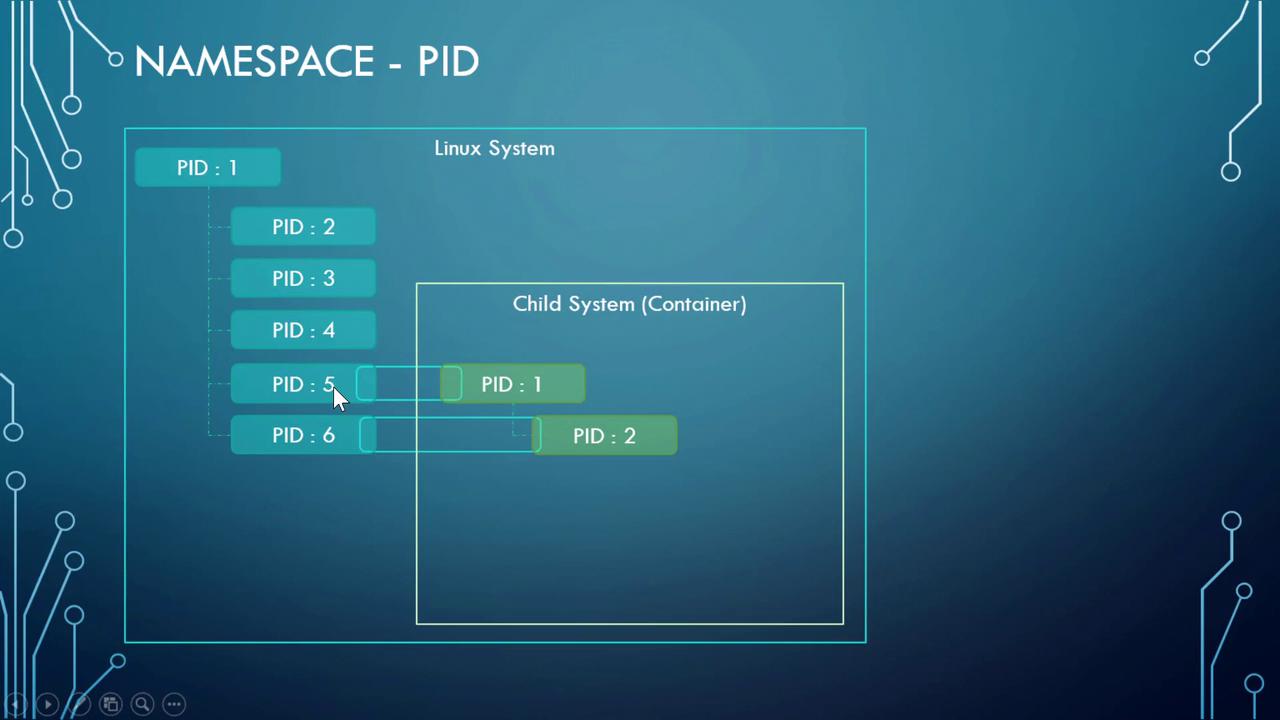
This demo has illustrated the concept of PID namespaces in Docker containers. By isolating process IDs within containers, Docker ensures that each container operates with its own unique process space, even though the underlying process may have a different PID on the Docker host. This is a fundamental aspect of container security and process management.Happy Dockering!