This guide covers deploying an application using Google Kubernetes Engine on Google Cloud Platform, including setting up a cluster and creating YAML files for deployment.
Welcome to this comprehensive guide on deploying an application using Google Kubernetes Engine (GKE) on the Google Cloud Platform (GCP). In this article, you’ll learn how to set up a Kubernetes cluster, create YAML definition files for pods and services, and deploy your multi-component application. Follow along as we walk through each step of the process.
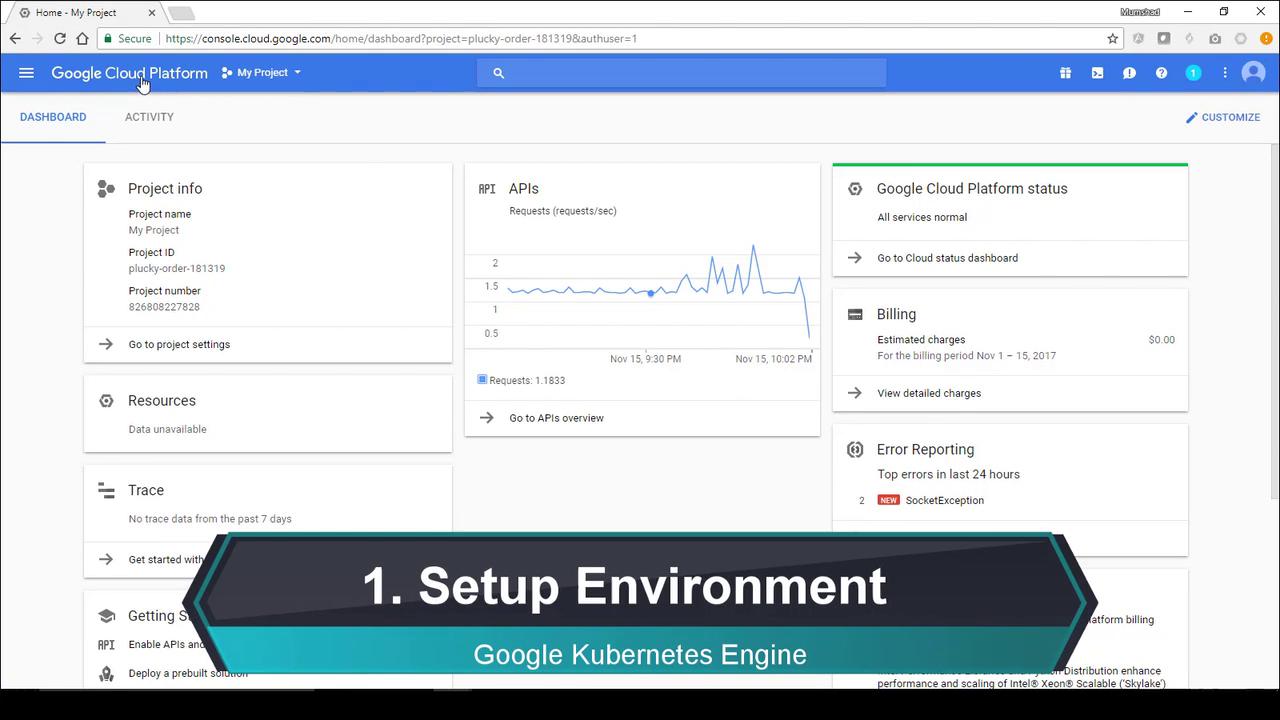
Begin by signing in to your Google Cloud Platform account. Once logged in, your dashboard will resemble the image below:
Kubernetes Engine provides a managed environment for deploying containerized applications. To get started with the command-line tool, run:
gcloud components install kubectl
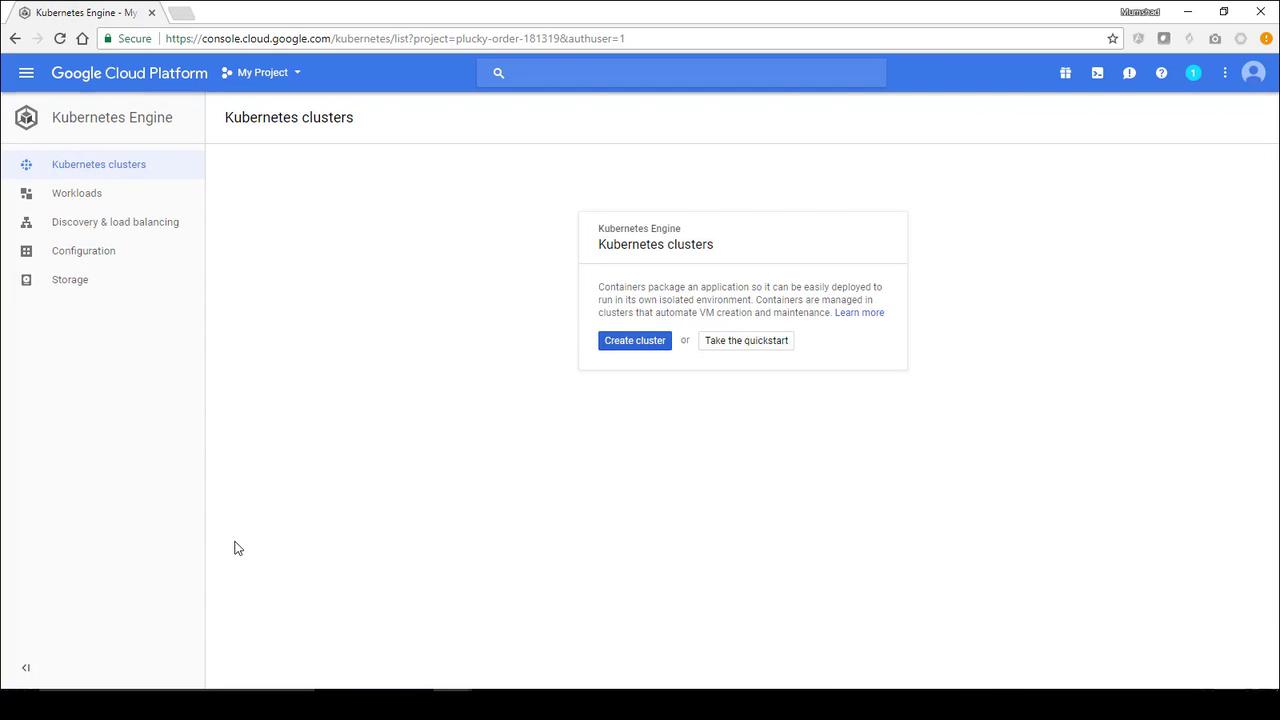
Next, from the Cloud Console menu, select Kubernetes Engine to access the dashboard. If no cluster exists yet, click on Create a Cluster as shown below:
Fill in the cluster details:
Name: Use something descriptive like “example-voting-app”
Description: (Optional) Provide a brief description
Leave the remaining options as default and click Create.
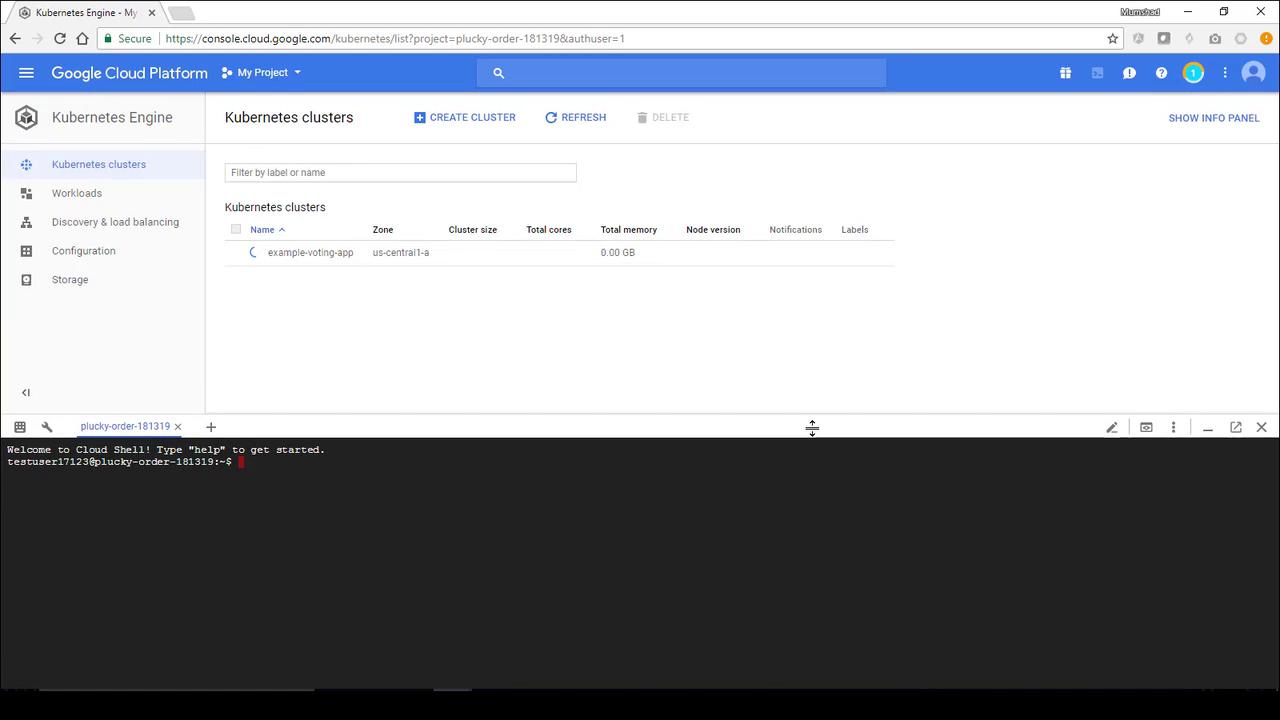
This process provisions a master node along with three worker nodes. When setup is complete, you will see a green check mark confirming the cluster is ready.Next, click on the Google Cloud Shell button located in the top right corner. The Cloud Shell offers a temporary terminal for running Kubernetes commands and will display a screen similar to the one below:
Once your cluster is ready, click the Connect button for the Voting Application cluster. Follow the provided instructions to retrieve credentials and start a proxy by running:
If the command warns that the cluster is not running, wait until the green check mark appears and execute the command again. This step ensures that your kubeconfig is correctly configured for further commands.
To verify your cluster, list the nodes:
kubectl get nodes
You should see something similar to the following output:
NAME STATUS ROLES AGE VERSIONgke-example-voting-app-default-pool-2aad9e6c-d9n5 Ready <none> 1m v1.7.8-gke.0gke-example-voting-app-default-pool-2aad9e6c-ldq4 Ready <none> 1m v1.7.8-gke.0gke-example-voting-app-default-pool-2aad9e6c-x9pp Ready <none> 1m v1.7.8-gke.0
Similarly, verify that no pods are running yet:
kubectl get pods
You can also list the Kubernetes-created default service with:
kubectl get services
With your cluster ready, the next step is to create YAML definition files for the application components.
On your local development environment, create a folder called example-voting-app-kube. This folder will contain the YAML files for each component of the voting application.
Check the service details. Initially, the external IP might be listed as \<pending>:
kubectl get services
Monitor the load balancer creation in the “Discovery and load balancing” section of the Cloud Console. Once the external IP is provisioned, you can access the voting app in your browser.
Once the load balancer services are active and the external IP addresses are available, simply enter those IPs in your browser. As you cast votes, you will see the results update in near real-time.
This guide demonstrated how to create a Kubernetes cluster on Google Cloud Platform, prepare YAML files for various pods and services, and deploy a multi-component application encompassing the voting app, worker, result app, Redis, and PostgreSQL. Services are configured to ensure seamless communication between components as well as external access via load balancers.Thank you for reading this guide. Enjoy experimenting with Kubernetes and GCP, and happy deploying!For further reading, consider exploring the following resources: