

Exploring the Project Selector
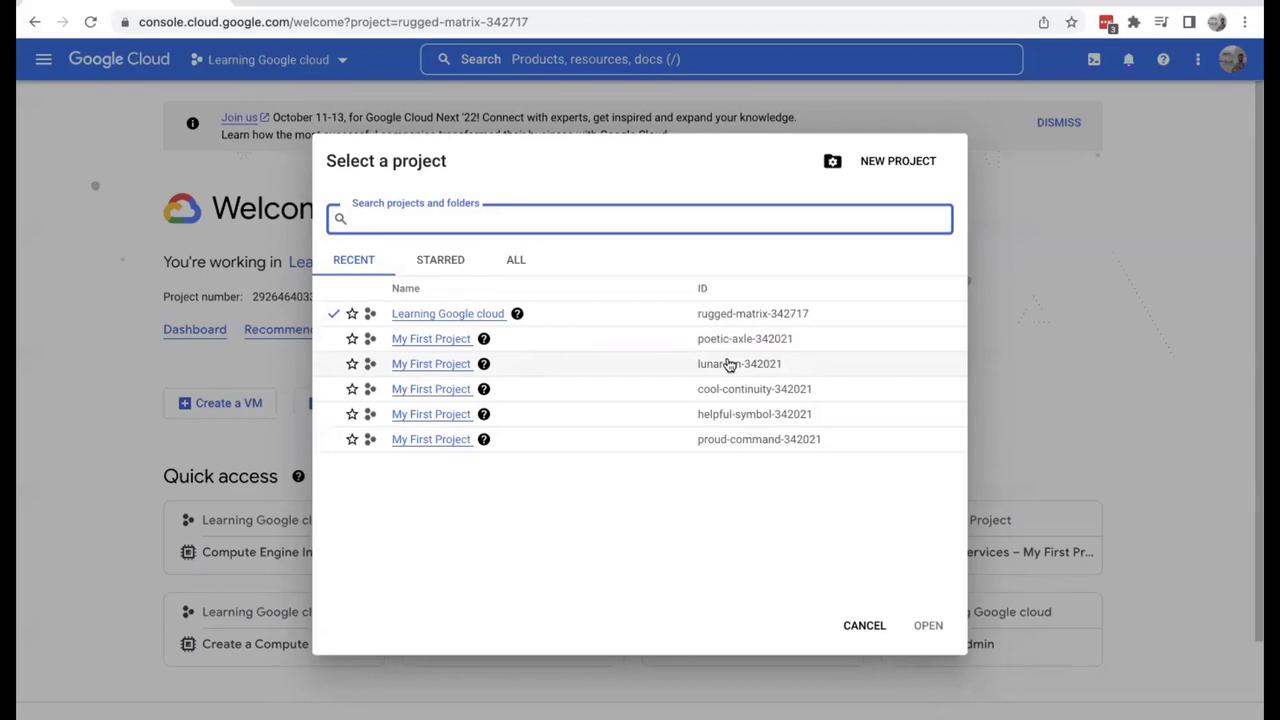
Currently, I am working within a project named “learning Google Cloud.” When you click on the project selector, you’ll notice multiple projects listed—even if some share the same name. Although names may be identical, remember that the project IDs are unique. It’s essential to ensure that project IDs remain unique across all projects.Project IDs in GCP are globally unique. Always verify the project ID you are working with to avoid any configuration issues.
Creating a New Project
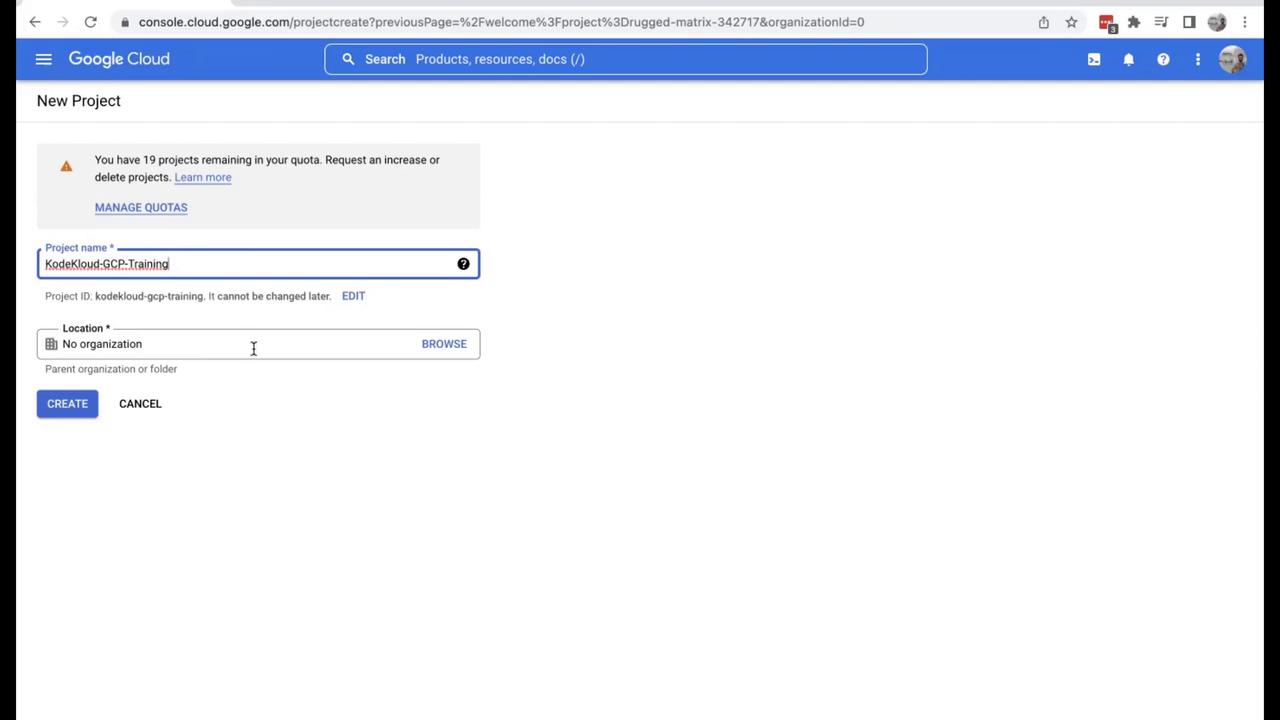
Within the selector, you can also see that projects may belong to an organization—if one has been established—or exist without one. You can bookmark frequently used projects by starring them. To create a new project, follow these steps:- Click “New Project”.
- Enter a project name. For example, I have named this project “KodeKloud GCP Training”.
- Leave the organization location unchanged.
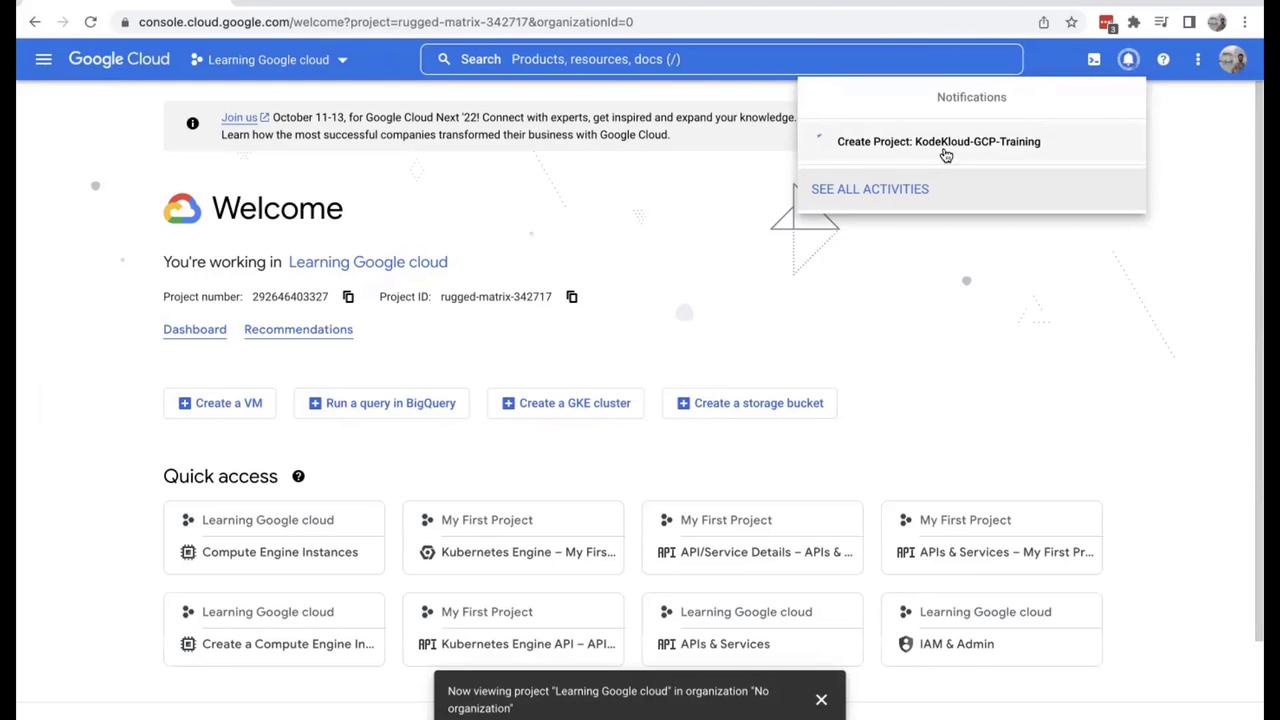
- Click “Create”.
Understanding the Importance of GCP Projects
Every project in GCP serves as a logical separation within an organization. For instance, in a company issuing credit cards, different departments—such as fraud detection, credit card payments, and notifications—might be organized as separate projects. This separation simplifies administration and resource management. A common question arises: Can resources in one project interact with those in another? The answer is yes. Provided the projects belong to the same folder and organization, inter-project interactions are possible.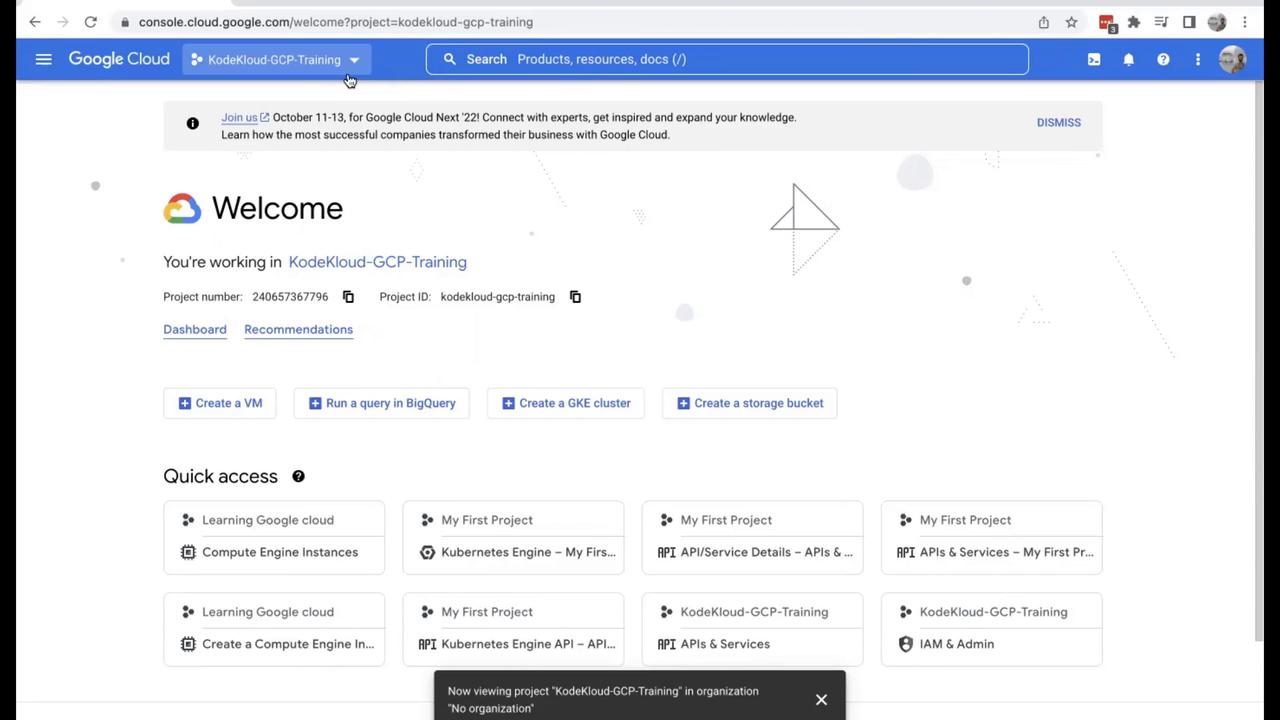
Resources from separate projects can interact as long as they are in the same organizational context. This flexibility is particularly useful when managing projects across different departments.
Best Practices for GCP Project Management
When you join an organization with a pre-established GCP project structure, it is uncommon to create new projects daily. Often, organizations have been using GCP for many years, with the architecture set long before your involvement. New projects are typically created to support new departments or initiatives.Always double-check that you have selected the correct project in the GCP console before executing any operations. This helps ensure that your actions affect the intended resources.