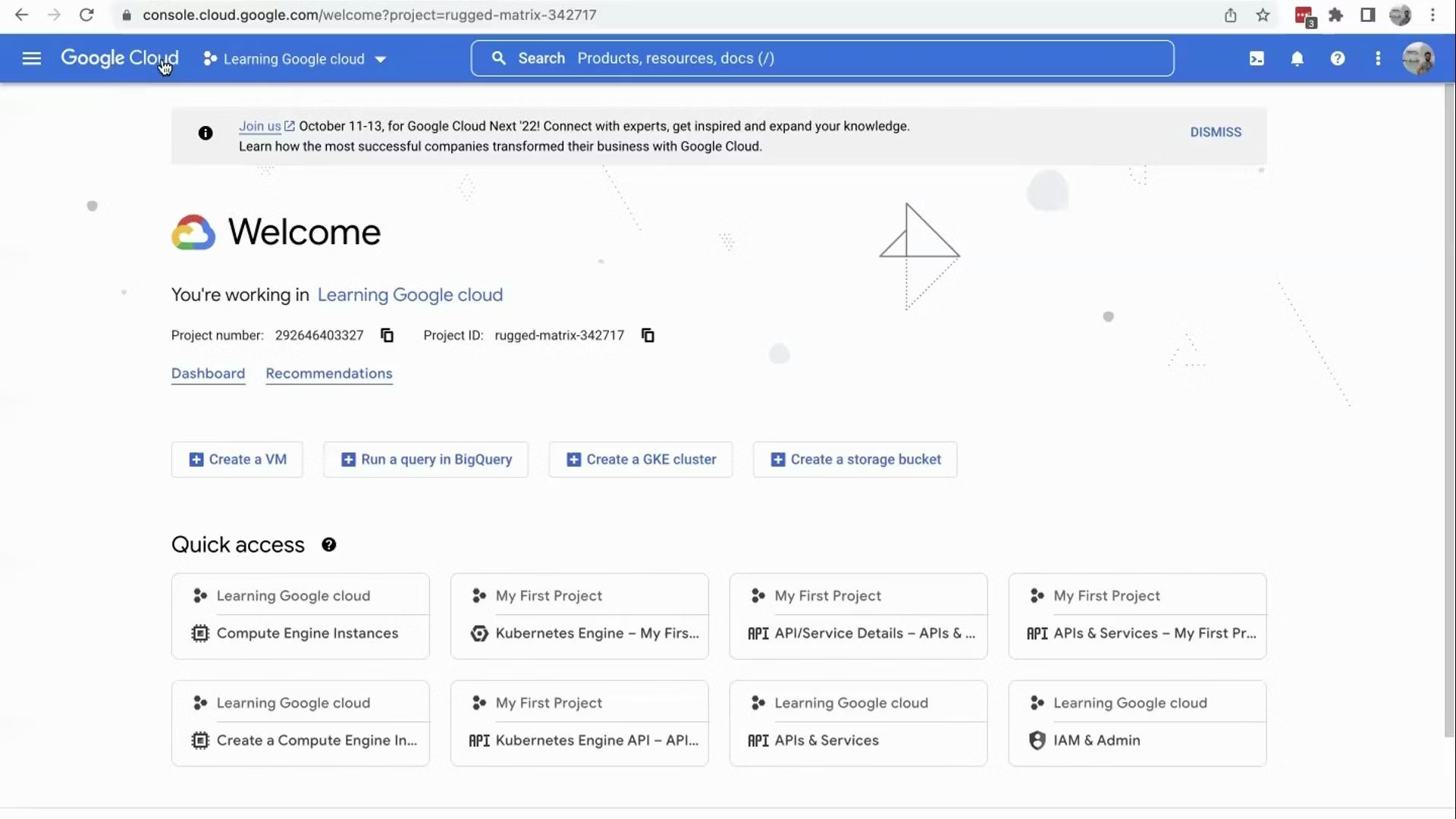
Welcome back. In this lesson we’ll explore the Google Cloud Platform (GCP) Console dashboard: how to navigate it, where to find key project identifiers, and which dashboard panels help you monitor and manage resources. At the top-left of the console you’ll see the Google Cloud logo and the current project selector. In this demo the active project is “Learning Google Cloud.”
A screenshot of the Google Cloud Console welcome page for a project named "Learning Google cloud," showing the project number and project ID. Quick-access tiles and buttons are visible for creating a VM, running a BigQuery query, creating a GKE cluster, and creating a storage bucket.
Why the project matters
  • Project ID: a user-assigned, globally unique string used in APIs and resource names.
  • Project number: a system-assigned numeric identifier used internally by GCP and in some support scenarios.
Project ID is a user-assigned, globally unique string identifier (used in APIs and resource names). Project number is a system-assigned numeric identifier that is also unique and is used internally by GCP. Keep both handy when configuring services or opening support requests.
Top-bar features
  • Quick search: find GCP resources, Console pages, or documentation.
  • Cloud Shell (terminal icon): launches an in-browser shell with gcloud and Linux tools. When active, a small terminal appears at the bottom of the Console.
  • Notifications (bell icon): view recent events and messages about your account and resources.
  • Project-level controls and quick actions near the right side of the header.
Example: quickly check the currently active project from Cloud Shell or a local terminal:
# Show the active project ID
gcloud config get-value project

# Describe the current project (returns project number, name, and more)
gcloud projects describe $(gcloud config get-value project)
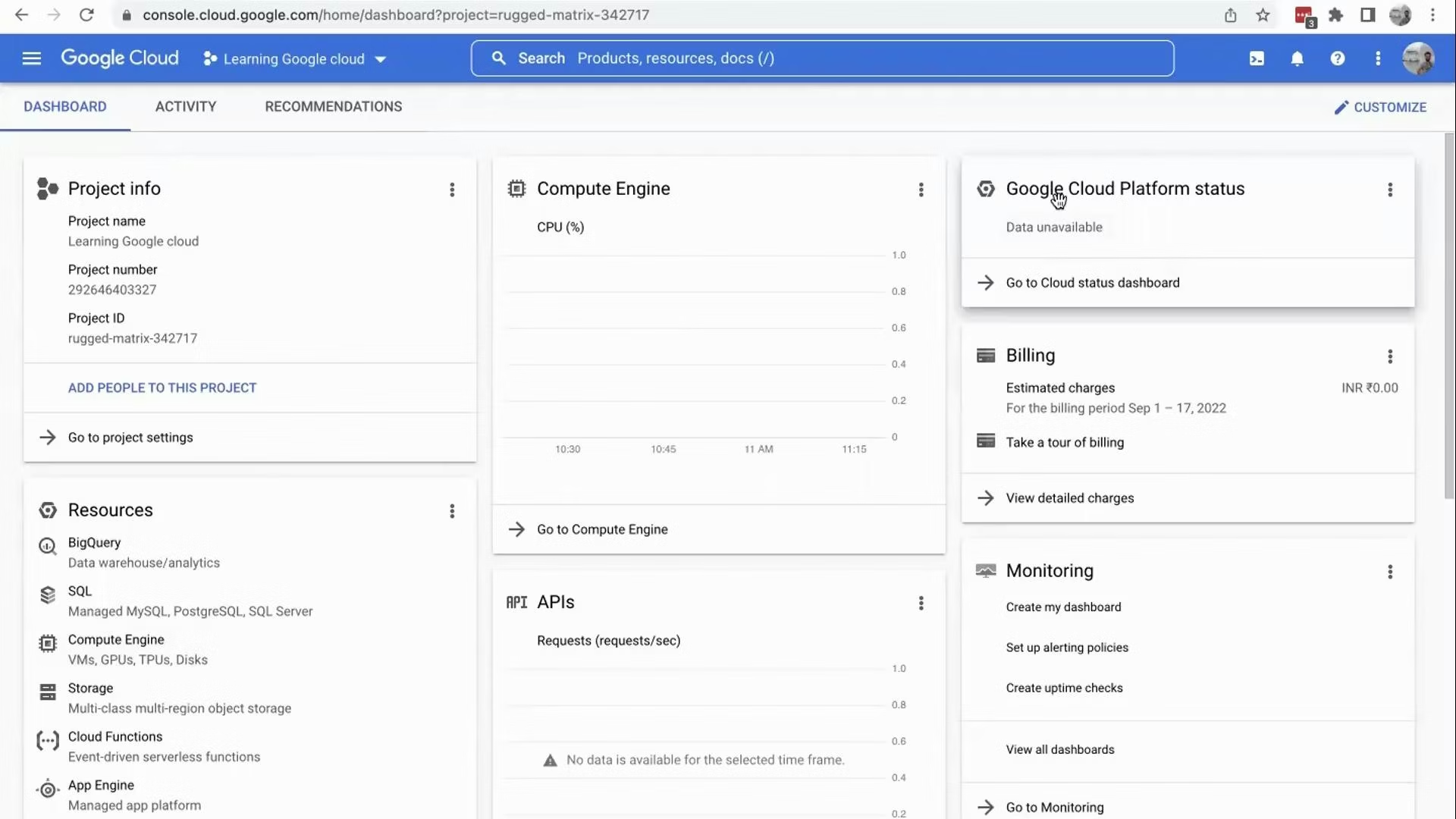
Dashboard overview Clicking Dashboard opens a project-centric page that aggregates resource summaries, usage charts, and quick links to common services.
A screenshot of the Google Cloud Console dashboard showing project info and service panels (Compute Engine, APIs, Resources, Billing, Monitoring, and Cloud Platform status). The project name "Learning Google cloud" and various widgets and charts are visible.
Key dashboard panels and what they show
PanelPurposeTypical actions
Project detailsName, project ID, project numberCopy IDs for CLI/API use
Resource summariesRecently used services and top resourcesJump to specific services (Compute, Storage, BigQuery)
Compute EngineVM status and quick-create linksCreate, stop, or connect to VMs
Billing overviewSpend, alerts, and billing account linksReview charges and set budgets/alerts
MonitoringUptime checks and metric chartsOpen Cloud Monitoring dashboards
Cloud Platform statusService incidents and outagesCheck current platform health
Activity, audit logs, and recommendations
  • Activity: lists who performed which actions in the Console—useful for operational auditing and troubleshooting.
  • Recommendations: GCP analyzes your resources and suggests improvements (security, cost optimization, performance).
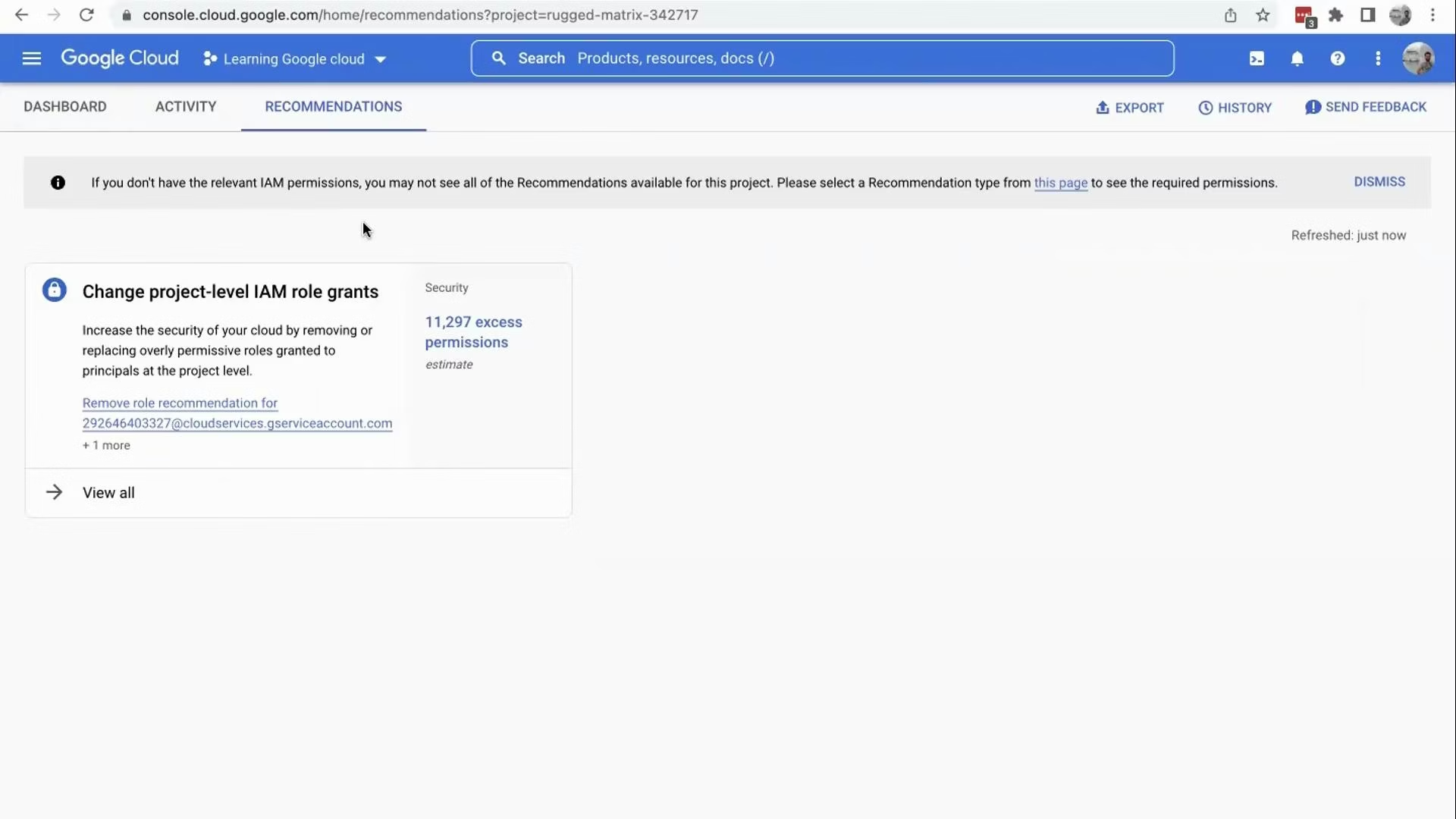
A screenshot of the Google Cloud Console "Recommendations" page showing a card advising to change project-level IAM role grants with a link to remove a role and an estimated "11,297 excess permissions." The top navigation and search bar (Dashboard, Activity, Recommendations) plus export/history/send feedback icons are visible.
Using Recommendations effectively
  • Typical suggestions include reducing overly broad IAM role grants (excess permissions) or rightsizing compute resources to save costs.
  • Treat recommendations as starting points—review the details and test changes in a non-production environment before applying them at scale.
Quick links and further reading Summary The GCP Console dashboard is your central navigation hub for inspecting project metadata, launching Cloud Shell, reviewing activity/audit logs, and discovering Recommendations. Use the dashboard to quickly access common services and to get high-level operational and billing insights for your project. We’ll use this dashboard later to demonstrate resource hierarchy and hands-on examples. That’s it for this lesson.

Watch Video