

Setting Up the Instance Group
Begin by logging into the GCP Console and confirming that you are in the correct project. Follow these steps to set up your instance group:- Navigate to Compute Engine by searching for “Compute” and selecting Compute Engine.
-
In the Compute Engine section, go to Instance Groups and create a new instance group.
- Name the instance group: simple instance group
- Add a description, for example, this is a simple application.
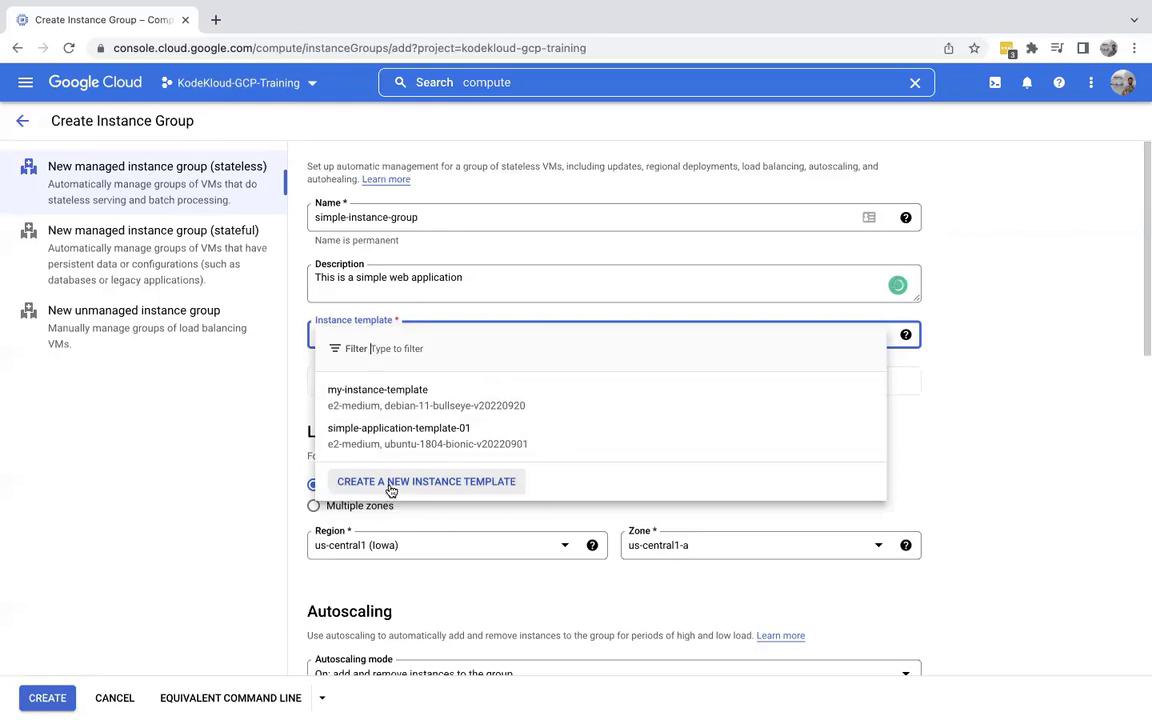
Creating an Instance Template
When creating the instance template, follow these instructions:- Name the template simple instance group (or simple instance for brevity).
- Add a metadata key-value pair where the key is ENV and the value is development.
- Keep the machine type as default. Scroll down to the boot script section, click Change, and select Ubuntu.
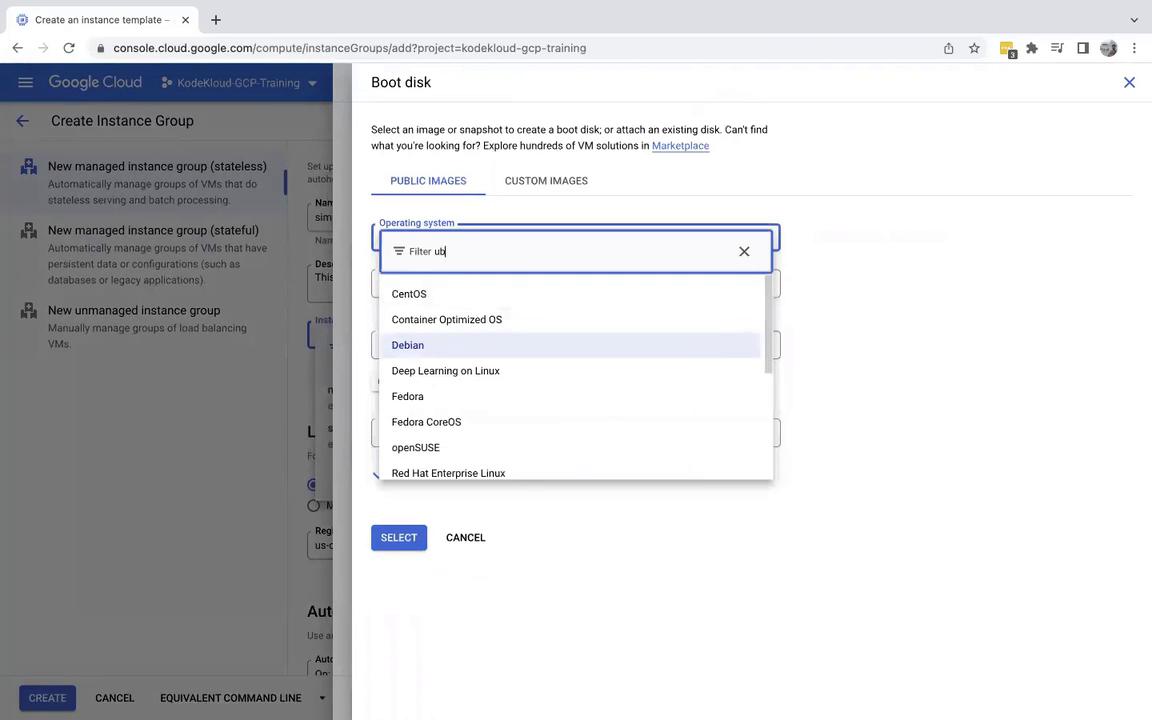
If you receive an error indicating that the selected compute instance is not compatible with the chosen Ubuntu version, switch to the Intel version (x86_64) and click Select.
Understanding Instance Templates and Startup Scripts
An instance template is a blueprint for your virtual machines within an instance group. Ensure the following within the template:- In the firewall section, enable both the HTTP and HTTPS traffic options. Enabling HTTP is crucial for external accessibility to your web application.
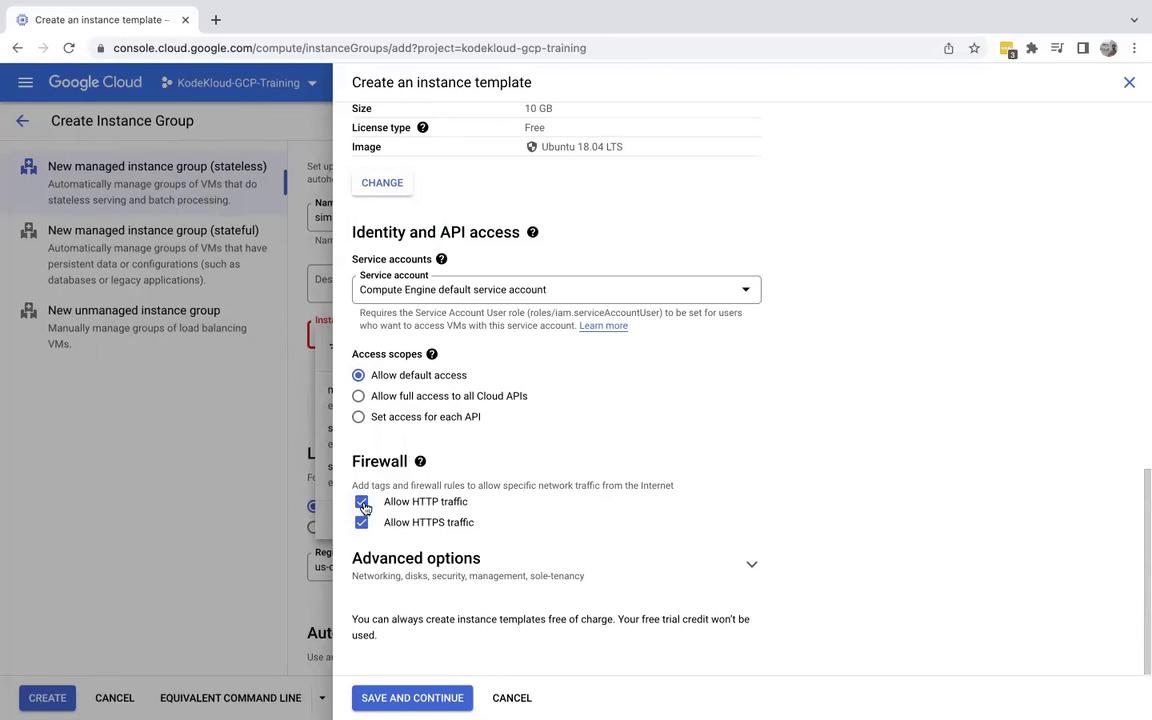
Configuring a Startup Script
Under Advanced Options, navigate to Management where you will find the startup script section. A startup script automates the process of installing and configuring your application after the VM boots. Consider the following simple Bash startup script:Even if the startup script encounters an error, the virtual machine will continue running. You can extend this script to install additional packages or configure other services as necessary.
- Minimum instances: 2
- Maximum instances: 5
Verifying the Instance Group and Application
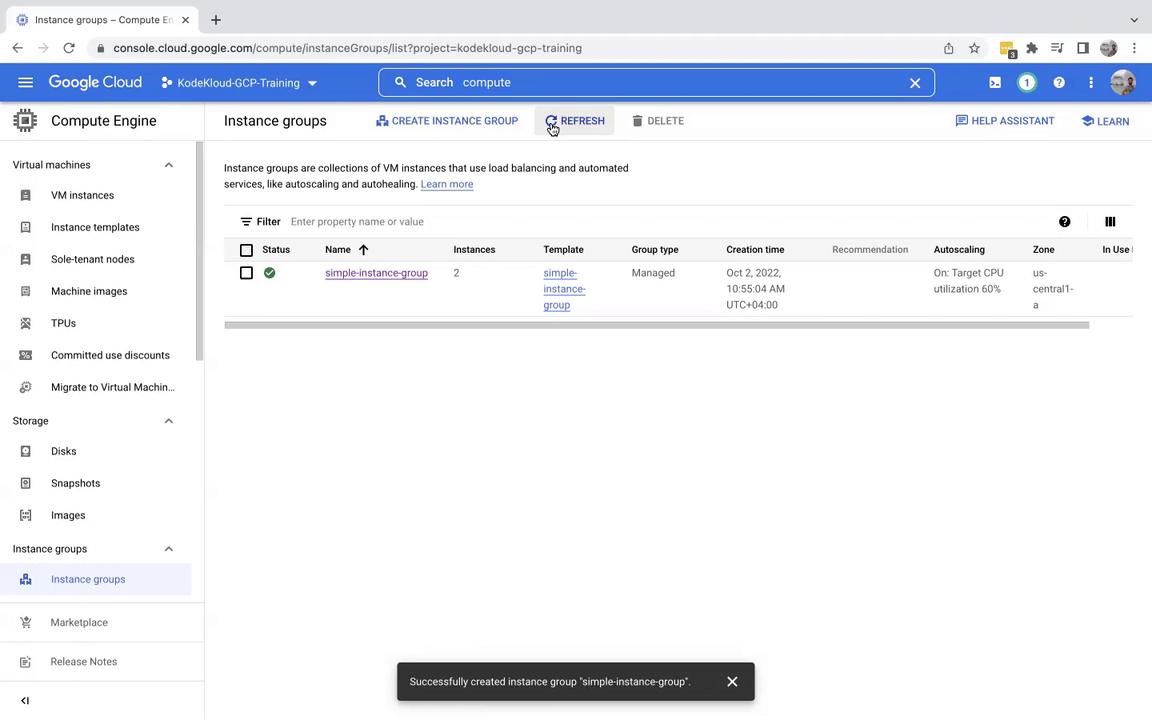
After setting up the instance group, verify that everything is functioning as expected by checking the individual instances. Follow these steps:- Confirm that the startup script ran successfully by inspecting each instance.
- Refresh the instances section to see the external IP addresses assigned.
- Access the web application by clicking on an external IP address. Remember to use the HTTP protocol (not HTTPS). If the page does not load immediately, allow a few minutes for the updates.
Configuring the HTTP Load Balancer
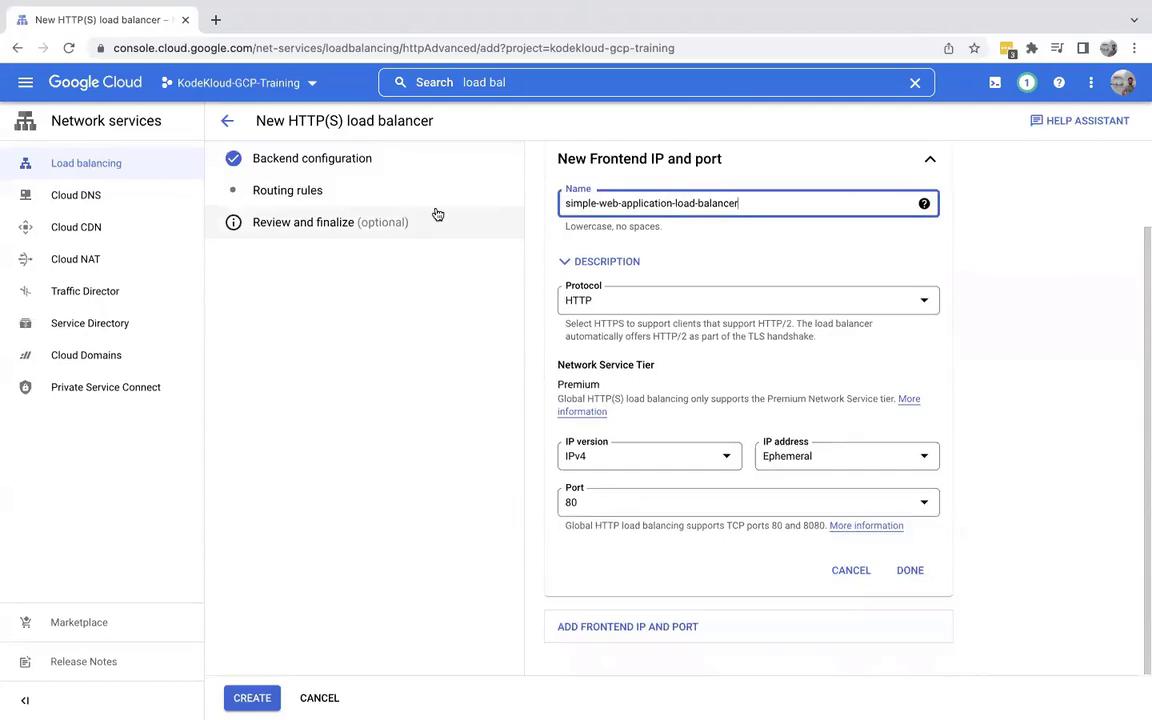
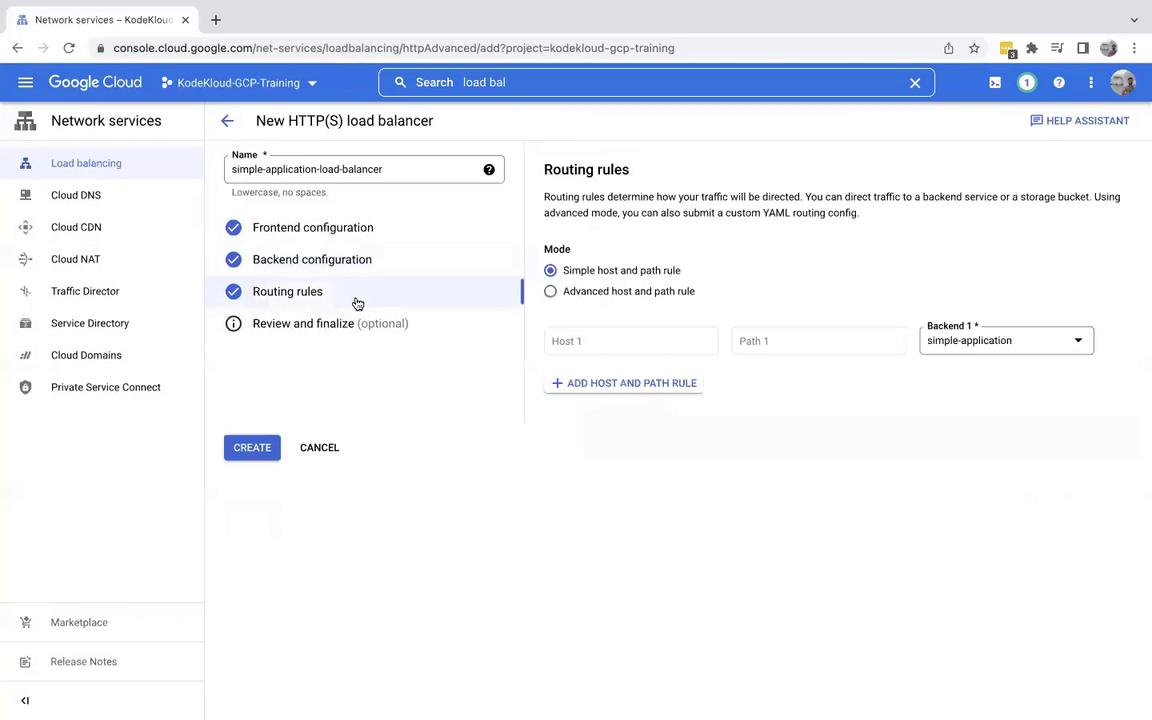
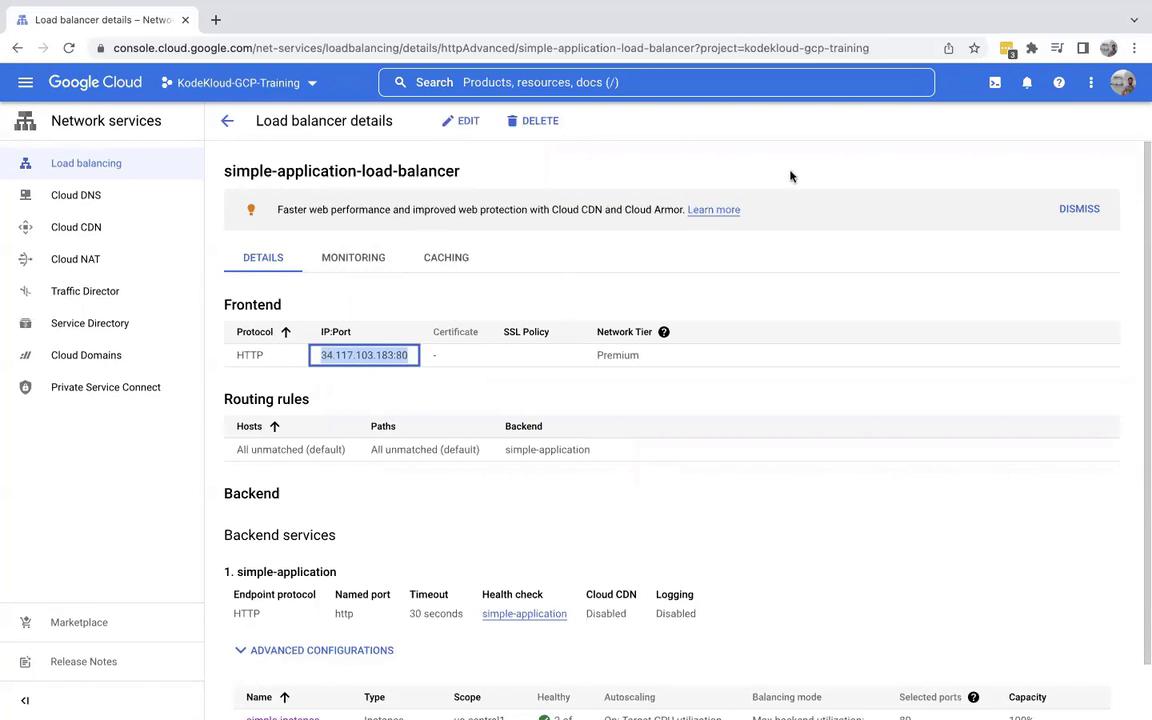
Next, set up an HTTP Load Balancer to distribute incoming traffic across your instances.- In the GCP Console, search for Load Balancer and create a new HTTP load balancer (initially, leave all configurations as default).
- Name the load balancer simple application load balancer.
Configuring the Backend Service
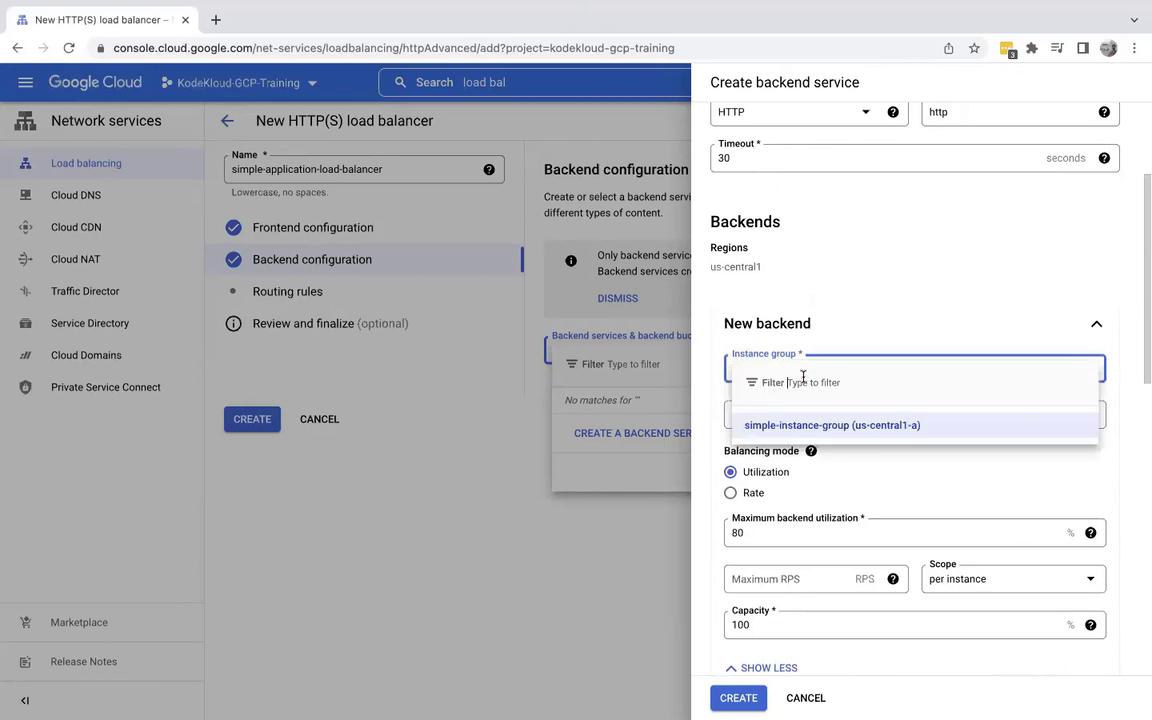
For the backend configuration, perform the following actions:- Create a backend service and choose the previously created instance group.
- Set the backend port to 80.
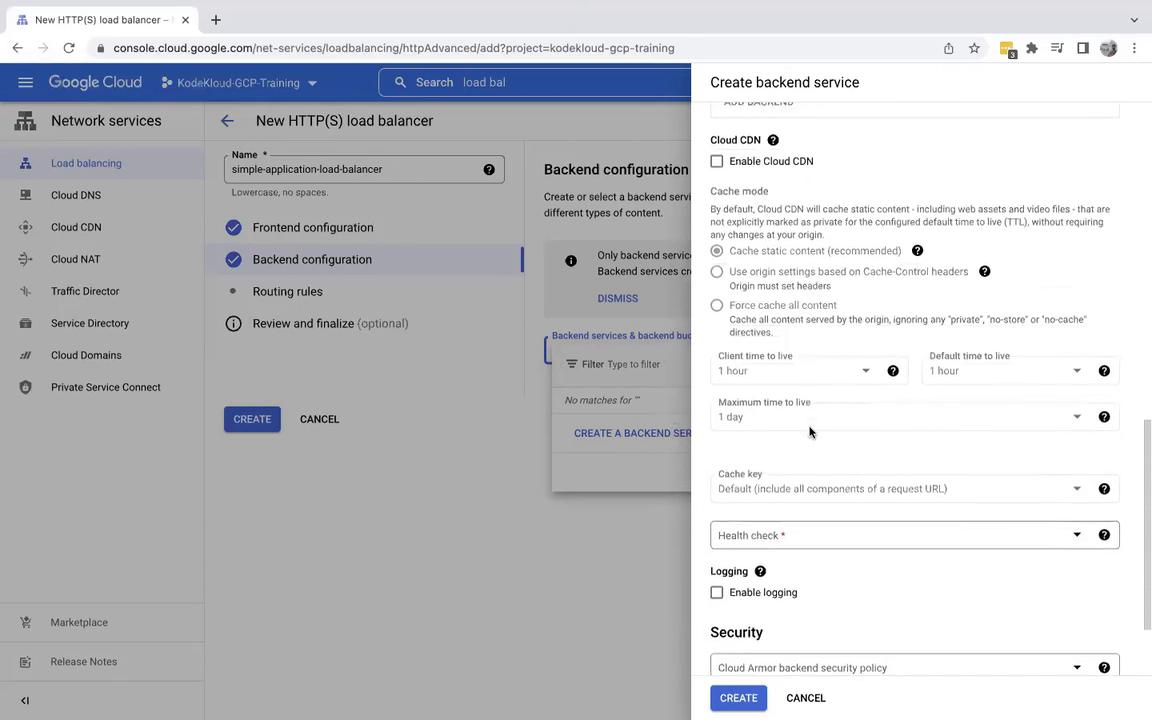
- Enable the default settings.
- Create a health check titled Simple application to verify port 80 using HTTP. This health check ensures traffic is only directed to healthy instances.
Cleaning Up Resources
Once you have verified that your deployment is working correctly, it is important to clean up your resources to avoid incurring additional charges. The cleanup process should be performed in the following order:- Delete the load balancer (this will also remove the associated health check).
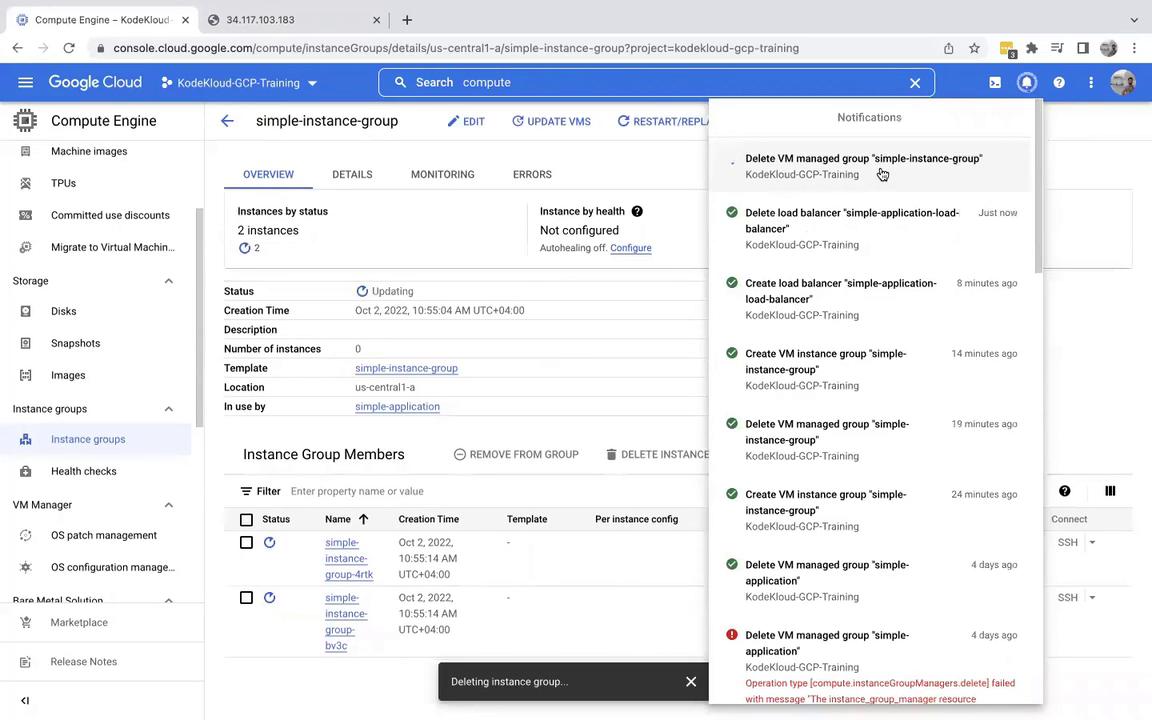
- Navigate to Compute Engine > Instance Groups and then delete the instance group.
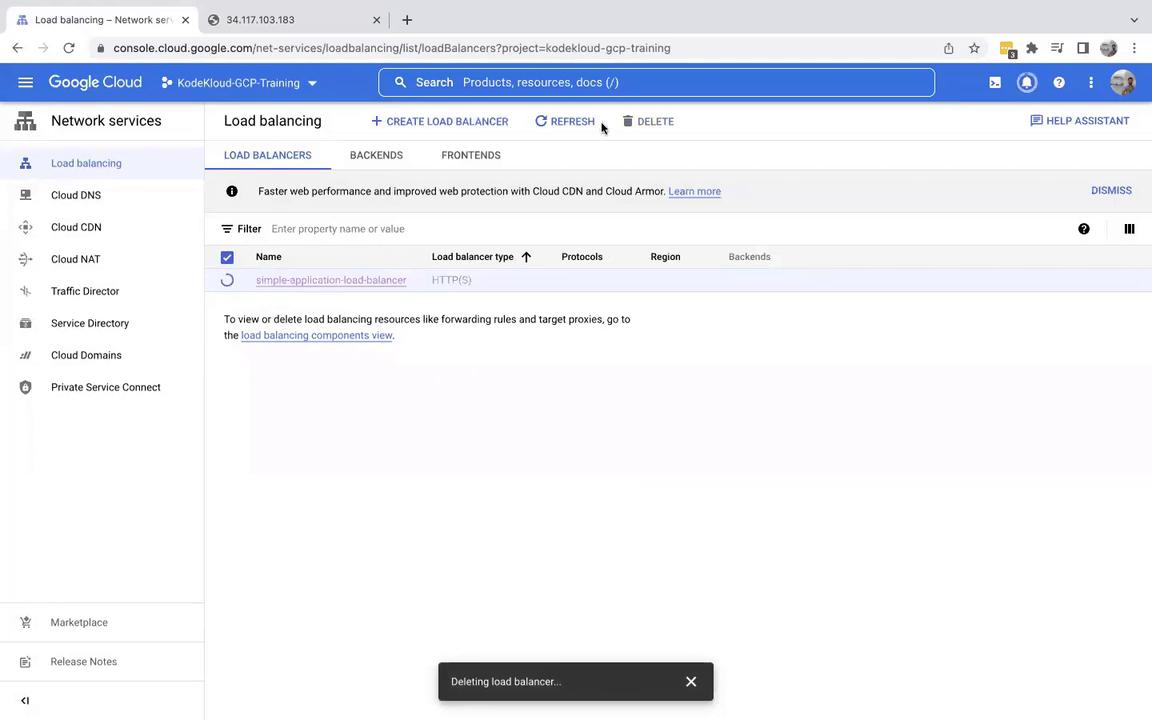
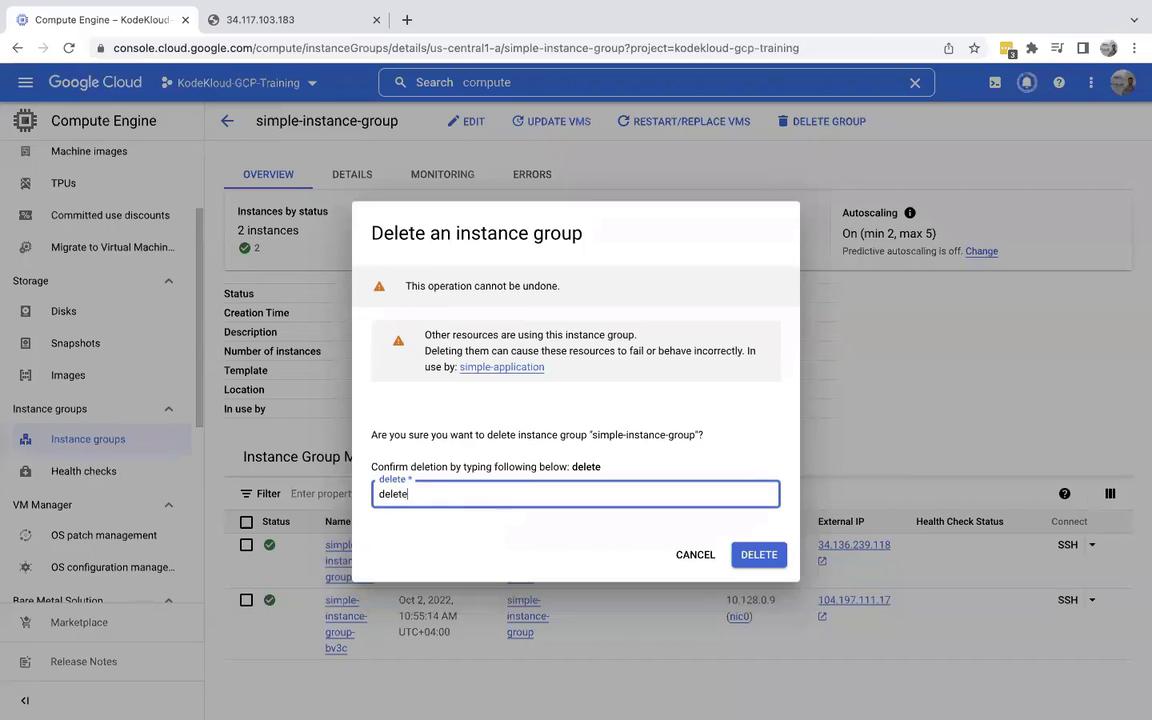
Ensure that you delete the load balancer before deleting the instance group to avoid dependency errors.
Conclusion
This lab article demonstrated how to:- Create and configure an instance group with a custom instance template.
- Automate application deployment using a startup script.
- Set up an HTTP load balancer to distribute traffic among virtual machines.
- Perform clean-up of resources to reduce unnecessary charges.