This lesson explores regular expressions for advanced text searching and demonstrates their application in filtering and matching patterns in text.
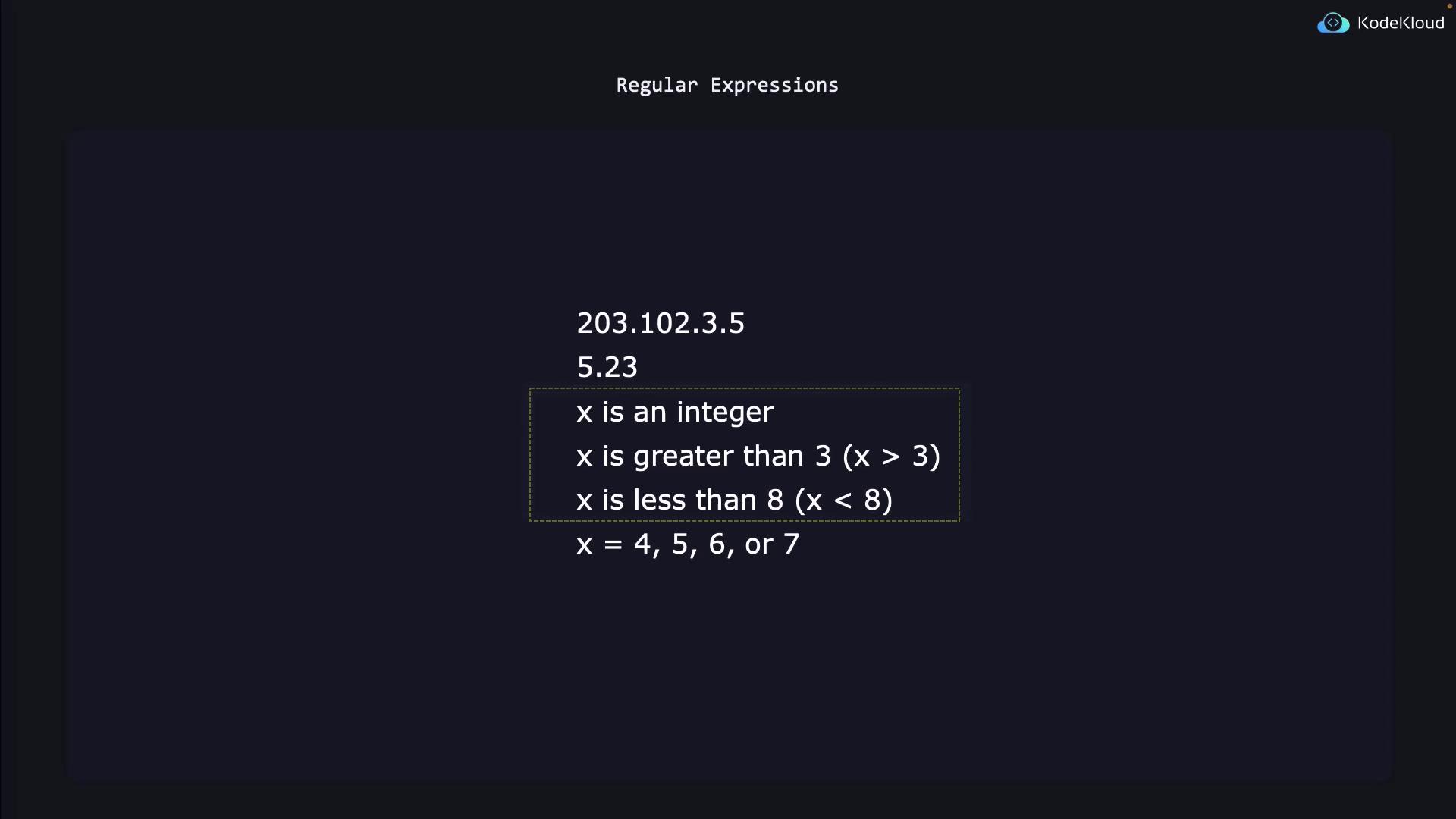
In this lesson, we explore regular expressions—commonly known as regex—and demonstrate how they can be used for advanced text searching. In earlier lessons, we relied on simple search patterns for precise text pieces (such as passwords). But as search conditions become more complex, regex helps to refine those queries. For instance, if you need to extract all IP addresses (e.g., 203.102.3.5) from hundreds of application files, a naive pattern that only looks for numbers separated by periods might accidentally capture values like 5.23 that don’t represent valid IP addresses.Just like in mathematics where you can define conditions for an integer (for example, when x is greater than 3 and less than 8 so that x is 4, 5, 6, or 7), regex lets you specify and combine conditions to form patterns that match only the text meeting those criteria.
We’ll begin with simple examples and gradually progress to more complex expressions. Regular expressions are built using various operators such as the caret (^), dollar sign ($), period (.), asterisk (*), plus sign (+), braces (), question mark (?), vertical pipe (|), brackets ([]), and parentheses (()). Each operator has a distinct function that helps tailor your search.
Matching Commented Lines in Linux Configuration Files
In Linux configuration files, lines starting with a pound sign (#) are interpreted as comments. Although these lines are ignored by the system, they provide valuable context and documentation for humans. To search for these commented lines, you can build a regex that matches lines beginning with a pound sign by placing the caret operator (^) at the start of the pattern.
Use the caret operator (^) to ensure that your search starts at the beginning of the line.
For example, to list all lines that start with a pound sign:
$ grep '^#' /etc/login.defs
If you want to display only non-commented lines, combine this with grep’s invert option (-v):
This approach is very effective for filtering out cluttered comments in large files.Similarly, to search for lines that start exactly with the letters “PASS,” use:
Sometimes you may need to change a setting that’s currently set to a specific value (for example, seven days). A naive search using:
$ grep '7' /etc/login.defs
might inadvertently match other instances of the digit 7. To refine the search, anchor the pattern to the end of the line using the dollar sign ($) if you know the variable value occurs last on the line:
$ grep -w '7$' /etc/login.defs
This ensures that only lines ending with the digit 7 are captured. Additionally, to target lines ending with the word “mail,” you can use:
$ grep 'mail$' /etc/login.defs
Remember, the caret (^) specifies the start, while the dollar sign ($) specifies the end of the line.
The period (.) is a wildcard character in regex that matches any single character. For example, the pattern C.T would match strings such as “cat,” “cut,” “CRT,” “C1T,” or “C#T,” whereas it wouldn’t match “CT” because there must be exactly one character between C and T. Similarly, C..T ensures there are exactly two characters between C and T.To match whole words rather than sub-strings within larger words, leverage grep’s -w option:
$ grep -r 'c.t' /etc/
For a recursive search with whole word matching, use:
The asterisk (*) specifies that the preceding element can occur zero, one, or many times. For example, consider the pattern that matches “let” followed by zero or more “T” characters using let*. This pattern can match “LE,” “LET,” “LETT,” and so on.A recursive search example with the asterisk:
$ grep -r 'let*' /etc/
Be aware that the asterisk can also make the preceding character optional. For instance, the pattern 0* will match lines regardless of whether the digit 0 is present:
$ grep -r '0*' /etc/
To search for lines where the digit 0 appears one or more times, use the plus operator (+). Note that grep’s Basic Regular Expressions (BRE) require you to escape the plus sign:
$ grep -r '0\+' /etc/
Using Extended Regular Expressions with grep’s -E option eliminates the need for escaping the plus sign.
When working with grep, consider using the -E option for Extended Regular Expressions to simplify your patterns and avoid confusion with escaped characters.
Understanding how to strategically place operators like ^ and $ for anchoring searches, . for matching any character, and * or + for repetitions is key to building efficient regular expressions. Mastering these basics lays the groundwork for more advanced techniques, which we will explore in the next lesson on Extended Regular Expressions.For more detailed documentation and examples, check out the Kubernetes Documentation and other related technical resources.