This article explains how to access Linux command documentation and help directly from the command line for better usability and understanding.
Linux commands offer a plethora of command-line switches, making it challenging to remember every option. As you use a command regularly, you naturally learn the available options. However, during your initial attempts, it’s common to forget them after only a few tries. That’s why Linux offers several ways to access built-in help manuals and documentation directly from the command line.For example, when using the long listing format with the ls command, you might not recall if the correct option is -P or something else. Instead of guessing, you can instantly refer to the help text by typing:
Copy
Ask AI
$ ls --helpUsage: ls [OPTION]... [FILE]...List information about the FILEs (the current directory by default).Sort entries alphabetically if none of -cftuvSUX nor --sort is specified.Mandatory arguments to long options are mandatory for short options too. -a, --all do not ignore entries starting with . -A, --almost-all do not list implied . and .. -B, --ignore-backups do not list implied entries ending with ~ -I, --ignore=PATTERN do not list implied entries matching shell PATTERN -k, --kibibytes default to 1024-byte blocks for disk usage -l use a long listing format -c with -lt: sort by, and show, ctime (time of last modification of file status information);
Scrolling through the output, you can quickly locate the specific option you need (for example, the -L flag). Notice how all the command-line options are neatly sorted alphabetically and come with concise descriptions.
Below is an example workflow where you use the help option and then list the directory contents:
Copy
Ask AI
$ ls --helpUsage: ls [OPTION]... [FILE]...List information about the FILEs (the current directory by default).Sort entries alphabetically if none of -cftuvSUX nor --sort is specified.Mandatory arguments to long options are mandatory for short options too. -a, --all do not ignore entries starting with . -A, --almost-all do not list implied . and .. -B, --ignore-backups do not list implied entries ending with ~ -I, --ignore=PATTERN do not list implied entries matching shell PATTERN -k, --kibibytes default to 1024-byte blocks for disk usage -l use a long listing format -c with -lt: sort by, and show, ctime (time of last modification of file status information); with -l: show ctime and sort by name; otherwise: sort by ctime, newest first$ ls -lbin/ libexec/ sbin/lib/ local/ share/
Using the --help flag is especially useful when you momentarily forget an option—even for commands featuring numerous switches.
For more complex commands, you may need a comprehensive explanation. Take journalctl for example, a command used to read system logs. Entering journalctl --help will provide detailed information:
Copy
Ask AI
$ journalctl --helpjournalctl [OPTIONS...] [MATCHES...]Query the journal.Options: --system Show the system journal --user Show the user journal for the current user -M --machine=CONTAINER Operate on local container -S --since=DATE Show entries not older than the specified date -U --until=DATE Show entries not newer than the specified date -C --cursor=CURSOR Show entries starting at the specified cursor --after-cursor=CURSOR Show entries after the specified cursor --show-cursor Print the cursor after all the entries -b --boot[=ID] Show current boot or the specified boot --list-boots Show terse information about recorded boots
When you run this command, the output is presented in a pager, allowing you to scroll through the text with the arrow keys or page up/page down, and by pressing Q, you can exit the viewer.
Copy
Ask AI
$ journalctl --helpjournalctl [OPTIONS...] [MATCHES...]Query the journal.Options: --system Show the system journal --user Show the user journal for the current user -M --machine=CONTAINER Operate on local container -S --since=DATE Show entries not older than the specified date -U --until=DATE Show entries not newer than the specified date -c --cursor=CURSOR Show entries starting at the specified cursor --after-cursor=CURSOR Show entries after the specified cursor --show-cursor Print the cursor after all the entries -b --boot[=ID] Show current boot or the specified boot --list-boots Show terse information about recorded boots
Every significant command in Linux comes with its own manual (“man”) page. To access a command’s manual, type:
Copy
Ask AI
$ man journalctl
This displays a brief description, a synopsis outlining the command syntax, and a detailed explanation of how the command works. For instance:
Copy
Ask AI
$ man journalctlJOURNALCTL(1)NAME journalctl - Query the systemd journalSYNOPSIS journalctl [OPTIONS...] [MATCHES...]DESCRIPTION journalctl may be used to query the contents of the systemd(1) journal as written by systemd-journald.service(8). If called without parameters, it will show the full contents of the journal, starting with the oldest entry collected. If one or more match arguments are passed, the output is filtered accordingly. A match is in the format "FIELD=VALUE", e.g. "_SYSTEMD_UNIT=httpd.service", referring to structured journal entry components. See systemd.journal-fields(7) for a list of well-known fields. When multiple matches cover different fields, the log entries are filtered by all; if two matches apply to the same field, they function as alternatives (logical OR). The character "+" can also be used as a separator to combine matches in a disjunction.
Many manual pages also conclude with practical examples. For example, the journalctl man page provides examples such as:
Copy
Ask AI
man journalctlEXAMPLESWithout arguments, all collected logs are shown unfiltered:journalctlWith one specified match, only the log entries matching the expression are shown:journalctl _SYSTEMD_UNIT=avahi-daemon.serviceWhen matching two different fields, only entries that satisfy both conditions are displayed simultaneously:journalctl _SYSTEMD_UNIT=avahi-daemon.service _PID=28097If two matches refer to the same field, entries matching any of the specified values are shown:journalctl _SYSTEMD_UNIT=avahi-daemon.service _SYSTEMD_UNIT=dbus.serviceUsing the separator "+", you can combine expressions with a logical OR. For example, the command below displays all messages from the Avahi service process with PID 28097 along with all messages from the D-Bus service regardless of its process:journalctl _SYSTEMD_UNIT=avahi-daemon.service _PID=28097 + _SYSTEMD_UNIT=dbus.service
Use manual pages to deepen your understanding of each command’s options and usage. This practice is especially beneficial during exams or when you need a quick refresher.
Sometimes, two man pages may share the same command name. For example, there is both a command and a programming function for printf. The manual categorizes these pages into sections. You can observe this by checking the man page for man itself:
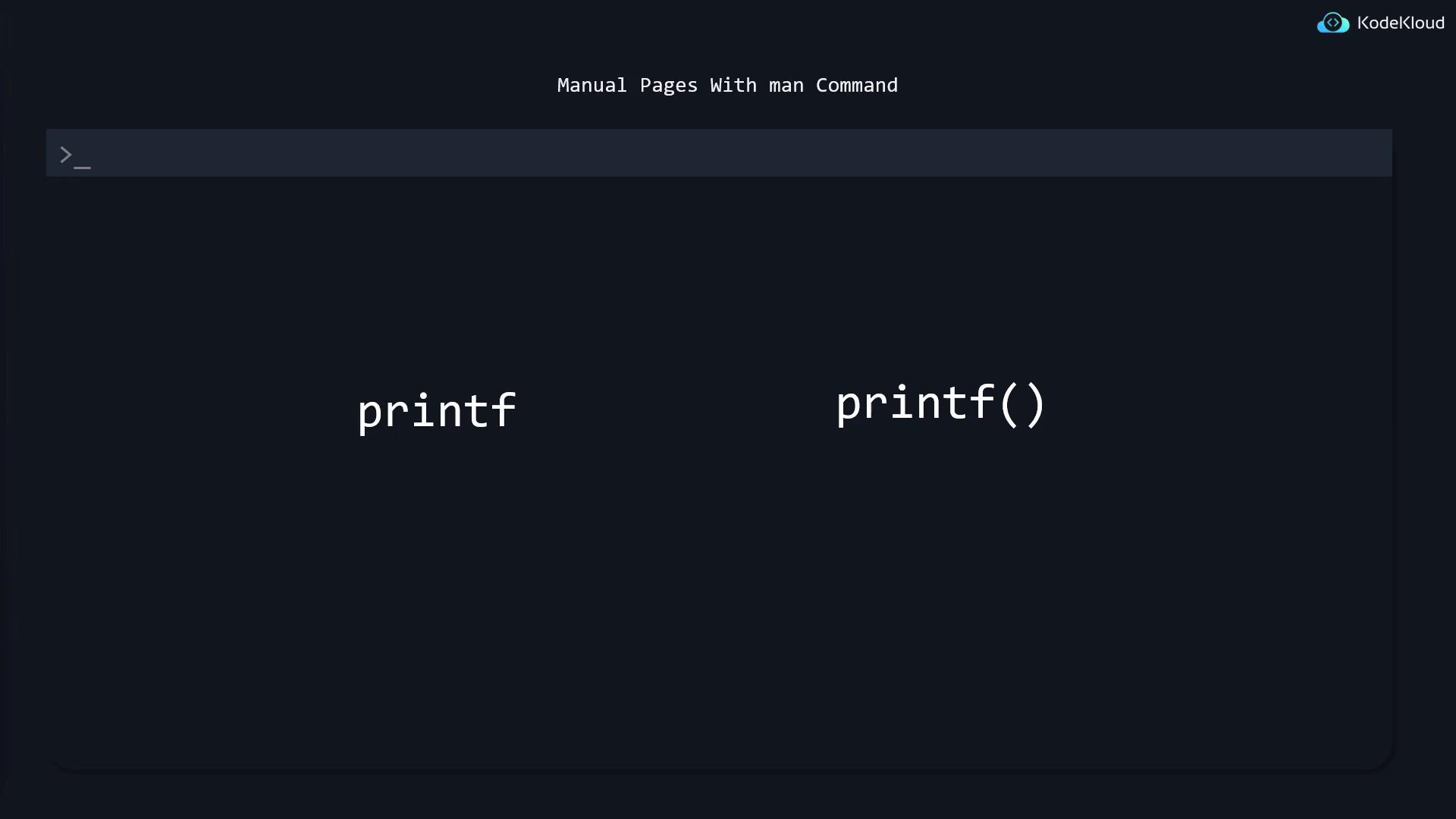
To view the manual page for the printf command itself, specify section 1:
Copy
Ask AI
$ man 1 printf
For the printf function (used in programming), specify section 3:
Copy
Ask AI
$ man 3 printf
During online exams, the Linux Foundation allows the use of both man and the --help option, so remember to utilize them if you forget a command option.
Copy
Ask AI
$ man man$ man 1 printf$ man 3 printf
Delving into a manual page might take some time, but it is invaluable in understanding the inner workings of a command.
What if you can’t remember the name of the command you need? The apropos command searches the man page database for keywords in their short descriptions.
For instance, to search for man pages related to directories, you might enter:
If you encounter an error, it might be because the mandb database hasn’t been created or updated. You can generate or update it manually with:
Copy
Ask AI
$ sudo mandb
After updating the database, running:
Copy
Ask AI
$ apropos director
will list relevant entries, such as mkdir. Keep in mind that apropos displays entries from all sections—including system calls from section 2—which may be overly advanced for everyday use. Since common commands are usually located in sections 1 and 8, you can filter the results using the -s option:
Copy
Ask AI
$ apropos -s 1,8 directorls (1) - list directory contentsls (1p) - list directory contentsmcd (1) - change MSDOS directorymdeltree (1) - recursively delete an MSDOS directory and its contentsmdir (1) - display an MSDOS directorymdu (1) - display the amount of space occupied by an MSDOS direc...mkdir (1) - make directoriesmkdir (1p) - make directoriesmkdir (2) - create a directorymkdir (3p) - make a directory relative to directory file descriptormkdirat (2) - create a directory
This filtering can help you quickly locate the specific command you need.
Another useful feature in Linux is command auto-completion. When you type a command like systemctl and press TAB, the terminal automatically completes the command. For example:
Copy
Ask AI
$ systemctl
Many commands provide auto-completion suggestions for additional arguments. For instance, after entering systemctl followed by a space, pressing TAB twice might display options such as:
Copy
Ask AI
$ systemctladd-requires emergency isolate poweroff showadd-wants enable is-system-running preset show-environmentcancel exit kexec reboot startcat force-reload kill reenable statuscondreload get-default link reload stopcondrestart halt help reload-or-restart suspendcondstop list-dependencies list-jobs rescue switch-root
Note that auto-completion may not list every single option. For example, if you type:
Copy
Ask AI
$ systemctl list-dependencies
and then press TAB, the command might auto-complete the remaining text.Auto-completion isn’t limited to commands—it also applies to file and directory names. For example:
Copy
Ask AI
$ ls /usr/bin/lib/libexec/local/sbin/share/
For long filenames like wordpress_archive.tgz, you might only have to type the first few characters (e.g., wor) and press TAB to complete the name.
While help pages and manuals are invaluable, the initial learning curve might be steep. A good exercise is to choose a command you’re less familiar with and learn it exclusively by using man and the --help option. This method is especially useful during exams when theoretical questions may probe knowledge you may have forgotten. Proficiency in quick look-ups using manual pages can save you significant time.Consider additional command options often found in manual pages, such as those for grep:
Copy
Ask AI
-I equivalent to --binary-files=without-match-d, --directories=ACTION how to handle directories; ACTION is 'read', 'recurse', or 'skip'-D, --devices=ACTION how to handle devices, FIFOs and sockets; ACTION is 'read' or 'skip'-r, --recursive recurse like --directories=recurse-R, --dereference-recursive likewise, but follow all symlinks--include=GLOB search only files that match GLOB (a file pattern)--exclude=GLOB skip files that match GLOB--exclude-from=FILE skip files that match any file pattern from FILE--exclude-dir=GLOB skip directories that match GLOB-L, --files-without-match print only names of FILEs with no selected lines-l, --files-with-matches print only names of FILEs with selected lines-c, --count print only a count of selected lines per FILE-T, --initial-tab make tabs line up (if needed)-Z, --null print 0 byte after FILE nameContext control:-B, --before-context=NUM print NUM lines of leading context-A, --after-context=NUM print NUM lines of trailing context-C, --context=NUM print NUM lines of output context-NUM print NUM lines between matches with context--group-separator=SEP print SEP on line between matches with context--no-group-separator do not print separator for matches with context--color=[WHEN], use markers to highlight the matching strings; --colour=[WHEN] WHEN is 'always', 'never', or 'auto'-U, --binary do not strip CR characters at EOL (MSDOS/Windows)When FILE is '-', read standard input. With no FILE, read '.' if recursive, '!' otherwise. With fewer than two FILEs, assume -h.Exit status is 0 if any line is selected, 1 otherwise; if any error occurs and -q is not given, the exit status is 2.Report bugs to:[email protected].GNU grep home page: <https://www.gnu.org/software/grep/>General help using GNU software: <https://www.gnu.org/gethelp/>aaron@kodekould:~$
By practicing with these manual pages, you’ll develop the skills to quickly look up details and gain a deep understanding of options—an essential ability for effective Linux system administration and for successfully passing exams.
Regularly using the man and help commands can significantly improve your proficiency, ensuring you’re well-prepared for any Linux system task or exam challenge.