

- File system tree structure
- Absolute paths
- Relative paths
Listing Files and Directories
To list files and directories—including hidden files (those starting with a dot)—use thels -la command. The -a flag stands for “all” and the -l flag provides a detailed, long listing format. Here are some examples:
ls -l /var/log displays detailed information such as file permissions, ownership, and modification dates. Combining options is also possible:
Using combined options like
ls -ahl makes it quicker to view comprehensive file information.Understanding the File System Tree
Linux organizes files and directories in what’s known as a file system tree. In this inverted hierarchy, the root is at the top and branches (subdirectories) and leaves (files) extend downward. The root directory is represented by a forward slash (/), and it forms the base for other essential directories such as home, var, and etc.
Absolute and Relative Paths
Absolute Paths
Absolute paths start from the root directory (/) and specify the complete location of a file or directory. For example, consider the following absolute path leading to a file named Invoice.pdf:
/home/aaron/Documents/Invoice.pdf
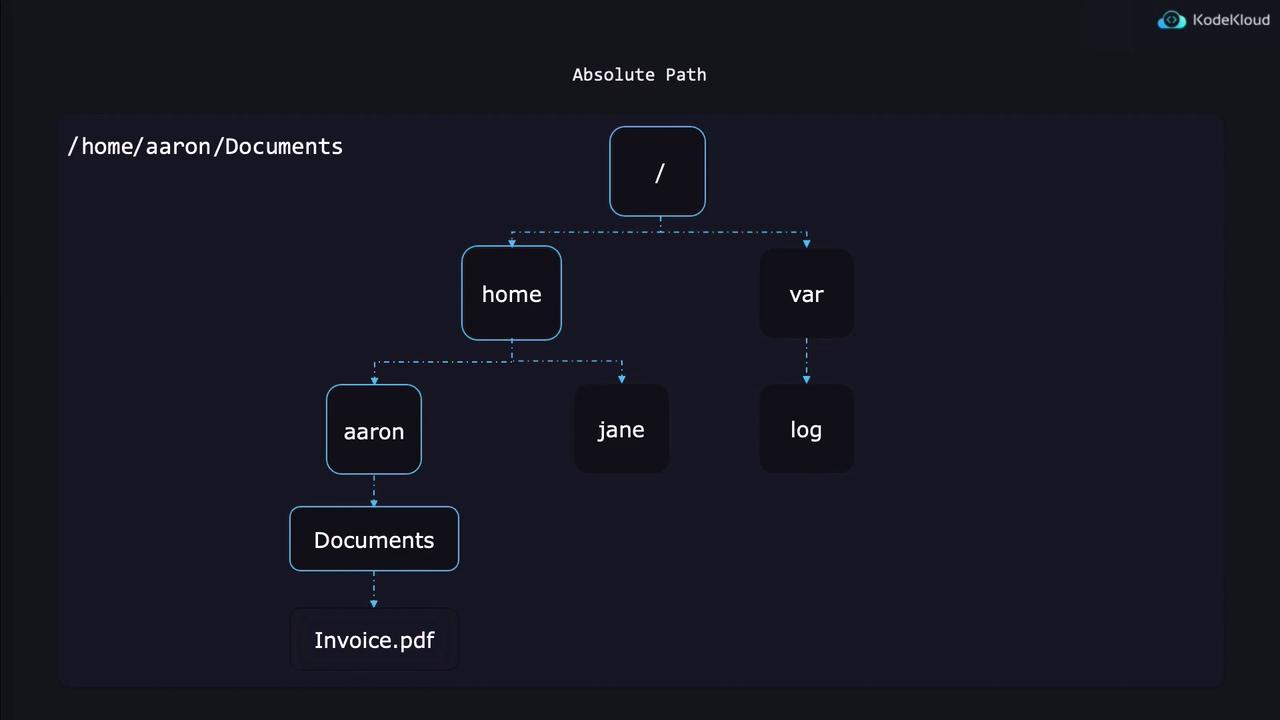
Relative Paths
Relative paths are defined in relation to your current working directory. To display your current directory, use thepwd command:
/home/Aaron or /home/Jane). Changing directories can be done using the cd command:
.. refers to the parent directory. For example, if you are in /home/Aaron, executing cd .. will take you to /home.
Relative Path Examples
Assume your current directory is/home/Aaron:
-
To access a file inside the
Documentssubdirectory: -
To access a file in the current directory:
-
To access a file located one directory above:
.. to move up multiple levels (e.g., ../../Invoice.pdf moves up two levels).
Additional directory commands:
-
Switch to the root directory:
-
Return to your previous directory:
-
Return to your home directory:
Creating Files and Directories
To create a new file, use thetouch command. For example, to create receipt.pdf in the current directory:
mkdir command:
Copying Files and Directories
Thecp command copies files. You provide a source file and specify a destination. For instance, to copy receipt.pdf to the receipts directory:
receipts/) specifies that the destination is a directory. To copy and rename a file simultaneously:
-r (recursive) flag:
Ensure the destination directory (e.g.,
BackupOfReceipts/) does not already exist when using recursive copying, as behavior may vary across systems.Moving and Renaming Files and Directories
Themv command is used for moving files between directories or renaming them. Here are some examples:
-
To move a file into another directory:
-
To rename a file:
-
To rename a directory:
mv handles them by default.
Deleting Files and Directories
To delete files, use therm command. For example, to remove Invoice.pdf:
-r flag:
Always double-check the command before running
rm -r to avoid accidental deletion of important files or directories.