Archive Back Up Compress Unpack and Uncompress Files Optional
This article explores methods for archiving, compressing, and backing up files in Linux to streamline the backup process.
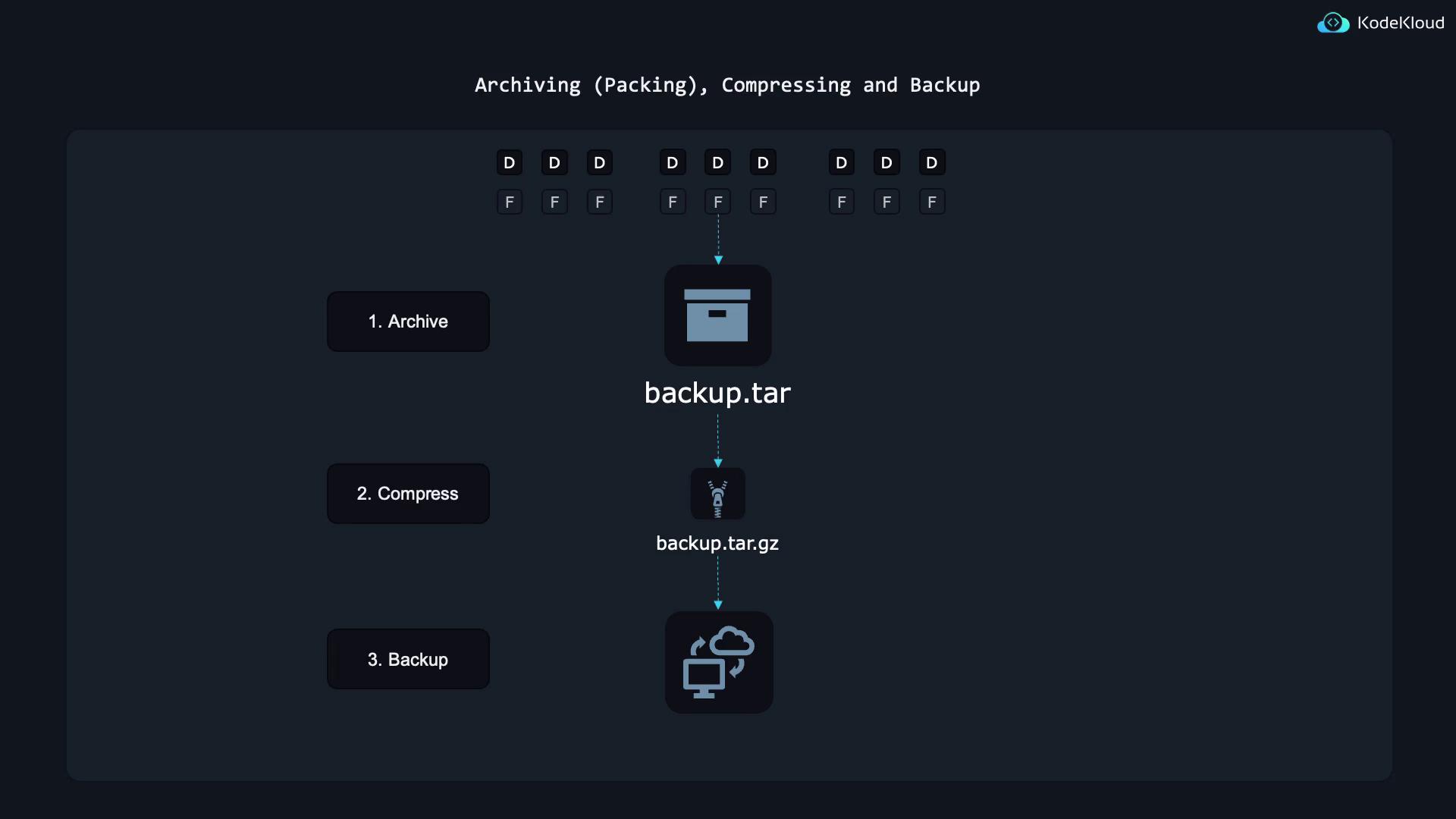
In this article, we explore efficient methods for archiving files in Linux, compressing them, and backing them up to a remote location. This tutorial is ideal if you manage a website or any system with thousands of files and directories and want to streamline your backup process. Instead of handling individual files, you can pack them into a single archive—often referred to as a tarball—and compress that archive to save space.When you archive files, you combine all files and directories into one file (e.g., backup.tar). This process is called archiving. Once created, the archive can be compressed (for example, to backup.tar.gz) to reduce the storage space needed. Finally, copying the compressed file to a remote location adds an extra layer of protection to your data.
In the sections that follow, we first discuss archiving, then move on to compressing the archive, and finally, we review methods to back up your compressed files to a remote location.
Tar (tape archive) was originally developed for backing up files to magnetic tapes. Although magnetic tapes are less common now, tar remains a critical tool because of its efficient way of packing and unpacking files.Tar works by combining multiple files and directories into a single file, commonly known as a tarball. This technique simplifies file transfers, uploads, or downloads, as you are working with a single file instead of many.Consider an existing archive file named archive.tar on your system. You can view its contents using any of these commands:
$ tar --list --file archive.tarfile1file2file3
$ tar -tf archive.tarfile1file2file3
$ tar tf archive.tarfile1file2file3
While the shorthand version (tar tf archive.tar) is quick to type, using the longer options like —list can be more intuitive for beginners.
Always include the -f option immediately before specifying the tar file name. This practice ensures that tar correctly identifies the subsequent argument as the archive file, preventing potential misinterpretations of your options.
To extract files into a different directory, use the -C option. For instance, if you’re in /home/errand and want to extract archive.tar’s contents to /tmp, run:
$ tar --extract --file archive.tar --directory /tmp/
Or using the shorthand version:
$ tar xf archive.tar -C /tmp/
Tar archives store file permissions and ownership information. If you extract files archived with a different user, you might not preserve the original ownership unless you run the command with elevated privileges (using sudo).
In upcoming sections, we will cover how to compress your tar archives to save space and review best practices for backing up data to remote locations. These techniques are essential for ensuring high data availability and safeguarding against data loss.For more detailed information on related topics, refer to the following resources: