

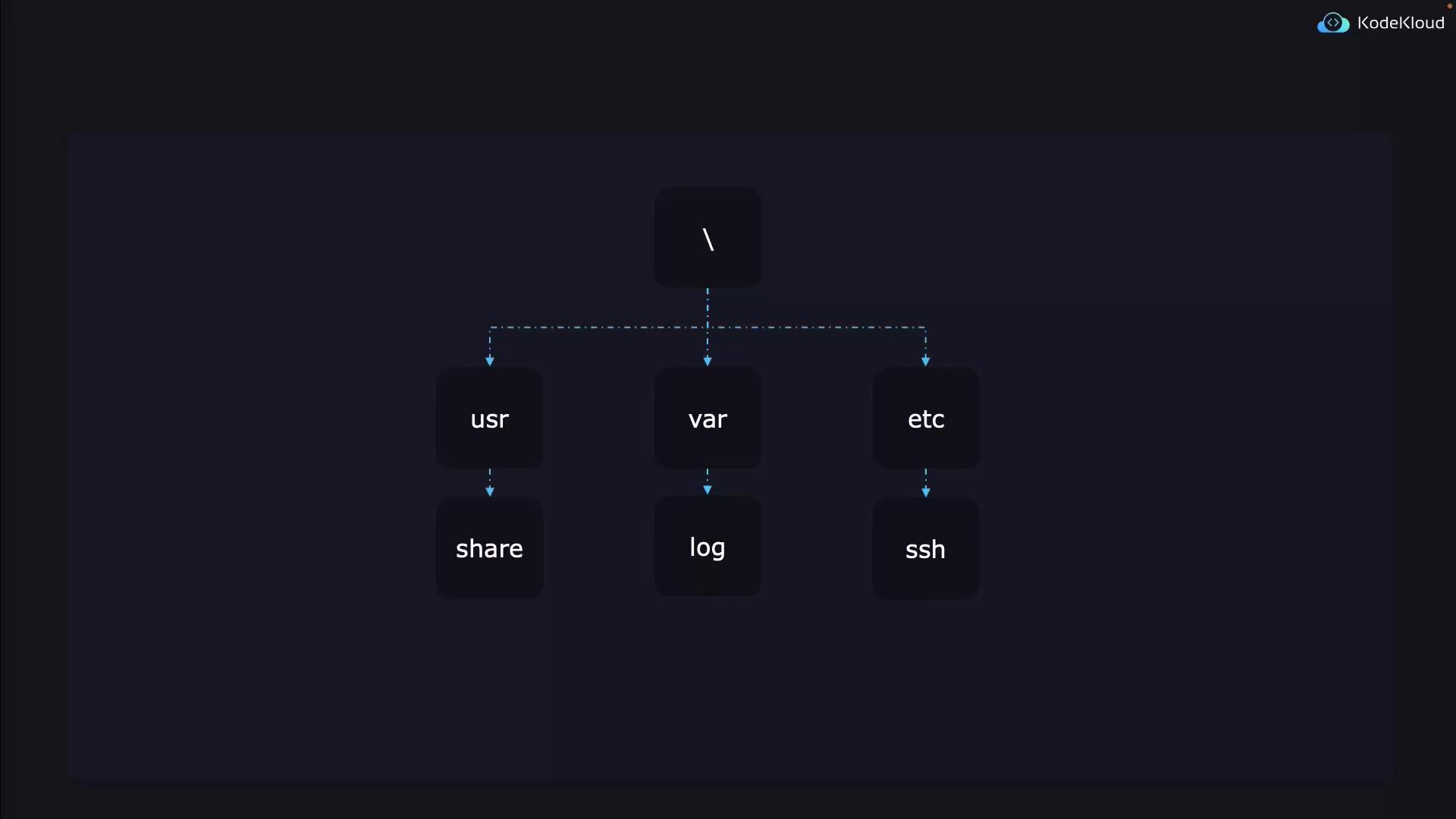
find command. Linux systems typically organize files in a structured manner—for example, SSH configuration files are usually found in /etc/ssh, while log files are maintained in /var/log. Even if you often know the file location, search commands can be invaluable for unexpected cases and complex queries.
Let’s dive into some common scenarios.
Finding Specific File Types
Imagine you have a website and need to find all JPEG images stored in/usr/share. The find command can easily list all files ending in .jpg:
Searching by File Size
In another scenario, if your server hosting virtual machines is nearly out of disk space, you might need to identify unusually large files. Although this example does not contain files larger than 20 GB, you can modify the search to find files over a specified size. For example, to search for files larger than 10 megabytes in/lib64:
Searching by Modification Time
When you update an application, you might want to identify which files were modified in the last minute. You can use the-mmin flag to achieve this:
find command in these examples shows how powerful it is for locating files based on a variety of parameters.
Basic Usage
To search for a file by name within a specific directory, use the-name parameter. For example:
find defaults to searching in the current directory. Always place the search path before the search parameters. An incorrect command such as:
Always specify the search path before your parameters to ensure accurate search results.
Detailed Search Parameters
Case Sensitivity
The-name option is case sensitive. For example, searching for “felix” will not match a file named “Felix”. Use -iname for a case-insensitive search:
Wildcard Patterns
Wildcards let you search for files matching a particular pattern. To find all files that begin with a lowercase “f”:Time-Based Searches
Search for files based on their modification time using the-mmin option, which is measured in minutes. Examples include:
-mmin 5: Finds files modified exactly 5 minutes ago.-mmin -5: Finds files modified in the last 5 minutes.-mmin +5: Finds files modified more than 5 minutes ago.
-mmin 5 targets files modified at 12:01. To include files modified at 12:00, use -mmin +5.
For searches based on days, the -mtime option is used. For instance:
-mtime 0matches files modified in the last 24 hours.-mtime 1matches files modified between 24 and 48 hours ago.
File modification time measures content changes, not the file creation time.
Change Time Versus Modification Time
Linux differentiates between modification time (when file contents change) and change time (when file metadata, such as permissions, are altered). Thefind command can help locate files that recently had their metadata changed—a useful feature if you’re troubleshooting permission issues.
Size-Based Searches
To search for files based on file size, the-size option is used. For example, to find files that are exactly 512 KB:
- No suffix: bytes
- K: kilobytes
- M: megabytes
- G: gigabytes (note that M and G must be uppercase)
+ or - sign respectively:
Combining Multiple Parameters
You can combine multiple parameters to narrow your search. For example, to find files that start with the letter “f” and are exactly 512 KB:-o between conditions.
Negation in Searches
To exclude files that meet a certain condition, use the NOT operator (-not or \!). For instance, to find all files that do not start with the letter “f”:
Remember that in the Bash shell, the exclamation mark (!) has a special meaning. Escaping it with a backslash (i.e.,
\!) ensures it is interpreted literally.Permission-Based Searches
The-perm option lets you search for files based on their file permissions. For example, to find files with exactly 664 permissions (user: read/write, group: read/write, others: read):
/) to match any of the listed permissions:
-
To find files that only the owner can read and write (600):
-
To locate files where the owner has at least execute permission:
-
To find files that others are not allowed to read:
Summary
Thefind command is a powerful tool for locating files based on various criteria such as name, size, modification time, and permissions. By understanding and combining these search parameters, you can efficiently manage and troubleshoot your Linux system.
For more in-depth information, refer to the following documentation: